RM7756HD - Baby monitor VTECH - Free user manual and instructions
Find the device manual for free RM7756HD VTECH in PDF.


| Product Type | Baby Monitor |
| Brand | VTech |
| Model | RM7756HD |
| Camera Resolution | 720p HD |
| Display Size | 5-inch color LCD |
| Night Vision | Infrared LEDs, up to 15 ft |
| Temperature Sensor | Yes |
| Two-Way Audio | Yes |
| Range (outdoor) | Up to 1000 ft |
| Range (indoor) | Up to 160 ft |
| Sound Activation (VOX) | Yes |
| Parent Unit Battery | Rechargeable Lithium-ion |
| Battery Life (standby) | Up to 10 hours |
| Battery Life (continuous viewing) | Up to 4 hours |
| Power Source | AC adapters (included) |
| Cleaning Instructions | Wipe with a dry cloth; do not use liquid cleaners |
| Safety Certifications | FCC, IC, CE |
| Spare Parts Availability | Replacement cameras and batteries available from VTech |
| Warranty | 1-year limited |
| Weight (camera) | 0.5 lbs (approx.) |
| Weight (parent unit) | 0.6 lbs (approx.) |
Frequently Asked Questions - RM7756HD VTECH
User questions about RM7756HD VTECH
0 question about this device. Answer the ones you know or ask your own.
Ask a new question about this device
Download the instructions for your Baby monitor in PDF format for free! Find your manual RM7756HD - VTECH and take your electronic device back in hand. On this page are published all the documents necessary for the use of your device. RM7756HD by VTECH.
USER MANUAL RM7756HD VTECH
7" Smart Wi-Fi 1080p Video Monitor
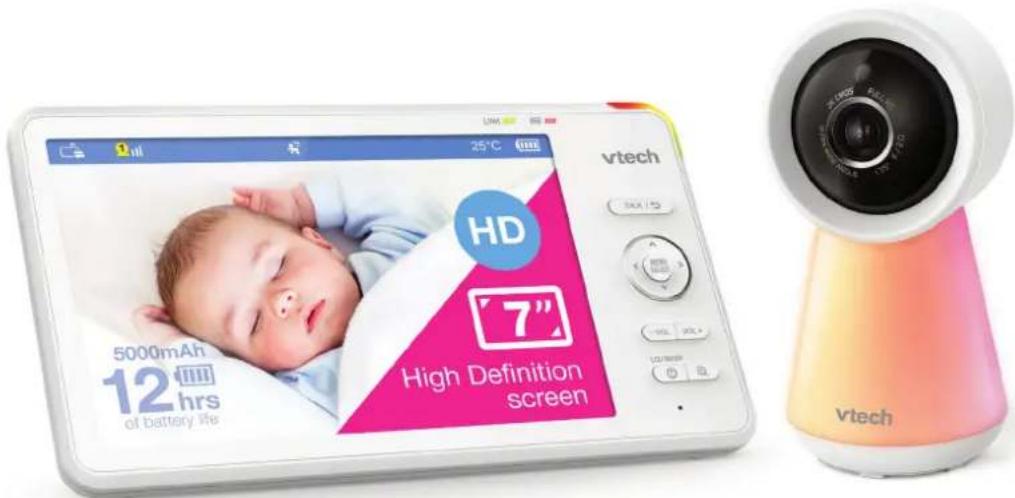
User Guide
This guide contains important information.
Please keep it for future reference.
Contents
Important Safety Instructions....3
Setup....5
What's Included? 5
Overview....6
Parent Unit Icons....10
How the System Works? 13
Protect Your Privacy and Online Security....15
Connect the Baby Monitor ....16
Charge the Parent Unit Battery....17
Basic Operation....18
Power on/off....18
Use the Menu 20
Adjust Speaker Volume ....20
Zoom....21
Talk to Your Baby via the Baby Unit....21
Turn on/off the Parent Unit Screen 22
Test the Sound Level and Position the Baby Monitor 23
Advanced Operation 26
Download App for Mobile Access 26
Set up Wi-Fi Connection....27
Monitoring Modes (RM7756HD-2 only) 28
Night Light....28
Melodies and Soothing Sounds....30
Sound, Motion, Temperature Alerts ......31
Parent Unit Settings....35
Baby Unit Settings ....36
Software and Firmware Update....37
Reset 37
Test the Best Location for the Baby Unit....38
Additional Information 39
Wall Mount (Optional) 39
Frequently Asked Questions....42
General Product Care....42
Storage 43
Adult Supervision....43
Technical Specifications....43
Disposal of Batteries and Product 43
Customer Service and Product Warranty 44
Important Safety Instructions
The applied nameplate is located at the bottom of the baby unit's base. When using your equipment, basic safety precautions should always be followed to reduce the risk of fire, electric shock and injury, including the following:
- Follow all warnings and instructions marked on the product.
- Adult setup is required.
- CAUTION: Do not install the baby unit at a height above 6.5 feet (2 metres).
- This product is intended as an aid. It is not a substitute for responsible and proper adult supervision and should not be used as such.
- This product is not intended for use as a medical monitor.
-
Do not use this product near water. For example, do not use it next to a bath tub, wash bowl, kitchen sink, laundry tub or swimming pool, or in a wet basement or shower.
-
CAUTION: Use only the battery provided. There may be a risk of explosion if a wrong type of battery is used for the parent unit. The battery cannot be subjected to high or low extreme temperature and low air pressure at high altitude during use, storage or transportation. Disposal of battery into fire or a hot oven, or mechanically crushing or cutting or the battery can result in an explosion. Leaving the battery in an extremely high temperature surrounding environment can result in an explosion or the leakage of flammable liquid of gas. Battery subjected to extremely low air pressure may result in an explosion or the leakage of flammable liquid or gas. Dispose of used battery according to the instructions.
-
Use only the adapters included with this product. Incorrect adapter polarity or voltage can seriously damage the product.

Baby Unit Output: 5V DC 1000mA
VTech Telecommunications Ltd.
Model: VT05EAU05100
Parent Unit Output: 5V DC 2A
VTech Telecommunications Ltd.
Model: VT07EAU05200

3.7V 5000mAh, 18.5Wh Lithium-ion battery Zhuhai Great Power Energy Co., Ltd.
-
The power adapter is intended to be correctly oriented in a vertical or floor mount position. The prongs are not designed to hold the plug in place if it is plugged into a ceiling, under-the-table or cabinet outlet.
-
For pluggable equipment, the socket-outlet (power adapter) shall be installed near the equipment and shall be easily accessible.
- Unplug this product from the wall outlet before cleaning. Do not use liquid or aerosol cleaners. Use a damp cloth for cleaning.
- Do not cut off the power adapters to replace them with other plugs, as this causes a hazardous situation.
- Do not allow anything to rest on the power cords. Do not install this product where the cords may be walked on or crimped.
- This product should be operated only from the type of power source indicated on the marking label. If you are not sure of the type of power supply in your home, consult your dealer or local power company.
- The equipment is to be supplied from an identified USB port complying with the requirements of Limited Power Source.
- Do not overload wall outlets or use an extension cord.
- Do not place this product on an unstable table, shelf, stand or other unstable surfaces.
- This product should not be placed in any area where proper ventilation is not provided. Slots and openings in the back or bottom of this product are provided for ventilation. To protect them from overheating, these openings must not be blocked by placing the product on a soft surface such as a bed, sofa or rug. This product should never be placed near or over a radiator or heat register.
- Never push objects of any kind into this product through the slots because they may touch dangerous voltage points or create a short circuit. Never spill liquid of any kind on the product.
- To reduce the risk of electric shock, do not disassemble this product, but take it to an authorized service facility. Opening or removing parts of the product other than specified access doors may expose you to dangerous voltages or other risks. Incorrect reassembling can cause electric shock when the product is subsequently used.
- You should test the sound reception every time you turn on the units or move one of the components.
- Periodically examine all components for damage.
-
There is a very low risk of privacy loss when using certain electronic devices, such as baby monitors, cordless telephones, etc. To protect your privacy, make sure the product has never been used before purchase, reset the baby monitor periodically by powering off and then powering on the units, and power off the baby monitor if you will not use it for some time.
-
Children should be supervised to ensure that they do not play with the product.
- The small parts of this monitor can be swallowed by babies or small children. Keep these parts out of reach of children.
- The product is not intended for use by persons (including children) with reduced physical, sensory or mental capabilities, or lack of experience and knowledge, unless they have been given supervision or instruction concerning use of the appliance by a person responsible for their safety.
SAVE THESE INSTRUCTIONS
Cautions
- Use and store the product at a temperature between 0^ and 40^ .
- Burn hazard, fire hazard, explosion hazard associated with mishandling of the battery.
- Do not expose the product to extreme cold, heat or direct sunlight. Do not put the product close to a heating source.
- Warning—Strangulation Hazard—Children have STRANGLED in cords. Keep this cord out of the reach of children (more than 3 ft (0.9m) away). Do not remove this tag.

- Never place the camera unit(s) inside the baby's crib or playpen. Never cover the camera unit(s) or parent unit with anything such as a towel or a blanket.
- Other electronic products may cause interference with your camera unit. Try installing your camera unit as far away from these electronic devices as possible: wireless routers, radios, cellular telephones, intercoms, room monitors, televisions, personal computers, kitchen appliances and cordless telephones.
Precautions for users of implanted cardiac pacemakers
Cardiac pacemakers (applies only to digital cordless devices):
Wireless Technology Research, LLC (WTR), an independent research entity, led a multidisciplinary evaluation of the interference between portable wireless devices and implanted cardiac pacemakers. Supported by the U.S. Food and Drug Administration, WTR recommends to physicians that:
Pacemaker patients
- Should keep wireless devices at least six inches from the pacemaker.
- Should NOT place wireless devices directly over the pacemaker, such as in a breast pocket, when it is turned ON.
WTR's evaluation did not identify any risk to bystanders with pacemakers from other persons using wireless devices.
Electromagnetic fields (EMF)
This VTech product complies with all standards regarding electromagnetic fields (EMF). If handled properly and according to the instructions in this user's manual, the product is safe to be used based on scientific evidence available today.
Setup
What's Included?
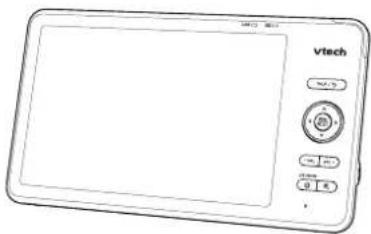
natural_image
Front view of a Vtech-branded digital device with control buttons and display screen (no readable text or symbols)Parent Unit
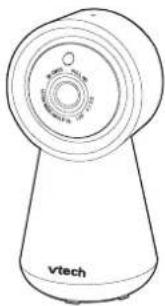
natural_image
Line drawing of a cylindrical device with a circular top and base, labeled 'vtech' at the bottom (no other text or symbols)Baby Unit
natural_image
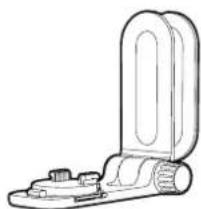
Technical line drawing of a mechanical clamp or bracket component (no text or symbols)Wall Mount Bracket
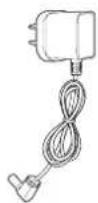
Parent Unit Adapter Baby Unit Adapter
Quick Start Guide
Learn to set up your units and have all detailed instructions on using your audio baby monitor.
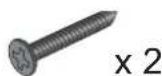
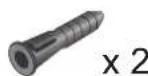
1 set for RM7756HD
2 sets for RM7756HD-2
Overview
Baby Unit
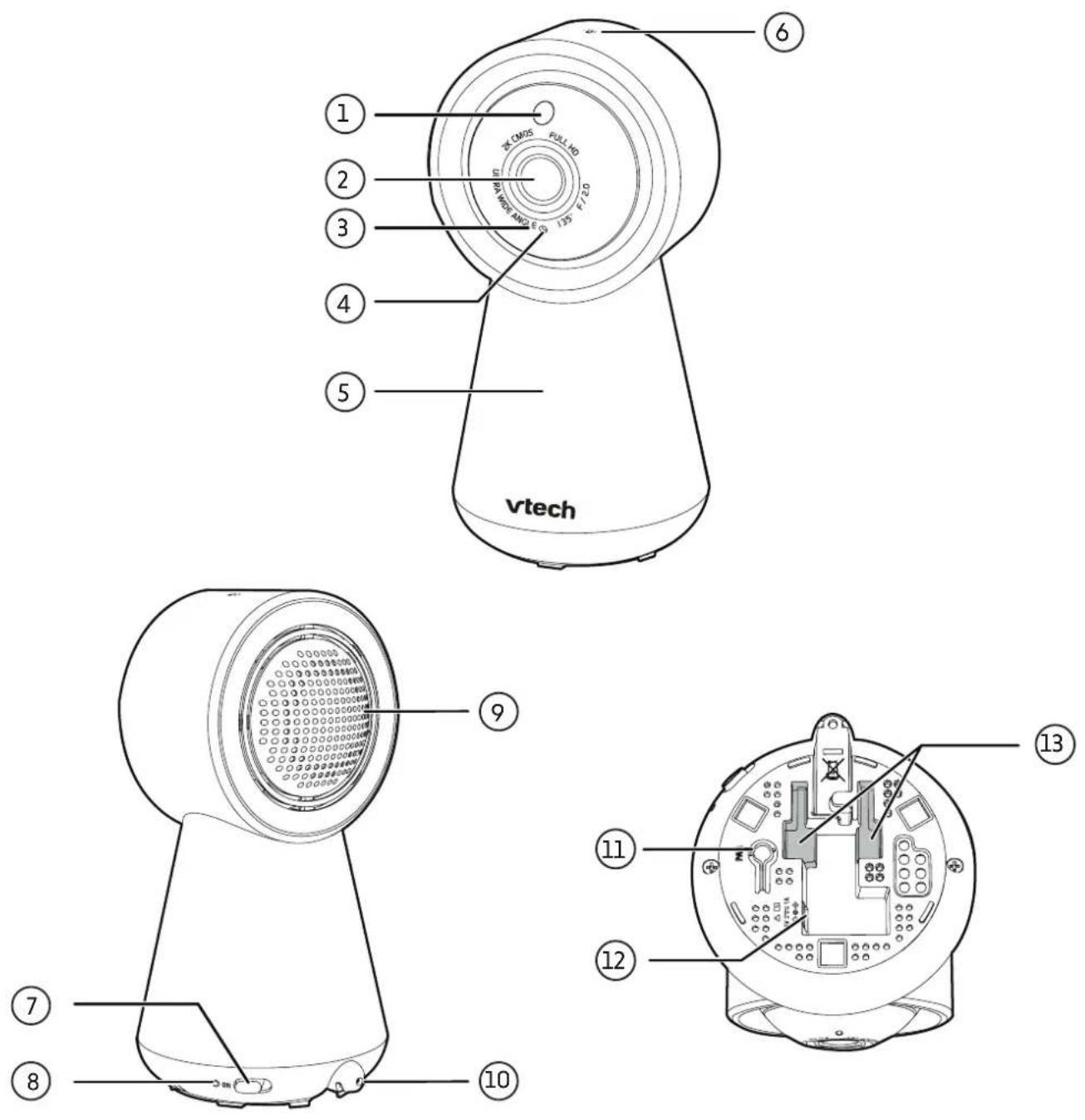
| 1 Light Sensor | |
| 2 Camera Lens | |
| 3 Infrared LEDsAllow you to see clearly in a dark environment. | |
| 4 Microphone | |
| 5 Night Light | |
| 6 |  Night Light Control KeyGo toNight Lightsection to learn more. Night Light Control KeyGo toNight Lightsection to learn more. |
| 7 ON/OFF SwitchPower it on or off. | |
| 8 LED IndicatorRed is steadily on when the baby unit is connecting to the parent unit in direct mode.Green is steadily on when the baby unit is connected in Wi-Fi router mode.Red flashing slowly during video streaming in direct mode.Green flashes slowly during video streaming in Wi-Fi router mode. | |
| 9 Speaker | |
| 10 Temperature Sensor | |
| 11 PAIRThe parent unit and baby unit(s) provided are already paired.Press and holdfor three seconds to enter pairing mode.Reset the baby unit to factory default.Press and holdPAIRkey until you hear a beep sound.Release thePAIRkey, and then press thePAIRkey again five times until you hear another beep sound.The baby unit will sound another beep when the reset completes. Then, the baby unit will reboot. | |
| 12 Power Jack | |
| 13 Wall Mount Slots | |
Parent Unit
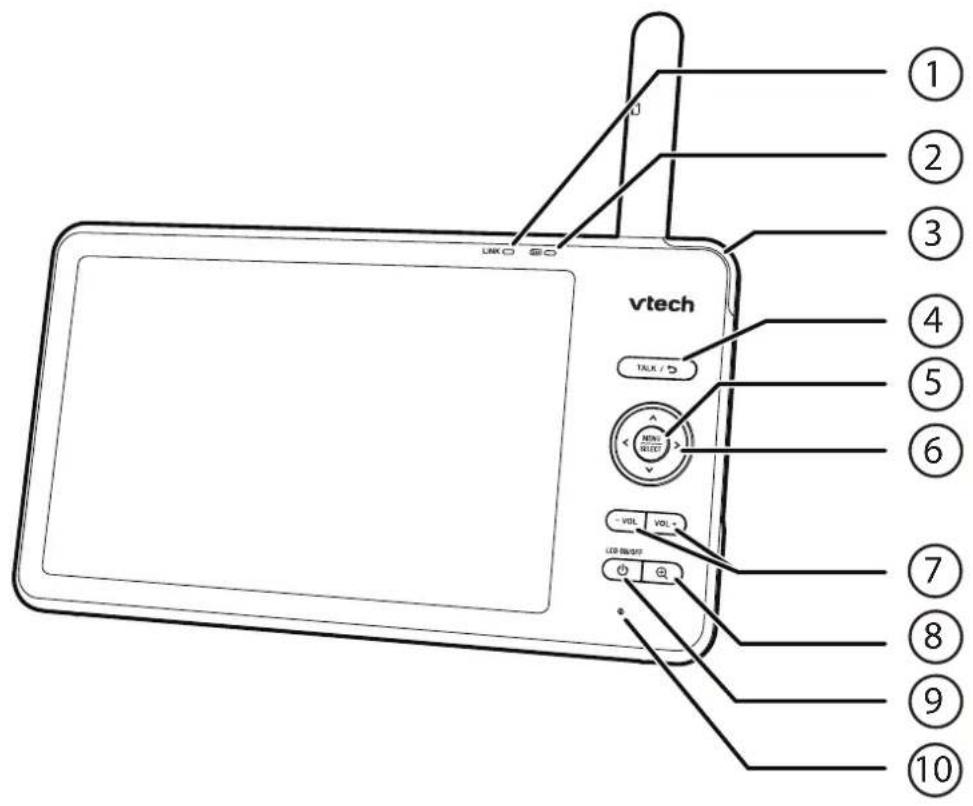
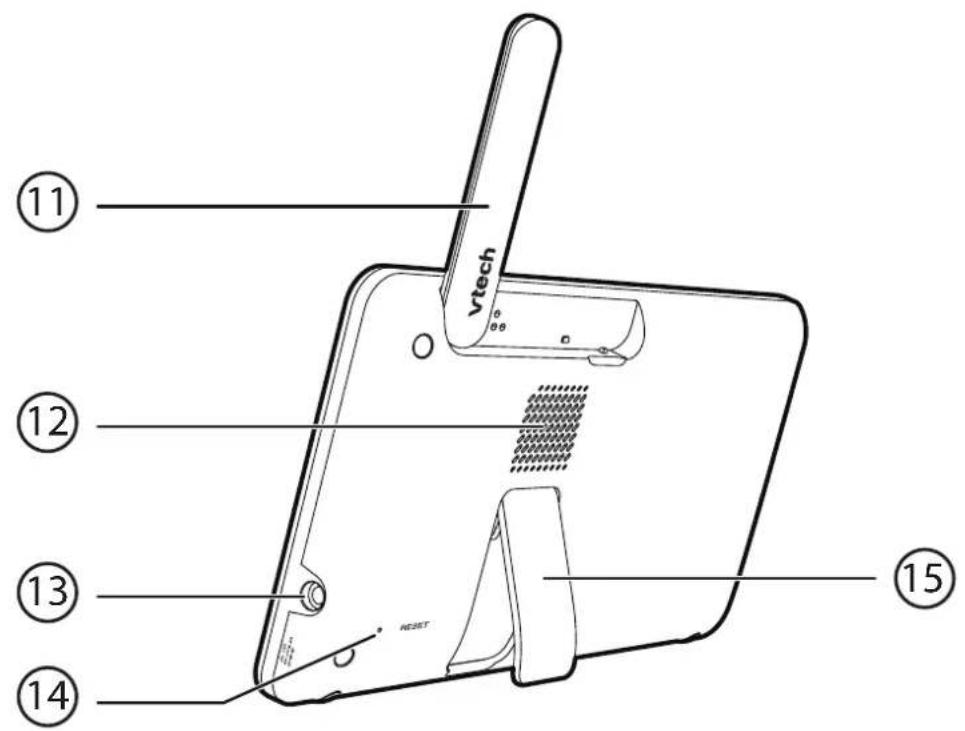
| 1 LINK LED LightOn when the parent unit is linked to the baby unit.Flashes when the link to the baby unit is lost. | |
| 2 |  LED lightOn when the parent unit is connected to AC power, and the battery is charging.Flashes when the parent unit battery is low and needs to be charged. LED lightOn when the parent unit is connected to AC power, and the battery is charging.Flashes when the parent unit battery is low and needs to be charged. |
| 3 3 - Level Sound Indicator LightGreen: low sound level is detected by the baby unit.Green and amber: moderate sound level is detected by the baby unit.Green, amber and red: high sound level is detected by the baby unit. | |
| 4 |  .LK / ↻Press and hold to talk to the baby unit.While in a sub-menu, press to exit. .LK / ↻Press and hold to talk to the baby unit.While in a sub-menu, press to exit. |
| 5 MENU | SELECTPress to enter the main menu.While in a menu, press to choose an item, or save a setting. | |
| 6 |  ∧ | > | ∨ Arrow keysPress to navigate leftward, upward, rightward or downward, within the main menu and sub-menus.While viewing a zoomed image, press to move the image leftward, upward, rightward or downward. ∧ | > | ∨ Arrow keysPress to navigate leftward, upward, rightward or downward, within the main menu and sub-menus.While viewing a zoomed image, press to move the image leftward, upward, rightward or downward. |
| 7 | VOL - | VOL + Increase or decrease parent unit volume. |
| 8 | [554Y]ZoomPress to zoom in/out.While in a sub-menu, press to view the help menu. |
| 9 | [ABCD]Power | LCD ON/OFF |
| 10 Microphone | |
| 11 Antenna | |
| 12 Speaker | |
| 13 Power Jack | |
| 14 RESET Force reboot the parent unit. | |
| 15 Stand | |
Parent Unit Icons
| Main Menu Options | |
| Monitoring Mode (*For RM7756HD-2 only) | |
 | ·View baby units in Single mode.·View baby units in Patrol mode.·View baby units in Split screen. |
| Night Light | |
 | ·Turn on or turn off night light.·Select a night light colour.·Adjust night light brightness.·Set a night light timer. |
| Melodies and Soothing Sounds | |
 | ·Select to play all melodies, or play one of the five melodies and five soothing sounds.·You can also set the timer to stop playing after 15, 30 or 60 minutes, or playing non-stop. |
| Alerts - Sound, Motion and Temperature | |
 | ·Select the sound and motion sensitivity level.·Turn on/off sound and motion detection alerts.·Select maximum and minimum temperature for alert range.·Turn on/off temperature alert.·Turn on/off Auto Wake Up function. |
| Parent Unit Settings | |
 | ·Adjust parent unit screen brightness.·Adjust Low Battery Alert Tone.·Adjust No Link Alert Tone.·Turn on/off Dim mode. |
| Baby Unit Settings | |
 | ·Turn on/off Night Vision.·Turn on/off baby unit Status LED.·Adjust baby unit speaker volume. |
| General Settings | ||
 | Configure Wi-Fi.Connect mobile phone.Reset Settings to factory default.Software Update. | |
| Status Icons | ||
 |  | Direct ModeParent unit, baby unit 1 and baby unit 2 (*For RM7756HD-2 only) are connected to each others directly.Red bars indicate no connection. |
 | ||
 | ||
 |  | Wi-Fi Router ModeParent unit, baby unit 1 and baby unit 2 (*For RM7756HD-2 only) are connected to home Wi-Fi network.The red icon on the baby unit or parent unit, indicates no connection between the respective unit(s) and the router. |
 | ||
 |  | |
 | Baby unit 1 and 2 are being viewed in Patrol mode (*For RM7756HD-2 only). | |
 | Baby unit 1 and 2 are being viewed in Split mode (*For RM7756HD-2 only). | |
 | Night vision is turned on. | |
 | Motion detection alert is turned on. | |
 | Sound detection alert is turned on. | |
 | Melodies and soothing sounds are playing. | |
 | Night light is turned on. |
 | Auto night light brightness is activated. |
 | Temperature alert is turned on. |
 | Parent unit is muted. |
 | °F (°C) Temperature detected is below setting. |
 | °F (°C) Temperature detected is within setting range. |
| °F (°C) Temperature detected is above setting. | |
 | Battery level indicator |
| Alert Icons | |
 | Displays when motion that exceed the set sensitivity level is detected at a baby unit. |
 | Displays when sound that exceed the set sensitivity level is detected at a baby unit. |
 | Displays when baby unit detects temperature reaches or exceeds the set maximum. |
 | Displays when baby unit detects temperature is at or is lower than the set minimum. |
How the System Works?

TIP
For better security and more stable connectivity, this baby monitor requires connecting to a Wi-Fi network and operating in Router mode connection.
Direct Mode
Your baby monitor parent unit and baby unit connect to each other in Direct mode by default, which allows you to immediately stream video out of the box.
It is NOT recommended to continue using Direct Mode connection after initial installation.
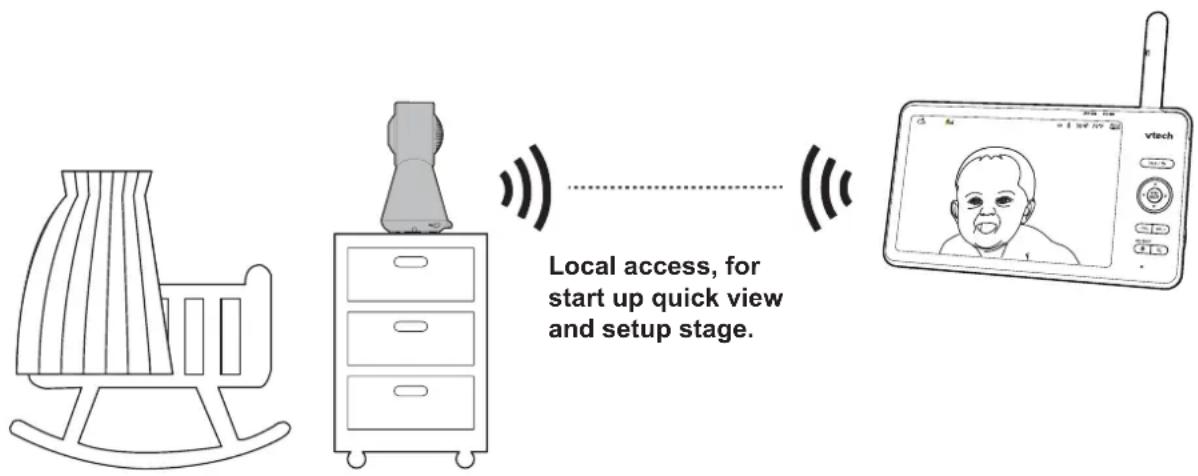
Tip: You may experience reduced signal strength if your parent unit and baby unit are far apart, or there are obstructing factors, such as internal walls, between them. You have to set up Router mode to connect the units via your home Wi-Fi network to improve the connection between your parent unit and baby unit.
Router Mode
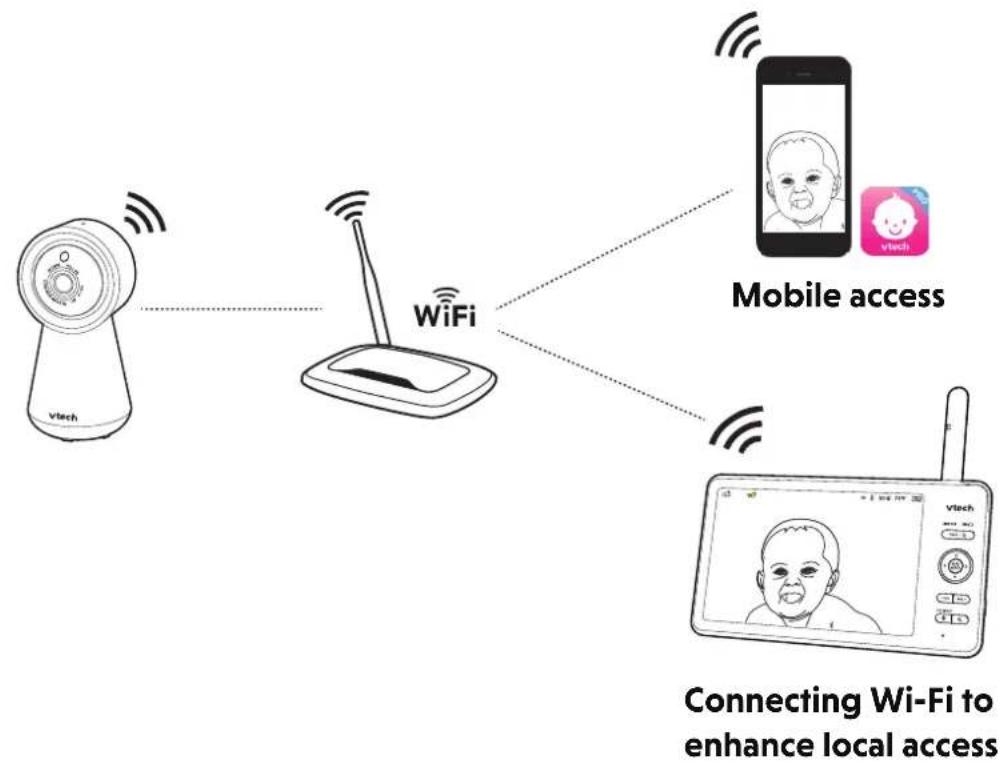
You are required to set up your monitor in Router mode to enjoy live video streaming via your parent unit with an enhanced connection. Router mode is the recommended mode for stable connectivity.
Router mode uses your home Wi-Fi network to connect your video monitor. It supports live video streaming through the parent unit and smartphone app.
If you want to stream live video remotely with your mobile device, download and install the MyVTech Baby Pro mobile app. With the mobile app, your Wi-Fi router (not included) provides Internet connectivity to your HD video monitor system. It serves as a communicating channel between your baby unit and mobile device, allowing you to monitor and/or control your baby unit wherever you are. For details, see Download App for Mobile Access section.
flowchart
graph TD
    A["Vtech"] -->|Wireless| B["WiFi"]
    C["vTech"] -->|Wireless| B
    D["Mobile access"] -->|Wireless| B
    E["Device"] -->|Wireless| B
    F["Connecting Wi-Fi to enhance local access"] --> B

NOTE
When both parent unit and app are viewing the camera simultaneously, the video quality will be optimised to deliver the best possible viewing result.
Protect Your Privacy and Online SecurityPro
VTech cares about your privacy and peace of mind. That's why we've put together a list of industry-recommended best practices to help keep your wireless connection private and your devices protected when online. We recommend you carefully review and consider complying with the following tips.
Ensure your wireless connection is secure.
- Before installing a device, ensure your router's wireless signal is encrypted by selecting the "WPA2-PSK with AES" setting in your router's wireless security menu.
Change default settings.
- Change your wireless router's default wireless network name (SSID) to something unique.
- Change default passwords to unique, strong passwords. A strong password:
- Is at least 10 characters long.
- Is complex.
- Does not contain dictionary words or personal information.
- Contains a mix of uppercase letters, lowercase letters, special characters and numbers.
Keep your devices up to date.
- Download security patches from manufacturers as soon as they become available. This will ensure you always have the latest security updates.
- If the feature is available, enable automatic updates for future releases.
Disable Universal Plug and Play (UPnP) on your router.
- UPnP enabled on a router can limit the effectiveness of your firewall by allowing other network devices to open inbound ports without any intervention or approval from you. A virus or other malware program could use this function to compromise security for the entire network.
For more information on wireless connections and protecting your data, please review the following resources from industry experts:
- Federal Communications Commission: Wireless Connections and Bluetooth Security Tips – www.fcc.gov/consumers/guides/how-protect-yourself-online
- U.S. Department of Homeland Security: Before You Connect a New Computer to the Internet – www.us-cert.gov/ncas/tips/ST15-003.
- Federal Trade Commission: Using IP Cameras Safely – https://www.consumer.ftc.gov/articles/0382-using-ip-cameras-safely.
- Wi-Fi Alliance: Discover Wi-Fi Security – http://www.wi-fi.org/discover-wi-fi/security.
Connect the Baby Monitor
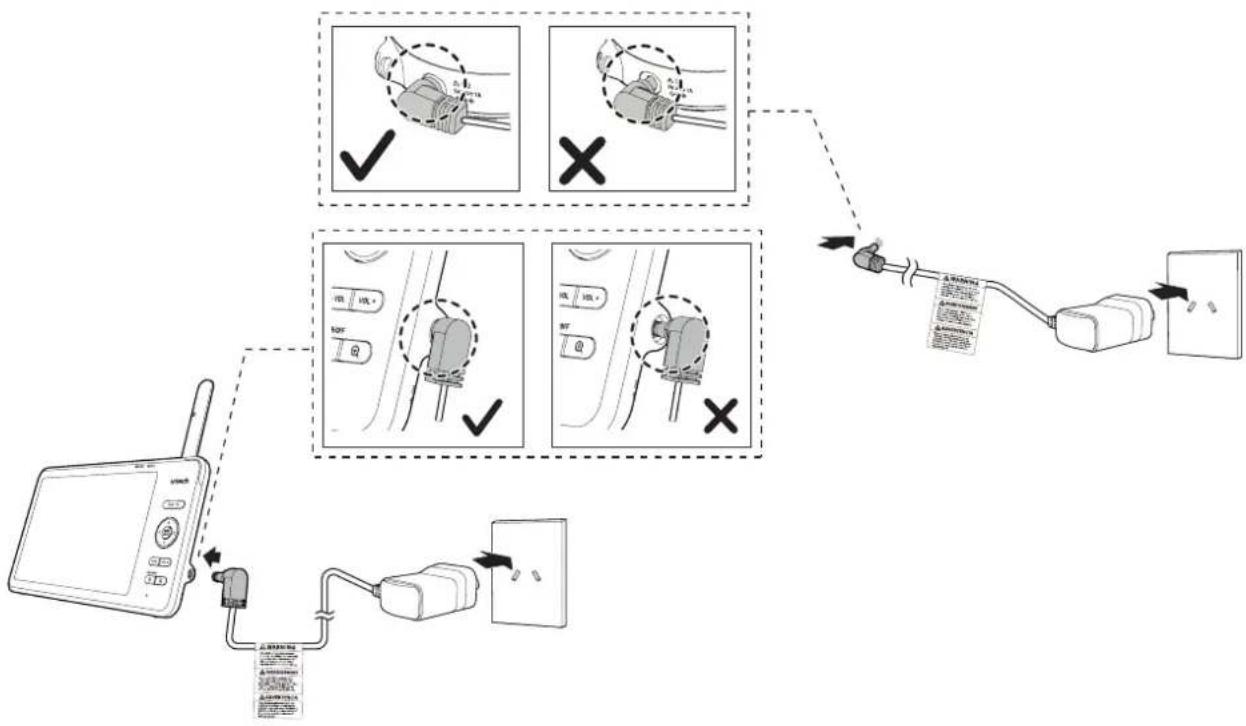
Connect the parent unit and baby unit to a power supply with the included power adapters.
Notes:
• The rechargeable battery in the parent unit is built-in.
- Use only the power adapters supplied with this product.
- Make sure the parent unit and the baby unit are not connected to the switch controlled electric outlets.
- Connect the power adapters in a vertical or floor mount position only. The adapters' prongs are not designed to hold the weight of the parent unit and the baby unit, so do not connect them to any ceiling, under-the-table, or cabinet outlets. Otherwise, the adapters may not properly connect to the outlets.
• Make sure the parent unit, the Baby Unit and the power adapter cords are out of reach of children.
flowchart
graph TD
    A["Device"] --> B["Cable"]
    B --> C["Bus"]
    C --> D["Plug"]
    D --> E["Switch"]
    style A fill:#f9f,stroke:#333
    style B fill:#ccf,stroke:#333
    style C fill:#cfc,stroke:#333
    style D fill:#fcc,stroke:#333
    style E fill:#ffc,stroke:#333
Charge the Parent Unit Battery
The parent unit runs on rechargeable battery or AC power. To continuously monitor your baby, keep the parent unit connected to AC power.
The parent unit turns on automatically after it connects to the power socket for the first time using, and its battery will charge at the same time.
Notes:
- Before using the baby monitor for the first time, charge the parent unit battery for 12 hours.
When the parent unit battery is fully charged, the battery icon becomes solid

- The standby time varies depending on your actual use.
The battery icon on the screen indicates the battery status (see the following table).
| Battery Indicators Battery Status Action | ||
The screen displays    flashes. flashes. | The battery power is very low and may only be used (about 30 minutes).for a short time. | Charge without interruption |
The battery icon becomes solid  | The battery is fully charged. | To keep the battery charged, connect it to AC power when in use. |
Basic Operation
After powering up your baby monitor, the parent unit streams live video in direct mode. Recommend to follow the instructions on screen to set up home Wi-Fi network with your monitor for functionality enhancements and mobile access. See Download App for Mobile Access and Set up Wi-Fi Connection in this user guide.
Power on/off
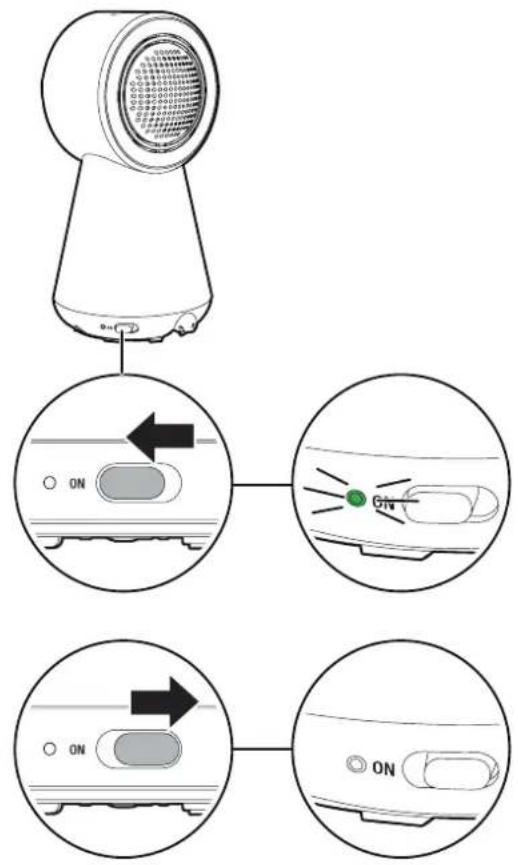
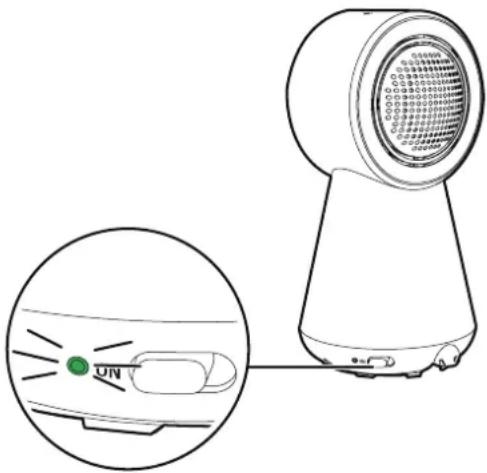
- Slide the power switch to ON to turn on your baby unit. Slide to the opposite direction to turn off.
Notes:
- When powering up, the baby unit's status LED turns on. It will turn off after a while and keeps off.
- The status LED is set to off by default. If you want to keep the LED on, press MENU/SELECT, then go to > Status LED and turn it on.
• Camera lens and surface may get warm during normal operation.

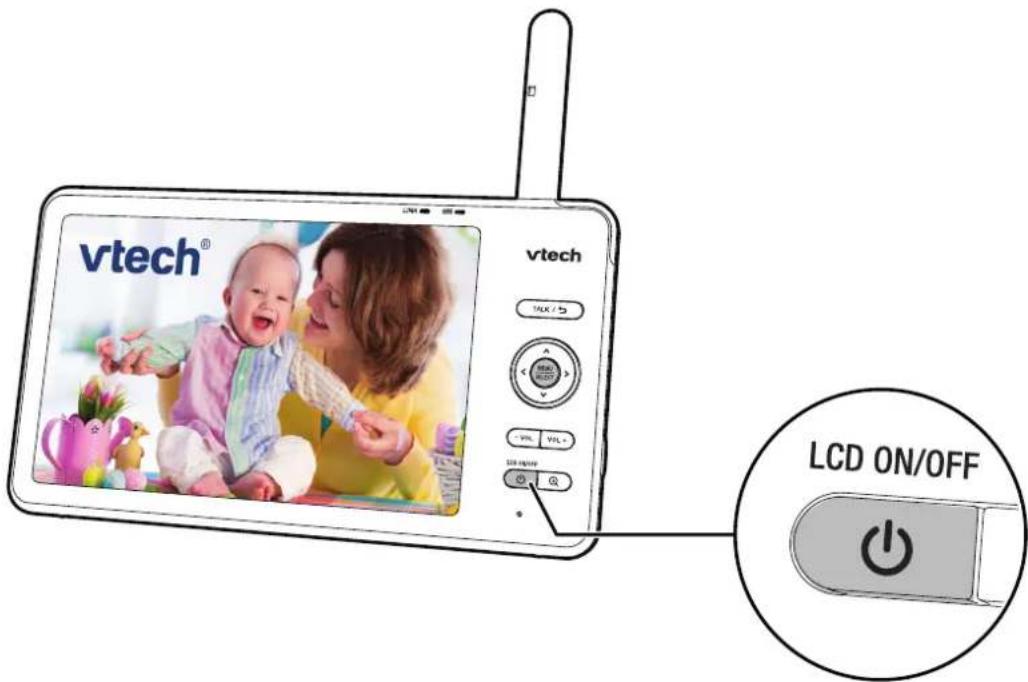
- Press ⏻ Power to turn on the parent unit, the welcome screen appears and the LINK LED flashes. You can press and hold ⏻ Power to turn it off after using.
-
Once your baby unit and parent unit are powered on, the parent unit and baby unit will pair each other automatically. When they are connected successfully, the LINK LED lights steadily. And your parent unit displays image from the baby unit.
-
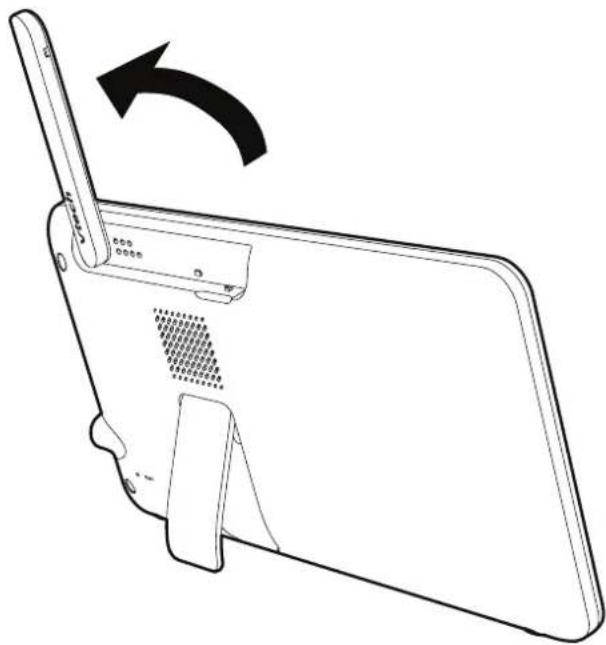
Raise the parent unit antenna for better reception.
natural_image
Line drawing of a device with a scroll wheel and a curved arrow indicating rotation (no text or symbols)Use the Menu
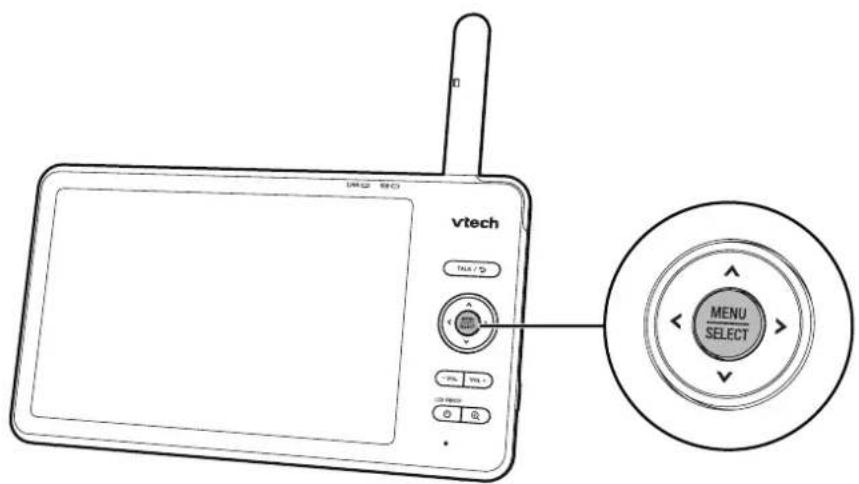
Press MENU on the parent unit to enter the main menu, choose a menu item, or save a setting. You can use the parent unit menu for advanced settings or operations, such as to play or stop the baby unit lullaby, or adjust the baby unit sound sensitivity.
While in the menu:
- Press <|A|> | v to scroll among the menu options.
- Press SELECT to select an item.
- Press TALK / ↩ to return to the live video.
- Press go to the Help & info page.
Note: When you use MENU to finish an operation or setting, press TALK / ↩ to exit. Or if no other operations, it will return to live video mode automatically after 5 seconds.
Adjust Speaker Volume
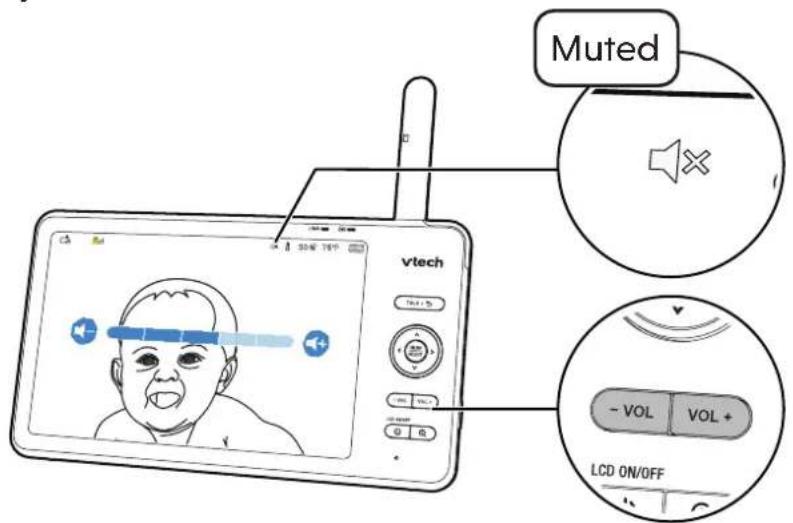
Press VOL - | VOL adjust the parent unit speaker volume level received from the baby unit.
Zoom
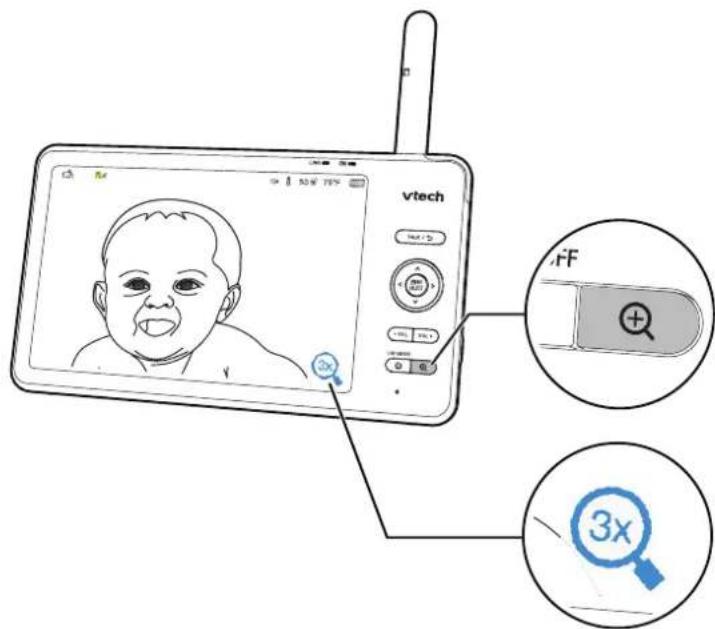
- Press on the parent unit to zoom in or out in a fixed zoom sequence. indicates that the image is magnified 3 times.

- Press and hold or to move the zoomed image upward or downward.
- Press and hold
Talk to Your Baby via the Baby Unit
-
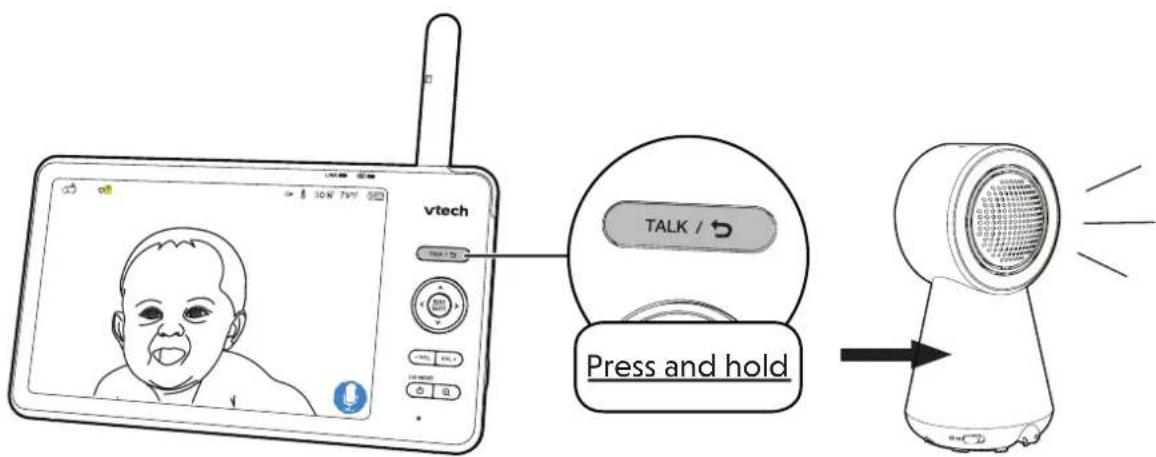
Press and hold the TALK key.
-
When the icon displays on screen, speak to your parent unit. Your voice is transmitted to the baby unit.
-
When finished talking, release the TALK key to hear your baby again.
Turn on/off the Parent Unit Screen
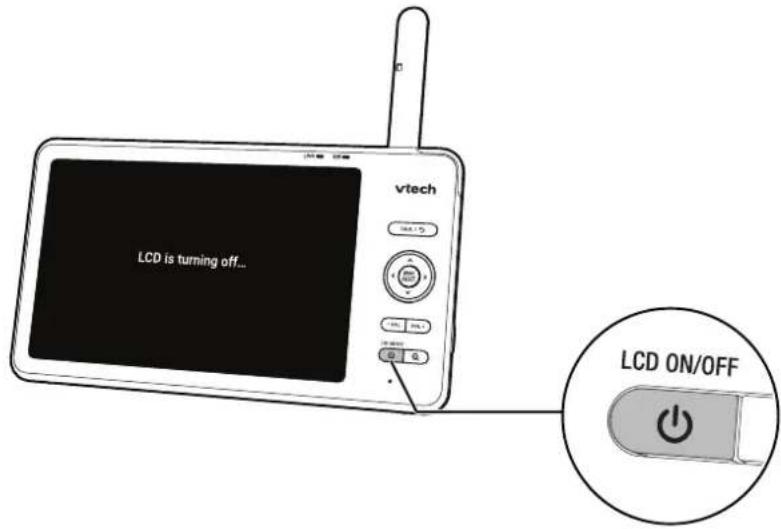
You can turn on or turn off the parent unit screen without powering off the unit. You will still hear sounds from the baby unit.
- Press ⏻ | LCD ON/OFF on the parent unit to turn off the screen.
- Press any key on the parent unit to turn the screen on again.
Test the Sound Level and Position the Baby Monitor
Testing the Sound Level of the Baby Monitor
You may test your baby monitor before initial use, and at regular times thereafter.
Note: This baby monitor is intended as an aid. It is not a substitute for proper adult supervision, and should not be used as such.
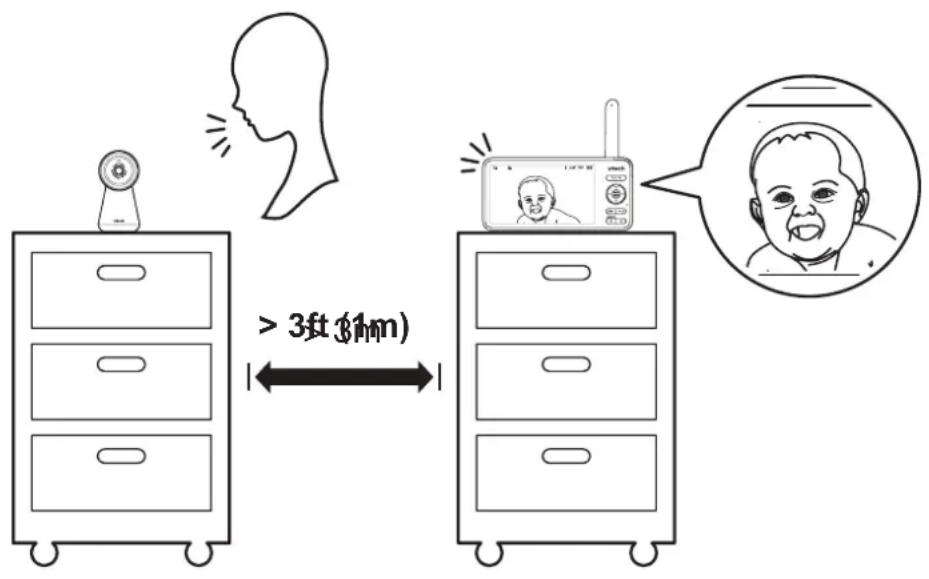
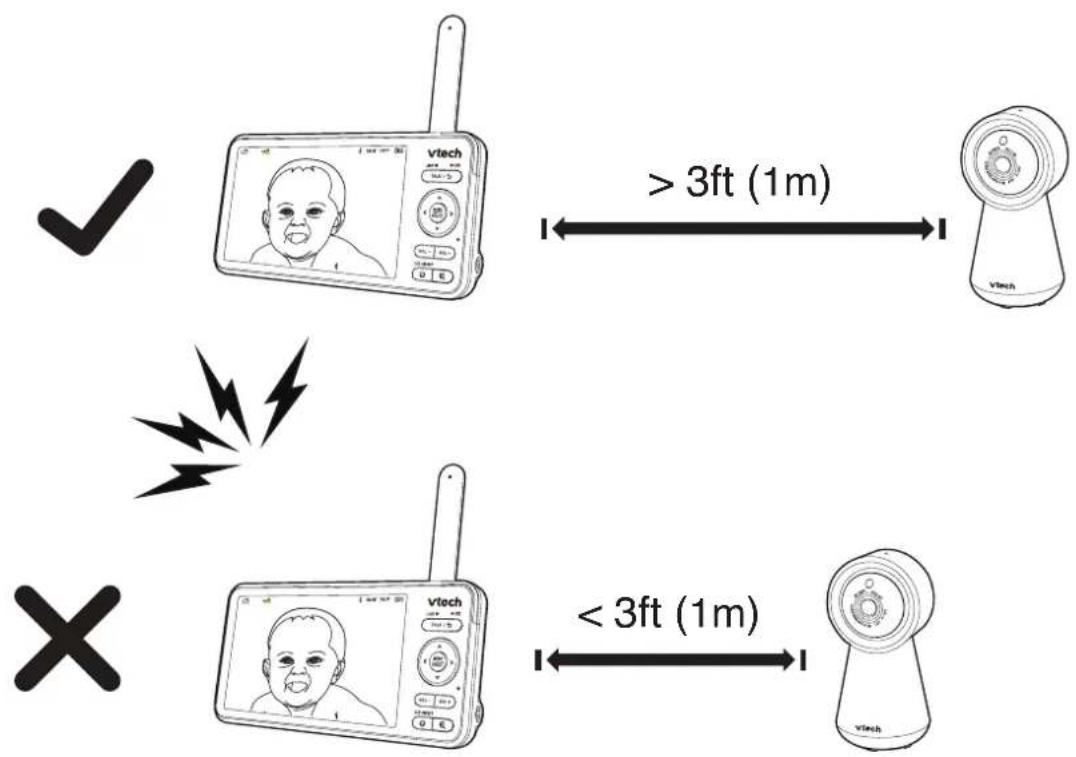
Caution: For hearing protection, make sure the parent unit is more than 3 feet (1m) away from the baby unit. If you hear any feedback noise from the parent unit, move the parent unit further until the noise stops. You can also press VOL on the parent unit to lower or mute the noise.

- Make sure your baby unit and parent unit are on.
- Speak towards the microphone of the baby unit, you will hear your voice transmitting from the parent unit.
Tips:
- Increase the parent unit speaker volume if you cannot hear the sounds transmitted from the baby unit.
- If the parent unit is out of range of the baby unit, or the baby unit is out of power, the parent unit beeps, move the parent unit closer to the baby unit.
Positioning the Baby Monitor
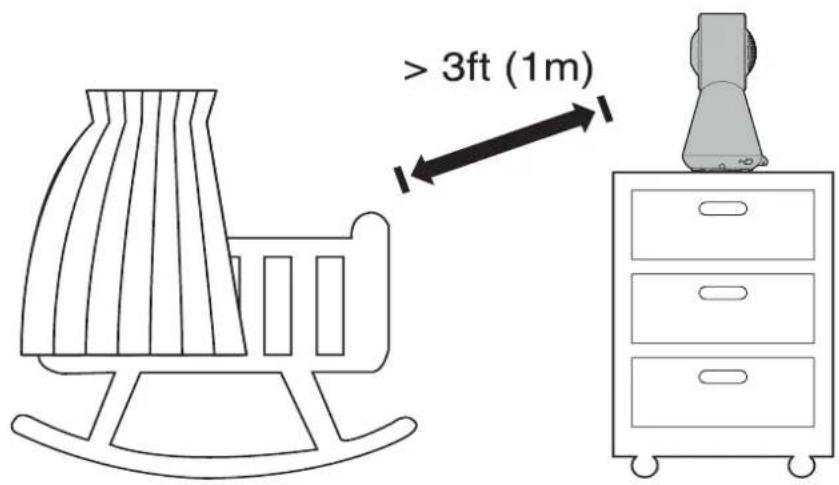
Caution: Keep the baby unit out of the reach of your baby. Never place or mount the baby unit inside the baby's crib or playpen.
- Place the baby unit more than 3 feet (1m) away from your baby.
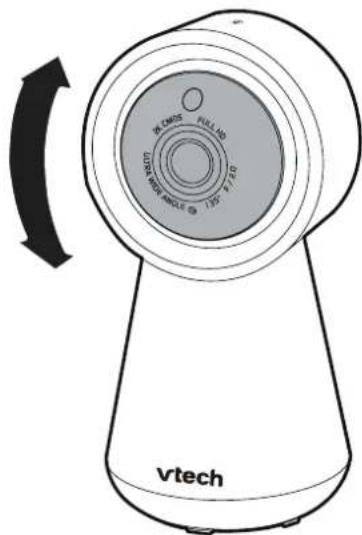
- Adjust the angle of the baby unit to aim at your baby.
Notes:
• To avoid causing feedback noise from your baby monitor:
• Make sure your baby unit and parent unit are more than 3 feet (1m) apart; OR
- Turn down the volume of your parent unit.
flowchart
graph TD
    A["✓"] --> B["vtech"]
    B --> C[">3ft (1m)"]
    C --> D["vtech"]
    E["X"] --> F["vtech"]
    F --> G["<3ft (1m)"]
    G --> H["vtech"]
Advanced Operation
Download App for Mobile Access
System requirements
for mobile access:
MyVTech Baby Pro mobile app

natural_image
vtech app icon featuring a smiling baby face and 'PRO' text (no additional symbols or text)| Network Wi-Fi | |
| Wi-Fi router 2.4GHz 802.11 b/g/n | |
| Internet connection 1.5 Mbps @ 720p or 2.5 Mbps @1080p upload bandwidth per baby unit | |
Download the free MyVTech Baby Pro mobile app and install it to a mobile device, then use your mobile device and the mobile app to monitor your areas remotely.
- Press MENU/SELECT when the parent unit is idle.
- Press >repeatedly to go to General Settings, press MENU/SELECT or √, and √again to choose Connect Mobile Phone.
- Scan the QR code in the parent unit to download the app into your mobile device.
- Follow the instructions in the mobile app to set up and pair your baby unit to the mobile app.
Alternatively, you can download the mobile app from the App Store or Google Play store.
Install MyVTech Baby Pro mobile app
- Browse the App Store or the Google Play store .
- Search for the mobile app with the keyword "myvtech baby pro".
- Download and install the MyVTech Baby Pro mobile app to your mobile device.
OR
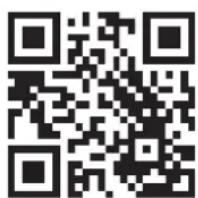
Scan the QR code on the right to get the app.
Note: Make sure your mobile device meets the minimum requirement for the mobile app.
Minimum Requirement:
The mobile app is compatible with:
- Android ^TM 6.0 or later; and
- iOS 12 or later.

Download on the App Store

GET IT ON Google Play
After installing the mobile app, follow the instructions in the mobile app and parent unit to set up and pair your baby unit.
In your mobile device:
- Tap to run the mobile app in your mobile device, and then create a user account.
- We recommend that you use common webmail services, such as Google Gmail for registration of your user account. Check your email (and Spam folder), and activate your new camera account via the email link, then sign in to your account.
- Follow the instructions in the mobile app to pair the camera. Tap then Add Camera in the mobile app to get started.
Set up Wi-Fi Connection

- Press MENU/SELECT to enter the main menu.
- Press >repeatedly to select the General Settings Menu SELECT.
MENU/ - Press MENU/SELECT again to enter Configure Wi-Fi sub-menu.
- A list of names of Wi-Fi network is displayed, select your desired Wi-Fi network.
- Enter the Wi-Fi password, then press
and MENU/SELECT to select Done. It takes a while for the baby unit to connect to the Wi-Fi network. - Press SELECT to select Done upon the successful Wi-Fi connection.
- In addition, you can connect your baby unit to mobile device following the instructions in Connect Mobile Phone.
Notes:
Before setting up Wi-Fi connection, please make sure that:
- Your parent unit and baby units are placed close to each other.
- Your baby unit(s) are powered on;
Monitoring Modes (RM7756HD-2 only)
When more than one baby unit is paired to the parent unit, you can choose to view different baby units in three monitoring modes. Learn more about each below:
| Single Mode |  | The screen displays images only from the selected baby unit in full screen. |
Split Mode The  | en displays images from all paired baby units at the same time in split view. | |
Patrol Mode Th  | een displays a single cam view that transitions to a different baby unit every 10 seconds. | |
Change the Monitoring Mode
- Press MENU/SELECT when the parent unit is idle.
- Press MENU/SELECT or √ to enter Monitoring Mode menu.
- Press
to choose between Single 1 2, Split 1 2, and Patrol 1 2 monitoring mode options. Press MENU/SELECT to confirm.
Night Light
You can control the night light remotely on the parent unit or directly on the baby unit.
On the Baby Unit
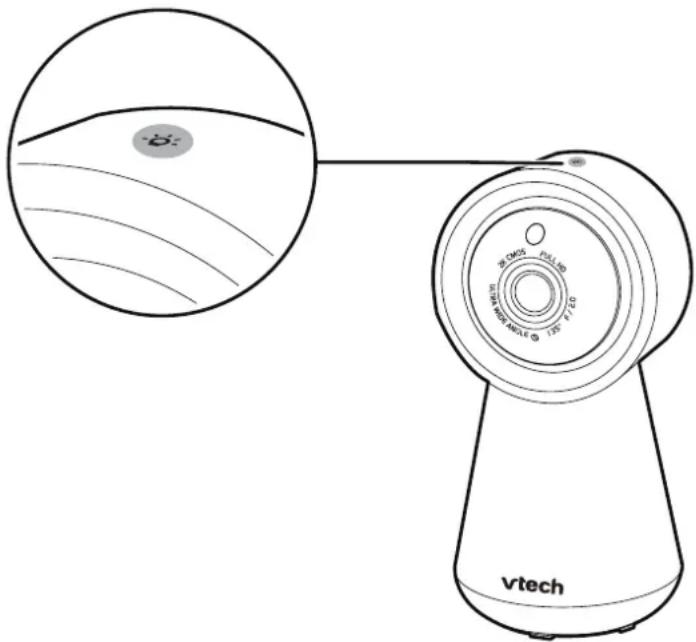
Tap the Night Light Control Key - located on the top of the baby unit to turn on/off the night light.
Tap and hold the same key with the night light on to adjust the night light brightness.
On the Parent Unit
Turn on/off
- Press MENU/SELECT.
- Press < or > to scroll to Night Light menu, then press MENU or vto enter.
- Choose On, then press MENU/SELECT to confirm. The night light will turn on, and appears on the screen.
- Choose Off to turn off the night light, and disappears.
Change the Night Light Colour
- Press MENU/SELECT.
- Press < or > to scroll to Night Light menu, then press MENU or v to enter.
- Press
to choose Colour, then press MENU/SELECT. - Press the arrow keys <||> | to choose your desired colour, press MENU/ SELECT to confirm.
Tip: Customized colour is available if your baby unit is paired with MyVTech Baby ProApp.
Adjust the Night Light Brightness
- Press MENU/SELECT.
- Press < or > to scroll to Night Light menu, then press MENU or to enter.
- Press < or > to choose 🙏 Brightness, then press MENU/SELECT to enter Night Light Brightness menu.
- Choose your desired brightness level (Auto-brightness with "appears on the screen, and Level 1 - dimmest to Level 5 - brightest), then press MENU/SELECT.
Note: If Auto brightness has been pre-selected, any adjustment in night light brightness (either on the baby unit or the parent unit) will automatically turn off Auto brightness mode and switch to the fixed level of brightness.
Set the Night Light Timer
- Press MENU/SELECT.
- Press < or > to scroll to Night Light menu, then press MENU or to enter.
- Press < or > to choose Timer, then press MENU/SELECT to enter Night Light Timer menu.
- Choose your desired timer (Off, 15 mins, 30 mins or 60 mins), then press MENU/SELECT.
Melodies and Soothing Sounds
There are 5 melodies and 5 soothing sounds in the baby monitor for you to comfort your baby with.
Play the Melodies and Soothing Sounds

- Press MENU/SELECT to enter the main menu.
- Press >to navigate, then press MENU/SELECT to enter Soothing Sounds menu.
Melodies & - Press the arrow keys | | > | to choose your desired melodies and soothing sounds, or select Play All, then press MENU/SELECT to play, 📌 appears on the screen.
- Press MENU/SELECT again to stop, 📌 disappears.
Set Melodies or Sounds Timer

- Press MENU/SELECT to enter the main menu.
- Press >to navigate, then press MENU/SELECT to enter Soothing Sounds menu.
Melodies & - Press >to choose Timer, press MENU/SELECT to confirm.
- Press < or > to choose your desired timer (Off, 15 mins, 30 mins or 60 mins), then press MENU/SELECT.
Sound, Motion, Temperature Alerts
Sound Detection
You can turn on Sound Detection Alert and adjust the baby unit's sound Sensitivity to only detect your desired level of sounds. When the baby unit detects sounds that exceed the chosen level, the parent unit screen turns on if it has been switched off or dimmed, and the baby unit transmits the detected sounds to the parent unit. You will immediately be able to see and hear your baby.
If you have turned on Sound Detection Alert, the parent unit beeps and an alert message will display when the baby unit detects sounds.
Adjust Sound Sensitivity
-
Press MENU/SELECT to enter the main menu.
-
Press >repeatedly to choose enter Sound settings.

Alerts menu, press MENU/SELECT to
- Press to go to Sensitivity, press or to adjust.
| Sound Sensitivity Level | Level 3 (Highest)  | Level 2 (Medium)  | Level 1 (Lowest)  |
| Description The parent unit screen and speaker turn on for very small sounds, including background noises from your baby's room. | The parent unit screen and speaker turn on for babbling and louder sounds from your baby. The parent unit remains quiet when your baby makes soft sounds. | The parent unit screen and speaker turn on only for loud crying or screeching sounds from your baby. The parent unit remains quiet when your baby makes soft sounds. | |
Turn on/off Sound Detection Alert
-
Press MENU/SELECT to enter the main menu.
-
Press >repeatedly to choose enter Sound settings.

Alerts menu, press MENU/SELECT to
- Press ▼ repeatedly to go to Sound Detection Alert, press > or ◀ to turn on/off.

appears on the screen.
Turn on/off Auto Wake-Up
When Auto Wake-Up is turned on, the parent unit screen stays off to save power when the baby unit detects no sound. Once the baby unit detects sounds that are louder than the chosen sound sensitivity level, the parent unit screen and speaker turn on automatically. The parent unit will then turn off again after no sound has been detected for a while.
- If you have muted the parent unit speaker, only the parent unit screen will turn on when a sound is detected.
-
If you have turned on Auto Wake-Up but turned off Sound Detection Alert, the parent unit will wake up when the baby unit detects sounds that are louder than the chosen sound sensitivity level.
-
Press MENU/SELECT to enter the main menu.
-
Press >repeatedly to choose enter Sound settings.

Alerts menu, press MENU/SELECT to
- Press repeatedly to go to Auto Wake-up, press > or to turn on/off.
Motion Detection
You can turn on Motion Alert and adjust the baby unit's Motion Sensitivity to only detect your desired level of motion. When the baby unit detects motions that exceed the chosen level, the parent unit screen turns on if it has been switched off or dimmed, and the baby unit displays the live video feed. You will immediately be able to see and hear your baby.
If you have turned on Motion Alert, the parent unit beeps and an alert message will display when the baby unit detects movements.
Turn on/off Motion Alert
- Press MENU to enter the main menu.
- Press >repeatedly to choose 🔥 Alerts menu, press MENU/SELECT, then press >to go to Motion settings.
- Press √to select Motion Alert, press < or > to turn on/off. 🌐 appears on the screen.
Adjust Motion Sensitivity
- Press MENU/SELECT to enter the main menu.
- Press >repeatedly to choose [icon] Alerts menu, press MENU/SELECT, then press >to go to Motion settings.
- Press repeatedly to go to Sensitivity, press < or > to adjust.
| Motion Sensitivity Level | Level 3 (Highest) | Level 2 (Medium) | Level 1 (Lowest) |
 |  |  | |
| Description The parent unit screen and speaker turn on for small motions, such as yawning or stretching. | The parent unit screen and speaker turn on for normal daily motions, such as people walking around the house. | The parent unit screen and speaker turn on only for large motions, such as children running or jumping around. | |
Temperature Alert
Your baby unit can help you keep track of your baby's room temperature in order to ensure that your baby stays in the comfort zone at all times.
With temperature sensor, the relevant data will be shown on the status bar when you powered on your units. If the detected temperature is out of the preset temperature range, the parent unit beeps and will display an alert message.
The minimum temperature can be set between 50^ F ( 10^ C) and 68^ F ( 20^ C).
The minimum temperature can be set between 72^ F ( 22^ C) and 99^ F ( 37^ C).
Turn on/off the Temperature Alert
- Press MENU/SELECT to enter the main menu.
- Press >repeatedly to choose 🔥 Alerts menu, press MENU/SELECT, then press >repeatedly to go to Temperature settings.
- Press v then press < or > to turn on/off. appears on the screen.
Set Minimum/Maximum Temperature and Temperature Format
- Press MENU/SELECT to enter the main menu.
- Press >repeatedly to choose Alerts menu, press MENU/SELECT, then press >repeatedly to go to Temperature settings.
- Press repeatedly to select Minimum, Maximum or Format ( ^ F or ^ C), then press or to set.
Parent Unit Settings
Adjust LCD Brightness
- Press MENU/SELECT to enter the main menu.
- Press >repeatedly to choose Parent Unit Settings menu.
- Press repeatedly to select Brightness.
- Press
to adjust (Level 1 - Lowest to Level 5 - Highest).
Adjust Low Battery Alert Tone and No Link Alert Tone
- Press MENU/SELECT to enter the main menu.
- Press >repeatedly to choose Parent Unit Settings menu.
- Press ▼ repeatedly to select Low Battery Alert Tone or No Link Alert Tone.
- Press or to adjust (Mute, Level 1 - Lowest to Level 3 - Highest).
Dim Mode
The parent unit display will dim to conserve energy after 5 minutes of inactivity, in which there were neither any key pressed nor alert received from the baby unit. Press any button to exit from the dim mode.
Turn on or Turn off Dim Mode
- Press MENU/SELECT to enter the main menu.
- Press >repeatedly to choose Parent Unit Settings menu.
- Press repeatedly to select Dim.
- Press
to turn on/off.
Baby Unit Settings
Night Vision
The baby unit has infrared LEDs that allow you to see your baby clearly at night or in a dark room. When the baby unit being viewed detects low light levels, the infrared LEDs switch on automatically.
When the night vision mode is activated, the images from the baby unit appear in black and white on the screen, and also appears.
Turn On/Off Night Vision
- Press MENU/SELECT to enter the main menu.
- Press >repeatedly to choose Baby Unit Settings menu.
- Press vto select Night Vision.
- Press
to turn on/off.
Notes:
- It is normal to see a short white glare on your parent unit screen as the baby unit adapts to the dark environment.
- If you adjust the night vision mode while night vision is not activated, the new settings will be saved and applied the next time it activates.
Tip: The video quality may vary depending on the surrounding environment and interfering factors like lighting, objects, colour and backgrounds. Adjust the baby unit angle or place the baby unit at a higher elevation to prevent glare and a blurry display.
Turn on or off Baby Unit Status LED
- Press MENU/SELECT to enter the main menu.
- Press >repeatedly to choose Settings menu. Baby Unit
- Press repeatedly to select Status LED.
- Press
to turn on/off.
Adjust Baby Unit Speaker Volume
- Press MENU/SELECT to enter the main menu.
- Press >repeatedly to choose Baby Unit Settings menu.
- Press repeatedly to select Camera Volume.
- Press or to adjust (Level 1 - Lowest to Level 5 - Highest).
natural_image
Diagram of a portable electronic device with a green indicator light and a magnified inset showing its internal components (no text or symbols present)Software and Firmware Update
To ensure that your baby monitor is always at its best performance, the parent unit will prompt you to update its software and the baby unit firmware when there are new versions available.
You can check if your device is running on the latest software or to update your device software manually:
- Press MENU/SELECT to enter the main menu.
- Press >repeatedly to select the SELECT. General Settings Menu, press MENU/
- Press repeatedly to choose Software Update, then press MENU/SELECT.
- Follow the instructions on the parent unit screen to update your baby monitor. If you skip the updates, the parent unit and baby unit will be updated automatically when the parent unit is powered off, and then powered on again.
Reset
On Parent Unit
To restore to the default settings or reset the Wi-Fi connection, you can reset the parent unit by pressing the RESET key at the back of the unit. Insert a pin into the RESET hole on the back of the parent unit, and then gently press the key inside.
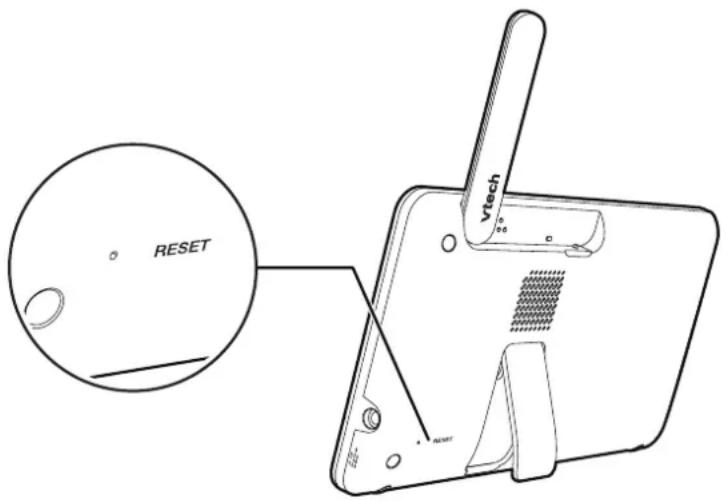
You can also reset the system to factory default in the General Settings. It will reset all settings on parent unit and also require your to follow steps to reset baby unit(s).
- Press MENU to enter the main menu.
- Press >repeatedly to select the General Settings Menu
- Press repeatedly to select Reset Settings.

On Baby Unit
- Press and hold PAIR key until you hear a beep sound.
- Release the PAIR key, and then press the PAIR key again five times until you hear a beep sound again.
- The baby unit will sound another beep when the reset completes. Then, the baby unit will reboot.
Test the Best Location for the Baby Unit
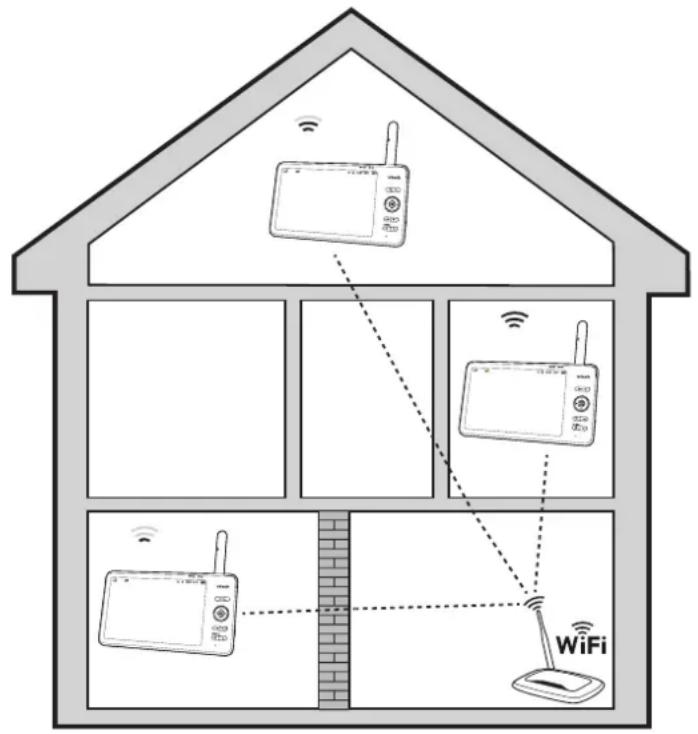
If you plan to install your baby unit in a designated location, and use your home Wi-Fi network to connect your video monitor, you need to test which of your selected monitoring areas within the house have good Wi-Fi signal strength.
After you have powered on your parent unit, you can use your parent unit's Wi-Fi signal strength indicator to assist in checking. Once you have identified the suitable location, you can install your baby unit. Adjust the distance between your baby unit and the Wi-Fi router if needed.
Note: Depending on surroundings and obstructing factors, such as the effect distance and internal walls have on signal strength, you may experience reduced Wi-Fi signal. To improve the Wi-Fi signal strength, adjust the distance or direction of your parent unit. Check with your parent unit again.
Additional Information
Wall Mount (Optional)
Notes:
- Check for reception strength and camera angle of the baby unit before drilling the holes.
-
The types of screws and plugs you need depend on the composition of the wall. You may need to purchase the screws and plugs separately to mount your baby units.
-
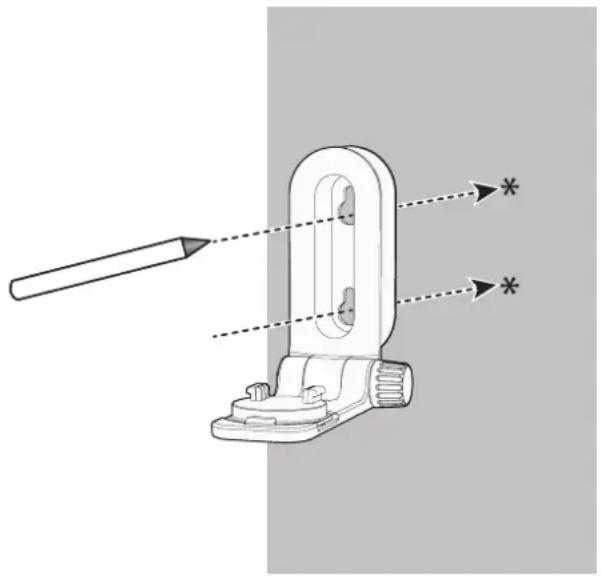
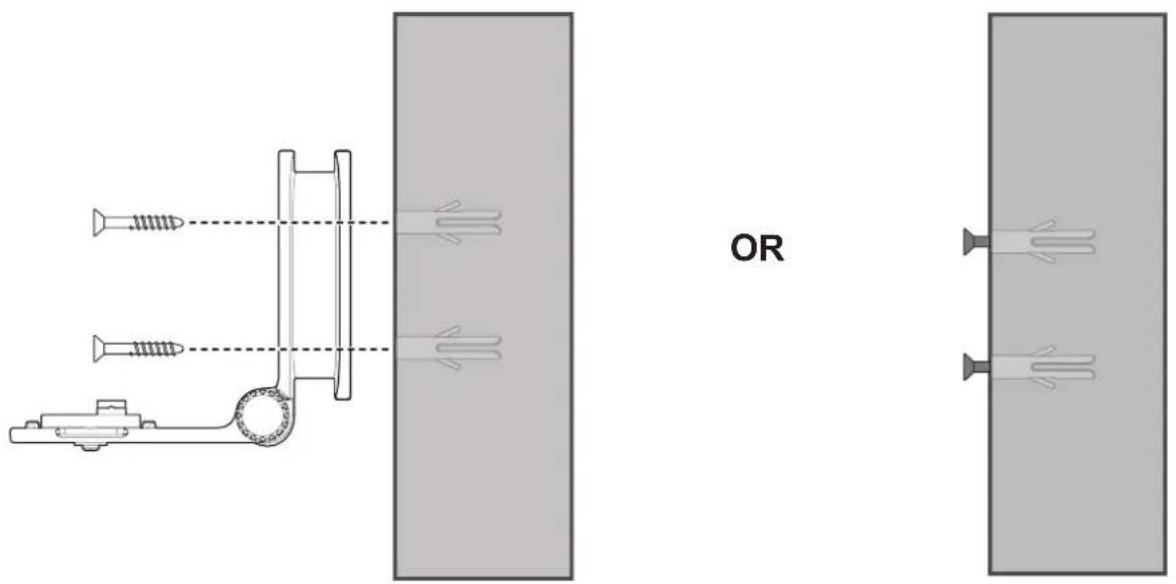
Place the wall mount bracket on a wall and then use a pencil to mark two holes in parallel. Remove the wall mount bracket and drill two holes in the wall (7/32 inch drill bit).
natural_image
Technical diagram of a mechanical clamp or bracket with a tool and dimension lines, no text or symbols present.- If you drill the holes into a stud, go to step 3.
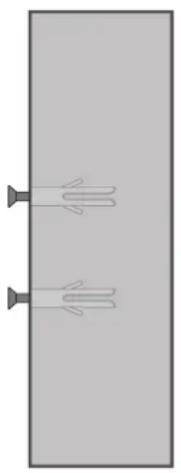
If you drill the holes into an object other than a stud, insert the wall plugs into the holes. Tap gently on the ends with a hammer until the wall plugs are flush with the wall.
natural_image
Simple diagram of two identical pipes with curved ends, no text or symbols present- Align the wall mount bracket and screws with the holes in the wall as shown. Tighten the screw in the middle hole first, so that the wall mount bracket position is fixed. You can tighten the other screw in the top hole.
OR
Insert the screws into the holes and tighten the screws until only 1/4 inch of the screws are exposed.
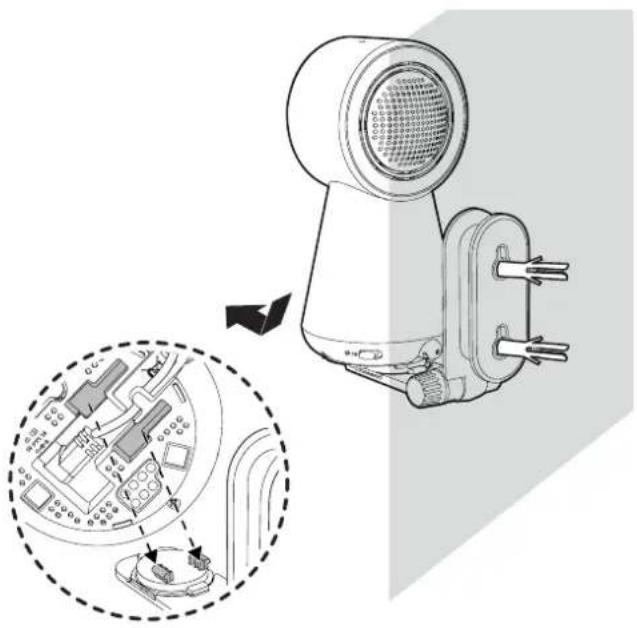
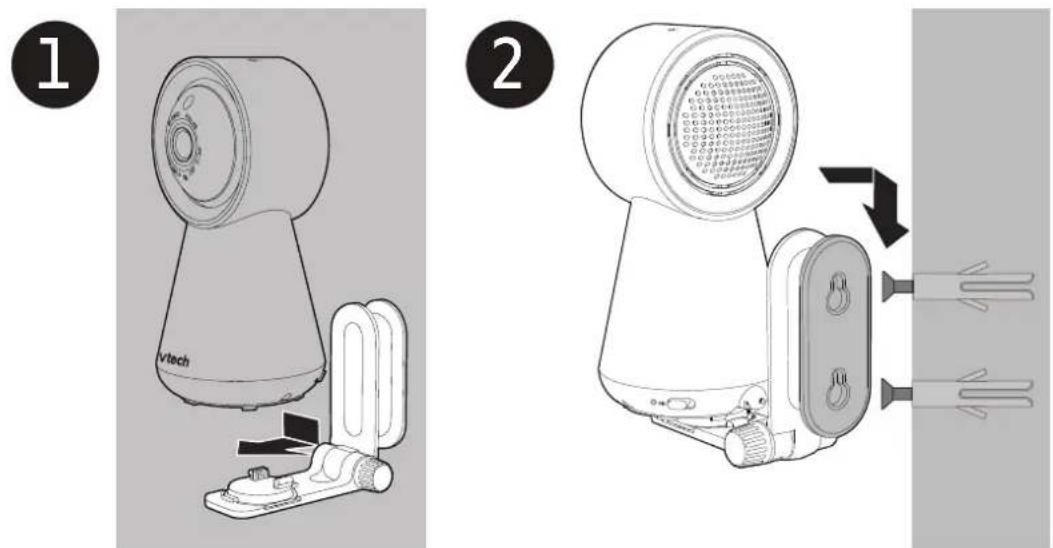
- Place the baby unit on the wall mount bracket, and then slide it forward until it locks into place. Connect the power adapter to the baby unit and a power supply not controlled by a wall switch.
natural_image
Technical illustration of a hairdryer with internal components and a magnified inset showing internal circuitry (no text or symbols)OR
Place the baby unit on the wall mount bracket, and then slide it forward until it locks into place. Align the holes on the wall mount bracket with the screws on the wall, and slide the wall mount bracket down until it locks into place.
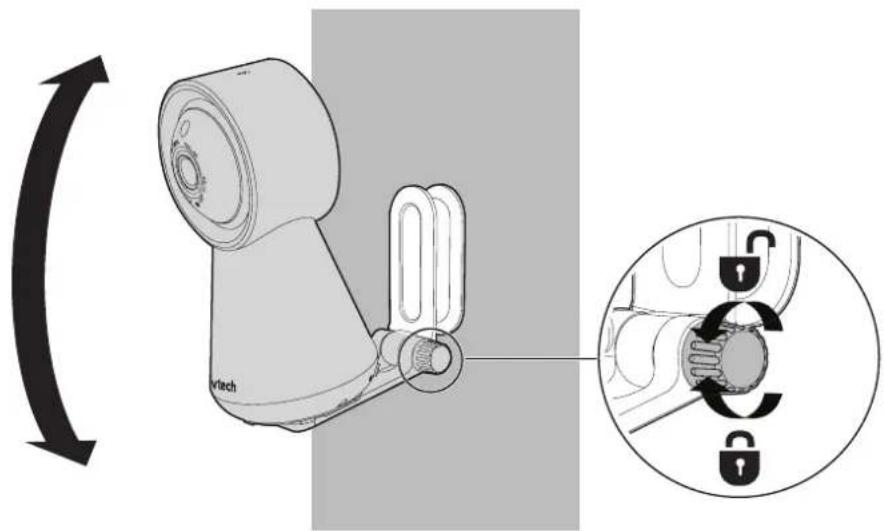
- You can maximize your baby unit's viewing angles by tilting the wall mount bracket. Hold the baby unit, and then rotate the knob in an anticlockwise direction. This will loosen the joint of the wall mount bracket.
Tilt your baby unit up or down to adjust to your preferred angle. Then, rotate the knob in a clockwise direction to tighten the joint and secure the angle.
Frequently Asked Questions
Below are the questions most frequently asked about the baby monitor.
| Can I turn the parent unit display screen off but keep hearing sounds from the baby unit? | Yes, press | LCD ON/OFF on the parent unit to turn off the screen. The parent unit display will also dim automatically after being inactive for some time. In both instances, you will still be able to hear all sounds from the baby unit.Press any key to turn the screen back on. |
| Why is the baby unit not responding normally? | Try the following (in the order listed) for a common cure:1. Disconnect the power to the baby unit.2. Wait a few minutes before connecting power back to the baby unit.3. Reboot the parent unit. |
| Why is my screen in black and white? | The baby unit has a light sensor that measures ambient light. When the ambient light is dim, such as during night time or in a dark room, the baby unit activates its infrared LEDs, and displays the camera images in black and white night vision. |
| Why does my baby unit show offline? Why is the connection lost every now and then? | The baby unit may have lost connection to the Wi-Fi router. Check your network and router settings. |
| Other electronic products may cause interference with your baby unit. Try installing your baby unit as far away from these electronic devices as possible. | |
| Why can’t I hear a sound/Why can’t I hear my baby crying? | The parent unit speaker volume may be too low. Press VOL + on the parent unit to increase the volume. |
| You may have set a low sound sensitivity level. Set the sound sensitivity to a higher level. |
General Product Care
To keep this product working well and looking good, follow these guidelines:
- Avoid putting it near heating appliances and devices that generate electrical noise (for example, motors or fluorescent lamps).
- DO NOT expose it to direct sunlight or moisture.
- Avoid dropping the product or treating it roughly.
- Clean with a soft cloth.
- DO NOT immerse the parent unit and the baby unit in water and do not clean them under the tap.
- DO NOT use cleaning spray or liquid cleaners.
• Make sure the parent unit and the baby unit are dry before you connect them to the mains again.
Storage
When you are not going to use the baby monitor for some time, store the parent unit, the baby unit and the adapters in a cool, dry place.
Adult Supervision
- This baby monitor should be for use by adults only.
- Do not place the baby unit inside the cot or playpen.
- To ensure your children's safety, do not allow them to touch or play with the baby monitor and its accessories. THIS IS NOT A TOY.
Technical Specifications
| Frequency Baby unit: 2412 - 2472 MHz | |
| Channels 13 | |
| LCD 7” Colour LCD | (IPS 1280 x 800 pixels) |
| Nominal effective range | Actual operating range may vary according to environmental conditions at the time of use. |
| Power requirement Baby | unit power adapter: Output: 5V DC, 1A.Parent unit power adapter: Output: 5V DC, 2A.Parent unit battery: 3.7V 5000mAh, 18.5Wh Lithium-ion battery |
Disposal of Batteries and Product

The crossed-out wheelie bin symbols on products and batteries, or on their respective packaging, indicates they must not be disposed of in domestic waste as they contain substances that can be damaging to the environment and human health.
The chemical symbols Hg, Cd or Pb, where marked, indicate that the battery contains more than the specified value of mercury (Hg), cadmium (Cd) or lead (Pn) set out in Battery Directive (2006/66/EC).
The solid bar indicates that the product was placed on the market after 13th August, 2005.
Help protect the environment by disposing of your product or batteries responsibly.
Customer service and product warranty
IMPORTANT
Please retain this booklet with your sales receipt as proof of the date of purchase.
Customer Service
If you require assistance in operating this product, please call the TecHelp Information Line on 1300 369 193 or contact VTech by e-mail at: tcpsupport_au@vtech.com.
Voluntary Product Enquiry
In addition to your Statutory Rights and subject to the conditions below, VTech warrants that this product will be free from any defect in materials or workmanship under conditions of normal use for a period of 24 months from date of purchase.
VTech does not warrant that the product will be free from defects if defects are caused by an accident, misuse, abuse, improper installation or operation, vermin infestations, lack of reasonable care, unauthorised modification, loss of parts, tampering or attempted repair by a person not authorised by VTech; or where the product has been damaged by lightning or a mains power surge. To make a claim under this Voluntary Product Warranty you must call the TecHelp Information Line on 1300 369 193 or contact VTech by e-mail at: tcpsupport_au@vtech.com where a Customer Service Representative will inform you of the product return process. You will need to ensure that:
- You provide proof of purchase;
- Your product is suitably packaged (original packaging is not required); and
- You have included all components from the original purchase.
For your records
Date of purchase:
Place of purchase:
Serial number:
For Voluntary Product Warranty purposes, proof of purchase is required so please keep your receipt.
The benefits conferred by this Voluntary Product Warranty are in addition to other rights and remedies that are available to you under law, which cannot be excluded. The processes for this Voluntary Product Warranty in no way limit your rights which arise as a result of your Statutory Rights.
This Voluntary Product Warranty is given by:
VTech Telecommunications (Australia) Pty Ltd ABN 70 136 672 627
Address: 24 Gilby Road, Mount Waverley 3149
IMPORTANT NOTE: THIS IS NOT A PRODUCT RETURN OR SERVICE ADDRESS – PLEASE CONTACT TECHELP BY PHONE OR EMAIL FOR PRODUCT AND WARRANTY SUPPORT. NO LIABILITY WILL BE ACCEPTED BY VTECH FOR PRODUCTS RETURNED TO THIS ADDRESS UNDER THIS VOLUNTARY PRODUCT WARRANTY.
Phone number: 1300 369 193
Email address: tcpsupport_au@vtech.com
Statutory Rights
Our goods come with guarantees that cannot be excluded under the Australian Consumer Law. You are entitled to a replacement or refund for a major failure and compensation for any other reasonably foreseeable loss or damage. You are also entitled to have the goods repaired or replaced if the goods fail to be of acceptable quality and the failure does not amount to a major failure.