
LGW270 - Smartwatch LG - Free user manual and instructions
Find the device manual for free LGW270 LG in PDF.


| Product Type | Smartwatch |
| Model | LG LGW270 |
| Brand | LG |
| Operating System | Android Wear (Google Wear OS) |
| Display | Touchscreen with always-on option |
| Battery | Internal rechargeable lithium-ion |
| Charging Method | Via included charging cradle |
| Connectivity | Bluetooth, Wi-Fi |
| Water and Dust Resistance | IP67 (1 meter for 30 minutes) |
| Compatibility | Android 4.3+ or iOS 9+ |
| Voice Assistant | Google Assistant built-in |
| Notifications | Card-based, customizable via Android Wear app |
| Fitness Tracking | Google Fit: steps, distance, calories, workouts |
| Watch Band | MODE snap-and-swap (interchangeable) |
| Gestures | Tilt-to-wake, wrist gestures |
| Battery Saver | Automatic at 15% battery |
| Accessories Included | Quick Start Guide, charging cradle, charger |
| App Support | Google Play Store |
| Microphone | Built-in for voice commands and calls |
| Safety Certifications | SAR: 0.125 W/kg (face), 0.303 W/kg (wrist) |
Frequently Asked Questions - LGW270 LG
User questions about LGW270 LG
0 question about this device. Answer the ones you know or ask your own.
Ask a new question about this device
Download the instructions for your Smartwatch in PDF format for free! Find your manual LGW270 - LG and take your electronic device back in hand. On this page are published all the documents necessary for the use of your device. LGW270 by LG.
USER MANUAL LGW270 LG

natural_image
Simple line drawing of a plug inserted into a socket, showing cable and socket connection (no text or symbols)
natural_image
Diagram showing a magnifying glass with a red arrow indicating the process (no text or symbols present)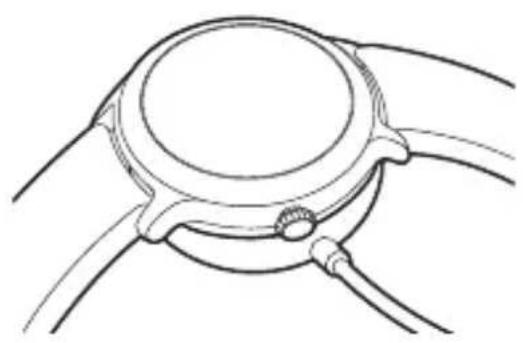
natural_image
Technical line drawing of a mechanical component with no visible text or symbols
natural_image
Hand interacting with a circular interface showing four red directional arrows pointing at a central node (no text or symbols)


natural_image
Circular icon with icons including a gear, app, clock, and battery on dark background (no text or symbols)Вызов
Совершение вызова
Отклонение вызова
Google Fit

natural_image
Simple line drawing of a wine glass with fork inside a circle, crossed by diagonal lines (no text or symbols)natural_image
Recycling symbol with three arrows forming a triangle (no text or labels)About this user guide
Thank you for choosing this LG product. Please carefully read this user guide before using the device for the first time to ensure safe and proper use.
• Always use genuine LG accessories. The supplied items are designed only for this device and may not be compatible with other devices.
- This device is not suitable for people who have a visual impairment due to the touchscreen keyboard.
- Descriptions are based on the device default settings.
- Default apps on the device are subject to updates, and support for these apps may be withdrawn without prior notice. If you have any questions about an app provided with the device, please contact a LG Service Centre. For user-installed apps, please contact the relevant service provider.
- Modifying the device's operating system or installing software from unofficial sources may damage the device and lead to data corruption or data loss. Such actions will violate your LG licence agreement and void your warranty.
- Some content and illustrations may differ from your device, depending on the area, service provider, software version, or OS version, and are subject to change without prior notice.
- Software, audio, wallpaper, images, and other media supplied with your device are licenced for limited use. If you extract and use these materials for commercial or other purposes, you may be infringing copyright laws. As a user, you are fully responsible for the illegal use of media.
- Additional charges may incur for data services, such as messaging, uploading, downloading, auto-syncing and location services. To void additional charges, select a data plan suitable to your needs. Contact your service provider to obtain additional details.
Instructionalnotices

WARNING: Situations that could cause injury to the user and third parties.

CAUTION: Situations that may cause minor injury or damage to the device.

NOTE: Notices or additional information.
Table of Contents
01
Basic Functions
6 Accessories
7 Watch Overview
9 Get ready for snap-and-swap
10 Charging Your Watch
12 Using the battery efficiently
13 If the Screen Freezes
13 Turning the Watch On and Off
14 Waking Your Watch Up
14 Dimming the Screen
14 Using the Touch Screen
02
Connecting the Watch to Your Companion Device
18 Setting Up Your Companion Device
19 Pairing Your Watch with Your Companion Device
20 Connecting to Another Companion Device
03
How to Use Your Watch
22 Watch Face Home Screen
22 Changing the Watch Face
24 Notification Cards
25 Managing the Quick Settings
26 Apps Screen
26 Call
28 Google Fit
31 Opening the Apps Installed On Your Watch
32 Downloading Other Apps
04
Meet your Google Assistant
34 Getting help from your Google Assistant on Your Watch
34 Setting a Reminder
35 Seeing Your Step Count
35 Sending a Text
36 Sending and Reading Email
37 Setting a Timer
38 Using the Stopwatch
38 Setting an Alarm
39 Managing Your Alarms
05
Settings
41 Opening the Settings Menu
41 Display
41 Notifications
42 Apps
42 Gestures
42 Connectivity
44 Accessibility
44 Personalisation
45 System
06
More Information
47 Open Source Software Notice Information
47 Trademarks
48 DECLARATION OF CONFORMITY
48 Contact office for compliance of this product
48 Regulatory information (Regulation ID number, E-labeling, etc.)
48 How to Update Your Device
07
Safety Information
50 Safety tips
51 General safety & handling
01
Basic Functions
Accessories
The following accessories are provided with your device.
- Quick Start Guide
- Charging cradle
- Charger

- The items supplied with the device and any available accessories may vary depending on the region or service provider.
- Always use genuine LG Electronics accessories. Using accessories made by other manufacturers may affect your device's call performance or cause malfunctions. Any issues resulting from usage of accessories made by other manufacturers may not be covered by LG's repair service.
- The accessories are not water-resistant. Do not expose these items to water.

- If any of these basic items are missing, contact the dealer from which you purchased your device.
- To purchase additional basic items, contact the LG Customer Support Centre.
- To purchase optional items, contact the LG Customer Support Centre for available dealers, and then purchase online.
- Some items in the product box are subject to change without notice.
- The appearance and specifications of your device are subject to change without notice.
Watch Overview
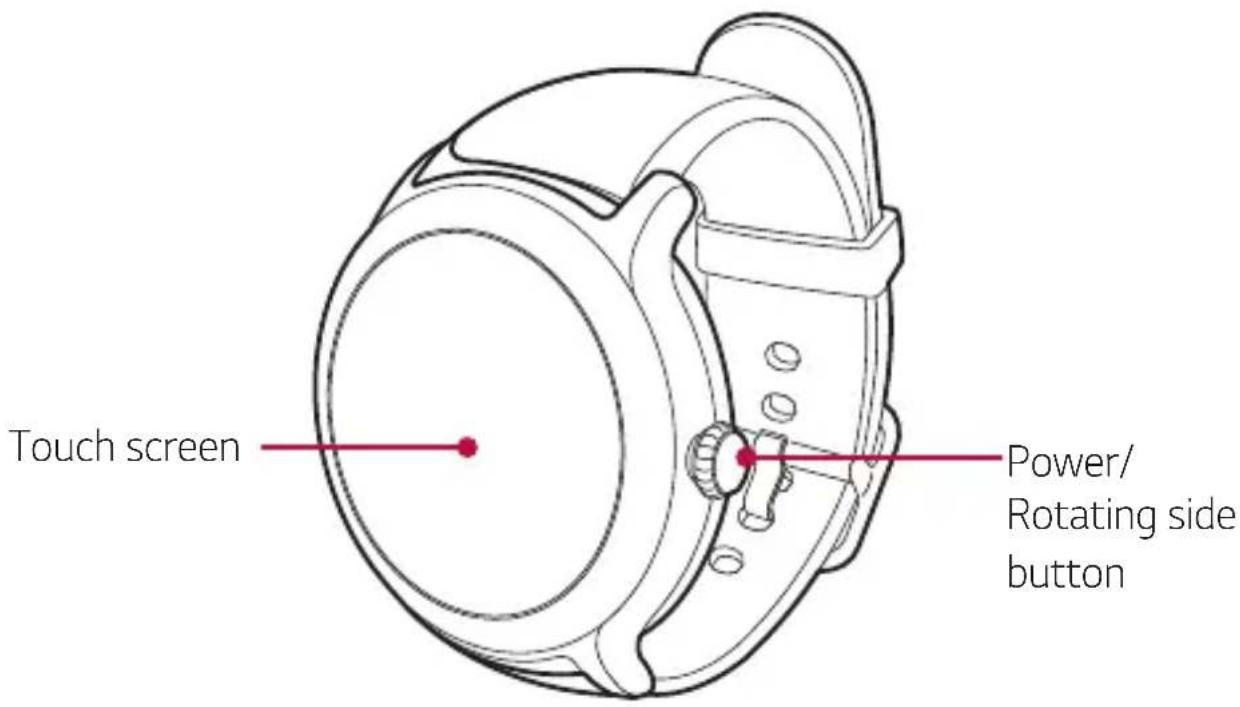
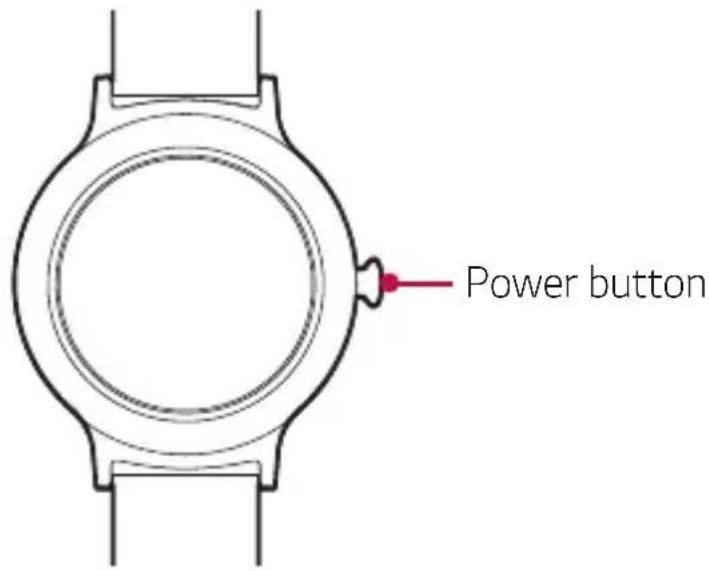
| Power/Rotating side button | To turn the watch on:Press and hold for one second to turn the screen on. If it doesn't turn on, press and hold for a few seconds until the LG logo appears. |
| When the screen is dimmed:Press once to wake the screen. | |
| When the screen is on:Press to open the Apps screen when you are on the watch face home screen.Press to return to the previous when you are on any other screen.Press and hold for one second to get help from your Google Assistant. | |
| Power/Rotating side button | Rotating the Power/Rotating side button:Rotate to browse the apps list on the Apps screen.Rotate to show or hide notifications in the watch face home screen. |
| If the screen freezes:Press and hold for more than 10 seconds until the LG logo appears to restart the watch. |
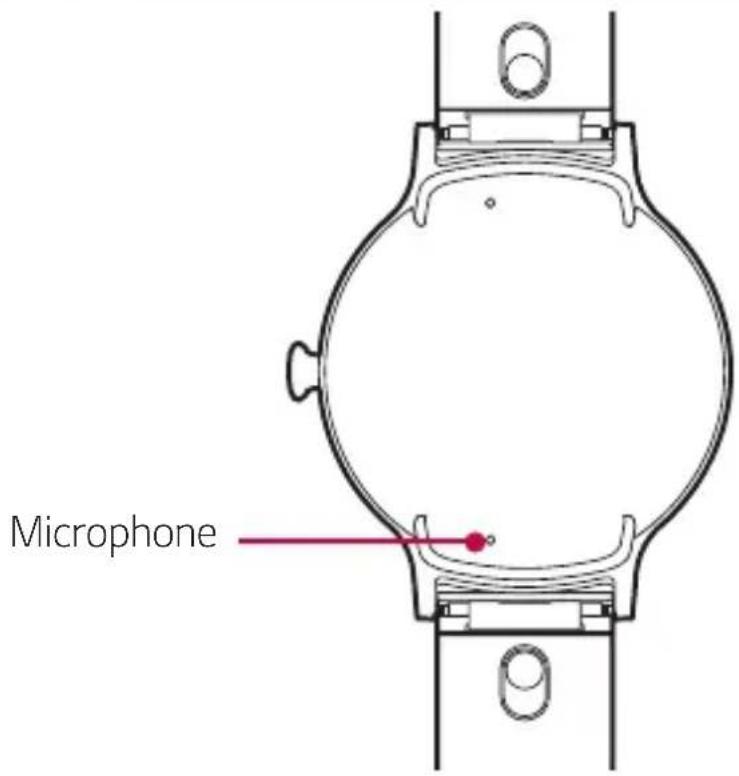

- Keep the microphone holes clear.
- Any damage to the microphone resulting from accidents, unreasonable use, tampering or other causes not arising from defects in material or workmanship may void the Limited Warranty.
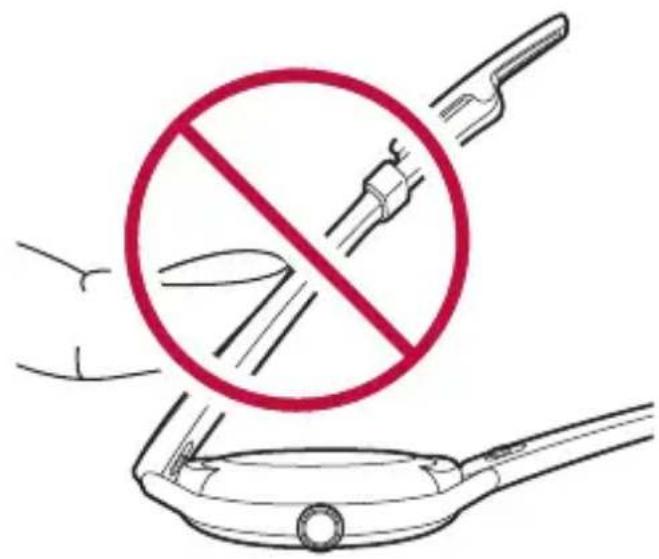
Get ready for snap-and-swap
Switch styles anytime with MODE™ snap-and-swap watch bands.
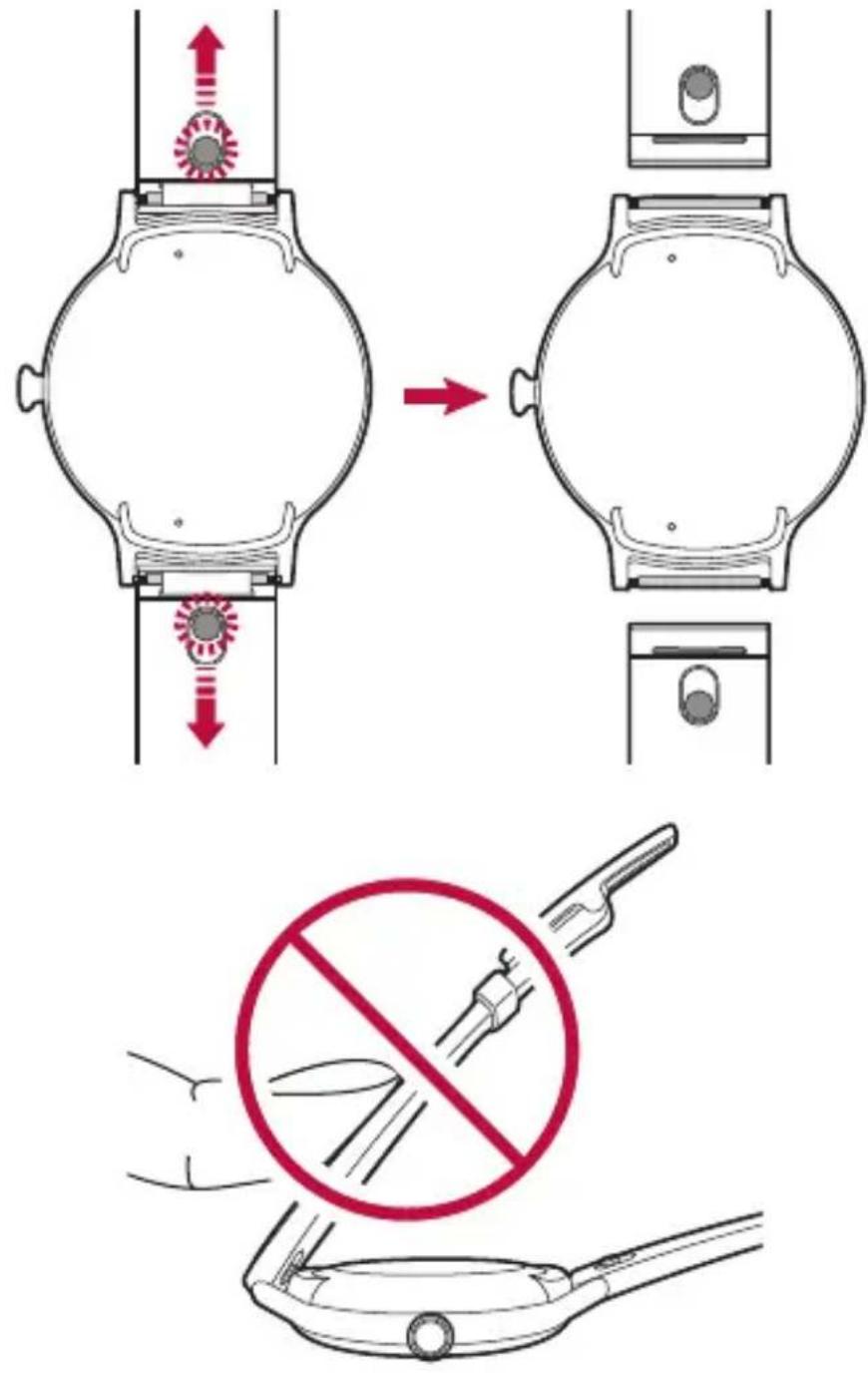

- Excess force on the watch band may lead to breakage.
Charging Your Watch
Before using your watch for the first time, you should charge the battery. Use the charging cradle provided with your watch to charge its battery.
The supplied charging cable will allow you to charge from a power outlet or from a computer.

- When the battery power is low, the battery icon may show as empty. If the battery charge is completely empty, the watch cannot be turned on immediately after connecting the charger. Leave an empty battery to charge for a few minutes before turning the device on. Some features are not available while the battery is charging.

- To charge your device, always use the power adapter and charging cradle that come with your device. Using third-party charging accessories can cause fire, electric shock, injury, or damage to your device or other property.
- Your device has an internal rechargeable battery. For your safety, do not remove the embedded battery.
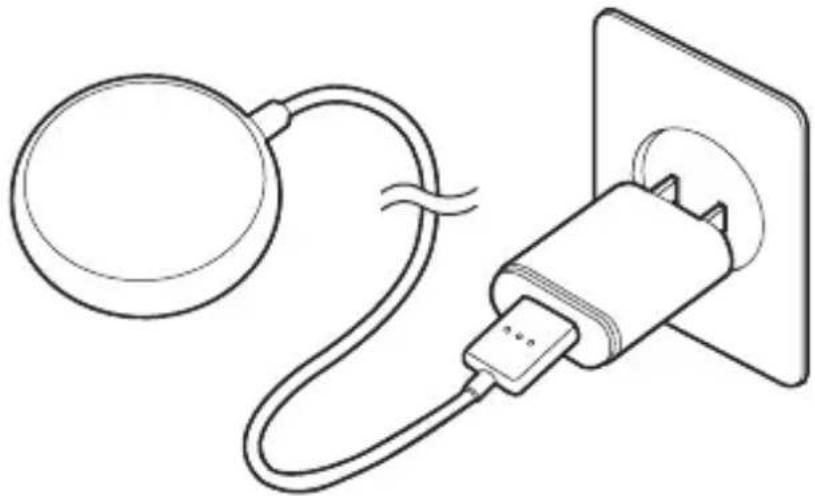
1 Connect the USB plug on the charging cradle to the charger adapter.
2 Plug the charger adapter into a power outlet.
natural_image
Line drawing of a plug connecting a cable to a socket (no text or symbols)
• To charge from a PC, insert the USB plug on the charging cradle into a USB port on the PC.
- A power source connected a PC may result in a slower charging speed due to a lower electric current than a power outlet.
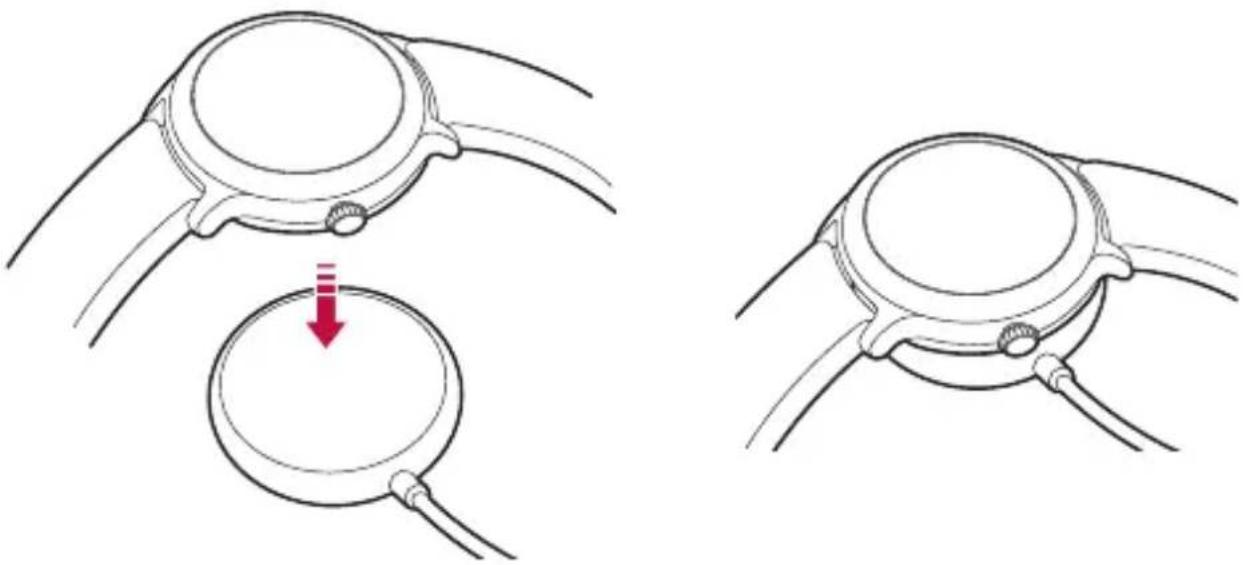
3 Place your device on the charging cradle as shown below.
natural_image
Two-step illustration of a hand holding a circular object, showing a red arrow indicating the process (no text or symbols present)
- The charging cradle is designed to only be used with the watch and is not compatible with other devices.
- To maximise battery life, make sure that the battery is fully charged before you use the device for the first time.
- Exposure to liquids or other foreign materials while using your device may affect the charging cradle, causing it to disconnect from the watch while charging.
- If the charging screen does not display after connecting to a power source, adjust your device's position on the charging cradle.
4 While your watch is charging, the screen will show the time, battery percentage and charging progress (indicated by the ring around the outside).
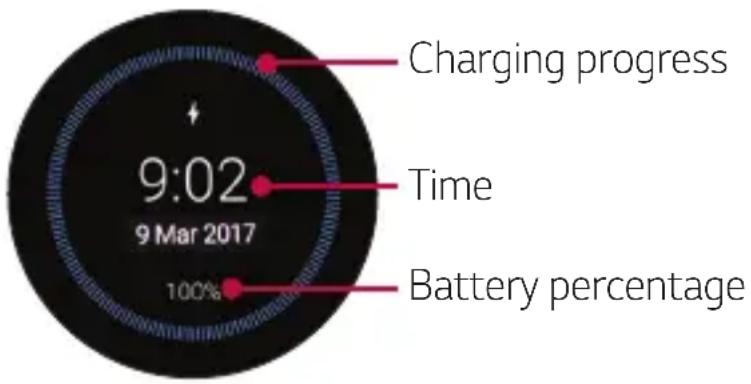
5 Once the battery is fully charged, remove it from the charging cradle.

- The watch may become warm while charging. If the device becomes hotter than usual, discontinue charging until it cools.
Using the battery efficiently
To minimise battery consumption, follow these tips.
- Turn off the Always-on screen option when not using your watch for a long time.
- Minimise the screen brightness.
- Turn off the Wi-Fi network function when not using Wi-Fi.
- Turn off the Gestures feature.
- If you get notifications on your companion device that you don't want to see on your watch, go to the Android Wear app Settings on your companion device and add those apps to the Block app notifications.
- If you feel the battery life is short after installing some specific app, try to uninstall it.

- Battery Saver is automatically enabled at the 15% battery capacity on your watch. In battery saver mode, the ambient display and Wi-Fi are set to off.
If the Screen Freezes
If the device freezes up and stops working, press and hold the Power button for more than 10 seconds until the device reboots and the LG logo is displayed.
Turning the Watch On and Off
Turning the Watch On
Press and hold the Power button for a few seconds.
Turning the Watch Off
1 Press the Power button to open the Apps screen.
2 Tap Settings > System > Turn off.
3 When prompted with the message Turn off: Are you sure?, tap ⏻.
Waking Your Watch Up
If the screen is dimmed, you can wake up the watch by doing any of the following:
- Touch the screen.
- Raise your wrist such that the display of the watch is pointing towards your eyes.
- Press the Power button on the watch.
Dimming the Screen
Cover the screen with your palm until it vibrates.
Using the Touch Screen
You can familiarise yourself with how to control your device by using touch screen gestures.
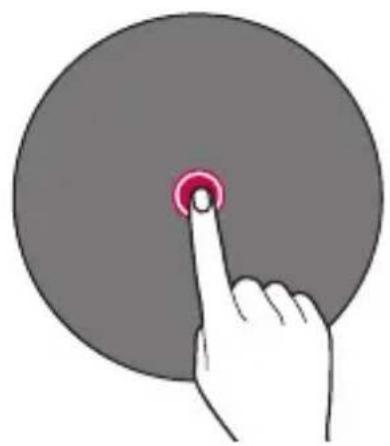
Tapping
Lightly tap with your fingertip to select or run an app or option.
natural_image
Hand pressing a button on a gray circular object (no text or symbols)Touching and holding
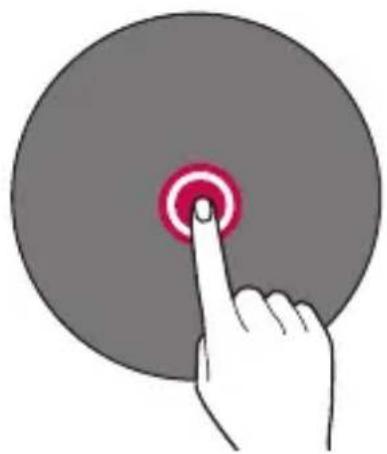
Touch and hold for several seconds to display the available options.
natural_image
Hand pressing a red circular button on a gray circular background (no text or symbols)Swiping
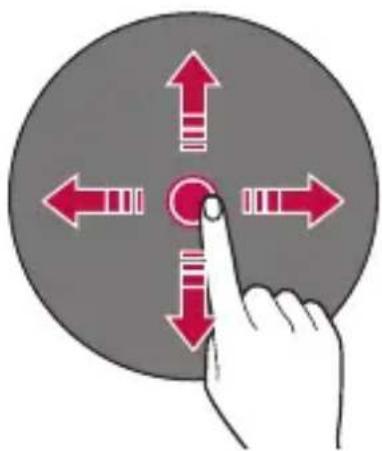
Quickly move your finger across the surface of the screen, without pausing when you first touch it.
natural_image
Hand interacting with a circular button featuring four red arrows pointing outward from a central circle (no text or symbols)
- Do not expose the touch screen to excessive physical shock. It might damage the touch sensor.

- A touch screen failure may occur if you use the device near a magnetic, metallic or conductive material.
- If you use the device under bright lights, such as direct sunlight, the screen may not be visible, depending on your position. Use the device in a shady location or a location with an ambient light that is not too bright and bright enough to read books.
- Do not press the screen with excessive force.
- Touch control may not work properly if you tap while wearing a glove on or by using the tip of your fingernail.
- The touch screen may not function properly if a screen-protective film or accessory is attached to the device.
- Do not display non-moving images for an extended period. This may cause image burn-in on the screen.
- Applications that show the same screen for more than 10 minutes are not recommended because they may cause screen damage that is not covered by the warranty.
02
Connecting the Watch to Your Companion Device
Setting Up Your Companion Device
Before pairing, follow these steps to set up your companion device that you want to pair with your watch.
1 Make sure the companion device is running Android™ 4.3 or iOS 9+ and supports Bluetooth®.
- If your companion device is not Android 4.3 or iOS 9+, please check with your manufacturer for a possible software update.
2 Make sure your companion device supports Android Wear™.
- To find out, visit http://g.co/WearCheck from your companion device.
3 Turn on Bluetooth on your companion device if it isn't already on.
4 Make sure your companion device is next to your watch.
5 On your companion device, download the Android Wear app from the Play Store or App Store and install it. If Android Wear is already on your companion device, make sure you have the most recent version.
6 Make sure your companion device is connected to mobile data or a Wi-Fi network. You need a data connection to set up your watch for the first time.

- Depending on the network connection, the setup process might take over 20 minutes.
Pairing Your Watch with Your Companion Device
Step1. Follow these steps on your watch.
1 Turn on the watch and tap the screen to begin.
2 Tap a language.
3 Swipe up and follow the onscreen instructions until the watch name is displayed.
Step 2. Follow these steps on your companion device.
1 Open the Android Wear app on your companion device.
2 On your companion device, you'll see a list of nearby devices. Tap your watch's name.
3 You'll see a passkey on your companion device and watch. Check that the codes match.
4 Tap PAIR on your companion device to start pairing.
Step 3. Follow these steps to pair your watch with your companion device.
1 You'll see a confirmation message on your watch once it is paired. This may take a few minutes.
2 Follow the onscreen instructions to complete the initial setup.
3 When your watch completes the connection with your companion device, you'll be asked to copy your Google accounts on your companion device to your watch.

- Copying a Google account to your watch allows you to download new apps using the Play Store.
- Once initial setup is complete, you will see a tutorial notification Follow the tutorial notices before using your watch.

Connecting to Another Companion Device
Your watch connects to one mobile device at a time. If you want to connect your watch to a different device, you must reset your watch using the Disconnect & reset setting on your watch.
Unpairing and Resetting Your Watch
This setting unpairs the watch from your companion device and resets your watch's settings to their factory default values and deletes all of your data.
1 Press the Power button to open the Apps screen
2 Tap Settings > System > Disconnect & reset.
3 When prompted, tap ⓣ to confirm.
4 Connect your watch to another device.

- Performing a factory reset erases all data from your watch's memory and all watch data from your companion device. After resetting, your watch is ready to connect to another companion device.
03
How to Use Your Watch
Watch Face Home Screen
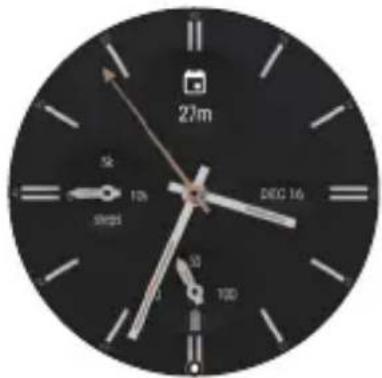
The watch face home screen is the starting point for the default screen. You see the current time and date. You can also show the battery level, your step count, and more.
natural_image
Close-up of a black analog clock face showing time, duration, and hour (no text or symbols beyond clock numerals)
- The displayed content depends on the watch face design you select.
Changing the Watch Face
You can add more watch faces and personalise your watch to your style.
1 From the watch face home screen, swipe left or right to the last screen and then tap Add more watch faces
2 Tap the desired watch face to add it to your favorites and allow you to choose it.
3 After adding your favorites, swipe the screen right or left to browse designs, then tap the one you want to choose.
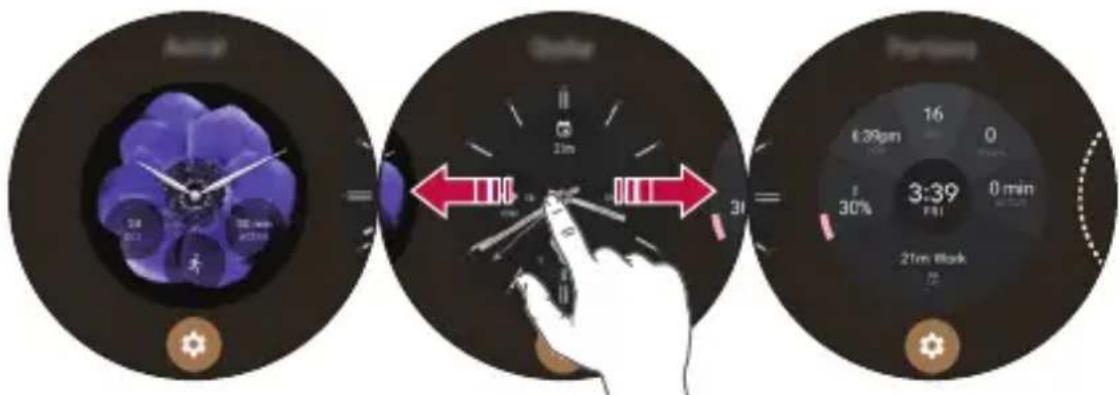
- You can also change and download watch faces through the Android Wear app on your companion device.
Customise the Watch Face Home Screen Menu
1 Touch and hold the watch face home screen for one second.
OR
Swipe left or right from the watch face home screen and then tap Customise ❄️.
2 Tap Data to customise the shortcuts and watch face layout displayed on the watch face home screen.
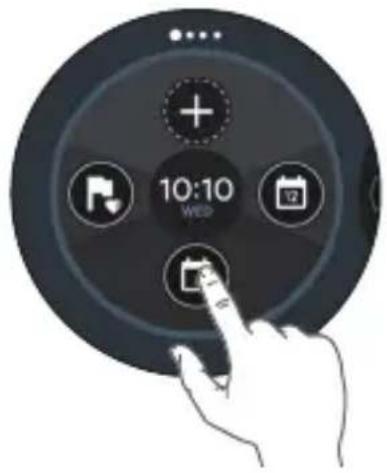

- To personalise the shortcuts, tap the shortcut you want to remove and select the desired item.
Notification Cards
Most notifications you see on your companion device will also show up on your watch. These include notifications for texts, event reminders, and more.
Notifications are displayed in the form of cards. Card previews appear at the bottom of the watch face home screen.
• To see a notification card, swipe the watch face upwards.
• To see more cards, keep swiping up from the bottom of the screen.
• To get more details, tap the notification card.
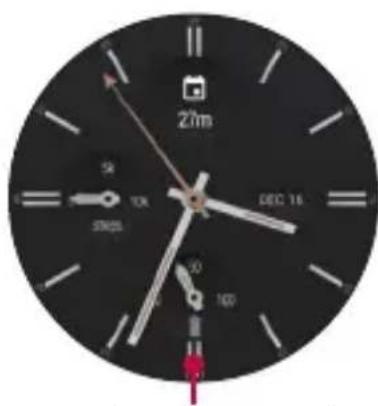
Notification cards
Swipe up on the watch face to view notification cards.
Swipe up to view more notifications.
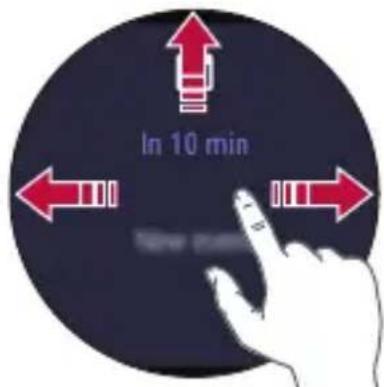
To remove a notification, swipe it away.
Blocking Notifications
If you get notifications on your companion device that you don't want to see on your watch, you can stop specific apps from showing their notifications on your watch.
1 On your companion device, open the Android Wear app.
2 Tap ✿ Block app notifications .> ⊕
3 Select the app you want to block.
Managing the Quick Settings
To open the Quick settings, swipe down on the watch face home screen. The Quick settings allow you to quickly and easily change commonly used settings.
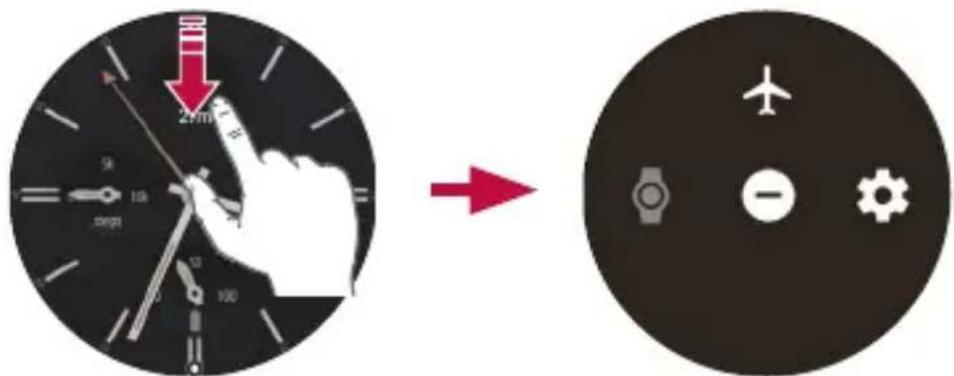
- Aeroplane mode 🔊: Tap 🔊 to disconnect all networks and turn off your device's connectivity on your watch.
- Theater mode ☎: Tap ☎o turn off your watch's screen. When theater mode is turned on, your watch's display does not light up and notifications do not appear.
- Do not disturb ⬤: Your watch will not show any notifications and alerts while this setting is turned on.
- Settings ⚙: Tap ⚙ to open the Settings app.

- Some content may differ from your companion device depending on the OS version.
Apps Screen
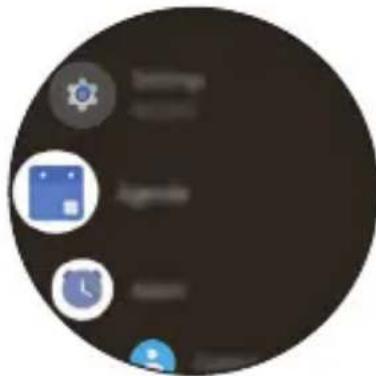
The Apps screen displays icons for all apps.
- From the watch face home screen, press the Power button to open to the Apps screen.
• To open an app on the Apps screen, tap an app icon.
natural_image
Circular icon with icons including a folder, security symbol, and clock (no text or numbers)Call
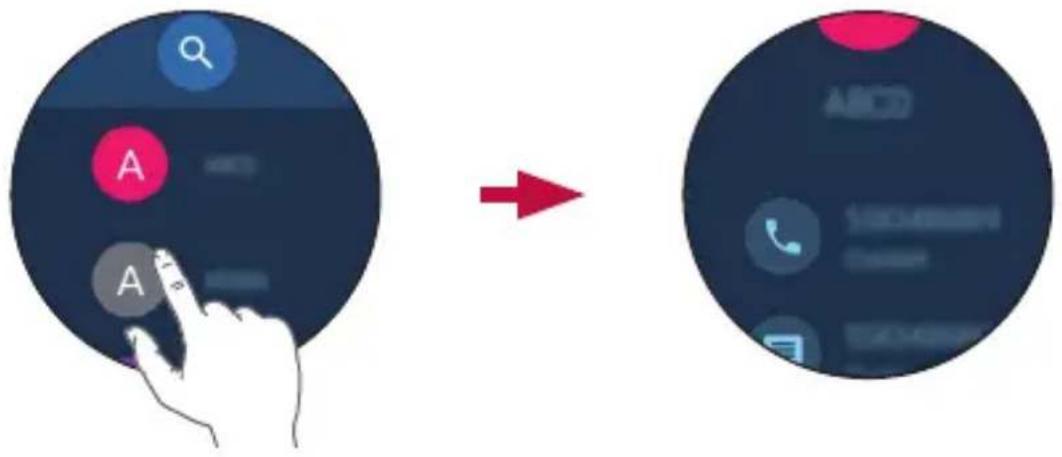
Making a Call
You can make a call directly from your watch.
1 Open the Apps screen and then tap Contacts.
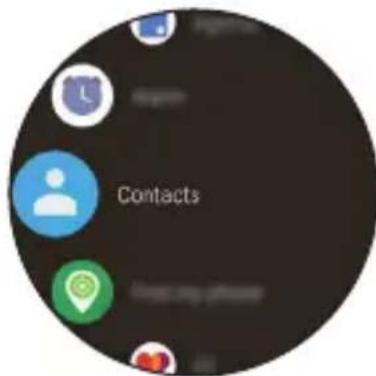
2 Tap a contact you want to call. Your companion device will make a call to the number you've called on your watch.
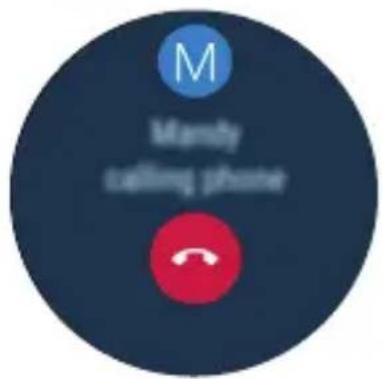
Rejecting a Call
You can get an instant alert when your companion device receives an incoming call. The notification shows the caller's number and/or contact information on your watch.
• To reject a call, simply tap 🔊.
Google Fit
Google Fit helps to work out when you're walking, jogging or cycling. Set fitness goals and regularly record and check your progress.
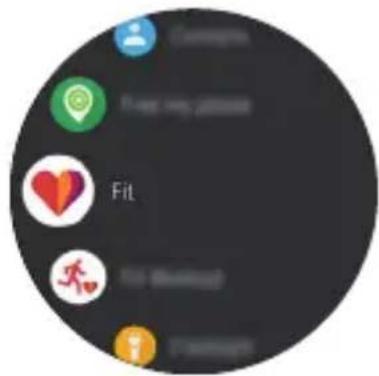
To Open the Google Fit App
Open the Apps screen and then tap Fit.

- If you feel discomfort while using the device, stop using it and remove it from your wrist.
- If your device becomes hot to the touch, please remove it until it cools.
Using the Google Fit App
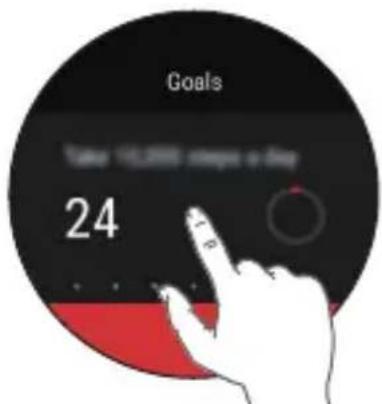
Setting up your goal
1 Open the Fit app to personalise your goal.
2 Swipe up and tap Add goal 📄 to set one of the following preset goals or create your own: Take 10,000 steps a day, Active 30 min a day, Running 3 times a week, Steps, Distance, Active time, Calories.
Viewing your workout report
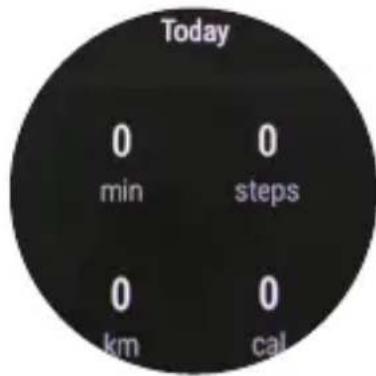
Your workout log displays your active time, steps, distance, and active calories.
1 Open the Fit app and swipe up until the workout report appears.
2 Tap each goal option to show workout information and a graph depicting weekly data.
Using the Fit Workout App
Open the Fit Workout app
1 Open the Fit app and tap Fit Workout OR Open the Fit Workout app.
2 Tap the desired workout mode.
3 Tap START to start monitoring your workout.
- Tap ☐ to pause or ☐ to resume the workout.
- Tap ☐ to complete your workout and view your workout report.
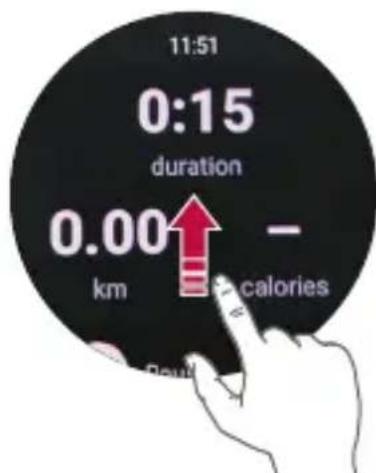
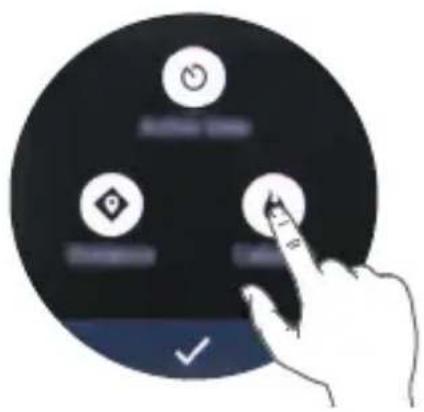
4 While on the workout screen, swipe up and then tap 📄 to change the metrics displayed.
- To change the metric displayed on the workout screen, tap an option until the desired option appears.
Opening the Apps Installed On Your Watch
The apps list shows you all of the applications installed on the watch.
Swipe up and down to scroll through the list, and then tap one to use it.
The most recently used app is displayed at the top of the list.

- Default apps on the device are subject to updates. Support for these apps may be withdrawn without prior notice. If you have any questions about an app provided with the device, please contact an LG Service Centre. For user-installed apps, please contact the relevant service provider.
- Modifying the device's operating system or installing software from unofficial sources may damage the device and lead to data corruption or loss. Such actions will violate your LG license agreement and void your warranty.
Viewing the Apps List
1 If your screen is dimmed, tap the screen to wake up the watch.
2 Press the Power button to open the Apps screen.
Downloading Other Apps
After copying you companion device's Google accounts to your watch, you can download more apps on Google Play™.
To use the same apps which are already installed on your companion device, download them again on your watch. You can download them easily via the 'Apps you've used' category on Google Play™.

- The apps on your device, and their functions, may vary according to country, region or hardware specifications. LG will not be responsible for any performance issues which arise from using applications developed by providers other than LG.
- LG will not be responsible for performance or incompatibility issues which arise from edited registry settings or modified operating system software.
- Any attempt to customise your operating system may lead to the device or its apps not working correctly.
- Software, audio, wallpaper, images, and other media supplied with your device are licensed for limited use. If you extract and use these materials for commercial or other purposes, you may be infringing copyright laws. As a user, you are entirely responsible for the illegal use of media.
- Additional charges may apply for data services, such as messaging, uploading, downloading, auto-syncing and location services. To avoid additional charges, select a data plan suitable to your needs. Contact your service provider for details.
- This content is not supported in iOS version.
04
Meet your Google Assistant
Getting help from your Google Assistant on Your Watch
Your watch has the Google Assistant built in. Ask it questions. Tell it to do things. It's your own personal Google. Tap Settings>Personalisation >"OK Google" detection to activate it. Just say "OK Google" or press and hold the Power button until you see Hi, how can I help?.

- To get help from your Google Assistant a data or Wi-Fi connection is required on your companion device, and the devices must be within Bluetooth range.
- This feature may vary or may not be supported, depending on the area, languages, or paired devices.
Setting a Reminder
You can ask your Google Assistant to set a reminder. When a reminder is set, a card will appear at the reminder time.
1 If your screen is dimmed, tap the screen to wake up the watch.
2 From the watch face home screen, say "OK Google" or press and hold the Power button until you see Hi, how can I help?
3 Say "Remind me".
4 Complete your reminder when prompted. Your reminder will automatically save after a few seconds (tap the Ⓕ before it finishes saving to cancel it.)
Seeing Your Step Count
You can view your step count goal, the number of steps you have taken today and each day over the last week, as measured by the Fit app.
1 If your screen is dimmed, tap the screen to wake up the watch.
2 From the watch face home screen, say "OK Google" or press and hold the Power button until you see Hi, how can I help?
3 Say "Show me my steps". You will see your daily step count information.
Sending a Text
You can ask your Google Assistant to send text messages using your watch. You can also reply to any text message cards that you receive on your watch.
Sending a Message
1 If your screen is dimmed, tap the screen to wake up the watch.
2 From the watch face home screen, say "OK Google" or press and hold the Power button until you see Hi, how can I help?
3 Say "Send a text".
4 To whom? will appear. Say the name of the contact you want to send a text message to. You can also say a mobile phone number for numbers not saved in your companion device's Contacts list.
5 You will be prompted to say the message you want to send. Say your message.
6 Tap to send the text message (tap to cancel it).
Replying to a Message
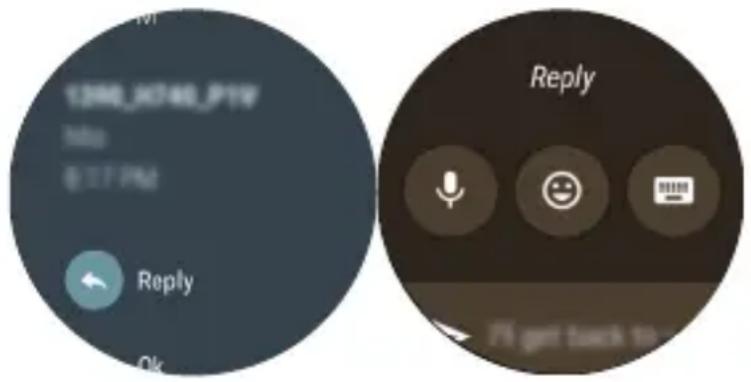
When you get message notifications on your companion device, cards will appear on your watch. Tap the notification and swipe up until Reply appears. Tap Reply, then say your message or insert emoticons or input message using the keyboard. To insert an emoticon, like a smiley, into the message, tap 😊.

• This content is not supported in iOS version.
Sending and Reading Email
Your watch can be used to write and read emails from your companion device.
1 If your screen is dimmed, tap the screen to wake up the watch.
2 From the watch face home screen, say "OK Google" or press and hold the Power button until you see Hi, how can I help?
3 Say "Send email".
4 To whom? will be displayed.
5 Say the name of the contact (from the companion device's Contacts list) you want to send an email to. If a list appears, select the contact you want.
6 You will be prompted to say the message you want to send.
7 Tap to send the email (tap to cancel it).
Replying to an Email
When reading an email notification card on your watch, swipe the card up to access actions you can take. Tap :, select Reply and say your message, insert emoticons or input your message using the keyboard. To insert an emoticon, like a smiley, into the message, tap one of the emoticons at the bottom of the screen. Tap ➤ to send the email (tap ☒ to cancel it).

• This content is not supported in iOS version.
Deleting Email Messages
When reading an email notification card on your watch, swipe the card up and tap Delete.
Setting a Timer
You can ask your Google Assistant to set a timer. Once a timer set, a card is displayed with the countdown.
1 If your screen is dimmed, tap the screen to wake up the watch.
2 From the watch face home screen, say "OK Google" or press and hold the Power button until you see Hi, how can I help?
3 Say "Set a timer".
4 How long? will be displayed and then you can say a duration you want.
- Start or resume the countdown by tapping ▶.
- Pause the timer by tapping ||.
Using the Stopwatch
Measure how much time has passed by starting a stopwatch.
1 If your screen is dimmed, tap the screen to wake up the watch.
2 From the watch face home screen, say "OK Google" or press and hold the Power button until you see Hi, how can I help?
3 Say "Start stopwatch".
4 Tap▶to start.
Setting an Alarm
Multiple alarms can be set on your watch separately from alarms set on your companion device. Alarms set on your watch will not transfer to your companion device, but alarms activated on your companion device will display an alarm card (with vibration and sound, if set) on your watch.
1 If your screen is dimmed, tap the screen to wake up the watch.
2 From the watch face home screen, say "OK Google" or press and hold the Power button until you see Hi, how can I help?
3 Say "Set an alarm".
4 What time? will be displayed and then you can say the time you want.
When an alarm goes off, your watch will display a card (with vibration and sound, if set).
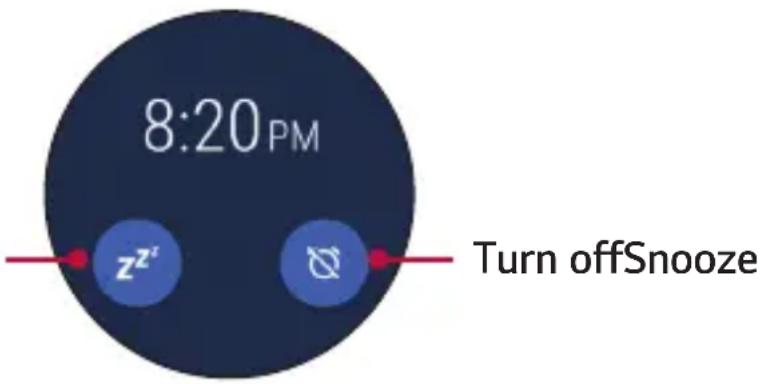
Managing Your Alarms
You can view, edit, and delete the alarms that you set on your watch.
1 If your screen is dimmed, tap the screen to wake up the watch.
2 From the watch face home screen, say "OK Google" or press and hold the Power button until you see Hi, how can I help?
3 Say "Show alarms".

- Tap next to an alarm to edit or delete it.
- Tap ⊕ to manually set an alarm.
05
Settings
Opening the Settings Menu
If your screen is dimmed, tap the screen to wake up the watch.
- Press the Power button to open the Apps screen, then tap Settings

OR
- Swipe down on the watch face home screen, then tap Settings ⚙.

- Tap a setting to turn it on or off, open a list of choices, or view information.
Display
From the Settings 📄ap Display.
- Adjust brightness: You can set the level of brightness for your watch's display.
- Font size: You can set the size of the font displayed on your watch's screen.
- Always-on screen: When you're not using the watch, the screen can either turn off or show the current time, depending on your settings.
Notifications
From the Settings tap Notifications.
- Set the following options: Notification previews and Do not disturb unless....
Apps
From the Settings ⚙, tap the Apps >System Apps.
- Allows you to view and manage the apps on your device. To stop the app from running, tap an entry to view more information, tap Force stop, then ⏻.
- You can set control permissions for individual applications.
Gestures
From the Settings ,cap Gestures.
- Tilt-to-wake: You can set to tilt your watch to turn on the screen.
- Wrist gestures: You can set to flick your wrist to browse the screen.
- Launch tutorial: View a tutorial about using gestures on your watch.
- More tips: Opens a webpage on your companion device to help you with more tips for gestures.
Connectivity
From the Settings ,cap Connectivity.
Bluetooth
- Bluetooth: Tap the switch to toggle it On or Off. On allows you to pair and connect with other Bluetooth devices. Tap Bluetooth (with Bluetooth on) to use and manage your Bluetooth devices.
• Available devices: Displays all of the Bluetooth devices that are within your companion device's range. Tap one to pair and connect.

- When using Bluetooth to connect to other mobile devices, the devices must be positioned close to each other. If not, it may cause abnormal operation or noise, depending on the use environment.
- In an open space, the Bluetooth communication range usually spans approximately 10m. This range may vary depending on the use environment.
- Do not place obstacles between your product and connected devices. Outgoing/incoming signals can weaken due to user's body, walls, corners or obstacles. Use where there is no obstacle.
- Only Bluetooth devices that support the A2DP and HFP profile are supported.
Wi-Fi
- Wi-Fi: Tap the switch to toggle it On or Off. On connects to a Wi-Fi network (from your list of available, detected networks).
- Add network: Allows you to manually add a Wi-Fi network by entering its name (SSID), security, and password.
- Saved networks: Displays your saved Wi-Fi networks allowing you to manage them.
- About Wi-Fi: Displays information about Wi-Fi networks.

- When using a Wi-Fi connection, your watch can get notifications from your device even if Bluetooth is unavailable.
- Your watch will search and connect to the nearest Wi-Fi network based on the Wi-Fi list registered on your device.
Aeroplane mode
Tap the switch to toggle it On or Off. When Aeroplane mode is on, you can use still many of the features on your watch when you are on an aeroplane or anywhere else where sending or receiving data is prohibited.

- Turning on Aeroplane mode on your watch does not activate it on the your companion device. If you want to activate aeroplane mode on your companion device, you'll need to turn it on separately.
Location
Tap the switch to toggle it On or Off. You can manage your location services for determining your approximate location. Some apps like Weather and Maps need your location to work.

- When paired with a companion device, the watch will use the location of the companion device. To improve location accuracy when paired with a device, turn on High accuracy in your companion device's location settings.
Accessibility
From the Settings ⚙, tap Accessibility.
- Magnification gestures: You can set to enable magnification to zoom in and out with triple tap.
Personalisation
From the Settings map Personalisation.
- Input methods: You can customise language and keyboard settings for your device.
• Accounts: You can add or remove a Google account to your watch. -
Smart Reply: Allows you to reply to text messages without manually entering text by using preset messages.
-
"OK Google" detection: Allows your watch to detect "OK Google" voice to activate it.
- Device administration: Allows you to view and disable your device administrators.
- Screen lock: You can set a screen lock to prevent unauthorised access to your device.
System
From the Settings ,lap System.
- Date & time: You can set how your watch syncs and displays the date, time, and time zone.
- Disconnect & reset: You can unpair the watch from your companion device and reset your watch's settings to their factory default values. Please note that this deletes all of your data on your watch.
- Restart: You can restart your device.
• Turn off: You can turn off your device - About: Displays the Model, Device name, Versions (for Google and Android software), Serial number, Build number, Connection, and Battery information. The following options are also available:
- System updates: Check to see if the latest software is loaded on your watch.
- Regulatory information: Displays regulatory information.
- Legal notices: Instructs you to see your companion device for legal notices.
06
More Information
Open Source Software Notice Information
To obtain the source code under GPL, LGPL, MPL, and other open source licenses, that is contained in this product, please visit http://opensource.lge.com.
In addition to the source code, all referred license terms, warranty disclaimers and copyright notices are available for download.
LG Electronics will also provide open source code to you on CD-ROM for a charge covering the cost of performing such distribution (such as the cost of media, shipping, and handling) upon email request to opensource@lge.com. This offer is valid for three (3) years from the date on which you purchased the product.
Trademarks
• Copyright ©2017 LG Electronics, Inc. All rights reserved. LG and the LG logo are registered trademarks of LG Group and its related entities.
- App Store is a registered trademark of Apple Inc.
- Android, Android Wear, Google Play, Google™ and other marks are trademarks of Google Inc.
• MODE is a trademark owned by Google Inc.
- Bluetooth® is a registered trademark of Bluetooth SIG, Inc. worldwide.
- Wi-Fi® and the Wi-Fi logo are registered trademarks of the Wi-Fi Alliance.
- All other trademarks and copyrights are the property of their respective owners.
DECLARATION OF CONFORMITY
Hereby, LG Electronics declares that this LG-W270 product is in compliance with the essential requirements and other relevant provisions of Directive 2014/53/EU.
A copy of the Declaration of Conformity can be found at http://www.lg.com/global/declaration.
Contact office for compliance of this product
LG Electronics European Shared Service Center B.V. Krijgsman 1, 1186 DM Amstelveen, The Netherlands
Regulatory information (Regulation ID number, E-labeling, etc.)
To view regulatory marks and related information on your device, press the Power/Rotating side button and tap Settings >System >About >Regulatory information.
How to Update Your Device
Check for the latest available firmware releases, as well as new software functions and improvements.
1 Press the Power/Rotating side button to open the Apps screen.
2 Tap Settings > System > About > System updates.
07
Safety Information
Safety tips
The charging cradle contains strong magnets that may interfere with pacemakers, credit cards, watches, and other magnet-sensitive objects.
To avoid damaging your product and reduce the risk of fire or electric shock, explosion, or other hazards, observe these common-sense precautions:
- To charge your device, always use the included power adapter, and charging cradle that come with your device. Using third-party charging solutions can cause fire, electric shock, injury, or damage to your device or other property.
• Available accessories may vary depending on your region, country or service provider.
- Some contents and illustrations may differ from your device depending on the region, service provider, software version, or OS version, and are subject to change without prior notice.
- Do not damage the power cord by bending, twisting, pulling, heating, or placing heavy items on it.
- This product is equipped with a charging cradle for connecting to a desktop or notebook computer or to the charger. Be sure your computer is properly grounded before connecting your product to the computer. The power supply cord of a desktop or notebook computer has an equipment-grounding conductor and a grounding plug. The plug must be plugged into an appropriate outlet that is properly installed and grounded in accordance with all local codes and ordinances.
- Do not open, disassemble, crush, bend or deform, puncture, or shred the product.
- Do not insert foreign objects into the product.
- Do not place the product in a microwave oven.
- Do not expose the product to fire, explosion, or other hazards.
- Like many electronic devices, your product generates heat during normal operation. Extremely prolonged, direct skin contact in the absence of adequate ventilation may result in discomfort or minor burns. Therefore, use care when handling your product during or immediately after operation.
- If you have a problem with using the product, please stop using it and consult with the authorised LG Electronics customer service center.
General safety & handling
While using your product, be aware of the following safety guidelines.
Your environment
- Safe operating temperatures. Use and store your product in temperatures between 0°C/32°F and 35°C/95°F. Exposing your product to extremely low or high temperatures may result in damage, malfunction, or even explosion.
- While driving. When driving a car, driving is your first responsibility. Using a companion device or accessory for a call or other application while driving may cause distraction. Keep your eyes on the road.
- Around explosives. Do not use in areas where sparks from the product might cause a fire or explosion.
- On airplanes. Obser ve all rules and instructions for use of electronic devices. Most airlines allow electronic use only between and not during takeoffs and landings. There are three main types of airport security devices: X-ray machines (used on items placed on conveyor belts), magnetic detectors (used on people walking through security checks), and magnetic wands (hand-held devices used on people or individual items). You can pass your product through airport X-ray machines. But do not send it through airport magnetic detectors or expose it to magnetic wands.
- Always follow any special regulations in a given area. Turn your device off in areas where use is forbidden or when it may cause interference or danger.
Battery warnings
- Do not disassemble, open, crush, bend or deform, puncture or shred the device.
- Do not modify or re-manufacture the device, attempt to insert foreign objects into the battery, immerse or expose to water or other liquids, or expose to fire, explosion or other hazard.
- Make sure that no sharp-edged items, such as animals' teeth or claws, come into contact with the battery. This could cause a fire.
- Only use the battery for the device for which it is specified.
- Use of an unqualified battery or charger may present a risk of fire, explosion, leakage, or other hazard.
- Battery usage by children should be supervised.
- Avoid dropping the product or battery. If the product or battery is dropped, especially on a hard surface, and the user suspects damage, take it to a service center for inspection.
- Improper battery use may result in a fire, explosion or other hazard.
- Always unplug the charger from the wall socket after the device is fully charged to save unnecessary power consumption of the charger.
- Risk of explosion if battery is replaced by an incorrect type. Dispose of used batteries according to the instructions.
Notice for battery Replacement

- Do not remove the back cover.
- Your device has an internal battery.
- Li-Ion Battery is a hazardous component which can cause injury.
- Battery replacement by non-qualified professional can cause damage to your device.
- Do not replace the battery by yourself. The battery can be damaged, which can cause overheat and injury. The battery must be replaced by the authorized service provider. The battery should be recycled or disposed separately from household waste.
- In case this product contains a battery incorporated within the product which cannot be readily removed by end-users, LG recommends that only qualified professionals remove the battery, either for replacement or for recycling at the end of this product's working life. To prevent damage to the product, and for their own safety, users should not attempt to remove the battery and should contact LG Service Helpline, or other independent service providers for advice.
- Removal of the battery will involve dismantling of the product case, disconnection of the electrical cables/contacts, and careful extraction of the battery cell using specialized tools. If you need the instructions for qualified professionals on how to remove the battery safely, please visit http://www.lge.com/global/sustainability/environment/take-back-recycling.
Notes on water resistant properties
This product is water and dust resistant in compliance with the Ingress Protection rating IP67.
Your product has undergone testing in a controlled environment and is proven to be water and dust resistant in certain circumstances (meets the requirements of classification IP67 as described by the international standard IEC 60529 - Degrees of Protection provided by Enclosures [IP Code]; test conditions: 15-35°C, 86-106 kPa, 1 meter, for 30 minutes). Do not expose the device in conditions that are different from the test conditions. Results may vary in actual use.

- In conditions that are different from LGE's test conditions for IP67 (as specified in this manual), the liquid damage indicator located inside the product changes colour. Please note that any damages that occur due to such causes makes you ineligible for any free-of-charge repair services provided under warranty.
Avoid exposing the product to environments with excessive dusts or moisture. Do not use the product in the following environments.

Do not immerse the product in any liquid chemicals (soap, etc.) other than water.

Do not immerse the product in salt water, such as sea water.

Do not immerse the product in hot spring.

Do not swim while wearing this product.

Do not immerse your product in water deeper than 3 feet (approximately 1 meter).
Do not immerse your product in water for longer than 30 minutes.

Do not place the product directly on sand (such as at a beach) or mud.
- Drain water if the voice activation does not work properly due to water remaining in the microphone.
- Should your product or your hands become wet, dry them before handling the device.
- Do not use the product in places where it may be sprayed with high-pressure water (e.g. near a faucet or shower head) or submerge it in water for extended periods of time, as the product is not designed to withstand high water pressure.
- This product is not resistant to shock. Do not drop the product or subject it to shock. Doing so might damage or deform the main unit causing water leak.
- The product's water and dust resistant features may be damaged by dropping or receiving an impact.
- If the product gets wet, use a clean, soft cloth to dry it thoroughly.
- The touch screen and other features may not work properly if the device is used while wet.
Pacemakers and other medical devices
Persons with pacemakers should:
- Always keep the product more than six (6) inches from their pacemaker when the product is turned ON.
• Not carry the product in a breast pocket.
- Use the wrist opposite the pacemaker to minimise the potential for RF interference.
- Turn the product OFF immediately if there is any indication that interference is taking place.
If you use any other personal medical device, consult your physician or the manufacturer of your device to determine if it is adequately shielded from external RF energy.
Tips for using Bluetooth and Wi-Fi on your watch
- When connecting your product to other mobile devices, the devices must be positioned close to each other. If not, it may cause abnormal operation or noise, depending on the use environment.
- In an open space, the Bluetooth communication range usually spans approximately 10m. This range may vary depending on the use environment.
- Do not place obstacles between your product and connected devices. Outgoing/incoming signal can weaken due to user's body, walls, corners or obstacles. Use where there is no obstacle.
- When using a Wi-Fi connection, your watch can get notifications from your device even if Bluetooth is unavailable.
- Your watch will search and connect to the nearest Wi-Fi network based on the Wi-Fi list registered on your phone.
Tips for the display screen
- Do not display non-moving images for an extended period. This may cause image burn-in or stains on the screen.
- Applications that display the same screen for more than 10 minutes are not recommended because the potential screen damage is not covered by the warranty.
Exposure to radio frequency energy
Radio wave exposure and Specific Absorption Rate (SAR) information.
This product has been designed to comply with applicable safety requirements for exposure to radio waves. These requirements are based on scientific guidelines that include safety margins designed to assure the safety of all persons, regardless of age and health.
- The radio wave exposure guidelines employ a unit of measurement known as the Specific Absorption Rate, or SAR. Tests for SAR are conducted using standardised methods with the product transmitting at its highest certified power level in all used frequency bands.
- While there may be differences between the SAR levels of various LG product models, they are all designed to meet the relevant guidelines for exposure to radio waves.
- The SAR limit recommended by the International Commission on Non-Ionizing Radiation Protection (ICNIRP) is 2 W/kg averaged over 10g of tissue for the Mouth SAR or 4.0 W/kg averaged over 10g of tissue for the Limb-worn SAR.
- The highest SAR value for this model product when tested for use at Next-to-Mouth(Face) is 0.125 W/kg (10g) and for Limb-worn(Wrist) is 0.303 W/kg (10g).
- This device was tested for typical Limb-worn(Wrist) operations kept 0 cm between the user's body(Wrist) and the back of the device. Additionally this device was tested for typical Next-to-Mouth(Face) operations with the front of the device kept 1 cm between the user's mouth(Face) and the front of the device. To ensure compliance with CE SAR requirements, please ensure a minimum separation distance of 1 cm is maintained for next-to-mouth (face) operations.
Information about the RF exposure from FCC
In August 1996, the Federal Communications Commission (FCC) of the United States, with its action in Report and Order FCC 96-326, adopted an updated safety standard for human exposure to radio frequency (RF) electromagnetic energy emitted by FCC regulated transmitters. Those guidelines are consistent with the safety standard previously set by both international and U.S. standards. The design of this device complies with FCC guidelines and these international standards.
Part 15.19 statement
This device complies with part 15 of the FCC Rules. Operation is subject to the following two conditions:
(1) This device may not cause harmful interference, and
(2) this device must accept any interference received, including interference that may cause undesired operation.
Part 15.21 Statement
Changes or modifications not expressly approved by the manufacturer could void the user's authority to operate the equipment.
Body-Worn(Wrist) and Next-to-Mouth Operation
This device was tested for typical body-worn (wrist) operations with 0 inches (0cm) between the user's body (wrist) and the back of the device.
This device was also tested for typical next-to-mouth (face) operations with 0.39 inches (1cm) between the user's mouth (face) and the front of the device.
To comply with FCC RF exposure requirements, a minimum separation distance of 0.39 inches (1cm) must be maintained between the user's mouth(face) and the front of the device.
Any accessories containing metallic components may not be used.
Part 15.105 Statement
This equipment has been tested and found to comply with the limits for a class B digital device, pursuant to Part 15 of the FCC Rules. These limits are designed to provide reasonable protection against harmful interference in a residential installation. This equipment generates uses and can radiate radio frequency energy and, if not installed and used in accordance with the instructions, may cause harmful interference to radio communications. However, there is no guarantee that interference will not occur in a particular installation. If this equipment does cause harmful interference or television reception, which can be determined by turning the equipment off and on, the user is encouraged to try to correct the interference by one or more of the following measures:
- Reorient or relocate the receiving antenna.
- Increase the separation between the equipment and receiver.
- Connect the equipment into an outlet on a circuit different from that to which the receiver is connected.
- Consult the dealer or an experienced radio/TV technician for help.
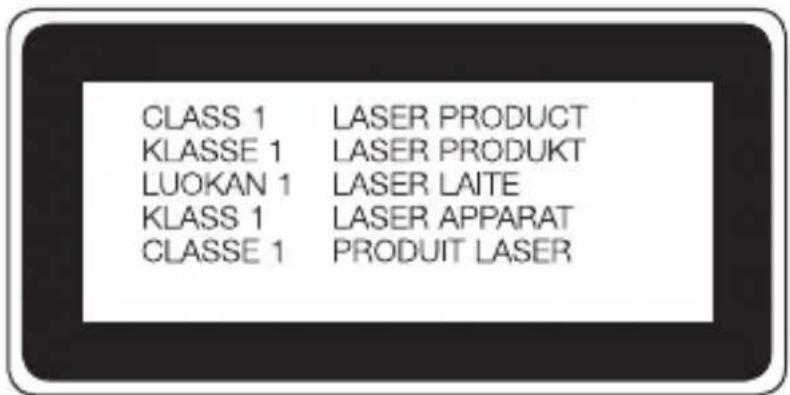
Laser safety statement
Caution!
This product employs a Laser system. To ensure proper use of this product, please read this owner's manual carefully and retain for future reference. Should the unit require maintenance, contact an authorised service centre.
Use of controls, adjustments, or the performance of procedures other than those specified herein may result in hazardous radiation exposure.
To prevent direct exposure to laser beam, do not try to open the enclosure or to make the direct contact with the laser.
Customs Union Technical Regulations
1. Manufacturer Info
LG ELECTRONICS INC
128, YEOUI-DAERO, YEONGDUNGPO-GU, SEOUL, KOREA
Production date indicated on the box
4. Additional information
(1) Storage
Do not install or store the appliance outdoors or in places exposed to direct weather conditions (direct sunlight, wind, rain or temperatures below zero degrees)
(2) Transportation
The product is transported by any means of transport in accordance with the rules of transportation of goods, operating in the this type of transportation.
- Transportation must be carried out under conditions excluding damage.
- Do not expose the product to impact loads during loading and unloading.
(3) Realization
- The sale of products is performed in accordance with the rules established by the current legislation of the country in which it is realized.
(4) Recycling
- Old electrical products can contain hazardous substances so correct disposal of your old appliance will help prevent potential negative consequences for the environment and human health. Your old appliance may contain reusable parts that could be used to repair other products, and other valuable materials that can be recycled to conserve limited resources.
- For more detailed information about disposal of your old appliance, please contact your city office, waste disposal service or the shop where you purchased the product.
Disposal of your old appliance
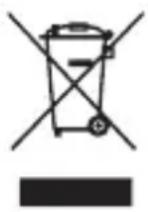
1 This crossed-out wheeled bin symbol indicates that waste electrical and electronic products (WEEE) should be disposed of separately from the municipal waste stream.
2 Old electrical products can contain hazardous substances so correct disposal of your old appliance will help prevent potential negative consequences for the environment and human health. Your old appliance may contain reusable parts that could be used to repair other products, and other valuable materials that can be recycled to conserve limited resources.
3 You can take your appliance either to the shop where you purchased the product, or contact your local government waste office for details of your nearest authorised WEEE collection point. For the most up to date information for your country please see www.lg.com/global/recycling
Disposal of waste batteries/accumulators
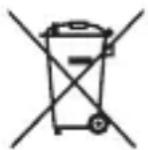
1 This symbol may be combined with chemical symbols for mercury (Hg), cadmium (Cd) or lead (Pb) if the battery contains more than 0.0005% of mercury, 0.002% of cadmium or 0.004% of lead.
2 All batteries/accumulators should be disposed separately from the municipal waste stream via designated collection facilities appointed by the government or the local authorities.
3 The correct disposal of your old batteries/accumulators will help to prevent potential negative consequences for the environment, animal and human health.
4 For more detailed information about disposal of your old batteries/accumulators, please contact your city office, waste disposal service or the shop where you purchased the product.

LG
Life's Good
- Вызов
- Совершение вызова
- Отклонение вызова
- Google Fit
- About this user guide
- Instructionalnotices
- Table of Contents
- 01
- Basic Functions
- 02
- Connecting the Watch to Your Companion Device
- 03
- How to Use Your Watch
- 04
- Meet your Google Assistant
- 05
- Settings
- 06
- More Information
- 07
- Safety Information
- Accessories
- Watch Overview
- Get ready for snap-and-swap
- Charging Your Watch
- Place your device on the charging cradle as shown below.
- Using the battery efficiently
- If the Screen Freezes
- Turning the Watch On and Off
- Turning the Watch On
- Turning the Watch Off
- Waking Your Watch Up
- Dimming the Screen
- Using the Touch Screen
- Tapping
- Touching and holding
- Swiping
- Setting Up Your Companion Device
- Pairing Your Watch with Your Companion Device
- Step1. Follow these steps on your watch.
- Step 2. Follow these steps on your companion device.
- Step 3. Follow these steps to pair your watch with your companion device.
- Connecting to Another Companion Device
- Unpairing and Resetting Your Watch
- Watch Face Home Screen
- Changing the Watch Face
- Customise the Watch Face Home Screen Menu
- Notification Cards
- Blocking Notifications
- Managing the Quick Settings
- Apps Screen
- Call
- Making a Call
- Rejecting a Call
- To Open the Google Fit App
- Using the Google Fit App
- Setting up your goal
- Viewing your workout report
- Using the Fit Workout App
- Open the Fit Workout app
- Opening the Apps Installed On Your Watch
- Viewing the Apps List
- Downloading Other Apps
- Getting help from your Google Assistant on Your Watch
- Setting a Reminder
- Seeing Your Step Count
- Sending a Text
- Sending a Message
- Replying to a Message
- Sending and Reading Email
- Replying to an Email
- Deleting Email Messages
- Setting a Timer
- Using the Stopwatch
- Setting an Alarm
- Managing Your Alarms
- Opening the Settings Menu
- OR
- Display
- Notifications
- Apps
- Gestures
- Connectivity
- Bluetooth
- Wi-Fi
- Aeroplane mode
- Location
- Accessibility
- Personalisation
- System
- Open Source Software Notice Information
- Trademarks
- DECLARATION OF CONFORMITY
- Contact office for compliance of this product
- Regulatory information (Regulation ID number, E-labeling, etc.)
- How to Update Your Device
- Safety tips
- General safety & handling
- Your environment
- Battery warnings
- Notice for battery Replacement
- Notes on water resistant properties
- Pacemakers and other medical devices
- Tips for using Bluetooth and Wi-Fi on your watch
- Tips for the display screen
- Exposure to radio frequency energy
- Information about the RF exposure from FCC
- Part 15.19 statement
- Part 15.21 Statement
- Body-Worn(Wrist) and Next-to-Mouth Operation
- Part 15.105 Statement
- Laser safety statement
- Caution!
- Customs Union Technical Regulations
- Manufacturer Info
- Additional information
- Storage
- Transportation
- Realization
- Recycling
- Disposal of your old appliance
- Disposal of waste batteries/accumulators
- LG
- Life's Good
Brand : LG
Model : LGW270
Category : Smartwatch