32ATC5500-H - Television Allview - Free user manual and instructions
Find the device manual for free 32ATC5500-H Allview in PDF.


| Product Type | LED Television |
| Brand | Allview |
| Model | 32ATC5500-H |
| Screen Size | 32 inches (diagonal) |
| Resolution | HD (1366x768) - typical for 32" models, not specified |
| Power Supply | AC 100-240V, 50/60Hz (typical) |
| Power Consumption | Approximately 45W (typical for 32" LED) |
| Standby Power Consumption | < 0.5W |
| Weight (without stand) | Approximately 3.8 kg (estimated) |
| Weight (with stand) | Approximately 4.2 kg (estimated) |
| VESA Wall Mount Pattern | 100 x 100 mm |
| Connectors | HDMI, USB, AV IN (RCA), PC IN, PC AUDIO IN, Digital Audio Out (Coaxial), Antenna In, CI Slot, Earphone Jack |
| Remote Control | Yes, includes AAA batteries |
| Stand Included | Yes (two stands with screws) |
| Tuners | DVB-T/T2, DVB-C, DVB-S/S2 (typical, not specified) |
| Multimedia Playback | USB media player, supports video/audio/photo |
| Operating Features | EPG, Teletext, Audio Description, E-Manual, Soft Keyboard |
| Cleaning Instructions | Clean with a dry cloth only |
| Safety Features | Automatic shutdown, child lock, ventilation requirements |
| Reparability | Refer to qualified service personnel; no user-serviceable parts inside |
| Accessories Included | Power cord, remote control (with batteries), quick start guide, base stands (2), screws (2) |
Frequently Asked Questions - 32ATC5500-H Allview
User questions about 32ATC5500-H Allview
0 question about this device. Answer the ones you know or ask your own.
Ask a new question about this device
Download the instructions for your Television in PDF format for free! Find your manual 32ATC5500-H - Allview and take your electronic device back in hand. On this page are published all the documents necessary for the use of your device. 32ATC5500-H by Allview.
USER MANUAL 32ATC5500-H Allview
Disassembly and Installation
Note: The pictures are only for reference.
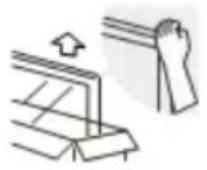
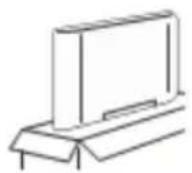
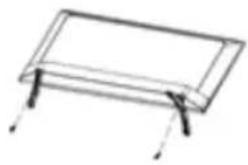
natural_image
Simple line drawing of a rectangular object with two protruding legs (no text or symbols)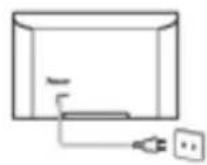
- Open the package.
- Take out the TV.
- Install the TV stands.
- Connect the power cord.
Accessories
Note: The pictures are only for reference.
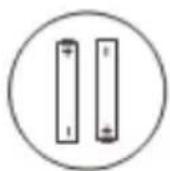
Batteries-2 Remote Control
Quick Start Guide
Base Stands-2
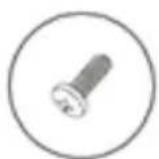
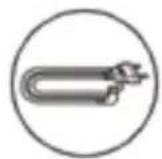
Screws-2 Power Cord
WARNING AND PRECAUTION
Read all of the instructions before operating the set. Keep these instructions well for later use.
Important Safety Instructions
- Read these instructions — All the safety and operating instructions should be read before this product is operated.
- Keep these instructions — The safety and operating instructions should be retained for future reference.
- Heed all warnings — All warnings on the appliance and in the operating instructions should be adhered to.
- Follow all instructions — All operating and usage instructions should be followed.
- Do not use this device near water — The appliance should not be used near water or in damp environments — for example, in a wet basement or near a swimming pool, and the like.
- Clean only with dry cloth.
- Do not block any ventilation openings. Install in accordance with the manufacturer's instructions.
- Do not install near any heat sources such as radiators, heat registers, stoves, or other apparatus (including amplifiers) that produce heat.
- Do not ignore the safety purpose of the polarized or grounding plug. A polarized plug has two blades with one wider than the other. A grounding plug has two blades and a third grounding prong. The wide blade or the third prong is provided for your safety. If the provided plug does not fit into your outlet, consult an electrician for replacement of the obsolete outlet.
- Protect the power cord from being walked on or pinched particularly at the plugs, convenience receptacles, and at the point where they exit from the apparatus. Only use attachments/accessories specified by the manufacturer.

- Use only with the cart, stand, tripod, bracket, or table specified by the manufacturer, or sold with the device. When a cart or rack is used, use caution when moving the cart/apparatus combination to avoid injury from tipping-over.
- Unplug the device during lightning storms or when unused for long periods of time.
- Refer all servicing to qualified personnel. Servicing is required when the device has been damaged in any way, such as the power supply cord or plug is damaged, liquid has been spilled or objects have fallen into the device, it has been exposed to rain or humidity, does not operate normally, or has been dropped.
- CAUTION: These servicing instructions are for use only by qualified service personnel. To reduce the risk of electric shock, do not perform any servicing other than that contained in the operating instructions, unless you are qualified to do so.
- Do not install this equipment in a confined or built-in space such as a book case or a similar unit, and keep proper ventilation conditions at open site. The ventilation should not be impeded by covering the ventilation openings with items such as newspaper, table-cloths, curtains etc.
- Please refer the information on rear enclosure for electrical and safety information before installing or operating the device.
- To prevent electric shock hazard, replace grille.
• To reduce the risk of fire or electric shock, do not expose this device to rain or humidity.
- The device shall not be exposed to dripping or splashing and no objects filled with liquids, such as vases, shall be placed on it.
- The terminals marked with the symbol “ 12 ” may be of sufficient magnitude to constitute a risk of electric shock. The external wiring connected to the terminals requires installation by an instructed person.
- To prevent injury, use the stand/wall-mount bracket to securely install this device on the table/wall in accordance with the installation instructions.
- Danger of explosion if the battery is incorrectly replaced. Replace only with the same or equivalent type.
- The battery (battery or batteries or battery pack) shall not be exposed to excessive heat such as sunshine, fire or the like.
- Excessive sound pressure from earphones and headphones can cause hearing loss. Listening to music at high volume levels and for extended durations can damage one's hearing. In order to reduce the risk of damage to hearing, one should lower the volume to a safe, comfortable level, and reduce the amount of time listening at high levels.
- The appliance coupler is used to disconnect the device. It shall remain readily operable. When not in use and during movement, please take care of the power cord set, e.g. tie up the power cord set with a cable tie or something similar. Protect it from sharp edges and the like that can cause abrasion to the power cord set. When put into use again, please make sure the power cord set is not damaged. If any damages are found, please contact the service person to replace the power cord set specified by the manufacturer or have the same characteristics as the original one.
- No naked flame sources, such as lit candles, should be placed on the device. To prevent the spreading of fire, keep candles or other open flames away from the device at all times.
- Warning: We take no responsibility for situations where the device is used other than as provided in the manual. Our company reserves the right to make changes in the content of the manual without making this public. These changes will be posted on the company website to the product it amends. The contents of this manual may be different from that in the product. In this case, the first one will be taken into consideration.
- If the device has the symbol ☐ in its rating label and the power cord has two pins, it means that the equipment is a Class II or double insulated electrical appliance. It has been designed in such a way that it does not require a safety connection to electrical grounding. (Only for Class II appliance)
• The following information is recommended to be included as far as applicable, where applicable:
\~ Refers to alternating current(AC).
... Refers to direct current(DC).
☐ Refers to Class II equipment.
Refers to stand-by.
1 Refers to power ON.
4 Refers to dangerous voltage.
- Warning for devices containing COIN/BUTTON CELL BATTERIES (The instructions below are only used for the apparatus containing a user-replaceable coin/button cell battery)
Do not ingest the battery, Chemical Burn Hazard
The remote control supplied with this product contains a coin/button cell battery. If the coin/button cell battery is swallowed, it can cause severe internal burns in just 2 hours and can lead to death. Keep new and used batteries away from children.
If the battery compartment does not close securely, stop using the product and keep it away from children. If you think batteries might have been swallowed or placed inside any part of the body, seek immediate medical attention.
- WEEE Directive

Correct Disposal of this product. This marking indicates that this product should not be disposed in other household wastes throughout the EU. To prevent possible harm to the environment or human health from uncontrolled waste disposal, recycle it responsibly to promote the sustainable use of material resources. To return your used device, please use the return and collection systems to contact the retailer from where the product was purchased. It can take this product for environmental safe recycling.
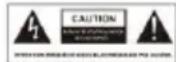
This lightning flash with an arrowhead symbol within an equilateral triangle is intended to alert the user of the presence of a non-insulated “dangerous voltage” within the product’s enclosure that may be of sufficient magnitude to constitute a risk of electric shock.
- To reduce the risk of electric shock, do not remove cover (or back). No user serviceable parts inside. Refer to qualified service personnel.
- The exclamation point within an equilateral triangle is intended to alert the user to the presence of important operating and maintenance instructions in the literature accompanying the appliance.
Positioning the TV
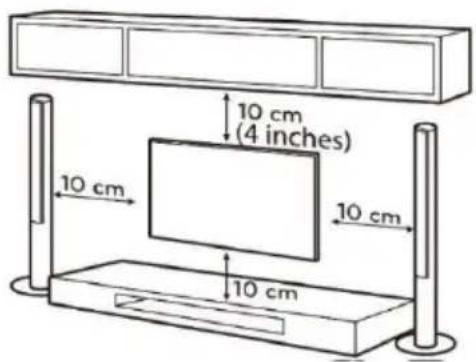
- Install the device on a solid, horizontal surface such as a table or desk. For ventilation, leave a space of at least 10cm all around the set. To prevent any injuries or unsafe situations, please do not place any objects on top of the set. This device can be used in tropical and/or moderate climates. Fix the rear enclosure to wall (only for some countries).
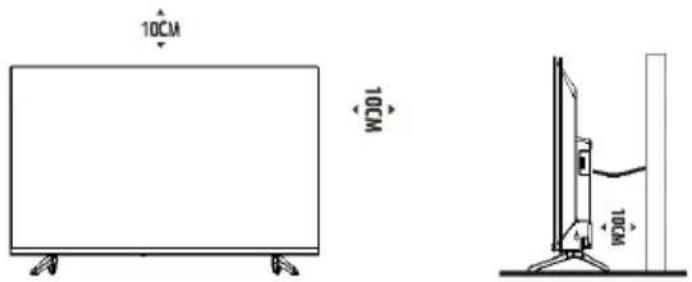
Note: The picture is only for reference.
- Warning: Never place a television set in an unstable location. A television set may fall, causing serious personal injury or death. Many injuries, particularly to children, can be avoided by taking simple precautions such as:
- Using cabinets or stands recommended by the manufacturer of the television.
- Only using furniture that can safely support the television.
- Ensuring the television is not overhanging the edge of the supporting furniture.
- Not placing the television on tall furniture (for example, cupboards or bookcases) without anchoring both the furniture and the television set to a suitable support.
- Not placing the television set on cloth or other materials that may be located between the television set and supporting furniture.
- Educating children about the dangers of climbing on furniture to reach the television or its remote control.
If your existing television set is being retained and relocated, the same considerations as above should be applied. (Only for the TV with mass exceed 7 kg)
Wall-hanging bracket
- An optional wall mount can be used with your television. Consult with your local retailer to purchase the recommended wall mount bracket. Carefully attach the wall mount bracket at the rear of the TV. Install the wall mount bracket on a solid wall perpendicular to the floor. If you are attaching the TV to other building materials, please contact qualified personnel to install the wall mount. Detailed instructions will be included with the wall mount. Please use a wall mount bracket where the device is adequately secured to the wall with enough space to allow connectivity to external devices.
Note: The picture is only for reference.
- Disconnect the power before moving or installing the TV. Otherwise, electric shock may occur.
- Remove the stand before installing the TV on a wall mount by performing the stand attachment in reverse.
- If you install the TV on a ceiling or slanted wall, it may fall and result in severe injury. Use an authorized wall mount and contact the local retailer or qualified personnel. Otherwise it is not covered by the warranty.
- Do not over tighten the screws as this may cause damage to the TV and void your warranty.
- To prevent injury, this apparatus must be securely attached to the floor/wall in accordance with the installation instructions.
- Use the screws and wall mounts that meet the following specifications. Any damages or injuries buy misuse or using an improper accessory are not covered by the warranty.
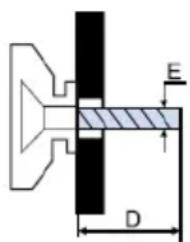
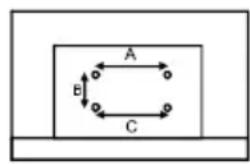
| Model Size: 32” | Top | Down | ||
| Screw | Diameter(mm) „E” | M4 | M4 | |
| Depth(mm) „D” | Max | 9 | 9 | |
| Min | 6 | 6 | ||
| Quantity | 2 | 2 | ||
| VESA (A*B*C) | 100*100*100 | |||
Note:
- The pictures are for reference only.
- For the TV sets with terminals towards the wall, in order to leave enough space to use the terminals, a gasket is needed together with each screw to fix the wall mount. It is a small hollow pillar whose internal diameter is 8mm, external diameter is 18mm and height is 30 mm.
- The information in this document is subject to change without notice. The manufacturer accepts no liability for damage resulting directly or indirectly from faults, incompleteness or discrepancies between the user manual and the product described. The latest version can be found on www.allviewmobile.com.
- In a dry environment due to static electricity, the product may restart and return to the main OSD interface, USB player interface or the previous source mode. It is normal and please continue to operate the TV as you will.
Operating Environment
- Do not install this equipment in a confined space such as a bookcase or similar unit.
- Do not use the set near damp and cold areas, and protect the set from overheating.
- Keep away from direct sunlight.
- Do not use the set near a dusty place.
- Do not attach candles to accessible opening areas to avoid flammable materials from entering the TV
Precautions for using Remote Control
- Use the remote control by pointing it towards the remote sensor. The items between the remote control and the remote sensor will interfere with its normal operation.
- Do not shake violently the remote control. Also, do not splash liquid on the remote control, and do not put the remote control in high humidity places.
- Do not place remote control under direct sunlight. It will cause deformation of the unit by heat.
- When the remote sensor is under direct sunlight or strong lighting, the remote control will not work. If so please change the lighting or the TV's position, or operate the remote control closer to the remote sensor.
Precautions for using battery
Improper use of the battery will cause leakage. So please follow the methods below and use carefully.
- Please note the batteries' polarity, to avoid short circuit.
- When the battery's voltage is insufficient and affects the use range, you should replace it with a new battery. Remove the batteries from the remote control unit if you do not intend to use it for a long time.
• Do not use different types of batteries (for example, Manganese and Alkaline batteries) together.
- Do not put the battery into fire and charge or decompose the battery.
- Please dispose batteries abiding by relevant environmental protection regulation.
- WARNING: The batteries (battery pack or batteries installed) shall not be exposed to excessive heat such as sunshine, fire or the like.
Install Remote Control Battery
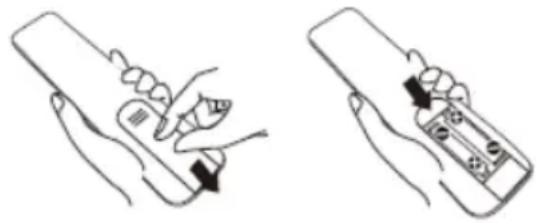
Place two AAA size batteries in the remote control's battery compartment, making sure to match the polarity markings inside the compartment.
natural_image
Illustration of two hand gestures on a remote device, showing finger placement and lock mechanism (no text or symbols)Note: The picture is only for reference.
TV Control Button
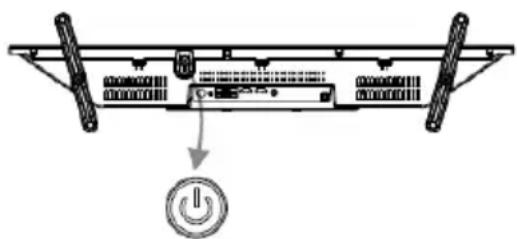
Note: The picture is only for reference.
- Turn on the TV: In standby mode, short press the TV button to turn on the TV.
- Soft keyboard function: After turning on the TV, short press the TV button to display the following soft keyboard at the bottom of the screen. Short press the TV button to select the item you want. Long press the TV button to enter the item you have selected.
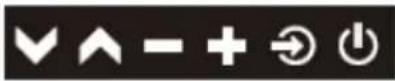
| Soft Keyboard | ||
| Icon | Name | Function |
| Programme Down/Up | Change to the previous or next channel in TV mode. Move up or down to select the item you want in menu settings. | |
| —+ | Volume Down/Up | Decrease or increase the sound volume. |
| → | Source | Access the interface of input source. |
| ↓ | Power Off | Turn the TV to standby mode. |
How to use E-Manual
The E-manual is built into your TV and can be displayed on the screen. To learn more about your TV features, access your E-Manual by referring to the following:
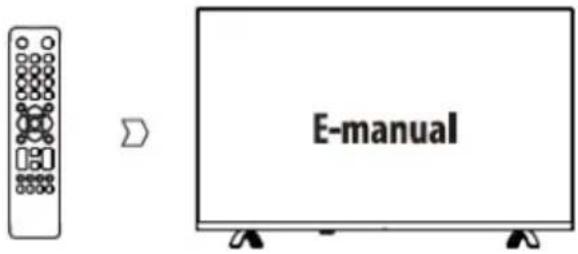
Note: The picture is only for reference.
- Press the MENU button to access the main menu.
- Press the BLUE button to enter the E-Manual, to check the instructions of the TV functions.
- The following buttons from the remote control are used to help you operate the TV set in E-Manual.
| 0~9Number Buttons | Select Page |
 | Go to page |
 | Skip to the previous or next page. |
 | Exit the E-manual. |
REMOTE CONTROL FUNCTIONS
Note:
- The picture is only for reference.
- Some buttons may not be available for certain regions or models.
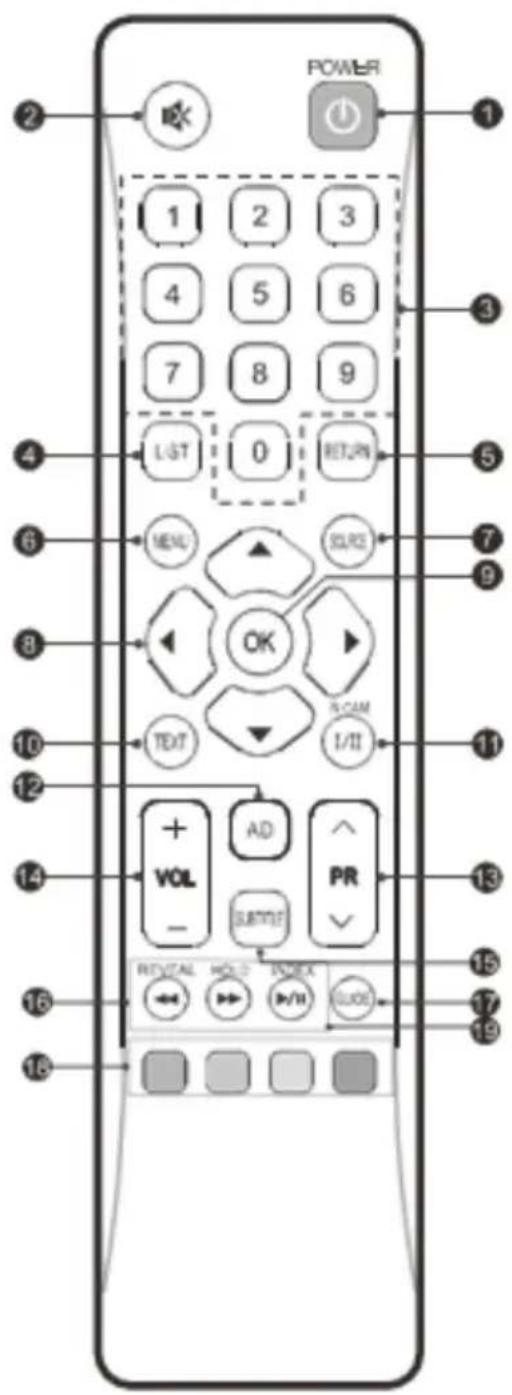
- POWER ⏻: Turn the TV on or put it in standby.
- MUTE: Mute or restore the sound.
- Number Buttons (0\~9): Choose the channel directly or input a number
- LIST: Access the channel list
- RETURN: Return to the previously viewed channel or exit from the TV menu.
- MENU: Enter or exit from the TV menu.
- SOURCE: Select the input source mode
- UP/DOWN/LEFT/RIGHT : Navigate the menu
- OK: Confirm or enter the selected content
- TEXT: Enter the teletext menu.
- NICAM I/II: Select the desired sound output depending on the broadcasting channel
- AD: Turn on or turn off the function of audio description
- Program Up/Down (PR /V ): Change to next or previous channel
- Volume Up/Down (VOL +/-): Increase or decrease the sound volume
- SUBTITLE: Open or close the subtitle
- USB Play Control Buttons
- Fast Backward ← Fast backward the playback.
- Fast Forward ▶ Fast forward the playback.
- Play & Pause ▶:Pause or continue the playback.
- GUIDE: Access the EPG interface in DTV mode
- Color Buttons (RED/GREEN/YELLOW/ BLUE): Execute the prompt function in the specific mode
- Other Buttons
- Reveal: Display concealed information
- Hold: Hold the teletext page on screen without updates or changes.
- Index: Display index page.
TERMINAL CONNECTIONS
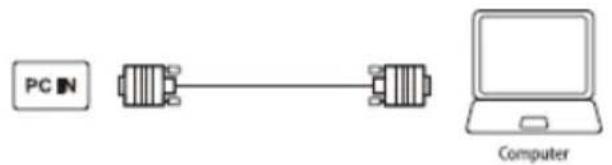
flowchart
graph LR
    A["PC IN"] --> B["Module 1"]
    B --> C["Module 2"]
    C --> D["Computer"]
PC IN
Connect a PC to the TV set.
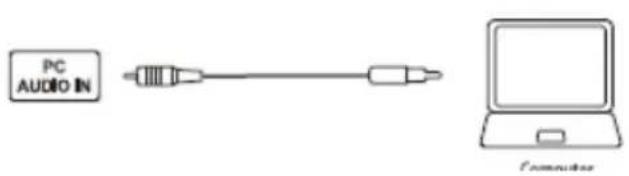
PC AUDIO IN
Connect audio input signal from PC.
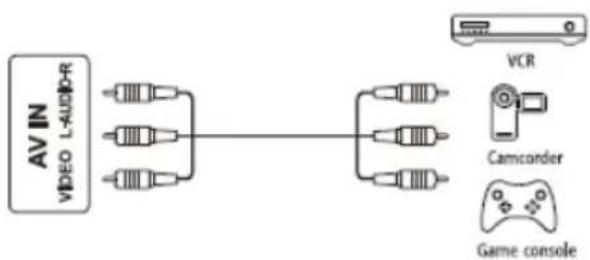
flowchart
graph LR
    A["AV IN VIDEO L-AUDR"] --> B["VCR"]
    A --> C["Camconder"]
    A --> D["Game console"]
AV IN (VIDEO AND AUDIO L/R)
Connect audio and video signal from signal source such as DVD.
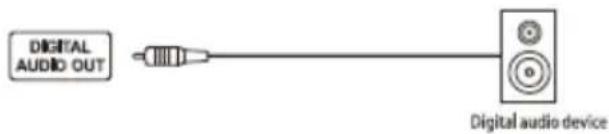
DIGITAL AUDIO OUT
Use a coaxial cable to output your TV audio signal to a compatible audio receiver.
flowchart
graph TD
    A[" "] --> B[" "]
    style A fill:#fff,stroke:#000
    style B fill:#fff,stroke:#000
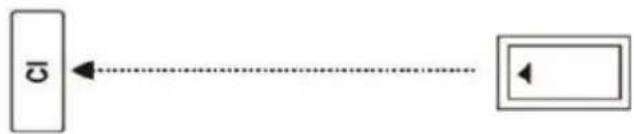
CI
CI card port.
flowchart
graph TD
    A["ANTENNA IN"] --> B["or"]
    B --> C[" mirror "]
    C --> D["+"]
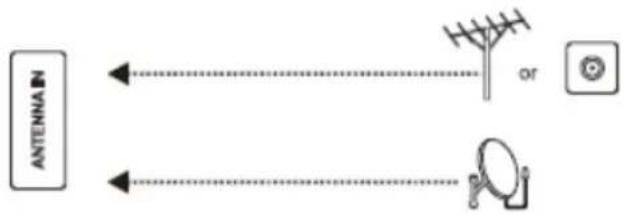
ANTENNA IN
Connect a coaxial cable to receive signal from USB the antenna, cable or satellite.
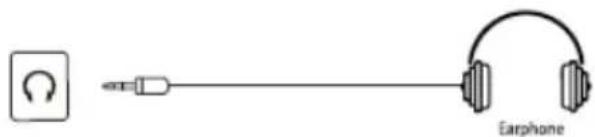
EARPHONE
Speakers will be muted when the earphone is plugged in.
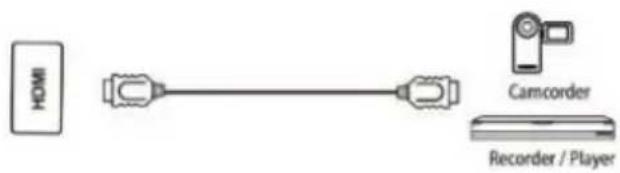
HDMI
Connect HDMI input signal from signal source such as DVD
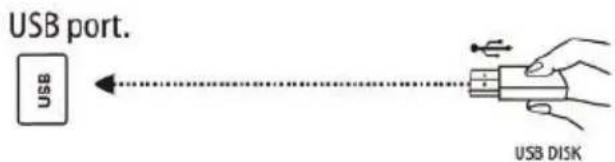
USB
USB port.
Nots:
- The pictures are only for reference.
- External equipment and cables shown herein are not supplied with the TV.
- Some terminals may differ by different regions or models, and please take your actual TV set as the standard.
TROUBLESHOOTING
Before calling a service technician, please check the following for a possible cause of the symptom and some solutions.
General Problem/Solution
Remote control does not work
- Check the remote sensor on the remote control.
- Change the batteries.
- Batteries are not installed correctly.
- Main power is not connected.
Poor Signal
This is usually caused by interference from cell phones, walkie-talkie, automotive ignition system, neon, electric drill or other electronic equipment or radio interference sources.
Picture & Sound/Solution
No picture, no sound
- Check the signal source.
- Plug another electrical device into the outlet to make sure it is working or turned on.
- Power Plug is improperly connected to the outlet.
- Check the signal.
No sound, picture OK - If there is no sound, try to unmute or increase the sound volume.
- Open the sound menu and adjust 'Balance'.
- Check if a headphone has been inserted in, and if so, disconnect the headphone.
Abnormal picture
No color or bad picture quality
- Adjust the color option in menu settings.
- Keep the TV at a sufficient distance from other electronic products.
- Try another channel, maybe it is an exit broadcasting signal problem.
Bad TV signal (Display mosaic or snowflakes) - Check the signal cable and adjust the antenna.
- Fine tune the channel.
- Try another channel.
Multimedia Player/Solution
'This file is invalid' appears or audio is normal but video is abnormal
- The media file may be damaged, check if the file can be played on the PC.
- Check if video and audio codecs are supported.
'Unsupported audio' appears or video is normal but audio is abnormal
- The media file may be damaged, check if the file can be played on the PC.
- Check if video and audio codecs are supported.
Network/ Solution (May not be available)
Network failure
- Check if the router works well.
- For models needing USB dongle to connect to internet, check if the USB dongle is inserted well.
- Make sure the TV has connected to the router successfully.
Browser/Solution (May not be available)
Web page cannot be displayed completely.
- Some third-party extensions are not supported.
Browser is forced to be shut down.
- Web page includes too many large pictures, this leading to insufficient memory and closing the browser.
PREGĂTIRE
natural_image
Two hand-drawn diagrams showing a finger pressing a button on a remote control device (no text or symbols present)natural_image
Diagram of a mechanical device with a power button and directional arrow (no text or symbols)natural_image
Simple line drawing of a rectangular object with two vertical supports and a horizontal bar (no text or symbols)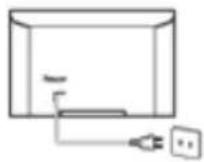
flowchart
graph TD
    A["A"] --> B["B"]
    B --> C["C"]
    C --> A
natural_image
Illustration of two hand gestures on a remote control device, showing finger placement and adjustment (no text or symbols)| Soft Keyboard | ||
| Icon | Name | Function |
| Programme Down/Up | Change to the previous or next channel in TV mode. Move up or down to select the item you want in menu settings. | |
| —+ | Volume Down/Up | Decrease or increase the sound volume. |
| → | Source | Access the interface of input source. |
| ↓ | Power Off | Turn the TV to standby mode. |
E-Útmutató
natural_image
Simple line drawing of a rectangular object with two protruding legs (no text or symbols)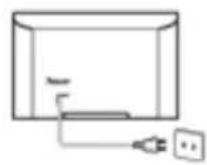
natural_image
Illustration of two hand gestures with arrows indicating movement (no text or symbols)| Soft Keyboard | ||
| Icon | Name | Function |
| Programme Down/Up | Change to the previous or next channel in TV mode.Move up or down to select the item you want in menu settings. | |
| —+ | Volume Down/Up | Decrease or increase the sound volume. |
| → | Source | Access the interface of input source. |
| ↓ | Power Off | Turn the TV to standby mode. |
| 0~9Number Buttons | Select Page | |
 | Go to page | |
 | Skip to the previous or next page. | |
 | Exit the E-manual. | |
FUNKCJE PILOTA
Uwaga:
CYFROWE WYJŚCIE AUDIO
- Disassembly and Installation
- Accessories
- WARNING AND PRECAUTION
- Important Safety Instructions
- Do not ingest the battery, Chemical Burn Hazard
- - WEEE Directive
- Positioning the TV
- Wall-hanging bracket
- Note:
- Operating Environment
- Precautions for using Remote Control
- Precautions for using battery
- Install Remote Control Battery
- How to use E-Manual
- REMOTE CONTROL FUNCTIONS
- TERMINAL CONNECTIONS
- PC IN
- PC AUDIO IN
- AV IN (VIDEO AND AUDIO L/R)
- DIGITAL AUDIO OUT
- CI
- ANTENNA IN
- EARPHONE
- HDMI
- USB
- Nots:
- TROUBLESHOOTING
- General Problem/Solution
- Picture & Sound/Solution
- Multimedia Player/Solution
- Network/ Solution (May not be available)
- Browser/Solution (May not be available)
- PREGĂTIRE
- E-Útmutató
- FUNKCJE PILOTA
- Uwaga:
- CYFROWE WYJŚCIE AUDIO
Brand : Allview
Model : 32ATC5500-H
Category : Television