
RS80 - Tablet SONIM - Free user manual and instructions
Find the device manual for free RS80 SONIM in PDF.


| Product Type | Rugged Tablet |
| Brand | Sonim |
| Model | RS80 |
| Dimensions | Approximately 260 x 180 x 20 mm |
| Weight | Approximately 1.2 kg |
| Display | 8-inch TFT LCD, 1280 x 800 pixels |
| Processor | Qualcomm Snapdragon 660 octa-core |
| RAM | 4 GB |
| Storage | 64 GB eMMC (expandable via microSD) |
| Operating System | Android 10 (upgradable) |
| Battery | 8000 mAh, hot-swappable |
| Camera (Rear) | 12 MP with autofocus and LED flash |
| Camera (Front) | 5 MP fixed-focus |
| Connectivity | 4G LTE, Wi-Fi 802.11 a/b/g/n/ac, Bluetooth 5.0, NFC |
| Positioning | GPS, GLONASS, Galileo, BeiDou |
| Durability | MIL-STD-810G certified, IP68 rated |
| Water/Dust Resistance | IP68 (submersible up to 1.2 m for 30 minutes) |
| Drop Resistance | Up to 1.5 m onto concrete |
| Ports | USB Type-C, 3.5 mm headphone jack, microSD slot, SIM slot |
| Sensors | Accelerometer, gyroscope, proximity, ambient light, barometer |
| Audio | Dual speakers with noise-cancellation |
| Warranty | Standard 1-year limited warranty |
Frequently Asked Questions - RS80 SONIM
User questions about RS80 SONIM
0 question about this device. Answer the ones you know or ask your own.
Ask a new question about this device
Download the instructions for your Tablet in PDF format for free! Find your manual RS80 - SONIM and take your electronic device back in hand. On this page are published all the documents necessary for the use of your device. RS80 by SONIM.
USER MANUAL RS80 SONIM
What's In the Box 2-
Appearance Overview- 3\~4
Unfasten Handstrap to Remove Battery Cover 5
Remove Battery Cover 6
SIM/microSD Card 7
Insert Battery - 8
Remove Battery 9
Power on for The First Time 10
Power On/power Off - 11
Network & Internet - 12-14
Connected Devices - 15-16
Display Settings 17
Battery Settings 17
Sound Settings 18
Storage Settings 19
Privacy Settings - 19
Accessibility Settings - 20
Google Settings - 20
System Settings - 21-22
Sonim Scan - 23
Product Safety Warnings - 24
Notice - 25-30
① What's In the Box

Device

Handstrap

Type-C cable

Battery
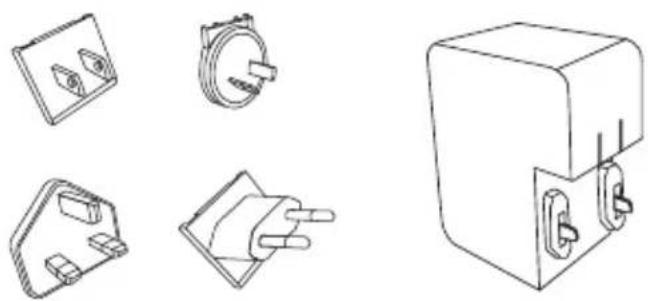
Converter plugs, Charging adaptor
② Appearance Overview


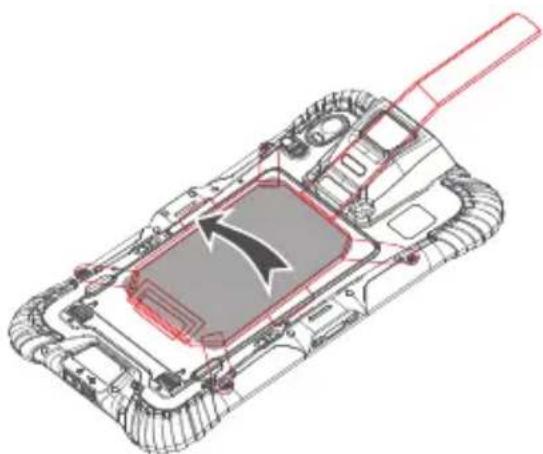
③ Unfasten Handstrap to Remove Battery Cover

1

2
3

4
④ Remove Battery Cover
To remove the battery cover
- Power off the device before removing the battery cover
- Push the battery cover lock to the open position
- Detach the battery cover

⑤ SIM/microSD Card
To insert/remove SIM/microSD card
Follow the indicated direction printed in the chamber

⑥ Insert Battery
To insert the battery
- Insert the battery
- Push the battery lock to the closed position
- Attach the battery cover
- Push the battery cover lock to the closed position

⑦ Remove Battery
To remove the battery
- Power off the device before removing the battery
- Push the battery cover lock to the open position
- Detach the battery cover
- Push the battery lock to the open position
- Remove the battery

⑧ Power on for the First Time
When starting for the first time, fully charge the device.
Plug the power adapter into the device and charge the device to make sure that battery is full.

⑨ Power On/Power Off
1. Power On
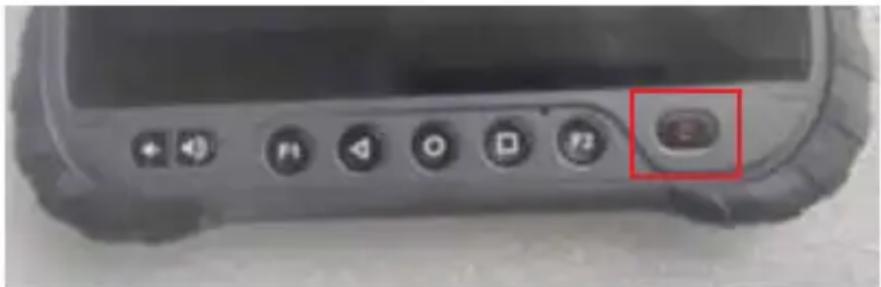
Press the power button a few seconds until the device vibrates.
2. Enter/Exit Sleep Mode
Click the power button once, the screen enters sleep mode.
When the screen is lit up and there is no operation for one minute, the device will automatically enter the sleep mode (Standby time setting: Display > Screen timeout).
Click the power button once, the screen lights up and exits sleep mode. Swipe up on the screen to unlock.
3. Power Off/Restart/Screenshot
Long press the power button, a dialog box will pop up on the right side of the screen. Select the desired function to turn off the power, restart, or take a screenshot.

⑩ Network & Internet
Wi-Fi
Wi-Fi is a wireless network technology that can provide Internet access at distances up to 100 feet, depending on the Wi-Fi router and surroundings.
You can access the Internet when you connect your RS80 to a Wi-Fi network. To connect your tablet to a Wi-Fi network:
- From Notifications or App menu, tap on Settings ( ).
- Tap on Network & Internet ( ).
- Tap on Wi-Fi ( ).
- Set the Wi-Fi to ON position located under Wireless & networks settings. A list of Wi-Fi access points present within your tablet's accessible range are displayed.
- Select your preferred network. Enter the WEP/WPS/WPA key (if it is a secured network) and select Connect. To verify the password before connecting, enable Show password.
Add Network
- On the Wi-Fi screen, tap on Add network ( ☐+ ).
- Enter the Network name and select the Security from the drop-down list. You can set the network password.
- Tap on Advanced options. The settings such as Proxy and IP settings can be updated using the drop-down list.
- Tap on Save to save the network settings.
Connect To Network
- Long press on the connected network.
- Tap on Connect to network.
- Enter the network password.
- The other network setting details such as Advanced options, Proxy, IP settings can be updated.
- Tap on CONNECT to get connected to the network.
Mobile Network
- From Notifications or App menu, tap on Settings ( ).
- Tap on Network & Internet ( ) > Mobile network ( ),
- Select SIM card Slot and the following options are displayed:
- Mobile data: Turn On to enable mobile data. Using mobile data, you can access the Internet.
- Roaming: Turn ON to enable data roaming to connect to data services while roaming.
- Data usage: Mobile data usage for a particular time frame is displayed.
- Network:
- Automatically select network: Turn ON to connect to the selected network automatically.
- Network: The network name is displayed.
- Access Point Names: Tap on Access Point
Names (APNs) to view and edit the network access points. Tap on the (+) icon to add a new access point.
Data Usage
Data usage refers to the amount of data utilized by your tablet during data transfers through the Internet. The data usage charges are dependent on the wireless plan provided by your service provider.
To monitor your data usage, adjust your data usage settings.
- From Notifications or App menu, tap on Settings ( ).
- Tap on Network & Internet ( ) > Data usage
- Under Usage, you can view the data usage for a particular time frame.
- Turn on Data saver (○) to access unrestricted data.
Hotspot & Tethering
Hotspot and Tethering provides Internet to other devices through your mobile data connection. Apps can also create a hotspot to share content with nearby devices.
USB Tethering
Using USB tethering, you can share tablet's Internet connection via USB.
- From Notifications or App menu, tap on Settings ( ).
- Tap on Network & Internet( ) > Hotspot & tethering ( ).
- Turn on USB tethering.
Setup Mobile Hotspot
You can set up a hotspot using your mobile device.
- From Notifications or App menu, tap on Settings ( ).
- Tap on Network & Internet > Hotspot & tethering.
- Tap on Set up Mobile hotspot.
- Enter the following details:
- Hotspot name: Enter the hotspot name. • Security: Select the desired security from the drop-down list.
- Hotspot Password: The password must have at least 8 characters.
- Tap on Save to save the mobile hotspot.
Airplane Mode
When your tablet is set in airplane mode, network connectivity or mobile data connectivity is disabled. But you can access your camera, media files and other features that do not require mobile data connectivity.
To activate airplane mode;
- From Notifications or App menu, tap on Settings.
- Tap on Network & Internet ( ) > Airplane Mode ( ).
12 Connected Devices
Bluetooth Turn ON
You can share the tablet's Internet connection via Bluetooth.
- From Notifications or App menu, tap on Settings ( ).
- Tap on Connected devices ( ) > Connection preferences > Bluetooth ( ).
- Turn ON to enable Bluetooth tethering.
Bluetooth
Bluetooth is a short-range wireless communication technology used to communicate between devices over a distance of about 8 meters. You can perform the following tasks using Bluetooth paired devices.
- Transfer media files and contacts between connected mobile devices using Bluetooth.
- Use Bluetooth connected headsets for playing media files.
Pairing A Bluetooth Device
To activate Bluetooth and pair your RS80 device with other
Bluetooth Devices:
- From Notifications or App menu, tap on Settings ( ) > Connected devices ( ) > Connection preferences.
- Tap and enable Bluetooth. A list of accessible Bluetooth devices is displayed. Ensure that Bluetooth is activated on the other device as well.
- Tap on Pair new device to pair a new device. Available devices are listed.
- Select the desired device from the list. It starts pairing with the selected device. A confirmation message is displayed to pair the device. Select PAIR.
Device Name
- From Notifications or App menu, tap on Settings > Connected devices > Connection preferences.
- Tap and enable Bluetooth.
- Tap on Device name. The Rename this device screen is displayed. You can change the name and tap on Rename.
Cast
- From Notifications or App menu, tap on Settings > Connected devices > Connection preferences.
- Tap on Cast.
- You can cast your screen from your Android™ device. Connect your Android device to the same Wi-Fi network as your Chromecast or TV with Chromecast built-in. In the top left corner of the app's Home screen, tap on Menu > Cast Screen > audio.
- Ensure that your Android device and Chromecast are connected to the same Wi-Fi network.
NFC
NFC (Near-Field Communication) is a set of communication protocols that enable two electronic devices, one of which is usually a portable device such as a smart tablet, to establish communication by bringing them within 4 cm of each other.
- From Notifications or App menu, tap on Settings > Connected devices > Connection preferences > NFC.
- Turn ON NFC to allow your device to scan various cards.
Printing
- From Notifications or App menu, tap on Settings (💡) > Connected devices (☐) > Connection preferences > Printing (💡).
- Tap on Print > Default Print Service ( ). Turn On the Default Print Service.
- Tap on Add services ( + ). Google Play screen is displayed. You can sign in with your Google credentials and add any desired service.
⑫ Display Settings
Display
- From Notifications or App menu, tap on Settings ( ) > Display ( ).
- Set the following options to configure your tablet's display:
- Brightness level: Set the brightness of the tablet display.
- Night Light:
- Schedule: You can schedule the night light on your device: None, Turns on at custom time and Turns on from sunset to sunrise
- Start time: Sunrise time
- End time: The sunset time
- Intensity: You can increase/decrease the light intensity as per your requirement.
- Adaptive Brightness: This optimizes the brightness level for available light.
- Wallpapers: Includes images that are pre-loaded with the tablet.
- Dark theme: Turn On to display the black theme.
- Screen timeout: Set the sleep time so that the screen brightness is turned down after specified time of tablet inactivity. This setting also optimizes the battery power. The options are: Never, 15 seconds, 30 seconds, 1 minute, 2 minutes, 5 minutes, 10 minutes and 30 minutes.
- Auto-rotate screen: Turn on to set auto-rotate screen ON.
- Font size: Set the font size of the text to be displayed on the screen.
- Display size: You can make the items on your screen smaller or larger. Some apps on your screen might change position.
- Screen saver: You can set any of the applications as a screen saver.
- Lock screen display: Tap on lock screen display and turn On When to show > New notification. The device screen is awake when you receive notifications.
⑬ Battery Settings
Battery
- From Home screen or App menu, tap on Settings ( ⚙ ) > Battery ( ⏻ ).
- The graphic image of battery charging level is displayed.
- Last Full charge displays the time when the battery is fully charged.
- Screen usage since full charge displays the time duration the screen is used since the battery the fully charged.
- Under Power management the following options are displayed:
- Batter saver: Set the Battery saver to On by selecting the option given for Turn On.
14 Sound Settings
Sound
- From Notifications or App menu, tap on Settings ( ⚙ ) > Sound ( ⚙ ). Set the following options to set the Sound settings in your device:
- Media volume ( ) : Adjust the volume as per your requirement.
- Alarm volume ( ☐ ) : Adjust the alarm volume as per your requirement.
- Notification volume ( ) : Adjust the volume for notification as per your requirement.
- Default Notification sound: Select the required Notification sound from the list and tap on OK to set as the ringtone. You can also add a new ringtone using Add ringtone ( + ) option.
- Default alarm sound: Select the required alarm sound from the list and tap on OK to set as the ringtone. You can also add a new ringtone using the Add ringtone (+) option.
- Other sounds and vibrations
Turn ON the following options to access the sound:
- Screen locking sounds
- Charging sounds and vibration
- Scanning sounds
- Touch sounds
- Touch vibration
⑮ Storage Settings
Storage
- From Notifications or App menu, tap on Settings ( ) > Storage ( ).
- On Internal shared storage, the following options are displayed with memory used for each app:
- Photos and videos
- Music & audio
- Games
- Movie & TV apps
- Other apps
- Other
- System
⑯ Privacy Settings
Privacy
- From Notifications or App menu, tap on Settings ( ) > Privacy ( ).
- Permission manager • Show passwords
- Lock screen • Autofill service from Google
- Advanced
- Google location history
- Activity controls
- Ads
⑰ Accessibility Settings
Accessibility
You can make websites and applications more accessible to people with disabilities when they are using mobile tablets and other devices.
From Notifications or App menu, tap on Settings (💡) > Accessibility (💡).
Volume Key Shortcut
- Tap on Volume key shortcut. Turn On to enable Shortcut service. You can select any of the listed service to set a shortcut.
- Enable Allow from lock screen to perform this functionality.
⑱ Google Settings
- From Notifications screen or App screen, tap on Settings (✗) > Google (G).
- The following services are displayed under Services:
- Account services
- Ads
- Autofill
- Backup
- Data & messaging
- Device connections
- On-device sharing
- App preview messages
- Parental controls
- Security
- Set up & restore
19 System Settings
Language & Input
You can set the tablet's language to any of the languages displayed in the language list. All the menu items and user feedback messages will be displayed in the set language.
- From Notifications screen or App screen, tap on Settings (💡) > System (💡) > Languages & input (💡).
- Tap on Languages and select any desired language from the list as your preferred language.
- Default language: English is set as the default language. This can be changed by you if you prefer to have a different default language.
- Add a language: you can select any language from the Suggested languages list or the All languages list.
- Search: Tap the Search icon ( ) to search for a language.
- The following options are displayed under KEYBOARD:
- Virtual keyboard:
- Gboard: You can use Google keyboard, which is a multilingual typing keyboard.
- Google voice typing: You can use Google voice typing to enter text instead of using the keyboard.
- Manage keyboards: From this menu, you can enable and manage different keyboards available to you.
• Physical keyboard:
- Show virtual keyboard: Enable this option to keep it on screen while the physical keyboard is active.
- Keyboard shortcuts helper: Displays available shortcuts.
System Updates
- From Notifications or the App screen, tap on Settings (☐) > System Updates (☐).
- Tap on Check for update to check if your device requires any new system updates. If there is an update, the system will update your device. If your device is up to date, it will show 'Your system is up to date'.
20 Sonim Scan
- Barcode scanner feature is integrated in your device. It is an enterprise class scan engine capable of fast and reliable scanning that can also read tags with ease and perform in low-light conditions.
- Sonim Scan app works with your device to allow you to set settings and adjust configurations for barcode scanning. In conjunction with the barcode scanner module, Sonim Scan will capture barcode data and then interpret that data and transmit that information in one of two ways, either directly into a text field (Data insertion) or as a Broadcast to a third-party app that would need to be listening for that Broadcast.
- From Home screen or App menu, tap on Sonim Scan ( ), you will see the Sonim Scan main menu.
- Turn Off Power allow you turn OFF or turn ON Scanner module power. Scanner power is ON by default.
- You can tap on Scan Now to start scanning when Scanner power is ON.
- Tap on Settings, you can set and adjust configurations for barcode scanning. • FAQ lists many questions and answers that may help you understand more about Sonim Scan.
②1 Product Safety Warnings
Use responsibly. Read all instructions and safety information before use to avoid injury. The maximum operating ambient temperature of the equipment is 55°C.
1. Battery Safety
Battery works at ambient temperatures ranging from -20°C to 55°C.
CAUTION: Risk of explosion if battery is replaced incorrectly. Replace with the same or equivalent type of battery as recommended by the manufacturer. Dispose used batteries according to battery manufacturer's instructions.
Note: Charging temperature specifications is from 0°C to 45°C.
2. Charger Safety
Please place the device in an environment that has a normal room temperature with good ventilation when charging. It is recommended to charge the device in an environment with an ambient temperature that ranges from 5°C to 40°C.
3. Wi-Fi Safety
Turn Wi-Fi off in areas where Wi-Fi use is prohibited or when it may cause interference or danger, such as in airplanes while flying.
4. Avoid Damage To Your Hearing
Exposure to loud volumes from earbuds and headphones over prolonged periods can cause hearing loss.
This device is restricted to indoor use when operated in the European Community using the frequency range 5150 MHz to 5350 MHz to reduce the potential for interference. This restriction applies in BE, BG, CZ, DK, DE, EE, IE, EL, ES, FR, HR, IT, CY, LV, LT, LU, HU, MT, NL, AT, PL, PT, RO, SI, SK, FI, SE, and UK.
Band 5150-5350 MHz is restricted to indoor use. (Europe/Canada/Japan)
Water & Dust proof: IP67
NOTICE
- Some special places, such as airports, hospitals, gas stations, and other places, do not allow the use of electronic equipment. Please comply with the rules and do not use this product in these places.
- For your safety and the safety of others, please do not use this product while driving a vehicle.
- In order to avoid potential safety problems, do not put this product near the vehicle's airbag.
- For your safety, please do not use this product during thunderstorms.
- Although this product is waterproof, do not leave this product for long periods of time in areas with water or moisture.
- This product has an operating temperature range of -20°C to +55°C and a storage temperature range of -40°C to +70°C. Extreme temperatures can affect the device's performance and service life.
- Please use an original rechargeable lithium battery. Low-quality batteries will affect the performance and service life of the device, and may even have the danger of explosion.
- Although the product has been tested to withstand harsh operating environments, do not use the product in an improper manner.
- Please do not disassemble this product. In case of failure, please send it to our authorized service centers for repairs.
- After the device has reached the end of its service life, please discard it in a proper way to avoid environmental pollution.
- When replacing the battery or during the use of an external power supply, shut down the device completely before removing the battery or disconnecting the external power supply to prevent damage.
- This product is a Class B product, which may cause radio interference. The user may be required to take necessary preventive measures.
NOTICE:
The SAR limit of Europe is 2.0 W/kg. Device types RS80 has also been tested against this SAR limit. The highest SAR value reported under this standard during product certification for use on the body is 1.902 W/kg. This device was tested for typical body-worn operations with the back of the handset kept 0 cm from the body. To maintain compliance with RF exposure requirements, use accessories that maintain a 0 cm separation distance between the user's body and the back of the handset. The use of belt clips, holsters, and similar accessories should not contain metallic components in its assembly. The use of accessories that do not satisfy these requirements may not comply with RF exposure requirements, and should be avoided.
After the laboratory measurements, the Max. SAR values for this device are:
Limb: 1.902 W/kg, when the device is used at 0 cm from your body.
Limb: 1.057 W/kg, when the device is used at 5 cm from your body.
Caution: Risk of explosion if battery is replaced by an incorrect type. Dispose of used batteries according to the instructions.
Hereby, [Sonim Technologies Inc.] declares that the radio equipment type [RS80] is in compliance with Directive 2014/53/EU.
The full text of the EU declaration of conformity is available at the following internet address: www.sonimtech.com
This device complies with Part 22 & 24 and Part 27 of the FCC Rules.
SAR information
The SAR limit of FCC and ISED is 1.6 W/kg averaged over one gram of tissue. Device types RS80 (FCC ID: WYPRS80 and IC: 8090A-RS80) has also been tested against this SAR limit. The highest SAR value reported under this standard during product certification for use on the body is 1.437 W/kg. This device was tested for typical body-worn operations with the back of the handset kept 0 cm from the body. To maintain compliance with FCC and ISED RF exposure requirements, use accessories that maintain a 0 cm separation distance between the user's body and the back of the handset. The use of belt clips, holsters and similar accessories should not contain metallic components in its assembly. The use of accessories that do not satisfy these requirements may not comply with FCC and ISED RF exposure requirements, and should be avoided.
Battery Instructions
- This product uses a rechargeable lithium battery as a power source. When the power is low, please charge the battery. To maintain battery life, it is recommended to deplete the battery's power before charging.
- When the battery charger is not in use, please remove it from the power supply. Do not connect the charger to the battery for more than one week. Excessive charging will shorten the battery life.
- Temperature affects the battery charging limit. Therefore, the battery may need to be cooled or warmed up before charging.
- Please use the battery for its original intended purpose to prevent short-circuiting the battery. A short circuit will occur when a conductive material connects the battery's positive and negative terminals.
- Do not use a battery that is damaged.
- Placing the battery in extremely cold or hot places will lead to shortened battery life. Exposing the battery to extreme temperatures may cause the tablet to malfunction, even if the battery is fully charged.
- Do not put the battery in a fire. Please discard the battery in a proper manner or take the battery to a battery recycling station. Please dispose waste batteries in accordance with local laws and regulations.
Google, Android, Google Play, YouTube and other marks are trademarks of Google LLC.
Importer: Sonim Technologies, Corporate Headquarters
6836 Bee Cave Road, Building 1, Suite 279, Austin, TX 78746
Manufacturer: Sonim Technologies, Corporate Headquarters
6836 Bee Cave Road, Building 1, Suite 279, Austin, TX 78746
Declaration of Conformity
Sonim Technologies, Inc.
6836 Bee Cave Road, Building 1, Suite 279, Austin, Texas 78746, USA
EU Declaration of Conformity (DoC)
Hereby,
Name of manufacturer: Sonim Technologies, Inc.
Address:
6836 Bee Cave Road, Building 1, Suite 279
City: Austin
Country: United States
declares that the DoC is issued under its sole responsibility and that this product:
Product description:
Rugged Tablet
Type designation(s):
RS80
Trademark:
Sonim
The Notified Body Name: LGAI Technological Center S.A./Applus (Notified Body 0370), has conducted the conformity assessment according to module B of Directive 2014/53/EU (RED) and issues the EU type certificate [0370-RED-4311].
The following standards and technical specifications have been applied for RE Directive 2014/53/EU: with reference to the following standards applied:
- Health (Article 3.1(a) of Directive 2014/53/EU)
Applied Standard(s):
■ EN 62368-1:2014+A11:2017 ■ EN 50332-2 ■ EN 50566:2017 ■ EN 62209-2:2010 ■ EN 62479:2010
- Electromagnetic compatibility (Article 3.1(b) of Directive 2014/53/EU)
Applied Standard(s):
■ ETSI EN 301 489-1 v2.2.3 ■ ETSI EN 301 489-3 v2.1.1 ■ Draft ETSI EN 301 489-17 v3.2.2 ■ ETSI EN 301 489-19 v2.1.1 ■ Draft ETSI EN 301 489-52 v1.1.1
- Article 3.2: RF Spectrum Efficiency (Article 3.2 of Directive 2014/53/EU)
Applied Standard(s):
■ ETSI EN 300 330 V2.1.1 ■ ETSI EN 300 328 V2.1.1 ■ ETSI EN 301 893 V2.1.1 ■ ETSI EN 300 440 V2.2.1 ■ ETSI EN 301 511 V12.5.1 ■ ETSI EN 303 413 V1.1.1 ■ ETSI EN 301 908-1 V11.1.1 ■ ETSI EN 301 908-13 V13.1.1
Other CE compliance
RoHS Directive (2011/65/EU)
Restrict use of certain hazardous substances (RoHS Directive)
RoHS (2015/863/EU) ■ RoHS (2011/65/EU)
Signed for and on behalf of:
Date:
February 3, 2021
City:
Austin
Name:
Avena Xu
Title:
TA Manager
Signature:

NOTICE:
This device complies with Part 15 of the FCC Rules and with RSS-210 of Industry Canada.
Operation is subject to the following two conditions:
(1) this device may not cause harmful interference, and (2) this device must accept any interference received, including interference that may cause undesired operation.
Changes or modifications made to this equipment not expressly approved by Sonim Technologies, Corporate Headquarters may void the FCC authorization to operate this equipment.
NOTE: This equipment has been tested and found to comply with the limits for a Class B digital device, pursuant to Part 15 of the FCC Rules. These limits are designed to provide reasonable protection against harmful interference in a residential installation. This equipment generates, uses and can radiate radio frequency energy and, if not installed and used in accordance with the instructions, may cause harmful interference to radio communications. However, there is no guarantee that interference will not occur in a particular installation. If this equipment does cause harmful interference to radio or television reception, which can be determined by turning the equipment off and on, the user is encouraged to try to correct the interference by one or more of the following measures:
Reorient or relocate the receiving antenna.
Increase the separation between the equipment and receiver.
Connect the equipment into an outlet on a circuit different from that to which the receiver is connected.
Consult the dealer or an experienced radio/TV technician for help.
NOTICE:
This Class [B] digital apparatus complies with Canadian ICES -003.
RF mode and power tune-up refer to appendix A
Antenna Type
FPCAntenna
Power:
GSM/GPRS/EGPRS900:33dBm
GSM/GPRS/EGPRS1800:30dBm
WCDMA/HSDPA/HSUPA Band 1:23dBm
WCDMA/HSDPA/HSUPA Band 8: 23dBm
LTE FDD:
Band 1/24dBm; Band 3/24dBm; Band 7/23dBm; Band 8/24dBm;
Band 20/24dBm; Band 28/24dBm; Band 38/23dBm; Band 40/23dBm
GSM Release 99; WCDMA Release 6; LTE Release 8
WiFi and BT 2400-2483.5MHz: 14 dBm
WiFi (5150-5250MHz): 13dBm
WiFi (5725-5850MHz): Power: 14dBm, Receiver category: 2
NFC: 13.56MHz/ Power class 4 / Modulation type: ASK / antenna gain: 0dBi
GPS: 1559-1610MHz
GSM900 (880.2MHz---914.8MHz)
LTE Band 8 (880.7---914.3)MHz
LTE Band 20 (834.5---859.5)MHz
LTE Band 28 (704.5---746.5)MHz
LTE Band 38 (2572.5---2617.5)MHz
LTE BAND 40 (2302.5---2397.5)MHz
Appendix A for US
Normal Mode RF Power Range (GSM, WCDMA)
| Mode Range(dBm) | |
| GPRS850(1 Slot) 31.00-32.00 | |
| GPRS850(2 Slots) 31.00-32.00 | |
| GPRS850(3 Slots) 31.00-32.00 | |
| GPRS850(4 Slots) 31.00-32.00 | |
| EGPRS (8PSK, 1-Slot) | 26.00-27.50 |
| EGPRS (8PSK, 2-Slots) | 26.00-27.50 |
| EGPRS (8PSK, 3-Slots) | 26.00-27.50 |
| EGPRS (8PSK, 4-Slots) 26.00-27.50 | |
| GPRS1900(1 Slot) 27.50-29.00 | |
| GPRS1900(2 Slots) 27.50-28.50 | |
| GPRS1900(3 Slots) 27.50-28.50 | |
| GPRS1900(4 Slots) 27.50-28.50 | |
| EGPRS (8PSK, 1-Slot) 24.00-25.50 | |
| EGPRS (8PSK, 2-Slots) 24.00-25.50 | |
| EGPRS (8PSK, 3-Slots) 24.00-25.50 | |
| EGPRS (8PSK, 4-Slots) 24.00-25.50 | |
| WCDMA Band 2 RMC 23.00-24.00 | |
| WCDMA Band 2 HSDPA 21.00-23.00 | |
| WCDMA Band 2 HSUPA 19.50-22.50 | |
| WCDMA Band 4 RMC 24.00-25.20 | |
| WCDMA Band 4 HSDPA 22.00-24.00 | |
| WCDMA Band 4 HSUPA 21.00-24.00 | |
| WCDMA Band 5 RMC 24.00-24.80 | |
| WCDMA Band 5 HSDPA 22.00-24.00 | |
| WCDMA Band 5 HSUPA 21.00-23.50 |
Normal Mode RF Power Range (LTE)
| Mode | Bandwidth | RB Modulation Range(dBm) | ||
| LTE Band 2 | 20 MHz | 1 | 0-23.5QPSK | 22.50-24.50 |
| 50 22.0 | ||||
| 100 22.00-23.00 | ||||
| 1 | 0-22.06QAM | 22.00-23.50 | ||
| 50 21.0 | ||||
| 100 21.00-22.00 | ||||
| 15 MHz | 1 | 0-23.00PSK | 22.50-24.00 | |
| 36 21.5 | ||||
| 75 22.00-23.00 | ||||
| 1 | 0-22.06QAM | 21.50-23.50 | ||
| 36 21.0 | ||||
| 75 20.50-22.00 | ||||
| 10 MHz | 1 | 0-23.00PSK | 22.50-24.00 | |
| 25 22.0 | ||||
| 50 22.00-23.00 | ||||
| 1 | 0-22.06QAM | 21.50-23.50 | ||
| 25 21.0 | ||||
| 50 21.00-22.00 | ||||
| 5 MHz | 1 | 0-23.00PSK | 22.50-24.00 | |
| 12 22.0 | ||||
| 25 22.00-23.00 | ||||
| 1 | 0-22.06QAM | 22.00-23.50 | ||
| 12 21.0 | ||||
| 25 21.00-22.00 | ||||
| 3 MHz | 1 | 0-23.00PSK | 23.00-24.00 | |
| 8 21.5 | ||||
| 15 22.00-23.00 | ||||
| 1 | 0-22.06QAM | 21.50-23.50 | ||
| 8 21.00 | ||||
| 15 21.00-22.00 | ||||
| 1.4 MHz | 1 | QPSK | 22.50-24.00 | |
| 3 | 21.50-23.50 | |||
| 6 | 22.00-23.00 | |||
| 1 | -22.006QAM | 22.00-23.00 | ||
| 3 21.00 | ||||
| 6 21.00-22.00 | ||||
| Mode | Bandwidth | RB Modulation Range(dBm) | ||
| LTE Band 4 | 20 MHz | 1 | 0-23.0QPSK | 23.00-24.50 |
| 50 22.0 | ||||
| 100 22.00-23.00 | ||||
| 1 | 0-22.06QAM | 22.50-24.00 | ||
| 50 21.0 | ||||
| 100 21.00-22.00 | ||||
| 15 MHz | 1 | 0-23.0QPSK | 23.00-24.50 | |
| 36 22.0 | ||||
| 75 | 22.00-23.00 | |||
| 1 | 16QAM | 22.00-23.50 | ||
| 36 | 21.00-22.00 | |||
| 75 21.00-22.00 | ||||
| 10 MHz | 1 | 0-23.5QPSK | 23.00-24.50 | |
| 25 22.0 | ||||
| 50 | 22.00-23.00 | |||
| 1 | 16QAM | 22.00-23.50 | ||
| 25 | 21.00-22.00 | |||
| 50 21.00-22.00 | ||||
| 5 MHz | 1 | 0-23.5QPSK | 23.00-24.00 | |
| 12 22.0 | ||||
| 25 | 22.00-23.00 | |||
| 1 | 16QAM | 22.00-23.50 | ||
| 12 | 21.00-22.00 | |||
| 25 21.00-22.00 | ||||
| 3 MHz 1 QPSK 23.00-24.00 | ||||
| 8 | 0-23.00 | 22.00-23.50 | ||
| 15 22.0 | ||||
| 1 | 16QAM | 22.00-23.50 | ||
| 8 | 21.00-22.00 | |||
| 15 | 21.00-22.00 | |||
| 1.4 MHz | 1 | -23.00QPSK | 23.00-24.00 | |
| 3 22.00 | ||||
| 6 22.00-23.50 | ||||
| 1 | -22.006QAM | 22.00-23.50 | ||
| 3 21.00 | ||||
| 6 | 21.00-22.00 | |||
| Mode | Bandwidth | RB Modulation Range(dBm) | ||
| LTE Band 5 | 10 MHz | 1 | QPSK | 23.00-25.00 |
| 25 | 23.00-24.00 | |||
| 50 | 23.00-24.00 | |||
| 1 | 0-23.00QAM | 22.50-24.00 | ||
| 25 21.5 | ||||
| 50 21.5 | 0-23.00 | |||
| 5 MHz | 1 | QPSK | 23.00-24.50 | |
| 12 | 22.50-23.50 | |||
| 25 | 22.50-23.50 | |||
| 1 | 0-23.00QAM | 22.50-24.00 | ||
| 12 21.5 | ||||
| 25 21.5 | 0-23.00 | |||
| 3 MHz | 1 | QPSK | 23.50-24.50 | |
| 8 | 22.50-23.50 | |||
| 15 | 22.50-23.50 | |||
| 1 | 0-23.00QAM | 22.50-24.00 | ||
| 8 21.5 | ||||
| 15 21.5 | 0-23.00 | |||
| 1.4 MHz | 1 | QPSK | 23.50-24.50 | |
| 3 | 22.50-23.50 | |||
| 6 | 22.50-23.50 | |||
| 1 | 22.50-24.00 | ||
| 3 22.00-23.00QAM | |||
| 6 21.50-22.50 | |||
| Mode | Bandwidth | RB Modulation Range(dBm) | |
| LTE Band7 | 20 MHz | 1 | 24.00-25.00 |
| 50 23.00-24.00PSK | |||
| 100 23.00-24.50 | |||
| 1 | 23.50-24.50 | ||
| 50 22.00-23.00QAM | |||
| 100 22.00-23.00 | |||
| 15 MHz | 1 | 23.50-25.00 | |
| 36 23.00-24.00PSK | |||
| 75 23.00-24.00 | |||
| 1 | 23.00-24.00 | ||
| 36 22.00-23.00QAM | |||
| 75 22.00-23.00 | |||
| 10 MHz | 1 | 23.00-24.50 | |
| 25 22.00-23.50PSK | |||
| 50 22.00-23.50 | |||
| 1 | 22.00-24.00 | ||
| 25 21.00-22.50QAM | |||
| 50 21.00-22.50 | |||
| 5 MHz | 1 | 23.00-24.50 | |
| 12 22.00-23.50PSK | |||
| 25 22.00-23.50 | |||
| 1 | 22.00-24.00 | ||
| 12 21.00-22.50QAM | |||
| 25 21.00-22.50 | |||
| Mode | Bandwidth | RB Modulation Range(dBm) | |
| LTE Band 12 | 10 MHz | 1 | 24.00-25.50 |
| 25 23.00-24.50PSK | |||
| 50 23.00-24.50 | |||
| 1 | 0-23.50QAM | 23.00-25.00 | ||
| 25 22.5 | ||||
| 50 22.5 | 0-23.50 | |||
| 5 MHz | 1 | 0-24.50PSK | 24.00-25.50 | |
| 12 23.0 | ||||
| 25 23.0 | 0-24.50 | |||
| 1 | 0-23.50QAM | 23.00-25.00 | ||
| 12 22.5 | ||||
| 25 22.5 | 0-23.50 | |||
| 3 MHz | 1 | 0-24.50PSK | 24.00-25.50 | |
| 8 23.0 | ||||
| 15 23.0 | ||||
| 1 | 0-24.50 | 23.00-24.50 | ||
| 8 22.5 | 0-23.50QAM | |||
| 15 22.5 | 0-23.50 | |||
| 1.4 MHz | 1 | 0-24.50PSK | 24.00-25.50 | |
| 3 23.0 | ||||
| 6 23.0 | 0-24.50 | |||
| 1 | 0-23.50QAM | 23.00-24.50 | ||
| 3 22.5 | ||||
| 6 22.5 | 0-23.50 |
| Mode | Bandwidth | RB Modulation Range(dBm) | |
| LTE Band 13 | 10 MHz | 1 | 23.50-25.00 |
| 25 22.50-23.50PSK | |||
| 50 22.50-23.50 | |||
| 1 | 22.50-24.00 | ||
| 25 21.50-22.50QAM | |||
| 50 21.50-22.50 | |||
| 5 MHz | 1 | 23.50-24.50 | |
| 12 22.50-23.50PSK | |||
| 25 22.50-23.50 | |||
| 1 | 22.50-24.00 | ||
| 12 21.50-22.50 | |||
| 25 21.5 | 0-22.50 |
| Mode | Bandwidth | RB Modulation Range(dBm) | |
| LTE Band 14 | 10 MHz | 1 | 22.50-24.00 |
| 25 21.5 | 0-22.80PSK | ||
| 50 21.5 | 0-22.80 | ||
| 1 | 21.50-23.00 | ||
| 25 21.0 | 0-22.00QAM | ||
| 50 21.0 | 0-22.00 | ||
| 5 MHz | 1 | 22.50-24.00 | |
| 12 21.5 | 0-22.80PSK | ||
| 25 21.5 | 0-22.80 | ||
| 1 | 22.00-23.50 | ||
| 12 20.5 | 0-22.00QAM | ||
| 25 21.0 | 0-22.00 | ||
| Mode | Bandwidth | RB Modulation Range(dBm) | ||
| LTE Band 25 | 20 MHz | 1 | 0-22.80PSK | 22.50-23.50 |
| 50 21.5 | ||||
| 100 21.5 | 0-22.80 | |||
| 1 | 0-22.00QAM | 22.00-23.50 | ||
| 50 20.5 | ||||
| 100 20.5 | 0-22.00 | |||
| 15 MHz | 1 | 0-22.80PSK | 22.50-23.80 | |
| 36 21.5 | ||||
| 75 21.5 | 0-22.80 | |||
| 1 | 0-22.00QAM | 21.00-23.50 | ||
| 36 20.5 | ||||
| 75 20.5 | 0-22.00 | |||
| 10 MHz | 1 | 0-22.80PSK | 22.50-23.80 | |
| 25 21.5 | ||||
| 50 21.5 | 0-22.80 | |||
| 1 | 16QAM | 21.00-23.00 | ||
| 25 20.5 | 0-22.00 | |||
| 50 20.5 | 0-22.00 | |||
| 5 MHz | 1 | 0-23.00PSK | 22.50-24.00 | |
| 12 21.5 | ||||
| 25 21.5 | 0-23.00 | |||
| 1 | 0-22.00QAM | 22.50-23.50 | ||
| 12 21.0 | ||||
| 25 21.0 | 0-22.00 | |||
| 3 MHz | 1 | 0-23.00PSK | 22.00-24.00 | |
| 8 21.5 | ||||
| 15 21.5 | 0-23.00 | |||
| 1 | 0-22.006QAM | 21.50-23.00 | ||
| 8 21.00 | ||||
| 15 21.0 | 0-22.00 | |||
| 1.4 MHz | 1 | 0-23.00PSK | 22.00-23.50 | |
| 3 22.00 | ||||
| 6 21.50 | 0-22.50 | |||
| 1 | 0-22.006QAM | 21.50-23.00 | ||
| 3 20.50 | ||||
| 6 20.50 | 0-22.00 | |||
| Mode | Bandwidth | RB Modulation Range(dBm) | |
| LTE Band 26 | 15 MHz | 1 | 22.50-24.50 |
| 36 22.00-23.00PSK | |||
| 75 22.00-23.00 | |||
| 1 | 22.00-23.50 | ||
| 36 21.00-22.00QAM | |||
| 75 21.00-22.00 | |||
| 10 MHz | 1 | 22.50-24.00 | |
| 25 22.00-23.00PSK | |||
| 50 22.00-23.00 | |||
| 1 | 22.00-23.50 | ||
| 25 21.00-22.00QAM | |||
| 50 21.00-22.00 | |||
| 5 MHz 1 QPSK 22.50-24.00 | |||
| 12 21.50-23.00 | |||
| 25 21.50-23.00 | |||
| 1 | 22.00-23.50 | ||
| 12 21.00-22.00QAM | |||
| 25 21.00-22.00 | |||
| 3 MHz | 1 | 23.00-24.00 | |
| 8 22.00-23.00PSK | |||
| 15 22.00-23.00 | |||
| 1 | 21.50-23.50 | ||
| 8 21.00-22.006QAM | |||
| 15 21.00-22.00 | |||
| 1.4 MHz | 1 | 23.00-24.00 | |
| 3 22.00-23.00PSK | |||
| 6 22.00-23.00 | |||
| 1 | 21.50-23.00 | ||
| 3 21.00-22.006QAM | |||
| 6 21.00-22.00 | |||
| Mode | Bandwidth | RB Modulation Range(dBm) | ||
| LTE Band41 | 20 MHz | 1 | 0-22.80QPSK | 22.00-23.90 |
| 50 21.5 | ||||
| 100 21.5 | 0-22.80 | |||
| 1 | 0-22.00QAM | 22.00-23.00 | ||
| 50 21.0 | ||||
| 100 21.0 | 0-22.00 | |||
| 15 MHz | 1 | 0-23.00QPSK | 22.00-24.00 | |
| 36 21.5 | ||||
| 75 21.5 | 0-23.00 | |||
| 1 | 0-22.00QAM | 21.50-23.00 | ||
| 36 21.0 | ||||
| 75 21.0 | 0-22.00 | |||
| 10 MHz | 1 | QPSK | 22.50-23.50 | |
| 25 21.5 | 0-23.00 | |||
| 50 21.5 | 0-23.00 | |||
| 1 | 0-22.00QAM | 22.00-23.00 | ||
| 25 20.5 | ||||
| 50 20.5 | 0-22.00 | |||
| 5 MHz | 1 | 0-23.00PSK | 22.50-24.00 | |
| 12 21.5 | ||||
| 25 21.5 | 0-23.00 | |||
| 1 | 0-22.00QAM | 22.00-23.00 | ||
| 12 20.5 | ||||
| 25 20.5 | 0-22.00 | |||
| Mode | Bandwidth | RB Modulation Range(dBm) | ||
| LTE Band66 | 20 MHz | 1 | 0-22.50PSK | 21.50-25.00 |
| 50 21.0 | ||||
| 100 21.0 | 0-22.50 | |||
| 1 | 0-21.50QAM | 21.00-24.50 | ||
| 50 20.0 | ||||
| 100 20.0 | 0-21.50 | |||
| 15 MHz | 1 | 0-22.00PSK | 21.50-24.00 | |
| 36 21.0 | ||||
| 75 21.0 | 0-22.00 | |||
| 1 | 0-21.00QAM | 21.00-23.00 | ||
| 36 20.0 | ||||
| 75 20.0 | 0-21.00 | |||
| 10 MHz | 1 | 0-23.50PSK | 23.00-24.50 | |
| 25 22.0 | ||||
| 50 22.0 | 0-23.00 | |||
| 1 | 0-22.50QAM | 22.00-24.00 | ||
| 25 21.0 | ||||
| 50 21.0 | 0-22.50 | |||
| 5 MHz | 1 | 0-23.50PSK | 23.00-24.50 | |
| 12 22.0 | ||||
| 25 22.0 | 0-23.50 | |||
| 1 16QAM | 22.00-24.00 | |||
| 12 21.00-22.50 | |||
| 25 21.00-22.50 | |||
| 3 MHz | 1 | 23.00-24.50 | |
| 8 22.00-23.00PSK | |||
| 15 22.00-23.00 | |||
| 1 | 22.00-23.50 | ||
| 8 21.00-22.50QAM | |||
| 15 21.00-22.50 | |||
| 1.4 MHz | 1 | 23.00-24.00 | |
| 3 22.00-23.00PSK | |||
| 6 22.00-23.00 | |||
| 1 | 22.00-23.50 | ||
| 3 21.00-22.00QAM | |||
| 6 21.00-22.00 |
Normal Mode RF Power Range (WLAN/Bluetooth)
| Band (GHz) | Mode | Range(dBm) |
| WIFI 2.4G(2.4~2.4835) | 802.11b | 12.00-13.50 |
| 802.11g 11.50-12.50 | ||
| 802.11n(HT20) | 11.50-13.00 | |
| 802.11n(HT40) | 10.50-12.50 | |
| Band (GHz) Mode | Range(dBm) | |
| WIFI 5.2 G(5.15~5.25) | 802.11a 10.50-11.30 | |
| 802.11n(HT20) 10.50-11.50 | ||
| 802.11ac(VHT20) 10.50-11.30 | ||
| 802.11n(HT40) 9.50-10.00 | ||
| 802.11ac(VHT40) 10.00-11.00 | ||
| 802.11ac(VHT80) 9.00-10.20 | ||
| WIFI 5.8G(5.725~5.850) | 802.11a 10.50-11.50 | |
| 802.11n(HT20) 9.50-10.50 | ||
| 802.11ac(VHT20) 11.00-12.50 | ||
| 802.11n(HT40) 8.00-9.00 | ||
| 802.11ac(VHT40) 10.00-11.50 | ||
| 802.11ac(VHT80) 10.00-10.50 | ||
| Bluetooth(2.4~2.4835) | GFSK 8.00-10 | 00 |
| π/4-DQPSK 8.00-10 | 00 | |
| 8-DPSK 8.00-10 | 00 | |
| BLE (-1.50)-0 | 50 | |
Power Reduction Mode RF Power Range (GSM, WCDMA)
| Mode Range(dBm) | |
| GPRS1900(1 Slot) 21.50-22.50 | |
| GPRS1900(2 Slots) 21.50-22.50 | |
| GPRS1900(3 Slots) 21.50-22.50 | |
| GPRS1900(4 Slots) 21.00-22.00 | |
| EGPRS (8PSK, 1-Slot) 18.00-19.00 | |
| EGPRS (8PSK, 2-Slots) 18.00-19.00 | |
| EGPRS (8PSK, 3-Slots) 17.50-19.00 | |
| EGPRS (8PSK, 4-Slots) 18.00-19.00 | |
| WCDMA Band 2 RMC 16.00-17.00 | |
| WCDMA Band 2 HSDPA 14.00-16.00 | |
| WCDMA Band 2 HSUPA 13.00-15.50 | |
| WCDMA Band 4 RMC 16.00-17.50 | |
| WCDMA Band 4 HSDPA 15.00-16.00 | |
| WCDMA Band 4 HSUPA 13.50-16.00 |
Power Reduction Mode RF Power Range (LTE)
| Mode | Bandwidth | RB Modulation Range(dBm) | ||
| LTE Band 2 | 20 MHz | 1 | -17.00PSK | 15.00-17.50 |
| 50 15.50 | ||||
| 100 15.50-17.00 | ||||
| 1 | -17.00QAM | 16.00-17.50 | ||
| 50 16.00 | ||||
| 100 15.50-17.00 | ||||
| 15 MHz | 1 | -17.00PSK | 15.50-17.00 | |
| 36 15.50 | ||||
| 75 15.00-17.00 | ||||
| 1 | -17.00QAM | 15.00-17.50 | ||
| 36 15.50 | ||||
| 75 15.00-17.00 | ||||
| 10 MHz | 1 | -17.00PSK | 15.50-17.00 | |
| 25 15.50 | ||||
| 50 15.50-17.00 | ||||
| 1 | -17.00QAM | 15.00-17.50 | ||
| 25 15.50 | ||||
| 50 15.50-17.00 | ||||
| 5 MHz | 1 | QPSK | 15.50-16.50 | |
| 12 | 15.50-16.50 | |||
| 25 | 15.50-16.50 | |||
| 1 | -17.00QAM | 15.50-17.00 | ||
| 12 15.50 | ||||
| 25 15.50-17.00 | ||||
| 3 MHz | 1 | -16.50PSK | 15.50-16.50 | |
| 8 15.50 | ||||
| 15 15.50-16.50 | ||||
| 1 | -16.50QAM | 15.50-17.00 | ||
| 8 15.50 | ||||
| 15 15.50-16.50 | ||||
| 1.4 MHz | 1 | QPSK | 15.50-16.50 | |
| 3 15.50-16.50 | ||||
| 6 15.50-16.50 | |||
| 1 | 15.50-17.00 | ||
| 3 15.50-17.00QAM | |||
| 6 15.50-17.00 |
| Mode | Bandwidth | RB Modulation Range(dBm) | ||
| LTE Band 4 | 20 MHz | 1 | 16.00-17.50 | |
| 50 16.00-17.20PSK | ||||
| 100 16.00-17.00 | ||||
| 1 | 16.50-17.50 | |||
| 50 16.00-17.00QAM | ||||
| 100 16.00-17.00 | ||||
| 15 MHz | 1 | 16.00-17.50 | ||
| 36 16.00-17.00PSK | ||||
| 75 16.00-17.00 | ||||
| 1 | 16.00-17.50 | |||
| 36 16.00-17.00QAM | ||||
| 75 16.00-17.00 | ||||
| 10 MHz | 1 | 16.00-17.50 | ||
| 25 16.00-17.00PSK | ||||
| 50 16.00-17.00 | ||||
| 1 | 16.00-17.50 | |||
| 25 16.00-17.00QAM | ||||
| 50 16.00-17.00 | ||||
| 5 MHz | 1 | 16.00-17.00 | ||
| 12 16.00-17.00PSK | ||||
| 25 16.00-17.00 | ||||
| 1 | 16.00-17.20 | |||
| 12 16.00-17.00QAM | ||||
| 25 16.00-17.00 | ||||
| 3 MHz | 1 | 16.00-17.00 | ||
| 8 16.00-17.00PSK | ||||
| 15 16.00-17.00 | ||||
| 1 16QAM 16.00-17.20 | ||||
| 8 16.00-17.00 | |||
| 15 16.00-17.00 | |||
| 1.4 MHz | 1 | 16.00-17.00 | |
| 3 16.00-17.00PSK | |||
| 6 16.00-17.00 | |||
| 1 | 16.00-17.20 | ||
| 3 16.00-17.00SQAM | |||
| 6 16.00-17.00 |
| Mode | Bandwidth | RB Modulation Range(dBm) | ||
| LTE Band7 | 20 MHz | 1 | 0-19.80PSK | 19.00-20.00 |
| 50 19.00 | 0-20.00 | |||
| 100 19.00 | ||||
| 1 | 0-20.00QAM | 19.00-20.50 | ||
| 50 19.00 | ||||
| 100 19.00 | 0-20.00 | |||
| 15 MHz | 1 | 0-20.00PSK | 19.00-20.00 | |
| 36 19.00 | ||||
| 75 19.00 | 0-20.00 | |||
| 1 | 0-20.00QAM | 18.50-20.00 | ||
| 36 19.00 | ||||
| 75 19.00 | 0-20.00 | |||
| 10 MHz | 1 | 0-19.50PSK | 18.50-19.50 | |
| 25 18.50 | ||||
| 50 18.50 | 0-19.00 | |||
| 1 | 0-19.50QAM | 18.00-19.50 | ||
| 25 18.00 | ||||
| 50 18.00 | 0-19.50 | |||
| 5 MHz | 1 | 0-19.00PSK | 18.00-19.00 | |
| 12 18.00 | ||||
| 25 18.00 | 0-19.00 | |||
| 1 | 16QAM | 18.50-19.50 | ||
| 12 18.00 | 0-19.00 | |||
| 25 18.0 | 0-19.00 | |||
| Mode | Bandwidth | RB Modulation Range(dBm) | |
| LTE Band 25 | 20 MHz | 1 | 16.00-18.00 |
| 50 16.50-18.00PSK | |||
| 100 16.00-17.50 | |||
| 1 | 17.00-18.00 | ||
| 50 16.50-18.00QAM | |||
| 100 16.50-17.50 | |||
| 15 MHz | 1 | 16.00-17.50 | |
| 36 16.00-17.50PSK | |||
| 75 16.00-17.50 | |||
| 1 | 16.50-18.00 | ||
| 36 16.50-17.50QAM | |||
| 75 16.50-17.50 | |||
| 10 MHz | 1 | 16.50-18.00 | |
| 25 16.50-17.50PSK | |||
| 50 16.50-17.50 | |||
| 1 | 16.50-18.00 | ||
| 25 16.50-17.50QAM | |||
| 50 16.50-17.50 | |||
| 5 MHz | 1 | 16.50-17.50 | |
| 12 16.50-17.50PSK | |||
| 25 16.50-17.50 | |||
| 1 | 16.50-18.00 | ||
| 12 16.50-17.50QAM | |||
| 25 16.50-17.50 | |||
| 3 MHz | 1 | 16.50-17.50 | |
| 8 16.50-17.50PSK | |||
| 15 16.50-17.50 | |||
| 1 | 16.50-17.50 | ||
| 8 16.50-17.50QAM | |||
| 15 16.50-17.50 | |||
| 1.4 MHz 1 QPSK | 16.50-17.50 | ||
| 3 16.50-17.50 | |||
| 6 16.50-17.50 | |||
| 1 | 16.50-17.50 | ||
| 3 16.50-17.50QAM | |||
| 6 16.50-17.50 | |||
| Mode | Bandwidth | RB Modulation Range(dBm) | ||
| LTE Band66 | 20 MHz | 1 | -17.5QPSK | 15.50-18.50 |
| 50 16.00 | ||||
| 100 16.00-17.00 | ||||
| 1 | -17.06QAM | 16.00-19.00 | ||
| 50 16.00 | ||||
| 100 16.00-17.00 | ||||
| 15 MHz | 1 | -17.00PSK | 15.50-17.50 | |
| 36 15.50 | ||||
| 75 16.00-17.00 | ||||
| 1 | -17.06QAM | 15.50-18.00 | ||
| 36 15.50 | ||||
| 75 16.00-17.00 | ||||
| 10 MHz | 1 | -18.00PSK | 17.00-18.50 | |
| 25 17.00 | ||||
| 50 17.00-18.00 | ||||
| 1 | -18.06QAM | 17.50-18.80 | ||
| 25 17.00 | ||||
| 50 17.00-18.00 | ||||
| 5 MHz | 1 | -18.00PSK | 17.00-18.00 | |
| 12 17.00 | ||||
| 25 17.00-18.00 | ||||
| 1 | -18.06QAM | 17.00-19.00 | ||
| 12 17.00 | ||||
| 25 17.00-18.00 | ||||
| 3 MHz | 1 | QPSK | 17.00-18.00 | |
| 8 17.00-18.00 | ||||
| 15 17.00-18.00 | |||
| 1 | 17.00-18.50 | ||
| 8 17.00-18.00QAM | |||
| 15 17.00-18.00 | |||
| 1.4 MHz | 1 | 17.00-18.00 | |
| 3 17.00-18.00PSK | |||
| 6 17.00-18.00 | |||
| 1 | 17.00-18.00 | ||
| 3 17.00-18.00QAM | |||
| 6 17.00-18.00 |
www.sonimtech.com

- ① WHAT'S IN THE BOX
- ② APPEARANCE OVERVIEW
- ③ UNFASTEN HANDSTRAP TO REMOVE BATTERY COVER
- ④ REMOVE BATTERY COVER
- TO REMOVE THE BATTERY COVER
- ⑤ SIM/MICROSD CARD
- TO INSERT/REMOVE SIM/MICROSD CARD
- ⑥ INSERT BATTERY
- TO INSERT THE BATTERY
- ⑦ REMOVE BATTERY
- TO REMOVE THE BATTERY
- ⑧ POWER ON FOR THE FIRST TIME
- ⑨ POWER ON/POWER OFF
- POWER ON
- ENTER/EXIT SLEEP MODE
- POWER OFF/RESTART/SCREENSHOT
- ⑩ NETWORK & INTERNET
- WI-FI
- ADD NETWORK
- CONNECT TO NETWORK
- MOBILE NETWORK
- DATA USAGE
- HOTSPOT & TETHERING
- USB TETHERING
- SETUP MOBILE HOTSPOT
- AIRPLANE MODE
- CONNECTED DEVICES
- BLUETOOTH TURN ON
- BLUETOOTH
- PAIRING A BLUETOOTH DEVICE
- BLUETOOTH DEVICES
- DEVICE NAME
- CAST
- NFC
- PRINTING
- ⑫ DISPLAY SETTINGS
- DISPLAY
- ⑬ BATTERY SETTINGS
- BATTERY
- SOUND SETTINGS
- SOUND
- ⑮ STORAGE SETTINGS
- STORAGE
- ⑯ PRIVACY SETTINGS
- PRIVACY
- ⑰ ACCESSIBILITY SETTINGS
- ACCESSIBILITY
- VOLUME KEY SHORTCUT
- ⑱ GOOGLE SETTINGS
- SYSTEM SETTINGS
- LANGUAGE & INPUT
- SYSTEM UPDATES
- SONIM SCAN
- ②1 PRODUCT SAFETY WARNINGS
- BATTERY SAFETY
- CHARGER SAFETY
- WI-FI SAFETY
- AVOID DAMAGE TO YOUR HEARING
- NOTICE
- SAR INFORMATION
- BATTERY INSTRUCTIONS
- DECLARATION OF CONFORMITY
- EU DECLARATION OF CONFORMITY (DOC)
- ANTENNA TYPE
- APPENDIX A FOR US
Brand : SONIM
Model : RS80
Category : Tablet