T310 - Smartphone E-Boda - Free user manual and instructions
Find the device manual for free T310 E-Boda in PDF.


| Product Type | Smartphone |
| Brand | E-Boda |
| Model | T310 |
| Network | GSM/GPRS |
| SIM Type | Dual SIM |
| Display | Color screen with contrast adjustment |
| Keypad | Numeric keypad with 4-way navigation, OK, left/right soft keys, call/end keys |
| Camera | Yes, with video recorder |
| Audio Features | Audio player, sound recorder, FM radio (requires earphone as antenna) |
| Memory Card Support | Micro SD card |
| Messaging | SMS with templates and message center settings |
| Phonebook | Yes, with contact list and search |
| Connectivity | Bluetooth, GPRS |
| Alarm | Three programmable alarms with snooze |
| Calculator | Yes, basic arithmetic |
| Profiles | Normal, Silent, Meeting, Indoor, Outdoor |
| Security | PIN, PIN2, phone password, keypad lock, guardlock, fixed dialing, blacklist |
| Battery | Removable; do not charge over 24 hours |
| Charging | Via USB cable; use only included charger |
| Cleaning | Soft dry cloth; no chemicals |
| Regulatory Compliance | CE, RoHS, WEEE |
Frequently Asked Questions - T310 E-Boda
User questions about T310 E-Boda
0 question about this device. Answer the ones you know or ask your own.
Ask a new question about this device
Download the instructions for your Smartphone in PDF format for free! Find your manual T310 - E-Boda and take your electronic device back in hand. On this page are published all the documents necessary for the use of your device. T310 by E-Boda.
USER MANUAL T310 E-Boda
USER MANUAL MANUAL DE UTILIZARE
E-BODA T310.... 3
USER MANUAL 3
INTRODUCTION....3
MOBILE PHONE GUIDELINES.... 3
PHONE SETTINGS....10
DISPLAY....11
SECURITY 12
CONNECTIONS....13
MULTIMEDIA.... 13
MY FILES 13
PROFILES.... 14
APPLICATIONS 15
INTERNET ENABLED APPS 16
E-BODA T310....23
MANUAL DE UTILIZARE 23
INTRODUCERE 23
INSTRUCTIUNI DE BAZĂ 23
INSTRUCTIUNI BATERIE.... 25
INSTRUCTIUNI ALIMENTATOR 26
Thank you for your choice. Reading this manual before using your mobile phone ensures a better understanding of your device.
This phone set is designed for GSM/GPRS networks. On top of the basic mobile phone functions, it enables you to save contacts in a phone book, clock alarm, agenda, calculator, audio player, camera, sound recorder along other functions. This phone welcomes you with a complete solution through elegant design and a friendly interface.
S.C. E-Boda Electronics S.R.L. reserves the rights of modifying the content of this user manual without prior notice.
Mobile phone guidelines
Switch off your mobile phone before boarding an aircraft, entering a hospital or any other facility where posted notices require you to do so. Mobile phones may affect electronic equipment. This mobile phone has an auto switch on function, please check your alarm settings and make sure it will not switch on automatically during a flight. Certain electronic equipment may not be shielded against the RF signals from your phone, such as hearing aid, pacemakers, other medical devices, fire sensors, automatic
gates and others. For the satisfactory operation of the equipment and for the your own safety, please consult the specifications of the devices that you own.
Do not apply hard pressure on the phone or hit the screen. Rough handling can break the internal circuit board or the screen. The liquid from screen can be dangerous to human eyes. If the liquid makes contact with your eyes, please wash them with water immediately and go to a hospital for further examination.
Do not modify or dismantle the phone. Unauthorized modifications or dismantling could cause damage to your mobile phone. For any issue with your device please contact the warranty service mentioned on your phone's warranty card.
Do not operate the mobile phone with sharp objects such as needles or ball pens. Sharp objects can damage the mobile phone's keyboard.
Be careful not to place your mobile phone close to magnetic objects such as magnetic discs, credit cards etc. because it can lead to loss of the data stored on these objects.
Please keep small metallic objects away from the mobile phone's ear phone. The speaker is magnetic and can attract small metal objects with the potential of damaging itself and the user.
Precipitation, humidity and liquids will corrode electronic circuits. Keep the phone dry.
Battery guidelines
Please keep the device away from extreme heat in order to avoid battery damage.
Do not apply pressure on the device while charging. The battery could overheat or explode under high pressure.
Do not short circuit. Accidental short circuiting can occur when a metallic object connects the battery terminals. This could cause damage to the battery.
The battery's liquid is dangerous. In case of eye contact wash with water immediately and urgently go to a hospital for further examination.
Do not modify or dismantle the battery. For any issues with your device please contact the warranty service mentioned on your phone's warranty card.
Do not place the battery inside a microwave or in high temperature environments. This may damage the battery or cause it to explode.
During charging, using, or storing, if the battery temperature rises, its color changes, or it gets deformed, please contact the warranty service mentioned on your device's warranty card.
If the battery liquid is leaking or smelly, please remove it from fire to avoid explosion.
Please keep the battery away from humidity – it could destroy the battery.
Avoid leaving the battery in high temperature environments, such as the interior of a car during the summer, in order to avoid damaging it.
Do not let the battery connected to a charger for over 24 hours.
Charging instructions
We recommend only using the charger that came with your device. If you need to use another charger, first make sure its specifications are identical to the one that came with your device to avoid damage to the mobile phone.

natural_image
Close-up of a black USB cable with a network icon, partially overlapping a dark surface (no text or symbols visible)Do not short circuit the charger. It is an electrocution hazard and may damage the charger.
If the power line is damaged, please do not use the charger to avoid getting electrocuted.
Keep the charger away from liquids.
If the charger has close contact with liquid, quickly remove it from the power outlet to prevent further damage.
Do not modify or dismantle the charger. Unauthorized modifications or dismantling will result in damaging the charger or hurting the user.
Do not use the charger in a high humidity environment.
Do not touch the charger, power line or socket with wet hands. It is an electrocution hazard and can cause damage to the charger.
Unplug the charger from the socket before cleaning and maintenance.
To avoid damage to your device, pull the charging head when disconnecting the charger.
Cleaning & maintenance
The mobile phone, its batteries and charger are not waterproof. Please do not use them in humid environments.
Cleaning the mobile phone and the charger can be done with a soft cloth without any chemicals, cleaning solvents or detergents.
Avoid getting dirt in the phone's charging socket.
Before start
Parts names & explanation
Key pad description
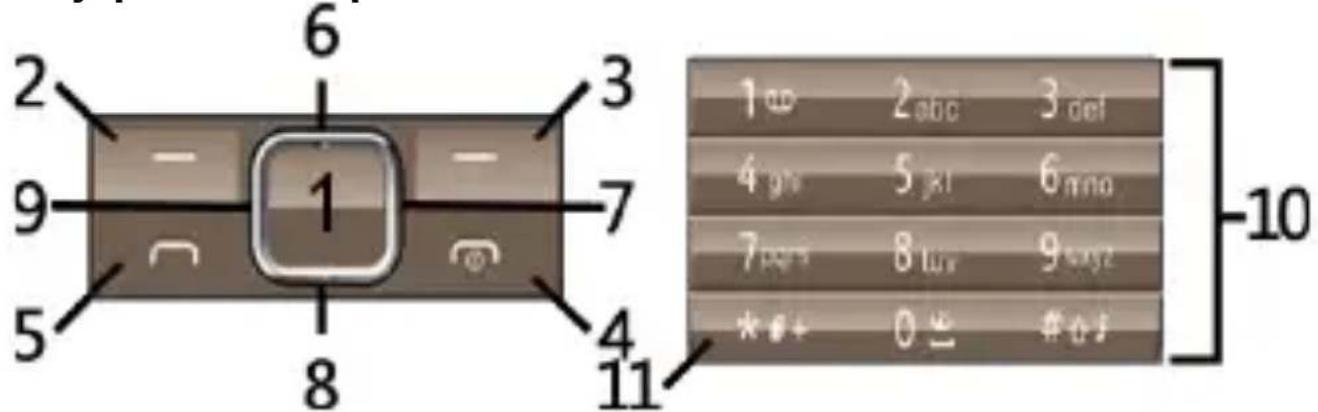
Nr. Item Info
| 1 | OK | Confirmation key. | |
| 2 | LEFT | SOFT | Press it in the idle screen to open the main menu. |
| KEY | |||
| 3 | RIGHT | SOFT | Press it in the idle screen to open the contact list. This key |
| KEY |
| serves the purpose of returning to a previous menu when used outside of the idel screen. | ||
| 4 END KEY | Press it to hung up a call. Long press it to turn the phone on or off. Press it in any screen to return to the idle screen. | |
| 5 CALL KEY | Press it to call a phone number, answer an incoming call. Displays the call history menu when used on the idle screen outside of a call. | |
| 6 UP | Directional key. | |
| 7 RIGHT | Directional key. | |
| 8 DOWN | Directional key. | |
| 9 LEFT | Directional key. | |
| 10 NUMPAD | Numerical keys. | |
| 11 STAR | Press * to input one of the following symbols: *, +, P, W. | |
Basic functions
Making a call
When the cellular network service provider' name appears on the main screen, you can receive or make a call through the network. The received signal strength is shown on the up left corner of the screen (the maximum of 5 lines
represents the best signal condition).
The quality of the network connection is directly affected by the environment.
Phone book
You can save names and mobile phone numbers. From Main Menu, select Contacts or press the right soft key on the idle screen to get into the app directly.
Messages
SMS
Inbox
Open Inbox to read received messages.
Outbox
Open Outbox to read saved messages.
Write Message
The message service center allows you to send or receive messages on your cell phone. Please confirm that the service center's number is set before use.
Go to sub menu „Write message“ to write a new message.
Attention: some cities and regions do not support messages longer than 160 English letters.
Template
Save some frequent used messages to avoid typing them for many times. You can edit or delete these templates.
Message settings (Options)
In the message settings menu you can perform the following actions:
- SIM1 message center.
- SIM2 message center.
- Message validity period.
- Status report.
This function is available only if it is supported by your network service provider.
-
Save sent messages.
-
Preferred storage.
You can choose whether to save messages in the phone or the SIM' memory.
Call logs
Your mobile phone can save 20 records for missed calls, received calls and dialed numbers. In this menu you can search through all record history.
Settings
Call settings
This menu includes many personal settings for your phone.
Dual SIM Settings
You can select three modes: Dual SIM open; Only SIM1 open; Only SIM2 open.
Phone Settings
- Time and Date Press the Up and Down direction keys to select the option.
Press the Left and Right direction keys to select the value that you need to adjust.
Note: If you remove the battery from the mobile phone or if the battery was drained completely a long time ago, you may need to reset the time and date when re-inserting the battery or powering on the mobile phone after recharging.
- Language
Select the display language for the mobile phone.
- Auto power on/off
Set the time when the mobile phone will be automatically powered on or off.
- Restore factory settings
This option restores all settings to their factory values. Default password is "1234".
Display
- Animation effect
This option allows turning on/off or changing the power on/off animations.
- Wallpaper settings
This option allows changing the wallpaper.
- Contrast
Modify the screen contrast.
- Backlight
Set backlight timeout.
- Keypad backlight time
Set the keypad backlight duration.
Security
-
Modify PIN.
-
Modify PIN2.
-
Modify the cellphone password (default 1234).
-
Privacy
Lock applications with the default phone password.
- Auto keypad lock
Turn keypad locking on or off and set the timer.
- Lock screen by End key.
Turn on/off screen locking by pressing the End key.
- Guardlock
To set up guardlock, first select “change password” and input your desired code, then turn the option on or off.
- Fixed dialing
To set up fixed dialing input your PIN2 key and add entries in the dialing list.
9. Blacklist
Numbers on the blacklist are blocked to either send messages or call your phone. Configure these settings by accessing the Blacklist Settings menu. In this list you are able to add phone numbers/contacts.
Connections
In this menu you can set up your network account, turn on the GPRS service, choose active data connection and select the default network.
Multimedia
This phone offers you: Camera, Video recorder, Video player, Audio player, sound recorder, FM radio (use earphones when listening to the radio, the cable serves the function of an antenna) and an Image Viewer.
My files
File manager. The phone provides a certain space for users to manage files and supports a Micro SD card. You can use the file manager to conveniently manage various files on the phone and the Micro SD card. Choose File Manager>Options.
Profiles
1. Normal
Activate: Activate the chosen profile.
Settings: Set the following options as required.
Ring set: Set the call ring or message ring for SIM1 and SIM2.
Adjust volume: Adjust the volume of incoming calls, messages etc. Press the navigation keys to adjust the volume.
Ring Type: Set the desired call and message tone mode for SIM1 and SIM2.
Alarm remind: Set the desired alarm reminding mode.
Keypad tones: set the desired Keypad tones.
Battery low alert: Turn the low battery alert tone on or off.
Rename: Modify the name of the selected profile.
2. Silent
For settings refer to "General",
3. Meeting
For settings refer to "General".
4. Indoor
For settings refer to "General".
5. Outdoor
For settings refer to "General".
Applications
1. Alarm
Three alarm clocks are set but deactivated by default. You can activate each one of them individually. For each alarm you can set the ringing time. When the alarm is ringing you can select Stop to stop the ringing or Snooze to postpone the alarm for a set number of minutes. The phone will ring even if it is powered off; selecting stop prompts you to turn on the phone. Selecting No turns the phone back off and selecting Yes powers it on completely.
2. Bluetooth
Open/Close Bluetooth: This function allows you to switch the Bluetooth on or off.
Bluetooth visibility: Set to show or hide the Bluetooth of your phone. If you select to hide the phone, other devices cannot detect your phone's Bluetooth, even if it is activated.
Paired devices: You can search for the nearby Bluetooth devices.
My Bluetooth: The name of your phone when another Bluetooth device is searching for it.
3. Calendar
The screen displays the calendar for the current month and the actual date is marked with a frame. To view the date, press the Up/Down/Left/Right key.
4. Calculator
Select Delete to clear the last inputs or results. Hold Clear to clear all the inputs. Press OK to obtain the calculation results.
Note: This calculator provides limited precision and is only applicable to simple arithmetic operations.
5. Recorder
The Recorder app lets you record sound. Allows saving in AMR (low quality) and WAV (high quality) formats.
Internet enabled apps
Your device has some apps that may need network connection to function properly.
Declaratie de conformitate CE
CE marking is a mandatory conformity mark for products placed on the market in the European Economic Area. CE Marking on a product ensures that the product complies with the essential requirements of the applicable EC directives.

natural_image
Simple line drawing of a trash bin with no text or symbolsThis product is marked with distinctive selective sorting electronic waste. This symbol indicates that the product should be supported by a system of selective collection of waste according to EU Directive 2002/96/EC, so that it can be recycled or dismantled to minimize environmental impact.
Attention! Electronic products unsorted selectively affect the environment and human health, as they may contain hazardous substances.
Batteries
ATTENTION!
It is forbidden to throw batteries in the trash. Dispose of used batteries recycling centers.
Incorrect use of batteries may cause leakage or corrosion. Do not install batteries in the wrong direction.
It is dangerous to charge / strike / open or short-circuit the batteries.
Do not leave used batteries in the product.
If you do not use the product longer, remove the batteries. Change the batteries when the clock is not working properly.
If you spill battery fluid inside the product clean and replace the batteries.
The batteries contained in the package does not contain heavy metals.

ROHS (Restriction on Hazardous Substances). This directive is a regulation that was implemented on
July 1, 2006 and relates to restrictions on the marketing of products and electrical and electronic equipment containing hazardous substances such as lead, hexavalent chromium, cadmium, polybrominated biphenyl (PBB), polybrominated diphenyl ethers (PBDE).
E-Boda T310
Manual de utilizare Introducere
natural_image
Close-up of a black USB cable with connector port, showing internal wiring (no text or symbols visible)natural_image
Simple line drawing of a trash bin with diagonal lines indicating lanes (no text or symbols)- Mobile phone guidelines
- Battery guidelines
- Charging instructions
- Cleaning & maintenance
- Before start
- Parts names & explanation
- Basic functions
- Making a call
- Phone book
- Messages
- SMS
- Inbox
- Outbox
- Write Message
- Template
- Message settings (Options)
- Call logs
- Settings
- Call settings
- Dual SIM Settings
- Phone Settings
- Display
- Security
- Blacklist
- Connections
- Multimedia
- My files
- Profiles
- Normal
- Silent
- Meeting
- Indoor
- Outdoor
- Applications
- Alarm
- Bluetooth
- Calendar
- Calculator
- Recorder
- Internet enabled apps
- Declaratie de conformitate CE
- E-Boda T310
- Manual de utilizare Introducere
Brand : E-Boda
Model : T310
Category : Smartphone