
EC-TS-1510 - Monitor EC Line - Free user manual and instructions
Find the device manual for free EC-TS-1510 EC Line in PDF.


| Product Type | Touch Screen Monitor |
| Brand | EC Line |
| Model | EC-TS-1510 |
| Screen Size | 15 inches (estimated from model number) |
| Input Interfaces | VGA, USB (touch), Audio Line In |
| Power Supply | DC 12V via external adapter (100-240V AC, 50/60 Hz) |
| Adjustable Tilt | 0° to 90° (manual handle) |
| Touch Technology | Touch screen (driver supports USB/RS232/PS/2) |
| Safety Compliance | GB/4943-2001, GB/9254-1998 Class B, GB/17625.1-2003 |
| Driver Support | Windows (eGalaxTouch driver) |
| Calibration | 4-point and 9-point linearization |
| Edge Compensation | Supported (adjustable in driver) |
| Multi-Monitor Support | Yes (via driver) |
| Mounting Options | Desktop stand with adjustable handle |
| Touch Interface | USB, RS232, PS/2 (selectable during driver installation) |
Frequently Asked Questions - EC-TS-1510 EC Line
User questions about EC-TS-1510 EC Line
0 question about this device. Answer the ones you know or ask your own.
Ask a new question about this device
Download the instructions for your Monitor in PDF format for free! Find your manual EC-TS-1510 - EC Line and take your electronic device back in hand. On this page are published all the documents necessary for the use of your device. EC-TS-1510 by EC Line.
USER MANUAL EC-TS-1510 EC Line
Touch Screen Monitor
Table of Contents
Chapter I: Overview Chapter J: Overview 2
1.1 Safety Information ....2
1.2 Electromagnetic Compatibility Statement: 3
Chapter II: Installation Guide Chapter II: Installation. Guide 5
2.1 Appearance of EC TS-1510 Touch Screen Monitor: 5
2.2 The Rear Panel I/O Signs and Description: 5
Chapter III: Instructions for CisplatidhInstallations.for....6
3.1 Touch Screen Driver Installation:....6
Chapter IV: Common Faults and Exception V.: Common Faults and .... 16
Chapter I: Overview Chapter I: Overview
Dear value customers:
Thank you for purchasing the EC LINE products; we are committed to continuously maintenance the product quality and providing better after-sales service. In order to take full advantage of our devices, we recommend read through this manual before the driver installation.
1.1 Safety Information
- EC TS-1510 is fully compliance with the relevant requirements of the national standard GB/4943-2001 IT equipment security.
- Make sure the electricity meets the power requirements (such as voltage, frequency) before installation; and the grounding of the power outlet is running properly.
● Lightning may damage the product, unplug the network cable, power cable or any other conductors during lightning storms. - Do not unplug the components and connections (except for the USB device) when the power is on.
- Do not open the cabinet of the product by a non-professional technician.
- Do not leave any item or liquid inside the product; do not place any objects into the ventilation holes, it may cause short-circuit of the internal components and may cause fire or electric shock.
- In accordance with the relevant explanation in national standards GB/T9813-2000 microcomputers general specification. After the computer is below the temperature of 10 °C of environment storage, please place the machine in room temperature (10-35 °C) conditions for more than two hours to avoid damage from low temperature. In the meantime, please do not remove the packaging and allow the computer to restore the natural
temperature, and avoid heating up too fast to cause the computer to generate the occurrence of frost and condensation that might bring electrical damage.
- Strict compliance with the electrical appliance standard;
● Safe use voltage range: 100V \~ 240V & 50Hz/60Hz; - Verify that the power outlet is available to connect to a reliable ground;
- Keep the device clean, dry, away from dust, moisture and direct sunlight;
- Do not share the same power outlet with high-power consumption electrical devices, keep distance from high level magnetic interference;
● Power off the monitor after use as to extend using life; - Do not use sharp points, draw, cut the touch screen to ensure the normal use of it;
- Switch off the power supply before plug / unplug the communication cable or connect to an external device;
- Non-professional and technical personnel is not allowed to open the machine, otherwise take upon the consequences;
When the following occurs:
● Liquid penetrate into the body of the monitor
● Monitor accidental damage
● Monitor produces a burning smell
● Monitor shows sudden abnormal
Disconnect the power supply immediately, unplug the power cord and contact a qualified service technician to do service.
1.2 Electromagnetic Compatibility Statement:
- EC TS-1510 is fully compliance with the relevant requirements of the national standards (GB/9254-1998) “The limits and measurement methods of radio disturbance characteristics of information technology equipment” for Class B
products.
- EC TS-1510 is fully compliance with the relevant requirements of the People's Republic of China's national standards of (GB/17625.1-2003) "Electromagnetic Compatibility Limits for harmonic current emission limits" for Class B products.
Chapter II: Installation Guide Chapter II: Installation Guide
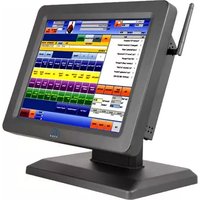
2.1 Appearance of EC TS-1510 Touch Screen Monitor:

2.2 The Rear Panel I/O Signs and Description:
A row of the external device connection interface is located at the rear bottom panel of the monitor, such as: power outlet, Line in, VGA and USB interface, detailed as follows:

USB: Touch panel function interface
Line in: For connection to the PC audio-out connector of sound source (option)
VGA in: For connection with the D-Sub 15 pin signal cable
DC in: For connection with the power adapter
EC TS-1510 touch screen monitor is using the manual handle design which is able to be adjusted within the range of 0 degrees to 90 degrees to make the operation more humane.
Chapter III: Instructions for Displacement Installations for
3.1 Touch Screen Driver Installation:
Step 1: Open the installer directory in the CD, double-click "Setup.exe"

Step 2: Installation started as the following figure shown, click Next to proceed the next step

Step 3: Installation in progress

Step 4: Click "install PS / 2 interface driver" and click Next to proceed installation

Step 5: For the touch interface is RS232, click "install RS232 interface driver" and click Next to proceed installation.

Step 6: When choosing the calibrations, select NONE, click Next to proceed installation.

Step 7: When installing USB touch, please connect the USB controller and USB cable

Step 8: When there are two or more touch screen, please tick "Support multi-monitor system".

Step 9: Select the destination location to store the driver, the default path is C: \Program Files \ eGalaxtouch; we use the default path here, click Next to proceed to installation.

Click Next to proceed to installation

Step 10: Check the message to create a desktop shortcut icon in the following figure

After install the driver successfully, identify the USB controller card and RS232 control card as the following two figures shows.


Related touch function setting

Touch calibration

Touch device line test

Touch screen setting

Touch device edge correction setting

Touch device hardware information display

Chapter IV: Except only Faults and Excusion of Facilitis and
1. No display on the screen
i) Power saving mode is on, press any key on the keyboard or move the mouse to deactivation.
ii) The pins of the VGA cable connector are bent or lost contact to the VGA interface, change the VGA cable. If problems still exist, bring the unit to the service provider.
2. Characters look too dark or to light
Using OSD Menu to adjust the brightness
3. When your monitor needs to be adjusted?
The resolution of frequency is unclear
4. The text appears on the screen are unclear
Make sure the resolution or refresh rate are matching with the Display Mode
5. Touch panel doesn't respond
Make sure the touch screen driver is installed properly into your PC system and calibration is done.
Thank you very much for using EC Line product
For service, please contact service@ecline.com.hk
www.ecline.com.mx / www.ecline.com.hk
- Table of Contents
- Chapter I: Overview Chapter J: Overview 2
- Chapter II: Installation Guide Chapter II: Installation. Guide 5
- Chapter III: Instructions for CisplatidhInstallations.for....6
- Chapter IV: Common Faults and Exception V.: Common Faults and .... 16
- Chapter I: Overview Chapter I: Overview
- Safety Information
- When the following occurs:
- Electromagnetic Compatibility Statement:
- Chapter II: Installation Guide Chapter II: Installation Guide
- Appearance of EC TS-1510 Touch Screen Monitor:
- The Rear Panel I/O Signs and Description:
- Chapter III: Instructions for Displacement Installations for
- Touch Screen Driver Installation:
- Step 3: Installation in progress
- Step 4: Click "install PS / 2 interface driver" and click Next to proceed installation
- you want to use Multi Monitor, please check the box.
- Touch calibration
- Touch device line test
- Touch screen setting
- Touch device edge correction setting
- Chapter IV: Except only Faults and Excusion of Facilitis and
- No display on the screen
- Characters look too dark or to light
- When your monitor needs to be adjusted?
- The text appears on the screen are unclear
- Touch panel doesn't respond
Brand : EC Line
Model : EC-TS-1510
Category : Monitor