
ISP500CW - Docking Station iLive - Free user manual and instructions
Find the device manual for free ISP500CW iLive in PDF.


| Product Type | Docking Station |
| Brand | iLive |
| Model | ISP500CW |
| Color | White |
| Dimensions (W x D x H) | 6.5 x 4.5 x 2.2 inches |
| Weight | 0.6 lbs |
| Power Input | 5V DC, 1A |
| Charging Output | 5V DC, 1A |
| Compatible Devices | Smartphones, tablets, and other USB-charged devices |
| Charging Ports | 1x USB-A |
| Audio Output | 3.5mm headphone jack |
| LED Indicator | Power/charging status |
| Material | Plastic |
| Operating Temperature | 32°F to 104°F (0°C to 40°C) |
| Storage Temperature | -4°F to 140°F (-20°C to 60°C) |
| Humidity Range | 5% to 90% (non-condensing) |
| Included Accessories | USB cable, user manual |
| Safety Certifications | CE, FCC, RoHS |
| Warranty | 1 year limited |
Frequently Asked Questions - ISP500CW iLive
User questions about ISP500CW iLive
0 question about this device. Answer the ones you know or ask your own.
Ask a new question about this device
Download the instructions for your Docking Station in PDF format for free! Find your manual ISP500CW - iLive and take your electronic device back in hand. On this page are published all the documents necessary for the use of your device. ISP500CW by iLive.
USER MANUAL ISP500CW iLive
natural_image
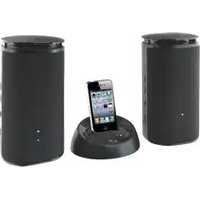
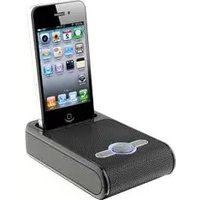
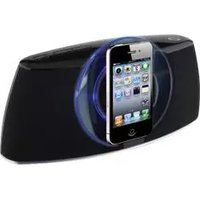
Black electronic device with a smartphone mounted on top, showing its front panel and control buttons (no readable text or symbols)ISP500
Speaker System for iPhone/iPod
Warnings and Precautions
- CAUTION: TO PREVENT ELECTRIC SHOCK, MATCH WIDE BLADE OF PLUG TO WIDE SLOT, FULLY INSERT.
- WARNING: To reduce the risk of fire or electric shock, do not expose this apparatus to rain or moisture.
- AVERTISSEMENT: Pour réduire le risque d'incendie ou de choc électrique, ne pas exposer cet appareil sous la pluie et l'humidité.
- CAUTION: Use of any controls or adjustments or performance of procedures other than those herein specified may result in hazardous radiation exposure.
- WARNING: Changes or modifications to this unit not expressly approved by the party responsible for compliance could void the user's authority to operate the equipment.
- WARNING: Do not place the unit on top of any soft, porous, or sensitive surfaces to avoid damaging the surface. Use a protective barrier between the unit and surface to protect the surface.
- WARNING: Use of this unit near fluorescent lighting may cause interference regarding use of the remote. If the unit is displaying erratic behavior move away from any fluorescent lighting, as it may be the cause.
- CAUTION: Danger of explosion if battery is incorrectly replaced. Replace only with the same or equivalent type.
- PRÉCAUTION: Danger d'explosion si les piles sont remplacées de façon incorrect. Remplacer les piles seulement par le même type de pile ou l'équivalent.
- WARNING: There is a danger of explosion if you attempt to charge standard Alkaline batteries in the unit. Only use rechargeable NiMH batteries.
-
WARNING: The remote control's button cell battery contains mercury. Do not put in the trash, instead recycle or dispose of as hazardous waste
-
WARNING: Lithium batteries, like all rechargeable batteries are recyclable and should be recycled or disposed of in normal household waste. Contact your local government for disposal or recycling practices in your area. They should never be incinerated since they might explode.
• WARNING: Shock hazard - Do Not Open.
• AVIS: RISQUE DE CHOC ÉLECTRIQUE - NE PAS OUVRIR
Mains plug is used as disconnect device and it should remain readily operable during intended use. In order to disconnect the apparatus from the mains completely, the mains plug should be disconnected from the mains socket outlet completely.
Do not mix old and new batteries.
Do not mix alkaline, standard (carbon-zinc), or rechargeable (ni-cad, ni-mh, etc) batteries.
The lightning flash with arrowhead symbol, within an equilateral triangle, is intended to alert the user to the presence of uninsulated "dangerous voltage" within the product's enclosure that may be of sufficient magnitude to constitute a risk of electric shock to persons.

The exclamation point within an equilateral triangle is intended to alert the user to the presence of important operating and maintenance (servicing) instructions in the literature accompanying the appliance.

This product utilizes a Class 1 laser to read Compact Discs. This laser Compact Disc Player is equipped with safety switches to avoid exposure when the CD door is open and the safety interlocks are defeated. Invisible laser radiation is present when the CD Player's lid is open and the system's interlock has failed or been defeated. It is very important that you avoid direct exposure to the laser beam at all times. Please do not attempt to defeat or bypass the safety switches.
Important Safety Instructions
- Read these Instructions.
- Keep these Instructions.
- Heed all Warnings.
- Follow all instructions.
-
Do not use this apparatus near water.
-
Clean only with a dry cloth.
-
Do not block any ventilation openings. Install in accordance with the manufacturer's instructions.
-
Do not install near any heat sources such as radiators, heat registers, stoves, or other apparatus (including amplifiers) that produce heat.
-
Do not defeat the safety purpose of the polarized or grounding - type plug. A polarized plug has two blades with one wider than the other. A grounding type plug has two blades and a third grounding prong. The wide blade or the third prong are provided for your safety. When the provided plug does not fit into your outlet, consult an electrician for replacement of the obsolete outlet.
-
Protect the power cord from being walked on or pinched particularly at plugs, convenience receptacles, and the point where they exit from the apparatus.
-
Only use attachments/accessories specified by the manufacturer.
12.
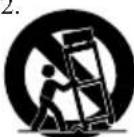
Use only with a cart, stand, tripod, bracket, or table specified by the manufacturer, or sold with the apparatus. When a cart is used, use caution when moving the cart/apparatus combination to avoid injury from tip-over.
-
Unplug this apparatus during lightning storms or when unused for long periods of time.
-
Refer all servicing to qualified service personnel. Servicing is required when the apparatus has been damaged in any way, such as power-supply cord or plug is damaged, liquid has been spilled or objects have fallen into the apparatus, the apparatus has been exposed to rain or moisture, does not operate normally, or has been dropped.
FCC Warnings
NOTE: This equipment has been tested and found to comply with the limits for a Class B digital device, pursuant to Part 15 of the FCC Rules. These limits are designed to provide reasonable protection against harmful interference in a residential installation. This equipment generates, uses, and can radiate radio frequency energy and, if not installed and used in accordance with the instructions, may cause harmful interference to radio communications. However, there is no guarantee that interference will not occur in a particular installation. If this equipment does cause harmful interference to radio or television reception, which can be determined by turning the equipment off and on, the user is encouraged to try to correct the interference by one or more of the following measures:
• Reorient or relocate the receiving antenna.
- Increase the separation between the equipment and receiver.
- Connect the equipment into an outlet on a circuit different from that to which the receiver is connected.
- Consult the dealer or an experienced radio/TV technician for help.
Additional Warnings
- The apparatus shall not be exposed to dripping or splashing and that no objects filled with liquids, such as vases, shall be placed on apparatus.
- Main plug is used as disconnect device and it should remain readily operable during intended use. In order to disconnect the apparatus from the mains completely, the mains plug should be disconnected from the mains socket outlet completely.
- Battery shall not be exposed to excessive heat such as sunshine, fire or the like.
- Caution marking is located at the rear or back of the apparatus.
- The marking information is located at the rear or back of apparatus.
This symbol indicates that this product incorporates double insulation between hazardous mains voltage and user accessible parts.
Speaker System for iPhone/iPod
Features
- Works with iPhone
- Made for iPod
- Cherry wood finish
• Enhanced audio quality
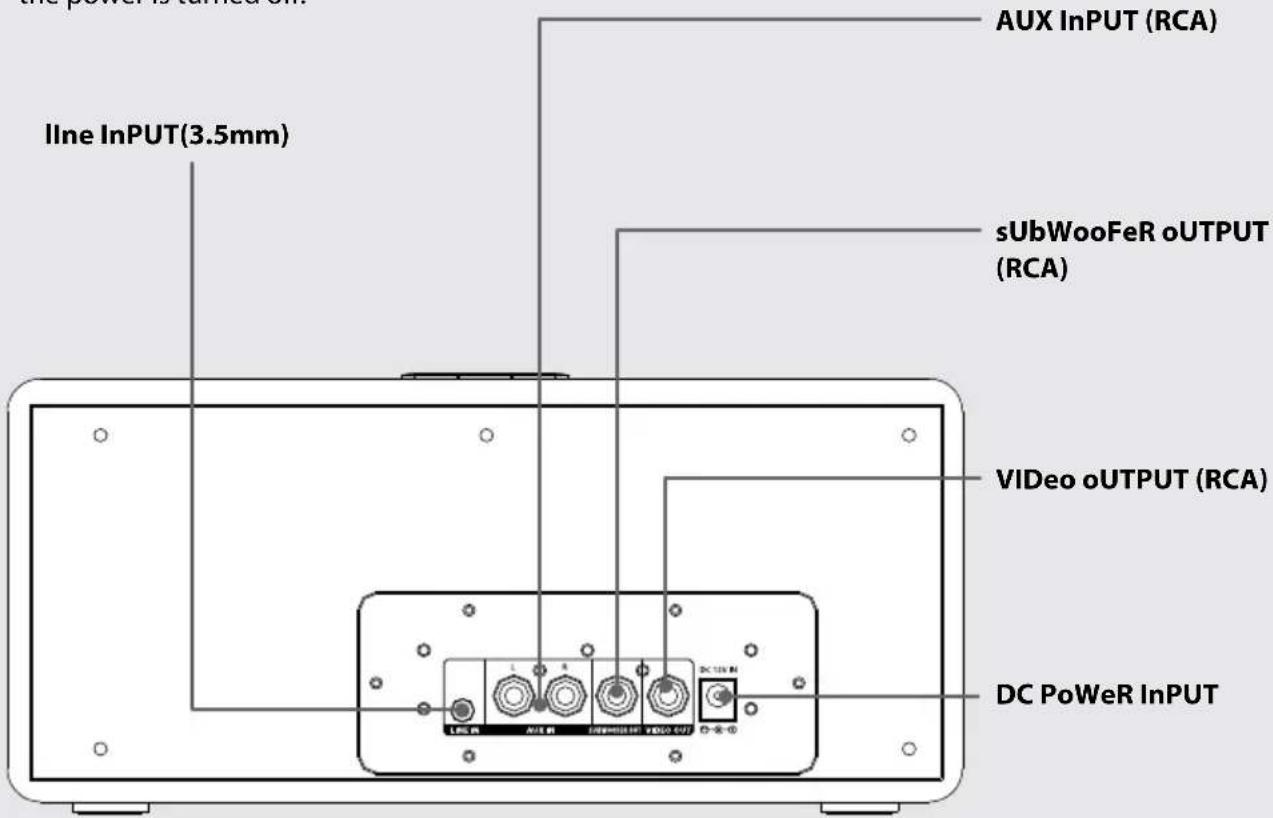
• 2.1 channel system - Auxiliary input (RCA)
• Line input (3.5mm) - Subwoofer output (RCA)
• Video output (RCA)
• Supports Universal docking brackets - Remote control
- DC power input: requires AC/DC power adapter (included)
Included
- ISP500
- Remote control, requires 1 CR2025 battery (pre-installed)
TAble of ConTenTs
Warnings and Precautions . . . . . 2
Important Safety Instructions . . . . 3
- FCC Warnings
• Additional Warnings
Speaker System for iPhone/iPod . . . 4
- Features
- Included
Introduction . . . . . . . . . 6
Setup . . . . . . . . . . . 8
- Power
- Remote
iPod and iPhone . . . . . . . . 9
- Docking an iPod or iPhone
- Playing an iPod or iPhone
Line Input and Aux Input . . . . . . 10
- Using the Line Input
- Using the Aux Input
Subwoofer Output and Video Output . . 11
• Using the Video Output
• Using the Subwoofer Output
Company Information . . . . . . . 12
• International Support
- Contact Information
Introduction


Setup
Power
Plug the included AC/DC power adapter into the DC power input and an AC power outlet to power the speaker system.

natural_image
Diagram of a device with two connected outlets and a cable, no text or symbols presentRemote
Requires 1 CR2025 battery (pre-installed)

Docking an iPod or iPhone
Universal Dock: designed to use the Dock Adapter included with your iPhone and iPod
-
Snap the bracket into place over the iPhone/iPod connector in the dock.
-
Connect the iPhone or iPod to the connector inside the Dock for iPhone/iPod.
When the speaker is plugged in, using AC power, the docked iPhone or iPod will charge.
Playing an iPod or iPhone
-
Follow the instructions for DOCKING AN iPod or iPhone.
-
Press the POWER button to turn the speaker system on.
The POWER INDICATOR light will turn off when the speaker system powers on.
-
Press the PLAY/PAUSE button to begin playing music from the docked iPhone or iPod.
-
If your music doesn't play, press the SOURCE button to switch to iPod mode.
Line Input and Aux Input
Using the Line Input Using the Aux Input
- Connect an audio source to the LINE INPUT using an 3.5mm line input cable (not included).
- Press the POWER button to turn the speaker system on.
- Use the native controls on the connected audio device to begin playing music through the connected speaker system.
- If your music doesn't begin playing, press the SOURCE button to switch to line input mode.
The LINE INPUT must be disconnected before using the AUX INPUT.
- Connect an audio source to the AUX INPUT using an RCA stereo cable (not included).
- When connecting the RCA stereo cable, match the colored plugs on the cable to the colored connections on the speaker system.
- Press the POWER button to turn the speaker system on.
- Use the native controls on the connected audio device to begin playing music through the connected bar speaker.
- If your music doesn't begin playing, press the SOURCE button to switch to aux input mode.
Subwoofer Output and Video Output
Using the Video Output
- Connect a television to the VIDEO OUTPUT using an RCA cable (not included).
- Make sure the docked iPhone or iPod's TV out option is turned on.
- Adjust the connected television to the correct input setting.
- Video played through the docked iPhone or iPod will now play on the connected television.
Using the Subwoofer Output
-
Connect a subwoofer to the SUBWOOFER OUTPUT using an RCA audio cable (not included).
-
The connected subwoofer will automatically work when audio is played through the speaker system.
Company Information
International Support
To download this User's Guide in English, Spanish, or French, visit the support section at www.ilive.net.
Website: www.ilive.net
- ISP500
- Speaker System for iPhone/iPod
- Warnings and Precautions
- Important Safety Instructions
- FCC Warnings
- Additional Warnings
- Features
- Included
- TAble of ConTenTs
- Warnings and Precautions . . . . . 2
- Important Safety Instructions . . . . 3
- Speaker System for iPhone/iPod . . . 4
- Introduction . . . . . . . . . 6
- Setup . . . . . . . . . . . 8
- iPod and iPhone . . . . . . . . 9
- Line Input and Aux Input . . . . . . 10
- Subwoofer Output and Video Output . . 11
- Company Information . . . . . . . 12
- Introduction
- Setup
- Power
- Remote
- Docking an iPod or iPhone
- Playing an iPod or iPhone
- Line Input and Aux Input
- Using the Line Input Using the Aux Input
- Subwoofer Output and Video Output
- Using the Video Output
- Using the Subwoofer Output
- Company Information
- International Support
Brand : iLive
Model : ISP500CW
Category : Docking Station