
Display Quickit - Uncategorized BENQ - Free user manual and instructions
Find the device manual for free Display Quickit BENQ in PDF.


| Product Type | Firmware Update Utility for BenQ Monitors |
| Brand | BenQ |
| Model | Display Quickit |
| Supported Operating Systems | Windows 10 (32/64 bit), Windows 11, macOS 12 or above |
| Purpose | Update BenQ monitor firmware to improve stability and compatibility |
| Compatibility | Automatically checks monitor compatibility; not all BenQ monitors supported |
| Connection Requirements (DP/HDMI) | Connect USB Type A to Type B cable between monitor and computer |
| Connection Requirements (USB-C/Thunderbolt 3) | No additional USB cable required; use USB-C or Thunderbolt 3 cable |
| Mac M1/M2 Chip Note | For Silicon-based Macs, use USB-C or DisplayPort cable due to DCC/CI limitation |
| Update Process | Download from BenQ website, unzip, run executable; requires internet access |
| Update Duration | Approximately 10 minutes |
| Post-Update | Reboot monitor; customized settings are reset to factory defaults |
| Warning | Do not power off monitor or disconnect cables during update; connect only one monitor at a time |
| File Size | Not specified |
| Dimensions (Software) | N/A (software only) |
| Weight (Software) | N/A (software only) |
Frequently Asked Questions - Display Quickit BENQ
User questions about Display Quickit BENQ
0 question about this device. Answer the ones you know or ask your own.
Ask a new question about this device
Download the instructions for your Uncategorized in PDF format for free! Find your manual Display Quickit - BENQ and take your electronic device back in hand. On this page are published all the documents necessary for the use of your device. Display Quickit by BENQ.
USER MANUAL Display Quickit BENQ
Firmware update utility
V 1.02
Copyright and disclaimer
Copyright
Copyright 2023 BenQ Corporation. All rights reserved. No part of this publication may be reproduced, transmitted, transcribed, stored in a retrieval system or translated into any language or computer language, in any form or by any means, electronic, mechanical, magnetic, optical, chemical, manual or otherwise, without the prior written permission of BenQ Corporation.
All other logos, products, or company names mentioned in this manual may be the registered trademarks or copyrights of their respective companies, and are used for informational purposes only.
Disclaimer
BenQ Corporation makes no representations or warranties, either expressed or implied, with respect to the contents hereof and specifically disclaims any warranties, merchantability or fitness for any particular purpose. Further, BenQ Corporation reserves the right to revise this publication and to make changes from time to time in the contents hereof without obligation of BenQ Corporation to notify any person of such revision or changes.
This document aims to provide the most updated and accurate information to customers, and thus all contents may be modified from time to time without prior notice. Please contact customer service for the latest version of this document.
It is the sole responsibility of the user if problems (such as data loss and system failure) occurred due to non-factory installed software, parts, and/or non-original accessories.
Servicing
Should you have any queries about the software after reading the document, contact the customer support.
Typographics
| Icon / Symbol Item Meaning | ||
 | Warning | Information mainly to prevent the damage to components, data, or personal injury caused by misuse and improper operation or behavior. |
 | Tip Useful | information for completing a task. |
 | Note Supplementary information. | |
Introduction
Display QuicKit is a software utility that helps to update BenQ monitor's firmware easily.
An updated firmware helps to improve a monitor's stability and compatibility, though it erases all the customized settings and resets the monitor.
Note that not all BenQ monitors work with this software utility. It checks the compatibility of your monitor automatically once launched.
Warnings
When performing firmware update, pay attention to the following:
- Always use the utility provided by BenQ and follow the procedures described in this document to complete the firmware update.
- Keep stable power supply to the product until the update is complete. Do not remove the power adapter (if supplied) or disconnect the power cord and the cables.
- Do not power off the monitor.
- Connect only one video source to the monitor. See "Connections" on 4 for the connections.
- You can update the firmware of one monitor at a time. If you have multiple monitors connected to your computer, keep one monitor and disconnect others first. Take turns until all monitors are updated.

Failure to follow these warnings will result in firmware update failure and possible damage to the product.
System requirements
- Windows 10 32/64 bit
- Windows 11
- MacOS 12 or above (Software availability varies by monitor model. Check if a Mac version of software is available from Support.BenQ.com > model name > Software & Driver.)
Connections
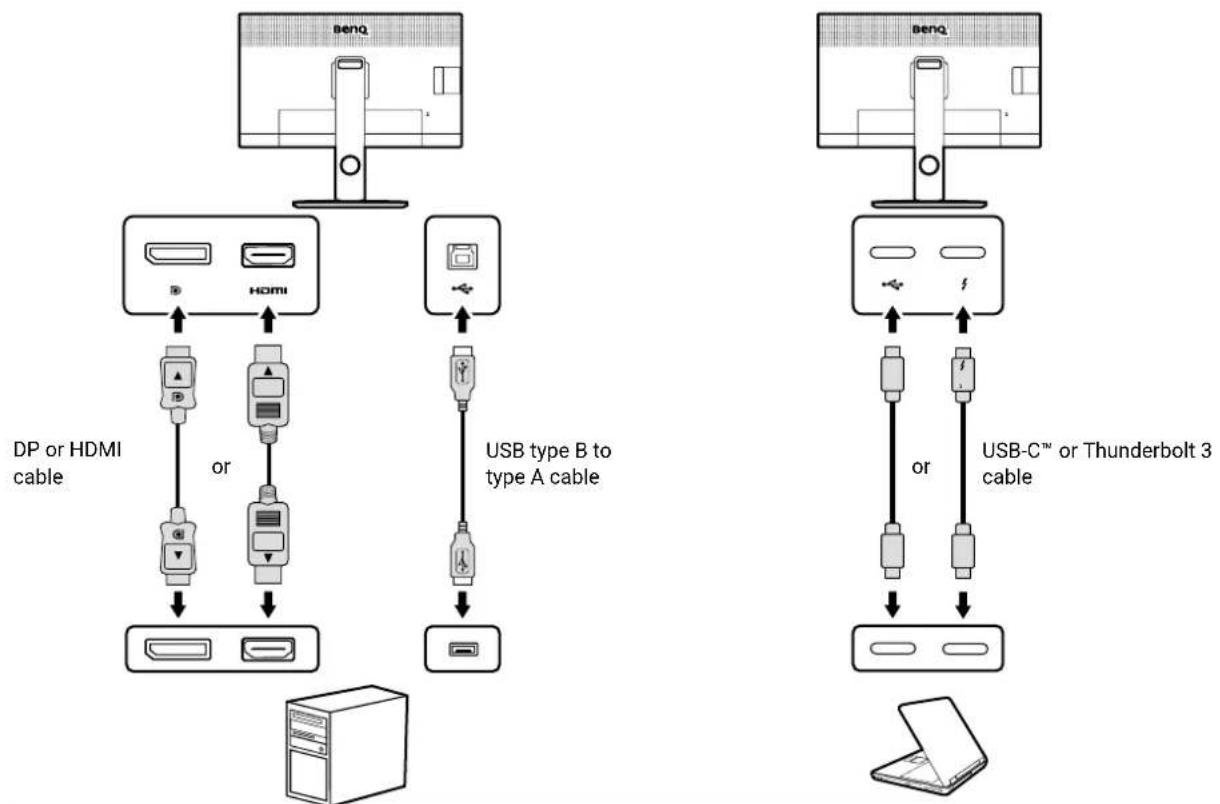
Available video input ports vary by model. To perform a firmware update, connect your monitor to a computer as instructed below.
- If your video source is DP or HDMI, connect a USB type A to type B cable to your monitor and the computer.
- If your video source is USB-C™ or Thunderbolt 3, no other USB connection between your monitor and the computer is required.
With DP or HDMI input With USB-C™ or Thunderbolt 3 input
flowchart
graph TD
    subgraph_Left_Cable["Left Panel"]
        A["BenQ"] --> B["HP"]
        B --> C["DS"]
        B --> D["USB"]
        D --> E["CPU"]
        F["User"] --> G["USB type B to type A cable"]
        H["User"] --> I["USB type B to type A cable"]
        J["User"] --> K["USB type B to type A cable"]
    end

    subgraph_Right_Cable["Right Panel"]
        L["BenQ"] --> M["HP"]
        M --> N["DS"]
        M --> O["USB"]
        N --> P["USB-C™ or Thunderbolt 3 cable"]
        Q["User"] --> R["USB-C™ or Thunderbolt 3 cable"]
        S["User"] --> T["USB-C™ or Thunderbolt 3 cable"]
    end

If your Mac device is Silicon based with M1/M2 chip, connect you Mac and the monitor via USB-C or DisplayPort cable because the Mac can't support DCC/CI command via HDMI.
Downloading and launching Display QuicKit
- Before you start, disable the power saving function of your computer and the monitor. And keep only one monitor connected to your computer.
- Download Display QuicKit from the BenQ website. Keep your computer connected to the Internet during the firmware update process, as the computer needs to access the firmware files on the BenQ cloud server.
- Unzip the downloaded file and double-click the Display QuicKit.exe file. Once the software utility is installed, you can double-click the icon from your computer desktop to launch the utility again.
- The utility checks if there is an update. You are recommended to update the utility to the latest version.
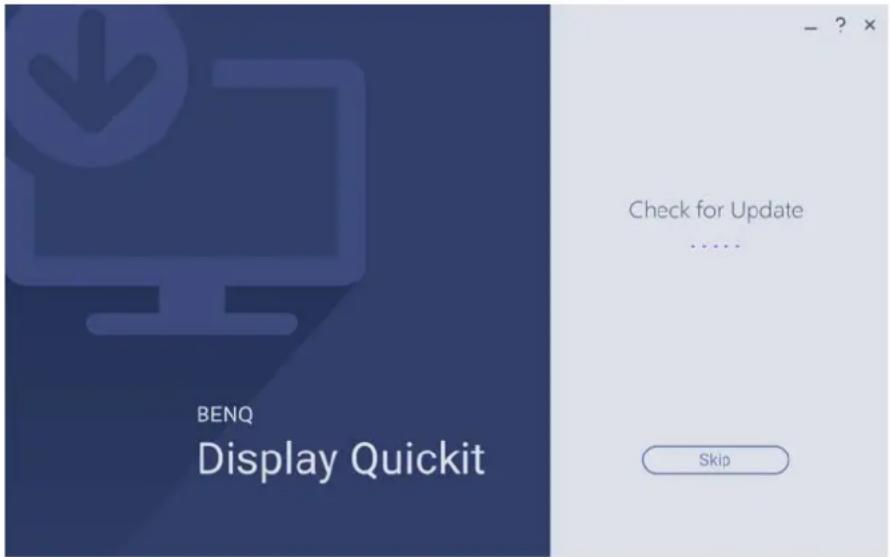

If the download failed, disable your anti-virus software and try again.
Updating the monitor firmware
- The utility checks the compatibility of your monitor once launched. If your monitor is supported, the screen shows the monitor model and its current firmware version. If you are requested to change the server location, select one from the drop-down list, or contact customer service for more information.
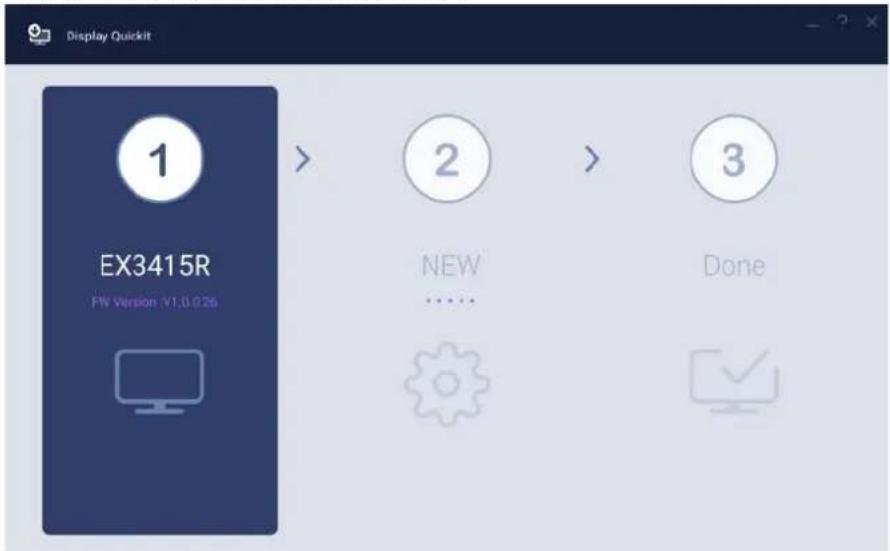
- The utility checks if a new firmware version is available. Read the on-screen messages and proceed by clicking Update.
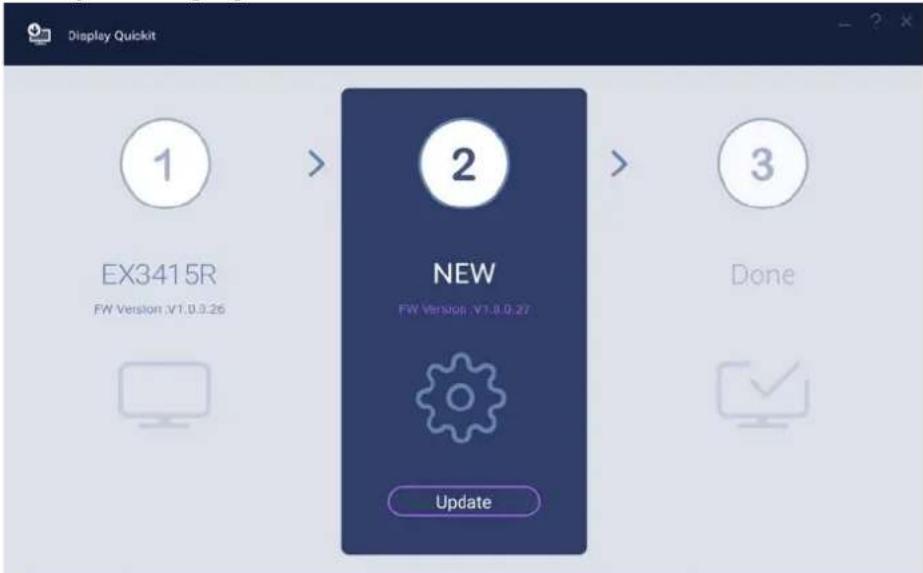
- A progress bar is displayed. It takes about 10 minutes to complete the update.
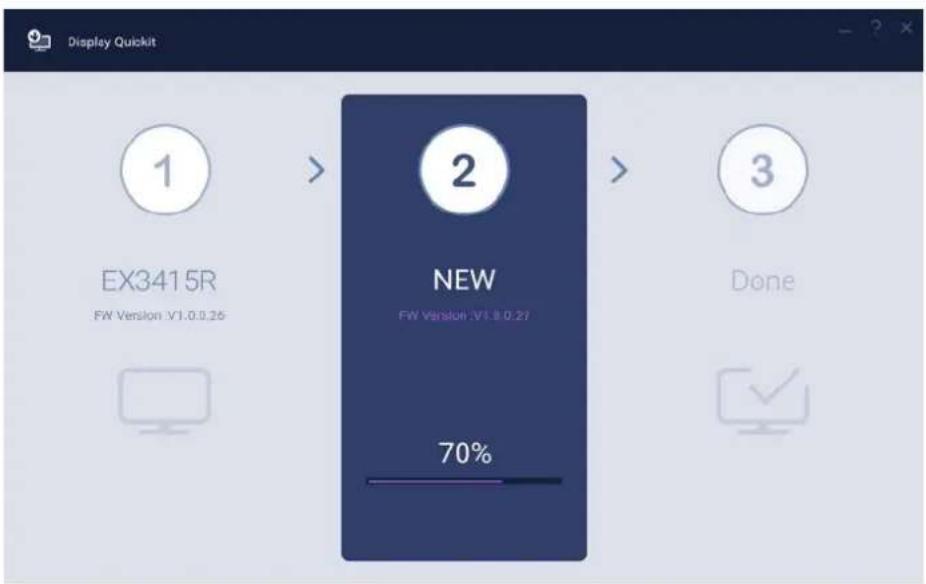
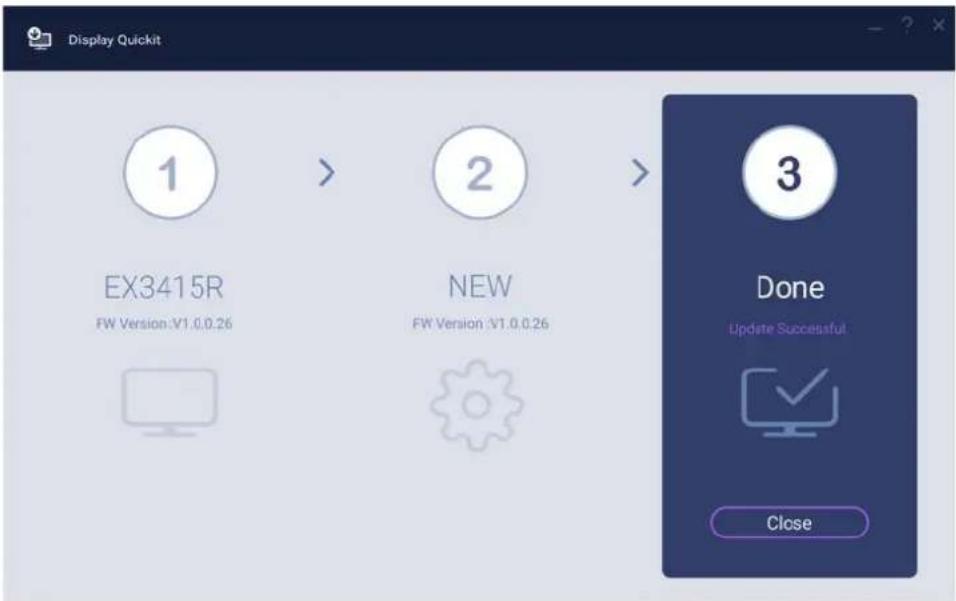
- Once the firmware update is complete, follow the on-screen instructions to reboot your monitor.
介紹

介绍

はじめに

Brand : BENQ
Model : Display Quickit
Category : Uncategorized