
SonimWare - Telephone SONIM - Free user manual and instructions
Find the device manual for free SonimWare SONIM in PDF.


| Product Type | Emergency Safety Application (software) for Sonim XP3, XP5s, XP8 smartphones |
| Compatible Devices | Sonim XP3, XP5s, XP8 |
| Latest Version | 2.0.27 |
| Key Features | Emergency Call, Emergency Messages, Peer-to-Peer Alerts, On-Device Alarm, Pulse Flashlight, Start Emergency from App, Advanced Settings, Restrict User Configurations |
| Emergency Call | Automatic call to emergency services or custom number, speakerphone option |
| Emergency Messages | Up to 5 emergency contacts via SMS, location sharing, configurable frequency (1,5,10,15 min), auto-enable location, capture images from front/back camera, message templates |
| Peer-to-Peer Alerts | Device-to-device alerts within same Sonim CLOUD account, repeated notifications until acknowledged, flashlight pulse and notification tone on receipt |
| On-Device Alarm | Audible alarm when no emergency call is active, selectable tones, works even if device muted |
| Pulse Flashlight | Flashes flashlight during emergency call |
| Start Emergency from App | Option to raise alarm via app UI (default ON for XP3, OFF for XP5s/XP8, press and hold on XP8) |
| Advanced Settings | Cancel emergency window (5,7,10 sec or immediate), countdown tone, button press length (3,4,5 sec), bypass SCOUT restrictions, auto-enable location, disable airplane mode |
| Restrict User Options | Pin-protect settings, prevent uninstall, lock alarm key assignment |
| Installation Method | XP3/XP5s via SCOUT App Updater (APK from support); XP8 via Google Play Store |
| Permissions Required | Location, SMS, Phone, Camera, Storage, Contacts (6 permissions) |
| Cloud Configuration | Via Sonim CLOUD (sonimcloud.com): create/assign SOS resource to devices or device groups |
| Update Method | Play Store (XP8) or SCOUT App Updater (XP3/XP5s); ensure SCOUT and SPCC Service are updated |
| Energy/Power | Runs on device battery; minimal power consumption |
| Maintenance | Keep app updated to latest version, sync with Sonim CLOUD periodically |
| Safety | Automatically calls emergency services; requires user acceptance of EULA; permissions needed for full functionality |
| Spare Parts / Repairability | Software only; no spare parts; reinstall or update if issues |
| General Information | Free app by Sonim Technologies; designed for field workers; customizable via CLOUD; copyright 2020 |
Frequently Asked Questions - SonimWare SONIM
User questions about SonimWare SONIM
0 question about this device. Answer the ones you know or ask your own.
Ask a new question about this device
Download the instructions for your Telephone in PDF format for free! Find your manual SonimWare - SONIM and take your electronic device back in hand. On this page are published all the documents necessary for the use of your device. SonimWare by SONIM.
USER MANUAL SonimWare SONIM
Sonim SOS
v2.0.27
User Guide
© 2020 Sonim Technologies, Inc. All rights reserved. The information contained herein is not an offer, commitment, representation or warranty by Sonim Technologies, Inc. and is subject to change.
sonim.
Sonim SOS
12
Introduction
- Background
Installation
• Installation on XP3 and XP5s • Installation on XP8 - Initial setup
-
Configure via app user interface
- Emergency Calls • Emergency Messages
- Peer-to-Peer Alerts • Application Settings
4
Configure via Sonim CLOUD
• Create Sonim SOS Resource - Assign to devices
sonim.
2Conl

Sonim SOS: Introduction
- Your team deserves the best safety tools while working in the field. So to help keep them safe and secure we created Sonim SOS.
- Sonim SOS is a powerful app connected to an easy-to-use alarm key on the XP5s & XP8 and through the in-app soft alarm key on the XP3, that offers an array of safety-first options.
- Best of all, Sonim SOS is free*. Now all organizations can provide their workers an additional level of security at no cost.
- Send instant messages and location data to emergency contacts – Control settings from the Sonim CLOUD platform
- Completely customizable so safety features can be tailored to the people who use them.
Confidential

sonim.
Sonim SOS: Key items to note
- By default, Sonim SOS will automatically place a call to local emergency services (e.g., 911, 112, 999)
- This setting can be changed to a custom number or turned off
- It is very important to understand this when testing Sonim SOS to prevent accidental calls to emergency services. There are 6 Android permissions that are required for Sonim SOS to function correctly.
- Please ensure all 6 are accepted on first launch of the application

sonim.
Confidential

Installation: Sonim XP3 and XP5s
On Sonim XP3 and XP5s, you can install Sonim SOS using SCOUT App Updater
- Reach out to support@sonimtech.com for the latest APK file
- Create an App Updater profile on Sonim CLOUD and assign to the required devices. Latest Version of Sonim SOS: 2.0.26
Notes
- Your phone should have an active internet connection.
- If you are on a WiFi network, https://www.sonimcloud.com has to be whitelisted on the firewall
- Sonim SCOUT will need to be on v2.0.50 or higher — Sonim SPCC Service will need to be on v3.6.7 or higher
- Find SCOUT and SPCC version information by launching Sonim SCOUT -> Menu key -> About
Confidential
17

App Updater on Sonim CLOUD https://www.sonimcloud.com
sonim.
Installation: Sonim XP8
- On XP8, you must download and install Sonim SOS from the Play Store
- Launch the Play Store on your XP8, search for Sonim SOS and click on INSTALL – Latest Version of Sonim SOS: 2.0.26
Notes
- You should be logged into a Google account on your XP8 to install the app
- Your phone should have an active internet connection — Sonim SCOUT will need to be on v2.0.50 or higher
- Sonim SPCC Service will need to be on v3.6.7 or higher
- Find SCOUT and SPCC version information by launching Sonim SCOUT -> 3 dots-> About
Confidential

sonim.
Getting started: Accepting permissions
- Step 1: Launch Sonim SOS
- On XP3 and XP5s, Sonim SOS will be installed into the Applications folder
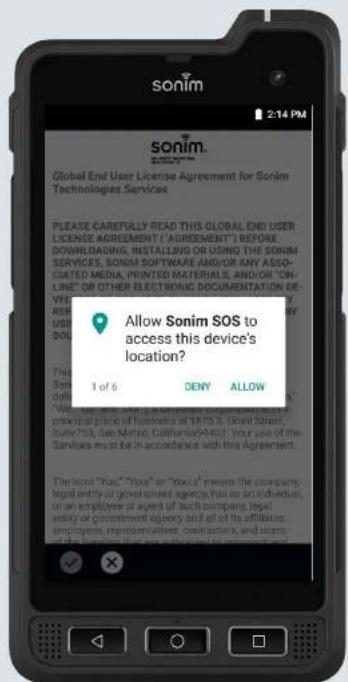
- Step 2: When you launch Sonim SOS for the first time, you will see a series of permission-related dialog boxes -> Click ALLOW on each one
- Allow Sonim SOS to access this device's location?
- Allow Sonim SOS to send and view SMS messages?
- Allow Sonim SOS to make and manage phone calls?
- Allow Sonim SOS to take pictures and record video?
- Allow Sonim SOS to access photos, media, and files on your device?
- Allow Sonim SOS to access your contacts?

sonim.
Confidential
Getting started: Accepting EULA and App Setup
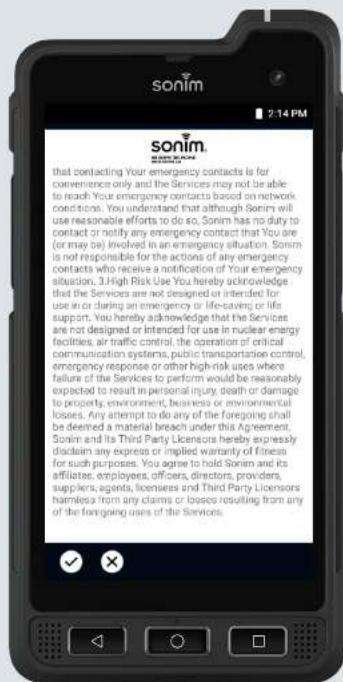
- Step 3: Prior to using Sonim SOS, the Sonim Technologies Global End User License Agreement (EULA) must be accepted
- You must scroll to the bottom of the EULA before being allowed to accept it
- On XP8, click the checkbox to Accept the EULA
- On XP3 and XP5s, select the menu key (top left key) to Accept the EULA
- Step 4: There are two options to set up Sonim SOS
- Via the application User Interface
- Via Sonim CLOUD

sonim.
Confidential
10
Sonim SOS Setup: Home Screen
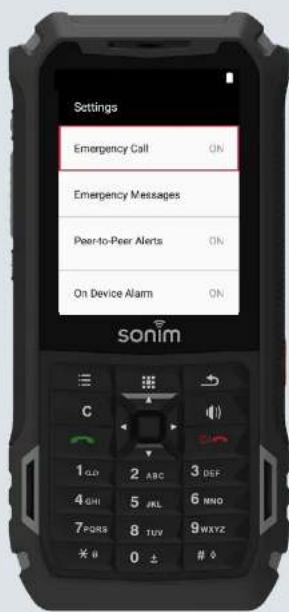
- The Sonim SOS home screen provides access to configuring the various elements of the application
- User Name: Select the "pencil" icon to enter or edit User Information. Once entered, the User Information will appear on the Home Screen
- Settings: Select Settings to navigate to the Sonim SOS Settings screen. Click here for a detailed walk-through of the Sonim SOS Settings.
- Restrict Sonim SOS User: Select Restrict Sonim SOS User to set up restrictions on how the Sonim SOS configuration can be modified by the User. Click here for a detailed walk-through of the Restrict Sonim SOS User configurations.


sonim.
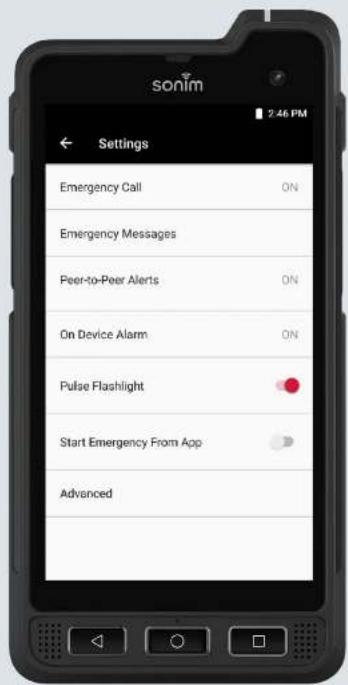
Sonim SOS Settings: Main Screen
The Sonim SOS Settings main screen provides access to configuring the features of the application.
- Emergency Call
- Emergency Messages
- Peer-to-Peer Alerts
- On Device Alarm
- Pulse Flashlight
- Start Emergency From App
- Advanced


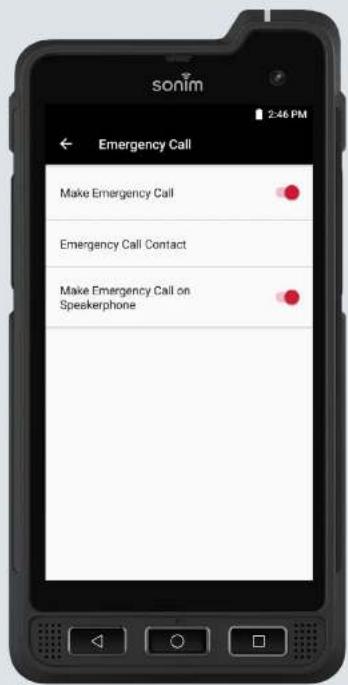
Sonim SOS Settings: Emergency Call
- Make Emergency Call: Option to turn ON/OFF. If ON, Sonim SOS will make a call to the pre-set Emergency Call Contact. ON by default.
- Emergency Call Contact: Option to set one of the following:
- Standard Emergency Number
- Select pencil icon to choose the appropriate standard emergency number for your location
- Custom Emergency Number
- Select "Set Phone Number" to set a specific phone number for the emergency call
- Make Emergency Call on Speakerphone: Option to turn ON/OFF. If ON, Sonim SOS will make emergency call on Speakerphone. ON by default.

Sonim SOS Settings: Emergency Messages
- Set Emergency Contacts: Add up to five emergency message contacts by entering a name and phone number or choosing from device Contacts.
- Note: Emergency contacts will receive location and emergency messages via standard SMS
- Share location with Emergency Contacts: Option to turn ON/OFF. If ON, location will be shared with Emergency Contacts. ON by default.
- Messaging Frequency: Option to set how often location will be shared with Emergency Contacts (1, 5, 10, 15 minutes). 5 minutes by default.


Sonim SOS Settings: Emergency Messages
- Auto enable location in an emergency: Option to turn ON/OFF. If ON, if device location is off when an emergency is raised, Sonim SOS will turn it on automatically. ON by default.
- Note: After the emergency has ended, Sonim SOS will turn location back off
- Capture image from back/front camera: Option to turn ON/OFF. If ON, Sonim SOS will automatically capture images from the back and front cameras (if applicable). ON by default.
- Note: Sonim SOS will not automatically send the images, simply capture them


Sonim SOS Settings: Emergency Messages
- Emergency Message Templates: Option to turn ON/OFF. If ON, Sonim SOS will provide the User the option to choose a pre-set Start or End Emergency template when raising or ending an emergency. OFF by default.
- Configure Emergency Messages: Option to set up to three Start and three End Emergency Messages.
- These messages will appear as options to select when raising or ending an emergency to quickly provide the context of the emergency to those receiving the emergency messages.


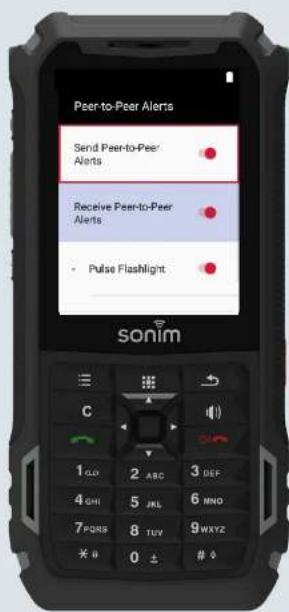
Sonim SOS Settings: Peer-to-Peer Alerts
- Peer-to-Peer Alerts are a special type of alert that is sent directly from device-to-device. The key feature of Peer-to-Peer Alerts is that the recipient of the emergency message will receive repeated notifications until they review the emergency message.
- Send Peer-to-Peer Alerts: Option to turn ON/OFF. If ON, Sonim SOS will send an emergency alert to all other Sonim devices in the User's organization that are using Sonim SOS. ON by default.
- Note: Sending and receiving devices must be in the same Sonim CLOUD account to use this feature.


Sonim SOS Settings: Peer-to-Peer Alerts
- Receive Peer-to-Peer Alerts: Option to turn ON/OFF. If ON, Sonim SOS will receive an emergency alert from other Sonim SOS users who raise an alarm. ON by default.
- Note: Sending and receiving devices must be in the same Sonim CLOUD account to use this feature.
- Pulse Flashlight: Option to turn ON/OFF. If ON, Sonim SOS will pulse the flashlight on receiving a Peer-to-Peer alert. ON by default.
- Notification Tone: Option to turn ON/OFF. If ON, Sonim SOS will play a notification tone on receiving a Peer-to-Peer alert. ON by default.

Sonim SOS Setup: On Device Alarm
- If Sonim SOS is set up to not make an Emergency Call or an Emergency Call has ended, Sonim SOS can raise an On Device Audible Alarm.
- Audible Alarm: Option to turn ON/OFF. If ON, Sonim SOS will raise an audible alarm if there is no ongoing emergency call. ON by default.
- Tones: Choose the tone to play during an ongoing emergency.
- Raise Audible Alarm when device is muted: Option to turn ON/OFF. If ON, Sonim SOS will raise an audible alarm even if the device is muted. ON by default.


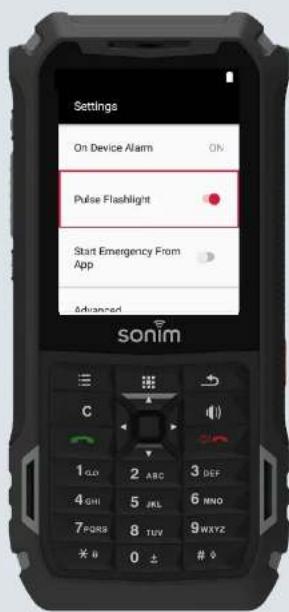
Sonim SOS Setup: Pulse Flashlight
- During an emergency, Sonim SOS can pulse the flashlight to better assist in locating the User.
- Pulse Flashlight: Option to turn ON/OFF. If ON, Sonim SOS will pulse the device flashlight during an ongoing emergency call. ON by default.

Sonim SOS Setup: Start Emergency From App
- In addition to raising an alarm via the red Alarm key, Sonim SOS offers the option to raise an alarm from the Sonim SOS Application User Interface.
- Start Emergency From App: Option to turn ON/OFF. If ON, Sonim SOS will offer an option to raise an alarm from the Sonim SOS User Interface.
- ON by default on Sonim XP3
- OFF by default on Sonim XP5s and Sonim XP8
- Note: On Sonim XP8, the on-screen "Start Emergency" option will need to be pressed and held until the alarm is raised

Sonim SOS Setup: Advanced Settings
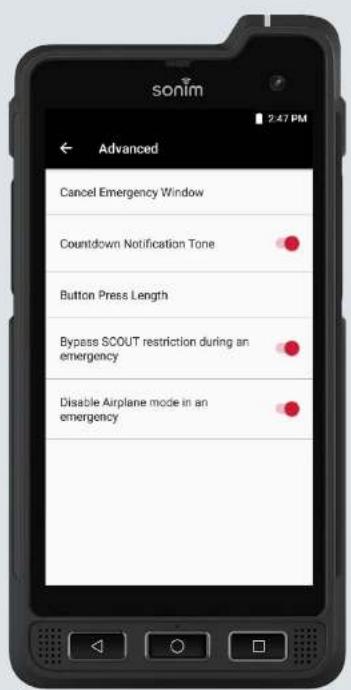
- Cancel Emergency Window: Option to set how much time Sonim SOS will give the User to cancel the emergency before the application raises an emergency (5, 7, 10 seconds, raise immediately). 10 seconds by default.
- Countdown Notification Tone: Option to turn ON/OFF. If ON, Sonim SOS will play a tone during Cancel Emergency Window countdown. ON by default.
- Button Press Length: Option to set how long the red Alarm key must be pressed before Sonim SOS will raise an emergency (3, 4, 5 seconds). 3 seconds by default.

Sonim SOS Setup: Advanced Settings
- Bypass SCOUT restriction during an emergency: Option to turn ON/OFF. If ON, Sonim SOS will bypass any Sonim SCOUT restrictions during an emergency. ON by default.
- For example, blocking of Phone, Camera, Messaging will be enabled during an emergency.
- Once the emergency has ended, all SCOUT restrictions will be re-applied to the device.
- Disable Airplane mode in an emergency: Option to turn ON/OFF. If ON, Sonim SOS will take the device out of Airplane mode during an emergency. ON by default.


Sonim SOS Setup: Restrict Sonim SOS User
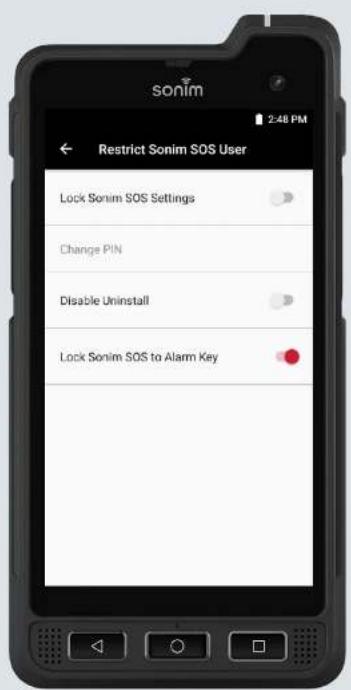
- Sonim SOS can be set up to ensure Users do not make any changes to the Sonim SOS configuration. Restricting the User does NOT affect their ability to raise an alarm.
- Lock Sonim SOS Settings: Option to turn ON/OFF. If ON, Sonim SOS will allow Users to view the Sonim SOS Settings, but will require successful entry of a PIN to make any changes. OFF by default.
- Change PIN: Option to change the Restrict Sonim SOS User PIN. In order to change the PIN, the current PIN must be entered first.

Sonim SOS Setup: Restrict Sonim SOS User
- Disable Uninstall: Option to turn ON/OFF. If ON, Sonim SOS will not allow the User to uninstall the Sonim SOS application. OFF by default.
- Lock Sonim SOS to Alarm Key: Option to lock Sonim SOS to the device red Alarm Key in the Programmable Keys Settings menu and prevent the User from changing that configuration. ON by default.
- Programmable Keys Settings menu can be found in the Device's Settings application.


Sonim CLOUD: Setup Sonim SOS
- Sonim CLOUD provides you with the option to configure Sonim SOS over-the-air to any Sonim XP3, XP5s or XP8 mobile device.
- You can create different Sonim SOS configurations for different Users/User groups as required and assign them appropriately to individual Devices or Device Groups.
128
Add images
sonim.
Sonim CLOUD: Setup Sonim SOS
There are a few key things to do prior to trying to setup Sonim SOS via Sonim CLOUD
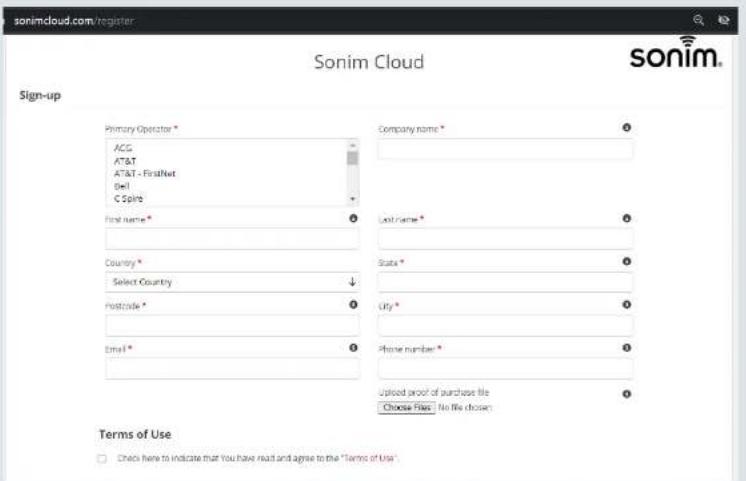
- Admin has created a Sonim CLOUD account at https://www.sonimcloud.com/register
- Admin has added devices into the Sonim CLOUD account (and placed in Device Groups as appropriate)
There are three key steps to configure Sonim SOS via Sonim CLOUD
- Log in to Sonim Cloud
- Create a Sonim SOS resource
- Assign the Sonim SOS resource to a Device or a Device Group
sonim.
Confidential
129
Sonim CLOUD: Setup Sonim SOS
- Step 1: Navigate to https://www.sonimcloud.com/ • Step 2: Login with your credentials.
- Note: If you do not have login credentials, please use the Sign Up button to create an account or reach out to support@sonimtech.com for assistance • Step 3: Click on Provisioning (on the left) • Step 4: Click on Resources (on the right)
- Step 5: Search for Sonim SOS and click on the + symbol

Setup Sonim SOS: User Names
- Create a Name for the Sonim SOS resource. This name will help you identify this resource when you are ready to use it
- Choose one of the two User Name options
- Single User Name
- Multiple User Names
- Download of the User Name upload template can be found at the bottom of the Sonim SOS Resource page
- User Name field is not required. Users can enter their own User Name through the Application.

Emergency Call
Make Emergency Call

Emergency Call Number*
Select Emergency Call Contact
Make Emergency Call on Speakerphone
Emergency Messages
Set Emergency Contacts
Name

Phone Number

sonim.
Confidential
i31
Setup Sonim SOS: Emergency Call
• Make Emergency Call: Option to enable the automatic emergency call from Sonim SOS • Emergency Call Number: Option to choose what number Sonim SOS should call
- Standard Emergency Number: Device will automatically choose the appropriate number to call. User should confirm the number selected by Sonim SOS
- Custom Emergency Number: Device will automatically call the number entered in Sonim CLOUD during an emergency. Users should test the configured number. • Make Emergency Call on Speakerphone: Option to turn ON/OFF. If ON, Sonim SOS will make emergency call on Speakerphone.

Emergency Messages
Set Emergency Contacts
Name
Phone Number
sonim.
Setup Sonim SOS: Emergency Messages
- Set Emergency Contacts: Add up to five emergency message contacts by entering a name, phone number and country.
- Note: Emergency contacts will receive location and emergency messages via standard SMS
- Share location with Emergency Contacts: Option to turn ON/OFF. If ON, location will be shared with Emergency Contacts.
- Location Frequency: Option to set how often location will be shared with Emergency Contacts (1, 5, 10, 15 minutes). 5 minutes by default.
Emergency Messages
Set Emergency Contacts

Add More

sonim.
Setup Sonim SOS: Emergency Messages
- Capture image from back/front camera: Option to turn ON/OFF. If ON, Sonim SOS will automatically capture images from the back and front cameras (if applicable).
- Note: Sonim SOS will not automatically send the images, simply capture them
- Emergency Message Templates: Option to turn ON/OFF. If ON, Sonim SOS will provide the User the option to choose a pre-set Start or End Emergency template when raising or ending an emergency.
Confidential
134
Capture Image From Front Camera
√
Capture Image From Back Camera
√
Emergency Message Templates
√
Set Start Emergency Message Templates
Name
①
Content
①
Name
①
Content
①
Name
©
Content
①
Set End Emergency Message Templates
Name
Content
0
Name
①
Content
i
Name
①
Content
①
sonim.
Setup Sonim SOS: Emergency Messages
- Configure Emergency Messages: Option to set up to three Start and three End Emergency Messages.
- These messages will appear as options to select when raising or ending an emergency to quickly provide the context of the emergency to those receiving the emergency messages.
- Set Start Emergency Message Templates: Option to set up the Name and Content of up to three Start Emergency Message Templates.
- Set End Emergency Message Templates: Option to set up the Name and Content of up to three End Emergency Message Templates. Note: Message templates are NOT required.

Setup Sonim SOS: Peer-to-Peer Alerts
- Peer-to-Peer Alerts are a special type of alert that is sent directly from device-to-device. The key feature of Peer-to-Peer Alerts is that the recipient of the emergency message will receive repeated notifications until they review the emergency message.
- Send Peer-to-Peer Alerts: Option to turn ON/OFF. If ON, Sonim SOS will send an emergency alert to all other Sonim devices in the User's organization that are using Sonim SOS.
Note: Sending and receiving devices must be in the same Sonim CLOUD account to use this feature.
Peer-to-Peer Alerts
| Send Peer-to-Peer Alerts. | ☑ |
| Receive Peer-to-Peer Alerts. | ☑ |
| Pulse Flashlight on Receipt | ☑ |
| Notification Tone on Receipt | ☑ |
| Peer-to-Peer alerts to be sent.* | |
| Select Peer-to-Peer alerts to be sent | |
Setup Sonim SOS: Peer-to-Peer Alerts
- Receive Peer-to-Peer Alerts: Option to turn ON/OFF. If ON, Sonim SOS will receive an emergency alert from other Sonim SOS users who raise an alarm.
- Note: Sending and receiving devices must be in the same Sonim CLOUD account to use this feature.
- Pulse Flashlight on Receipt: Option to turn ON/OFF. If ON, Sonim SOS will pulse the flashlight on receiving a Peer-to-Peer alert.
- Notification Tone on Receipt: Option to turn ON/OFF. If ON, Sonim SOS will play a notification tone on receiving a Peer-to-Peer alert.
Confidential
137
Peer-to-Peer Alerts
Send Peer-to-Peer Alerts

Receive Peer-to-Peer Alerts

Pulse Flashlight on Receipt

Notification Tone on Receipt

Peer-to-Peer alerts to be sent *
Select Peer-to-Peer alerts to be sent
sonim.
Setup Sonim SOS: Peer-to-Peer Alerts
- Peer-to-Peer alerts to be sent: Option send Peer-to-Peer alerts to:
- ALL devices in the Sonim CLOUD account that are configured to receive Peer-to-Peer Alerts
- Specific Sonim CLOUD Device Groups (multi-select)
Confidential
738
Peer-to-Peer Alerts
Send Peer-to-Peer Alerts
Receive Peer-to-Peer Alerts.
Pulse Flashlight on Receipt
Notification Tone on Receipt
Peer-to-Peer alerts to be sent *
Select Peer-to-Peer alerts to be sent


sonim.
Setup Sonim SOS: On Device Alarm
- If Sonim SOS is set up to not make an Emergency Call or an Emergency Call has ended, Sonim SOS can raise an On Device Audible Alarm.
- Audible Alarm: Option to turn ON/OFF. If ON, Sonim SOS will raise an audible alarm if there is no ongoing emergency call.
- Tones: Choose the tone to play during an ongoing emergency.
- Raise Audible Alarm when device is muted: Option to turn ON/OFF. If ON, Sonim SOS will raise an audible alarm even if the device is muted.
Confidential
739
On Device Alarm
sonim.
Setup Sonim SOS:
On Device Alarm
- During an emergency, Sonim SOS can pulse the flashlight to better assist in locating the User.
- Pulse Flashlight: Option to turn ON/OFF. If ON, Sonim SOS will pulse the device flashlight during an ongoing emergency call.
Confidential
740
On Device Alarm
On Device Alarm
Audible Alarm
Audible Alarm Tone
Select Tones
Raise Audible Alarm When Device Is Muted
Pulse Flashlight

sonim.
sonim.
Setup Sonim SOS: Advanced Settings
- Start Emergency From App: Option to turn ON/OFF. If ON, Sonim SOS will offer an option to raise an alarm from the Sonim SOS User Interface.
- Note: On Sonim XP8, the on-screen "Start Emergency" option will need to be pressed and held until the alarm is raised
- Cancel Emergency Window: Option to set how often much time Sonim SOS will give the User to cancel the emergency before the application raises an emergency (5, 7, 10 seconds, raise immediately).
- Countdown Notification Tone: Option to turn ON/OFF. If ON, Sonim SOS will play a tone during Cancel Emergency Window countdown.
Confidential
741
Advanced
Start Emergency From App

Cancel Emergency Window *
10 seconds
Countdown Notification Tone

Button Press Length
3 seconds

Bypass SCOUT Restriction In An Emergency

Auto-enable Location In An Emergency

Disable Airplane Mode In An Emergency
sonim.
Setup Sonim SOS: Advanced Settings
- Button Press Length: Option to set how long the red Alarm key must be pressed before Sonim SOS will raise an emergency (3, 4, 5 seconds).
- Bypass SCOUT restriction during an emergency: Option to turn ON/OFF. If ON, Sonim SOS will bypass any Sonim SCOUT restrictions during an emergency.
- For example, blocking of Phone, Camera, Messaging will be enabled during an emergency.
- Once the emergency has ended, all SCOUT restrictions will be re-applied to the device.
Confidential
742
Advanced
Start Emergency From App

Cancel Emergency Window *
10 seconds

Countdown Notification Tone

Button Press Length
3 seconds

Bypass SCOUT Restriction In An Emergency

Auto-enable Location In An Emergency

Disable Airplane Mode In An Emergency

sonim.
Setup Sonim SOS: Advanced Settings
• Auto enable location in an emergency:
Option to turn ON/OFF. If ON, if device location is off when an emergency is raised, Sonim SOS will turn it on automatically.
- Note: After the emergency has ended, Sonim SOS will turn location back off
- Disable Airplane mode in an emergency:
Option to turn ON/OFF. If ON, Sonim SOS will take the device out of Airplane mode during an emergency.
Advanced
Start Emergency From App

Cancel Emergency Window *
10 seconds
Countdown Notification Tone

Button Press Length
3 seconds

Bypass SCOUT Restriction In An Emergency

Auto-enable Location In An Emergency

Disable Airplane Mode In An Emergency

Setup Sonim SOS: Restrict Sonim SOS User
- Sonim SOS can be set up to ensure Users do not make any changes to the Sonim SOS configuration. Restricting the User does NOT affect their ability to raise an alarm.
- Lock Sonim SOS Settings: Option to turn ON/OFF. If ON, Sonim SOS will allow Users to view the Sonim SOS Settings, but will require successful entry of a PIN to make any changes.
- Lock Settings PIN: Option to set Restrict Sonim SOS User PIN.
Restrict Sonim SOS User
Prevent Uninstallation
Lock Sonim SOS to Alarm Key

Setup Sonim SOS: Restrict Sonim SOS User
- Prevent Uninstallation: Option to turn ON/OFF. If ON, Sonim SOS will not allow the User to uninstall the Sonim SOS application.
- Lock Sonim SOS to Alarm Key: Option to lock Sonim SOS to the device red Alarm Key in the Programmable Keys Settings menu and prevent the User from changing that configuration.
- Programmable Keys Settings menu can be found in the Device's Settings application.
Restrict Sonim SOS User
Lock Sonim SOS Settings
Lock Settings Pin
Prevent Uninstallation
Lock Sonim SOS to Alarm Key


Sonim SOS Setup: Assign SOS Resource to Devices
- Step 1: Click on Devices from the left panel
- Note: You will need to have added your device to Sonim Cloud to configure Sonim SOS over-the-air. You can follow below link for the steps to add your device to a Sonim CLOUD account.
- Step 2: If you want to assign a Sonim SOS Resource to a single device, you can click on the edit button for that particular device. If you want to assign a Sonim SOS Resource to multiple devices, you need to click on the Device Group link and click on the edit button for that particular device group.
- Note: Be sure that all the devices you want to configure Sonim SOS for are part of the Device Group.

Sonim SOS Setup: Assign SOS Resource to Devices
- Step 3: Click "Edit" on Device/Device group.
- Step 4: On the Device/Device edit page scroll down to find Sonim SOS in the SCOUT configuration section
- Step 5: From the drop down select the Sonim SOS resource that you created
- Step 6: Select Update to save the changes
SCOUT CONFIGURATION
Fields marked with * are mandatory.
sonim.
Confidential
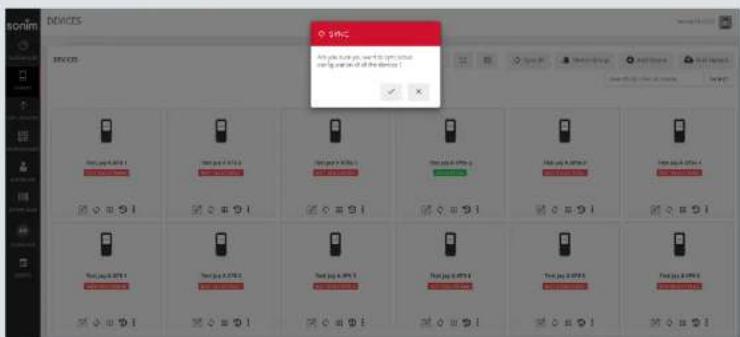
Sonim SOS Setup : Sync Devices from CLOUD
- Step 1: Click on Devices from the left panel
- Step 2: Click on the SYNC ALL button
- Step 3: Confirm that you want to sync your devices
- Note: If you only want to sync the Device Group, this can be down via Devices -> Device Groups -> find the Device Group you want to Sync and click on the circular arrows. You will be asked to confirm.

sonim.
Sonim SOS Setup: Verify Sonim SOS has been configured
- Depending on the strength of the device's internet connection, Sonim SOS should be configured on the device within 15-30 seconds
- Open the Sonim SOS application
- Confirm Settings that display in application align with the expected Sonim SOS Resource as applied from CLOUD

sonim.
Sonim SOS Setup: Troubleshooting
- If your Sonim SOS Settings are not being configured over-the-air, please check the following things.
- Tip #1: Ensure you are on the latest version of Sonim SOS, Sonim SCOUT and Sonim SPCC Service via the Play Store (XP8) or App Updater (XP3 and XP5s)
- Once Updated:
- Launch Sonim SCOUT
- On XP8, select the three dots menu, on XP3 and XP5s, press the menu key
- Select Sync and allow the device to connect with the Sonim CLOUD server


sonim.
Confidential
150
Sonim SOS Setup: Troubleshooting
- Tip #2: Ensure the Sync from Sonim CLOUD has occurred correctly
- Verify the timestamp of the last sync with Sonim CLOUD by navigating to Sonim SCOUT -> Support -> SCOUT Information
- Scroll down to check the Last Sync timestamp and ensure it has been done recently


sonim.
Confidential
/51


- SONIM SOS
- USER GUIDE
- INTRODUCTION
- INSTALLATION
- CONFIGURE VIA APP USER INTERFACE
- CONFIGURE VIA SONIM CLOUD
- SONIM SOS: INTRODUCTION
- SONIM SOS: KEY ITEMS TO NOTE
- INSTALLATION: SONIM XP3 AND XP5S
- ON SONIM XP3 AND XP5S, YOU CAN INSTALL SONIM SOS USING SCOUT APP UPDATER
- NOTES
- INSTALLATION: SONIM XP
- ON XP8, YOU MUST DOWNLOAD AND INSTALL SONIM SOS FROM THE PLAY STORE
- GETTING STARTED: ACCEPTING PERMISSIONS
- GETTING STARTED: ACCEPTING EULA AND APP SETUP
- SONIM SOS SETUP: HOME SCREEN
- SONIM SOS SETTINGS: MAIN SCREEN
- SONIM SOS SETTINGS: EMERGENCY CALL
- SONIM SOS SETTINGS: EMERGENCY MESSAGES
- SONIM SOS SETTINGS: PEER-TO-PEER ALERTS
- SONIM SOS SETUP: ON DEVICE ALARM
- SONIM SOS SETUP: PULSE FLASHLIGHT
- SONIM SOS SETUP: START EMERGENCY FROM APP
- SONIM SOS SETUP: ADVANCED SETTINGS
- SONIM SOS SETUP: RESTRICT SONIM SOS USER
- SONIM CLOUD: SETUP SONIM SOS
- THERE ARE A FEW KEY THINGS TO DO PRIOR TO TRYING TO SETUP SONIM SOS VIA SONIM CLOUD
- THERE ARE THREE KEY STEPS TO CONFIGURE SONIM SOS VIA SONIM CLOUD
- SETUP SONIM SOS: USER NAMES
- SETUP SONIM SOS: EMERGENCY CALL
- SETUP SONIM SOS: EMERGENCY MESSAGES
- SETUP SONIM SOS: PEER-TO-PEER ALERTS
- PEER-TO-PEER ALERTS
- SETUP SONIM SOS: ON DEVICE ALARM
- SETUP SONIM SOS
- ON DEVICE ALARM
- SETUP SONIM SOS: ADVANCED SETTINGS
- ADVANCED
- SETUP SONIM SOS: RESTRICT SONIM SOS USER
- SONIM SOS SETUP: ASSIGN SOS RESOURCE TO DEVICES
- SONIM SOS SETUP : SYNC DEVICES FROM CLOUD
- SONIM SOS SETUP: VERIFY SONIM SOS HAS BEEN CONFIGURED
- SONIM SOS SETUP: TROUBLESHOOTING
Brand : SONIM
Model : SonimWare
Category : Telephone