303075 - Loudspeaker Aplic - Free user manual and instructions
Find the device manual for free 303075 Aplic in PDF.


| Type of Product | WiFi Smart Socket |
| Input Voltage | 100-240V AC, 50/60Hz |
| Output Voltage | 100-240V AC, 50/60Hz |
| Maximum Current | 10A |
| Maximum Power | 2300W |
| Compatible Operating Systems | Apple iOS 8.0 or higher, Google Android 4.1 or higher |
| Smart Home Compatibility | Compatible with Amazon Alexa, Google Assistant via Smart Life app |
| App Required | Smart Life (available on App Store and Google Play) |
| Pairing Mode Activation | Press and hold the power button for 10 seconds until LED flashes quickly |
| WiFi Frequency | 2.4 GHz only |
| Key Features | Remote on/off, countdown timer, scheduling, real-time power consumption display |
| Indoor Use Only | Yes, for dry rooms only |
| Safety Certification | Complies with EU Directive 2014/53/EC |
| WEEE Registration Number | DE 67896761 |
| Disposal | Do not dispose with household waste; recycle according to local regulations |
Frequently Asked Questions - 303075 Aplic
User questions about 303075 Aplic
0 question about this device. Answer the ones you know or ask your own.
Ask a new question about this device
Download the instructions for your Loudspeaker in PDF format for free! Find your manual 303075 - Aplic and take your electronic device back in hand. On this page are published all the documents necessary for the use of your device. 303075 by Aplic.
USER MANUAL 303075 Aplic
natural_image
Blue abstract logo shape resembling a stylized letter 'Q' or droplet (no text or symbols)
WIFI SMART SOCKET


pie
Cancel | Category | Value (%) | |---|---| | Connecting for device | 17 | | Requiring device to the cloud | 0 | | Initializing your device | 0 |
Countdowntimer:
other
Today electrical quantity (KWh) | Category | Current (kW) | Power (kW) | Average (%) | a total (kWh) | |---|---|---|---|---| | Current | 0 | 0 | 233.3 | 0.11 | | Year 2017 June | 0.07 > May | 0.04 >Zeitplanmodus:
- Scope of supply 12
- Technical data.... 12
- Important safety guidelines for this device 12
- Commissioning....13
- Setup via the App....13
- Advanced setting using the App....15
- Troubleshooting 17
- Safety instructions and Disclaimer 18
- Disposal instructions .... 18
Thank you for choosing an aplic product. Please read the following user manual carefully so that you can enjoy your purchased product for a long time.
1. Scope of supply
- WiFi Socket
- User manual
2. Technical data
| Input voltage 100-240V ~ (AC) / 50/60Hz | |
| Output voltage 100-240V~ AC/ 50/60Hz, max. 10A | |
| Power consumption max. 2300W | |
| Compatible operating systems | Apple iOS V8.0 or higher, Google Android V4.1 or higher |
| Features Smart-home compatible | |
3. Important safety guidelines for this device
Caution!
- Do not connect in series!
- Only for use in dry rooms!
- Free of electrical current only when the plug is removed!
4. Commissioning
Take the device out of the package and remove all the packaging material. Connect the WiFi Smart socket to a properly installed power outlet.
The following chapter will describe how to set up the socket correctly using the App.
Note: If you want to use the device with a voice assistant (e.g., Amazon Alexa), you have to enable the "Smart life" skill, and then start the device search and connect the socket to the voice assistant. For more information, please refer to the relevant device manual.
5. Setup via the App
Open the Appstore from the mobile device (e.g., Smartphone or Tablet PC) with which you want to connect the socket. Search for the "Smart life" app in the Appstore and install it.

Alternatively, you can locate the App using the following QR code:

After this, it is necessary to create an account in the App. To do this, press the "Register" button. To receive the verification code, enter your country and your mobile phone number or email address. Press "Next" again. Once the registration is complete, you can log in to the App using the details previously provided.
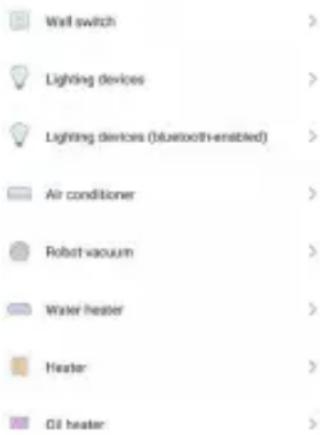
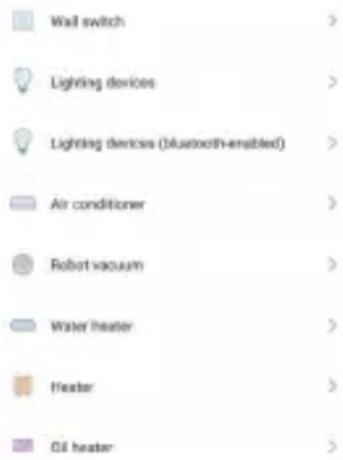
Once you are logged in, a list of the currently connected WiFi devices is displayed. You can add new devices by opening the menu at the top right of the screen. To do this, select the correct category (socket/wall switch).
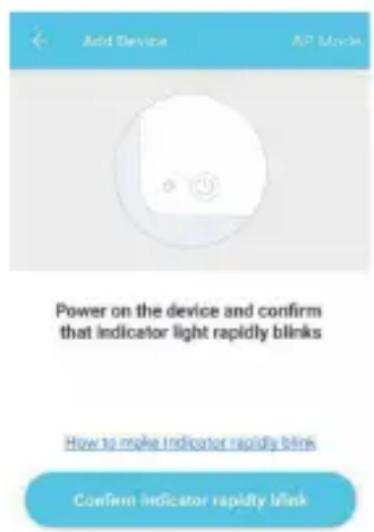
Put the device in pairing mode by pressing and holding the "Power" button for 10 seconds. Once the WiFi status LED starts flashing fast, confirm the connection by pressing the button.
You then have to enter your WiFi details into the App.


The App is then connected with the socket. Once the process is complete, the App shows that the device has been successfully added.

pie
Cancel | Category | Value (%) | |---|---| | Connecting now | 17 | ■ Superclaring for remote ■ Digitizing device on the cloud ■ Eventuring your device
Note: If you use both a 2.4 GHz and a 5 GHz network (or any other guest networks), please temporarily disable all the networks except the 2.4 GHz network. Make this visible, since the IP socket is addressed and also connected via this network.
6. Advanced settings for the App
To use the advanced features of the socket, such as the timer function, the away mode, as well as the power consumption display, click on the icon of the connected socket in the menu. An advanced setting menu is displayed:
Countdown timer:

Press the "Timer" icon. The "Timer" menu is then displayed. You can set any timer, which will then switch the device to the other state.


Power consumption display:
To open the power consumption display, press the "Statistics" button in the main menu. You can see the energy consumption statistics in the following window:

other
Today electrical quantity (kW·h) | Current | July | November (Oct) | October (Nov) | November (Dec) | December (Jan/16) | |---|---|---|---|---|---| | 0 | 0 | 233.3 | 0.11 | | | | Year 2017 June | | | | 0.07 > | | May | | | | 0.04 > |Scheduling mode:
In the scheduling mode, you can set different on and off times on different days of the week. Set the time and the desired days of the week, as well as the status (on or off), and press "Save".
There are three dots at the top right corner in the main menu. Press these dots to open the settings. In this menu you can, for example, set the name of the device and view the IP address.
8. Troubleshooting
| Problem Troubleshooting | |
| WiFi device is not displayed in the App | Check the connection of your routerCheck the status of the WiFi device |
| App is not connecting | Several WiFi networks are enabled. Use only the 2.4 GHz network. |
9. Safety instructions and Disclaimer
Please do not try to open the device to carry out repairs or modifications. Avoid contact with the mains voltage. Do not short-circuit the product. The device is not waterproof, therefore please use it only in dry surroundings. Protect it from high humidity, water and snow. Do not expose the device to high temperatures. Do not expose the device to sudden changes in temperature or strong vibrations, as this could damage the electronic components. Check the device for damage before using it. The device should not be used if it has been subject to impact or has been damaged in any other manner. Please comply with the local regulations and restrictions. Do not use the device for purposes other than those described in the user manual. This product is not a toy. Keep it out of the reach of children or mentally disabled persons. Any repairs or modification to the device, which is not carried out by the original supplier, will void any warranty and guarantee claims. The device should only be used by those who have read and understood this user manual. The specifications of the device may be changed without special prior notification.
10. Disposal instructions
In line with the European WEEE directive, electrical and electronic devices should not be disposed of along with domestic waste. Their components have to be sent separately for recycling or disposal, as improper disposal of toxic and dangerous components may permanently damage the environment. According to the electrical and electronic equipment act (ElektroG), you are obliged (as a consumer) to return (free of charge) all electrical and electronic devices to the manufacturer, the point of sale, or public collection points at the end of their service life. The relevant local laws regulate the details in this regard. The symbol on the product, in the user manual or/and the packaging refers to these regulations. With this manner of sorting, recycling and disposal of used devices, you make an important contribution towards protecting our environment.


WEEE Guideline: 2012/19/EU
WEEE Register no.: DE 67896761
The company WD Plus GmbH hereby certifies that the device 303075/20170928NB061 complies with the fundamental requirements and all other relevant stipulations of the guideline 2014/53/EC. A complete conformity statement can be obtained from: WD Plus GmbH, Wohlenbergstraße 16, 30179 Hannover, https://www.ganzeinfach.de

aplic
WD Plus GmbH
- Countdowntimer:
- Zeitplanmodus:
- Scope of supply
- Technical data
- Important safety guidelines for this device
- Caution!
- Commissioning
- Setup via the App
- Advanced settings for the App
- Countdown timer:
- Power consumption display:
- Scheduling mode:
- Troubleshooting
- Safety instructions and Disclaimer
- Disposal instructions
- aplic
Brand : Aplic
Model : 303075
Category : Loudspeaker