40iPlay6000-F - Television Allview - Free user manual and instructions
Find the device manual for free 40iPlay6000-F Allview in PDF.


| Product Type | LED Smart TV |
| Screen Size | 40 inches (diagonal) |
| Resolution | Full HD (1920 x 1080) |
| Smart TV Platform | Yes (with Netflix, YouTube, Prime Video, Browser, Deezer, PLEX) |
| Wi-Fi | Built-in (802.11 b/g/n) |
| Ethernet (RJ45) | Yes |
| HDMI Inputs | Yes (multiple, quantity varies by model) |
| USB Inputs | Yes (for media playback and PVR recording) |
| AV Input (Composite) | Yes |
| Optical Audio Output | Yes (SPDIF) |
| Antenna Input | 75 Ohm (VHF/UHF) |
| CI Slot | Yes (with silicone plug for protection) |
| Wall Mount Compatibility | VESA 200x200 (M6 screws) |
| Power Supply | AC 100-240V ~50/60Hz |
| Power Consumption | Typical 50W (standby <0.5W) |
| Dimensions (with stand) | Approx. 90.0 x 55.0 x 20.0 cm (WxHxD) |
| Weight (with stand) | Approx. 7.5 kg |
| Remote Control | Included (with dedicated Netflix, YouTube, Prime Video buttons) |
| Operating Temperature | 0°C to 45°C |
| Energy Class | A+ (indicative) |
| Safety Certification | CE, RoHS |
Frequently Asked Questions - 40iPlay6000-F Allview
User questions about 40iPlay6000-F Allview
0 question about this device. Answer the ones you know or ask your own.
Ask a new question about this device
Download the instructions for your Television in PDF format for free! Find your manual 40iPlay6000-F - Allview and take your electronic device back in hand. On this page are published all the documents necessary for the use of your device. 40iPlay6000-F by Allview.
USER MANUAL 40iPlay6000-F Allview
Please read this manual carefully before installing and operating the TV.
Keep this manual handy for further reference.
Content
Safety information.... 2
TV buttons and terminal interface....5
External device connection diagram 6
TV install and connect....6
TV stand installation instructions....7
Remote control....8
First time installation....9
Home....10
Input....10
Setup....11
Troubleshooting....15
Specifications....65
Safety information

The exclamation point within an equilateral triangle is intended to alert the user to the presence of an important operation in the literature accompanying the appliance.
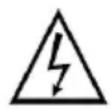
Warning. The lightning flash with arrowhead symbol within an equilateral triangle is intended to alert the user to the presence of uninsulated dangerous voltage within the products enclosure that may be of sufficient magnitude to constitute a risk of electric shock to persons.
CAUTION!
RISK OF ELECTRIC SHOCK. DO NOT OPEN!
High voltages are used in the operation of this product. In order to reduce the risk of electric shock, do not remove cover of the cabinet, refer servicing to qualified service personnel.
Important safety precautions
- Read these instructions.
- Keep these instructions.
- Take all warnings into account.
- Follow the instructions.
- Do not use the device near water.
-
Clean only with dry cloth.
-
Do not block any ventilation openings. Install in accordance with the manufacturer's instructions.
-
Do not install near any heat sources such as radiators, heat registers, stoves or any other devices (including amplifiers) that produce heat.
-
Do not ignore the safety purpose of the polarized or grounding type plug. A polarized plug has two blades with one wider than the other. A grounding type plug has two blades and a third grounding prong. The wide blade or the third prong are provided for your safety. If the provided plug does not fit into your outlet, consult an electrician for replacement of the obsolete outlet.
-
Protect the power cord from being walked on or pinched particularly at plugs, convenience receptacles and the point where they exit from the device.
-
Only use attachments / accessories specified by the manufacturer.

-
Use only with the cart, stand, tripod, bracket or table specified by the manufacturer, or sold with the device. When a cart is used be careful when moving the cart / device combination to avoid injury tip-over.
-
Unplug the device during lightning storms or when used for long periods of time.
Caution:
-
In order to reduce the risk of fire or electric shock, do not expose the device to rein or moisture.
-
The mains plug is used as disconnect device, the disconnect device shall remain operable.
-
The socket-out shall be installed near the equipment and shall be easily accessible.
-
This product should never be placed in a built-in installation such a bookcase or rack unless proper ventilation is provided or the manufacturer's instructions have been adhered to.
-
The device should not be exposed to dripping or splashing and that no objects filled with liquid, such as vases, shall be placed on the device.
-
Do not place any sources of danger on the device (e.g. liquid filled objects, lighted candles).
-
Wall or ceiling mounting - the device should be mounted to a wall or a ceiling only as recommended by the manufacturer.

-
Never place the TV, remote control or batteries near naked flames or other heat sources, including direct sunlight. To prevent the spread of fire, keep candles or other flames away from the TV, remote control and batteries at all times.
-
The USB terminal should be loaded with 0.5A under normal operation. These servicing instructions are for use by qualified personnel only. To reduce the risk of electric shock do not perform any servicing other than that contained in the operating instructions, unless you are qualified to do so.
-
The batteries shall not be exposed to excessive heat such as sunshine, fire or similar conditions.
-
This equipment is a Class II or double insulated electrical appliance. It has been designed in such a way that it does not require a safety connection to electrical earth.
-
The maximum using environment temperature is 45^ C. The maximum altitude should be 2000 meters
Positioning warning
Never place a television set in an unstable location. A television set may fall, causing serious personal injury or death.
Many injuries, particularly to children, can be avoided by taking simple precautions such as:
- Using cabinets or stands recommended by the manufacturer of the television set.
- Only using furniture that can safely support the television set.
- Ensuring the television set is not overhanging the edge of the supporting furniture.
- Not placing the television set on tall furniture (for example, cupboards or bookcases) without anchoring both the furniture and the television set to a suitable support.
- Not placing the television set on cloth or other materials that may be located between the television set and supporting furniture,
- Educating children about the dangers of climbing on furniture to reach the television set or its controls.
If your existing television set is being retained and relocated, the same considerations as above should be applied.
Wall-mounted screw: 22-24" M4, 28-70" M6, 75" M8
Note: Do not hang at an angle to avoid the risk of falling off.
TV Buttons and terminal interface
TV buttons
Note: The following is only functional schematic. And the actual position and arrangement of different models may be different.
One button:
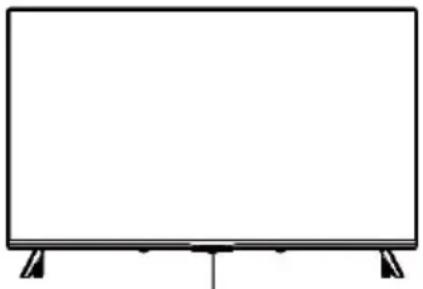
natural_image
Front view of a blank flat-screen monitor with stand legs (no text or symbols)Press this button to turn on/off the TV.
Multiple buttons:
| Turn on/off power | |
| Sursă | External signal input selection |
| Menu/OK | Display main menu and confirm menu item selection |
| CH +/- | Select channel |
| VOL +/- | Adjust volume |
Terminal interface
Note: The following are the various terminal interface, the actual position and arrangement, number of different models may be different.
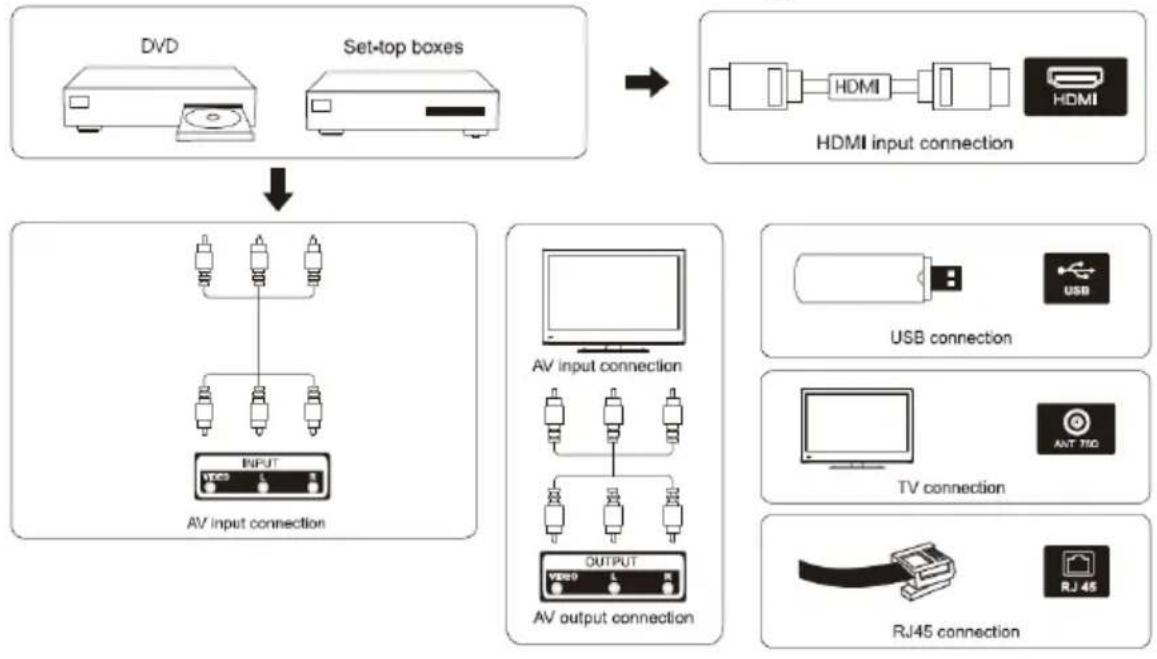
| AV InputExternal AV signal input | USB InputConnect a USB device here to play its media files or to record programs via the PVR function | ||
| HDMI InputDigital signal input from HDMI video connector | Optical OutputConnect the SPDIF receiver | ||
| ANT 75Connect the antenna / cable TV input75/VHF/UHF | RJ45Connect the Internet |

Do not touch or be close to the HDMI, USB terminals and prevent electrostatic discharge to disturb these te while in USB operation mode, or it will cause the TV to stop working or abnormal status.
External device connection diagram
flowchart
graph TD
    A["DVD"] --> C["AV input connection"]
    B["Set-top boxes"] --> C
    C --> D["AV output connection"]
    D --> E["AV input connection"]
    E --> F["AV output connection"]
    F --> G["AV input connection"]
    G --> H["AV output connection"]
    H --> I["AV input connection"]
    I --> J["AV output connection"]
    J --> K["AV input connection"]
    K --> L["AV output connection"]
    L --> M["AV input connection"]
    M --> N["AV output connection"]
    N --> O["AV input connection"]
    O --> P["AV output connection"]
    P --> Q["AV input connection"]
    Q --> R["AV output connection"]
    R --> S["AV input connection"]
    S --> T["AV output connection"]
    T --> U["AV input connection"]
    U --> V["AV output connection"]
    V --> W["AV input connection"]
    W --> X["AV output connection"]
    X --> Y["AV input connection"]
    Y --> Z["AV output connection"]
    Z --> AA["AV input connection"]
    AA --> AB["AV output connection"]
    AB --> AC["AV input connection"]
    AC --> AD["AV output connection"]
    AD --> AE["AV input connection"]
    AE --> AF["AV output connection"]
    AF --> AG["AV input connection"]
    AG --> AH["AV output connection"]
    AH --> AI["AV input connection"]
    AI --> AJ["AV output connection"]
    AJ --> AK["AV input connection"]
    AK --> AL["AV output connection"]
    AL --> AM["AV input connection"]
    AM --> AN["AV output connection"]
    AN --> AO["AV input connection"]
    AO --> AP["AV output connection"]
    AP --> AQ["AV input connection"]
    AQ --> AR["AV output connection"]
    AR --> AS["AV input connection"]
    AS --> AT["AV output connection"]
    AT --> AU["AV input connection"]
    AU --> AV["AV output connection"]
    AV --> AW["AV input connection"]
    AW --> AX["AV output connection"]
    AX --> AY["AV input connection"]
    AY --> AZ["AV output connection"]
    AZ --> BA["AV input connection"]
    BA --> BB["AV output connection"]
    BB --> BC["AV input connection"]
    BC --> BD["AV output connection"]
    BD --> BE["AV input connection"]
    BE --> BF["AV output connection"]
    BF --> BG["AV input connection"]
    BG --> BH["AV output connection"]
    BH --> BI["AV input connection"]
    BI --> BJ["AV output connection"]
    BJ --> BK["AV input connection"]
    BK --> BL["AV output connection"]
    BL --> BM["AV input connection"]
    BM --> BN["AV output connection"]
    BN --> BO["AV input connection"]
    BO --> BP["AV output connection"]
    BP --> BQ["AV input connection"]
    BQ --> BR["AV output connection"]
    BR --> BS["AV input connection"]
    BS --> BT["AV output connection"]
    BT --> BU["AV input connection"]
    BU --> BV["AV output connection"]
    BV --> BW["AV input connection"]
    BW --> BX["AV output connection"]
    BX --> BY["AV input connection"]
    BY --> BZ["AV output connection"]
TV install and connect
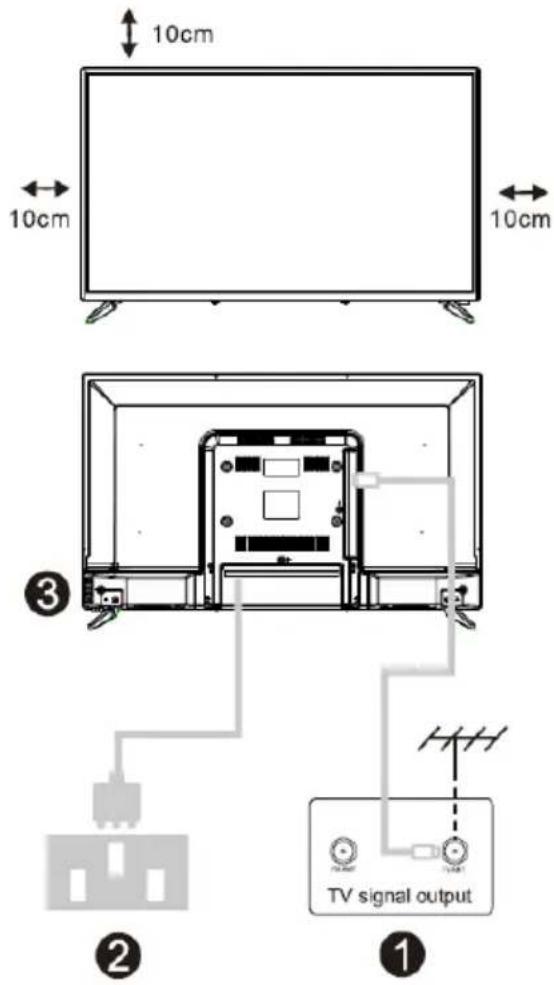
Set your TV
Put your TV on a firm place which can bear the weight of the device.
To avoid danger, please do not position the TV near water or heating place (such as light, candle, heating machine) and do not block the ventilation at the back of TV
Connect antenna and power
- Connect the antenna cable to the antenna socket on the back of TV.
- Plug the power cord of TV (AC 100-240V\~50/60Hz).
Turn on the TV
Connect the power supply, enter the standby mode (red light), press the power button of the TV or the power button on the remote control to turn on the TV.
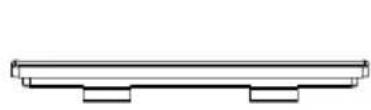
Note: If the model has a CI card slot on its top, a silicone plug for the CI card slot can be found in the accessory bag (for models without CI card slot, there is no such silicone plug), please insert the silicone plug into the slot when the CI card is not in use.
natural_image
Simple line drawing of a horizontal beam supported at both ends (no text or symbols)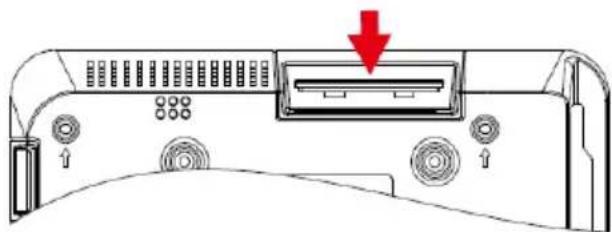
natural_image
Diagram of a computer monitor rear panel with ventilation slots and a red arrow indicating a location (no text or symbols present)Note: Picture is fore reference purposes only.
TV stand installation instructions
-
Open the carton and remove the TV, accessories and base (some models are without base).
-
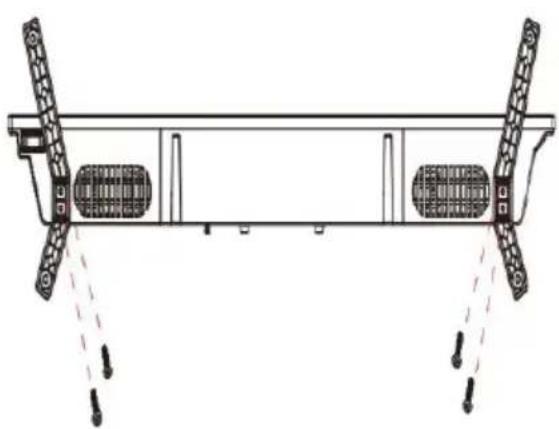
In order to avoid damaging the TV, please cover it with soft mattress, put it on the table, face down on the soft material and screw the neck of the base to the TV.
-
Screw the base and connect it to the TV.
-
Installation is complete.
natural_image
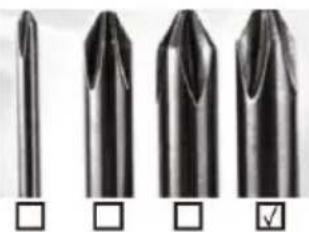
Technical line drawing of a mechanical support structure with two vertical supports and a horizontal beam (no text or symbols)Suggestion: To make it more convenient for base installation and to avoid any risk of scratches and damage, we advise you using the type of PH2 scredriver.
PH00 PH0 PH1 PH2
natural_image
Four different types of metal cutting tips shown in a row, with no visible text or symbols on the tips themselves.Note: Picture for reference purposes only.
Remote control
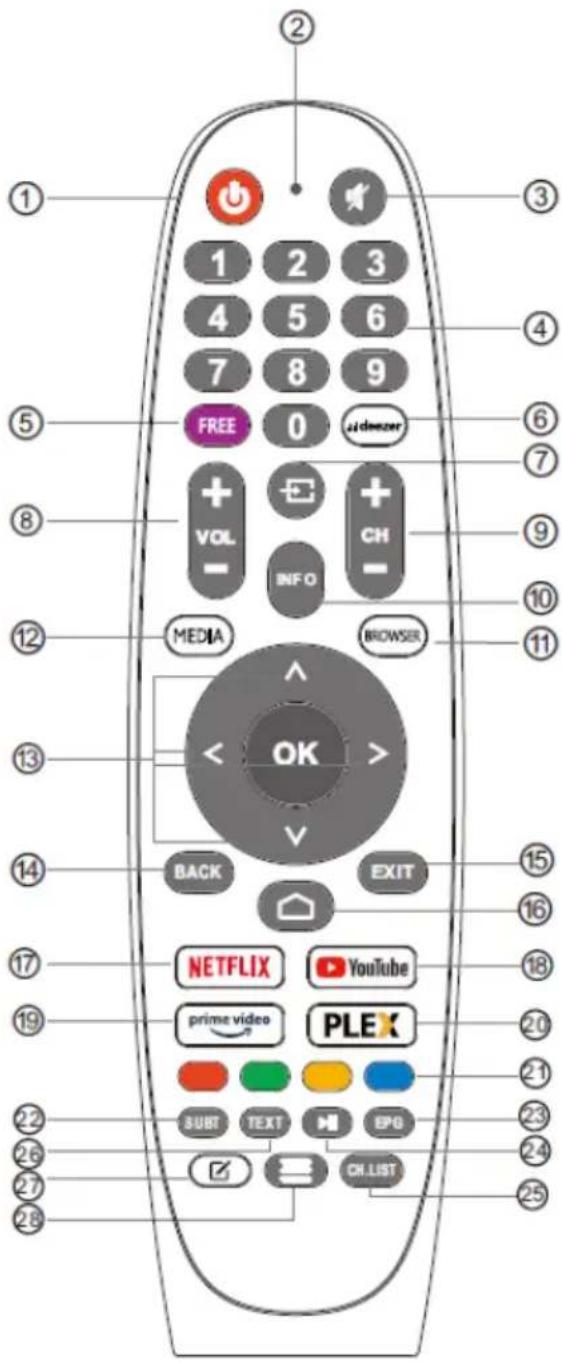
1 POWER: Switches the TV between on and standby mode.
2 No effect.
3 MUTE: Mute or restore your TV sound.
4 0-9: Figures "0-9" are used to directly input channel number.
5 FREE: Connects to FREE.
6 Deezer: Connects to DEEZER.
7 INPUTS: Display/select signal source options.
8 VOL +/-: Press to increase/decrease the sound level.
9 CH+/-: Press to select the channels.
10 INFO: Displays the present channel info such as the current time and channel name.
11 BROWSER: Connects to Browser.
12 MEDIA: Connects to MEDIA.
13 BUTOANE NAVIGARE: Cursor UP/LEFT/RIGHT/DOWN.
14 BACK: Press to move back through menus.
15 EXIT: Exist the OSD menu.
16 HOME: Displays the home screen.
17 NETFLIX: Connects to NETFLIX for viewing online TV shows and films (internet connection required).
18 YouTube: Connects to YouTube (internet connection required).
19 PRIME VIDEO: Connects to Prime video (internet connection required).
20 PLEX: Connects to PLEX.
21 COLOR BUTTONS: There are related
functions under EPG.
22 SUBT: Activate / deactivate subtitles.
23 EPG: EPG menu.
24 MEDIA CONTROL: Play/Pause.
25 CH.LIST: Channel list.
26 TXT: Press to enter teletext when play the program.
27 APP customization: APP customization (long press under the home page).
28 MENU: Displays the OSD (On Screen Display).
First time installation
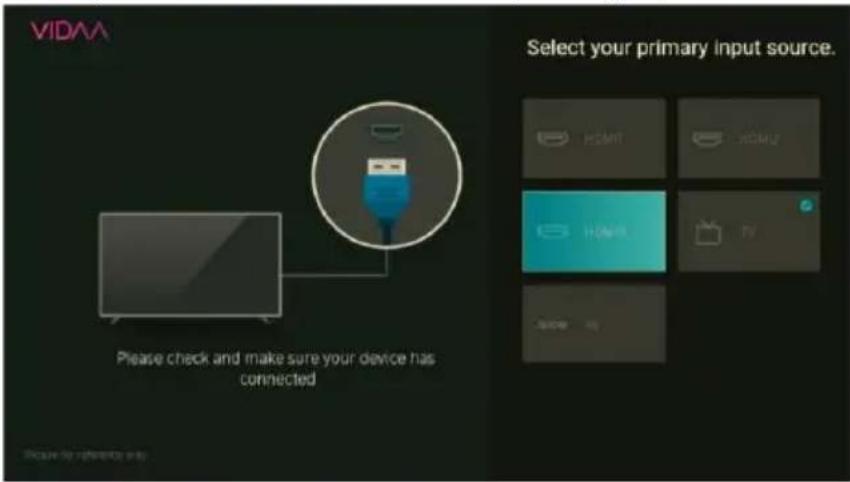
Follow the instruction to for first time setup.
Please make sure the device has connected, then press 【V】/【∧】/【<】/【>】button to select the primary input source.
Home
Press 📋 button in order to enter HOME screen.
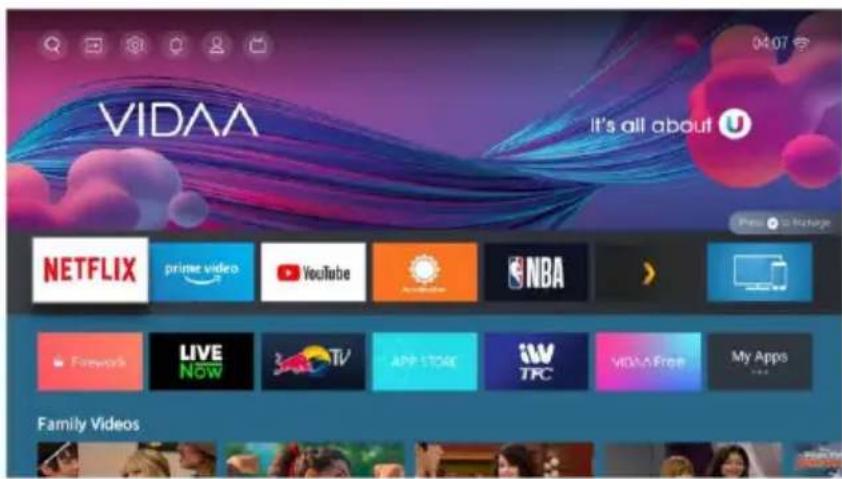
• You can always view the current time at the top of the HOME screen.
- If your TV is connected to the Internet through a wireless connection or an Ethernet cable, then the icon 📤/☐ will be displayed at the top corner of the screen.
Manage apps
- Select the item you want to move, then press the button to manage.
Input
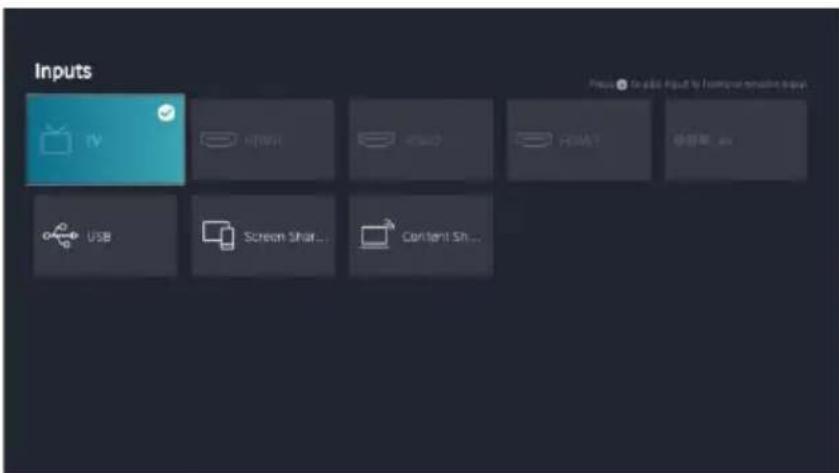
Press 【▼】/【▲】button to select inputs menu.
Press 【▼】/【▲】/【◀】/【▶】button to select.
Press ENTER to select input.
Initial setup
Setup
Picture
- Press 【▼】 / 【▲】 button to select the option that you want to adjust in the PICTURE menu.
- Press Enter button to adjust.
- After finishing your adjustment, press Enter button to save and return to the previous menu.
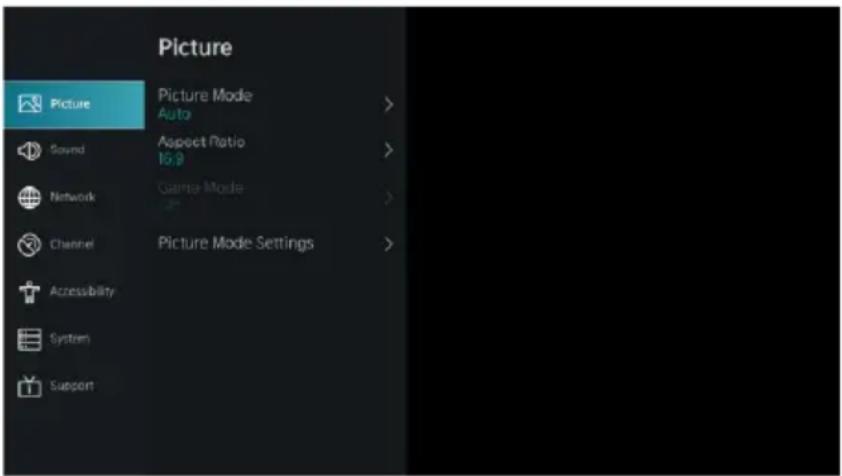
Picture mode
Adjust the Aspect Ratio to stretch or zoom in on your picture.
Press ▼/▲ button to select Aspect Ratio.
Press ◀ / ▶ button to select Automatic/16:9/4:3/Panoramic/Movie Zoom/Direct.
Game mode
Sound
Press MENU button to display the main menu. Press 【▼】/【▲】button to select SOUND in the main menu.
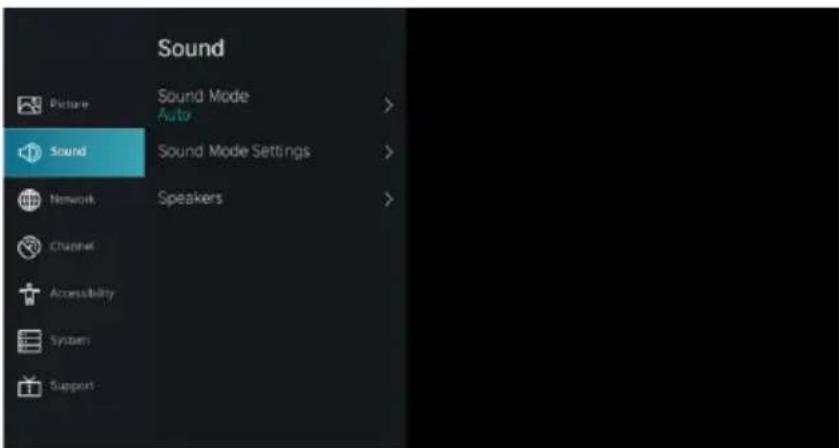
-
Press 【▼】/【▲】button to select the option that you want to adjust in the SOUND menu.
-
Press Enter button to adjust.
-
After finishing your adjustment, press Enter button to save and return to the previous menu.
Speakers
Press 【▼】/【▲】button to select Speakers.
Press ENTER/【▶】button to enter sub-menu.
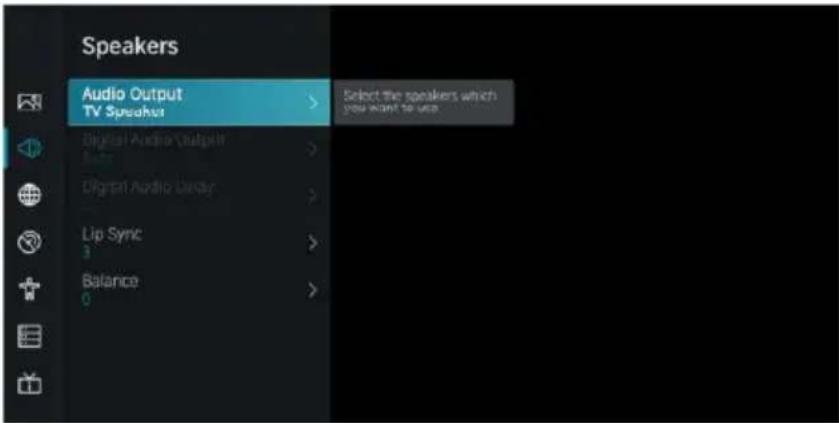
Audio Output
Press 【▼】/【▲】 button to select: Network configuration/Internet Connection/Bluetooth/Wake on Wireless Network/Wake on LAN.
Channel
Press MENU button to display the main menu. Press 【◀】 / 【▶】 button to select Channel.
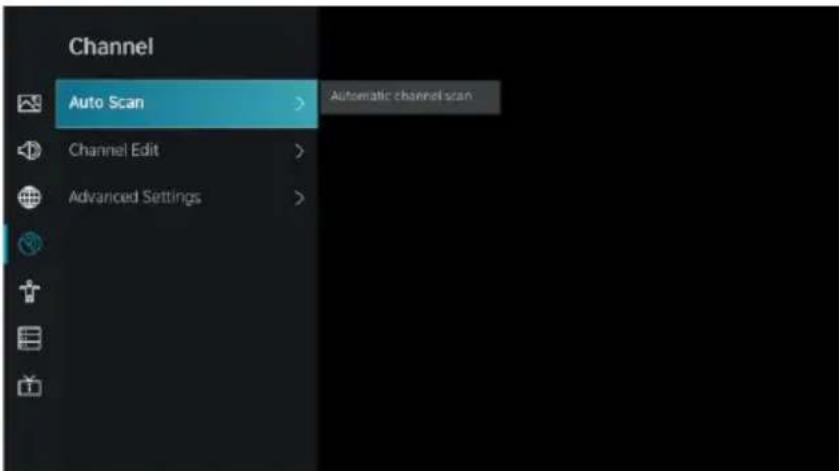
- Press 【▼】/【▲】button to select the option that you want to adjust in the Channel menu.
- Press Enter button to adjust.
- After finishing your adjustment, press Enter button to save and return to the previous menu.
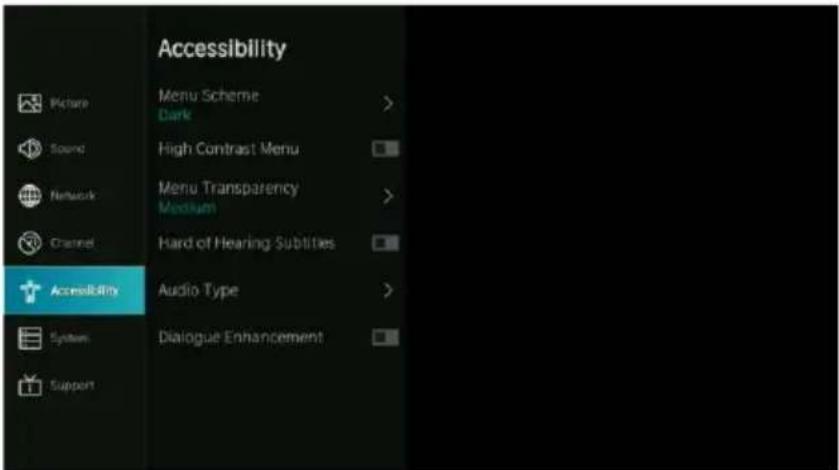
Accessibility
Press MENU button to display the main menu.
Press 【◀】/【▶】button to select Accessibility in the main menu.
Troubleshooting
| Case | Solution |
| No power | Check if the AC cord of TV is plugged in or not. If there is still no power, please disconnect the plug, and reconnect to the socket after 60 seconds. Turn the power back on. |
| Signal not received properly | Double or phantom images may appear on your TV if there are high buildings or mountains close to where you are. You can adjust the image by manual operation: consult instruction of vernier regulation, or adjust the direction of the external antenna. If you use indoor antenna, signal reception may be more difficult under certain circumstances. Adjust the direction of the antenna for optimum reception. If this does not improve reception, you may have to switch to an external antenna. |
| No picture | Check if antenna at the back of the TV is connected properly.View other channels to see if the problem still occurs. |
| Video appears with no audio | Try to increase the volume.Check if the TV's sound is on mute or not. |
| Audio is present, but video does not appear or is discolored | Try adjusting the contrast and brightness. |
| Static noise affects video and audio quality | Check if the antenna at the back of the TV is connected properly. |
| Broken lines on screen | Electrical appliances such as hair dryers or vacuums a.s.o. may be interfering with your TV set. Switch these appliances off. |
| Remote control does not work | Make sure the plastic bag which came with the remote is removed.Try using the remote in a shorter distance from the TV. Check if the placement of the batteries is correct, or try using new batteries with the remote control.Th TV will go into Standby mode if it receives no response in a few minutes. |
| No video (PC mode) | Please check if the cable is connected to the VGA port correctly, or if the cable is bent in some places. |
| Vertical line blinking (PC mode) | Enter the main menu, and adjust the vertical placement to eliminate the vertical line. |
| Horizontal tearing (PC mode) | Adjust the horizontal placement of the screen to cleat any horizontal lines. |
| Screen is too bright or dark (PC mode) | Adjust the brightness or contrast in the main menu. |
| No response from the PC | Check if the PC's display resolution is set to a compatible resolution for the TV. |
| Lines appearing when a device is connected to the RCA port | Make sure you are using a cable in good quality. |
| Problems are not solved | Unplug the power cable and wait for 30 seconds, then reconnect to the socket. If problems still persist, do not attempt to repair the TV by yourself. Kindly contact the service center. |
Note: Do not leave your TV displaying a static image, whether it is from a paused video, menu screen, a.s.o., for an extended period of time, doing so will damage the display and may cause image burn in.
IMPORTANT
natural_image
Simple line drawing of a flat-screen monitor with two legs and a central screen (no text or symbols)natural_image
Technical line drawing of a device rear panel with a red arrow indicating a component (no text or symbols present)natural_image
Technical line drawing of a mechanical support structure with two vertical supports and internal components (no text or symbols)natural_image
Four different types of metal cutting tips, one with a square checkbox and one with a checkmark (no text or symbols on the tips themselves)Pagina principală
Mod imagine
Sunet
leşire audio
DEPANARE
natural_image
Simple line drawing of a blank rectangular frame with three legs and a downward arrow at the bottom (no text or symbols)natural_image
Diagram of a computer monitor rear panel showing ventilation slots and a red arrow indicating a location (no text or symbols present)natural_image
Technical line drawing of a mechanical support structure with two vertical supports and a horizontal beam (no text or symbols)natural_image
Four different types of metal cutting tips, one with square checkboxes and one with checkmark (no text or symbols)Fóoldal
Hang
Hangkimenet
natural_image
Blank white rectangle with a thin black border (no text or symbols)natural_image
Technical line drawing of a device rear panel with labeled ports and a red arrow indicating a component (no text or symbols present)natural_image
Technical line drawing of a mechanical support structure with two vertical supports and a central horizontal beam, no text or symbols present.natural_image
Four different types of metallic cutting tool tips, shown in a row with selection handles (no text or symbols on the tools themselves)Strona główna
Dźwięk
Wyjście audio
ROZWIĄZYWANIE PROBLEMÓW
EU DECLARATION OF CONFORMITY
No. 1667
We, S.C. Visual Fan S.A., with the headquarters in Brasov, 61, Brazilor Street, 500313, Romania, registered at the Trade Commerce Brasov under no. J08/818/2002, CUI RO14724950, as the manufacturer, assure, guarantee and declare on our own responsibility, according to the provisions from article 4 HG no. 325/2017, regarding the regime of the products and services, which can be harmful for life and health, that the product 32iPlay6000-H from ALLVIEW, does not jeopardize the life, health and labor protection, does not produce a negative impact over the environment and is in accordance with:
- Directive (EU) 2015/863 of 31 March 2015 amending Annex II to Directive 2011/65/EU of the European Parliament and of the Council as regards the usage restrictions of certain dangerous substances in electric and electronic equipment;
- Directive regarding the radio equipment RED 2014/53/EU;
- Directive regarding the electromagnetic compatibility EMC 2014/30/EU;
- The safety requests of the European Directive 2014/53/EU and the EN 62368-1:2014+A11:2017 standards, regarding the level of decibels emitted by the sold appliances.
The product has been assessed according to the following standards:
- Health and safety: EN 62368-1:2014+A11:2017
; EN IEC 62311: 2020; EN 50665: 2017;
- EMC EN 55032: 2015+A11: 2020, EN 55035: 2017+A11: 2020; EN IEC 61000-3-2: 2019+A1: 2021, EN 61000-3-3:2013/A2:2021; ETSI EN 301 489-1 V2.2.3: 2019, ETSI EN 301 489-17 V3.2.4: 2020
- Radio spectrum: ETSI EN 300328 V2.2.2: 2019; ETSI EN 303 340 V1.1.2: 2016; ETSI EN 303 372-2 V 1.2.1: 2021
The evaluation procedure of the conformity was made according to Directive 2014/53/EU, the documentation being stored at S.C. Visual Fan S.A., Brasov, 61, Brazilor Street, 500313, Romania and will be offered at request.
The product has the CE mark on it. The declaration of conformity is available at www.allviewmobile.com.
DECLARATIE UE DE CONFORMITATE
No 1667
EU DECLARATION OF CONFORMITY
No. 1668
We, S.C. Visual Fan S.A., with the headquarters in Brasov, 61, Brazilor Street, 500313, Romania, registered at the Trade Commerce Brasov under no. J08/818/2002, CUI RO14724950, as the manufacturer, assure, guarantee and declare on our own responsibility, according to the provisions from article 4 HG no. 325/2017, regarding the regime of the products and services, which can be harmful for life and health, that the product 40iPlay6000-F from ALLVIEW, does not jeopardize the life, health and labor protection, does not produce a negative impact over the environment and is in accordance with:
- Directive (EU) 2015/863 of 31 March 2015 amending Annex II to Directive 2011/65/EU of the European Parliament and of the Council as regards the usage restrictions of certain dangerous substances in electric and electronic equipment;
- Directive regarding the radio equipment RED 2014/53/EU;
- Directive regarding the electromagnetic compatibility EMC 2014/30/EU;
- The safety requests of the European Directive 2014/53/EU and the EN 62368-1:2014+A11:2017 standards, regarding the level of decibels emitted by the sold appliances.
The product has been assessed according to the following standards:
- Health and safety: EN 62368-1:2014+A11:2017
; EN IEC 62311: 2020; EN 50665: 2017; - EMC EN 55032: 2015+A11: 2020, EN 55035: 2017+A11: 2020; EN IEC 61000-3-2: 2019+A1: 2021, EN 61000-3-3:2013/A2:2021; ETSI EN 301 489-1 V2.2.3: 2019, ETSI EN 301 489-17 V3.2.4: 2020
- Radio spectrum: ETSI EN 300328 V2.2.2: 2019; ETSI EN 303 340 V1.1.2: 2016; ETSI EN 303 372-2 V 1.2.1: 2021
The evaluation procedure of the conformity was made according to Directive 2014/53/EU, the documentation being stored at S.C. Visual Fan S.A., Brasov, 61, Brazilor Street, 500313, Romania and will be offered at request.
The product has the CE mark on it. The declaration of conformity is available at www.allviewmobile.com.
DECLARATIE UE DE CONFORMITATE
No 1668
- Content
- Safety information
- CAUTION!
- Important safety precautions
- Caution:
- Positioning warning
- TV Buttons and terminal interface
- TV buttons
- Terminal interface
- Set your TV
- Connect antenna and power
- Turn on the TV
- TV stand installation instructions
- Remote control
- First time installation
- Home
- Input
- Initial setup
- Setup
- Picture
- Picture mode
- Game mode
- Sound
- Speakers
- Audio Output
- Channel
- Accessibility
- IMPORTANT
- Pagina principală
- Mod imagine
- Sunet
- leşire audio
- Fóoldal
- Hang
- Hangkimenet
- Strona główna
- Dźwięk
- Wyjście audio
- EU DECLARATION OF CONFORMITY
- No. 1667
- DECLARATIE UE DE CONFORMITATE
- No. 1668
- No 1668
Brand : Allview
Model : 40iPlay6000-F
Category : Television