
NuForce BE Sport3 - Headphones OPTOMA - Free user manual and instructions
Find the device manual for free NuForce BE Sport3 OPTOMA in PDF.


| Product Type | Wireless Bluetooth in-ear headphones |
| Brand | Optoma |
| Model | NuForce BE Sport3 |
| Weight | 15 grams |
| Cable Length | 580 ± 20 mm |
| Driver Type | Dynamic |
| Driver Size | 6 mm |
| Impedance | 16 Ohm |
| Frequency Response | 20 Hz – 20 kHz |
| Sensitivity | 94 dB ± 3 dB at 1 kHz |
| Microphone Sensitivity | -42 ± 3 dB |
| Bluetooth Version | 4.1 |
| Bluetooth Range | Up to 10 m |
| Battery Type | Lithium-ion (3.7 V, 75 mAh x 2) |
| Battery Life | Up to 10 hours |
| Charging Time | Up to 2.5 hours |
| Charging Port | Micro-USB |
| Codec Support | SBC, aptX, AAC |
| Bluetooth Profiles | HSP 1.2, HFP 1.6, A2DP 1.2, AVRCP 1.4 |
| Multipoint Connection | Yes (up to 2 devices) |
| Voice Prompts | Yes (English, can be enabled/disabled) |
| Controls | Inline controller with volume up/down and multifunction button |
| Included Accessories | Ear tips (S/M/L x2 types), SpinFit TwinBlade tips, stabilizers (L/M, 6 pairs), cable loop, pouch, Micro-USB cable, manual |
| Cleaning | Clean ear tips with mild soap and water; store in pouch |
| Safety Notes | Avoid extreme temperatures; not water resistant; follow FCC and CE regulations |
| Spare Parts / Reparability | Replacement ear tips available; battery not user-replaceable; no user-serviceable parts |
| Certifications | FCC, CE |
Frequently Asked Questions - NuForce BE Sport3 OPTOMA
User questions about NuForce BE Sport3 OPTOMA
0 question about this device. Answer the ones you know or ask your own.
Ask a new question about this device
Download the instructions for your Headphones in PDF format for free! Find your manual NuForce BE Sport3 - OPTOMA and take your electronic device back in hand. On this page are published all the documents necessary for the use of your device. NuForce BE Sport3 by OPTOMA.
USER MANUAL NuForce BE Sport3 OPTOMA
Wireless Bluetooth in-ear headphones
natural_image
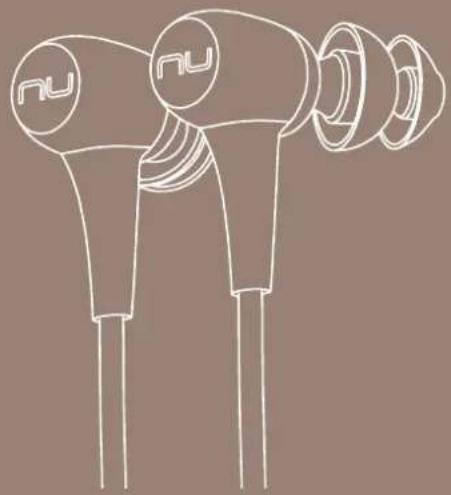
Line drawing of two electronic earbuds with 'nu' branding, no text or symbols presentContents
Charging your BE Sport3
Checking battery level
Bluetooth pairing
Power On/ Power Off
Wearing your BE Sport3
Handling phone calls
Listening to music
Pairing with a laptop
Pairing with a Mac
- MISCELLANEOUS
Multipoint connections
Restoring factory settings
Voice prompts list
Disclaimer
FCC Interference statement
CE
Trademark attribution
Specification
WHAT'S IN THE BOX
| BE Sport3 earphones (with inline controller and microphone) | 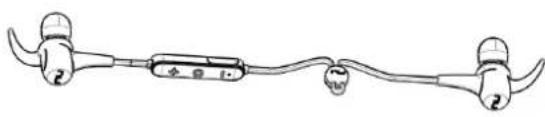 |
| Silicon tips (in L/M/S)2 types of silicon tipsTotal of 6 pairs ear tips |  |
| SpinFit TwinBlade tips(1 pair) |   |
| Stabilizers (in L/M) 3 colors, total of 6 pairs | 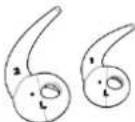 |
| Cable loop for adjusting the length of cable | 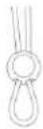 |
| Pouch | 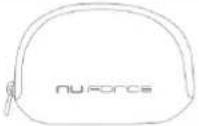 |
| Charging cable(Micro-USB) |  |
| Basic user's manual |  |
| Safety Instruction |  |
BE Sport3 EARPHONES
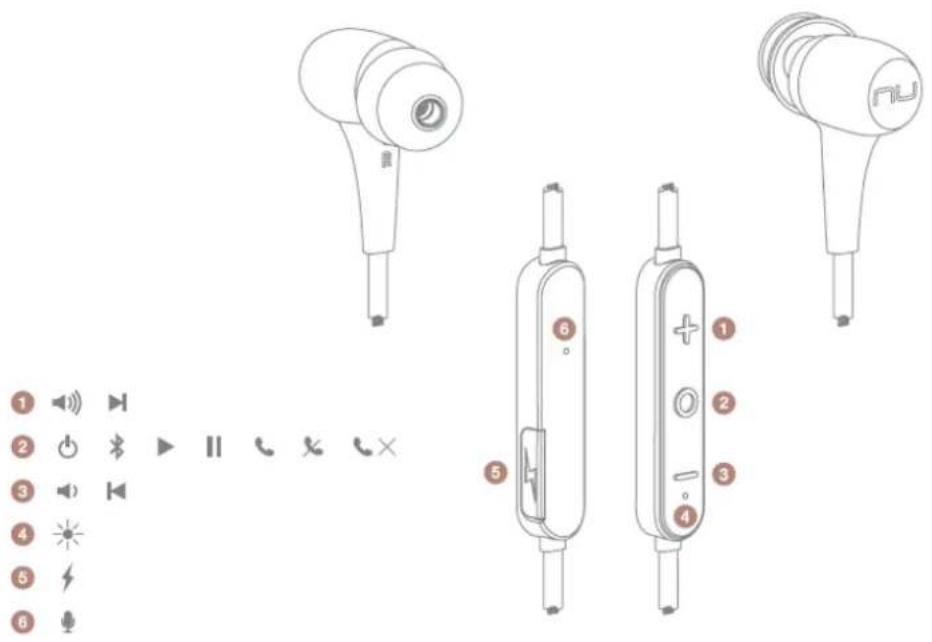
- Volume Up Button
- Power/Function Button
- Volume Down Button
- LED Indicator
- Charging port
- Microphone
The BASICS
Charging Your BE Sport3
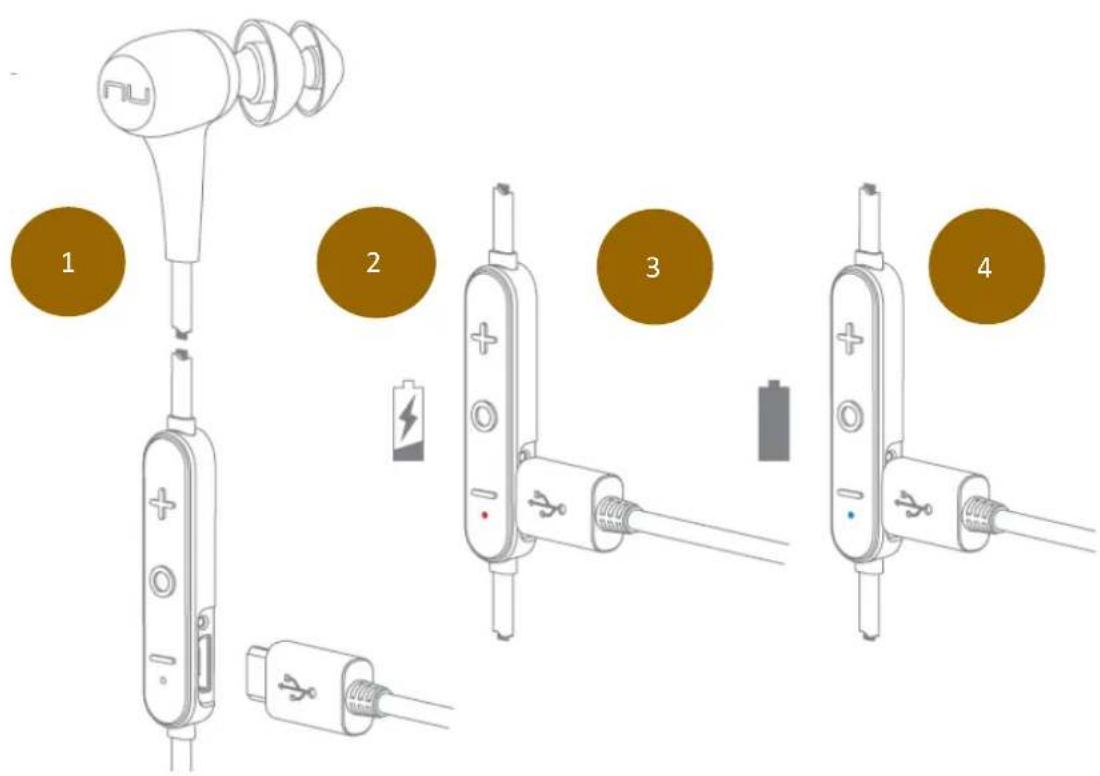
Although your BE Sport3 in-ear headphones come with a partially charged battery, it is recommended that you fully charge your BE Sport3 before first use.
- Open the charge port cover on the in line controller.
- The charge cable should be connected to the charge port and either to a PC or a dedicated USB charger.
- When charging, the LED indicator is red.
- LED Indicator turns blue once charging is complete.
NOTE: It takes up to 2.5 hours to fully charge the BE Sport3.
Checking Battery Level
You can check the battery level of your BE Sport3 with the LED indicator
To check battery level:
-
Press the Power/Function, volume up, and volume down buttons simultaneously.
-
The LED indicator will flash red and blue simultaneously. The battery level will be indicated by the number of flashes, as described in the table below:
Number of Flashes Battery Level
| Number of flashes | Voice prompts(enable) |
| 2 | Battery low |
| 3 | Battery at 50% |
| 5 | Full battery |
NOTE: When the battery level is very low, you will hear a beep or a "Battery Low" voice prompt from your BE Sport3 every 2 minutes when the estimated battery reserve remaining time is under 15 minutes. IN ADDITION:
-
When the Voice prompts are switched off you will hear a beeping sound (A short double tone) every two minutes.
-
Users with iOS devices and some Android models will be able to view the battery status on their device's display
*On some Android and all Windows operated devices you cannot check the battery level for your BE Sport3 when you listen to music, in the middle of a phone call or in pairing mode.
Bluetooth Pairing
flowchart
graph TD
    A["Start: Bluetooth icon"] --> B["Step 1: Display with 6s timer"]
    B --> C["Step 2: Display with 6s timer"]
    C --> D["Step 3: Display with Optoma NuForce BE Sport3 status"]
    D --> E["End: Display with 6s timer"]
Using your BE Sport3 for first time
Pairing BE Sport3 with source device
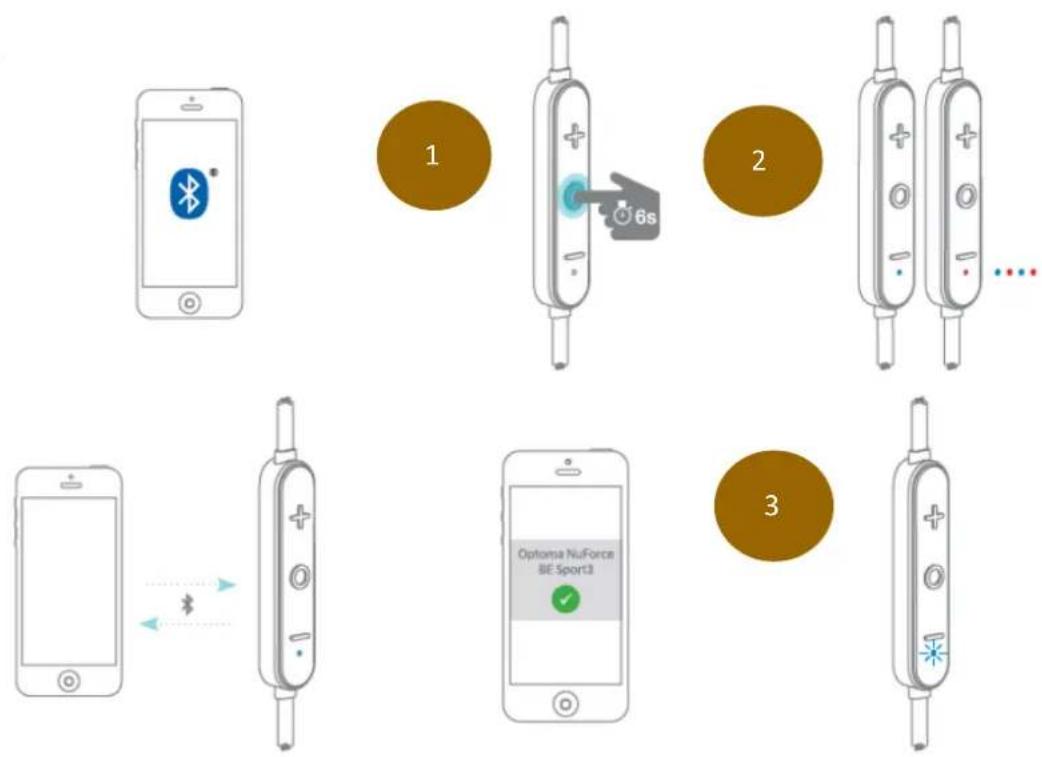
- Press and hold the BE Sport3's Power/Function button for 6 seconds until the LED indicator light flashes blue/red. Your BE Sport3 is now in pairing mode.
- Turn on Bluetooth® on your source device, then select "Optoma NuForce BE Sport3" once it appears on the device list.
NOTE: Consult your source device's user manual for instructions on activating
Bluetooth.
- Once successfully paired, the LED indicator will flash blue and you hear "Primary device connected" (when voice prompt enabled) from your BE Sport3, or a beep if voice prompt is not enabled.
Please note:
A. You must always enter "Pair" mode from a powered-off state. Otherwise, pushing the Power/Function button for more than 3 seconds from a powered-on state turns the BE Sport3 off.
B. If left inactive in pairing mode, your BE Sport3 will automatically power off after 3 minutes.
C. Your BE Sport3 can store pairing information for up to eight devices.
To pair additional devices to your BE Sport3 ensure that your BE Sport3 is not concurrently connected to any device, then repeat the steps 1,2,3 outlined above.
In case where your BE Sport3 have already stored pairing information for eight devices and a ninth device is paired, the stored information for the very first device will be deleted.
Power On/Power Off
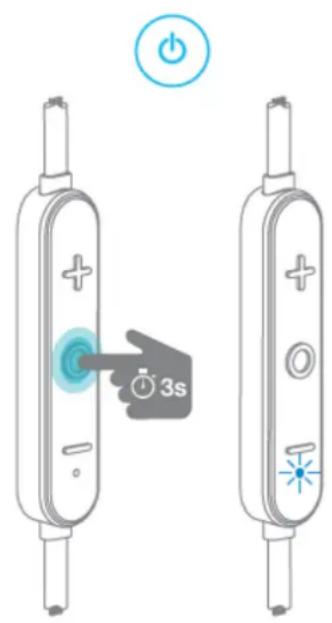
To power on your BE Sport3, press Power/Function button for about 3 seconds until the LED indicator flashes blue and you hear the "Power on" when voice prompt is activated or a beep if the voice prompt is not used. NOTE:
Once you have successfully paired the BE Sport3 to a Bluetooth-enabled device, the BE Sport3 will automatically connect with that device once it is powered on again. For more information check “Bluetooth Pairing” section.
If you have stored pairing information for multiple devices and more than one of those devices is Bluetooth enabled, the BE Sport3 will automatically connect with the most recently paired device and will also enable multipoint connection.
For more information read section "Multipoint Connections".
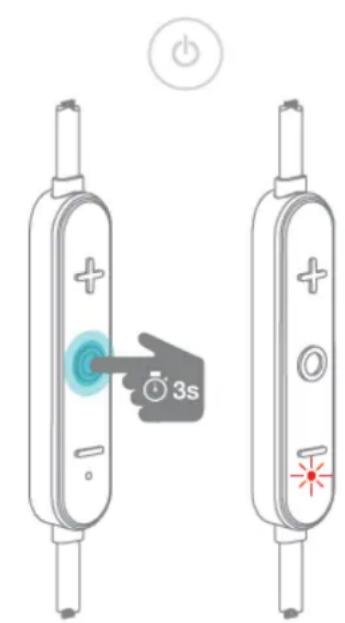
To turn the BE Sport3 to OFF, push Power/Function button for about 3 seconds until the LED indicator turns red and you hear the "Power off" when voice prompt be activated or a beep if the voice prompt is not used.
Wearing Your BE Sport3
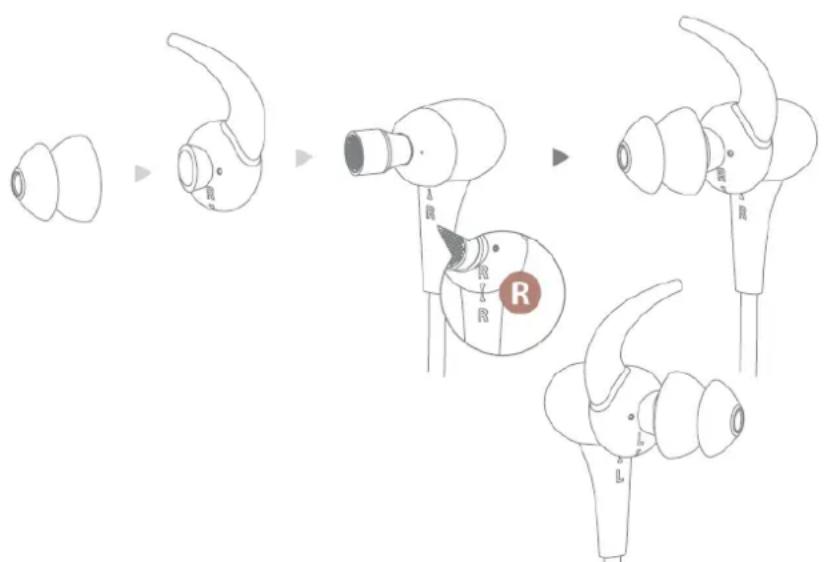
To ensure a secure and comfortable fit when wearing your BE Sport3:
- Install the stabilizers on the BE Sport3 after removing the ear tips already placed on the boxed new set.*
- Select right size of ear tips and install tips on BE Sport3.
- Rotate the stabilizers and place the BE Sport3 into each ear so that they are positioned comfortably.
*Please note, 2 different sizes of Ear wings are provided to offer optimal user's comfort
Magnetic caps at the end of the earphones let users lock the earphones together and secure them around user's neck for ease of use.
Handling Phone Calls
When your BE Sport3 are connected to a Bluetooth-enabled smartphone you can handle your phone calls directly using your BE Sport3 in ear headphones.
The followings describe phone call options:
| Call option | Status | Action |
| Answer a call | Incoming call | Tap the Power/Function button |
| Decline a call | Incoming call | Press the Power/Function button for 2 seconds |
| End a call | In a call/outgoing call | Tap the Power/Function button |
| Redial the last number | Standby/connected | Double tap the Power/Function button |
| Mute on or mute off microphone | In a call/outgoing call | Tap the Volume Up and Volume Down simultaneously |
| Switching handset/earphone voice | In a call | Press the Volume Up and Volume Down buttons simultaneously for 2 seconds |
| Adjust the volume | Tap the Volume Up or Volume Down button | |
| Activate Siri (iOS) or Google Voice Search (Android) | Standby/Connected | Tap the Power/Function and Volume Up buttons simultaneously |
Listening to Music
You can enjoy and control Audio through the in line controller on your BE Sport3.
| Audio option | Action |
| Play or pause audio | Tap the Power/Function button |
| Skip to next track | Press the Volume Up button for 2 seconds |
| Play previous track | Press the Volume Down button for 2 seconds |
| Adjust the volume | Tap the volume up or volume down button |
*Please note: when muting the BE Sport3 or reactivating it from MUTE there will be a very slight delay
Pairing with a Laptop
The connection instructions below apply to owners of Windows 7, 8, 8.1 and 10.
- Power your PC/Laptop
- Find "Bluetooth Settings"
- Switch your laptop Bluetooth to "On"
- Turn the BE Sport3 to "Pairing Mode"
- When the BE Sport3 is discovered by your laptop left click on "Pair"
-
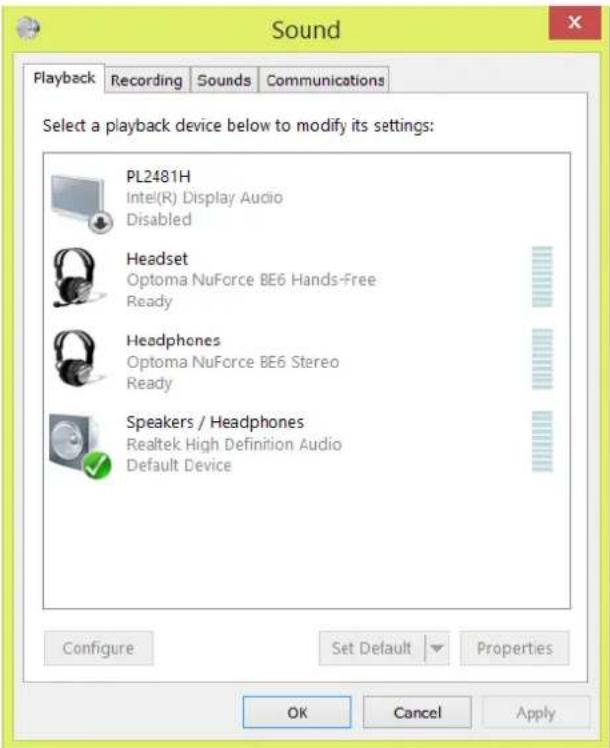
Right click on the speaker symbol at the bottom right side of the screen
-
From the dropdown menu right click on the "Playback Device"
-
Please choose and right click the "Optoma NuForce BE Sport3 stereo ready" (see image below text)
-
Click on HEADPHONES to set the "Headphones Optoma NuForce BE Sport3" as default device
-
Press OK
Pairing with a Mac
The connection instructions below apply to owners of all current and recent iOS versions
- Power your Mac
- Open "System Preferences"
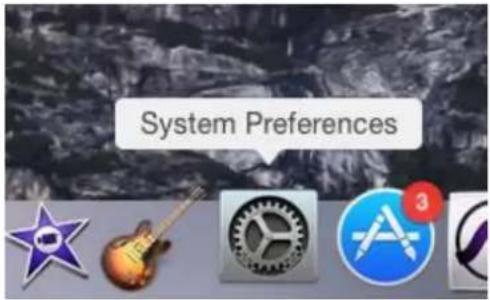
- Click on the Bluetooth symbol
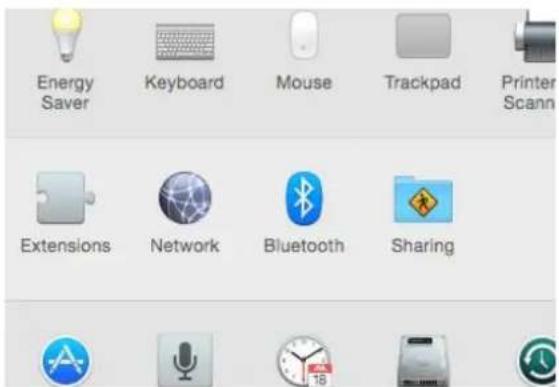
-
Turn the Optoma NuForce BE Sport3 to "Pairing Mode"
-
When the Optoma NuForce BE Sport3 is discovered by your Mac click on "Pair"
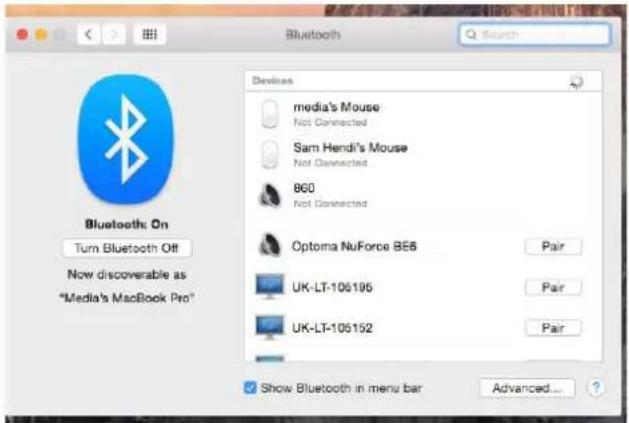
- Your Mac is now ready to play audio via the BE Sport3
MISCELLANEOUS
Multipoint Connections
If you have stored pairing information for multiple devices and more than one of those devices have Bluetooth enabled at the same time, your BE Sport3 will enable multipoint connection.
Multipoint connection allows your BE Sport3 to hold connections with two devices at the same time while playing audio signal from only one of the two devices.
Multipoint connection works in the following ways:
- Your BE Sport3 automatically connects with the most recently paired device ("Primary device").
- You must manually connect the second device ("Secondary device") to your BE Sport3 via its operating system.
- The BE Sport3 will prioritize the audio from Primary device.
- You can control Primary device using the BE Sport3 in line controller.
- When Primary device is idle, your BE Sport3 can receive audio from Secondary device.
- Secondary device must be controlled directly from its operating system.
- Simultaneous audio from both devices is disabled.
When you restore the BE Sport3 to its factory settings, the paired devices stored will be deleted.
To restore factory settings:
1 Ensure that your BE Sport3 are not connected to any device.
2 Put the BE Sport3 in pairing mode.
3 Press simultaneously the Power/Function, Volume Up, and Volume Down buttons for 2 seconds until the LED indicator flashes red five times and you hear five short tones from the BE Sport3.
Because all pairing information is deleted after restoring factory settings, the BE Sport3 will directly enter pairing mode once powered on.
Voice Prompts list
The BE Sport3 are pre-loaded with English voice prompts
"Power On"
"Power Off"
"Full Battery"
"Battery at 50%"
"Battery Low"
"Primary device connected"
"Secondary device connected"
"Pairing Mode Activated"
"Voice Dial"
| Audio option | Action |
| Activate voice prompts | Press the Power/Function and Volume Up buttons simultaneously for 2 seconds |
| Turn off voice prompt | Press the Power/Function and Volume Down buttons simultaneously for 2 seconds |
Disclaimer
Please be advised, the BE Sport3 is equipped with the latest technology however functionality may vary by device.
Federal Communication Commission Interference
Statement
This equipment has been tested and found to comply with the limits for a Class B digital device, pursuant to Part 15 of the FCC Rules. These limits are designed to provide reasonable protection against harmful interference in a residential installation.
This equipment generates, uses and can radiate radio frequency energy and, if not installed and used in accordance with the instructions, may cause harmful interference to radio communications. However, there is no guarantee that interference will not occur in a particular installation. If this equipment does cause harmful interference to radio or television reception, which can be determined by turning the equipment off and on, the user is encouraged to try to correct the interference by one of the following measures:
. Reorient or relocate the receiving antenna.
. Increase the separation between the equipment and receiver.
. Connect the equipment into an outlet on a circuit different from that to which the receiver is connected.
. Consult the dealer or an experienced radio/TV technician for help.
FCC Caution: To assure continued compliance, any changes or modifications not expressly approved by the party responsible for compliance could void the user's authority to operate this equipment. (Example - use only shielded interface cables when connecting to computer or peripheral devices).
FCC Radiation Exposure Statement
This equipment complies with FCC RF radiation exposure limits set forth for an uncontrolled environment. This equipment should be installed and operated with a minimum distance of 0.5 centimeters (.20 of an Inch) between the radiator and your body.
This transmitter must not be co-located or operating in conjunction with any other antenna or transmitter.
The antennas used for this transmitter must be installed to provide a separation distance of at least 0.5 centimeters (.20 of an Inch) from all persons and must not be co-located or operating in conjunction with any other antenna or transmitter.
This device complies with Part 15 of the FCC Rules. Operation is subject to the following two conditions:
(1) This device may not cause harmful interference, and (2) This device must accept any interference received, including interference that may cause undesired operation.
CE
EU Regulatory Conformance Hereby, Optoma Corporation declares that this device is in compliance with the essential requirements and other relevant provisions of Directive 1999/5/EC.
C€0560
Notice: Observe the national local regulations in the location where the device is to be used.
Trademark Attribution
Qualcomm is a trademark of Qualcomm Incorporated, registered in the United States and other countries, used with permission. aptX is a trademark of Qualcomm Technologies international, Ltd., registered in the United States and other countries, used with permission.
Specification
| Connection type | Bluetooth 2.4Ghz |
| Bluetooth type | V4.1 |
| Bluetooth profile | HSP 1.2, HFP 1.6, A2DP 1.2, AVRCP 1.4 , aptX, AAC |
| Codec | SBC, aptX, AAC |
| Cable length | 580 +/- 20 mm |
| Driver Type | Dynamic |
| Driver size | 6 mm |
| Impedance | 16 Ohm |
| Battery life (estimated) | Up to 10 hours |
| Battery type | Lithium-ion battery, Cylindrical Type, Typical 3.7V/75mAh x2 pcs |
| Microphone sensitivity | -42 +/-3 dB |
| Frequency response | 20Hz - 20kHz |
| Sensitivity | 94dB +/-3dB at 1KHz |
| power consumption | 15mA at A2DP mode, speaker output 75dB SPL |
| Range | Up to 10m |
| Weight | 15 Grams |


Optoma

- Contents
- WHAT'S IN THE BOX
- BE Sport3 EARPHONES
- The BASICS
- Charging Your BE Sport3
- Checking Battery Level
- To check battery level:
- Bluetooth Pairing
- Using your BE Sport3 for first time
- Power On/Power Off
- Wearing Your BE Sport3
- Handling Phone Calls
- Listening to Music
- Pairing with a Laptop
- Pairing with a Mac
- MISCELLANEOUS
- Multipoint Connections
- Voice Prompts list
- Disclaimer
- Federal Communication Commission Interference
- Statement
- FCC Radiation Exposure Statement
- CE
- Trademark Attribution
- Optoma
Brand : OPTOMA
Model : NuForce BE Sport3
Category : Headphones