
DVD-770SD - DVD player DENON - Free user manual and instructions
Find the device manual for free DVD-770SD DENON in PDF.



| Brand | DENON |
| Model | DVD-770SD |
| Product Type | DVD Player |
| Supported Disc Formats | DVD Video, CD Audio, CD-R/RW (MP3, JPEG, Windows Media), Video CD |
| Video Outputs | Composite, S-Video, Component (Y/Pb/Pr), SCART (RGB) |
| Digital Audio Output | Optical (TOSLINK) |
| Analog Audio Output | Stereo RCA |
| Progressive Scan Function | Yes (via component output) |
| MP3 Playback | Yes (CD-R/RW) |
| JPEG Playback | Yes (slideshow, zoom, rotation) |
| Windows Media (WMA) Playback | Yes |
| Special Playback Functions | Repeat, program, random, A-B, slow motion, frame-by-frame, zoom |
| Multi-language | Audio, subtitles, angles |
| Remote Control | Yes (RC-963) |
| Display | VFD on front panel |
| Power Supply | Mains 220-240 V ~ 50/60 Hz |
| Operating Temperature | 10°C to 35°C |
| Included Accessories | Audio/video cable, video cable, optical cable, remote control, batteries |
| Maintenance | Soft dry cloth, avoid abrasive products |
| Safety | Do not open the casing, avoid moisture, use undamaged power cord |
| Standards | CE (EN60065, EN55013, EN55020, EN61000-3-2, EN61000-3-3) |
Frequently Asked Questions - DVD-770SD DENON
User questions about DVD-770SD DENON
0 question about this device. Answer the ones you know or ask your own.
Ask a new question about this device
Download the instructions for your DVD player in PDF format for free! Find your manual DVD-770SD - DENON and take your electronic device back in hand. On this page are published all the documents necessary for the use of your device. DVD-770SD by DENON.
USER MANUAL DVD-770SD DENON
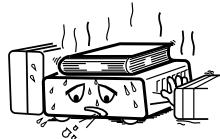
* (For sets with ventilation holes)
- DECLARATION OF CONFORMITY
We declare under our sole responsibility that this product, to which this declaration relates, is in conformity with the following standards:
EN60065, EN55013, EN55020, EN61000-3-2 and EN61000-3-3.
Following the provisions of 73/23/EEC, 89/336/EEC and 93/68/EEC Directive.
CLASS 1 LASER PRODUCT
LUOKAN 1 LASERLAITE
KCLASS 1 LASERAPPARAT
ADVARSEL: USYNLIG LASERSTRALING VED ABNING, NAR SIKKERHEDSAFBRYDERE ER UDE AF FUNKTI. UNDGÅ USDAETTELSE FOR STRALING.
VAROITUS! LAITTEEN KÄYTTÄMINEN MUULLA KUIN TÄSSÄ KÄYTTOOHJESSA MAINITULLA TAVALLA SAATTAA ALTISTAA KÄYTTÄJAN TURVALLISUUSLUOKAN 1 YLITTAVALLE NAKYMÄTTOMÄLLE LASERSEATEILYLE.
VARNING- OM APPARATEN ANVÄNDS PÄ ANNAT SÄTT ÄN I DENNA BRUKSANVISNING SPECICERATS, KAN ANVÄANDAREN UTSÄTTAS FÜR OSYNLIG LASERSTRÄLNING SOM OVERSKRIDER GRÄNSEN FÜR LASERCLASS 1.
CLASS 1 LASER PRODUCT

CAUTION
- The ventilation should not be impeded by covering the ventilation openings with items, such as newspapers, tablecloths, curtains, etc.
- No naked flame sources, such as lighted candles, should be placed on the apparatus.
- Please be care the environmental aspects of battery disposal.
- The apparatus shall not be exposed to dripping or splashing for use.
- No objects filled with liquids, such as vases, shall be placed on the apparatus.

CAUTION RISK OF ELECTRIC SHOCK DO NOT OPEN
CAUTION: TO REDUCE THE RISK OF ELECTRIC SHOCK,DO NOT REMOVE COVER (OR BACK).NO USER SERVICEABLE PARTS INSIDE.REFER SERVICING TO QUALIFIED SERVICE PERSONNEL.

The lightning flash with arrowhead symbol, within an equilateral triangle, is intended to alert the user to the presence of uninsulated "dangerous voltage" within the product's enclosure that may be of sufficient magnitude to constitute a risk of electric shock to persons.

The exclamation point within an equilateral triangle is intended to alert the user to the presence of important operating and maintenance (servicing) instructions in the literature accompanying the appliance.
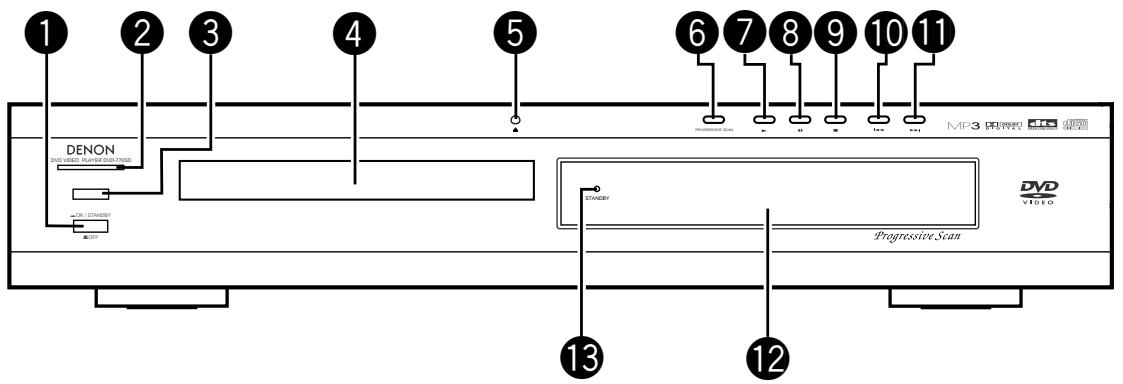
FRONT PANEL
FRONTPLATTE
PANNEAU AVANT
PANNELLO FRONTALE
PANEL DELANTERO
VOORPANEL
FRONT PANELEN

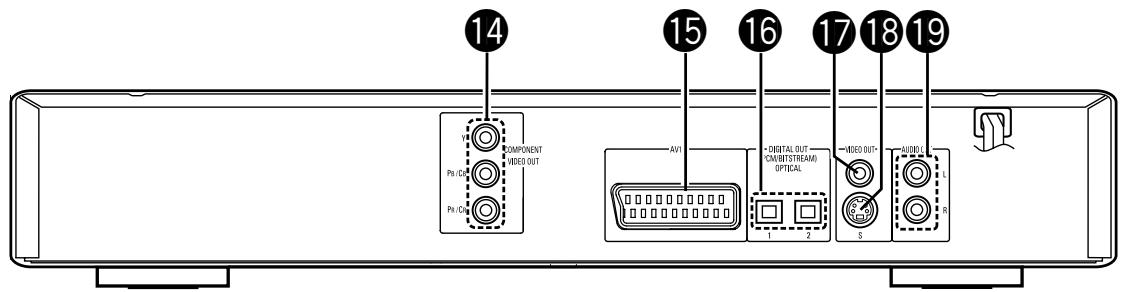
REAR PANEL
RUCKWAND
PANNEAU ARRIERE
IL PANNELLO POSTERIORE
PANEL TRASERO
ACHTERPANEL
BAKSIDAN
IMPORTANT TO SAFETY
WARNING: TO PREVENT FIRE OR SHOCK HAZARD, DO NOT EXPOSE THIS APPLIANCE TO RAIN OR MOISTURE.
CAUTION:
1. Handle the power supply cord carefully
Do not damage or deform the power supply cord. If it is damaged or deformed, it may cause electric shock or malfunction when used. When removing from wall outlet, be sure to remove by holding the plug attachment and not by pulling the cord.
2. Do not open the top cover
In order to prevent electric shock, do not open the top cover.
If problems occur, contact your DENON DEALER.
3. Do not place anything inside
Do not place metal objects or spill liquid inside the DVD video player.
Electric shock or malfunction may result.
Please, record and retain the Model name and serial number of your set shown on the rating label.
Model No.DVD-770SD Serial No.
NOTE:
This DVD video player uses the semiconductor laser. To allow you to enjoy music at a stable operation, it is recommended to use this in a room of 10^ (50^) - 35^ (95^) .
Copyrights
It is prohibited by law to reproduce, broadcast, rent or play discs in public without the consent of the copyright holder.
- ACCESSORIES
Please check to make sure the following items are included with the main unit in the carton:
① Audio video cord 1
② Video cord
③ Optical link cable 1
1 Features. 4
2 Discs 5
3 Cautions on Handling Discs 6
4 Connections. 6~9
Part Names and Functions 10
6 Remote Control Unit. 11
7 Loading Discs. 12
8 Changing the Default Settings. 12~17
9Playback. 18,19
10 Playing Repeatedly. 20
11 Playing Tracks in the Desired Order. 21
12 Playing Tracks in the Random Order. 21
13 Using the On-Screen Display 22
14 Using the Multiple Audio, Subtitle and Angle Functions 22, 23
15 Using the Menus 24
16 Playing in the Zoom Mode. 25
[17] MP3, Windows Media-formatted file Playback 25, 26
18 Playing Still Picture Files (JPEG format).....27, 28
19 Troubleshooting 29
20 Main Specifications 29

TABLE OF CONTENTS
1 FEATURES
1. High precision 96 kHz 24-bit D/A converter
The DVD-770SD is equipped with a 24-bit D/A converter for faithful D/A conversion of the high quality 24-bit data. This further enhances such aspects of audio performance as the S/N ratio, dynamic range and distortion and makes full use of the possibilities for high quality sound provided by a high number of bits and high sampling rates.
2. Progressive Scan function
The DVD-770SD is equipped with a progressive scan function achieving playback with high picture quality. Movies and other DVD software can be recreated with a picture quality near that of the original.
3. Slim body (80 mm wide) and half mirror/aluminum panel
The slim, neat body just 80 mm wide and half mirror/aluminum panel make for an elegant design that further enhances your interior decor.
4. Multiple functions
(1) Picture CD ,MP3, Windows Media-formatted file playback function (NOTE 1) Kodak Picture CDs can be played on the DVD-770SD.
MP3, Windows Media-formatted file and Still images stored in JPEG format on CD-R/RWs can also be played.
(2) Multiple audio function Selection of up to 6 audio languages. (The number of languages offered differs from DVD to DVD.)
(3) Multiple subtitle function Selection of up to 6 subtitle languages. (The number of languages offered differs from DVD to DVD.)
(4) Multiple angle function The angle of view can be changed. (For DVDs on which multiple angles are recorded.)
(5) GUI (Graphical User Interface) function The display button on the remote control unit can be used to display player and disc information on the TV screen.
(6)Playback disable function This function can be used to disable playback of DVDs you do not want children to watch.
NOTE1:
: "KODAK" is s trademark of Eastman Kodak Company.
Manufactured under license from Dolby Laboratories.
"Dolby" and the double-D symbol are trademarks of Dolby Laboratories. Confidential unpublished work. ©1992 - 1998 Dolby Laboratories. All rights reserved.
- "DTS" and "DTS Digital Surround" are registered trademarks of Digital Theater Systems, Inc.
DISCS
- The types of discs listed on the table below can be used on the DVD-770SD.
The marks are indicated on the disc labels or jackets.
| Usable discs | Mark (logo) | Recorded signals | Disc size |
| DVD video (NOTE 1) | DVDVIDEO | Digital audio + digital video (MPEG2) | 12 cm |
| 8 cm | |||
| Video CD (NOTE 1) | COMPACT DIGITAL VIDEO | Digital audio + digital video (MPEG1) | 12 cm |
| 8 cm | |||
| CD CD-R CD-RW (NOTE 2) | COMPACT DIGITAL AUDIO RECORDED | Digital audio MP3 WMA Digital picture (JPEG) | 12 cm |
| 8 cm | |||
| Picture CD | Kodak Picture CD COMPATIBLE | JPEG | 12 cm |
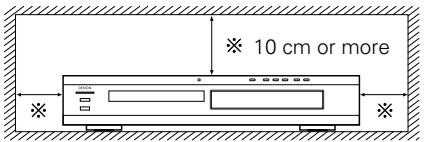
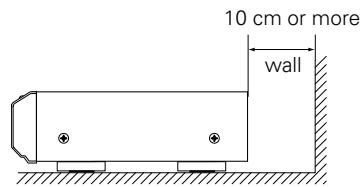
For heat dispersal, leave at least 10~cm of space between the top, back and sides of this unit and the wall or other components.
3 CAUTIONS ON HANDLING DISCS
Discs
Only the discs including the marks shown on page 5 can be played on the DVD-770SD.
Note, however, that discs with special shapes (heart-shaped discs, hexagonal discs, etc.) cannot be played on the DVD-770SD. Do not attempt to play such discs, as they may damage the player.


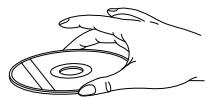
Holding Discs
Avoid touching the surface of discs when loading and unloading them.
Be careful not to get fingerprints on the signal surface (the side which shines in rainbow colors).
Cleaning Discs
Fingerprints or dirt on the disc may lower sound and picture quality or cause breaks in playback. Wipe off fingerprints or dirt.
Use a commercially available disc cleaning set or a soft cloth to wipe off fingerprints or dirt.
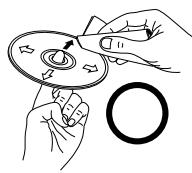
Wipe gently from the middle outwards.
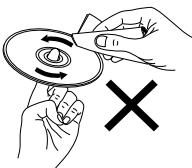
Do not wipe with a circular motion.
NOTE:
- Do not use record spray or antistatic. Also do not use volatile chemicals such as benzene or thinner.
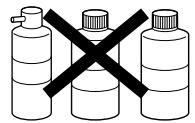
Record
Thinner
Benzene
spray
Cautions on Handling Discs
- Do not get fingerprints, grease or dirt on discs.
- Be especially careful not to scratch discs when removing them from their cases.
- Do not bend discs.
- Do not heat discs.
- Do not enlarge the center hole.
- Do not write on the labeled (printed) side with a ball-point pen or a pencil.
Water droplets may form on the surface if the disc is moved suddenly from a cold place to a warm one. Do not use a hairdryer, etc., to dry the disc.
Cautions on Storing Discs
Always eject discs after playing them.
- Keep discs in their cases to protect them from dust, scratches and warping.
- Do not put discs in the following places:
- Places exposed to direct sunlight for long periods of time
- Humid or dusty places
- Places exposed to heat from heaters, etc.
Cautions on Loading Discs
- Only load one disc at a time. Loading one disc on top of another may result in damage or scratch the discs.
- Load 8 cm discs securely in the disc guide, without using an adapter. If the disc is not properly loaded, it may slip out of the guide and block the disc tray.
- Be careful not to let your fingers get caught when the disc tray is closing.
- Do not place anything but discs in the disc tray.
- Do not load cracked or warped discs or discs that have been fixed with adhesive, etc.
- Do not use discs on which the adhesive part of cellophane tape or glue used to attach the label is exposed, or discs with traces of tape or labels that have been peeled off. Such discs may get stuck inside the player, resulting in damage.
4 CONNECTIONS
NOTES:
- Read the manuals of all the components when making connections.
- Keep the power cord unplugged until all connections have been completed.
-
If the power is on when connections are made, noise may be generated and damage the speakers.
-
Be sure to connect the left and right channels properly, L (left) to L, R (right) to R.
- Plug the power cord securely into the power outlet. Incomplete connection may result in noise.
- Binding the power cord together with connection cords may result in humming or noise.
(1) Connecting a TV
- Use the included audio video cord to connect the TV's video input connector and audio input connectors to the DVD-770SD's VIDEO OUT or S-VIDEO OUT and AUDIO OUT.
- Check that "P.SCAN" on the front panel display is off. If "P.SCAN" is lit, press the "PROGRESSIVE SCAN" button on the front panel so that "P.SCAN" turns off. Pictures are not output properly if "P.SCAN" is lit.
- To use with s-video output, set in "VIDEO OUT" in "VIDEO SETUP" in "SETUP" at the initial settings. (See page 14)
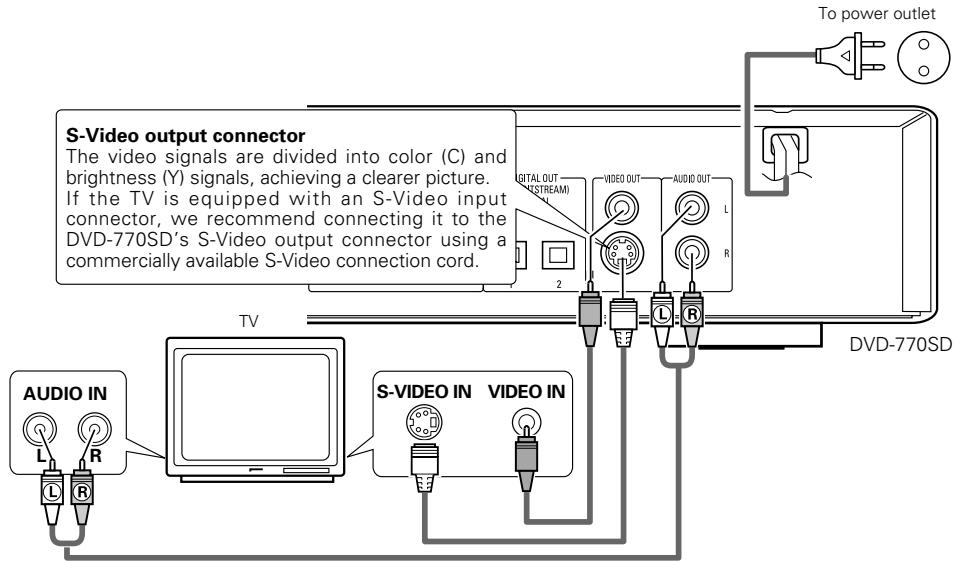
NOTES:
- Connect the DVD-770SD's video outputs to the TV either directly or through an AV amplifier. Do not connect it via a VCR (video cassette recorder). Some discs contain copy prohibit signals. If such discs are played via a VCR, the copy prohibit system may cause disturbance in the picture.
-
Set the "TV TYPE" in "VIDEO SETUP" in "SETUP" to comply with your TV's video format. When the TV is PAL formatted, set to PAL. (See page 14.)
-
Set the "TV ASPECT" in "VIDEO SETUP" in "SETUP" to comply with your TV's aspect. (See page 14)
- No audio signals are output from the DVD-770SD's "AUDIO OUT" connector when discs recorded in DTS are played.
(2) Connecting to a TV or Monitor Equipped with Color Component Input Connectors
Color component output connectors (PR/CR, PB/CB and Y)
The red (PR / CR) , blue (PB / CB) and brightness (Y) signals are output independently, achieving more faithful reproduction of the colors.
- The color component input connectors may be marked differently on some TVs or monitors (PR, PB and Y/R-Y, B-Y and Y/CR, CB and Y, etc.). For details, refer to the TV's operating instructions.
- If your TV is compatible with progressive scan, press the "PROGRESSIVE SCAN" button on the front panel so that "P.SCAN" lights on the display. This results in a high quality picture with little flickering.
(No signals are output from the composite output, S-Video output (S terminal) or SCART terminal (AV1) output when "P.SCAN" is lit.)
- Select "COMPONENT OUTPUT" for the video output setting at the setup screen. (When "COMPONENT" is selected, no video signals are output from the S-Video output (S terminal) and RGB of SCART terminal (AVI).
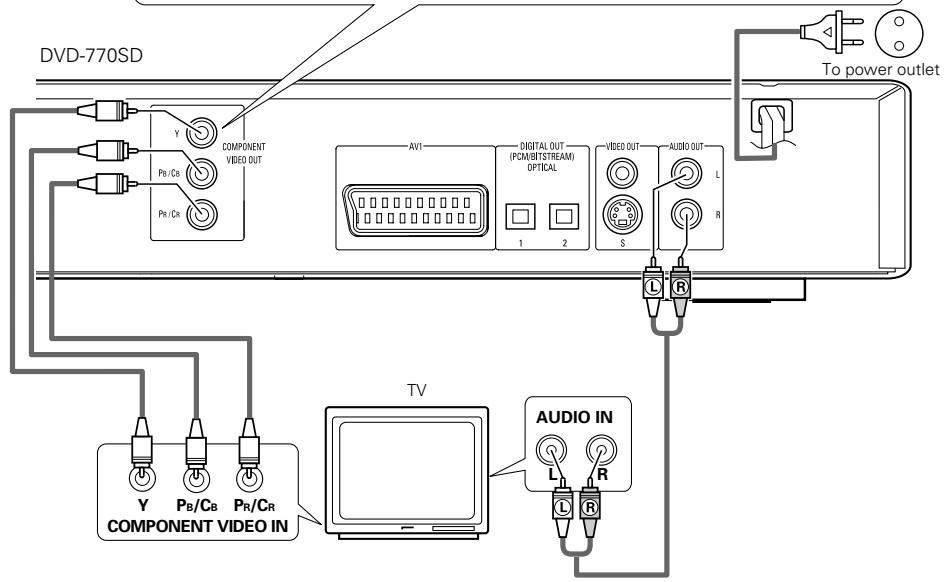
NOTES:
- Use the three commercially available video cords to connect the DVD-770SD's color component output connectors to the TV or monitor.
- Set the "TV TYPE" in "VIDEO SETUP" in "SETUP" to comply with your TV's video format. When the TV is PAL formatted, set to PAL. (See page 14.)
- Set the "VIDEO OUT" in "VIDEO SETUP" in "SETUP" to comply with Progressive TV. (NTSC formatted only)
- To use with 2-channel audio output, set "STEREO" in "DOWNMIX" in "AUDIO SETUP" in "SETUP" at the initial settings. (See page 15)
- Set the "TV ASPECT" in "VIDEO SETUP" in "SETUP" to comply with your TV's aspect. (See page 14)
- No audio signals are output from the DVD-770SD's "AUDIO OUT" connector when discs recorded in DTS are played.
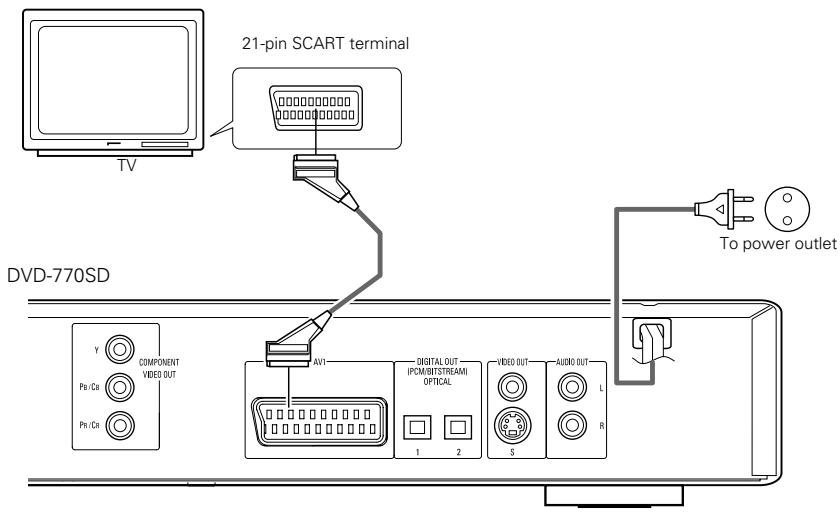
(3) Connecting to a TV with 21-pin SCART Terminal (For only European model)
- Use the commercially 21-pin SCART cable to connect the TV's 21-pin SCART terminal to the DVD-770SD's 21-pin SCART terminal (AV1).
- Check that "P.SCAN" on the front panel display is off. If "P.SCAN" is lit, press the "PROGRESSIVE SCAN" button on the front panel so that "P.SCAN" turns off. Pictures are not output properly if "P.SCAN" is lit.
- Select "RGB" for the video output setting at the setup screen video setup.
- CVBS and RGB signal are output from the SCART terminal (AV1).
When "RGB" is selected, no video signals are output from the S-Video output (S terminal) or component output.
When "RGB" is selected, CVBS and RGB are output.
NOTES:
-
Some discs contain copy prohibit signals. If such discs are played via a VCR, the copy prohibit system may cause disturbance in the picture.
-
Set the "TV TYPE" in "VIDEO SETUP" in "SETUP" to comply with your TV's video format. When the TV is PAL formatted, set to PAL. (See page 14.)
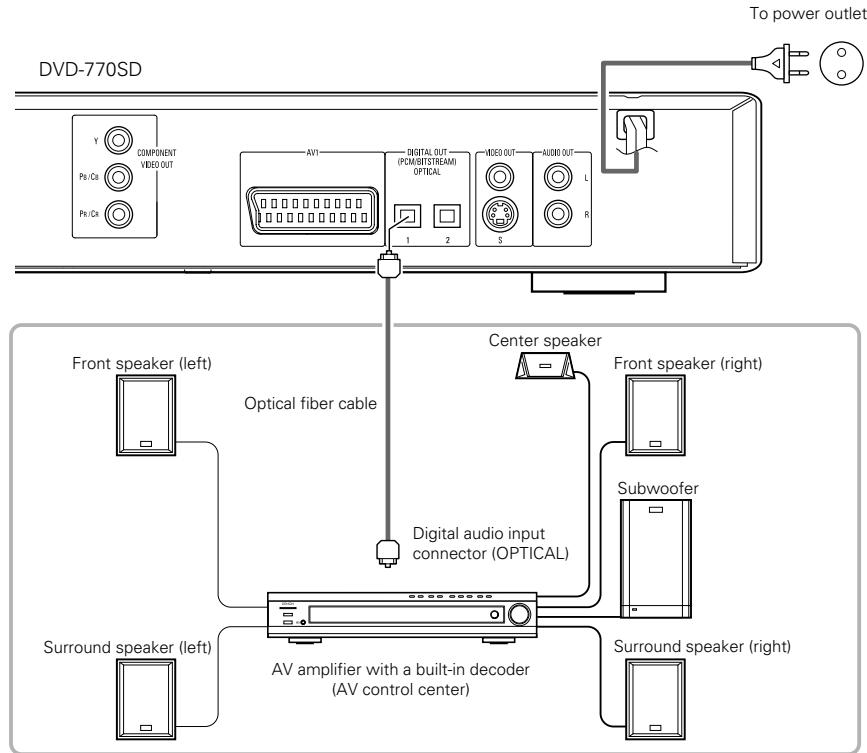
(4) Connecting to a AV amplifier with a Built-in decoder
When DVDs recorded in Dolby Digital or DTS are played, Dolby Digital or DTS bitstream signals are output from the DVD player's digital audio output connectors. If a Dolby Digital or DTS decoder is connected, you can achieve sound with the power and sense of presence of a movie theater or concert hall.
NOTE:
- Harsh noise that could harm your ears or damage the speakers is generated when a DVD recorded in DTS is played while using a decoder, etc., that is not DTS-compatible.
- Connecting an optical fiber cable to the digital audio input connector (OPTICAL)
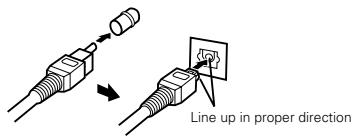
Remove the dust cap, line up the cable in the proper directly, then insert it securely as far as it goes.
Sound output from the DVD-770SD's digital audio output connectors
In the case of bit stream output
| Settings | |||
| DIGITAL OUT | |||
| Audio recording format | NORMAL | PCM | |
| DVD video | Dolby Digital | Dolby Digital bitstream | 2 channels PCM (48 kHz / 16 bit) |
| DTS | DTS bitstream | DTS bitstream | |
| MPEG Audio | 2 channels PCM (48 kHz / 16 bit) | 2 channels PCM (48 kHz / 16 bit) | |
In the case of PCM output
| Settings | |||||
| LPCM (44.1 kHz / 48 kHz) | |||||
| OFF | ON | ||||
| Copy protection ON | Copy protection OFF | ||||
| DVD video | Linear PCM | 48 kHz / 16 ~ 24 bit | No output data (*1) | 48 kHz / 16 ~ 24 bit PCM | 48 kHz / 16 bit PCM |
| 96 kHz / 16 ~ 24 bit | No output data (*2) | 96 kHz / 16 ~ 24 bit PCM | 48 kHz / 16 bit PCM | ||
| Video CD | MPEG 1 | 44.1 kHz / 16 bit PCM | 44.1 kHz / 16 bit PCM | ||
| Music CD | 44.1 kHz / 16 bit Linear PCM | 44.1 kHz / 16 bit PCM | 44.1 kHz / 16 bit PCM | ||
| MP3 CD | MP 3 (MPEG-1 Audio Layer 3) | 32 ~ 48 kHz / 16 bit PCM | 32 ~ 48 kHz / 16 bit PCM | ||
1 Only 48 kHz/16 bit sources are output.
2 When playing copyright-protected linear PCM DVDs, in consideration of copyrights, no digital signals are output for sources exceeding 48 kHz/16 bits. When playing such sources, either set to "96k>48k" or make analog connections.
- Linear PCM audio is a signal recording format used for music CDs.
While signals are recorded at 44.1 kHz/16 bit for music CDs, for DVDs they are recorded at 48 kHz/16 bit to 96kHz/24 bit, providing higher sound quality than music CDs.
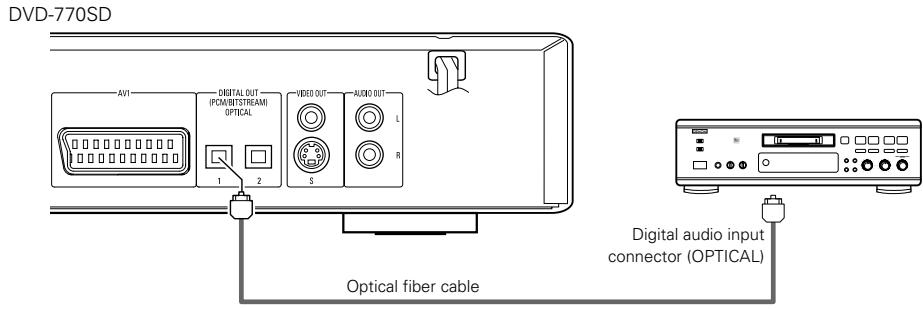
(5) Connecting to a Digital Recorder (MD Recorder, DAT Deck, etc.)
- Set the "AUDIO SETUP" default setting as shown below. (See page 14.)
- DIGITAL OUT" "PCM"
"96k LPCM OUT" → "96k → 48k"
Playing DVDs with incorrect settings may result noise that could damage your ears or the speakers.
(6) Connecting to a Stereo Component
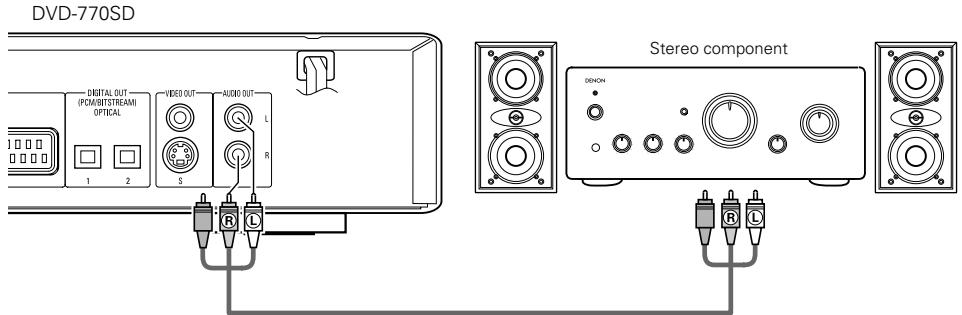
NOTES:
- When connecting to a stereo device with 2 audio channels
① After setting "SETUP MENU MODE" at "SYSTEM SETUP" to "EXPERT", set "DOWNMIX" under "AUDIO SETUP" to either "STEREO" or "LT/RT" (see page 15).
For sources recorded in multiple channels, analog signals downmixed into two channels are output. (For sources for which downmixing is prohibited, only the FL and FR channels are output.)
② Set "96kLPCM OUT" at "AUDIO SETUP" under "SETUP" to "96k>48k" (see pages 15). (When set to "96k>48k", analog audio signals converted to 48kHz or less are output for linear PCM sources.)
PART NAMES AND FUNCTIONS
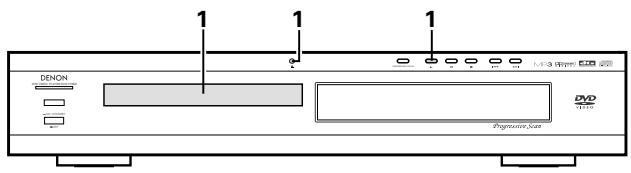
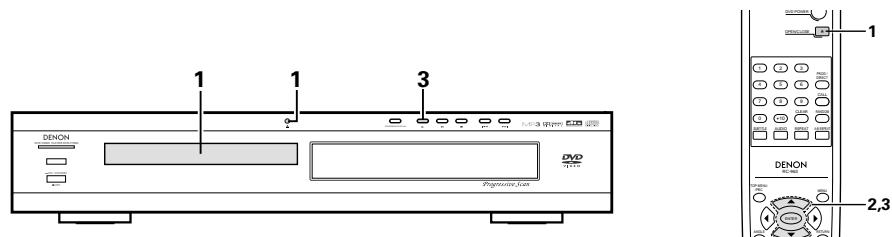
(1) Front Panel
See page 3.
1 Power button
- Press once to turn the power on.
- Press again to set to the "OFF" position and turn the power off.
- Set the power to the standby mode by pressing the POWER button on the remote control unit while the power is on.
- Turn the power on from the standby mode by pressing the POWER button on the remote control unit.
Power indicator
- This indicator lights when the power is on.
Remote control sensor
4 Disc tray
- Load discs here. (See page 12.)
- Press the OPEN/CLOSE button ⑤ to open and close the disc tray.
- The disc tray is also closed when the PLAY button ⑦ is pressed.
5 OPEN/CLOSE button
(△ OPEN/CLOSE)
- Press this button to open and close the disc tray.(See page 12.)
6 PROGRESSIVE SCAN button
- Press this to switch the component video output between PROGRESSIVE and INTERLACED SCAN.
7 PLAY button (▶)
- Press this button to play the disc (See page 18.)
8 STILL/PAUSE button (II)
- Press this button to pause images or music or to play images frame by frame. (See page 19.)
STOP button (■)
- Press this to stop the disc. (See page 19.)
10 Skip button (I<
- Press this to move back to the beginning of the current track (or chapter).
- Press again to move back to the beginning of the previous track (or chapter). (See page 19.)
11 Skip button (▶▶I)
- Press this to move ahead to the beginning of the next track (or chapter). (See page 19.)
12 Display
- Information on the disc that is currently playing is shown on the display. (See page 10.)
13 STANDBY indicator
- This lights when the power is in the standby mode.
(2) Rear Panel
14 Component video output connectors (COMPONENTVIDEOOUT)
- Connect using video cords (available in stores).
15 21-pin SCART terminal (AV1)
- Connect using a 21-pin SCART cable (available in stores).
16 Digital audio output connector (OPTICAL)
- Connect using an optical fiber cable (available in stores).
- Digital data is output from this connector.
17 Video output connector (VIDEO OUT)
- Connect using the included video cord.
18 S-Video output connector (S-VIDEO OUT)
- Connect using an S-Video connection cord (available in stores).
19 Audio output connectors (AUDIO OUT)
- Connect using the included audio cord.
(3) Display
Lights to indicate the currently playing disc.
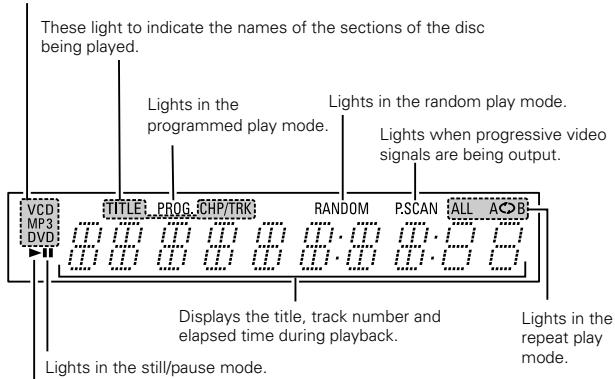
Lights during playback, flashes when the resume play memory function is activated.
6 REMOTE CONTROL UNIT
The DVD-770SD can be controlled from a distance using the included remote control unit (RC-963).
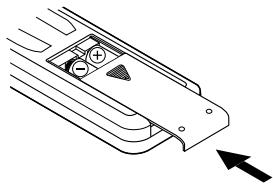
(1) Inserting Batteries
① Remove the remote control unit's rear cover.
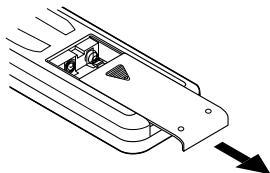
② Place two R03/AAA batteries in the battery compartment in the direction indicated by the marks.
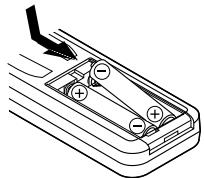
③ Close the rear cover.
(2) Using the Remote Control Unit
Cautions On Batteries
- Use R03/AAA batteries in this remote control unit.
- Replace the batteries with new ones approximately once a year, though this depends on the frequency with which the remote control unit is used.
- If the remote control unit does not operate from close to the main unit, replace the batteries with new ones, even if less than a year has passed.
- The included battery is only for verifying operation. Replace it with a new battery as soon as possible.
- When inserting the batteries, be careful to do so in the proper direction, following the and marks in the remote control unit's battery compartment.
-
To prevent damage or battery fluid leakage:
-
Do not use a new battery with an old one.
- Do not use two different types of batteries.
- Do not short-circuit, disassemble, heat or dispose of batteries in flames.
- Remove the batteries when not planning to use the remote control unit for a long period of time.
-
If the batteries should leak, carefully wipe off the fluid from the inside of the battery compartment, then insert new batteries.
-
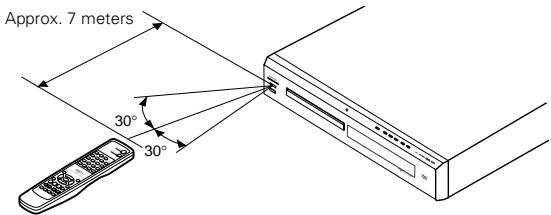
When operating the remote control unit, point it at the remote control sensor as shown on the diagram.
- The remote control unit can be used from a direct distance of approximately 7 meters. This distance will be shorter, however, if there are obstacles in the way or if the remote control unit is not pointed directly at the remote control sensor.
- The remote control unit can be operated at a horizontal angle of up to 30^ with respect to the remote control sensor.
NOTES:
- It may be difficult to operate the remote control unit if the remote control sensor is exposed to direct sunlight or strong artificial light.
- Do not press buttons on the main unit and on the remote control unit at the same time. Doing so will result in malfunction.
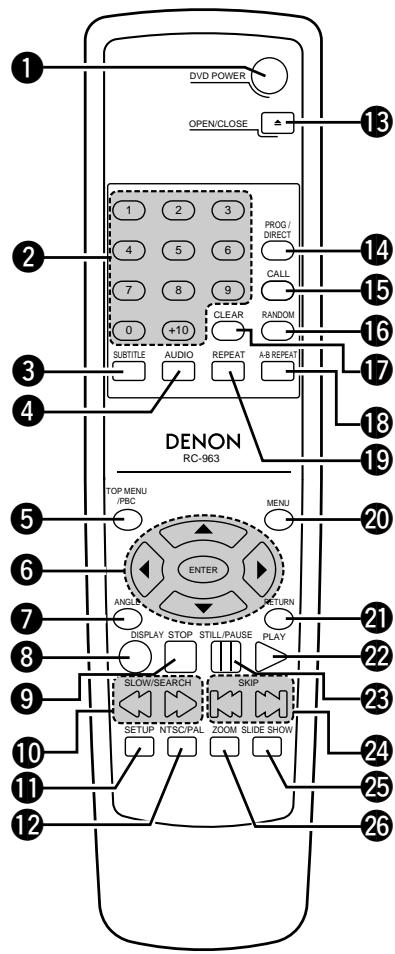
(3) Names and Functions of Remote Control Unit Buttons
- Button not explained here function in the same way as the corresponding buttons on the main unit.
1 POWER ON buttons
Press this to switch the power between on and standby.
Number buttons
Use these to input numbers.
Use the +10 button to input numbers of 10 or over.
Example: To input 25

3 SUBTITLE button
Press this to switch the DVD's subtitle language.
4 AUDIO button
For DVDs, press this to switch the audio language. For video CDs, press this to switch the channel between "LR", "L" and "R".
TOP MENU button
The top menu stored on the disc is displayed.
Cursor buttons/ENTER button
Use the and buttons to select in the vertical direction. Use the and buttons to select in the horizontal direction.
Press the ENTER button to select the item selected with the cursor buttons.
7 ANGLE button
Press this to switch the angle.
DISPLAY button
Press this to display the ON-SCREEN.
STOP button (■)
10 SLOW/SEARCH buttons
11 SETUP button
Press this to display the default setting screen.
12 NTSC/PAL button
Use this to switch the set's video output format (NTSC/PAL).
13 OPEN/CLOSE button
14 PROGRAM/DIRECT button (PROG/DIR)
Press this to switch between the normal play, programmed play.
15 CALL button
Press this to check the program contents.
16 RANDOM button
Press this to play the tracks on the video or music CD in random order.
17 CLEAR button
Press this to clear numbers that you have input.
18 A-B repeat button (A-B)
Use this to repeat sections between two specific points.
19 REPEAT button
Press this to play tracks repeatedly.
20 MENU button
The DVD menu stored on the disc is displayed.
21 RETURN button
Press this to return to the previous menu screen.
22 PLAY button (▶)
23 STILL/PAUSE button (II)
24 SKIP buttons
25 SLIDE SHOW button
The way of switching to the next image during continuous JPEG image playback (SLIDE SHOW) can be selected.
26 ZOOM button
Press this to enlarge the image.
7 LOADING DISCS
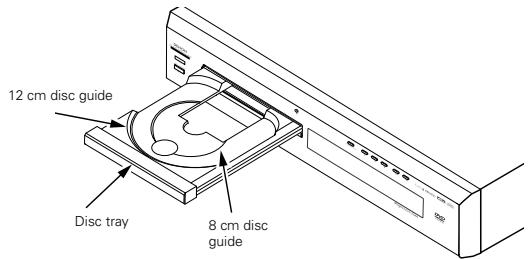
Set discs in the disc tray with the labeled (printed) side facing up.
NOTE:
- Do not move the DVD-770SD while a disc is playing. Doing so may scratch the disc.
(1) Opening and Closing the Disc Tray
① Turn on the power.
② Press the OPEN/CLOSE button.
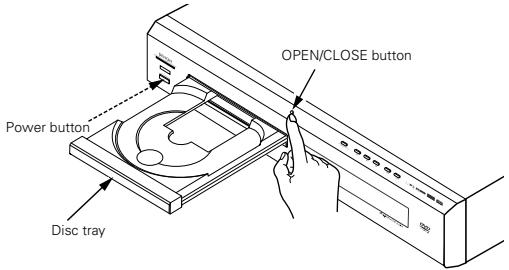
NOTES:
- Be sure to turn on the power before opening and closing the disc tray.
- Do not strike on the button with a pencil, etc.
(2) Loading Discs
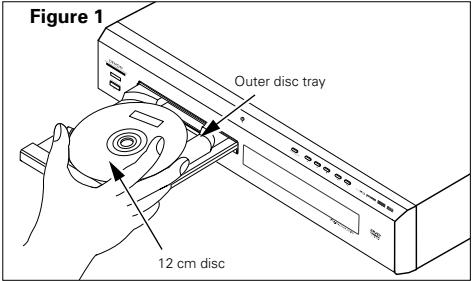
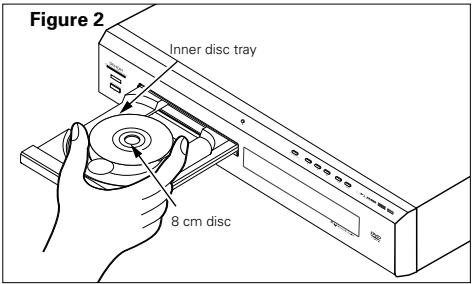
- Pick up the disc carefully so as not to touch the signal surface and hold it with the labeled side facing up.
- With the disc tray fully open, set the disc in the disc tray.
- Set 12 cm discs in the outer tray guide (Figure 1), 8 cm discs in the inner tray guide (Figure 2).
- Press the OPEN/CLOSE button. The disc is automatically loaded.
- The disc tray can also be closed automatically to load the disc by pressing the PLAY button.
NOTES:
- If your foreign object is caught in the disc tray during closing, simply press the OPEN/CLOSE button again and the tray will open.
- Do not press the disc tray in by hand when the power is off. Doing so will damage it.
- Do not place foreign objects in the disc tray. Doing so will damage it.
8 CHANGING THE DEFAULT SETTINGS
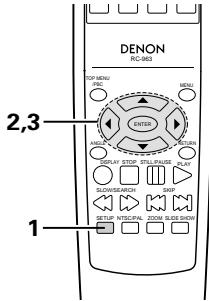
Make the initial settings to suit your usage conditions before starting playback. The initial settings are retained until they are next changed, even if the power is turned off.
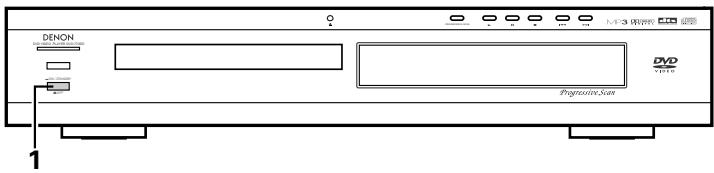
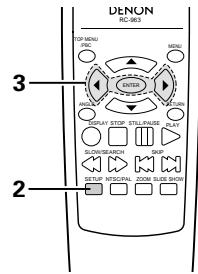
| 1 | Turn on the power. • Press the power button, the power indicator lights and the power turns on. | ON / STANDBY Main unit |
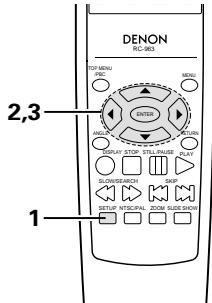
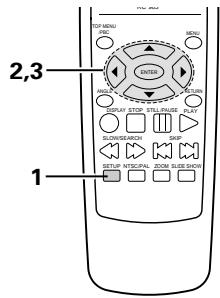
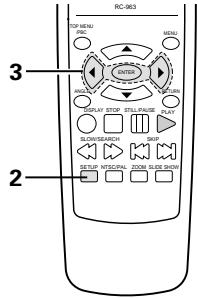
| 2 | In the stop mode, press the SETUP button. • The setup (default settings) screen appears. NOTE: • For some menus, the initial values can be changed during playback. VIDEO SETUP Use this to set the DVD-770SD's screen mode. (TV aspect, TV type and AV1 video output.) AUDIO SETUP Use this to set the DVD-770SD's audio output mode. (Digital and LPCM output settings.) DISC SETUP Use this to set the language to be used when playing the disc. If the set language is not offered on that disc, the discs default language is set. SYSTEM SETUP On-screen display language setting: The initial settings screen's language setting, etc., the viewing restriction level and playback of adult DVDs you do not want children, etc., to see can be restricted. The number of initial setting items can be increased. | SET UP Remote control unit |
| For the display of items marked “※”, see page 13. | ||
| 3 | Use the < and > cursor buttons to select the desired setting item. Select “VIDEO SETUP”. (See page 13, 14.) Select “AUDIO SETUP”. (See page 14, 15.) Select “DISC SETUP”. (See page 15, 16.) Select “SYSTEM SETUP” (See page 17.) | Enter Remote control unit |
| *To exit the setup mode Press the RETURN or SETUP button. | ||
Setup items for use
Bold characters indicate factory defaults.
The mark of ※ is indicated when SETUP MENU MODE is set up by an EXPERT.
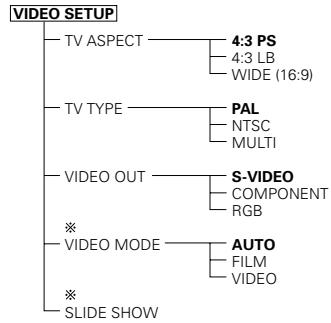
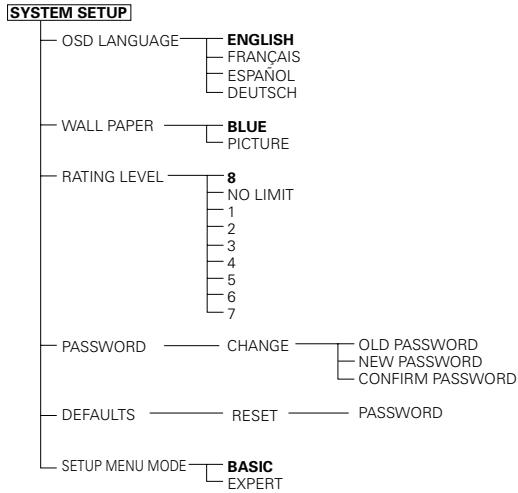
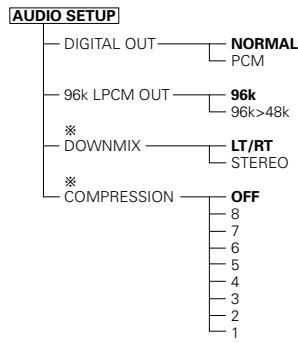
When "VIDEO SETUP" is selected
| 1 | See page 12. | |
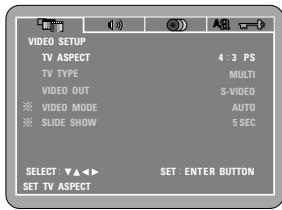
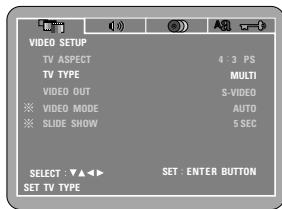
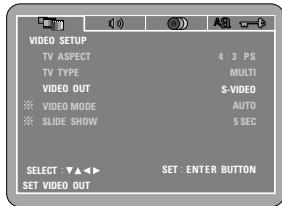
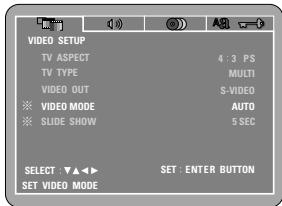
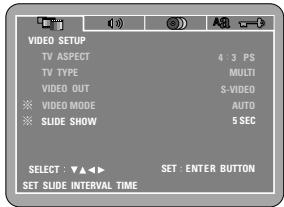
| 2 | Use the▲ and▼ cursor buttons to select the desired setting, then press the ENTER button. TV ASPECT Use this to set the shape of your TV's screen. TV TYPE Use this to set your TV's video format (NTSC, PAL or MULTI). VIDEO OUT Set the connector from which interlaced signals are to be output (S-VIDEO, COMPONENT or RBG). VIDEO MODE The play DVD video, select the desired video mode ("AUTO", "FILM", "VIDEO"). SLIDE SHOW The time interval for switching to the next still picture when playing slide shows of still pictures (in JPEG format) can be set. NOTES: • The video mode and slide mode are displayed when the "SETUP MENU MODE" at "SYSTEM SETUP" is set to "EXPERT". • When the video output is set to "PROGRESSIVE SCAN", signals are only output from the COMPONENT connector. | Remote control unit VIDEO SETUP VIDEO OUT VIDEO MODE VIDEO MODE SELECT▼▲▼ SET▼ ENTER BUTTON SET TV ASPECT |
Use the and cursor buttons to select the desired setting.
① When "TV ASPECT" is selected:
Press the ENTER button several times and select the aspect.
4:3 PS (Factory default)
Select this to play wide DVDs in the pan & scan mode (with the sides of the picture cut off). Discs for which pan & scan is not specified are played in the letter box mode.
4:3 LB
Select this to play wide DVDs in the letter box mode (with black strips at the top and bottom).
WIDE (16:9)
Select this to play wide DVDs in the full-screen mode.
② When "TV TYPE" is selected:
Press the ENTER button several times and select the type.
PAL (Factory default)
Select this when your TV's video format is PAL.
If PAL is selected, output format is fixed to PAL.
NTSC
Select this when your TV's video format is NTSC. If NTSC is selected, output format is fixed to NTS
MULTI
Select this when your TV is compatible with both the NTSC and PAL formats.
If you play the disc recorded NTSC format, signal from video output terminal will be switched to NTSC is selected, output format is fixed to NTSC.
③ When "VIDEO OUT" is selected:
Press the ENTER button several times and select the video out.
S-VIDEO (Factory default)
Video signals are output from the S-VIDEO output connector.
COMPONENT
Video signals are output from the color component output connectors.
RGB
Video signals are output from the 21-pin SCART connector.
- The VIDEO OUT setting cannot be made when "P.SCAN" is lit on the front panel display. Press the "PROGRESSIVE SCAN" button on the front panel to turn off "P.SCAN".
④ When "VIDEO MODE" is selected:
Press the ENTER button several times and select the video mode.
AUTO (Factory default)
The set identifies the type of material on the disc being played (film or video) and selects the mode automatically. This mode is suited for playing discs containing both film and video material.
FILM
This mode is best suited for playing discs containing film material or video material recorded with the progressive scan method.
VIDEO
This mode is best suited for playing discs containing video material.
⑤ When "SLIDE SHOW" is selected:
Press the ENTER button several times and select the slide switching interval.
The time interval can be set within 5 and 15 seconds. (The factory default setting is 5 seconds.)
NOTE:
- If stripes of noise appear on the picture or the picture is unclear when playing a specific DVD video disc, try changing the video mode.
Remote control unit
Remote control unit
*To exit the setup mode
Press the RETURN or SETUP button.
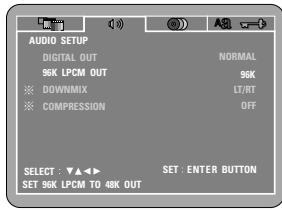
When "AUDIO SETUP" is selected
| 1 | See page 12. | |
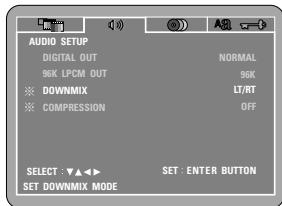
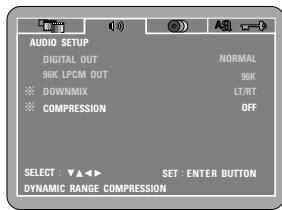
| 2 | Use the▲ and▼ cursor buttons to select the desired setting. DIGITAL OUT Use this to select the digital output's signal format. 96k LPCM OUT Use this to set the digital audio output when playing DVDs recorded in linear PCM audio. DOWNMIX Set this when connecting the unit to a stereo device. COMPRESSION Use this to set the dynamic range output when playing discs. | Remote control unit Audio setup Digital OUT SKL LPCM OUT ↓DOWNMIX ↓COMPRESSION SET: ENTER BUTTON SET DIGITAL OUT |
| 3 | ①When "DIGITAL OUT" is selected: Press the ENTER button several times and select the output format. NORMAL (Factory default) When playing DVDs recorded in Dolby Digital or DTS, bitstream signals are output from the digital audio output terminals. When playing DVDs recorded in linear PCM, linear PCM signals are output. Select "NORMAL" when making digital connections to an AV amplifier with built-in Dolby Digital and DTS decoder. PCM When playing Dolby Digital bitstream signals or DVDs recorded in linear PCM, the signals are converted into 48 kHz/16-bit PCM (2-channel) signals and output from the digital outputs. When playing DVDs recorded in PCM, linear PCM signals are output. | Remote control unit Audio setup Digital OUT SKL LPCM OUT ↓DOWNMIX ↓COMPRESSION SET: ENTER BUTTON SET DIGITAL OUT |
② When "96k LPCM OUT" is selected:
Press the ENTER button several times and select the conversion mode.
96k (Factory default)
When playing linear PCM DVDs that are not copyright-protected, for 2-channel PCM audio signals up to 96kHz linear PCM signals are output as such without being converted from the digital outputs.
PCM signals of 48kHz / 16 bits and lower are output, regardless of whether they are copyright-protected or not.
For DVDs containing multi-channel PCM signals, the digital signals are down-mixed for output into two channels, front left and right. (Only the front left and right channels are output for sources for which down-mixing is prohibited.)
When playing copyright-protected linear PCM DVDs, in consideration of copyrights, no digital signals are output for sources exceeding 48kHz / 16 bits. When playing such sources, either set to "96k>48k" or make analog connections. (See page 9.)
96k>48k
Linear PCM and packed PCM signals are converted to 44.1 kHz or 48 kHz and output. (The PCM digital audio output signals are converted to 48 kHz or less in consideration of copyrights.) When making digital connections to an AV amplifier that is not compatible with 96 kHz/88.2 kHz signals, set to "96k>48k".
When playing DVDs recorded in linear PCM or packed PCM and the unit is set to output digital and analog audio signals simultaneously, the analog audio output signals are also converted to 48kHz or below, so we recommend setting to "96k" and also making analog connections.
③ When "DOWNMIX" is selected:
Press the ENTER button several times and select the output format.
LT/RT (Factory default)
Set this when connecting the unit to a Dolby Pro Logic decoder.
STEREO
Set this when connecting the unit to a stereo device.
④ When "COMPRESSION" is selected:
OFF (Factory default)
Select this for the standard range.
LEVEL
Select this to achieve powerful sound even when the volume is low. This setting is suited for watching DVDs late at night with the volume low. (This setting is only valid for DVDs recorded in Dolby Digital.)
*To exit the setup mode
Press the RETURN or SETUP button.
Remote control unit
Remote control unit
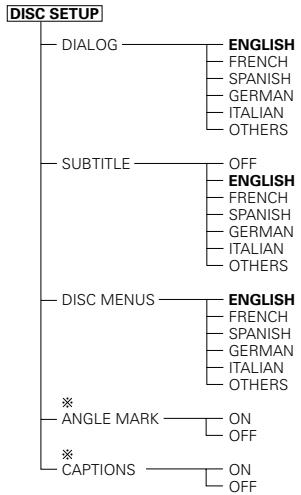
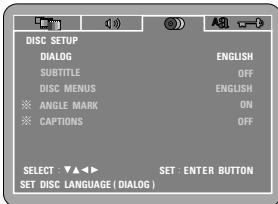
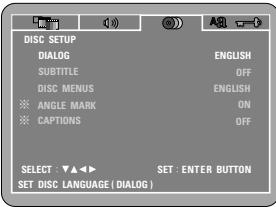
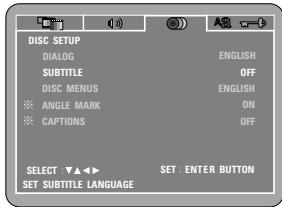
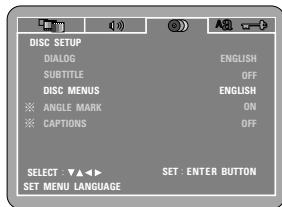
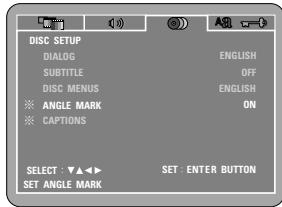
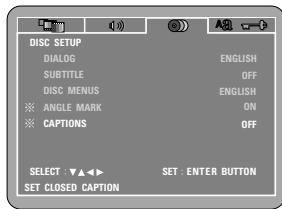
When "DISC SETUP" is selected
1 See page 12.
Use the and cursor buttons to select the desired setting, then press the ENTER button.
DIALOG
Use this to set the language of the sound output from the speakers.
SUBTITLE
2
Use this to set the language of the subtitles displayed on the TV.
DISC MENUS
Use this to set the language of the menus recorded on the disc (top menu, etc.).
ANGLE MARK
Angle marks are displayed/not displayed on the screen.
CAPTIONS
Use this to set whether or not to display the closed captions recorded on DVDs.
NOTE:
Angle marks and captions are displayed when "SET UP MENU MODE" at "SYSTEM SETUP" is set to "EXPERT".
① When "DIALOG" is selected:
Press the ENTER button several times and select the language.
ENGLISH (Factory default)
Select this when you want to play the DVD with the sound in English.
FRENCH
Select this when you want to play the DVD with the sound in French.
SPANISH
Select this when you want to play the DVD with the sound in Spanish.
GERMAN
Select this when you want to play the DVD with the sound in German.
ITALIAN
Select this when you want to play the DVD with the sound in Italian.
OTHERS
Use the number buttons to input the language number. (See "Language code list" on page 16.)
Remote control unit

Remote control unit
Remote control unit

Remote control unit
3
② When "SUBTITLE" is selected:
Press the ENTER button several times and select the language.
OFF
Select this if you do not want to display the subtitles. (For some discs it is not possible to turn off the subtitle display.)
ENGLISH (Factory default)
Select this when you want to play the DVD with the subtitles in English.
FRENCH
Select this when you want to play the DVD with the subtitles in French.
SPANISH
Select this when you want to play the DVD with the subtitles in Spanish.
GERMAN
Select this when you want to play the DVD with the subtitles in German.
ITALIAN
Select this when you want to play the DVD with the subtitles in Italian.
OTHERS
Use the number buttons to input the language number. (See "Language code list" on page 16.)
③ When "DISC MENUS" is selected:
Press the ENTER button several times and select the language.
ENGLISH (Factory default)
Select this when you want to display the menus in English.
FRENCH
Select this when you want to display the menus in French.
SPANISH
Select this when you want to display the menus in Spanish.
GERMAN
Select this when you want to display the menus in German.
ITALIAN
Select this when you want to display the menus in Italian.
OTHERS
Use the number buttons to input the language number. (See "Language code list" on page 16.)
④ When "ANGLE MARK" is selected:
Press the ENTER button several times and select "ON"or"OFF".
ON (factory default)
The angle mark is displayed when scenes at which angles are recorded are played.
OFF
The angle mark is not displayed, even when scenes at which angles are recorded are played.
(5) When "CAPTIONS" is selected
Press the ENTER button several times and select "ON"or"OFF".
OFF (Factory default)
Select this when you do not want to display the captions on the screen when playing DVDs containing English captions
ON
Select this to display the captions on the screen when playing DVDs containing English captions.
*To exit the setup mode
Press the RETURN or SETUP button.
Remote control unit

Remote control unit
NOTES:
- An English caption decoder is required to display English captions.
- DVDs with caption signals are indicated by the , , mark.
English captions cannot be displayed when playing DVDs which do not contain caption signals. - The characters in which the captions are displayed (capital letters, small letters, italics, etc.) depend on the DVD and cannot be selected with the DVD-770SD.
Language code list
| Code | Language | Code | Language | Code | Language | Code | Language |
| 6565 | Afar | 7079 | Faroese | 7678 | Lingala | 8375 | Slovak |
| 6566 | Abkhazian | 7082 | French | 7679 | Laothian | 8376 | Slovenian |
| 6570 | Afrikaans | 7089 | Frisian | 7684 | Lithuanian | 8377 | Samoan |
| 6577 | Ameharic | 7165 | Irish | 7686 | Latvian, Lettish | 8378 | Shona |
| 6582 | Arabic | 7168 | Scots Gaelic | 7771 | Malagasy | 8379 | Somali |
| 6583 | Assamese | 7176 | Galician | 7773 | Maori | 8381 | Albanian |
| 6588 | Aymara | 7178 | Guarani | 7775 | Macedonish | 8382 | Serbian |
| 6590 | Azerbaijani | 7185 | Gujarati | 7776 | Malayalam | 8385 | Sundanese |
| 6665 | Bashkir | 7265 | Hausa | 7778 | Mongolian | 8386 | Swedish |
| 6669 | Byelorussian | 7273 | Hindi | 7779 | Moldavian | 8387 | Swahili |
| 6671 | Bulgarian | 7282 | Croatian | 7782 | Marathi | 8465 | Tamil |
| 6672 | Bihari | 7285 | Hungarian | 7783 | Malay | 8469 | Telugu |
| 6678 | Bengali; Bangla | 7289 | Armenian | 7784 | Maltese | 8471 | Tajik |
| 6679 | Tibetan | 7365 | Interlingua | 7789 | Burmese | 8472 | Thai |
| 6682 | Breton | 7378 | Indonesian | 7865 | Nauru | 8473 | Tigrinya |
| 6765 | Catalan | 7383 | Icelandic | 7869 | Nepali | 8475 | Turkmen |
| 6779 | Corsican | 7384 | Italian | 7876 | Dutch | 8476 | Tagalog |
| 6783 | Czech | 7387 | Hebrew | 7879 | Norwegian | 8479 | Tonga |
| 6789 | Welsh | 7465 | Japanese | 7982 | Oriya | 8482 | Turkish |
| 6865 | Danish | 7473 | Yiddish | 8065 | Panjabi | 8484 | Tatar |
| 6869 | German | 7487 | Javanese | 8076 | Polish | 8487 | Twi |
| 6890 | Bhutani | 7565 | Georgian | 8083 | Pashto, Pushto | 8575 | Ukrainian |
| 6976 | Greek | 7575 | Kazakh | 8084 | Portuguese | 8582 | Urdu |
| 6978 | English | 7576 | Greenlandic | 8185 | Quechua | 8590 | Uzbek |
| 6979 | Esperanto | 7577 | Cambodian | 8277 | Rhaeto-Romance | 8673 | Vietnamese |
| 6983 | Spanish | 7578 | Kannada | 8279 | Romanian | 8679 | Volapük |
| 6984 | Estonian | 7579 | Korean | 8285 | Russian | 8779 | Wolof |
| 6985 | Basque | 7583 | Kashmiri | 8365 | Sanskrit | 8872 | Xhosa |
| 7065 | Persian | 7585 | Kurdish | 8368 | Sindhi | 8979 | Yoruba |
| 7073 | Finnish | 7589 | Kirghiz | 8372 | Serbo-Croatian | 9072 | Chinese |
| 7074 | Fiji | 7665 | Latin | 8373 | Singhalese | 9085 | Zulu |
When "SYSTEM SETUP" is selected
| 1 | See page 12. | |
| 2 | Use the▲ and▼ cursor buttons to select the desired setting. OSD LANGUAGE Use this to set the language for the default setting screen and messages displayed on the TV screen ("PLAY", etc.) WALL PAPER Use this to select the image to be shown on the screen in the stop mode and CD play mode. RATING LEVEL Use this to restrict playback of adult DVDs you do not want children to view. Note that even with adult DVDs, viewing cannot be restricted unless the restriction level is recorded on the disc. It is however possible to disable playback of all DVDs. PASSWORD Use this to change the password. The set's password is set to "0000" by default. DEFAULTS Use this to restore settings changed at "INITIAL SETTINGS" to their original (default) values. SETUP MENU MODE The number of initial setting items can be increased. | Remote control unit SYSTEM SETUP OSD LANGUAGE WALL PAPER RATING LEVEL password DEFAULTS RESET SET菜单模式 SYSTEM SET SELECT▼▲▼→ SET ENTER BUTTON SET OSD LANGUAGE |
| 3 | ①When "OSD LANGUAGE" is selected: Press the ENTER button several times and select "LANGUAGE". ENGLISH (Factory default) Select this to set the OSD language to English. FRANÇAIS Select this to set the OSD language to French. ESPÁNOL Select this to set the OSD language to Spanish. DEUTSCH Select this to set the OSD language to German. | Remote control unit SYSTEM Control Unit OSD LANGUAGE WALL PAPER RATING LEVEL password DEFAULTS RESET SET菜单模式 SYSTEM SET SELECT▼▲▼→ SET ENTER BUTTON SET OSD LANGUAGE |
② When "WALL PAPER" is selected:
BLUE (Factory default)
Select this to display a blue background on the TV display.
PICTURE
Select this to display the wallpaper on the TV display.
③ When “RATING LEVEL” is selected:
- Press the ENTER button.
2.Use the number buttons to input the password (a 4-digit number), then press the ENTER button. - The password is initially set to "0000"
- The password can be changed by changing it to a new password at "password". (See below.)
- Press the ENTER button several times and select "LEVEL".
LEVEL 8 (factory default)
LEVEL 1 to 7
The lower the level, the stricter the restrictions.
No restrictions
Select this when you want to play all DVDs (for adults, general audiences and children).
④ When “password” is selected:
- Press the ENTER button.
2.Use the number buttons to input the previously set password (a 4-digit number), next input the new password, then input the new password again, and finally press the ENTER button. - The password is initially set to "0000"
- Be careful not to forget the password.
- The settings cannot be changed until the proper password is input.
⑤ When “DEFAULT” is selected:
- Press the ENTER button.
2.Use the number buttons to input the password, then press the ENTER button. The settings that have been changed at "INITIAL SETTINGS" are restored to their initial (default) values.
⑥ When “SETUP MENU MODE” is selected:
Press the ENTER button several times and select "SET UP".
BASIC (Factory default)
EXPERT
The number of setting items for the various settings can be increased.
| SYSTEM SETUP | |
| OSD LANGUAGE | ENGLISH |
| WALL PAPER | BLUE |
| RATING LEVEL | 8 |
| DATABASES | CHANGE |
| SETUP MENU MODE | RESET |
| SELECT :▲→ | SET:ENTER BUTTON |
| SET WALL PAPER | |
| SYSTEM SETUP | |
| OSD LANGUAGE | ENGLISH |
| WALL PAPER | BLUE |
| RATING LEVEL | 8 |
| DATABASES | CHANGE |
| SETUP MENU MODE | RESET |
| SELECT ↓▲→ | SET:ENTER BUTTON |
| SET PARENTAL CONTROL | |
| SYSTEM SETUP | |
| OSD LANGUAGE | ENGLISH |
| Wall PAPI | BLUE |
| RATING LE | 8 |
| PASSWDRE | CHANGE |
| DEFAULTS | RESET |
| SETUP ME | BASIC |
| PLEASE ENTER OLD PASSWORD | |
| SYSTEM SETUP OSD LANGUAGE | ENGLISH |
| WALL PAPER | BLUE |
| RATING LEVEL | 8 |
| DATABASES | CHANGE |
| RESET | |
| SET MENU MODE | BASIC |
| SELECT :▼▲→ | SET:ENTER BUTTON |
| LOAD FACTORY SETTING |
| SYSTEM SETUP | |
| OSD LANGUAGE | ENGLISH |
| Wall PAPER | BLUE |
| RATING LEVEL | 8 |
| DATABASE | CHANGE |
| DEFAULTS | RESET |
| SETUP MENU MODE | BASIC |
| SELECT ↓▲→ | SET:ENTER BUTTON |
| SETUP MENU MODE | |
*To exit the setup mode
Press the RETURN or SETUP button.
9 PLAYBACK
(1) Playback
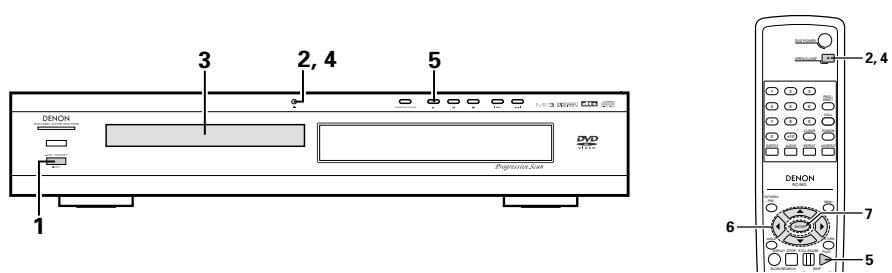
| 1 | Turn on the power. • Press the power button, the power indicator lights and the power turn on. • When standby mode, press the POWER ON button of remote control unit. | ON/STANDBY Main unit | |
| 2 | Press the OPEN/CLOSE button to open the disc tray. | Open/CLOSE Main unit | Remote control unit |
| 3 | Set the disc in the disc tray. | ||
| 4 | Press the OPEN/CLOSE button. • For many interactive DVDs and video CDs with playback control, a menu screen appears. In this case use the procedure in step 6 to select the desired item. *Interactive DVDs are DVDs including multiple angles, stories, etc. | Open/CLOSE Example: For DVDs with menu screens | Remote control unit Example: For video CDs with playback control |
| TOP MENU Apple Banana Orange Strawberry Peach Pineapple | 1. Opening 2. 1st movement 3. 2nd movement 4. 3rd movement 5. Ending | ||
| 5 | Press the PLAY button. | Main unit | PLAY Remote control unit |
| 6 | Use the cursor buttons (▲,▼,▲ and ▲) to select the desired item. • For some discs there is a second menu screen. If so, press the ▲按钮 to display the next menu screen. (See the disc's jacket.) *The cursor buttons (▲,▼,▲ and ▲) do not work for video CDs. Use the number buttons to select the desired item. | Remote control unit | |
| 7 | Press the ENTER button. • The desired item is selected and playback starts. • You can return to the menu screen by pressing the TOP MENU/MENU button while the DVD is playing, though this depends on the disc. • Press the RETURN button during playback of a video CD to return to the menu screen. | Example: When "Apple" is selected TOP MENU Apple Banana Orange Strawberry Peach Pineapple | Remote control unit Apple |
NOTES:
- If appears on the TV screen while buttons are - Do not place more than one disc in the disc tray.
being operated, that operation is not possible on The disc keeps turning while the menu screen is displayed on the TV screen. - Set the disc in the disc guide.
(2) Stopping Playback
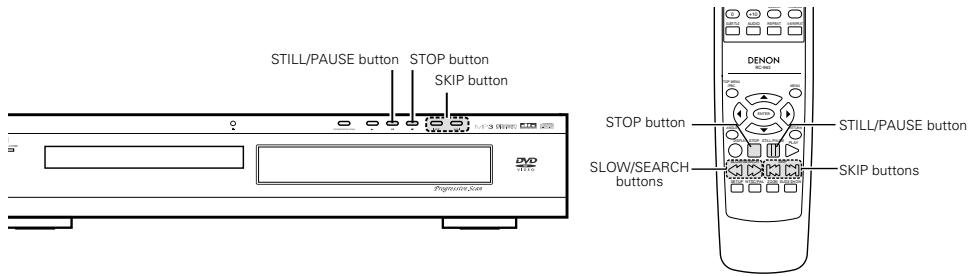
During playback, press the STOP button on the main unit or the remote control unit, playback stops and wall paper is displayed.
Resume play memory function
- With the DVD-770SD, when the STOP button is pressed, that position is stored in the memory. At this time, "▶" flashes on the display. (DVD only)
- When the PLAY button is pressed after pressing the STOP button, playback resumes from the position at which it was stopped. (DVD only)
- The resume play memory function is canceled if the disc tray is opened or the STOP button is pressed a second time. (DVD only) (Playback starts from the beginning of the disc if the PLY button is not pressed within approximately 10 seconds.)
- If you do not want to continue playing the disc, to save electricity either press the POWER button on the main to turn the power off or press the POWER ON button on the remote control unit to set the power to the standby mode.

Main unit

Remote control unit
*The resume play memory function only works for discs for which the elapsed time is shown on the display during playback.
(3) Playing Still Pictures (Pausing)
During playback, press the STILL/PAUSE button on the main unit or the remote control unit.
- Press the PLAY button to resume normal playback.

Main unit

Remote control unit
(4) Forward/Reverse Searching
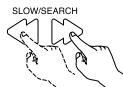
During playback, press one of the SLOW/SEARCH buttons on the main unit or the remote control unit.
: Reverse direction
Forward direction
- When pressed again, the search speed increases (in four steps).
- Variable in 3 steps for CDs and video CD discs, 4 steps for DVD video.
- Press the PLAY button to resume normal playback.
Remote control unit
(5) Skipping to the Beginning of Chapters or Tracks
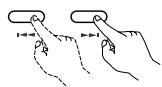
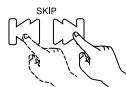
During playback, press one of the skip buttons on the main unit or the remote control unit.
: Reverse direction
Forward direction
- A number of chapters or tracks equal to the number of times the button is pressed is skipped.
- When the skip back button is pressed once, the pickup returns to the beginning of the currently playing chapter or track.

Reverse direction Forward direction (direction of playback)
Main unit
Remote control unit
NOTE:
- In some cases the menu screen may reappear when one of the SKIP buttons is pressed during menu playback on a video CD.
(6) Playing Frame by Frame (for DVDs and video CDs only)
During playback, press the STILL/PAUSE button on the main unit or the remote control unit.
- The picture moves forward one frame each time the button is pressed.
- Press the PLAY button to resume normal playback.

Main unit

Remote control unit
(7) SlowPlayback (forDVDs and video CDs only)
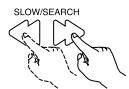
In the still mode, press one of the SLOW/SEARCH buttons on the main unit or the remote control unit.
: Reverse direction
Forward direction
- When pressed again, the slow play speed increases. For video CDs there are three steps.
Remote control unit
NOTE:
- Reverse slow play is not possible on video CDs.
10 PLAYING REPEATEDLY
Use this function to play your favorite audio or video sections repeatedly.
Playing Repeatedly (Repeat Playback)
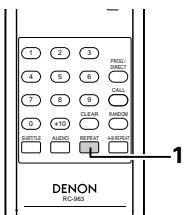
1
In the play mode, press the REPEAT button.
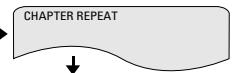
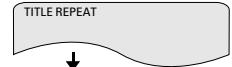
- The display on the TV screen switches each time the button is pressed, and the corresponding repeat play or stop mode is set.

Remote control unit
① For DVD video discs
- Normal playback
Chapter repeated
- Title repeated
- Repeat playback cancelled
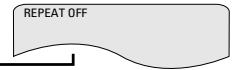
② For video and music CDs
- Normal playback
- Track repeated
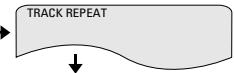
Entire disc repeated

DISC REPEAT
- Repeat playback cancelled
REPEAT OFF
*To return to normal playback:
Return to normal playback by pressing the button REPEAT button until "REPEAT OFF" appears on the TV screen.
Playing a Certain Section Repeatedly (A-B Repeat Playback)
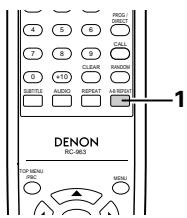
| 1 | During playback, press the A-B button. ·This sets start point A. | Remote control unit | A TO B SET A |
| 2 | Press the A-B button again. ·This sets end point B, and repeat playback of the A-B section starts. | Remote control unit | A TO B SET B |
*To return to normal playback:
Press the A-B button until "A TO B CANCELED" appears on the TV screen.
NOTES:
- Repeat playback may not work for some DVDs.
- The repeat playback and A-B repeat playback functions will not work for DVDs and video CDs for which the elapsed time is not shown on the display during playback.
- Repeat playback is not possible when PBC is turned on with video CDs. Press the TOP/MENU/PBC button to turn PBC off.
11 PLAYING TRACKS IN THE DESIRED ORDER
Use this function with video and music CDs to play the tracks in the desired order. This function does not affect with DVD.
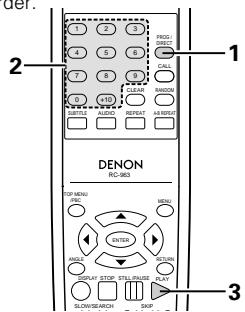
NOTE:
- Programmed playback is not possible when PBC is turned on with video CDs. Press the TOP MENU/PBC button to turn PBC off.
| 1 | In the stop mode, press the PROG/DIR button once. • The program selection screen appears. | Remote control unit | |
| 2 | Use the number buttons to select the number of the track you want to program. Press the ENTER button. To program other tracks, select one track number at a time and press the ENTER button after each number is selected. • Up to 20 tracks can be programmed. EX: To program track 5 and track 12: | 1 2 5 4 5 6 7 8 9 0 +10 Remote control unit | |
| 3 | Press the PLAY button. • Playback of the tracks in the programmed order begins. | Main unit | |
| *To return to normal playback: Press the STOP button to stop programmed playback, then press the PROG/DIR button. Now press the PLAY button to start normal playback from the beginning of the disc. *To clear tracks from the program: Press the STOP button. The program play screen appears. Press the CLEAR button to clear the last track in the program. *To clear the entire program: The entire program is cleared when the power is turned off or the disc is ejected. Also, when the STOP button is pressed to stop programmed playback and the PROG button is pressed, the entire program is cleared. *To check the programmed contents, press the CALL button. The programmed contents are displayed step by step. | |||
12 PLAYING TRACKS IN THE RANDOM ORDER
Use this function with video and music CDs to play the tracks in random order. This function does not affect with DVD.
NOTE:
- Random playback is not possible when PBC is turned on with video CDs. Press the TOP MENU/PBC button to turn PBC off.
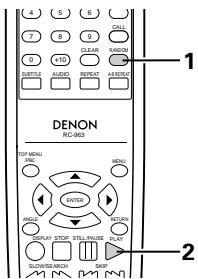
| 1 | In the stop mode, press the RANDOM button. • The random play screen appears. • Random playback is not possible for some discs. | RANDOM Remote control unit RANDOM ON |
| 2 | Press the PLAY button. • The tracks start playing in random order. | Main unit PLAY Remote control unit |
| *To return to normal playback: Press the STOP button to stop random playback, then press the RANDOM button once. | ||
13 USING THE ON-SCREEN DISPLAY
Use this function to display and change information on the disc (titles, chapters, time, etc.)
NOTE:
- The on-screen display function does not work when PBC is turned on with video CDs. Press the TOP MENU/PBC button to turn PBC off.
| 1 | In the play mode, press the DISPLAY button. • The On-Screen Display appears. • The picture on the TV screen switches each time the button is pressed. • The items displayed differ from disc to disc. | DISPLAY Remote control unit |
| 2 | Example: For DVD video discs → T01/10 C01/10 D00:01 → AUDIO 1/2 DIGITAL SUBTITLE 2/4 ENG Example: For video and music CDs → TRACK 01/10 SINGLE ELAPSED 0:26:11 → SINGLE REMAIN TOTAL ELAPSED 0:06:15 TOTAL REMAIN 0:32:05 | |
| 3 | Input using the number buttons, then press the ENTER button. ① Changing the elapsed time Use the < and > cursor buttons to select the elapsed time.The selected item is displayed with a yellow frame. • For DVDs Example: For 1 Hour 32 minute 47 seconds → "13247" : For 1 minute 26 seconds → "00126" • For video and music CDs Example: For 1 minute 26 seconds → "0126" ② Changing the title, track or chapter • For DVDs Use the < and > cursor buttons to select the track. Input using the number buttons, then press the ENTER button. • For video and music CDs Use the < and > cursor buttons to select the track.The selected item is displayed with a yellow frame. Input using the number buttons. Playback starts from that track. | 1 2 3 4 5 6 7 8 9 0 +10 Remote control unit |
14 USING THE MULTIPLE AUDIO, SUBTITLE AND ANGLE FUNCTIONS
Switching the Audio Language (Multiple Audio Function)
■ With DVDs containing multiple audio language signals, the audio language can be switched during playback.
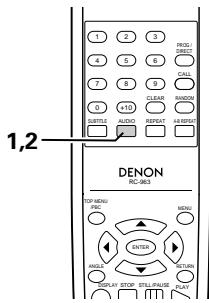
| 1 | During playback, press the AUDIO button. • The current audio language number is displayed. | AUDIO Remote control unit | AUDIO 1/3 DIGITAL ENG |
| 2 | Use the AUDIO buttons to select the desired language. | AUDIO Remote control unit | AUDIO 2/3 DIGITAL SPA |
NOTES:
- With some discs it is not possible to change the audio language during playback. In such cases, select from the DVD menu. (See page 24.)
- If the desired language is not set after pressing the AUDIO buttons several times, the disc does not include that language.
- The language selected in the default settings (see page 13) is set when the power is turned on and when the disc is replaced.
Switching the Subtitle Language (Multiple Subtitle Function)
■ With DVDs containing multiple subtitle language signals, the subtitle language can be switched during playback.
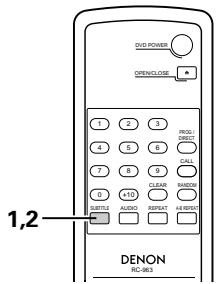
| 1 | During playback, press the SUBTITLE button. ·The current subtitle language number is displayed. | SUBTITLE Remote control unit | SUBTITLE 1/2 ENG |
| 2 | Use the SUBTITLE button to select the desired language. | SUBTITLE Remote control unit | SUBTITLE 2/2 SPA |
NOTES:
- If the desired language is not set after pressing the SUBTITLE cursor buttons several times, the disc does not include that language.
- The subtitle language set with the default settings (see page 16) is set when the power is turned on and when the disc is replaced. If that language is not included on the disc, the disc's default language is set.
- When the subtitle language is changed, several seconds may be required for the new language to appear.
- When a disc supporting the closed caption is played, the subtitle and the closed caption may overlap each other on the TV monitor. In this case, turn the subtitle off.
Switching the Angle (Multiple Angle Function)
■ With DVDs containing multiple angle signals, the angle can be switched during playback.
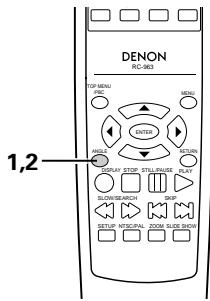
| 1 | During playback, press the ANGLE button. • The current angle number is displayed. | ANGLE Remote control unit | 3/5 |
| 2 | Use the ANGLE button to select the desired angle. | ANGLE Remote control unit | 4/5 |
NOTES:
- The multiple angle function only works with discs on which multiple angles are recorded.
- "ANGLE" lights on the main unit's display when playing a section recorded in the multi-angle mode.
- At scenes where multiple angles are recorded, the angle can be switched.

USING THE MENUS
Using the Top Menu
For DVDs containing multiple titles, the desired title can be selected and played from the top menu.
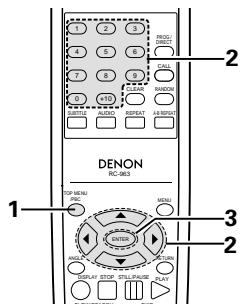
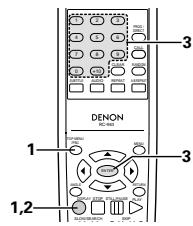
| 1 | During playback, press the TOP MENU/PBC button. • The top menu appears. | Example: TOP MENU Top Menu Apple Banana Orange Strawberry Peach Pineapple |
| 2 | Use the cursor or number buttons to select the desired title. | Example: When “Orange” is selected TOP MENU Apple Banana Orange Strawberry Peach Pineapple |
| Remote control unit 1 2 3 4 5 6 7 8 9 0 +10 Remote control unit | ||
| 3 | Press the ENTER button. •Playback starts. •Playback also starts if the PLAY button is pressed. | Enter Remote control unit |
Using the DVD Menu
Some DVDs include special menus called DVD menus.
For example, DVDs with complex contents may contain guide menus, and DVDs with multiple languages may contain audio and subtitle language menus.
These menus are called "DVD menus"
Here we describe the general procedure for using DVD menus.
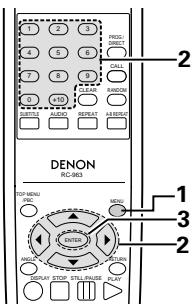
| 1 | During playback, press the MENU button. • The DVD menu appears. | Example: DVD MENU 1. SUB TITLE 2. AUDIO 3. ANGLE |
| 2 | Use the cursor or number buttons to select the desired item. • If you select the item using the number buttons, skip step 3 below. | Example: "AUDIO" is selected DVD MENU 1. SUB TITLE 2. AUDIO 3. ANGLE |
| Remote control unit 1 2 3 4 5 6 7 8 9 0 +10 Remote control unit | ||
| 3 | Press the ENTER button. • The selected item is set. • If more menus appear, repeat steps 2 and 3. | ENTER Remote control unit |
16 PLAYING IN THE ZOOM MODE
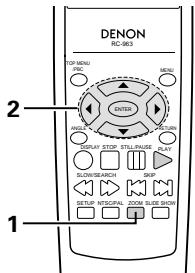
| 1 | In the play or pause mode, press the ZOOM button. • The zoom rate increases each time the ZOOM button is pressed. For DVD video discs and video CDs: OFF → x2 → x4 → x16 → OFF | Remote control unit |
| 2 | Use the cursor buttons (▼,▲,▲ and ▷) to move the zoomed picture. | Remote control unit |
NOTES:
- Zooming is not possible with some discs.
- The zoom function may not work properly at some scenes.
- Zooming is not possible at the top menu or the menu screen.
17 MP3, Wondows Media - formated file PLAYBACK
Listening to MP3 CD, CD-Rs and CD-RWs
There are many music distribution sites on the internet from which music files in MP3 format can be downloaded. Music downloaded as instructed on the site and written onto a CD-R/RW disc can be played on the DVD-770SD.
If music recorded on commercially available music CDs is converted on a computer into MP3 files using an MP3 encoder (conversion software), the data on a 12cm CD is reduced into about 1/10 the amount of the original data. Thus, when written in MP3 format, the data of about 10 music CDs can fit onto a single CD-R/RW disc. A single CD-R/RW disc can contain over 100 tracks.
Values when 5-minute tracks are converted with a standard bit rate of 128 kbps into MP3 files and using a CD-R/RW disc with a capacity of 650 MB.
Uses of recordings you have made other than for your personal enjoyment are not permitted under the copyright law without permission of the copyright holder.
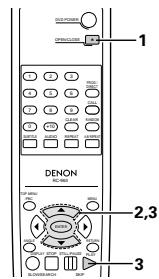
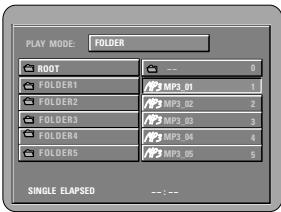
| 1 | Load the CD-R/RW disc on which the MP3 format music files have been written into the DVD-770SD. (See page 12.) ·When the disc is loaded in the DVD-770SD, the disc information screen appears. ·If there are multiple folders, proceed to step 2. ·If there are no folders on the disc, proceed to step 3. | |
| 2 | Use the ▲ and ▼ cursor buttons to select the folder containing the file(s) you want to play, then press the ENTER button. ·If there are multiple folders, proceed to step 2. *To change the folder Use the ▲ and ▼ cursor buttons to select "ROOT" at the upper right of the screen, then press the ENTER button. The screen in step 1 reappears. Select the desired folder. | Remote control unit ENTER Remote control unit |
3
Use the and cursor buttons to select the MP3 file you want to play, then press the PLAY button or ENTER button.
- Playback starts.
*The display can be switched between the single elapsed time and the single remaining time by pressing the DISPLAY button.
*Programmed playback is not possible with MP3 discs.
*To change the MP3 file
Press the STOP button, then use the and cursor buttons to reselect the desired MP3 file.
*To set the random play mode
(Also refer to "Special MP3 and JPEG Playback" on page 27.)
In the stop mode, press the RANDOM button. Then press the PLAY button or ENTER button.
*To set the repeat mode
(Also refer to "Special MP3 and JPEG Playback" on page 27.)
The repeat mode changes each time the REPEAT button is pressed.
FOLDER FOLDER REPEAT DISC
↑
SINGLE REPEAT ALL REPEAT
*To return to the initial disc information screen
Press the STOP button, use the cursor button to select "ROOT" at the upper right of the screen, then press the ENTER button.
The screen in step 1 reappears.
Remote control unit
Remote control unit

Main unit

Remote control unit
NOTES:
- The DVD-770SD is compatible with the "MPEG-1 Audio Layer 3" standards (sampling frequency of 32, 44.1 or 48kHz ). It is not compatible with such other standards as "MPEG-2 Audio Layer 3", "MPEG-2.5 Audio Layer 3", MP1, MP2, etc.
It may not be possible to play some CD-R/RW discs due to disc properties, dirt, warping, etc. - The digital signals output when playing MP3 files are MP3 signals converted into PCM, regardless of whether the audio output presetting is set to "normal" or "PCM". The signals are output with the same sampling frequency as that of the music source.
- In general, the higher an MP3 file's bit rate, the better the sound quality. On the DVD-770SD, we recommend using MP3 files recorded with bit rates of 128 kbps or greater.
- MP3 files may not be played in the expected order, since the writing software may change the position of the folders and the order of the files when writing them on the CD-R/RW.
- Programmed playback is not possible with MP3 discs.
- When writing MP3 files on CD-R/RW discs, select "ISO9660 level 1" as the writing software format. This may not be possible with some types of writing software. For details, refer to the writing software's usage instructions.
- With the DVD-770SD it is possible to display folder names and file names on the screen like titles. The DVD-770SD can display up to 8 characters, consisting of numbers, capital letters, and the " _ " (underscore) mark.
- If recorded in a format other than "ISO9660 level 1", normal display and playback may not be possible. In addition, folder and file names including other symbols will not be displayed properly.
- Be sure to add the extension ".MP3" to MP3 files. Files cannot be played if they have any extension other than ".MP3" or if they have no extension. (with Macintosh computers, MP3 files can be played by adding the extension ".MP3" after the file name consisting of up to 8 capital or numbers and recording the files on the CD-R/RW.)
- Do not apply stickers, tape, etc., to either the label side or the signal side of CD-R/RW discs. If adhesive gets on the surface of a disc, the disc may get stuck inside the DVD-770SD and be impossible to eject.
- The DVD-770SD is not compatible with packet write software.
- The DVD-770SD is not compatible with ID3-Tag.
- The DVD-770SD is not compatible with play lists.
- Do not play CD-R/RW discs containing any files other than music CD files (in CDA format), MP3, JPEG and Windows Media-formatted files. Doing so may result in malfunction or damage, depending on the type of file.
Listening to Recorded Windows Media-formatted file CD-R/CD-RW
- This unit can play CD-R/RW music files that have been recorded in the Windows Media-formatted file audio compression format.

Windows Media, and the Windows logo are trademarks, or registered trademarks of Microsoft Corporation in the United States and/or other countries.
- Uses of recordings you have made other than for your personal enjoyment are not permitted under the Copyright Law without permission of the copyright holder.
The method of playback is the same as "[1] Listening to Recorded MP3 CD/CD-R/RW" on Page 25. - In the file display of the disc information screen, Windows Media-formatted file files will be displayed with the "WMA" icon instead of the "MP3" icon. (Files for which the "WMA" icon is not displayed cannot be played.)
NOTES:
- Files recorded with a sampling frequency (fs) of 32, 44.1, and 48kHz are supported.
- Programmed playback cannot be performed with Windows Media-formatted files.
- The digital output at the time of Windows Media-formatted file playback is converted to PCM regardless of the initial settings.
- Please use discs that have been recorded in conformity with the ISO 9660 level 1/level 2 CD-ROM file system. (Extended formats are excluded.)
Copyright protected files cannot be played. Also note that depending on the writing software and conditions, playback might not be possible, or the files might not be displayed properly. - Playback of the CD-R/RW might not be possible depending on the disc characteristics, soiling, scratches, and other factors.
- Bit rates of 64 k to 160 kbps are supported for Windows Media-formatted files that have an extension of ".wma" or ".WMA".
- This unit can display the artist names and title name on the screen up to 32 half-width alphanumeric upper case characters and symbols (including the underscore symbol) can be displayed.
- This unit can display the folder names and file names on the screen. Up to 11 half-width alphanumeric upper case characters and symbols (including the underscore symbol) can be displayed.
- While in the stop condition, the DISPLAY button of the remote control can be used to switch and display the title names and the artist names. (One folder has a capacity of up to 99 files.)
- Recorded discs with no more than 99 files per folder are recommended. Multiple folder configurations are possible; however, depending on the configuration, playback of all the folders and files might not be possible.
- Multi-session discs and CD-R/RW that have not been finalized can also be played back; however, playback of discs that have had session closure within 10 sessions or have been finalized is recommended.
- Direct track selection using the remote control numerical keys (0 to 9, and +10) can specify up to 179 tracks (179 files) per folder. When 179 tracks are exceeded, while the unit is stopped use the cursor buttons at the disc information screen to select the files, and use the play button of the ENTER button to play.
18 PLAYING STILL PICTURE FILES (JPEG FORMAT)
Uses of recordings you have made other than for your personal enjoyment are not permitted under the copyright law without permission of the copyright holder.
Playing still pictures stored on CD-Rs/RWs
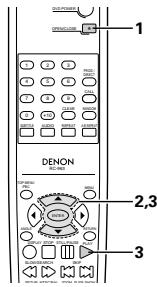
1
Load the CD-R/RW on which the still pictures have been written into the DVD-770SD.
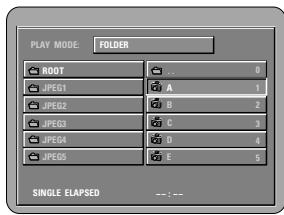
- When the disc is loaded in the DVD-770SD, the disc information screen appears.
- If there are multiple folders proceed to step 2.
- If there are no folders on the disc, proceed to step 3.
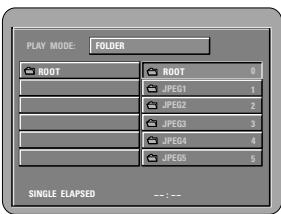
2
Use the and cursor buttons to select the folder containing the file(s) you want to play, then press the ENTER button.
2
*To change the folder
Use the cursor button to select "ROOT" at the upper right of the screen, then press the ENTER button. The screen in step 1 reappears. Select the desired folder.
Remote control unit
Remote control unit
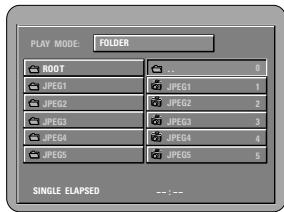
3
Use the and cursor buttons on the remote control unit to select the still picture file from which you want to start the slide show, then press the PLAY button or the ENTER button on the remote control unit.
- The slide show starts.
- Only the still picture files in the selected folder are played.
*Once all the still picture files in the folder have been played, the disc information screen reappears.
Remote control unit

Remote control unit

Main unit

Remote control unit
*To view several of the still pictures stored on the disc at once:
- Press the MENU button to display up to 9 still pictures at once.
- To select and view a still picture (to start the slide show from a specific still picture), use the cursor buttons (, , and ) to select the desired still picture, then press the ENTER button.
*To temporarily stop the slide show:
- Press the STILL/PAUSE button.
- To resume the slide show, press the PLAY button.
*To cue a still picture you want to view (from which you want to start the slide show):
-
During the slide show, press one of the SKIP (▶▶) buttons. Press the SKIP button to cue back to the previous still picture, the SKIP▶按钮 to cue ahead to the next still picture.
-
Flipping and rotating still pictures:
-
Use the cursor buttons (, , and ) to flip the still picture.
cursor button: The currently displayed still picture is flipped vertically.
cursor button: The currently displayed still picture is flipped horizontally.
cursor button: The currently displayed still picture is rotate 90^ counterclockwise.
cursor button: The currently displayed still picture is rotate 90^ clockwise.
*Play the image in the zoom mode.
- When the ZOOM button is pressed while playing a JPEG image ("ZOOM ON" is displayed on the screen at this time) zoom in and zoom out using the search keys.
(▲: zoom out, ▲: zoom in) - When the image is zoomed, use the cursor buttons (▼, ▲, △ and ▶) to move the zoomed picture.
- Continuous playback (SLIDE SHOW) is not possible in the zoom mode.
*The way of switching to the next image during continuous JPEG image playback (SLIDE SHOW) can be selected.
- Press the SLIDE SHOW button on the remote control unit.
- Select from SLIDE SHOW MODE 1 to MODE 11, RAND and NONE.
Special play modes for MP3 and JPEG files
- FOLDER (the MP3 and JPEG files in the folder are played in order starting from the selected file)
- FOLDER REPEAT (all the MP3 and JPEG files in the folder are played repeatedly starting from the selected file)
DISC (all the MP3 and JPEG files on the disc are played in order starting from the selected file)
DISC REPEAT (all the MP3 and JPEG files on the disc are played repeatedly starting from the selected file) - RANDOM ON (all the MP3 and JPEG files in the folder are played in random order starting from the selected file)
- JPEG PLAY1 (the JPEG files only are played in order starting from the selected JPEG file, and during this time the MP3 files in the folder are played in order starting from the first MP3 file)
- JPEG PLAY2 (the MP3 files only are played in order starting from the selected MP3 file, and during this time the JPEG files in the folder are played in order starting from the first JPEG file)
- TRACK REPEAT (the select MP3 or JPEG file is played repeatedly)
NOTES:
- The DVD-770SD is compatible with image data stored in JPEG format, but Denon does not guarantee that all image data stored in JPEG format can be viewed.
- Pictures with resolutions of up to 2048 x 1536 pixels can be displayed.
- It may not be possible to play some CD-Rs/RWs due to disc properties, dirt, scratches, etc.
- When storing JPEG files on the CD-R/RW, set the writing program to store the files in the "ISO9660 level 1" format.
- Be sure to give JPEG files the extension“.JPG” and“.JPE”. Files with other extensions or with no extensions cannot be viewed on the DVD-770SD.
- Do not apply stickers, tape, etc., to either the label side or the signal side of CD-R/RW discs. If adhesive gets on the surface of a disc, the disc may get stuck inside the DVD-770SD and be impossible to eject.
- Do not play CD-R/RW discs containing any files other than music CD files (in CDA format), MP3 and JPEG files. Doing so may result in malfunction or damage, depending on the type of file.
- JPEG files written using Macintosh computers cannot be played.
Playing Picture CDs (JPEG format)
Playing Picture CDs
The DVD-770SD can play Kodak Picture CDs, so you can view the photographs stored on them on a TV screen.
(Picture CDs is CDs containing photographs taken on conventional silver film cameras which have been converted into digital data. For details on Picture CDs, please contact a store providing Kodak development services.)
Uses of recordings you have made other than for your personal enjoyment are not permitted under the copyright law without permission of the copyright holder.
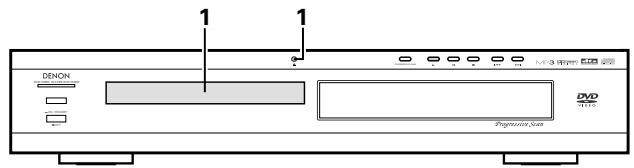
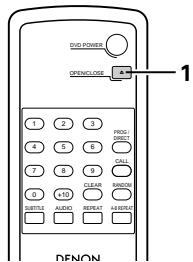
| 1 | Load the Picture CDs into the set. • For Picture CDs: Playback of the still pictures starts automatically when the disc is loaded. ※ Press the stop button to stop playback. | Main unit OPEN/CLOSE Remote control unit | PLAY MODE: FOLDER ROOT: ROOT JPER1 1 JPER2 2 JPER3 3 JPER4 4 JIPES 5 SINGLE ELIPPSED --1-- |
| 2 | Use the ▲ and ▼ cursor buttons to select the folder containing the file(s) you want to play, then press the ENTER button. *To change the folder Use the ▲ cursor button to select “ROOT” at the upper right of the screen, then press the ENTER button. The screen in step 1 reappears. Select the desired folder. | Remote control unit ENTER Remote control unit | PLAY MODE: FOLDER ROOT: 0 JIPES1 2 JIPES2 2 JIPES3 3 JIPES4 4 JIPES5 5 SINGLE ELIPPSED --1-- |
Use the and cursor buttons on the remote control unit to select the still picture file from which you want to start the slide show, then press the PLAY button or the ENTER button on the remote control unit.
The slide show starts.
- Only the still picture files in the selected folder are played.
*Once all the still picture files in the folder have been played, the disc information screen reappears.
Remote control unit
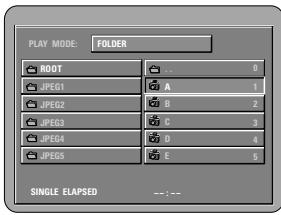
Remote control unit

Main unit

Remote control unit
*To view several of the still pictures stored on the disc at once:
- Press the MENU button to display up to 9 still pictures at once.
- To select and view a still picture (to start the slide show from a specific still picture), use the cursor buttons (, , and ) to select the desired still picture, then press the ENTER button.
*To temporarily stop the slide show:
- Press the STILL/PAUSE button.
- To resume the slide show, press the PLAY button.
*To cue a still picture you want to view (from which you want to start the slide show):
- During the slide show, press one of the SKIP (I▶▲,▶■) buttons. Press the SKIP I▶■ button to cue back to the previous still picture, the SKIP▶■ button to cue ahead to the next still picture.
*Flipping and rotating still pictures:
- Use the cursor buttons (, , and ) to flip the still picture.
cursor button: The currently displayed still picture is flipped vertically.
cursor button: The currently displayed still picture is flipped horizontally.
cursor button: The currently displayed still picture is rotate 90^ counterclockwise.
cursor button: The currently displayed still picture is rotate 90^ clockwise.
*Play the image in the zoom mode.
- When the ZOOM button is pressed while playing a JPEG image ("ZOOM ON" is displayed on the screen at this time) zoom in and zoom out using the search keys.
(▲: zoom out, ▲: zoom in)
- When the image is zoomed, use the cursor buttons (▼, ▲, △ and ▶) to move the zoomed picture.
- Continuous playback (SLIDE SHOW) is not possible in the zoom mode.
*The way of switching to the next image during continuous JPEG image playback (SLIDE SHOW) can be selected.
- Press the SLIDE SHOW button on the remote control unit.
- Select from SLIDE SHOW MODE 1 to MODE 11, RAND and NONE.

TROUBLESHOOTING
Check again before assuming the player is malfunctioning.
Are all the connections correct?
Are you following the instructions in the manual?
Are the amplifier and speakers operating properly?
If the DVD-770SD does not seem to be functioning properly, check the table below. If this does not solve the problem, the DVD-770SD may be damaged. Turn off the power, unplug the power cord from the power outlet, and contact your store of purchase or nearest DENON sales office.
| Symptom | Check | Page |
| Power does not turn on. | Plug the power cord securely into the power outlet. | 6-9 |
| Playback does not start when PLAY button is pressed.Playback stops immediately. | Is there condensation on the disc or player ? (Let stand for 1 or 2 hours.)Discs other than DVDs, video CDs and music CDs and Digital picture (JPEG) cannot be played.Disc is dirty. Wipe off the dirt. | —56 |
| Picture does not appear. | Check the connections.Turn “P.SCAN” off when a TV is connected to theVIDEO OUT, AV1 and S-VIDEO connector.Set the TV's input to “video”. | 6-96,7— |
| Sound is not produced or sound quality is poor. | Check the connections.Properly set the input of the TV, stereo, etc.Check the “DIGITAL OUT” and “COMPRESSION” settings. | 6-9—14,15 |
| Menu playback of video CD's is not possible. | Menu playback is not possible with anything but video CDs with playback control. | 18 |
| Picture is disturbed during the search operation. | Some disturbance is normal. | — |
| Buttons do not operate. | Some operations are disabled for some discs. | 18 |
| No subtitles are displayed. | Subtitles are not displayed for DVDs not containing subtitles.Subtitles are turned off. Turn the subtitles setting on. | —16 |
| Audio (or subtitle) language does not switch. | The audio (or subtitle) language does not switch for discs which do not include multiple audio (or subtitle) languages.For some discs the audio (or subtitle) language cannot be switched when the operation to switch it is performed, but can be switched on the menu screens. | —24 |
| Angle does not switch. | The angle cannot be switched for DVDs which do not contain multiple angles. In some cases multiple angles are only recorded for specific scenes. | 23 |
| Playback does not start when the title is selected. | Check the “RATING” setting. | 17 |
| The password for rating level has been forgotten. | Use the procedure described below to set the initial settings back to the values set when the unit was shipped from the factory. Input “1470” at 2 under step 3 on page 17. | — |
| The disc is not played with the audio or subtitle language set as the default setting. | The disc does not play with the selected audio or subtitle language if that audio or subtitle language is not included on that DVD. | 15,16 |
| Picture is not displayed in 4:3 (or 16:9). | Set the “TV ASPECT” default setting to the proper setting for the connected TV. | 13,14 |
| Menu screen messages for the desired language do not display. | Check the default setting for the disc language's menu language. | 15,16 |
| Remote control unit does not operate. | Check that the batteries are inserted in the proper “⊕” and “Θ” directions.The batteries are dead. Replace them with new batteries.Point the remote control unit at the remote control sensor when operating it Operate the remote control unit within a distance of 7 meters from the remote control sensor.Remove the obstacle between the remote control unit and remote control sensor. | 1111111111 |

MAIN SPECIFICATIONS
| Signal system: | NTSC/PAL |
| Applicable discs: | (1)DVD discs 1-layer 12 cm single-sided discs, 2-layer 12 cm single-sided discs, 2-layer 12 cm double-sided discs (1 layer per side) 1-layer 8 cm single-sided discs, 2-layer 8 cm single-sided discs, 2-layer 8 cm double-sided discs (1 layer per side) (2) Compact discs (CD-DA, Video CD) 12 cm discs, 8 cm discs |
| S-Video output: | Y output level: 1 Vp-p (75 Ω/ohms) C output level: 0.3 Vp-p Output connectors: S connectors, 1 set |
| Video output: | Output level: 1 Vp-p (75 Ω/ohms) Output connector: Pin-plug jacks, 1 set / AV 1, 1 set |
| Component output: | Y output level: 1 Vp-p (75 Ω/ohms) Pb/CB output level: 0.7 Vp-p (75 Ω/ohms) PR/CR output level: 0.7 Vp-p (75 Ω/ohms) Output connector: Pin jack, 1 set |
| RGB output: | Output level: 0.7 Vp-p (75 Ω/ohms) Output connector: AV 1, 1 set |
| Audio output: | Output level: 2 Vrms 2 channel (FL, FR) output connector: Pin jacks, 1 set / AV 1, 1 set |
| Audio output properties: | (1) Frequency response ① DVDs (linear PCM): 4 Hz to 22 kHz (48 kHz sampling) ② CDs: 4 Hz to 44 kHz (96 kHz sampling) (2)S/N ratio ① DVDs: 110 dB ② CDs: 110 dB (3)Total harmonic distortion ① DVDs: 0.006% ② CDs: 0.004% (4)Dynamic range ① DVDs: 100 dB ② CDs: 95 dB |
| Digital audio output: | Optical digital output: Optical connector, 2 sets |
| Power supply: | AC 230 V, 50 Hz |
| Power consumption: | 16 W |
| Maximum external dimensions: | 434 (width) x 80 (height) x 360 (depth) mm (including protruding parts) |
| Mass: | 3.5 kg |
| Remote control unit: | RC-963 |
| Type: | Infrared pulse |
| Power supply: | DC 3 V, 2 R03/AAA batteries |
This product incorporates copyright protection technology that is protected by method claims of certain U.S. patents and other intellectual property rights owned by Macrovision Corporation and other rights owners. Use of this copyright protection technology must be authorized by Macrovision Corporation, and is intended for home and other limited viewing uses only unless otherwise authorized by Macrovision Corporation. Reverse engineering or disassembly is prohibited.
* Design and specifications are subject to change without notice in the course of product improvement.
13 Touche OPEN/CLOSE
14 Touche PROG/DIR
- La lecture commence.
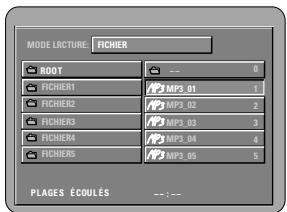
- - DECLARATION OF CONFORMITY
- CAUTION
- IMPORTANT TO SAFETY
- CAUTION:
- Handle the power supply cord carefully
- Do not open the top cover
- Do not place anything inside
- NOTE:
- Copyrights
- - ACCESSORIES
- TABLE OF CONTENTS
- FEATURES
- High precision 96 kHz 24-bit D/A converter
- Progressive Scan function
- Slim body (80 mm wide) and half mirror/aluminum panel
- Multiple functions
- NOTE1:
- DISCS
- CAUTIONS ON HANDLING DISCS
- Holding Discs
- Cleaning Discs
- Cautions on Handling Discs
- Cautions on Storing Discs
- Cautions on Loading Discs
- CONNECTIONS
- NOTES:
- Connecting a TV
- Connecting to a TV or Monitor Equipped with Color Component Input Connectors
- Color component output connectors (PR/CR, PB/CB and Y)
- Connecting to a TV with 21-pin SCART Terminal (For only European model)
- Connecting to a AV amplifier with a Built-in decoder
- - Connecting an optical fiber cable to the digital audio input connector (OPTICAL)
- Sound output from the DVD-770SD's digital audio output connectors
- Connecting to a Digital Recorder (MD Recorder, DAT Deck, etc.)
- Connecting to a Stereo Component
- PART NAMES AND FUNCTIONS
- Front Panel
- Power button
- Power indicator
- Remote control sensor
- Disc tray
- OPEN/CLOSE button
- (△ OPEN/CLOSE)
- PROGRESSIVE SCAN button
- PLAY button (▶)
- STILL/PAUSE button (II)
- STOP button (■)
- Skip button (I<
- Skip button (▶▶I)
- Display
- STANDBY indicator
- Rear Panel
- Component video output connectors (COMPONENTVIDEOOUT)
- 21-pin SCART terminal (AV1)
- Digital audio output connector (OPTICAL)
- Video output connector (VIDEO OUT)
- S-Video output connector (S-VIDEO OUT)
- Audio output connectors (AUDIO OUT)
- Display
- REMOTE CONTROL UNIT
- Inserting Batteries
- Using the Remote Control Unit
- Cautions On Batteries
- Names and Functions of Remote Control Unit Buttons
- POWER ON buttons
- Number buttons
- SUBTITLE button
- AUDIO button
- TOP MENU button
- Cursor buttons/ENTER button
- ANGLE button
- DISPLAY button
- SLOW/SEARCH buttons
- SETUP button
- NTSC/PAL button
- OPEN/CLOSE button
- PROGRAM/DIRECT button (PROG/DIR)
- CALL button
- RANDOM button
- CLEAR button
- A-B repeat button (A-B)
- REPEAT button
- MENU button
- RETURN button
- PLAY button (▶)
- STILL/PAUSE button (II)
- SKIP buttons
- SLIDE SHOW button
- ZOOM button
- LOADING DISCS
- Opening and Closing the Disc Tray
- Loading Discs
- CHANGING THE DEFAULT SETTINGS
- Setup items for use
- When "VIDEO SETUP" is selected
- 4:3 PS (Factory default)
- 4:3 LB
- WIDE (16:9)
- PAL (Factory default)
- NTSC
- MULTI
- S-VIDEO (Factory default)
- COMPONENT
- RGB
- AUTO (Factory default)
- FILM
- VIDEO
- 96k (Factory default)
- 96k>48k
- LT/RT (Factory default)
- STEREO
- OFF (Factory default)
- LEVEL
- *To exit the setup mode
- When "DISC SETUP" is selected
- DIALOG
- SUBTITLE
- 2
- DISC MENUS
- ANGLE MARK
- CAPTIONS
- ENGLISH (Factory default)
- FRENCH
- SPANISH
- GERMAN
- ITALIAN
- OTHERS
- OFF
- ON (factory default)
- ON
- When "SYSTEM SETUP" is selected
- BLUE (Factory default)
- PICTURE
- LEVEL 8 (factory default)
- LEVEL 1 to 7
- No restrictions
- BASIC (Factory default)
- EXPERT
- PLAYBACK
- Stopping Playback
- Playing Still Pictures (Pausing)
- Forward/Reverse Searching
- Skipping to the Beginning of Chapters or Tracks
- Playing Frame by Frame (for DVDs and video CDs only)
- SlowPlayback (forDVDs and video CDs only)
- PLAYING REPEATEDLY
- Playing Repeatedly (Repeat Playback)
- Playing a Certain Section Repeatedly (A-B Repeat Playback)
- PLAYING TRACKS IN THE DESIRED ORDER
- PLAYING TRACKS IN THE RANDOM ORDER
- USING THE ON-SCREEN DISPLAY
- USING THE MULTIPLE AUDIO, SUBTITLE AND ANGLE FUNCTIONS
- Switching the Audio Language (Multiple Audio Function)
- Switching the Subtitle Language (Multiple Subtitle Function)
- Switching the Angle (Multiple Angle Function)
- USING THE MENUS
- Using the Top Menu
- Using the DVD Menu
- PLAYING IN THE ZOOM MODE
- MP3, Wondows Media - formated file PLAYBACK
- Listening to MP3 CD, CD-Rs and CD-RWs
- 3
- *To change the MP3 file
- *To set the random play mode
- *To set the repeat mode
- *To return to the initial disc information screen
- Listening to Recorded Windows Media-formatted file CD-R/CD-RW
- PLAYING STILL PICTURE FILES (JPEG FORMAT)
- *To change the folder
- Special play modes for MP3 and JPEG files
- Playing Picture CDs (JPEG format)
- TROUBLESHOOTING
- Check again before assuming the player is malfunctioning.
- MAIN SPECIFICATIONS
- Touche OPEN/CLOSE
- Touche PROG/DIR
Brand : DENON
Model : DVD-770SD
Category : DVD player