
GH950 - Headphones Mad Dog - Free user manual and instructions
Find the device manual for free GH950 Mad Dog in PDF.


| Product Type | Over-ear headphones |
| Brand | Mad Dog |
| Model | GH950 |
| Driver Diameter | 40 mm |
| Frequency Response | 20 Hz - 20 kHz |
| Impedance | 32 ohms |
| Sensitivity | 98 dB |
| Maximum Power Input | 100 mW |
| Cable Length | 1.2 m |
| Connector Type | 3.5 mm stereo jack |
| Weight | 250 g |
| Dimensions (folded) | 20 x 15 x 8 cm |
| Material | Plastic and faux leather |
| Compatibility | PC, Mac, smartphones, tablets |
| Controls | Inline volume control and microphone |
| Microphone | Omnidirectional, 100 Hz - 10 kHz |
| Noise Isolation | Passive |
| Foldable | Yes |
| Cleaning | Wipe with a soft dry cloth |
| Power Source | None (passive) |
Frequently Asked Questions - GH950 Mad Dog
User questions about GH950 Mad Dog
0 question about this device. Answer the ones you know or ask your own.
Ask a new question about this device
Download the instructions for your Headphones in PDF format for free! Find your manual GH950 - Mad Dog and take your electronic device back in hand. On this page are published all the documents necessary for the use of your device. GH950 by Mad Dog.
USER MANUAL GH950 Mad Dog
natural_image
Stylized black-and-white illustration of a roaring bulldog head with spiky spikes (no text or symbols)MAD DOG
MYSZ GAMINGOWA GM315
Operating Manual & Warranty Terms

natural_image
Front view of a black and white computer mouse with 'MAD DOG' branding on the front face (no additional text or symbols visible)WARUNKI BEZPIECZEŃSTWA I ZAGROŻENIA
DANE TECHNICZNE
PROBLEMY I ROZWIAZANIA
SAFETY AND HAZARD CONDITIONS
- Use the product as intended.
- Do not tamper with the interior of the device, do not attempt to repair or modify it yourself.
- The device is not a toy, it should be stored away from children.
- Do not use the device near heat sources.
- Do not immerse the device in water nor in other liquids.
- Protect the device from excessive light and moisture. Do not use it in rooms with increased dustiness, air pollution.
- Do not wrap the power cord around the device.
- Do not store the device in places exposed to sudden changes in ambient temperature. After a possible change in the environment, wait for some 30 minutes before connecting the device to the computer.3
- This product may only be operated by children of 8 or more years old, mentally and/or physically handicapped persons and persons without knowledge of or experience in operation of this device type, provided that they are supervised or instructed in safe operation, with clear understanding of all
related risks. Children should not play with the device. Children without supervision should not carry out the cleaning and maintenance of the device
INTRODUCTION
Thank you for the trust you have placed in us when you purchased your Mad Dog device. We are convinced that this high quality device will provide you with a lot of joy and satisfaction during its use.
PLEASE CAREFULLY READ AND FOLLOW THE PRESENT MANUAL!
This device is intended for domestic or other, non-commercial use. The manufacturer will not be held liable for damages resulting from improper or non-compliant use.
DEVICE DESCRIPTION
- Left Mouse Button
- Right Mouse Button
- Scroll / Middle Mouse Button
- Side Button 1
- Side Button 2
- Side Button 3
- Side Button 4
- DPI change button
- Sensor
- RGB backlight
- Braided cabl
- Slider


TECHNICAL DATA
| Model GM315 | |
| Design Symmetric | |
| Sensor Instant A825 | |
| Connection interface USB-A | |
| LMB and RMB switches Huano 5 million clicks | |
| Number of buttons 8 | |
| DPI range up to 12800 DPI | |
| Number of DPI modes 6 | |
| Pooling Rate up to 1000 Hz | |
| Maximum acceleration up to 20 G | |
| Maximum sensor speed 1,52 M/S | |
| Illumination LED RGB | |
| Number of backlight modes 10 | |
| Cable type braided with ferrite bead | |
| Cable length 1,8 m | |
| Power supply | 5.0 V --- 0,15 A |
| Compatibility with systems | Win XP/Vista/7/8/10/11 |
- Connect the mouse to the USB port on the computer so that the device automatically installs the driver required for operation.
- Once the OS notifies you that the driver has been installed correctly, the device is ready for operation.
DPI change
The mouse has 6 different DPI settings, and you can switch between them using the button located on the bottom of the mouse.
- To change the DPI, press the button on the bottom of the device.
- After pressing the DPI change button, observe the illuminated led edge. Illuminating the illuminated led edge to one of 6 colors will notify you which DPI setting has been selected.
| Backlight colour DPI set by default | |
| Red 800 DPI | |
| Green 1600 DPI | |
| Blue 2400 DPI | |
| Yellow 3200 DPI | |
| Cyan 4800 DPI | |
| Violet 7200 DPI |
Each DPI profile can be edited using software that can be downloaded from the manufacturer's website.
RGB backlight
The mouse has 10 different RGB LED backlight modes. From the device level, this backlight can only be turned on or off. To do this, hold down the DPI change button and the left mouse button at the same time for 3 seconds.
SOFTWARE
Software intallation
- Go to http://maddog.pl/sterowniki/sterowniki-i-instrukcje.
- Select the type of device and its model.
- Download the software installation file.
- Install the software from the installation file on your computer.
Software support
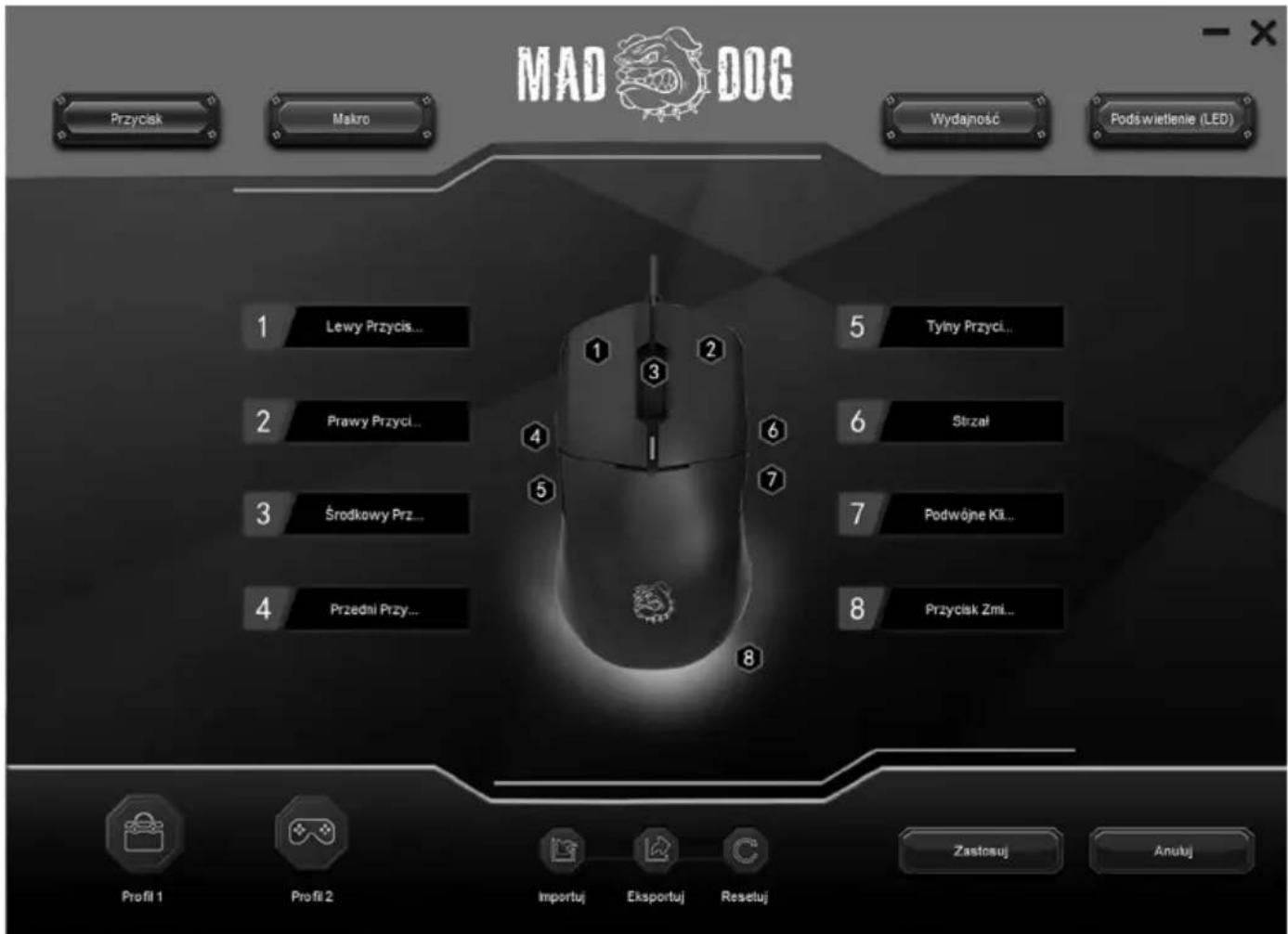
1. Button programming
In the first tab, you have access to programming the mouse buttons. Here you can swap their functions or add completely different ones, such as functions for multimedia or changing mouse parameters.
- select one of the buttons,
- change its function,
- confirm the change by clicking the Apply button.
The second tab in the software will allow you to create macros that will save time on repetitive tasks that can now be performed at the touch of a button.
To create a macro:
• Right-click in the Macro List box and add a new group.
- Then add a new macro in the newly created group.
- Record the macro using the button at the bottom of the window.
• After entering the entire combination, stop recording.
• If necessary, you can edit the individual steps in the window next to it.
Once the recording is complete, assign the selected macro to one of the mouse buttons in the first software tab.

In the third tab, you can change the basic mouse settings from the system level, as well as change the mouse parameters.
To make changes:
- Change the selected parameters or mouse settings.
- Confirm the change by clicking the Apply button.

4. Edition of the backlight
The last tab allows you to change the mouse backlight. You can choose from several available modes, and each of them is editable.
- Select one of the available backlight modes.
- Whenever possible, you may change its settings, such as the speed of the effect, the direction of movement, or the colour itself.
- Confirm the change by clicking the Apply button.

5. Saving the setting
At the very bottom of the window there are always 7 buttons:
a. The first two buttons are profiles where you can save different mouse settings, such as different button assignments. This gives you quick access to change to frequently used settings without having to re-enter them.
b. The next 3, smaller buttons are used to:
- Import - Loads settings from a saved external file.
- Export – saves settings in an external file.
- Reset – resets the settings in the app.
c. The last two buttons refer to the newly made changes. Pressing the Apply button will save the newly changed settings, the Cancel button will discard the newly changed settings.
CLEANING AND MAINTENANCE
Use a lightly dampened cloth of soft material to clean the device. When the device is not in use, store it in a dry place, that is not exposed to harmful effects of weather conditions
CAUTION! DO NOT IMMERSE THE DEVICE IN WATER. DO NOT USE WATER OR CHEMICAL AGENTS FOR CLEANING.
TROUBLESHOOTING
| Problem Possible cause Solution | ||
| The device does not start. | Incorrectly connected plug to the computer connector. | Connect the plug to the connector on the computer correctly. |
| The computer has not installed the device driver. | Connect the cable plug to the USB connector on the computer and wait for the device driver to be installed. | |
| The mouse cursor moves very fast or very slowly. | Too high or too low DPI resolution set. Change the DPI resolution by pressing the button on the bottom of the device. | |
| The mouse cursor freezes or does not move. | The optical hole at the bottom of the mouse is dirty. | Clean the underside of the mouse. |
| The texture of the surface on which the mouse works negatively affects the sensor operation. | It is recommended to use a mouse pad. | |
ECO-FRIENDLY AND ENVIRONMENTALLY FRIENDLY DISPOSAL
This device is marked, in accordance with Directive 2012/19/EU of the European Parliament and of the Council of 4 July 2012 on waste electrical and electronic equipment (WEEE), with the symbol of a crossed-out waste container:

Do not dispose of the device marked with this symbol together with household waste. For disposal return the device to your local waste treatment and disposal facility or contact your local authorities.
YOU CAN HELP PROTECT OUR ENVIRONMENT!
Proper handling of waste electrical and electronic equipment contributes to avoiding harmful consequences for human health and the environment resulting from the presence of hazardous components and improper storage and processing of such equipment.
WARRANTY CONDITIONS FOR THE MOUSE
- ART-DOM Sp. z o.o. guarantees that the purchased device is free from physical defects.
- A disclosed defect will be removed at the Guarantor's expense within 14 days from the date of reporting the damage to the authorized service or point of sale.
- In exceptional cases, e.g. the need to import spare parts from their manufacturer, the repair period may be extended up to 30 days.
- The warranty period for the user is 24 months from the date of delivery of the goods.
- The goods are intended for use only in the conditions of an individual household.
- The Warranty does not cover:
a. damage caused by using the device in violation of the operating instructions, b. mechanical, chemical or thermal damage,
b. repairs and modifications made by companies or persons not authorized by the manufacturer,
c. repairs and modifications made by companies or persons not authorized by the manufacturer,
d. parts that are easily worn such as: batteries, bulbs, fuses, filters, knobs, shelves, accessories,
e. installation, maintenance, inspection, cleaning, unlocking, removal of contaminants and instruction.
- The customer is entitled to replace the product with a new one if, after performing four repairs during the warranty period, there are still defects.
- The product is replaced by an authorized service or, if this is not possible, by the retail outlet where the product was purchased (replacement or cashback). The returned device must be complete, without mechanical damage. Failure to comply with these conditions may result in failure to accept the warranty claim.
- The above warranty does not exclude, limit or suspend any rights of the Purchaser arising from the regulations regarding a warranty for defects in sold goods.
- The warranty is valid in Poland.
- The condition for the warranty repair or replacement of the device is the presentation of proof of purchase.
CAUTION! Damage or removal of the rating plate from the device may result in warranty being deemed void.
We are constantly improving our products, so they may differ slightly from the images presented on the packaging and in the user manual. Please read the operating manual before operating the device.



- MAD DOG
- MYSZ GAMINGOWA GM315
- WARUNKI BEZPIECZEŃSTWA I ZAGROŻENIA
- SAFETY AND HAZARD CONDITIONS
- related risks. Children should not play with the device. Children without supervision should not carry out the cleaning and maintenance of the device
- INTRODUCTION
- PLEASE CAREFULLY READ AND FOLLOW THE PRESENT MANUAL!
- DEVICE DESCRIPTION
- DPI change
- RGB backlight
- SOFTWARE
- Software intallation
- Software support
- Button programming
- Edition of the backlight
- Saving the setting
- CLEANING AND MAINTENANCE
- ECO-FRIENDLY AND ENVIRONMENTALLY FRIENDLY DISPOSAL
- WARRANTY CONDITIONS FOR THE MOUSE
Brand : Mad Dog
Model : GH950
Category : Headphones