
CL12-DC - Air conditioner Artrom - Free user manual and instructions
Find the device manual for free CL12-DC Artrom in PDF.


| Product Type | Portable Air Conditioner |
| Model | CL12-DC |
| Brand | Artrom |
| Cooling Capacity (BTU/h) | 12000 |
| Power Supply | 115V / 60Hz |
| Power Consumption (Cooling) | 1150 W |
| Dimensions (W x H x D) | 17.5 x 28 x 17 in (44.5 x 71 x 43 cm) |
| Net Weight | 68 lbs (30.8 kg) |
| Refrigerant Type | R-410A |
| Air Flow (CFM) | 350 |
| Noise Level (dB) | 52 |
| Dehumidification (pints/day) | 50 |
| Timer | 24-hour on/off timer |
| Remote Control | Yes |
| Filter Type | Washable mesh filter |
| Maintenance | Clean filter every 2 weeks; drain condensate as needed |
| Safety Features | Overheat protection, auto-restart after power outage |
| Installation | Window kit included for sliding windows |
| Warranty | 1 year limited |
Frequently Asked Questions - CL12-DC Artrom
User questions about CL12-DC Artrom
0 question about this device. Answer the ones you know or ask your own.
Ask a new question about this device
Download the instructions for your Air conditioner in PDF format for free! Find your manual CL12-DC - Artrom and take your electronic device back in hand. On this page are published all the documents necessary for the use of your device. CL12-DC by Artrom.
USER MANUAL CL12-DC Artrom
natural_image
Simple line drawing of a rectangular container or panel with rounded edges and no text or symbols
CONTENIDO
Family Intelligent Air Control.
MÁS INFORMACIÓN
INSTALAR

TFIAC
xiaoming wang

3.7 ★ (3 ♣) · 100

Family Intelligent Air Control.
DESINSTALAR

Paso2.Pulse "Download" en la pantalla
Download Notification
File Name: OEMExport.apk
Saved in: Internal Storage/Downloads
Size: 3.7M
Cancelar Descargar

OEMExport.apk
Downloaded. Safe.
Cancelar
Instalar

natural_image
Pure geometric lines forming a right-angle shape (no text or symbols)

flowchart
graph TD
    A["883"] --> B["Internet"]
    B --> C["Mobile Phone"]
    C --> D["Wireless Device"]
    D --> E["16"]
    style B fill:#000,stroke:#fff,color:#fff
    style C fill:#fff,stroke:#000
    style D fill:#fff,stroke:#000
    style E fill:#fff,stroke:#000
Conexión múltiple
natural_image
Symbol of a trash bin crossed out by two diagonal lines (no text or numbers present)Instalation guide of the Wi-Fi module and its app
natural_image
Simple line drawing of a rectangular container or panel with rounded edges and no text or symbols
CONTENTS
Smart phone Environment and Wi-Fi Module 1
Downloading and Installing the App 2
Activate and Welcome screen......4
Connecting Wi-Fi module to smart phone 4
Communication between Wi-Fi module with smart phone 5
Multi connecting 6
Device name on APP 6
Delete device in the Device list 7
Air conditioner control 7
Wi-Fi Module Reset and APP version 12
App update reminder 12
Notice 13
Trouble Shooting 13
Smart phone Environment and Wi-Fi Module
1. Minimum specifications on a Smart phone:
Android 2.1 version or higher
IOS 5.0 version or higher
- Wireless Network Requirements of Wi-Fi module
| Frequency Range | 2.412 GHz - 2.472 Ghz |
| Standardl | EEE 802.11 b/g/n |
| Output Power | 802.11b:18dBm, 802.11g:16dBm802.11n:16dBm |
| Sensitivity | 802.11b<@1Mbps, 802.11b<@11Mbps802.11g<@6Mbps, 802.11g<@54Mbps |
| Data Rate | 11M@802.11b, 54M@802.11g, MCS7@802.11n |
| Security | WEP/WEPA/WPA2 |
| Number of Channels | 13 |
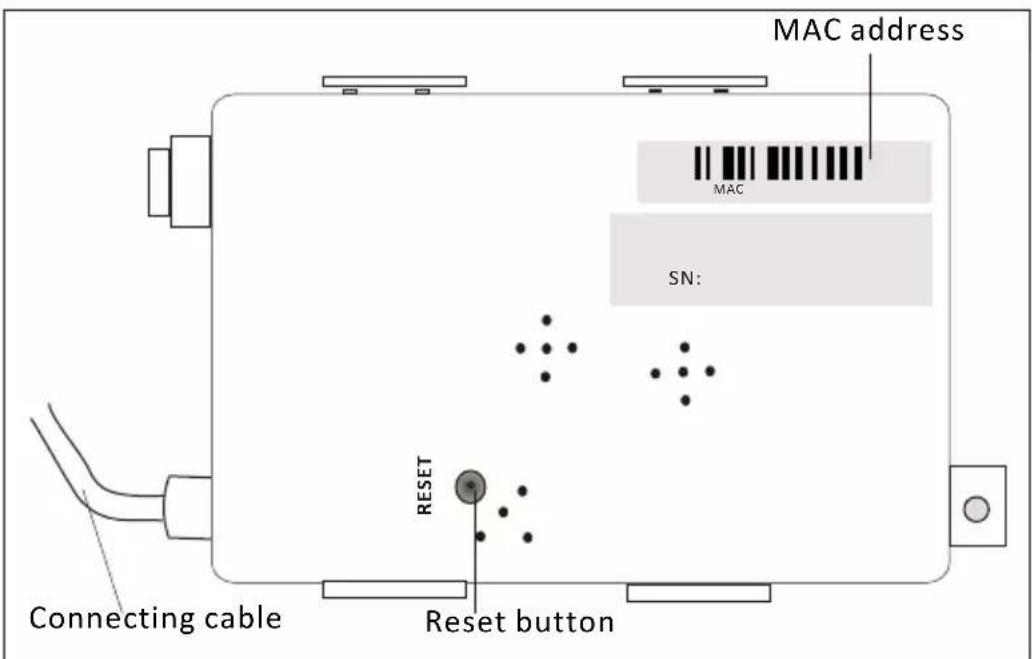
3. Where is the Wi-Fi module and The MAC address
Open the front panel, the Wi-Fi module is nearby the electric box cover or on the panel.
The MAC address is the ID of a Wi-Fi module, it's very important for after service, please don't remove or destroy the MAC address label.
Downloading and Installing the App
1. Install the APP for Android Smart phone
Step1. Tap the "Play Store" icon on the Smart phone.

Play Store
Step2. Type'tfiac In the search window and search the app.
Step3. Tap the "INSTALL" button on the TFIAC screen.
Step4. Tap the "ACCEPT" button on the access screen.
Step5. When finished installing, an "OPEN" button will display on the screen, if you are ready, tap "OPEN" to start the APP.

TFIAC
needs access to

Device & app history


Photos/Media/Files


Camera


Wi-Fi connection


Device ID & call information

Google Play
ACCEPT

TFIAC
xiaoming wang

3.7★ (3_) 100


Family Intelligent Air Control.
MORE INFO
INSTALL

TFIAC
xiaoming wang

3.7 ★ (3 ♣) · 100

Family Intelligent Air Control.
UNINSTALL

Downloading and Installing the App
2. Install the APP for iPhone(IOS system)
Step1. Tap the "APP Store" icon on the iPhone.

App Store
Step2. Type "tfiac" in the search window and search the app.
Step3. Tap the button 📄 to download and install the APP.
Step4. When finished installing, an "OPEN" button will display on the screen, if you are ready, tap "OPEN" to start the APP.
3. Another way to download and Install the APP
Step1. Scan the following QR code.
Step2. Tap "Download" on the screen (for iPhone, please enter into the App Store and follow item2 of this topic to finish the installing).

Step3. After downloaded the APP, tap'Install" button on the screen or find the 'OEMExport.apk in the download lists and open it.
Step4. Select "I understand the risk, install anyway".
Step5. Tap"Install anyway"to install APP.
Step6. When finished installing, if you are ready, tap "OPEN" to start the APP on the successful screen.
Done Open
Note: Source UC Browser for above steps, you can choose other tools.


Activate and Welcome screen
1. Launch the APP by tapping the TFIAC icon.

TFIAC
3. Activate QR code and activation code

natural_image
Two black right-angle corner symbols on white background (no text or labels)2. The first time to use the app will pop up the activate screen, in the next time it will pop up the welcome
screen.
Tap this button and use the camera to scan the QR code
Or Input the activation code as item 3
Tap the activate button to activate the APP


Note Without the QR code or activation code, you can't active the APP and using it, please keep them safe.
Connecting Wi-Fi module to smart phone
Connecting Win-6dule to smart phone as these steps:
Step1. Connect smart phone to the Wp5iwer on the indoor unit (Launching the Air conditioner is not necessary). Check if it shows "CF" on the display.
(Means the Wi-6idule is disconnected from Wi-Fi)
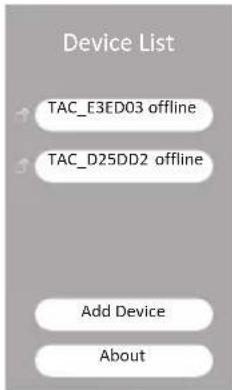
Step2. Tap "Add Device" button on the Device List screen.
Step3. On the Add Device screen, type the router name in text "W"; then type the password, select "Show" if you want to see the password.
Step4. Tap the "Start Config" button to configuration process.

Connecting Wi-Fi module to smart phone
Step5. In the configuration process, it appears "The connection process may take up to 1min.." on the Add device screen, and at the same time it shows "PP","SA","AP" in turn on the indoor display.
"PP" means "searching the router"
"SA" means "connected to the router"
"AP" means "connected to the server"

Step6. After 1\~3 minutes, it back to the Device List screen automatically and appears "Configuration success", a device list bar will appear on the Device List screen.


flowchart
graph TD
    A["Add Device"] --> B["Configuration success"]
    B --> C["About"]
Communication between Wi-Fi module with smart phone
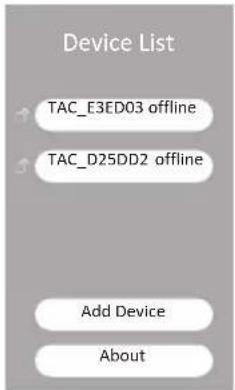
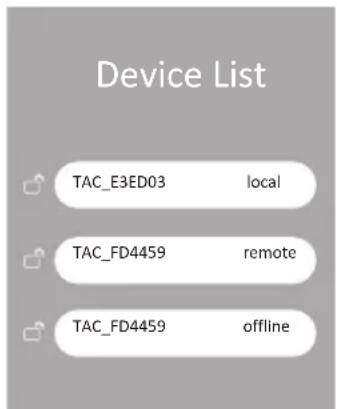
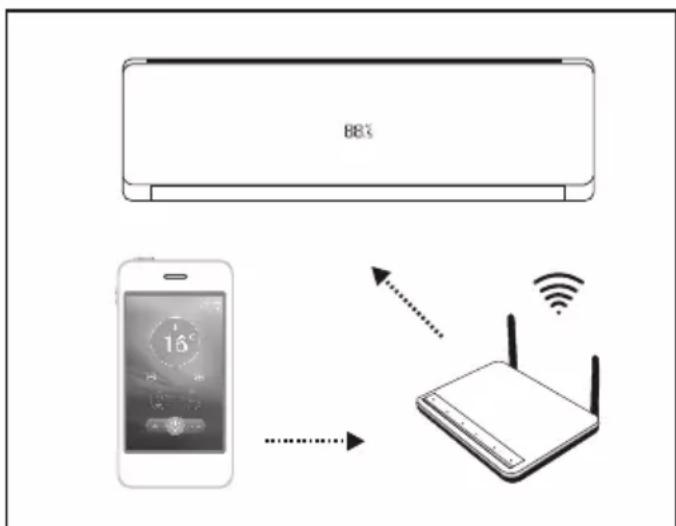
1. Local and remote, offline communication mode
"To eat smart phone and Wi-Fi module are in the same Wi-Fi home network, you can control the air conditioner through Wi-Fi without Internet.
" emõte : The smart phone and Wi-Fi module are not in the same home network, you can control the air conditioner through Internet base on mobile network (3G/4G) or other Wi-Fi resources.
"Offline": The air conditioner is off or connecting issue.

flowchart
graph TD
    A["883"] --> B["Internet"]
    B --> C["Smartphone with 15° Clock icon"]
    B --> D["Wi-Fi network with wireless signal"]
    C -.-> B
    D -.-> B
Multi connecting
1. One device can be controlled by different smart phones.
One device (one air conditioner) can be connected to different smart phones. In the same home network, once the device is connected to one smart phone, you will see the device in the Device List directly without "Add Device". But if someone locked the device, you can't see it.
2. One smart phone control more air conditioners
One smart phone can control different air conditioners, just follow connecting steps to add different Air conditioners.
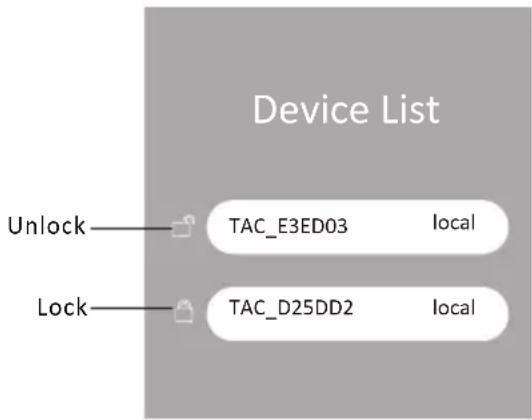
3. Lock and Unlock the air conditioner
Tap 📋 or 🔒 to switch locking or unlocking the device. Once the device is locked by someone, a new APP user in the same WIFI home network can't see the device anymore, but the users have connected to the device before are not affected.
Device name on APP
1. Original name of the device on APP
The original name of an air conditioner in the Device List is "TAC_" link the last 6 numbers of the MAC address of the Wi-Fi module, for example:
MAC address is "B4:43:0D:E3:ED:03", the device name should be "TAC_E3ED03".
2. How to change the name of the device on APP?
Keep pressing the list bar of one device in a few seconds until pop up the "Save" button, tap the name of the device and change it, then tap "Save" button, after 1\~3 seconds it pop up "update successful" means the name was changed. You can tap any blank place of the bar to cancel the change before saving.
(exp: Change name from "TAC_E3ED03" to test as below pictures).
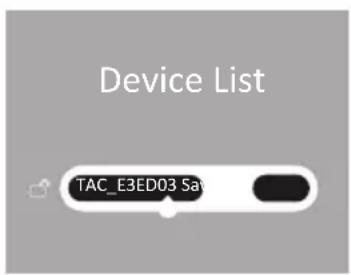

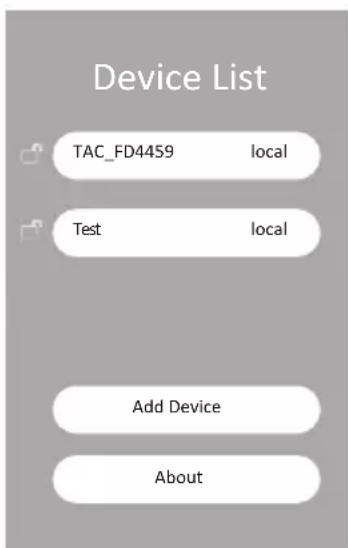
" "
Delete device in the Device list
1. How to delete one device?
Slide the device list bar from right to left until pop up "Delete" button, then tap it to delete the device. Tap any other place of the bar to cancel "delete".
2. Why the deleted devices pop up again?
In the home network, the APP will search all devices connected to the router constantly and show it in the Device list, you just delete the device list but don't disconnect the device to the router, so it will pop up again.

Air conditioner control-Main control screen
Tap the device List bar on Device List screen to enter the main control screen.

Note: The function buttons are in two rows on the bottom of this screen, if the cycle and the words of the button change to bright (in white colour), it means it is working, otherwise (dark in gray colour) means it's out of gear.
Air conditioner control-Mode
- Tap the Mode button to enter the mode screen.
Mode
-
There are 5 modes on the Mode screen, tap each button to control the AC to work on the corresponding mode. And please read the details of each mode in the user manual to control more comfortable.
-
Tap the Back button to back to the main control screen without change.

Air conditioner control-Timer
- Timer Setting main screen"
Tap the Timer button to enter the Timer Setting main screen, you can turn on or off the air conditioner freely. Tap "Timer on" or "Timer" off button to switch the Timer list.
Timer
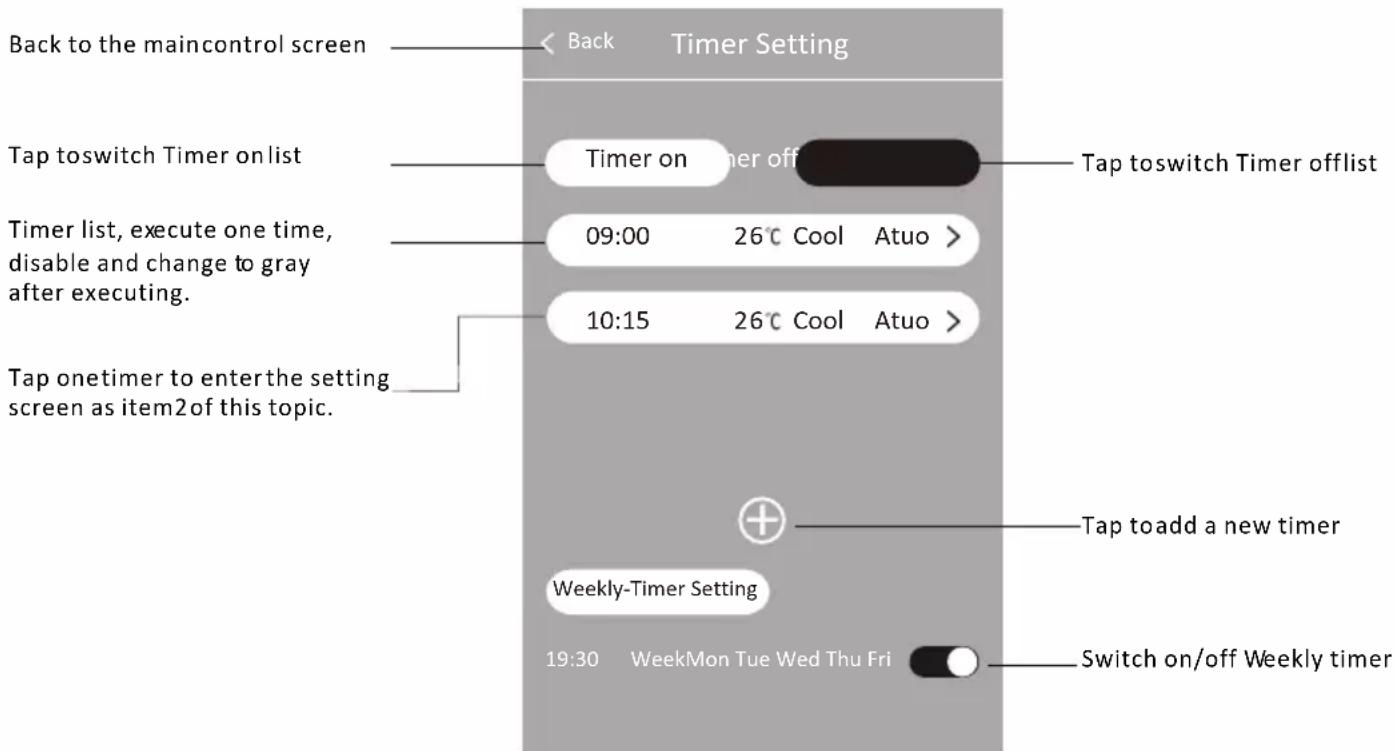
Air conditioner control-Timer
2. Timer on
Switch "Timer on "to show the Timer on list. Tap ⊕ and pop up the following screen to add a new timer, Or tap one of the timers in the list to enter the same screen to change the timer settings as your favourite.
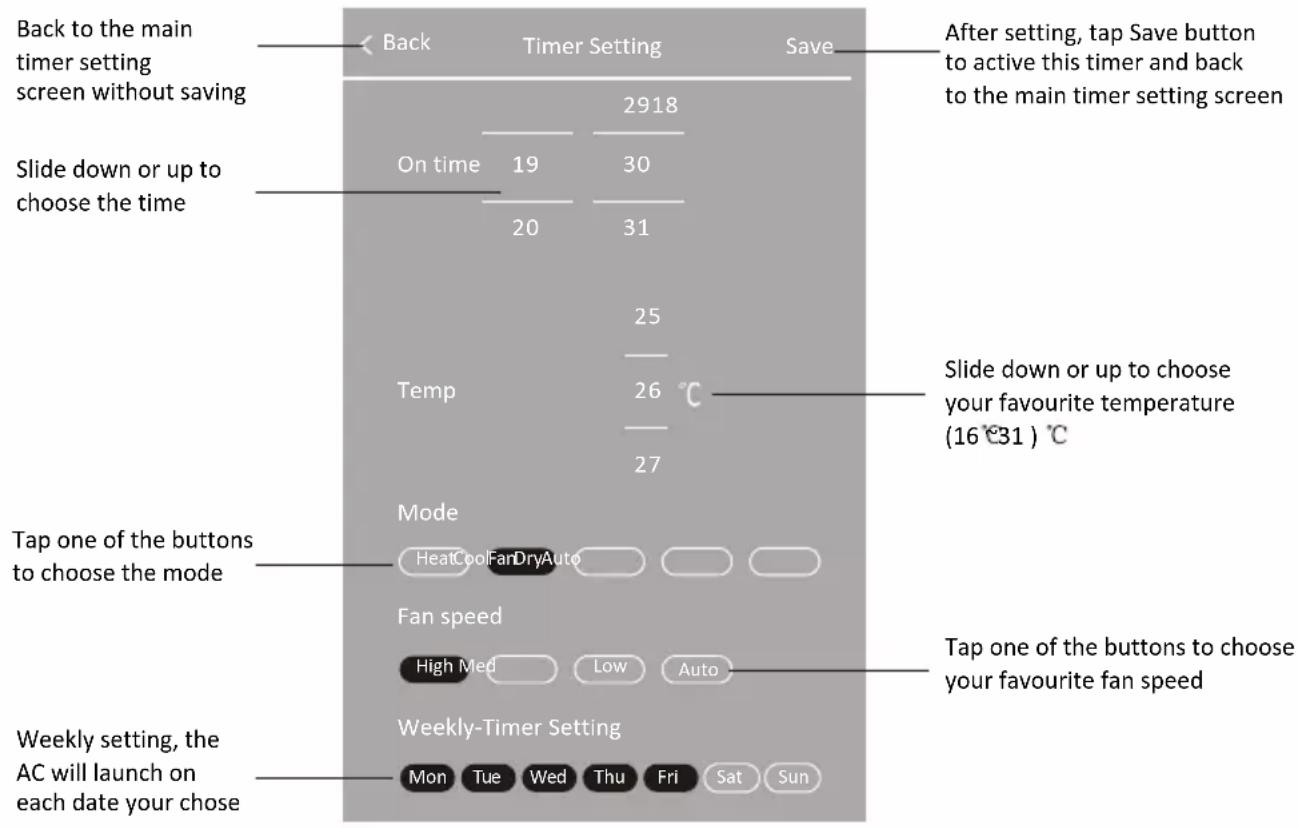
3. Timer off
Switch "Timer off" to show the Timer off list. Tap and pop up the following screen to add a new timer; Or tap one of the timers in the list to enter the same screen to change the timer settings as your favourite. The operations are the same as Timer on.

Air conditioner control-Timer
4. Delete timer
For Android smart phone
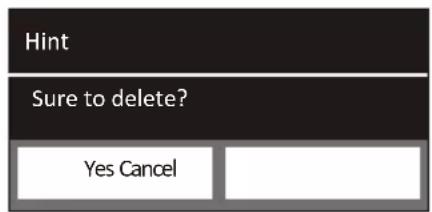
Press one timer list bar and don't loosen your finger, slide it from right to left until "Delete" button appears. Tap this button and will pop up "Sure to delete" screen, choose "Yes" to delete this timer or choose "Cancel" to cancel the operation.
For iPhone
Press one timer list bar and don't loosen you finger, slide it from right to left until "Del" button appears. Tap this button to delete this timer directly.


Note: You can slide the Timer list bar from left to right to cancel the operation and hide the "Delete" or "Del" button.
Air conditioner control-Swing
- Tap the Swing button to enter the Wind setting screen.
- Tap the 'Vertical-Wind' to switch auto wind from left to right, and tap 'Horizontal-Wind' to switch auto wind from up to down. (Lighten green means activate, otherwise means off)
- Tap 'Save 'button to save the changes and back to the main control screen.
- You can tap 'Back' button to back he main control screen without change.
Note:
active "Vertical-Wind", you will hear a beep, but no any actions.
Swing

Air conditioner control-Fan speed/Eco/Turbo/Sleep
- There are 4 type fan speeds for your choosing on the main control screen. Tap this button, the fan speed will turn around in the order as below, as some mode limit, some of the Fan speed type will not appear in each mode, check the details in the next topic.

flowchart
graph LR
    A["Auto Low"] --> B[" "]
    B --> C["Med"]
    C --> D["High"]
- For function buttons Eco/Turbo/Sleep, just tap the button to activate the function, tap again to disable the function. And please read the details of each function in the user manual to control more comfortable. As mode limit, it's not available in some mode, check the details in the next topic.

Air conditioner control-Mode limit
In each mode, there are some functions can't be used, follow below table to operate much better. "Yes" means this function can be used in this mode. The blank means the function is not available in this mode, when you tap the function button, it will pop up "Not Available" on the screen.
| Mode | Fan Speed | Timer | Swing | Turbo | Eco | Sleep |
| Cool | Auto, Low, Med, High | Yes | YesYes | YesYes | ||
| Fan | Low, Med, High | Yes | Yes | Yes | ||
| Dry | Auto | Yes | Yes | |||
| Heat | Auto, Low, Med, High | Yes | Yes | Yes Yes | Yes | |
| Auto | Auto, Low, Med, High | Yes | Yes |


Wi-Fi Module Reset and APP version
- If the AC can't be normally controlled by your smart phone, or in case you want change the router, or change the Wi-Fi password, or in other case, you can reset the Wi-Fi Module to reconfiguration. Before reset the Wi-Fi module, make sure the AC is power on.
Method 1: Press "DISPLAY" button on the remote controller (Some models don't have this button)6 times within 20 seconds until the buzzing is heard and show "CF" on the display.
Method 2: Open the front panel of the indoor unit, you will soon find the Wi-Fi module. Use a suitable tool to press "Reset" button, until the light of the Wi-Fi module continues flashing and show "CF" on the display.
- Tap "About" button on Device List screen to enter "About" screen, you will see the APP version and a tip "How to reset the Wi-Fi".
About
About
Current version:1.2.4
APP version:1.2.4
How to reset the Wi-Fi?
Method 1:
Press display button on the remote controller 6 times within 20 seconds until the buzzing is heard.
Method 2:
Use a suitable tool to press Wi-Fi module Reset button (Open the panel to find it), until the light continues flashing and shows CF on the display.
App update reminder
When you enter the Device List screen, if there is a new APP version, it pop up "Find new app version", in this case, tap "ignore" to ignore this tip and go ahead to use the APP. If you want to update the APP, tap "Update" button, it will download the new app and then pop up install screen, install the APP as item3 of topic "Downloading and Installing the App". Also you can get into the official APP store to update the APP as mentioned in topic "Downloading and Installing the App".
Device List
TAC_E3ED03 local
TAC D25DD2
local
Find new app version
new APP version:1.2.3 can update
ignore
Update
Test
local
Add Device
About
Notice
- For technical update, there is maybe deviation of the actual items from what is on the manual. We express our apologies. Please refer to your actual product and APP.
- Smart air conditioner APP can be altered without notice for quality improvement and also be deleted depending on the circumstances of manufacturing firms.
- In case Wi-Fi signal strength is weakened, smart App may be disconnected. So make sure the indoor unit near to wireless router.
- DHCP server function should be activated for wireless router.
- The internet connection may fail because of a firewall problem. In this case, contact your internet service provider.
- For smart phone system security and network setting, make sure Smart air conditioner APP is trusted.
Trouble Shooting
| Description | Analysis of cause |
| Air conditioner can't be configured successfully | 1. Check the mobile connected Wi-Fi address and password is correct;2. Check the air conditioner under configuration status;3. There are any firewall or other restrictions have been set or not;4. check the router work normally;5. Make sure air conditioner, router and mobile work within signal scope;6. Check router shielding App or not; |
| Mobile can't control air conditioner | Software display: Identification failed,It means the air conditioner has been reset, and the mobile phone lost control permission.You need to connect Wi-Fi to get permission again.Please connect the local network and refresh it.After all still can't work, please delete air conditioner and wait its refresh. |
| Mobile can't find air conditioner | Software display: Air conditioner out of line.Please check network working;1. The air conditioner has been reconfiguration;2. Air conditioner out of power;3. Router out of power;4. Air conditioner can't connect to router;5. Air conditioner can't connect to network through the router (under remote control mode);6. Mobile can't connect to router(Under local control mode);7. The mobile phone can't connect to network (under remote control mode). |
Declaration of conformity (CE)
PARMAZ S.L declares that this Smart Kit, accessory Wi-Fi ARM-12DCWF, for the ARTROM ARM-12DC air conditioner complies with the current regulations relating to the making available on the market of radio equipment of Directive 2014/53 of the European Union.
This is a simplified statement, you can get the full statement on our website, at the address:

For a correct elimination of this product!

natural_image
Symbol of a trash bin crossed with no text or numbers, representing waste sorting or disposal (no text present)This marking indicates that this product should not be disposed with other household wastes throughout the EU. To prevent possible harm to the environment or human health from uncontrolled waste disposal, recycle it responsibly to promote the sustainable reuse of material resources. To return your used device, please use the return and collection systems or contact the retailer where the product was purchased. They can take this product for environmental safe recycling.
Thank you for trusting
Climatric,
CLIMATRIC
www.artrom.es/climatric
- CONTENIDO
- Conexión múltiple
- Instalation guide of the Wi-Fi module and its app
- CONTENTS
- Smart phone Environment and Wi-Fi Module
- Minimum specifications on a Smart phone:
- Where is the Wi-Fi module and The MAC address
- Downloading and Installing the App
- Install the APP for Android Smart phone
- TFIAC
- Install the APP for iPhone(IOS system)
- Another way to download and Install the APP
- Activate and Welcome screen
- Launch the APP by tapping the TFIAC icon.
- Activate QR code and activation code
- The first time to use the app will pop up the activate screen, in the next time it will pop up the welcome
- Connecting Wi-Fi module to smart phone
- Connecting Win-6dule to smart phone as these steps:
- Communication between Wi-Fi module with smart phone
- Local and remote, offline communication mode
- Multi connecting
- One device can be controlled by different smart phones.
- One smart phone control more air conditioners
- Lock and Unlock the air conditioner
- Device name on APP
- Original name of the device on APP
- How to change the name of the device on APP?
- Delete device in the Device list
- How to delete one device?
- Why the deleted devices pop up again?
- Air conditioner control-Main control screen
- Air conditioner control-Mode
- Mode
- Air conditioner control-Timer
- Timer
- Timer on
- Timer off
- Delete timer
- For Android smart phone
- For iPhone
- Air conditioner control-Swing
- Air conditioner control-Fan speed/Eco/Turbo/Sleep
- Air conditioner control-Mode limit
- Wi-Fi Module Reset and APP version
- About
- App update reminder
- Device List
- Notice
- Declaration of conformity (CE)
- For a correct elimination of this product!
Brand : Artrom
Model : CL12-DC
Category : Air conditioner