
Garage-Control Cam E120 - Home Automation eufy - Free user manual and instructions
Find the device manual for free Garage-Control Cam E120 eufy in PDF.


| Product Type | Smart Garage Door Camera with Sensor |
| Model Numbers | Garage-Control Cam (T8452) / Garage-Control Cam Plus (T8453) |
| Brand | eufy Security |
| Camera Resolution | Not specified (standard HD) |
| Night Vision | Yes, with infrared LEDs |
| Field of View | Adjustable angle |
| Audio | Built-in speaker and microphone |
| Light Indicator | Ring light: blue (working), flashing blue (connecting), flashing red (disconnected) |
| Power Supply | Wired via power port; sensor uses CR123A battery |
| Storage | MicroSD card (not included) |
| Connectivity | Wi-Fi (2.4 GHz) via eufy Security app |
| Garage Door Compatibility | Sectional, roller, and tilt doors |
| Number of Doors Supported | Up to 2 doors (T8453 requires second sensor sold separately) |
| Mounting Options | Magnetic (metal surface) or screw-mounted to ceiling |
| Sensor Pairing | Wireless via SYNC button |
| App Control | eufy Security app (iOS/Android) for live view, door status, alerts |
| Wiring Requirement | Connect to garage door opener terminals (wall control wires) |
| Battery Life (Sensor) | Not specified; low battery indicator (red LED) |
| Maintenance | Replace sensor battery as needed; recalibrate after battery change |
| Safety Certifications | FCC Part 15, IC RSS, RF exposure compliant (20 cm distance) |
| Warranty | 12-month limited warranty |
| Environmental Operating Temperature | Not specified (indoor garage use typical) |
| What's in the Box | Camera, sensor, power cable, mounting accessories, motor connection wires (T8453 includes 2 pairs) |
Frequently Asked Questions - Garage-Control Cam E120 eufy
User questions about Garage-Control Cam E120 eufy
0 question about this device. Answer the ones you know or ask your own.
Ask a new question about this device
Download the instructions for your Home Automation in PDF format for free! Find your manual Garage-Control Cam E120 - eufy and take your electronic device back in hand. On this page are published all the documents necessary for the use of your device. Garage-Control Cam E120 by eufy.
USER MANUAL Garage-Control Cam E120 eufy
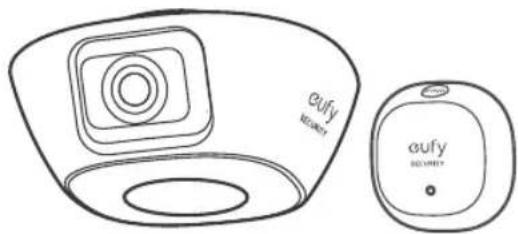
Garage-Control Cam with Sensor
Garage-Control Cam Plus with Sensor
eufy
SECURITY
natural_image
Line drawing of a two-camera device with a square lens and circular base (no text or symbols)Anker Innovations Limited. All rights reserved, eufy Security and eufy Security Logo are trademarks of Anker Innovations Limited, registered in the United States and other countries. All other trademarks are the property of their respective owners.
51005003163 V02
*Scan the QR code to watch the step-by-step "How to Install" video.
1/AT A GLANCE
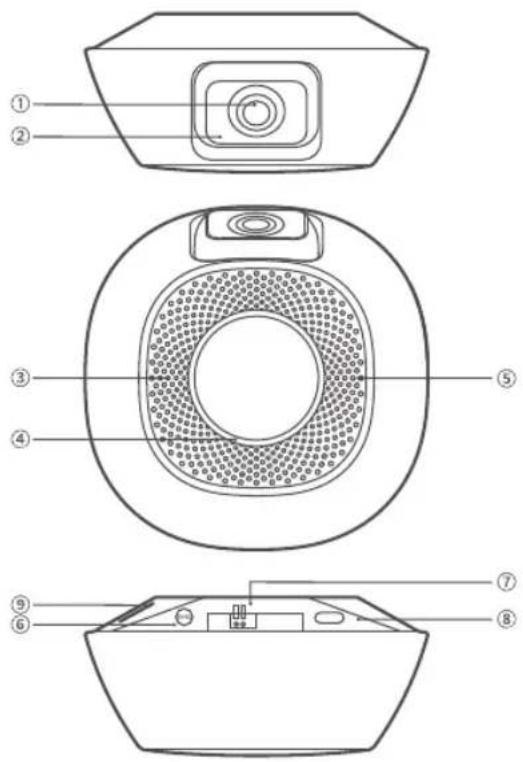
Garage-Control Cam Plus / Garage-Control Cam Model: T8453 / T8452
① Camera Lens
② Infrared LED
③ Speaker
④ Ring Light
- Flashing blue: Connecting to the Internet.
• Blue: Working properly. - Flashing red: Disconnected from the Internet.
⑤ Microphone
⑥ SYNC Button
⑦ Wire Connectors: Model T8453 includes 2 pairs.
⑧ Power Port
⑨ MicroSD Card Slot
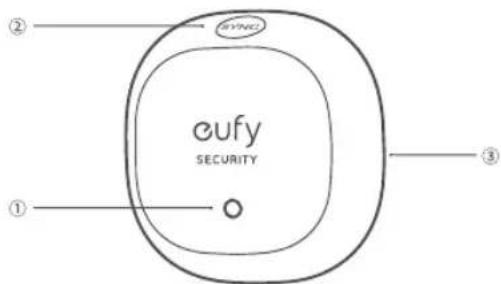
Garage Door Sensor Model: T8450
① Status LED
- Flashing blue: Pairing with the camera.
• OFF: Working properly / Powered off.
② SYNC Button
③ Battery Cover
2/ SETTING UP CAMERA
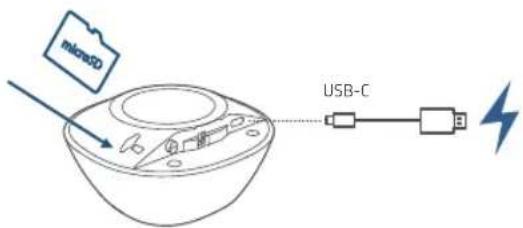
- Connect the camera to a power outlet.

To use local storage, insert a memory card into the microSD card slot before powering the camera (Model T8453 includes one).
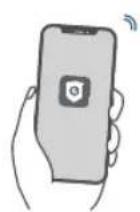
- Download and install the eufy Security app, then sign up for an account.


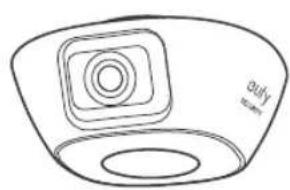
- Follow on-screen instructions to add the camera to your device list.
natural_image
Line drawing of a camera lens with no text or symbols3
4
3/ WIRING CAMERA AND TESTING
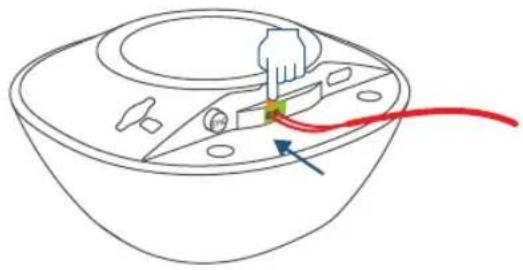
- Press and hold the orange tabs, then insert one end of the provided motor connection wire into the connectors. Each strand can connect to any connector.
natural_image
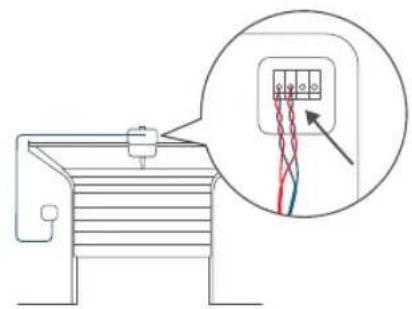
Line drawing of a bowl with a hand inserting a small component, connected to a red wire (no text or symbols)- On the garage door opener, locate the terminals that wire to the wall control. Twist each wire strand to the motor connection wire, then connect the paired strands back to their original terminal.
natural_image
Diagram of a mechanical device with a magnified inset showing internal wiring (no text or symbols)Motor Connection WireWall Control Wire
Make sure the paired strands are properly connected to their original terminal.
If you haven't connected to the wall control, check your garage door opener's user manual for wall control wiring instructions to locate the right terminals.
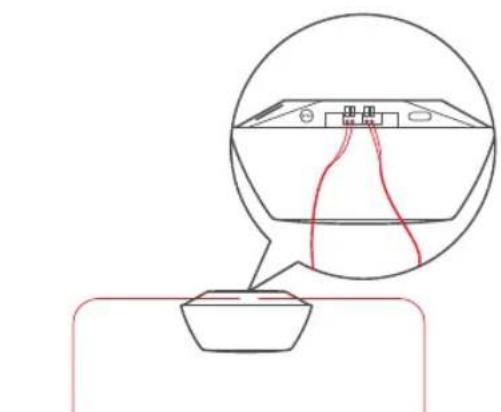
Model T8453 can wire up to 2 garage doors. Follow the steps above to wire the camera to the other garage door opener.
natural_image
Simple line drawing of a device with a speech bubble and internal wiring, no text or symbols present.Garage Door Opener 1 Garage Door Opener 2

5
6
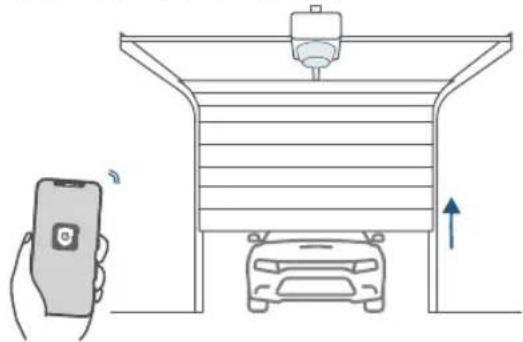
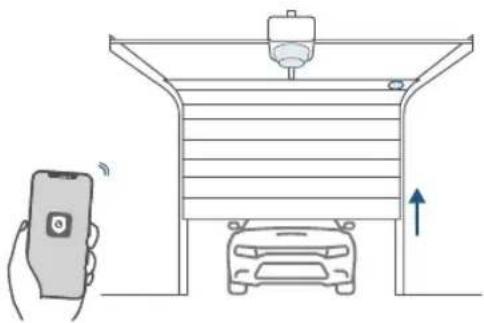
- In the eufy Security app, follow on-screen instructions to open the door for a test.
natural_image
Diagram showing a hand holding a smartphone and a car under a roof structure with an upward arrow, no text or symbols present.
Visit https://eufyofficial.com/garage-control_cam to watch the step-by-step "How to Install" video.

MOUNTING CAMERA
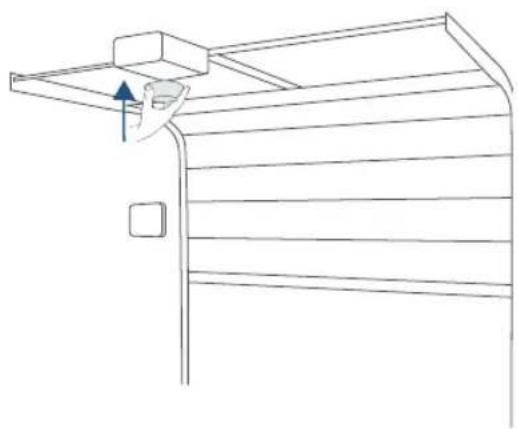
- Mount the camera underneath the garage door opener or to the ceiling.
Option 1. Garage Door Opener
Magnetically attach the camera underneath a metal garage door opener or a metal track.
natural_image
Line drawing of a door handle with an arrow indicating direction (no text or symbols)7
8
For garage door openers with a non-metal surface, stick the mounting plate underneath the garage door opener with the 3M sticker provided, then magnetically attach the camera to the mounting plate.
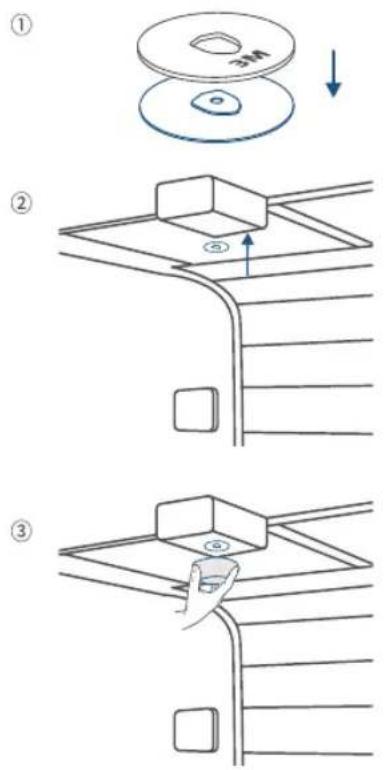
Option 2. Ceiling
Fix the mounting iron plate to the ceiling with the provided screw, then magnetically attach the camera to the mounting plate.
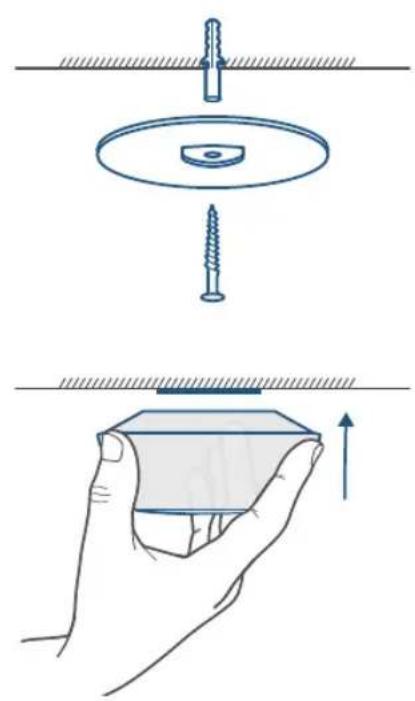
natural_image
Illustration showing a hand holding a screw and a magnified view of the disc (no text or symbols)
For model T8453, mount the camera to the ceiling in the middle of the two garage door openers so that you can see both garage doors through the camera.
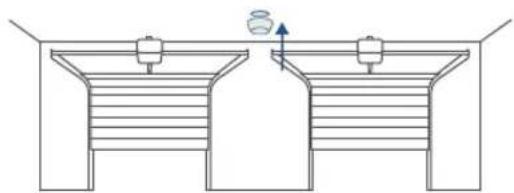
natural_image
Pure technical diagram of two identical mechanical components with a valve and handle, no text or symbols present- Manually adjust the camera angle until you get the desired view through the eufy Security app.
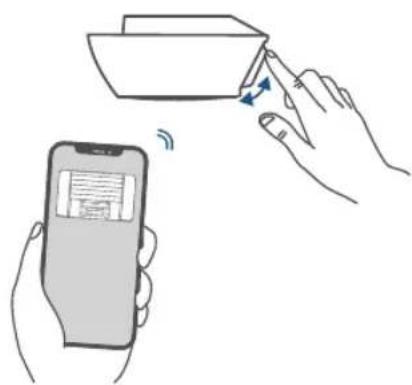
5/ PAIRING AND MOUNTING SENSOR
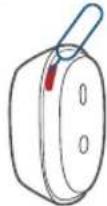
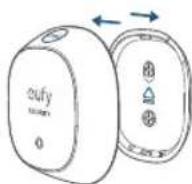
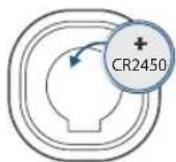
- Open the battery cover, then install the provided battery.
①
②
③
| Status LED Battery Status |
| Blue for 2 seconds Normal |
| Red for 2 seconds Low battery |
- Close the battery cover.
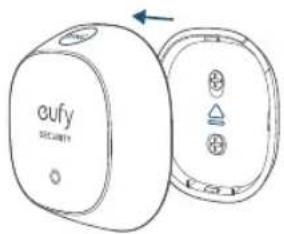
-
In the eufy Security app, follow on-screen instructions to pair the sensor with the camera.
-
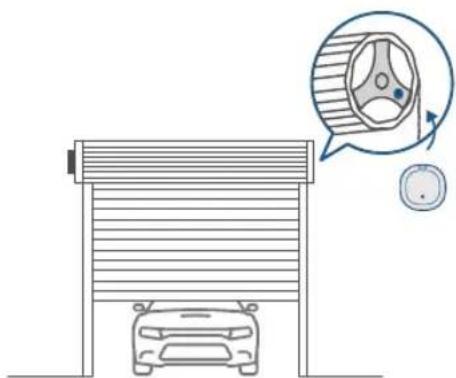
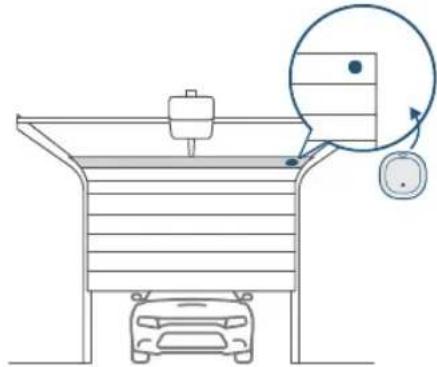
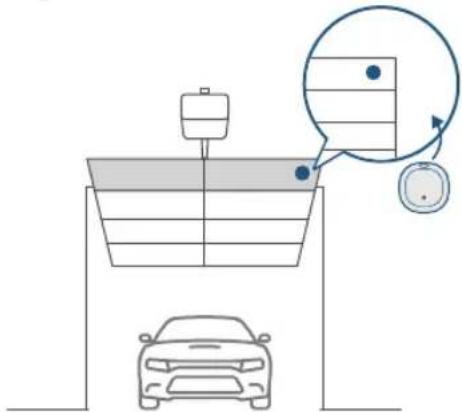
Select a location on your garage door to mount the sensor.
Roller Door Mount the sensor at the end of the drum wheel spoke.
natural_image
Diagram of a car storage unit with a circular inset showing a wheel and a speedometer (no text or symbols)Sectional Door
Mount the sensor on the top of the door (the gray area in the figure below).
natural_image
Diagram of a car storage or parking system with a pump and circular component, no text or symbols presentTilt Door
Mount the sensor on the top of the door (the gray area in the figure below).
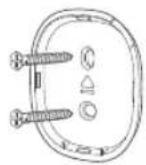
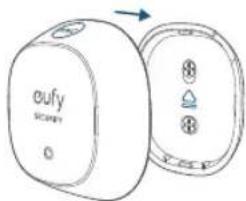
- Mount the sensor with the provided 3M sticker.
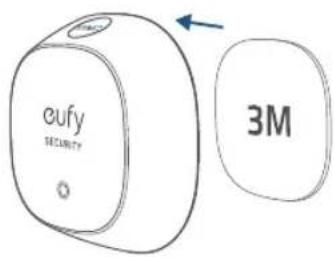

For wood sectional doors, you can also mount the sensor with the screws provided. Make sure the SYNC button faces the same direction as the arrow on the battery cover.
natural_image
Line drawing of two electronic devices with buttons and a blue arrow indicating rotation (no text or symbols)- In the eufy Security app, follow on-screen instructions to open the door for a test.
natural_image
Diagram showing a hand holding a smartphone and a car with an upward arrow, next to a ceiling-mounted device (no text or symbols present)
Model T8453 can work with up to 2 garage doors. Buy another sensor for the other garage door, then follow the steps above to pair and mount the sensor.
6/ APPENDIX. REPLACING BATTERY FOR SENOR
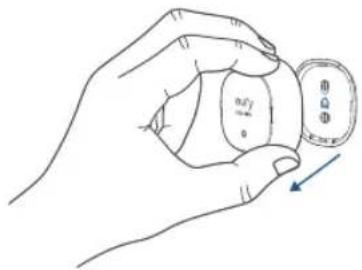
- Pull the sensor off the battery cover.
natural_image
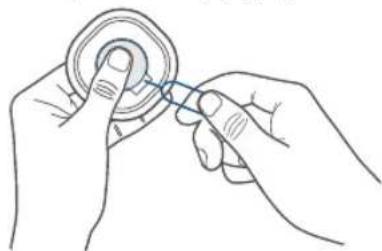
Hand holding a small circular object with a pointer and arrow, no visible text or symbols- Remove the battery using the provided detaching pin. Press the battery with your finger when detaching to keep the battery from suddenly popping out.
natural_image
Line drawing of two hands holding a circular object with a blue tool (no text or symbols)To show the door open/closed status correctly in the eufy Security app, perform a calibration on Camera Settings > Door Settings > Calibration after you replace the battery or move the sensor.
7/NOTICE
CAUTION RISK OF EXPLOSION IF BATTERY IS REPLACED BY AN INCORRECT TYPE. DISPOSE OF USED BATTERIES ACCORDING TO THE INSTRUCTIONS
ATTENTION RISQUE D'EXPLOSION SI LA BATTERIE EST REMPLACÉE PAR UN TYPE INCORRECT. ÉLIMINER LES BATTERIES USÉES SELON LES INSTRUCTIONS
Warning:
- replacement of a battery with an incorrect type that can defeat a safeguard;
- disposal of a battery into fire or a hot oven, or mechanically crushing or cutting of a battery, that can result in an explosion;
– leaving a battery in an extremely high temperature surrounding environment that can result in an explosion or the leakage of flammable liquid or gas; and
- a battery subjected to extremely low air pressure that may result in an explosion or the leakage of flammable liquid or gas.
Attention:
NOTICE (United States Of America)
FCC Statement
This device complies with Part 15 of the FCC Rules. Operation is subject to the following two conditions: (1) this device may not cause harmful interference, and (2) this device must accept any interference received, including interference that may cause undesired operation.
Warning: Changes or modifications not expressly approved by the party responsible for compliance could void the user's authority to operate the equipment.
Note: This equipment has been tested and found to comply with the limits for a Class B digital device, pursuant to Part 15 of the FCC Rules. These limits are designed to provide reasonable protection against harmful interference in a residential installation.
This equipment generates, uses, and can radiate radio frequency energy and, if not installed and used in accordance with the instructions, may cause harmful interference to radio communications. However, there is no guarantee that interference will not occur in a particular installation. If this equipment does cause harmful interference to radio or television reception, which can be determined by turning the equipment off and on, the user is encouraged to try to correct the interference by one or more of the following measures: (1) Reorient or relocate the receiving antenna. (2) Increase the separation between the equipment and receiver. (3) Connect the equipment into an outlet on a circuit different from that to which the receiver is connected. (4) Consult the dealer or an experienced radio/TV technician for help.
FCC Radio Frequency Exposure Statement
The device has been evaluated to meet general RF exposure requirements. The device can be used in fixed/mobile exposure condition. The min separation distance is 20cm.
Notice: Shielded cables
All connections to other computing devices must be made using shielded cables to maintain compliance with FCC regulations.
The following importer is the responsible party
Company Name: POWER MOBILE LIFE, LLC
Address: 10900 NE 8th St, Ste 501, Bellevue WA 98004
Telephone: 1-800-988-7973
NOTICE (Canada)
IC Statement
This device complies with Industry Canada licence-exempt RSS standard(s). Operation is subject to the following two conditions:
- this device may not cause interference, and
- this device must accept any interference, including interference that may cause undesired operation of the device."
This Class B digital apparatus complies with Canadian ICES-003.
When using the product, maintain a distance of 20cm from the body to ensure compliance with RF exposure requirements.
12-month limited warranty
Call Us
United States
+1 (800) 988 7973 Mon-Fri 6:15-17:00(PT)
Sat-Sun 6:30-16:30(PT)
United Kingdom
+44 (0) 1604 936 200 Mon-Fri 6:00-17:00
Sat-Sun 6:00-14:00
Germany
+49 (0) 69 9579 7960 Mon-Fri 8:00-16:00
Email Us
support@eufylife.com
Anker Innovations Limited
Room 1318-19, Hollywood Plaza, 610 Nathan Road, Mongkok, Kowloon, Hong Kong

@EufyOfficial

@EufyOfficial

@EufyOfficial
- 1/AT A GLANCE
- 2/ SETTING UP CAMERA
- 3/ WIRING CAMERA AND TESTING
- MOUNTING CAMERA
- Option 1. Garage Door Opener
- Option 2. Ceiling
- 5/ PAIRING AND MOUNTING SENSOR
- 6/ APPENDIX. REPLACING BATTERY FOR SENOR
- 7/NOTICE
- Warning:
- Attention:
- NOTICE (United States Of America)
- FCC Statement
- FCC Radio Frequency Exposure Statement
- Notice: Shielded cables
- NOTICE (Canada)
- IC Statement
Brand : eufy
Model : Garage-Control Cam E120
Category : Home Automation