
SRM-FLEX - Hi-Fi System MACKIE - Free user manual and instructions
Find the device manual for free SRM-FLEX MACKIE in PDF.


| Product Type | Active PA Speaker |
| Brand | Mackie |
| Model | SRM-FLEX |
| Dimensions (H x W x D) | 18.1 x 11.4 x 11.2 inches |
| Weight | 27.8 lbs |
| Power Output | 1000W Class D |
| Frequency Response | 45 Hz - 20 kHz (-10 dB) |
| Maximum SPL | 130 dB |
| Inputs | 2x XLR/TRS combo, 1x Bluetooth 5.0 |
| Outputs | 1x XLR Mix Out, 1x Bluetooth |
| Bluetooth Range | 30 meters (line of sight) |
| Controls | Bluetooth pairing, volume, EQ presets |
| Enclosure | Polypropylene with metal grille |
| Mounting | Pole mount (1.5 inch) and floor wedge |
| Power Supply | AC 100-240V, 50/60 Hz, internal power |
| Power Consumption | 200W (typical), 800W (peak) |
| Cooling | Internal fan, variable speed |
| Protection | Thermal, overload, limiter |
| Included Accessories | Power cable, quick start guide |
| Maintenance | Clean with dry cloth; do not use solvents |
| Safety | Keep dry; avoid moisture and direct sunlight |
| Spare Parts | Not user-serviceable; contact Mackie support |
| Reparability | Service by qualified technicians only |
Frequently Asked Questions - SRM-FLEX MACKIE
User questions about SRM-FLEX MACKIE
0 question about this device. Answer the ones you know or ask your own.
Ask a new question about this device
Download the instructions for your Hi-Fi System in PDF format for free! Find your manual SRM-FLEX - MACKIE and take your electronic device back in hand. On this page are published all the documents necessary for the use of your device. SRM-FLEX by MACKIE.
USER MANUAL SRM-FLEX MACKIE
natural_image
Symbolic icon of a running person inside a circle, no text or numbers presentSRM|FLEX
Connect™
REFERENCE GUIDE

Contents
Contents......2
Introduction 3
SRM-Flex Connect....3
About This Guide ....3
Getting Started 3
Part I: Downloading and Installing the SRM-Flex
Connect App for Android....4
Part II: Pairing and Connecting the Android Device via Bluetooth....5
Part I: Downloading, Installing and Updating
the SRM-Flex Connect App for iOS Devices......6
Part II: Pairing and Connecting the iOS Device
via Bluetooth....7
Additional Bluetooth Notes [Android and iOS]......8
Part III: Level Setting Procedure....8
Welcome 9
Mixer View....10
Introduction....10
- Mute....10
- Channel Name......10
- Channel Faders and Input Meters....10
- EQ Channel View......10
- Main Mix ....11
- System View Button....11
Channel View 11
Introduction....11
2-Band EQ....11
-
Low EQ....11
-
High EQ....11
-
Reverb Send....11
System View....12
Introduction 12
-
Settings....12
-
Memory 13
-
About....13
Final Notes 14
Appendix A: Service Information....15
Appendix B: Technical Information 16
Appendix C: Android and iOS Optimizations......17
Need help with SRM-Flex Connect?
- Visit www.mackie.com/support to find: FAQs, manuals, addendums, and other documents.
- Email us at: www.mackie.com/support-contact
- Telephone 1-800-898-3211 to speak with one of our splendid technical support chaps (Monday through Friday, normal business hours, Pacific Time).


Like us
Follow us
Watch our dang videos
Introduction
Do you want to control SRM-Flex via your Android or iOS device? Of course you do! Well, you've come to the right place! After all, the SRM-Flex Connect App is designed to be used in conjunction with SRM-Flex.
At this point, you must be well-versed in — or at least somewhat familiar with — the ins and outs of SRM-Flex. More information about SRM-Flex may be found by visiting the SRM-Flex Owner's Manual.
SRM-Flex Connect is great for mobile freedom to control everything from levels and EQ to room-enhancing sound like reverb and speaker modes for amazing sound in any situation.
SRM-Flex Connect allows control of SRM-Flex via Bluetooth with the following devices:
| *Recommended Android Devices[requires v6.0 or higher] |
| Android PhonesGoogle Pixel 2Google PixelGoogle Pixel XLGoogle Nexus 5Samsung Galaxy S9Samsung Galaxy S8+Samsung Galaxy S8Samsung Galaxy S7Samsung Galaxy S6HTC 10LG G5Moto G4 Play |
| Android TabletsGoogle Pixel Tablet 10.2"Samsung Galaxy Tab S2 8"Asus Zen Pad 7" |
| *Recommended iOS Devices[requires iOS 11.0 or higher] |
| Apple iPhonesiPhone XRiPhone XiPhone 8iPhone 8 PlusiPhone 7iPhone 7 PlusiPhone 6iPhone 6 Plus |
| Apple iPadsiPad Air 2iPad AiriPad Pro 9.7"iPad Pro 10.5"iPad Pro 11"iPad Pro 12.9"iPad Pro 12.9" (3rd Gen)iPad (6th Gen)iPad (5th Gen)iPad mini 4iPad mini 3iPad mini 2 |
With SRM-Flex Connect, SRM-Flex users benefit from the full power of their SRM-Flex with an easy-to-use application that fits right in their hand.
* This is a list of our test devices, but a variety of other devices are anticipated to work with Android v6.0 and higher and Apple iOS 11.0 and higher.

You should be able to stream audio from any Bluetooth-paired device. However, the SRM-Flex Connect app is needed to mix audio, including wireless adjustments of level, EQ, reverb and more.

The SRM-Flex Connect app does not mix audio on its own. It requires an SRM-Flex to fully function.
SRM-Flex Connect V1.0
This version of the Reference Guide is written and designed for SRM-Flex Connect V1.0. With each software update, some screen shots may look slightly different than what you see within these pages and there could be some functional differences, as well.
So there you have it. We hope you like it. If you have any questions or comments about this Reference Guide (or our other documentation), please don't hesitate to contact us: www.mackie.com/support
About This Guide
The entire guide does not need to be read to figure out how to use the SRM-Flex Connect app. However, a certain amount of familiarity with the SRM-Flex and its features is assumed.
As the saying goes, “a picture tells a 1000 words”. With that thought in mind, we added quite a few illustrations, screen shots and other images throughout to accompany the text.

This icon marks information that is critically important or unique! For your own good, read and remember them.

There's an illustration of a microscope, so, of course, you're going to get more detailed information when you see this little guy. There are explanations of features and practical tips listed here.

It's a good idea to pay attention to text displayed next to a note icon, as this icon draws attention to certain features and functions relating to the usage of the SRM-Flex Connect app.
Things to Remember:
- Never listen to loud music for prolonged periods.
• Life is short. Be cool.
Getting Started
There are a few steps to accomplish before messin' around with the SRM-Flex Connect app. For starters, we'll take a look at how to download, install and update the app. Next, we'll pair the device with the hardware via Bluetooth. The last step is setting levels.
Part I: Downloading and Installing the SRM-Flex Connect App for Android
The easiest and fastest way to download and install the SRM-Flex Connect app is directly from the device. You've downloaded apps before and it's the same method to download this one, as well. Here's how:
- Start by turning the device on (if it's not already).
- With a good data connection open up the Play Store.

- Type "SRM-Flex Connect" in the search box located at the top of the screen followed by tapping the 'Search' button.

SRM-Flex Connect

- Select the SRM-Flex Connect app.
- Now tap the INSTALL button.

Mackie SRM-Flex Connect LOUD Audio, LLC
4.2★
6M reviews
500M+
Downloads

Everyone
Install
- SRM-Flex Connect is now installing, as seen below.

Mackie SRM-Flex Connect
Installing...
Verified by Play Protect
Cancel
Open
The SRM-Flex Connect app is now ready for use. From here, there are two ways to open the SRM-Flex Connect app.
First, simply tap the green OPEN button to open the app...

Mackie SRM-Flex Connect LOUD Audio, LLC
Uninstall
Open
...or second, exit out of the Play Store back to the home screen. Tap the SRM-Flex Connect app!

Part II: Pairing and Connecting the Android Device via Bluetooth

You should have to follow these instructions only once for each device paired via Bluetooth. After that they should remain paired, although you will need to connect manually to the SRM-Flex
(unless auto connect is turned on) [Default]. SRM-Flex will auto connect to previously paired devices, if available.
These are the steps necessary to pair the device with the SRM-Flex.
-
Start by turning both the device and SRM-Flex on (if they're not already).
-
Tap Settings to open the device's settings.
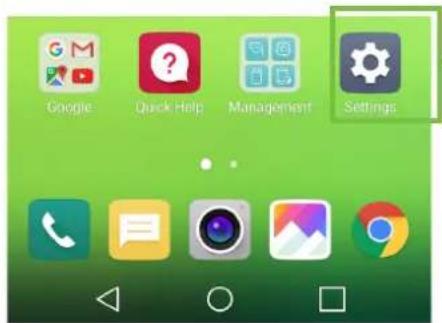
- Enable Bluetooth simply by swiping right. [Tapping also enables / disables Bluetooth].
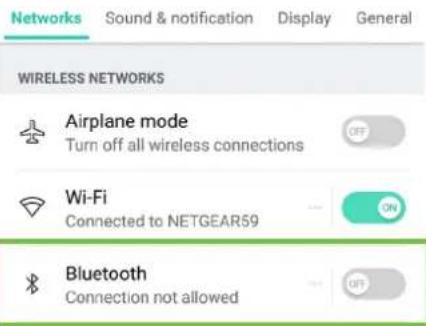
- Bluetooth is on!
Bluetooth Connection available
ON
- To enter pairing mode, press the bluetooth button on the top panel of the SRM-Flex.

The button LED will illuminate and flash white rapidly while in pairing mode. If it does not, start the pairing process again; confirm that
the SRM-Flex is in pairing mode and that Bluetooth is enabled on the device. Please review the SRM-Flex Owner's Manual if you need additional details.
- Go to Settings > Connected devices and tap 'Pair new device'.

Previously connected devices
- As seen below, the SRM-Flex is listed as a device, but is not connected. Tap it to start the pairing process.

- Here we're trying to pair and connect the SRM-Flex via Bluetooth.

- From there, your device should indicate that it is successfully paired and connected.

- Now simply return to the home screen on the device, tap the SRM-Flex Connect icon to open the app and let the good times roll!
Part I: Downloading, Installing and Updating the SRM-Flex Connect App for iOS Devices
The easiest and fastest way to download and install the SRM-Flex Connect app is directly from the device. You've downloaded apps before and it's the same method to download this one, as well. Here's how:
- Start by turning the device on (if it's not already).
- With a good data connection open up the App Store.

- Select "Search" from the App Store options.

- Type "SRM-Flex Connect" in the search box followed by tapping the 'Search' button.

- Select the SRM-Flex Connect app.
- Now tap the GET button.

Mackie SRM-Flex
Connect
LOUD Audio, LLC

- From here, use your touch ID or face ID to install the SRM-Flex Connect app.
As seen in the screen shot below left, the SRM-Flex Connect app icon shows the progress of the download.
The download is complete once the entire app is illuminated. The SRM-Flex Connect app is now ready for use.


natural_image
Green and black icon depicting a bar chart with a running figure symbol (no text or numbers)- It is possible that the SRM-Flex Connect app has already been downloaded and installed. In this case, you're probably good to go. However, it is a good idea to go to the App Store to check for updates. You will want the latest and greatest version for the absolute best in functionality and versatility.
Once in the App Store, tap the Update button located near the bottom-right of the device.
The first screen shot below shows a device with all apps up to date. The second screen shot below displays five apps that need updating (which may or may not include the SRM-Flex Connect app). Tapping the Update button here will horizontally display the icon, name and description of changes of each app needing an update. If you see SRM-Flex Connect listed, tap the blue UPDATE button on the far right, followed by typing in your password. Or better yet, tap the blue Update All button in the upper-right corner of the screen. The updates will commence. Don't do anything until the downloads have completed.

Part II: Pairing and Connecting the iOS Device via Bluetooth

You should have to follow these instructions only once for each device paired via Bluetooth. After that they should remain paired, although you will need to connect manually to the SRM-Flex (unless auto connect is turned on) [Default]. SRM-Flex will auto connect to previously paired devices, if available.
These are the steps necessary to pair the device with the SRM-Flex.
-
Start by turning both the device and the SRM-Flex on (if they're not already).
-
Tap the 'Settings' icon.
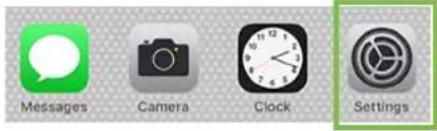
- If the Bluetooth connection displays "Off" (as seen below) we'll need to turn it on. Tap anywhere on the Bluetooth line to open it.

- From here, enable Bluetooth simply by swiping right. [Tapping also enables / disables Bluetooth].

- To enter pairing mode, press the Bluetooth button on the top panel of the SRM-Flex.

The button LED will illuminate and flash white rapidly while in pairing mode. If it does not, start the pairing process again; confirm that the SRM-Flex is in pairing mode and that Bluetooth is enabled on the device. Please review the SRM-Flex Owner's Manual if you need additional details.
- As seen below, the SRM-Flex is listed as a device, but is not connected. Here we're trying to pair and connect SRM-Flex via Bluetooth.

- From there, your device should indicate that it is successfully paired and connected.

- Now simply return to the home screen, tap the SRM-Flex Connect icon to open the app and let the good times roll!
Additional Bluetooth Notes [Android and iOS]:
![MACKIE SRM-FLEX - Additional Bluetooth Notes [Android and iOS]: - 1](/content/2026/05/882202/images/6726eed35ab046dbdd0e1060442e46c74b0956c9ef1fedea87c831b7ce0a821a.jpg)
If the device had been previously connected to a SRM-Flex via Bluetooth, but it displays "Not Connected", it's quite possible that the SRM-Flex is not powered on.
![MACKIE SRM-FLEX - Additional Bluetooth Notes [Android and iOS]: - 2](/content/2026/05/882202/images/0fab314890480cdb35ae5d1535386a8b08e4e1b121358f6033c03c6779796481.jpg)
The bluetooth level of most phones and tablets are directly linked with the level controls of the SRM-Flex. In other words, you may raise or lower the volume with either the phone / tablet or SRM-Flex.
However, the bluetooth level of some older phones and tablets are not linked with the level controls of the SRM-Flex, but is rather a supplementary level control. In other words, the volume of the Bluetooth on the device needs to be up in order to hear audio over Bluetooth. If this does not make sense, please refer to Appendix C: Optimizations for step-by-step instructions.
![MACKIE SRM-FLEX - Additional Bluetooth Notes [Android and iOS]: - 3](/content/2026/05/882202/images/dfd9d7809d9138a336bbf00b9a4365e3c6df178fed9ebfc9b3af3832e92ee338.jpg)
The Bluetooth may disconnect when affected by Electrostatic Discharge [ESD] or electrical fast transients (EFT). If this occurs, manually reconnect the Bluetooth connection.
Part III: Level Setting Procedure
The following steps will help you set up SRM-Flex quickly. Note that these same instructions may be found on page 4 of the SRM-Flex Owner's Manuals, but are listed again below.

These startup instructions are intended for the hardware only. Once proven that the SRM-Flex performs as desired, then pair it with a device and control it via the SRM-Flex Connect app.
- Make all initial connections with the power switch OFF
- Connect height extension module(s) and/or HF driver column to the base station.
-
Plug signal sources into SRM-Flex, such as:
-
Microphones plugged into the mic inputs.
- Instrument level sources, such as acoustic guitars w/active pickups into the instrument inputs.
-
Line-level sources such as keyboards, drum machines, or MP3 players plugged into the line-level inputs.
-
Push the line cord securely into the IEC connector and plug the other end into a grounded AC outlet.
- Turn the SRM-Flex on.
- Pair and connect a phone or tablet via Bluetooth.
- Be sure that the volume of the input is the same as it would be during normal use.
- Slowly bring up the main output level to a comfortable listening level.
- Read the rest of the SRM-Flex Owner's Manual and the SRM-Flex Connect app Reference Guide for more details!
Welcome
The welcome screen is the first thing you will see after tapping the SRM-Flex Connect app. Here you are able to demo or start using the app.
If an Android or iOS device and SRM-Flex have been paired previously, the SRM-Flex Connect app will automatically load.

However, if SRM-Flex Connect IS NOT connected to an SRM-Flex via Bluetooth simply tap 'Demo' to demo the app.

Demo mode works exactly the same as if it were connected, except there are no bouncing meters and no sound. Other than that, it's a great way to get a feel of how an SRM-Flex works before buying!
If the Bluetooth disconnects, an image similar to what is seen below is displayed. From here you may either (1) wait for the Bluetooth connection to be re-established between the SRM-Flex Connect app and the SRM-Flex or (2) tap 'Demo' to demo the SRM-Flex Connect app.

If the firmware version in the SRM-Flex is older than the SRM-Flex Connect app, you will be prompted to update the firmware. The latest firmware is built into the SRM-Flex Connect app, so there is nothing additional to download. Just follow the on-screen prompts.

SRM-Flex Connect – Three Main Views
From here on out, operation is virtually identical between Android and iOS. In addition to the opening Welcome view, there are three main views in the SRM-Flex Connect app and this page outlines what may be accomplished with each of these three views. Soon enough we will go through each of these in detail.
Mixer View

As seen in the image above, the Mixer View allows access to key controls such as levels, metering, mutes and more. From here you're able to one-touch navigate to the...
- Channel View

- System View

Channel View

As seen in the image above, the Channel View allows access to the channel EQ and reverb level controls. From here you're able to one-touch navigate to the...
- Mixer View

- System View

System View
As seen in the image above, the System View allows access to deeper functionality including Settings, Memory and more. From here you're able to one-touch navigate back to the Mixer View.
Mixer View
Introduction
As mentioned earlier, the Mixer View allows access to key controls such as levels, metering, mutes and more.
1. Mute
Mute buttons do just what they sound like they do. They mute — turn off — the signal on the channel(s).
Mute buttons illuminate red when engaged and are gray when disengaged.

flowchart
graph LR
    A["Mute"] --> B["Mute"]
2. Channel Name
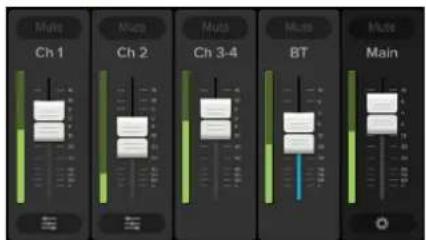
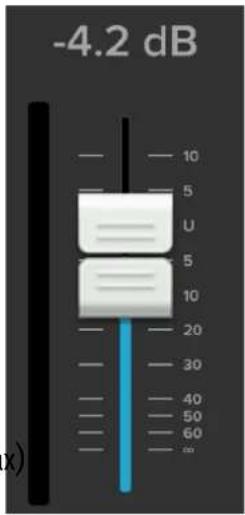
The input and output channels are labeled between the mute buttons and faders and meters. These labels display the fader value as the fader level is adjusted; in the case to the right, -4.2 dB on the BT channel.
That's not all! If you press and hold a finger over the channel name, the keyboard appears. Here you're able to rename all inputs and outputs. Simply type in the name you want for that input / output followed by tapping the 'Done' button.

Are emojis more your thing? Use those instead of text! Check out channels 3-4 (keyboard) and the Bluetooth channel (phone containing backing tracks).


Input Channels 1-2 3-4 BT / 5-6 Main Mix
3. Channel Faders and Input Meters
The touch sensitive faders adjust the channel's relative volume to the master bus. Adjustments are made by touching and dragging channel faders up and down.
The input meters display the input signal level to the channel before all channel processing.
- Channels 1-4:
- Bluetooth Channel:
$$ - \infty \mathrm{dB} (\text { off }) \text { to } + 1 6. 0 \mathrm{dB} (\max) $$
$$ - \infty \quad \mathrm{dB} (\text { off }) \text { to } + 1 0. 0 \mathrm{dB} (\max) $$

You may notice some latency with the metering. This is due to the limitations of Bluetooth, not the SRM-Flex.
The buttons located at the bottom of channels 1 and 2 allow access to the selected channel's Channel View.
When tapped, the entire selected channel strip slides to the left and the main mix strip remains on the right. The middle then becomes occupied with the selected channel's EQ section. See the following page.
The sliders on the EQ button lie horizontally in mixer view and vertically in channel view. Simply tapping this button again returns you to the mixer view.

flowchart
graph LR
    A["Three parallel arrows"] --> B["Step with vertical lines"]
Nav to Mixer ViewNav to Chan
5. Main Mix
The main mix strip looks and works nearly identical to that of an input channel strip. The only differences are: (1) this fader adjusts the main output level of the SRM-Flex and (2) instead of an EQ button at the bottom of the strip, there is a gear icon button. This takes you to the system view and it is detailed below.
6. System View Button
The gear icon button located at the bottom of the main mix strip allows access to the System View.
When tapped, all channel strips disappear and the main mix strip remains on the right. The rest of the screen then becomes occupied with the System View settings.
As seen below, the button in mixer view [gear icon] and channel view [vertical sliders] differs. Simply tapping this button again returns you to the Mixer View.
7. Low EQ
This ball gives you up to 5 dB boost / -15 dB cut below 80 Hz. The processing is flat (no boost or cut) at the center position. This frequency represents the punch in bass drums, bass guitar, fat synth patches, and some really serious male singers (as opposed to really funny male singers). Double-tap the EQ ball to reset it to ±0 dB.

Main MixInput Char

flowchart
graph LR
    A["Gear Icon"] --> B["Directional Control Symbol"]
Nav to Mixer ViewNav
Channel View
Introduction
As mentioned earlier, the Channel View allows access to the channel EQ and reverb level controls. From here you're able to one-touch navigate to the Mixer View and System View.
2-Band EQ
SRM-Flex Connect has 2-band equalization at carefully selected points — low shelving at 80 Hz and high shelving at 6.0 kHz. "Shelving" means that the circuitry boosts or cuts all frequencies past the specified frequency. For example, dragging the low EQ ball 5 dB to the top boosts bass starting at 80 Hz and continuing down to the lowest note you never heard and 6.0 kHz on up boosts the treble in the case of the high EQ.

With too much EQ, you can screw things up royally. We've designed a lot of boost and cut into the equalizer circuit because we know everyone will occasionally need that. But if you max the EQs, you'll likely get mix mush. Equalize subtly and use the bottom side of the EQ balls (cut), as well as the top (boost).
8. High EQ
This ball gives you up to 5 dB boost / -15 dB cut at 6.0 kHz, and it is also flat at center. Use it to add sizzle to cymbals, and an overall sense of transparency, or edge to keyboards, vocals, guitar and bacon frying. Turn it down a little to reduce sibilance, or to hide hiss. Double-tap the EQ ball to reset it to ±0 dB.
9. Reverb Send
This slider allows you to select the amount of reverb you would like to add per channel from off (far left, 0.0%) to max (far right, 100.0%).

Reverb is available on input channels 1 and 2, but not the other channels.

Don't hear any reverb? Make sure it's turned on either via the SRM-Flex or SRM-Flex Connect app.
System View
Introduction
As mentioned earlier, the System View allows access to deeper functionality including Settings, Memory, access to the About view and more.

As seen in the screen shot above, there are three system menu buttons from which to choose. The currently selected tab will illuminate white and is underlined green.
- Settings
- Memory
- About
From here you're able to one-touch navigate back to the Mixer View with a simple, single tap of the Mixer View button.

Nav to Mixer View
10. Settings
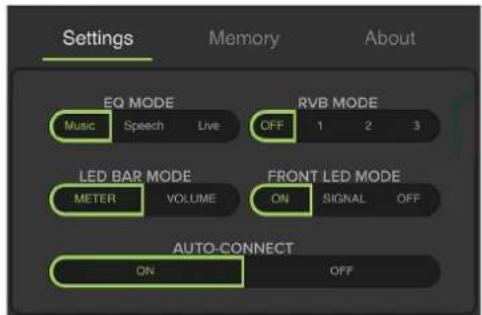
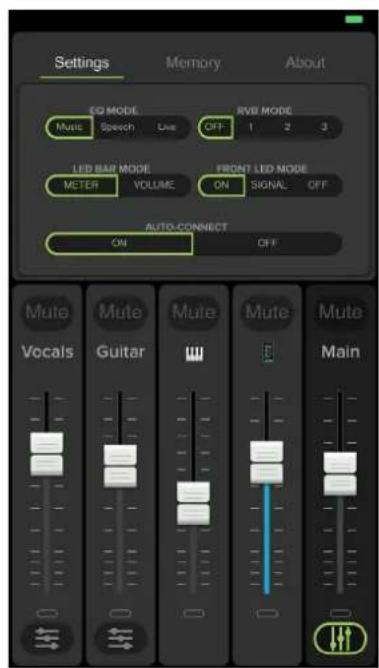
The settings tab is where to select an EQ mode, reverb mode, make LED selections and more.
EQ Mode – This allows you to change the SRM-Flex's mode to tailor it to best suit your particular application. Simply press the text of the speaker mode you want. The border of the selected mode will illuminate green, as well as the text.
The three speaker modes are as follows:
Music EQ Mode [Default] – This mode is full range, but focuses on increased bass and brilliant high frequencies. This is the place to start for most DJ / music playback applications.
Speech EQ Mode – This mode features a significant low frequency roll-off to get rid of unwanted thumps. It also adds boost and sparkle to mid-range and high frequencies, critical for speech applications.
This plug-and-play mode is perfect for applications where speech is the primary audio source in need of clear and precise intelligibility.
Live EQ Mode – This mode is flat, perfect for singer-songwriters and other live performers.
RVB Mode – Are you interested in adding some reverb to the signal? It can't be more straightforward. Simply tap "1" (small room), "2" (medium room) or "3" (large room) to turn it on and "Off" [Default] to turn it off. The border of the selected mode will illuminate green, as well as the text to confirm the reverb mode status.
Setting reverb levels was discussed on the previous page, call-out number nine.
LED Bar Mode – In addition to meter displays on SRM-Flex Connect, main meters are also displayed on the LED bar located on the top panel of SRM-Flex.
The two LED bar modes are as follows:
Meter [Default] - Meter - aka peak meter mode - displays bouncing meters.
Volume - Volume mode, on the other hand, is a solid bar, no bouncing meters. This updates as the level is (manually) changed.

The LED Bar Mode choices listed above only apply to SRM-Flex. The SRM-Flex Connect meters will always be bouncing happily (even when the LED Bar Mode is set to
'Volume').
Front LED Mode – There are two horizontal LED bars on the front of SRM-Flex. One bar is located near the bottom of the base station / subwoofer and the other near the top of the high frequency driver column.
The three front LED modes are as follows:
On [Default] - The LEDS illuminate in all their glory.
Signal - The LEDS illuminate when there is signal at the outputs.
Off – The LEDS do not illuminate; they are turned off and SRM-Flex is in 'stealth' mode.
System View Continued...
Auto Connect - When ON [Default] is selected, this allows a previously paired device to auto reconnect if both the device and SRM-Flex are powered on and in range.
As such, when OFF is selected, a previously paired device will not reconnect automatically regardless of the range or on/off status of the device and SRM-Flex. The border of the selection will illuminate green, as well as the text to confirm your choice.

The Bluetooth connection may disconnect when affected by electrostatic discharge (ESD) or electrical fast transients (EFT). If this occurs, manually reconnect the
Bluetooth connection.
11. Memory
When the memory tab is selected, settings for SRM-Flex may be saved to memory and recalled at a later time. What's more, each setting may be custom-named! No more having to reset levels upon every power-up or trying to remember what each snapshot represents.
This is what you will see when the 'Memory' tab is tapped for the first time:

There are a whopping 10 user snapshots and another to recall the default settings.
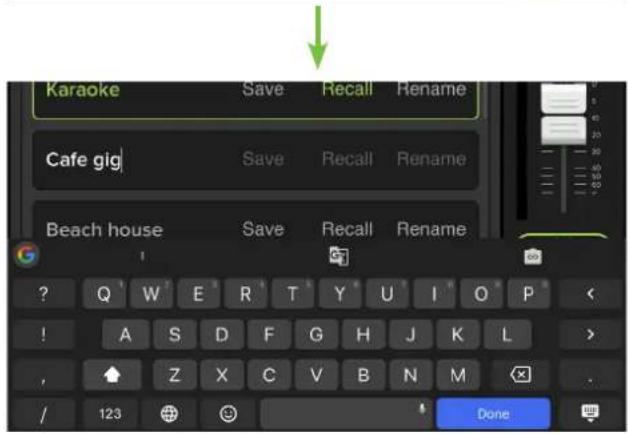
Left to right are save, recall and rename:
Save - Tap this to save the current settings to the corresponding snapshot.

Please be aware that the new settings will replace the currently saved settings.
Recall – Tap this to recall the settings of the selected snapshot.
Rename – Tap this to bring up the blinking cursor and keyboard. Simply type in the name you want for that snapshot followed by tapping the 'Done' button.

Recall Default Snapshot – Tap this to return all settings — faders, mutes, EQ, etc. — to their default settings. It is a convenient way to start with a fresh slate, essentially “zeroing out” the board.
This selection will always remain at the top, above all the user snapshots.
12. About
Once tapped, the 'About' tab displays information about the SRM-Flex Connect app version that is currently installed on the device.

System View Continued...
The list below describes all of the goodies as shown in the image on the previous page:
Contact Support – So you need to talk to someone and your psychiatrist doesn't know the first thing about SRM-Flex Connect? We've got your back... tap here to contact Tech Support using your device!
Product Manuals – Several resources – including support documentation, videos and more – have been created for SRM-Flex and the SRM-Flex Connect app. Tap this link to check out the product manuals!
Version Info – Tapping this tab displays information about the SRM-Flex Connect app version that is currently installed on the device. For the most part, this information is useless mumbo jumbo. There is no need to go here unless requested by Technical Support.
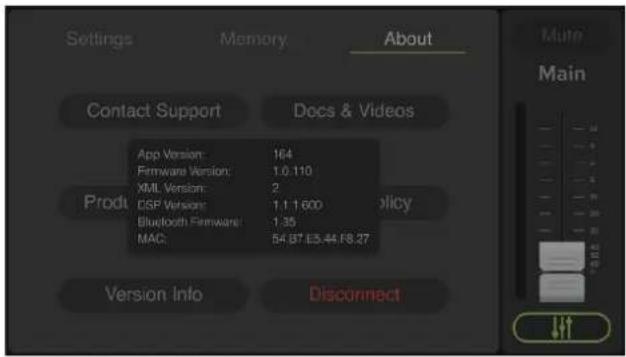
Docs & Videos – Several resources – including support documentation, videos and more – have been created for SRM-Flex and the SRM-Flex Connect app. Tap this link to check out the videos!
Privacy Policy – Fancy yourself doing some investigative reading (or need some material to help put you to sleep)? Tap 'Version Info' and read away.
Disconnect - At times it's nice — and necessary — to just disconnect from the world and recharge your batteries. That is not what this button does; you need to do that on your own. Tapping this button disconnects the device from the SRM-Flex.
Final Notes
Now that you have learned all there is to know about SRM-Flex Connect, it's time to blow your mind...
Up to this point, all of the screen shots in this Reference Guide have been shown in landscape mode. BUT... it also works in portrait mode. Wha...?!
Yup, it's true. Hold your device vertically and you will now have access to all of the same features, but simultaneously now! See below, for example:

Mixer and Channel View
System View
You're welcome!
Appendix A: Service Information
Troubleshooting
If you think your SRM-Flex has a problem, please check out the following troubleshooting tips and do your best to confirm the problem. Visit the Support section of our website (www.mackie.com/support) where you will find lots of useful information such as FAQs and other documentation. You may find the answer to the problem without having to part with your SRM-Flex.
Here are three useful tips that could correct any of the issues outlined below (or possibly any other issue that we haven't yet discovered):
(1) — Restart the device. Don't just restart the SRM-Flex Connect app. Restart the device! Completely power it down, then power it back up.
(2) — Restart the SRM-Flex. This is especially useful after software updates where the hardware and software aren't quite on the same page. A simple reboot of the hardware can sometimes work great wonders.
(3) — Level setting procedure. If you are having any sound (or non-sound) issues, try following the level setting procedure as outlined on page 8 to verify that all of the volume controls in the system are properly adjusted.
No power
- Our favorite question: Is it plugged in? Make sure the AC outlet is live [check with a tester or lamp].
- Our next favorite question: Is the power on? If not, try turning it on.
No sound
- Is the level of the input source turned all the way down? Verify that all the volume controls in the system are properly adjusted.
- Is the signal source working? Make sure the connecting cables are in good repair and securely connected at both ends. Make sure the output level control of the source is turned up sufficiently.
- Make sure the source(s) are not turned off or muted. If you find something like this, make sure the level is turned down before disengaging the offending switch.
Poor sound
- Is it loud and distorted? Make sure that you're not overdriving a stage in the signal chain. Verify that all level controls are set properly.
- Is the input connector plugged completely into the jack? Be sure all connections are secure.
Noise
- Make sure all connections to the SRM-Flex are good and sound.
- Make sure none of the cables are routed near AC cables, power transformers, or other EMI-inducing devices.
- Is there a light dimmer or other SCR-based device on the same AC circuit as the SRM-Flex? Use an AC line filter or plug the SRM-Flex into a different AC circuit.
Hum
- Try disconnecting the cable(s) connected to the main input jack(s). If the noise disappears, it could be a "ground loop," rather than a problem with the SRM-Flex. Try some of the following troubleshooting ideas:
- Use balanced connections throughout your system for the best noise rejection.
- Whenever possible, plug all the audio equipment's line cords into outlets which share a common ground. The distance between the outlets and the common ground should be as short as possible.
Bluetooth / Other Issues
- Are you running the latest and greatest SRM-Flex Connect software? Go to the Play Store [Android] or App Store [iOS] and check for an update.
- Leave SRM-Flex Connect and then return by pressing the Home button on the device.
- Force quit the SRM-Flex Connect app, then re-open.
- Please email or call Technical Support if you are having other issues:
o mackie.com/support-contact
o 1-800-898-3211
Appendix B: Technical Information
Specifications
Recommended Devices and OSs:
*Android
Version Requirement v6.0 or higher required
Android Phones Google Pixel 2, Google Pixel, Google Pixel XL, Google Nexus 5,
Samsung Galaxy S9, Samsung Galaxy S8+, Samsung Galaxy S8,
Samsung Galaxy S7, Samsung Galaxy S6, HTC 10, LG G5, Moto G4 Play
Android Tablets Google Pixel Tablet 10.2", Samsung Galaxy Tab S2 8", Asus Zen Pad 7"
*iOS
Version Requirement iOS v11.0 or higher required
iPhones iPhone XR, iPhone X, iPhone 8, iPhone 8 Plus, iPhone 7, iPhone 7 Plus, iPhone 6, iPhone 6 Plus
iPad
iPad Air 2, iPad Air, iPad Pro 9.7", iPad Pro 10.5", iPad Pro 11",
iPad Pro 12.9", iPad Pro 12.9" (3rd Gen), iPad (6th Gen), iPad (5th Gen),
* This is a list of our test devices, but a variety of other devices are anticipated to work with Android v6.0 and higher and Apple iOS 11.0 and higher.
Equalization
| Low Shelving | +5 dB / -15 dB @ 80 Hz |
| High Shelving | +5 dB / -15 dB @ 6.0 kHz |
| Increments | ±0.1 dB |
System Processing
| Channel EQ | 2-band |
| EQ Mode | 3 EQ modes |
| FX | Reverb |
Bluetooth Information
| Bluetooth Protocol | 4.2 |
| Bluetooth Function | Audio Streaming andUser Interface Control |
| Bluetooth Class | Class 1 |
About
| Reference Guide Version | V1.0 |
| Part Number, Rev and Date | SW1286, Rev A, September 2019 |
Disclaimer
Apple, iPhone and iPad are registered trademarks of Apple Inc., registered in the U.S. and other countries. All other marks are Registered Trademarks, or Trademarks of LOUD Audio, LLC in the United States and other countries.
Since we are always striving to make our products better by incorporating new and improved materials, components, and manufacturing methods, we reserve the right to change these specifications at any time without notice.
The "Running Man" figure is a registered trademark of LOUD Audio, LLC.
All other brand names mentioned are trademarks or registered trademarks of their respective holders, and are hereby acknowledged.
Please check our website for any updates to this Reference Guide: www.mackie.com
©2019 LOUD Audio, LLC
All Rights Reserved.
Appendix C: Android and iOS Optimizations
Android Optimizations
Below is a list of ways to trick out your Android device to optimize its use with the SRM-Flex Connect app. When you have some additional time, use your favorite search engine to search "trick out your Android device" for other ways to optimize your Android device. All of the following tips and tricks may be found by going to Settings on the Android device.
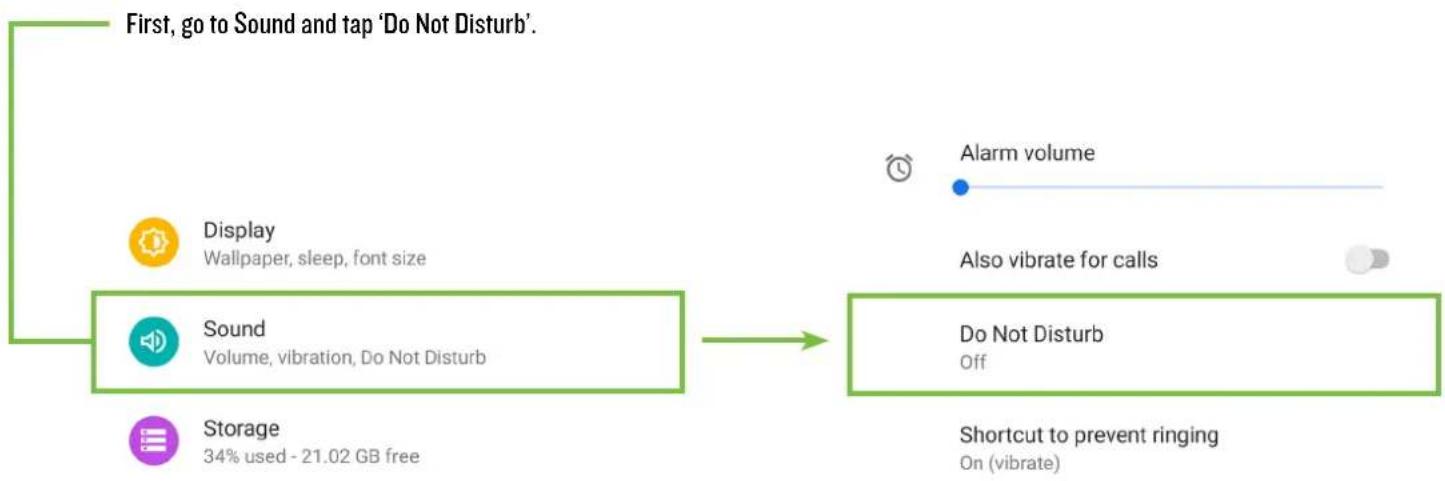
Android Optimization #1: Mute sounds, including phone calls, email alerts, calendar event warnings, alarms and other extraneous Android noises (except music apps; those will continue to play).

If a mic is plugged into an SRM-Flex, the person on the other end of a call can't hear you, so they're better off leaving a voice mail, anyway.
flowchart
graph TD
    A["Display\nWallpaper, sleep, font size"] --> B["Sound\nVolume, vibration, Do Not Disturb"]
    C["Storage\n34% used - 21.02 GB free"] --> B
    B --> D["Alarm volume\nAlso vibrate for calls\nDo Not Disturb\nOff\nShortcut to prevent ringing\nOn (vibrate)"]

Display
Wallpaper, sleep, font size

Sound
Volume, vibration, Do Not Disturb

Storage
34% used - 21.02 GB free
Next, tap 'Turn on now'. The previous screen will show that 'Do Not Disturb' is now ON.
Schedule
Duration
Until you turn off (unless turned on automatically)
Turn on automatically
Never
Turn on now

Alarm volume
Also vibrate for calls
Do Not Disturb
Off
Shortcut to prevent ringing
On (vibrate)

Alarm volume
Also vibrate for calls
Do Not Disturb
On
Shortcut to prevent ringing
On (vibrate)
Android Optimization #2: The bluetooth level of most phones and tablets are directly linked with the level controls of the SRM-Flex. In other words, you may raise or lower the volume with either the phone / tablet or SRM-Flex.
However, the bluetooth level of some older phones and tablets are not linked with the level controls of the SRM-Flex, but is rather a supplementary level control. In other words, the volume of the Bluetooth on the device needs to be up in order to hear audio over Bluetooth.
Simply go to Sound and drag the 'Media volume' slider to the right.
Note that the call volume, ring volume and alarm volumes are all off [sliders fully left].

Display
Wallpaper, sleep, font size

Sound
Volume, vibration, Do Not Disturb

Storage
34% used - 21.02 GB free

Sound


Media volume
Play media to SRM-Flex

Call volume


Ring volume


Alarm volume

Android Optimization #3 : SRM-Flex Connect and Auto Updating Apps
Android allows apps to be updated in the background. This is great for consumer apps like games, etc. However, you use apps like SRM-Flex Connect and auto-updating your apps can cause problems if the process is not properly understood. Before you update that app, let's first understand how updates generally work.
- You are notified of a SRM-Flex Connect update through the Play Store.
- You download and install the update. Boom. The app is updated.
But now, the operating system can update an app in the background automatically, including the SRM-Flex Connect App. While highly unlikely, it is possible that this could cause serious problems during a presentation or performance. Obviously this is not something you want to happen. To avoid this, we strongly recommend you disable automatic updates for Apps.
Here's how:
Tap the Play Store icon to open it.
In the upper-left corner are three horizontal lines, sometimes referred to as a 'hamburger'. Tap it.

From here you will want to tap 'Settings' followed by 'Auto-update apps'.
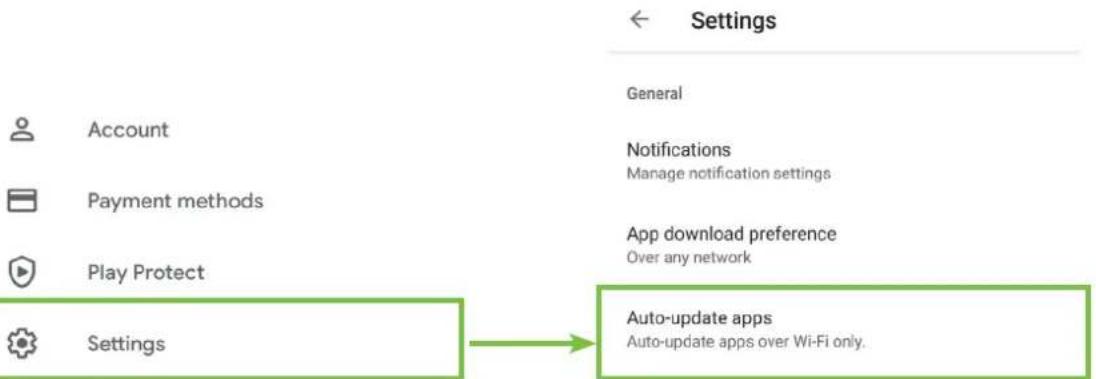
Lastly, simply select "Do not auto-update apps." It will be noted in your settings!
Auto-update apps

Over any network
Data charges may apply

Over Wi-Fi only

Don't auto-update apps

Settings
General
Notifications
Manage notification settings
App download preference
Over any network
Auto-update apps
Don't auto-update apps
Android Optimization #4 : Blocking calls.
To block calls, go to Settings > Network & internet and put the phone into 'Airplane Mode'.

Network & internet
Wi-Fi, mobile, data usage, hotspot

Connected devices
Bluetooth, NFC

Apps & notifications
Then go to Settings > Connected devices and turn Bluetooth back on.


3


Network & internet
Wi-Fi, mobile, data usage, hotspot

Connected devices
Bluetooth, NFC

Apps & notifications

553 MB used on Wi-Fi

Hotspot & tethering
Off

Airplane mode


Connected devices


SRM-Flex
Active

iOS Optimizations
Below is a list of ways to trick out your iOS device to optimize its use with the SRM-Flex Connect app. When you have some additional time, use your favorite search engine to search “trick out your iOS device” for other ways to optimize your iOS device. Most of the following tips and tricks may be found by going to Settings > General on the iOS device.
iOS Optimization #1: Prevent the device from turning off in the middle of a presentation (or worse yet, a rockin' karaoke performance!).
Simply change the Auto-Lock from its current selection to "Never".

General

Display & Brightness

Wallpaper

Sounds
BRIGHTNESS


Auto-Brightness

Night Shift
Off >
Auto-Lock
5 Minutes >

Back
Auto-Lock
30 Seconds
1 Minute
2 Minutes
3 Minutes
4 Minutes
5 Minutes
Never

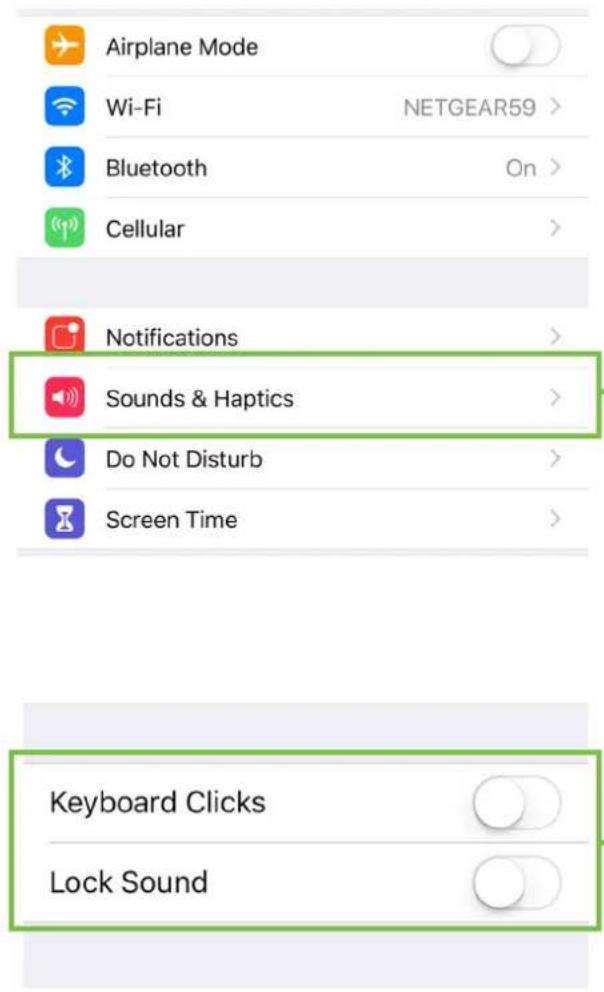
iOS Optimization #2 : Turn off Lock Sounds and Keyboard Clicks.
iOS Optimization #3 : Mute sounds, including email alerts, calendar event warnings, alarms and other extraneous iOS noises (except music apps; those will continue to play).
Use Side Switch to: Mute
Flip the side switch on the device (next to the volume up/down switch) so that the orange dot is visible. It indicates that the device is indeed muted (except for the music apps).
iOS Optimization #4 : SRM-Flex Connect and Auto Updating Apps in iOS
iOS allows apps to be updated in the background. This feature is great for consumer apps like games, etc. However, you use apps like SRM-Flex Connect and auto-updating your apps can cause problems if the process is not properly understood. Before you update that app, let's first understand how updates generally work.
- You are notified of a SRM-Flex Connect update through the iOS App Store.
- You download and install the update. Boom. The app is updated.
But now, the operating system can update an app in the background automatically, including the SRM-Flex Connect App. While highly unlikely, it is possible that this could cause serious problems during a presentation or performance. Obviously this is not something you want to happen.
To avoid this, we strongly recommend you disable automatic updates for Apps in iOS.
Here's how:
Go to Settings > iTunes & App Store.
Simply turn App Updates off.
Settings

You can a successful

Battery


Privacy


iTunes & App Store

AUTOMATIC DOWNLOADS

Music


Apps


Books & Audiobooks


Updates

Automatically download new purchases (including free) made on other devices.

MACKIE.
19820 North Creek Parkway #201
Bothell, WA 98011 • USA
Phone: 425.487.4333
Toll-free: 800.898.3211
Fax: 425.487.4337
www.mackie.com


- SRM|FLEX
- Connect™
- Contents
- Need help with SRM-Flex Connect?
- Introduction
- SRM-Flex Connect V1.0
- About This Guide
- Things to Remember:
- Getting Started
- Part I: Downloading and Installing the SRM-Flex Connect App for Android
- Part II: Pairing and Connecting the Android Device via Bluetooth
- Part I: Downloading, Installing and Updating the SRM-Flex Connect App for iOS Devices
- Part II: Pairing and Connecting the iOS Device via Bluetooth
- Additional Bluetooth Notes [Android and iOS]:
- Part III: Level Setting Procedure
- Welcome
- SRM-Flex Connect – Three Main Views
- Mixer View
- Channel View
- System View
- Mute
- Channel Name
- Channel Faders and Input Meters
- Main Mix
- System View Button
- Low EQ
- 2-Band EQ
- High EQ
- Reverb Send
- Nav to Mixer View
- Settings
- System View Continued...
- Memory
- About
- Final Notes
- Appendix A: Service Information
- Troubleshooting
- No power
- No sound
- Poor sound
- Noise
- Hum
- Bluetooth / Other Issues
- Appendix B: Technical Information
- Specifications
- Recommended Devices and OSs:
- Disclaimer
- Appendix C: Android and iOS Optimizations
- Android Optimizations
- Auto-update apps
- Settings
- iOS Optimizations
- AUTOMATIC DOWNLOADS
- MACKIE.
Brand : MACKIE
Model : SRM-FLEX
Category : Hi-Fi System