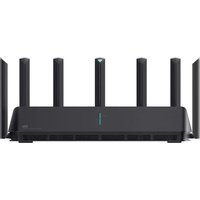
Xiaomi Mi Wi-Fi Router 3C - Router

Mi Wi-Fi Router 3C - Router Xiaomi - Free user manual and instructions

Find the device manual for free Mi Wi-Fi Router 3C Xiaomi in PDF.

📄 8 pages English EN Download 💬 AI Question 10 questions ⚙️ Specs
Notice Xiaomi Mi Wi-Fi Router 3C - page 1
Pick your language and provide your email: we'll send you a specifically translated version.
Product Type Wireless Router
Brand Xiaomi
Model Mi Wi-Fi Router 3C
Wireless Standard IEEE 802.11b/g/n
Frequency Band 2.4 GHz
Maximum Data Rate 300 Mbps
Number of Antennas 4 external omnidirectional
Ports 1 WAN 10/100M, 2 LAN 10/100M
Power Supply DC 12V, 1A
Dimensions 195 x 131 x 30 mm
Weight 250 g
Security WPA/WPA2-PSK, WPA/WPA2-Enterprise, WEP
Management Web interface at www.miwifi.com
Wall Penetration Mode Supported for enhanced coverage
Wired Repeater Mode Supported (via LAN cable)
Wireless Repeater Mode Supported (extends existing Wi-Fi)
Operating Temperature 0°C to 40°C
Storage Temperature -20°C to 70°C
Maintenance Clean with a dry, soft cloth; do not use liquids

Frequently Asked Questions - Mi Wi-Fi Router 3C Xiaomi

How do I set up the Xiaomi Mi Wi-Fi Router 3C as a primary router?
Connect the Ethernet cable from your modem to the WAN port of the router. Power on the router. Connect to the Wi-Fi network or use an Ethernet cable to access the router's web interface at www.miwifi.com. Follow the on-screen instructions to configure your internet connection (PPPoE, DHCP, or static IP). Set an admin password and Wi-Fi name/password.
How do I set up the router as a wired amplifier?
Connect the Mi router to your existing router using an Ethernet cable plugged into any LAN port. Then power on the Mi router. Access the web interface and select 'Amplifier mode' or 'Wired amplifier'. The router will automatically obtain settings from the primary router.
How do I set up the router as a wireless repeater?
Access the web interface and choose 'Amplifier mode (extend existing Wi-Fi)'. Select the Wi-Fi network you wish to extend and enter its password. The router will then create a new Wi-Fi network with a name you set. This extends the range of your existing network.
What should I do if I forget the admin password?
To reset the admin password, press and hold the reset button on the router for about 10 seconds until the LED blinks. This will restore factory defaults. Then access the web interface again and set a new password.
How can I change the Wi-Fi password?
Log in to the router's web interface at www.miwifi.com using the admin password. Navigate to Wi-Fi settings and change the password. You can optionally set the same password as the admin password for simplicity.
How do I update the firmware?
Log in to the web interface. Go to the system settings or firmware update section. The router may automatically check for updates. If available, follow the prompts to install. Do not power off during the update.
What is 'Wall Penetration Mode' and should I enable it?
Wall Penetration Mode increases the Wi-Fi signal strength to better penetrate walls and obstacles. Enable it if you have thick walls or a large area to cover. Note it may slightly increase power consumption.
Can I use the router as an access point?
Yes, you can set the router as an access point by connecting it to your main router via Ethernet cable and disabling DHCP on the Mi router. Use the web interface to configure it as an AP, or set it up in wired amplifier mode which essentially functions as an access point.
How many devices can the router support simultaneously?
The Xiaomi Mi Wi-Fi Router 3C is designed for home use and can typically support up to 15-20 connected devices simultaneously without significant performance degradation, depending on bandwidth usage.
What should I do if the router is not connecting to the internet?
First, check that the WAN cable is securely connected. Verify your internet connection type (PPPoE, DHCP, etc.) and credentials. Log into the web interface and check the status. If needed, reboot both the modem and router. If the problem persists, try resetting the router to factory defaults.

User questions about Mi Wi-Fi Router 3C Xiaomi

0 question about this device. Answer the ones you know or ask your own.

Ask a new question about this device

The email remains private: it is only used to notify you if someone responds to your question.

No questions yet. Be the first to ask one.

Download the instructions for your Router in PDF format for free! Find your manual Mi Wi-Fi Router 3C - Xiaomi and take your electronic device back in hand. On this page are published all the documents necessary for the use of your device. Mi Wi-Fi Router 3C by Xiaomi.

USER MANUAL Mi Wi-Fi Router 3C Xiaomi

When setting up as a primary router:

  1. Connect the Ethernet (RJ45) cable to the Internet port seen behind the router and switch it on.

Now, connect to the router by logging on to www.miwifi.com
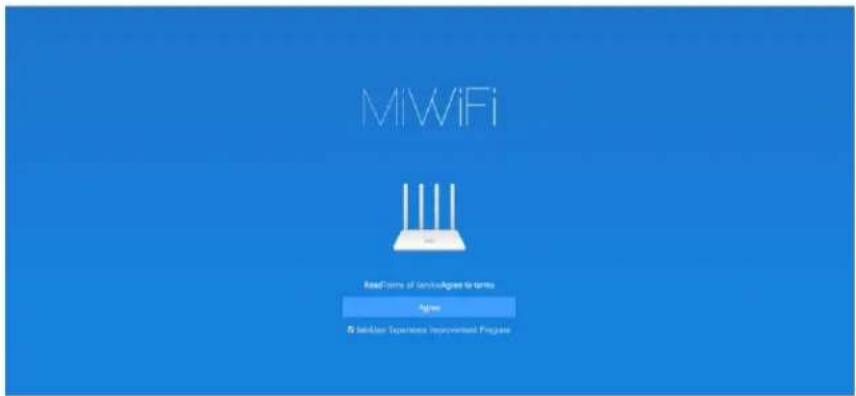
MiWiFi Read terms of knowledge to create Agree 5 SaaS User Experience Improvement Program

  1. Enter the ISP provided credentials

a. If you remember your ISP provided username and password, please enter the required details and click on 'next'

Enter the username and password provided by your Internet Service Provider 10291461708 Germany arginal Spanish # Input from existing.in Sort | 103P |

Mi Wi-Fi Router 3C Setup Guide Using Web Browser

b. Else, you can also import the settings from your previous router. Follow the steps described in the image below and click on 'Import from existing router'.

Import ISP settings from existing router 1. Connect order to power source Next Next

(Step 1)

Import ISP settings from existing router 2. Convert Ethernet sales to existing routers add returns. Existing returns add returns Add Add

(Step 2)
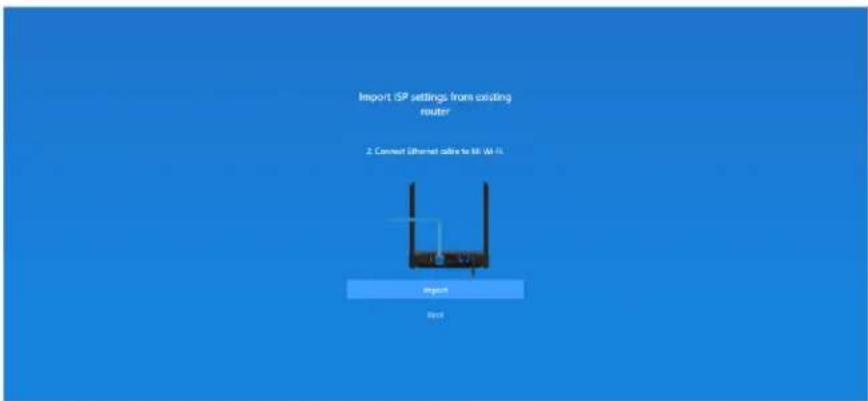
Import ISP settings from existing router 2. Connect Ethernet cable to 86 W-Fi. Import Next

(Step 3)

Mi Wi-Fi Router 3C Setup Guide Using Web Browser

Import GP settings from existing router Just a link...

(Step 4)

  1. Mi 3C Router will now attempt connecting to the Internet with the settings imported.

Dialogus2008

Note: In case your connection type is DHCP, you won't be required to either enter the ISP provided username/password or import the configuration.

Mi Wi-Fi Router 3C Setup Guide Using Web Browser

  1. Set your router admin password

Please note: If you want the same password to be used for router admin control, please select 'same as Wi-Fi password' and click on finish.

Set admin password Home Password Password Password Send us for your password Set up successfully Back

  1. Choose your location from the options given under the drop down menu.

Set admin password Home Password Password Save to (R) password Set up successfully Back

*You can keep the admin password same as Wi-Fi password. If you un-check this option, you can set a different password for Wi-Fi as shown in the following step.

Mi Wi-Fi Router 3C

Setup Guide Using Web Browser

  1. Set Wi-Fi network and password

Set Wi-Fi network name and password Name: https://32 Password: name Password: I am to set personal info Name Back

  1. You are all set! Happy Browsing.

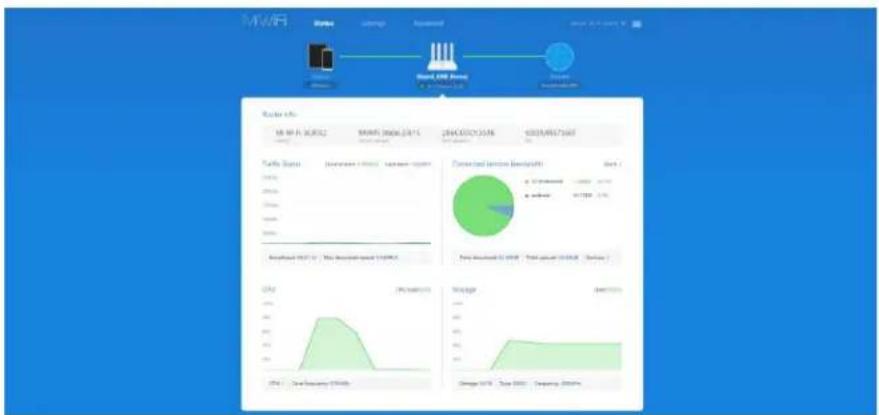
Xiaomi Mi Wi-Fi Router 3C - Setup Guide Using Web Browser - 2

pie | Metric | Value | | :--- | :--- | | Traffic Volume (units) | 12500 | | Percentage (%) | 47.38% | | Total Capacity (MW) | 6335.8677 | | Data Source: Network | Date | Time period (Gbps) | | :--- | :--- | | CPU Usage (kW) | 47.38 | | % of total capacity (Gbps) | 47.38 | | Change in CPU Usage (%) | -100 | | Change in Total Capacity (%) | -100 | | Manager | 47.38 | | Change in Total Capacity (%) | -100 | | Company Growth Rate | 20000000000000000000000000000000000000000000000000000000000000000000000000000000000000000000000000000 |

Mi Wi-Fi Router 3C Setup Guide Using Web Browser

When setting up as a secondary router:

  1. Choose between Wired or Wireless amplifier modes

Set Wi-Fi network name and password Kiaomi_FCD7 Network Name Password ✓ Turn-on-wall penetration mode Next Back PPPoE | Wireless amplifier | Wind amplifier

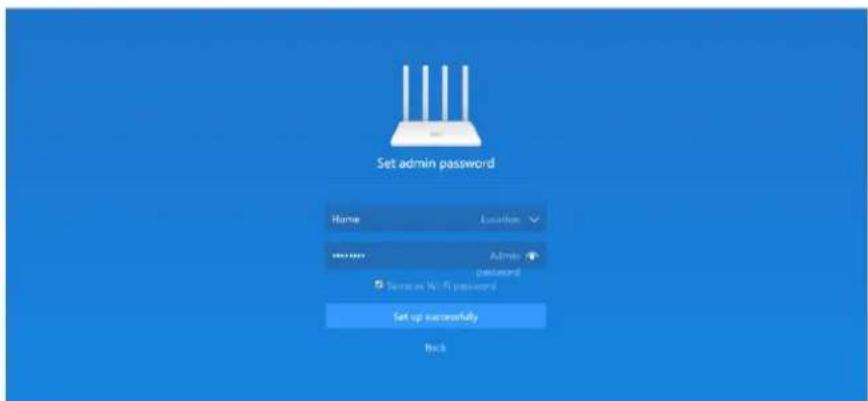
a. Setting up as a wired amplifier. Please follow the steps as described in the images below:
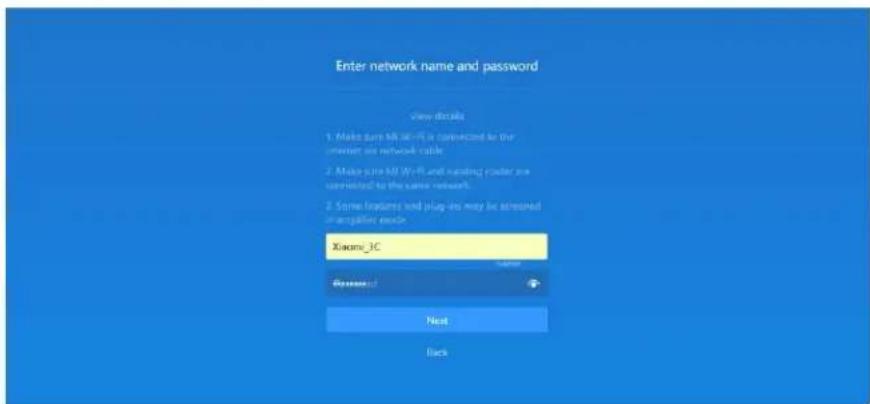
Enter network name and password Show details 1. Make sure MI-Wi-Fi is connected for the internet on network cable 2. Make sure MI Wi-Fi and asking router are connected to the same network. 3. Some features tend plug-in may be stressed or tagged via Xiaomi_3C Password Next Back

Set admin password Name Location ********___ Admin password □ Service Wi-Fi password Set up successfully Back

Mi Wi-Fi Router 3C Setup Guide Using Web Browser

b. Setting up as a wireless amplifier. Please follow the steps as described in the images below:
Note: If you choose wireless repeater mode, or if you do not insert the LAN cable in the Mi router from the primary router, you will be redirected to this page:

  1. Choose 'Amplifier mode (extend existing Wi-Fi)'

Connect Ethernet cable now. Manage router settings Mode (Set up Wi-Fi network) Amplifier mode (支持 existing Wi-Fi)

  1. Select the Wi-Fi network you wish to amplify and enter the required password
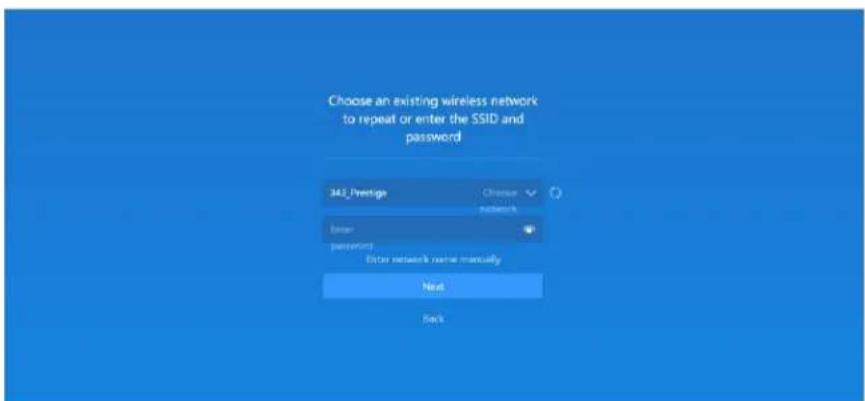
Choose an existing wireless network to repeat or enter the SSID and password 34E_Prestige Choose networks Enter Password Enter network name manually Next Back

Mi Wi-Fi Router 3C Setup Guide Using Web Browser

  1. Once the two routers are synced, please setup new network name and password to distinguish between the primary router and wireless repeater which in this case is Mi Wi-Fi Router 3C.
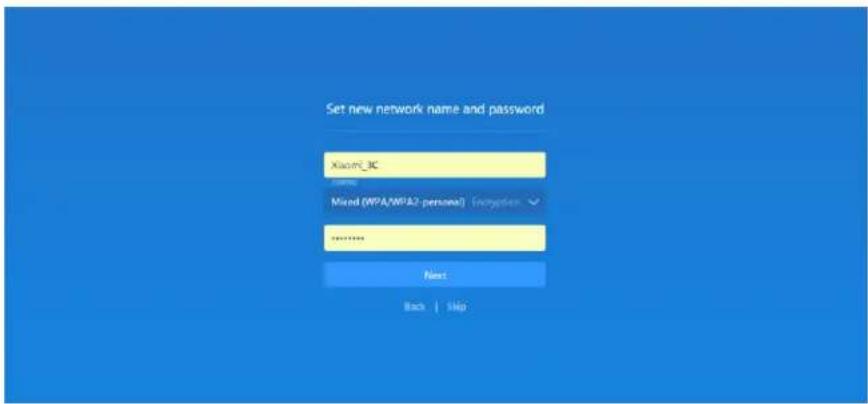
Set new network name and password Xiaomi_JC Mio Mixed (WPA/WPA2 personal) Encryption ****** Next Back | Skip

  1. You're all set. Happy Browsing!

Set admin password Home Location ****** Admin password ✓ Same to Wi-Fi password Add to Web... Back

Manual assistant
Powered by Anthropic
Waiting for your message
Product information

Brand : Xiaomi

Model : Mi Wi-Fi Router 3C

Category : Router