
SHO-110 - Surveillance Camera DENVER - Free user manual and instructions
Find the device manual for free SHO-110 DENVER in PDF.


| Product Type | Surveillance Camera |
| Brand | DENVER |
| Model | SHO-110 |
| Power Supply | 6 W, 50/60 Hz |
| Wireless Connection | Wi-Fi 2.4 GHz (5 GHz not supported) |
| Application | DENVER SMART HOME (iOS and Android) |
| Mobile Compatibility | iOS 8 / Android 4.1 and later |
| Configuration Methods | QR Code or Smart Configuration |
| Storage | Micro SD Card (not included) |
| Reset | Reset button held with a pin |
| Sharing | Possible via the app (home management) |
| Max. Number of Cameras | Unlimited (depending on router capacity) |
| Certification | Compliant with Directive 2014/53/EU |
| Frequency Range | 50/60 Hz |
| Maximum Power | 6 W |
Frequently Asked Questions - SHO-110 DENVER
User questions about SHO-110 DENVER
0 question about this device. Answer the ones you know or ask your own.
Ask a new question about this device
Download the instructions for your Surveillance Camera in PDF format for free! Find your manual SHO-110 - DENVER and take your electronic device back in hand. On this page are published all the documents necessary for the use of your device. SHO-110 by DENVER.
USER MANUAL SHO-110 DENVER
natural_image
Exterior view of a security camera with two antennas and a flanged connector (no text or symbols visible)Powered by

Intelligence Inside
DENVER SHO-110
Smart Wi-Fi camera
User Manual
Get Ready
. Prepare your Wi-Fi network and password.
. Make sure your mobile device is running iOS 8 or higher or Android 4.1 or higher.
. Make sure 2.4 GHz Wi-Fi network is used. 5 GHz network is not supported.
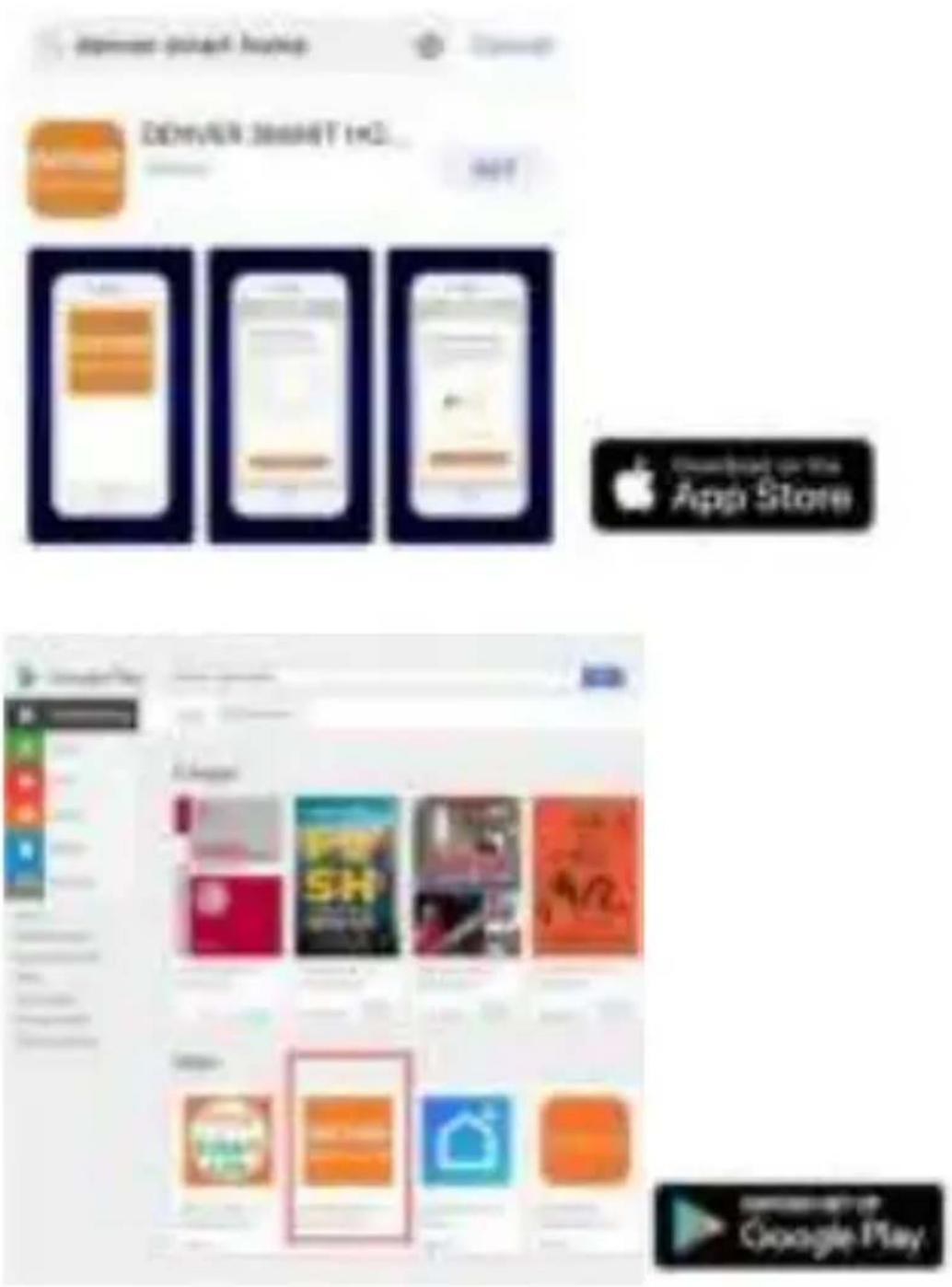
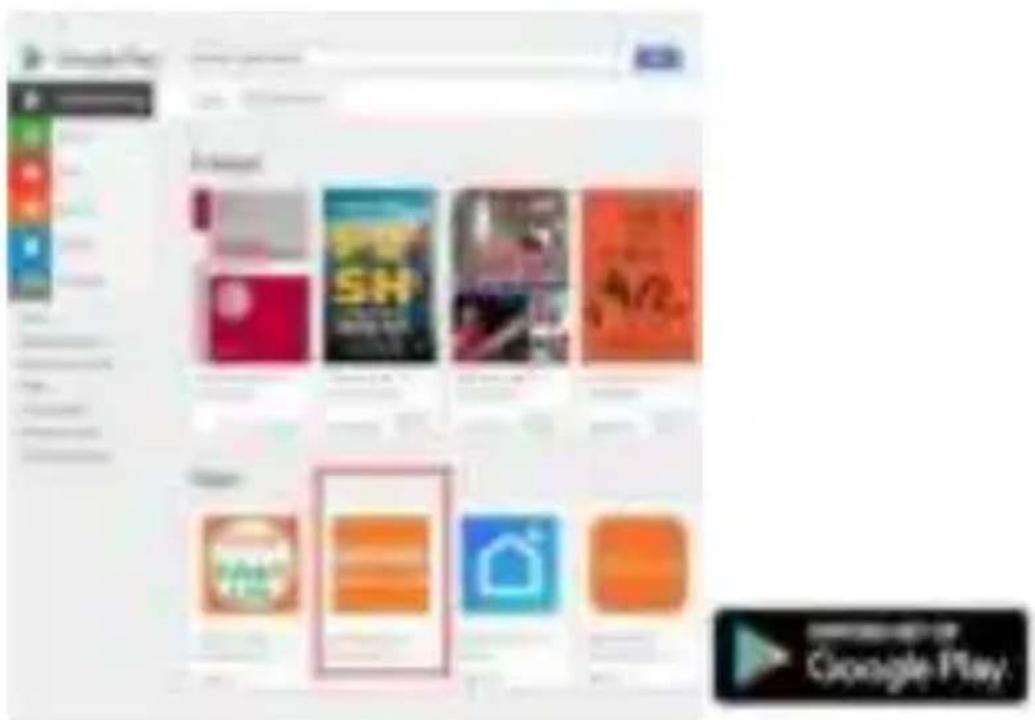
1 Download and install the DENVER SMART HOME app from App Store or Google Play.
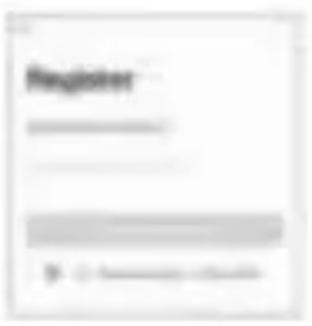
2 Register an account on your DENVER SMART HOME app
STEP1.
Enter your mobile phone number or email address.
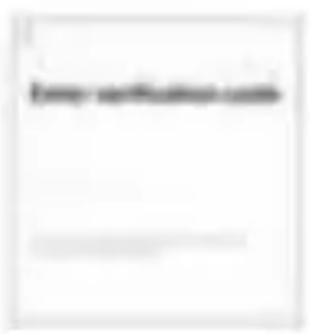
STEP 2.
Enter the verification code and create a password.
3 Power connection
How do I reset my device?
. Use the reset pin to press and hold the Reset Button for several seconds until the came starts to beep.
. Insert Micro SD card
natural_image
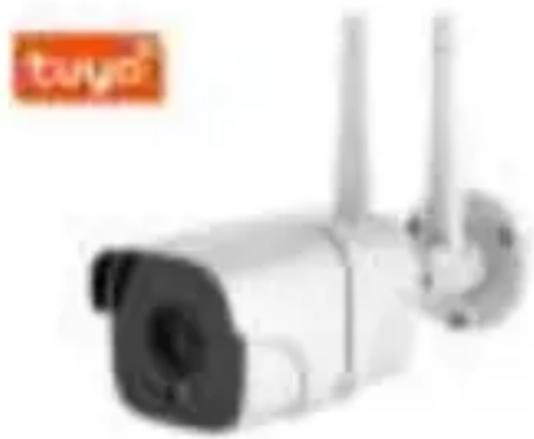
Exterior view of a security camera with two antennas and a red logo (no readable text or symbols)4 Add camera to the app
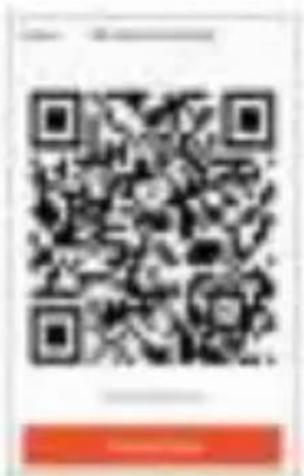
Option 1: Use QR code
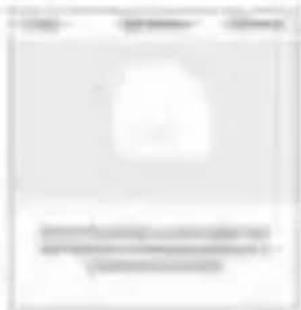
STEP1
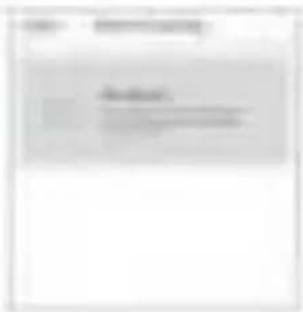
STEP 2
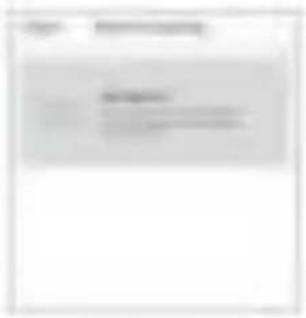
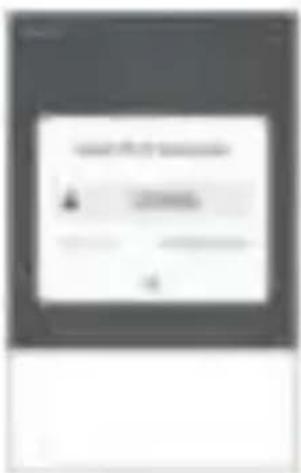
In the app, on the top Choose "QR code" right corner of the "Add device" screen, tap "Otherwise".
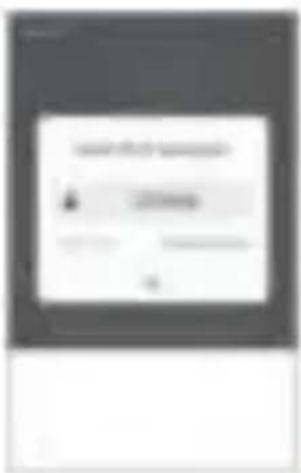
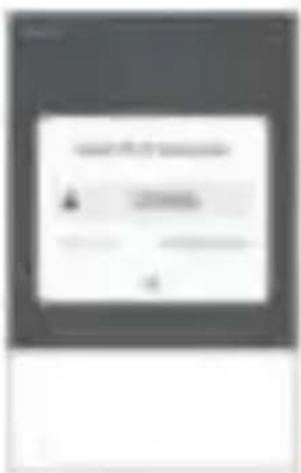
STEP 3 Enter your Wi-Fi network and password.
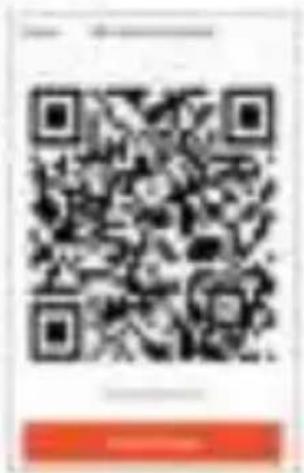
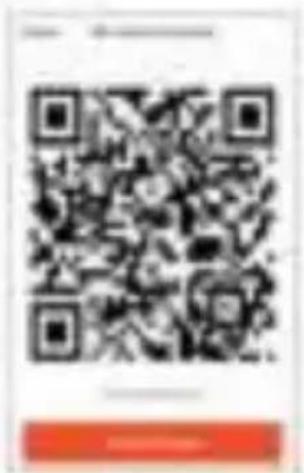
STEP 4 Scan the QR Code with the camera.
5 Add camera to the app
Option 2: Use smart configuration
STEP1
In the app, on the top right corner of the main screen, Tap (+). Then choose "Smart Camera"
STEP 2
Make sure the indicato light on the camera is flashing red, indicating the camera is ready to connect. If not, follow the instructions to reset the camera so that the indicator light flashes red, then tap "Next Step".
Smart Camera is located in "security & sensor" category of the app.
Frequently Asked Questions
1 Can I share the camera to family and friends?
Yes, you can share your camera to family and friends, so that they can access the camera and control your electrical bulbs, power switch, and other devices. In the app, tap the Profi button and tap the "Home Management" button, then you can give or revoke sharing permissions. To make the sharing possible to other users, they need to download the app and register a new account.
2 What's the wireless range?
The range of the wireless camera is heavily determined by your Wi-Fi router and the conditions of the room. Check your router specifications for exact range data.
3 The camera appears offline or unreachable?
Make sure your Wi-Fi router is online and in range.
Make sure you have the latest app available by tapping “Check for firmware update” in the device settings of the app.
4 The camera cannot connect to your Wi-Fi network.
Make sure your entered the correct Wi-Fi password during the Wi-Fi setup. Check whether there is any Internet connection problem. If the Wi-Fi signal is too weak, reset your Wi-Fi router and try again.
5 How many cameras can I connect?
DENVER SMART HOME app can connect an unlimited number of the devices in an unlimited number of device locations. A Wi-Fi router may have a limit on the number of the device for connection.
Please notice - All products are subject to change without any notice. We take reservations for errors and omissions in the manual.
ALL RIGHTS RESERVED, COPYRIGHT DENVER ELECTRONICS A/S

Electric and electronic equipment contains materials, components and substances that can be hazardous to your health and the environment, if the waste material (discarded electric and electronic equipment) is not handled correctly.
Electric and electronic equipment is marked with the crossed out trash can symbol, seen above. This symbol signifies that electric and electronic equipment should not be disposed of with other household waste, but should be disposed of separately.
All cities have established collection points, where electric and electronic equipment can either be submitted free of charge at recycling stations and other collection sites, or be collected from the households. Additional information is available at the technical department of your city.
Hereby, Inter Sales A/S declares that the radio equipment type SHO-110 is in compliance with Directive 2014/53/EU. The full text of the EU declaration of conformity is available at the following internet address: www.denver-electronics.com and then click the search ICON on topline of website. Write model number: SHO-110. Now enter product page, and red directive is found under downloads/other downloads.
Operating Frequency Range:50/60Hz
Max Output Power:6W
DENVER ELECTRONICS A/S
Omega 5A, Soeften
DK-8382 Hinnerup
Denmark
www.facebook.com/denverelectronics
Erste Schritte
SCHRITT 2.
natural_image
Exterior view of a security camera with two antennas and a red logo (no readable text or symbols)
SCHRITT 1
SCHRITT 1
SCHRITT 2
2 Registrér en konto på din DENVER SMART HOME-app.
natural_image
Exterior view of a security camera with two antennas and a red logo (no readable text or symbols)TRIN 1
TRIN 2
TRIN 3
TRIN 4
PASO 2.
natural_image
Exterior view of a security camera with two antennas and a red logo (no readable text or symbols)
PASO 1
PASO 2
PASO 3
PASO 4
PASO 1
PASO 2
natural_image
Exterior view of a security camera with two antennas and a display screen (no visible text or symbols)VAIHE 1
ÉTAPE 1.
ÉTAPE 2.
natural_image
Exterior view of a security camera with two antennas and a display screen (no visible text or symbols)
ÉTAPE 1
ÉTAPE 3
ÉTAPE 1
ÉTAPE 2
2 Registrirajte račun na vašoj DENVER SMART HOME aplikaciji
KORAK 1. Unesite broj mobitela ili adresu e-pošte.
KORAK 2. Unesite verifikacijski kod i kreirajte lozinku.
natural_image
Exterior view of a security camera with two antennas and a red logo (no readable text or symbols)KORAK 1
KORAK 2
U aplikaciji, u gornjem Odaberite "QR kod" desnom kutu zaslona „Dodaj uređaj“, dodirnite „Ostali“.
KORAK 3 Unesite vašu Wi-Fi mrežu i lozinku.
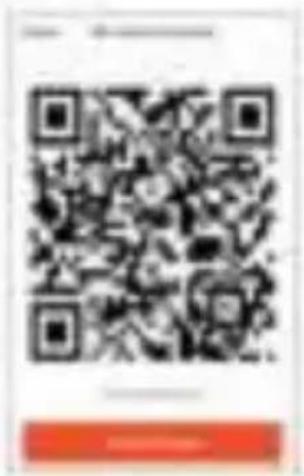
KORAK 4 Skenirajte QR kod kamerom.
KORAK 1
U aplikaciji, u gornjem desnom kutu glavnog zaslona, dodirnite (Potom odaberite “Pametna kamera”
KORAK 2
Provjerite treperi li indikatorsko svjetlo na kameri crveno, što označava da je kamera spremna z povezivanje. Ako ne, slijedite upute za resetiranje kamere tako da indikatorsko svjetlo zatrepće crveno zatim dodirnite „Sljedeći korak“.
Pametna kamera nalazi se u kategoriji „sigurnost i osjetnik“ aplikacije.
Često postavljana pitanja
PASSO 2.
natural_image
Exterior view of a security camera with two antennas and a red logo (no readable text or symbols)PASSO 1.
PASSO 2.
PASSO 3.
PASSO 4.
PASSO 1.
PASSO 2.
STAP 2.
natural_image
Exterior view of a security camera with two antennas and a red logo (no readable text or symbols)
STAP 1
STAP 2 Selecteer "QR-code"
STAP 1
STAP 2
TRINN 1. Oppgi mobilnummeret ditt eller en E-postadresse.
natural_image
Exterior view of a security camera with two antennas and a red logo (no readable text or symbols)
TRINN 1
TRINN 3
KROK 2.
natural_image
Exterior view of a security camera with two antennas and a red logo (no readable text or symbols)KROK 1
KROK 2
KROK 3
KROK 4
KROK 1
KROK 2
PASSO 2.
natural_image
Exterior view of a security camera with two antennas and a red logo (no readable text or symbols)PASSO 1
PASSO 2
PASSO 1
PASSO 2
STEG 1. Ange ditt mobilnummer eller e-postadress.
natural_image
Exterior view of a security camera with two antennas and a red logo (no readable text or symbols)STEG 1
STEG 2
STEG 3
STEG 4
STEG 1
STEG 2
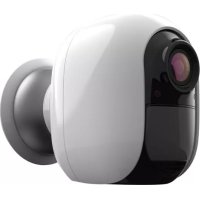
Brand : DENVER
Model : SHO-110
Category : Surveillance Camera