
DIR-X1560 - Router D-LINK - Free user manual and instructions
Find the device manual for free DIR-X1560 D-LINK in PDF.


| Product Type | Dual Band Wi-Fi Router |
| Brand | D-Link |
| Model | DIR-X1560 |
| Category | Router |
| Frequency Bands | 2.4 GHz and 5 GHz |
| Ports | 1 Internet (WAN) port, LAN ports |
| Antennas | Removable (installation required) |
| Power Supply | AC adapter (included) |
| Reset Button | Yes, on the back panel |
| LED Indicators | Wireless indicators for 2.4 GHz and 5 GHz |
| Setup | Via D-Link Wi-Fi mobile app or web browser (http://dlinkrouter.local./) |
| Wireless Security | Customizable Wi-Fi password |
| Reset | Hold reset button for 10 seconds |
| Dimensions (approx.) | Approx. 20 x 15 x 5 cm |
| Weight (approx.) | Approx. 300 g |
| Cleaning | Dry cloth; do not use liquid or abrasive products |
| Operating Temperature | 0 °C to 40 °C |
| Repairability | Not detailed; contact D-Link technical support |
| General Information | Manual available in PDF; technical support on D-Link website |
Frequently Asked Questions - DIR-X1560 D-LINK
User questions about DIR-X1560 D-LINK
0 question about this device. Answer the ones you know or ask your own.
Ask a new question about this device
Download the instructions for your Router in PDF format for free! Find your manual DIR-X1560 - D-LINK and take your electronic device back in hand. On this page are published all the documents necessary for the use of your device. DIR-X1560 by D-LINK.
USER MANUAL DIR-X1560 D-LINK
OPTION 1 D-LINK WI-FI APP SETUP
1 /
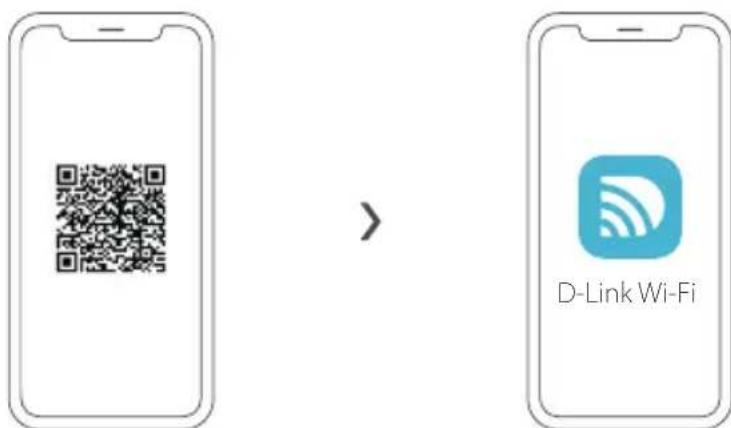
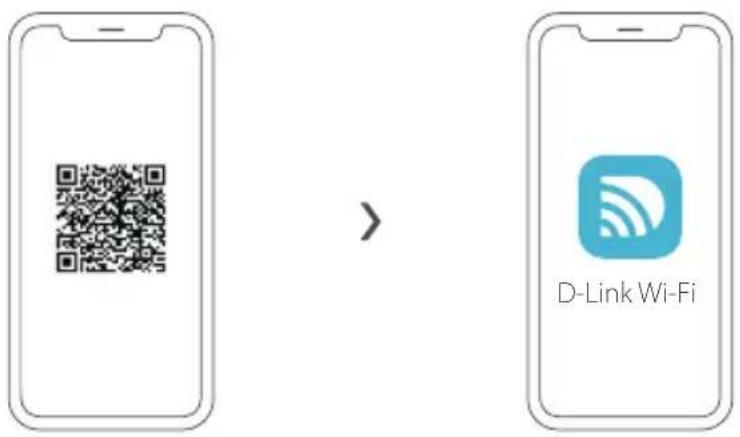
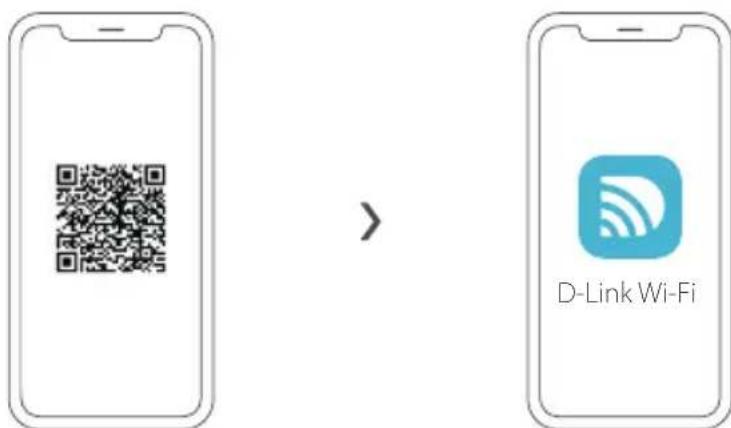
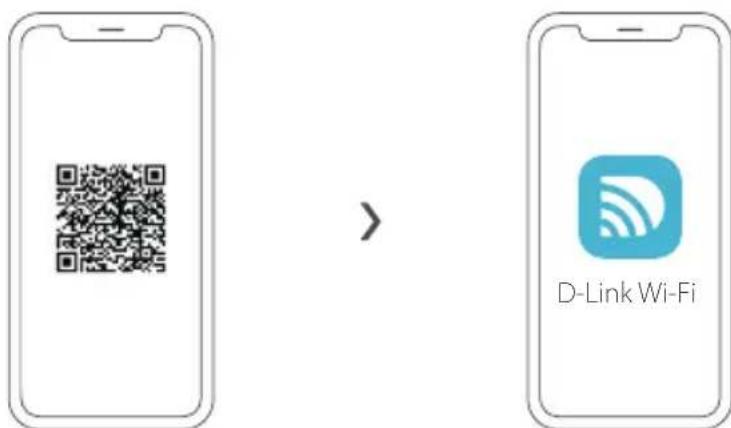
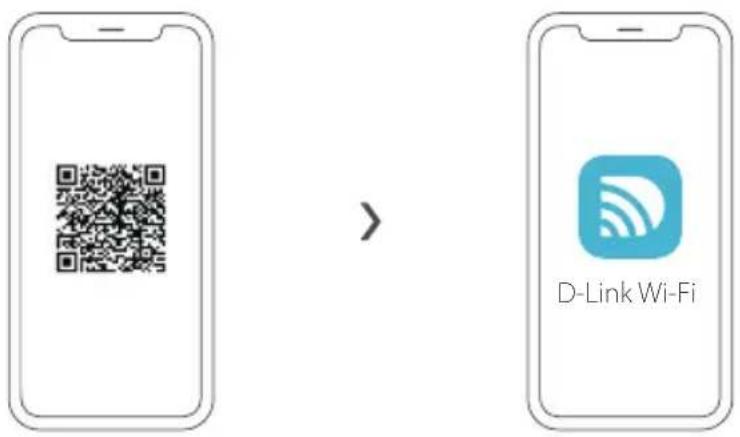
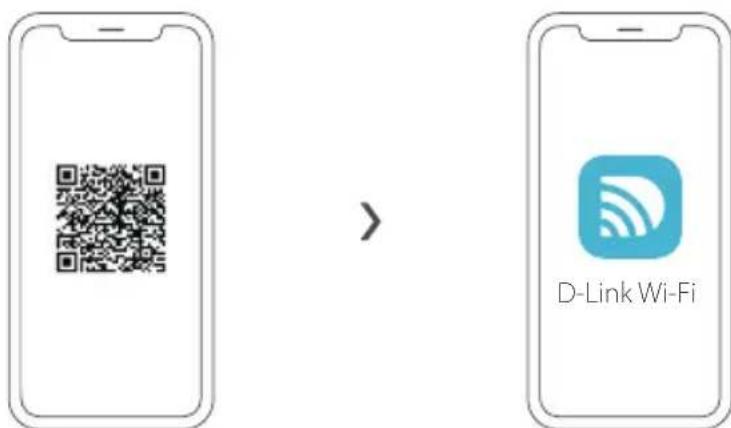
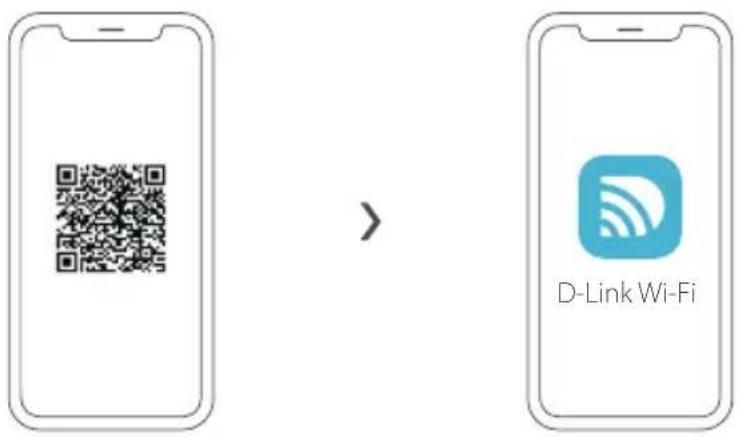
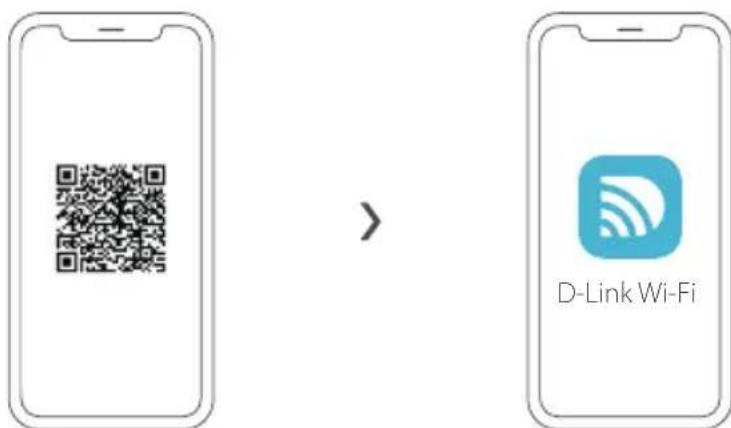
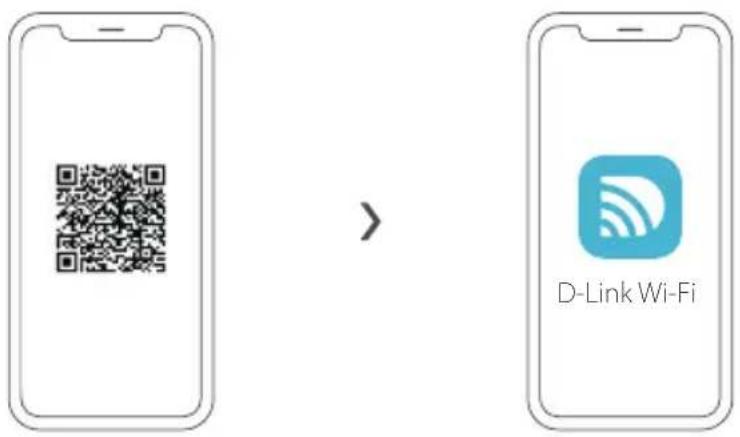
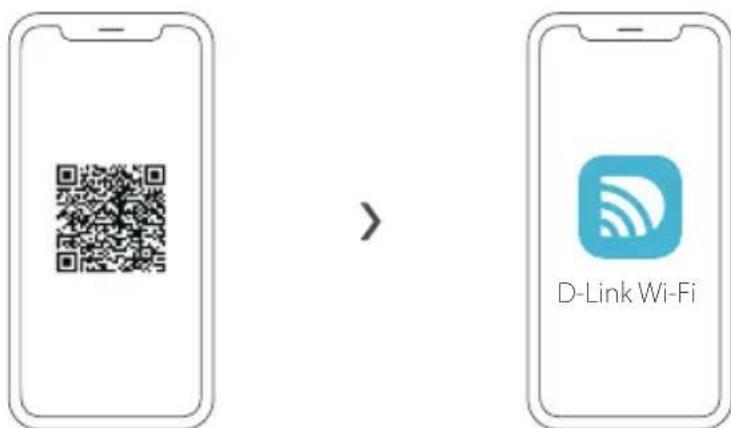
Scan the QR code above to download the D-Link Wi-Fi app from the App Store or from Google Play and launch it.
Note: Please check the app store for device requirements and compatibility. Not all D-Link products are supported by the D-Link Wi-Fi app.
2 /
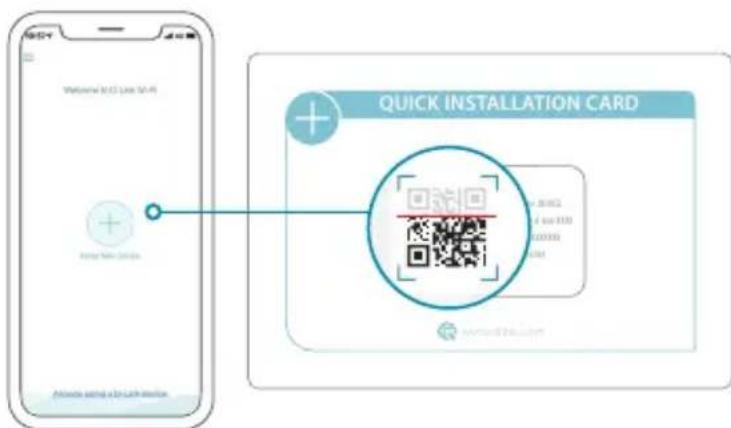
Tap Install New Device. Tap Scan the QR code. Scan the code on the Quick Installation Card provided in the packaging of your product. Follow the on-screen instructions to complete the setup.

ENJOY!
You're all good to go! Connect devices to your network using the Wi-Fi Name (SSID) and password that you created during the setup process.
OPTION 2 WEB BROWSER SETUP
1 Install the antennas. If the antennas are already fixed, position your router near your Internet-connected modem and computer. Keep the router in an open area for better wireless coverage.
2 / Plug an Ethernet cable from your modem into the port labeled INTERNET on the router.
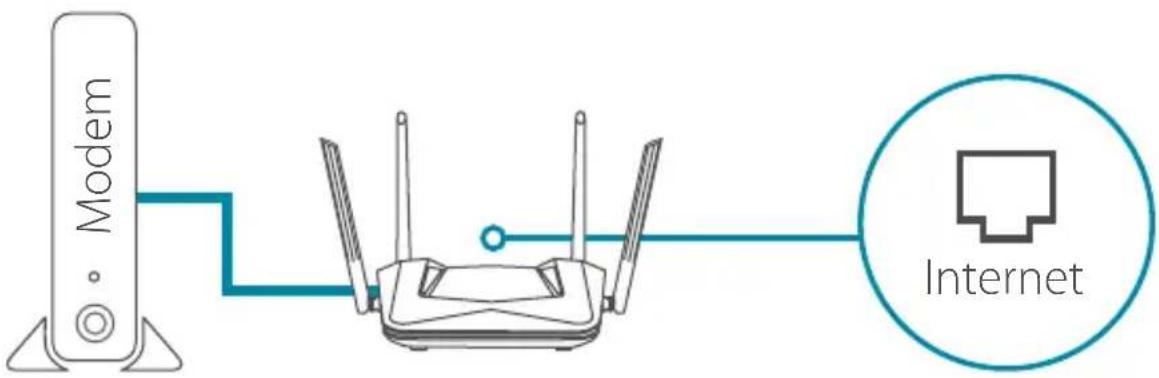
Note: If your router does not have a port labeled as INTERNET, plug the Ethernet cable into LAN Port 1.
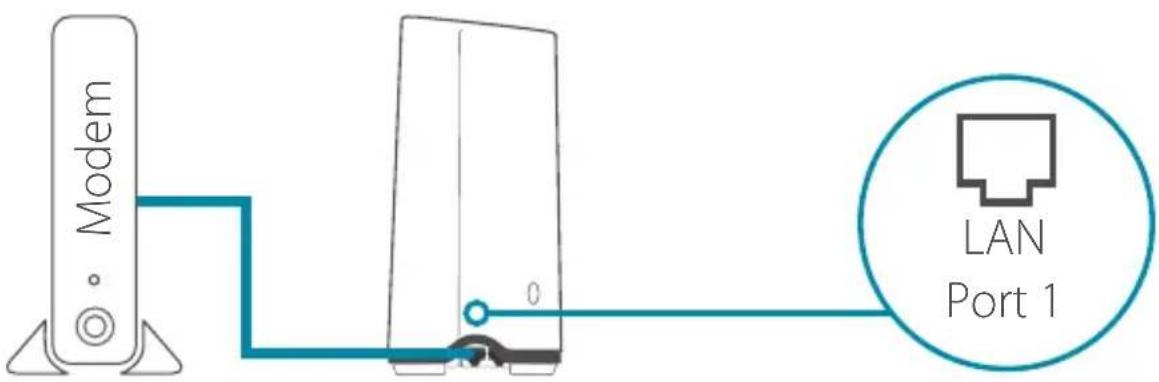
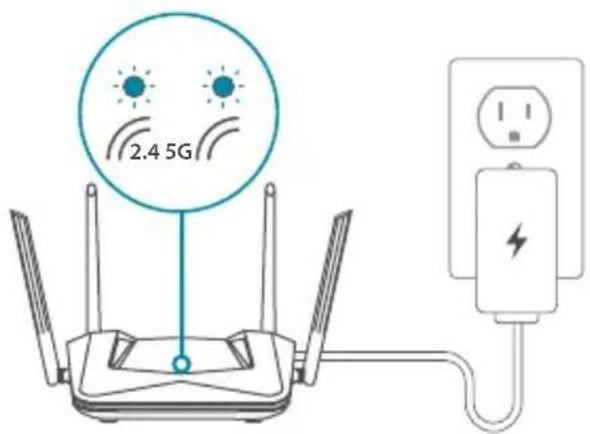
3 / Plug the router into a power source to power on the router. Make sure that the power button is in the ON configuration.
4 Wait for the 2.4 GHz and 5 GHz wireless LEDs to turn on.
4 / Note: If your router does not have 2.4 and 5G wireless LEDs, refer to the User Manual for LED behaviour.
5 / Connect your computer to the Wi-Fi name and password printed on the Quick Installation Card, or on the device label on the bottom of the device.
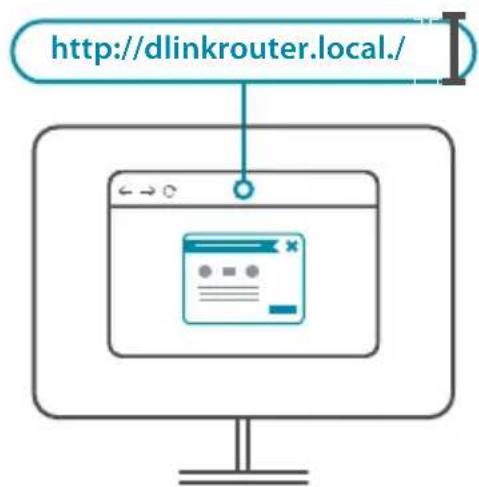
6 / Type http://dlinkrouter.local./ into the address bar of a web browser. Follow the on-screen instructions to complete the setup.

ENJOY!
You're all good to go! Connect devices to your network using the Wi-Fi Name (SSID) and password that you created during the setup process.
FREQUENTLY ASKED QUESTIONS
Why can't I access the web-based configuration utility?
Verify that http://dlinkrouter.local./ is correctly entered into the browser. At this stage, you are not connecting to a website, nor do you have to be connected to the Internet. The device has the utility built-in to a ROM chip in the device itself. Your computer must be connected to the router's network and in the same IP subnet to connect to the web-based utility.
Why can't I access the Internet?
Verify that your router is working by rebooting the router. If you still can not connect to the Internet, contact your Internet service provider.
What do I do if I forgot my device password / my wireless network password?
If you forgot your password, you must reset your router. This process will change all your settings back to the factory defaults.
How do I restore the router to its factory default settings?
Locate the reset button on the rear panel of the unit. With the router powered on, use a paper clip to hold the button down for 10 seconds. Release the button and the router will go through its reboot process.
For technical support, product documentation and other information, please visit our website.
https://eu.dlink.com/support
https://eu.dlink.com/support
OPTION 1 CONFIGURATION DE L'APPLICATION WI-FI D-LINK
1 /
https://eu.dlink.com/support
https://eu.dlink.com/support
https://eu.dlink.com/support
OPTIE 1 D-LINK WI-FI APP SETUP
1 /
https://eu.dlink.com/support
OPCJA 1 KONFIGURACJA APLIKACJI D-LINK WI-FI
1 /
https://eu.dlink.com/support
MOŽNOST 1 NASTAVENÍ APLIKACE D-LINK WI-FI
1 /
https://eu.dlink.com/support
1. LEHETŐSÉG BEÁLLÍTÁS A D-LINK WI-FI ALKALMAZÁSSAL
1 /
https://eu.dlink.com/support
ALTERNATIV 1 KONFIGURERING | D-LINK WI-FI-APP
1 /
https://eu.dlink.com/support
MULIGHED 1 OPSÄTNING AF D-LINK WI-FI APP
1 /
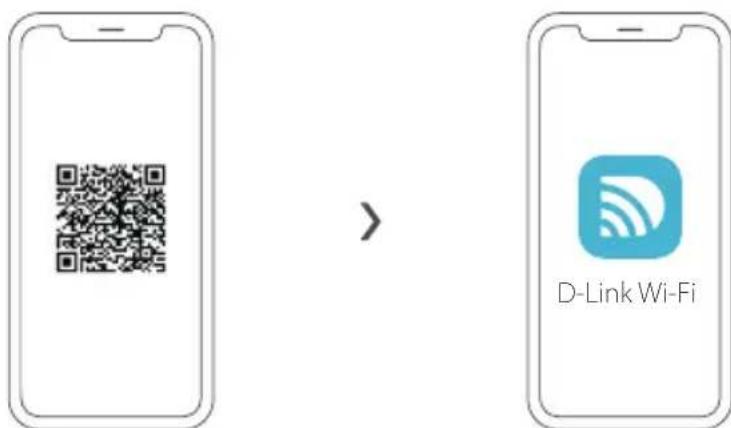
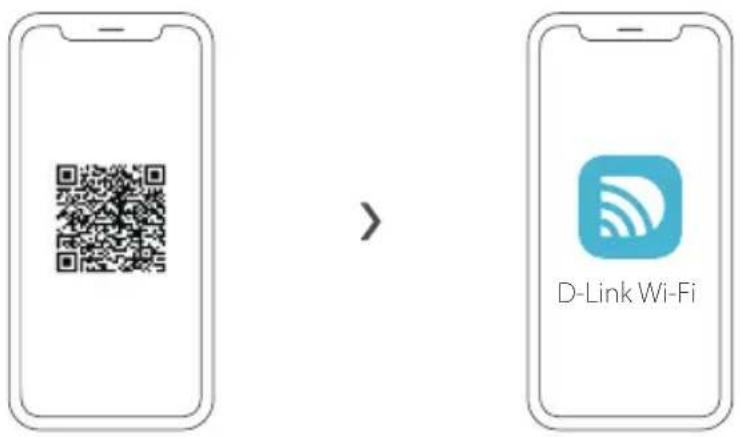
Scan QR-koden ovenfor for at downloade D-Link Wi-Fi-appen fra App Store eller Google Play og starte den.
https://eu.dlink.com/support
VAIHTOEHTO 1 D-LINK WI-FI -SOVELLUKSEN ASENNUS
1 /
https://eu.dlink.com/support
ALTERNATIV 1 INSTALLATION AV D-LINK WI-FI-APP
1 /
https://eu.dlink.com/support
https://eu.dlink.com/support
https://eu.dlink.com/support
OPCIJA 1 POSTAVLJANJE D-LINK WI-FI APLIKACIJE
1 /
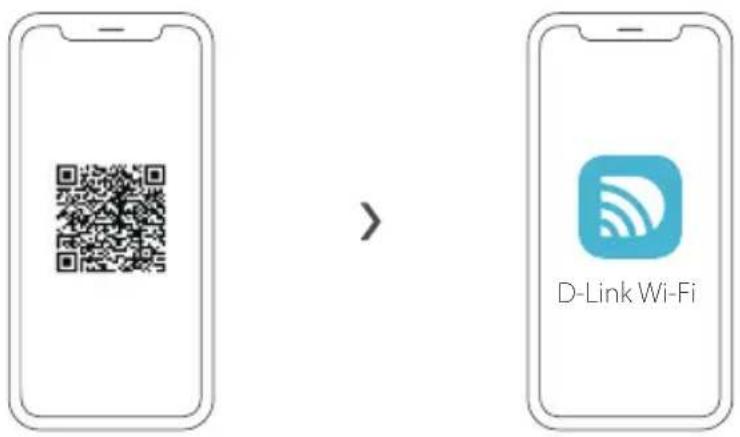
Skenirajte QR kod iznad ovog teksta kako biste preuzeli D-Link Wi-Fi aplikaciju iz trgovine App Store ili Google Play i pokrenite tu aplikaciju.
Napomena: Provjerite zahtjeve za uređaj i kompatibilnost u trgovini App Store. D-Link Wi-Fi aplikacija ne podržava sve D-Link proizvode.
2,
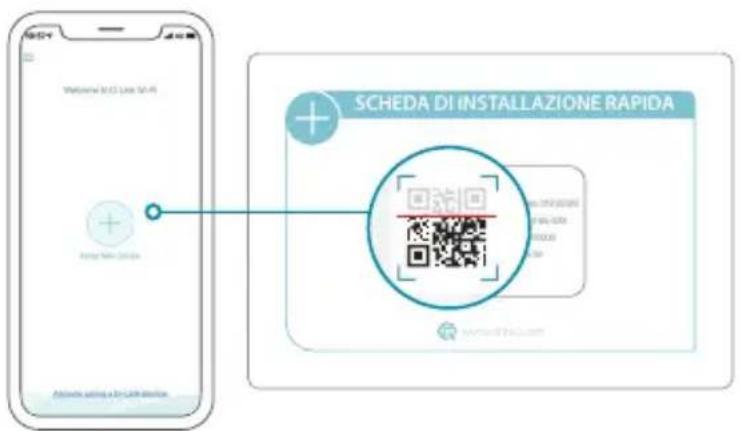
Dodirnite Instaliraj novi uređaj. Dodirnite Skeniraj QR kod. Skenirajte kod na kartici za brzu instalaciju isporučenoj u pakiranju vašeg proizvoda. Slijedite upute na zaslonu kako biste dovršili postavljanje.

UŽIVAJTE!
Sada ste spremni za akciju! Povežite uređaje na vašu mrežu koristeći naziv Wi-Fi mreže (SSID) i zaporku koju ste izradili tijekom postupka postavljanja.
OPCIJA 2 POSTAVLJANJE POMOĆU WEB PREGLEDNIKA
https://eu.dlink.com/support
MOŽNOST 1 NAMESTITEV APLIKACIJE D-LINK WI-FI
1 /
3 / Usmerjevalnik priključite v vir napajanja, da zagotovite napajanje. Preverite, ali je gumb nastavljen na ON (Vklopljeno).
Počakajte, da zasvetita lučki LED za brezžično povezavo 2,4 GHz in 5 GHz.
https://eu.dlink.com/support
OPTIUNEA 1 CONFIGURARE APL. D-LINK WI-FI
1 /
https://eu.dlink.com/support
1. MOŽNOST: INŠTALÁCIA APLIKÁCIE D-LINK WI-FI
1 /
3 / Zapojte smerovač do elektrickej zásuvky, aby sa zapol. Uistite sa, či je vypínač na smerovači v polohe ON (ZAPNUTÉ).
https://eu.dlink.com/support
- OPTION 1 D-LINK WI-FI APP SETUP
- ENJOY!
- OPTION 2 WEB BROWSER SETUP
- FREQUENTLY ASKED QUESTIONS
- Why can't I access the web-based configuration utility?
- Why can't I access the Internet?
- What do I do if I forgot my device password / my wireless network password?
- How do I restore the router to its factory default settings?
- For technical support, product documentation and other information, please visit our website.
- OPTION 1 CONFIGURATION DE L'APPLICATION WI-FI D-LINK
- OPTIE 1 D-LINK WI-FI APP SETUP
- OPCJA 1 KONFIGURACJA APLIKACJI D-LINK WI-FI
- MOŽNOST 1 NASTAVENÍ APLIKACE D-LINK WI-FI
- LEHETŐSÉG BEÁLLÍTÁS A D-LINK WI-FI ALKALMAZÁSSAL
- ALTERNATIV 1 KONFIGURERING | D-LINK WI-FI-APP
- MULIGHED 1 OPSÄTNING AF D-LINK WI-FI APP
- VAIHTOEHTO 1 D-LINK WI-FI -SOVELLUKSEN ASENNUS
- ALTERNATIV 1 INSTALLATION AV D-LINK WI-FI-APP
- OPCIJA 1 POSTAVLJANJE D-LINK WI-FI APLIKACIJE
- UŽIVAJTE!
- OPCIJA 2 POSTAVLJANJE POMOĆU WEB PREGLEDNIKA
- MOŽNOST 1 NAMESTITEV APLIKACIJE D-LINK WI-FI
- OPTIUNEA 1 CONFIGURARE APL. D-LINK WI-FI
- MOŽNOST: INŠTALÁCIA APLIKÁCIE D-LINK WI-FI
Brand : D-LINK
Model : DIR-X1560
Category : Router