
MT-1080T2H - DVD player DENVER - Free user manual and instructions
Find the device manual for free MT-1080T2H DENVER in PDF.


| Product type | DVD player with DTT tuner |
| Brand | Denver |
| Model | MT-1080T2H |
| Mains power | 100-240 VAC, 50/60 Hz, <12 W |
| Built-in battery | 7.4 V, charging time 3-4 h |
| Video outputs | HDMI, AV OUT |
| Audio outputs | Headphone jack, coaxial, HDMI |
| Antenna input | ANT. (DVB-T/T2) |
| Connectivity | USB, SD/MMC card reader |
| Supported video formats | MPEG4, H.265, MPEG2 |
| Output resolution | 480i/p, 576i/p, 720p, 1080i/p |
| Signal system | NTSC / PAL |
| Main functions | DVD, CD, VCD, JPEG playback; DTT tuner, USB recording, PVR, EPG |
| Special functions | Zoom, slow motion, frame by frame, repeat, program, parental control, subtitles, angles |
| Maintenance and cleaning | Clean with a soft, dry cloth. Do not use liquid products. |
| Security | Default parental password: 000000 |
| Destination country | France (manual in French) |
Frequently Asked Questions - MT-1080T2H DENVER
User questions about MT-1080T2H DENVER
0 question about this device. Answer the ones you know or ask your own.
Ask a new question about this device
Download the instructions for your DVD player in PDF format for free! Find your manual MT-1080T2H - DENVER and take your electronic device back in hand. On this page are published all the documents necessary for the use of your device. MT-1080T2H by DENVER.
USER MANUAL MT-1080T2H DENVER
denver-electronics.com
natural_image
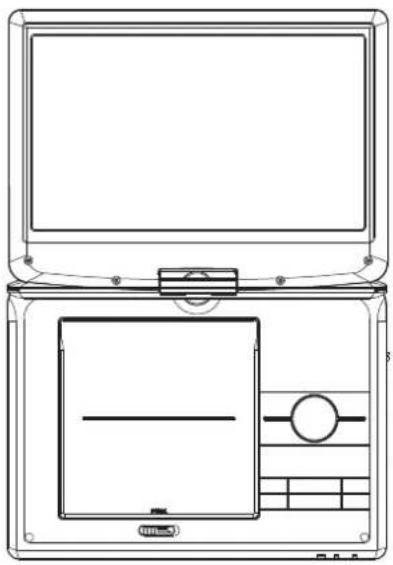
Line drawing of a laptop computer case with front panel and screen (no text or symbols)USER'S MANUAL MT-1080T2H
facebook.com/denverelectronics
Before connecting, operating or adjusting this product, please read this user's manual carefully and completely.
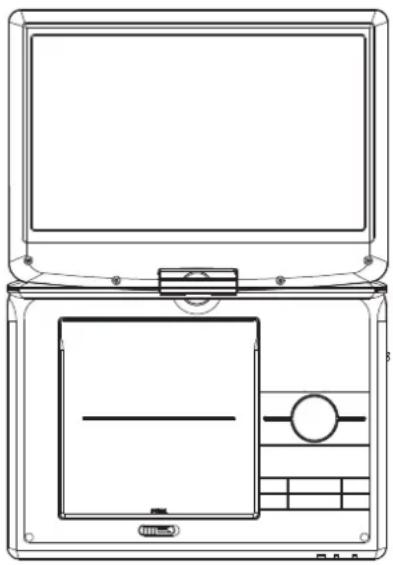
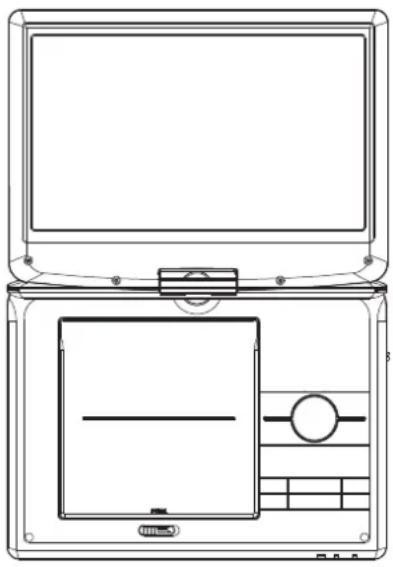
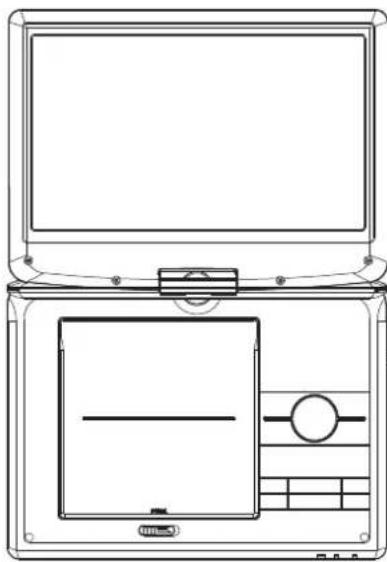
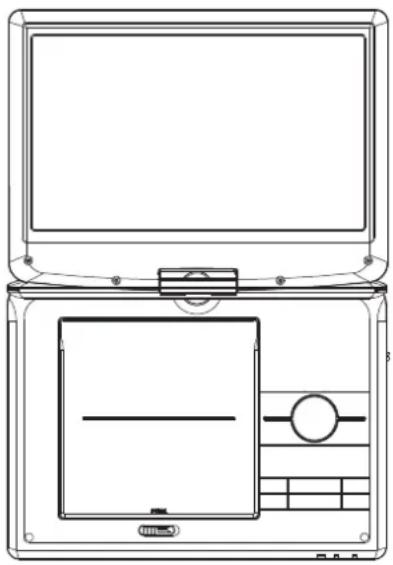
Identification of Controls
Main Unit
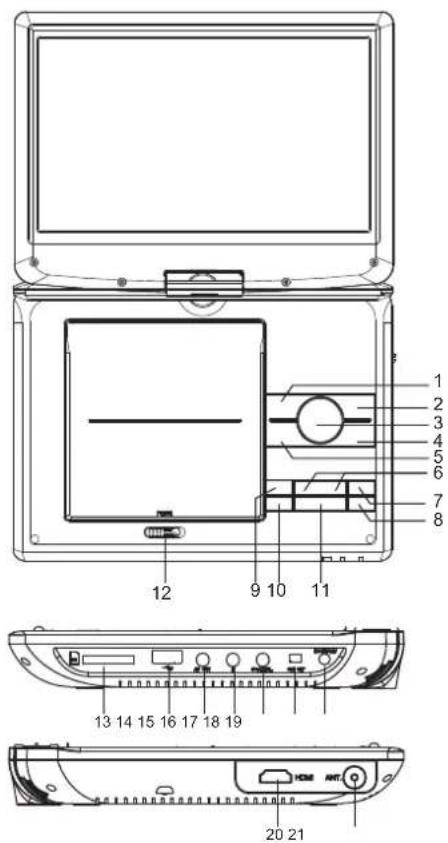
- Left/Fast Backword short press is left
long press is fast backword - Right/Fast Forward short press is right long press is fast forward
3.Enter
Confirms Menu Selection - Down/Forward Skip short press is down
long press is forward Skip - Up/Reverse Skip short press is up long press is reverse Skip 6. VOL-/VOL+
- Setup
8.Source
9.Menu - ■ Stop
- ▶ Play/pause
12.Open
13.SD/MMC
14.USB - AV OUT
- Earphone Socket
- Coaxial
18.On/Off
19.DC in 9-12V
20.HDMI - ANT.
ENG-1
Identification of Controls
Remote control unit
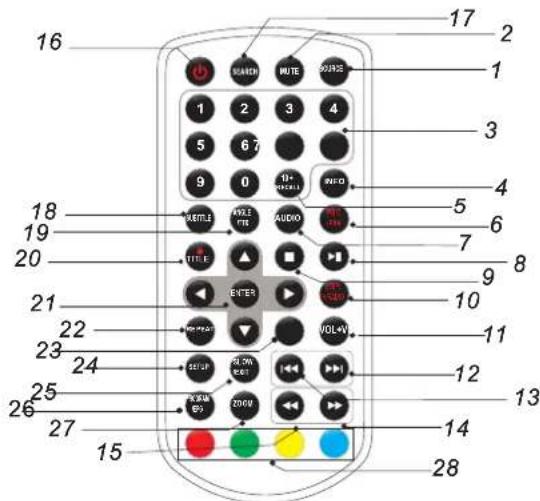
1. SOURCE
DVD/CARD/USB/DVB-T.
2. MUTE
Disable Audio output.
3.0-9 NUMBER BUTTON
Selects numbered items in a menu.
4.INFO
To display the playtime and status information.
5.10+ BUTTON
In order to select a track 10 or greater, first press 10+, For example; select track 12, first press 10+, and then press number 2 button.
6. PBC/FAV
PBC on/off switch(VCD) in DVD mode.
Open Favorite Programs List Menu in DVB mode.
7.AUDIO
DVD Press AUDIO repeatedly during playback to hear a different audio language or audio track, if available.
VCDO Press AUDIO repeatedly during playback to hear a different audio channel ( Left, Right, Mix, Stereo).
8.PLAY/PAUSE
Press PLAY/PAUSE once to pause playback, pressing PLAY/PAUSE second time will resume the playback.
9.STOP
When this button is pressed once, the unit records the stopped point, from where playback will resume if PLAY( ) is pressed after wards. But if STOP button is pressed again instead of PLAY( ) button, there will be no resume function.
10.STEP/TV/RADIO
Step the motion in DVD mode.
Switch between TV and Radio source in DVB mode.
11.VOL+
Adjust volume
12. Forward Skip
Go to next chapter/ track.
13.Reverse Skip
Go to previous chapter/ track to the beginning.
14. ▶▶ BUTTON
Press ▶▶ BUTTON allow skipping ahead at 5-level speed(X2->X4->X8->X16->X32->PLAY), press PLAY button return to normal playback. Parental password :"1369"
ENG-2
Identification of Controls
Remote control unit
15. ◀ BUTTON
Press ◀◀ BUTTON allow skipping back at 5-level speed(X2->X4->X8->X16->X32 PLAY), press PLAY button return to normal playback.->
16. ⏻
Turn on/off the power.
17.SEARCH
Goto time point, title or chapter you want in DVD Mode.
18.SUBTITLE
Press SUBTITLE repeatedly during playback to hear a different subtitle languages.
19.ANGLE
DVD :Press ANGLE will change the view angle, on DVDs that support this feature.
20. ● / TITLE
DVB Enter Record
Return to DVD title menu
21. ENTER
Confirms menu selection..
22.REPEAT
Press REPEAT during playback to select a desired repeat mode.
DVD : you can play select repeat chapter/title/off.
VCD CD : you can select repeat single/all/off.
23.VOL-
Adjust volume
24.SETUP
Accesses or removes setup menu.
25.SLOW
Press Slow button repeatedly to enter slow playback, and cycle between different speeds. The speeds are 1/2, 1/4, 1/8, 1/16, and normal.
26.PROGRAM
DVD VCD : The program function enables you to store your favourite tracks from the disc. Press PROGRAM button ,then PROGRAM MENU will appear on screen, now you can use the number key to direct input the titles,chapters or tracks number and select PLAY option. TO resume normal playback, press PROGRAM and select clear program option on the program menu,press PROGRAM again to exit program menu.
Open EPG in DVB mode.
27.ZOOM
DVD \ CD : Use ZOOM to enlarge or shrink the video image.
-
Press ZOOM during playback or still playback to activate the Zoom function. The square frame appears briefly in the right bottom of the picture.
-
Each press of the ZOOM button changes the TV screen in the following sequence:
2X size → 3X size → 4X size → 1/2 size → 1/3 size → 1/4size→normal size
JPEG: Use ZOOM to enlarge or shrink the picture.
- Press 'ZOOM'
2,Used " ▶" to enlarge,or " ◀" to shorten the picture. Use the ▶ button to move through the zoomed picture.
28.RED/GREEN/YELLOW/BLUE KEY
Some specific function in DVB mode.
Parameters and specifications
Electronical parameters
| Item | Standard requirement | |
| Power requirements | : AC 100-240 V, 50/60 Hz | |
| Power consumption | :<12W | |
| Operating humidity | : 5 % to 90 % | |
| Output | VIDEO OUT | :1 Vp-p (75Ω) |
| AUDIO OUT | :1.4 Vrms (1 KHz, 0 dB) | |
| Audio | :Speaker:1WX2, outputHeadphones | |
System
| Laser | :Semiconductor laser, wavelength 650 nm |
| Signal system | : NTSC / PAL |
| Frequency response | : 20Hz to 20 kHz(3dB) |
| Signal-to-noise ratio | :More than 80 dB (ANALOG OUT connectors only) |
| Dynamic range | :More than 85 dB (DVD/CD) |

Note: Design and specifications are subject to change prior notice.
Battery Parameters
Battery Specifications:
Output: 7.4V
Charge / Discharge Time:
Standard charge time: 3h \~ 4h
Storage and work circumstances:
| 1. Storage circumstances | Temperature | Humidity |
| 6 months | -20^ +45^ | 65 ± 20% |
| 1 week | -20^ +65^ | 65 ± 20% |
| 2.Work circumstances | Temperature | Humidity |
| Standard charge | 0°C +45°C~ | 65±20% |
| Standard discharge | -20°C +65°C~ | 65±20% |
First Time Installation
After all connections have been made properly, switch on TV and makesure the receiver is connected to the Main Power. Press Power Button to switch receiver on. If you are using the receiver for the first time or restored to Factory Default, the Main Menu will appear on your TV screen.
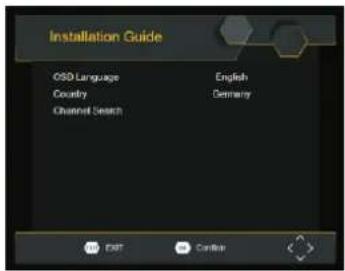
(1) Select [OSD Language] and press RIGHT/LEFT key to select an language.
(2) Select [Country] and press RIGHT/LEFT key to select your country of residence.
(3) Select [Channel Search] and press RIGHT or OK key to begin Automatic channel search.
(4) Once channel tuning is complete, you are now ready to watch TV.
Basic Operation
Program Manage Settings
To access the Menu, press the SETUP button and select [Program].
The Menu provides options to adjust the Program Manage Settings.
Select an option and press OK or RIGHT to adjust that setting.
Press the EXIT button to exit the Menu
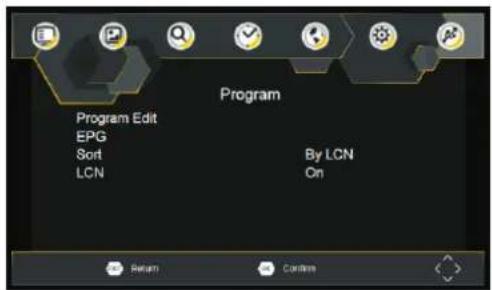
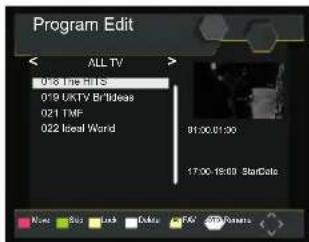
Program Edit
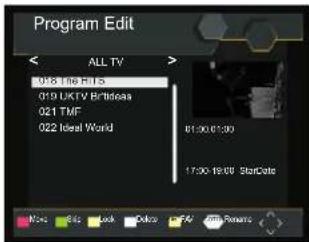
To edit your program preferences (lock, skip, favourite, move or delete), you will need to enter the Program Edit Menu. This Menu requires a password to access. Enter the default password '000000'.
ENG-5
First Time Installation
Set Favourite Program/s
You can create a shortlist of favourite programs that you can easily access. Set Favourite TV or Radio program:
- Select the preferred program then press the PAVOURITE button.
A heart-shaped symbol will appear and the program is marked as a favourite. - Repeat the previous step to select more Favourite programs.
- To confirm and exit the Menu, press the EXIT key.
Disable Favourite TV or Radio Program:
Press the FAV buton on the Remote Control with the heart-shaped symbol.
View Favourite Programs:
- Press the Fav button and the Favourite Menu will appear.
- Press UP/DOWN to select your Favourite Programs.
- Press OK to select your favourite program.
Delete a TV or Radio Program/s
- Select the Program and then press the BLUE button A message will appear. Press OK to delete the program.
- Repeat the previous step to select more programs to delete.
Skip TV or Radio Program/s
-
Select the program you would like to skip and press the GREEN button A skip symbol is displayed. The program is marked as a skip.
-
Repeat the previous step to select more programs.
- To confirm and exit themenu, press EXIT key.
Disable a skip TV or Radio Program:
Press the GREEN button on the skip program with the skip symbol.
Move a TV or Radio Program/s
- Select the preferred program then press the RED button. A move symbol will appear.
- Press UP/DOWN to move the program.
- Press OK to confirm.
- Repeat the above steps to move more channels.
Lock Program/s
You can lock selected programs for restricted view.
Lock a TV or Radio Program:
- Select the preferred program then press the YELLOW button. A lock-shaped symbol is displayed. The program is now marked as locked.
- Repeat the previous step to select more programs.
- To confirm and exit the menu, press the EXIT button.
- Press the YELLOW button to disable the locked program.
- To view the locked program, you will be require to enter either the default password '000000'.
EPG (Electronic program guide)
The EPG is an on-screen TV guide that shows scheduled programs seven days in advance for every tuned channel. Press the EPG button on the Remote Control to access guide.
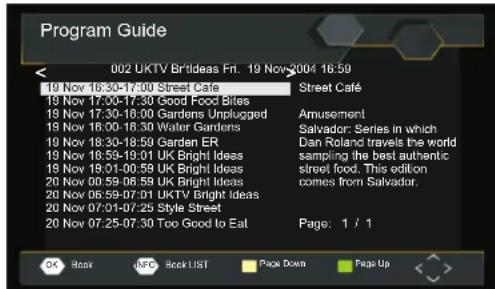
You can use the UP/DOWN key to select the preferred program. If there is more than one page of information, use the BLUE button for page up and the YELLOW button for page down.
First Time Installation
Sort
Sort your channels from the following options:
[LCN] - Sort the channels in ascending order.
[Name] - Sort the channels in alphabetical order.
[Service ID] - Sort the channels according to the station.
LCN (Logical channel number)
Set LCN on or off.
Video Setting
To access the Menu, press then select [Picture]. The Menu SETUP provides options to adjust the video settings. Press UP/DOWN to select an option and press RIGHT/LEFT to adjust that setting. Press EXIT to exit the menu.
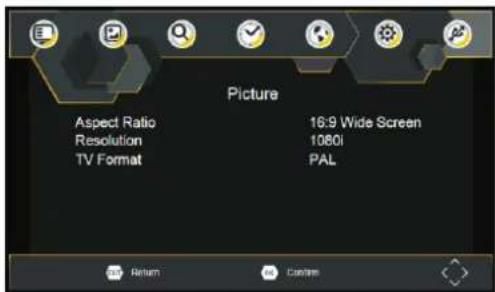
HDMI Aspect Ratio
You must set the display format to either 4:3 PanScan, 4:3 Letter Box, 4:3 Full, 16:9 Wide Screen, 16:9 PillarBox or Auto to get the maximum display when watching TV.
HDMI Resolution
If the video does not appear correctly, change the setting. This setting is to match the most common setting for HDMI.
480i for NTSC system TV.
480P: for NTSC system TV.
576i for PAL system TV.
576P: for PAL system TV.
[720P]: for NTSC or PAL system TV.
[1080I]: for NTSC or PAL system TV.
[1080P]: for NTSC or PAL system TV.
TV format
If the video does not appear correctly, you need to change the settings. This should match the most common setting for TVs in your country.
NTSC: for NTSC system TV.
PAL: for PAL system TV.
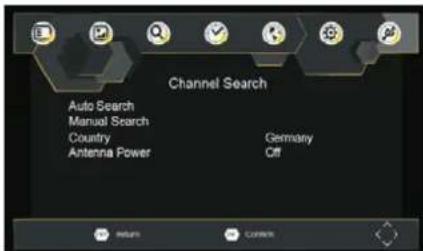
Channel Search
To access the menu, press and select [Search Channel]. SETUP The Menu provides options to adjust the Search Channel settings. Select an option and press RIGHT/LEFT to adjust the settings. Press EXIT to exit the Menu.
ENG-7
First Time Installation
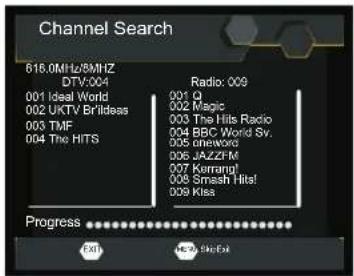
Auto Search
Search and install all channels automatically. This option overwrites all preset channels.
- Select [Auto Search] and press OK or RIGHT to start channel search.
- To cancel channel search, press EXIT.
Manual Search
Install new channels manually. This option adds new channels without changing the current channels list.
- Select [Manual Search] then press OK or RIGHT. The channel search screen will appear.
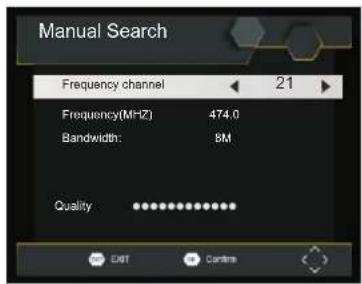
- Press the RIGHT/LEFT key to select the channel frequency.
- Press OK to start searching channels.
If a channel is found, it is saved and added to the channels list. If channels can't be found, then exit the menu.
Country
Select your country of residence.
Time Setting
To access the Menu, press then select [Time]. The Menu SETUP provides options to adjust the time settings. Press UP/DOWN to select an option and press RIGHT/LEFT to adjust the settings. Press EXIT to exit the menu.
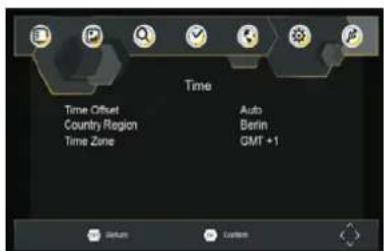
Time offset
Select auto or manual for GMT offset adjustments.
Country Region
Select the Country Region when [Time Offset] is set to Auto.
Time Zone
Select the Time Zone Offset when [Time Offset] is set to Manual.
ENG-8
First Time Installation
Option
To access the Menu, press and select [Option]. The menu SETUP provides options to adjust the OSD Language, Subtitle Language and Audio Language. Select an option and press RIGHT/LEFT to adjust the setting. Press EXIT to exit The Menu.
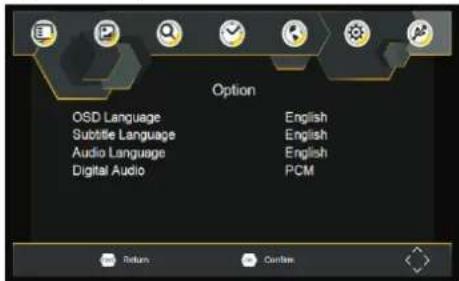
OSD Language
Select an OSD language.
Audio Language
Select the preferred audio language for watching TV channels. If the language is not available, the default program language will be used.
Subtitle Language
Select the preferred subtitle language.
System Setting
To access the Menu, press and select [System]. The menu. SETUP Provides options to adjust the system settings. Press the UP/DOWN key to select an option and press RIGHT/LEFT to adjust the setting. Press EXIT to exit the Menu.
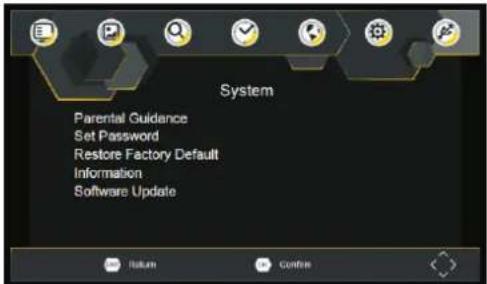
Parental Guidance
You can restrict access to channels that are unsuitable for children. To restrict/lock the channel you will need to enter either the default password '000000' or your own password.
Set Password
Set or change the password for Locked programs. Enter your old Password or the default password '000000'. You will then be asked to enter your new password. To confirm re-enter your new password. Once it is confirmed, press EXIT to exit the Menu.
Reset your Set Top Box to the Default Factory Settings. In Main Menu select [Restore Factory Default] and press OK or RIGHT to select. Enter your password or the default password '000000' and press OK to confirm. This option will delete all preset channels and settings.
Information
View model, hardware and software information.
Software update
If the status is set "ON", it will begin searching for new software from broadcast according to your preferred time in "Start Time".
First Time Installation
USB
To access the Menu, press the SETUP button and select USB..
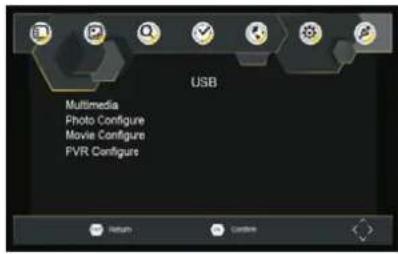
Multi-Media
Switch to USB mode and plug in USB to view files.
Technical Specifications
| Item | Sub Item | Parameter |
| Tuner | Input Frequency | 170~230MHz470~860MHz |
| RF Input level | -79dBm(T),-75dBm(T2) | |
| IF Bandwidth | 7MHz and 8MHz | |
| Modulation | QPSK,16QAM,64QAM,128QAM(T2),256QAM(T2) | |
| Video | Decoder Format | MPEG4 AVC/H.265 HP@L4MPEG2 MP@ML.HL |
| Output Format | 480i, 480p,576i, 576P, 720P, 1080i, 1080P,4:3 and 16:3 | |
| Output Port | HDMI |
Troubleshooting
| Problem | Potential Reasons | What to do |
| No picture | Power isn't connected | Connect the power |
| The power switch is not on | Switch on the power | |
| Screen shows “No Signal” | DVB-T cable not connected | Plug in the DVB-T cable |
| Incorrect setting | Reset setting | |
| No sound from speaker | Sound on mute | Turn off mute function |
| Incorrect sound track | Try another sound track | |
| Only sound, no image on the screen | No or incorrect connection with AV cable | Make sure cables are connected correctly |
| The program is a radio program | Presskey to shift into TV mode | |
| Remote Control is not responding | The battery is exhausted | Change battery |
| Remote Control is not facing or close enough to the Set Top Box | Adjust the position of the Remote Control and move closer to the unit | |
| The image stopped suddenly or mosaic | The signal is too weak | Strengthen the signal |
ENG-10
ALL RIGHTS RESERVED, COPYRIGHT DENVER ELECTRONICS A/S
DENVER®
www.denver-electronics.com



Electric and electronic equipment and included batteries contains materials, components and substances that can be hazardous to your health and the environment, if the waste material (discarded electric and electronic equipment and batteries) is not handled correctly.
Electric and electronic equipment and batteries is marked with the crossed out trash can symbol, seen below. This symbol signifies that electric and electronic equipment and batteries should not be disposed of with other household waste, but should be disposed of separately.
As the end user it is important that you submit your used batteries to the appropriate and designated facility. In this manner you make sure that the batteries are recycled in accordance with legislature and will not harm the environment.
All cities have established collection points, where electric and electronic equipment and batteries can either be submitted free of charge at recycling stations and other collection sites, or be collected from the households. Additional information is available at the technical department of your city.
Hereby, Inter Sales A/S declares that the radio equipment type MT-1080T2H is in compliance with Directive 2014/53/EU. The full text of the EU declaration of conformity is available at the following internet address: http://www.denver-electronics.com/denver-mt-1080t2h/
Operating Frequency Range: 170\~230MHz, 470\~860MHz
Imported by:
DENVER ELECTRONICS A/S
Omega 5A. Soeften
DK-8382 Hinnerup
Denmark
facebook.com/denverelectronics
DE
DENVER®
denver-electronics.com
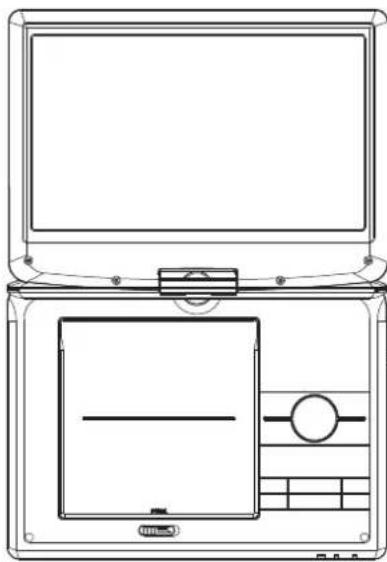
natural_image
Line drawing of a laptop computer front panel with screen, tower, and control panel (no text or symbols)BEDIENUNGSANLEITUNG
MT-1080T2H
facebook.com/denverelectronics
Sendereinstellungen
GER-7
Erstinstallation
Automatische Suche
OSD-Sprache
facebook.com/denverelectronics
DK
DENVER®
denver-electronics.com
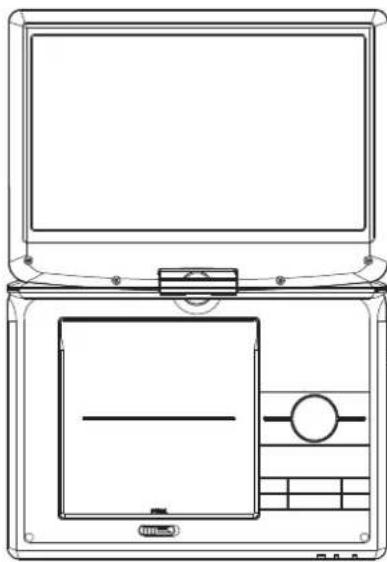
natural_image
Line drawing of a laptop computer front view showing front panel, screen, and keypad (no text or symbols)BETJENINGSVEJLEDNING
MT-1080T2H
facebook.com/denverelectronics
Åbner EPG I DVB-tilstand.
27. ZOOM
Programredigering
DEN-5
Aspektrate
DEN-7
OSD-sprog
facebook.com/denverelectronics
ES
DENVER®
denver-electronics.com
natural_image
Line drawing of a laptop computer front panel with screen, tower, and screen (no text or symbols)MANUAL DE USUARIO
MT-1080T2H
Editar programa
Fije LCN en on u off.
Configuración Video
ESP-7
Idioma de OSD
facebook.com/denverelectronics
FR
DENVER®
denver-electronics.com
natural_image
Line drawing of a laptop computer with front panel and screen (no text or symbols)MANUEL DE L'UTILISATEUR
MT-1080T2H
FRA-7
Durée d'arrêt
Langue OSD
facebook.com/denverelectronics
NL
DENVER®
denver-electronics.com
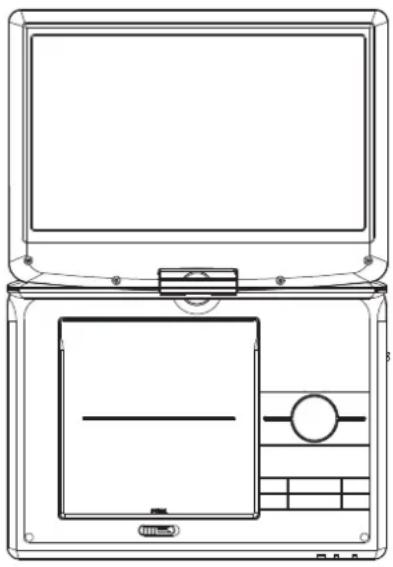
natural_image
Line drawing of a laptop computer with front panel and screen (no text or symbols)GEBRUIKSHANDLEIDING
MT-1080T2H
Kort indrukken is links
Programma bewerken
NED-7
Eerste installatie
Automatisch zoeken
OSD-taal
facebook.com/denverelelectronics
PL
DENVER®
denver-electronics.com
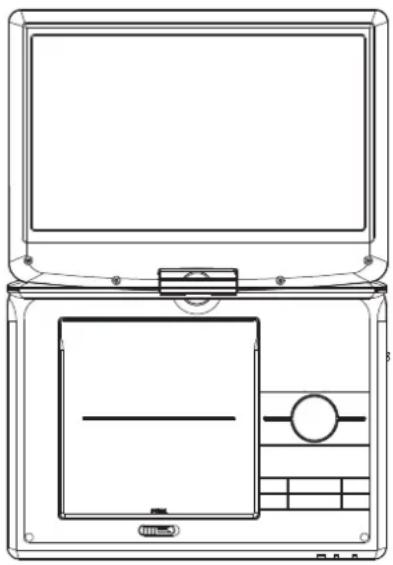
natural_image
Line drawing of a laptop computer case with front panel, screen, and keypad (no text or symbols)PODRĘCZNIK UŻYTKOWNIKA
MT-1080T2H
PRZENOŚNY ODTWARZACZ DVD
POL-7
Pierwsza instalacja
facebook.com/denverelectronics
PT
DENVER®
denver-electronics.com
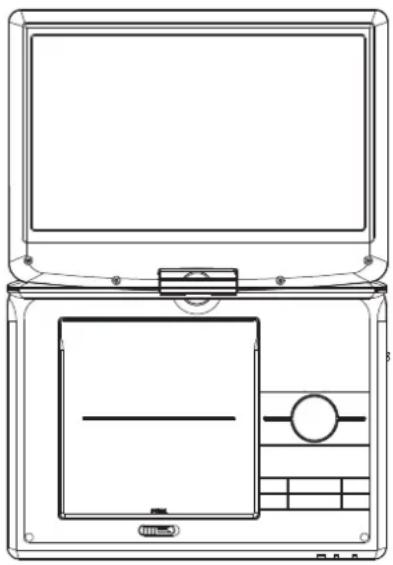
natural_image
Line drawing of a laptop computer case with front panel and screen (no text or symbols)MANUAL DO UTILIZADOR
MT-1080T2H
Edição do Programa
POR-7
Primeira Instalação
Pesquisa Automática
Compensação horária
Idioma OSD
facebook.com/denverelectronics
denver-electronics.com
natural_image
Line drawing of a laptop computer front view showing front panel, screen, and keypad (no text or symbols)HANDBOK
MT-1080T2H
24. REPEAT (UPPREPA)
Redigera program
Tidsskillnad
OSD -språk
Välj ett OSD-spräk.
Ljudspråk
facebook.com/denverelectronics
Driftsfrekvensområde: 170\~230MHz, 470\~860MHz
FI
DENVER®
denver-electronics.com
natural_image
Line drawing of a laptop computer case with front panel and screen (no text or symbols)KÄYTTÖOHJE
MT-1080T2H
OSD-kiell
facebook.com/denverelectronics
DE
DENVER®
denver-electronics.com
natural_image
Line drawing of a laptop computer front view showing front panel, screen, and keypad (no text or symbols)GUIDA PER L'UTENTE
MT-1080T2H
facebook.com/denverelectronics
Modifica programma
LCN (Logical channel number)
Impostare LCN acceso o spento.
Impostazione video
ITA-7
Prima installazione
Ricerca automatica
Lingua OSD
facebook.com/denverelectronics
DENVER®
denver-electronics.com
natural_image
Line drawing of a laptop computer case with front panel and screen (no text or symbols)KORISNIČKI PRIRUČNIK
MT-1080T2H
facebook.com/denverelectronics
Prije spajanja ili podešavanja ovog proizvoda, ili rada na njemu,
molimo pažljivo pročitajte kompletan korisnički priručnik.
(1) Odaberite [Jezik zaslona] i pritisnite tipke RIGHT/LEFT za odabir jezika.
(2) Odáberite [Država] i pritisnite tipke RIGHT/LEFT za odabir države boravišta.
(3) Odaberite [Pretraživanje kanala] i pritisnite tipke RIGHT ili OK za pokretanje automatskog pretraživanja kanala.
(4) Po završetku ugađanja kanala, spremni ste za gledanje TV programa.
Uređivanje programa
Za uređivanje željenih postavki programa (zaključavanje, preskakanje, favoriti, pomicanje ili brisanje), morate ući u izbornik Uređivanje programa. Za pristup ovom izborniku potrebno je upisati lozinku. Unesite tvornički postavljenu lozinku "000000".
HRV-5
Prva instalacija
Postavljanje programa favorita
Možete kreirati popis programa favorita kojima ćete lako pristupati. Postavljanje TV ili radio programa favorita:
-
Odaberite željeni program te pritisnite tipku FAVOURITE. Pojavit će se simbol u obliku srca i program će biti dodan u favorite.
-
Ponavljanjem prethodnog koraka možete dodati više programa favorita.
-
Pritisnite tipku EXIT za potvrđivanje i izlaz iz izbornika.
Onemogućavanje TV ili radio programa favorita:
Tipkama UP/DOWN možete odabrati željeni program. Ukoliko postoji više stranica informacija, PLAVOM tipkom prikažite prethodnu, a ŽUTOM tipkom iduću stranicu.
Prva instalacija
Sortiranje
Kanale možete sortirati na sljedeće načine:
[LBK] - (Logični broj kanala) Sortira kanale uzlazno.
[Naziv] - Sortira kanale abecedno prema nazivu.
[Sifra usluge] - Sortira kanale prema postaji.
HRV-7
Prva instalacija
Automatsko pretraživanje
- Pritisnite tipke RIGHT/LEFT za odabire frekvencije kanala.
- Pritisnite OK za početak pretraživanja kanala.
Ukoliko je kanal pronađen, pohranjuje se i dodaje na popis kanala. Ukoliko nije moguće pronaći kanal, napustite izbornik.
Država
Odaberite vašu državu boravišta.
Postavke vremena
Za pristup izborniku, pritisnite SETUP te odaberite [Vrijeme]. Izbornik pruža opcije prilagođavanja postavki vremena. Pritiskom na UP/DOWN odaberite opciju, a pritiskom na RIGHT/LEFT prilagodite postavke. Pritisnite tipku EXIT za izlaz iz izbornika.
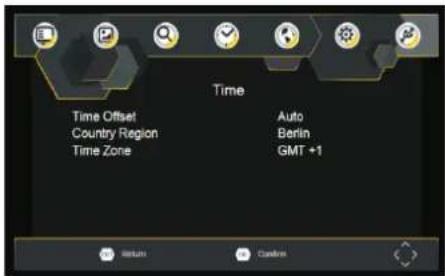
Vremenski pomak
Odaberite automatsko ili manualno podešavanje vremenskog pomaka u odnosu na GMT.
Regija države
Odaberite regiju države kada je [Vremenski Pomak] postavljen na Auto.
Vremenski zona
Jezik zaslona
facebook.com/denverelectronics
DENVER®
denver-electronics.com
natural_image
Line drawing of a laptop computer case with front panel and screen (no text or symbols)BRUKSANVISNING
MT-1080T2H
BÆRBAR DVD-SPILLER
facebook.com/denverelectronics
Les hele bruksanvisningen grundig før du kobler til, bruker eller justerer dette produktet.
Endre program
576p: for PAL-system TV.
[720p]: for NTSC eller PAL-system TV.
[1080i]: for NTSC eller PAL-system TV.
[1080p]: for NTSC eller PAL-system TV.
TV-format
PAL: for PAL-system TV.
Kanalsøk
Skjermvisningsspråk
facebook.com/denverelelectronics
- Identification of Controls
- SOURCE
- MUTE
- 3.0-9 NUMBER BUTTON
- 4.INFO
- 5.10+ BUTTON
- PBC/FAV
- 7.AUDIO
- 8.PLAY/PAUSE
- 9.STOP
- 10.STEP/TV/RADIO
- 11.VOL+
- Forward Skip
- 13.Reverse Skip
- ▶▶ BUTTON
- ENG-2
- Remote control unit
- ◀ BUTTON
- ⏻
- 17.SEARCH
- 18.SUBTITLE
- 19.ANGLE
- ● / TITLE
- ENTER
- 22.REPEAT
- 23.VOL-
- 24.SETUP
- 25.SLOW
- 26.PROGRAM
- 27.ZOOM
- 28.RED/GREEN/YELLOW/BLUE KEY
- Parameters and specifications
- Battery Parameters
- First Time Installation
- Basic Operation
- Program Manage Settings
- Program Edit
- Set Favourite Program/s
- Delete a TV or Radio Program/s
- Skip TV or Radio Program/s
- Move a TV or Radio Program/s
- Lock Program/s
- EPG (Electronic program guide)
- Sort
- LCN (Logical channel number)
- Video Setting
- HDMI Aspect Ratio
- HDMI Resolution
- TV format
- Channel Search
- Auto Search
- Manual Search
- Country
- Time Setting
- Time offset
- Country Region
- Time Zone
- Option
- OSD Language
- Audio Language
- Subtitle Language
- System Setting
- Parental Guidance
- Set Password
- Information
- Software update
- DENVER®
- Sendereinstellungen
- Erstinstallation
- Automatische Suche
- OSD-Sprache
- ZOOM
- Programredigering
- Aspektrate
- OSD-sprog
- Editar programa
- Configuración Video
- Idioma de OSD
- Durée d'arrêt
- Langue OSD
- Programma bewerken
- Eerste installatie
- Automatisch zoeken
- OSD-taal
- PRZENOŚNY ODTWARZACZ DVD
- Pierwsza instalacja
- Edição do Programa
- Primeira Instalação
- Pesquisa Automática
- Compensação horária
- Idioma OSD
- REPEAT (UPPREPA)
- Redigera program
- Tidsskillnad
- OSD -språk
- OSD-kiell
- Modifica programma
- Impostazione video
- Prima installazione
- Ricerca automatica
- Uređivanje programa
- Prva instalacija
- Postavljanje programa favorita
- Sortiranje
- Automatsko pretraživanje
- Država
- Postavke vremena
- Vremenski pomak
- Regija države
- Vremenski zona
- Jezik zaslona
- BÆRBAR DVD-SPILLER
- Endre program
- Kanalsøk
Brand : DENVER
Model : MT-1080T2H
Category : DVD player