S1337CAM - Webcam Sandstrøm - Free user manual and instructions
Find the device manual for free S1337CAM Sandstrøm in PDF.


| Product Type | Webcam |
| Image Sensor | 2592x1944 pixels, CMOS |
| Video Resolution | Full HD 1920x1080 @ 30fps; HD 1280x720 @ 30fps |
| Lens Specification | F2.8, f=4.76mm, 4P |
| Focus | Auto Focus |
| Built-in Microphone | Yes |
| White Balance | Auto |
| Exposure | Auto |
| Interface | USB 2.0 |
| System Requirements | Windows XP SP2/Vista/7/8; Mac OS 10.5 or above |
| Power Supply | USB powered (5V) |
| Dimensions (approx.) | 80 x 30 x 25 mm |
| Weight (approx.) | 60 g |
| Operating Temperature | 0°C to 40°C |
| Storage Temperature | -20°C to 60°C |
| Compatible With | Skype, Zoom, and other video conferencing apps |
| Special Features | HD video, auto focus, built-in mic, plug and play |
| Color | Black |
| Manual Language | English, Danish, Swedish, Norwegian, Finnish, Czech, Slovak |
| Safety Certifications | CE, WEEE |
Frequently Asked Questions - S1337CAM Sandstrøm
User questions about S1337CAM Sandstrøm
0 question about this device. Answer the ones you know or ask your own.
Ask a new question about this device
Download the instructions for your Webcam in PDF format for free! Find your manual S1337CAM - Sandstrøm and take your electronic device back in hand. On this page are published all the documents necessary for the use of your device. S1337CAM by Sandstrøm.
USER MANUAL S1337CAM Sandstrøm
natural_image
Black-and-white photo of a desktop computer camera with USB cable (no text or symbols visible)Safety Warnings....7
Unpacking....14
Product Overview....15
Front View 15
System Requirements....15
Installation....15
Using your camera with Skype 16
Video Settings (Windows) 16
Audio Settings (Windows)....17
Audio/Video Settings (Mac) 19
Hints and Tips....21
Outdoor Use 21
No Image....21
Dark Pictures....21
Flickering Picture While Using Skype....22
Specifications....23
Innhold
NO
Nastavenia zvuku/video (Mac)....79
Rady a tipy....81
Používanie vonku....81
Žiadny obraz 81
Tmavé obrázky....81
- Do not attempt to modify this webcam.
- Do not place the webcam in extremely damp or dusty locations.
- Do not place the webcam in places subject to extremely high temperatures, such as in a closed vehicle or direct sunlight. Exposure to high temperatures may adversely affect the webcam and its internal components.
- Do not remove the webcam casing. Internal inspection, maintenance and repairs should be carried out by an authorized service facility.
- Do not use the webcam if any foreign objects have entered the casing. Disconnect the webcam from your computer and contact your local dealer or an authorized service facility. Do not continue to use the webcam.
- Do not use the camera if any water has entered the casing. Disconnect the webcam from your computer, and contact your local dealer or an authorized service facility. Do not continue to use the webcam.
- Do not use the webcam if it is emitting smoke, is unusually hot to touch, is emitting any unusual odor or is in any other abnormal state.
• Take care not to bump or drop your webcam as this may cause the webcam to malfunction. If your webcam has been dropped or the casing has been damaged, disconnect it from your computer and contact your local dealer or an authorized service facility. Do not continue to use the camera.

Tele-conferencing and video-conferencing also require a sound card, microphone and an internet connection.
Sikkerhetsadvarsler
Thank you for purchasing your new Sandstrøm Webcam.
We recommend that you spend some time reading this instruction manual in order that you fully understand all the operational features it offers. You will also find some hints and tips to help you resolve any issues.
Read all the safety instructions carefully before use and keep this instruction manual for future reference.
Unpacking
Remove all packaging from the unit. Retain the packaging. If you dispose of it please do so according to local regulations.
The following items are included:

natural_image
Black studio webcam with a cable, isolated on white background (no text or symbols)Webcam Instruction Manual
Product Overview
Front View
Auto Focus Lens

GB
System Requirements
• 1 Available USB 2.0 port
- Microsoft® Windows® XP SP2 / Vista™ / Windows® 7 or Windows® 8.
• Mac OS 10.5 or above
Installation
- Turn on your computer. Close all the open programs.
- Connect the USB cable of your webcam to the USB port of your computer.

natural_image
Illustration of a laptop connected to a cable via a cable (no text or symbols)Using your camera with Skype
Video Settings (Windows)
GB
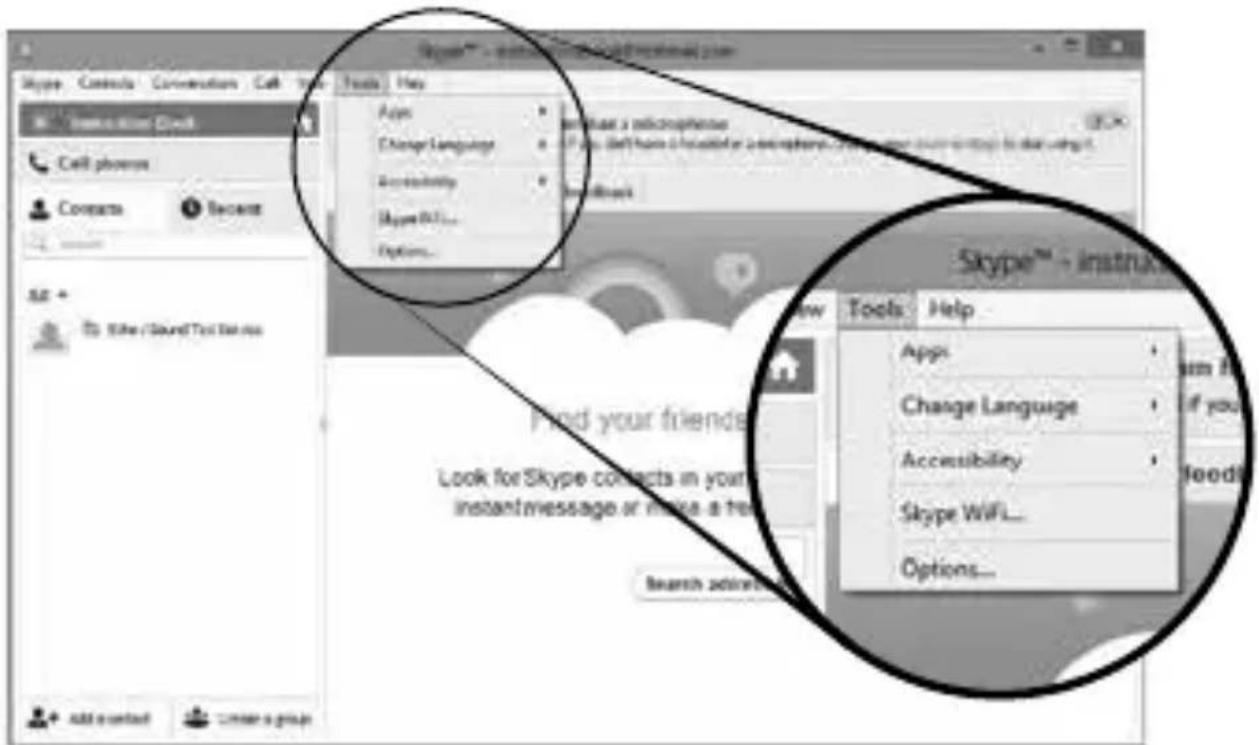
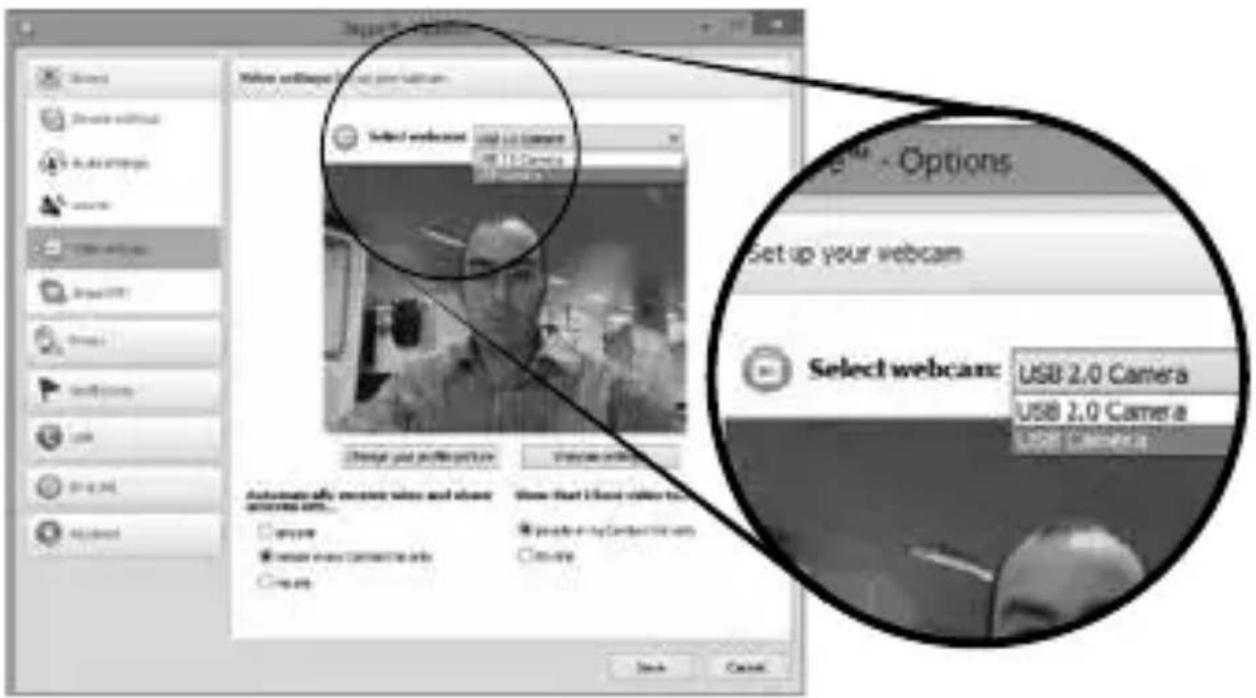
Click on Tools and scroll down to Options.

Click on Video setting.

GB
Click on the Select webcam drop down menu and select your camera ("Sandstrom S1337CAM" shown as "USB Camera" above).
Audio Settings (Windows)
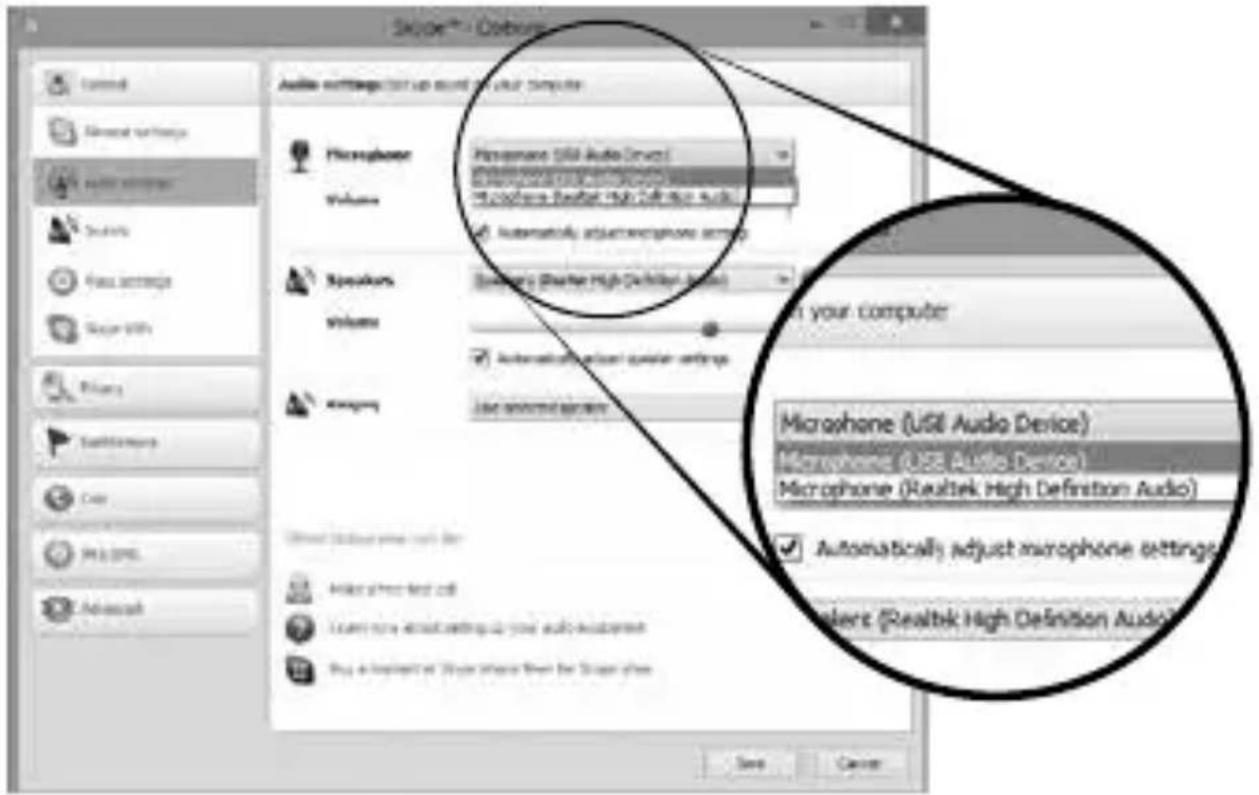
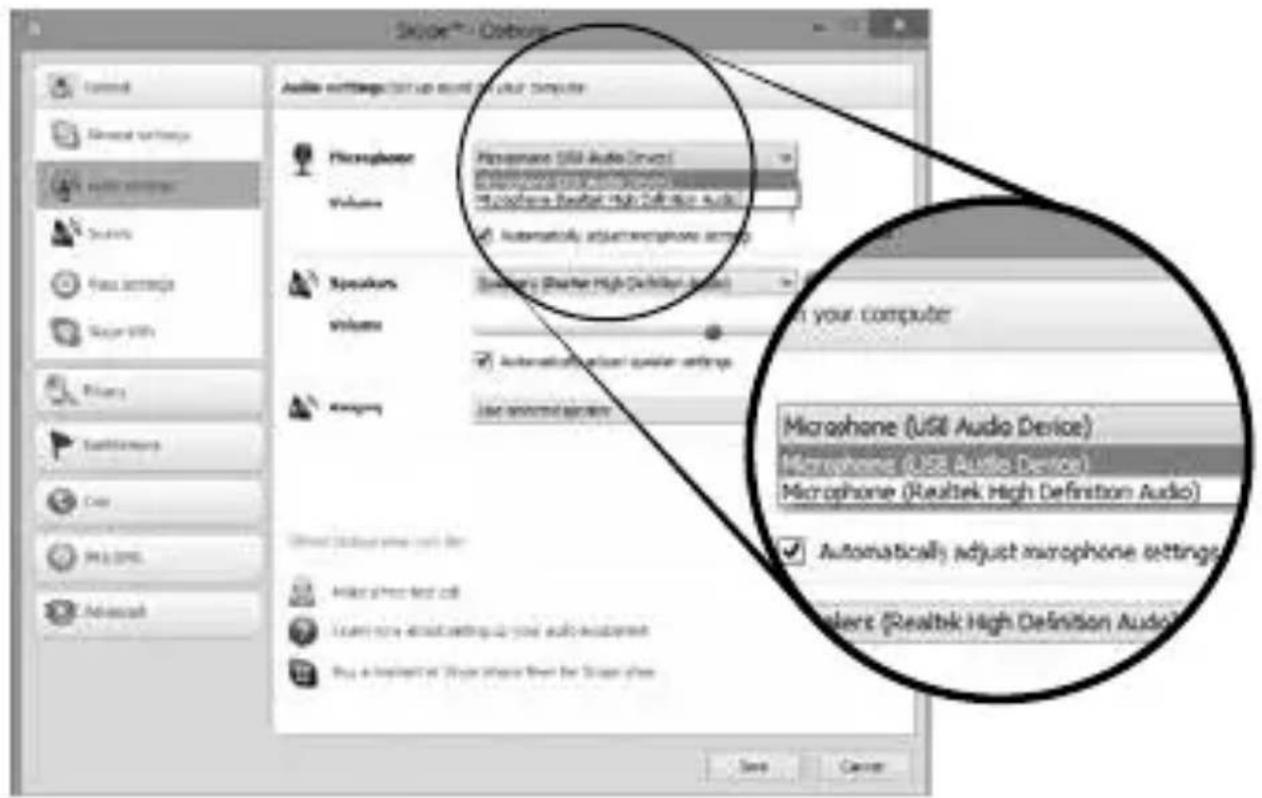
You will need to change the audio setting to use your cameras built-in microphone.

Click on Audio setting.

Click on the Microphone drop down menu and select your camera ("Sandstrom S1337CAM" shown as "USB Camera" above).

Click on Save.
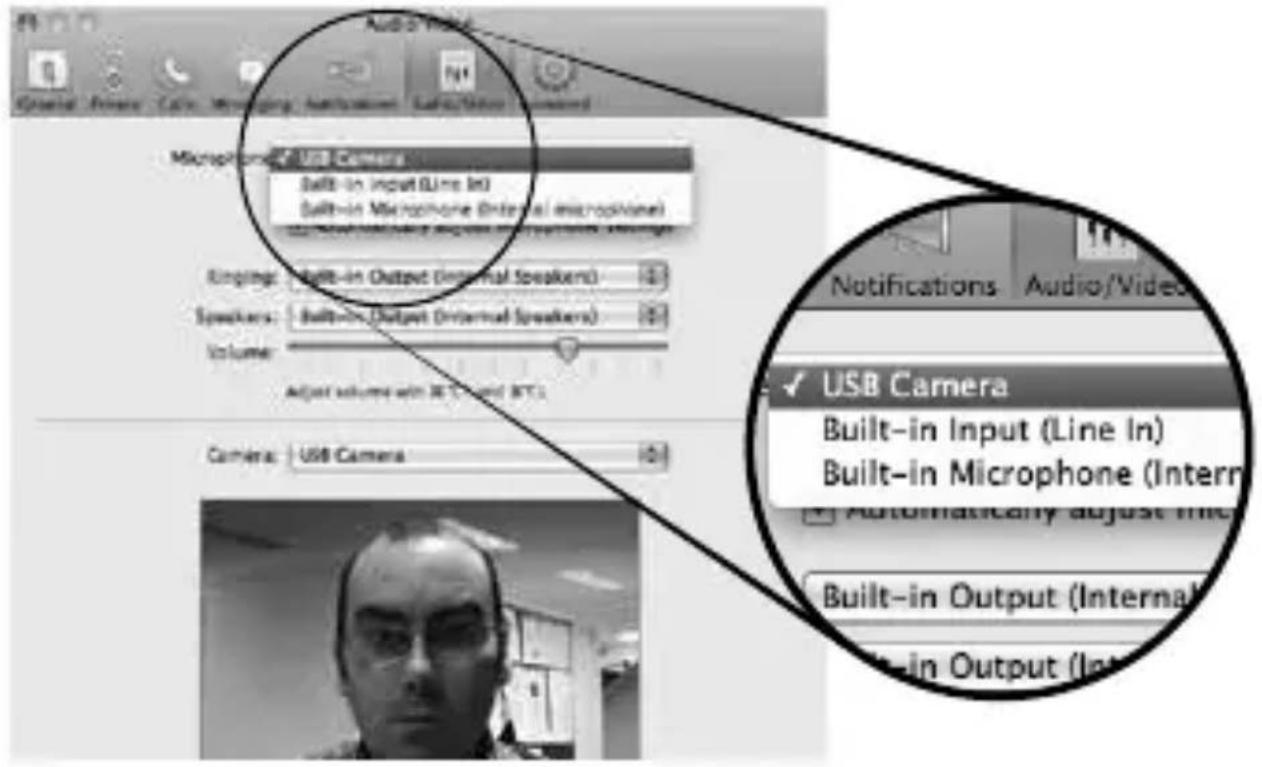
Audio/Video Settings (Mac)

GB
Click on Skype and scroll down to Preferences.

Click on Audio/Video.

Click on the Microphone drop down menu and select your camera ("Sandstrom S1337CAM" shown as "USB Camera" above).

Click on the Camera drop down menu and select your camera ("Sandstrom S1337CAM" shown as "USB Camera" above).
Hints and Tips
Outdoor Use
- Your webcam is not designed for outdoor use and should not be exposed to the elements without suitable protection. In general, you should not expose it to extreme temperatures or humidity.
No Image
- Ensure the USB cable is correctly and securely attached.
• Make sure your lens is free from obstruction, and that it is pointing in the appropriate direction.
Dark Pictures
- Check that there is sufficient light for the camera. Alternatively, you may wish to adjust the brightness or contrast settings in the software you are using.
- Ensure there is no strong light source behind the object or person being viewed by the webcam.
Flickering Picture While Using Skype
- If your picture is flickering while using Skype you make need to change Powerline Frequency. Set it to 50Hz for use in the UK and 60Hz for use in Europe.

Open the Video setting menu and click on Webcam setting. The Capture Properties menu will open.

Change the Powerline Frequency and the flickering should stop. Click on Apply then OK. Then Save the Webcam settings.
Specifications
| Image Sensor 2592x1944 pixels, CMOS |
| Lens Specification F2.8, f=4.76mm, 4P |
| White Balance Auto |
| Exposure Auto |
| HQ Video Conference HD 720P |
| Video & Still Capture 1920x1080 pixels (Full HD) 30fps |
| Res. / Frame Rate 1280x720 pixels (HD) @ 30fps |
Features and specifications are subject to change without prior notice.
Windows® is a registered trademark of Microsoft Corporation in the United States and other countries.
All trademarks are the property of their respective owners and all rights are acknowledge.
natural_image
3D rendered image of a desktop computer camera with a cable (no text or symbols visible)
natural_image
Illustration of a laptop with a cable and attached sensor on top, no text or symbols presentKlikk på Lyd/Bilde.

natural_image
3D rendered image of a desktop computer with a scroll wheel and cable (no text or symbols visible)Webbkamera Instruktionsbok

Produktöversikt
Vy framifrån
Autofokuslins

natural_image
Illustration of a laptop connected to a cable, showing its screen and keyboard (no text or symbols present)Klicka på Ljud/Video.
natural_image
Black studio webcam with a cable, isolated on white background (no text or symbols)natural_image
Illustration of a laptop connected to a cable, showing its screen and keyboard (no text or symbols present)natural_image
Black studio webcam with a cable, isolated on white background (no text or symbols)Produktoversigt
Set forfra

natural_image
Illustration of a laptop connected to a cable via a cable (no text or symbols)Klik på videoindstillinger.

Klik på lydindstillinger.
natural_image
3D rendering of a desktop computer with a cable and lens (no text or symbols visible)
natural_image
Illustration of a laptop connected to a cable with a small attached device (no text or symbols visible)Click on Audio setting.

CZ
natural_image
Illustration of a laptop with a cable and attached sensor (no text or symbols)Kliknite na Nastavenie video.
Kliknite na Nastavenie zvuku.
Kliknite na Uložit.
Nastavenia zvuku/videoa (Mac)

Kliknite na Skype a narolujte na položku Preferencie.

Kliknite na rozbal'ovaciu ponuku Mikrofón a zvol'te svoju kameru (Sandstrom S1337CAM).

natural_image
Symbol of a trash bin crossed with a diagonal line, no text or numbers presentGB
This symbol on the product or in the instructions means that your electrical and electronic equipment should be disposed at the end of its life separately from your household waste. There are separate collection systems for recycling in the EU.
For more information, please contact the local authority or your retailer where you purchased the product.

No emergency calls with Skype
Skype is not a replacement for your ordinary telephone and can't be used for emergency calling.
Skype is a trade mark of Skype or its related companies. This product has not been approved or endorsed by Skype, Skype Communications S.a.r.l. or any of their related companies.

natural_image
Symbol of a trash bin crossed with a diagonal line, no text or numbers presentNO
No emergency calls with Skype
Skype is not a replacement for your ordinary telephone and can't be used for emergency calling.
Skype is a trade mark of Skype or its related companies. This product has not been approved or endorsed by Skype, Skype Communications S.a.r.l. or any of their related companies.

natural_image
Symbol of a trash bin crossed with a diagonal line, no text or numbers presentSE
No emergency calls with Skype
Skype is not a replacement for your ordinary telephone and can't be used for emergency calling.
Skype is a trade mark of Skype or its related companies. This product has not been approved or endorsed by Skype, Skype Communications S.a.r.l. or any of their related companies.

natural_image
Symbol of a trash bin crossed out by two crossed lines, with a black rectangle below (no text or labels)FI
No emergency calls with Skype
Skype is not a replacement for your ordinary telephone and can't be used for emergency calling.
Skype is a trade mark of Skype or its related companies. This product has not been approved or endorsed by Skype, Skype Communications S.a.r.l. or any of their related companies.

natural_image
Symbol of a trash bin crossed with a diagonal line, no text or numbers presentDK
No emergency calls with Skype
Skype is not a replacement for your ordinary telephone and can't be used for emergency calling.
Skype is a trade mark of Skype or its related companies. This product has not been approved or endorsed by Skype, Skype Communications S.a.r.l. or any of their related companies.

natural_image
Symbol of a trash bin crossed with a diagonal line, no text or numbers presentCZ
No emergency calls with Skype
Skype is not a replacement for your ordinary telephone and can't be used for emergency calling.
Skype is a trade mark of Skype or its related companies. This product has not been approved or endorsed by Skype, Skype Communications S.a.r.l. or any of their related companies.

natural_image
Symbol of a trash bin crossed with a diagonal line and a horizontal bar below (no text or numbers present)SK
No emergency calls with Skype
Skype is not a replacement for your ordinary telephone and can't be used for emergency calling.
Skype is a trade mark of Skype or its related companies. This product has not been approved or endorsed by Skype, Skype Communications S.a.r.l. or any of their related companies.
DSG Retail Ltd. (co. no. 504877)
Maylands Avenue, Hemel Hempstead, Herts., HP2 7TG, UK
IB-S1337CAM-130125V1
- Innhold
- NO
- Sikkerhetsadvarsler
- Unpacking
- Product Overview
- Front View
- System Requirements
- Installation
- Using your camera with Skype
- Video Settings (Windows)
- Audio Settings (Windows)
- Audio/Video Settings (Mac)
- Hints and Tips
- Outdoor Use
- No Image
- Dark Pictures
- Flickering Picture While Using Skype
- Specifications
- Produktöversikt
- Vy framifrån
- answers
- people in my Contact Net only
- new sites
- Produktoversigt
- GB
- SE
- FI
- DK
- CZ
- SK
Brand : Sandstrøm
Model : S1337CAM
Category : Webcam