
9 PCTABLET - Tablet PC ARCHOS - Free user manual and instructions
Find the device manual for free 9 PCTABLET ARCHOS in PDF.



| Product Type | PC Tablet |
| Brand | ARCHOS |
| Model | 9 PCTABLET |
| Screen | Touchscreen |
| Operating System | Windows® |
| Connectivity | Built-in WiFi (802.11b/g) |
| Ports | 1x USB, 1x headphone jack, 1x power connector, 1x additional port |
| Battery | Removable lithium-ion |
| Included Accessories | Charger/adapter, stylus, removable battery |
| Webcam | Built-in (with indicator light) |
| Microphone | Built-in |
| Speakers | 2 built-in speakers |
| Optical Pointing Stick | Built-in (functions as a touchpad) |
| Mouse Buttons | 2 buttons (left and right) on the left side |
| Virtual Keyboard Button | Yes (dedicated button) |
| A Button | Equivalent to Ctrl+Alt+Del, enables/disables WiFi and Bluetooth |
| Telescopic Stand | Built-in |
| Maintenance | Clean with a soft, dry cloth; avoid moisture and liquids |
| Safety | Follow usage instructions; do not expose to water or temperatures above 60°C |
| Warranty | Limited warranty (see full manual) |
Frequently Asked Questions - 9 PCTABLET ARCHOS
User questions about 9 PCTABLET ARCHOS
0 question about this device. Answer the ones you know or ask your own.
Ask a new question about this device
Download the instructions for your Tablet PC in PDF format for free! Find your manual 9 PCTABLET - ARCHOS and take your electronic device back in hand. On this page are published all the documents necessary for the use of your device. 9 PCTABLET by ARCHOS.
USER MANUAL 9 PCTABLET ARCHOS
Dear Customer,
Thank you for choosing this ARCHOS product. We hope that you will enjoy using it and that it will give you satisfaction for many years to come. Once you unpack your ARCHOS product, we recommend that you take a few minutes to register it (www.archos.com/register). This will allow you to get access to ARCHOS technical support (www.archos.com/support).
If you have questions related to the use of Windows®, you can display the Windows® Help by clicking on the Start menu (at the bottom left of the screen), then Help and Support.
Wishing you the best multimedia experience,
The ARCHOS Team.
Please note that your device's appearance may be slightly different than presented in this User Guide.
Carefully read and follow the Safety Notices as failure to comply with these could lead to serious injury or in some cases death.
Electrical Device Warning
Your device and its charger/adapter are electrical devices, therefore:
- Do not expose the ARCHOS 9, cords, or adapter/charger to rain, moisture, water, or use in humid areas.
- Avoid using near spillable liquids such as drinks.
- Do not pinch, bend, or put heavy or sharp objects on its electrical cord.
- Connect only peripherals and accessories that are expressly designed for the standardized connectors of the ARCHOS 9.
- Use only a charger/adapter that are specifically certified for the ARCHOS 9.
- If using an extension cord, use a minimum cable diameter of AWG n°26
- Shutdown and unplug from the adapter/charger before changing a part in the device.
- Unplug from the wall during a storm.
General Treatment Advice
Your device has delicate components inside and should be treated carefully, therefore:
- Do not handle the ARCHOS 9 roughly or subject it to falls, pressure, shock, or violent movement.
- Do not use or leave the ARCHOS 9 on soft surface such as a bed or cushion which could help the device build up heat.
- If your ARCHOS 9 is very cold or has been stored in a very cold environment, do not use it right away. Let it adjust to the room temperature gradually, before turning it on.
- If the device emits a strange odor, produces extra-ordinary heat, or makes strange noises, stop using the device, remove battery from device, and contact an ARCHOS service representative.
- Do not use the device while driving a car or doing any other activities in which loss of concentration could lead to potential harm to self or others.
Health warnings
Using an electronic device such as the ARCHOS 9 can lead to health problems if used inappropriately, therefore:
- Allow a break from continued usage of at least 10 minutes per hour.
- Maintain enough light in the room (equivalent to that required for reading)
- When using headphones, do not listen to loud levels of music or sound for extended periods. Stop using headphones if you hear ringing or buzzing in your ears.
- Use only on a table top and where hands and wrists can comfortably access the keyboard. If you are doing much typing, keep your wrists straight and give your hands a periodic rest.
- Adjust your seat and table's height appropriately. Using your device while lying or in any position other than sitting at a desk could cause musculoskeletal problems and is strongly discouraged.
- Be aware that being equipped with wifi capabilities, it will send and receive radio waves and that medical devices such as pacemakers may be sensitive to the generation of radio frequencies created by this device. Check with the maker of your medical equipment to make sure such interference is tolerable by the equipment.
- If connecting a 3G or similar transmitting device (ex: 3G USB stick) to allow connections to the internet via wireless telephone networks, your exposure to radio frequencies is increased. Inform yourself of the Specific Absorption Rate level for the device and what it means and what health risks are involved.
Please read other important safety information at the back of this guide.
NEED HELP?
Here are some ways to find the information you may need:

Questions about Windows®?
If you have questions related to the use of Windows®, you can display the Windows® Help by clicking on the Start menu (at the bottom left of the screen), then Help and Support.

FAQs
See the Frequently Asked Questions section on www.archos.com/faq

Contact our Technical Support Team
Visit www.archos.com/support to contact ARCHOS technical support. You will need to register your product before contacting ARCHOS Technical Support.
The box includes the following items:
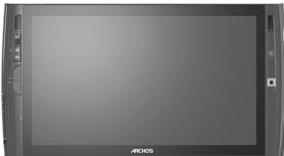
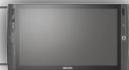
The ARCHOS 9
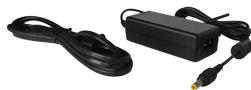
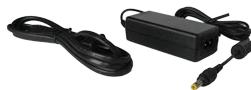
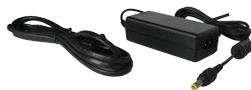
The Power cord & adapter
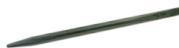
Stylus
To be inserted in the back of the product.
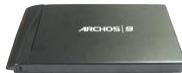
Removable Battery
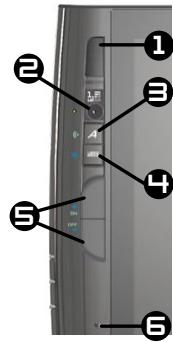
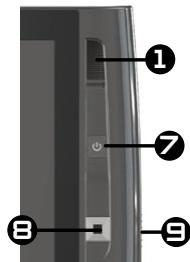
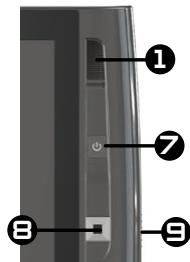
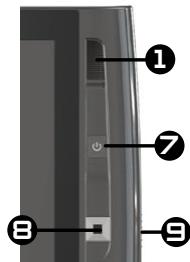
1 Loudspeakers 2 Webcam: the LED indicator next to it turns on when the webcam is on. ☐ “A” button ☐ Press once: this button is the equivalent of pressing “Ctrl+Alt+Del!” on a regular keyboard. Hold this button and press the Mouse buttons to activate (on) or deactivate (off) the WiFi and Bluetooth connections. Keyboard button Press once: display/hide the virtual keyboard. Hold this button and press the Mouse buttons to increase/decrease the screen brightness. 5 Mouse buttons: the top one acts as a mouse's left button and the bottom one acts as a mouse's right button. Built-in microphone 7 Power Button: press once to turn the device on. In the event that the device cannot be shutdown via the Start menu > Shutdown item (at the bottom left of the screen), you can press and hold the Power button until the ARCHOS shuts down. Mousepad: to move the cursor that appears on the screen. Battery latch: slide it to remove the battery located at the back of the product.
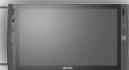
ARCHOS 9 DESCRIPTION
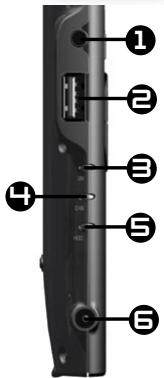
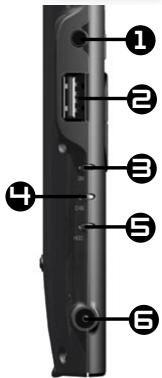
1 Headphone jack USB Port: to connect USB devices to your ARCHOS, such as a keyboard, a mouse, etc. Power indicator: turns on when the device is on. Blinks when the device is in standby. Charging indicator: Light on: battery charging / blinking: battery charged 5 Hard drive indicator: blinks when the hard drive is active (playing/transferring files) Power connector: to connect the supplied power cable.
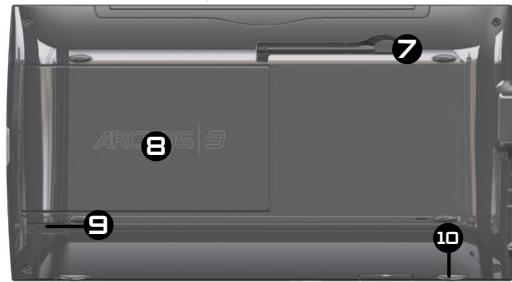
7 Adjustable-length Leg stand Removable battery: to remove it, slide the battery latch, on the right side of the device. Stylus holder 10 Extension port: to connect the optional ARCHOS Port Replicator accessory.
GO!
STARTING UP

Before using your ARCHOS for the first time, completely charge the battery!
Installing and Charging the Battery
1 Slide the battery into the battery slot, on the back of the product and then gently push the battery until it clicks into place. 2 Connect the supplied power cable to the ARCHOS Power connector and to a wall outlet. The battery will start charging.
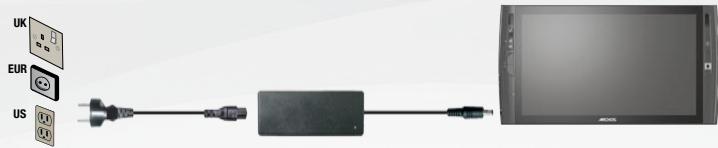
3 The Charging indicator (on the left side of the device) is on while the battery is charging. When the battery is fully charged the indicator will blink.
Turning the ARCHOS on
To turn the ARCHOS on, press the Power button ⏻. The Power status indicator, on the left side of the device, will turn on. During the installation wizard, use the Ease of access on-screen icon ⏻ to bring up the Windows® keyboard whenever you need to type in text. In the event that the device cannot be shut down via the Start menu > Shutdown item (at the bottom left of the screen), you can press and hold the Power button until the ARCHOS shuts down.
The touchscreen
The screen of your ARCHOS is entirely tactile. To select an item, tap on it. To open it, tap it twice. To drag an item or select an area, simply slide your finger on the screen. Holding your finger at a specific position is the equivalent of a mouse's right-click.
To configure the touchscreen, open up the eGalaxTouch program (from the desktop). This will allow you to:
- recalibrate your screen (Tools tab) in case the cursor doesn't align with your finger.
- activate/deactivate the auto right click (Settings tab > Options). This option allows you to make a right-click when you keep your finger held down on the screen.
- adjust the Double Click area parameter (Settings tab) in case an item doesn't always open when you tap twice on it.
- adjust the sensitivity area of the screen's edges (Edge compensation tab) in case it is difficult to slide scroll bars on the edges of the screen.
The mousepad and mouse buttons
- The mousepad functions like a laptop touchpad. Simply drag your finger on its surface to move the on-screen cursor.
- To display pop-up info boxes (for example, when you want to see a file's attributes), you will need to use the mousepad to move the cursor over an item without clicking on it.
- The two buttons, on the left side of the device act like a mouse's left and right buttons.
WiFi Connection
Make sure you know your WiFi network's name (which you usually define when you set up your modem) as well as its security key (of the type WEP or WPA). Each WiFi network (school, home, café) has a different name and key.
1 Make sure that your WiFi module is turned on by holding on the "A" button and pressing on the top mouse button (on the left side of the device). To make the initial connection, click on the WiFi icon in the system tray (in the bottom right corner of the screen), and you will see all the WiFi networks detected by the ARCHOS. 3 Select your WiFi network, and click on Connect. You might need to type the security key which can be found in the documentation that came with your modem (or which was defined by the person who set up the WiFi modem). Then click on Ok.
In the system tray (in the bottom right corner of the screen), the 📄 icon indicates that there is an active WiFi connection. The 📄 icon indicates that there is no connection but a WiFi hot spot has been detected. You can click on these items at anytime in order to connect or disconnect from the Internet. It is also suggested that you use the combination "A" button and the lower mouse button to turn off the WiFi module when not connected to the Internet in order to save battery power.

While you're in the recovery, DOS or BIOS modes, the touchscreen control is not available. Use the mousepad to move the on-screen cursor or to move from one item to another. Use the top mouse button as the Enter key, and the bottom mouse button as the Escape key.

Creating your recovery point
You must first create a Windows® recovery point so that you will be able to recover and reinstall Windows® later if your system cannot correctly run Windows®. If you do not create your own recovery point, it will not be possible to re-install Windows®. We suggest you do this as soon as possible.
1
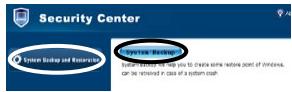
While creating your recovery point, make sure your ARCHOS 9 is connected to the power cable. Start the program Security Center 📋 found on the desktop. Click on button System Backup and Restoration then select System Backup.
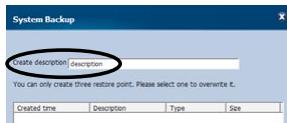
2 Type in a descriptive name in the Create Description field (ex: "My Backup") and then click on Next. Be patient as this will take several minutes. Exit the program.
Restoration Procedure
If for some reason your ARCHOS 9 cannot start Windows® or has severe problems that you cannot get rid of by normal means, then you may need to do a complete system recovery. Any data files that were on the hard drive will be erased, including all files in My Documents.
To start a recovery procedure, make sure your computer is connected to the power cable and not running on battery power alone. Start the ARCHOS 9, and press the keyboard button ☐ while the Security center blue screen is displayed. It is ok to press this button a few times as this screen appears for only a short moment. In the Security center screen, select System Restoration, and click on Start Rescue. Then, select a restoration point and click on Start Rescue. It will take some time for the system to do the recovery procedure. Make sure your ARCHOS 9 is plugged in with the power cable during the entire procedure.

- If you have questions related to the use of Windows®, you can display the Windows® Help by clicking on the Start menu (at the bottom left of the screen), then Help and Support.
- Also check the "Need Help" section, at the beginning of this User Guide.
? The device won't start
This may happen if your battery is empty. Connect the supplied power cord to the ARCHOS 9 Power connector and to a wall outlet. Then press the Power button ⏻ to start the device. The Power status indicator, on the left side of the device will turn on.
? The device won't shutdown
If the ARCHOS cannot be shutdown via the Start menu > Shutdown item, you can force the device to shut down by holding the Power button ⏻ until the system turns off.
? The device freezes while using an application
Press the "A" button 📁 (the equivalent of pressing "Ctrl+Alt+Del" on a regular keyboard) and select Start Task Manager. Under the Applications tab, select the application you are having problems with, and click on End Task. If this does not work, you can try to force the ARCHOS 9 to shut down by holding the Power button 🔊 until the system turns off.
? The ARCHOS 9 has problems connecting to the Internet
First of all, verify that your modem or router is on and functioning correctly. Also check that there is a WiFi connection (Icon 📁 in the system tray, in the bottom right corner of the screen) or that the ARCHOS 9 detects a WiFi signal (Icon 📁). Make sure that the WiFi module is turned on by holding on the "A" button and pressing on the top mouse button (on the left side of the device). Also try to bring your ARCHOS 9 closer to the modem/router to make sure that it is not a reception problem. Verify that the key (WEP, WPA, WPA2, etc.) you entered on the ARCHOS 9 is the same as the one configured on your WiFi modem/router. You can also try connecting to the WiFi using a friend's laptop to see if it is your WiFi modem/router or Windows® on the ARCHOS 9 that is causing the problem. For more details, check the documentation that came with your modem/router.
Lithium-Ion Battery Caution
This product is equipped with a Lithium-Ion battery. Do not pierce, open, disassemble it, or use it in a humid and/or corrosive environment. Do not put, store or leave your product in or near sources of heat, in direct strong sunlight, in a high temperature location, in a pressurized container or in a microwave oven. Do not expose it to temperatures over 60 C (140 F). If the battery leaks and you come into contact with the leaked fluids, rinse thoroughly with water and seek medical attention immediately. Failure to follow these instructions could cause the Lithium-Ion battery to leak acid, become hot, explode or ignite and cause injury and/or damage.
Also:
- Do not use it in a humid and/or corrosive environment
- Use only the battery charger designed for ARCHOS 9.
- Keep batteries away from children.
- Use only ARCHOS certified batteries for your device. There is a risk of explosion if you use the incorrect type of battery in the ARCHOS 9.
- If the battery leaks, becomes deformed, or smells strange, carefully disconnect it from the device and contact an ARCHOS service representative.
- When transporting a battery, make sure that no metal objects (paper clips, coins, etc.) come in contact with the terminals. This could make a short circuit and potentially start a fire.
- Dispose used batteries in an environmentally responsible way. Do not throw them in with your regular trash. Most cities and towns have special collection points for used batteries.
- If you will not use the device for a long period of time, allow the battery to discharge through normal usage and then store it separately.
Environmental Considerations
Protection of the environment is an important concern to ARCHOS. In order to put this concern into tangible actions, ARCHOS has consciously included a set of methods that favor a respect for the environment into the entire cycle of its products; from fabrication to consumer usage, to final disposal.

The Product: The crossed-out garbage can symbol on your product signifies that it falls into the category of electric/electronic equipment. Products of this type contain substances that are potentially dangerous to the environment and to human health. Therefore, you should not dispose of the ARCHOS electronic device in a regular trash. As such, the current European directives ask that this device be collected:
- At places of distribution in the case of a purchase of a similar electronic product.
- At locally created disposal areas (waste disposal centers, sorted trash system, etc.)

The Batteries: This symbol on a battery, packaging or manual indicates that at the end of life of your batteries, they must be disposed of in a selective waste system. You should only dispose of this product's batteries in a designated collection point for used batteries, not the regular household trash. The Pb mark indicates that the battery includes quantities of lead that are superior to those stipulated in the European directive CE 2006/66.
By doing this, you are actively participating in the reuse and recycling of disposed electronic and electric equipment that could have potential effects on the environment and human health.
United States FCC Compliance Statement
This equipment has been tested and found to comply with the limits for a Class B digital device, pursuant to Part 15 of the FCC Rules. These limits are designed to provide reasonable protection against harmful interference in a residential installation. This equipment generates, uses, and can radiate radio frequency energy and, if not installed and used in accordance with the instructions, may cause harmful interference to radio communications. However, there is no guarantee that interference will not occur in a particular installation. If this equipment does cause harmful interference to radio or television reception, which can be determined by turning the equipment off and on, the user is encouraged to try to correct the interference by one or more of the following measures:
- Reorient or relocate the receiving antenna.
- Increase the separation between the equipment and receiver.
- Connect the equipment into an outlet on a circuit different from that to which the receiver is connected.
- Consult the dealer or an experienced radio/TV technician for help.
To assure continued compliance, any changes or modifications not expressly approved by the party responsible for compliance could void the user's authority to operate this equipment. (Example: use only shielded interface cables when connecting to computer or peripheral devices).
USA: This device complies with Part 15 of the FCC Rules. Operation is subject to the following two conditions:
(1) this device may not cause harmful interference, and (2) this device must accept any interference received, including interference that may cause undesired operation.
FCC Radiation Exposure Statement: This equipment complies with FCC RF radiation exposure limits set forth for an uncontrolled environment. This transmitter must not be co-located or operating in conjunction with any other antenna or transmitter.
Canada: Operation is subject to the following two conditions:
(1) this device may not cause interference, and (2) this device must accept any interference, including interference that may cause undesired operation of the device.
CE Mark CE
This device conforms to the directives, norms, and amendments for products commercialized in the European Union and thus carries the CE marking.
Declaration of Conformity for the European Union
Your exposure to radio frequency energy is well below the limits set forth by the European Commission for the R&TTE norms. This product respects the following norms:
- R&TTE directive 1999/5/EC: EN 300 328, EN 301 489-1, EN 301 489-17, EN 301 893
- EMC 89/336/EEC with modifications 92/31/EEC and 93/68/EEC: EN 55022 Class B, EN 61000-3-2, EN 61000-3-3, EN 55024
- Low voltage electrical norm 73/23/EEC: EN 60950 (A1/A2/A3/A4/A11)
WIFI Transmitter & Receiver
This device is equipped with Wifi capabilities and thus is able to receive and transmit in the radio frequency band of 2.4GHz. It is considered a low power transmitter and thus has special restrictions.
United States: This device complies with the limits set forth for human exposure to radio frequency energy in an uncontrolled environment and is well under these limits. To maintain this safety, do not directly touch its antenna while it is transmitting. The user must follow the specific operating instructions to satisfy RF exposure compliance. Maintain a distance of more than 20 cm (8 inches) from antenna at all times.
Canada: ICES-003 This device does not exceed the limits for radio frequency noise emission for a digital class B device set forth by the Canadian radio Industry.
Europe Union: Because the frequencies for Wifi 802.11b and 802.11g cannot be harmonized among all countries of the EU, the product has been made to be operated only in specific regions and cannot be used in other countries or regions other than the ones it was commercialized for. It the responsibility of the end user to make sure that he/she is only using the product in the country or region of commercialization and further that he/she adapts to device to use only the channels (frequencies) of his/her region. All variations in respect to admissible parameters of the country or region could be violation of law and punished. This product has been made for the entire European Community region but with restrictions as per below.
France: France metropolitan area: for indoor use, you can use the range 2.400 – 2.4835 GHz. For outdoor use, only the frequencies 2.400-2.454 GHz (channels 1-7). Guadeloupe, Martinique, St. Pierre, Miquelon, et Mayotte: indoor or outdoor use from 2.400-2.4835 GHz. Réunion and Guyane: 2.400-2.4835 GHz indoors and 2.420-2.4835 GHz (channels 5-12).
Warranty and Limited Liability
This product is sold with a limited warranty and specific remedies are available to the original purchaser in the event the product fails to conform to the limited warranty. Manufacturer's liability may be further limited in accordance with its sales contract.
In general, and in a non-limited manner, the manufacturer shall not be responsible for product damages caused by natural disasters, fire, static discharge, misuse, abuse, neglect, improper handling or installation, unauthorized repair, alteration or accident. In no event shall the manufacturer be liable for loss of data stored on disk media.
MANUFACTURER SHALL NOT BE LIABLE FOR ANY SPECIAL, INCIDENTAL OR CONSEQUENTIAL DAMAGES. EVEN IF INFORMED OF THE POSSIBILITY THEREOF IN ADVANCE.
ARCHOS licensor(s) makes no warranties, express or implied, including, without limitation, the implied warranties of merchantability and fitness for a particular purpose, regarding the licensed materials. ARCHOS' licensor(s) does not warrant, guarantee or make any representations regarding the use or the results of the use of the licensed materials in terms of its correctness, accuracy, reliability, or otherwise. The entire risk as to the results and performance of the licensed materials is assumed by you. The exclusion of implied warranties is not permitted by some jurisdictions. The above exclusion may not apply to you.
In no event will ARCHOS' licensor(s), and their directors, officers, employees or agents (collectively ARCHOS' licensor) be liable to you for any consequential, incidental or indirect damages (including damages for loss of business profits, business interruption, loss of business information, and the like) arising out of the use or inability to use the licensed materials even if ARCHOS' licensor has been advised of the possibility of such damages. Because some jurisdictions do not allow the exclusion or limitation of liability for consequential or incidental damages, the above limitations may not apply to you.
Please see your sales contract for a complete statement of warranty rights, remedies and limitation of liability.
Furthermore, warranty does not apply to:
- Damages or problems resulting from misuse, abuse, accident, alteration or incorrect electrical current or voltage.
- Any product tampered-with or damaged warranty seal or serial number label.
- Any product without a warranty or serial number label.
- Batteries and any consumable items delivered with or in the equipment.
The end user is required to use this product only in conformity with its original purpose and is strictly forbidden to make any technical modifications that could potentially impinge on the rights of third parties. Any modification to the hardware, software, or physical enclosure of the product must be approved in writing by ARCHOS. Non-approved modified products are subject to the withdrawal of any or all guarantee clauses.
As part of the contractual agreement of its products, ARCHOS is committed to ensure the availability of parts and components that are essential to the use and proper working conditions of its products. This availability will be guaranteed for a period of two years, as of the first retail release for customers.
Copyright Notice
Copyright ARCHOS © 2009. All rights reserved.
This document may not, in whole or part, be copied, photocopied, reproduced, translated or reduced to any electronic medium or machine-readable form without prior consent, in writing, from ARCHOS. All brands and products names are registered trademarks and the property of their respective owners. Specifications are subject to change without notification. Errors and omissions accepted. Images and illustrations may not always match contents.
Disclaimer of warranty: to the extent allowed by applicable law, representations and warranties of non-infringement of copyrights or other intellectual property rights resulting from the use of the product under conditions other than as here above specified, are hereby excluded.
This information is subject to be updated periodically. For technical and legal information concerning your product, please check the official ARCHOS web site.
Microsoft and Windows 7 are registered trademarks of Microsoft Corporation.
www.archos.com/register
Dear customer,
The ARCHOS 9
DESCRIPTION OF THE ARCHOS 9
GO!
FIRST USE

1
The ARCHOS 9
Removable battery
1


- ELECTRICAL DEVICE WARNING
- GENERAL TREATMENT ADVICE
- HEALTH WARNINGS
- NEED HELP
- QUESTIONS ABOUT WINDOWS®
- FAQS
- CONTACT OUR TECHNICAL SUPPORT TEAM
- THE BOX INCLUDES THE FOLLOWING ITEMS
- STYLUS
- ARCHOS 9 DESCRIPTION
- GO
- STARTING UP
- INSTALLING AND CHARGING THE BATTERY
- TURNING THE ARCHOS ON
- THE TOUCHSCREEN
- THE MOUSEPAD AND MOUSE BUTTONS
- WIFI CONNECTION
- CREATING YOUR RECOVERY POINT
- RESTORATION PROCEDURE
- THE DEVICE WON'T START
- THE DEVICE WON'T SHUTDOWN
- THE DEVICE FREEZES WHILE USING AN APPLICATION
- THE ARCHOS 9 HAS PROBLEMS CONNECTING TO THE INTERNET
- LITHIUM-ION BATTERY CAUTION
- ALSO
- ENVIRONMENTAL CONSIDERATIONS
- UNITED STATES FCC COMPLIANCE STATEMENT
- CE MARK CE
- DECLARATION OF CONFORMITY FOR THE EUROPEAN UNION
- WIFI TRANSMITTER & RECEIVER
- WARRANTY AND LIMITED LIABILITY
- COPYRIGHT NOTICE
- WWW.ARCHOS.COM/REGISTER
- DESCRIPTION OF THE ARCHOS
- FIRST USE
Brand : ARCHOS
Model : 9 PCTABLET
Category : Tablet PC