
GMINI XS 200 - Portable media player ARCHOS - Free user manual and instructions
Find the device manual for free GMINI XS 200 ARCHOS in PDF.


| Product Type | Portable Media Player |
| Brand | ARCHOS |
| Model | GMINI XS 200 |
| Dimensions | 76 x 60 x 19.6 mm |
| Weight | 122 g |
| Power | Rechargeable lithium-ion battery, AC adapter included |
| Battery Life | Up to 10 hours |
| Storage Capacity | 20 GB (depending on model) |
| Display | 128 x 128 pixels, 4 grayscale levels |
| Supported Audio Formats | MP3 (32-320 kb/s CBR/VBR), WMA, WAV (PCM) |
| Computer Interface | USB 2.0 high speed (USB 1.1 compatible) |
| Audio Connectivity | 3.5 mm stereo headphone jack |
| Main Functions | ARCLibrary, playlists, bookmarks, resume, 5-band equalizer, key lock |
| Compatible Operating Systems | Windows ME/2000/XP, Mac OS 10.2.4 or higher |
| Care and Cleaning | Avoid shocks, vibrations, heat, water, excessive humidity, and electromagnetic fields |
| Safety | Do not open the device; use only the supplied charger; risk of hearing damage at high volume |
| Spare Parts and Repairability | Use only the ARCHOS AC adapter; firmware update available on ARCHOS website |
| Warranty | Limited warranty, see terms |
Frequently Asked Questions - GMINI XS 200 ARCHOS
User questions about GMINI XS 200 ARCHOS
0 question about this device. Answer the ones you know or ask your own.
Ask a new question about this device
Download the instructions for your Portable media player in PDF format for free! Find your manual GMINI XS 200 - ARCHOS and take your electronic device back in hand. On this page are published all the documents necessary for the use of your device. GMINI XS 200 by ARCHOS.
USER MANUAL GMINI XS 200 ARCHOS
ARCHOS™ Gmini™ XS series
MP3 & WMA Digital Music Player & USB 2.0 Hard Disk
ARCHOS
Think smaller
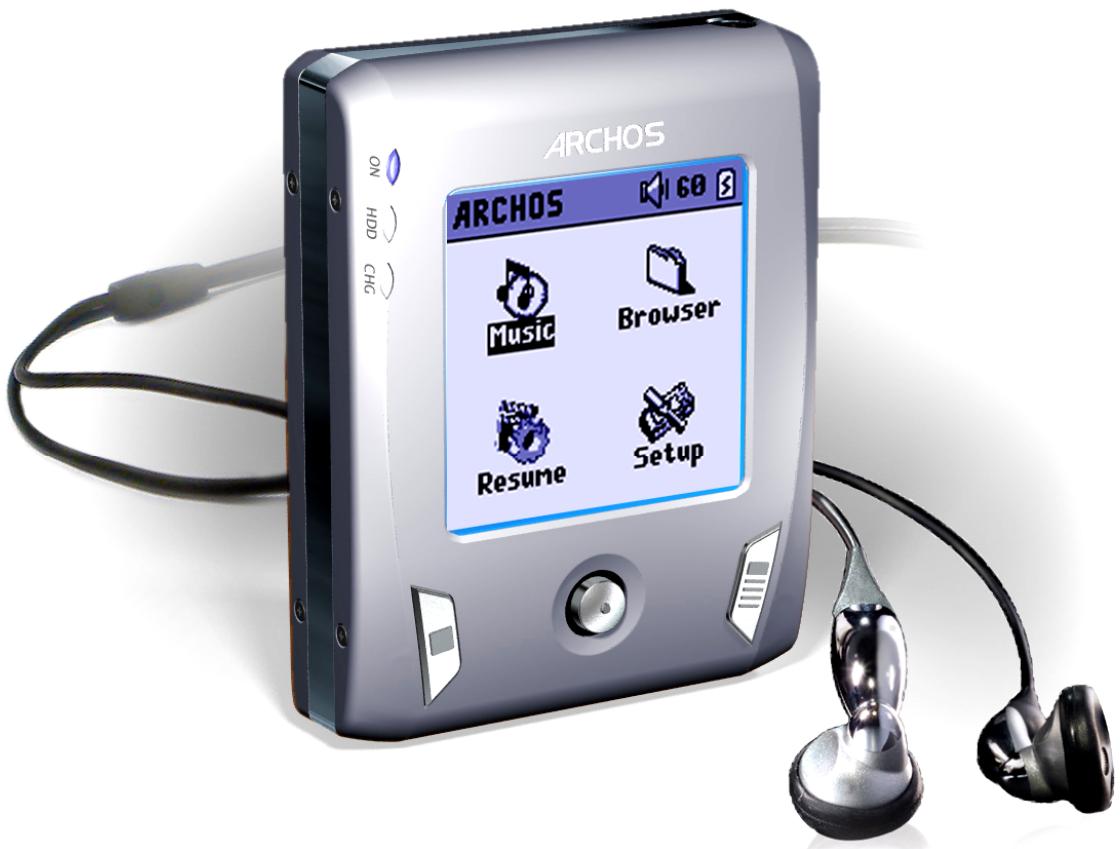
TABLE OF CONTENTS
1 Ports, Buttons, and Connections.... 3
2 First Time Usage 4
2.1 Charging the Battery 4 2.2 Turning the Gmini ON and OFF 4 2.3 Changing the Interface language 4 2.4 Caring for the Gmini 4 2.5 Foreign Character Sets 4
3 Playing Music 5
3.1 Playing a Music File 5 3.2 Play Screen and Button Control 5 3.3 Playback Menu Items 6 3.4 ARCLibrary Specifics 6 3.5 ARCLibrary Updating 6 3.6 Setting a Bookmark 6 3.7 The Resume Function 6 3.8 Locking the Gmini Buttons 7
4 Playlists 8
4.1 Creating a new Playlist 8 4.2 Loading a Playlist 8 4.3 Playing a Playlist 8 4.4 Playlist Menu Option 8 4.5 What is an .m3u file? 9
5 Settings 10
5.1 Changing the Sound Settings 10 5.2 Changing the PlayMode Settings 10 5.3 Changing the Power Settings 11 5.4 Changing the System Settings 11
6.1 Inside the MUSIC Folder 12 6.2 Navigating the Directory Structure 12 6.3 File and Folder Operations in Browser Mode 12 6.3.1 Contextual Menu on a File 12 6.3.2 Contextual Menu on a Folder 13 6.3.3 Contextual Menu while in the Double Browser 13 6.4 Using the Virtual Keyboard 13
7 Connecting the Gmini to your Computer 14
7.1 Making the USB Connection 14 7.2 Using the Gmini as an External Drive 14 7.3 Disconnecting the Gmini from your Computer 14 7.3.1 Windows® 14 7.3.2 Macintosh® 15 7.4 Creating Music files from your Audio CDs 15 7.5 Internet Music files and your Gmini XS 15 7.6 Update ARCLibrary after each PC Transfer 15
8 Using iTunes™ with your Gmini XS.... 16
9 Updating the Gmini XS Firmware.... 17
9.1.1 Download the Update_GminiXS.AOS file 17 9.1.2 Read the History.txt File 17 9.1.3 Copy to Gmini root and Update 17
10 Troubleshooting.... 18
10.1 USB Connection issues 18 10.2 File issues, corrupted data, formatting, and partitioning. 18 10.2.1 Windows® ME Running Scan-Disk (Error Checking) 19 10.2.2 Windows® XP & 2000 Running Check Disk Utility (ChkDsk) 19
11 Technical Specifications.... 20
12 Technical Support.... 21
13 Legal and Safety Notices 22
1 Ports, Buttons, and Connections
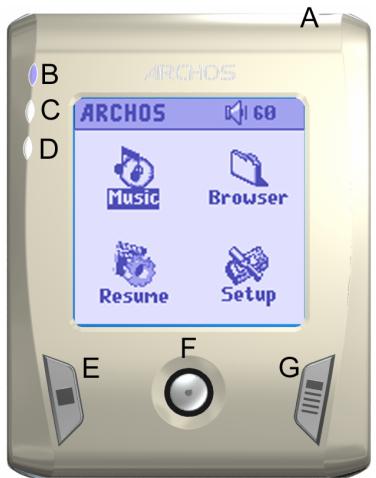
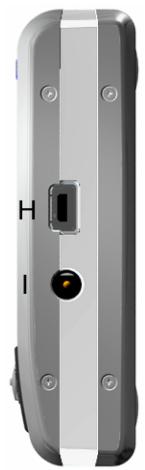
A Headphone jack B Power On indicator C Hard Disk activity indicator D Battery charger indicator E Stop/Escape/Off F Navigation Joystick & Play/Enter button (Press down) G On/Menu H USB 2.0 port (USB 1.1 compatible) to connect to computer I Power Connector (Use only the supplied Archos charger)
2.1 Charging the Battery
Before using your Gmini XS for the first time, completely charge the battery.
• Use ONLY the included ARCHOS charger/adapter. Charging will start automatically when it is plugged in. • The battery is fully charged when the charge (CHG) light to the left of the screen begins to blink. • After the first initial full charge, you may use the Gmini while the AC adapter is plugged in.
2.2 Turning the Gmini ON and OFF
- Press and hold the ON/Menu button until the screen comes on.
- The Gmini will automatically shut off after a given amount of time if no buttons are pressed. To conserve battery energy, the green backlight will automatically shut off. You can change these parameters in Setup > Power.
- Press and hold the Stop/off button until the Gmini shuts off.
2.3 Changing the Interface language
- English is selected as the default language for your Gmini user interface. You can choose another language by going to Setup > System > Language.
2.4 Caring for the Gmini
The Gmini is an electronic product that needs to be treated with care.
- Do not subject it to unnecessary shock or vibration. You may however go jogging with it or do sports.
- Do not subject it to heat. Keep it ventilated (especially when connected to a computer).
- Keep the Gmini away from water and excessively humid areas.
- Keep the Gmini away from high electromagnetic fields.
- Keep it plugged into the Archos AC adapter/charger when it is connected to your computer.
2.5 Foreign Character Sets
You have the possibility to display your file names, folder names, and MP3 ID3 tags in various character sets (ex: Korean, Japanese, Simplified Chinese, etc.). You can find the language files CodePage_name.GFZ in the font folder under /Data on the Gmini XS hard disk or on the Archos website under the heading Software.
If, for example, you would like to have the Korean language display, then you would copy the file CP949.GFZ into the folder /system on the Gmini XS and shut down and restart the Gmini XS. File names, folder names, and ID3 tags written using the Microsoft® codepage for the language will now be displayed in that character set. Only one .GFZ can be used at a time, thus you should only put one .GFZ file into the /system folder. When an .GFZ language file is used, the interface language will be set to English.
3 Playing Music
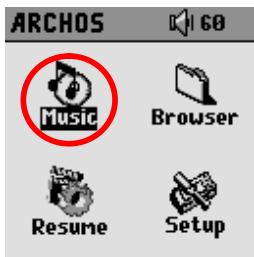
Once the Gmini has been turned on, the following screen is displayed. You can select the major functions from this main menu.
- Music: Browse through the folder Music or use the ARCLibrary music selection system.
- Browser: Browse through and manage all of the other files on your Gmini.
- Resume: Resume playing from the last place you stopped.
- Setup: Set the parameters of your Gmini to your personal taste.
3.1 Playing a Music File
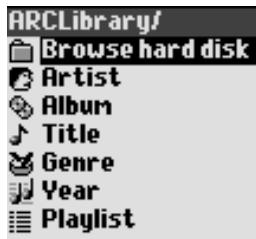
By clicking on the Music icon in the main menu screen, you will enter into a 'music only' mode. File types other than WMA, WAV, and MP3 that may be in those folders will be filtered from view.
There are two ways to access your music, by selecting Browse hard disk or by searching the songs' tag information, Artist, Album, title, etc. In the case of Browse hard drive, you will be sent directly to the Music folder of your Gmini. Here you can look at all your music files and the folders on your Gmini's hard drive as if you were browsing files with a computer. Or, you can search your music by tag information, artist, album, song name, year, or genre. The Unknown category indicates that the file has no tag data.
To select a music file, use the joystick UP and DOWN controls to move upwards or downwards and ENTER to enter a highlighted subfolder or tag category. Click ENTER to play the highlighted song. Use LEFT to leave a folder and go back to the previous level.
3.2 Play Screen and Button Control
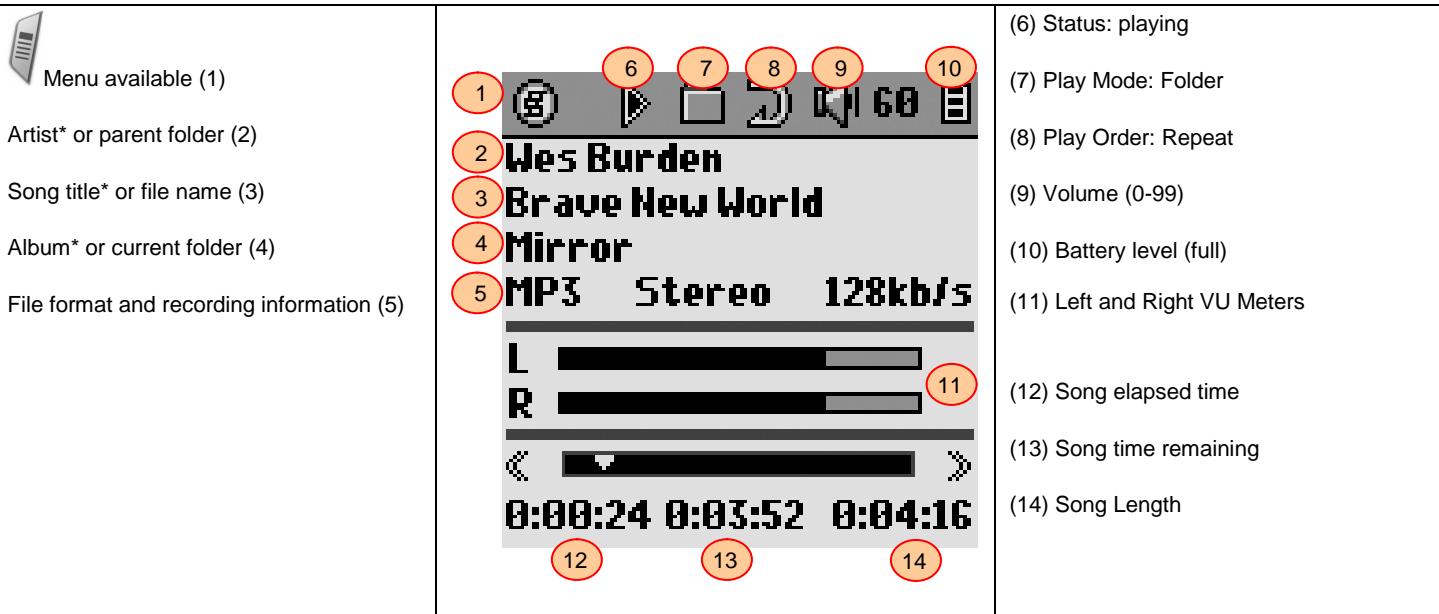
*If the MP3 file contains these ID3 tag data
![graph TD A["Stop Song"] --> B["Play/pause/resume song"] B --> C["Increase the Volume"] C --> D["Decrease the Volume"] D --> E["Hold: Fast forward through the song."] E --> F["Click once: Play the next song in the folder or playlist."] F --> G["Click once: Play the previous song in the folder or play…](/content/2025/01/86959/images/7766173e0ab9cfe48d80a88a2efd9af703f4040573f118a6d8e87ed6d7961d59.jpg)
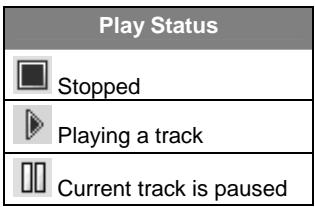
The top status bar indicates the status and play settings that you have given. See section 5.2 for a description of each of the Playmode settings.
| Play Order |
| (no icon) Play once |
| Shuffle (Random) track selection |
| Repeat playing |
3.3 Playback Menu Items
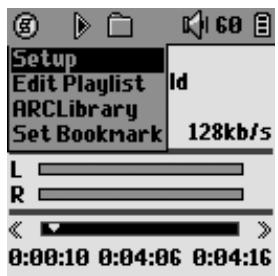
When the menu icon appears, you have certain options. During song playback, press the MENU button for the following options.

- Setup: Enters the Setup screen (same as selecting the Setup icon in the main menu) which allows you access to parameters such as bass and treble. • Edit Playlist: Enters the playlist editor (see below for how to use playlists). • ARCLibrary: Allows you to browse through your ARCLibrary while listening to the current song.
- Set Bookmark: Set a bookmark at the current position within the audio file. See section 3.7 below.
3.4 ARCLibrary Specifics
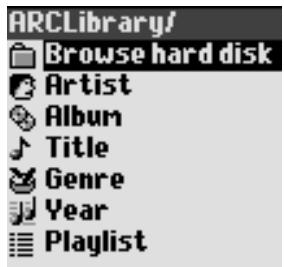
The ARCLibrary is a system for choosing your music by its characteristics. It can be turned On or Off in the settings from Setup > Playmode. As shown in this screen capture here, you can select your music by Artist, Album, Song Title, Genre, or Year. MP3 and WMA music files have internal data tags to hold information about the song. For MP3 files, these are known as ID3 tags. Not all MP3 files have all this information filled in. If you purchase a song from a music download service, the songs will have this information. If you have an MP3 or WMA file without this tag information, then you can add or change it by going to the properties of the file in Windows® Explorer. Once you update the ARCLibrary, you will have access to all newly copied music via the ARCLibrary. The ARCLibrary indexes all the music and playlists that it finds in the folders Music and Playlists by using the tag information in each song. Thus, you should never delete the folders Music or Playlists. If a song does not have tags, it will be put into the category .
ATTENTION: Changing the ARCLibrary ON/OFF parameter will only take effect after the next restart of the Gmini XS.
3.5 ARCLibrary Updating
When you transfer music to your Gmini from your computer, it goes directly to the Gmini hard disk without the ARCLibrary knowing about the new song. Thus, in order for your new songs to be indexed into the ARCLibrary for you to choose from, you must update it with the Update button as in the Setup > Playmode screen. You can do this right after disconnecting your Gmini from your computer.
A message screen will appear indicating that it is updating the ARCLibrary contents.
3.6 Setting a Bookmark
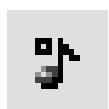
If you are listening to a song, or perhaps a long recording, and would like to place a bookmark in it in order to pick up from this point at another time, you can use the Bookmark function. While listening to the audio recording, simply click on the MENU button, then choose Set Bookmark. This will set a bookmark in the audio file at the current position. You can only set one bookmark per file. When you look at the file in your browser, it will have a small mark on its icon indicating that this file has a bookmark set within it.
You can have a maximum of 16 files bookmarked. Setting more bookmarks will then start to erase the oldest bookmarks. The next time you play the audio file, you will be presented with two options:
Resume: Start playing from the bookmarked position.
Ignore: Keep the bookmark but start playing from the very beginning.
To clear a bookmark from a file, highlight the file and use the MENU button to choose clear bookmark.
3.7 The Resume Function

When you turn on your Gmini you will sometimes notice that the icon which is highlighted on the main screen is not the Browser but rather the Resume icon. This icon is highlighted when the Gmini XS can resume the last played audio file.


Bob Dylan
Highway 61 Revisited
Ballad of a Thin Man
You can prevent the Gmini from executing unintended functions by locking the buttons. To lock the buttons, hold down on the MENU key until the "lock" icon appears in the top-left corner of the screen. Now all buttons are disabled. To unlock the buttons hold down again on the Menu button until the "lock" icon disappears.

4 Playlists
A Playlist is a list of songs that the Gmini will automatically play one after the other. The Gmini can handle one Playlist at a time. You can create new Playlists, add or delete songs from a Playlist, or Save a Playlist as a file (file type .m3u) to be used another time. There is no limit to the number of Playlists you can save on the Gmini hard drive.
4.1 Creating a new Playlist
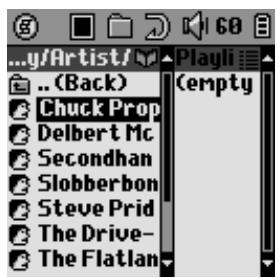
To create a Playlist, press the RIGHT button while you are in the Music browser. A second panel is opened on the right side to display the Playlist contents (shown empty in the picture). You can now start adding songs to the current Playlist. In the left window, search for the songs you would like to add to your Playlist. Once the song is highlighted, click on the ENTER button to add it to the Playlist. The song will be added to the Playlist and a small mark is placed next to the music note icon to indicate that it is now in the Playlist. Continue searching and adding songs in this manner until you are satisfied. You can jump back and forth anytime between the two windows by clicking the LEFT/RIGHT of the joystick. A Playlist can have a maximum of 1000 songs in it. We recommend that you save your Playlists to the Gmini hard drive (see below) to be used again later. You can also add all the music files of a complete folder in one operation by highlighting the desired folder and pressing and holding ENTER for three seconds. Watch which window you are in since the left window menu has different options than the right window menu.
4.2 Loading a Playlist
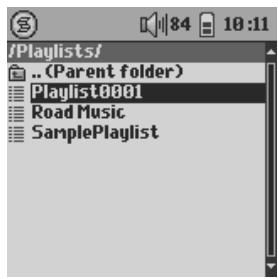
You can load a previously saved Playlist or add the files it contains to the current Playlist. Use the music browser to select the Playlist of your choice (Playlists are indicated by a special list icon) and then press OK. If there were already some items in the Gmini Playlist, then the songs of the loaded Playlist will be added to the end of it. You can then check or modify the Playlist as usual in the Playlist window.
4.3 Playing a Playlist
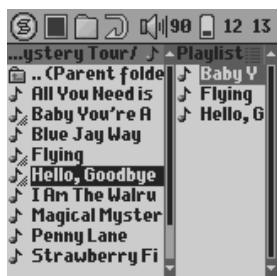

Press the RIGHT button to go into the Playlist edition window. Then use the UP and DOWN buttons to select which song you want to start with. Click on ENTER, and your playlist will start playing with from that song.
4.4 Playlist Menu Option
While in the Playlist screen (right side) you have the following options.
- Start Playlist: starts playing from the first track of the playlist.
- Save Playlist: saves the current Playlist onto the hard drive so that it can be reloaded later. It will be saved into the directory Playlists.
- Rename Playlist: changes the name of the current Playlist using the virtual keyboard.
- Shuffle Playlist: randomly changes the order of the items in the current Playlist.
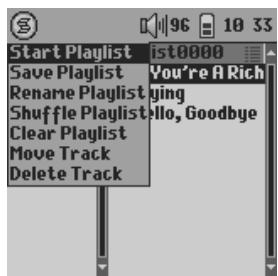
- Clear Playlist: remove all tracks from the current Playlist.
- Move Track: changes the position of the current track within the Playlist. The current track is then displayed with a double arrow icon. Use the UP and DOWN buttons to move the selected track and press OK to validate the new position.
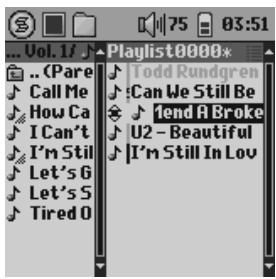
(Moving a music track)
- Delete Track: removes the highlighted track from the playlist.
Important: Once you save a Playlist it is important that you do not move the actual MP3 files as the Playlist searches in the original file location. If you need to move your MP3 files to a different folder, you'll have to recreate your Playlists.
4.5 What is an .m3u file?
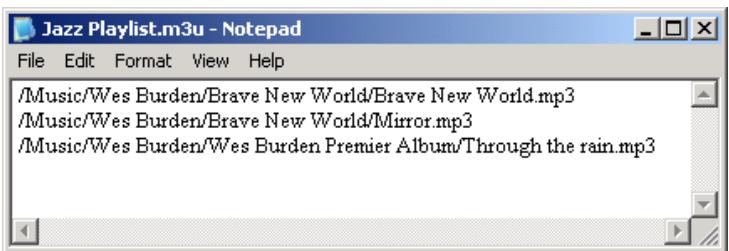
Example of the contents of the .m3u Playlist file 'Jazz Music'
You can open a Playlist file (Playlistname.m3u) on your computer with a text editor such as Notepad or SimpleText (Macintosh®), and you will see that it is merely a list of files to be played along with the hard disk path to find them. If you delete a Playlist from your Gmini, you are only deleting the list and not the music itself. Because a Playlist includes the path to the music file (as shown in the example Playlist file above), you have to remember that if you change the location of a music file, then the path to it in the Playlist will be incorrect, and the Gmini will not play the song (because it can't find it). Thus it is important to create a clean directory structure and not change where your files are located. Either that or just delete your Playlist and create a new one.
5 Settings
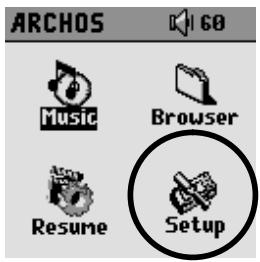
There are a number of parameters you can set on the Gmini to make it operate according to your particular needs. Start by clicking on Setup.
5.1 Changing the Sound Settings
If you would like to customize the sound quality, go to [Setup → Sound].
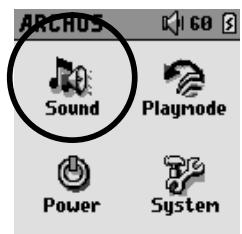
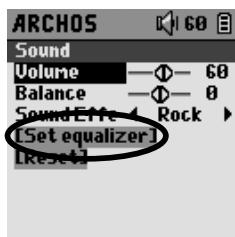
- Change values
- Exit screen.
| Parameter | Description |
| Volume | Range: 0 to 99 Controls the current volume. |
| Balance | Range: -5 to +5 (left to right) |
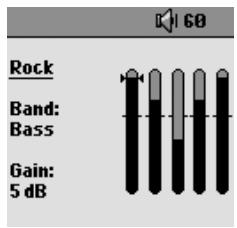
| Sound effect | Rock, Techno, Jazz, Classic, Live or CustomChange this parameter to select an equalizer setting to the style of music you are listening to. Select Custom to set your own equalizer levels. |
| [Set Equalizer] | To customize the equalizer. See below. |
| [Reset] | Sets all your sound parameters with default or flat values. |
Customizing the equalizer
To set the equalizer, highlight the [Set equalizer] line and then click on ENTER. You will now be able to adjust the Gmini's five band equalizer. Use the LEFT/RIGHT buttons to select a specific frequency range (Bass, Medium-Base, Medium, Medium-Treble, Treble) and then use the UP/DOWN buttons to increase or decrease the response for the given frequency range. Modifying these settings changes the sound in real time. Thus it is best to change these values while listening to a song.
5.2 Changing the PlayMode Settings
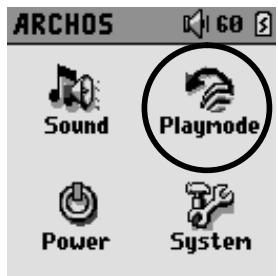
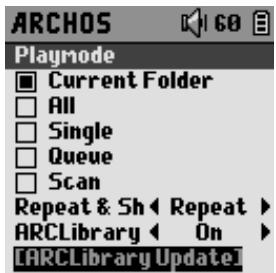
If you would like the Gmini to play through an entire folder of songs, play songs at random (shuffle), or any of the other playing options, you can set these parameters in the Playmode settings. Go to [Setup → Playmode].
| Parameter | Description |
| Current Folder | Play all tracks in the current directory |
| All | Play all tracks on the Gmini |
| Single | Play a single track then stop |
| Queue | User can queue the next track to be played † |
| Scan | Gmini plays first 15 seconds of each track †† |
| Repeat and shuffle | This parameter allows you to choose the order of play of your songsNormal: the music sequence is played onceRepeat: the music sequence is played in a loopShuffle: the music sequence is played randomly |
| ARCLibrary | Off, On (default).Select Off to disable the ARCLibrary feature or On to enable it. |
| ARCLibrary Update | Scans through all music and playlists in the folders Music and Playlists and indexes these into the ARCLibrary. You need to do this only when you have copied new music to your Gmini. |
†Queue Mode: While the current song is playing, click on the menu button and select Browse, find the next song you want to play, then click Play. This is your queued song. You can only queue one song at a time. See the Playlist section to prepare multiple songs to play. Once the current track is finished playing, your queued track will be played. If you do not queue another track at this time, the Gmini will play the next song in the directory.
††Scan Mode: Each track in the directory is played for 15 seconds. This allows a quick sample of each song. If you want to play the whole song, click on the Play button during those first 15 seconds. The Gmini will then revert to single directory mode and play the rest of the songs in the directory without scanning.
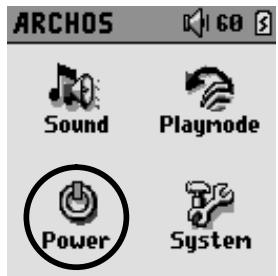
5.3 Changing the Power Settings
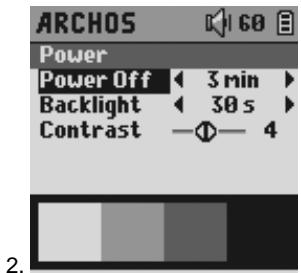
To help you get the most battery life out of your Gmini before having to recharge it, you can adjust the power settings. Go to [Setup → Power].
| Parameter | Description |
| Power Off | Range: 1 to 9 minutes or Never.Number of minutes of user inactivity before the Gmini automatically shuts off. The Gmini will not shut off during the playback of music files. Never indicates that the Gmini will not do an automatic shut down. |
| Backlight | Backlight shut down time: Off, 10 to 90 seconds, Always.The time of user inactivity (no buttons pressed) before the Gmini turns off the green backlight. Always indicates that the backlight will always stay on. Keeping the backlight on will reduce the battery time. |
| Contrast | These values represent the black/white contrast of the screen. |
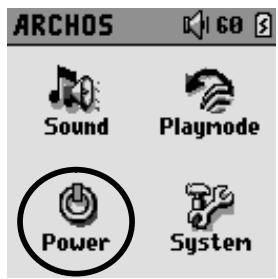
5.4 Changing the System Settings
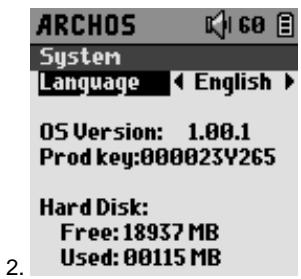
To change the system parameters or get some information about the system, go to [Setup → System].
| Parameter | Description |
| Language | Use this to set the operating language of the Gmini. English, Français, Deutsch, Español. |
| OS Version | Displays the current version of the Operating System (OS). |
| Product key | Display the product key of your Gmini XS. Every Gmini has a unique product key number. |
| Hard Disk | Displays amount of free space and used space of the Gmini hard drive. |
6 Using the Browser
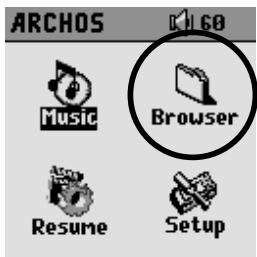
The browser is used to navigate the file system on the Gmini. The file system is the same type of file system that is found on Windows® based computers. This way, transferring files from your computer to your Gmini is as easy as 'drag and drop'. The file system is a hierarchical system which includes folders and subfolders. Because you will be putting hundreds of files onto your Gmini, it is STRONGLY ADVISED that you keep a neat and orderly file structure. Otherwise, you will be spending time searching for files and not listening to them. We suggest that on the first level of your file structure, you include the folders: Data (to carry miscellaneous data files with you), Music (all of your music files), and Playlists (to hold all your music Playlists).
6.1 Inside the MUSIC Folder
The top level of your Archos Gmini includes the folder Music. Most people who create neat file structures for their Archos MP3 players make the following hierarchy within the Music folder.
Level 1 – Artist (Dire Straits, Madonna, Stravinsky, etc.)
Level 2 – Album (Brothers in Arms, American Life, etc.)
Level 3 – Song (Money for Nothing, etc.)
The folder Music is a special folder in that the Music icon on the main screen leads to this folder directly. It should not be deleted or renamed.
6.2 Navigating the Directory Structure
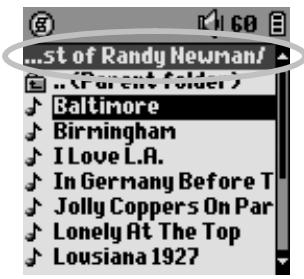
Just below the top status bar, you can see the directory you are currently viewing. To navigate the directory structure you will use the UP/DOWN buttons to move through the files in a directory. Press ENTER to enter a highlighted folder. To go back up one level in the directory structure, you can either use the contextual MENU button (select Parent) or click on the LEFT button. The contextual MENU button allows you to create new folders, delete folders, rename a file or folder, or display information about a file.
Button Controls
| Key | Action |
| Up | Highlights the previous file or folder in the current directory |
| Down | Highlights the next file or folder in the current directory |
| Right | Open double-browser or gives the focus to the right panel. |
| Left | Goes to parent directory if single window view. Gives the focus to the left panel when in double-browser editor. |
| ENTER | Folder highlighted: enters this folder.File highlighted: Plays the file if it is a music file. |
| Esc | Exit Browser mode. |
| Menu | Displays the contextual menu. |
6.3 File and Folder Operations in Browser Mode
While browsing the directory structure, you will have the option to manipulate files and folders. When you use the Browser mode, you will be browsing through the Gmini's hard drive as if browsing via computer. In Browser mode, you can create folders, delete files or folders, rename files or folders, and copy or move files from one place to another.
6.3.1 Contextual Menu on a File

File Info: Show file information such as song length, number of kilobytes used of hard drive space, date file was made, etc.
Rename File: Allows you to change the name of the highlighted file. You cannot change the file extension type for file types that are playable by the Gmini. You will be sent to the virtual keyboard (see the next section) to enter the new file name.
Delete File: Delete the file permanently from the Gmini. (Before it is deleted, the Gmini will ask “Do you really want to delete this file? Yes/No.”)
Delete all files: Permanently deletes all the files from the current folder. Before deleting the files the Gmini will ask for confirmation.
Create Folder: Create a new folder in the current level of the directory. You will be sent to the virtual keyboard to enter the new folder name. There is a limit of 1000 files per folder.
6.3.2 Contextual Menu on a Folder
Create Folder: Same as above.
Delete Folder: This will delete the folder and its entire contents. It will ask "Do you really want to delete folder X and all files therein? Yes/No."
Rename Folder: Same as Rename File above.
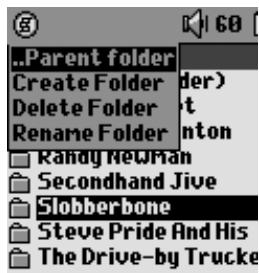
6.3.3 Contextual Menu while in the Double Browser
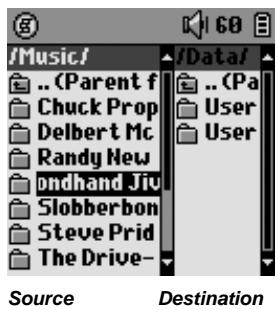
By using the unique Archos double browser system, you can copy or move files from one location in the file structure to another (caution: there is a limit of 1000 files per folder). While in the Browser mode, you simply click the RIGHT button and a second browser window will open. You can jump between the two windows using the LEFT/RIGHT buttons. Wherever the cursor is highlighting a file or folder, that window is the source for the copy. The destination folder will be the other window. Once you have decided on the destination folder, move to the source browser window, highlight the file to copy, and then click on the MENU button. You can now choose Copy file to copy the highlighted file, Copy All Files to copy all the files in that folder to the destination folder, or Move File to move it to the destination folder
6.4 Using the Virtual Keyboard
It is recommended that you create folders and rename files or folders from your computer when it is connected to the Gmini. The computer keyboard is easier to use. Often times, however, you are not near your computer and you would like to enter the text directly with the Gmini. For this, you will use the virtual keyboard. You will be taken to this screen when you rename a file or folder or create a new folder.
1 - Contextual Menu 2 - Text being typed 3 - Cursor 4 - Upper/Lower case* 5 - Delete character* 6 - Clear entire line* 7 - Enter*
* These items can also be found in the contextual menu
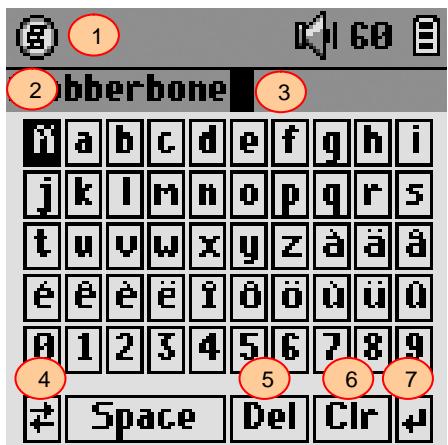
You will use the LEFT, RIGHT, UP, and DOWN buttons to move around the keyboard. Click on ENTER to enter the character that is highlighted. Once your text is entered, select Enter on the bottom right.
Tip: use the ESC key to cancel any changes you made and exit the virtual keyboard.
7.1 Making the USB Connection
Always make sure your Gmini has a fully charged battery or use the power adapter to prevent the Gmini from shutting down during data transfers due to low power. (This could cause data loss and/or file corruption if not done.)
Windows® ME, 2000, XP and Mac OS 10.2.4 or better will see the Gmini as a Mass Storage Device when plugged in.
- Plug the supplied USB cable into your running computer.
- Turn on the Gmini – wait until it completely starts up and shows the main menu.
- Plug the other end of the USB cable into your now running Gmini.
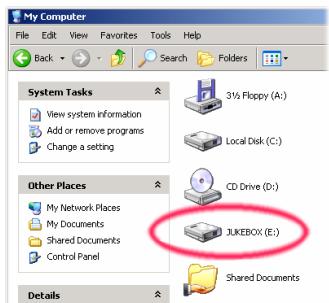
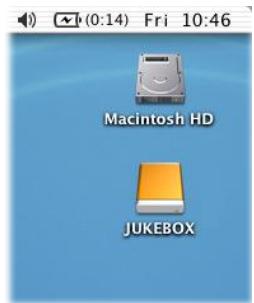
- A new hard drive named "JUKEBOX" will appear on your computer.
Windows®
Macintosh®
• The displayed hard drive is the hard drive of your Gmini. You can now drag and drop any files you want, to or from the Gmini. - Please also read the disconnection procedure in section 7.3 as disconnecting the cable at any time without warning the computer may cause data loss.
7.2 Using the Gmini as an External Drive
Getting your files from your computer to the Gmini is as easy as copy and paste. This is because the Gmini acts like a regular hard drive when connected to your computer. Simply connect your Gmini to your computer as explained previously and run Windows® Explorer (or use the Macintosh Finder™). Now, go to your computer's hard drive, and copy (Right mouse click, then select Copy) an mp3 file or a folder full of mp3 files. Next, open up the hard drive known as JUKEBOX E: on the PC, open the folder you want to copy the files to, and then right-click the mouse and select Paste. For Macintosh® or Windows® you can open two windows on the desktop, one being the source (your computer's hard drive) and the other your destination (the Gmini hard drive), and then simply drag and drop files or folders from one window to another.
7.3 Disconnecting the Gmini from your Computer
WARNING: You must properly remove (unmount) your Gmini from the computer before disconnecting the USB cable to avoid loss of data or freezing the computer and/or the Gmini. DO NOT SIMPLY PULL OUT THE USB CABLE!!!
7.3.1 Windows®
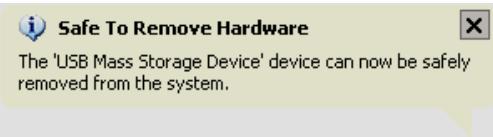
To safely unmount the Gmini hard drive, click on the system tray remove icon (green arrow as shown below) and follow the instructions. Wait until you get a message saying that you can safely unplug the device before disconnecting the USB cable. Attention: The operating system will not allow you to safely disconnect the Gmini if you have an open file from it, in a running application. You will have to close all the open Gmini files in any running application as well as Windows Explorer®. Using the green disconnect arrow icon in the system tray will then allow you to safely disconnect the USB cable from the Gmini.
- The safe remove icon is in the system tray near the system clock.
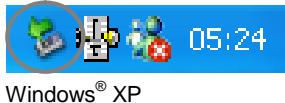
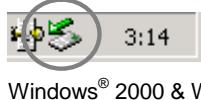
- Click on the icon to Eject (unmount) the Gmini from your computer and then select the 'Safely remove' message.

- There will be a message indicating that it is now safe to disconnect the Gmini. You can now go ahead and unplug the USB cable from the Gmini.
7.3.2 Macintosh®
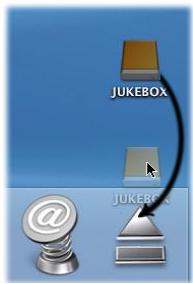
First, close all programs that are using files from your Gmini. Drag the Gmini hard drive icon towards the trash can, and the trash can will become a big arrow as shown in the screen image. (Mac OS 9.x will still retain the trashcan icon. This is OK, don't worry.) Drop the hard drive icon onto the arrow (or trash can). The hard disk icon will disappear from the desktop. You can now safely unplug the USB cable from your Gmini and/or your computer.
7.4 Creating Music files from your Audio CDs
The files that are on commercial CDs are in CDA (compact disk audio) format and cannot be played directly by the Gmini. Your CDs must be converted to WMA format (use Windows Media Player), MP3 format (use MusicMatch™ Jukebox), or a plain .WAV file (PCM). If you don't have either of these applications, you can install these on your computer from the Gmini. Connect your Gmini to your computer and run the program setup.exe found in Jukebox:\Data\PC Installation. You can install the program of your choice.
7.5 Internet Music files and your Gmini XS
Attention: Before subscribing to a paid music service, be careful to read the information on the music download web site to be sure that the file format is supported by the Gmini XS (MP3, WMA, or WAV). Many, or perhaps most, websites use special encryption systems (Digital Rights Management – DRM) to protect music from being copied and freely distributed. The Gmini XS can play only non-encrypted files.
7.6 Update ARCLibrary after each PC Transfer
Attention: Each time you transfer music from a computer to your Gmini XS, you will need to manually update your ARCLibrary contents. Go to Setup > Playmode > Update ARCLibrary. Your newly transferred files will be indexed into the ARCLibrary. Files that are not in the folder Music will not be included in the ARCLibrary.
8 Using iTunes™ with your Gmini XS

The easiest way to transfer music files between a Macintosh® computer and your Gmini XS is to use the Macintosh Finder™ to drag and drop the files to and from your Macintosh®.
However, for Macintosh® users who do want to use the Gmini XS with iTunes®, Archos has developed a special iTunes® plug-in. You will find it in the folder /Data/iTunes Plug-in on the Gmini XS hard disk or from the Archos website. In this
folder you will find a .sit compressed file. Uncompress it and open the folder for your operating system. You will find a JPEG image illustrating where you need to copy the plug-in to. Once this is done, iTunes™ will recognize the Gmini XS as a 'Device'. Currently there is no plug-in for the PC version of iTunes™.
To make your user experience as easy as possible, please keep in mind the following.
1) When you create your Playlists with iTunes® (you can only create Playlists from songs that have been copied to your Gmini XS), your Macintosh® will save these Playlists to the root directory of your Gmini XS. It will not save them to the Gmini XS Playlists directory. It would be best to use the Gmini XS itself to make Playlists and then save these Playlists in your Playlists folder. 2) When you drag and drop MP3 files from your iTunes® library to your Gmini XS, the iTunes® program will look at the ID3 tag information of the MP3 file, and create a folder on the root of your Gmini XS using the name of the Artist as the folder name. Then it will take the Album name ID3 tag, and create a subfolder with that album as its name. Finally, it will take the MP3 song itself and place it into that album subfolder. Thus, although it is a clean structure of artists, albums, and title, iTunes® does not follow the Gmini XS convention of placing the music into the Music folder first.
9 Updating the Gmini XS Firmware
Archos periodically updates the firmware or Operating System (OS) and makes it available for free download on the ARCHOS website (www.archos.com). Updates to the Operating System include new features, feature improvements, and bug fixes. You should check to make sure that you are running the most recent version of the OS. To see the current version of the software your device is running, go to Setup > System and look at the line OS Version. You will find the most recent version of the OS and its version number at the Archos website (www.archos.com) under the category Software.
9.1.1 Download the Update GminiXS.AOS file
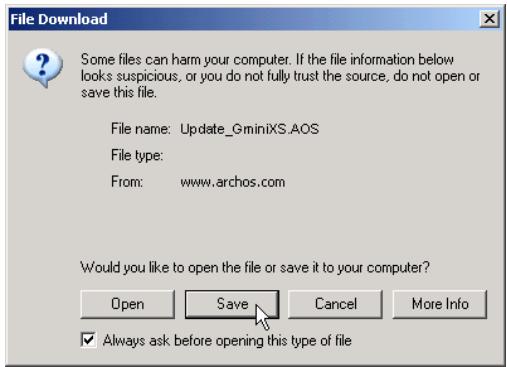
When you click on the link to download the new OS file (the file name is Update_GminiXS.AOS), your browser may warn you that the contents of the download may harm your computer. This is because the Windows® system does not know what a .AOS file is. Be assured that Archos has made every effort to ensure that the file does not contain viruses. Click on the option Save to download this file to a convenient place, such as My Documents, in order to later copy this file to your Gmini XS. If your Gmini is connected to your PC, you can even save it directly to the Gmini.
9.1.2 Read the History.txt File
You will also find next to the firmware download, a text file which details the list of changes from the previous version of the OS.
9.1.3 Copy to Gmini root and Update
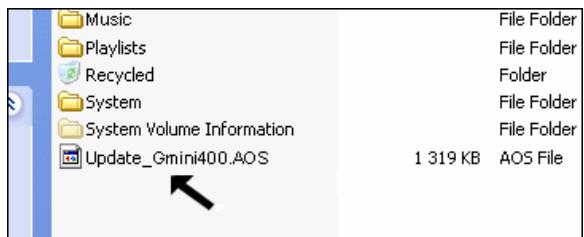
When updating your Operating System, you must keep the AC charger/adapter plugged into the Gmini XS so that it will not shut down due to low batteries while you are performing the update. Connect your Gmini to your computer (section 7.1), and then copy the Update_GminiXS.AOS file to the root directory of the Gmini. The root directory is the top most level of the directory hierarchy. Just drag this .AOS file onto the Gmini XS Hard disk in your file manager and it will place it in the top most directory (outside any folder). If there is already an older version of the Update_GminiXS.AOS file on your Gmini, Windows® will ask if you want to overwrite the current file. Click on Yes. Once this file is copied, safely disconnect (section 7.2) the Gmini XS from the computer. The Gmini will automatically notice the new operating system and write the update to the Gmini XS. You can go to Setup > System to verify the new OS has been installed by looking at the version number there.
10.1 USB Connection issues
Problem: I cannot get my Gmini to be recognized by the computer.
Solutions:
- Shut off and reboot the computer and the Gmini and then try connecting again in the preferred order mentioned in section 7.1.
- If you installed the Windows 98SE driver on your Windows® XP, 2000, or ME edition, this could cause problems. Uninstall that driver and then reinstall the generic Windows® Mass Storage Device driver. • If using a USB hub, try connecting without using the hub (some hubs are not powered and may not work with the Gmini). • If using a USB port in the front of your computer, try a USB port in the back. Front USB ports are often from non-powered hubs.
- Do not connect to a USB port repeated through a keyboard.
- On older machines: The USB driver software on your computer may be out of date. Find your USB chipset type by going to My Computer > Properties > Device Driver > Universal Serial Bus (USB) Controllers > Host Controller. You may have a chipset VIA, Intel, SIS or another. It is possible that you do not have the latest software drivers for these chipsets. For VIA updates, check out www.viaarena.com. For Intel check out www.intel.com. For SIS, uninstall the driver and reinstall the Windows default USB controller drivers.
- On older machines: Make sure in your system BIOS the USB port is checked "ON" not "Off".
- On older machines: On Win98SE, if there is a line "lastdrive=" in the config.sys file, make sure that it is "lastdrive=z".
- Windows XP and 2000: If the File Allocation Table (FAT) gets corrupted, the Gmini may not show up in Windows XP or 2000 for over one minute, and then it comes up as local drive. Use DOS Utility ChkDsk as shown below.
- Windows XP may recognize the Gmini disk drive but yet not assign a drive letter. Right click on My Computer and select Manage. Then select Storage and then Disk Management. Within this window you may see the Gmini hard drive and be able to assign it a drive letter. Right click on the graphic of the Gmini hard disk and select the command Change Drive Letter and Paths. Enter the next free drive letter such as E: or F: .
Problem: What do I do if I try to disconnect via the green arrow but keep getting “The device ‘Generic Volume’ cannot be stopped now. Try stopping the device again later.”
Solution: Use the green arrow a second time. Sometimes Windows does not update its status. Shut off any program that might be accessing data on the Gmini, including Windows Explorer. If this does not work, shut down all programs, wait 20 seconds, then try the green arrow again. If this does not work, you should shut down the computer and disconnect the USB cable once the computer is off.
Problem: When I plug the Gmini into my computer, I do not see a new hard drive icon on the screen.
Solution: Use the troubleshooting section USB Connection Issues above.
Problem: I have Windows XP and a USB 2.0 port, yet my file transfer rates are very slow.
Solution: The original version of XP does not have native support for USB 2.0. You must update your Windows XP to a minimum of SP1 (Service Pack 1) in order for it to transfer files at the full USB 2.0 port capacity.
Problem: The Gmini shuts off by itself.
Solution: This is normal. If you are not playing music or using it, it will automatically shut off based on the automatic power-off parameters in the Power submenu. Go to the menu [Setup → Power] where you can adjust the Power off parameter.
Problem: The Gmini locks-up. None of the buttons react.
Solution: Did you set the Gmini to 'lock' mode? This is the mode that blocks the buttons from functioning so that you can put the Gmini in your pocket or backpack without worrying about buttons getting accidentally pressed. Hold down for three seconds on the Menu button to unlock all the buttons. The other possibility is an electrostatic phenomena. That is, static electricity has temporarily knocked out the Gmini. Hold down on the STOP button for 15 seconds and the Gmini will shut off. Restart it normally now.
Problem: When I go to the Music icon in the main menu, I cannot see the mp3 files or albums that I just put into the Gmini.
Solution: The Gmini's ARCLibrary must be refreshed. Go to Setup > Playmode > Update ARCLibrary. Your newly transferred files will be indexed into the ARCLibrary. Files that are not in the folder Music will not be included in the ARCLibrary.
10.2 File issues, corrupted data, formatting, and partitioning.
Problem: On the Gmini, I find new file names and folder names that I never created or they have strange gibberish names.
Answer: Most likely, the Gmini's file allocation table (FAT) has been corrupted. This could have been due to a shut down while the Gmini was connected to your computer. To fix a corrupted FAT problem, you should use the Error Checking utility or the Check Disk utility explained at the end of this section. Attention: Windows® and Macintosh® often write extra files to the hard drive such as finder.def or System volume info. These are normal and will not harm the Gmini.
Problem: I have been using my Gmini to transfer files back and forth between different computers. Will defragmenting the Gmini hard drive do any harm to it?
Solution: Defragmenting the Gmini hard drive may actually be useful after having transferred many files to and from the Gmini. It is never harmful to use the Windows® defragmenter utility on the Gmini. Make sure no other program is running while using the Windows® defragmenter utility. Make sure you power the Gmini with the external power adapter during this procedure.
Problem: I want to reformat the hard drive of the Gmini.
Solution: You can do this, but it will erase ALL of the data on your Gmini. First, as explained above, you should run ScanDisk or the DOS chkdsk (Check Disk) program to try to fix your problem. These will solve your problems 99% of the time. Note that Windows® XP and 2000 will, by default, format your Gmini hard drive in the NTFS file format. This will make the Gmini unusable. Make sure you tell it to format the hard drive in FAT32 format.
Problem: I would like to partition the Gmini hard drive.
Solution: If you know how to partition a hard drive, this is OK. The Gmini will, however, only recognize the first FAT32 partition. Thus it will just see and use that partition of the hard drive. The size of that partition depends, of course, on what you set it to when you partition the hard drive.
10.2.1 Windows® ME Running Scan-Disk (Error Checking)
• Quit all running applications. • Properly connect the Gmini to your computer as explained in chapter 6. • Make sure the external AC adapter is powering the Gmini. - Right click on the Gmini hard drive in Windows® Explorer and select Properties. - Select the Tools option and run the Error checking program. • Make sure you check the box to automatically fix errors.
- Be patient, this may take a while. Windows® may ask you to restart the computer to make certain Windows files available. This is OK, click on Yes.
10.2.2 Windows® XP & 2000 Running Check Disk Utility (ChkDsk)
If you still have problems with the file system on your Gmini you can try to fix it using the DOS utility, check disk (chkdsk). Simply running the Windows® program Error Checking may not completely fix disk errors. Do the following:
• Make sure the external AC adapter is powering the Gmini. • Quit all running applications. • Properly connect the Gmini to your computer as explained in chapter 6. - Wait patiently (up to 5 minutes) for Windows XP to show the GMINI or local drive as mounted. • Using the Command Prompt utility program, open a DOS window. Start > Programs > Accessories > Command Prompt. - At the prompt, type chkdsk e: /f . Use e: or the drive letter representing your Gmini. - Be patient, this may take a while. - When it is finished, exit the DOS Window and properly disconnect the Gmini from your computer.
| ARCHOS Gmini XS series | |
| Storage Capacity | Depends on model. See front of package. |
| Computer Interface | High Speed USB 2.0 (compatible USB 1.1) |
| Audio Playback | MP3 (Stereo, decoding 32-320 kb/s CBR & VBR), WMA, .WAV (PCM) |
| Screen | 128 x 128 pixels. 4 level greyscale |
| Playback Autonomy | Up to 10 hours* |
| Scalability | Free Operating System updates downloadable from ARCHOS web site |
| Audio Connection | Standard 3.5mm mini stereo headphone jack. |
| Power | Internal rechargeable Lithium-Ion battery. External charger/adapter |
| Physical Dimensions | 76 x 60 x 19.6 mm (3.0" x 2.4" x .8") |
| Weight | 122 grams (4.3 oz) |
| System Requirements | PC: Windows ME, 2000, XP. Pentium II 266MHz with 64MB ramMac: OS 10.2.4 or greater |
*Depending on usage (stop/start/writing)
12 Technical Support
- If technical support determines that your product needs to be returned, please contact the place of purchase to have your product repaired or replaced (depending on problem type). Customers who purchased directly from the Archos web site should fill out the form on the web site under Support: Product Returns: RMA Request form.
- There is an FAQ – Frequently Asked Questions section at the ARCHOS Website www.archos.com, Support: FAQ that can help answer many of your questions.
Please help protect the environment by taking the time to check the manual first before writing an e-mail or making a tech support call.
---- Telephone Technical Support ----
| 949-609-1400 | (USA, Canada) | 09-1745-6224 | (Spain) |
| 01 70 20 00 30 | (France) | 02-4827-1143 | (Italy) |
| 0207-949-0115 | (UK) | 02-050-405-10 | (Netherlands) |
| 069-6698-4714 | (Germany) |
---- E-mail Support ----
| tech-support.us@archos.com | English (United States and Canada) |
| tech-support.eu@archos.com | English or French (and rest of the planet) |
| tech-support.de@archos.com | German (Germany) |
Warranty and Limited Liability
This product is sold with a limited warranty and specific remedies are available to the original purchaser in the event the product fails to conform to the limited warranty. Manufacturer's liability may be further limited in accordance with its sales contract.
In general, the manufacturer shall not be responsible for product damages caused by natural disasters, fire, static discharge, misuse, abuse, neglect, improper handling or installation, unauthorized repair, alteration or accident. In no event shall the manufacturer be liable for loss of data stored on disk media.
MANUFACTURER SHALL NOT BE LIABLE FOR ANY SPECIAL, INCIDENTAL OR CONSEQUENTIAL DAMAGES, EVEN IF INFORMED OF THE POSSIBILITY THEREOF IN ADVANCE.
ARCHOS licensor(s) makes no warranties, express or implied, including, without limitation, the implied warranties of merchantability and fitness for a particular purpose, regarding the licensed materials. ARCHOS's licensor(s) does not warrant, guarantee or make any representations regarding the use or the results of the use of the licensed materials in terms of its correctness, accuracy, reliability, or otherwise. The entire risk as to the results and performance of the licensed materials is assumed by you. The exclusion of implied warranties is not permitted by some jurisdictions. The above exclusion may not apply to you.
In no event will ARCHOS's licensor(s), and their directors, officers, employees or agents (collectively ARCHOS' licensor) be liable to you for any consequential, incidental or indirect damages (including damages for loss of business profits, business interruption, loss of business information, and the like) arising out of the use or inability to use the licensed materials even if ARCHOS' licensor has been advised of the possibility of such damages. Because some jurisdictions do not allow the exclusion or limitation of liability for consequential or incidental damages, the above limitations may not apply to you.
Please see your sales contract for a complete statement of warranty rights, remedies and limitation of liability.
Furthermore, warranty does not apply to:
- Damages or problems resulting from misuse, abuse, accident, alteration or incorrect electrical current or voltage.
- Any product tampered-with or damaged warranty seal or serial number label.
- Any product without a warranty or serial number label.
- Batteries and any consumable items delivered with or in the equipment.
Warnings and Safety Instructions
CAUTION
To prevent risks of electric shock, this unit must only be opened by qualified service personnel.
Power off and disconnect the power supply cable before opening the unit.
WARNING
To prevent fire or shock hazard, do not expose the unit to rain or moisture.
Use of this product is for personal use only. Copying CDs or loading music, video, or picture files for sale or other business purposes is or may be a violation of copyright law. Copyrighted materials, works of art, and/or presentations may require authorization to be fully or partially recorded. Please be aware of all such applicable laws concerning the recording and use of such for your country and jurisdiction.
SAFETY
For driving safety, only a passenger should operate the device when the car is in motion and not the driver. Laws governing the usage of electronic devices by the driver may be applicable in your jurisdiction and/or country.
FCC Compliance Statement
FCC Compliance
This equipment has been tested and found to comply with limits for a Class B digital device, pursuant to Part 15 of the FCC Rules. These limits are designed to provide reasonable protection against harmful interference in a residential installation. This equipment generates, uses and can radiate radio frequency energy and, if not installed and used in accordance with instructions, may cause harmful interference to radio communications. However, there is no guarantee that interference will not occur in a particular installation. If this equipment does cause harmful interference to radio or television reception, which can be determined by turning the equipment off and on, the user is encouraged to try to correct the interference by one or more of the following measures:
• Reorient or relocate the receiving antenna. - Increase the separation between the equipment and receiver. - Connect the equipment into an outlet on a circuit different from that to which the receiver is connected. - Consult the dealer or an experienced radio/TV technician for help.
CAUTION: Modifications not authorized by the manufacturer may void users authority to operate this device.
FCC Part 15 - Operation is subject to the following two conditions:
- This device may not cause harmful interference;
- This device must accept any interference received including interference that may cause undesired operation.
Electrostatic Discharge
Note: During electrostatic discharge, the product may malfunction. You must reset it to return it to normal operation. The Gmini XS reset is actuated by pressing and holding the STOP/ESC button for 10 seconds. The unit will power off. Restart normally.
Avoiding Hearing Damage
This product complies with current regulations limiting the output volume of consumer audio devices to a safe level. Listening to your device with headphones or earbuds at high volumes can cause permanent damage to your ears. Even if you become accustomed to high volumes and it seems normal, you still risk damaging your hearing. Reduce the volume to a reasonable level to avoid permanent hearing damage. If you hear ringing in your ears, lower the volume or turn off the device. This device has been tested with the earphones supplied by Archos. Earphones from other manufacturers may produce volume levels higher or lower than those of the Archos earphones.
Copyright Notice
Copyright ARCHOS © 2004. All rights reserved.
This document may not, in whole or in part, be copied, photocopied, reproduced, translated, or reduced to any electronic medium or machine-readable form without prior written consent from ARCHOS. All brand and product names are registered trademarks and the property of their respective owners. Specifications are subject to change without notice. Errors and omissions excepted. Images and illustrations may not always match the contents. Copyright ® ARCHOS. All rights reserved.
Disclaimer of warranty: to the extent allowed by applicable law, representations and warranties of non-infringement of copyrights or other intellectual property rights resulting from the use of the product under conditions other than those specified above are hereby excluded.

- ARCHOS™ GMINI™ XS SERIES
- MP3 & WMA DIGITAL MUSIC PLAYER & USB 2.0 HARD DISK
- ARCHOS
- TABLE OF CONTENTS
- PORTS, BUTTONS, AND CONNECTIONS
- FIRST TIME USAGE
- PLAYING MUSIC
- PLAYLISTS
- SETTINGS
- CONNECTING THE GMINI TO YOUR COMPUTER
- USING ITUNES™ WITH YOUR GMINI XS
- UPDATING THE GMINI XS FIRMWARE
- TROUBLESHOOTING
- TECHNICAL SPECIFICATIONS
- TECHNICAL SUPPORT
- LEGAL AND SAFETY NOTICES
- CHARGING THE BATTERY
- BEFORE USING YOUR GMINI XS FOR THE FIRST TIME, COMPLETELY CHARGE THE BATTERY
- TURNING THE GMINI ON AND OFF
- CHANGING THE INTERFACE LANGUAGE
- CARING FOR THE GMINI
- FOREIGN CHARACTER SETS
- PLAYING A MUSIC FILE
- PLAY SCREEN AND BUTTON CONTROL
- PLAYBACK MENU ITEMS
- ARCLIBRARY SPECIFICS
- ARCLIBRARY UPDATING
- SETTING A BOOKMARK
- THE RESUME FUNCTION
- CREATING A NEW PLAYLIST
- LOADING A PLAYLIST
- PLAYING A PLAYLIST
- PLAYLIST MENU OPTION
- WHAT IS AN .M3U FILE
- CHANGING THE SOUND SETTINGS
- CUSTOMIZING THE EQUALIZER
- CHANGING THE PLAYMODE SETTINGS
- CHANGING THE POWER SETTINGS
- CHANGING THE SYSTEM SETTINGS
- USING THE BROWSER
- INSIDE THE MUSIC FOLDER
- NAVIGATING THE DIRECTORY STRUCTURE
- FILE AND FOLDER OPERATIONS IN BROWSER MODE
- CONTEXTUAL MENU ON A FILE
- CONTEXTUAL MENU ON A FOLDER
- CONTEXTUAL MENU WHILE IN THE DOUBLE BROWSER
- USING THE VIRTUAL KEYBOARD
- MAKING THE USB CONNECTION
- USING THE GMINI AS AN EXTERNAL DRIVE
- DISCONNECTING THE GMINI FROM YOUR COMPUTER
- WINDOWS®
- MACINTOSH®
- CREATING MUSIC FILES FROM YOUR AUDIO CDS
- INTERNET MUSIC FILES AND YOUR GMINI XS
- UPDATE ARCLIBRARY AFTER EACH PC TRANSFER
- DOWNLOAD THE UPDATE GMINIXS.AOS FILE
- READ THE HISTORY.TXT FILE
- COPY TO GMINI ROOT AND UPDATE
- USB CONNECTION ISSUES
- SOLUTIONS
- FILE ISSUES, CORRUPTED DATA, FORMATTING, AND PARTITIONING
- WINDOWS® ME RUNNING SCAN-DISK (ERROR CHECKING)
- WINDOWS® XP & 2000 RUNNING CHECK DISK UTILITY (CHKDSK)
- TELEPHONE TECHNICAL SUPPORT
- E-MAIL SUPPORT
- WARRANTY AND LIMITED LIABILITY
- WARNINGS AND SAFETY INSTRUCTIONS
- CAUTION
- WARNING
- SAFETY
- FCC COMPLIANCE STATEMENT
- FCC COMPLIANCE
- ELECTROSTATIC DISCHARGE
- AVOIDING HEARING DAMAGE
- COPYRIGHT NOTICE
- COPYRIGHT ARCHOS © 2004. ALL RIGHTS RESERVED
Brand : ARCHOS
Model : GMINI XS 200
Category : Portable media player