
ARCFLASH - Software ARCHOS - Free user manual and instructions
Find the device manual for free ARCFLASH ARCHOS in PDF.


| Product type | USB flash drive (removable storage disk) |
| Capacity | 16 MB to 2 GB (depending on version) |
| Interface | USB 1.0/1.1, compatible Plug & Play |
| Read speed | 1.1 MB/s |
| Write speed | 700 KB/s |
| Power supply | USB bus (no external power) |
| Weight | Less than 15 g |
| Dimensions | Compact (standard USB flash drive size) |
| Flash memory | Flash memory, erase cycles > 100,000 |
| Data retention | Up to 10 years |
| Operating systems | Windows 98SE/Me/2000/XP, Linux Kernel 2.4x |
| Boot function | Bootable (USB-ZIP or USB-HDD) under Windows 98SE |
| Security | Write protection switch, partitioning software and password |
| Required device | IBM compatible PC with USB port, CD-ROM drive |
| Warranty | Limited, unit only (excluding accessories) |
| Maintenance | Avoid humidity, do not remove during access |
Frequently Asked Questions - ARCFLASH ARCHOS
User questions about ARCFLASH ARCHOS
0 question about this device. Answer the ones you know or ask your own.
Ask a new question about this device
Download the instructions for your Software in PDF format for free! Find your manual ARCFLASH - ARCHOS and take your electronic device back in hand. On this page are published all the documents necessary for the use of your device. ARCFLASH by ARCHOS.
USER MANUAL ARCFLASH ARCHOS
1.1 Product introduction .... 3
1.2 Product features .... 3
1.3 Product characteristics .... 3
1.3.1 Computer system requirement....3
1.3.2 Operating system requirement....3
1.3.3 Technical parameter....3
2 Driver and security software installation....3
2.1 Driver installation under Windows 98/SE ...... 3
2.2 Security software installation....5
2.2.1 Security software installation under Win98/SE 5
2.2.2 Security software installation under Windows Me/2000/XP....6
2.3 How to use the security function....6
2.4 Uninstall the security software....8
3 M-Format 9
3.1 Bootable function....9
3.2 Restore factory settings....10
4 How to use the ARCFlash....10
5 FAQs....11
6 Notice....11
7 Technical Support 12
Warranty and Limited Liability
This product is sold with a limited warranty and specific remedies are available to the original purchaser in the event the product fails to conform to the limited warranty. Manufacturer's liability may be further limited in accordance with its sales contract.
In general, the manufacturer shall not be responsible for product damages caused by natural disasters, fire, static discharge, misuse, abuse, neglect, improper handling or installation, unauthorized repair, alteration or accident. In no event shall the manufacturer be liable for loss of data stored on disk media.
MANUFACTURER SHALL NOT BE LIABLE FOR ANY SPECIAL, INCIDENTAL OR CONSEQUENTIAL DAMAGES. EVEN IF INFORMED OF THE POSSIBILITY THEREOF IN ADVANCE.
ARCHOS licensor(s) makes no warranties, express or implied, including, without limitation, the implied warranties of merchantability and fitness for a particular purpose, regarding the licensed materials. ARCHOS's licensor(s) does not warrant, guarantee or make any representations regarding the use or the results of the use of the licensed materials in terms of its correctness, accuracy, reliability, correctness or otherwise. The entire risk as to the results and performance of the licensed materials is assumed by you. The exclusion of implied warranties is not permitted by some jurisdictions. The above exclusion may not apply to you.
In no event will ARCHOS's licensor(s), and their directors, officers, employees or agents (collectively ARCHOS' licensor) be liable to you for any consequential, incidental or indirect damages (including damages for loss of business profits, business interruption, loss of business information, and the like) arising out of the use of inability to use the licensed materials even if ARCHOS' licensor has been advised of the possibility of such damages. Because some jurisdiction do not allow the exclusion or limitation of liability for consequential or incidental damages, the above limitations may not apply to you.
Please see your sales contract for a complete statement of warranty rights, remedies and limitation of liability.
Furthermore, warranty does not apply to:
1 Damages or problems resulting from misuse, abuse, accident, alteration or incorrect electrical current or voltage.
2 Any product tampered-with or damaged warranty seal or serial number label.
3 Any product without a warranty or serial number label.
4 Batteries and any consumable items delivered with or in the equipment.
Warnings and Safety Instructions
CAUTION
To prevent risks of electric shock, this unit must only be opened by qualified service personnel.
Power off and disconnect the power supply cable before opening the unit.
WARNING
To prevent fire or shock hazard, do not expose the unit to rain or moisture.
Use of this product is for personal use only. Copying CDs or loading music, video, or picture files for sale or other business purposes is or may be a violation of copyright law. Copyrighted materials, works of art, and/or presentations may require authorization to be fully or partially recorded. Please be aware of all such applicable laws concerning the recording and use of such for your country and jurisdiction.
FCC Warning Statement
FCC Compliance
This equipment has been tested and found to comply with limits for a Class B digital device, pursuant to Part 15 of the FCC Rules. These limits are designed to provide reasonable protection against harmful interference in a residential installation. This equipment generates, uses and can radiate radio frequency energy and, if not installed and used in accordance with instructions, may cause harmful interference to radio communications. However, there is no guarantee that interference will not occur in a particular installation. If this equipment does cause harmful interference to radio or television reception, which can be determined by turning the equipment off and on, the user is encouraged to try to correct the interference by one or more of the following measures:
• Reorient or relocate the receiving antenna.
- Increase the separation between the equipment and receiver.
- Connect the equipment into an outlet on a circuit different from that to which the receiver is connected.
- Consult the dealer or an experienced radio/TV technician for help.
Note: During file transfer or in the PC mode, if the End User Terminal (EUT) or computer suddenly freezes or does not respond, it may be due to the electrostatic phenomenon. Please follow the procedures below to recover the operation:
Unplug the USB cable from the End User Terminal (EUT)
Close the software application in the computer (or re-boot the computer if necessary)
Re-connect the USB cable to the End User Terminal (EUT)
CAUTION : Modifications not authorized by the manufacturer may void users authority to operate this device.
FCC Part 15 - Operation is subject to the following two conditions:
-
This device may not cause harmful interference;
-
This device must accept any interference received including interference that may cause undesired operation.
Copyright Notice
Copyright ARCHOS © 2002 All rights reserved.
This document may not, in whole or part, be copied, photocopied, reproduced, translated or reduced to any electronic medium or machine-readable form without prior consent, in writing, from ARCHOS. All brands and products names are registered trademarks and the property of their respective owners. Specifications are subject to change without notification. Errors and omissions accepted. Images and illustrations may not always match contents. Copyright ® ARCHOS. All rights reserved.
Disclaimer of warranty: to the extent allowed by applicable law, representations and warranties of non-infringement of copyrights or other intellectual property rights resulting from the use of the product under conditions other than as here above specified, are hereby excluded.
1 Introduction
1.1 Product introduction
The ARCFlash is a newly developed mobile storage device for users to exchange and store any data between computers. This device uses Flash Memory as a storage media and connects to your computer through the USB interface. ARCFlash can be re-used for more than a million times and can save your data up to 10 years. As well, the ARCFlash is small, shock-resistance, functions without power supply, and the transfer rate is 15 times faster than a floppy drive. The capacity of the ARCFlash may be expanded up to 2GB in the future. As for data protection, this ARCFlash provides new security software for users.
1.2 Product features
• Large capacity (16MB/32MB/64MB/128MB/256MB/384MB/
• 512MB/768MB/1GB/2GB)
• USB 1.0/1.1 compliant, supporting plug and play
• No external power supply, directly powered by USB bus
• Built-in write protect switch which protects data from deletion and virus attack
• Read Speed: 1.1MB/S, Write Speed: 700KB/S
• Data can be preserved for up to 10 years
• Storage media: Flash Memory
- Compact size
• Light weight: less than 15 g
• No driver necessary under Windows ME/2000/XP, Linux Kernel 2.4x operating system.
1.3 Product characteristics
1.3.1 Computer system requirement
IBM compatible PC or notebook with USB interface
CD-ROM drive
1.3.2 Operating system requirement
Windows ^® 98SE
Windows ^® 2000
Windows ^® XP
Linux ^® Kernel 2.4x
1.3.3 Technical parameter
Capacity: 16MB, 2GB
Erase cycles >100,000 times
Data Transfer Rate:
Reading: 1.1MB/S
Writing: 700KB/S
Connectivity: USB Port Type A
2 Driver and security software installation
2.1 Driver installation under Windows 98/SE
(Notice: This driver is for Windows 98/SE only. No driver necessary under Windows ME/2000/XP and Linux Kernel 2.4x operating system)
1) Turn on the write-protection switch of the ARCFlash before use. The figure “Key” indicates means writable and the “Lock” indicates write-protected.
text_image
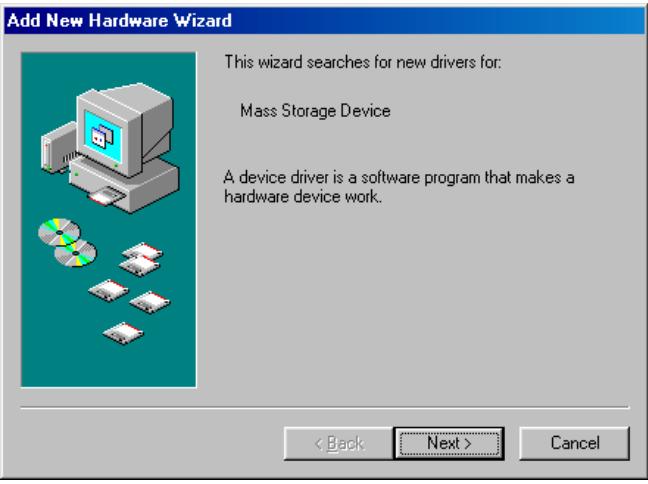
Add New Hardware Wizard This wizard searches for new drivers for: Mass Storage Device A device driver is a software program that makes a hardware device work. < Back Next > Cancel(Fig 2.1)
text_image
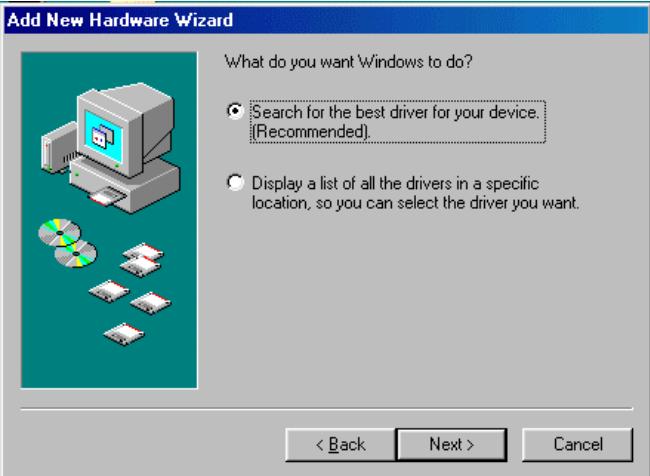
Add New Hardware Wizard What do you want Windows to do? • Search for the best driver for your device. (Recommended). • Display a list of all the drivers in a specific location, so you can select the driver you want. < Back Next > Cancel(Fig 2.2)
text_image
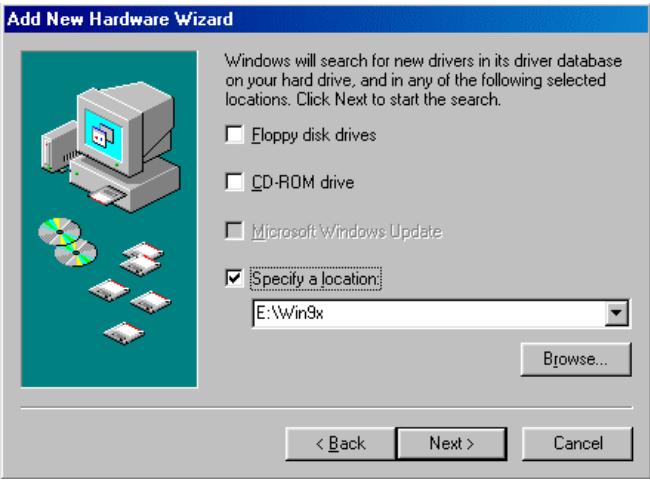
Add New Hardware Wizard Windows will search for new drivers in its driver database on your hard drive, and in any of the following selected locations. Click Next to start the search. Eloppy disk drives CD-ROM drive Microsoft Windows Update Specify a location: E:\Win9x Browse... < Back Next > Cancel(Fig 2.3)
text_image
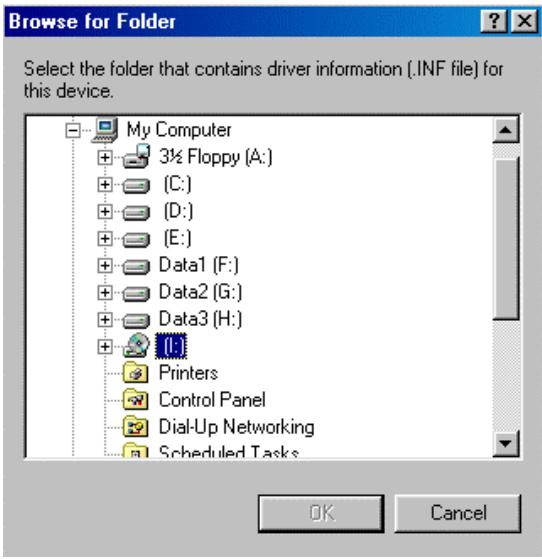
Browse for Folder Select the folder that contains driver information (.INF file) for this device. My Computer 3½ Floppy (A:) (C:) (D:) (E:) Data1 (F:) Data2 (G:) Data3 (H:) Printers Control Panel Dial-Up Networking Scheduled Tasks OK Cancel(Fig 2.4)
2) Plug in the ARCFlash into the computer USB port. The system will automatically detect a new USB device and run the “Add New Hardware Wizard” to assist you in setting up the new device.
3) Inset driver CD into CD-ROM then click "Next"
4) Click "Next"
5) Cick the “Specify a location” option and click “Browse” to choose the folder “/driver/”
6) Choose the INF files in the driver CD then click "OK"
text_image
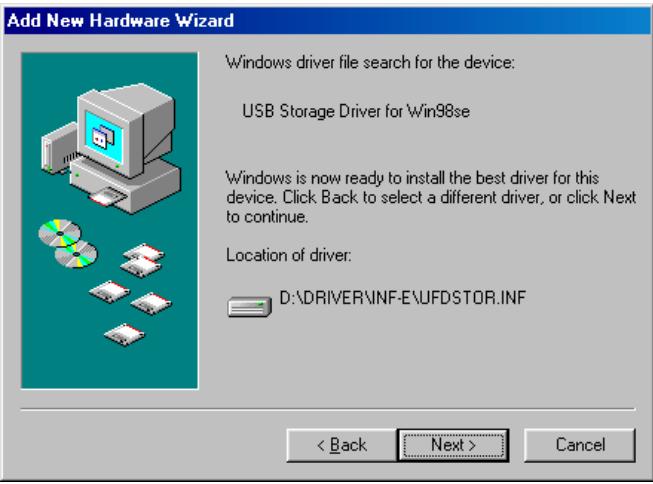
Add New Hardware Wizard Windows driver file search for the device: USB Storage Driver for Win98se Windows is now ready to install the best driver for this device. Click Back to select a different driver, or click Next to continue. Location of driver: D:\DRIVER\INF-E\UFDSTOR.INF < Back Next > Cancel(Fig 2.5)
text_image
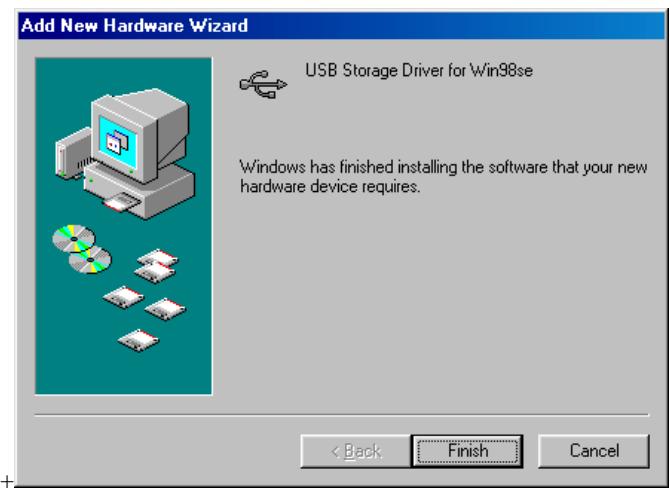
Add New Hardware Wizard USB Storage Driver for Win98se Windows has finished installing the software that your new hardware device requires. < Back Finish Cancel(Fig 2.6)
7) Click “Next” to finish the procedure.
8) The system should now detect the hardware and run the “Add New Hardware Wizard” to assist you in setting up the new device, fellow the system message to finish the driver installation.
9) After installing the ARCFlash, the “Remove disk” symbol should appear in “My computer”.
2.2 Security software installation
(If the user wishes to use the security function, it will be necessary to install the security software under Win98/SE/ME/2000/XP.)
2.2.1 Security software installation under Win98/SE
1) Turn on the write-protection switch of the ARCFlash before use. The figures “Key” indicates writable and “Lock” indicates write-protected.
2) Start up Windows 98SE and insert the driver disk into the CD-ROM. Run “security/setup.exe” on the driver CD. Follow the system messages to complete the security software installation and then restart the computer.
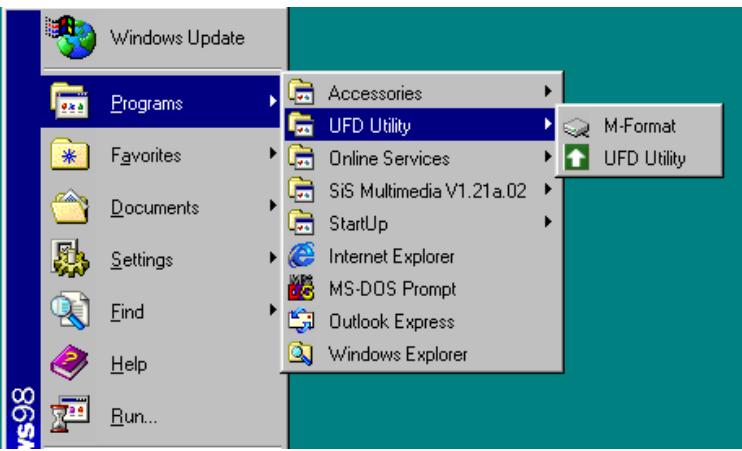
3) Replug in the ARCFlash after installing the security software. The system should automatically detects the device and setup the security function. The UFD Utility icon should appear under programs and the taskbar.
text_image
Windows Update Programs Favorites Documents Settings Find Help Run... Accessories UFD Utility Online Services SiS Multimedia V1.21a.02 StartUp Internet Explorer MS-DOS Prompt Outlook Express Windows Explorer M-Format UFD Utility(Fig 2.7)

(Fig 2.8)
2.2.2 Security software installation under Windows Me/2000/XP
1) Turn on the write-protection switch of the ARCFlash before use. The figure “Key” indicates writable and the “Lock” indicates write-protected.
2) There is no driver necessary in Windows ME/2000/XP. The system should automatically detect the new hardware and install the driver when the ARCFlash is plugged into the computer.
3) Run “security/setup.exe” from the driver CD. Follow the system messages to complete the security software installation. A green arrow icon should appear at the taskbar and the Utility Fast Disk will appear in the programs after the security software is installed.
2.3 How to use the security function
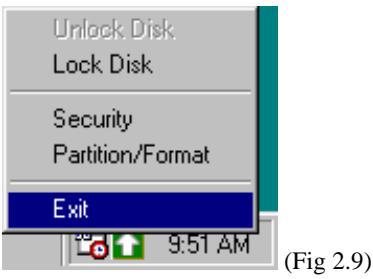
After installing the security software, the new program should appear and a new icon will show in the taskbar. Right on this icon and then follow the options (as shown below)
text_image
Unlock Disk Lock Disk Security Partition/Format Exit 9:51 AM (Fig 2.9)The explanation for the options:
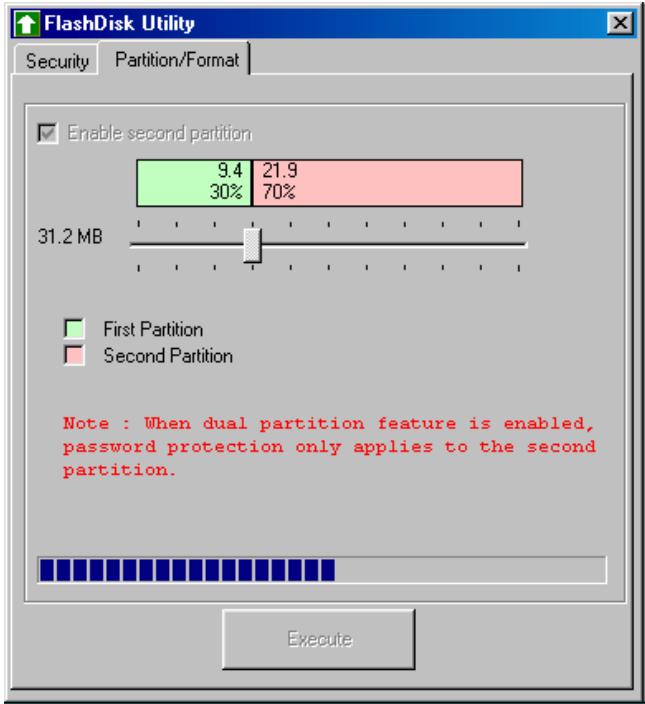
1) Partition/Format
Click the “Partition/Format” option. The Flash Disk Utility window should appear.
text_image
FlashDisk Utility Security Partition/Format Enable second partition 9.4 21.9 30% 70% 31.2 MB First Partition Second Partition Note : When dual partition feature is enabled, password protection only applies to the second partition. Execute(Fig 2.10)
The user will have the option of dividing the ARCFlash into two disks or not.
Divide into two disks: Click the “Enable second partition” option and drag the resizing indicator to resize the secure area and public area. Click the “Execute” button to start this operation.
Combine to one disk: If the ARCFlash has been divided into two disks and the user wants to combine them back into one, do not tick the “Enable second partition” option. You can also drag the resizing indicator to make the public area 100%. Click the “Execute” button to start this operation.
WARNING:
- All data in the ARCFlash will be erased after a resizing operation.
- If the ARCFlash is used as the bootable disk, the public area must have more than 2MB of space available.
After resizing, two disk symbols will appear in “My computer”. Under normal conditions, the first removable disk will be assigned as the “public area” and the second one will be assign as the “secure area”.
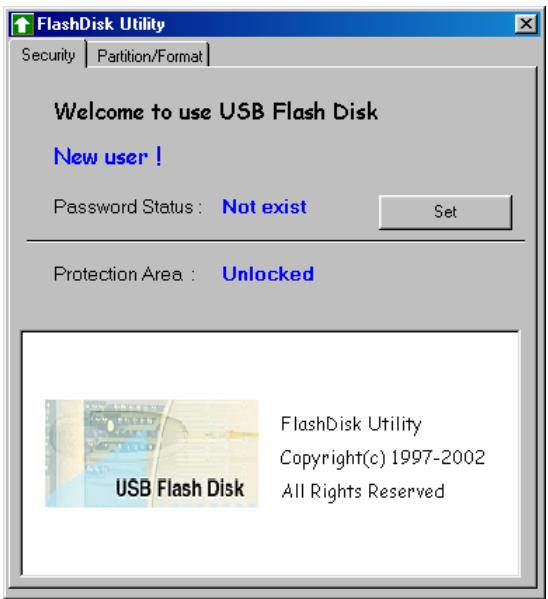
2) Security
Click the “security” option. The Flash Disk Utility window will appear.
text_image
FlashDisk Utility Security | Partition/Format | Welcome to use USB Flash Disk New user ! Password Status : Not exist Set Protection Area : Unlocked USB Flash Disk FlashDisk Utility Copyright(c) 1997-2002 All Rights Reserved(Fig 2.11)
text_image
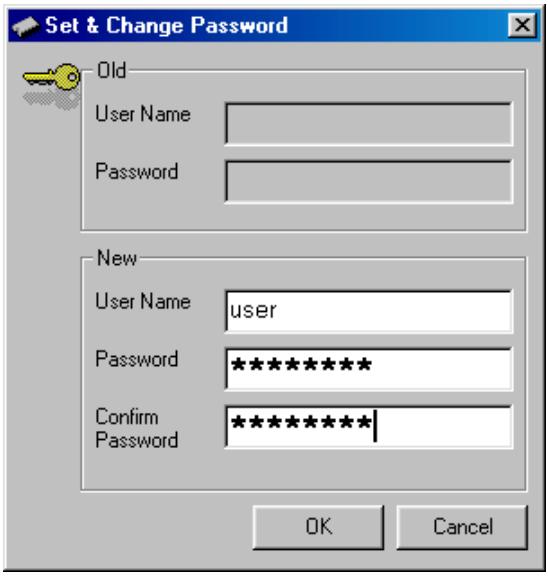
Set & Change Password Old User Name Password New User Name user Password ********** Confirm ********** Password OK Cancel(Fig 2.12)
text_image
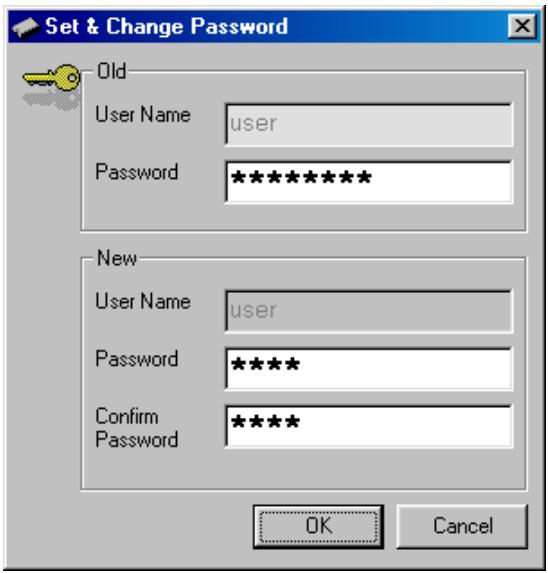
Set & Change Password Old User Name user Password ********** New User Name user Password ***** Confirm Password ***** OK Cancel(Fig 2.13)
text_image
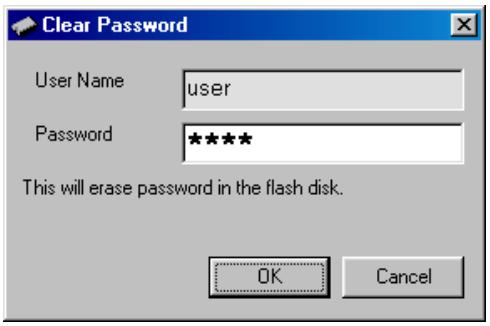
Clear Password User Name user Password ***** This will erase password in the flash disk. OK Cancel(Fig 2.14)
The user can set up the password and user name after splitting the ARCFlash into two disks to protect the files in the secure area.
Set up your password: Click “Set”, and the “Set & change password” window should appear. Enter the user’s name and password, then click “OK” to set up the password.
Change the password: Click the “Change” button. The dialog boxes as shown below will appear, enter the old password and new password then click “OK” to complete the process.
Clear password: Click the “Clear” button. When the dialog box below appears, enter the correct password then click “OK” to clear the password.
Warning:
If the user forgets the password, the only solution is to format this ARCFlash by using the format tool "M-Format". The ARCFlash will then become one disk again. However, all the data of the ARCFlash will be erased after this procedure.
3) Lock Disk
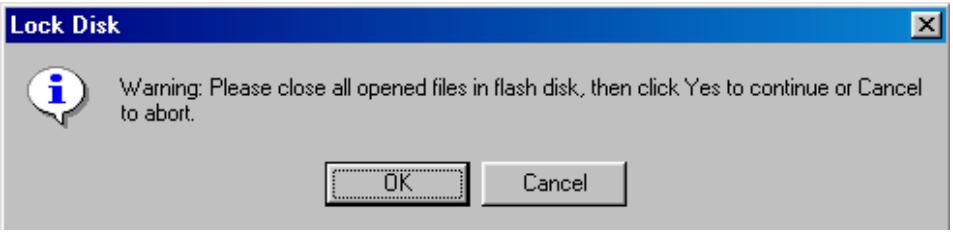
Click “Lock Disk” option or double click the green icon in the taskbar. The below message should appear.
text_image
Lock Disk Warning: Please close all opened files in flash disk, then click Yes to continue or Cancel to abort. OK Cancel(Fig 2.15)
If the user wants to protect the ARCFlash that has been divided into two disks and has set the password for it, click the “Lock Disk” option after closing all the programs that are involved with the security area. Then click “OK” to hide the security area. The green icon will become red.
Notice: Because the security area is hidden after “Lock Disk” operation, the user will only see one removable disk symbol, which is the public area.
4) Unlock Disk
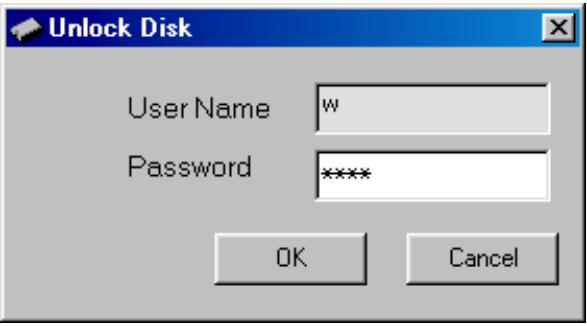
Click “Unlock Disk” or double click the red icon in the taskbar. The dialog box below will appear.
text_image
Unlock Disk User Name w Password ***** OK Cancel(Fig 2.16)
The user can access the security area after entering the correct password. The red icon will become green.
Notice:
Two disk symbols will appear after the “Unlock Disk” operation. To avoid accidental deletion, please keep the secure area in the lock disk state.
5) Exit
Select the “Exit” option to exit the security software.
2.4 Uninstall the security software
To uninstall the security software, open the control panel → Add and remove programs
→ select the ARCFlash Utility to start the uninstall operation.
3.1 Bootable function
The ARCFlash provides a particular bootable function. You can use the ARCFlash as a startup disk for your PC to boot the system. However, your BIOS on the main board must support the “USB-ZIP” or “USB-HDD” boot up feature.
Follow the steps shown below.
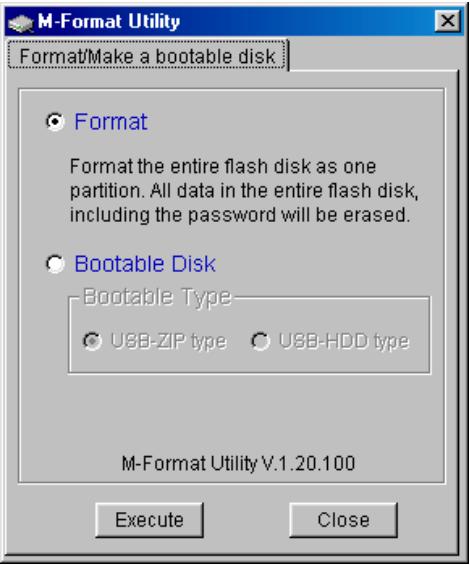
1) After plugging in the ARCFlash into the computer, run "M-Format.exe".
text_image
M-Format Utility Format/Make a bootable disk ● Format Format the entire flash disk as one partition. All data in the entire flash disk, including the password will be erased. ○ Bootable Disk Bootable Type ○ USB-ZIP type ○ USB-HDD type M-Format Utility V.1.20.100 Execute Close(Fig 3.1)
Notice:
Choose the “USB-ZIP type” option and the ARCFlash will become the USB-ZIP startup disk or choose the “USB-HDD type” option and the ARCFlash will become the USB-HDD startup disk.
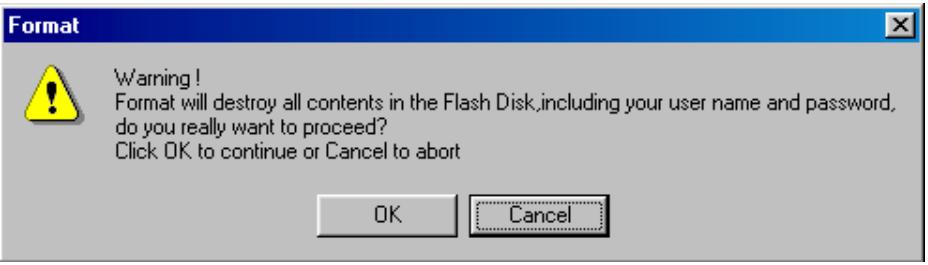
2) Click “Execute”. The warning message below will appear. Please make sure that the files of the ARCFlash have been backedup. Then, click “OK” to create the startup disk.
text_image
Format Warning! Format will destroy all contents in the Flash Disk,including your user name and password, do you really want to proceed? Click OK to continue or Cancel to abort OK Cancel(Fig 3.2)
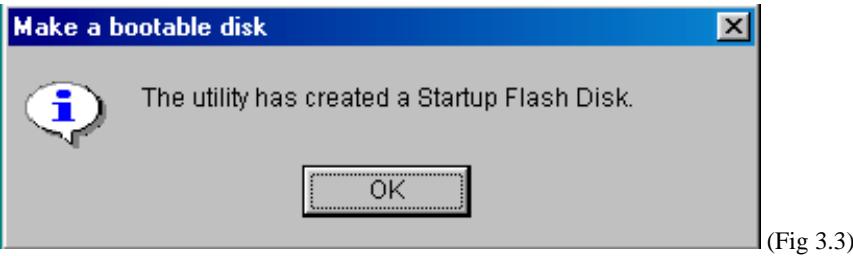
3) The window below should appear when the bootable disk is completed.
text_image
Make a bootable disk The utility has created a Startup Flash Disk. OK (Fig 3.3)Notice:
The bootable function can only be used with motherboards that support either USB-ZIP or USB-HDD bootable functions in the BIOS system.
Please read the motherboard user's manual to set the "first boot" option to "USB-HDD" or "USB-ZIP".
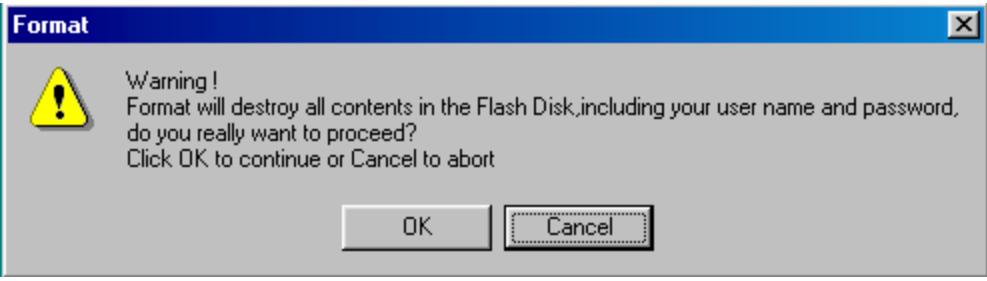
Choose the “Format” option and the click “Execute”. The warning message below should appear.
text_image
Format Warning! Format will destroy all contents in the Flash Disk,including your user name and password, do you really want to proceed? Click OK to continue or Cancel to abort OK Cancel(Fig 3.4)
Click the “OK” to start formatting the ARCFlash. After this operation, please re-plug the ARCFlash into your computer. Now all the data in the ARCFlash are erased. The public area and secure area will become one disk again.
4 How to use the ARCFlash
The ARCFlash is easy to use. The instructions on how to use ARCFlash in Windows98SE/ME/2000/XP are shown below:
- Turn on your computer.
- Plug the ARCFlash into the USB port of the computer. The “Removable Disk” symbol should appear in “My Computer”, which is also the ARCFlash symbol. Under Windows ME/2000/XP, an icon will appear in the taskbar.

(Fig 4.1)
- The indicator of the ARCFlash will be flashing when a write or read action is performed.
- To exit from the process and pull the ARCFlash out, follow the steps below:
Windows 98SE: Pull out the ARCFlash from the computer when ARCFlash's LED stops flashing. The ARCFlash symbol will disappear automatically.
Windows ME/2000/XP: Click the icon in the taskbar. A “Stop USB Mass Storage Device — device (e:)” window should appear. The system then display a new window showing “USB Mass Storage Device can be remove safely”. Click “OK” to close this window and then remove the ARCFlash.
5 FAQs
- After the installation is complete, why can't I find the USB device correctly?
Answer: Check USB Controller option in BIOS, make sure it is “Enable”.
- What is the purpose of the LED indicator ON THE ARCFlash?
Answer: When reading or writing the data from/to ARCFlash, the LED will blink to show. It is being accessed.
- Can I pull out the ARCFlash from the computer when the LED is blinking fast?
Answer: We strongly recommend not doing that. This can lead to lost data or a failure blue screen. There is no harm in hardware, but it may cause data loss.
- Can I use the Scan Disk to scan the ARCFlash?
Answer: Yes.
- Can the ARCFlash be shared in the local network?
Answer: Yes.
- Why is the available capacity smaller than the advertised size?
Answer: This is because the file management system and system files will take some space.
- Will the data in the public area still exist after resizing the secure area?
Answer: When you resize the secure area, all the data of the ARCFlash will be deleted. Backup your files before reallocating secure or public space.
- How many digits can be entered for the password?
Answer: Eight digits.
- What is the difference between the red and green security icon?
Answer: The red icon indicates the Lock Disk state, and the green icon indicates the Unlock Disk state.
6 Notice
-
The start-up disk function runs under the Windows 98SE only.
-
It is strongly recommended not to pull out the ARCFlash before it stops blinking.
-
After completing the driver installation, if the removable disk symbol does not appear, please click "Control panel"-> "system"-> "Device manager" then choose ARCFlash. Use the right mouse button, and choose "properties"-> "setting" then click the "Removable" option and restart the computer.
-
Do not pull out the ARCFlash when accessing the files from the ARCFlash. Close the program before pulling out the ARCFlash.
-
The security program will automatically close after entering the wrong password more than 3 times.
7 Technical Support
- Only the unit is under warranty and not the accessories
- For technical specifications, please see the full manual on CD-ROM.
- If technical support determines that your product needs to be returned, please contact the place of purchase to have your product repaired or replaced (depending on problem type).
- There is an FAQ – Frequently Asked Questions section at the ARCHOS Website www.archos.com that can help answer many of your questions.
- If you need technical help, you may contact ARCHOS directly in your own language via these phone numbers. For other countries, please use e-mail technical support.
Telephone Support:
| 949-609-1400 | (USA, Canada) | 09-1745-6224 | (Spain) |
| 01 70 20 00 30 | (France) | 02-4827-1143 | (Italy) |
| 0207-949-0115 | (UK) | 02-050-405-10 | (Netherlands) |
| 069-6698-4714 | (Germany) |
E-mail Support:
technical-support@archos.com (United States and Canada customers) English
support-technique@archos.com (Europe and rest of the planet) English and French
support.de@archos.com (German)
To respond to your e-mails efficiently, when sending one, please indicate the product name and question type in the Subject of the e-mail.
For example:
To: technical-support@archos.com
Subject: Jukebox Multimedia 120 – USB connection to Macintosh
Worldwide Offices
United States & Canada
ARCHOS Technology
3, Goodyear - Unit A
Irvine, CA 92618
USA
Phone: 1 949-609-1400
Fax: 1 949-609-1414
United Kingdom
ARCHOS (UK) Limited
Regus House
Windmill Hill Business Park
Whitehill Way - Swindon
Wiltshire SN5 6QR (UK)
Phone: +44 (0) 1793 44 15 10
Fax: +44 (0) 1793 44 16 10
Europe & Asia
ARCHOS S.A.
12, rue Ampère
91430 Igny
France
Phone: +33 (0) 169 33 169 0
Fax: +33 (0) 169 33 169 9