
HELMET CAMCORDER (GEN 5) - Camcorder ARCHOS - Free user manual and instructions
Find the device manual for free HELMET CAMCORDER (GEN 5) ARCHOS in PDF.



| Product Type | Helmet Camcorder |
| Brand | ARCHOS |
| Model | Helmet Camcorder (Gen 5) |
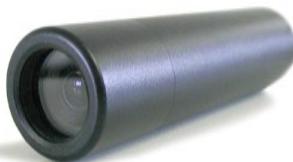
| Dimensions | 20.5 mm (diameter) x 72 mm (length) |
| Weight | Approximately 100 g (with DVR adapter) |
| Power | Powered by an ARCHOS Gen 5 device (not included) |
| Resolution | 420 TV lines |
| Sensor | 1/4-inch Super HAD Sony color CCD |
| Lens | Fixed pinhole 3.6 mm |
| Field of view | 72.5 degrees |
| Depth of field | 1.5 to 10 meters |
| White balance | Automatic |
| Light sensitivity | 1.0 Lux / F1.2 |
| Recording resolution | 512 x 384 (optimal) or 640 x 480 (VGA) depending on ARCHOS device |
| Operating temperature | 5° to 35°C |
| Main functions | Hands-free video recording, control via button on controller or through Video application |
| Care and cleaning | Clean with a product for optical lenses; avoid water, dust, and sand |
| Safety | Do not disassemble, do not expose to strong shocks, do not point towards the sun |
| Spare parts and repairability | No user-serviceable parts; do not attempt to open |
| Box contents | Camera, controller, headband, DVR adapter (may vary) |
Frequently Asked Questions - HELMET CAMCORDER (GEN 5) ARCHOS
User questions about HELMET CAMCORDER (GEN 5) ARCHOS
0 question about this device. Answer the ones you know or ask your own.
Ask a new question about this device
Download the instructions for your Camcorder in PDF format for free! Find your manual HELMET CAMCORDER (GEN 5) - ARCHOS and take your electronic device back in hand. On this page are published all the documents necessary for the use of your device. HELMET CAMCORDER (GEN 5) by ARCHOS.
USER MANUAL HELMET CAMCORDER (GEN 5) ARCHOS
Box Contents 3 Connections 3 Helmet CamCorder Description 4 Making Recordings 5 Precautions 8 Register Your Product! 9 Technical Specifications 10
? NEED HELP?
Here are some ways to find the information you may need:

On our Website
See the Frequently Asked Questions section on www.archos.com/faq. Also visit www.archos.com/manuals for the most recent version of this manual.

Contact our Technical Support Team Visit www.archos.com/support for e-mail support. U.S. & Canada: Call 877-300-8879 (toll free)
BOX CONTENTS
Please note: actual box contents may vary and are subject to change without prior notice.

CONNECTIONS
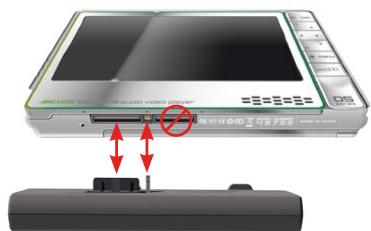
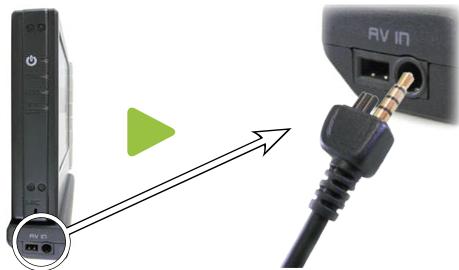
You can make these connections before switching on the device or while it is running. Carefully connect/disconnect the adapter to/from your ARCHOS device.
Do not force: you could break the connectors!

a Recording status (red light) b Connection status (green light) c Microphone d Status/Information button e Start/Stop recording button f Connector plug
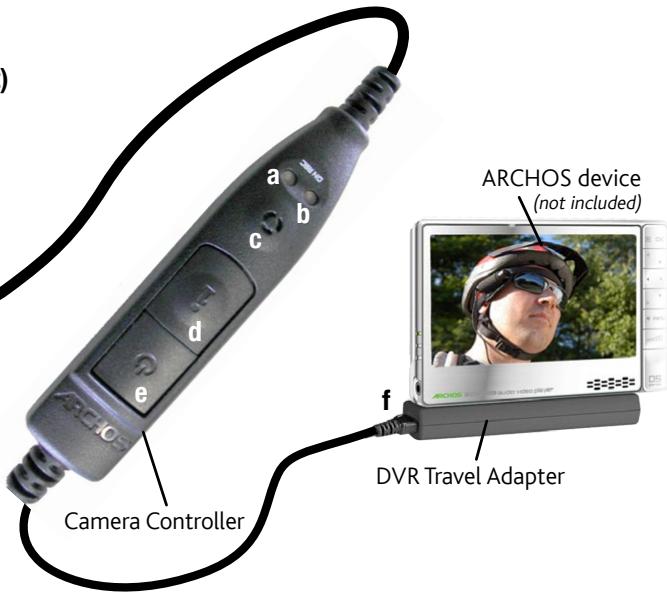
ARCHOS device
(not included)
DVR Travel Adapter
Recording with your ARCHOS Helmet Cam
- Your ARCHOS Helmet CamCorder will be powered through your ARCHOS device, so be sure to charge it fully when intending to make longer recordings.
- You can clip the controller of your ARCHOS Helmet CamCorder for example onto your shirt pocket. The camera itself is typically fitted into the headband and worn so that you record what you see.
- The next two sections explain the two options for making a recording: using the camera controller, or using the Video recorder application of your ARCHOS device, which lets you set a number of parameters.
Making a Recording Using the Camera Controller
To start recording:
Press the Start/Stop button on your camera controller. The red and green lights will momentarily go on, and on the screen of your ARCHOS device, you will see a message indicating that a video signal is detected. The image transmitted from the camera will then be displayed and the recording will start.
To stop recording:
Press the Start/Stop button on the camera controller again. This time, only the green light will display. This indicates that the recording has stopped. The ARCHOS device will now save your video file and take you to the folder where the video is saved.
Note: pressing the Start/Stop button on the controller also works while the buttons of your ARCHOS device are locked. You can thus conveniently make a recording while carrying your ARCHOS device in a backpack, for example.
Making a Recording Using the Video recorder Application of your ARCHOS Device
PLEASE REFER TO THE SECTION ON MAKING A VIDEO RECORDING IN THE USER MANUAL OF YOUR ARCHOS DEVICE.
- Open the Video recorder application.
- Your ARCHOS device now powers the camera. On the screen, you see the image the camera is currently seeing. This preview screen thus permits you to adjust the position or direction of the camera before you start your recording.
Settings
A number of settings such as resolution and bitrate can be adjusted. Normally you do not need to change these settings.
Note: For information on the other settings, please refer to the section on making a video recording in the user manual of your ARCHOS device. Please note that the parameter Format does not exist as the setting is pre-determined by the camera. For the same reason, the parameter Source can only be set to 'Composite' or 'Black & White'.
Checking the Status of the ARCHOS Helmet Cam
In order to find out whether the Helmet CamCorder is idle or recording, press the Status Button. The lights will indicate the status of the ARCHOS device as shown below:
- Red and green: the ARCHOS device is presently making a recording.
- Green: the Helmet CamCorder is connected correctly to the ARCHOS device and a recording can be started.
- No light: the Helmet CamCorder is not connected properly to the ARCHOS device or the device is off.
Notes on the ARCHOS Helmet Cam
- Do not be concerned if the controller's lights are not lit while your Helmet CamCorder is in use. This is normal.
- The loudspeaker of your ARCHOS device will be disabled during the recording as this could result in audio feedback. The microphone integrated into the camera controller will record the sound. Therefore make sure that it is not covered in order to obtain the best possible sound for your recording.
- If images look distorted, you might be too close to the object you are filming. This effect is also referred to as "fish eye effect". The range for obtaining undistorted images is between 1.5 and 10 meters.
Please note the following points in order to avoid damage to your ARCHOS Helmet Cam:
- Do not attempt to take the camera apart. There are no customer-serviceable parts inside, and you could receive an electric shock.
- Handle the camera with care. A violent shock, for example through a fall, could damage it.
- Use the camera in moderate conditions. Avoid cold or hot temperatures, humidity over 85%, and dust or sand.
- The same precautions apply to the controller.
- Please be aware that the camera and controller are not waterproof and should be kept away from water.
- To clean the camera, only use products specifically designed to clean optical lenses.
- NEVER direct the camera at the sun!
REGISTER YOUR PRODUCT!
www.archos.com/register
Once you unpack your ARCHOS product, we ask that you take a few minutes to register it. This will ensure that you have access to our help line and that we will be able to answer your inquiries, either by telephone or e-mail, in the quickest and timeliest manner. This will also allow us to keep you informed about software updates or special late-breaking information about your device. Please use your Internet connection and connect to the above shown web page to register your product.
Technical Specifications: ARCHOS Helmet Cam
Resolution: 420 TV Lines
CCD: 1/4-inch SONY Super HAD color CCD
Lens: Fixed Pinhole 3.6mm
Field of View: 72.5 degrees
Depth of Field: 1.5 to 10 meters
White Balance: Automatic
Light Sensitivity: 1.0 Lux / F 1.2
Power Supply
Recording resolution with ARCHOS device: 512 x 384 (Optimal) or 640 x 480 (VGA)
Weight approx. 100 g - 3.5 oz with DVR Travel Adapter
Dimensions 20.5 mm (Ø) x 72 mm (L)
CCD resolution... Model NTSC: 512 x 492 - Model PAL: 582 x 500
Operating temperature approx. 5°C to 35°C / approx. 41°F to 95°F
System requirements: ARCHOS portable media player GEN 5


- NEED HELP
- ON OUR WEBSITE
- BOX CONTENTS
- CONNECTIONS
- RECORDING WITH YOUR ARCHOS HELMET CAM
- MAKING A RECORDING USING THE CAMERA CONTROLLER
- TO START RECORDING
- TO STOP RECORDING
- MAKING A RECORDING USING THE VIDEO RECORDER APPLICATION OF YOUR ARCHOS DEVICE
- SETTINGS
- CHECKING THE STATUS OF THE ARCHOS HELMET CAM
- NOTES ON THE ARCHOS HELMET CAM
- PLEASE NOTE THE FOLLOWING POINTS IN ORDER TO AVOID DAMAGE TO YOUR ARCHOS HELMET CAM
- REGISTER YOUR PRODUCT
- WWW.ARCHOS.COM/REGISTER
- TECHNICAL SPECIFICATIONS: ARCHOS HELMET CAM
Brand : ARCHOS
Model : HELMET CAMCORDER (GEN 5)
Category : Camcorder