
604 WIFI - Portable media player ARCHOS - Free user manual and instructions
Find the device manual for free 604 WIFI ARCHOS in PDF.


| Product Type | Portable Media Player |
| Brand | ARCHOS |
| Model | 604 WIFI |
| Screen | Touchscreen 4.3-inch TFT (480x272 pixels), 16:9, over 16 million colors |
| Wireless Connectivity | WiFi 802.11b/g |
| Web Browser | Opera™ (ARCHOS specific version) |
| Internal Storage | Built-in hard drive (capacity varies by version) |
| Supported Formats | Audio, video, photos (see manual for full list) |
| Power Supply | Rechargeable lithium-ion battery, AC adapter, USB cable |
| Main Functions | Audio/video playback, photo display, web browsing, WiFi file sharing, file browser, touchscreen |
| Maintenance and Cleaning | Wipe with a soft, dry cloth. Avoid abrasive products and liquids. |
| Safety | Avoid shocks, moisture and extreme temperatures. Use only the supplied stylus. |
| Spare Parts and Repairability | Battery, adapter, USB cable, stylus available. Professional repair recommended. |
| General Information | Additional manual for WiFi and Internet functions. See main manual for ARCHOS 504/604. |
Frequently Asked Questions - 604 WIFI ARCHOS
User questions about 604 WIFI ARCHOS
0 question about this device. Answer the ones you know or ask your own.
Ask a new question about this device
Download the instructions for your Portable media player in PDF format for free! Find your manual 604 WIFI - ARCHOS and take your electronic device back in hand. On this page are published all the documents necessary for the use of your device. 604 WIFI by ARCHOS.
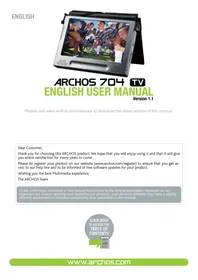
USER MANUAL 604 WIFI ARCHOS
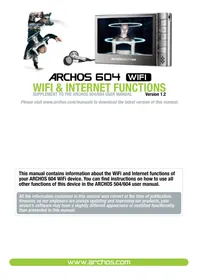
ARCHOS 604 WIFI
WIFI & INTERNET FUNCTIONS
SUPPLEMENT TO THE ARCHOS 504/604 USER MANUAL
Version 1.2
Please visit www.archos.com/manuals to download the latest version of this manual.
This manual contains information about the WiFi and Internet functions of your ARCHOS 604 WiFi device. You can find instructions on how to use all other functions of this device in the ARCHOS 504/604 user manual.
All the information contained in this manual was correct at the time of publication. However, as our engineers are always updating and improving our products, your device's software may have a slightly different appearance or modified functionality than presented in this manual.
TABLE OF CONTENTS
INTRODUCTION....3
ARCHOS 604 WIFI INTERFACE DESCRIPTION ....3
USING THE TOUCH SCREEN....3
- CONNECTING TO A WIFI NETWORK....5
1.1 WIFI CONNECTION PROCEDURE....5
1.2 WIFI NETWORK CONFIGURATION....6
1.3 BROWSING OTHER COMPUTERS ON THE NETWORK 8
- BROWSING THE WEB WITH OPERA....10
2.1 LAUNCHING OPERA .... 10
2.2 USING OPERA....10
- WIRELESS FILE SERVER....13
3.1 FILE SERVER SETTINGS .... 13
TECHNICAL SPECIFICATIONS 14
INTRODUCTION
ARCHOS 604 WIFI INTERFACE DESCRIPTION
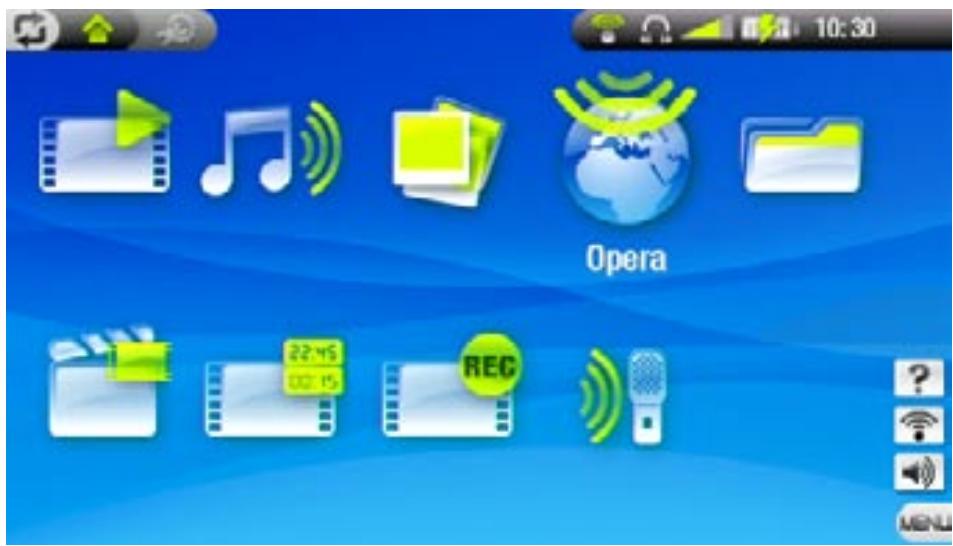
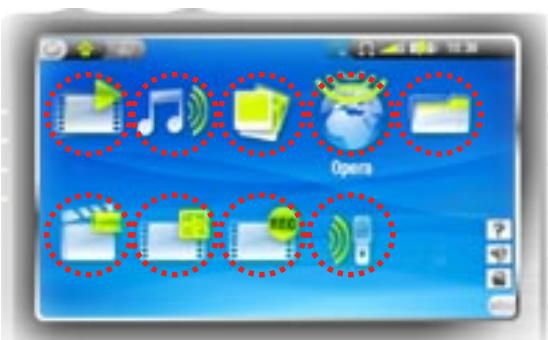
The Home Screen of the ARCHOS 604 WiFi has one more icon than that of the ARCHOS 604: the Opera™ Web Browser. See: Browsing the Web with Opera.
There is also an extra menu item: Enable WiFi 📷. See: Connecting to a WiFi Network.
Your ARCHOS 604 WIFI device is equipped with a touch screen.
Most screen areas will react when you tap on them using the included stylus or your finger.
Below is a description of the main tactile screen areas and a few tips on how to use the touch screen.
TACTILE SCREEN AREAS
Status Bar
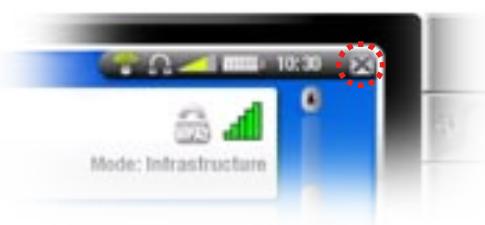
- When a cross appears at the right end of the status bar, you can tap on it to exit the current screen.
- This is equivalent to pressing the × button.
Tabs
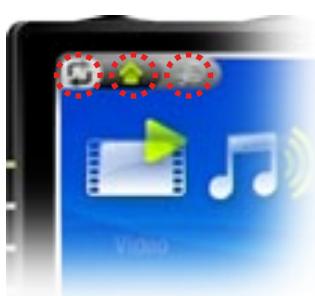
- You can tap on the tab icon (☐) to switch between the available screens. This is equivalent to pressing the ☐ button.
- You can also tap directly on one of the tabs to access the corresponding screen.
Menu
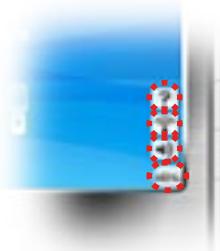
- You can tap on the MENU word at the bottom right of the screen or directly on one of the icons. The available menu items will appear.
- This is equivalent to pressing the MENU button.
- You can then tap on an item or on its icon to select it.
Selecting Icons, Launching Files, etc.
- In the Home Screen or in the Setup Screen, you can tap directly on an icon to select it. Tap a second time to launch the application. This is equivalent to highlighting the icon with the navigation pad and then pressing OK.
- In a browser window, in the ARCLibrary, in the photo wall etc., you can tap twice on a file, song or video to launch it.
Other Touch Screen Actions
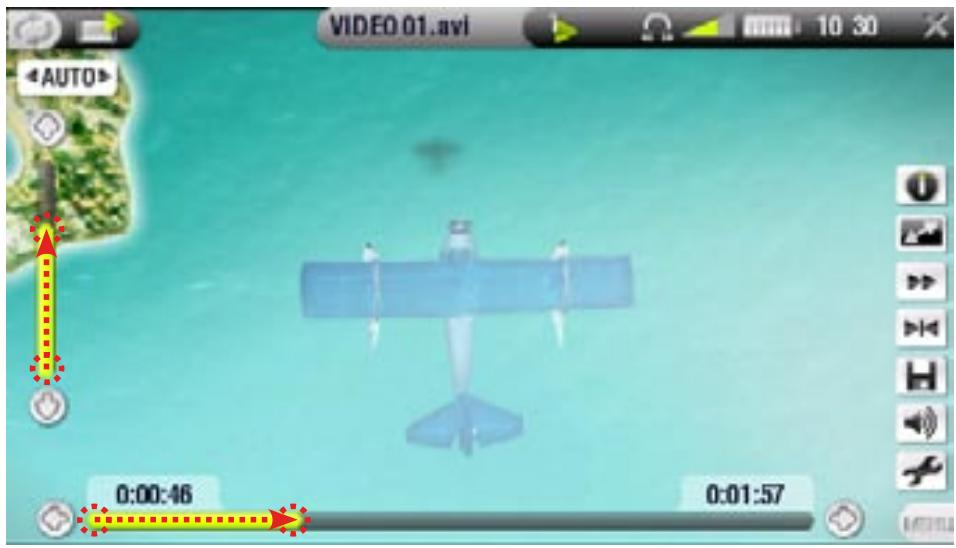
- When watching a video or listening to music, you can tap on the progression bar to go directly to a different location in the video or song. You can also drag the cursor in the progression bar to another location in the video or song.
- In the screens where it appears, the volume bar can be dragged in the same way.
- In the Archos file browser, you can drag the scroll bar up and down.
- In the PDF viewer and in the Opera™ Web browser, you can scroll up and down by tapping on the page and dragging it up or down (be careful not to tap on a link!).
PRECAUTIONS
In order to keep your touch screen in good condition, and to avoid damaging the screen surface, you should use only the included stylus or your finger.
1. CONNECTING TO A WIFI NETWORK
Your ARCHOS 604 WIFI can connect to a variety of wireless networks, thus enabling you to browse the Internet or share files with other ARCHOS devices or computers, for example.
1.1 WIFI CONNECTION PROCEDURE
ENABLING WIFI
From the Home Screen, press MENU and select the Enable WiFi ☐ menu item. Your device will scan for available WiFi networks.
- The first time you use your device, you may get a message “No configured networks found”. Highlight ‘View available networks’ and press OK. The list of available networks will be displayed.
- If your ARCHOS device finds networks that you have previously used and configured, it will connect automatically to one of them.
- If you get the message “Could not connect to any network”, highlight ‘View available networks’ and press OK. The list of available networks will be displayed.
Once you are connected to a WiFi network, the status bar icon 📋 (WiFi not connected) will become 📋 (WiFi connected). There is no status bar icon at all when WiFi is not enabled.
THE LIST OF AVAILABLE NETWORKS
The list of available networks shows all the wireless networks in range of your device.
To refresh the list, select the 'Scan for networks' menu item.
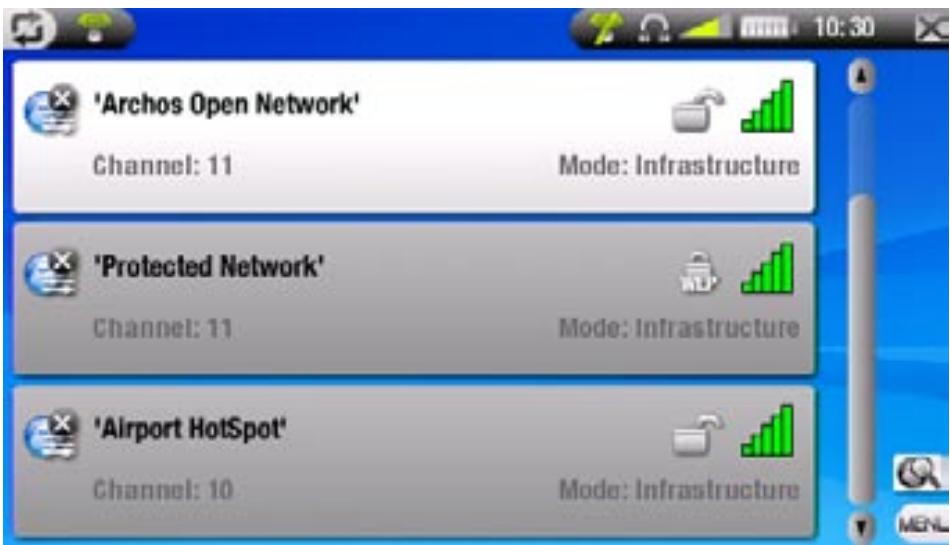
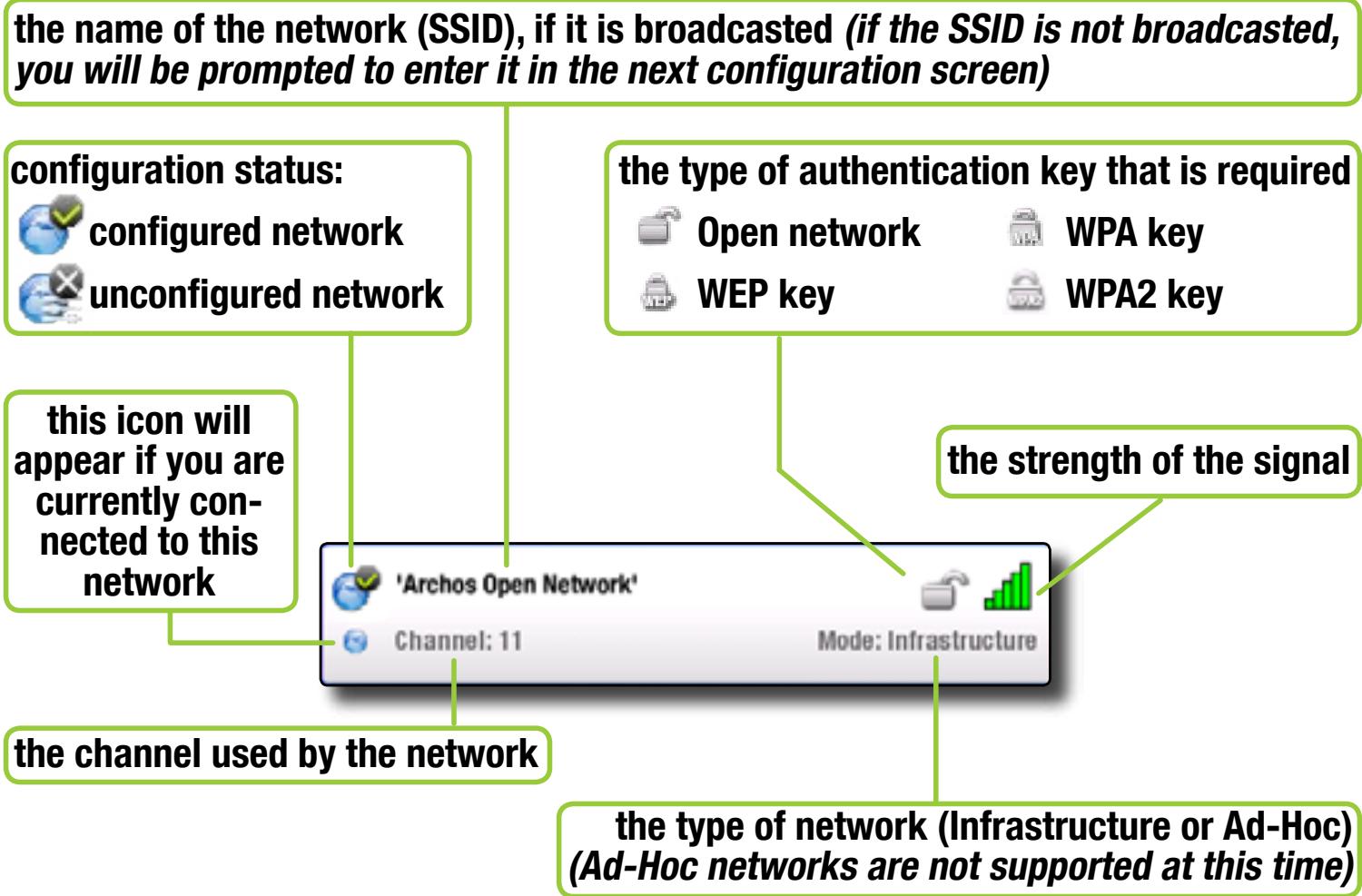
In the list of available networks, for each network you will see the following information:
To select a network and start the connection process, simply tap on the one that you want to connect to (your home wireless network or a free hotspot), or select it using ↑/↓ and pressing □K.
You will be taken to the configuration screen for this network, where you will have to enter some information to set up your access to this network.
1.2 WIFI NETWORK CONFIGURATION
In order to connect to a wireless network, the ARCHOS 604 WIFI will need some specific information about the network. Your device will automatically pick up certain pieces of information that it needs. You can enter the rest of the information manually in the network's configuration screen, as shown in the following sections.
Note that your device will remember the network connection information that you enter, in order to re-use it and connect automatically to the network when it is in range.
OPEN NETWORKS
Open networks do not require an authentication key.
If the network has automatic configuration turned on (DHCP), simply tap on the 'Connect' button, and your ARCHOS 604 WiFi will connect to this network, provided the signal is strong enough.
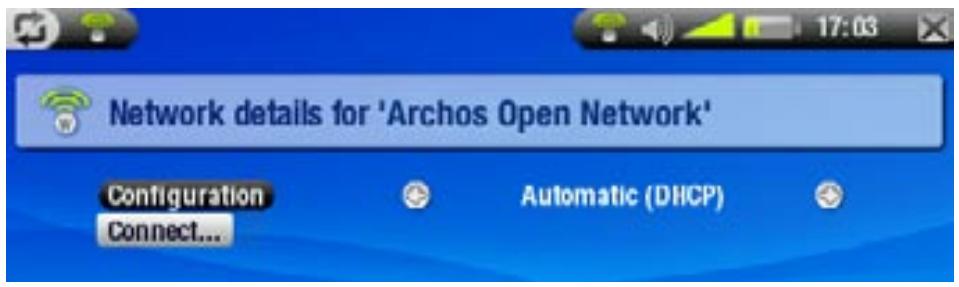
If the network needs to be configured manually, press the ➕ button to select the 'Manual' setting on the 'Configuration' parameter. Other parameters will appear: the required information can be obtained from the person who manages the network.
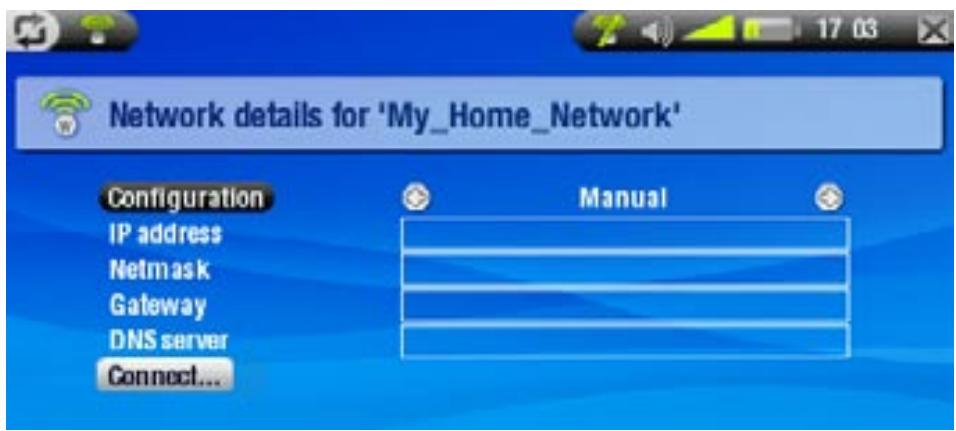
When you have finished entering all the information, tap on the ‘Connect’ button, and your ARCHOS 604 WiFi will connect to this network, provided the signal is strong enough.
PROTECTED NETWORKS (WEP, WPA OR WPA2 KEY)
Encrypted networks require an authentication key to connect.
The type of key (WEP, WPA or WPA2) will be detected automatically by your device.
The rest of the required information can be obtained from the person who manages the network.
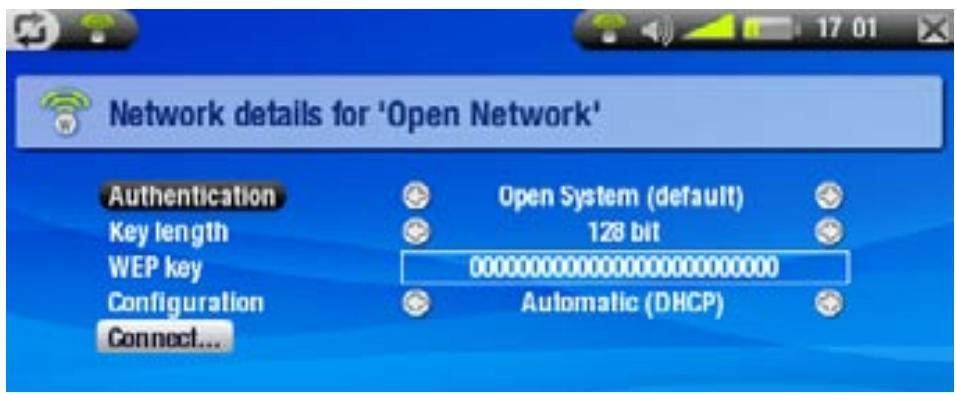
You will have to specify the following settings:
- Authentication: (for WEP networks only) the network's authentication method can be based on an 'Open system (default)' or a 'Shared key'. • Key length: (for WEP networks only) the authentication key can be 10 characters long (64bit) or 26 characters long (128bit) (hexadecimal characters). • Key: type in the authentication key. You will be taken to a virtual keyboard: type in the key and tap on OK when you have finished.
- Configuration: it can be 'Automatic (DHCP)' or 'Manual'.
- If it is 'Automatic (DHCP)', then you do not have to enter any more information. Simply tap on the 'Connect' button, and your ARCHOS 604 WiFi will connect to this network, provided the signal is strong enough.
- If you must configure the network manually, select the 'Manual' setting. Other parameters will appear: the required information can be obtained from the person who manages the network.
When you have finished entering all the information, tap on the 'Connect' button, and your ARCHOS 604 WiFi will connect to this network, provided the signal is strong enough.
1.3 BROWSING OTHER COMPUTERS ON THE NETWORK
When you are connected to a Windows® network, you can browse the shared folders of other computers in the network, using the Archos File Browser.
From the Home Screen, select the Browser icon. Once in the browser, select 'Network'. Your device will search for other computers in the Windows® network and you can start browsing their shared contents.
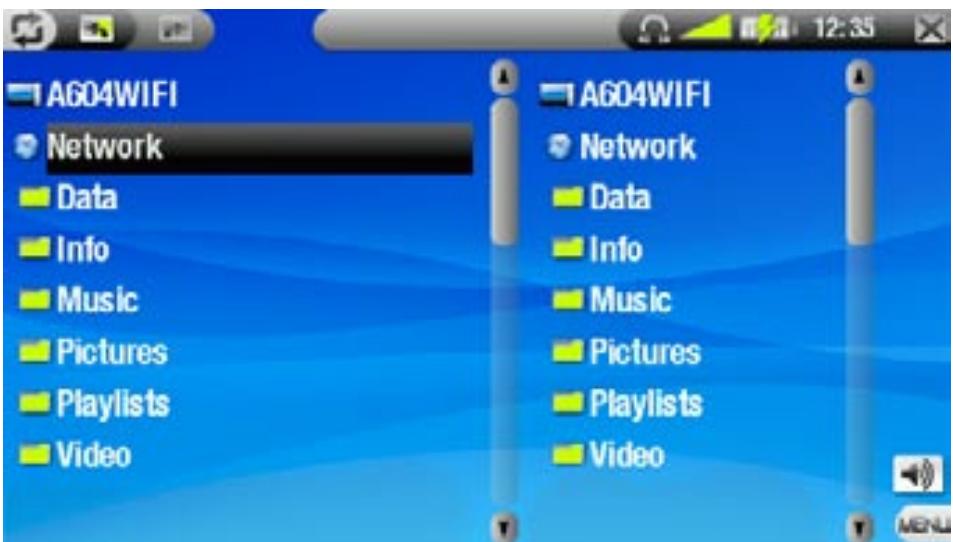
If WiFi is not enabled or if you are not connected to a network, the device will scan for available networks and connect to a known network or display the list of available networks so that you can connect to one of them.
Using the Archos double browser, you will be able to transfer files from a computer onto your device, or transfer files from your device onto a computer's write-enabled shared folder (see Copying files and folders in the ARCHOS 604 user manual).
2. BROWSING THE WEB WITH OPERA

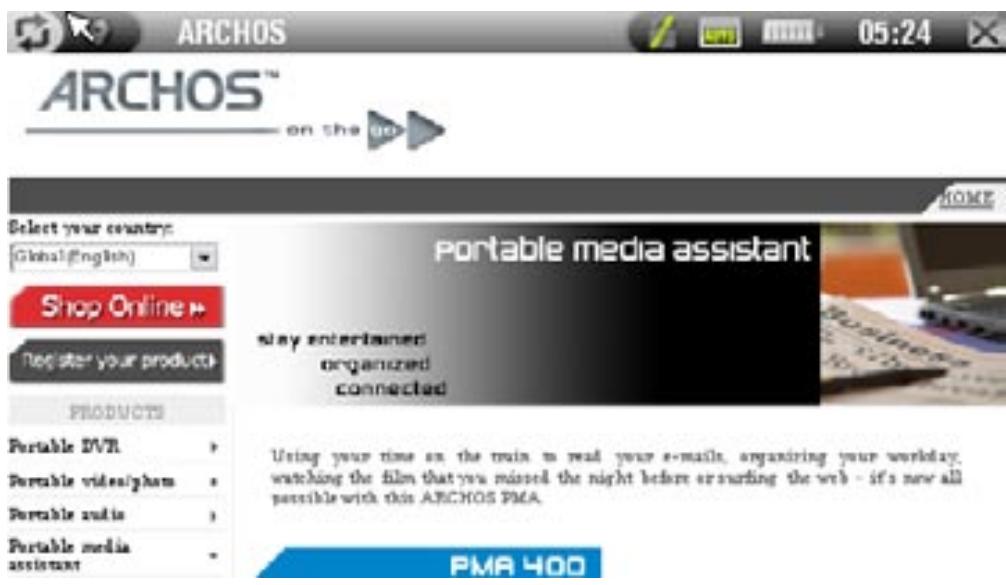
Your ARCHOS 604 WIFI features an Opera™ Web browser that was designed especially for this ARCHOS device. Opera™ allows you to browse Websites, read your e-mails, download content, etc.
2.1 LAUNCHING OPERA

From the Home Screen, highlight the Opera™ Icon and press OK, or tap directly on the icon.
- If you are already connected to a network, the Opera™ browser will simply open and you can start browsing the Web.
- If WiFi is not enabled or if you are not connected to a network, the device will scan for available networks and connect to a known network or display the list of available networks so that you can connect to one of them.
- Please note: not all wireless networks offer access to the Internet. Some WiFi networks only link several computers together, without any Internet connection.
2.2 USING OPERA
You can use the Opera™ Web browser to read your Web-based e-mail, view Web sites, download documents from the Internet, etc.
The Opera™ Web browser features “tabbed browsing”. You can open several pages at the same time: they will appear in the tabs area, in the upper left corner of the screen. When several pages are open, simply tap on a tab to access the page that you want. See Opera™ Browser Menu Items.
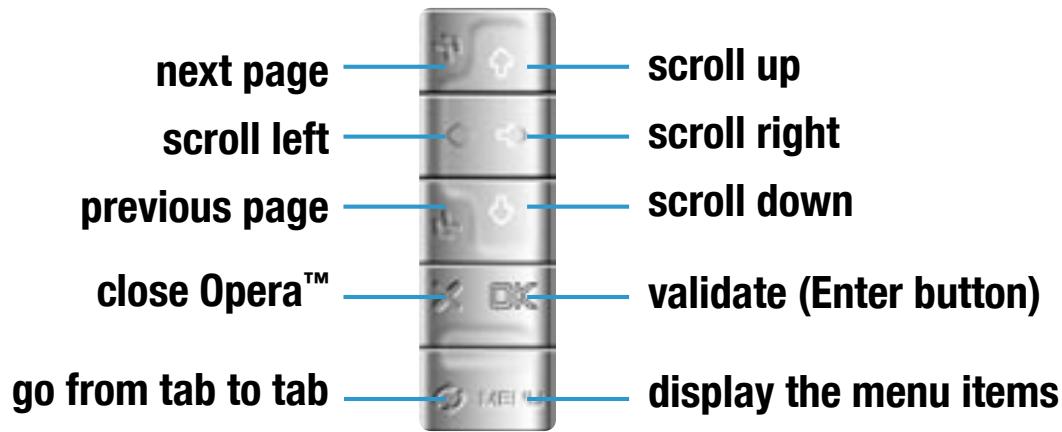
OPERA™ BROWSER BUTTON CONTROLS
In the Opera™ browser, the buttons of your ARCHOS device will act as follows:
OPERA™ BROWSER MENU ITEMS
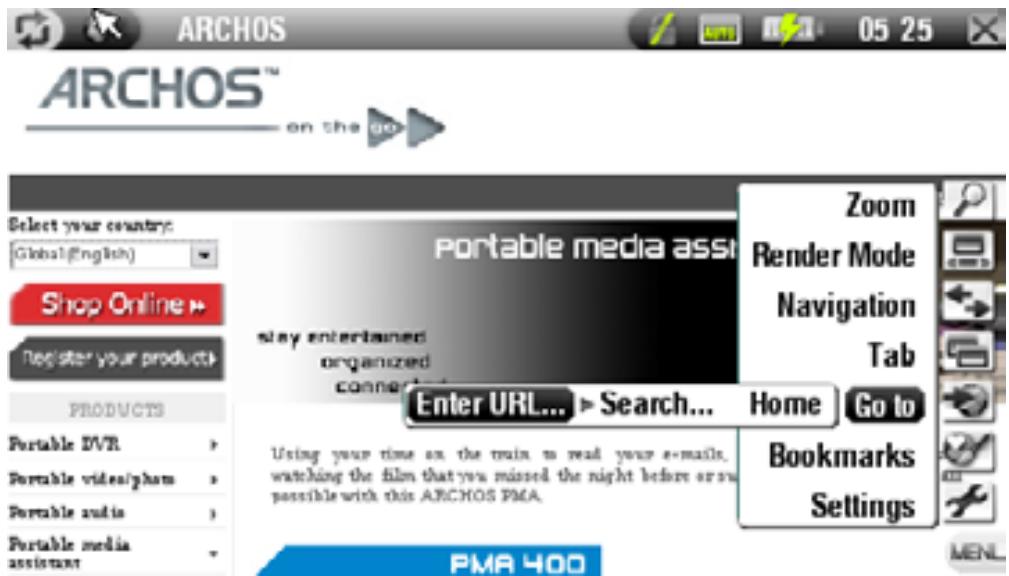
Zoom
- Zoom In: magnifies the current Web page.
- Zoom Out: unmagnifies the current Web page.
- Set zoom: allows you to set the zoom level directly by dragging a cursor.
Render mode
- Changes the way the Web page is displayed.
- Auto: will reformat the Web page to fit the width of your screen, so that no horizontal scrolling is necessary.
- Desktop: will display the Web page as on a large display. Vertical and horizontal scrolling is necessary to view all parts of the page.
Navigation
- Back: will go back to the previous page that you browsed.
- Forward: will go to the next page in your browsing history, if you used 'Back' before.
- Stop: will stop loading the Web page.
- Reload: will refresh the current Web page.
Tab
- Add: will open a new, empty tab in the tab area (top left of the screen).
- Close: will close the current tab.
Go to
- Enter URL...: allows you to enter the address of a Web site you'd like to visit. Tap on the letters of the virtual keyboard to enter the address.
- Search...: allows you to search directly in one of the configured search engines. Tap on the letters of the virtual keyboard to enter your keywords.
- Home: will go to the Home page.
Bookmarks
- will open the Bookmark manager. Here you can sort your bookmarks, delete them, etc.
- Select a bookmark and press □K to open this Web address in a new tab.
- You can also set your Home page: highlight a bookmarked Website and select the ‘Set as Home Page’ menu item.
- To go back to the Opera™ browser from the Bookmarks screen, press ✗.
Settings
- will open the Opera™ settings screen. Here you can decide whether to block popup windows or not, and you can also delete your Internet history and cookies.
- To go back to the Opera™ browser from the Opera™ settings screen, press ✗.
Please note that some Web features requiring special plug-in software or Active X controls may not work in this special version of the Opera™ Web Browser.
3. WIRELESS FILE SERVER
Your ARCHOS 604 WiFi allows you to share files with other computers or 604 WiFi devices on a network.
Important: please check the applicable laws in your country or jurisdiction to know what media files you are allowed to share or copy.
3.1 FILE SERVER SETTINGS
- First, you need to enable WiFi as shown in section 1.1, and connect to a network.
- You can then enable the file server directly by selecting the WiFi status [icon] menu item from the Home Screen, and pressing the 'Enable file server' button. While the file server is turned on, other functions of your device are disabled.
- Your ARCHOS 604 WiFi's hard drive will then be accessible from your computer's network neighborhood.
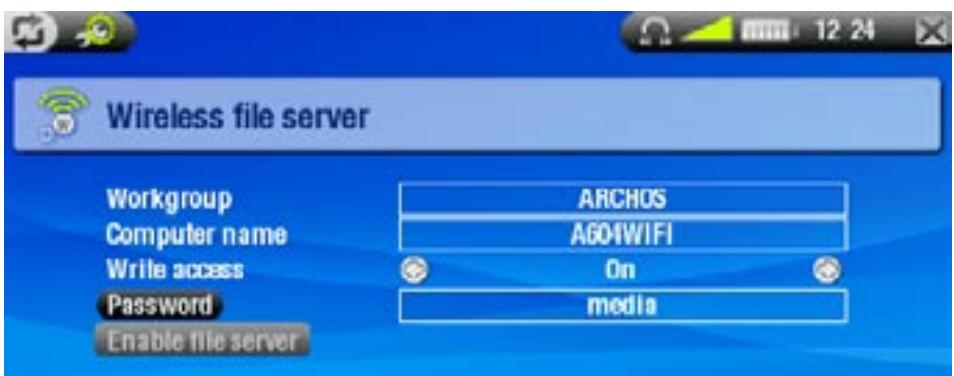
If you want to set up your ARCHOS device to appear with a particular name in a particular workgroup on the network, press Ⓧ to go to the setup screen, then select 'File server' and press □K. You will see the following parameters:
- Workgroup: enter the name of the workgroup, using the virtual keyboard.
- Computer name: enter the name for the ARCHOS 604 WiFi device in the network, using the virtual keyboard. Normally, you do not need to change this parameter unless more than one ARCHOS 604 WiFi device is in the workgroup.
- Write access: 'On' will allow other computers to write to your ARCHOS 604 WiFi's hard drive. 'Off' will prevent other computers from writing to your disk.
- Password: only appears if the 'Write access' parameter is set to 'On'. Type in the password for other computers to be able to write to your hard drive.
- Enable file server: press this button to turn on the file server.
Note: some networks filter MAC addresses. You can find your device's MAC address in the System Settings screen.
TECHNICAL SPECIFICATIONS
These are specifications for the WiFi functions only. For general specifications of the ARCHOS 604 series, please see the ARCHOS 504/604 user manual.
DISPLAY:
- Tactile screen, 4.3" TFT (480x272 pixels) 16/9, over 16 millions colors.
WIRELESS CONNECTIVITY:
- WiFi 802.11b/g.
WEB BROWSER
- Opera™ Web Browser. Version specific to the ARCHOS 604 WiFi.
INDUSTRY CANADA STATEMENT
• Operation is subject to the following two conditions:
(1) this device may not cause interference, and (2) this device must accept any interference, including interference that may cause undesired operation of the device.
OPERATING IN THE UNITED STATES OF AMERICA
- This equipment marketed in USA is restricted by firmware to only operate on 2.4GHz channel 1 - 11.
- ARCHOS 604 WIFI
- WIFI & INTERNET FUNCTIONS
- TABLE OF CONTENTS
- INTRODUCTION
- ARCHOS 604 WIFI INTERFACE DESCRIPTION
- TACTILE SCREEN AREAS
- STATUS BAR
- TABS
- MENU
- OTHER TOUCH SCREEN ACTIONS
- PRECAUTIONS
- CONNECTING TO A WIFI NETWORK
- WIFI CONNECTION PROCEDURE
- ENABLING WIFI
- THE LIST OF AVAILABLE NETWORKS
- WIFI NETWORK CONFIGURATION
- OPEN NETWORKS
- PROTECTED NETWORKS (WEP, WPA OR WPA2 KEY)
- YOU WILL HAVE TO SPECIFY THE FOLLOWING SETTINGS
- BROWSING OTHER COMPUTERS ON THE NETWORK
- BROWSING THE WEB WITH OPERA
- LAUNCHING OPERA
- USING OPERA
- OPERA™ BROWSER BUTTON CONTROLS
- OPERA™ BROWSER MENU ITEMS
- ZOOM
- RENDER MODE
- NAVIGATION
- TAB
- GO TO
- BOOKMARKS
- SETTINGS
- WIRELESS FILE SERVER
- FILE SERVER SETTINGS
- TECHNICAL SPECIFICATIONS
- DISPLAY
- INDUSTRY CANADA STATEMENT
- OPERATING IN THE UNITED STATES OF AMERICA
Brand : ARCHOS
Model : 604 WIFI
Category : Portable media player