
FX-570W - Scientific calculator CASIO - Free user manual and instructions
Find the device manual for free FX-570W CASIO in PDF.


| Product type | Scientific calculator |
| Brand | CASIO |
| Model | FX-570W |
| Dimensions (L x W x H) | Approximately 155 x 78 x 10 mm |
| Weight | Approximately 95 g (with battery) |
| Power supply | Dual: solar + LR44 button cell battery |
| Display | 2 lines (15 characters + 10 digits) |
| Number of functions | 240 functions |
| Main functions | Trigonometric calculations, logarithms, exponentials, statistics, regressions, fractions, complex numbers |
| Calculation modes | COMP, SD, REG, BASE, CPLX, MAT, VCT |
| Maintenance and cleaning | Clean with a dry, soft cloth. Do not use solvents. |
| Safety | Do not expose to moisture, shocks, or extreme temperatures. |
| Batteries | 1 LR44 button cell (replaceable) |
| Battery life | Approximately 2 years in normal use (solar + battery) |
| Repairability | Battery replaceable by user; other repairs by a professional |
| Warranty | 2 years (CASIO standard) |
Frequently Asked Questions - FX-570W CASIO
User questions about FX-570W CASIO
0 question about this device. Answer the ones you know or ask your own.
Ask a new question about this device
Download the instructions for your Scientific calculator in PDF format for free! Find your manual FX-570W - CASIO and take your electronic device back in hand. On this page are published all the documents necessary for the use of your device. FX-570W by CASIO.
USER MANUAL FX-570W CASIO
$$ \begin{array}{l} f x - 1 0 0 W \ f x - 1 1 5 W \ f x - 5 7 0 W \ f x - 9 9 1 W \end{array} $$
User's Guide
Guía del usuario
Mode d'emploi
Bedienungsanleitung
Guida dell'utilizzatore
- ENGLISH
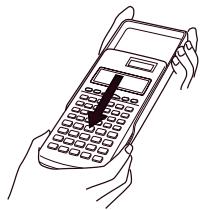
Removing and Replacing the Calculator's Cover
To Remove the cover
Grasp the top of the cover, and slide the unit out from the bottom.
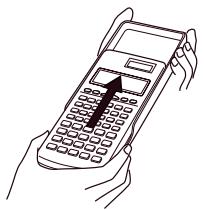
To Replace the cover
Grasp the top of the cover, and slide the unit in from the bottom.
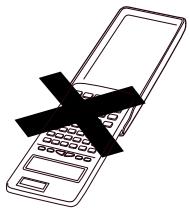
Always slide the unit into the cover with the unit's display end first. Never slide the keyboard end of the unit into the cover.
Safety Precautions
Be sure to read the following safety precautions before using this calculator. Keep this manual handy for later reference.

Caution
This symbol is used to indicate information that can result in personal injury or material damage if ignored.
Batteries
- After removing the batteries from the calculator, put them in a safe place where there is no danger of them getting into the hands of small children and accidentally swallowed.
- Keep batteries out of the reach of small children. If accidentally swallowed, consult with a physician immediately.
- Never charge batteries, try to take batteries apart, or allow batteries to become shorted. Never expose batteries to direct heat or dispose of them by incineration.
- Misuse of batteries can cause them to leak acid that can cause damage to nearby items and creates the possibility of fire and personal injury.
Always make sure that a battery's positive and negative sides are facing correctly when you load it into the calculator.
- Remove the batteries if you do not plan to use the calculator for a long time.
- Use only the type of batteries specified for this calculator in this manual.
Disposing of the Calculator
-
Never dispose of the calculator by burning it. Doing so can cause certain components to suddenly burst, creating the danger of fire and personal injury.
-
The displays and illustrations (such as key markings) shown in this User's Guide are for illustrative purposes only, and may differ somewhat from the actual items they represent.
- The contents of this manual are subject to change without notice.
- In no event shall CASIO Computer Co., Ltd. be liable to anyone for special, collateral, incidental, or consequential damages in connection with or arising out of the purchase or use of these materials. Moreover, CASIO Computer Co., Ltd. shall not be liable for any claim of any kind whatsoever against the use of these materials by any other party.
Handling Precautions
- Be sure to press the P button on the back of the calculator (step ⑥ on page 35 or 36) before using it for the first time (fx-570W/fx-100W).
- Be sure to press the ON key before using the calculator for the first time (fx-991W/fx-115W).
- Even if the calculator is operating normally, replace the battery at least once every three years for the fx-570W/fx-991W/fx-115W, or at least once every two years for the fx-100W.
Dead battery can leak, causing damage to and malfunction of the calculator. Never leave the dead battery in the calculator.
- The battery that comes with the calculator when you purchase it is for testing only. It may not provide full service life.
-
Low battery power can cause memory contents to become corrupted or lost completely. Always keep written records of all important data.
-
Avoid use and storage in areas subjected to temperature extremes.
Very low temperatures can cause slow display response, total failure of the display, and shortening of battery life. Also avoid leaving the calculator in direct sunlight, near a window, near a heater or anywhere else it might become exposed to very high temperatures. Heat can cause discoloration or deformation of the calculator's case, and damage to internal circuitry.
- Avoid use and storage in areas subjected to large amounts of humidity and dust.
Take care never to leave the calculator where it might be splashed by water or exposed to large amounts of humidity or dust. Such elements can damage internal circuitry.
- Never drop the calculator or otherwise subject it to strong impact.
- Never twist or bend the calculator.
Avoid carrying the calculator in the pocket of your trousers or other tight-fitting clothing where it might be subjected to twisting or bending.
- Never try to take the calculator apart.
- Never press the keys of the calculator with a ball-point pen or other pointed object.
- Use a soft, dry cloth to clean the exterior of the unit. If the calculator becomes very dirty, wipe it off with a cloth moistened in a weak solution of water and a mild neutral household detergent. Wring out all excess moisture before wiping the calculator. Never use thinner, benzine or other volatile agents to clean the calculator. Doing so can remove printed markings and damage the case.
Contents
Safety Precautions 1
Handling Precautions 2
Two-line Display 5
Key Layout 6
Before Starting Calculations.. 8
■ Modes 8
■ Input Capacity 9
■Making Corrections During Input 9
Replay Function 9
■ Error Locator 10
Exponential Display Formats 10
■ Answer Memory 10
Basic Calculations 11
Memory Calculations 11
■Independent Memory 11
Variables 11
Fraction Calculations 12
■ Fraction Calculations 12
■ Decimal-to-Fraction Conversion 12
■ Fraction-to-Decimal Conversion 12
Percentage Calculations 13
Scientific Function Calculations 14
■ Trigonometric/Inverse Trigonometric Functions ..... 14
Hyperbolic/Inverse Hyperbolic Functions 14
Angle Unit Conversion 15
■Common and Natural Logarithms/ Antilogarithms 15
Square Roots, Cube Roots, Roots, Squares, Cubes, Reciprocals, Factorials, Random Numbers and 15
■FIX,SCI,RND 16
■ENG Calculations 17
■Inputting ENG Calculation Symbols 17
■ Coordinate Conversion (Pol(x, y), Rec (r, θ)) 18
■Permutation 19
Combination 19
Statistical Calculations 19
■Standard Deviation (SD Mode) 19
■Probability Distribution Calculations 20
■ Regression Calculations (REG Mode) 21
Complex Number Calculations
(CMPLX Mode) 23
■ Absolute Value/Argument Calculation 24
Formula Memory 24
Metric Conversions (fx-570W/fx-991W) 25
Scientific Constants (fx-570W/fx-991W) .... 26
Base- n Calculations 28
Integration Calculations 30
Degrees, Minutes, Seconds Calculations .... 30
Technical Information 31
■When you have a problem. 31
■Error Messages 31
■Order of Operations 32
■Stacks 33
■Power Supply. 34
■Input Ranges 37
Specifications 39
Two-line Display
5x+2sin 60
1673205081
D
You can simultaneously check the calculation formula and its answer.
The first line displays the calculation formula.
The second line displays the answer.
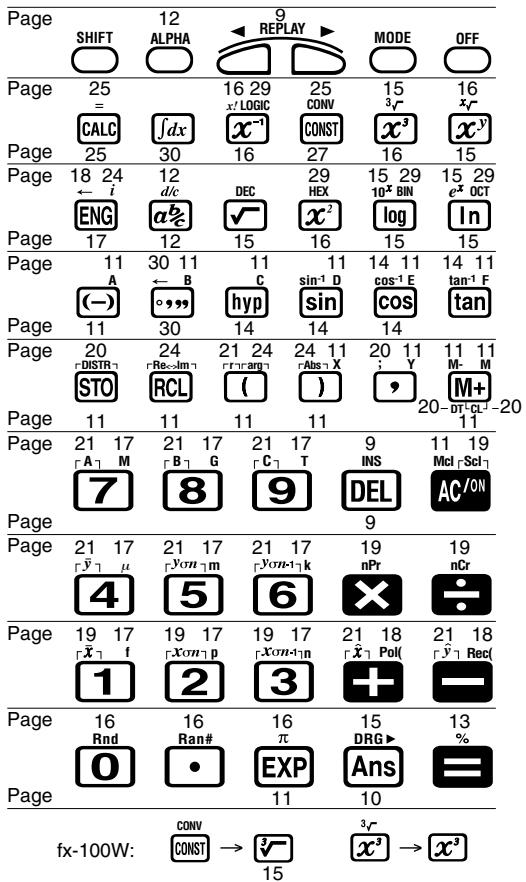
Key Layout
fx-570W>
E-6
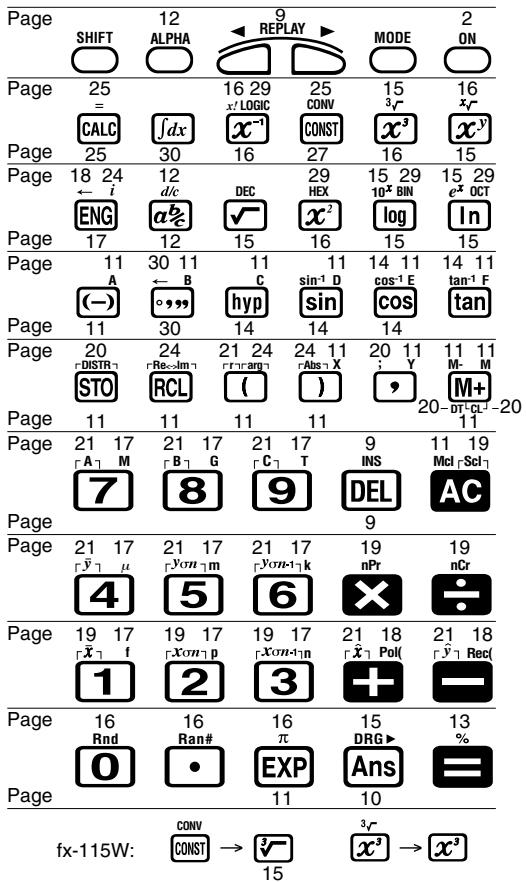
fx-991W>
E-7
Before Starting Calculations...
■ Modes
| Application | Mode Name | Mode Indicator |
| Calculation Modes | ||
| Normal calculations | COMP | - |
| Complex number calculations | CMPLX | CMPLX |
| Standard deviation calculations | SD | SD |
| Regression calculations | REG | REG |
| Base-n calculations | BASE-N | b (binary) o (octal) d (decimal) H (hexadecimal) |
| Angle Unit Modes | ||
| Degrees | DEG | D |
| Radians | RAD | R |
| Grads | GRA | G |
| Display Modes | ||
| Exponential notation (Canceling FIX and SCI specification) | NORM1 | - |
| NORM2 | - | |
| Number of decimal place specification | FIX | Fix |
| Number of significant digit specification | SCI | Sci |
| Exponential display range specifications | ENG | ENG |
Note!
Mode indicators appear in the lower part of the display, except for the Base- n indicators which appear in the exponent part of the display.
- The ENG mode cannot be selected while the calculator is in the CMPLX or BASE-N mode.
- You cannot set the angle unit or the display mode while the calculator is in the BASE-N mode.
- The COMP, CMPLX, SD, and REG modes can be used in combination with the angle unit modes.
- Be sure to check the current calculation mode (SD, REG, COMP, CMPLX) and angle unit mode (DEG, RAD, GRA) before beginning a calculation.
Input Capacity
- The memory area used for calculation input can hold 79 "steps." Whenever you input the 73rd step of any calculation, the cursor changes from " _ " to " ■ " to let you know memory is running low. If you still need to input more, you should divide your calculation into two or more parts.
Making Corrections During Input
- Use l and l to move the cursor to the location you want.
- Press DEL to delete the number or function at the current cursor position.
- Press Shift INS to change to an insert cursor []. Inputting something while the insert cursor is on the display inserts the input at the insert cursor position.
- Press , , , , , , , , , , , , , , , , , , , , , , , , , , , , , , , , , , , , , , , , , () returns to the normal cursor from the insert cursor.
Replay Function
- Pressing or recalls the last calculation you performed. You can then make any changes you want in the calculation and re-execute it.
- Pressing AC does not clear Replay memory, so you can recall the last calculation even after you press AC.
- Replay memory is cleared whenever you start a new calculation, change to another mode, or turn off power.
■ Error Locator
- Pressing or after an error occurs displays the calculation with the cursor positioned at the location where the error occurred.
Exponential Display Formats
This calculator can display up to 10 digits. Larger values are automatically displayed using exponential notation. In the case of decimal values, you can select between two formats that determine at what point exponential notation is used. Press MODE [MODE MODE MODE 3 1 (or 2)] to select NORM 1 or NORM 2.
NORM1
With NORM 1, exponential notation is automatically used for integer values with more than 10 digits and decimal values with more than two decimal places.
NORM2
With NORM 2, exponential notation is automatically used for integer values with more than 10 digits and decimal values with more than nine decimal places.
- All of the examples in this manual show calculation results using the NORM 1 format.
Answer Memory
- Whenever you press 3 after inputting values or an expression, the calculated result is automatically stored in Answer Memory. You can recall Answer Memory contents by pressing Ans.
- Answer Memory can store up to 12 digits for the mantissa and two digits for the exponent.
- Answer Memory contents are not changed if the operation performed by any of the above key operations results in an error.
Basic Calculations
- Use the COMP mode for basic calculations.
Example 1: 3 × (5 × 10^-9)
3 5 EXP 9 1.5
Example 2: 5 × (9 + 7)
5x□9+7□ 80.
- You can skip all operations before.
Memory Calculations
Independent Memory
- Values can be input directly into memory, added to memory, or subtracted from memory. Independent memory is convenient for calculating cumulative totals.
- Independent memory uses the same memory area as variable M.
To clear independent memory (M), input 0 ST0 M.
Example:
| 23 + 9 = 32 | 23 + 9 ST0 M | 32. |
| 53 - 6 = 47 | 53 - 6 M+ | 47. |
| - ) 45 × 2 = 90 | ||
| (Total) -11 | 45 × 2 SHIFT M- | 90. |
| RCL M | -11. |
Variables
- There are nine variables (A through F, M, X and Y), which can be used to store data, constants, results, and other values.
- Use the following operation to delete data assigned to all nine variables: Shift Mgl .
- Use the following operation to delete data assigned to a particular variable: [0] [A]. This operation deletes the data assigned to variable A.
Example: 193.2 ÷ 23 = 8.4
$$ 1 9 3. 2 \div 2 8 = 6. 9 $$
193.2






Fraction Calculations
■ Fraction Calculations
- Use the COMP mode for fraction calculations.
- Values are automatically displayed in decimal format whenever the total number of digits of a fractional value (integer + numerator + denominator + separator marks) exceeds 10.
Example 1: 23 +45
2 a%


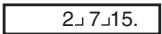
Example 2: 12 + 1.6
1 a%



- Fraction/decimal calculation results are always decimal.
Decimal-to-Fraction Conversion
Example: 2.75 234


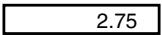

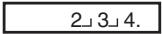


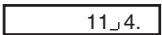
Fraction-to-Decimal Conversion
Example: 12 0.5 (Fraction Decimal)

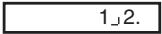
a型 0.5
a1 1.2.
Percentage Calculations
- Use the COMP mode for percentage calculations.
Example 1: To calculate 12% of 1500
1500 12 SHIFT % 180.
Example 2: To calculate what percentage of 880 is 660
660 880 SHFT % 75.
Example 3: To add 15% onto 2500
2500×15SHIFT%+ 2875.
Example 4: To discount 3500 by 25%
3500 25 SHIFT % 2625.
- Example 5: If 300 grams are added to a test sample originally weighing 500 grams, what is the percentage increase in weight?
$$ \frac{300 + 500}{500}\times 100 = 160(\%) $$
300+500SHIFT % 160.
- Example 6: If temperature changes from 40^ to 46^ , what percentage did it rise?
$$ \frac{46 - 40}{40}\times 100 = 15(\%) $$
46 40 SHIFT % 15.
Scientific Function Calculations
- Use the COMP mode for scientific function calculations.
= 3.14159265359
Trigonometric/Inverse Trigonometric Functions
Example 1: sin63°52'41"
MODE MODE MODE 1 “D”
sin 63 52 41
0.897859012
D
Example 2: (3 rad)
MODE MODE MODE 2 → “R”
COS SHIFT 3
0.5
R
Example 3: ^-122 = 4 rad
MODE MODE MODE 2 →“R”
SHIFT COS 2 2 2
Ans SHIFT T
0.785398163
R
0.25
Example 4: tan-0.741
MODE MODE MODE 1 “D”
SHIFT tan 0.741
36.53844577
D
Hyperbolic/Inverse Hyperbolic Functions
Example 1: sinh 3.6
hyp sin 3.6
18.28545536
Example 2: ^-130
hyp shHf sin 30
4.094622224
Angle Unit Conversion
- Press SHIFT DRG to display the following menu.
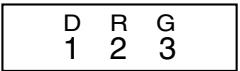
- Pressing ① , ② , or ③ converts the displayed value to the corresponding angle unit.
Example: To convert 4.25 radians to degrees
MODE MODE MODE 1 “D”
4.25 1SHIFT DNO 2 (R)
4.25r 243.5070629
Common and Natural Logarithms/ Antilogarithms
Example 1: log 1.23
log 1.23
0.089905111
Example 2: In 90 (=loge 90)
In 90
4.49980967
Example 3: e^10
SHIFT e10
22026.46579
Example 4: 10^1.5
SHIFT 1.5
31.6227766
Example 5: 2^4
2 4
16.
Square Roots, Cube Roots, Roots, Squares, Cubes, Reciprocals, Factorials, Random Numbers and
Example 1: 2 +3× 5
√2+√3X√5
5.287196909
Example 2: [3]5 + [3]-27
SHIFT 5 + SHIFT 27 -1.290024053
(fx-100W/fx-115W:
Example 3: [7]123 (= 123^17)
7SNIF 123 1.988647795
Example 4: 123 + 30^2
123+30 1023.
Example 5: 12^3
12 1728.
Example 6: 113 - 14
3x4x12.
Example 7:8!
8 SHIFT x' 40320.
Example 8: To generate a random number between 0.000 and 0.999
Shift1 Rame 0.664
Example (results differ each time)
Example 9: 3
3 SHIFT 9.424777961
FIX,SCI,RND
Example 1: 200 ÷ 7 × 14 = 400
200÷7×14 400.
Specifies three decimal places.
- Press MODE MODE MODE MODE 3 1 to clear FIX specification.
- Example 2: 1 ÷ 3 , displaying result with two significant digits (SCI 2)
- Press MODE MODE MODE MODE 3 1 to clear SCI specification.
ENG Calculations
Example 1: To convert 56,088 meters to kilometers
56088 ENG 56.088°3
Example 2: To convert 0.08125 grams to milligrams
0.08125 EMG 81.25-03
■ Inputting ENG Calculation Symbols
- MODE MODE MODE MODE MODE 1 enters the ENG mode in which ENG symbols can be used in calculations.
To exit the ENG mode, press MODE MODE MODE MODE 2. - The following are the nine ENG symbols that can be used in ENG mode calculations.
| Key Operation | Unit | Symbol |
| SHIFT k | 103 | k (kilo) |
| SHIFT M | 106 | M (Mega) |
| SHIFT G | 109 | G (Giga) |
| SHIFT T | 1012 | T (Tera) |
| SHIFT m | 10-3 | m (milli) |
| SHIFT μ | 10-6 | μ (micro) |
| SHIFT n | 10-9 | n (nano) |
| SHIFT p | 10-12 | p (pico) |
| SHIFT f | 10-15 | f (femto) |
- For displayed values, the calculator selects the ENG symbol that makes the numeric part of the value fall within the range of 1 to 1000.
- ENG symbols cannot be used when inputting fractions.
- The ENG mode cannot be used in combination with the CMPLX, or BASE-N modes.
- Performing any of the key operations in the above table while you are not in the ENG mode inputs the exponential value in the "Unit" column (without inputting the ENG symbol).
Example: 9 ÷ 10 = 0.9 m (milli)
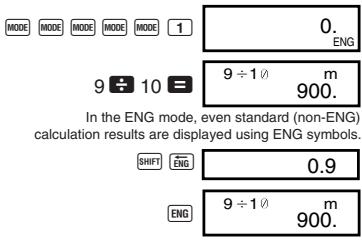
Coordinate Conversion (Pol(x,y),Rec(r,))
- Calculation results are automatically assigned to variables E and F.
Example 1: To convert polar coordinates (r = 2, = 60^) to rectangular coordinates (x, y) (DEG mode)

- RCL E, RCL F swaps displayed value with value in memory.
Example 2: To convert rectangular coordinates (1, 3) to polar coordinates (r, ) (RAD mode)

E-18
- RCL E, RCL F swaps displayed value with value in memory.
Permutation
-
Example: To determine how many different 4-digit values can be produced using the numbers 1 through 7
-
Numbers cannot be duplicated within the same 4-digit value (1234 is allowed, but 1123 is not).
7SHIFT4840.
Combination
- Example: To determine how many different 4-member groups can be organized in a group of 10 individuals
10 SHIFT 4 210.
Statistical Calculations
Standard Deviation (SD Mode)
- Press MODE 1 to enter the SD Mode for statistical calculations using standard deviation.
- Data input always starts with SHFT [Se] to clear statistical memory.
- Input data is used to calculate values for n , x , x^2 , , _n and _n-1 which you can recall using the key operations noted nearby.
| RCL | A | Σx2 |
| RCL | B | Σx |
| RCL | C | n |
| SHIFT | X̅ | Θn |
| SHIFT | Σnθ | Θn-1 |
Example: To calculate _n - 1 _n ,n, x and x^2 for the following data:55,54,51,55,53,53,54,52
Enter SD Mode MODE 1
(3) (Memory Clear)
55DT54DT51DT55DT
53DTDT54DT52DT
- SD
(Sample Standard Deviation On - 1
SHIFT XOn-1
1.407885953
(Population Standard Deviation G_n )
SHIFT Xσn
1.316956719
(Arithmetic Mean )
SHF X
53.375
(Number of Data n
RCL C
8.
(Sum of Values x )
RCL B
427.
(Sum of Squares of Values x^2 )
RCL A
22805.
Data Input Precautions
- DT inputs the same data twice.
- You can also input multiple entries of the same data using ; To input the data 110 ten times, for example, press 110 ; 10 DT.
- The above results can be obtained in any order, and not necessarily that shown above.
To delete data you have just input, press SHIFT CL.
■ Probability Distribution Calculations
- Press SHIFT DISTR to produce the screen shown below.
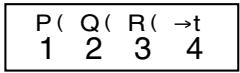
- Input a value from 1 to 4 to select the probability distribution calculation you want to perform.
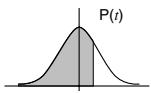
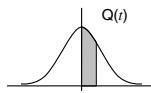
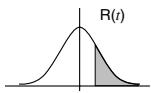
E-20
- Example: Using the x -data values input in the example on page 20, determine the normalized variate ( t) for x = 53 and normal probability distribution P(t) .
53 SHFT DISTR 4 (→t) -0.284747398
SHIFT DISTR 1 (P(-0.28 3 0.38974
■ Regression Calculations (REG Mode)
- Press MODE 2 to enter the REG mode and then select one of the following regression types.
1: Linear regression
2: Logarithmic regression
3: Exponential regression
1:Power regression
2: Inverse regression
3: Quadratic regression
- Data input always starts with SHIFT [Sc] to clear statistical memory.
- The values produced by a regression calculation depend on the values input, and results can be recalled using the key operations shown in the table below.
| RCL A | Σx2 | SHIFT | xON-d | xON-1 |
| RCL B | Σx | SHIFT | y̅ | y̅ |
| RCL C | n | SHIFT | yON | yON |
| RCL D | Σy2 | SHIFT | yON-d | yON-1 |
| RCL E | Σy | SHIFT | A | Regression coefficient A |
| RCL F | Σxy | SHIFT | B | Regression coefficient B |
| RCL M | Σx3 | SHIFT | C | Regression coefficient C |
| RCL X | Σx2y | SHIFT | T | Correlation coefficient r |
| RCL Y | Σx4 | SHIFT | X̂ | x̂ |
| SHIFT x̂ | x̂ | SHIFT | ŷ | ŷ |
| SHIFT xON | xON |
- Linear Regression
The regression formula for linear regression is: y = A + Bx .
Example: Atmospheric Pressure vs. Temperature
| Temperature | Atmospheric Pressure |
| 10°C | 1003 hPa |
| 15°C | 1005 hPa |
| 20°C | 1010 hPa |
| 25°C | 1011 hPa |
| 30°C | 1014 hPa |
Perform linear regression to determine the regression formula terms and correlation coefficient for the data nearby. Next, use the regression formula to estimate atmospheric pressure at 18^ and temperature at 1000hPa .
Enter REG Mode (Linear Regression)
MODE MODE 21
SHIFT Scl (Memory Clear)
10 1003 15 1005
20 1010 DT 25 1011 DT
30 1014 DT
30.
(Correlation Coefficient r )
SHIFT r 0.982607368
(Atmospheric Pressure at 18^ )
18SHIFT 1007.48
(Temperature at 1000 hPa)
1000 SHIFT | 4.642857143
- Quadratic Regression
- The regression formula for quadratic regression is: y = A + Bx + Cx^2 .
- Input data using the following key sequence.
Example:
| xi | yi |
| 29 | 1.6 |
| 50 | 23.5 |
| 74 | 38.0 |
| 103 | 46.4 |
| 118 | 48.0 |
Perform quadratic regression to determine the regression formula terms and correlation coefficient for the data nearby. Next, use the regression formula to estimate the values for (estimated value of y ) for xi = 16 and (estimated value of x ) for yi = 20 .
Enter REG mode (Quadratic regression)
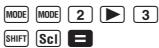
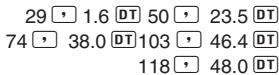
- DT inputs the same data twice.
- You can also input multiple entries of the same data using . To input the data "20 and 30" five times, for example, press 20 30 5 DT.
- The above results can be obtained in any order, and not necessarily that shown above.
To delete data you have just input, press SHIFT CL.
Complex Number Calculations (CMPLX Mode)
- Press MODE 2 to enter the CMPLX Mode for calculations that include complex numbers.
- You can use variables A, B, C and M only. Variables D, E, F, X, and Y are used for storage of the imaginary parts of values and so cannot be used by you.
Example: (2 + 3i) + (4 + 5i)
Enter CMPLX Mode MODE 2
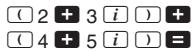
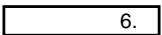
Real number part

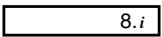
Imaginary number part
Absolute Value/Argument Calculation
- The procedure described below can be used to determine the absolute value (Abs) and argument (arg) for a complex number of the format Z = a + bi , which is presumed to exist as coordinates on a Gaussian plane.
- Example: To obtain the absolute value (r) and argument () for the complex number 3 + 4i , when DEG is set for the angle unit mode
Imaginary number axis
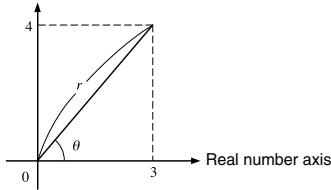
Determine the absolute value.

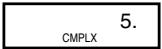
Determine the argument.

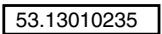
Formula Memory
- Formula memory lets you input a single formula in memory, and then input values for the formula's variables to calculate results.
Memory can hold a single formula, up to 79 steps long. This function can be used in the COMP or CMPLX mode only.
Note that the formula is actually stored in memory when you press the key in the sequence below.
Example: To save the following formula, recall it, and then use it to calculate a result: Y = X^2 + 3X - 12
Input the formula.

Store it in memory.
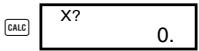
Input a value for its variable.

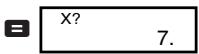

- Formula memory is cleared whenever you start a new calculation, change to another mode, or turn off power.
Metric Conversions (fx-570W/fx-991W)
- A total of 20 different conversion pairs are built-in to provide quick and easy conversion to and from metric units.
- See the Conversion Pair Table on page 26 for a complete list of available conversion pairs.
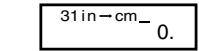
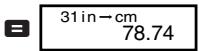
Example: To convert 31 inches to centimeters
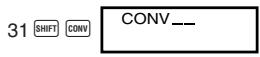
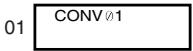
01 is the inches-to-centimeters conversion pair number.
- Conversion Pair Table
Based on ISO Standard (1992) data and CODATA Bulletin 63 (1986) data.
| Number | Conversion Pair | Number | Conversion Pair |
| 01 | in → cm | 21 | oz → g |
| 02 | cm → in | 22 | g → oz |
| 03 | ft → m | 23 | lb → kg |
| 04 | m → ft | 24 | kg → lb |
| 05 | yd → m | 25 | atm → Pa |
| 06 | m → yd | 26 | Pa → atm |
| 07 | mile → km | 27 | mmHg → Pa |
| 08 | km → mile | 28 | Pa → mmHg |
| 09 | n mile → m | 29 | hp → kW |
| 10 | m → n mile | 30 | kW → hp |
| 11 | acre → m² | 31 | kgf/cm² → Pa |
| 12 | m² → acre | 32 | Pa → kgf/cm² |
| 13 | gal (US) → ℓ | 33 | kgf·m → J |
| 14 | ℓ → gal (US) | 34 | J → kgf·m |
| 15 | gal (UK) → ℓ | 35 | lbf/in² → kPa |
| 16 | ℓ → gal (UK) | 36 | kPa → lbf/in² |
| 17 | pc → km | 37 | °F → °C |
| 18 | km → pc | 38 | °C → °F |
| 19 | km/h → m/s | 39 | J → cal |
| 20 | m/s → km/h | 40 | cal → J |
Scientific Constants (fx-570W/fx-991W)
- A total of 40 commonly-used scientific constants, such as the speed of light in a vacuum and Planck's constant are built-in for quick and easy lookup whenever you need them.
- Simply input the number that corresponds to the scientific constant you want to look up and it appears instantly on the display.
See the Scientific Constant Table on pages 27 and 28 for a complete list of available constants.
Example: To determine how much total energy a person weighing 65kg has (E = mc^2)
65
CONST
CONST--
28
CONST28
28 is the "speed of light in vacuum" constant number.
65Co_
0.
65Co²
0.


65Co²
5.841908662 18
Scientific Constant Table
Based on ISO Standard (1992) data and CODATA Bulletin 63 (1986) data.
| Number | Constant Name | Symbol |
| 01 | proton mass | mp |
| 02 | neutron mass | mn |
| 03 | electron mass | me |
| 04 | muon mass | mμ |
| 05 | Bohr radius | a0 |
| 06 | Planck's constant | h |
| 07 | nuclear magneton | μN |
| 08 | Bohr magneton | μB |
| 09 | Planck's constant, rationalized (h-bar) | λ |
| 10 | fine-structure constant | α |
| 11 | classical electron radius | re |
| 12 | electron Compton wavelength | λc |
| 13 | proton gyromagnetic ratio | γp |
| 14 | proton Compton wavelength | λcp |
| 15 | neutron Compton wavelength | λcn |
| 16 | Rydberg constant | R∞ |
| 17 | atomic mass unit | u |
| 18 | proton magnetic moment | μp |
| 19 | electron magnetic moment | μe |
| 20 | neutron magnetic moment | μn |
| 21 | muon magnetic moment | μμ |
| 22 | Faraday constant | F |
| 23 | elementary charge | e |
| 24 | Avogadro constant | NA |
| 25 | Boltzmann constant | k |
| 26 | molar volume of ideal gas | Vm |
| 27 | molar gas constant | R |
| 28 | speed of light in vacuum | C0 |
| 29 | first radiation constant | C1 |
| 30 | second radiation constant | C2 |
| 31 | Stefan-Boltzmann constant | σ |
| 32 | permittivity of vacuum | ε0 |
| 33 | permeability of vacuum | μ0 |
| 34 | magnetic flux quantum | φ0 |
| 35 | standard acceleration of gravity | g |
| 36 | astronomical unit | AU |
| 37 | parsec | pc |
| 38 | Celsius temperature | t |
| 39 | Newtonian constant of gravitation | G |
| 40 | standard atmosphere | atm |
Base- n Calculations
- In addition to decimal values, calculations can be performed using binary, octal and hexadecimal values.
- You can specify the default number system to be applied to all input and displayed values, and the number system for individual values you input.
- You cannot use scientific functions in binary, octal, decimal, and hexadecimal calculations. You cannot input values that include decimal part and an exponent.
- If you input a value that includes a decimal part, the unit automatically cuts off the decimal part.
- Negative binary, octal, and hexadecimal values are produced by taking the two's complement.
-
You can use the following logical operators between values in Base- n calculations: and (logical product), or (logical sum), × or (exclusive logical sum), × n nor (exclusive logical sum negation), Not (negation), and Neg (minus).
-
The following are the allowable ranges for each of the available number systems.
Binary 100000000 ≤ x≤ 111111111
$$ 0 \leq x \leq 0 1 1 1 1 1 1 1 1 $$
Octal 4000000000 ≤ x≤ 7777777777
$$ 0 \leq x \leq 3 7 7 7 7 7 7 7 7 7 $$
Decimal -2147483648 ≤ x≤ 2147483647
Hexadecimal 80000000 ≤ x≤q FFFFFFFF
$$ 0 \leq x \leq 7 F F F F F F $$
Example 1: To perform the following calculation and produce a binary result:
10111+11010
Binary mode



Example 2: To perform the following calculation and produce an octal result:
7654_8÷ 12_10
Octal mode



Example 3: To perform the following calculation and produce a hexadecimal result:
120_16 or 1101_2
Hexadecimal mode

12016 Logic 2 (or)


Integration Calculations
- The following four inputs are required for integration calculations: a function with the variable x ; a and b , which define the integration range of the definite integral; and n , which is the number of partitions (equivalent to N = 2^n ) for integration using Simpson's rule.
fds expression a b n
- Use the COMP mode for integration calculations.
Example: To calculate: _1^5(2x^2 + 3x + 8)dx
fdx2ALPHA X X+3 ALPHA X
8□1□5□6
0.
150.6666667
Note!
- You can specify an integer in the range of 1 to 9 as the number of partitions, or you can skip input of the number of partitions entirely, of you want.
- Internal integration calculations may take considerable time to complete.
- Display contents are cleared while an integration calculation is being performed internally.
Degrees, Minutes, Seconds Calculations
- You can perform sexagesimal calculations using degrees (hours), minutes, and seconds, and convert between sexagesimal and decimal values.
Example 1: To convert the decimal value 2.258 to a sexagesimal value
2.258 2.258
SHIFIT 2°15°28.8
Example 2: To perform the following calculation:
12^34'56''× 3.45
12 34 56 3.45
43°24'31.2
Technical Information
■ When you have a problem......
If calculation results are not what you expect or if an error occurs, perform the following steps.
- MODE 1 (COMP mode)
- MODE MODE MODE 1 (DEG mode)
- MODE MODE MODE MODE 3 1 (NORM 1 mode)
- Check the formula you are working with to confirm it is correct.
- Enter the correct modes to perform the calculation and try again.
fx-570W/fx-100W>
If the above steps do not correct your problem, press the P button (see page 35 or 36) on the back of the calculator to reset it. Pressing the P button deletes all data stored in calculator memory. Make sure you always keep written copies of all important data.
fx-991W/fx-115W>
If the above steps do not correct the problem, press the ON key. The calculator performs a self-check operation and deletes all data stored in memory if any abnormality is detected. Make sure you always keep written copies of all important data.
■ Error Messages
The calculator is locked up while an error message is on the display. Press to clear the error, or press or to display the calculation and correct the problem. See "Error Locator" on page 10 for details.
Ma ERROR
Cause
- Calculation result is outside the allowable calculation range.
-
Attempt to perform a function calculation using a value that exceeds the allowable input range.
-
Attempt to perform an illogical operation (division by zero, etc.).
Action
- Check your input values and make sure they are all within the allowable ranges. Pay special attention to values in any memory areas you are using.
Stk ERROR
Cause
- Capacity of the numeric stack or operator stack is exceeded.
Action
- Simplify the calculation. The numeric stack has 10 levels and the operator stack has 24 levels.
- Divide your calculation into two or more separate parts.
Syn ERROR
Cause
- Attempt to perform an illegal mathematical operation.
Action
- Press or to display the calculation with the cursor located at the location of the error. Make necessary corrections.
Arg ERROR
Cause
- Improper use of argument
Action
- Press or to display the location of the cause of the error and make required corrections.
Order of Operations
Calculations are performed in the following order of precedence.
① Coordinate transformation: Pol (x, y) , Rec (r, )
Integrations: dx
② Type A functions:
With these functions, the value is entered and then the function key is pressed.
x^2,x^-1,x!, ,
③ Powers and roots: x^y, x
④ a^b / c
⑤ Abbreviated multiplication format in front of , memory name, or variable name: 2 , 5A , A etc.
⑥ Type B functions:
With these functions, the function key is pressed and then the value is entered.
, [3]·s , log, In, e^x 10, sin, cos, tan, ^-1 ^-1 tan-1, sinh, cosh, tanh, ^-1 , ^-1 , tanh-1, (-)
⑦ Abbreviated multiplication format in front of Type B functions: 23 Alog2 etc.
(8) Permutation and combination: nPr, nCr
⑨ x, ÷
⑩ +, -
- Operations of the same precedence are performed from right to left. e^x 120 e^xf (120)
Other operations are performed from left to right. - Operations enclosed in parentheses are performed first.
Stacks
This calculator uses memory areas, called "stacks," to temporarily store values (numeric stack) and commands (command stack) according to their precedence during calculations. The numeric stack has 10 levels and the command stack has 24 levels. A stack error (Stk ERROR) occurs whenever you try to perform a calculation that is so complex that the capacity of a stack is exceeded.
Power Supply
The type of battery you should use depends on the model number of your calculator.
fx-991W/fx-115W>
The TWO WAY POWER system actually has two power supplies: a solar cell and a G13 Type (LR44) button battery. Normally, calculators equipped with a solar cell alone can operate only when relatively bright light is present. The TWO WAY POWER system, however, lets you continue to use the calculator as long as there is enough light to read the display.
- Replacing the Battery
Either of the following symptoms indicates battery power is low, and that the battery should be replaced.
- Display figures are dim and difficult to read in areas where there is little light available.
- Nothing appears on the display when you press the ON key.
To replace the battery
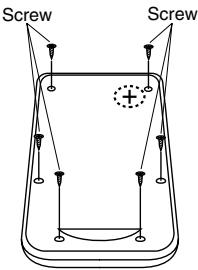
① Remove the six screws that hold the back cover in place and then remove the back cover.
② Remove the old battery.
③ Wipe off the sides of new battery with a dry, soft cloth. Load it into the unit with the positive side facing up (so you can see it).
④ Replace the back cover and secure it in place with the six screws.
⑤ Press ON to turn power on. Be sure not to skip this step.
fx-570W>
This calculator is powered by single G13 Type (LR44) button battery.
- Replacing the Battery
Dim figures on the display of the calculator indicate that battery power is low. Continued use of the calculator when the battery is low can result in improper operation. Replace the battery as soon as possible when display figures become dim.
To replace the battery
① Press OFF to turn power off.
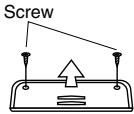
Remove the two screws that hold the battery cover in place and then remove the battery cover.
③ Remove the old battery.
④ Wipe off the side of new battery with a dry, soft cloth. Load it into the unit with the positive side facing up (so you can see it).
⑤ Replace the battery cover and secure it in place with the two screws.
Use a thin, pointed object to press the P button. Be sure not to skip this step.
⑦ Press AC to turn power on.
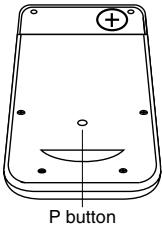
fx-100W>
This calculator is powered by single AA-size battery.
- Replacing the Battery
Dim figures on the display of the calculator indicate that battery power is low. Continued use of the calculator when the battery is low can result in improper operation. Replace the battery as soon as possible when display figures become dim.
To replace the battery
① Press OFF to turn power off.
② Remove the six screws that hold the back cover in place and then remove the back cover.
③ Remove the old battery.
4 Load a new battery into the unit so it's positive and negative sides are facing correctly.
⑤ Replace the back cover and secure it in place with the six screws.
⑥ Use a thin, pointed object to press the P button. Be sure not to skip this step.
⑦ Press AC to turn power on.
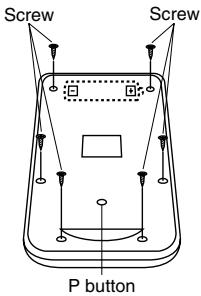
- Auto Power Off
Calculator power automatically turns off if you do not perform any operation for about six minutes. When this happens, press (fx-991W/fx-115W:ON) to turn power back on.
Input Ranges
Internal digits: 12
Accuracy: As a rule, accuracy is ± 1 at the 10th digit.
| Functions | Input Range | |
| sinx | DEG | 0≤|x|≤4.49999999×10¹⁰ |
| RAD | 0≤|x|≤785398163.3 | |
| GRA | 0≤|x|≤4.49999999×10¹⁰ | |
| cosx | DEG | 0≤|x|≤4.500000008×10¹⁰ |
| RAD | 0≤|x|≤785398164.9 | |
| GRA | 0≤|x|≤5.000000009×10¹⁰ | |
| tanx | DEG | Same as sinx, except when |x|= (2n-1)×90. |
| RAD | Same as sinx, except when |x|= (2n-1)×π/2. | |
| GRA | Same as sinx, except when |x|= (2n-1)×100. | |
| sin-1x | 0≤|x|≤1 | |
| cos-1x | ||
| tan-1x | 0≤|x|≤9.999999999×1099 | |
| sinh x | 0≤|x|≤230.2585092 | |
| cosh x | ||
| sinh-1x | 0≤|x|≤4.999999999×1099 | |
| cosh-1x | ||
| tanh x | 0≤|x|≤9.999999999×10⁻¹ | |
| tanh-1x | ||
| log x/ln x | 0< x | |
| 10x | -9.999999999×1099≤ x ≤ 99.99999999 | |
| ex | -9.999999999×1099≤ x ≤ 230.2585092 | |
| √x | 0≤ x< 1 × 10100 | |
| x2 | |x|< 1 × 1050 | |
| 1/x | |x|< 1 × 10100; x ≠ 0 | |
| 3√x | |x|< 1 × 10100 | |
| x! | 0≤ x≤ 69 (x is an integer) | |
| Functions | Input Range | |
| nPr | 0≤ n ≤99, r ≤ n (n, r is an integer) 1≤ {n/(n-r)!} ≤ 9.999999999×1099 | |
| nCr | 0≤ n ≤99, r ≤ n (n, r is an integer) | |
| Pol(x, y) | |x|, |y| ≤9.999999999×1049 (x2+y2) ≤9.999999999×1099 | |
| Rec(r, θ) | 0≤ r ≤9.999999999×1099 θ: Same as sinx, cosx | |
| ○", " | |a|, b, c < 1×10100 0 ≤ b, c | |
| ←" | |x|<1×10100 Decimal ↔ Sexagesimal Conversions 0°00'00' ≤ |x| ≤9999999°59° | |
| xy | x>0: -1×10100<ylogx<100 x=0: y>0 x<0: y=n, 1/2n+1 (n is an integer) However: -1×10100<ylog|x|<100 | |
| x√y | y>0: x≠0 -1×10100<1/x logy<100 y=0: x>0 y<0: x=2n+1, 1/n (n ≠ 0; n is an integer) However: -1×10100<1/x log|y|<100 | |
| ab/c | Total of integer, numerator, and denominator must be 10 digits or less (including division marks). | |
| SD(REG) | |x|<1×1050 |y|<1×1050 |n|<1×10100 xσn, yσn, x̅, y̅ A, B, r: n ≠ 0 xσn-1, yσn-1: n ≠ 0, 1 | |
- Erros are cumulative with such internal continuous calculations as x^y, [x]x , x! , and [3]x , so accuracy may be adversely affected.
Specifications
Power Supply:
fx-100W: Single AA-size battery (R6P (SUM-3))
fx-570W: Single G13 Type button battery (LR44)
fx-115W/fx-991W:
Solar cell and a single G13 Type button battery (LR44)
Battery Life:
fx-100W: Approximately 17,000 hours continuous display of flashing cursor.
Approximately 2 years when left with power turned off.
fx-570W: Approximately 12,000 hours continuous display of flashing cursor.
Approximately 3 years when left with power turned off.
fx-115W/fx-991W:
Approximately 3 years (1 hour use per day).
Dimensions:
fx-100W: 19.2(H)× 76(W)× 164(D) mm
3/4"(H)X3"(W)X67/16"(D)
fx-115W/fx-570W/fx-991W:
10(H)×76(W)×150(D) mm
3/8"(H) 3^ (W)× 5^7 / 8^ (D)
Weight:
fx-100W: 114g (4 oz) including battery
fx-115W/fx-570W/fx-991W:85g (3oz) including battery
Power Consumption: 0.0001W
Operating Temperature: 0^ 40^ ( 32^ 104^ )
CE
CASIO ELECTRONICS CO., LTD.
Unit 6, 1000 North Circular Road,
London NW2 7JD, U.K.
CASIO
CASIO COMPUTER CO., LTD.
6-2, Hon-machi 1-chome Shibuya-ku, Tokyo 151-8543, Japan
- - ENGLISH
- Removing and Replacing the Calculator's Cover
- To Remove the cover
- To Replace the cover
- Safety Precautions
- Caution
- Batteries
- Disposing of the Calculator
- Handling Precautions
- Contents
- Statistical Calculations 19
- Complex Number Calculations
- (CMPLX Mode) 23
- Formula Memory 24
- Metric Conversions (fx-570W/fx-991W) 25
- Scientific Constants (fx-570W/fx-991W) .... 26
- Base- n Calculations 28
- Integration Calculations 30
- Degrees, Minutes, Seconds Calculations .... 30
- Technical Information 31
- Specifications 39
- Two-line Display
- You can simultaneously check the calculation formula and its answer.
- Key Layout
- Before Starting Calculations...
- Note!
- Input Capacity
- Making Corrections During Input
- Replay Function
- ■ Error Locator
- Exponential Display Formats
- NORM1
- NORM2
- Answer Memory
- Basic Calculations
- Memory Calculations
- Independent Memory
- Variables
- Fraction Calculations
- ■ Fraction Calculations
- Decimal-to-Fraction Conversion
- Fraction-to-Decimal Conversion
- Percentage Calculations
- Scientific Function Calculations
- Trigonometric/Inverse Trigonometric Functions
- Hyperbolic/Inverse Hyperbolic Functions
- Angle Unit Conversion
- Common and Natural Logarithms/ Antilogarithms
- Square Roots, Cube Roots, Roots, Squares, Cubes, Reciprocals, Factorials, Random Numbers and
- FIX,SCI,RND
- ENG Calculations
- ■ Inputting ENG Calculation Symbols
- Coordinate Conversion (Pol(x,y),Rec(r,))
- Permutation
- Combination
- Statistical Calculations
- Standard Deviation (SD Mode)
- Data Input Precautions
- ■ Probability Distribution Calculations
- ■ Regression Calculations (REG Mode)
- - Linear Regression
- Enter REG Mode (Linear Regression)
- - Quadratic Regression
- Example:
- Enter REG mode (Quadratic regression)
- Complex Number Calculations (CMPLX Mode)
- Absolute Value/Argument Calculation
- Formula Memory
- Metric Conversions (fx-570W/fx-991W)
- - Conversion Pair Table
- Scientific Constants (fx-570W/fx-991W)
- Scientific Constant Table
- Base- n Calculations
- Integration Calculations
- Degrees, Minutes, Seconds Calculations
- Technical Information
- ■ When you have a problem......
- fx-570W/fx-100W>
- fx-991W/fx-115W>
- ■ Error Messages
- Ma ERROR
- Cause
- Action
- Stk ERROR
- Syn ERROR
- Arg ERROR
- Order of Operations
- Stacks
- Power Supply
- - Replacing the Battery
- To replace the battery
- - Auto Power Off
- Input Ranges
- Internal digits: 12
- Specifications
- Power Supply:
- Battery Life:
- Dimensions:
- Weight:
- Power Consumption: 0.0001W
- CASIO
Brand : CASIO
Model : FX-570W
Category : Scientific calculator