USER MANUAL FX-250HC CASIO
Basic Calculations ... 5
Constant Calculations ... 6
Memory Calculations ... 7
Fraction Calculations ... 8
Percentage Calculations ... 10
Scientific Function Calculations ... 11
Statistical Calculations (SD Mode) ... 16
Technical Information ... 18
Handling Precautions
- Your calculator is made up of precision components. Never try to take it apart.
- Avoid dropping your calculator and otherwise subjecting it to strong impact.
- Do not store the calculator or leave it in areas exposed to high temperature or humidity, or large amounts of dust. When exposed to low temperature, the calculator may require more time to display results and may even fail to operate. Correct operation will resume once the calculator is brought back to normal temperature.
- The display will go blank and keys will not operate during calculations. When you are operating the keyboard, be sure to watch the display to make sure that all your key operations are being performed correctly.
- Never leave dead batteries in the battery compartment. They can leak and damage the unit.
- Avoid using volatile liquids such as thinner or benzine to clean the unit. Wipe it with a soft cloth, or with a cloth that has been dipped in a solution of water and a neutral detergent and wring out.
- In no event will the manufacturer and its suppliers be liable to you or any other person for any damages, expenses, lost profits, lost savings, or any other damages arising out of malfunction, repairs, or battery replacement. The user should prepare physical records of data to protect against such data loss.
- Never dispose of batteries, the liquid crystal panel, or other components by burning them.
- Before assuming malfunction of the unit, be sure to carefully reread this manual and ensure that the problem is not due to low battery power or operational error.
- The contents of this manual are subject to change without notice.
- No part of this manual may be reproduced in any form without the express written consent of the manufacturer.
- Keep this manual on hand for future reference.
Modes
| Application | Key Operation | Mode Name* |
| Standard deviation calculations | MODE • | SD |
| Normal calculations | MODE 0 | COMP |
| Calculations using degrees | MODE 4 | DEG |
| Calculations using radians | MODE 5 | RAD |
| Calculations using grads | MODE 6 | GRA |
| Number of decimal place specification | MODE 7 | FIX |
| Number of significant digit specification | MODE 8 | SCI |
| Cancels FIX and SCI settings | MODE 9 | NORM |
* Display indicators show current mode setting. Absence of display indicator indicates COMP Mode.
Note!
- A mode guide is located above the display screen.
- DEG, RAD, and GRA modes can be used in combination with the COMP and SD modes. • MODE 9 does not exit SD mode. • MODE 0 exits SD mode. • MODE 0 does not clear SCI or FIX specifications.
- Always press AC before entering DEG, RAD, and GRA modes.
- Remember to always set the operating mode and angular unit (DEG, RAD, GRA) before starting your calculation.
Basic Calculations
- Use the COMP mode for basic calculations. • Example 1: 23+4.5-53
23 + 4.5 - 53 = -25.5
• Example 2: 56 × (-12) ÷ (-2.5)
56 × 12 +/- ÷ 2.5 +/- = 268.8
• Example 3: 2 ÷ 3 × (1 × 10^20)
4 × 5 ÷ 6 SHIFT X-Y = 0.3
• Example 6: 2 × [7 + 6 × (5 + 4)] = 122
2 × [⋯] 7 + 6 ×
[(-⋯ 5 + 4 ⋯)] [⋯] = 122.
- You can skip all ⋯ operations before the Ⓞ key.
Constant Calculations
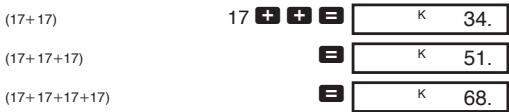
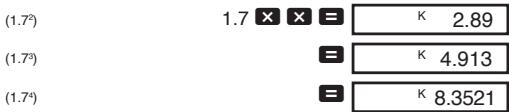
- Press +, -, ×, or ÷ twice after inputting a number to make that number a constant.
- “K” is on the display while a constant is being used.
- Use the COMP mode for constant calculations.
• Example 1: 2.3+3, then 2.3+6

• Example 2: 12 × 2.3 , then 12 × (-9)

• Example 3: 17+17+17+17=68
• Example 4: 1.74=8.3521
Memory Calculations
- Use the COMP mode for memory calculations.
- Use Min, M+, SHIFT M- and MR for memory calculations. Min replaces current memory contents.
- “M” appears when there is a value in memory.
- To clear memory, press 0 Min or AC Min.
• Example 1: (53+6)+(23-8)+(56×2)+(99÷4)=210.75
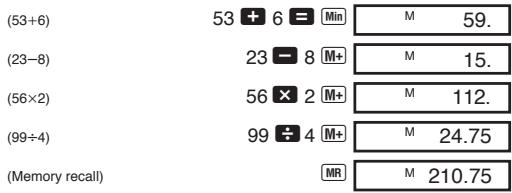
- Example 2: To calculate the following using memory as shown.
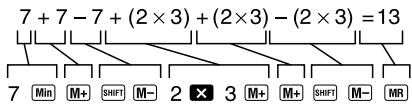
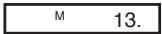
- Example 3: To calculate the following using memory and a constant: (12× 3) - (45× 3) + (78× 3) = 135 .
| (12×3) | 3 × × 12 = Min | MK | 36. |
| (45×3) | 45 SHIFT M- | MK | 135. |
| (78×3) | 78 M+ | MK | 234. |
| (Memory recall) | | MR | 135. |
Fraction Calculations
- Use COMP mode for fraction calculations.
- Total number of digits (including division marks) cannot exceed 10. • Example 1: 2/3 + 4/5 = 17/15
2 a % 3 + 4 a % 5 = 1 7 1 5.
• Example 2: 31/4 + 12/3 = 411/12
3 a % 1 a % 4 +
1 a % 2 a % 3 = 4 _ 1 1 1 _ 1 1 2.
• Example 3: 2/4 = 1/2
2 a % 4 2 _ 4.
= 1 _ 2.
• Example 4: 1/2 + 1.6 = 2.1
1 % 2 + 1.6 = 2.1
Fraction/decimal calculation result is always decimal.
• Example 5: 1/2 ⇔ 0.5 (Fraction ⇔ Decimal)
1 a% 2 = 1_2.
a% 0.5
a% 1_2.
• Example 6: 12/3 ⇔ 5/3
Percentage Calculations
- Use COMP mode for percentage calculations. • Example 1: To calculate 12% of 1500.
1500 × 12 SHIFT % 180.
• Example 2: To calculate what percentage of 880 is 660.
660 ÷ 880 SHIFT % 75.
• Example 3: To add 15% onto 2500.
2500 ✗ 15 SHIFT % + 2875.
• Example 4: To discount 3500 by 25%.
3500 ✗ 25 SHIFT % - 2625.
• Example 5: To calculate the following, using a constant.
12% of 1200 = 144
18% of 1200 = 216
23% of 1200 = 276
| (12%) | 1200 × × 12 SHIFT % | K | 144. |
| (18%) | 18 SHIFT % | K | 216. |
| (23%) | 23 SHIFT % | K | 276. |
Scientific Function Calculations
- Use COMP mode for scientific function calculations.
- Some calculations may take a long time to complete.
- Wait for result before starting next calculation. • π=3.1415926536.
■Sexagesimal ↔ Decimal Conversion
• Example: 14°25'36" ↔ 14.42667
14 ◦” 25 ◦” 36 ◦”
14.42666667
SHIFT
14°25°36
■Trigonometric/Inverse Trigonometric Functions
• Example 1: sin ( π/6 rad) (RAD mode)
SHIFT π ÷ 6 = sin
RAD
0.5
• Example 2: cos 63°52'41" (DEG mode)
63 °, 52 °, 41 °, cos
DEG
0.440283084
• Example 3: tan (-35 gra) (GRA mode)
35 +/- tan
GRA
-0.612800788
• Example 4: cos⁻¹(√2/2 rad) (RAD mode)
2 √ ÷ 2 = SHIFT cos ⁻¹
RAD
0.785398163
■ Hyperbolic/Inverse Hyperbolic Functions
• Example 1: sinh 3.6 3.6 hyp sin 18.28545536 • Example 2: sinh⁻¹ 30 30 hyp SHIFT sin ⁻¹ 4.094622224
■ Common and Natural Logarithms, Exponents
• Example 1: log 1.23 1.23 log 0.089905111
• Example 2: ln 90 (=logₑ 90) 90 ln 4.49980967
• Example 3: log 64 / log 4 64 log 4 log 3.
• Example 4: 100.4 + 5e-3
.4 SHIFT 10 x +
5 × 3 +/- SHIFT ex =
2.760821773
• Example 5: 23
2 SHIFT xy 3
8.
• Example 6: 2-3
2 SHIFT xy 3 +/-
0.125
• Example 7: e10
10 SHIFT ex
22026.46579
• Example 8: log sin 40° +log cos 35° (DEG mode)
40 sin
log
+
35
cos
log
=
DEG
-0.278567983
To convert to antilogarithm:
SHIFT
10x
DEG
0.526540784
• Example 9: 81/3
8
SHIFT
xI/y
3
=
■ Square Roots, Cube Roots, Squares, Reciprocals and Factorials
• Example 1: √2 + √3 × √5
2 √
+
3 √
×
5 √
=
5.287196909
• Example 2: √[3]5 + √[3]-27
5 SHIFT
3√
+
27
+/−
SHIFT
3√
=
-1.290024053
• Example 3: 123+302
123
+
30
SHIFT
2
=
• Example 4: 1/1/3-1/4
3
SHIFT
1/x
-
4
SHIFT
1/x
=
SHIFT
1/x
• Example 5: 8!
8 SHIFT x!
40320.
■FIX, SCI, NORM, RND, RAN#, ENG Calculations
- Example 1: 1.234 + 1.234 , rounding result to two places (FIX 2).
MODE 7 2
FIX 0.00
1.234 + 1.234 =
FIX
2.47
• Example 2: 1.234+1.234, rounding input to two places.
MODE 7 2 1.234 SHIFT RND +
1.234 SHIFT RND =
FIX
2.46
- Press MODE 9 to clear FIX specification.
- Example 3: 1 ÷ 3 , displaying result with two significant digits (SCI 2).
MODE 8 2
SCI
0.0 00
1 ÷ 3 =
SCI
3.3 -01
- Press MODE 9 to clear SCI specification.
• Example 4: To convert 56,088 meters to kilometers.
56088 ENG
56.088 03
• Example 5: To convert 0.08125 grams to milligrams.
.08125 ENG 81.25 -03
- Example 6: To generate a random number between 0.000 and 0.999.
Example (results differ each time)
SHIFT RAN#
0.664
■Coordinate Conversion
- Example 1: To convert polar coordinates (r = 2, θ = 60°) to rectangular coordinates (x, y) . (DEG mode)
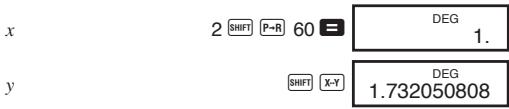
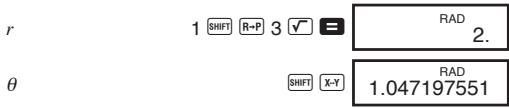
SHIFT X-Y swaps displayed value with value in memory.
- Example 2: To convert rectangular coordinates (1, √3) to polar coordinates (r, θ) . (RAD mode)
Permutation
- Example: To determine how many different 4-digit values can be produced using the numbers 1 through 7.
7 SHIFT nPr 4 840.
Combination
- Example: To determine how many different 4-member groups can be organized in a group of 10 individuals.
10 SHIFT nCr 4 210.
Statistical Calculations (SD Mode)
- Press MODE to enter the SD Mode for statistical calculations using standard deviation.
- If FIX or SCI is on the display, press MODE 9 first. • Data input always starts with SHIFT SAC.
- Example: To calculate σn-1 , σn , , n , x , and x2 for the following data : 55, 54, 51, 55, 53, 53, 54, 52.
Enter SD Mode. MODE 0. SD
Input Data. SHIFT SAC 55 DATA
54 DATA 51 DATA
55 DATA 53 DATA DATA
54 DATA 52 DATA
SD
52.
Sample standard deviation
SHIFT σn-1
SD 1.407885953
Population standard deviation
SHIFT On
SD 1.316956719
Arithmetic mean
SHIFT
x̄
Number of data
SHIFT
n
Sum of values
SHIFT
Σx
Sum of squares of values
SHIFT
x2
• DATA DATA inputs the same data twice (as above). - You can also input multiple entries of the same data using ✗. To input the data 110 ten times, for example, press 110 ✗ 10 DATA. - The above results can be obtained in any order, and not necessarily that shown above. - To delete data you have just input, press SHIFT DEL.
• Example 1: To change data you have just input.
| Correct | Actual | Correction |
| 51 DATA | 50 DATA | SHIFT DEL51 DATA |
| 130 ×31 DATA | 120 × | AC 130 ×31 DATA |
| 130 ×31 DATA | 120 ×31 | AC 130 ×31 DATA |
• Example 2: To change data you previously input.
| Correct | Actual | Correction |
| 51 DATA | 49 DATA | 49 SHIFT DEL51 DATA |
| 130 ×31 DATA | 120 ×30 DATA | 120 × 30 SHIFT DEL 130 ×31 DATA |
■Key and Their Functions
- General
Arithmetic calculations ..... +, -, ×,

Clear (retains memory) ...... c
Number input 0 - 9, •
Power off ....OFF
Power on; All clear AC
Sign change ....+/-
- Memory
Memory in ...... Min
Memory minus .... SHIFT M-
Memory plus M+
Memory recall .... MR
- Special
Decimal-to-sexagesimal .... SHIFT
Display/memory swap .... SHIFT X-Y,
SHIFT X-M
Exponent .... EXP
Internal rounding .... SHIFT RND
Parentheses ....[(...), ...)]
Pi (3.1415926536) SHIFT π
Select mode ...... MODE
Sexagesimal-to-decimal .....
Shifts key functions .... SHIFT
• Scientific Functions
Arc cosine .... SHIFT cos -1 Arc sine .... SHIFT sin -1 Arc tangent .... SHIFT tan -1 Common antilogarithm .... SHIFT 10 x Common logarithm log Cosine cos Cube root .... SHIFT √ Engineering ...... ENG , SHIFT ↔ ENG Factorial .... SHIFT x! Fraction a% Fraction .... SHIFT d/c Hyperbolic ...... hyp Natural antilogarithm .... SHIFT ex Natural logarithm In Percent .... SHIFT % Polar-to-rectangular .... SHIFT P→R Power .... SHIFT xy Random number .... SHIFT RAN# Reciprocal .... SHIFT 1/x Rectangular-to-polar .... SHIFT R→P Root .... SHIFT xIy Sine ....sin
Square .... SHIFT x2
Square root .... \\
Tangent tan
Permutation ....SHIFT nPr
Combination ....Shift nCr
• Statistics (SD Mode)
Arithmetic mean .... SHIFT
Data delete .... SHIFT DEL
Data input ...... DATA
Number of data .... SHIFT n
Population standard deviation ........ SHIFT σn
Sample standard deviation ....[SHIFT] [σn-1]
Statistical register clear .... SHIFT SAC
Sum of squares of values .... SHIFT Σx²
Sum of values .... SHIFT Σx
This calculator can display up to 10 digits. Larger values are automatically displayed using exponential notation. In the case of decimal values, you can select between two formats that determine at what point exponential notation is used.
• NORM 1
With NORM 1, exponential notation is automatically used for integer values with more than 10 digits and decimal values with more than two decimal places.
• NORM 2
With NORM 2, exponential notation is automatically used for integer values with more than 10 digits and decimal values with more than nine decimal places.
To switch between NORM 1 and NORM 2
Press MODE 9. There is no indication on the display of which format is currently in effect, but you can determine the setting by performing the following calculation.

- All of the examples in this manual show calculation results using the NORM 1 format.
■When you have a problem...
If calculation results are not what you expect or if an error occurs, perform the following steps.
- MODE 0 (COMP mode)
- MODE 4 (DEG mode)
- MODE 9 (NORM mode)
- Check the formula you are working with to confirm it is correct.
- Enter the correct modes to perform the calculation and try again.
■Making Corrections During Calculations
- If you make a mistake when inputting a value (but did not yet press an arithmetic operator key), press C to clear the value and then input the correct one.
- In a series of calculations, press C while an intermediate result is displayed to clear only the last calculation performed.
- To change the operator key (+, -, ×, ÷, SHIFT ײ, SHIFT ×⁵), etc.) you just pressed, simply press the correct operator key. In this case, the operator of the last key you press is used, but the operation retains the order of precedence of the operation for the first key you pressed.
■Overflow or Error Check
The following conditions make further calculation impossible.
a. When a result (whether intermediate or final) or a total accumulated in memory is greater than ±9.999999999 × 10^99. (“-E-” indicator appears on the display.) b. When function calculations are performed using a value that exceeds the input range. (“-E-” indicator appears on the display.) c. When an illogical operation (such as an attempt to calculate x̄ and σn while n = 0) is performed during statistical calculations. (“-E-” indicator appears on the display.) d. When an illegal mathematical operation (such as division by zero) is performed. (“-E-” indicator appears on display.)
e. The total number of nested parentheses levels exceeds six, or when more than 18 pairs of parentheses are used. (“− ⊆−” indicator appears on the display.)
- To clear any of the above conditions, press AC and perform the calculation from the beginning.
- In the case of condition e, you could also press C. This clears the intermediate result just prior to the overflow, so you can continue with the calculation from that point.
- No error occurs when the result is within the range of +(1 × 10-99) to -(1 × 10-99) . Instead, the display shows all zeros.
Power Supply
This calculator is powered by two AA-size manganese dry batteries (R6P (SUM-3) or UM-3). Replace batteries as soon as possible when display characters become dim and difficult to read.
- Press AC to turn power on.
- Press OFF to turn power off.
- Power automatically turns off (but data in memory is retained) if no key operation is performed for about six minutes.
Important!
Incorrect use of batteries can cause them to burst or leak, possible damaging the calculator.
- Be sure to replace the batteries at least once every two years, regardless of how much the calculator is used. Old batteries may leak, causing serious damage to the interior of the calculator.
- The batteries that come in the calculator when you purchase it are for testing only. They may not provide full service life.
- All data stored in memory is lost when you replace the batteries. Be sure to write down important data before replacing the batteries.
- Always be sure to load the batteries so their positive (+) and negative (−) ends are facing correctly.
- Never mix batteries of different types.
- Never mix new batteries with old ones.
- Never try to charge batteries, take them apart, or allow them to become shorted. Keep batteries away from direct flame and heat.
- Keep batteries out of the reach of small children. If swallowed, consult with your physician immediately.
To replace the batteries
- Press OFF to turn power off.
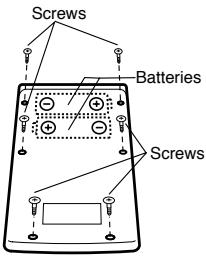
- Remove the screws that hold the back cover in place, and then remove the cover.
- Remove the old batteries.
- Install two new batteries with the positive (+) and negative (−) ends facing correctly.
- Replace the back cover and secure it in place with the screws.
- Press AC to turn power on.
■Order of Operations and Levels
Operations are performed in the following order of precedence.
- Functions
- xy , x1/y , R → P, P → R, nPr, nCr
- ×, ÷
- +, -
- Operations with the same precedence are performed from left to right, with operations enclosed in parentheses performed first. If parentheses are nested, the operations enclosed in the innermost set of parentheses are performed first.
- Registers L1 through L6 store operations. There are six registers, so calculations up to six levels can be stored. • Each level can contain up to three open parentheses, so parentheses can be nested up to 18 times.
- Example: The following operation uses 4 levels and 5 nested parentheses.
2 × [(⋯] [(⋯] [(⋯] 3 + 4 × [(⋯] [(⋯] 5 + 4
The table below shows register contents following the above input.
| Register | Contents |
| x | 4 |
| L1 | ((5 + |
| L2 | 4 × |
| L3 | (((3 + |
| L4 | 2 × |
| L5 | |
| L6 | |
The following are the formulas, ranges, and conventions that are applied to various calculations that can be performed using this calculator.
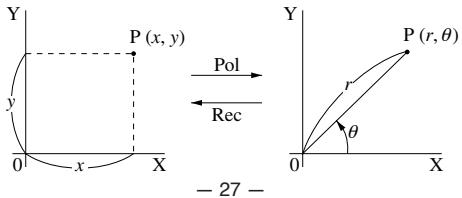
- With polar coordinates, θ can be calculated within a range of -180° < θ ≤ 180° . The calculation range is the same for radians and grads.
Permutation
- Input range: n ≥ r ≥ 0 ( n, r : natural numbers)
- Formula: nPr = n!/(n - r)!
Combination
- Input range: n ≥ r ≥ 0 ( n, r : natural numbers)
- Formula: nCr = n!/n!(n - r)!
Population Standard Deviation
σ_ n = √ _ i = 1 ^ n (xi - x) ^ 2n = √ x ^ 2 - ( x) ^ 2 / nn
Sample Standard Deviation
σ_ n - 1 = √ _ i = 1 ^ n (xi - x) ^ 2n - 1 = √ x ^ 2 - ( x) ^ 2 / nn - 1
Arithmetic Mean
x = _ i = 1 ^ n xin = x/n
Specifications
Power supply: Two AA-size manganese dry batteries (UM-3 or R6P (SUM-3))
Battery Life: Approximately 9,000 hours continuous operation on type UM-3, 11,000 hours continuous operation on R6P(SUM-3)
Power
Consumption: 0.0004W
Input Ranges:
| Functions | Input Range |
| x | (DEG)|x|<9× 10⁹ | However, for x : |
| x | (RAD)|x|<5× 10⁷π rad | |x|≠ 90(2n+1) :DEG |
| x | (GRA)|x|<1× 10¹⁰ grad | |x|≠ π/2·(2n+1) :RAD |
| | |x|≠ 100(2n+1) :GRA |
| -1x | |x|≤ 1 |
| -1x |
| -1x | |x|<1× 10100 |
| x | |x|≤ 230.2585092 | For and ,errors are cumulative and accuracy is affected at a certain point when x=0 . |
| x |
| x | |x|<1× 10100 |
| -1x | |x|<5× 1099 |
| -1x | 1≤ x<5× 1099 |
| -1x | |x|<1 |
| x/ x | 1× 10-99≤ x<1× 10100 |
| 10x | \( -1\times 10^{100} |
| Functions | Input Range |
| ex | -1 × 10100 < x ≤ 230.2585092 |
| | 0 ≤ x < 1 × 10100 |
| x2 | |x| < 1 × 1050 |
| 1/x | |x| < 1 × 10100; x ≠ 0 |
| 3 | |x| < 1 × 10100 |
| x! | 0 ≤ x ≤ 69 ( x is an integer) |
| nPr/nCr | 0 ≤ r ≤ n n < 1 × 10¹⁰ ( n and r are integers) |
| R → P | 2 + y2 < 1 × 10100 |
| P → R | 0 ≤ r < 1 × 10100 However, for θ : (DEG)|θ| < 9 × 10⁹ |θ| ≠ 90(2n+1):DEG (RAD)|θ| < 5 × 10⁷ πrad |θ| ≠ π/2 · (2n+1):RAD (GRA)|θ| < 1 × 10¹⁰ grad |θ| ≠ 100(2n+1):GRA |
| o', " | Sexagesimal: |a|, b, c < 10100 0 ≤ b, c Decimal: |x| ≤ 2.7777777777 × 1096 |
| xy | x > 0: -1 × 10100 < y x < 100 x = 0: y > 0 x < 0: y = n; 1/2n+1 (n is an integer) However: -1 × 10100 < y |x| < 100 |
| x1/y | x >0: y ≠ 0 -1 × 10100 < 1/y x < 100 x = 0: y >0 x < 0: y = 2n+1; 1/n (n ≠ 0; n is an integer) However: -1 × 10100 < 1/y |x| < 100 |
| ab/c | Total of integer, numerator, and denominator must be 10 digits or less (including division marks). |
| SD | |x| < 1 × 1050 |n| < 1 × 10100 σn, : n ≠ 0 σn-1: n ≠ 0, 1 |
- Errors are cumulative with such internal continuous calculations as xy , xl/y , x! , and 3 , so accuracy may be adversely affected.
Operating Temperature:
0°C - 40°C (32°F - 104°F)
Dimensions: 19(H)×73(W)×147(D) mm
Weight: 104g including batteries
Calculation Capacity:
- Input/ Basic Calculations
10-digit mantissa; or 10-digit mantissa plus 2-digit exponent up to 10±99
CASIO®
CASIO COMPUTER CO., LTD.
6-2, Hon-machi 1-chome,
Shibuya-ku, Tokyo 151-8543, Japan