
DT22M-O - Uncategorized AOPEN - Free user manual and instructions
Find the device manual for free DT22M-O AOPEN in PDF.


| Product Type | Commercial Touch Monitor (Openframe) |
| Model | DT22M-O |
| Brand | AOpen |
| Display Size | 21.5" (16:9) |
| Resolution | 1920 x 1080 @ 60Hz |
| Brightness | 250 cd/m² (without touch), 225 cd/m² (with touch) |
| Contrast Ratio | 3000:1 |
| Response Time | 18ms |
| Viewing Angle | 89°/89°/89°/89° (all directions) |
| Backlight Type | LED |
| Touch Technology | Projected Capacitive (PCAP) |
| Touch Glass Hardness | Mohs 5 (1.8mm chemically strengthened) |
| IP Rating (Front) | IP65 |
| Impact Protection | IK07 |
| Dimensions (W x H x D) | 519 x 314 x 37 mm |
| Net Weight | 5.04 kg |
| Input Power | DC 19V (12-19V compatible), 65W adapter included |
| Mounting Options | VESA 100x100mm (rear), side mount on all four sides |
| Operating Temperature | 0°C to 50°C |
| Storage Temperature | -20°C to 70°C |
| I/O Ports | HDMI, VGA, USB 2.0 (touch), COM (serial), Audio In, DC In, IR In |
| Certifications | FCC, CE, RoHS |
| Maintenance | Clean with soft, dry cloth; use isopropyl alcohol for sanitization; no harsh chemicals |
| Safety Features | Key lock (MENU+SELECT), overheat protection, UL 1678 wall mount required |
| Accessories Included | HDMI cable, USB cable, VGA cable, 65W power adapter, AC power cord |
Frequently Asked Questions - DT22M-O AOPEN
User questions about DT22M-O AOPEN
0 question about this device. Answer the ones you know or ask your own.
Ask a new question about this device
Download the instructions for your Uncategorized in PDF format for free! Find your manual DT22M-O - AOPEN and take your electronic device back in hand. On this page are published all the documents necessary for the use of your device. DT22M-O by AOPEN.
USER MANUAL DT22M-O AOPEN
natural_image
Icon of a hand pressing a button on a computer monitor, with a circular symbol labeled 'M' in the corner (no text or symbols on the icon itself)dTILE
DT22M-O
Commercial Touch Monitor
User Manual
Version: 1.0
Released date: 2019/08
AOPEN DT22M-O

Disposal Instruction (US)
For better protection of our earth, please don't throw this electronic device into municipal trash bin when discarding. To minimize pollution and ensure utmost protection of the global environment, please recycle the product. For more information about the collection and recycling of Waste Electrical and Electronic Equipment (WEEE), you are invited to visit our homepage at www.aopen.com under "Green Products"
廃棄上の指示
Instruction de Disposition (French)
Copyright of this publication belongs to AOpen Inc. AOpen reserves the right to change the content of this publication without obligation to notify any party of such changes or revisions. No part of this publication may be reproduced, transcribed, transmitted, translated into any language, stored in a retrieval system in any form or by any means electronically, mechanically, optically without the prior written permission of this company.
Disclaimer
AOpen makes no warranties or representations, either expressed or implied, with respect to the content herein and specifically disclaims any warranties, merchantability of fitness for any particular purpose.
AOpen and AOpen logos used herein are registered trademarks of AOpen Inc. All other brand names and trademarks are owned by their respective owners.
Copyright © 2011 by AOpen Inc.
All rights reserved.
AOpen Inc.
http://www.aopen.com
Safety Instructions
- Please read these safety instructions carefully.
- Please keep this User's Manual for later reference.
- Please disconnect this equipment from connector before cleaning. Don't use liquid or prayed detergent for cleaning. Use moisture sheet or cloth for cleaning.
- Make sure the equipment is connected to the power source with the correct voltage, frequency, and ampere.
- All cautions and warnings on the equipment should be noted.
- Never pour any liquid into opening; this could cause fire or electrical shock.
-
Never open the equipment. For safety reason, the equipment should only be opened by qualified service personnel.
-
If one of the following situations arises, get the equipment checked by a service personnel :
a. Liquid has penetrated into the equipment.
b. The equipment has been exposed to moisture.
c. The equipment has not work well or you can not get it work according to user's manual.
d. The equipment has dropped and damaged.
e. If the equipment has obvious sign of breakage.
-
Ambient operation temperature: less than 50 degrees C.
-
Caution on use of battery: Use the battery recommended by the manufacturer or the same type of battery installed by the manufacturer. If incorrect battery is used, it may cause explosion or fire hazard. Recycle or discard used batteries according to the manufacturer's instruction or your local authority.
-
Wall Mounting Holder need to use UL 1678 approved product.
FCC notice
This device has been tested and found to comply with the limits for a Class B digital device pursuant to Part 15 of the FCC Rules. These limits are designed to provide reasonable protection against harmful interference in a residential installation. This device generates, uses, and can radiate radio frequency energy and, if not installed and used in accordance with the instructions, may cause harmful interference to radio communications.
However, there is no guarantee that interference will not occur in a particular installation. If this device does cause harmful interference to radio or television reception, which can be determined by turning the device off and on, the user is encouraged to try to correct the interference by one or more of the following measures:
Reorient or relocate the receiving antenna.
Increase the separation between the device and receiver.
Connect the device into an outlet on a circuit different from that to which the receiver is connected.
Consult the dealer or an experienced radio/television technician for help.
Notice: Shielded cables
All connections to other computing devices must be made using shielded cables to maintain compliance with FCC regulations.
Notice: Peripheral devices
Only peripherals (input/output devices, terminals, printers, etc.) certified to comply with Class B limits may be attached to this equipment. Operation with non-certified peripherals is likely to result in interference to radio and TV reception.
Caution
Changes or modifications not expressly approved by the manufacturer could void the user's authority, which is granted by the Federal Communications Commission, to operate this computer.
Operation conditions
This device complies with Part 15 of the FCC Rules. Operation is subject to the following two conditions: (1) this device may not cause harmful interference, and (2) this device must accept any interference received, including interference that may cause undesired operation.
Notice: Canadian users
This Class B digital apparatus complies with Canadian ICES-003
Table of Contents
1. Packing List....11
1-1. Standard Accessories ...... 11
2. System View....12
2-1. Front View....12
2-2. Rear View....12
2-3. I/O ports....13
2-4. Dimension 14
3. System Assembly 15
3-1. VESA-bracket support....15
3-2. Side Mount bracket support 16
4. Specification....18
5. OSD 21
Appendix A: TroubleShooting 22
Appendix B: Touch Panel Maintenance and Cleaning....23
Appendix C: Updating Touch Panel Firmware 24
Appendix D: Restricted Substances Survey 26
The logos of Adobe and Acrobat are the registered trademarks of Adobe Systems Incorporated.
The logos of AMD, Athlon, and Duron are the registered trademarks of Advanced Micro Devices, Inc.
The logos of Intel, Intel Celeron and Pentium II&III are the registered trademarks of Intel Corporation.
The logos of nVidia are the registered trademarks of nVidia Corporation.
The logos of Microsoft, Windows are the registered trademarks of Microsoft Corporation in America and other countries.
All the titles of the products and the trademarks mentioned in this manual are for the purpose of illustrative conveniences and are possessed by their respective firms.
We regret not informing about any changes in usage standards and other related information. AOpen Company reserves the right of altering or modifying the content of this manual. In case of any mistakes or incorrect descriptions, which include those on the products, AOpen makes no guarantee or commitments.
This document is based on the copyright laws in order to protect our company and reserve all rights.
Under no circumstances are any types of duplicating and loading this brochure in any databases and media permitted except the permission signed on formal document by AOpen Company.
1996-2008 Copyrights, AOpen Ltd. All rights reserved.
http://www.aopen.com
1. Packing List
1-1. Standard Accessories
| a. System | d. USB cable |
 |  |
| b. Power adapter (65W, 19V/3.42A) | e. VGA cable |
 |  |
| c. Power cord | f. HDMI cable |
 |  |
Notice:
The pictures may look slightly different from the product you purchased, due to our constant product improvement effort.
2. System View
2-1. Front View

natural_image
Plain gray rectangular panel with a diagonal line on the right edge, no text or symbols visible.2-2. Rear View

natural_image
Top-down view of a rectangular metal panel with two circular vent holes, mounted on a flat surface (no text or symbols visible)2-3. I/O ports
Caution: When you install devices or cables, please removed DC jack at first to prevent inadvertently switched to cause system boot/ damage to system/electric shock.

2-4. Dimension

3. System Assembly
3-1. VESA-bracket support
The system support standard 100x100mm VESA mount, so other VESA mount bracket followed this standard spec can be assembled. Please use the system attached VESA screw - M4, otherwise will be broken system's VESA screw hole.
3-2. Side Mount bracket support
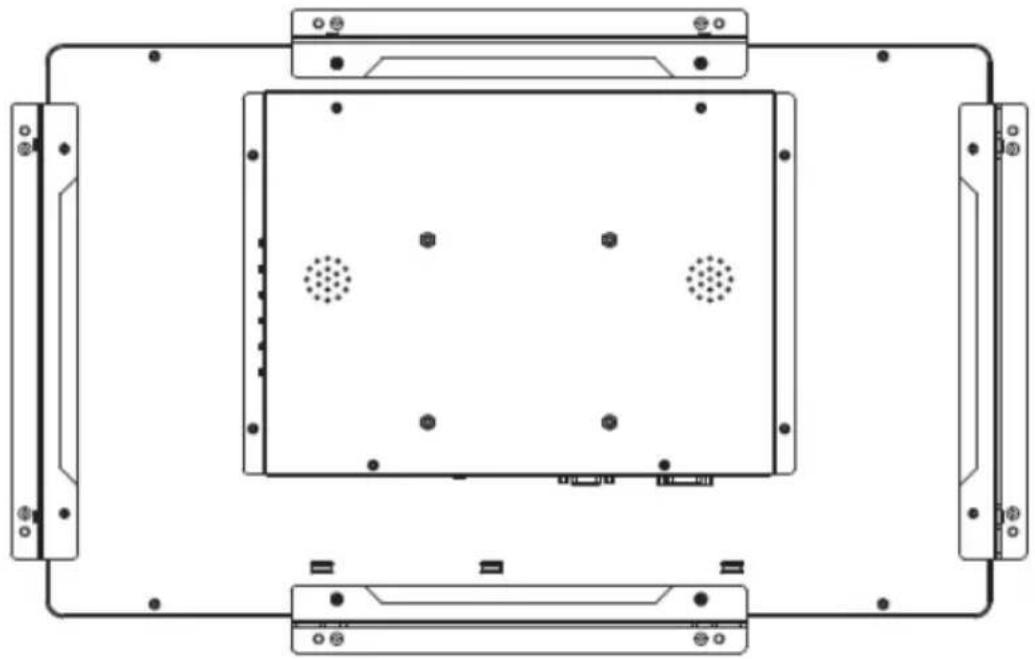
Can option Side mount bracket, suggest assembly way as following


natural_image
Technical line drawing of a rectangular electronic device with mounting brackets and central display panel (no text or symbols)
installation notes :
-
attach bracket -A.2 to touchscreen (all four side) with M4 screws
-
attach bracket -A.1 to customer panel per cut-out drawing(all four side)
-
attach bracket -B to bracket -A.1 on all four sides with M4 screw
-
adjust depth of bracket -B so monitor is flush with customer panel
-
place touchscreen into customer panel opening
6.secure touchscreen to bracket-B from behind with M4 screws
4. Specification
natural_image
Two electronic devices: a large screen displaying 'AOPEN' logo and a side-view front showing internal components (no visible text or symbols on main body)PRODUCT KEY-FEATURES:
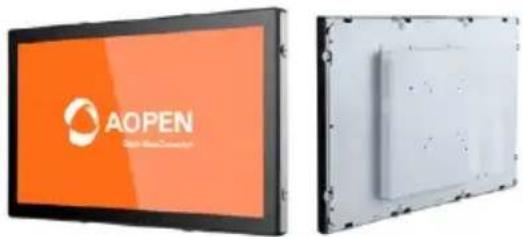
- Openframe design for Kiosk system
• IPC Grade Multi Touch PCAP, 1920x1080 FHD - Front zero bezel sealed IPR design for IP65 and IK07
- Rear VESA-mounting and Side-mounting design for various Kiosk applications
PRODUCT SPECIFICATION:
| Product Specification | AOPEN openframe Touch Display | ||
| Form Factor | AOPEN Digital Tile | DT22M-O | |
| Chassis | Mechanical Design | IPR sealed Metal and Glass for IP and IK grade | |
| Dimension, WxHxD (mm) | 519.0x314.0x37.0mm | ||
| Main Board/Control Board | DT22-2486 | ||
| Thermal Solution | AOPEN Silentek Technology | ||
| Panel | Resolution | 21.5", 16:9, 1920×1080, 60Hz | |
| Maximum Brightness | 250cd/m2 | ||
| Maximum Brightness (with Touch) | 225cd/m2 | ||
| Response time | 18ms | ||
| Contrast Ratio | 3000:1 | ||
| View Angle | Portrait | 89/89/89/89 | |
| Landscape | 89/89/89/89 | ||
AOPEN DT22M-O
| Backlight | LED backlight | ||
| Touch | Touch Panel | 21.5inch, Projected Capacitive Touch Panel1.8mm Chemically Strengthened GlassMosh 5 Surface Hardness | |
| Virtual Key | Not support | ||
| Touch controller | PenMount PM1715 | ||
| IPC Grade Touch | IK07 | ||
| Optional Anti-UV Design (ASTM G154 500HR Standard Certified) | |||
| Anti-Interference Design(IEC 61000-4-3 RS and IEC 61000-4-6 CS EMS Standard Certified) | |||
| Advanced Water Handling | |||
| Temperature | Operation | 0°C-50°C | |
| Storage | -20°C-70°C | ||
| OS of Driver Software support | Windows, Linux and Android | ||
| IP Level | IP65(front) | ||
| I/O interface on rear site | HDMI, USB 2.0, DC-in, Comport, OSD Keypad* | ||
| Weight(Net) | 5.04Kg* | ||
| Mounting | Rear | 4 Hole 100x100mm VESA rear mounting | |
| Site | 2 Hole mounting interface on all four sides | ||
| Input Voltage | DC 19V Adapter (support 12~19V) | ||
| Environment | |||
| MTBF | 50,000hrs demonstrated | ||
| Operating Temperature | 0 ~ 50°C (32 ~ 122°F) | ||
| Storage Temperature | -20 ~ 70°C (-4 ~ 158°F) | ||
| Relative Humidity | 90% RH (40°C non-Condensing) | ||
| Certification | FCC/CE/RoHS | ||
AOPEN DT22M-O
| Carton Packing Dimension* | 606x468x164mm |
| Accessory in BOX* | HDMI Cable, USB Cable, VGA Cable, 65W Adapter, AC Cable |
| Optional peripheral | Side Mount Bracket x12, 24*Padded M4 screws |
| HDMI & VGA Resolution | 1920x1080@60Hz |
5. OSD

Key Pad Keys Define: Total 6 keys
-- A. SOURCE: Switch Input Source Display Channel ( HDMI or VGA)
-- B. MENU: Activate OSD Menu
-- C. SELECT: Select the OSD Menu screen section
-- D. Down / Left (◀): Decrease setting or scroll down the menu bar
-- E. Up / Right (▶): Increase setting or scroll up the menu bar
-- F. Power: Turn on or off the Display
Special Note:
- Press "MENU" key & "SELECT" key at the same time to turn on the "Key Lock" Mode.
- 1 bi-color led. The led must be blue permanently when the video signal is correct. If is not connected a video cable or if the video signal is wrong then must be in red color
Appendix A: TroubleShooting
• Non-functional Display
- Make sure power is connected.
- Please press the system power switch (ensure small power light at right rear of screen is on).
- Please ensure HDMI cable or VGA cable is connected.
- Please confirm OSD menu is functioning.
- Please confirm the display signal of connected player or host is normal.
• Non-functional Touch Operation
- Reconnect the Touch USB Cable.
- Please confirm whether a touch panel device is installed in device manager. If not, please check whether Touch USB Cable damaged or switch to a different Cable.
- Please ensure the correct driver is in use.
Appendix B: Touch Panel Maintenance and Cleaning
The maintenance and cleaning of the touch panel is quite simple. We recommend that you wipe it down with a clean, dry, and soft cloth regularly and use alcohol or isopropyl alcohol for decontamination and sanitization only when necessary. When using other solvents or cleaners, be sure to follow the manufacturer's precautions and guidelines.
- Do not use any chemicals to clean the touch panel.
- Do not spray detergent directly on the touch panel. These cleaners may seep into the screen or contaminate the front cover.
- Spray the cleaning agent on a soft cloth to wipe down the touch panel.
- After cleaning, make sure that no residual detergent on the surface of the touch panel will seep into the screen.
- Be careful when cleaning the touch panel. Do not use excessive force when wiping or push down on the touch panel.
- Do not use compressed air, water jets, or steam to clean the surface of the touch panel as they may damage the function of the touch panel.
- If food or drink falls on the surface of the touch panel, please remove immediately.
Notes:
- If there is liquid on the surface of the touch panel, it must be dried first before the touch panel can operate normally.
- There must be no foreign objects on the surface of the touch panel when booting.
Appendix C: Updating Touch Panel Firmware
If you currently have no problems with the touch panel, you do not have to upgrade firmware version. • If need to update firmware, please follow the steps below:
- Open “PenMount PCIMSet” and select “Field Update.” Select “Load Firmware” and select suitable firmware.

- Select "Update" to update firmware.

- If "PASS" is shown, update was successful.

- If "FAIL" is shown, please contact us.

Appendix D: Restricted Substances Survey
| 設備名稱:商用觸控顯示屏 型號(型式):DT22M-OType designation (Type) | ||||||
| 單元Unit | 限用物質及其化學符號Restricted substances and its chemical symbols | |||||
| 鉛Lead(Pb) | 汞Mercury(Hg) | 鎘Cadmium(Cd) | 六價鉻Hexavalent chromium( Cr^+6 ) | 多溴聯苯Polybrominated biphenyls(PBB) | 多溴二苯醚Polybrominated diphenyl ethers (PEDE) | |
| 電路板PCB | - | ○ | ○ | ○ | ○ | ○ |
| 螢幕Display | - | ○ | ○ | ○ | ○ | ○ |
| 外殼Chassis | ○ | ○ | ○ | ○ | ○ | ○ |
| 配件(電源供應器等)Accessories(Adapter,Cable...etc) | - | ○ | ○ | ○ | ○ | ○ |
| 備考1.“超出0.1 wt %”及“超出0.01 wt %”係指限用物質之百分比含量超出百分比含量基準值。Note 1:“Exceeding 0.1 wt %”and“exceeding 0.01 wt %”indicate that the percentage content of the restricted substance exceeds the reference percentage value of presence condition。備考2.“○”係指該項限用物質之百分比含量未超出百分比含量基準值。Note 2:“○”indicates that the percentage content of the restricted substance does not exceed the percentage of reference value of presence。備考3.“-”係指該項限用物質為排除項目。Note 3: The “-”indicates that the restricted substance corresponds to the exemption。 | ||||||

- dTILE
- DT22M-O
- Commercial Touch Monitor
- User Manual
- Disposal Instruction (US)
- 廃棄上の指示
- Instruction de Disposition (French)
- Disclaimer
- Safety Instructions
- FCC notice
- Table of Contents
- Packing List....11
- System View....12
- System Assembly 15
- Specification....18
- OSD 21
- Packing List
- 1-1. Standard Accessories
- Notice:
- System View
- 2-1. Front View
- 2-2. Rear View
- 2-3. I/O ports
- 2-4. Dimension
- System Assembly
- 3-1. VESA-bracket support
- 3-2. Side Mount bracket support
- Specification
- PRODUCT KEY-FEATURES:
- OSD
- Key Pad Keys Define: Total 6 keys
- Special Note:
- Appendix A: TroubleShooting
- • Non-functional Display
- • Non-functional Touch Operation
- Appendix B: Touch Panel Maintenance and Cleaning
- Notes:
- Appendix C: Updating Touch Panel Firmware
- Appendix D: Restricted Substances Survey
Brand : AOPEN
Model : DT22M-O
Category : Uncategorized