
WiFi EYE - Detector Evolveo - Free user manual and instructions
Find the device manual for free WiFi EYE Evolveo in PDF.


| Product Type | Infrared human body activity sensor (detector) |
| Brand | Evolveo |
| Model | WiFi EYE |
| Connectivity | Wi-Fi 2.4 GHz (does not support 5 GHz) |
| Detection Technology | Passive infrared (PIR) sensor |
| Detection Distance | 5 - 6 m |
| Detection Angle | 80° |
| Detection Walking Speed | 0.3 - 3 m/s |
| Power Source | 1 x CR2 battery, DC 3V |
| Quiescent Current | ≤ 20 μA |
| Operating Current | ≤ 100 mA |
| Dimensions (H x W x D) | 60.5 x 52.8 x 52.8 mm |
| Installation Height | 1.5 - 2.0 m |
| Operating Temperature | 0°C to 40°C |
| Operating Humidity | 5% - 95% RH (non-condensing) |
| Self-check Time | ≤ 60 seconds |
| Modes | Test (T), Normal (N), Smart (S) |
| App Compatibility | SmartLife (iOS & Android) |
| Mounting | Magnetic bracket (adhesive pad or screws included) |
| Maintenance | Walk test recommended every 3 months |
| Safety | Indoor use only; avoid objects in front; do not install near heat sources |
Frequently Asked Questions - WiFi EYE Evolveo
User questions about WiFi EYE Evolveo
0 question about this device. Answer the ones you know or ask your own.
Ask a new question about this device
Download the instructions for your Detector in PDF format for free! Find your manual WiFi EYE - Evolveo and take your electronic device back in hand. On this page are published all the documents necessary for the use of your device. WiFi EYE by Evolveo.
USER MANUAL WiFi EYE Evolveo
natural_image
Close-up of a white spherical object with a dark base, resembling a stylized helmet or button (no text or symbols visible)CZ
SK
EN
Obsah / Content
Česky 3
Slovensky.... 14
English 25
CZ
SK
EN
natural_image
Line drawing of two mechanical components: a hexagonal nut and a cylindrical housing (no text or symbols)natural_image
Technical line drawing of two mechanical components: a cylindrical housing with a central screw and a flanged circular housing (no text or symbols)Test chüze
natural_image
Technical illustration showing mechanical components and a tool interacting with a curved tool (no text or symbols present)Rozumět produktům
Krok 1: Stáhnout APLIKACI
natural_image
Line drawing of two mechanical components: a hexagonal nut and a cylindrical housing (no text or symbols)natural_image
Technical line drawing of two mechanical components: a cylindrical housing with a screw and a flanged circular component (no text or symbols)Test chôdze
Poradenstvo: Testujte raz za tri mesiace.
natural_image
Technical diagram showing mechanical components and assembly (no text or symbols)Pochopenie produktov
Krok 1: Stiahnite si aplikáciu
This product is an infrared human body activity sensor that uses WiFi as a communication method. It supports APP human activity alert, device status check, low battery alert and usage log query. In addition, this product uses a magnetic mounting bracket, which is easy to install and easy to adjust the detection direction.
Product Features
• Magnetic installation, universal adjustment
• WiFi connectivity, intelligent APP control
- Linking Supporting Scenes
- Human activity alert, low battery alert, user defined switch alert
- Inquiry into history
- Low-power technology, powered by a 3V battery
About the product
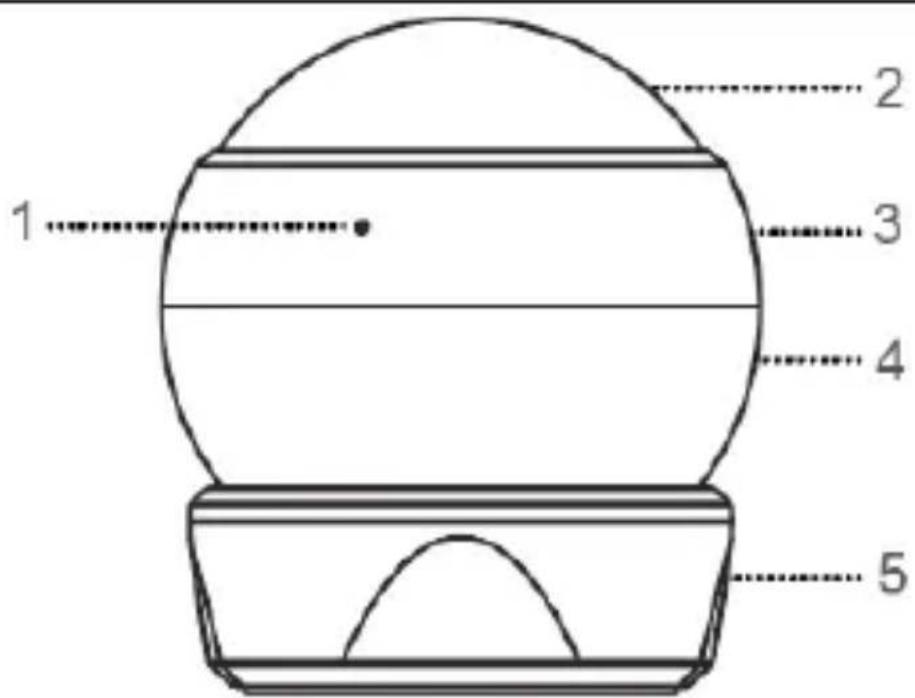
1) Indicator light
2) Lens
3) Upper shell
4) Lower shell
5) Holder
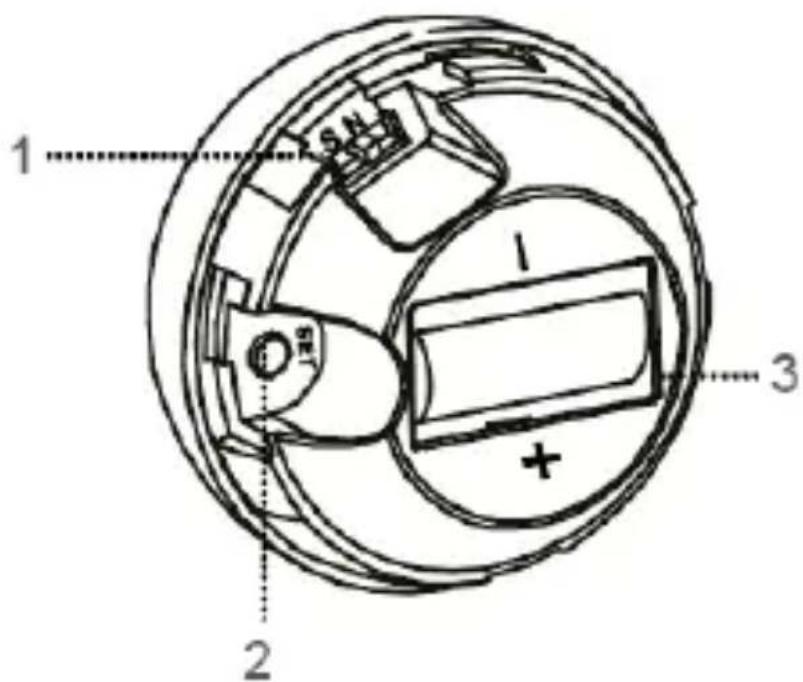
1) Mode switch
T : Test mode
N : Normal mode
S : Intelligent Mode
2) Setting the key
3) Batteries
Indicator light
| Colour | Slow blinking | Double flashing | Fast flashing |
| Green light | WiFi configuration AP mode | / | Quick WiFi configuration mode |
| Red light | self-check on opening | Triggering alarm | Alarm recording |
Set the key
Long press for 5s until the indicator light starts flashing green, and enter WiFi quick configuration mode.
Mode switch:
3 shifts working mode
1)(T, test mode): Valid on every boot; this mode is used for testing;
2) (N, normal mode): The interval between two consecutive triggering of induction is about one minute, and continuous triggering is invalid within one minute, it is suitable for home use or not too many occasions;
3) (S, smart mode): After the first effective triggering, if the triggering occurs again within one minute, the detection time will be cleared and retimed; the triggering will be ineffective until the time of two triggering exceeds one minute. It is suitable for many activities of people who want to save energy.
Installation
1) 3M adhesive paste (suitable for straight walls)
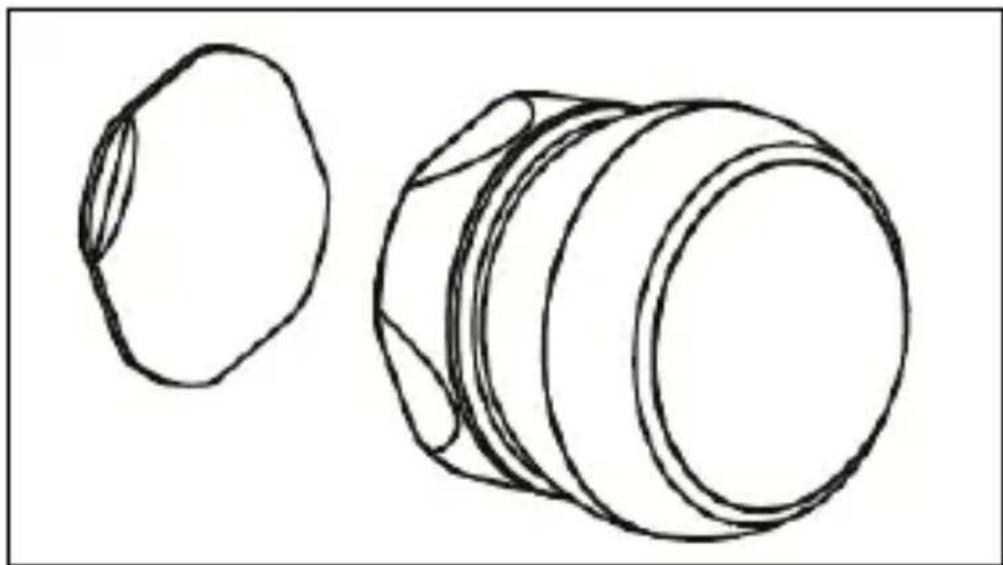
natural_image
Line drawing of two mechanical components: a hexagonal nut and a cylindrical housing (no text or symbols)2) Installation with screws (This method is recommended for installation on uneven surfaces walls)
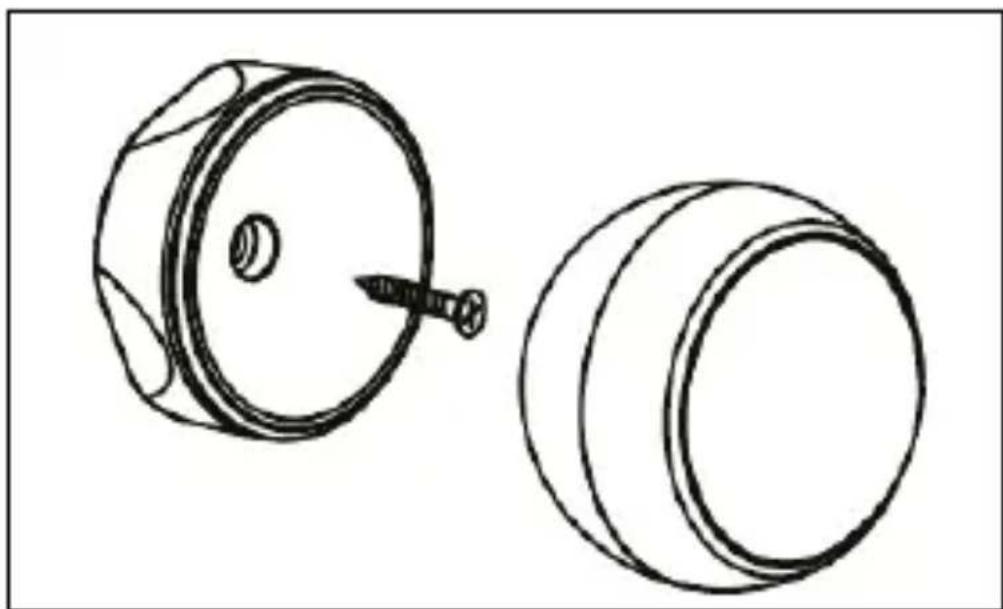
natural_image
Technical line drawing of two mechanical components: a cylindrical housing with a central screw and a flanged circular housing (no text or symbols)Installation precautions:
Install the detector in a place where there is a solid surface that does not vibrate and where intruders can easily pass through. The following situations will invalidate the detection function of the detector or detectors.
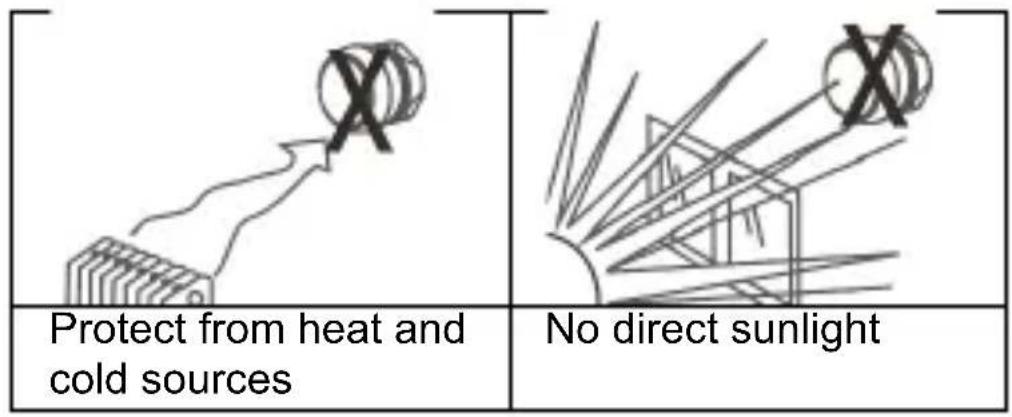
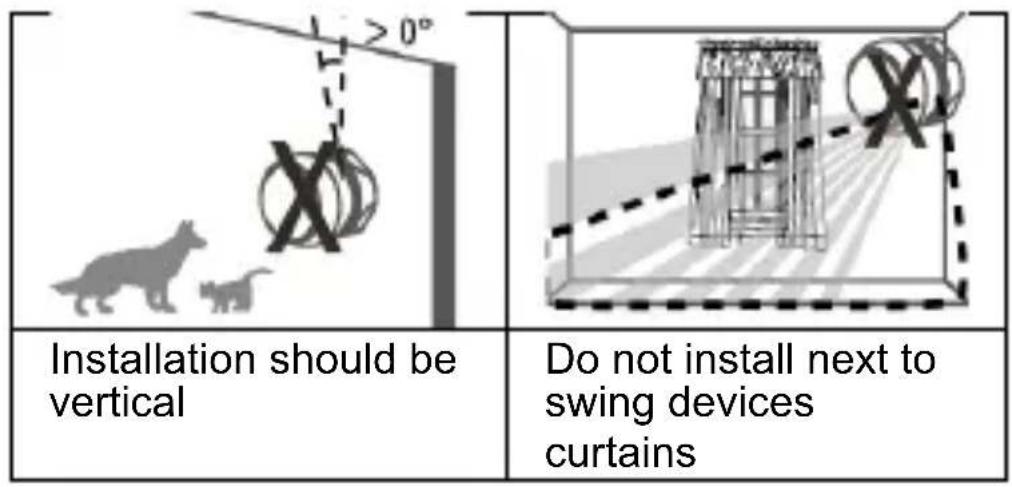
| Cannot be installed outdoors | It should not be 1-1.5 m high. object in front of the detector |
Installation design: a place that can be easily attacked.
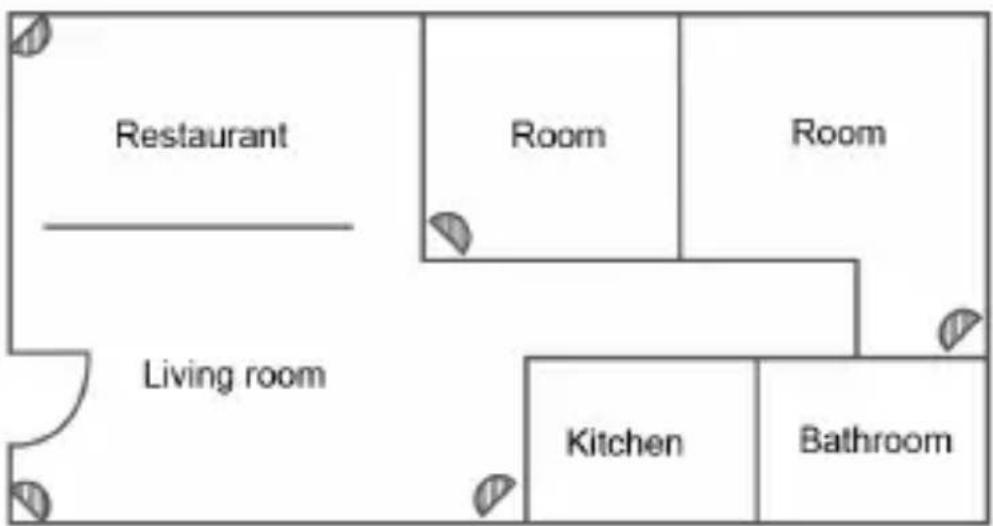
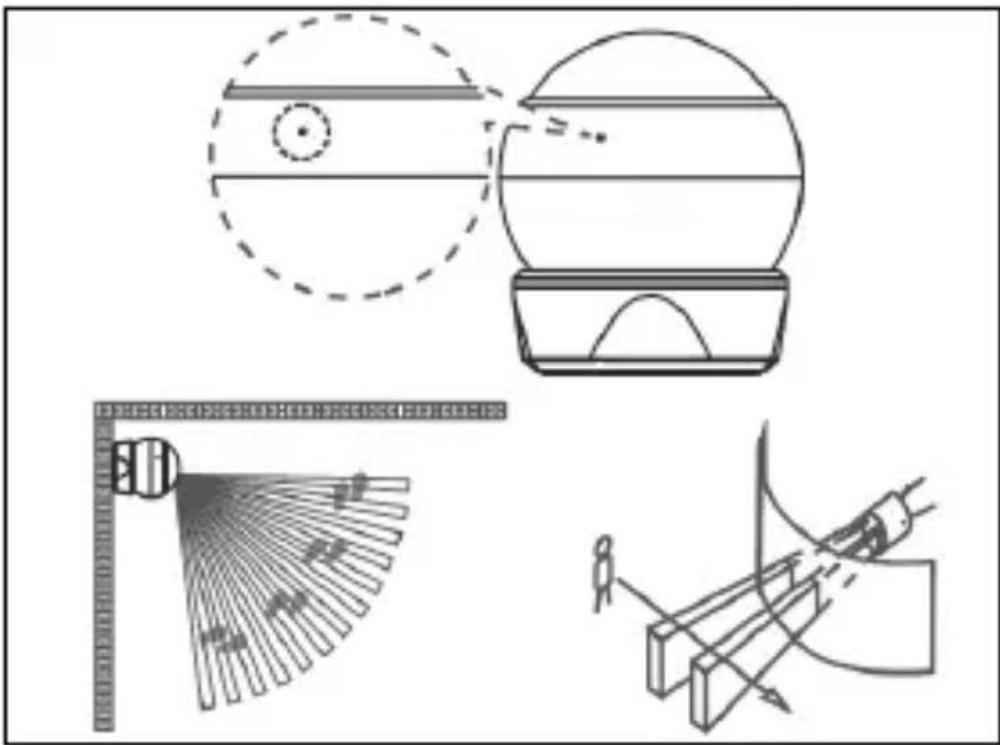
Walking test
Advice: Test once every three months.
1) When the power is turned on, the red indicator light flashes and the product enters the self-test state. in approximately 8 s, the red indicator light goes out and enters the detection state. Failure to detect external signal during self-check.
2) In the working mode, when the detection is triggered, it is a valid alarm signal and the red LED starts flashing.
3) After installing the detector, perform a walk test.
natural_image
Technical illustration showing mechanical components and a tool interacting with a curved tool (no text or symbols present)Understand the products
Step 1: Download the APP
1) In the APP Store or Google Play, search for SmartLife or Scan Code.

2) After installing the APP, follow the interface instructions to register an account and log in.
Once the software is running, click the [Register] button and use your mobile phone number or email address to register your
account as instructed in the software interface.
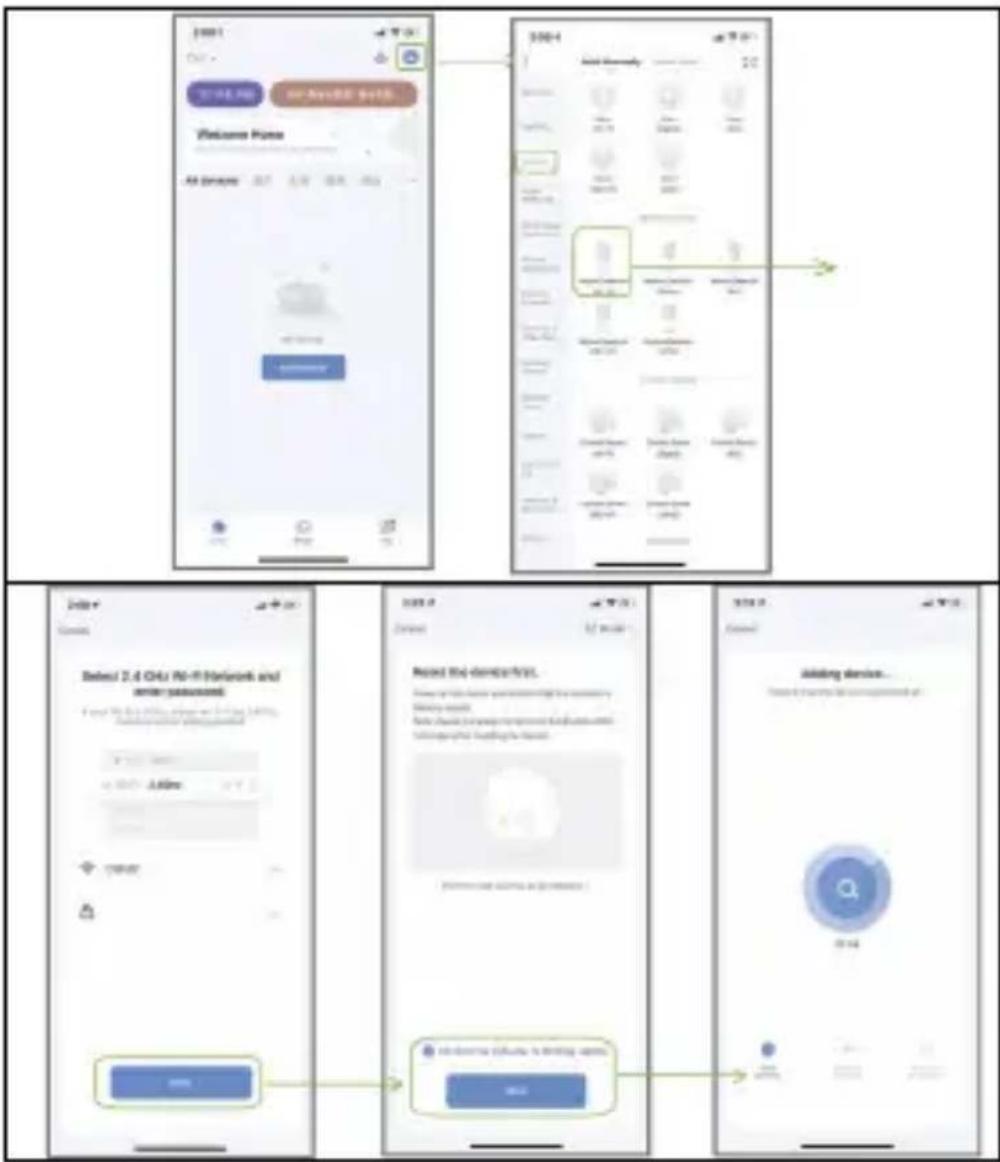
Step 2: WiFi connection
1) Make sure your mobile phone is connected to a Wi-Fi router (dual-band routers, select 2.4G);
2) Open the APP, click [+] in the top right corner of the home page; select [Sensors] -> [Motion Detector];
3) Infrared entry into WiFi network configuration fast mode: long press [Set key] for 5 seconds, the indicator light will flash green quickly and enter network fast mode; if the indicator light flashes green slowly, it will enter WiFi AP configuration mode.
4) Select the WiFi that you want to connect, enter the WiFi password and click [Next], after confirming the indicator flashes quickly, click [Next] and perform WiFi configuration; 5) The application interface will prompt that the add was successful and the WiFi configuration has been completed; if the add failed, repeat the process from the beginning.
Remark: It is best to install it near a wireless router, it currently does not support 5GHz WiFi band.
flowchart
graph TD
    A["Welcome Frame"] --> B["Add Security"]
    B --> C{User Input}
    C --> D["Login Server"]
    D --> E["User Interface"]
    E --> F["User Security System"]
    F --> G["Add Security System"]
    G --> H["User Interface System"]
    H --> I["Add Security System"]
    I --> J["Add Security System"]
    J --> K["Add Security System"]
    K --> L["Add Security System"]
    L --> M["Add Security System"]
    M --> N["Add Security System"]
    N --> O["Add Security System"]
    O --> P["Add Security System"]
    P --> Q["Add Security System"]
    Q --> R["Add Security System"]
    R --> S["Add Security System"]
    S --> T["Add Security System"]
    T --> U["Add Security System"]
    U --> V["Add Security System"]
    V --> W["Add Security System"]
    W --> X["Add Security System"]
    X --> Y["Add Security System"]
    Y --> Z["Add Security System"]
    Z --> AA["Add Security System"]
    AA --> AB["Add Security System"]
    AB --> AC["Add Security System"]
    AC --> AD["Add Security System"]
    AD --> AE["Add Security System"]
    AE --> AF["Add Security System"]
    AF --> AG["Add Security System"]
    AG --> AH["Add Security System"]
    AH --> AI["Add Security System"]
    AI --> AJ["Add Security System"]
    AJ --> AK["Add Security System"]
    AK --> AL["Add Security System"]
    AL --> AM["Add Security System"]
    AM --> AN["Add Security System"]
    AN --> AO["Add Security System"]
    AO --> AP["Add Security System"]
    AP --> AQ["Add Security System"]
    AQ --> AR["Add Security System"]
    AR --> AS["Add Security System"]
    AS --> AT["Add Security System"]
    AT --> AU["Add Security System"]
    AU --> AV["Add Security System"]
    AV --> AW["Add Security System"]
    AW --> AX["Add Security System"]
    AX --> AY["Add Security System"]
Technical parameters
Battery model: CR2 * 1, DC 3V
Quiescent current: ≤20uA
Operating current: ≤100mA
Detection distance: 5\~6m
Detection angle: 80°
Detecting walking speed: 0.3 m/s \~ 3 m/s
Self-check time: ≤60 s
Work environment: 0°C\~ 40°C, 5% \~ 95%
relative humidity (non-condensing)
Installation height: 1.5 m \~ 2.0 m
Product size: 52.8*52.8*60.5 mm
Technical support
If the "Frequently Asked Questions" section did not help you, please contact EVOLVEO Technical Support:
https://eshop.evolveo.com/helpdesk/.
Disposal
The crossed-out container symbol on the product, in literature or on the packaging means that in the EU, all electrical and electronic equipment, batteries and accumulators must be put into separate waste at the end of their useful life. Do not dispose of these products in unsorted municipal waste.

Declaration of conformity
Abacus Electric, s.r.o. hereby declares that WiFi EYE EVOLVEO meet the requirements of the standards and regulations applicable to this type of equipment.
The full text of the Declaration of Conformity can be found at http://ftp.evolveo.com/CE/.
Copyright © Abacus Electric, s.r.o.
www.evolveo.com
www.facebook.com/EvolveoCZ
Importer / Manufacturer
Abacus Electric, s.r.o.
Planá 2, 370 01, Czech Republic
Made in P.R.C.
All rights reserved.
Design and specifications are subject to change without notice.
- Obsah / Content
- Test chüze
- Rozumět produktům
- Krok 1: Stáhnout APLIKACI
- Test chôdze
- Pochopenie produktov
- Krok 1: Stiahnite si aplikáciu
- Product Features
- About the product
- Indicator light
- Set the key
- Mode switch:
- Installation
- Installation precautions:
- Walking test
- Understand the products
- Step 1: Download the APP
- Step 2: WiFi connection
- Technical parameters
- Technical support
- Disposal
- Declaration of conformity
Brand : Evolveo
Model : WiFi EYE
Category : Detector