
Thor 420 RGB - Keyboard Genesis - Free user manual and instructions
Find the device manual for free Thor 420 RGB Genesis in PDF.


| Product Type | Mechanical Keyboard |
| Model | Thor 420 RGB |
| Brand | Genesis |
| Switch Type | Slim mechanical switches (low-profile) |
| Key Rollover | N-Key Rollover (full anti-ghosting) |
| Backlight | RGB with PRISMO effect, 19 standard + 5 game modes |
| Number of Keys | 104 (standard US layout) |
| Connection | USB 2.0, plug and play |
| Cable Length | Approximately 1.8 m |
| Material | Aluminum body, ABS keycaps |
| Dimensions (approx.) | 440 × 135 × 35 mm |
| Weight (approx.) | 1.2 kg |
| Power | USB powered (5V, 500mA) |
| Operating Systems | Windows XP/Vista/7/8/10 |
| Software | Genesis software for advanced customization (download from www.genesis-zone.com) |
| Special Features | FN key shortcuts: backlight color (FN+DEL), brightness (FN+↑/↓), speed (FN+←/→), arrow swap (FN+W), factory reset (FN+ESC for 5s) |
| Package Contents | Keyboard, Quick Installation Guide |
| Warranty | 2 years limited manufacturer warranty |
| Safety & Certifications | RoHS, WEEE compliant |
| Cleaning Instructions | Wipe with a dry, soft cloth. Avoid moisture and harsh chemicals. |
| Repairability | No user-serviceable parts. Do not disassemble. |
Frequently Asked Questions - Thor 420 RGB Genesis
User questions about Thor 420 RGB Genesis
0 question about this device. Answer the ones you know or ask your own.
Ask a new question about this device
Download the instructions for your Keyboard in PDF format for free! Find your manual Thor 420 RGB - Genesis and take your electronic device back in hand. On this page are published all the documents necessary for the use of your device. Thor 420 RGB by Genesis.
USER MANUAL Thor 420 RGB Genesis
- Slim mechanical key switches
• Durable aluminum body
N-Key Rollover
• RGB backlight with PRISMO effect
INSTALLATION
Connect your device to the USB port of your computer, it is necessary to wait about 15 seconds for the first connection until the drivers are fully installed. The keyboard includes software that allows you to set up advanced features, if you want to use these features, you need to download and install the software from our website www.genesis-zone.com.
Open the installation folder and then double-click the setup.exe file. Follow the installation instructions. After a successful installation, the software icon appears on the main bottom panel. Double-clicking the icon opens the settings interface.
Press the [FN+DELETE] keys to change backlight color.
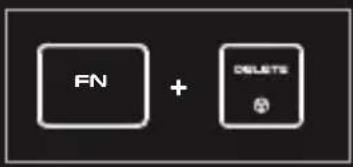
To change the backlight brightness level press keys [FN + arrow Up/Down]
SPEED OF BACKLIGHT EFFECTS
To change the speed of backlight effects press keys [FN + arrow left/right]
PACKAGE CONTENT
• Thor 420 RGB mechanical keyboard
- Quick installation guide
SAFETY INFORMATION GENERAL
• Use as directed.
- Non-authorized repairs or taking the device to pieces make the warranty void and may cause the product damage.
- Avoid to hit or friction with a hard object, otherwise it will lead to grind surface or other hardware damage.
- Do not use the product in low and high temperatures, in strong magnetic fields and in the damp or dusty atmosphere.
- Do not drop, knock, or shake the device. Rough handling can break it.
• Slots and openings in the case are provided for ventilation and should not be obscure. Blocking the vents can cause overheating of the device.



RoHS
ARROW FUNCTION CHANGE
Press [FN + W] to swap arrow function with W, A, S, D keys function.
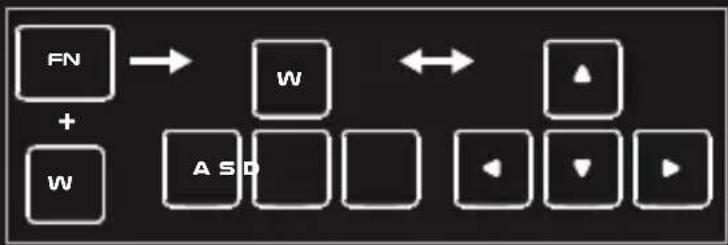
flowchart
graph TD
    A["FN"] --> B["W"]
    C["W"] --> D["A S D"]
    B --> E["←"]
    D --> F["◀"]
    E --> G["▲"]
    F --> H["▼"]
    G --> I["▶"]
STANDARD BACKLIGHT MODES
Press the [FN+INSERT] keys to change between 19 standard backlight modes.
GAME BACKLIGHT MODES
Press the keys [FN + 1-5] to change between 5 game backlight modes.
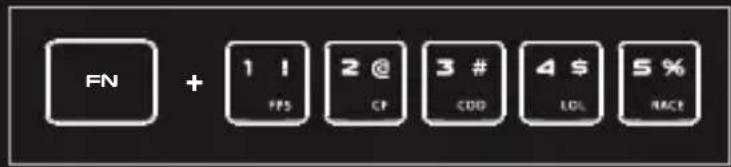
RESTORE FACTORY SETTINGS
All saved settings can be easy restored to default settings by the keys [FN+ESC].
To restore factory settings, hold the keys [FN+ESC] for 5 seconds.
REQUIREMENTS
• PC or PC compatible device with a USB port
- Windows® XP/Vista/7/8/10
WARRANTY
• 2 years limited manufacturer warranty
• The safe product, conforming to the EU requirements.
• The product is made in accordance with RoHS European standard.
- The WEEE symbol (the crossed-out wheeled bin) using indicates that this product in not home waste. Appropriate waste management aids in avoiding consequences which are harmful for people and environment and result from dangerous materials used in the device, as well as improper storage and processing. Segregated household waste collection aids recycle materials and components of which the device was made. In order to get detailed information about recycling this product please contact your retailer or a local authority.
CECHY
JASNOŚĆ PODŚWIETLENIA
JAS PODSVIETENIA
Úroveň jasu podsvietenia klávesnice zmeníte pomocou klávesov [FN + šípka hore / dole].
RÝCHLOŠŤ EFEKTOV PODSVIETENIA
flowchart
graph TD
    FN["FN"] --> W["W"]
    W --> A["ASD"]
    A --> D["◀"]
    D --> ▼[▼]
    ▼ --> ▶[▶]
ŠTANDARDNÉ REŽIMY PODSVIETENIA
LUMINOZITATEA ILUMINARII
Pentru a schimba nivelul luminozitatii iluminarii, apasati tastele [FN + sageata Sus / Jos].
VITEZA EFECTELOR DE ILUMINARE
Pentru a schimba viteza efectelor de iluminare, apasati tastele [FN + sageata Stanga / Dreapta].
SCHIMBAREA FUNCTIILOR PENTRU TASTELE SAGETI
ЯРКОСТЬ ПОДСВЕТКИ
flowchart
graph TD
    FN["FN"] --> W["W"]
    W --> A["ASD"]
    W --> D["D"]
    W --> V["◀"]
    W --> V2["▼"]
    W --> V3["▶"]
СМЯНА НА ЦВЕТОВЕТЕ НА ПОДСВЕТКАТА
natural_image
Abstract spiral pattern with concentric circles and a central spiral (no text or symbols)WWW.GENESIS-ZONE.COM
PRODUCT & SUPPORT
INFORMATION
PLEASE SCAN QRCODE


- INSTALLATION
- SPEED OF BACKLIGHT EFFECTS
- PACKAGE CONTENT
- SAFETY INFORMATION GENERAL
- ARROW FUNCTION CHANGE
- STANDARD BACKLIGHT MODES
- GAME BACKLIGHT MODES
- RESTORE FACTORY SETTINGS
- REQUIREMENTS
- WARRANTY
- CECHY
- JASNOŚĆ PODŚWIETLENIA
- JAS PODSVIETENIA
- RÝCHLOŠŤ EFEKTOV PODSVIETENIA
- ŠTANDARDNÉ REŽIMY PODSVIETENIA
- LUMINOZITATEA ILUMINARII
- VITEZA EFECTELOR DE ILUMINARE
- SCHIMBAREA FUNCTIILOR PENTRU TASTELE SAGETI
- ЯРКОСТЬ ПОДСВЕТКИ
- СМЯНА НА ЦВЕТОВЕТЕ НА ПОДСВЕТКАТА
- PRODUCT & SUPPORT
- INFORMATION
Brand : Genesis
Model : Thor 420 RGB
Category : Keyboard