
RD-E861B-DAB - Hi-Fi JVC - Free user manual and instructions
Find the device manual for free RD-E861B-DAB JVC in PDF.


| Product Type | Micro Hi-Fi System |
| Brand | JVC |
| Model | RD-E861B-DAB |
| Dimensions (W x H x D) | Approx. 200 x 130 x 300 mm |
| Weight | Approx. 3.5 kg |
| Power Supply | AC 230V ~ 50Hz |
| Power Consumption | 50 W (standby <0.5 W) |
| Output Power (RMS) | 2 x 20 W (4 ohms) |
| Disc Playback | CD, CD-R/RW, MP3 CD |
| Radio Tuner | DAB/DAB+, FM (RDS) |
| USB Playback | USB 2.0, supports MP3/WMA |
| Bluetooth Version | 4.2, supports A2DP/AVRCP |
| Audio Inputs | AUX (3.5mm), USB |
| Audio Outputs | Headphone (3.5mm), Speaker terminals |
| Remote Control | Yes (included) |
| Display | LCD with white backlight |
| Alarm/Timer | Dual alarm, sleep timer |
| Equalizer | Preset EQ (Rock, Pop, Classic, etc.) |
| Cleaning | Wipe with dry soft cloth; avoid liquids |
| Safety | Class II, double insulation; do not open |
| Spare Parts & Repairability | Contact JVC service for parts; repair by qualified personnel |
Frequently Asked Questions - RD-E861B-DAB JVC
User questions about RD-E861B-DAB JVC
0 question about this device. Answer the ones you know or ask your own.
Ask a new question about this device
Download the instructions for your Hi-Fi in PDF format for free! Find your manual RD-E861B-DAB - JVC and take your electronic device back in hand. On this page are published all the documents necessary for the use of your device. RD-E861B-DAB by JVC.
USER MANUAL RD-E861B-DAB JVC
DAB+ All-in-one Audio System
RD-E861B-DAB
INTRODUCTION
- Thank you for buying our product.
- Please read through these operating instructions, so you will know how to operate your equipment properly. After you have finished reading the instructions manual, put it away in a safe place for future reference.
DANGER
Invisible laser radiation when open and interlock failed or defeated. Avoid direct exposure to beam.
This product is classified as a Class 1 LASER PRODUCT.
The CLASS 1 LASER PRODUCT label is located on the rear exterior.
SAFETY
General
- Do not drop the device and do not expose it to liquid, moisture, or humidity. These might lead to damage to the device.
- If the device is moved from a cold environment into a warmer one, let it adapt to the new temperature before operating the device. Otherwise, it might lead to condensation and cause malfunctions in the device.
- Do not use the device in a dusty environment, as dust can damage the interior electronic components and lead to malfunctions in the device.
- Protect the device from strong vibrations and place it on stable surfaces.
- Do not attempt to disassemble the device.
- If the device is not used for a long period of time, disconnect it from the power supply by unplugging the power plug. This is to avoid the risk of fire.
- The ventilation should not be impeded by covering the ventilation openings with items such as newspapers, tablecloths, curtains, etc.
- No naked flame sources, such as lighted candles, should be placed on the apparatus.
Battery handling and usage
- Only adults should handle batteries. Do not allow a child to use this apparatus unless the battery cover is securely attached.
- Remove batteries if exhausted or if they will not be used again for a long period. The incorrect use of batteries can cause electrolyte leakage and will corrode the compartment or cause the batteries to burst, therefore:
- Do not mix battery types, e.g., alkaline with zinc carbonate.
- When inserting new batteries, replace all batteries at the same time.
- Batteries contain chemical substances, so they should be disposed of properly.
PRODUCT OVERVIEW AND CONTROL BUTTONS
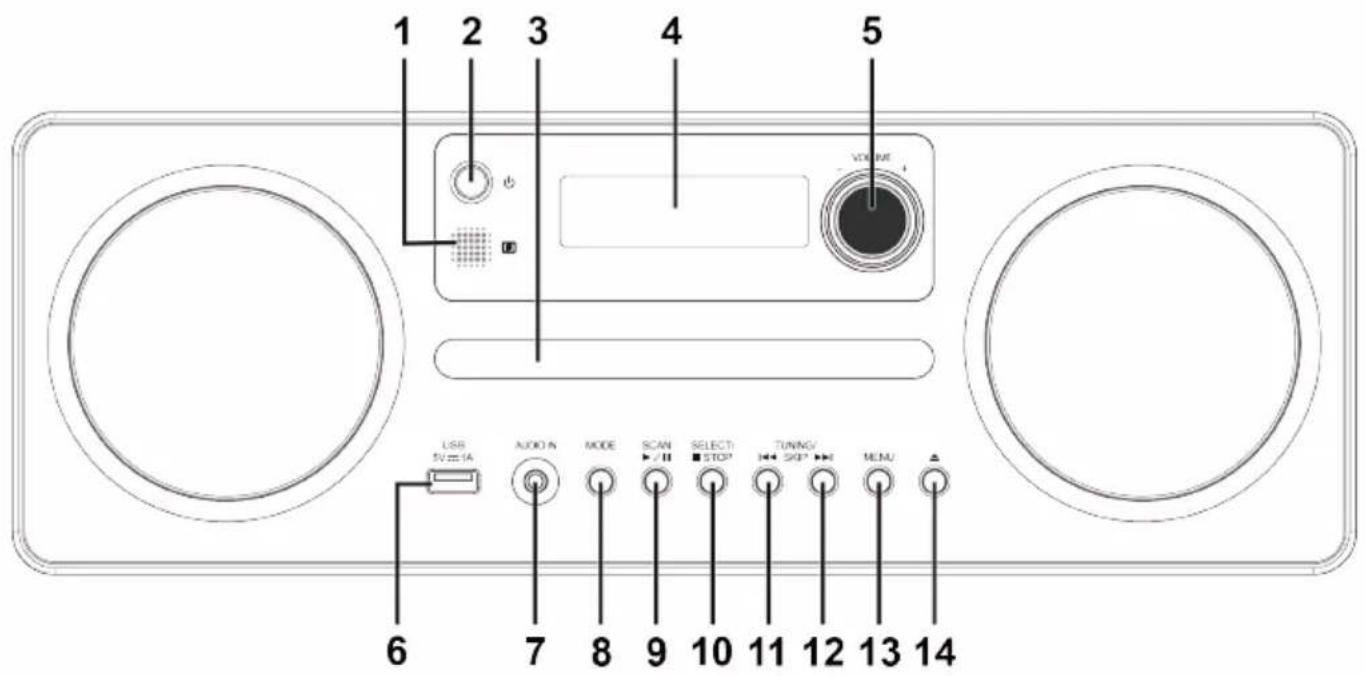
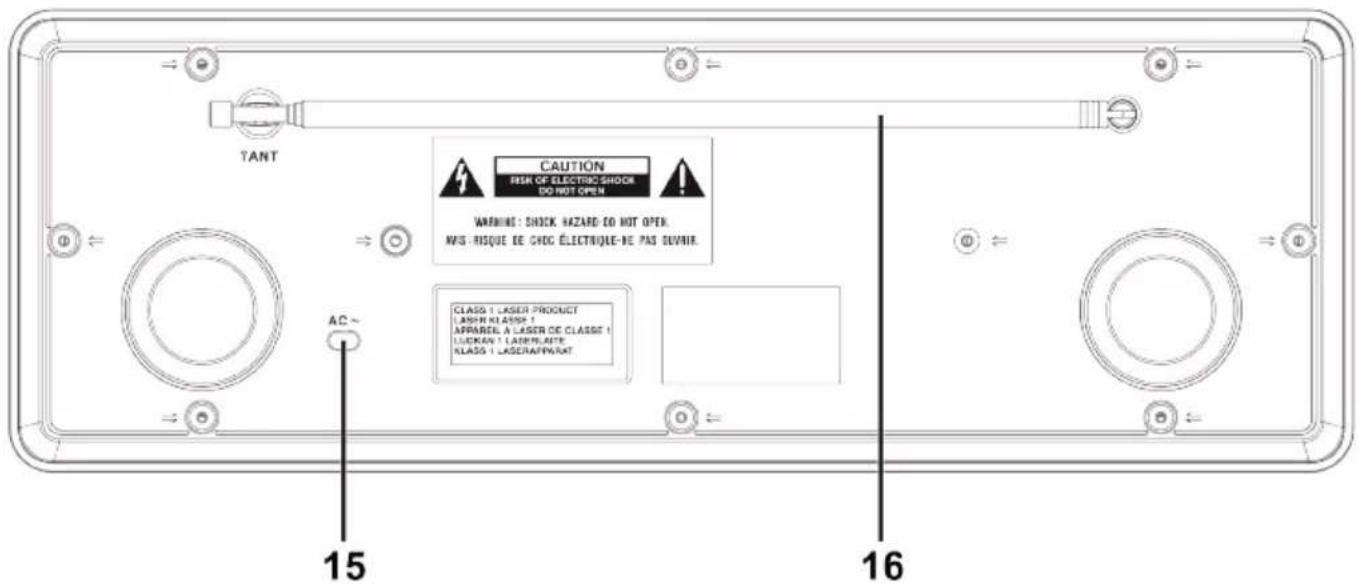
- Remote Control Sensor
- button
- Disk tray
- Display
- VOLUME control
- USB port
- AUDIO IN socket
- MODE button
- SCAN/ ▶ / I button
- SELECT/Button
- TUNING/SKIP button
- TUNING/SKIP button
- MENU button
- ▲ button
- Mains Cable
- DAB/FM antenna
NOTE: The USB port does not support charging external devices.
REMOTE CONTROL BUTTONS
| Power On/Off | |
| Open / Close disc tray | |
| CLOCK | Clock settings |
| SLEEP | Sleep timer |
| TIMER | Daily timer |
| SCAN | DAB: Full scanFM: Search for the next / previous station |
| INTRO | CD/USB: Intro playback |
| RANDOM | CD/USB: Random playback |
| REPEAT | CD/USB: Repeat playback |
| MODE | Mode selection (DAB, FM, CD, USB, AUX and Bluetooth) |
| INFO | DAB/FM: Display information about the station you are listening to.CD/USB: Display ID3 information. |
| SELECT | Confirm selection |
| CD/USB/Bluetooth: Start / Pause playback | |
| CD/USB: Stop playback | |
| CD/USB/Bluetooth: Previous trackFM: Manual search | |
| CD/USB/Bluetooth: Next trackFM: Manual search | |
| EQ | Select equalizer preset |
| PRESET | DAB/FM: Preset stationCD/USB: Programmed playback |
| VOL +/- | Increase / Decrease volume |
| MENU | Enter / Exit the menu |
| CD/USB: Next / Previous folder | |
| MONO/ST. | FM: Stereo / Mono mode |
| MUTE | Mute / unmute |
To install the batteries
Lift off the battery compartment cover from the rear of the remote control. Insert 2 x 1.5V AAA size batteries in accordance with the diagram in the battery compartment. Take care to observe the correct polarity.
Remote control operation
To operate the unit with the remote control, point the remote handset at the remote sensor on the front panel and press the appropriate button on the remote handset. The remote works best within a range of 4 meters from the front panel and on an angle of 60 degrees. Bright sunlight or room light conditions can interfere with the remote control. If the remote operation is unsatisfactory or stops working entirely, first try replacing the remote batteries, then try reducing the room lighting conditions.
GETTING STARTED
MAINS POWER
NOTE: Connecting the unit to any other power source may cause damage to the unit.
Unwind the mains cable to its full length. Connect the mains cable at the rear of the main unit to the mains socket. The unit is now connected and ready to use.
WARNING: Make sure the unit is not resting on top of the mains cable, as the weight of the unit may damage the mains cable and create a safety hazard. If the mains cable is damaged it must be replaced by the manufacturer, its service agent, or similarly qualified persons in order to avoid a hazard.
BASIC OPERATION
Powering ON/OFF
- Press ⏻ STANDBY to switch on the unit.
- Press STANDBY again to switch the unit back to Standby mode.
- Disconnect the power cable of the mains adapter from the mains socket if you want to switch the unit off completely.
NOTE: When the unit is idle for approximately 15 minutes, it will automatically switch to Standby mode.
Mode selection
Press MODE repeatedly to switch between DAB, FM, CD, USB, AUX and Bluetooth modes.
Language
- In DAB or FM mode, press MENU to enter the menu.
- Press <</>> to select and then press SELECT/ to confirm.
- Press to select the desired language and then press SELECT/ to confirm selection.
NOTE: The default language is Czech. Available languages are English and Polish.
Volume
Rotate the VOLUME knob to adjust the volume.
NOTE: If you wish to turn the sound off, press MUTE on the remote control. Press MUTE again or press VOLUME +/- on the remote control or turn the VOLUME control on the unit to resume normal listening.
Sleep timer
- To set the sleep timer press SLEEP on the remote control repeatedly to adjust the sleep timer (OFF, 10, 20, 30, 40, 50, 60, 70, 80, 90 minutes).
- To show the remaining time before the unit turns off automatically press SLEEP.
- To cancel the sleep timer, press SLEEP repeatedly to select .
Manual clock setting
NOTE: The clock will update automatically if you can receive a DAB+ signal in your location. In order to synchronize to the current local time, make sure the unit is placed near the DAB+ signal for a short period of time.
- In Standby mode, press CLOCK on the remote control. The hour digits flash on the display.
- Press 📋 to adjust the hour digits, then press CLOCK to confirm. The minute digits will flash on the display.
- Press W to adjust the minute digits, then press CLOCK to confirm.
Daily timer
Set a time for the unit to turn on and off each day.
- Press and hold TIMER on the remote control to start setting.
- Set all items one by one: , , , and . To set, use <</To confirm, press TIMER.
To enable/disable the Daily timer, press TIMER. If the timer is on, the Ⓜcon will be on the display.
Equalizer
During playback, press EQ on the remote control to select a desired EQ mode.
System reset
During DAB mode, open the CD Disk tray then press and hold STOP on the unit until the display shows . After the unit is reset, it will return to DAB mode.
NOTE: After the system reset, all the tuned stations, and FM/DAB preset stations will be erased.
PRESETS
You can store up to 30 of your favorite DAB or FM stations to the memory. This will enable you to access your favorite stations quickly and easily. To store a preset, you must first be listening to the station that you would like to save.
Storing to Presets 1 ~ 9
- Press and hold the number button 1 ~ 9 until the display shows .
Storing to Presets 1 ~ 30
- Press and hold PRESET, the display will show .
- Press ^/▼ to select your desired preset station number, then press SELECT to confirm.
- The station will be stored in few seconds and the display will show .
Recalling Presets 1 ~ 9
- Press the number button 1 ~ 9 to select the station you want to listen to.
Recalling Presets 1 ~ 30
- Press PRESET.
- Press ▲/▼ to select your desired preset station number. Then press SELECT to confirm.
NOTE: When listening to a preset station, the display shows its number .
DAB OPERATION
NOTE: Extend the telescopic antenna to its full length to get the best reception, or place the unit in an open location.
If the unit is connected to the mains power and then switched on for the first time, the unit will automatically enter into the DAB mode and perform auto scan function. During the scan the display will show together with a slide bar that indicates the progress of the scan and the amount of stations that have been found so far. Once the scan has finished, the unit will select the first alphanumerically found station.
To explore and listen to the found stations press <</>> to select, then press SELECT to confirm.
Full Scan
The Full Scan will search for the entire DAB+ Band III channels.
• To activate Full Scan, press SCAN. - Once a full scan is complete, the radio returns to play the previously-selected station or first station on the station list.
Manual tuning
This can help you align your antenna or add stations that are missing after a full scan.
- Press MENU to enter the menu.
- Press <</>> to select , then press SELECT to confirm.
- Press <</▶ to cycle through the DAB channels, which are numbered from 5A to 13F.
- After your desired channel number is selected, press SELECT to confirm. The display will show the multiplex.
- Press MENU twice to exit the menu.
NOTE: You will not see any new radio stations or hear anything during manual tuning.
DAB Display (Info.)
To view further information about the station you are listening to, press INFO on the remote control. The display will show the following information:
- Signal Strength: shown as a slide bar to indicate the signal strength
- Program Type
- Name of the multiplex
- Frequency
- Signal Error
- Bitrate
- Time / Date
- DLS / Dynamic Label Segment: a scrolling message that the broadcaster may include with their transmissions. The message usually includes information such as program details, etc.
DRC (Dynamic Range Compression)
If you are listening to music with a high dynamic range in a noisy environment, you may wish to compress the audio dynamic range. This makes quiet sounds louder and loud sounds quieter.
- Press MENU to enter the menu.
- Press <</>> to select, then press SELECT to confirm.
- Press << to select / / , then press SELECT to confirm.
Prune Invalid
You may remove all unavailable stations from the list.
- Press MENU to enter the menu.
- Press <</>> to select, then press SELECT to confirm.
- Press <</>> to select to confirm the removal, or select to cancel, then press SELECT to confirm.
Software information
- Press MENU to enter the menu.
- Press <</>> to select.
- Press SELECT to display the software version.
- Press MENU to exit the menu.
FM OPERATION
NOTE: Extend the telescopic antenna to its full length to get the best reception, or place the unit in an open location.
Auto Scan
- Press SCAN to search for the next station.
- Press and hold SCAN to search for the previous station. NOTE: The search may not stop at a station with a very weak signal.
Manual Scan
- To search for FM stations manually, press <</repeatedly until your desired frequency is reached. NOTE: Each press will increase/decrease the frequency by 0.05 MHz. If reception is poor, adjust the position of the aerial or try moving the radio to another location.
FM Display (Info.)
To view further information about the station you are listening to, press INFO on the remote control. The display will show the following information:
- Radio Text
- Program Type
- Frequency
- Audio Type
- Time / Date
Scan Setting
This is a scan setting to search all stations, or just search stations with a strong signal.
- Press MENU to enter the menu.
- Press <</>> to select, then press SELECT to confirm.
- Press <</>> to select, then press SELECT to confirm.
Audio settings
This unit will automatically switch between stereo and mono mode, but you can override this and toggle this function manually. This can be helpful when receiving poor signal reception.
- Press MENU to enter the menu.
- Press <</to select , then press SELECT to confirm.
- Press <</>> to select or , then press SELECT to confirm.
Audio mode
Press MONO/ST. on the remote control to toggle between the Stereo or Mono modes.
CD / CD-MP3
NOTE: The unit can play digital audio CD / CD-MP3 discs: finalized digital audio CD-Recordable (CD-R) discs, finalized digital audio CD-Rewritable (CD-RW) discs, and CD-DA format digital audio discs.
- In CD mode, press to open the disc tray.
- Place the CD with the label side up into the CD compartment, and then press ▲ to close the disc tray. The display shows the total number of folders*/tracks.
NOTE: If there is no disc or the disc can't be read, or will show on the display.
- The playback starts automatically. If not press
- To view the ID3 info, press INFO on the remote control.
Playback
- Press ▶ to play/pause the playback.
- Press 📋to skip to the previous/next track.
- Press and hold ◀/▶ to fast forward/rewind.
- Press ^/▼ to select a folder.
- Press to stop the playback.
Playback modes
- Repeat playback: Press REPEAT on the remote control repeatedly to select one of the modes: the current track will be played repeatedly / the current folder will be played repeatedly / all tracks will be played repeatedly.
- Random playback: Press RANDOM on the remote control to play all tracks in random order. will show on the display.
- Intro playback: Press INTRO on the remote control to play the beginnings (10s) of each track. will show on the display.
Programmed playback
Up to 32 CD tracks or 64 MP3 tracks can be stored in the memory in any order. Programming is possible in STOP mode only.
- Press PRESET to enter programming mode. will show on the display.
- To add the first track (Position 1) to the list, follow these steps:
- Press /▼ to select a folder (Folder 1), then press PRESET to confirm.
- Press <</▶ to select a track (Track 1), then press PRESET to confirm.
- Repeat the previous steps to add more tracks. Once it is completed, press ▶ to start the playback of the programmed tracks.
- Press ■ twice to cancel the programmed playback. * These options are available only for CD-MP3 discs that contain more than one folder.
COMPACT DISC MAINTENANCE
Always use a compact disc bearing the mark as shown.

Notes on handling discs
- Removing the disc from its storage case and loading it.
- Do not touch the reflective recorded surface.
- Do not stick paper or write anything on the surface.
- Do not bend the disc.
Storage
- Store the disc in its case.
- Do not expose discs to direct sunlight or high temperatures, high humidity or dusty places.
- Should the disc become soiled, wipe off dust, dirt and fingerprints with a soft cloth.
- The disc should be cleaned from the center to the edge.
- Never use benzene, thinners, record cleaner fluid or anti-static spray.
- Be sure to close the CD door, so the lens is not contaminated by dust.
- Do not touch the lens.
Cleaning a disc
USB
NOTE: The device supports USB drives (FAT32) with up to 32 GB of memory. Only MP3 audio format is supported. Do not use any USB extension cable to connect the USB drive. The unit may not be compatible with all USB drives; this is not an indication of a problem with the unit.
- In USB mode, insert a USB drive into the USB port. The display shows the total number of folders/tracks. Playback starts automatically. If not, press ▶. To view the ID3 info, press INFO on the remote control.
Playback / Playback modes / Programmed playback
All playback features are the same as MP3-CD; see the section above.
AUX
This unit provides an AUDIO IN socket. Through this 3.5 mm jack, external audio sources can be connected to this unit and amplified.
- In AUX mode, connect your device with a cable (not included) to the AUDIO IN socket.
- Adjust the volume to your desired level.
NOTE: When using an external device, all playback features can only be controlled by the external device.
4-hour playback
If the unit is in AUX mode for more than 4 hours, it will automatically switch to standby mode. 10 minutes before entering standby, the display will flash. To cancel the auto-off function, press INTRO.
BLUETOOTH
- In Bluetooth mode, the display will flash. This means the unit is not paired with any Bluetooth device.
- Activate Bluetooth on your mobile phone and search for the device name RD-E861B-DAB, then connect. If the pairing is successful, it will be solid on the display.
Playback
- Adjust the volume to your desired level.
- Press ▶ to play/pause the playback.
- Press 📋 to skip to the previous/next track.
NOTE: The operational range between the unit and the device is approximately 8 meters.
If the signal strength is weak, your Bluetooth receiver may disconnect, but it will re-enter pairing mode automatically.
For better signal reception, remove any obstacles between the unit and the Bluetooth device.
Compatibility with all devices and media types is not guaranteed.
Some mobile phones with Bluetooth functions may connect and disconnect as you make and end calls.
This is not an indication of a problem with the unit.
SPECIFICATIONS
GENERAL
Power Supply: AC 100 ~ 240 V; 50/60 Hz
Power consumption: < 32 W
Standby Power consumption < 1 W
Weight Approx. 2.6 kg
Dimensions 350 x 120 x 210 mm
Operation temperature +5°C ~ +35°C
RADIO SECTION
FM Frequency Range 87.5 – 108 MHz
DAB+ Frequency Range 174 – 240 MHz
Presets DAB+ 30 / FM 30
CD SECTION
Frequency Response 20 Hz – 20 kHz
BLUETOOTH SECTION
Bluetooth V 5.0 - Supports A2DP, AVRCP profiles
BT Frequency Range 2402 – 2480 MHz
EIRP 4 dBm
AUDIO SECTION
Power output 2 x 5 Watts RMS
WE RESERVE THE RIGHT TO CHANGE TECHNICAL SPECIFICATIONS.
PACKAGE CONTENTS
DAB+ All-in-one Audio System, Remote Control, User manual
MAINTENANCE / CLEANING
- Ensure the unit is fully unplugged from the mains socket before cleaning.
- Never use any harsh or strong solvents to clean the device since these may damage the surface of the device. Dry, soft cloth is appropriate, however, if the device is extremely dirty, it may be wiped off with a slightly moist cloth. Make sure the device is dried off after cleaning. When you are necessary to ship the device, store it in its original package. Save the package for this purpose.

WARNING: DO NOT USE THIS PRODUCT NEAR WATER, IN WET AREAS TO AVOID FIRE OR INJURY OF ELECTRIC CURRENT. ALWAYS TURN OFF THE PRODUCT WHEN YOU DON'T USE IT OR BEFORE A REVISION. THERE AREN'T ANY PARTS IN THIS APPLIANCE WHICH ARE REPARABLE BY CONSUMER. ALWAYS APPEAL TO A QUALIFIED AUTHORIZED SERVICE. THE PRODUCT IS UNDER A DANGEROUS TENTION.


TO AVOID DANGER OF SUFFOCATION, KEEP THE PLASTIC BAG AWAY FROM BABIES AND CHILDREN. DO NOT USE THIS BAG IN CRIBS, BEDS, CARRIAGES OR PLAYPENS. THIS BAG IS NOT A TOY.
Disposal of old Electrical & Electronic Equipment
(Applicable in the European Union and other European countries with separate collection systems)
This symbol on the product or on its packaging indicates that this product shall not be treated as household waste. Instead it shall be handed over to the applicable collection point for the recycling of electrical and electronic equipment. By ensuring this product is disposed of correctly, you will help prevent potential negative consequences for the environment and human health, which could otherwise be caused by inappropriate waste handling of this product. The recycling of materials will help to conserve natural resources. For more detailed information about recycling of this product, please contact your local Civic Office, your household waste disposal service or the shop where you purchased the product.
Bluetooth®
The Bluetooth ® word mark and logos are registered trademarks owned by Bluetooth SIG, Inc. and any use of such marks by Shenzhen Badam technology co.,LTD is under license. Other trademarks and trade names are those of their respective owners.
Hereby, ETA a.s. declares that the radio equipment type RD-E861B-DAB is in compliance with Directive 2014/53/EU. The full text of the EU declaration of conformity is available at the following internet address: www.JVCAUDIO.cz/doc
INTRODUCTION
MEMORY STATIONS
Frequency Response 20 Hz – 20 kHz
BLUETOOTH SECTION
Bluetooth V 5.0 - A2DP, AVRCP profiles supported
BT frequency range 2402 – 2480 MHz
EIRP 4 dBm
AUDIO SECTION
This product is manufactured and distributed exclusively by ETA a.s., serviced and warranted by its designated partner.
“JVC” is the trademark of JVCKENWOOD Corporation, used by such company under license.
- INTRODUCTION
- DANGER
- SAFETY
- GENERAL
- BATTERY HANDLING AND USAGE
- PRODUCT OVERVIEW AND CONTROL BUTTONS
- TO INSTALL THE BATTERIES
- REMOTE CONTROL OPERATION
- GETTING STARTED
- MAINS POWER
- BASIC OPERATION
- POWERING ON/OFF
- MODE SELECTION
- LANGUAGE
- VOLUME
- SLEEP TIMER
- MANUAL CLOCK SETTING
- DAILY TIMER
- EQUALIZER
- SYSTEM RESET
- PRESETS
- STORING TO PRESETS
- RECALLING PRESETS
- DAB OPERATION
- FULL SCAN
- MANUAL TUNING
- DAB DISPLAY (INFO.)
- DRC (DYNAMIC RANGE COMPRESSION)
- PRUNE INVALID
- SOFTWARE INFORMATION
- FM OPERATION
- AUTO SCAN
- MANUAL SCAN
- FM DISPLAY (INFO.)
- SCAN SETTING
- AUDIO SETTINGS
- AUDIO MODE
- CD / CD-MP
- PLAYBACK
- PLAYBACK MODES
- PROGRAMMED PLAYBACK
- COMPACT DISC MAINTENANCE
- NOTES ON HANDLING DISCS
- STORAGE
- CLEANING A DISC
- USB
- PLAYBACK / PLAYBACK MODES / PROGRAMMED PLAYBACK
- AUX
- HOUR PLAYBACK
- BLUETOOTH
- SPECIFICATIONS
- RADIO SECTION
- CD SECTION
- BLUETOOTH SECTION
- AUDIO SECTION
- PACKAGE CONTENTS
- MAINTENANCE / CLEANING
- DISPOSAL OF OLD ELECTRICAL & ELECTRONIC EQUIPMENT
- (APPLICABLE IN THE EUROPEAN UNION AND OTHER EUROPEAN COUNTRIES WITH SEPARATE COLLECTION SYSTEMS)
- BLUETOOTH®
- MEMORY STATIONS
Brand : JVC
Model : RD-E861B-DAB
Category : Hi-Fi