
CA-DD3 - Hi-Fi JVC - Free user manual and instructions
Find the device manual for free CA-DD3 JVC in PDF.


| Product Type | Double Cassette Deck |
| Brand | JVC |
| Model | CA-DD3 |
| Dimensions (W x H x D) | 435 mm x 110 mm x 280 mm |
| Weight | 4.2 kg |
| Power Supply | AC 230V, 50 Hz |
| Power Consumption | 15 W |
| Functions | Playback, Recording, Auto Reverse, Dolby NR, Music Search |
| Sound Quality | High-fidelity stereo playback with low wow and flutter |
| Connectivity | RCA line inputs/outputs, microphone inputs |
| Cassette Compatibility | Compact Cassette Type I, II, IV |
| Output Power | Not applicable (deck only) |
| Frequency Response | 30 Hz - 16 kHz (metal tape) |
| Signal-to-Noise Ratio | 60 dB (Dolby B) |
| Head Cleaning | Regular cleaning with isopropyl alcohol and lint-free swab |
| Spare Parts & Repairability | Replacement belts, pinch rollers, and heads available from authorized service centers |
| Safety Instructions | Keep away from moisture and heat sources; use only specified power supply |
| General Information | Designed for reliable home use; refer to manual for detailed operation |
Frequently Asked Questions - CA-DD3 JVC
User questions about CA-DD3 JVC
0 question about this device. Answer the ones you know or ask your own.
Ask a new question about this device
Download the instructions for your Hi-Fi in PDF format for free! Find your manual CA-DD3 - JVC and take your electronic device back in hand. On this page are published all the documents necessary for the use of your device. CA-DD3 by JVC.
USER MANUAL CA-DD3 JVC
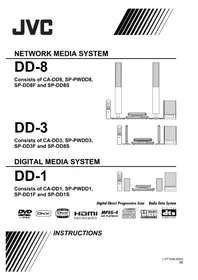
Consists of CA-DD8, SP-PWDD8, SP-DD8F and SP-DD8S
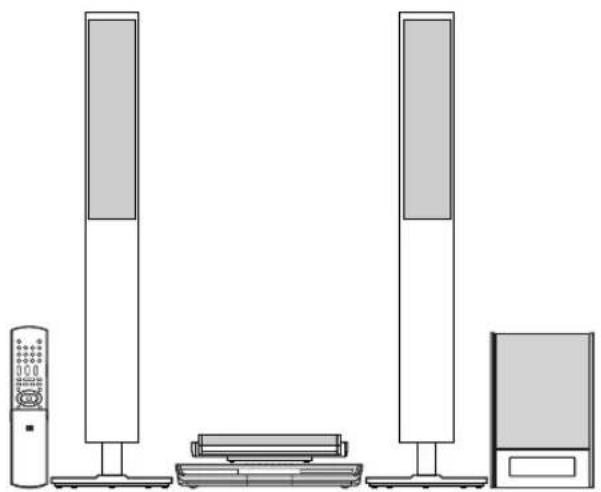
DD-3
Consists of CA-DD3, SP-PWDD3, SP-DD3F and SP-DD8S
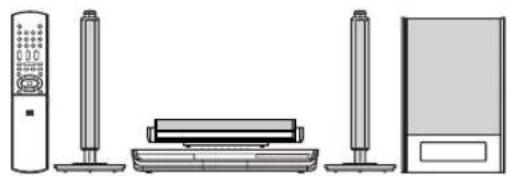
DIGITAL MEDIA SYSTEM
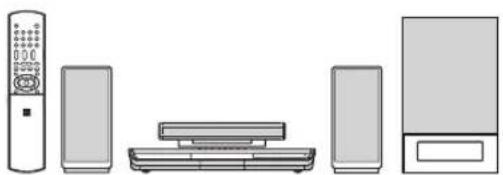
DD-1
Consists of CA-DD1, SP-PWDD1, SP-DD1F and SP-DD1S
Digital Direct Progressive Scan Radio Data System

(Only for DD-8 and DD-3)


INSTRUCTIONS
CAUTION
To reduce the risk of electrical shocks, fire, etc.:
- Do not remove screws, covers or cabinet.
- Do not expose this appliance to rain or moisture.
CAUTION
- Do not block the ventilation openings or holes. (If the ventilation openings or holes are blocked by a newspaper or cloth, etc., the heat may not be able to get out.)
- Do not place any naked flame sources, such as lighted candles, on the apparatus.
- When discarding batteries, environmental problems must be considered and local rules or laws governing the disposal of these batteries must be followed strictly.
- Do not expose this apparatus to rain, moisture, dripping or splashing and that no objects filled with liquids, such as vases, shall be placed on the apparatus.
IMPORTANT FOR LASER PRODUCTS
- CLASS 1 LASER PRODUCT
- CAUTION: Do not open the top cover. There are no user serviceable parts inside the unit; leave all servicing to qualified service personnel.
- CAUTION: Visible and/or invisible class 1M laser radiation when open. Do not view directly with optical instruments.
- REPRODUCTION OF LABEL: CAUTION LABEL, PLACED INSIDE THE UNIT.
| CAUTIONVISIBLE AND/ORINVISIBLE CLASS 1MLASER RADIATIONWHEN OPEN, DO NOTVIEW DIRECTLY WITHOPTICAL INSTRUMENTS.EC60825-4:2001(ENG) | ATTENTIONRAYONNEMENT LASERVISIBLE ET/OUINVISIBLE DE CLASSE1M UNE FOIS OUVERTNE PAS REGARDERDIRECTMENT AVECDES INSTRUMENTSOPTIQUES. (IRA) | AVISORADIACIÓN LÁSERDE CLASE 1MVISIBLE Y/O INVISIBLECUANDO ESTAABIERTO, NO MIRARDIRECTAMENTECON INSTRUMENTALÓPTICO. (ESP) | VARNINGSYNLG OCH/ELLERSYNUIGLASERISTRÄUNING,KLASS 1M, NÄR DENNALDEL ÄR ÖPPNAD.BETRAKTA ELSTRÄLEN MED OPTISKAINSTRUMENT. (SWE) | 注意こを聞くと可提及及びがたは不可視のクラス1MLレーザー放射が出ます。光学装置で直接見ないでください。(JPN) | CAUTIONVISIBLE AND/ORINVISIBLE CLASS IILASER RADIATIONWHEN OPEN.DO NOT STARENTO BEAM.FDA 21 CFR (ENG)LV44603-003A |
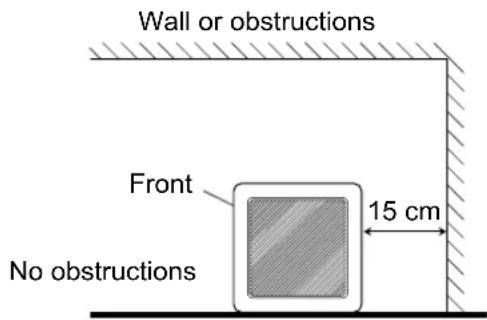
CAUTION: Proper Ventilation
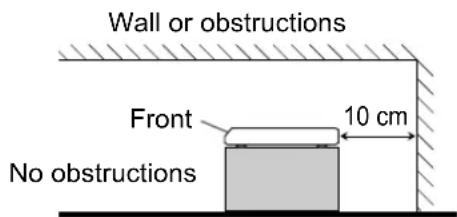
To avoid risk of electric shock and fire and to protect from damage, place the apparatus on a level surface. The minimal clearances are shown below:
Main unit (CA-DD8/CA-DD3/CA-DD1)
Front view Side view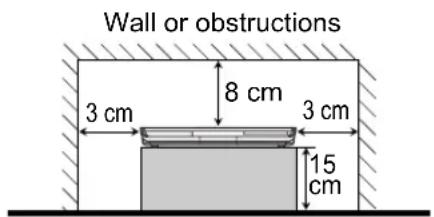
Subwoofer (SP-PWDD8/SP-PWDD3/SP-PWDD1)
Front view Side view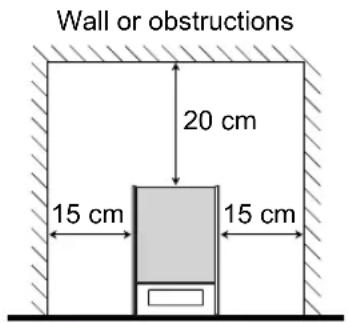
CAUTION — ⏻/1 button! (CA-DD8/CA-DD3/CA-DD1)
Disconnect the mains plug to shut the power off completely (the STANDBY lamp goes off). When installing the apparatus, ensure that the plug is easily accessible.
The ⏻/I button in any position does not disconnect the mains line.
- When the system is on standby, the STANDBY lamp lights red.
- When the system is turned on, the STANDBY lamp goes off.
The power can be remote controlled.
CAUTION (SP-PWDD8/SP-PWDD3/SP-PWDD1)
The power supply to the subwoofer is linked to the center unit.
Disconnect the mains plug to shut the power off completely (the POWER ON lamp goes off).
When installing the apparatus, ensure that the plug is easily accessible.
- When the system is turned on, the POWER ON lamp lights green.
CAUTION
To avoid personal injury or accidentally dropping the unit, have two persons unpack, carry, and install the unit.
SP-DD8: 41 kg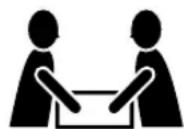
Information for Users on Disposal of Old Equipment
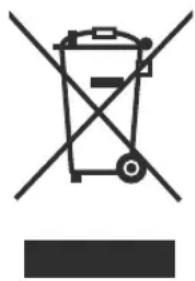
Attention:
This symbol is only valid in the European Union.
[European Union]
This symbol indicates that the electrical and electronic equipment should not be disposed as general household waste at its end-of-life. Instead, the product should be handed over to the applicable collection point for the recycling of electrical and electronic equipment for proper treatment, recovery and recycling in accordance with your national legislation.
By disposing of this product correctly, you will help to conserve natural resources and will help prevent potential negative effects on the environment and human health which could otherwise be caused by inappropriate waste handling of this product. For more information about collection point and recycling of this product, please contact your local municipal office, your household waste disposal service or the shop where you purchased the product.
Penalties may be applicable for incorrect disposal of this waste, in accordance with national legislation.
(Business users)
If you wish to dispose of this product, please visit our web page www.jvc-europe.com to obtain information about the take-back of the product.
[Other Countries outside the European Union]
If you wish to dispose of this product, please do so in accordance with applicable national legislation or other rules in your country for the treatment of old electrical and electronic equipment.
Dear Customer,
This apparatus is in conformance with the valid European directives and standards regarding electromagnetic compatibility and electrical safety.
European representative of Victor Company of Japan, Limited is:
JVC Technology Centre Europe GmbH
Postfach 10 05 52
61145 Friedberg
Germany
IMPORTANT for the U.K.
DO NOT cut off the mains plug from this equipment. If the plug fitted is not suitable for the power points in your home or the cable is too short to reach a power point, then obtain an appropriate safety approved extension lead or consult your dealer.
BE SURE to replace the fuse only with an identical approved type, as originally fitted.
If nonetheless the mains plug is cut off ensure to remove the fuse and dispose of the plug immediately, to avoid a possible shock hazard by inadvertent connection to the mains supply.
If this product is not supplied fitted with a mains plug then follow the instructions given below:
IMPORTANT:
DO NOT make any connection to the terminal which is marked with the letter E or by the safety earth symbol or coloured green or green-and-yellow.
The wires in the mains lead on this product are coloured in accordance with the following code:
Blue: Neutral
Brown: Live
As these colours may not correspond with the coloured markings identifying the terminals in your plug proceed as follows:
The wire which is coloured blue must be connected to the terminal which is marked with the letter N or coloured black.
The wire which is coloured brown must be connected to the terminal which is marked with the letter L or coloured red.
IF IN DOUBT - CONSULT A COMPETENT ELECTRICIAN.
SAFETY INSTRUCTIONS "SOME DOS AND DON'TS ON THE SAFE USE OF EQUIPMENT"
This equipment has been designed and manufactured to meet international safety standards but, like any electrical equipment, care must be taken if you are to obtain the best results and safety is to be assured.
Do read the operating instructions before you attempt to use the equipment.
Do ensure that all electrical connections (including the mains plug, extension leads and interconnections between pieces of equipment) are properly made and in accordance with the manufacturer's instructions. Switch off and withdraw the mains plug when making or changing connections.
Do consult your dealer if you are ever in doubt about the installation, operation or safety of your equipment.
Do be careful with glass panels or doors on equipment.
DON'T continue to operate the equipment if you are in any doubt about it working normally, or if it is damaged in any way — switch off, withdraw the mains plug and consult your dealer.
DON'T remove any fixed cover as this may expose dangerous voltages.
DON'T leave equipment switched on when it is unattended unless it is specifically stated that it is designed for unattended operation or has a standby mode.
Switch off using the switch on the equipment and make sure that your family know how to do this.
Special arrangements may need to be made for infirm or handicapped people.
DON'T use equipment such as personal stereos or radios so that you are distracted from the requirements of traffic safety. It is illegal to watch television whilst driving.
DON'T listen to headphones at high volume as such use can permanently damage your hearing.
DON'T obstruct the ventilation of the equipment, for example with curtains or soft furnishings.
Overheating will cause damage and shorten the life of the equipment.
DON'T use makeshift stands and NEVER fix legs with wood screws — to ensure complete safety always fit the manufacturer's approved stand or legs with the fixings provided according to the instructions.
DON'T allow electrical equipment to be exposed to rain or moisture.
ABOVE ALL
— NEVER let anyone, especially children, push anything into holes, slots or any other opening in the case. — this could result in a fatal electrical shock.
— NEVER guess or take chances with electrical equipment of any kind — it is better to be safe than sorry!
Thank you for purchasing a JVC product.
Please read all instructions carefully before operation, to ensure your complete understanding and to obtain the best possible performance from the unit.
Introduction
Part description ......3
Using the remote control .....4
Preparation
Preparation......5
Connecting the antennas ....5
Connecting the speakers 6
Connecting a TV 12
Connecting a portable digital audio player.... 15
Connecting other digital audio devices ..... 16
Connecting other analog audio devices..... 16
Connecting the power cable 16
Basic operations
Basic operations....17
Using the number buttons....17
Turning on the main unit 17
Adjusting the volume....17
Turning off the sound temporarily 17
Sharpening the voice sound .....18
Adjusting the bass/treble sound....18
Adjusting the volume of the center surround speaker/subwoofer 18
Adjusting the volume balance between the left and right speakers ....18
Changing the brightness of the display window....19
Using the sleep timer 19
Auto standby function 20
Locking disc ejection....20
Listening to radio broadcasts
Listening to radio broadcasts ....21
Selecting a radio station....21
Tuning in to a preset radio station.... 22
Radio Data System.... 22
Basic operations of disc/file playback
Basic operations of disc/file playback ....26
Playing back a disc 26
Playing back a file 27
Display window on the main unit for disc/file types ....28
Stopping playback....30
Resuming playback....30
Pausing playback....31
Advancing the picture frame by frame .....31
Fast reverse/fast forward search ....31
Playing back from a position 10 seconds before....31
Slow motion playback 31
Skipping to the beginning of a chapter/track/file ....31
Selecting a chapter/track using the number buttons ....32
Skipping at approximately 5 minute intervals ....32
Selecting a track from the menu screen .....32
Convenient functions of disc/file playback
Convenient functions of disc/file playback ....33
Selecting the audio language, subtitle language and view angle ....33
Playing back a disc/file in the desired order (Program playback) 34
Playing back a disc/file in a random order (Random playback)....35
Magnifying the picture....35
Playing back a disc/file repeatedly (Repeat playback)....36
Selecting the surround mode ....36
Adjusting the picture quality (VFP)......37
Using the status bar and the menu bar....38
Playing back a specified part repeatedly (A-B repeat playback)....39
Designating the time (Time search)....39
Changing the initial settings with the preference screen ....40
Basic operations ....40
LANGUAGE 40
PICTURE 41
AUDIO....42
OTHERS 42
Language codes ......43
Playing back sources from other devices
Playing back sources from other devices....44
Selecting other devices as the source .....44
Selecting the signal gain....44
QP LINK....45
Operating other devices using the remote control
Operating other devices using the remote control....46
Operating a TV using the remote control ..... 46
Operating a VCR/STB using the remote control....47
Reference
Notes on operation ....49
Suitable locations for the main unit .....49
Condensation....49
Cleaning the main unit ....49
License and trademark 49
Notes on handling ....50
Notes on discs/files ....51
Playable disc/file types.... 51
Data hierarchy....54
Handling discs....54
Troubleshooting ....55
Specifications ....56
Main unit (CA-DD8/CA-DD3/CA-DD1)....56
Subwoofer for DD-8 (SP-PWDD8)....56
Subwoofer for DD-3 (SP-PWDD3)....56
Subwoofer for DD-1 (SP-PWDD1) 57
Left and right speakers for DD-8 (SP-DD8F)....57
Left and right speakers for DD-3 (SP-DD3F)....57
Left and right speakers for DD-1 (SP-DD1F)....57
Center surround speaker for DD-8/DD-3 (SP-DD8S)....58
Center surround speaker for DD-1 (SP-DD1S)....58
Supplied accessories ....58
How to read this manual
- This manual explains operations assuming that you will use the remote control. Some buttons on the main unit are the same as those on the remote control. You can use either button in this case.
- This manual explains operations mainly with diagrams of the remote control supplied with DD-8/DD-3. If you are operating DD-1, please keep in mind the differences between your remote control shown on page 4.
- Some diagrams in this manual are simplified or exaggerated for the purpose of explanation.
- You can operate some functions differently from the explanation given in this manual.
- Depending on the disc/file, you may not obtain the explained result even after following the operation in this manual.
- The following marks refer to the usable discs/files for the explained function.

The numbers refer to the pages in which the parts are explained.
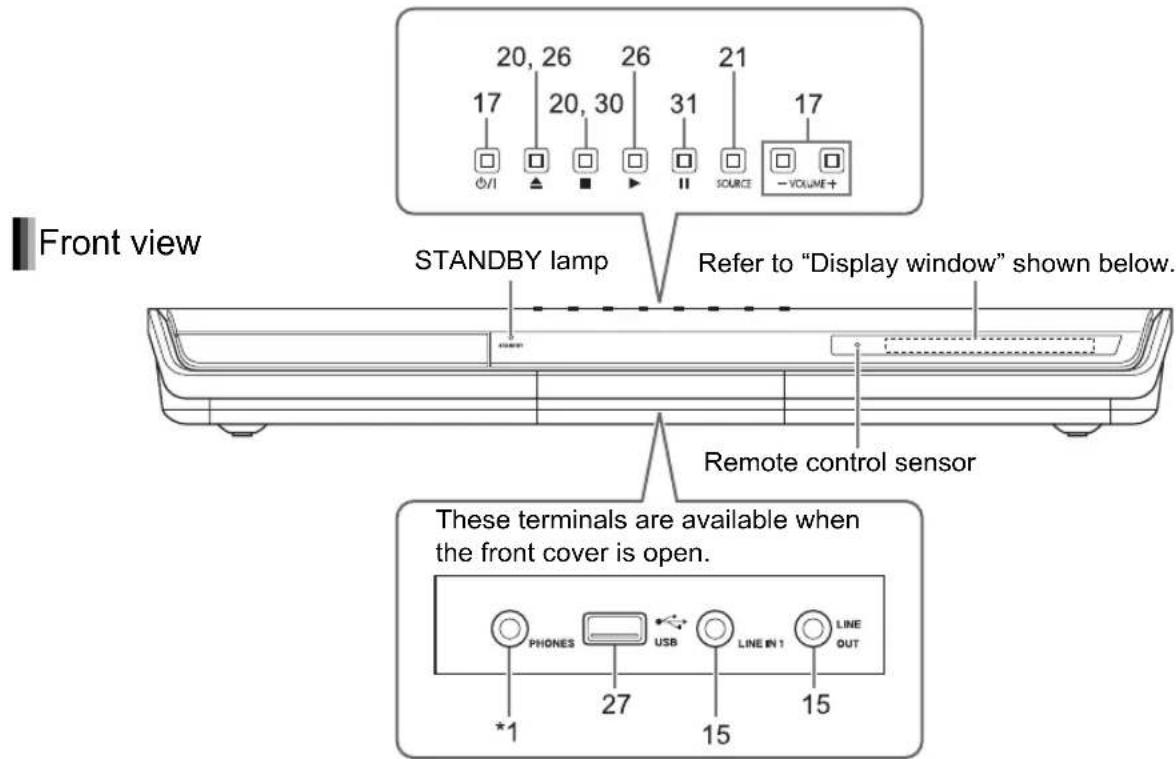
*1 The [PHONES] terminal is for connecting a pair of headphones equipped with a stereo plug (not supplied). When the headphones are connected, the speakers do not produce any sound. ("HEADPHONE" appears in the display window.) During playback, when you connect or disconnect headphones, sound from the [LINE OUT] and [LINE-DIGITAL OUT] terminals may be intermittent. While recording sound to another device, do not connect or disconnect headphones.
Rear view
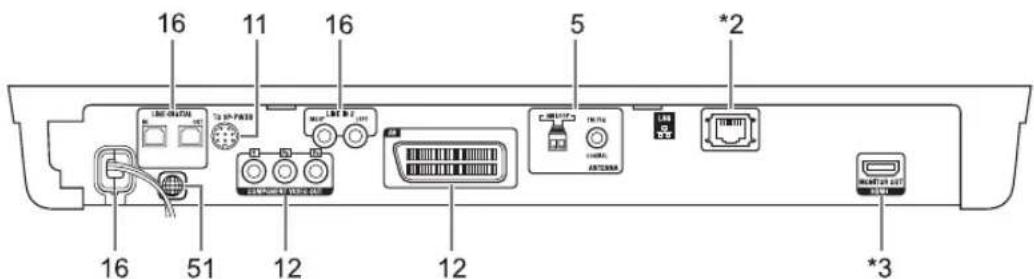
*2 For DD-8/DD-3 users: Refer to the separate volume of the operation manual for the network function. For DD-1 users: The [LAN] terminal is not available. *3 For DD-8/DD-3 users: Refer to page 12. For DD-1 users: The [HDMI] terminal is not available.
Display window
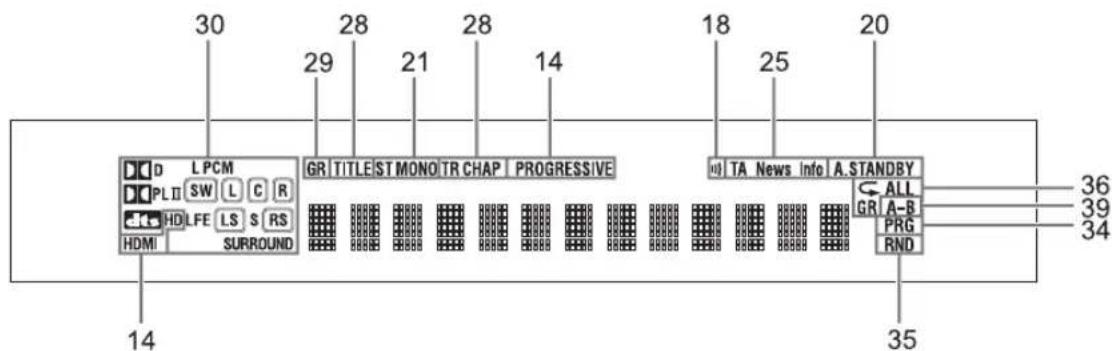
The numbers refer to the pages in which the parts are explained.
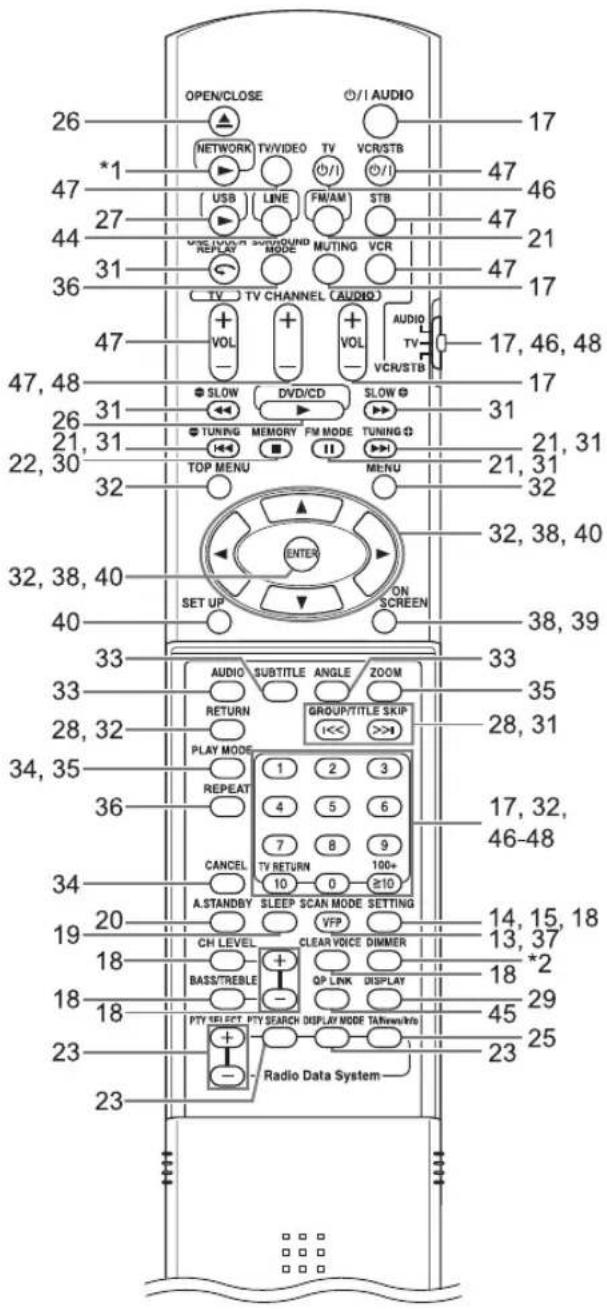
There are some differences between DD-8/DD-3 and DD-1 in the locations of the remote control buttons as shown below.
| DD-8/DD-3 DD-1 | ||
| *1 |  Refer to the separate volume of the operation manual for the network function. Refer to the separate volume of the operation manual for the network function. | DIMMERRefer to page 19. |
| *2 | DimMERRefer to page 19. | No button |
Inserting the batteries into the remote control
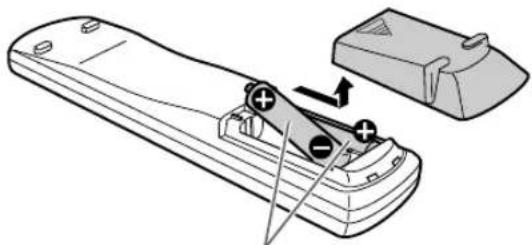
R6P (SUM-3)/AA (15F) type dry-cell batteries (supplied)
- If the effective range of the remote control decreases, replace both batteries.
■ CAUTION
- Do not expose batteries to heat or flame.
Operating the system from the remote control
Point the remote control directly at the front of the main unit.
- Do not block the remote control sensor on the main unit.
- Use the remote control at a position higher than the main unit.
Connecting the antennas
AM loop antenna (supplied)
Setting up the AM loop antenna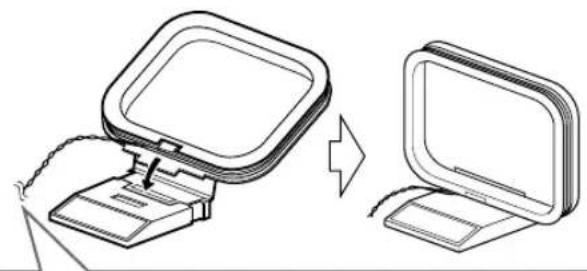

If insulation covers the tips of the antenna cable, twist and pull off the insulation.
Connecting the AM loop antenna Main unit (rear view)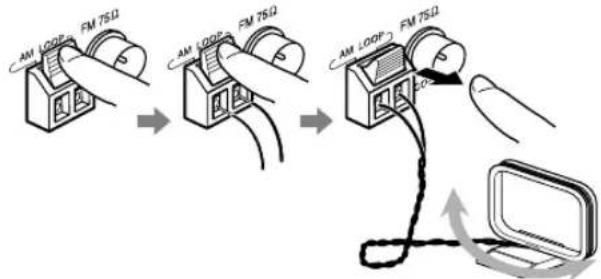
Turn the AM loop antenna to find the best position for radio reception.
NOTE
• Make sure that the antenna conductors do not touch any other terminals. This could cause poor reception.
FM antenna (supplied)
Main unit (rear view)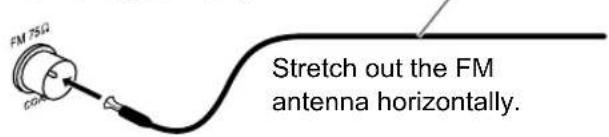
If reception is poor Main unit (rear view)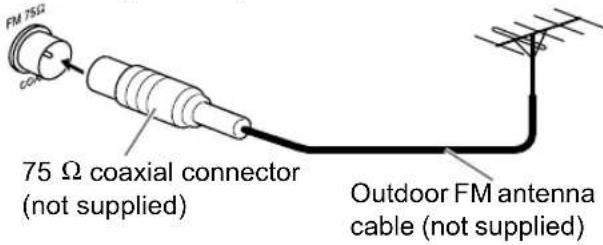
NOTE
- A coaxial cable is recommended as it reduces interference for FM reception.
Connecting the speakers
Assembling the speaker stands (DD-8)
The speakers for DD-8 must be assembled to the speaker stands before the speakers can be connected to the subwoofer. Follow the diagrams below.
Left and right speakers
■ CAUTION
- The left and right speakers for DD-8 are considerably heavy. Care must be taken in carrying and handling them. Injury to personnel or damage to devices may result if the left/right speaker falls.
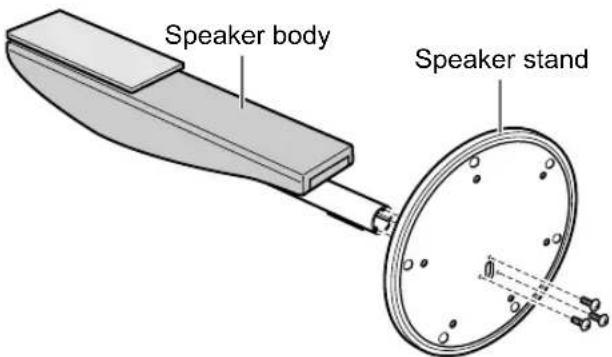
Mount the speaker body perpendicular to the speaker stand. Use the supplied M4 x 25-mm screws (3) to fasten each speaker to its speaker stand.
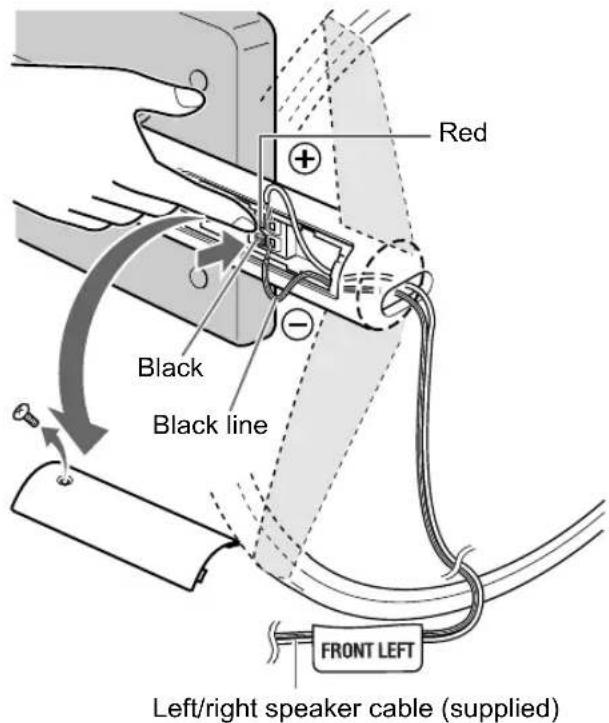
Remove the screw and the terminal cover. After connecting the speaker cables, reattach the terminal cover to the speaker body and tighten the screw.
Center surround speaker
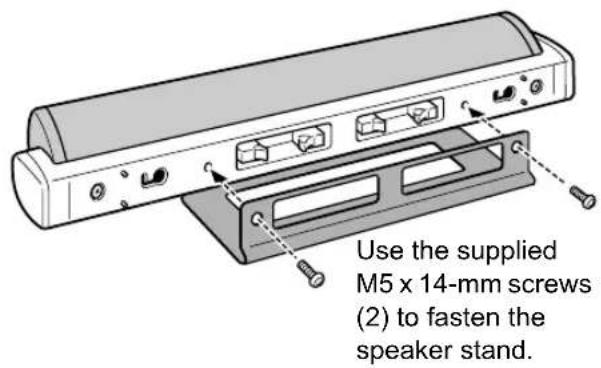
■ CAUTION
- The center surround speaker for DD-8 can be installed on a wall.
- Be sure to have the speaker installed on the wall by qualified personnel.
- DO NOT install the speaker on the wall by yourself to avoid unexpected damage from it falling off the wall due to incorrect installation or weakness in wall structure.
- Care must be taken in selecting a location for speaker installation on a wall. Injury to personnel or damage to devices may result if the installed speaker interferes with daily activities.
Connecting the speakers to the subwoofer (DD-8)
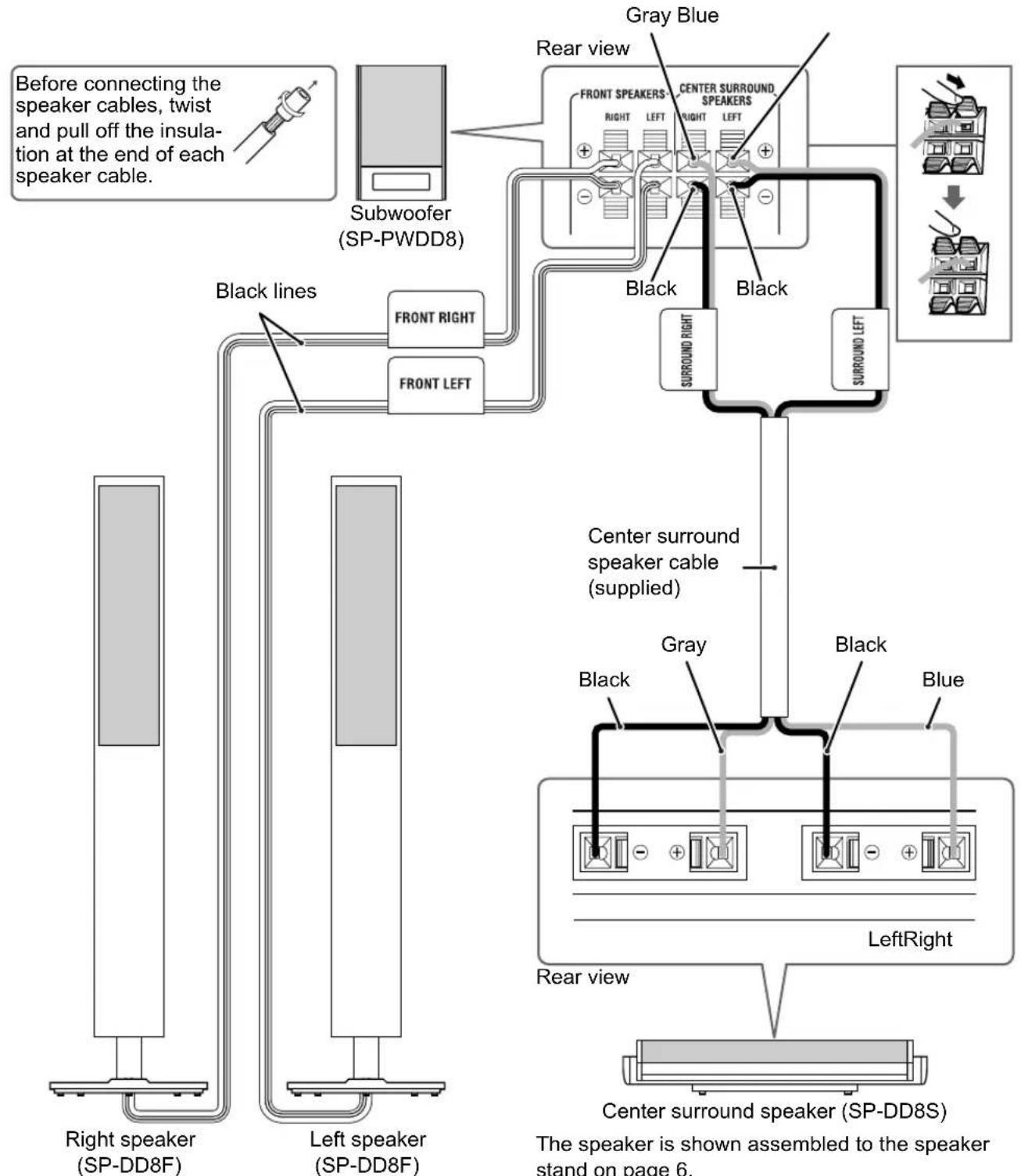
The speakers are shown assembled to the speaker stands on page 6.
The left and right speakers are the same.
The speaker is shown assembled to the speaker stand on page 6.
NOTE
- When connecting the speaker cable to the terminal on the center surround speaker, make sure that the end of speaker cable does not touch any other nearby metallic parts.
Assembling the speaker stands (DD-3)
The speakers for DD-3 must be assembled to the speaker stands before the speakers can be connected to the subwoofer. Follow the diagrams below.
Left and right speakers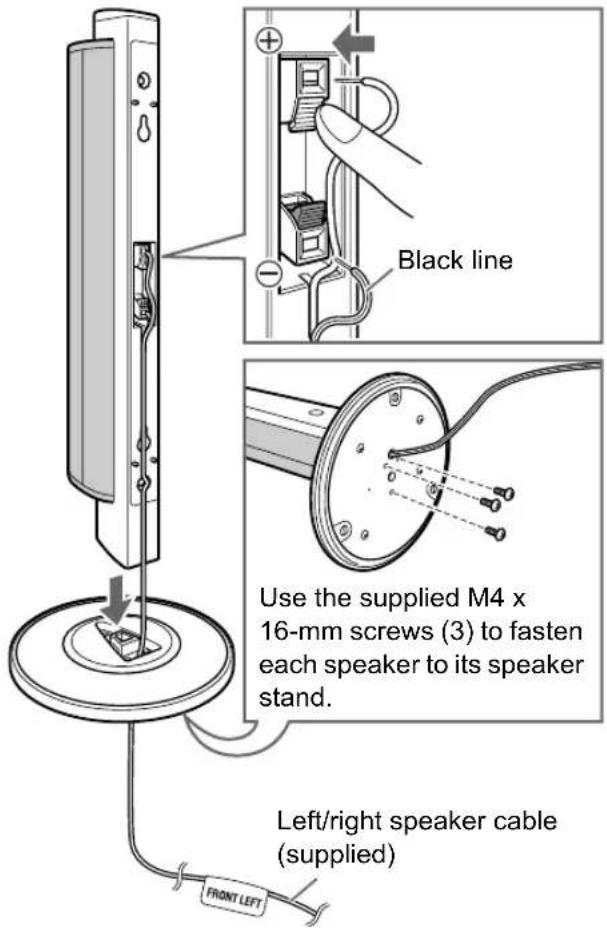
Center surround speaker
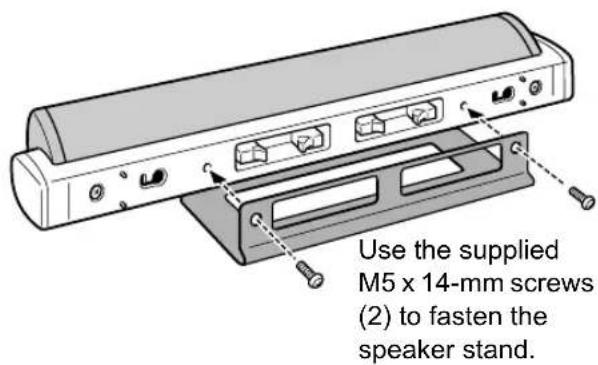
■ CAUTION
- The left and right speakers and center surround speaker for DD-3 can be installed on a wall.
- Be sure to have the speakers installed on the wall by qualified personnel. Bottom covers (2) are supplied with DD-3 for installing the left and right speakers on the wall.
Affixing the bottom covers to the left and right speakers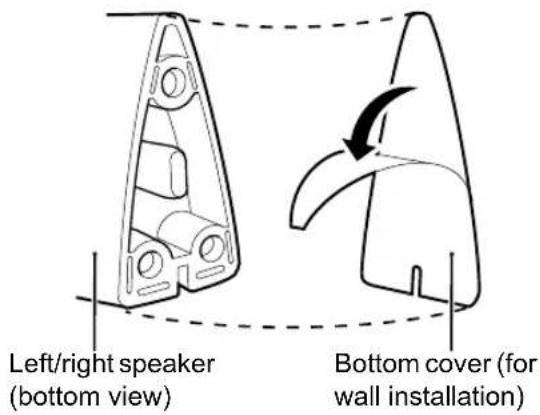
Peel off the sheet from the bottom cover, and then affix the bottom cover to the left/right speaker.
- DO NOT install the speakers on the wall by yourself to avoid unexpected damage from them falling off the wall due to incorrect installation or weakness in wall structure.
- Care must be taken in selecting a location for speaker installation on a wall. Injury to personnel or damage to devices may result if the installed speakers interfere with daily activities.
Connecting the speakers to the subwoofer (DD-3)
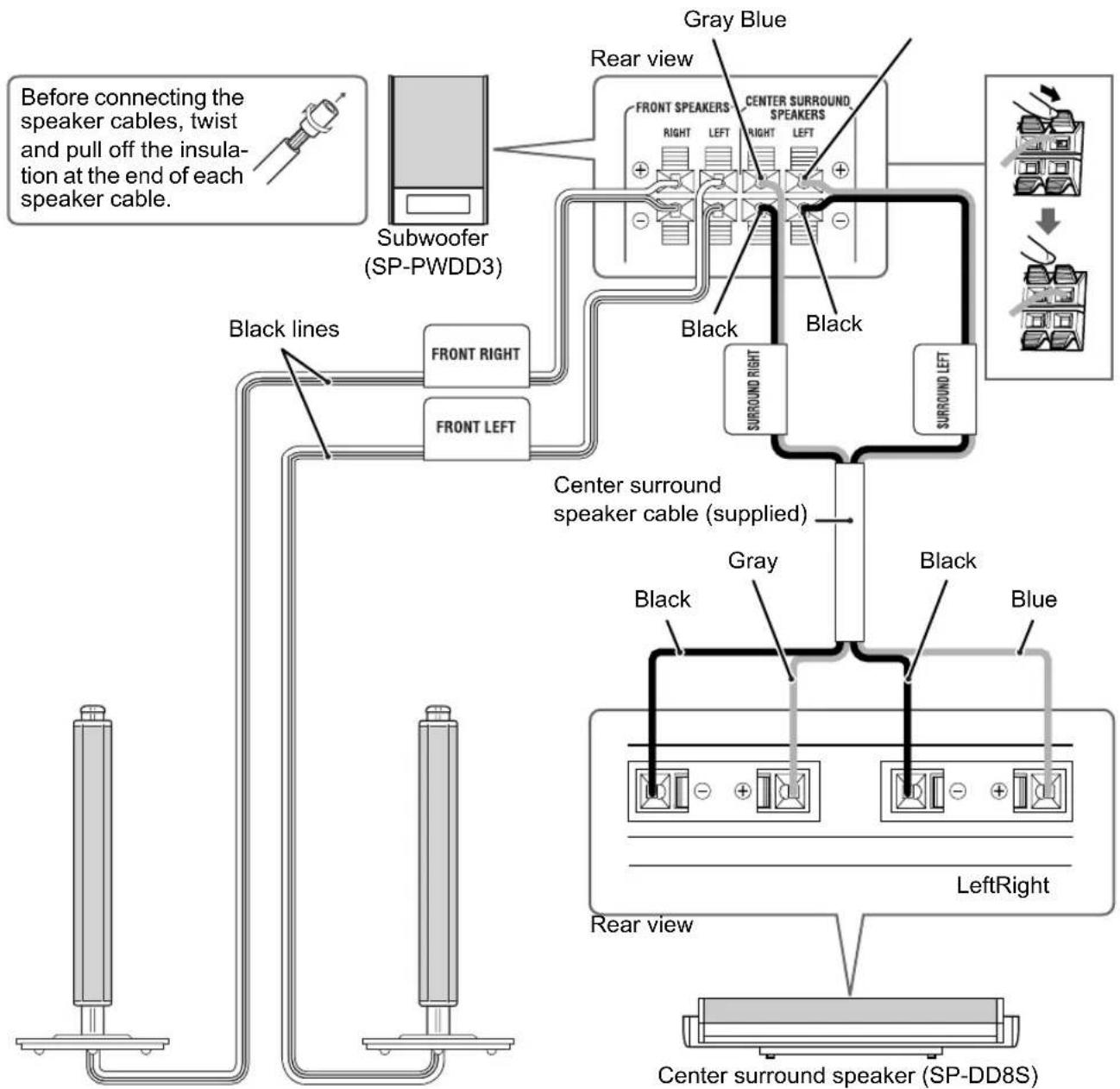
The speaker is shown assembled to the speaker stand on page 8.
NOTE
- When connecting the speaker cable to the terminal on the center surround speaker, make sure that the end of speaker cable does not touch any other nearby metallic parts.
The speakers are shown assembled to the speaker stands on page 8.
The left and right speakers are the same.
Connecting the speakers to the subwoofer (DD-1)
![graph TD A["Before connecting the speaker cables, twist and pull off the insulation at the end of each speaker cable."] --> B["Subwoofer (SP-PWDD1)"] B --> C["Black lines"] C --> D["Rear view"] D --> E["Front Right"] D --> F["Front Left"] G["Gray Blue"] --> H["Center Surrounding Speakers"] H --> I["…](/content/2026/05/847232/images/5ec78f486e23a8c9bff780b76da85eb81d8fbb6e758672d51209c4f49f137ff3.jpg)
The left and right speakers are the same.
Connecting the subwoofer to the main unit
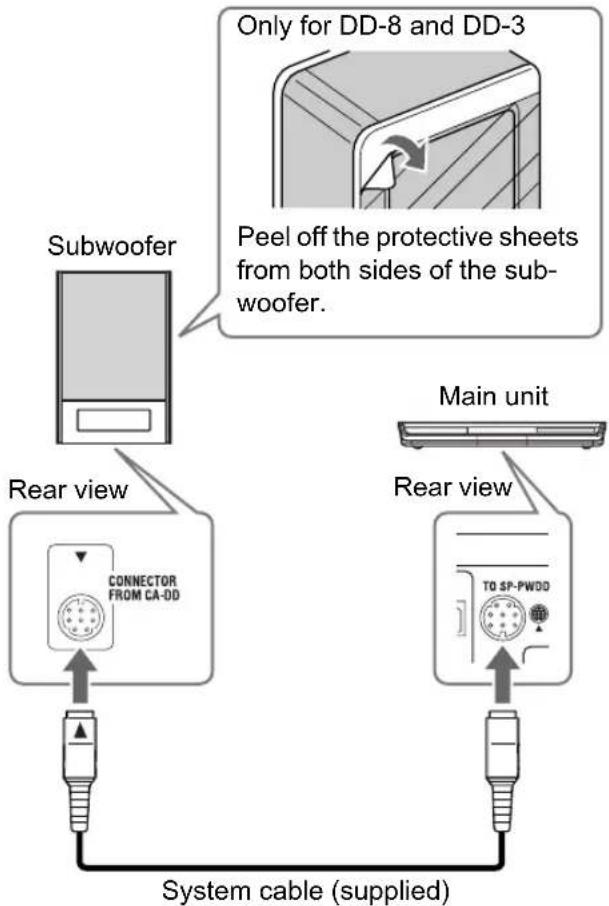
Align the ▲ marks on the terminals and the system cable.
Speaker layout
![graph TD A["Left speaker"] --> B["Center surround speaker"] B --> C["Right speaker"] C --> D["Subwoofer"] style A fill:#ccc,stroke:#333 style B fill:#ccc,stroke:#333 style C fill:#ccc,stroke:#333 style D fill:#ccc,stroke:#333](/content/2026/05/847232/images/ee2f58ae231ec3cb53aface1bf1314a9b2b9ff8a29810cf03452ed4eea55b2b6.jpg)
■ CAUTION
- An incorrect connection may damage the speakers. Properly connect the cables to the speaker terminals.
- Do not short-circuit the ⊕ and ⊖ speaker terminals. Doing so may damage the main unit.
- The supplied speakers are manufactured exclusively for use with the supplied main unit as parts of the DD-8/DD-3/DD-1 system. Do not connect the supplied speakers to devices other than the supplied main unit. Doing so may damage the speakers.
- Do not connect other speakers together with the supplied speakers. The change in impedance may damage the main unit and the speakers.
- Improper speaker cable connection spoils the stereo effect and sound quality.
- Most of the supplied speakers* are magnetically shielded, but color irregularity may occur on the TV depending on some conditions. To prevent color irregularity, set up the speakers following the instructions below.
- Turn off the main power of the TV before setting up the speakers.
- Place the speakers enough distance from the TV so that they do not cause color irregularity on the TV.
- Wait for approximately 30 minutes before turning on the main power of the TV again.
* The subwoofers for DD-3 and DD-1 are not magnetically shielded. With the exception of these 2 subwoofers, the supplied speakers are magnetically shielded.
Connecting a TV
Connecting a TV with the [AV] terminal
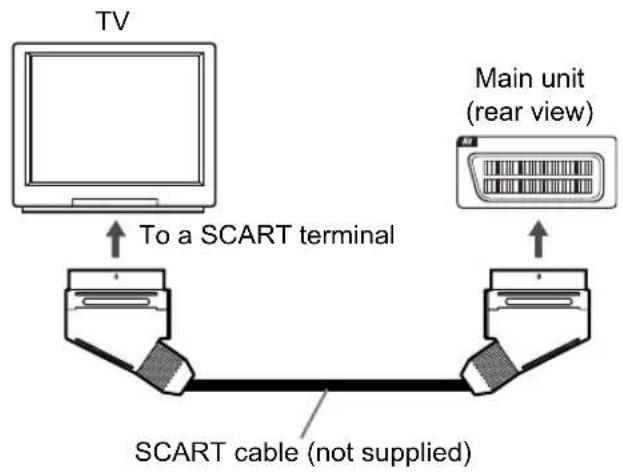
NOTE
- No audio signal is output via the [AV] (SCART) terminal.
Connecting a TV with the [COMPONENT VIDEO OUT] terminals
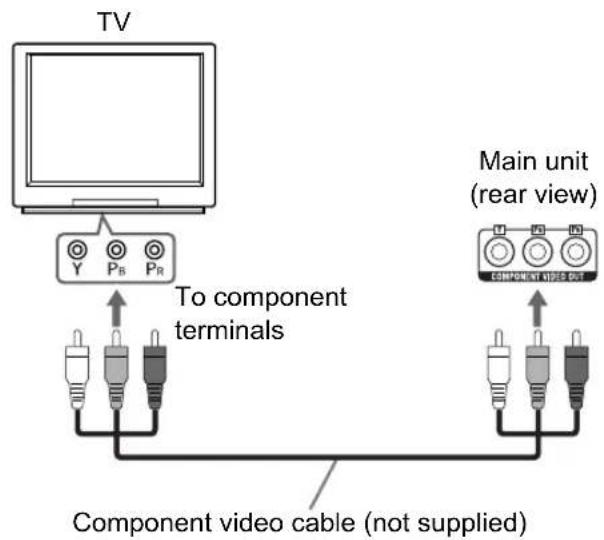
Connecting a TV with the [HDMI] terminal (not available for DD-1)
DD-8 and DD-3 can output uncompressed digital video signals to a TV compatible with HDMI (High Definition Multimedia Interface).
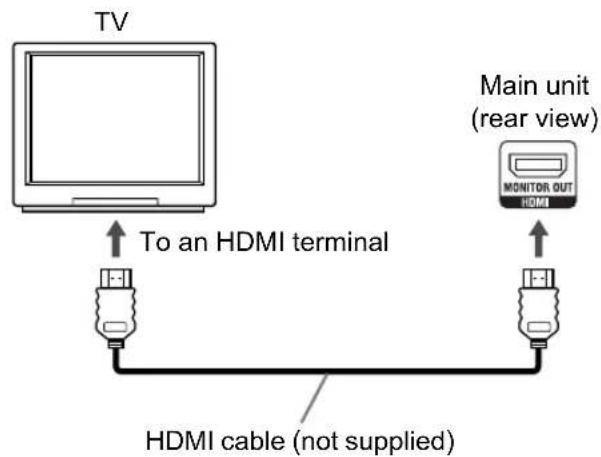
Select "HDMI" for the monitor out type. (Refer to page 14.)
NOTE
- DD-8 and DD-3 support up to HDMI version 1.0. The HDMI video signal type can be checked with the "HDMI" indicator in the display window. (Refer to "Selecting the video signal type" on page 13.)
- If the picture is distorted while an HDMI TV is connected, turn off the main unit and turn it on again.
- A TV compatible with HDCP (High-Bandwidth Digital Content Protection) can also be connected to the [HDMI] terminal, so that the uncompressed HD video signal type can be output as well.
■ CAUTION
- Connect the main unit directly to a TV (or a monitor) without routing through a video cassette recorder (VCR). Otherwise picture distortion may occur during playback. (Routing the connection through a VCR, however, does not affect the audio quality.)
![graph LR A["Main unit"] --> B["VCR"] B --> C["TV (or monitor)"] B --> D["Direct connection"]](/content/2026/05/847232/images/9948b0ae06f2364ada13cac29a55e85924efb553cf66098aa558539ff3a4fe5b.jpg)
- Connecting the main unit to a VCR-built-in-TV may also cause picture distortion during play-back.
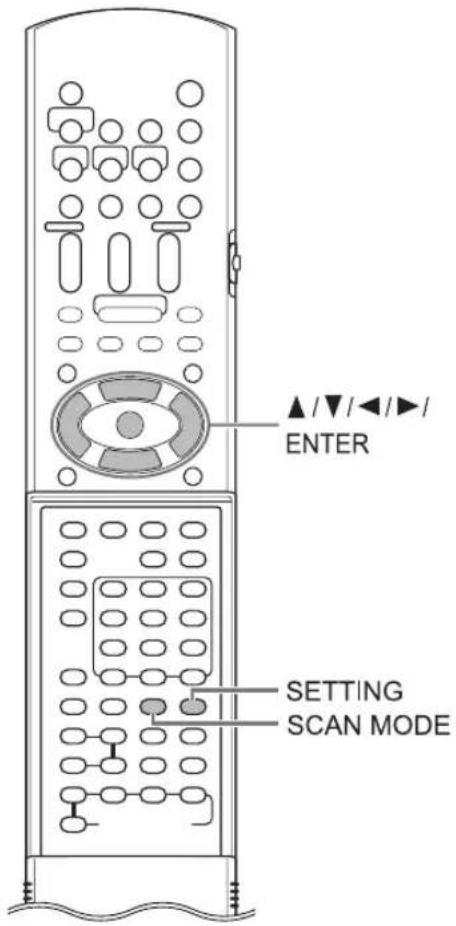
Selecting the video signal type
To view an image on the TV screen, select the video signal type correctly according to the TV after connecting the main unit to the TV.
1 Turn on the main unit. (Refer to "Connecting the power cable" on page 16 and "Turning on the main unit" on page 17.)
2 Hold down [SCAN MODE] for 2 or more seconds.
• The current video signal type flashes.
Example:

3 Press ◀ or ▶ to select the video signal type suitable for the TV.
- When the TV is connected to the [AV] terminal or the [COMPONENT VIDEO OUT] terminals, the video signal type can be selected as instructed below.
- Select "576I Y/C" for an S-video signal.
- Select "576I RGB" for a composite signal.
- Select "576P" for a component signal.
- When the TV is connected to the [HDMI] terminal, the video signal type can be selected as instructed below. (Only for DD-8 and DD-3)
- Select "AUTO" for normal usage. (the initial setting)
- Select "576P" or "720P" as needed.
NOTE
- “576” and “720” refer to the number of the scanning lines. Generally, the larger the number, the better picture that can be obtained.
- “I” refers to the interlaced format. “P” refers to the progressive format. A better picture can be obtained in the progressive format than in the interlaced format.
- When an HDMI video signal is output, the "HDMI" indicator lights up in the display window.
- When an HD video signal (720p) is output, the "HD" indicator lights up.
- When "576P" or "720P" is selected, the "PROGRESSIVE" indicator lights up in the display window.
4 Press [ENTER].
- The selected video signal type is displayed in the display window for a short time.
NOTE
- When the [AV] and [HDMI] terminals are connected at the same time, the image from the [AV] terminal may not be displayed properly.
- Even if the main unit is turned off, the video signal type setting is stored.
- When an HDMI cable is connected, the output signal type from the [AV] terminal is confined to only the Y/C signal.
Selecting the monitor out type
To view an image on the TV, select the monitor out type as well as the video signal type.
1 Press [SETTING].
2 Press ▲ or ▼ to display "M.OUT".
M. OUT: NO HDMI
3 Press ◀ or ▶ to select "HDMI" or "NO HDMI".
- When using an HDMI cable to connect a TV to the main unit, select "HDMI".
- When an HDMI cable is not connected, select "NO HDMI" (the initial setting).
4 Press [ENTER] or wait for a short time.
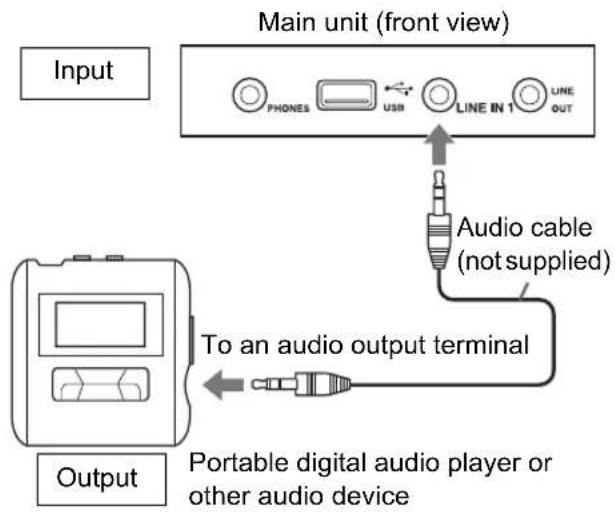
Connecting a portable digital audio player
Listening to analog sound from a portable digital audio player
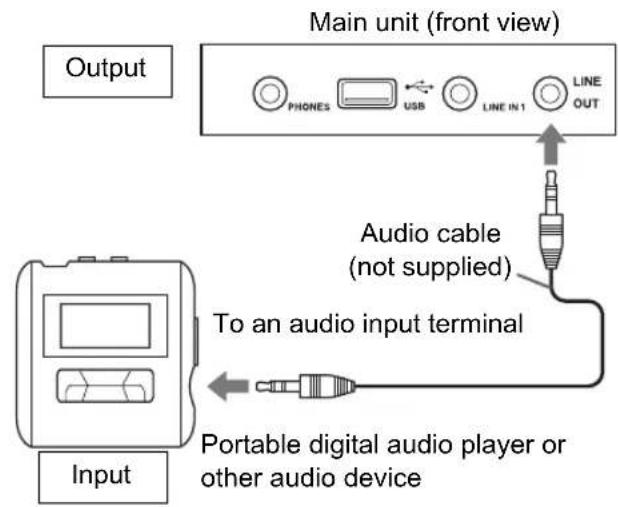
Outputting analog sound to a portable digital audio player
NOTE
- Signals input from the [LINE IN 1] and [LINE IN 2] terminals are not output to the [LINE OUT] terminal.
■Selecting the analog output level of the [LINE OUT] terminal
You can lower the analog output level to prevent the system from producing unnecessarily loud sound. Controlling the level may also be helpful for recording sound from the system to other devices.
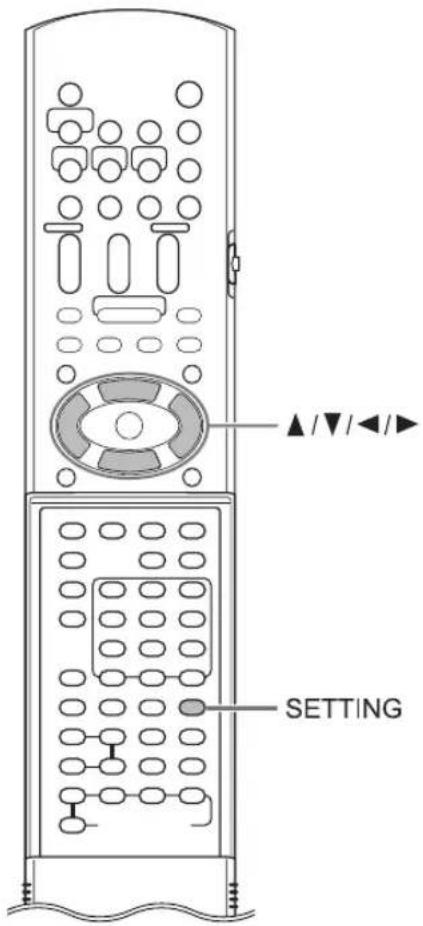
1 Press [SETTING]. 2 Press ▲ or ▼ to select "LINEOUT" in the display window.
LINEOUT: L1
3 Press ◀ or ▶ to select "L1" or "L2".
- "L1" for normal usage (the initial setting)
- "L2" for higher level
Connecting other digital audio devices![graph TD A["Input"] --> B["AV amplifier with a built-in decoder"] B --> C["Optical digital cable (not supplied)"] C --> D["Main unit (rear view)"] D --> E["LINE-DIGITAL IN OUT"] E --> F["Optical digital cable (not supplied)"] F --> G["To an optical digital output terminal"] G --> H["MD player or sat…](/content/2026/05/847232/images/87db326fc79ae5ea7f80fb86148dc55a465a0bcda347a21bfbfec0028d483fd6.jpg)
Connecting other analog audio devices![graph TD A["Input"] --> B["Line IN 2"] B --> C["Audio cable (not supplied)"] C --> D["Audio device"] E["Output"] --> F["Audio OUT R L"] F --> G["Main unit (rear view)"]](/content/2026/05/847232/images/85866d43ba43465ab65f69dcecb435deb03b838615f7aff3b1aa5aa42fd65d3d.jpg)
Connecting the power cable
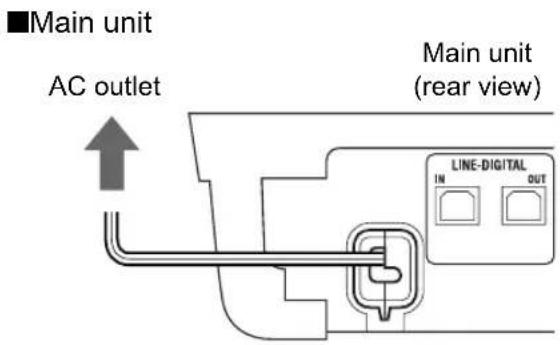
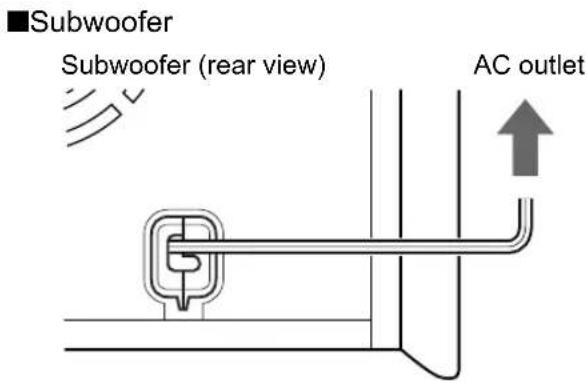
■ CAUTION
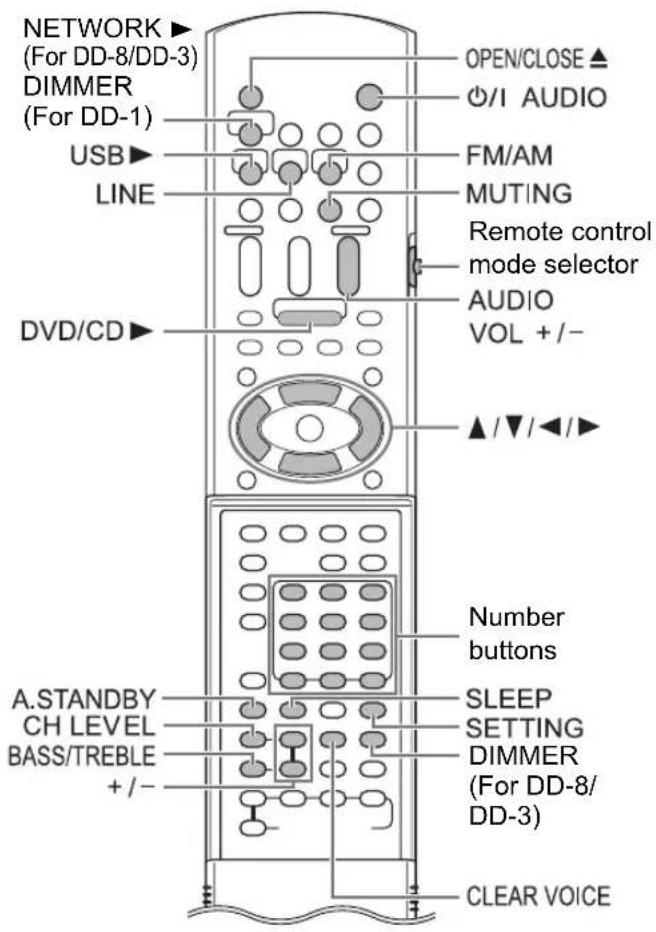
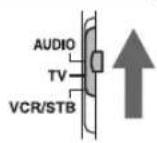
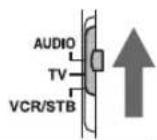
- Slide the remote control mode selector to [AUDIO].
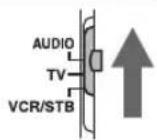
Using the number buttons
Examples:
5: [5]
15: [≥0] → [1] → [5]
150: [≥ 10] → [≥ 10] → [1] → [5] → [0]
Turning on the main unit
Press [O/AUDIO].
- Press [O/AUDIO] again to turn off the main unit.
- With the power off, pressing any of the following buttons also turns on the main unit.
- [DVD/CD ▶], [USB ▶], [NETWORK ▶] (only for DD-8/DD-3), [LINE], [FM/AM] or [OPEN/CLOSE ▲] on the remote control
- ▶, ▲ or [SOURCE] on the main unit The function assigned to the button starts working at the same time.
Adjusting the volume
Press [AUDIO VOL +/-].
- Adjustable volume range is from 0 to 40.
- You can also adjust the volume by pressing [VOLUME+/-] on the main unit.
NOTE
• Refer to page 18 for adjusting the volume of the center surround speaker/subwoofer. • Refer to page 18 for adjusting the volume balance between the left and right speakers.
Turning off the sound temporarily
Press [MUTING].
- Press [MUTING] again to restore the sound. When the main unit is turned off once and turned on again, the sound is also restored.
Sharpening the voice sound
This function allows you to easily understand dialog recorded on the disc/file even with the volume down low.
Press [CLEAR VOICE].
• Each time you press [CLEAR VOICE], the clear voice function turns on and off.
This indicator lights up when the clear voice function is activated.
NOTE
- This function is effective when receiving the center channel signal with surround sound, or when the surround mode is activated even with stereo sound (refer to page 36).
Adjusting the bass/treble sound
1 Press [BASS/TREBLE] repeatedly to select "BASS" or "TREBLE" in the display window. 2 Press [+] or [-] to adjust the sound quality.
- Adjustable sound quality is from -5 to +5.
Adjusting the volume of the center surround speaker/subwoofer
1 Press [CH LEVEL] to repeatedly select "SURR" (the center surround speaker) or "SUBWFR" (the subwoofer) in the display window. 2 Press [+] or [-] to adjust the volume.
NOTE
- Adjustable volume range is from -6 to +6.
Adjusting the volume balance between the left and right speakers
1 Press [SETTING]. 2 Press ▲ or ▼ to display "BAL:" in the display window.
BAL: CENTER
3 Press ◀ or ▶ to adjust the volume balance.
- "CENTER" (the initial setting) is displayed when the volume of the left and right speakers are the same.
- You can adjust the volume range respectively for the left and right speakers. Adjustable volume range is from -21 to -1.
Changing the brightness of the display window
Press [DIMMER].
• Each time you press [DIMMER], the display changes in the display window as follows. - "DIMMER 1" The display window becomes darker than the normal display brightness. - "DIMMER 2" The display window becomes darker than "DIMMER 1". - "DIMMER AUTO" When a video disc/file is played back, the display window becomes darker automatically. - "DIMMER OFF" The normal display brightness is restored.
Using the sleep timer
When the time you specify elapses, the main unit automatically turns off.
Press [SLEEP].
• Each time you press [SLEEP], the time indicated in the display window changes. You can set the time to 10, 20, 30, 60, 90, 120 or 150 minutes.
Example: Display when the sleep timer is set to 60 minutes
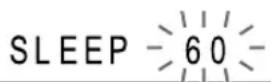
NOTE
- When the sleep timer is activated, the display window becomes darker automatically. Changing the remaining time: Press [SLEEP] repeatedly to select the time again. Confirming the remaining time: Press [SLEEP] once. Canceling the sleep timer: Press [SLEEP] repeatedly until "SLEEP" disappears.
NOTE
- Turning off the main unit cancels the sleep timer.
Auto standby function
If no sound is produced for 3 minutes, the main unit automatically turns off.
This function is available when a disc/file is selected as the source.
You cannot use this function when a radio broadcast, TV sound or a device connected to the [LINE IN 1], [LINE IN 2] or [LINE-DIGITAL IN] terminals is selected as the source.
Activating the auto standby function
■When a disc/file is selected as the source
Press [A.STANDBY].
"A. STANDBY" indicator
A. STANDBY ON
- Pressing [A.STANDBY] once again deactivates the function. (The display window changes to "A.STANDBY OFF".)
Performance of the auto standby function
When playback of a disc/file finishes, the auto standby function starts a countdown.
At this time, the "A.STANDBY" indicator starts flashing.
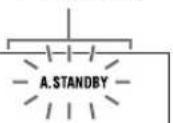
20 seconds before the main unit turns off, "A.STANDBY" starts flashing.
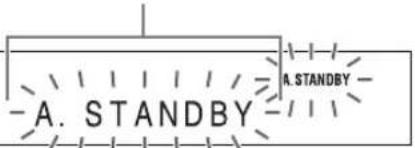
When no operation is carried out for 3 minutes, the main unit automatically turns off.
NOTE
- Leaving the volume at "0" is not the same as producing no sound, and therefore does not start the auto standby function.
Locking disc ejection
You can lock the disc tray to prevent the disc from being ejected.
Setting the disc ejection lock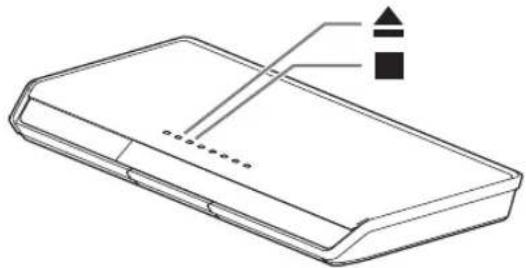
■When the main unit is turned off
Press ▲ while holding down ■ on the main unit.
LOCKED
- Repeat this step to cancel the disc ejection lock. (The display window changes to "UNLOCKED".)
* For the number button usage, refer to "Using the number buttons" on page 17.
CAUTION
- Slide the remote control mode selector to [AUDIO].
Selecting a radio station
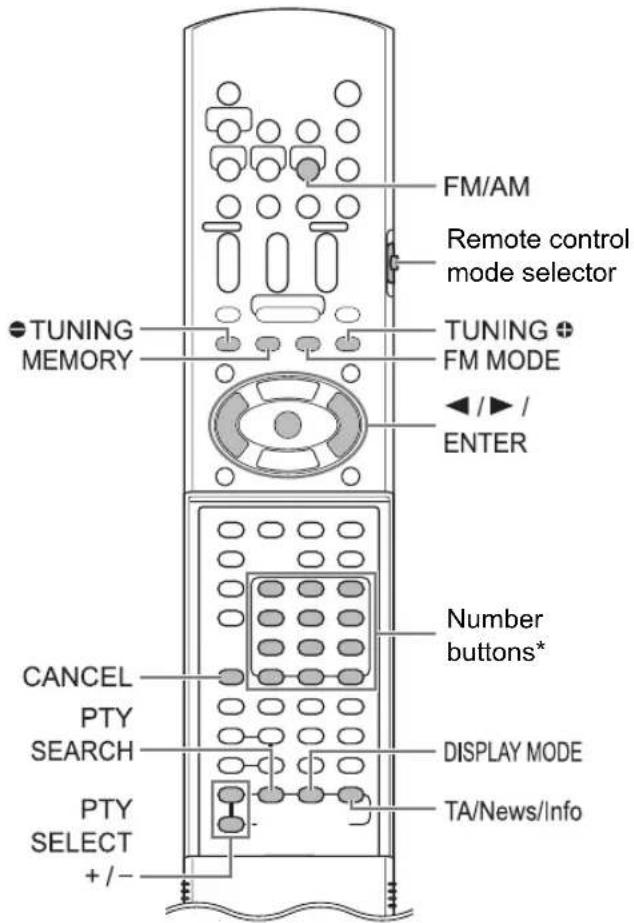
1 Press [FM/AM] to select "FM" or "AM" in the display window.
• Each time you press [FM/AM], the band toggles between "FM" and "AM". • Repeatedly pressing [SOURCE] on the main unit can also select a radio broadcast as the source.
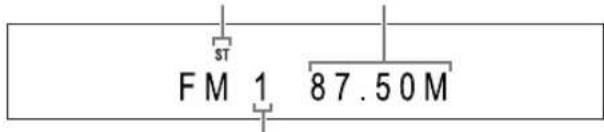
Example: Display when an FM radio broadcast is received
Stereo indicator Frequency (M: MHz/k: kHz)
Preset number (Refer to page 22.)
2 Press [TUNING] or [TUNING] + repeatedly to select a radio station.
- When the main unit has received an FM stereo broadcast, the "ST" (stereo) indicator lights up in the display window.
- You can also select a radio station using the automatic tuning.
■Automatic tuning
Hold down [TUNING] or [TUNING] until the frequency starts changing, and then release the button.
- When the main unit has received a broadcast, the frequency automatically stops changing.
- You can select a specific radio station while searching for a broadcast. Press [TUNING] or [TUNING] to stop the automatic tuning when the desired frequency appears in the display window.
NOTE
- If an FM stereo broadcast is difficult to hear because of noise, you may be able to hear the broadcast more easily by pressing [FM MODE] to switch the sound to monaural reception. In this case, the "MONO" (monaural) indicator lights up in the display window. To return the sound to stereo reception, press [FM MODE] again.
Tuning in to a preset radio station
Presetting radio stations in the main unit allows you to easily tune in to a radio station.
Presetting radio stations
You can store up to 30 FM radio stations and up to 15 AM radio stations.
1 Select a radio station you want to store.
- Refer to "Selecting a radio station" on page 21.
2 Press [MEMORY].
- The preset number flashes in the display window.
3 While the preset number is flashing, press the number buttons to select the preset number.
Example: When storing the radio station "AM 810 kHz" to the preset number "5"
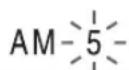
810k
4 While the selected number is flashing, press [MEMORY] or [ENTER].
- "STORED" appears and the selected radio station is stored.
NOTE
- When you store a radio station to a preset number to which another radio station has previously been stored, the newly set radio station replaces the previously stored radio station.
- You can also use ◀ or ▶ to select the preset number in step 3.
Tuning in to a preset radio station
■When an FM or AM radio broadcast is selected as the source
Press the number buttons to select the preset number.
- You can also select the preset number by pressing ◀ or ▶.
Radio Data System
Receiving FM radio broadcasts with Radio Data System
Radio Data System allows FM radio stations to send an additional signal along with their regular program signals.
For example, a radio station sends its radio station name or information on the types of broadcasted programs such as sports or music.
You can receive the following types of Radio Data System signals.
PS (Program Service):
Shows commonly known radio station names.
PTY (Program Type):
Shows types of broadcasted programs.
RT (Radio Text):
Shows text messages sent by the radio station.
Enhanced Other Networks:
Refer to page 25.
NOTE
- Radio Data System may not work correctly if the radio station is not transmitting the signals properly or if the signal is weak.
Alarm function
If an “Alarm!” (Emergency) signal is received from a radio station while you are listening to an FM radio broadcast with Radio Data System, the main unit automatically switches to the radio broadcast sending the “Alarm!” signal. (No AM and only some FM radio stations send broadcasts with Radio Data System.)
Changing the Radio Data System information
You can refer to Radio Data System information in the display window while listening to an FM radio broadcast.
■When listening to an FM radio broadcast
Press [DISPLAY MODE] repeatedly.
PS (Program Service):
While the main unit is searching for Radio Data System information, "WAIT PS" appears and then the radio station name is displayed in the display window. "NO PS" appears if no signal is received.
PTY (Program Type):
While the main unit is searching for Radio Data System information, "WAIT PTY" appears and then the type of the broadcasted program is displayed in the display window. "NO PTY" appears if no signal is received.
RT (Radio Text):
While the main unit is searching for Radio Data System information, "WAIT RT" appears and then text messages sent by the radio station are displayed in the display window. "NO RT" appears if no signal is received.
NOTE
- If the main unit takes time to show the Radio Data System information received from a radio station, "PS", "PTY" or "RT" may appear in the display window.
- When PS, PTY or RT signals appear in the display window, irregular characters and marks may not be displayed correctly.
Searching for programs by PTY codes (PTY search)
You can locate a type of radio program by specifying the corresponding PTY code.
The PTY search is applicable only to the preset radio stations.
■When an FM radio broadcast is selected as the source
1 Press [PTY SEARCH].
Display on the main unit
![JVC CA-DD3 - Press [PTY SEARCH]. - 1](/content/2026/05/847232/images/39c02fa2e230e1dcd67d1eda30ce4d1845dbf1f6b429a2af661cccb26a59f97f.jpg)
2 Press [PTY SELECT +] or [PTY SELECT -] repeatedly to select a PTY code while "PTY SELECT" is flashing in the display window.
Example: When "Document" is selected as a PTY code
![JVC CA-DD3 - Press [PTY SELECT +] or [PTY SELECT -] repeatedly to select a PTY code while "PTY SELECT" is flashing in the display window. - 1](/content/2026/05/847232/images/34b72fc0bb43a328b8e804d2babc6459cbf939b5fe34214a540468476a518142.jpg)
• Refer to page 24 for the PTY codes.
3 Press [PTY SEARCH].
- While the main unit is searching for a radio program, "SEARCH" and the selected PTY code are displayed in the display window.
Example: When "Document" is selected as a PTY code
SEARCH
![JVC CA-DD3 - Press [PTY SEARCH]. - 1](/content/2026/05/847232/images/6f1b1056f2157a072f300e1a7b7c2860243ab0f23e9667a6384ddc6dc7548626.jpg)
Document
- The main unit searches 30 preset FM radio stations, and stops when it finds the one you have selected. At this time, the selected frequency and PTY code flash. When [PTY SEARCH] is pressed while the selected frequency and PTY code are flashing, the main unit automatically starts searching for the next radio station. After the frequency and PTY code stop flashing, or if a button is pressed, the main unit automatically tunes in to the radio station.
- To stop searching, press [PTY SEARCH] or [CANCEL].
- If no program is found, "NOT FOUND" appears in the display window, and the main unit returns to the last received radio station.
PTY codes
| None: | Undefined. |
| News: | News. |
| Affairs: | Topical program expanding or enlarging upon news-debate or analysis. |
| Info: | Programs the purpose of which is to impart advice in the widest sense. |
| Sport: | Programs concerned with any aspect of sports. |
| Educate: | Educational programs. |
| Drama: | All radio plays and serials. |
| Culture: | Programs concerning any aspect of national or regional culture, including language and theater. |
| Science: | Programs about natural sciences and technology. |
| Varied: | Used for mainly speech-based programs such as quizzes, panel games and personality interviews. |
| Pop M: | Commercial music of current popular appeal. |
| Rock M: | Rock music. |
| Easy M: | Current contemporary music considered to be “easy-listening”. |
| Light M: | Instrumental music, and vocal or choral works. |
| Classics: | Performances of major orchestral works, symphonies and chamber music. |
| Other M: | Music not fitting into any of the other categories. |
| Weather: | Weather reports and forecasts. |
| Finance: | Stock market reports, commerce and trading. |
| Children: | Programs targeted at a young audience. |
| Social: | Programs about sociology, history, geography, psychology and society. |
| Religion: | Religious programs. |
| Phone In: | Involving members of the public expressing their views either by phone or at a public forum. |
| Travel: | Travel information. |
| Leisure: | Programs about recreational activities. |
| Jazz: | Jazz music. |
| Country: | Songs which originate from, or continue the musical tradition of the American Southern States. |
| Nation M: | Current popular music of the nation or region. |
| Oldies: | Music from the so-called “golden age” of popular music. |
| Folk M: | Music which has its roots in the musical culture of a particular nation. |
| Document: | Programs concerning factual matters, presented in an investigative style. |
| TEST: | Broadcasts for testing emergency broadcast devices or the main unit. |
| Alarm !: | Emergency announcement. |
| Classification of the PTY codes for some FM radio stations may be different from the list shown above. | |
Switching to a program type of your choice temporarily
The Enhanced Other Networks function allows the main unit to switch temporarily to a broadcast program of your choice (TA, News, or Info) from a different radio station when you are listening to a Radio Data System radio station.
- The Enhanced Other Networks function is applicable only to the preset radio stations.
Press [TA/News/Info] repeatedly until the indicator of your desired program type (TA/News/Info) appears in the display window.
• Each time you press [TA/News/Info], the indicator in the display window changes.
Example: Display on the main unit
TA
TA: Traffic announcement
News: News
Info: Programs the purpose of which is to impart advice in the widest sense.
NOTE
- To cancel the Enhanced Other Networks function, press [TA/News/Info] repeatedly until the program type indicator (TA/News/Info) turns off in the display window. Changing the source or turning off the main unit also cancels the Enhanced Other Networks function.
- The Enhanced Other Networks data sent from some radio stations may not be compatible with this main unit.
- While listening to a program tuned in with the Enhanced Other Networks function, the radio station does not change even if another network radio station starts broadcasting the same Enhanced Other Networks program.
- While listening to a program tuned in with the Enhanced Other Networks function, you can only use [TA/News/Info] and [DISPLAY MODE] as the tuner operation buttons. If you press any other button, "LOCKED!" appears in the display window.
- If the radio stations toggle intermittently between the radio station tuned in to by the Enhanced Other Networks function and the currently tuned radio station, press [TA/News/Info] to cancel the Enhanced Other Networks function.
How the Enhanced Other Networks function actually works
CASE 1
If there is no radio station broadcasting the program you have selected:
The main unit continues tuning in to the current radio station.

When a radio station starts broadcasting the program you have selected, the main unit automatically switches to the radio station. The program type starts flashing in the display window.

When the program is over, the main unit goes back to the previously tuned radio station, but the Enhanced Other Networks function still remains activated.
CASE 2
If there is a radio station broadcasting the program you have selected:
The main unit tunes in to the program. The program type starts flashing in the display window.

When the program is over, the main unit goes back to the previously tuned radio station, but the Enhanced Other Networks function still remains activated.
Basic operations of disc/file playback
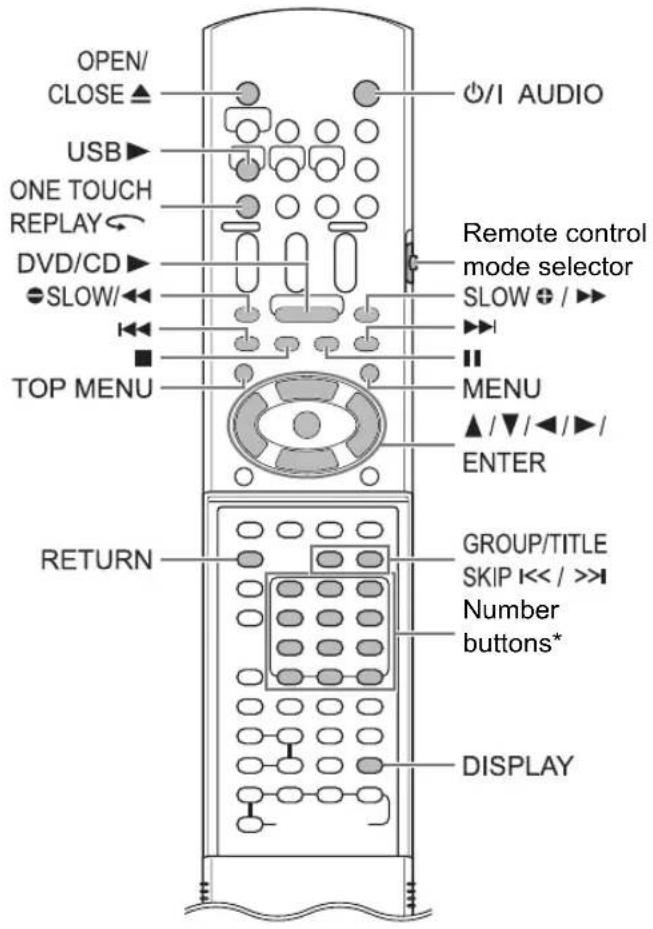
* For the number button usage, refer to "Using the number buttons" on page 17.
■ CAUTION
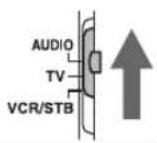
- Slide the remote control mode selector to [AUDIO].
Playing back a disc
DVD VIDEO VCD SVCD CD
This part explains playing back the types of discs shown above.
1 Press [OPEN/CLOSE ▲] on the remote control or ▲ on the main unit.
- The disc tray ejects.
2 Place a disc.
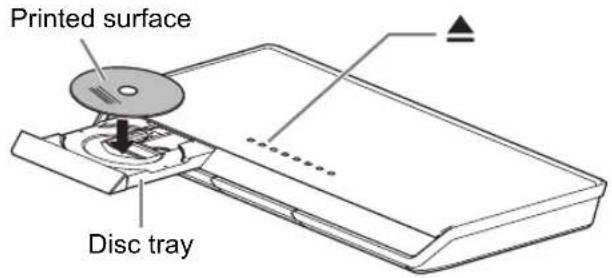
• To play back an 8-cm disc, place it on the inner hollow of the disc tray.
3 Press [DVD/CD ▶].
NOTE
- Instead of step 3, you can use the buttons on the main unit. Repeatedly pressing [SOURCE] can select the disc as the source, and pressing ▶ starts playback.
- A menu screen may appear on the TV screen after DVD playback starts. In such a case, operate the menu screen, referring to "Selecting a track from the menu screen" on page 32.
- If you perform an operation, such as changing the source quickly or loading an incompatible disc (refer to pages 51-53), the disc may not be played back or ejected. In this case, turn off the main unit and turn it on again by using Ⓓ/1 on the main unit.
Playing back a file
MP3 WMA WAV JPEG ASF DivX MPEG1 MPEG2
This part explains playing back 1) files recorded on the loaded disc, and 2) files recorded on a USB mass storage class device connected to the main unit. The operation is explained with a display of MP3 files as an example.
NOTE
- When files of different types are recorded on a disc or connected USB mass storage class device, select the file type before playback. (Refer to "FILE TYPE" on page 41.)
1 Prepare the system for file playback by following the operations below.
■When you want to play back files on a disc
Place a disc on the disc tray.
• Refer to steps 1 and 2 on page 26. ■When you want to play back files on a USB mass storage class device
Connect the USB mass storage class device to the [USB] terminal on the front of the main unit.
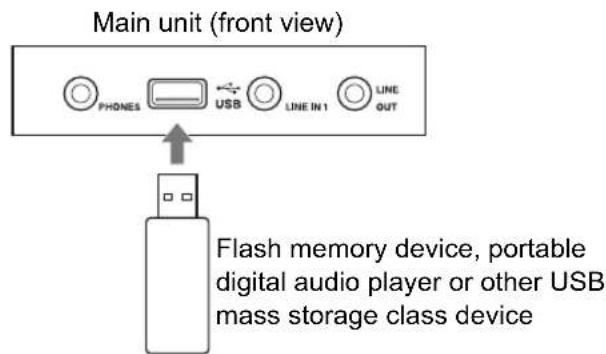
NOTE
• Copyrighted files cannot be played back. - This system cannot recognize a USB mass storage class device whose rating exceeds 5V/500mA. - When connecting a USB mass storage class device, refer also to its manual. - When using a USB cable for connecting a USB mass storage class device, its length should be less than 1 m. - Connect a USB mass storage class device directly to the main unit without routing through a USB hub. Otherwise a malfunction may occur. - You cannot connect a computer to the [USB] terminal of the system. - Before disconnecting the USB mass storage class device, make sure that playback is stopped.
- The main unit does not charge a USB mass storage class device connected to the [USB] terminal.
2 Press [DVD/CD ▶] or [USB ▶].
NOTE
- You can also use the buttons on the main unit. Repeatedly pressing [SOURCE] can select the disc/file as the source, and pressing ▶ starts playback.
- If you select another source while "READING" is displayed in the display window, sound is not produced until reading of the files is finished.
3 Press ■ to stop playback.
- The menu screen appears on the TV screen.
When a file recorded on the connected USB mass storage class device is selected as the source, "USB" is displayed.
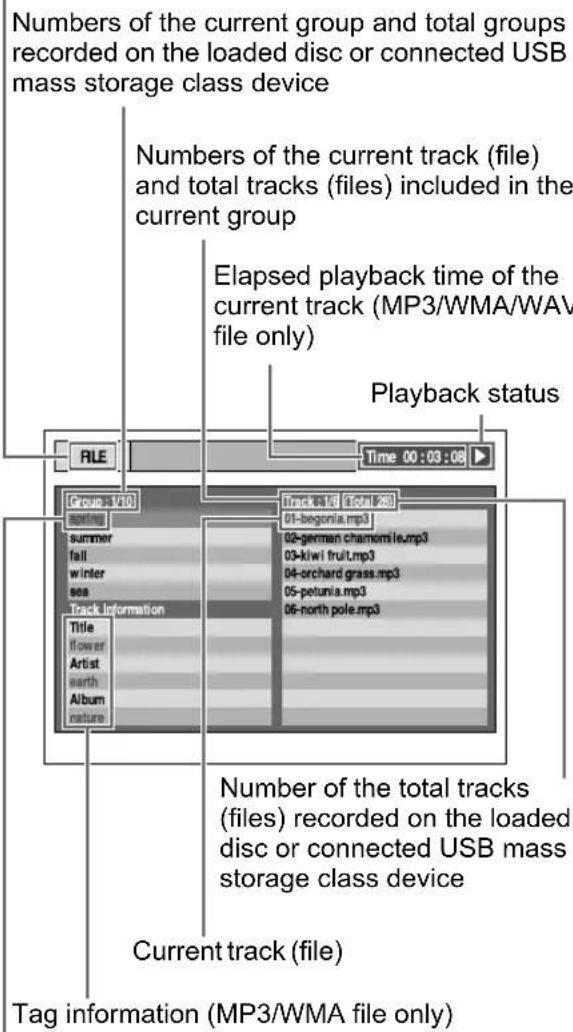
Current group
NOTE
- Depending on the file type, the menu screen appears before you press ■.
4 Press ▲, ▼, ◀ or ▶ to select a group and track.
NOTE
- You can also use [GROUP/TITLE SKIP] to select a group, and the number buttons, ◀◀◀ or ▶▶▶ to select a track.
5 Press [DVD/CD ▶] or [USB ▶].
NOTE
- If you have skipped step 3, you do not have to proceed to step 5.
Slide-show playback
- JPEG files are continuously played back from the selected file.
- Display time for a file in slide-show playback is approximately 3 seconds.
- Press [ENTER] to view only the selected file.
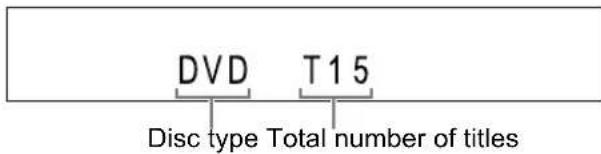
Display window on the main unit for disc/file types

DVD VIDEO
■When a disc is played back
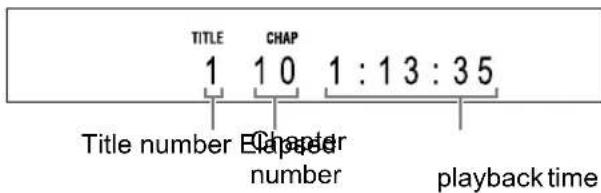
■When a disc is stopped
VCD/SVCD
■When a disc is played back
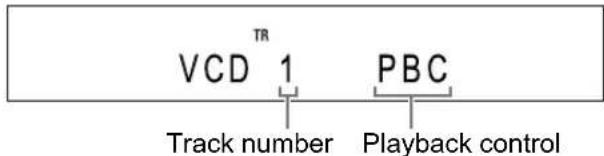
- You can control the playback of a PBC compatible disc using a menu screen.
- To cancel the PBC function, follow the instructions below.
- Specify the track number using the number buttons when the disc is stopped.
- Specify the track number using ◀◀◀ or ▶▶◀ when the disc is stopped, and then press [DVD/CD ▶].
- Press [RETURN] to go back to the upper layer during PBC playback.
■When a disc is stopped
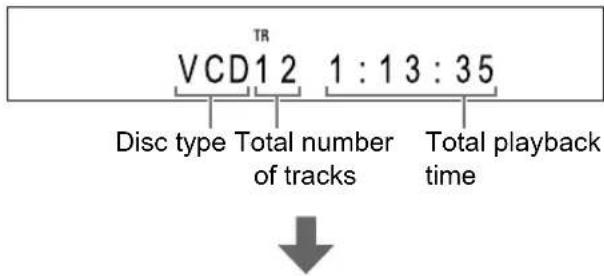
(When the PBC function is activated)

CD
■When a disc is played back
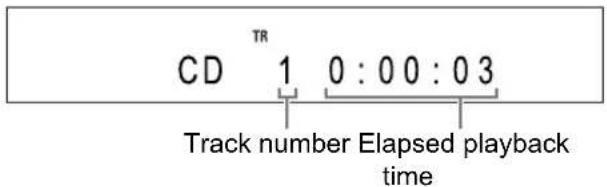
■When a disc is stopped
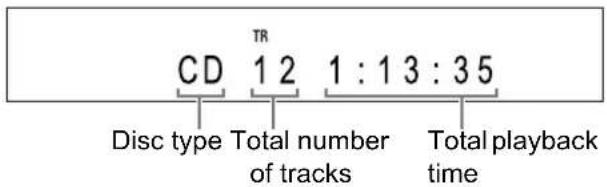
MP3/WMA/WAV/ASF/DivX/MPEG1/MPEG2 file
■When a file is played back
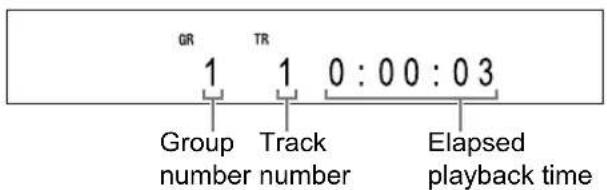
■When a file is stopped
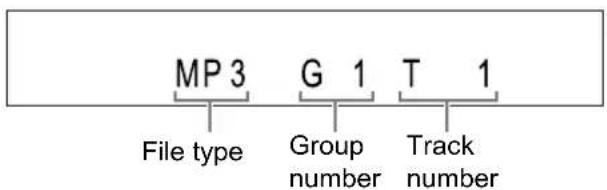
■Changing the display in the display window (Only for MP3/WMA files)
For an MP3/WMA file, you can change the display in the display window to see tag information and a file name.
When a disc/file is played back
Press [DISPLAY] repeatedly.
• Each time you press [DISPLAY], the display changes in the display window.
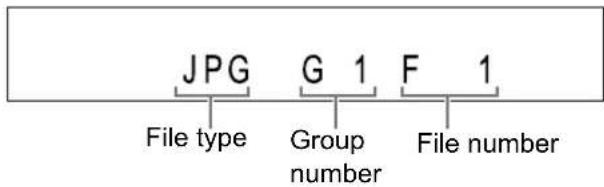
JPEG file
■When a file is played back or stopped
Messages on the TV screen
When a DVD VIDEO is selected as the source, the messages shown below are displayed on the TV screen to indicate the disc status.
NOW READING:
Appears when the main unit is reading the disc information. Wait for a short time.
REGION CODE ERROR!:
Appears when the region code of the disc does not match the code the main unit supports. (Refer to page 51.)
NO DISC:
Appears when no disc is loaded.
OPEN:
Appears when the disc tray is opening.
CLOSE:
Appears when the disc tray is closing.
CANNOT PLAY THIS DISC:
Appears when an unplayable disc is attempted to be played back.
Guide icons on the TV screen (on-screen guide)

: Play

: Pause


: Fast reverse/fast forward search

: Slow motion playback (reverse/forward directions)

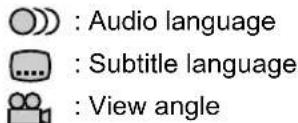
: Containing multi-view angles (Refer to page 33.)
: Containing multi-audio languages (Refer to page 33.)

: Containing multi-subtitle languages (Refer to page 33.)

: The disc/file cannot accept the operation you have attempted.
Indicators in the display window related to the speaker sound
The indicators light up in the display window to show the input signals and the speakers in use.
| DQD | The input signal is DOLBY DIGITAL. |
| DQPLII | The input signal is processed using DOLBY DIGITAL PROLOGIC II. |
| dts | The input signal is DTS. |
| LPCM | The input signal is LPCM. |
| SW | The sound is produced from the sub-woofer. |
| The “L”, “”,R” or“S” indicator in the frame ( ) shows the speaker producing the sound. | |
| L | The input signal is for the left speaker. |
| C | The input signal is for the center surround speaker. |
| R | The input signal is for the right speaker. |
| LFE | The input signal is LFE. |
| LS | The input signal is for the left speaker on the center surround speaker. |
| S | The input signal is monaural or 2-channel Dolby surround. |
| RS | The input signal is for the right speaker on the center surround speaker. |
| SURROUND | The surround mode is activated. |
Stopping playback


■When a disc/file is played back
Press ■.
Resuming playback


(only for the loaded disc)
When playback is stopped in the middle, playback can be started from the stopped position.
Temporarily stopping playback
■When a disc/file is played back
Follow any of the operations below.
| Press ■ once.*1 |
| Press [∅/l AUDIO] to turn off the main unit.*2 |
*1 "RESUME" is displayed in the display window. After this operation, the position where playback has been stopped is stored even when the main unit is turned off by pressing [O/A AUDIO]. *2 This operation does not work for a CD.
Starting playback from the stored position
Press [DVD/CD ▶].
NOTE
- This function does not work in program playback or random playback.
- You can deactivate the resume playback function. (Refer to "RESUME" on page 42.)
Clearing the stored position
Press ■ twice.
NOTE
- The stored position is also cleared if the disc tray is opened.
Pausing playback


■When a disc/file is played back
Press II.
- Press [DVD/CD ▶] or [USB ▶] to return to the normal playback.
Advancing the picture frame by frame


■When a disc/file is paused
Press II repeatedly.
Fast reverse/fast forward search


There are 2 methods.
■When a disc/file is played back
- Press ◀◀ or ▶▶.
- Each time you press ▶▶, the speed increases. To restore the normal speed, press [DVD/CD ▶] or [USB ▶].
- Hold down |◀◀ or ▶▶|.
NOTE
- For some discs/files, sound is intermittent or no sound is produced during fast reverse/fast forward search.
- The selectable speeds and displays vary by the disc/file type.
Playing back from a position 10 seconds before

■When a disc is played back
Press [ONE TOUCH REPLAY].
NOTE
- You cannot go back to the previous title.
Slow motion playback
■When a disc is paused
Press [SLOW] or [SLOW].
- Each time you press [SLOW] or [SLOW], the speed increases.
- Pressing [DVD/CD ▶] cancels this function and starts normal playback.
NOTE
- No sound is produced.
- The picture motion in the reverse direction may not be smooth.
- For a VCD or SVCD, slow motion playback can be used in the forward direction only.
Skipping to the beginning of a chapter/track/file


(PBC off)
When a disc/file is played back
Press |◀◀ or ▶▶| repeatedly.
Press [GROUP/TITLE SKIP <<] to select the title or group.
Selecting a chapter/track using the number buttons


(PBC off)
When a disc/file is played back
Press the number buttons to select the chapter number or track number.
Skipping at approximately 5 minute intervals
DivX
You can skip within a file at approximately 5 minute intervals. This is useful especially when you want to skip within a long file.
■When a disc/file is played back
Press ◀ or ▶.
- Each time you press ◀ or ▶, the playback position skips to the beginning of the previous or next interval. Each interval is approximately 5 minutes.
NOTE
- Intervals are automatically assigned from the beginning of a file.
- You can use this function only within the same file.
Selecting a track from the menu screen
DVD VIDEO VCD SVCD
■When a disc is stopped or played back
1 Press [MENU] or [TOP MENU].
- The menu screen is displayed.
2 Press ▲, ▼, ◀, ▶ or the number buttons to select the desired track. 3 Press [ENTER].
NOTE
- You can use this function only when a menu screen is recorded on the disc.
- For a VCD/SVCD, [MENU] and [TOP MENU] may be unavailable in step 1. In this case, press [RETURN] once or more.
- For a VCD/SVCD, you cannot use ▲, ▼, ◀ or ▶ in step 2.
- For a VCD/SVCD whose menu screen has a couple of pages, you can change the page by pressing ◀◀◀ or ▶▶▶ in step 2.
- Playback may start for some discs without pressing [ENTER] in step 3.
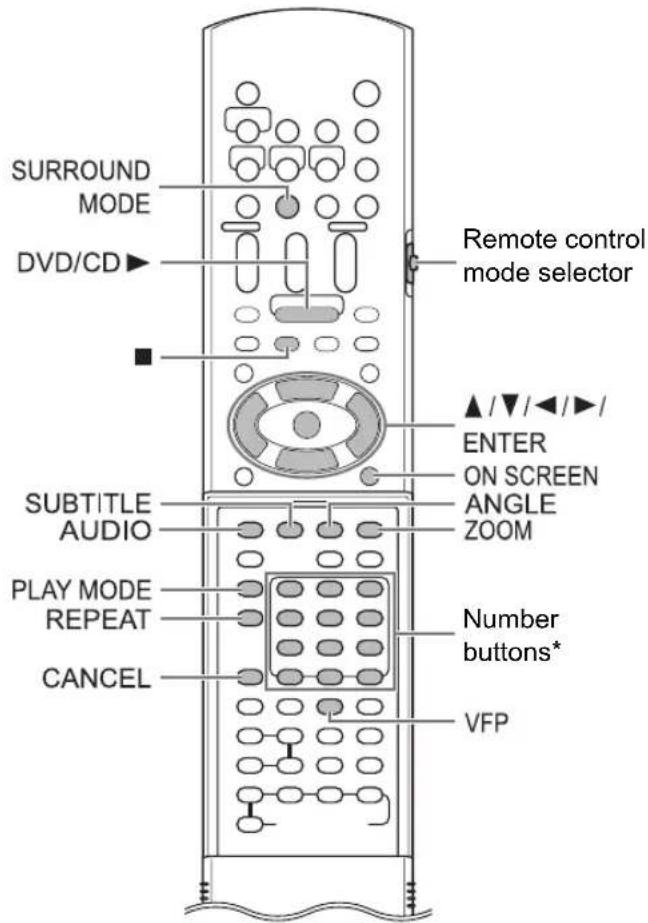
* For the number button usage, refer to "Using the number buttons" on page 17.
■ CAUTION
- Slide the remote control mode selector to [AUDIO].
Selecting the audio language, subtitle language and view angle
■When a disc/file is played back
Press the desired button shown below.
• Each time you press the button, the audio language, subtitle language or view angle changes.
| Function Button Available disc/file | ||
| Audio language | [AUDIO] | DVD VCD DivXVIDEO SVCD |
| Subtitle language | [SUBTITLE] | DVD SVCD DivXVIDEO |
| View angle | [ANGLE] | DVDVIDEO |
TV screen (example for the subtitle language)
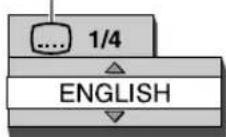
NOTE
• The audio language, subtitle language and view angle can also be changed by pressing ▲ or ▼. - You can only select these function settings when the disc/file contains multiple audio languages, subtitle languages or view angles. - When a language code such as "AA" and "AB" is displayed, refer to "Language codes" on page 43. - You can also use the menu bar to set the functions. Refer to page 38. - "ST", "L" and "R" displayed when playing back a VCD or SVCD, respectively, indicate "Stereo", "Left sound" and "Right sound".
Playing back a disc/file in the desired order (Program playback)
You can program a maximum of 99 tracks. The same track can be programmed more than once.
■When a disc/file is stopped
1 Press [PLAY MODE] repeatedly to display "PROGRAM" in the display window.
Example: Display for a CD
CD
PROGRAM PRG
Example: TV screen for a CD (Program screen)
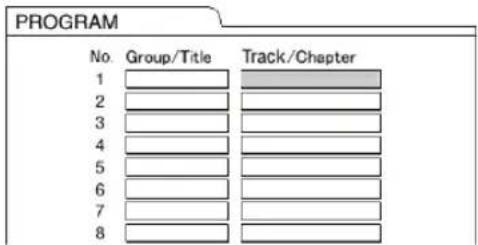
2 Press the number buttons to program tracks.
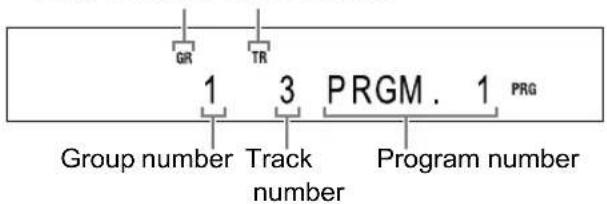
Display for an MP3/WMA/WAV file
- Select a group number, and then a track number.
Group indicator Track indicator
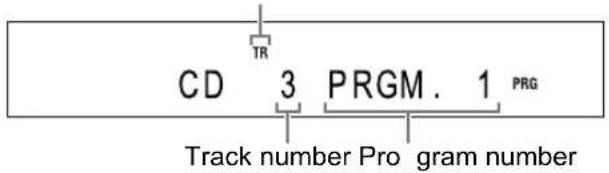
Display for a VCD/SVCD/CD
- Select a track number.
Track indicator
Example: TV screen for a CD (Program screen)
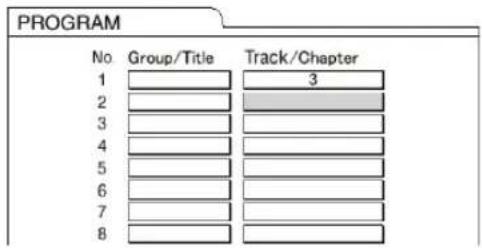
- You can program up to 99 tracks.
NOTE
- Instead of using the number buttons, when you press [ENTER] in the "Track/Chapter" column on the TV screen, "ALL" appears and all the tracks in the selected group are programmed.
- You can erase the programmed tracks one by one from the bottom of the list on the program screen by pressing [CANCEL] repeatedly.
- You can erase the whole program at once by pressing ■.
- Ejecting the disc or turning off the main unit also erases the program.
3 Press [DVD/CD ▶].
Confirming the program
■When a disc/file is played back
Press ■.
- Playback stops and the program screen appears on the TV screen.
Canceling program playback
■When a disc/file is stopped
Press [PLAY MODE] repeatedly to display an item other than "PROGRAM" in the display window.
• This operation does not erase the program.
Playing back a disc/file in a random order (Random playback)


(only for the loaded disc)
■When a disc/file is stopped
1 Press [PLAY MODE] repeatedly to display "RANDOM" in the display window.
- Selecting an item other than "RANDOM" cancels random playback.
2 Press [DVD/CD ▶].
NOTE
• Each chapter or track is played back only once. - Ejecting the disc or turning off the main unit cancels random playback.
Magnifying the picture


■When a disc is played back or paused
1 Press [ZOOM].
• Each time you press the button, the picture magnification changes in the display window.
2 Select the portion you want to magnify by using ▲, ▼, ◀ or ▶.
- To return to normal playback, select "ZOOM x 1" in step 1.
NOTE
- When you magnify a picture, image quality may be deteriorated or the image may be distorted.
Playing back a disc/file repeatedly (Repeat playback)


(PBC off)
■When a disc/file is played back
Press [REPEAT].
• Each time you press [REPEAT], the repeat mode changes.
| Display on the TV screen | Display in the display window | Indicator in the display window | Usage for the repeat mode |
| TITLE | REPEAT TITLE | CALL | Repeats the current title. |
| ALL or REPEAT ALL | REPEAT ALL | CALL | Repeats all tracks*1. |
| GROUP or REPEAT GROUP | REPEAT GROUP | GR | Repeats the current group. |
| CHAP*2 | REPEAT CHAP*2 | C | Repeats the current chapter. |
| TRACK*2 or REPEAT TRACK | REPEAT TRACK*2 | C | Repeats the current track. |
| OFF or no display | REPEAT OFF | — | Cancels repeat. |
*1 Repeats the whole program during program playback. *2 "STEP" is displayed during program/random playback.
NOTE
- Repeat playback can also be set using the menu bar. (Refer to page 38.)
- You can also specify a part to be played back repeatedly by using A-B repeat playback. (Refer to page 39.)
- The repeat mode is automatically canceled if there is a file that cannot be played back.
Selecting the surround mode


Press [SURROUND MODE].
• Each time you press [SURROUND MODE], the display changes in the display window as follows.
- "AUTO SURROUND"
When a multi-channel signal is input, surround sound is automatically produced.
- "MOVIE/M.MUSIC"
Surround sound suitable for a movie or multi-channel signal is produced.
- "WIDE/2chMUSIC"
When a 2ch signal is input, surround sound is produced. The sound is broader than the one with "MOVIE/M.MUSIC".
- "SUPER WIDE"
Surround sound broader than the one with the "WIDE/2chMUSIC" is produced.
- "SURROUND OFF"
Turns off the surround sound.
NOTE
- When a surround-processed signal is input while "AUTO SURROUND", "MOVIE/M.MUSIC", "WIDE/2chMUSIC" or "SUPER WIDE" is selected, the "SURROUND" indicator in the display window lights up.
- Depending on the signal type, surround sound may not be produced as the surround mode setting.
- During playback, when you change the surround mode setting, sound from the [LINE OUT] and [LINE-DIGITAL OUT] terminals may be intermittent. Before recording sound to another device, select the desired surround mode setting.
Adjusting the picture quality (VFP)

■When a disc is played back or paused
1 Press [VFP].
- The current settings are displayed.
TV screen (example)
Selected VFP mode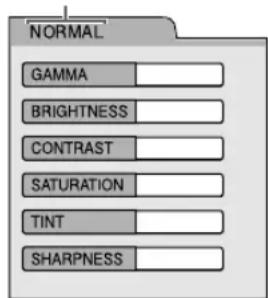
2 Press ◀ or ▶ to select VFP mode.
• Each time you press ◀ or ▶, VFP mode changes on the TV screen as follows. - "NORMAL" For normal playback. (You cannot adjust the image quality.) Go to step 7. - "CINEMA" Suitable for viewing a movie in a dim room. (You cannot adjust the image quality.) Go to step 7. - "USER1/USER2" You can adjust the image quality. Go to step 3.
3 Press ▲ or ▼ to select the item you want to adjust.
• Each time you press ▲ or ▼, the item changes on the TV screen as follows. - "GAMMA" Controls the brightness of neutral tints while maintaining the brightness of dark and light portions. (Selectable options: "LOW", "MID" and "HIGH") - "BRIGHTNESS" Controls the brightness of the display. (Setting range: -8 to +8) - "CONTRAST" Controls the contrast of the display. (Setting range: -12 to +12) - "SATURATION" Controls the saturation of the display. (Setting range: -16 to +16) - "TINT" Controls the tint of the display. (Setting range: -16 to +16) - "SHARPNESS" Controls the sharpness of the display. (Selectable options: "LOW" and "HIGH")
4 Press [ENTER].
TV screen (example)
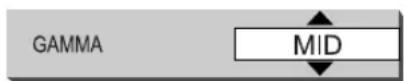
5 Press ▲ or ▼ to change the value.
6 Press [ENTER].
- To adjust other items, go back to step 3.
7 Press [VFP].
NOTE
- This function does not work when the [HDMI] terminal on the main unit is connected to a TV.
- If no operation is made for several seconds during the procedure, the settings made so far are automatically stored.
- "VFP" stands for "Video Fine Processor".

■When a disc/file is played back
1 Press [ON SCREEN] twice.
TV screen for a DVD VIDEO (example)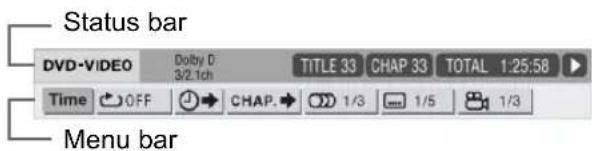
2 Press ◀ or ▶ to select an item you want to operate, and then press [ENTER].
• To turn off the menu bar, press [ON SCREEN].
Information displayed on the status bar
DVD VIDEO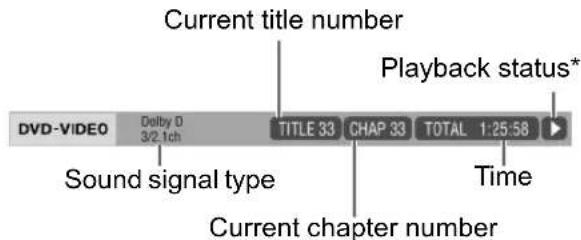
VCD/SVCD/CD/ASF/DivX/MPEG1/MPEG2
(the example below is for a CD)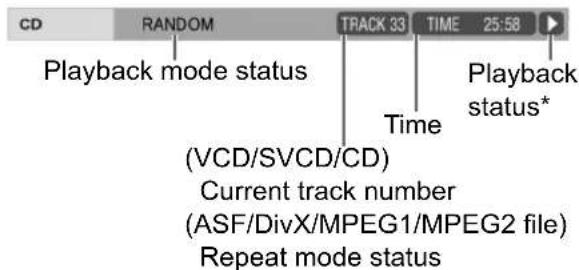
NOTE
* The playback status has the same meaning of the mark on the on-screen guide. (Refer to page 30.)
Function list
To select the settings for those items listed below without a description of their operation, press ▲ or ▼ to select an item and press [ENTER].
| TimeTime display selection | Changes the time information in the display window and the status bar. Each time [ENTER] is pressed, the display changes on the menu bar. DVD VIDEO (operating during play-back)TOTAL: Elapsed playback time of the current title.T.REM: Remaining time of the current title.Time: Elapsed playback time of the current chapter.REM: Remaining time of the current chapter.CD (operating during playback)/VCD/SVCDTime: Elapsed playback time of the current track.REM: Remaining time of the current track.TOTAL: Elapsed playback time of the disc.T.REM: Remaining time of the disc. |
| OFFRepeat mode | Refer to page 36.(For A-B repeat playback, refer to page 39.) |
| →Time search | Refer to page 39. |
| CHAP→Chapter search | DVD VIDEO (chapter search)Selects a chapter. Press the number buttons to enter the chapter number and press [ENTER].Examples:5 : [5]24 : [≥10] → [2] → [4] |
| 1/3Audio language | DVD VIDEO/VCD/SVCD/DivXRefer to page 33. |
| 1/5Subtitle language | DVD VIDEO/SVCD/DivXRefer to page 33. |
| 1/3View angle | DVD VIDEORefer to page 33. |
Playing back a specified part repeatedly (A-B repeat playback)
DVD VIDEO CD VCD SVCD—(PBC off)
You can play back the desired part repeatedly by specifying a start point (A) and an end point (B).
■When a disc is played back
1 Press [ON SCREEN] twice.
- The menu bar appears. (Refer to page 38.)
2 Press ◀ or ▶ to select ⏻ OFF.
3 Press [ENTER].
4 Press ▲ or ▼ to select "A-B".
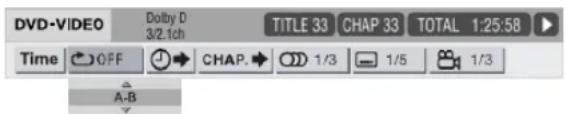
5 Press [ENTER] at the start point of the part to be repeated (specifying point A).
- The icon on the menu bar is .A-
6 Press [ENTER] at the end point of the part to be repeated (specifying point B).
- The icon on the menu bar is .A-B
- The “C and “A-B” indicators light up in the display window and the part between points A and B is played back repeatedly.
Canceling A-B repeat playback
There are 2 methods.
- Press ■.
- Select . (Select and press [ENTER] twice.)
NOTE
- You can use A-B repeat playback only within the same title or track.
- You cannot use A-B repeat playback during program playback, random playback or repeat playback.
Designating the time (Time search)
DVD VIDEO CD VCD SVCD—(PBC off)
■When a disc is played back
1 Press [ON SCREEN] twice.
• The menu bar appears. (Refer to page 38.)
2 Press ◀ or ▶ to select ⏻→. 3 Press [ENTER].

4 Enter the time using the number buttons.
Example:
When you want to play back a DVD VIDEO from the position of (0 hour) 23 minutes 45 seconds, press the number buttons in the order of [0], [2], [3], [4] and [5].
- You can skip entering the minute and second settings.
- If the incorrect value is entered, press to delete the values and enter values again.
5 Press [ENTER].
- To turn off the menu bar, press [ON SCREEN].
NOTE
- This function does not work during program playback or random playback.
- For a CD, you can use this function any time.
- Time search for a DVD VIDEO is from the beginning of the title.
- Time search for a VCD, an SVCD and a CD is as follows:
- When the disc is stopped, time search is from the beginning of the disc.
- When the disc is played back, time search is within the track currently being played back.
Changing the initial settings with the preference screen

You can change the initial settings of the main unit with the preference screen according to the environment where the main unit is used.
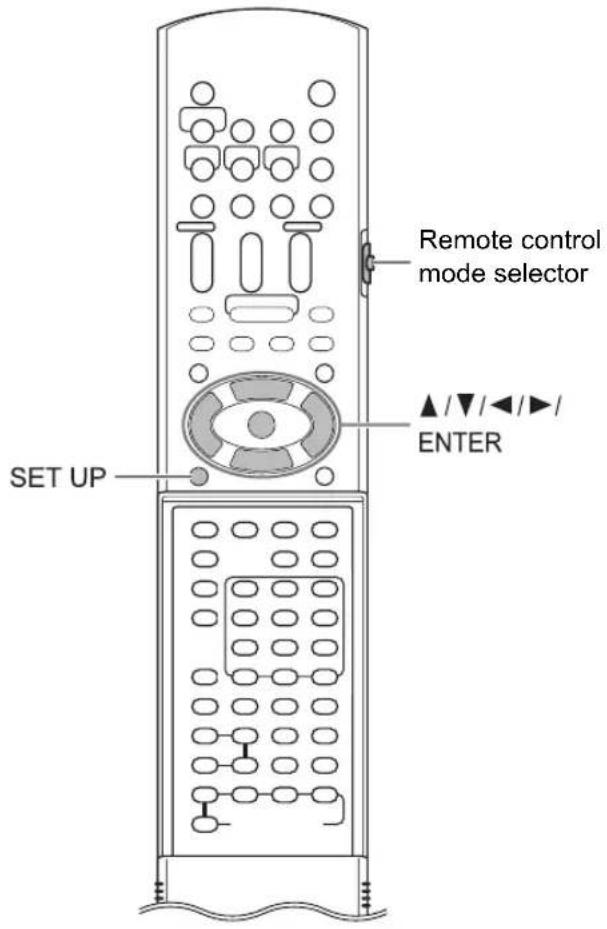
■ CAUTION
- Slide the remote control mode selector to [AUDIO].
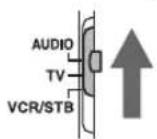
NOTE
- The top and bottom of the preference screen may not be displayed on a wide TV. Adjust the picture size on the TV.
Basic operations
■When a disc/file is stopped or no disc is loaded ("NO DISC" is displayed in the display window)
1 Press [SET UP].
• The preference screen appears on the TV screen.
Example: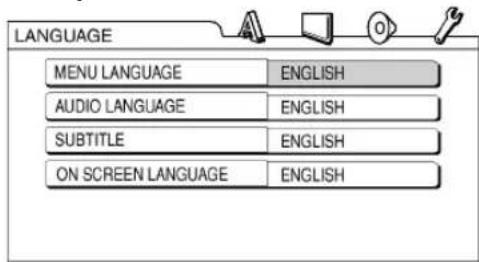
2 Use ▲, ▼, ◀, ▶ and [ENTER] to control the preference screen.
• Proceed with operations by following the description on the TV screen.
![JVC CA-DD3 - Use ▲, ▼, ◀, ▶ and [ENTER] to control the preference screen. - 1](/content/2026/05/847232/images/95a9c0de94879cf2c612cbd4ccb1432b0c684f1c73d46e272bad20fe915f6c60.jpg)
LANGUAGE
| Items Contents | |
| MENU LANGUAGE | Select the language for the DVD VIDEO menu screen. |
| AUDIO LANGUAGE | Select the audio language for the DVD VIDEO. |
| SUBTITLE Select the subtitle language for the DVD VIDEO. | |
| ON SCREEN LANGUAGE | Select the language displayed on the preference screen. |
NOTE
- If the selected language is not recorded on the disc/file, the optimum language set for the disc/file is displayed.
- For a language code such as "AA", refer to the "Language codes" on page 43.

PICTURE
| Items | Contents ( : initial setting) |
| MONITOR TYPE | Select the display method suitable for your TV.4 : 3 PS (Pan Scan) :For a TV with conventional 4:3 aspect ratio. When a wide screen picture is input, the left and right edges of the picture are not shown on the screen. (If the disc/file is not compatible with Pan Scan, the picture is displayed at the Letterbox ratio.)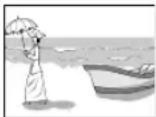 4 : 3 LB (Letterbox) :For a TV with conventional 4:3 aspect ratio. When a wide screen picture is input, black bars appear on the top and bottom of the screen. 4 : 3 LB (Letterbox) :For a TV with conventional 4:3 aspect ratio. When a wide screen picture is input, black bars appear on the top and bottom of the screen.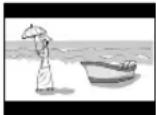 16 : 9 :For an ordinary wide TV. 16 : 9 :For an ordinary wide TV.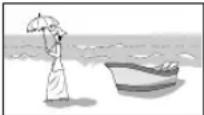 |
| PICTURE SOURCE | Select the item suitable to the video source.AUTO :The video source type (a video or film) is automatically selected.FILM :To view a film or video recorded with the progressive scan method.VIDEO (ACTIVE) :Suitable for playing back a video with a lot of action.VIDEO (NORMAL) :Suitable for playing back a video without a lot of action. |
| Items | Contents ( : initial setting) |
| SCREEN SAVER | You can turn ONOFF the screen saver. The screen saver activates when there is no operation made for approximately 5 minutes since a still picture was last displayed.NOTEThis function does not work when this system outputs the video signal via the [HDMI] terminal. |
| FILE TYPE W | When files of different types are recorded on a disc or connected USB mass storage class device, select the file type before playback.AUDIO:For MP3/WMA/WAV files.STILL PICTURE:For JPEG files.VIDEO:For ASF/DivX/MPEG1/MPEG2 files. |
| HDMI DVI COLOR | You can select the settings for the picture appearance (image quality, color intensity and black fading) on the TV connected to the [HDMI] terminal.STANDARD:For normal usage.ENHANCE:The main unit automatically adjusts the picture appearance. |
| HDMI OUT You | You can select the video signal type output from the [HDMI] terminal.AUTO:For normal usage. The main unit automatically selects the output video signal type according to the TV connected to the [HDMI] terminal.RGB:Select this item if no picture appears on the TV with the “AUTO” setting. The output video signal type is set to the RGB signal. |

AUDIO
| Items | Contents ( : initial setting) |
| DIGITAL AUDIO OUTPUT | Select the output signal type suitable to the device connected to the [LINE-DIGITAL OUT] terminal. Refer to “List of relationships of DIGITAL AUDIO OUTPUT preference items and output signal” on page 43.PCM ONLY:Device corresponding only to linear PCM.DOLBY DIGITAL/PCM:Dolby Digital decoder or device having the same function.STREAM/PCM:DTS/Dolby Digital decoder or device having the same function. |
| DOWN MIX | Select the signal suitable to the device connected to the [LINE-DIGITAL OUT] terminal. Set “DOWN MIX” only when “DIGITAL AUDIO OUTPUT” is set to “PCM ONLY”.DOLBY SURROUND:Dolby Pro Logic decoder-built-in device.STEREO:Ordinary audio device. |
| D (Dynamic).RANGE COMPRESSION | To correct the difference between high volume and low volume when playing back with low volume (only for a DVD recorded with Dolby Digital).WIDE RANGE:For enjoying the original full dynamic range of surround sound without effects.NORMAL:For normal usage. Surround sound is compressed to a certain level. |
| HDMI AUDIO OUT | You can select whether or not the audio signal from the [HDMI] terminal is output.ON:The audio signal from the [HDMI] is output.OFF:The audio signal from the [HDMI] is not output.NOTEDepending on the connected TV, when “HDMI AUDIO OUT” is set to “ON”, only PCM signals can be output via an HDMI cable. |

OTHERS
| Items | Contents ( : initial setting) |
| RESUME | Select ON or OFF. (Refer to pa |
| ON SCREEN GUIDE | Select ON or OFF. (Refer to pa |
| DivX REGISTRATION | The main unit has its own registration code. You can confirm the registration code, when necessary. Once you have played back a disc/file on which the registration code is recorded, the registration code of the main unit is overwritten for copyright protection. |
| NETWORK SETUP | For DD-8/DD-3 users: Refer to the separate volume of the operation manual for the network function. For DD-1 users: This item is not available. |
List of relationships of DIGITAL AUDIO OUTPUT preference items and output signal
| Playback disc/file | DIGITAL AUDIO OUTPUT preference | ||
| STREAM/PCM DOLBY DIGITAL/PCM PCM ONLY | |||
| 48 kHz, 16/20/24 bits linear PCMDVD VIDEO96 kHz linear PCM DVD VIDEO | 48 kHz, 16 bits stereo linear PCM | ||
| DTS DVD VIDEO DTS bit stream 4 | 8 kHz, 16 bits stereo linear PCM | ||
| DOLBY DIGITAL DVD VIDEO DOLBY DIGITAL bit stream | 48 kHz, 16 bits stereo linear PCM | ||
| CD/VCD/SVCD | 44.1 kHz, 16 bits stereo linear PCM48 kHz, 16 bits linear PCM | ||
| DTS CD DTS bit stream 44.1 kHz, | 16 bits linear PCM | ||
| MP3/WMA/DivX file 32/44.1/48 kHz, | 16 bits linear PCM | ||
NOTE
- Among DVD VIDEOS without copyright protection, there may be some DVD VIDEOS that output a 20- or 24- bit signal through the [LINE-DIGITAL OUT] terminal.
Language codes
| Code | Language Code Language | Code Language Code Language | |||||
| AA | Afar | GD | Scots Gaelic | MI | Maori | SL | Slovenian |
| AB | Abkhazian | GL | Galician | MK | Macedonian | SM | Samoan |
| AF | Afrikaans | GN | Guarani | ML | Malayalam | SN | Shona |
| AM | Ameharic | GU | Gujarati | MN | Mongolian | SO | Somali |
| AR | Arabic | HA | Hausa | MO | Moldavian | SQ | Albanian |
| AS | Assamese | HI | Hindi | MR | Marathi | SR | Serbian |
| AY | Aymara | HR | Croatian | MS | Malay (MAY) | SS | Siswati |
| AZ | Azerbaijani | HU | Hungarian | MT | Maltese | ST | Sesotho |
| BA | Bashkir | HY | Armenian | MY | Burmese | SU | Sundanese |
| BE | Byelorussian | IA | Interlingua | NA | Nauru | SV | Swedish |
| BG | Bulgarian | IE | Interlingue | NE | Nepali | SW | Swahili |
| BH | Bihari | IK | Inupiak | NL | Dutch | TA | Tamil |
| BI | Bislama | IN | Indonesian | NO | Norwegian | TE | Telugu |
| BN | Bengali, Bangla | IS | Icelandic | OC | Occitan | TG | Tajik |
| BO | Tibetan | IW | Hebrew | OM | (Afan) Oromo | TH | Thai |
| BR | Breton | JI | Yiddish | OR | Oriya | TI | Tigrinya |
| CA | Catalan | JW | Javanese | PA | Panjabi | TK | Turkmen |
| CO | Corsican | KA | Georgian | PL | Polish | TL | Tagalog |
| CS | Czech | KK | Kazakh | PS | Pashto, Pushto | TN | Setswana |
| CY | Welsh | KL | Greenlandic | PT | Portuguese | TO | Tonga |
| DA | Danish | KM | Cambodian | QU | Quechua | TR | Turkish |
| DZ | Bhutani | KN | Kannada | RM | Rhaeto-Romance | TS | Tsonga |
| EL | Greek | KO | Korean (KOR) | RN | Kirundi | TT | Tatar |
| EO | Esperanto | KS | Kashmiri | RO | Rumanian | TW | Twi |
| ET | Estonian | KU | Kurdish | RU | Russian | UK | Ukrainian |
| EU | Basque | KY | Kirghiz | RW | Kinyarwanda | UR | Urdu |
| FA | Persian | LA | Latin | SA | Sanskrit | UZ | Uzbek |
| FI | Finnish | LN | Lingala | SD | Sindhi | VI | Vietnamese |
| FJ | Fiji | LO | Laothian | SG | Sangho | VO | Volapuk |
| FO | Faroese | LT | Lithuanian | SH | Serbo-Croatian | WO | Wolof |
| FY | Frisian | LV | Latvian, Lettish | SI | Singhalese | XH | Xhosa |
| GA | Irish | MG | Malagasy | SK | Slovak | YO | Yoruba |
| ZU Zulu | |||||||
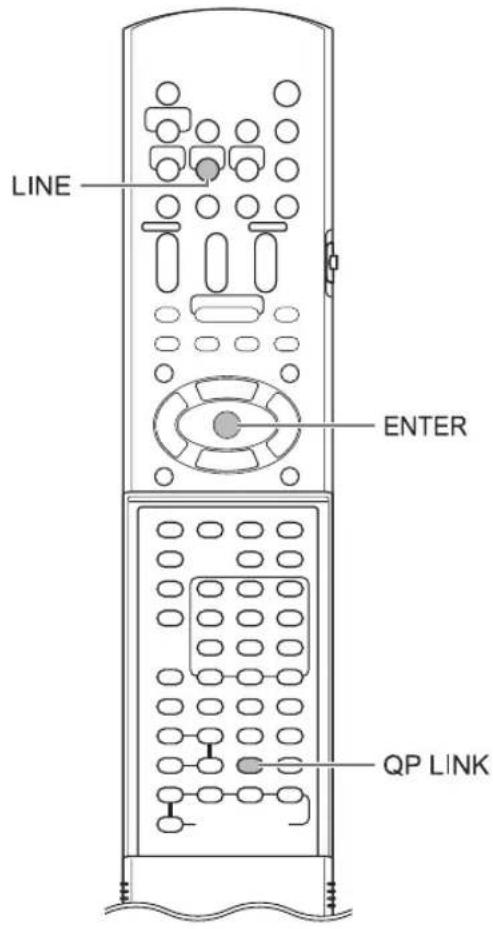
Selecting other devices as the source
1 Press [LINE].
• Each time you press [LINE], the display changes in the display window as follows. - "LINE 1" for selecting the device connected to the [LINE IN 1] terminal - "LINE 2" for selecting the device connected to the [LINE IN 2] terminals - "TV SOUND" for selecting the TV connected to the [AV] terminal - "LINE-DIGITAL" for selecting the digital audio device connected to the [LINE-DIGITAL IN] terminal - You can also select the connected device as the source by repeatedly pressing [SOURCE] on the main unit.
2 Start playback on the connected device.
• Refer also to the operation manual for the connected device.
3 Adjust the volume and make other necessary settings.
- Refer to "Basic operations" on page 17.
Selecting the signal gain
You can select the gain of the signal from the [LINE IN 1] and [LINE IN 2] terminals.
Use the initial settings for normal operation. If the sound is too small or too loud, change the settings.
1 Press [LINE] repeatedly to select "LINE 1" or "LINE 2" in the display window.
2 Hold down [ENTER].
• Each time you hold down [ENTER], the display changes as follows. - The signal gain increases in the order of "LEVEL 1", "LEVEL 2" and "LEVEL 3".
![graph TD A["LEVEL 1": the initial setting for "LINE 2"] --> B["LEVEL 2"] B --> C["LEVEL 3": the initial setting for "LINE 1"]](/content/2026/05/847232/images/b81804bd662a29335483d2345d7226eaa7d14084ec00219c53064ac83a92dfe8.jpg)
NOTE
- You can select the signal gain respectively for "LINE 1" and "LINE 2".
QP LINK
When you start analog playback of a portable digital audio player connected to the [LINE IN 1] terminal while the main unit is off or another source is selected, the main unit automatically turns on and the source changes to the connected portable digital audio player. This function is called the quick portable link function (QP LINK).
Activating QP LINK
Press [QP LINK] repeatedly to select "QP ON" in the display window.
- To deactivate QP LINK, select "QP OFF".
- You can set QP LINK when the main unit is both on and off.
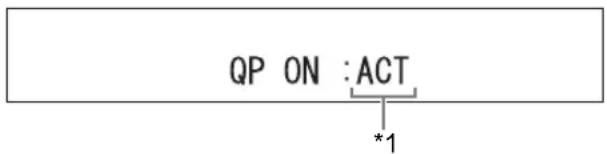
Using QP LINK
■When "QP ON" is selected
1 Connect a portable digital audio player to the [LINE IN 1] terminal using an audio cable.
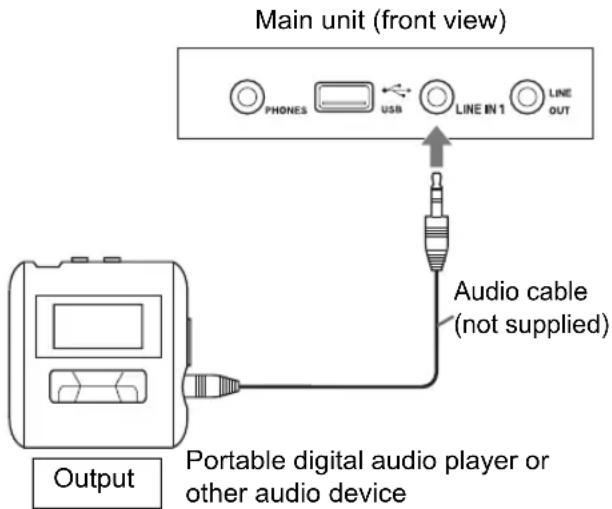
2 Start playback on the portable digital audio player.
- If the main unit is off, the main unit automatically turns on.
- The source from the portable digital audio player is automatically selected, "LINE 1" is displayed and sound is produced.
LINE 1
NOTE
*1 When “QP ON” is displayed, “:ACT” or “:NO ACT” is also displayed to indicate the status of QP LINK. (According to the status of the main unit, “:ACT” and “:NO ACT” changes automatically.) - "QP ON :ACT" is displayed when QP LINK is activated and available. - "QP ON :NO ACT" is displayed when QP LINK is activated but unavailable. Pressing [QP LINK] once can be used to confirm the status of QP LINK.
Selecting the sensitivity for QP LINK
If the sensitivity for the input audio signal is too high, QP LINK may be activated even when the portable digital audio player is not played back. At this time, you can select the lower sensitivity.
Hold down [QP LINK].
• Each time you hold down [QP LINK], the display changes in the display window as follows. - "QP: LEVEL1" for normal usage (the initial setting) - "QP: LEVEL2" for lower sensitivity
QP: LEVEL1
Operating other devices using the remote control
You can operate your TV, video cassette recorder (VCR) and set-top box (STB) using the remote control of this system.
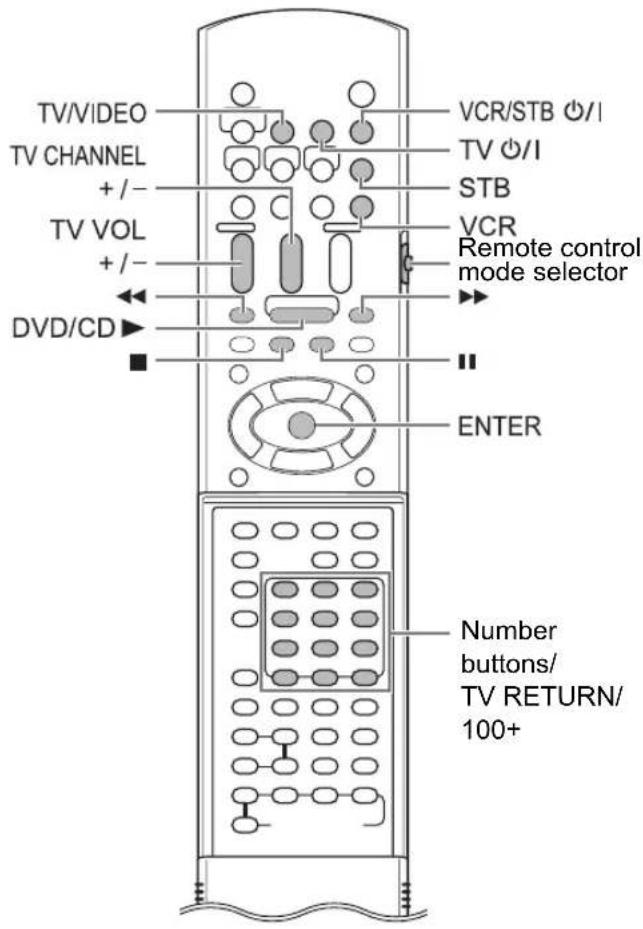
Operating a TV using the remote control
Setting the manufacturer code
1 Slide the remote control mode selector to [TV]. 2 Hold down [TV ⏻/I].
- Hold down [TV Ⓗ/1] until you finish step 4.
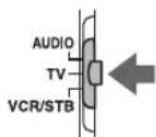
3 Press [ENTER] and release. 4 Press number buttons to enter the manufacturer code.
Examples:
For a Hitachi TV: Press [0], then [7].
For a Toshiba TV: Press [2], then [9].
When the manufacturer of your TV has 2 or more codes, select the manufacturer codes in turn and find the one that operates the TV and the remote control properly.
| Manufacturer | Code | Manufacturer | Code |
| JVC 01 | Nordmende | 13, 14, 18,26, 27, 28 | |
| Akai 02, 05 | Okano 09 | ||
| Blaupunkt 03 | Orion 15 | ||
| Daewoo 10 | 31, 32 Panasonic 16, 17 | ||
| Fenner 04, | 31, 32 Philips 10 | ||
| Fisher 05 Saba | 13, 14, 18,26, 27, 28 | ||
| Grundig 06 | Samsung | 10, 19, 32,35, 36, 37,38 | |
| Hitachi | 07, 08 Sanyo 05 | ||
| Inno-Hit 09 | SEG 15 | ||
| Irradio | 02, 05 Schneider 02, 05 | ||
| Loewe 10 Sharp 20, 39, 40 | |||
| Magnavox | 10 Sony | 21, 22, 23,24, 25 | |
| Mitsubishi | 11, 33 | Telefunken | 13, 14, 18,26, 27, 28 |
| Miver 03 Thomson | 13, 14, 18,26, 27, 28 | ||
| Nokia | 12, 34 Toshiba 29 | ||
(Continued on the next page)
5 Release [TV ⏻/I].
NOTE
- Manufacturer codes are subject to change without notice. You may not be able to operate the TV produced by the manufacturer. • After replacing the batteries of the remote control, set the manufacturer code again.
Using the remote control for the TV operation
Operate the remote control by pointing it at the TV.
| Remote control button | Usage | |
| [TV ⭕/I] | Turns on/off the TV. | |
| [TV/VIDEO] | Changes between the TV and video input. | |
| [TV CHANNEL +/-] | Changes channels. | |
| [TV VOL +/-] Adjusts volume. | ||
| Number buttons (1-9, 0, 100+) | Slide the remote control mode selector to [TV] in advance.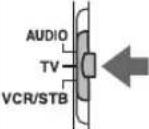 | Selects the channels. |
| [TV RETURN] | Changes between the previously selected channel and the current channel. | |
NOTE
- When the remote control mode selector is slid to [TV], some buttons may not work.
Operating a VCR/STB using the remote control
Setting the manufacturer code
1 Slide the remote control mode selector to [VCR/STB].
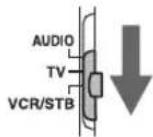
2 Press [VCR] or [STB].
3 Hold down [VCR/STB ⏻/I].
- Hold down [VCR/STB Ⓞ/I] until you finish step 5.
4 Press [ENTER] and release.
5 Press number buttons to enter the manufacturer code.
Manufacturer codes for VCRs
Examples:
For a Hitachi VCR: Press [0], then [8].
For a Toshiba VCR: Press [3], then [3].
When the manufacturer of your VCR has 2 or more codes, select the manufacturer codes in turn and find the one that operates the VCR and the remote control properly.
| Manufacturer | Code | Manufacturer | Code |
| JVC 01 Nokia 16 | |||
| Aiwa 02, 20 | Nordmende | 17, 18, 19, 31 | |
| Bell+Howell | 03, 16 Orion | 20 | |
| Blaupunkt 04 Panasonic | 21 | ||
| CGM 03, 05, 16 Philips | 05, 22 | ||
| Daewoo 34 | Phonola 05 | ||
| DIGITAL | 05 Saba | 17, 18, 19, 23, 31 | |
| Fisher | 03, 16 Samsung | 24, 25 | |
| G.E. 06 Sanyo | 03, 16 | ||
| Grundig | 07 Sharp | 26, 27 | |
| Hitachi | 08, 09 Siemens | 07 | |
| Loewe | 05, 10, 11 | Sony | 28, 29, 30, 35 |
| Magnavox | 04, 05 | Telefunken | 17, 18, 19, 31, 32 |
| Mitsubishi | 12, 13, 14, 15 | Toshiba | 33 |
Manufacturer codes for STBs
Examples:
For an Amstrad STB: Press [0], then [3].
For a Triax STB: Press [3], then [0].
When the manufacturer of your STB has 2 or more codes, select the manufacturer codes in turn and find the one that operates the STB and the remote control properly.
| Manufacturer | Code | Manufacturer | Code |
| JVC 01, 02 | Mascom 32 | ||
| Amstrad | 03, 04, 05, 06, 31 | Maspro 13 | |
| BT 01 Nokia | 24, 26, 33 | ||
| Canal+ 20 | Pace 10, 25, 31 | ||
| Canal Satellite | 20 Panasonic | 15 | |
| D-Box 24 Philips | 09, 23 | ||
| Echostar | 17, 18, 19, 21 | RFT | 12 |
| Finlux | 11 | Saba | 35 |
| Force | 28 Sagem | 22, 29 | |
| Galaxis 27 | Salora 11 | ||
| Grundig | 07, 08 Selector | 29 | |
| Hirschmann | 07, 17, 37 | Skymaster | 12, 36 |
| ITT Nokia | 11 | Thomson | 35 |
| Jerrold | 16 TPS | 22 | |
| Kathrein | 13, 14, 34 | Triax | 30 |
| Luxor | 11 | Wisi 07 |
6 Release [VCR/STB ⏻/I].
NOTE
- Manufacturer codes are subject to change without notice. You may not be able to operate the VCR/STB produced by the manufacturer.
- After replacing the batteries of the remote control, set the manufacturer code again.
Using the remote control for the VCR/STB operation
Before the VCR/STB operation, select the remote control mode for the VCR/STB.
1 Slide the remote control mode selector to [VCR/STB].
![JVC CA-DD3 - Slide the remote control mode selector to [VCR/STB]. - 1](/content/2026/05/847232/images/936ea10c2fbfcf76843fca43b0e9a500a5a5d89b9679b9ecd56aec7651cc7b80.jpg)
2 Press [VCR] or [STB].
Operate the remote control by pointing it at the VCR/STB.
Remote control button assigned for the VCR operation
| Remote control button | Usage |
| [VCR/STB ⭕/I] | Turns on/off the VCR. |
| [VCR] | Selects the VCR input. |
| [TV CHANNEL +/-] | Changes channels. |
| Number buttons(1-10, 0, ≧10) | Selects the channels. |
| [DVD/CD ▶] | Starts playback. |
| ■ | Stops playback. |
| || | Pauses playback. |
| ▶▶ | Fast-forwards the tape. |
| ◀◀ | Fast-rewinds the tape. |
Remote control button assigned for the STB operation
| Remote control button | Usage |
| [VCR/STB Ⓤ/I] | Turns on/off the STB. |
| [STB] | Selects the STB input. |
| [TV CHANNEL +/-] | Changes channels. |
| Number buttons (1-9, 0, ≥10) | Selects the channels. |
NOTE
- When the remote control mode selector is slid to [VCR/STB], some buttons may not work.
Suitable locations for the main unit
To minimize the need for servicing and maintain the high quality of this system, do not place the main unit in the following locations:
- In a position subject to high humidity or considerable dust
- On an uneven or unstable surface
- Near a heat source
- Near a computer, fluorescent light or other electric appliance • In a small room with insufficient ventilation • In a position exposed to direct sunlight • In a position exposed to excessive cold • In a position exposed to strong vibration
- Near a TV, other amplifier, or tuner • Near a magnetic source
■ CAUTION
- The operating temperature of this system is 5°C to 35°C. Use in temperatures outside this range may cause a malfunction or damage the system.
Condensation
Under the following conditions, you may not be able to operate this system properly due to condensation formed on the lens of the main unit:
- When you have just started an air conditioner to warm your room
- When you have placed the main unit at an area with high humidity
- When you have moved the main unit from a cold place to a warm place
When condensation forms, leave the main unit turned on, wait for approximately 1 or 2 hours, and then operate the main unit.
Cleaning the main unit
When the operation panel becomes dirty, dust it with a soft dry cloth. When the operation panel is very dirty, wipe it with a cloth dampened with a small amount of a neutral detergent, and then wipe it with a soft dry cloth.
■ CAUTION
- Do not wipe the operation panel with thinners, benzenes or other chemical agents. Do not spray insecticides onto the operation panel. These may cause discoloration and damage to the surface.
License and trademark
- Manufactured under license from Dolby Laboratories. "Dolby" and the double-D symbol are trademarks of Dolby Laboratories.
- "DTS" and "DTS Digital Surround" are registered trademarks of Digital Theater Systems, Inc.
- This product incorporates copyright protection technology that is protected by method claims of certain U.S. patents and other intellectual property rights owned by Macrovision Corporation and other rights owners. Use of this copyright protection technology must be authorized by Macrovision Corporation, and is intended for home and other limited viewing uses only unless otherwise authorized by Macrovision Corporation. Reverse engineering or disassembly is prohibited.
- DVD logo is a registered trademark of DVD Format/Logo Licensing Corporation. • Official DivX® Certified product
- Plays all versions of DivX® video (including DivX® 6) with standard playback of DivX® media files
- DivX, DivX certified, and associated logos are trademarks of DivX, Inc. and are used under license.
- HDMI, the HDMI logo and High-Definition Multimedia Interface are trademarks or registered trademarks of HDMI Licensing LLC.
- HDCP is the abbreviation of "High-Bandwidth Digital Content Protection", and is the high-reliable copy control technology licensed by Digital Content Protection, LLC.
Notes on handling
Important cautions
Installation of the system
- Select a place which is level, dry and neither too hot nor too cold; between 5°C and 35°C.
- Leave sufficient distance between the system and the TV.
- Do not use the system in a place subject to vibration.
Power cord
- Do not handle the power cord with wet hands!
- A small amount of power is always consumed while the power cord is connected to the wall outlet.
- When unplugging the power cord from the wall outlet, always pull on the plug, not the power cord.
To prevent malfunctions of the system
- There are no user-serviceable parts inside. If anything goes wrong, unplug the power cord and consult your dealer.
- Do not insert any metallic object into the system.
Note about copyright laws
Check the copyright laws in your country before recording from CDs. Recording of copyrighted material may infringe copyright laws.
Safety Precautions
Avoid moisture, water and dust
Do not place the system in moist or dusty places.
Avoid high temperatures.
Do not expose the system to direct sunlight and do not place it near heating equipment.
When you are away
When away on travel or for other reasons for an extended period of time, disconnect the power cord plug from the wall outlet.
Do not block the vents.
Blocking the vents may damage the system.
Care of the cabinet
When cleaning the system, use a soft cloth and follow the relevant instructions on the use of chemically-coated cloths. Do not use benzene, thinner or other organic solvents including disinfectants. These may cause deformation or discoloring.
If water gets inside the system
Turn the system off and disconnect the power cord plug from the wall outlet, then call the store where you made your purchase. Using the system in this condition may cause fire or electrical shock.
Playable disc/file types
| *1Playable discs | DVD VIDEO, VCD, SVCD, CD, CD-R, CD-RW, DVD-R, DVD-RW, +R, +RW |
| *2Playable files recorded on a disc | MP3, WMA, WAV, JPEG, ASF, DivX, MPEG1, MPEG2 |
| *3Playable files recorded on a USB mass storage class device | |
| *3Playable files stored on a computer (Only for DD-8 and DD-3) | Refer to the separate volume of the operation manual for the network function. |
- Even though listed above, some types may be unplayable. *1 Discs should be finalized before being played back. *2 For files recorded on a DVD-R/DVD-RW, the disc should be formatted with UDF Bridge. *3 This system may not recognize some USB mass storage class devices. This system cannot play back a file whose data volume is more than 2 gigabytes and a file whose data transfer rate is more than 2 Mbps.
It is possible to play back finalized +R/+RW (DVD Video Format only) discs. "DVD" lights on the front display panel when a +R/+RW disc is loaded.
Some discs may not be played back because of their disc characteristics, recording conditions, or damage or stains on them.
Only sounds can be played back from the following discs:
MIX-MODE CD, CD-G
CD-EXTRA, CD TEXT
Region code of DVD VIDEO
DVD VIDEO players and DVD VIDEO discs have their own Region Code numbers. This system can play back a DVD VIDEO whose Region Code number includes the system's Region Code, which is indicated on the rear panel.
Examples:


If a DVD VIDEO with an improper region code number is loaded, "REGION CODE ERROR!" appears on the TV screen and playback cannot start.
- On some DVD VIDEOs, VCDs, SVCDs or DivX files, their actual operation may be different from what is explained in this manual. This is due to the disc/file programming and disc/file structure, not a malfunction of this system.
This system is designed for use with the PAL standard but you can also play back discs recorded in NTSC format. When you play back a disc recorded in NTSC format on the main unit connected to the TV using an HDMI or component video cable, the picture may be distorted. To prevent picture distortion, use a SCART cable. (Refer to page 12 for connecting a SCART cable.)
Unplayable discs
• The following discs cannot be played back: - DVD-ROM (except for MP3/WMA/JPEG/ASF/DivX/MPEG1/MPEG2 format), DVD-RAM, CD-ROM, CD-I (CD-I Ready), Photo CD, SACD, etc.
- Playing back these discs will generate noise and damage the speakers.
- Damaged discs and discs in an extraordinary shape (other than a disc of 12 cm or 8 cm in diameter) cannot be played back.
- JVC does not guarantee the operation and sound quality of discs not authorized by CD-DA, which is a CD specification.
Before playback, confirm that the disc complies with this CD specification by checking the marks and reading notes printed on the package.
Playable MP3/WMA/WAV/JPEG/ASF/DivX/MPEG1/MPEG2 discs/files
- CDs recorded in the ISO 9660 format are playable (except CDs recorded in the "packet write" format (UDF format)). CDs recorded in the multi-session format are also playable.
- Files with an extension of ".mp3", ".wma", ".wav", ".jpg", ".jpeg", ".asf", ".divx", ".div", ".avi", ".mpg" or ".mpeg" (extensions with uppercase and lowercase letters mixed are also acceptable) are playable.
- This system cannot play back DVDs recorded in multi-session or multi-border format.
Notes on MP3/WMA/WAV/JPEG/ASF discs/files
- A disc may not be played back, or reading it may take a long time depending on its recording conditions or properties.
- The time needed for reading varies with the number of groups or tracks (files) recorded on the disc.
- If a character other than single byte English characters is used in the file name of an MP3/WMA/JPEG/ASF file, the track/file name will not be displayed correctly.
- The order of tracks/groups displayed on the MP3/WMA menu screen, and the order of files/groups displayed on the JPEG menu screen may be different from that of files/folders displayed on a computer monitor screen.
- In the case of MP3/WMA discs, since groups/tracks are played back in alphabetical order, a commercially available MP3/WMA disc may be played back in an order different from that indicated on the label attached to the disc.
- Playing back an MP3/WMA file including a still image may take a long time. The elapsed time is not displayed until playing back starts. If playing back starts, the elapsed time may not be displayed correctly.
- For an MP3/WMA file, a disc with a sampling frequency of 44.1 kHz and transmission rate of 128 kbps is recommended.
- This system is not compatible with MP3i or MP3PRO.
- This system can play back a baseline JPEG file, excluding monochromatic JPEG files.
- This system can play back JPEG data taken with a digital camera conforming to the DCF (Design Rule for Camera File System) standard (when a function is applied such as the automatic rotation function of a digital camera, data goes beyond the DCF standard, so the image may not be displayed).
- If data has been processed, edited and restored with computer image editing software, the data may not be displayed.
- This system cannot play back animations such as MOTION JPEG, still pictures (TIFF etc.) other than JPEG, or image data with sound.
- The resolution of 640 x 480 pixels is recommended for JPEG files. If a file has been recorded at a resolution of more than 640 x 480 pixels, display may take a long time. An image with a resolution of more than 8 192 x 7 680 pixels cannot be displayed.
- The system supports ASF files recorded with the maximum bit rate of 384 kbps and an audio coder decoder of G.726.
- For a WAV file, a disc with a sampling frequency of 44.1 kHz and a transmission rate of 16 bits is recommended.
Notes on DVD-R/DVD-RW
- This system does not support a disc recorded in multi-border format.
- This system does not support a disc recorded in DVD VR format.
Notes on DivX discs/files
• The system supports DivX 5.x, 4.x and 3.11. - The system supports DivX files with a resolution of 720 x 480 pixels or less (30 fps) and 720 x 576 pixels or less (25 fps). - Audio stream should conform to MPEG1 Audio Layer-2 or MPEG Audio Layer-3 (MP3). - The system does not support GMC (Global Motion Compression). - Files encoded in the interlaced scanning mode may not be played back correctly. - Playing back a DivX file may take a long time. The elapsed time is not displayed until playback starts. The elapsed time may also not be displayed correctly.
Notes on MPEG1/MPEG2 discs/files
- The stream structure of MPEG1/MPEG2 discs and files should conform to MPEG system/program stream.
- 720 x 576 pixels (25 fps)/720 x 480 pixels (30 fps) is recommended for the highest resolution.
- This system also supports the resolutions of 352 x 576/480 x 576/352 x 288 pixels (25 fps) and 352 x 480/480 x 480/352 x 240 pixels (30 fps).
- The profile and level should be MP@ML (Main Profile at Main Level)/SP@ML (Simple Profile at Main Level)/MP@LL (Main Profile at Low Level).
- Audio streams should conform to MPEG1 Audio Layer-2, MPEG2 Audio Layer-2 or Dolby Digital (MPEG2 only).
Caution for DualDisc playback
The Non-DVD side of a “DualDisc” does not comply with the “Compact Disc Digital Audio” standard. Therefore, the use of Non-DVD side of a DualDisc on this product may not be recommended.
Notes on files recorded on a connected USB mass storage class device
- JVC bears no responsibility for any loss of data on the USB mass storage class device while using this system.
- This system is compatible with USB 2.0 Full-Speed.
- Tracks coded or encrypted using a special method cannot be played on the system.
- Some portable audio players are not compatible with the system.
- This system may not play back some USB mass storage class devices and does not support DRM (Digital Rights Management).
Data hierarchy
DVD VIDEO
A DVD VIDEO consists of "titles" and each title may be divided into "chapters".
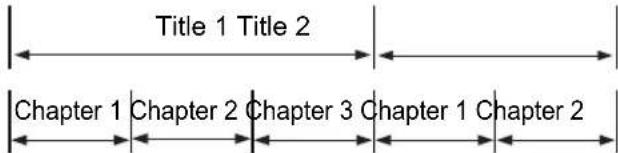
VCD/SVCD/CD
A VCD/SVCD/CD consists of "tracks".
In general, each track has its own track number. (On some discs, each track may also be further divided by indexes.)

MP3/WMA/WAV/JPEG/ASF/DivX/MPEG1/MPEG2 files
Audio, still pictures and video are recorded as tracks/files on a disc or a USB mass storage class device. Tracks/files are usually grouped into a folder. Folders can also include other folders, creating hierarchical folder layers.
This system simplifies the hierarchical construction of files and manages folders by "groups".
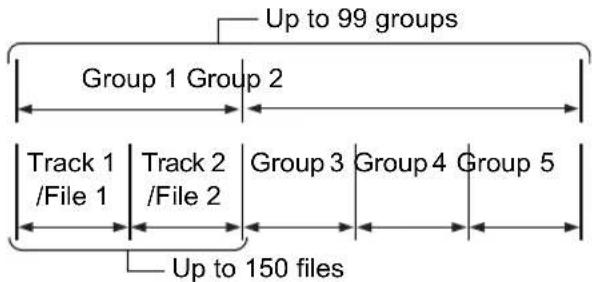
This system can recognize up to 4,000 tracks/files on a disc. Also, the system can recognize up to 150 tracks/files per group and up to 99 groups on a disc. Since the system ignores the tracks/files with numbers exceeding 150 and the groups with numbers exceeding 99, these cannot be played back. If there are any type of files other than MP3/WMA/WAV/JPEG/ASF/DivX/MPEG1/MPEG2 files on a disc, those files are also counted in the total file number.
Handling discs
- Do not use any non-standard shape disc (like a heart, flower or credit card, etc.) available on the market, because it may damage the system.
- Do not use a disc with tape, stickers, or paste on it, because it may damage the system.
- Do not bend the disc.
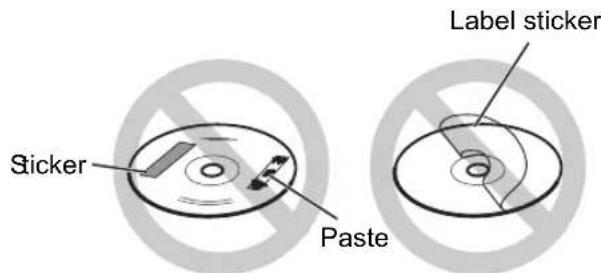
Cleaning discs
Signal surface
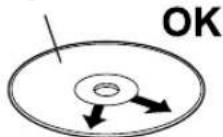
Wipe the disc from the center outward with a soft cloth.
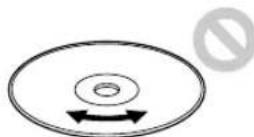
Scratches concentrated on a certain part cause sound dropout.
- Be sure not to use thinners, benzenes, cleaners for analog records, or other chemical agents.
| Problem Possible cause Possible solution | Reference page | ||
| No sound/video is produced. | Improper connection. Connect all cables properly. 5 | ||
| Headphones are connected. Disconnect the headphone plug. 3 | |||
| No sound/video is produced via the [HDMI] terminal. (Only for DD-8/DD-3) | A disc/file recorded in a format incompatible with the main unit/TV is played back. | Confirm the playable disc/file types. | 51 |
| The connected TV is not compatible with HDCP. | Connect a TV compatible with HDCP. | 12 | |
| The main unit fails to recognize the TV connected to the [HDMI] terminal. | Disconnect the HDMI cable and connect it again. | 12 | |
| An HDMI cable longer than 5 m (15 feet) is used. | Use an HDMI cable of 5 m (15 feet) or shorter to assure stable operation and picture quality. | - | |
| Disc playback does not start. | The disc is upside down. | Place the disc on the disc tray with the printed surface facing up. | 26 |
| Moisture has condensed on the lens. | Leave the main unit turned on, wait for approximately 1 or 2 hours, and then operate the main unit. | 49 | |
| A certain point cannot be played back properly. | The disc is scratched or dirty. Clean or replace the disc. 54 | ||
| The picture is distorted when the TV is connected to the [HDMI] terminal. (Only for DD-8/DD-3) | The proportion of the picture is not appropriate. | Connect the TV to the [AV] terminal, and select the video signal type and the monitor out type. | 12-14 |
| A radio broadcast cannot be received. | No antenna is connected. Connect an antenna. 5 | ||
| A whirring noise is produced. | The main unit is located close to a TV, computer, or other electric appliance. | Place the main unit away from a TV, computer, or other electric appliance. | 50 |
| The disc tray does not eject. | If “LOCKED” appears in the display window, disc ejection has been locked. | Cancel the disc ejection lock. 20 | |
| You cannot operate the remote control. | The remote control batteries are running low. | Replace the batteries with new batteries. | 4 |
| You cannot operate the main unit using the remote control. | The remote control mode selector on the remote control is slid to [TV] or [VCR/STB]. | Slide the remote control mode selector to [AUDIO]. | 17 |
| MP3, WMA, WAV, JPEG, ASF, DivX, MPEG1 or MPEG2 files cannot be played back. | The loaded disc may include files of different types (MP3, WMA, WAV, JPEG, ASF, DivX, MPEG1 or MPEG2). | Select “FILE TYPE”. You can play back only the files of the types selected with “FILE TYPE”. If the main unit has read the file before you make the “FILE TYPE” setting, perform either of the following after setting “FILE TYPE” to the desired file type.For playing back files on the disc, reload the disc.For playing back files on the USB mass storage class device, disconnect the USB mass storage class device and then connect it again. | 41 |
| Playback starts suddenly. | QP LINK may be working. This is not a malfunction. | Select “QP OFF”. | 45 |
If this system does not work properly despite the above "Possible solution"
Many functions of this system are controlled by microprocessors that can be reset by recycling the power supply. If pressing any button does not result in the normal action, disconnect the power cable from the outlet, wait for a while, and connect the power cable again.
Main unit (CA-DD8/CA-DD3/CA-DD1)
Tuner
FM frequency: 87.50 MHz - 108.00 MHz
AM frequency: 522 kHz - 1 629 kHz
Terminal (front of the main unit)
- Audio output headphone terminal x 1 Impedance: 16 Ω to 1 kΩ • USB digital input terminal x 1
- Analog input terminal x 1 Stereo mini jack
- Analog output terminal x 1 Stereo mini jack
Terminal (rear of the main unit)
• Optical digital input terminal x 1 -23 dBm to -15 dBm - Optical digital output terminal x 1 -23 dBm to -15 dBm - System terminal x 1 - Component video output terminals (3) x 1 Y: 1.0 Vp-p, sync negative, 75 Ω terminated PB: 0.7 Vp-p, 75 Ω terminated PR: 0.7 Vp-p, 75 Ω terminated • Audio input terminals (2) x 1500 mV/47 kΩ - SCART terminal x 1 • AM antenna terminal x 1 • FM antenna terminal x 1 - Ethernet terminal x 1 (not available for DD-1) - HDMI monitor output terminal x 1 (not available for DD-1)
USB
Compatible with USB 2.0 Full-Speed
Compatible device: Mass storage class device
Compatible file system: FAT16, FAT32
Bus power supply: Max. 500 mA
General
Power source: AC 230 V, 50 Hz
Power consumption (in operation): 25 W
Power consumption (on standby): 0.5 W
Dimensions (W x H x D): 445 mm x 55 mm x 286.4 mm (including projecting parts)
Weight: 3.5 kg (CA-DD8)
3.0 kg (CA-DD3/CA-DD1)
Subwoofer for DD-8 (SP-PWDD8)
Type: Bass reflex type
Magnetically shielded type
Amplifier:
- Subwoofer: 120 W at 4 Ω (110 Hz, THD 10%)
- Left/right speaker: 25 W x 2 at 3 Ω (1 kHz, THD 10%) • Center surround speaker: 25 W x 2 at 3 Ω (1 kHz, THD 10%)
Speaker:
- 16 cm cone • Power handling capacity: 120 W • Impedance: 4 Ω • Frequency range: 30 Hz - 230 Hz • Sound pressure level: 72 dB/W·m
General:
• Power source: AC 230 V, 50 Hz • Power consumption: 120 W • Dimensions (W x H x D): 242 mm x 364 mm x 363 mm • Weight: 12.6 kg
Type: Bass reflex type
Amplifier:
- Subwoofer: 120 W at 4 Ω (110 Hz, THD 10%)
- Left/right speaker: 25 W x 2 at 3 Ω (1 kHz, THD 10%) • Center surround speaker: 25 W x 2 at 3 Ω (1 kHz, THD 10%)
Speaker:
- 16 cm cone • Power handling capacity: 120 W • Impedance: 4 Ω • Frequency range: 30 Hz - 230 Hz • Sound pressure level: 72 dB/W·m
General:
• Power source: AC 230 V, 50 Hz • Power consumption: 120 W • Dimensions (W x H x D): 242 mm x 364 mm x 363 mm • Weight: 12.3 kg
Subwoofer for DD-1 (SP-PWDD1)
Type: Bass reflex type
Amplifier:
- Subwoofer: 120 W at 4 Ω (110 Hz, THD 10%)
- Left/right speaker: 25 W x 2 at 3 Ω (1 kHz, THD 10%) • Center surround speaker: 25 W x 2 at 3 Ω (1 kHz, THD 10%)
Speaker:
- 16 cm cone • Power handling capacity: 120 W
- Impedance: 4 Ω • Frequency range: 30 Hz - 230 Hz
- Sound pressure level: 72 dB/W·m General: • Power source: AC 230 V, 50 Hz • Power consumption: 120 W • Dimensions (W x H x D): 221 mm x 361 mm x 340 mm
- Weight: 11.0 kg
Left and right speakers for DD-8 (SP-DD8F)
Type: 2-way 3-speaker bass reflex type
Magnetically shielded type
Speaker: 8 cm cone x 2 + 2 cm dome
Power handling capacity: 30 W
Impedance: 3 Ω
Frequency range: 60 Hz - 40 kHz
Sound pressure level: 81 dB/W·m
Dimensions (W x H x D): 289 mm x 1,101 mm x 289 mm
Weight (1 unit): 10.0 kg
Left and right speakers for DD-3 (SP-DD3F)
Type: 2-way acoustic suspension type
Magnetically shielded type
Speaker: 9.5 cm x 1 cm direct drive +
2 cm dome
Power handling capacity: 30 W
Impedance: 3 Ω
Frequency range: 100 Hz - 40 kHz
Sound pressure level: 78 dB/W·m
Dimensions (W x H x D): 165 mm x 376 mm x 165 mm
(including stand)
Weight (1 unit): 1.0 kg (including stand)
Left and right speakers for DD-1 (SP-DD1F)
Type: 2-way bass reflex type
Magnetically shielded type
Speaker: 10 cm cone + 4 cm cone
Power handling capacity: 30 W
Impedance: 3 Ω
Frequency range: 55 Hz - 40 kHz
Sound pressure level: 83 dB/W•m
Dimensions (W x H x D): 127 mm x 273 mm x 221 mm
Weight (1 unit): 2.6 kg
Center surround speaker for DD-8/DD-3 (SP-DD8S)
Type: 1-way acoustic suspension type Magnetically shielded type
Speaker: 9.5 cm x 1 cm direct-drive
Power handling capacity: 30 W
Impedance: 3 Ω
Frequency range: 120 Hz - 40 kHz
Sound pressure level: 79 dB/W·m
Dimensions (W x H x D): 344 mm x 61 mm x 76 mm (including stand)
Weight: 0.95 kg (including stand)
Center surround speaker for DD-1 (SP-DD1S)
Type: 1-way acoustic suspension type
Magnetically shielded type
Speaker: 9.5 cm x 1 cm direct-drive
Power handling capacity: 30 W
Impedance: 3 Ω
Frequency range: 140 Hz - 40 kHz
Sound pressure level: 79 dB/W·m
Dimensions (W x H x D): 296 mm x 50 mm x 45 mm
Weight: 0.7 kg
Designs and specifications are subject to change without notice.
Supplied accessories
- Remote control x 1
- Battery x 2
- FM antenna x 1
- AM loop antenna x 1
- Left/right speaker cable x 2
- Center surround speaker cable x 1 (Only for DD-8 and DD-3)
- System cable x 1
- M4 x 25-mm screw for the stands of the left and right speakers x 6 (Only for DD-8)
- M4 x 16-mm screw for the stands of the left and right speakers x 6 (Only for DD-3)
- M5 x 14-mm screw for the stands of the center surround speaker x 2 (Only for DD-8 and DD-3)
- Bottom cover of the left and right speakers [for wall installation] x 2 (Only for DD-3)
- Main volume of the operation manual [this manual] x 1
- Separate volume of the operation manual for the network function x 1 (Only for DD-8 and DD-3)
- CD-ROM for the network function setup x 1 (Only for DD-8 and DD-3) [This CD-ROM is for use on a computer. It cannot be played back on this system.]

JVC

- DD
- DIGITAL MEDIA SYSTEM
- CAUTION
- IMPORTANT FOR LASER PRODUCTS
- CAUTION: PROPER VENTILATION
- MAIN UNIT (CA-DD8/CA-DD3/CA-DD1)
- SUBWOOFER (SP-PWDD8/SP-PWDD3/SP-PWDD1)
- CAUTION — ⏻/1 BUTTON! (CA-DD8/CA-DD3/CA-DD1)
- CAUTION (SP-PWDD8/SP-PWDD3/SP-PWDD1)
- INFORMATION FOR USERS ON DISPOSAL OF OLD EQUIPMENT
- ATTENTION
- [EUROPEAN UNION]
- (BUSINESS USERS)
- [OTHER COUNTRIES OUTSIDE THE EUROPEAN UNION]
- IMPORTANT FOR THE U.K
- IMPORTANT
- SAFETY INSTRUCTIONS "SOME DOS AND DON'TS ON THE SAFE USE OF EQUIPMENT
- ABOVE ALL
- INTRODUCTION
- PART DESCRIPTION
- USING THE REMOTE CONTROL
- PREPARATION
- BASIC OPERATIONS
- LISTENING TO RADIO BROADCASTS
- BASIC OPERATIONS OF DISC/FILE PLAYBACK
- CONVENIENT FUNCTIONS OF DISC/FILE PLAYBACK
- USING THE STATUS BAR AND THE MENU BAR
- CHANGING THE INITIAL SETTINGS WITH THE PREFERENCE SCREEN
- LANGUAGE CODES
- PLAYING BACK SOURCES FROM OTHER DEVICES
- OPERATING OTHER DEVICES USING THE REMOTE CONTROL
- REFERENCE
- NOTES ON OPERATION
- NOTES ON DISCS/FILES
- TROUBLESHOOTING
- SPECIFICATIONS
- HOW TO READ THIS MANUAL
- REAR VIEW
- DISPLAY WINDOW
- POINT THE REMOTE CONTROL DIRECTLY AT THE FRONT OF THE MAIN UNIT
- CONNECTING THE ANTENNAS
- AM LOOP ANTENNA (SUPPLIED)
- NOTE
- FM ANTENNA (SUPPLIED)
- CONNECTING THE SPEAKERS
- ASSEMBLING THE SPEAKER STANDS (DD-8)
- LEFT AND RIGHT SPEAKERS
- CENTER SURROUND SPEAKER
- CONNECTING THE SPEAKERS TO THE SUBWOOFER (DD-8)
- ASSEMBLING THE SPEAKER STANDS (DD-3)
- CONNECTING THE SPEAKERS TO THE SUBWOOFER (DD-3)
- CONNECTING THE SPEAKERS TO THE SUBWOOFER (DD-1)
- CONNECTING THE SUBWOOFER TO THE MAIN UNIT
- SPEAKER LAYOUT
- CONNECTING A TV
- SELECTING THE VIDEO SIGNAL TYPE
- PRESS ◀ OR ▶ TO SELECT THE VIDEO SIGNAL TYPE SUITABLE FOR THE TV
- PRESS [ENTER]
- SELECTING THE MONITOR OUT TYPE
- PRESS [SETTING]
- PRESS ▲ OR ▼ TO DISPLAY "M.OUT
- PRESS ◀ OR ▶ TO SELECT "HDMI" OR "NO HDMI
- PRESS [ENTER] OR WAIT FOR A SHORT TIME
- CONNECTING A PORTABLE DIGITAL AUDIO PLAYER
- USING THE NUMBER BUTTONS
- TURNING ON THE MAIN UNIT
- PRESS [O/AUDIO]
- ADJUSTING THE VOLUME
- PRESS [AUDIO VOL +/-]
- TURNING OFF THE SOUND TEMPORARILY
- PRESS [MUTING]
- SHARPENING THE VOICE SOUND
- PRESS [CLEAR VOICE]
- ADJUSTING THE BASS/TREBLE SOUND
- ADJUSTING THE VOLUME OF THE CENTER SURROUND SPEAKER/SUBWOOFER
- ADJUSTING THE VOLUME BALANCE BETWEEN THE LEFT AND RIGHT SPEAKERS
- CHANGING THE BRIGHTNESS OF THE DISPLAY WINDOW
- PRESS [DIMMER]
- USING THE SLEEP TIMER
- PRESS [SLEEP]
- EXAMPLE: DISPLAY WHEN THE SLEEP TIMER IS SET TO 60 MINUTES
- AUTO STANDBY FUNCTION
- PRESS [A.STANDBY]
- STANDBY ON
- PERFORMANCE OF THE AUTO STANDBY FUNCTION
- LOCKING DISC EJECTION
- PRESS ▲ WHILE HOLDING DOWN ■ ON THE MAIN UNIT
- LOCKED
- SELECTING A RADIO STATION
- PRESS [FM/AM] TO SELECT "FM" OR "AM" IN THE DISPLAY WINDOW
- EXAMPLE: DISPLAY WHEN AN FM RADIO BROADCAST IS RECEIVED
- PRESS [TUNING] OR [TUNING] + REPEATEDLY TO SELECT A RADIO STATION
- AUTOMATIC TUNING
- TUNING IN TO A PRESET RADIO STATION
- PRESETTING RADIO STATIONS
- SELECT A RADIO STATION YOU WANT TO STORE
- PRESS [MEMORY]
- WHILE THE PRESET NUMBER IS FLASHING, PRESS THE NUMBER BUTTONS TO SELECT THE PRESET NUMBER
- WHILE THE SELECTED NUMBER IS FLASHING, PRESS [MEMORY] OR [ENTER]
- WHEN AN FM OR AM RADIO BROADCAST IS SELECTED AS THE SOURCE
- PRESS THE NUMBER BUTTONS TO SELECT THE PRESET NUMBER
- RADIO DATA SYSTEM
- RECEIVING FM RADIO BROADCASTS WITH RADIO DATA SYSTEM
- PS (PROGRAM SERVICE)
- PTY (PROGRAM TYPE)
- RT (RADIO TEXT)
- ENHANCED OTHER NETWORKS
- ALARM FUNCTION
- CHANGING THE RADIO DATA SYSTEM INFORMATION
- PRESS [DISPLAY MODE] REPEATEDLY
- SEARCHING FOR PROGRAMS BY PTY CODES (PTY SEARCH)
- PRESS [PTY SEARCH]
- PRESS [PTY SELECT +] OR [PTY SELECT -] REPEATEDLY TO SELECT A PTY CODE WHILE "PTY SELECT" IS FLASHING IN THE DISPLAY WINDOW
- DOCUMENT
- SWITCHING TO A PROGRAM TYPE OF YOUR CHOICE TEMPORARILY
- PRESS [TA/NEWS/INFO] REPEATEDLY UNTIL THE INDICATOR OF YOUR DESIRED PROGRAM TYPE (TA/NEWS/INFO) APPEARS IN THE DISPLAY WINDOW
- EXAMPLE: DISPLAY ON THE MAIN UNIT
- HOW THE ENHANCED OTHER NETWORKS FUNCTION ACTUALLY WORKS
- CASE
- PLAYING BACK A DISC
- DVD VIDEO VCD SVCD CD
- PRESS [OPEN/CLOSE ▲] ON THE REMOTE CONTROL OR ▲ ON THE MAIN UNIT
- PLACE A DISC
- PRESS [DVD/CD ▶]
- PLAYING BACK A FILE
- MP3 WMA WAV JPEG ASF DIVX MPEG1 MPEG
- PREPARE THE SYSTEM FOR FILE PLAYBACK BY FOLLOWING THE OPERATIONS BELOW
- PLACE A DISC ON THE DISC TRAY
- CONNECT THE USB MASS STORAGE CLASS DEVICE TO THE [USB] TERMINAL ON THE FRONT OF THE MAIN UNIT
- PRESS [DVD/CD ▶] OR [USB ▶]
- PRESS ■ TO STOP PLAYBACK
- SLIDE-SHOW PLAYBACK
- DISPLAY WINDOW ON THE MAIN UNIT FOR DISC/FILE TYPES
- DVD VIDEO
- VCD/SVCD
- CD
- PRESS [DISPLAY] REPEATEDLY
- JPEG FILE
- MESSAGES ON THE TV SCREEN
- NOW READING
- REGION CODE ERROR
- NO DISC
- OPEN
- CLOSE
- CANNOT PLAY THIS DISC
- GUIDE ICONS ON THE TV SCREEN (ON-SCREEN GUIDE)
- INDICATORS IN THE DISPLAY WINDOW RELATED TO THE SPEAKER SOUND
- STOPPING PLAYBACK
- RESUMING PLAYBACK
- TEMPORARILY STOPPING PLAYBACK
- FOLLOW ANY OF THE OPERATIONS BELOW
- STARTING PLAYBACK FROM THE STORED POSITION
- CLEARING THE STORED POSITION
- PRESS ■ TWICE
- PAUSING PLAYBACK
- PRESS II
- ADVANCING THE PICTURE FRAME BY FRAME
- PRESS II REPEATEDLY
- FAST REVERSE/FAST FORWARD SEARCH
- PLAYING BACK FROM A POSITION 10 SECONDS BEFORE
- PRESS [ONE TOUCH REPLAY]
- SLOW MOTION PLAYBACK
- PRESS [SLOW] OR [SLOW]
- SKIPPING TO THE BEGINNING OF A CHAPTER/TRACK/FILE
- PRESS |◀◀ OR ▶▶| REPEATEDLY
- SELECTING A CHAPTER/TRACK USING THE NUMBER BUTTONS
- SKIPPING AT APPROXIMATELY 5 MINUTE INTERVALS
- DIVX
- PRESS ◀ OR
- SELECTING A TRACK FROM THE MENU SCREEN
- DVD VIDEO VCD SVCD
- SELECTING THE AUDIO LANGUAGE, SUBTITLE LANGUAGE AND VIEW ANGLE
- PRESS THE DESIRED BUTTON SHOWN BELOW
- TV SCREEN (EXAMPLE FOR THE SUBTITLE LANGUAGE)
- PLAYING BACK A DISC/FILE IN THE DESIRED ORDER (PROGRAM PLAYBACK)
- PRESS [PLAY MODE] REPEATEDLY TO DISPLAY "PROGRAM" IN THE DISPLAY WINDOW
- PRESS THE NUMBER BUTTONS TO PROGRAM TRACKS
- CONFIRMING THE PROGRAM
- PRESS
- CANCELING PROGRAM PLAYBACK
- PRESS [PLAY MODE] REPEATEDLY TO DISPLAY AN ITEM OTHER THAN "PROGRAM" IN THE DISPLAY WINDOW
- PLAYING BACK A DISC/FILE IN A RANDOM ORDER (RANDOM PLAYBACK)
- PRESS [PLAY MODE] REPEATEDLY TO DISPLAY "RANDOM" IN THE DISPLAY WINDOW
- MAGNIFYING THE PICTURE
- PRESS [ZOOM]
- SELECT THE PORTION YOU WANT TO MAGNIFY BY USING ▲, ▼, ◀ OR
- PLAYING BACK A DISC/FILE REPEATEDLY (REPEAT PLAYBACK)
- PRESS [REPEAT]
- SELECTING THE SURROUND MODE
- PRESS [SURROUND MODE]
- ADJUSTING THE PICTURE QUALITY (VFP)
- PRESS [VFP]
- TV SCREEN (EXAMPLE)
- PRESS ◀ OR ▶ TO SELECT VFP MODE
- PRESS ▲ OR ▼ TO SELECT THE ITEM YOU WANT TO ADJUST
- PRESS ▲ OR ▼ TO CHANGE THE VALUE
- PRESS [ON SCREEN] TWICE
- PRESS ◀ OR ▶ TO SELECT AN ITEM YOU WANT TO OPERATE, AND THEN PRESS [ENTER]
- FUNCTION LIST
- PLAYING BACK A SPECIFIED PART REPEATEDLY (A-B REPEAT PLAYBACK)
- DESIGNATING THE TIME (TIME SEARCH)
- EXAMPLE
- PRESS [SET UP]
- USE ▲, ▼, ◀, ▶ AND [ENTER] TO CONTROL THE PREFERENCE SCREEN
- LANGUAGE
- PICTURE
- AUDIO
- OTHERS
- SELECTING OTHER DEVICES AS THE SOURCE
- PRESS [LINE]
- START PLAYBACK ON THE CONNECTED DEVICE
- ADJUST THE VOLUME AND MAKE OTHER NECESSARY SETTINGS
- SELECTING THE SIGNAL GAIN
- PRESS [LINE] REPEATEDLY TO SELECT "LINE 1" OR "LINE 2" IN THE DISPLAY WINDOW
- HOLD DOWN [ENTER]
- QP LINK
- ACTIVATING QP LINK
- PRESS [QP LINK] REPEATEDLY TO SELECT "QP ON" IN THE DISPLAY WINDOW
- USING QP LINK
- CONNECT A PORTABLE DIGITAL AUDIO PLAYER TO THE [LINE IN 1] TERMINAL USING AN AUDIO CABLE
- START PLAYBACK ON THE PORTABLE DIGITAL AUDIO PLAYER
- LINE
- SELECTING THE SENSITIVITY FOR QP LINK
- HOLD DOWN [QP LINK]
- OPERATING A TV USING THE REMOTE CONTROL
- SETTING THE MANUFACTURER CODE
- EXAMPLES
- RELEASE [TV ⏻/I]
- OPERATING A VCR/STB USING THE REMOTE CONTROL
- MANUFACTURER CODES FOR VCRS
- MANUFACTURER CODES FOR STBS
- RELEASE [VCR/STB ⏻/I]
- USING THE REMOTE CONTROL FOR THE VCR/STB OPERATION
- SLIDE THE REMOTE CONTROL MODE SELECTOR TO [VCR/STB]
- PRESS [VCR] OR [STB]
- SUITABLE LOCATIONS FOR THE MAIN UNIT
- CONDENSATION
- CLEANING THE MAIN UNIT
- LICENSE AND TRADEMARK
- NOTES ON HANDLING
- IMPORTANT CAUTIONS
- INSTALLATION OF THE SYSTEM
- POWER CORD
- TO PREVENT MALFUNCTIONS OF THE SYSTEM
- NOTE ABOUT COPYRIGHT LAWS
- SAFETY PRECAUTIONS
- AVOID MOISTURE, WATER AND DUST
- AVOID HIGH TEMPERATURES
- WHEN YOU ARE AWAY
- DO NOT BLOCK THE VENTS
- CARE OF THE CABINET
- IF WATER GETS INSIDE THE SYSTEM
- REGION CODE OF DVD VIDEO
- UNPLAYABLE DISCS
- PLAYABLE MP3/WMA/WAV/JPEG/ASF/DIVX/MPEG1/MPEG2 DISCS/FILES
- NOTES ON MP3/WMA/WAV/JPEG/ASF DISCS/FILES
- NOTES ON DVD-R/DVD-RW
- NOTES ON DIVX DISCS/FILES
- NOTES ON MPEG1/MPEG2 DISCS/FILES
- CAUTION FOR DUALDISC PLAYBACK
- NOTES ON FILES RECORDED ON A CONNECTED USB MASS STORAGE CLASS DEVICE
- DATA HIERARCHY
- VCD/SVCD/CD
- MP3/WMA/WAV/JPEG/ASF/DIVX/MPEG1/MPEG2 FILES
- HANDLING DISCS
- CLEANING DISCS
- TUNER
- TERMINAL (FRONT OF THE MAIN UNIT)
- TERMINAL (REAR OF THE MAIN UNIT)
- USB
- GENERAL
- SUBWOOFER FOR DD-8 (SP-PWDD8)
- SUBWOOFER FOR DD-1 (SP-PWDD1)
- LEFT AND RIGHT SPEAKERS FOR DD-8 (SP-DD8F)
- LEFT AND RIGHT SPEAKERS FOR DD-3 (SP-DD3F)
- LEFT AND RIGHT SPEAKERS FOR DD-1 (SP-DD1F)
- CENTER SURROUND SPEAKER FOR DD-8/DD-3 (SP-DD8S)
- CENTER SURROUND SPEAKER FOR DD-1 (SP-DD1S)
- SUPPLIED ACCESSORIES
- JVC
Brand : JVC
Model : CA-DD3
Category : Hi-Fi