
Strike Battle Spectra - Keyboard Ozone - Free user manual and instructions
Find the device manual for free Strike Battle Spectra Ozone in PDF.


| Product Type | Gaming Keyboard |
| Brand | Ozone |
| Model | Strike Battle Spectra |
| Layout | Full-size (104 keys) with Numpad |
| Switch Type | Mechanical (Red/Blue/Brown, depending on variant) |
| Backlighting | RGB per-key lighting |
| Connectivity | USB 2.0 Type-A, wired |
| Cable Length | 1.8 meters braided |
| Dimensions (W x D x H) | 440 x 140 x 30 mm |
| Weight | 1.2 kg |
| Power Supply | USB port, 5V DC, 500 mA |
| Key Rollover | Full N-key rollover |
| Anti-Ghosting | Yes |
| Programmable Keys | Dedicated macro keys (up to 10) |
| Multimedia Controls | Dedicated multimedia keys |
| Wrist Rest | Detachable magnetic wrist rest |
| Compatible Systems | Windows 7/8/10/11, macOS 10.12+ |
| Software | Ozone Gaming Hub (for lighting & macro programming) |
| Maintenance | Clean with soft dry cloth; avoid liquids |
| Safety Warning | Keep away from liquids; do not disassemble; risk of electric shock |
| Warranty | 2 years limited warranty |
| Package Contents | Keyboard, wrist rest, quick start guide, warranty card |
Frequently Asked Questions - Strike Battle Spectra Ozone
USB OTG support needed for some consoles.
User questions about Strike Battle Spectra Ozone
0 question about this device. Answer the ones you know or ask your own.
Ask a new question about this device
Download the instructions for your Keyboard in PDF format for free! Find your manual Strike Battle Spectra - Ozone and take your electronic device back in hand. On this page are published all the documents necessary for the use of your device. Strike Battle Spectra by Ozone.
USER MANUAL Strike Battle Spectra Ozone
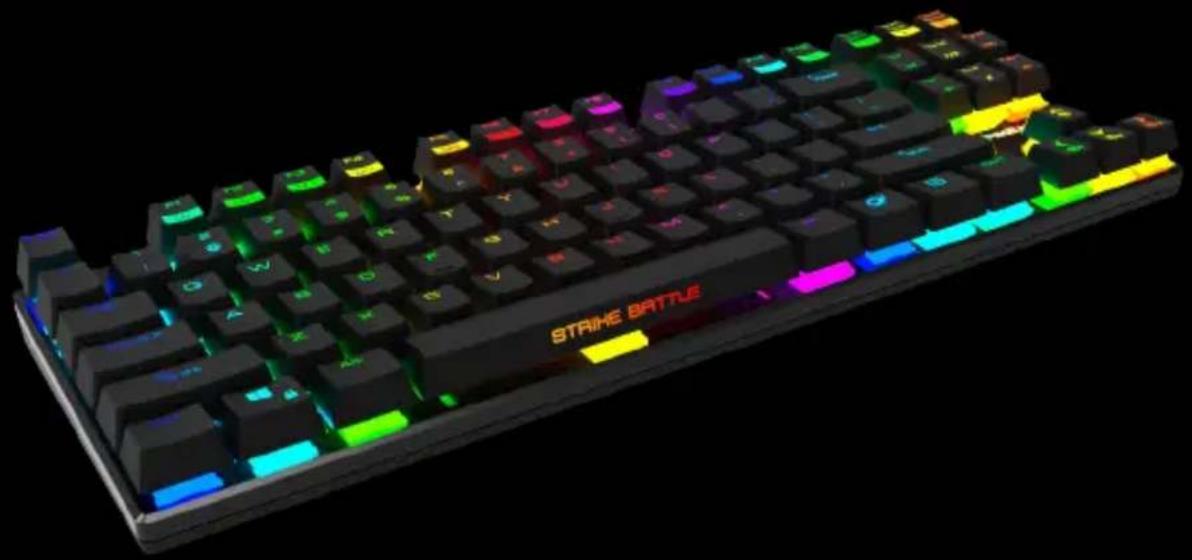
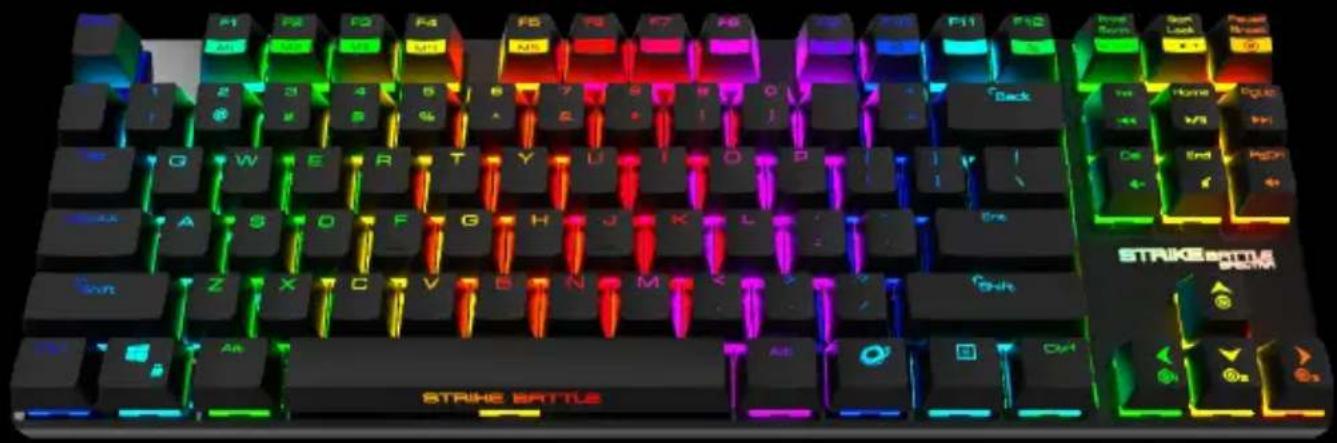
Strike Battle Spectra offers the best selection of cherry mx keyswitches, a short-body and an ergonomic design to ensure a comfortable use. Its high quality aluminum layout gives you the best materials and performance to improve your gaming skills. It also features a minimalist design and a compact style that makes it perfect for competitive use, travelling gamers or anyone who needs more work space on their desk.
The Spectra RGB color system allows you to customize a lot of different lightning effects and color key mapping profiles on the fly. You can even assign a different color to every single key, you got up to 16,8 millions colors.

WITHIN THE GAME
Ten keyless MX Cherry switched Gaming Keyboard with back-lighting effects
- Press 📄 + F7 to F12 on keyboard to set the lighting effect
Push the same effect key to change the color or other features of the effect

• Multimedia shortcut keys on keyboard Press 🔒 key for media playback functions
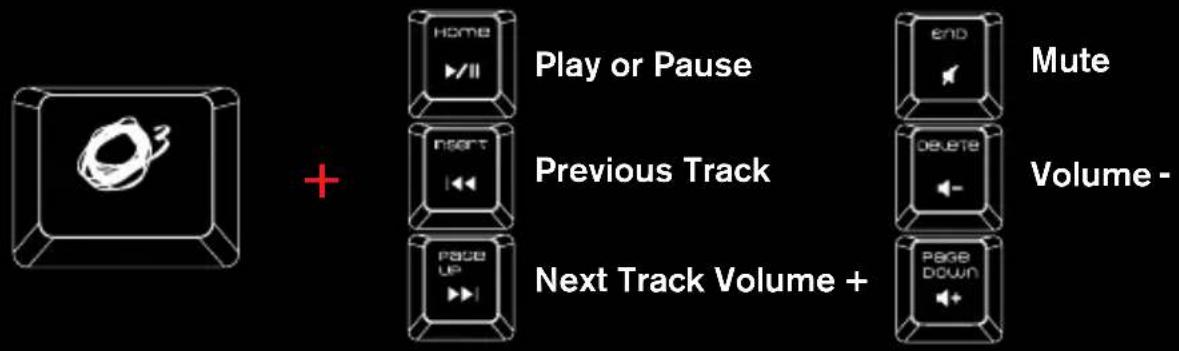
flowchart
graph LR
    A["Play or Pause"] --> B["Previous Track"]
    B --> C["Next Track Volume +"]
    D["Mute"] --> E["End"]
    F["Volume -"] --> G["Delete"]
    H["Page Down"] --> I["Next Track Volume +"]
- Press ⬤ + Scroll Lock on keyboard to adjust back lighting effects Default Mode: 100% Brightness

• Gaming Mode: Press 📄 + Prnt Scrn on keyboard to enter gaming mode.
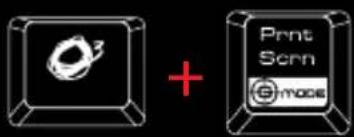
In gaming mode, Strike Battle will work under following conditions: Lit Prnt Scrn key Left Window Key Disabled + + Left Window key to switch between arrow keys and WASD functions
- Press 📄 + Up arrow on keyboard to start to record a color key mapping profile. The keyboard backlit will shut off and the left, down and right arrow keys will be flashing. Push one of them to select the color profiles. Now you can push every single key you want to color. (Every time you push the same key the color will change). When you finish the color key map press again 📄 + Up arrow on keyboard to stop to record and store it in the previously selected profile key.
+

1st : Start recording (Backlit off and flashing)
Select one color key mapping profile

Push every key you want to color, everytime you push the same key the color will change

2nd : Stop recording
- Press 📄 + Left, Right or Down arrow on keyboard to select a color key mapping profile.

- Press 📋 + Pause Break and hold it for 3 seconds on keyboard to reset the keyboard to factory settings.
natural_image
Abstract geometric shape with a spiral inside a rectangular frame (no text or symbols)+

AVAILABLE MX CHERRY COLORS
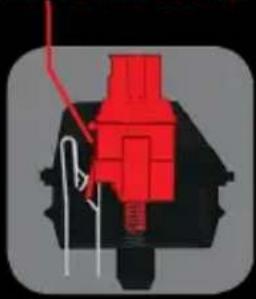
CHERRY RED KEY TYPE
no tactile bump
natural_image
Pure mechanical component diagram without any text, numbers, or symbols
natural_image
Red mechanical component with white cable, no visible text or symbols
natural_image
Red and black mechanical component with white cable (no text or symbols)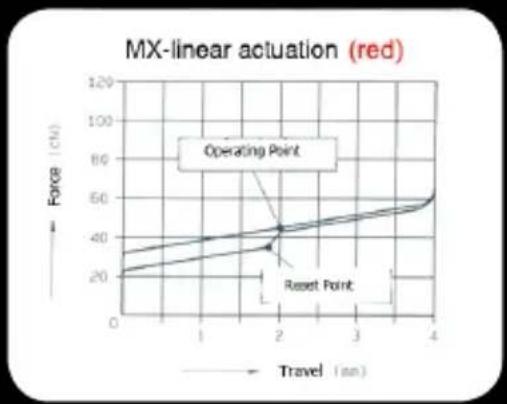
line
| Travel (sn) | Force (cN) | |-------------|------------| | 2 | 40 |SWITCH TYPE......CHERRY MX RED
ACTUATION FORCE....45G
KEY TRAVEL....2MM TO ACTUATION, 4MM TO BOTTOM
natural_image
Pure mechanical component diagram without any text, numbers, or symbols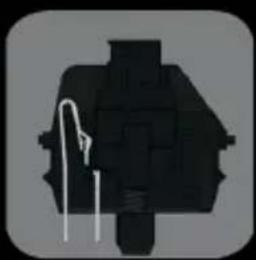
natural_image
Pure electrical circuit lines without any symbols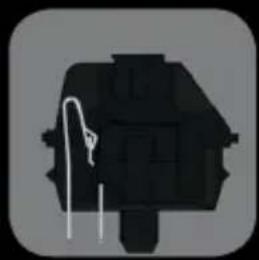
natural_image
Silhouette of a mechanical component with a curved wire or rod inserted (no text or symbols visible)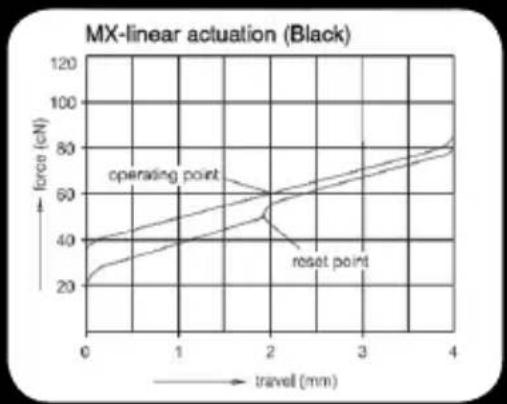
line
| travel (mm) | force (eN) | |-------------|------------| | 0 | 20 | | 1 | 40 | | 2 | 60 | | 3 | 70 | | 4 | 80 |SWITCH TYPE......CHERRY MX BLACK
TYPE LINEAR SWITCH
TACTILE......NO
CLICKY......NO
ACTUATION FORCE.....60G (40g - 80g overall)
KEY TRAVEL....2MM TO ACTUATION, 4MM TO BOTTOM
STRIKE BATTLE offers you the choice to pick the key switches that suit YOU form the four most popular MX CHERRY switch colors – black, red, blue and brown.

CLICKY......YES
ACTUATION FORCE....50G (60g Peak Force)(Force Diagram)
KEY TRAVEL.....2MM TO ACTUATION, 4MM TO BOTTOM
CHERRY BROWN KEY TYPE
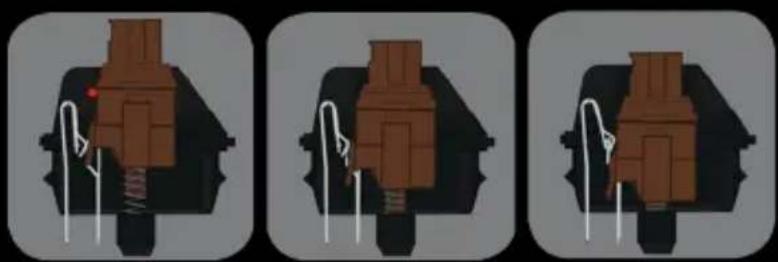
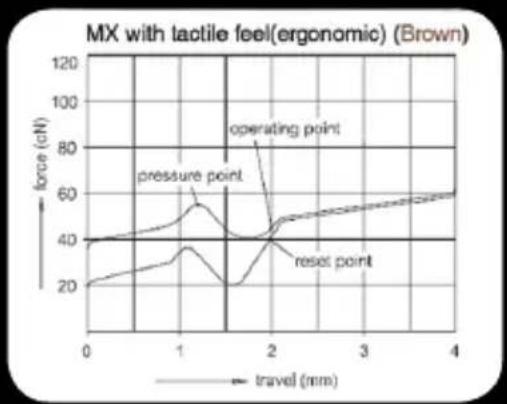
SWITCH TYPE....CHERRY MX BROWN
LINK....DATASHEET
TACTILE....YES
CLICKY......NO
ACTUATION FORCE....45G (55g Peach Force)(Force Diagram)
KEY TRAVEL....2MM TO ACTUATION, 4MM TO BOTTOM
DRIVER USER MANUAL
SYSTEM REQUIREMENTS
- Operation System: Windows 10 / Windows 8.1 / Windows 8 / Windows 7.
- Free USB 2.0 port.
- 50 MB free hard disk space.
INSTALLATION INSTRUCTIONS
OS: Windows 10, 8.1, 8 and 7.
- Plug USB connector of STRIKE BATTLE SPECTRA to a USB port of your PC.
- Go to our website www.ozonegaming.com
- Go to Support form the main menu, then use the dropdown menu on the downloads section to find your product.
- Here you can download the Driver and Manual for STRIKE BATTLE SPECTRA.

DRIVER USER MANUAL
MAIN INTERFACE INSTRUCTIONS
Select the feature you want to customize or configure on the keyboard config menu located on the left side of the interface.
Under this menu you will find the preview mode button, switch it on if you want to see all the changes in real time.
On the right part of the interface you can enable/disable the windows key. Finally on the bottom part you will find the profiles and the reset and save buttons to revert or store all the changes made.
Switch on G-mode key to activate Button Configuration in the Driver.

CUSTOMIZE LAYOUT INSTRUCTIONS
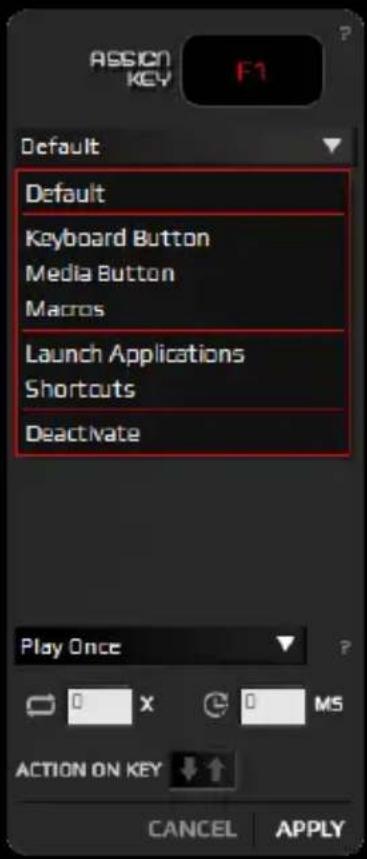
To change the assignment of any key of the keyboard just click on one of them and a submenu will pop up. You have many options to set different behaviors to a key (Default, keyboard button, media button, macros, launch applications, shortcuts or deactivate it) You can select the desired option in the dropdown menu.
On the bottom part of this submenu, you also have different options for the key interaction. You can adjust the cycles, delays or the actions on key.
Once you are done you can cancel the changes or apply it to the selected key.

Keyboard Button
Push the rec button and enter a new key or a combination of your choice (like ctrl+1 for example) to assign it.
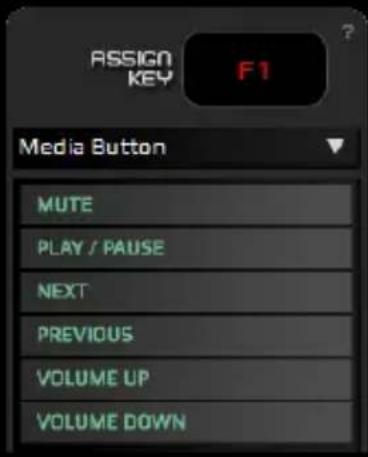
Media Button
Actions to control the playback of your music player, you have all the basic buttons which by default are also on the keys above the arrows, to use these keys you must use hold down the function key (for more information, see page 5).

Macros
Assign a previously recorded macro to the selected key. We will see later how to use the macro editor and the different types of macros you can create.
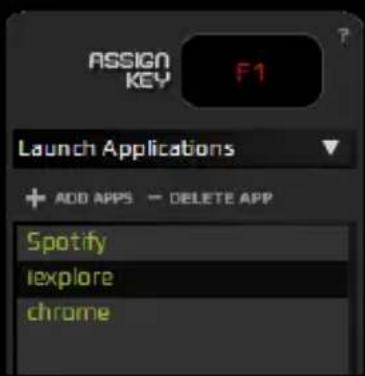
Launch Applications
Click on Add apps to open the windows explorer and search for the application you want to launch pressing the selected key. Click on delete app if you want to delete it from the list.

Shorcuts
In this submenu you can find a bunch of typical actions to perform and help you with your workflow, navigation and desktop organization.

Deactivate
Deactivate a key if you don't want to use it.
LIGHTING FX INSTRUCTIONS


Key Lighting FX
This submenu allows you to customize the ligthing of your keyboard. In the first dropdown menu you can select the light fx.
Some of them have more options to customize like the color, spectrum mode or the speed control slider.
You can also check the "disable lights" box if you don't want to have the keyboard lit.
Under this submenu is the brightness slider to set the level of the brightness you prefer.
Custom Light Fx
When you select the custom light Fx you can color each key of the layout individually. Just select a key and pick on the custom colors color selector and the key will change colors. If you hold Ctrl and click in another key, it will be colored in same color as the last one. You can make specific game color map profiles to only light up the keys you usually use in the game.
MACRO LAB INSTRUCTIONS
When you click on macro lab you can choose between creating a keypress macro or a text macro.
Keypress macros

To create a new macro click on add macro and name it.
Then click on start rec and begin to push all the keys you want to store in the macro, when you finish click on stop rec. You can edit the macro you just made by right clicking on any input of the macro.
You can also record the delay between keys clicking on the record delay box. Finally you can click cancel or save the macro.
The stored macros will appear in the customize layout macro submenu that we explained in page 14.
Text macros

To create a new (text) macro click on add macro and name it.
Then write the text you want to store in the box.
You can record a start and an end key and input the delay for the text macro.
Finally you can click cancel or save the macro.
The stored macros will appear in the customize layout macro submenu that we explained on page 14.
PROFILE INSTRUCTIONS
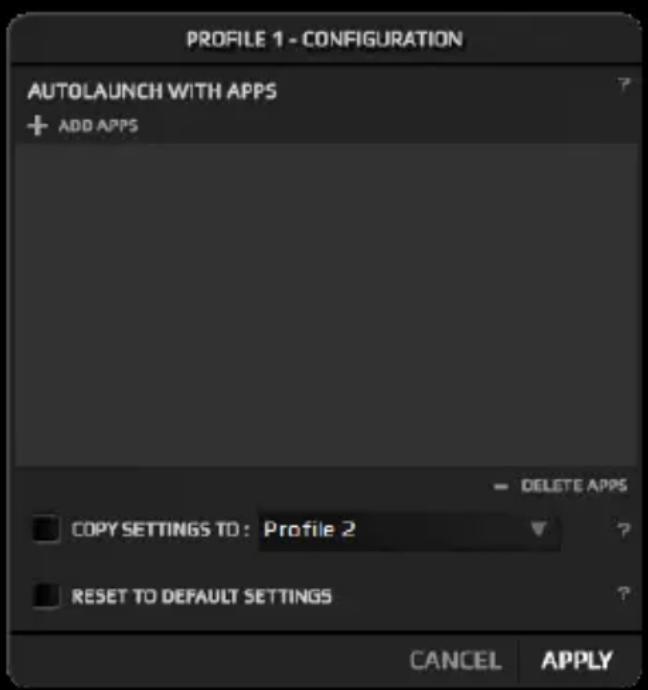
When you click on the cogwheel next to the active profile on the bottom of the interface a new profile configuration window will pop up.
You can add an application to run the selected profile when it starts, it helps you to have different profiles and run each one only when the selected app is running, one for every game you usually play.
You can also copy the settings to another profile to save time or reset to default settings.
As usual you can cancel the changes or apply them.

natural_image
Abstract red scribble on black background, no text or symbols presentozone
ITs all about EVOLUTION
www.ozonegaming.com
EN
All safety warnings give specific details of the potential danger/warning present and indicate how to reduce risk of injury, damage resulting from improper use of the product.
Carefully observe the following instructions:
- Installation and maintenance must be carried out by a qualified technician, in compliance with the manufacturer's instructions and local safety regulations.
- Do not repair or replace any part of the appliance unless specifically stated in the user manual.
- The appliance must be disconnected from the power supply before carrying out any installation work
- Do not touch the appliance with any wet part of the body and do not operate it when barefoot
- The product is not intended for use by persons (including children) with any physical, sensory or mental impairment, or without experience and knowledge of the appliance, unless supervised or previously instructed in its use by those responsible for their safety.
- Children must be supervised to ensure they do not play with the product.
- This product is not suitable for outdoor use.
GENERAL RECOMMENDATIONS:
Before use:
Remove cardboard protection pieces, protective film and adhesive labels from accessories. Children must be supervised during the process to avoid any risk of suffocation.
Check the appliance for any transport damage.
During use:
To avoid any damage do not place any weights on the appliance.
Do not expose the appliance to atmospheric agents.
CLEANING:
IMPORTANT:
Do not use corrosive or abrasive detergents. If any of these products accidentally comes into contact with the appliance, clean immediately with a damp cloth. Do not clean or open the product while when any power cables are attached.
Clean the surfaces with a damp cloth. Finish off with a dry cloth.
IMPORTANT:
Do not use abrasive sponges or metallic scrapers or scourers. Over time, these can ruin the surface.

TATEMENT OF COMPLIANCE WITH EUROPEAN UNION DIRECTIVES
Ozone declares that this product is in compliance with the essential requirements and other relevant provisions from the following Directive: 2014/30/EU, as applicable. The technical documentation required by the Conformity Evaluation process is in Ozone's possession and can be requested through info@ozonegaming.com

AL OF BATTERIES AND ELECTRICAL OR ELECTRONIC EQUIPMENT WASTE
The existence of this symbol on the product, batteries or respective packaging, signifies that this product and the contained batteries can not be disposed as domestic waste.
It is the user's responsibility to deliver this product at a batteries, electrical or electronic recycling pick-up point.
The pick-up and separate recycling contributes for the preservation of natural resources and suppresses potential negative consequences for the human health and the environment resultant of inadequate disposal of dangerous substances contained in batteries and electrical or electronic equipment.
For additional informations regarding batteries, electrical or electronic recycling pick-up points, please contact your local municipal services.
WARNINGS FOR WIRELESS PRODUCTS USAGE
Radio waves from this product may negatively affect the operation of medical electronic equipment, causing them to malfunction. When using this product inside medical facilities or near medical equipment, follow directions from the authorized personnel representing the medical facilities, and follow all posted warnings and directions on the medical equipment.
Radio waves from this product may negatively affect the operation of automatically controlled devices such as automatic doors or fire alarms, and could lead to accidents due to malfunction. When using this product near automatically controlled devices, follow all posted warnings and directions on these devices.
This equipment generates, uses and can radiate radio frequency energy and, if not installed and used in accordance with the instructions, may cause harmful interference to radio communications.
However, there is no guarantee that interference will not occur in a particular installation. If this equipment does cause harmful interference to radio or televisión reception, which can be determined by turning the equipment off and on, the user is encouraged to try to correct the interference by one or more of the following measures:
• Reorient and relocate the receiving antenna
- Increase the separation between the equipment and receiver
- Connect the equipment to an electrical outlet on a different circuit to that which the receiver is connected.
This product, liek other radio devices, emits radio frequency electromagnetic energy and operate within the guidelines found in radio frequency safety standards and recommendations.
WARRANTY:
Who does the warranty protect:
This warranty is valid for the original purchaser only.
What does the warranty protect:
For warranty claims, please contact Ozone's overseas distribution partners in your country. Find the distribution partner list at www.ozonegaming.com
Warranty: 3 years from the date of purchase (from January 2022 and depending on the laws of each country)
What does not the warranty cover:
- Any product, on which the serial number has been defaced, modified or removed.
- Accident, misuse, neglect, fire, water, lightning, or other acts of nature, unauthorized product modification, or failure to follow instructions supplied with the product.
- Repair or attempted repair by anyone not authorized by Ozone Gaming.
- Damage to or loss of any programs, data or removable storage media.
- Software or data loss occurring during repair or replacement.
- Any damage of the product due to shipment.
- Removal or installation of the product.
- External causes, such as electric power fluctuations or failure.
- Use of supplies or parts not meeting Ozone Gaming's specifications.
- Normal wear and tear.
- Any other cause which does not relate to a product defect.
If you have any questions regarding technical problems, please contact us via our website: www.ozonegaming.com
Ozone reserves the right for any modifications in text and/or images.
Ozone Gaming registered trademark of Atlas Informática S.L. - B92492032 - Calle Punta Alta, 33, 29006 - Málaga - Spain. info@ozonegaming.com
WithinTheGame
www.ozonegaming.com
ES

- AVAILABLE MX CHERRY COLORS
- CHERRY RED KEY TYPE
- CHERRY BROWN KEY TYPE
- DRIVER USER MANUAL
- SYSTEM REQUIREMENTS
- INSTALLATION INSTRUCTIONS
- MAIN INTERFACE INSTRUCTIONS
- CUSTOMIZE LAYOUT INSTRUCTIONS
- Keyboard Button
- Media Button
- Macros
- Launch Applications
- Shorcuts
- Deactivate
- LIGHTING FX INSTRUCTIONS
- Key Lighting FX
- Custom Light Fx
- MACRO LAB INSTRUCTIONS
- Text macros
- PROFILE INSTRUCTIONS
- ozone
- EN
- GENERAL RECOMMENDATIONS:
- CLEANING:
- IMPORTANT:
- TATEMENT OF COMPLIANCE WITH EUROPEAN UNION DIRECTIVES
- AL OF BATTERIES AND ELECTRICAL OR ELECTRONIC EQUIPMENT WASTE
- WARNINGS FOR WIRELESS PRODUCTS USAGE
- WARRANTY:
- WithinTheGame
- ES
Brand : Ozone
Model : Strike Battle Spectra
Category : Keyboard