Ultimate X4 8 - Tablet Lark - Free user manual and instructions
Find the device manual for free Ultimate X4 8 Lark in PDF.


| Product Type | Tablet |
| Brand | Lark |
| Model | Ultimate X4 8 |
| Display Size | 7.85 inches |
| Display Resolution | 1024 x 768 pixels |
| Processor | Allwinner A31s, Quad-core 1.5 GHz |
| GPU | Power VR SGX544MP2 |
| Operating System | Android 4.2 Jelly Bean |
| RAM | 1 GB DDR3 |
| Storage | 8 GB Flash |
| Wireless Connectivity | Wi-Fi 802.11b/g/n |
| Front Camera | 0.3 Megapixels |
| Rear Camera | 2.0 Megapixels |
| Battery Type | Li-Polymer, non-removable (replaceable by identical battery) |
| Battery Life | Approximately 5 hours |
| Charging Time | Approximately 4 hours |
| Ports | Micro USB, HDMI, 3.5 mm headphone jack |
| Card Slot | MicroSD up to 32 GB |
| Sensors | Motion sensor (accelerometer) |
| Dimensions (W x H x D) | 135.2 x 200.7 x 6.7 mm |
| Weight | Approximately 300 g |
| Operating Temperature | 5°C to 35°C |
| Operating Humidity | 10% - 75% |
| Safety Warnings | Avoid water, shocks, high/low temperatures; do not disassemble; keep away from magnetic fields; supervise children. |
| Cleaning and Maintenance | Wipe with a dry cloth; do not use liquids or abrasives. Keep dry. |
Frequently Asked Questions - Ultimate X4 8 Lark
User questions about Ultimate X4 8 Lark
0 question about this device. Answer the ones you know or ask your own.
Ask a new question about this device
Download the instructions for your Tablet in PDF format for free! Find your manual Ultimate X4 8 - Lark and take your electronic device back in hand. On this page are published all the documents necessary for the use of your device. Ultimate X4 8 by Lark.
USER MANUAL Ultimate X4 8 Lark
natural_image
Blank tablet device outline with no text or symbolsEN 1User manual
Thankyouforchoosing LarkUltimateX4 tablet.Wewishyou manysatisfaction from its use.8
Tablet PC is a multi-functional device, which can be used for work and education and for entertainment as well. Thanks to the tablet you have the Internet always in your reach, without need of bulky personal computers of previous generation. Android 4.2 Jelly Bean and Google Play enable access to plenty of useful applications, for both business and entertainment purposes. Clear and intuitive interface gives youthe pleasureofdailyuse of thetablet.
Pleaseread theuser guideand keepit for further reference. The user guidecontainsimportantinformation regardingsafeand effectiveuseofthe tablet.
The producer may introduce changes in the device and the user guide. Please refer to the www.lark.com.pl website incaseofquestionsordoubtsconcerninguseofthedevice.
Before you begin
Safetyandhandling
- Prevent your tablet and accessories from getting wet. Getting electrical equipment wet not only causes serious damage, but it is also so threat to the user (risk of electric shock).
- Protectyourdeviceagainstshocks, fallsandvibrations.
- Protectthedevicefrom high and lowtemperatures.
- Donotdrop,bend,puncture,insertforeignobjects,or place heavyobjectsonyourtablet.
- Donotuseunauthorizedaccessories, asthe maydamagethetabletandvoidmanufacturer'swarranty.
Important safetyinstructions
Besuretofollowinstructions bellow.Makesurethattheyare known toall users of your tablet,includingchildren..
- Neveruseyourtabletwhiledriving.
- Hospitals and other medical facilities may be prohibited from using electronic devices, including tablets. Always follow these restrictions.
- Turn off the tablet in the plane for the whole flight or during take-off and landing, according to the instructions given by the aircraft personnel.
- Switch off the device near important electronic devices, which could be disrupted by possible interference.
- Do not attempt to disassemble, modify or repair the tablet. Always entrust these tasks to authorized specialist.
- Protectyourtabletfromstrongmagneticfields.Thesefieldscan damage magneticstoragemedia.
- Do not use the tablet in very high temperatures or in areas at high risk of fire or explosion, such as petrol stations.
Before you begin
- Supervisetheuseofthedevicebychildren,do not let them playwiththetabletunattended.
- Preventthetabletfromgettingwet,forinstancedo not use or store it in the bathroom.

The symbol to the left means that according to European Union laws and regulations your product and/or its battery shall be disposed of separately from household waste. When this productreachesits end of life, take it to a collection point designated by local authorities. The separate collection and recycling of your product and/or its battery at the time of disposal will help conserve natural resources and ensure that it is recycled in a manner that protects humanhealthandtheenvironment.
Product overview
Parts and buttons of the device
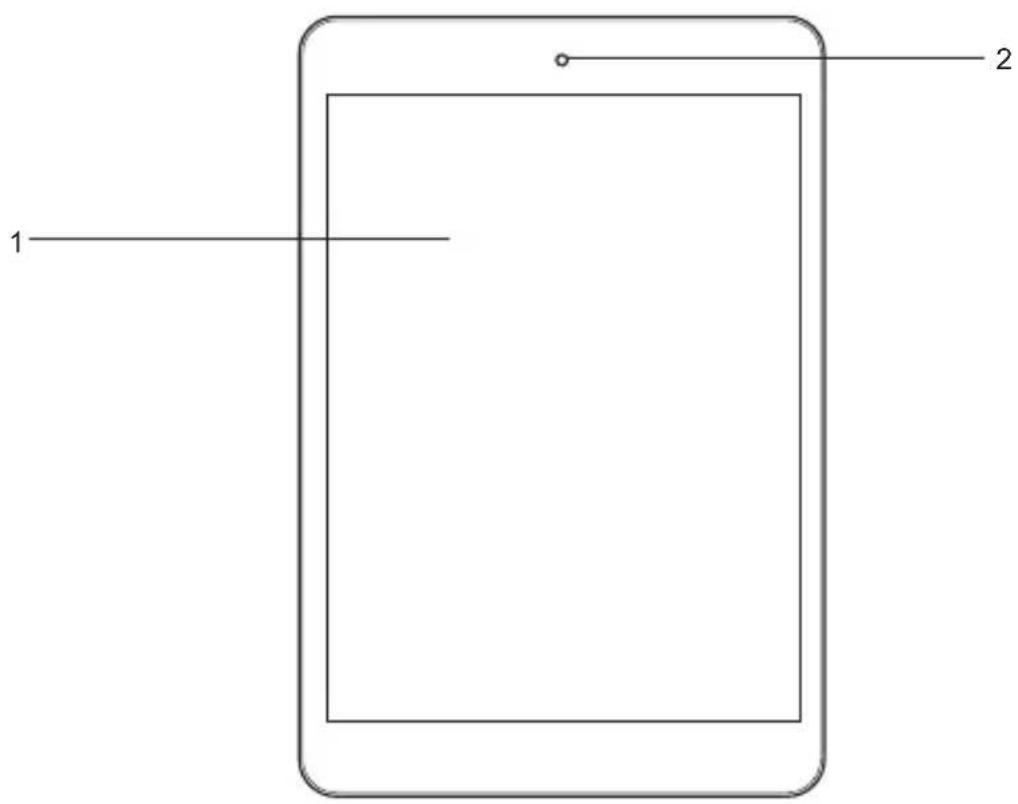
- Front camera
- Touch screen
Product overview

- Microphone
- Power ON/OFF button
- Earphone jack
- Micro USB port
- HDMI output
- RESET button
- Back button
- Rear camera
- MicroSD card slot
- Speaker

Getting started
Battery charging
Please charge the battery before first use.
- Connect Table to the AC charger, and the charger to AC power outlet.
- Check charging lights. Red light means that device is charging, green that the charge has been completed.
ATTENTION!
•The battery will fully charge in around 4 hours.
- Using the device during charging will make charging process longer. Disconnect the ac charger from your tablet when the battery power is full or when you wish to stop the charging. You can only use identical battery as a replacement.
• Physical damages to the battery may cause a fire or electric shock.
Using your tablet
Buttons functions
Power button - press and hold for a few seconds to turn on the device Volume UP - press and hold Volume Up button to increase the volume Volume Down - press and hold Volume Down button to decrease the volume
Powering on/off the device
Turning on
After pressing and holding the ON/OFF button for 2 seconds the start screen will appear.
Turning off
To turn off the device press and hold the ON/OFF button for 2 seconds.
Locking the screen
To unlock the screen swipe the lock icon upwards

Never before have the use of an electronic device was so easy and natural.
The screen responds to even gentle brush, understand a few fingers touch applied simultaneously, eg.
'pinching' shrink the image, and spreading the fingers apart-expand it. You can rotate the image with two fingers, like a piece of paper on the table. The capacitive touch screen is also indispensable for gaming use.
Using the multitouch screen
Tap gently on the screen with your fingertip to launch an application, select an item, open a menu, or type text using the onscreen keyboard.
Touch
The device is operated by touching appropriate place on the screen.
Swipe or slide
Move your finger in a vertical or horizontal direction on the screen to scroll through the content.
Drag
Touch, hold and drag an item to the desired position.
Rotate the screen
The tablet has a built-in motion sensor that supports the screen auto-rotation feature. By default, this feature is enabled. When you rotate the tablet, the screen automatically rotates to landscape or portrait view which is very convenient during internet browsing, watching the movies, pictures, etc.
Navigating through the screens
Home screen surface is greater than the display surface, so it is possible to affix the more shortcuts, applications and widgets. Switching between home screen pages is possible by dragging the screen to the left or to the right.
Customization of the home screen (appearance)
Designing home screen interface
- Press the button -selection bar will appear.MENU
- Select "Add" button to enter the graphic settings menu.
Changing wallpaper
- In the graphic settings menu select the "Wallpapers" option.
- Select the desired wallpaper and tap "Set wallpaper".
Notification panel
Notification Panel shows information about the new e-mail messages, set the alarm clock, calendar, microSD card etc. Detailed information is shown when you expand the panel.
Expanding the notification panel
When a new icon shows on the notification panel, hold down the notification bar with icons and then slide your finger or the stylus down to expand the notifications panel.
Application access
How to access the applications
- Press the application menu.
- Select the application you want to use.
- To return to the home screen press the back button.
Troubleshooting
Beforetaking the equipment for service be sure to checkthatyou cannot solve the problem onyour own.Ifyouare unable tofindthesolutionpleasevisit www.lark.com.pl
Youwill find a list offrequentlyaskedquestions as well as answers,serviceadvices,system updates and technicalsupport contact.Pleasecontact yourserviceproviderbeforemaking decision thatequipmentis to be repaired.
Current FAQ and important information can be found on www.lark.com.pl
If you have not found a solution to the problem in the FAQ section, send e-mail: device_support@lark-electronics.eu
Troubleshooting
» Unable to connect to the wireless network
Make sure, that You are within the network's service range and the signal strength is good.
Check if the name of the network and password are correct.
» The device is getting slightly warm
This is normal during operation, while the display is turned on and during battery charging.
» The operating system works unstable
Installing too many applications and applications from unknown sources can cause system instability.
Reset the device and uninstall some applications.
» Blank screen, Unable to turn the tablet on
Charge the battery.
Connect your tablet to an AC power outlet.
Restart the device.
» No sound in headphones
Increase the volume.
Check the headphones cable connection.
Check if headphone jack is not dirty.
Check if the mp3 files are not corrupted (try different files).
Try using other headphones (maybe the headphones are damaged).
» Media file cannot be played
Format the memory, download uncorrupted files.
Technical specification
» 7.85" touch screen, resolution: 1024 x 768 pixels
» Processor: Allwinner A31s, Quad core 1.5GHz
» Graphic processor - Power VR SGX544MP2
» Operating system: Android 4.2 Jelly Bean
» Memory: 1GB DDR3 RAM
» Storage: 8GB Flash
» Wireless LAN: Wi-Fi 802.11b/g/n
» Front camera: 0.3 Mpix / Rear camera 2.0 Mpix
» Audio player (MP3/WMA files support)
» Video player (MP4/ASF/WMV/AVI/DIVX files support)
» Pictures browser (BMP/JPG/GIF/PNG files support)
» Ebook reader (multiple formats: html, pdf, rtf)
» MicroSD card slot, up to 32 GB compatible
» Motion sensor
» Ports: HDMI, micro USB, 3.5mm mini-jack
» Battery: Li-Polymer battery, around 5 hours of work without external power supply
» Operating environment: Temperature: 5° to 35° Celsius
» Relative humidity: 10% -75%
» Dimensions: Width: 135,2 mm, Height: 200,7mm, Depth: 6.7 mm
» Weight: \~300g
NOTICE!
Lark Europe Sp. z o.o. reserves the right to change or improve its products and to make changes in the content of this manual without obligation to notify any person or organization of such changes or improvements.
Information in this document is subject to change without prior notice.
© Lark Europe Sp. z o.o.
No part of this manual can be reproduced, copied, transmitted without the written consent of Lark Europe Sp. z o.o.
Declaration of conformity with the standards contained in the directives specific tothedevicetogetherwiththedescription,canbefoundat www.lark.com.pl

- Before you begin
- Safetyandhandling
- Important safetyinstructions
- Product overview
- Parts and buttons of the device
- Getting started
- Battery charging
- ATTENTION!
- Using your tablet
- Buttons functions
- Powering on/off the device
- Turning on
- Turning off
- Locking the screen
- Using the multitouch screen
- Touch
- Swipe or slide
- Drag
- Rotate the screen
- Navigating through the screens
- Customization of the home screen (appearance)
- Designing home screen interface
- Changing wallpaper
- Notification panel
- Expanding the notification panel
- Application access
- Troubleshooting
- » Unable to connect to the wireless network
- » The device is getting slightly warm
- » The operating system works unstable
- » Blank screen, Unable to turn the tablet on
- » No sound in headphones
- » Media file cannot be played
- Technical specification
- NOTICE!
- © Lark Europe Sp. z o.o.
Brand : Lark
Model : Ultimate X4 8
Category : Tablet