
NWD6505 - Network card / adapter ZYXEL - Free user manual and instructions
Find the device manual for free NWD6505 ZYXEL in PDF.


| Product Type | Wireless USB Adapter (Network Card) |
| Model | NWD6505 |
| Brand | ZyXEL |
| Wireless Standard | IEEE 802.11 a/b/g/n/ac |
| Frequency Bands | 2.4 GHz and 5 GHz (Dual-Band) |
| Maximum Data Rate | Up to 600 Mbps (AC600) |
| Interface | USB 2.0 (compatible with USB 1.1) |
| Dimensions (Approx.) | 2.5 x 1.5 x 0.5 cm (without antenna) |
| Weight (Approx.) | 10 g |
| Power Supply | USB bus-powered (5V DC) |
| LED Indicator | Blue LED for link/activity and driver status |
| WPS Button | One-touch Wi-Fi Protected Setup |
| Security Protocols | WEP, WPA-PSK, WPA2-PSK |
| Encryption | TKIP, AES (CCMP) |
| Operating Systems Supported | Windows 7, 8, 10 (driver required) |
| Indoor Range | Up to 30 meters (typical) |
| Antenna | Internal dual-band antenna |
| Maintenance | Clean with a soft, dry cloth; avoid liquids |
| Safety Precautions | Do not use near water; avoid thunderstorms; use only included antenna |
| Spare Parts / Repairability | No user-serviceable parts; contact vendor for issues |
| Certifications | FCC Part 15, CE, IC, WEEE |
Frequently Asked Questions - NWD6505 ZYXEL
User questions about NWD6505 ZYXEL
0 question about this device. Answer the ones you know or ask your own.
Ask a new question about this device
Download the instructions for your Network card / adapter in PDF format for free! Find your manual NWD6505 - ZYXEL and take your electronic device back in hand. On this page are published all the documents necessary for the use of your device. NWD6505 by ZYXEL.
USER MANUAL NWD6505 ZYXEL
NWD Series Dual-Band Wireless USB Adapter
NWD6505
NWD6605
Version 1.00
Edition 1, 05/2013
User's Guide
IMPORTANT!
READ CAREFULLY BEFORE USE.
KEEP THIS GUIDE FOR FUTURE REFERENCE.
Screenshots and graphics in this book may differ slightly from your product due to differences in your product firmware or your computer operating system. Every effort has been made to ensure that the information in this manual is accurate.
Related Documentation
- Quick Start Guide
The Quick Start Guide shows how to connect the NWD Series and set up your network.
Contents Overview
Introduction and Configuration 7
Getting Started 9
Tutorial 12
Wireless LANs 21
29
Troubleshooting 29
Troubleshooting 31
Table of Contents
Contents Overview ....3
Table of Contents 5
Part I: Introduction and Configuration .... 7
Chapter 1 Getting Started....9
1.1 Overview 9
1.1.1 Before You Begin 9
1.2 About Your NWD Series Wireless LAN Adapter 9
1.2.1 Hardware 9
1.2.2 NWD Series LED Indicator Function 11
Chapter 2 Tutorial....12
2.1 Overview 12
2.1.1 What You Can Do in This Tutorial .... 12
2.1.2 What You Need to Know .... 12
2.1.3 Before You Begin 12
2.2 Driver Installation 13
2.3 Network Connection ....16
2.3.1 ZyXEL Network Connection Wizard (Windows Zero Configuration) 16
2.3.2 Connecting to an AP using Wi-Fi Protected Setup (WPS) 19
Chapter 3 Wireless LANs....21
3.1 Overview ......21
3.1.1 What You Need to Know ....21
3.2 Wireless LAN Overview 22
3.3 Wireless LAN Security 22
3.3.1 WEP 23
3.3.2 WPA-PSK and WPA2-PSK 23
3.4 Wi-Fi Protected Setup 24
3.4.1 How WPS Works ......24
3.4.2 Limitations of WPS 27
Part II: 29
Part II: Troubleshooting 29
Chapter 4 Troubleshooting....31
4.1 Power, Hardware Connections, and LEDs ....31
4.2 Link Quality ....32
4.3 Problems Communicating with Other Computers .... 32
Appendix A Legal Information....33
Index 39
PART I
Introduction and
Configuration
1.1 Overview
The ZyXEL NWD Series of dual-band wireless USB adapters can connect to a 2.4 G network or a 5G network and bring you a better Internet experience over existing 802.11 networks.
This section includes an overview of your NWD Series adapter. What You Need to Know
The following terms and concepts may help as you read through this section, and subsequently as you read through the rest of the User's Guide.
Access Point
An Access Point (AP) is a network device that acts as a bridge between a wired and a wireless network. Outside of the home or office, APs can most often be found in coffee shops, bookstores and other businesses that offer wireless Internet connectivity to their customers.
Infrastructure
An infrastructure network is one that seamlessly combines both wireless and wired components. One or more APs often serve as the bridge between wireless and wired LANs.
1.1.1 Before You Begin
Read the Quick Start Guide for information on making hardware connections and using the ZyXEL utility to connect your NWD Series to a network.
1.2 About Your NWD Series Wireless LAN Adapter
Your NWD Series IEEE 802.11ac compliant wireless LAN adapter can also connect to IEEE 802.11 a/b/g/n/ac wireless networks. The NWD Series' WPS (Wi-Fi Protected Setup) allows you to easily connect to another WPS-enabled device.
The NWD Series of USB adapters connect to an empty USB port on your computer.
See your NWD Series's Quick Start Guide for installation instructions, and see the section on product specifications in this User's Guide for detailed information.
1.2.1 Hardware
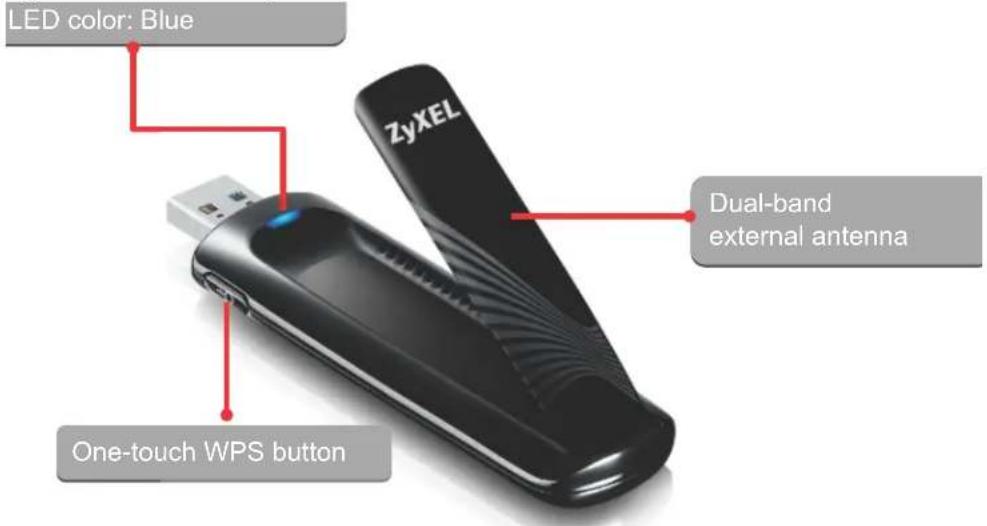
This section describes the NWD Series of adapters' physical appearance.
1.2.1.1 NWD6605 Dual-Band Wireless AC1200 USB Adapter
Figure 1 NWD6605 Physical Characteristics
1.2.1.2 NWD6505 Dual-Band Wireless AC600 USB Adapter
Figure 2 NWD6505 Physical Characteristics
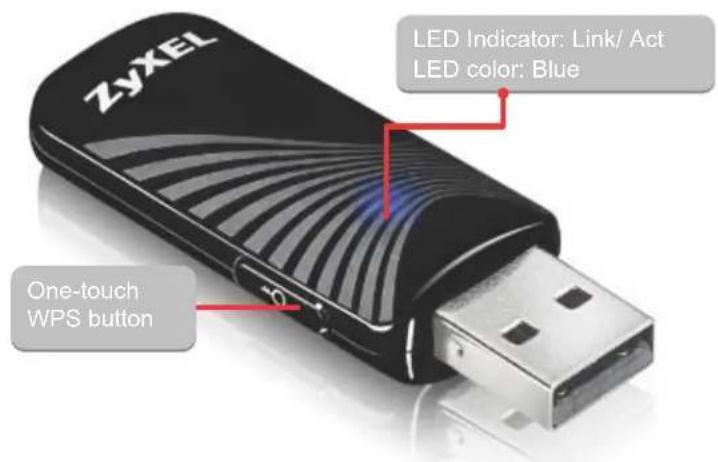
1.2.2 NWD Series LED Indicator Function
The following table describes the function of the NWD Series's LED indicators.
Table 1 NWD Series LED Indicator Legend
| STATUS DESCRIPTION | |
| On The driver | s installed. |
| Slow Blinking | The NWD is searching for available wireless device or a WPS connection is being initiated. |
| Rapid Blinking | The NWD is connected to a wireless device, and is transmitting or receiving data. |
| Off The NWD is | turned off or the driver is not installed. |
Tutorial
2.1 Overview
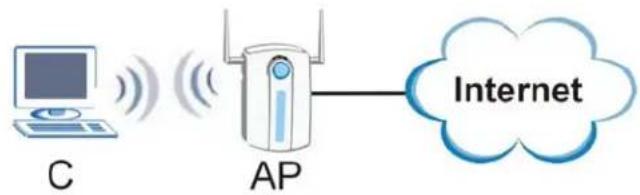
This tutorial shows you how to join a wireless infrastructure network using the ZyXEL utility. The wireless client is labeled C and the Access Point is labeled AP.
Figure 3 Infrastructure Network
flowchart
graph LR
    C["Computer"] -->|Wireless Signal| AP["AP"]
    AP --> Internet["Internet"]
2.1.1 What You Can Do in This Tutorial
• Install the driver for your NWD Series adapter. See Section 2.2 on page 13 for details.
- Connect securely to an infrastructure AP using your adapter's Connection Wizard. See Section 2.3.1 on page 16 for details.
- Connect securely to an infrastructure AP using the WPS protocol. See Section 2.3.2 on page 19 for details.
2.1.2 What You Need to Know
The following term may help as you read through this section.
WPS
Wi-Fi Protected Setup (WPS) is a security protocol that lets two or more devices connect securely to one another with a minimum amount of hassle on your part. It most cases, establishing a secure connection with another WPS device is as easy as pushing a button.
2.1.3 Before You Begin
- Make sure that you have already familiarized yourself with the NWD Series's features and hardware, as described in Chapter 1. Getting Started.
- You should have valid login information for an existing network Access Point, otherwise you may not be able to make a network connection right away.
Note: In the following procedures the NWD6605 driver installation tool and Windows 7 OS are used for purposes of example.
2.2 Driver Installation
Note: Before beginning, ensure that your NWD Series adapter is NOT connected to the host computer.
1 Insert the provided setup disc and run.
2 Select Setup from the startup screen.
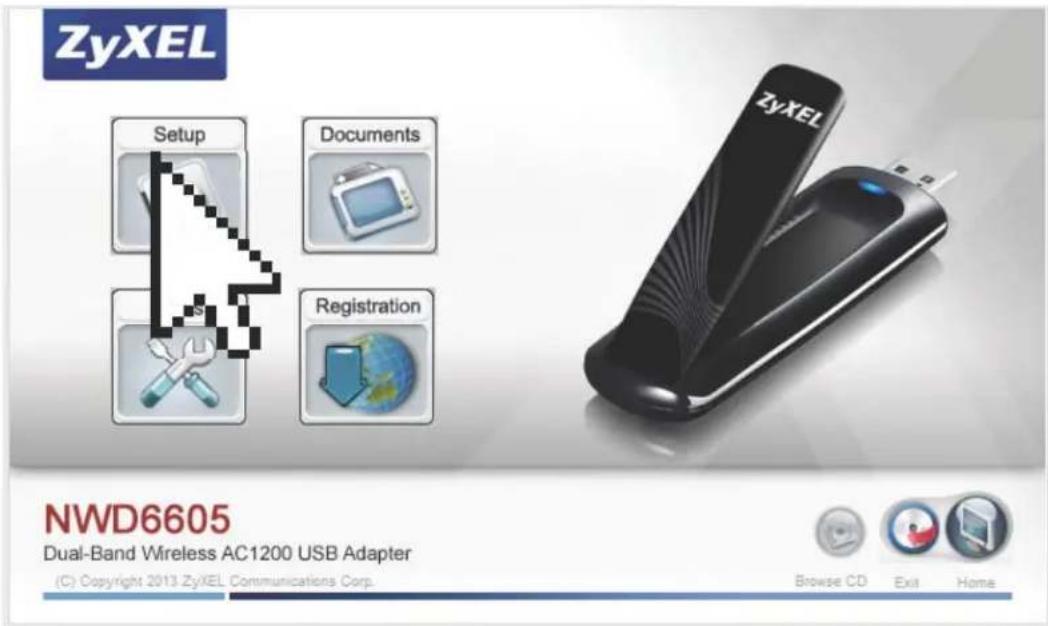
3 The Driver Installation Tool window appears. Click Next.
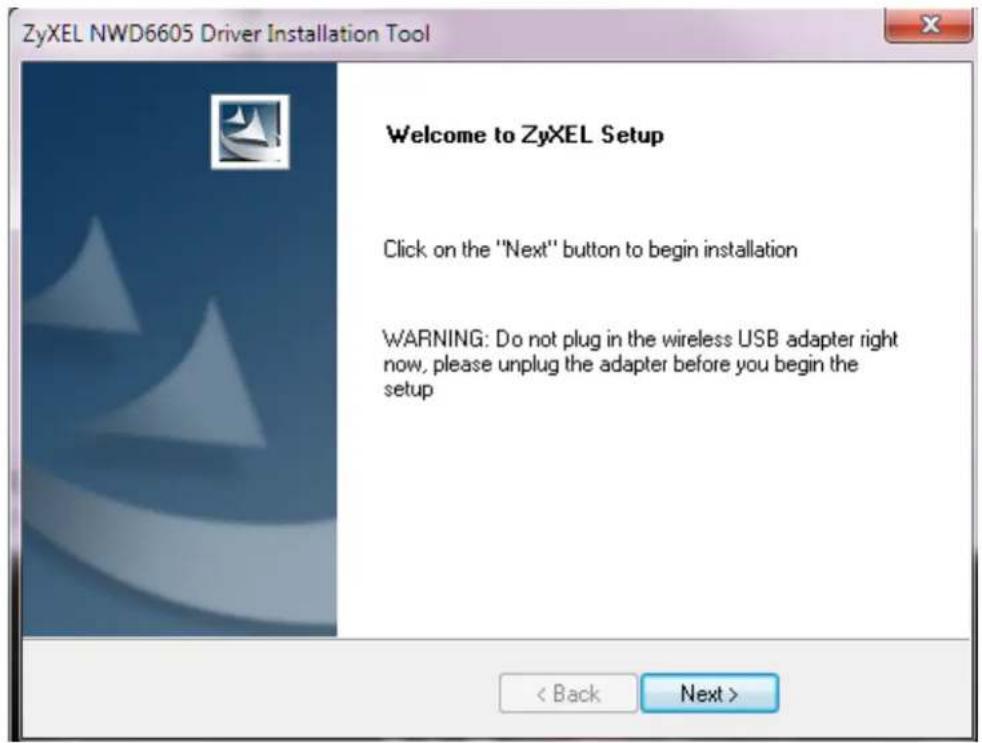
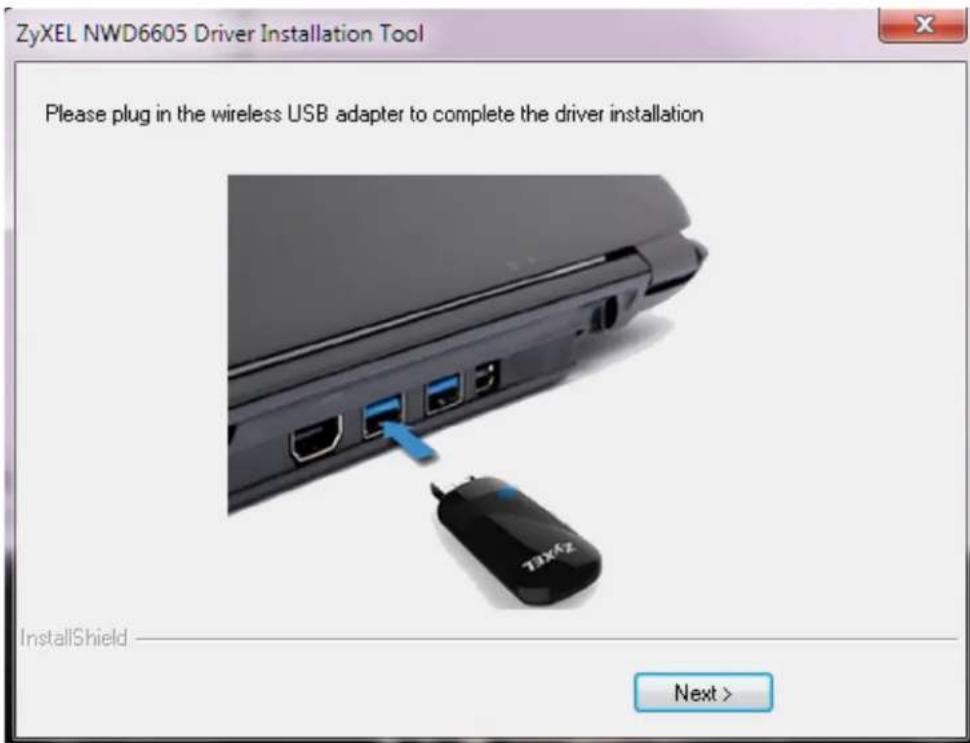
4 When driver installation is complete, a screen appears prompting you to plug in your NWD Series adapter. Plug in the adapter and click Next.
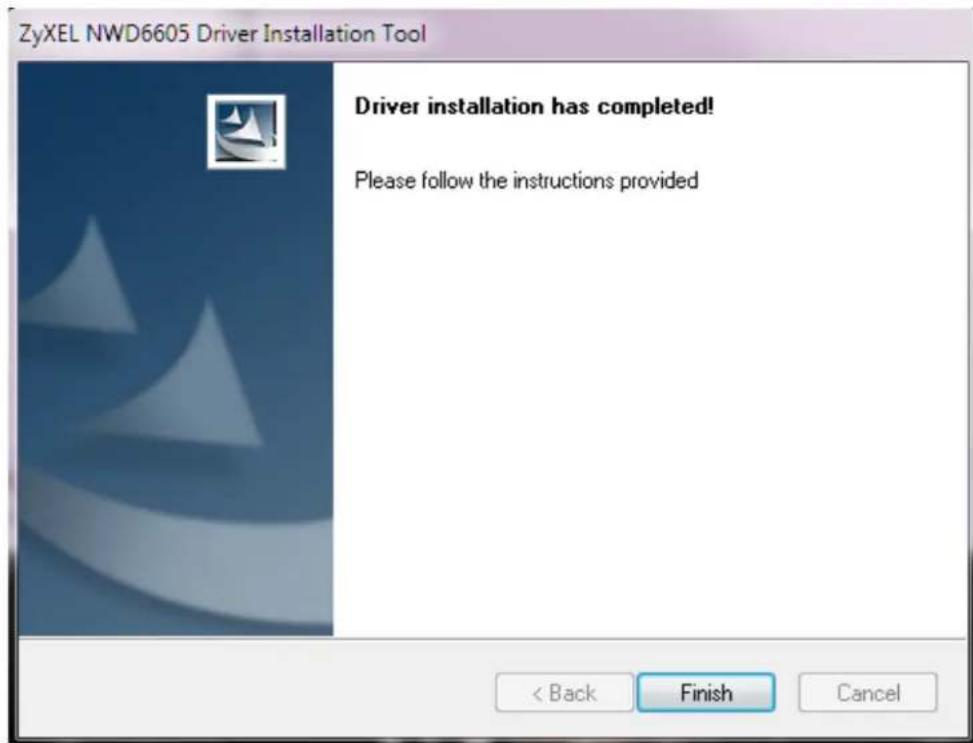
5 The Installation Complete screen appears. Click Finish to complete the driver installation.
2.3 Network Connection
There are two ways to create a network connection.
• 2.3.1 ZyXEL Network Connection Wizard (Windows Zero Configuration)
• 2.3.2 Connecting to an AP using Wi-Fi Protected Setup (WPS)
2.3.1 ZyXEL Network Connection Wizard (Windows Zero Configuration)
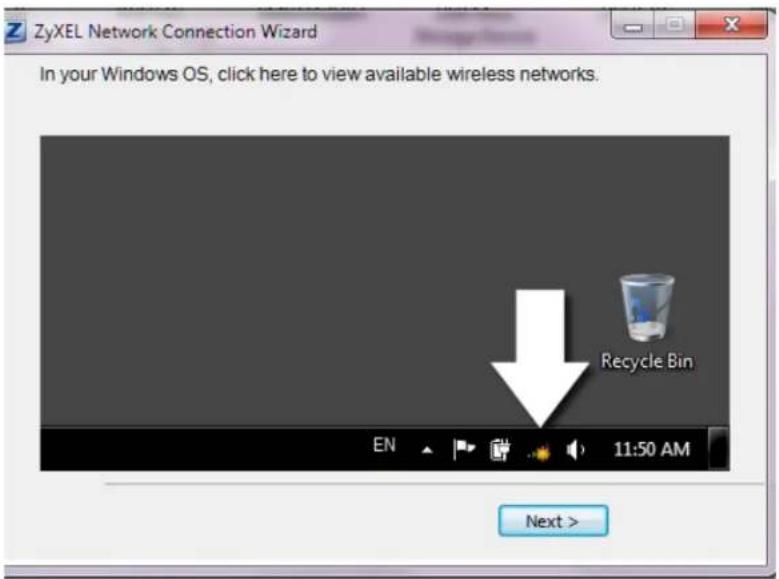
1 The ZyXEL Network Connection Wizard appears after you click Finish in the previously shown screen.. Click Next.
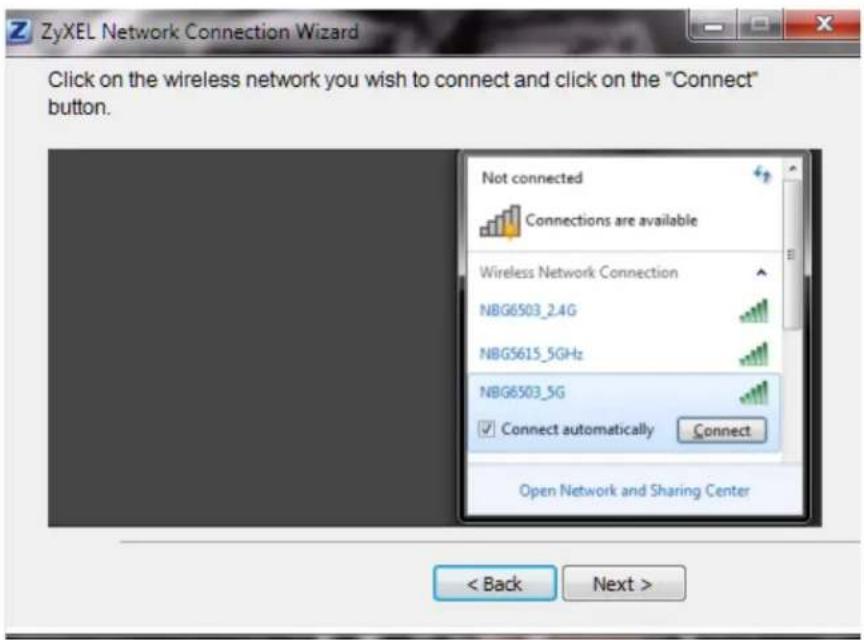
2 The network selection screen appears. Choose the desired connection and click Connect. Click Next.
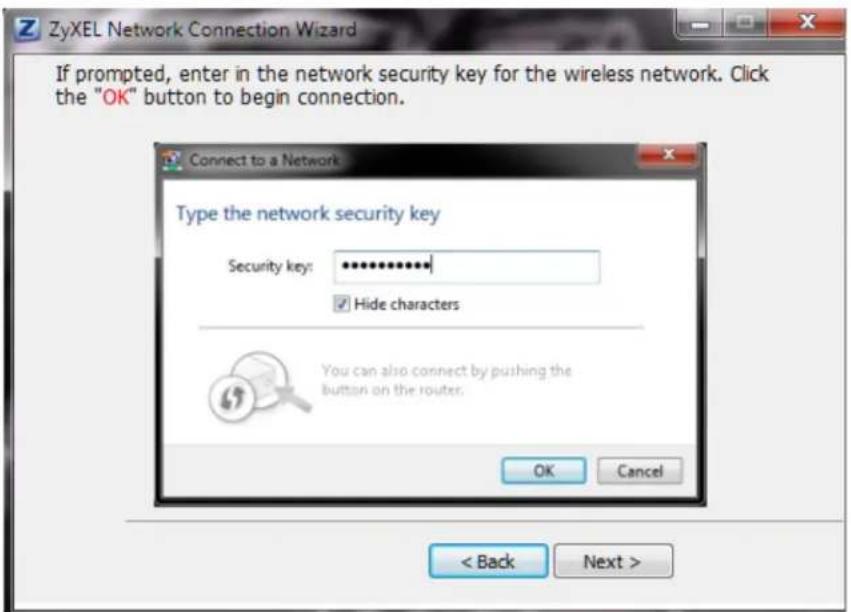
3 The network security key screen appears. If prompted, enter the Security Key for the selected connection and click OK. Click Next.
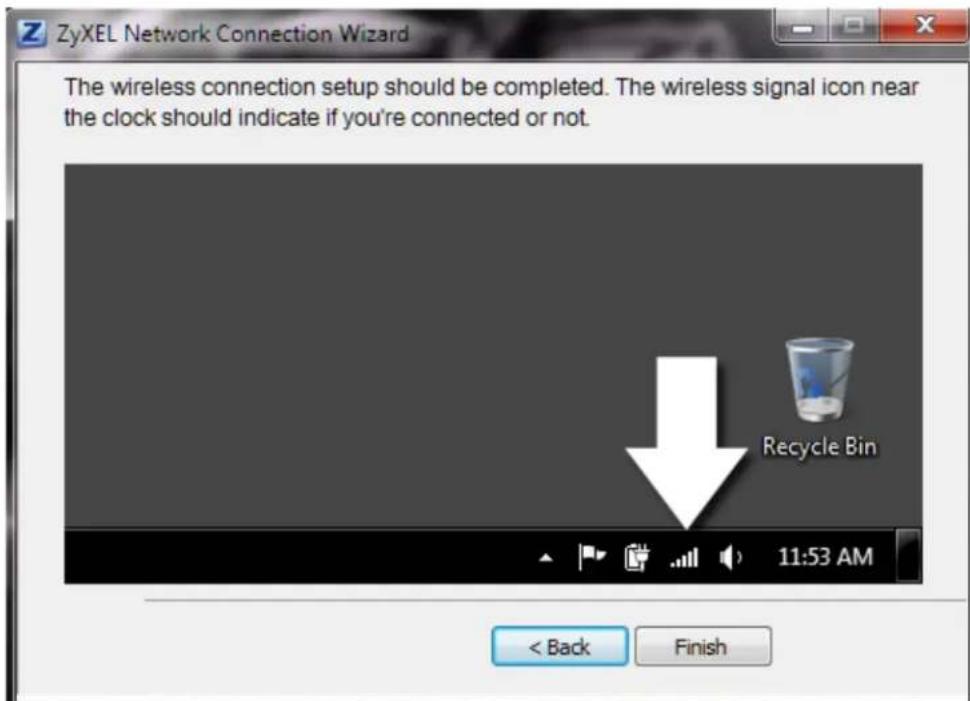
4 Connection is complete. Click Finish in the next screen to complete the connection setup.
2.3.2 Connecting to an AP using Wi-Fi Protected Setup (WPS)
This section gives you an example of how to set up your wireless network using WPS. This example uses the NWD Series adapter as the wireless client, and ZyXEL's NBG4615 v2 as the Access Point (AP).
Note: The Access Point must be a WPS-aware device. Close the ZyXEL Network Connection Wizard window that appears after you click Finish in the final step in the driver installation.
1 Press and hold the adapter's WPS button. The WPS scan window appears.
Figure 4 NWD6505 WPS Scan Window
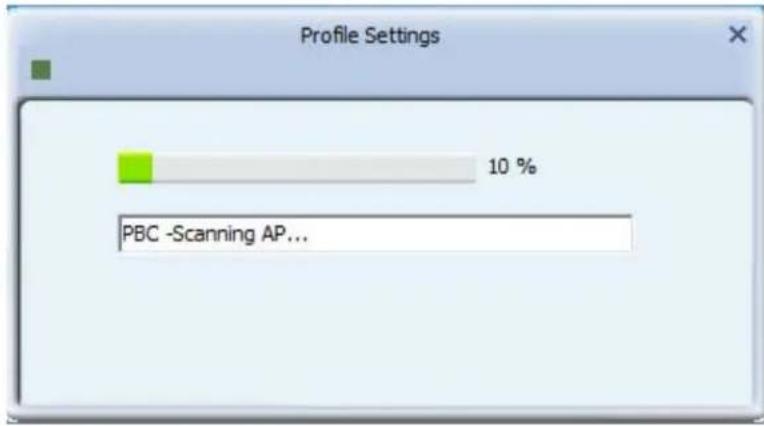
Figure 5 NWD6605 WPS Scan Window
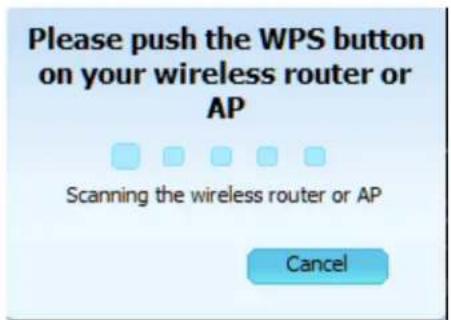
2 Within two minutes, press the button on the router or AP until the indicator blinks. The following window appears. Configuration may take up to two minutes.
Figure 6 NWD6505 Connection Progress Window
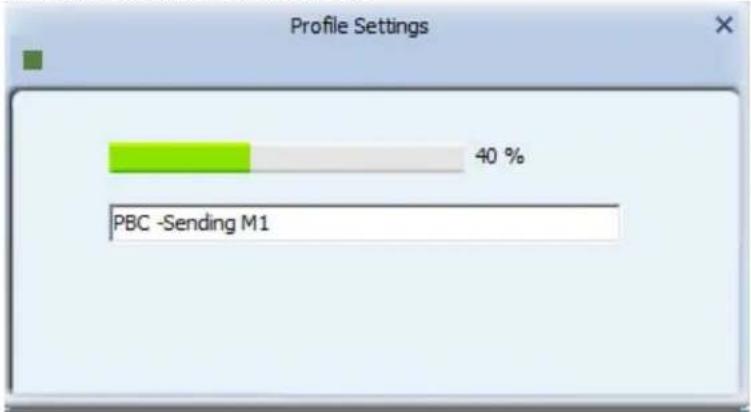
bar
Profile Settings | Category | Percentage (%) | | :--- | :--- | | PBC -Sending M1 | 40 |Figure 7 NWD6605 Connection Progress Window
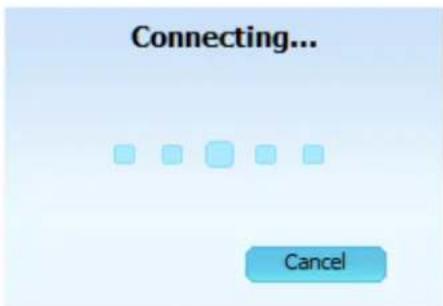
3 The wireless connection icon next to the clock in the Taskbar should indicate when the connection is complete.
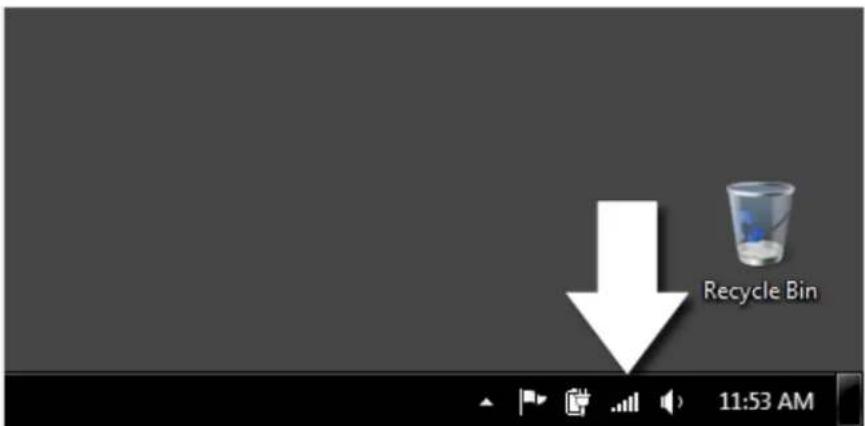
A link appears allowing the configuration settings to be changed.
3.1 Overview
This section provides background information on wireless Local Area Networks.
3.1.1 What You Need to Know
The following terms and concepts may help as you read through this section.
Server
When two or more devices are connected digitally to form a network, the one that distributes data to the other devices is known as the "server". A RADIUS (Remote Authentication Dial-In User Service) is a kind of server that manages logins and logout, among other things, for the network to which it is connected.
Client
When two or more devices are connected digitally to form a network, the one that contacts and obtains data from a server is known as the "client". Each client is designed to work with one or more specific kinds of servers, and each server requires a specific kind of client. Wireless adapters are clients that connect to a network server through an AP.
3.2 Wireless LAN Overview
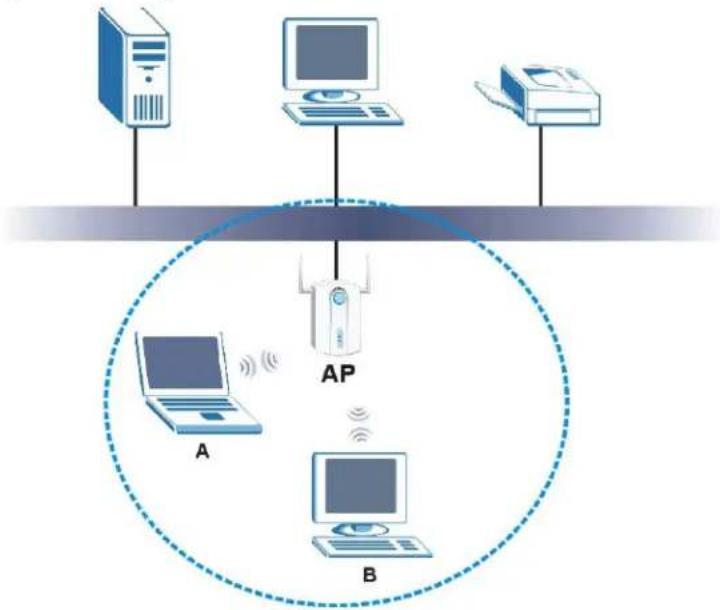
The following figure provides an example of a wireless network with an AP.
Figure 8 Example of a Wireless Network
flowchart
graph TD
    A["Computer 1"] -->|Wireless Signal| AP["AP"]
    B["Computer 2"] -->|Wireless Signal| AP
    C["Computer 3"] -->|Wireless Signal| AP
    AP -->|Wireless Signal| D["Computer 4"]
    style AP fill:#f9f,stroke:#333,stroke-width:2px
    note right of AP
        A
        B
        C
    end
The wireless network is the part in the blue circle. In this wireless network, devices A and B are called wireless clients. The wireless clients use the access point (AP) to interact with other devices (such as the printer) or with the Internet
Every wireless network must follow these basic guidelines.
- Every device in the same wireless network must use the same SSID.
The SSID is the name of the wireless network. It stands for Service Set IDentity. - If two wireless networks overlap, they should use a different channel.
Like radio stations or television channels, each wireless network uses a specific channel, or frequency, to send and receive information. - Every device in the same wireless network must use security compatible with the AP or peer computer.
Security stops unauthorized devices from using the wireless network. It can also protect the information that is sent in the wireless network.
3.3 Wireless LAN Security
Wireless LAN security is vital to your network to protect wireless communications.
If you do not enable any wireless security on your NWD Series, the NWD Series's wireless communications are accessible to any wireless networking device that is in the coverage area.
3.3.1 WEP
3.3.1.1 Data Encryption
WEP (Wired Equivalent Privacy) encryption scrambles all data packets transmitted between the NWD Series and the AP or other wireless stations to keep network communications private. Both the wireless stations and the access points must use the same WEP key for data encryption and decryption.
There are two ways to create WEP keys in your NWD Series.
- Automatic WEP key generation based on a "password phrase" called a passphrase. The passphrase is case sensitive. You must use the same passphrase for all WLAN adapters with this feature in the same WLAN.
For WLAN adapters without the passphrase feature, you can still take advantage of this feature by writing down the four automatically generated WEP keys from the Security Settings screen of the ZyXEL utility and entering them manually as the WEP keys in the other WLAN adapter(s).
- Enter the WEP keys manually.
Your NWD Series allows you to configure up to four 64-bit or 128-bit WEP keys. Only one key is used as the default key at any one time.
3.3.1.2 Authentication Type
The IEEE 802.11b/g/n standard describes a simple authentication method between the wireless stations and AP. Three authentication types are defined: Auto, Open and Shared.
- Open mode is implemented for ease-of-use and when security is not an issue. The wireless station and the AP or peer computer do not share a secret key. Thus the wireless stations can associate with any AP or peer computer and listen to any transmitted data that is not encrypted.
- Shared mode involves a shared secret key to authenticate the wireless station to the AP or peer computer. This requires you to enable the wireless LAN security and use same settings on both the wireless station and the AP or peer computer.
- Auto authentication mode allows the NWD Series to switch between the open system and shared key modes automatically. Use the auto mode if you do not know the authentication mode of the other wireless stations.
3.3.2 WPA-PSK and WPA2-PSK
Wi-Fi Protected Access (WPA) is a subset of the IEEE 802.11i standard. WPA2 (IEEE 802.11i) is a wireless security standard that defines stronger encryption, authentication and key management than WPA.
Key differences between WPA(2) and WEP are improved data encryption and user authentication.
Both WPA and WPA2 improve data encryption by using Temporal Key Integrity Protocol (TKIP), Message Integrity Check (MIC) and IEEE 802.1x. WPA and WPA2 use Advanced Encryption Standard (AES) in the Counter mode with Cipher block chaining Message authentication code Protocol (CCMP) to offer stronger encryption than TKIP.
The encryption mechanisms used for WPA(2) and WPA(2)-PSK are the same. The only difference between the two is that WPA(2)-PSK uses a simple common password, instead of user-specific credentials. The common-password approach makes WPA(2)-PSK susceptible to brute-force password-guessing attacks but it's still an improvement over WEP as it employs a consistent,
single, alphanumeric password to derive a PMK which is used to generate unique temporal encryption keys. This prevent all wireless devices sharing the same encryption keys. (a weakness of WEP)
If both an AP and the wireless clients support WPA2-PSK, use WPA2-PSK for stronger data encryption. If the AP or the wireless clients do not support WPA2-PSK, just use WPA-PSK. Select WEP only when the AP and/or wireless clients do not support WPA-PSK or WPA2-PSK. WEP is less secure than WPA-PSK or WPA2-PSK.
3.4 Wi-Fi Protected Setup
3.4.1 How WPS Works
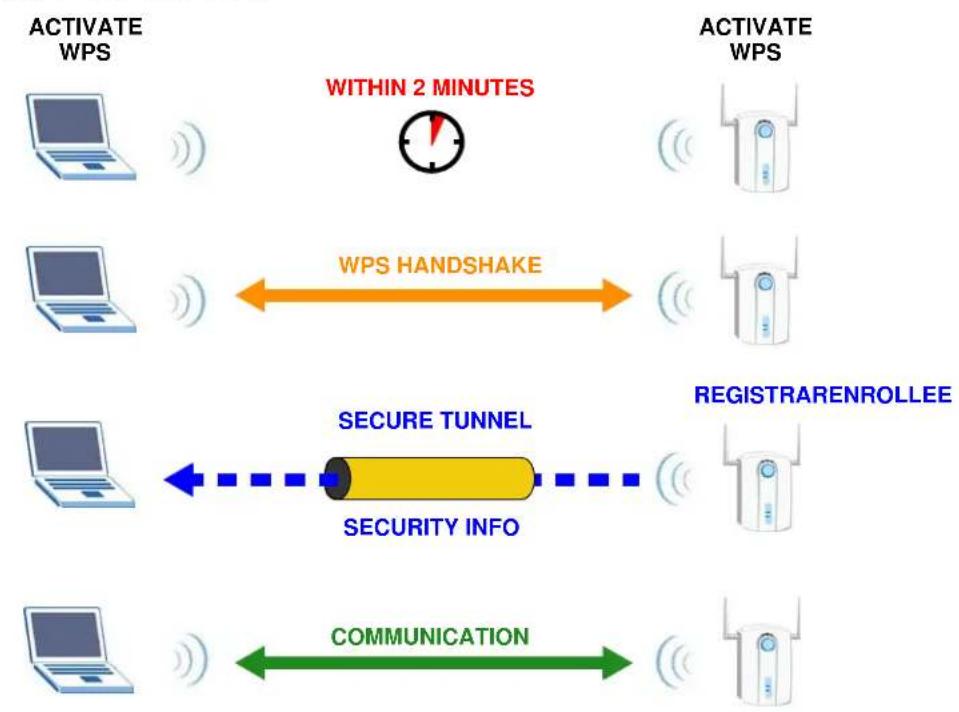
When two WPS-enabled devices connect, each device must assume a specific role. One device acts as the registrar (the device that supplies network and security settings) and the other device acts as the enrollee (the device that receives network and security settings. The registrar creates a secure EAP (Extensible Authentication Protocol) tunnel and sends the network name (SSID) and the WPA-PSK or WPA2-PSK pre-shared key to the enrollee. Whether WPA-PSK or WPA2-PSK is used depends on the standards supported by the devices. If the registrar is already part of a network, it sends the existing information. If not, it generates the SSID and WPA(2)-PSK randomly.
The following figure shows a WPS-enabled client (installed in a notebook computer) connecting to a WPS-enabled access point.
Figure 9 How WPS works
flowchart
graph LR
    A["ACTIVATE WPS"] --> B["WITHIN 2 MINUTES"]
    B --> C["WPS HANDSHAKE"]
    C --> D["ACTIVATE WPS"]
    D --> E["SECURE TUNNEL"]
    E --> F["SECURITY INFO"]
    F --> G["COMMUNICATION"]
    G --> H["REGISTRARENROLLEE"]
The roles of registrar and enrollee last only as long as the WPS setup process is active (two minutes). The next time you use WPS, a different device can be the registrar if necessary.
The WPS connection process is like a handshake; only two devices participate in each WPS transaction. If you want to add more devices you should repeat the process with one of the existing networked devices and the new device.
Note that the access point (AP) is not always the registrar, and the wireless client is not always the enrollee. All WPS-certified APs can be a registrar, and so can some WPS-enabled wireless clients.
By default, a WPS devices is "unconfigured". This means that it is not part of an existing network and can act as either enrollee or registrar (if it supports both functions). If the registrar is unconfigured, the security settings it transmits to the enrollee are randomly-generated. Once a WPS-enabled device has connected to another device using WPS, it becomes "configured". A configured wireless client can still act as enrollee or registrar in subsequent WPS connections, but a configured access point can no longer act as enrollee. It will be the registrar in all subsequent WPS connections in which it is involved. If you want a configured AP to act as an enrollee, you must reset it to its factory defaults.
3.4.1.1 Example WPS Network Setup
This section shows how security settings are distributed in an example WPS setup.
The following figure shows an example network. In step 1, both AP1 and Client 1 are unconfigured. When WPS is activated on both, they perform the handshake. In this example, AP1 is the registrar, and Client 1 is the enrollee. The registrar randomly generates the security information to set up the network, since it is unconfigured and has no existing information.
Figure 10 WPS: Example Network Step 1

flowchart
graph LR
    A["CLIENT 1"] --> B["SECURITY INFO"]
    B --> C["AP1"]
    D["REGISTRARENROLLEE"] --> C
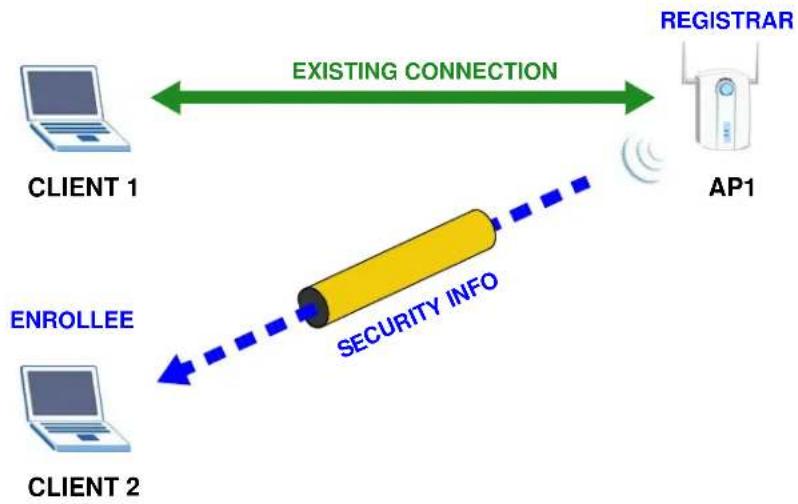
In step 2, you add another wireless client to the network. You know that Client 1 supports registrar mode, but it is better to use AP1 for the WPS handshake with the new client since you must connect to the access point anyway in order to use the network. In this case, AP1 must be the
registrar, since it is configured (it already has security information for the network). AP1 supplies the existing security information to Client 2.
Figure 11 WPS: Example Network Step 2
flowchart
graph LR
    A["CLIENT 1"] -->|EXISTING CONNECTION| B["AP1"]
    C["CLIENT 2"] -->|ENROLLEE| D["SECURITY INFO"]
    D --> B
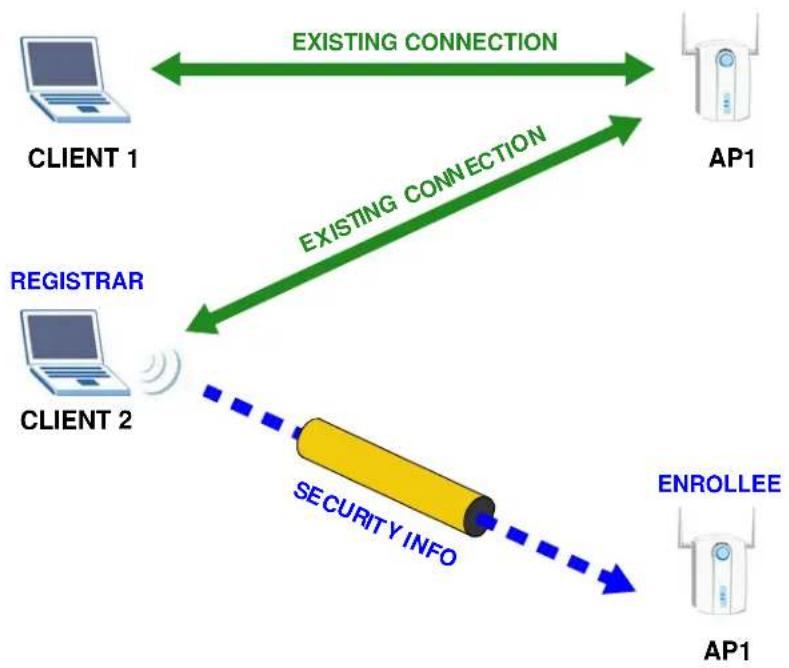
In step 3, you add another access point (AP2) to your network. AP2 is out of range of AP1, so you cannot use AP1 for the WPS handshake with the new access point. However, you know that Client 2 supports the registrar function, so you use it to perform the WPS handshake instead.
Figure 12 WPS: Example Network Step 3
flowchart
graph TD
    A["CLIENT 1"] <-->|EXISTING CONNECTION| B["AP1"]
    C["CLIENT 2"] <-->|EXISTING CONNECTION| B
    D["REGISTRAR"] --> C
    E["SECURITY INFO"] --> C
    F["ENROLLEE"] --> E
    B --> G["AP1"]
3.4.2 Limitations of WPS
WPS has some limitations of which you should be aware.
- When you use WPS, it works between two devices only. You cannot enroll multiple devices simultaneously, you must enroll one after the other.
For instance, if you have two enrollees and one registrar you must set up the first enrollee (by pressing the WPS button on the registrar and the first enrollee, for example), then check that it successfully enrolled, then set up the second device in the same way.
- WPS works only with other WPS-enabled devices. However, you can still add non-WPS devices to a network you already set up using WPS.
WPS works by automatically issuing a randomly-generated WPA-PSK or WPA2-PSK pre-shared key from the registrar device to the enrollee devices. Whether the network uses WPA-PSK or WPA2-PSK depends on the device. You can check the configuration interface of the registrar device to discover the key the network is using (if the device supports this feature). Then, you can enter the key into the non-WPS device and join the network as normal (the non-WPS device must also support WPA-PSK or WPA2-PSK).
- When you use the push button connection method, there is a short period (from the moment you press the button on one device to the moment you press the button on the other device) when any WPS-enabled device could join the network. This is because the registrar has no way of identifying the "correct" enrollee, and cannot differentiate between your enrollee and a rogue device. This is a possible way for a hacker to gain access to a network.
You can easily check to see if this has happened. WPS works between only two devices simultaneously, so if another device has enrolled your device will be unable to enroll, and will not have access to the network. If this happens, open the access point's configuration interface and look at the list of associated clients (usually displayed by MAC address). It does not matter if the access point is the WPS registrar, the enrollee, or was not involved in the WPS handshake; a rogue device must still associate with the access point to gain access to the network. Check the MAC addresses of your wireless clients (usually printed on a label on the bottom of the device). If there is an unknown MAC address you can remove it or reset the AP.
PART II
Troubleshooting
Troubleshooting
This chapter offers some suggestions to solve problems you might encounter. The potential problems are divided into the following categories.
• Power, Hardware Connections, and LEDs
- Link Quality
- Problems Communicating with Other Computers
4.1 Power, Hardware Connections, and LEDs
The NWD Series adapter does not turn on. None of the LEDs turn on.
1 Make sure the NWD Series adapter is correctly installed (refer to your Quick Start Guide and Chapter 2 on page 12).
2 Restart the computer to which the NWD Series adapter is attached.
3 If the problem continues, contact the vendor.
One of the LEDs does not behave as expected.
1 Make sure you understand the normal behavior of the LED. See Section 2.1 on page 12.
2 Check the hardware connection. See the Quick Start Guide and Chapter 2 on page 12.
3 Restart the computer to which the NWD Series adapter is attached.
4 If the problem continues, contact the vendor.
4.2 Link Quality
The link quality and/or signal strength is poor.
1 Scan for and connect to another AP with a better link quality.
2 Move your computer closer to the AP or the peer computer(s) within the transmission range.
3 There may be too much radio interference (for example from a microwave oven, or another AP using the same channel) around your wireless network. Lower the output power of each AP.
4 Make sure there are not too many wireless stations connected to a wireless network.
4.3 Problems Communicating with Other Computers
The computer with the NWD Series adapter installed cannot communicate with the other computer(s).
- Make sure that the AP and the associated computers are turned on and working properly.
- Make sure the NWD Series adapter computer and the associated AP use the same SSID.
- Change the AP and the associated wireless clients to use another radio channel if interference is high.
- Make sure that the computer and the AP share the same security option and key. Verify the settings in the Profile Security Setting screen.
- If you are using WPA(2)-PSK security, try changing your encryption type from TKIP to AES or vice versa.
Legal Information
Copyright
Copyright © 2013 by ZyXEL Communications Corporation.
The contents of this publication may not be reproduced in any part or as a whole, transcribed, stored in a retrieval system, translated into any language, or transmitted in any form or by any means, electronic, mechanical, magnetic, optical, chemical, photocopying, manual, or otherwise, without the prior written permission of ZyXEL Communications Corporation.
Published by ZyXEL Communications Corporation. All rights reserved.
Disclaimer
ZyXEL does not assume any liability arising out of the application or use of any products, or software described herein. Neither does it convey any license under its patent rights nor the patent rights of others. ZyXEL further reserves the right to make changes in any products described herein without notice. This publication is subject to change without notice.
Trademarks
Trademarks mentioned in this publication are used for identification purposes only and may be properties of their respective owners.
Certifications
Federal Communications Commission (FCC) Interference Statement
The device complies with Part 15 of FCC rules. Operation is subject to the following two conditions:
• This device may not cause harmful interference.
• This device must accept any interference received, including interference that may cause undesired operations.
This device has been tested and found to comply with the limits for a Class B digital device pursuant to Part 15 of the FCC Rules. These limits are designed to provide reasonable protection against harmful interference in a residential installation. This device generates, uses, and can radiate radio frequency energy, and if not installed and used in accordance with the instructions, may cause harmful interference to radio communications. However, there is no guarantee that interference will not occur in a particular installation.
If this device does cause harmful interference to radio/television reception, which can be determined by turning the device off and on, the user is encouraged to try to correct the interference by one or more of the following measures:
1 Reorient or relocate the receiving antenna.
2 Increase the separation between the equipment and the receiver.
3 Connect the equipment into an outlet on a circuit different from that to which the receiver is connected.
4 Consult the dealer or an experienced radio/TV technician for help.
FCC Caution: Any changes or modifications not expressly approved by the party responsible for compliance could void the user's authority to operate this equipment.

FCC Radiation Exposure Statement
• This device has been tested to the FCC exposure requirements (Specific Absorption Rate).
• This device complies with the requirements of Health Canada Safety Code 6 for Canada.
- Testing was performed on laptop computers with antennas at 5mm spacing. The maximum SAR value is: 0.77 W/kg. The device must not be collocated with any other antennas or transmitters.
• This equipment has been SAR-evaluated for use in laptops (notebooks) with side slot configuration.
- The device complies with FCC RF radiation exposure limits set forth for an uncontrolled environment, under 47 CFR 2.1093 paragraph (d)(2). End users must follow the specific operating instructions for satisfying RF exposure compliance. To maintain compliance with FCC RF exposure compliance requirements, please follow operation instruction as documented in this manual.
- This transmitter must not be co-located or operating in conjunction with any other antenna or transmitter.
• IEEE 802.11b or 802.11g operation of this product in the U.S.A. is firmware-limited to channels 1 through
• This device is operated in the 5.15\~5.25GHz frequency range, it is restricted to use in indoor environments only.
Important Note
This EUT is compliant with SAR for general population/uncontrolled exposure limits in ANSI/IEEE C95.1-1999 and has been tested in
accordance with the measurement methods and procedures specified in OET Bulletin 65 Supplement C.
Industry Canada Statement
This device complies with RSS-210 of the Industry Canada Rules. Operation is subject to the following two conditions:
1) this device may not cause interference and
2) this device must accept any interference, including interference that may cause undesired operation of the device
This device has been designed to operate with antennas having a maximum gain of 2.9 dBi.
Antenna having a higher gain is strictly prohibited per regulations of Industry Canada. The required antenna impedance is 50 ohms.
To reduce potential radio interference to other users, the antenna type and its gain should be so chosen that the EIRP is not more than required for successful communication.
IC Radiation Exposure Statement
This equipment complies with IC radiation exposure limits set forth for an uncontrolled environment. End users must follow the specific operating instructions for satisfying RF exposure compliance.
Note: for product available in the USA/Canada market, only channel 1\~11 can be operated. Selection of other channels is not possible.
注意!
依據 低功率電波輻射性電機管理辦法
Changes or modifications not expressly approved by the party responsible for compliance could void the user's authority to operate the equipment.
Viewing Certifications
Go to http://www.ZyXEL.com to view this product's documentation and certifications.
ZyXEL Limited Warranty
ZyXEL warrants to the original end user (purchaser) that this product is free from any defects in material or workmanship for a specific period (the Warranty Period) from the date of purchase. The Warranty Period varies by region. Check with your vendor and/or the authorized ZyXEL local distributor for details about the Warranty Period of this product. During the warranty period, and upon proof of purchase, should the product have Indications of failure due to faulty workmanship and/or materials, ZyXEL will, at its discretion, repair or replace the defective products or components without charge for either parts or labor, and to whatever extent it shall deem necessary to restore the product or components to proper operating condition. Any replacement will consist of a new or re-manufactured functionally equivalent product of equal or higher value, and will be solely at the discretion of ZyXEL. This warranty shall not apply if the product has been modified, misused, tampered with, damaged by an act of God, or subjected to abnormal working conditions.
Note
Repair or replacement, as provided under this warranty, is the exclusive remedy of the purchaser. This warranty is in lieu of all other warranties, express or implied, including any implied warranty of merchantability or fitness for a particular use or purpose. ZyXEL shall in no event be held liable for indirect or consequential damages of any kind to the purchaser.
To obtain the services of this warranty, contact your vendor. You may also refer to the warranty policy for the region in which you bought the device at http://www.ZyXEL.com/web/support_warranty_info.php.
Registration
Register your product online to receive e-mail notices of firmware upgrades and information at www.ZyXEL.com.
Open Source Licenses
This product contains in part some free software distributed under GPL license terms and/or GPL like licenses. Open source licenses are provided with the firmware package. You can download the latest firmware at www.ZyXEL.com. To obtain the source code covered under those Licenses, please contact support@ZyXEL.com.tw to get it.
Regulatory Information
European Union
The following information applies if you use the product within the European Union.
Declaration of Conformity with Regard to EU Directive 1999/5/EC (R&TTE Directive)
Compliance Information for 2.4GHz and 5GHz Wireless Products Relevant to the EU and Other Countries Following the EU Directive 1999/5/EC (R&TTE Directive)
| [Czech] | ZyXEL tímto prohlašuje, že tento zařízení je ve shodě se základníml požadavky a dalšíml příslušnýml ustanoveníml směrnice 1999/5/EC. |
| [Danish] | Undertegnede ZyXEL erklærer herved, at følgende udstyr udstyr overholder de væsentlige krav og øvrige relevante krav i direktiv 1999/5/EF. |
| [German] Hiermit erklärt ZyXEL, dass sich das Gerät Ausstattung in Übereinstimmung mit den grundlegenden Anforderungen und den übrigen einschlägigen Bestimmungen der Richtlinie 1999/5/EU befindet. | |
| [Estonian] | Käesolevaga kinnitab ZyXEL seadme seadmed vastavust direktilvi 1999/5/EÜ põhlnõuetele ja nimetatud direktilvist tulenevatele teistele asjakohastele sätetele. |
| English Hereby, | ZyXEL declares that this equipment is in compliance with the essential requirements and other relevant provisions of Directive 1999/5/EC. |
| [Spanish] | Por medio de la presente ZyXEL declara que el equipo cumple con los requisitos esenciales y cualesquiera otras disposiciones aplicables o exigibles de la Directiva 1999/5/CE. |
| [Greek] | ME THN ΠΑΡΟΥΣΑ ZyXEL ΔΗΛΩΝΕΙ ΟΤΙ εξοπλισμός ΣΥΜΜΟΡΦΩΝΕΤΑΙ ΠΡΟΣ ΤΙΣ ΟΥΣΙΩΔΕΙΣ ΑΠΑΙΤΗΣΕΙΣ ΚΑΙ ΤΙΣ ΛΟΙΠΕΣ ΣΧΕΤΙΚΕΣ ΔΙΑΤΑΞΕΙΣ ΤΗΣ ΟΔΗΓΙΑΣ 1999/5/EC. |
| [French] | Par la présente ZyXEL déclare que l'appareil équipements est conforme aux exigences essentielles et aux autres dispositions pertinentes de la directive 1999/5/EC. |
| [Italian] | Con la presente ZyXEL dichlara che questo attrezzatura è conforme ai requisiti essenziali ed alle altre disposizioni pertinenti stabilite dalla direttiva 1999/5/CE. |
| [Latvian] | Ar šo ZyXEL deklarē, ka iekārtas atbilst Direktīvas 1999/5/EK būtiskajām prasībām un citiem ar to saistītajiem noteikumiem. |
| [Lithuanian] | Šiuo ZyXEL deklaruoja, kad šis įranga atitinka esminius reikalavimus ir kitas 1999/5/EB Direktyvos nuostatas. |
| [Dutch] Hierbij verklaart ZyXEL dat het toestel uitrusting in overeenstemming is met de essentiële eisen en de andere relevante bepalingen van richtlijn 1999/5/EC. | |
| [Maltese] | Hawnhekk, ZyXEL, jiddikjara li dan taghmir jikkonforma mal-ħtiġijiet essenzjali u ma provvedimenti ohrajn relevanti li hemm fid-Dirrettiva 1999/5/EC. |
| [Hungarian] | Alulírott, ZyXEL nyilatkozom, hogy a berendezés megfelel a vonatkozó alapvető követelményeknek és az 1999/5/EK irányelv egyéb előírásainak. |
| [Polish] | Niniejszym ZyXEL oświadcza, że sprzęt jest zgodny z zasadniczymi wymogami oraz pozostałymi stosownymi postanowlenlami Dyrektywy 1999/5/EC. |
| [Portuguese] | ZyXEL declara que este equipamento está conforme com os requisitos essenciais e outras disposições da Directiva 1999/5/EC. |
| [Slovenian] | ZyXEL izjavlja, da je ta oprema v skladu z blstvenimi zahtevami in ostalimi relevantnimi določili direktive 1999/5/EC. |
| [Slovak] | ZyXEL týmto vyhlasuje, že zariadenia spíňa základné požiadavky a všetky príslušné ustanovenia Smernice 1999/5/EC. |
| [Finnish] | ZyXEL vakuuttaa täten että laitteet tyyppinen laite on direktiivin 1999/5/EY oleellisten vaatimusten ja sitä koskevien direktiivin mulden ehtojen mukainen. |
| [Swedish] | Härmed intygar ZyXEL att denna utrustning står I överensstämmelse med de väsentliga egenskapskrav och övriga relevanta bestämmelser som framgår av direktiv 1999/5/EC. |
| [Bulgarian] | С настоящото ZyXEL декларира, че това оборудване е в съответствие със съществените изисквания и другите приложими разпоредбите на Директива 1999/5/EC. |
| [Icelandic] | Hér með lýsir, ZyXEL því yfír að pessi búnaður er í samræmi við grunnkröfur og önnur viðeigandi ákvæði tilskipunar 1999/5/EC. |
| [Norwegian] Erkærer herved ZyXEL at dette utstyret er I samsvar med de grunnleggende kravene og andre relevante bestemmelser I direktiv 1999/5/EF. | |
| [Romanian] | Prin prezenta, ZyXEL declară că acest echipament este în conformitate cu cerințele esențiale și alte prevederi relevante ale Directivei 1999/5/EC. |

National Restrictions
This product may be used in all EU countries (and other countries following the EU directive 1999/5/EC) without any limitation except for the countries mentioned below:
In the majority of the EU and other European countries, the 2, 4- and 5-GHz bands have been made available for the use of wireless local area networks (LANs). Later in this document you will find an overview of countries in which additional restrictions or requirements or both are applicable.
The requirements for any country may evolve. ZyXEL recommends that you check with the local authorities for the latest status of their national regulations for both the 2,4- and 5-GHz wireless LANs.
The following countries have restrictions and/or requirements in addition to those given in the table labeled "Overview of Regulatory Requirements for Wireless LANs":.
| Overview of Regulatory Requirements for Wireless LANs | |||
| Frequency Band (MHz) Max Power Level (EIRP) ^1 (mW) | Indoor ONLY Indoor and Outdoor | ||
| 2400-2483.5 | 100 | V | |
| 5150-5350 | 200 | V | |
| 5470-5725 | 1000 | V | |
Belgium
The Belgian Institute for Postal Services and Telecommunications (BIPT) must be notified of any outdoor wireless link having a range exceeding 300 meters. Please check http://www.bipt.be for more details.
In Denmark, the band 5150 - 5350 MHz is also allowed for outdoor usage.
This product meets the National Radio Interface and the requirements specified in the National Frequency Allocation Table for Italy. Unless this wireless LAN product is operating within the boundaries of the owner's property, its use requires a "general authorization." Please check http://www.sviluppoeconomico.gov.it/ for more details.
The outdoor usage of the 2.4 GHz band requires an authorization from the Electronic Communications Office. Please check http://www.esd.lv for more details.
2.4 GHz frekvenèu joslas izmantoðanai árpus telpâm nepiecieðama atīauja no Elektronisko sakaru direkcijas. Vairâk informâcijas: http://www.esd.lv. Notes:
- Although Norway, Switzerland and Liechtenstein are not EU member states, the EU Directive 1999/5/EC has also been implemented in those countries.
- The regulatory limits for maximum output power are specified in EIRP. The EIRP level (in dBm) of a device can be calculated by adding the gain of the antenna used(specified in dBi) to the output power available at the connector (specified in dBm).
List of national codes
| COUNTRY | ISO 3166 2 LETTER CODE | COUNTRY | ISO 3166 2 LETTER CODE |
| Austria AT Malta MT | |||
| Belgium BE Netherlands NL | |||
| Cyprus CY Poland PL | |||
| Czech Republic CR Portugal | PT | ||
| Denmark | DK | Slovakia | SK |
| Estonia | EE Slovenia | SI | |
| Finland | FI | Spain | ES |
| France FR Sweden | SE | ||
| Germany | DE United Kingdom | GB | |
| Greece GR | Iceland | IS | |
| Hungary | HU | Liechtenstein | LI |
| Ireland | IE | Norway | NO |
| Italy | IT | Switzerland | CH |
| Latvia | LV | Bulgaria BG | |
| Lithuania | LT | Romania | RO |
| Luxembourg | LU Turkey TR |
Safety Warnings
- Do NOT use this product near water, for example, in a wet basement or near a swimming pool.
- Do NOT expose your device to dampness, dust or corrosive liquids.
- Do NOT store things on the device.
- Do NOT install, use, or service this device during a thunderstorm. There is a remote risk of electric shock from lightning.
- Connect ONLY suitable accessories to the device.
- Ground yourself (by properly using an anti-static wrist strap, for example) whenever working with the device's hardware or connections.
- ONLY qualified service personnel should service or disassemble this device.
- Antenna Warning! This device meets ETSI and FCC certification requirements when using the included antenna(s). Only use the included antenna(s).
Your product is marked with this symbol, which is known as the WEEE mark. WEEE stands for Waste Electronics and Electrical Equipment. It means that used electrical and electronic products should not be mixed with general waste. Used electrical and electronic equipment should be treated separately.

Index
A
about your ZyXEL Device 9
Access Point (AP) 22
Access point (AP) 22
Access Point. See also AP.
ACT LED 11
Advanced Encryption Standard 23
AP
See also access point.
authentication type 23
auto 23
open system 23
shared key 23
auto authentication 23
C
CCMP 23
certifications 34
notices 34
viewing 35
channel 22
copyright 33
D
disclaimer 33
documentation
related 2
E
encryption type 23
F
frequency 22
G
getting started 9
Guide
Quick Start 2
L
LEDs 11
lights 11
LINK LED 11
M
Message Integrity Check (MIC) 23
N
network overlap 22
0
other documentation 2
P
passphrase 23
password 23
product registration 35
PSK 23
Q
Quick Start Guide 2
R
radio interference 32
registration
product 35
related documentation 2
s
security 22, 23
data encryption 23
Service Set Identity (SSID) 22
SSID 22, 32
T
Temporal Key Integrity Protocol (TKIP) 23
trademarks 33
W
warranty 35
note 35
WEP 23
automatic setup 23
manual setup 23
passphrase 23
WEP (Wired Equivalent Privacy) 23
WEP key generation 23
Wi-Fi Protected Access 23
wireless client 22
wireless LAN
introduction 21
security 22
wireless LAN (WLAN) 21
wireless network 22
wireless tutorial 19
WPA 23
vs WPA-PSK 23
WPA2 23
vs WPA2-PSK 23
WPA2-PSK 23
WPA-PSK 23, 24
- NWD Series Dual-Band Wireless USB Adapter
- IMPORTANT!
- READ CAREFULLY BEFORE USE.
- KEEP THIS GUIDE FOR FUTURE REFERENCE.
- Related Documentation
- Contents Overview
- Introduction and Configuration 7
- Troubleshooting 29
- Table of Contents
- Part II: 29
- Part II: Troubleshooting 29
- Chapter 4 Troubleshooting....31
- Appendix A Legal Information....33
- Index 39
- PART I
- Introduction and
- Configuration
- Overview
- Access Point
- Infrastructure
- Before You Begin
- About Your NWD Series Wireless LAN Adapter
- Hardware
- NWD6605 Dual-Band Wireless AC1200 USB Adapter
- NWD6505 Dual-Band Wireless AC600 USB Adapter
- NWD Series LED Indicator Function
- Tutorial
- Overview
- What You Can Do in This Tutorial
- What You Need to Know
- WPS
- Before You Begin
- Driver Installation
- Network Connection
- ZyXEL Network Connection Wizard (Windows Zero Configuration)
- Connecting to an AP using Wi-Fi Protected Setup (WPS)
- Overview
- What You Need to Know
- Server
- Client
- Wireless LAN Overview
- Wireless LAN Security
- WEP
- Data Encryption
- Authentication Type
- WPA-PSK and WPA2-PSK
- Wi-Fi Protected Setup
- How WPS Works
- Example WPS Network Setup
- Limitations of WPS
- PART II
- Troubleshooting
- Power, Hardware Connections, and LEDs
- Link Quality
- Problems Communicating with Other Computers
- Legal Information
- Copyright
- Disclaimer
- Trademarks
- Certifications
- Federal Communications Commission (FCC) Interference Statement
- FCC Radiation Exposure Statement
- Important Note
- Industry Canada Statement
- IC Radiation Exposure Statement
- 注意!
- Viewing Certifications
- ZyXEL Limited Warranty
- Note
- Registration
- Open Source Licenses
- Regulatory Information
- European Union
- Declaration of Conformity with Regard to EU Directive 1999/5/EC (R&TTE Directive)
- National Restrictions
- Belgium
- Safety Warnings
- Index
- A
- C
- D
- E
- F
- G
- L
- M
- N
- 0
- P
- Q
- R
- s
- T
- W
Brand : ZYXEL
Model : NWD6505
Category : Network card / adapter