
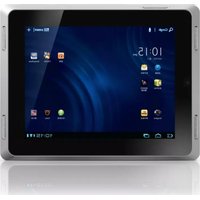
PI3910B2 - Tablet PHILIPS - Free user manual and instructions
Find the device manual for free PI3910B2 PHILIPS in PDF.


| Product Type | Tablet |
| Brand | Philips |
| Model | PI3910B2 |
| Display Size | 7 inches |
| Display Resolution | 1024 x 600 pixels |
| Operating System | Android 4 |
| Internal Storage | 8 GB NAND Flash |
| Expandable Storage | microSD up to 32 GB |
| Battery Type | Li-ion polymer, 2800 mAh |
| Battery Life | Up to 4 hours video streaming over Wi-Fi |
| Rear Camera | 2.0 MP |
| Front Camera | 0.3 MP |
| Connectivity | Wi-Fi 802.11 b/g/n, Bluetooth 3.0, USB 2.0 Micro, Micro HDMI, 3.5 mm headphone jack |
| Audio | Speaker 600 mW, headphone output 2 x 5 mW |
| Power Adapter | Input: 100-240 V AC, 50/60 Hz, 0.45 A; Output: DC 5 V, 2 A |
| Weight | Not specified |
| Dimensions | Not specified |
Frequently Asked Questions - PI3910B2 PHILIPS
User questions about PI3910B2 PHILIPS
0 question about this device. Answer the ones you know or ask your own.
Ask a new question about this device
Download the instructions for your Tablet in PDF format for free! Find your manual PI3910B2 - PHILIPS and take your electronic device back in hand. On this page are published all the documents necessary for the use of your device. PI3910B2 by PHILIPS.
USER MANUAL PI3910B2 PHILIPS
Always there to help you
Register your product and get support at
www.philips.com/welcome

PI3910
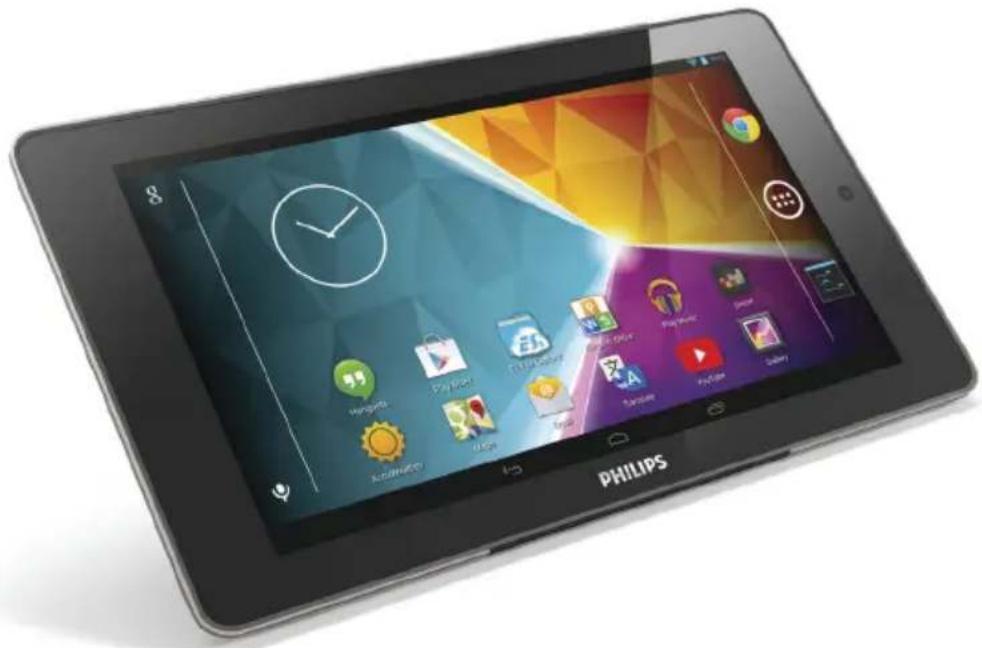
User manual
PHILIPS
Contents
1 Important safety instructions 3
Safety 3
Compliance 3
Care of the environment 3
Notice 4
Written Offer 4
2 Overview 5
Controls 5
Home screen 5
Use the drag-down menu of setup options 6
3 Get started 7
Charge power 7
Conserve battery power 7
Switch the device on or off 7
4 Basics 8
Find apps 8
Use the screen 9
Switch screen rotation on or off 9
Lock/ unlock the screen 9
Customize the Home screen 10
Add app icons and widgets 10
Delete items 10
Relocate items 10
Add wallpapers 10
Text entry 11
Select input methods 11
Enter text 11
Use the Android keyboard 11
Edit text 12
5 Connections 13
Connect to the Internet 13
Connect to your computer 13
Use a Micro SD card 14
Connect to an HDTV 14
Connect to Bluetooth 15
Connect with Bluetooth devices 15
Send or receive files through
Bluetooth 16
Listen to music through stereo
Bluetooth headphones and
speakers 16
6 Apps 17
Install apps 17
Play Store 17
Other sources 17
Manage apps 17
7 Browser 19
Add a bookmark 19
8 Email 20
Set up your email account 20
Select account settings 20
Check your email messages 20
Compose email messages 21
Organize email messages 21
9 Tools 22
Camera 22
Take photos or record videos 22
Calendar 23
10 Use the device in corporate networks 24
Install secure credentials 24
Set up your Microsoft Exchange account 24
Add VPN 24
11 Settings 26
WIRELESS & NETWORKS 26
Wi-Fi 26
Airplane mode 26
VPN settings 26
VPN settings 26
DEVICE 26
Sound 26
Display 26
HDMI 27
Screenshot Setting 27
Storage 27
Battery 27
Apps 27
Location access 27
Security 27
Screen lock 27
Visible passwords 28
Device administrators 28
Unknown sources 28
Verify apps 28
Trusted credentials 28
Install from SD card 28
Language & input 28
Language 28
Personal dictionary 28
Voice Search 29
Text-to-speech output 29
Reset 29
ACCOUNTS 29
Date & time 29
Automatic setting 29
Manual setting 29
Accessibility 29
Auto-rotate screen 30
About tablet 30
System updates 30
Status and information about the device 30
12 Check for firmware update 31
Update the firmware online 31
13 Technical data 32
14 Warranty 34
Need help?
Please visit
www.philips.com/welcome
where you can access a full set of supporting materials such as the user manual, the latest software updates, and answers to frequently asked questions.
1 Important safety instructions
Safety
Only use attachments/accessories specified by the manufacturer.
Use only power supplies listed in the user manual.
The product shall not be exposed to dripping or splashing.
Do not place any sources of danger on the product (e.g. liquid filled objects, lighted candles).
Batteries (battery pack or batteries installed) shall not be exposed to excessive heat such as sunshine, fire or the like.
Where the plug of the Direct Plug-in Adapter is used as the disconnect device, the disconnect device shall remain readily operable.

Warning
- Never remove the casing of this apparatus.
- Never lubricate any part of this apparatus.
- Never place this apparatus on other electrical equipment.
- Keep this apparatus away from direct sunlight, naked flames or heat.
- Ensure that you always have easy access to the power cord, plug or adaptor to disconnect the apparatus from the power.
Compliance

Note
- The type plate is located on the back of the product.
Care of the environment
Environmental information
All unnecessary packaging has been omitted.
We have tried to make the packaging easy to separate into three materials: cardboard (box), polystyrene foam (buffer) and polyethylene (bags, protective foam sheet).
Your system consists of materials which can be recycled and reused if disassembled by a specialized company. Please observe the local regulations regarding the disposal of packaging materials, and old equipment.

Your product is designed and manufactured with high quality materials and components, which can be recycled and reused.
Please inform yourself about the local separate collection system for electrical and electronic products.
Please act according to your local rules and do not dispose of your old products with your normal household waste. Correct disposal of your old product helps to prevent potential negative consequences for the environment and human health. Please inform yourself about the local rules on separate collection of batteries because correct disposal helps to prevent negative consequences for the environment and human health.
Always bring your product to a professional to remove the built-in battery.
Notice
Written Offer
WOOX Innovations hereby offers to deliver, upon request, a copy of the complete corresponding source code for the copyrighted open source software packages used in this product for which such offer is requested by the respective licenses.
This offer is valid up to three years after product purchase. To obtain source code, please contact open.source@woox.com. If you prefer not to use email or if you do not receive confirmation receipt within a week after mailing to this email address, please write to Open Source Team, 6/F, Philips Electronics Building, 5 Science Park East Avenue, Hong Kong Science Park, Shatin, New Territories, Hong Kong. If you do not receive timely confirmation of your letter, please email to the email address above.
This product is partly based on Open Source software. The license text and acknowledgment can be retrieved from the device under ▶ About tablet > Legal information.
Specifications are subject to change without notice. Philips and the Philips' Shield Emblem are registered trademarks of Koninklijke Philips N.V. and are used by WOOX Innovations Limited under license from Koninklijke Philips N.V.. WOOX Innovations reserves the right to change products at any time without being obliged to adjust earlier supplies accordingly.
2 Overview
Controls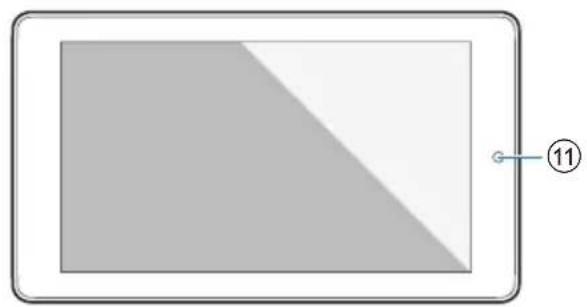
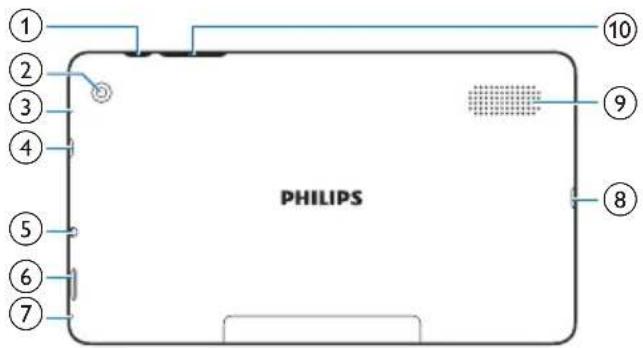
① Power/ lock button
- Press and hold: switch on or off the device.
- Press: lock/unlock the screen; To unlock the screen, drag the lock to an icon.
② Rear camera lens
③ RESET
- Press the hole by using the tip of a paper clip when the screen does not respond to the pressing of keys.
④ Micro HDMI
- Connector for the audio/video output to a high-definition TV (HDTV)
⑤
• 3.5-mm headphone connector
⑥
- Slot for Micro SD card
⑦
- Microphone
⑧
• USB connector for data transfer and power charging
⑨ Speaker
⑩ + -
- Press: increase/decrease the volume. - Press and hold: increase/decrease fast.
⑪ Front camera lens
Home screen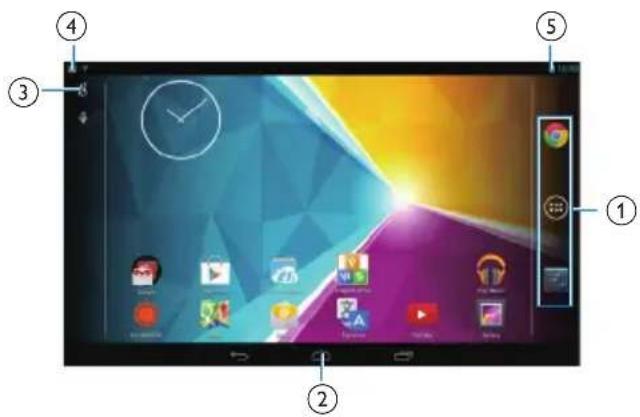
① Chrome: Web browser of Google. APPS/WIDGETS: List all apps or widgets.
Settings: Customize the settings of PI3910.
② Tap to return to the Home screen.
←: Go back one level.
☐: Display recent applications that you have accessed.
: (for some apps): View the options menu.
③ Google Search
- : Use the quick search box to search on PI3910 or the Web. - : Google voice search
④ Notifications
- Drag down the bar to check events.
⑤ Time, setup options
- Drag down the bar to select setup options.
Use the drag-down menu of setup options
1 Drag down the top bar as shown.
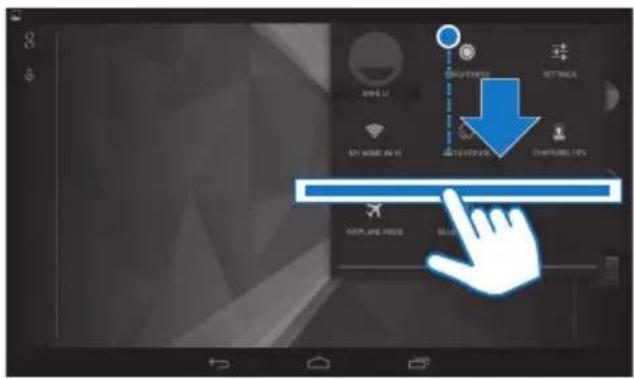
2 Tap the icon to select your options.

• Change the screen brightness

- Switch to the settings menu

- Switch on or off Wi-Fi

- Switch screen rotation on or off

• Battery charging underway

- Switch on or off the airplane mode.
When the airplane mode is on, the access to wireless connection is disabled.

- Switch on or off Bluetooth
3 Get started
② At the top bar, select: > Advanced > Keep Wi-Fi on during sleep. Select Never r.
Charge power
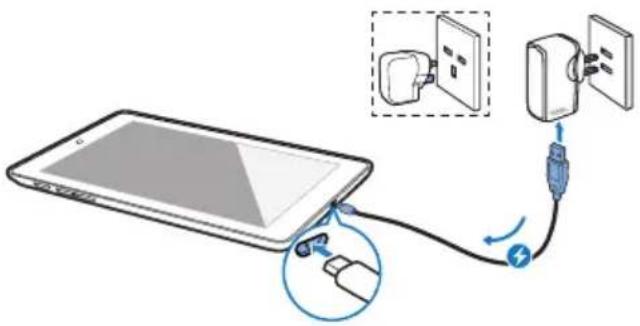
PI3910 has a built-in battery that can be charged through the USB connector of the supplied USB power adapter. The first time you use PI3910, charge PI3910 for more than 5 hours.
- By using the USB cable, connect PI3910 to the supplied USB power adapter.

Note
- Rechargeable batteries have a limited number of charge cycles. Battery life and number of charge cycles vary by use and settings.
Conserve battery power
• To conserve battery power and increase the play time, do the following:
Use the sleep mode
After the selected time duration, PI3910 goes to the sleep mode, and the screen switches off automatically. To save battery power, do the following:
- Go to ■ > Display > Sleep to set the screen-off timer to a low value. • To switch off Wi-Fi during the sleep mode,

Go to Wi-Fi.
Switch the device on or off
Press and hold the power/ lock button until the device is switched on or off.
4 Basics
Find apps
Navigate on the Home screen to find an app:
- Swipe left/right to select a page;
- Alternatively, tap to open the list of apps. Swipe left/right to scroll through the list;
- Use the navigation buttons to switch between screens. Tap to go to the apps that you have accessed recently.

Tip
- On PI3910, you can install apps from the Play Store or other sources.

Play Store:
- Download different apps, games, and others.

Settings:
- Customize the settings of PI3910.

Play Music:
- Play music that you store on PI3910.
• Online music service of Google

Gallery:
• View pictures and videos that you store or make on PI3910.

Photos:
• Photo-sharing service of Google

YouTube:
• Online video service of Google

Play Movies & TV:
• Online movie & TV service of Google (available in some countries)

Play Books:
• Online book service of Google (available in some countries)

Play Games:
• Online games service of Google

Chrome:
• Web browser of Google

Browser:
- Browse Web pages.

Google Search:
• Search on PI3910 or the Web.

Voice Search
• Voice search and voice action services of Google

Maps:
- Maps service of Google

Local:
- Quick access to the place search function in Google Maps

Navigation:
- Quick access to the navigation function in Google Maps

Earth:
- Satellite view of maps (available in some countries)

- Email: Set up your email account on PI3910.

Gmail:
- Mail service of Google

Hangouts:
- Chat service of Google

People:
• List of your contacts, including those in your Gmail
Google+/Orkut:
• Social networking service of Google
Blogger:
• Blogger service of Google
Google Settings:
- Select your settings for Google services.
Downloads:
• View the list of your downloads from the Web.
ES File Explorer:
- Browse the files/folders on PI3910, install apps, and manage files.
Kingsoft Office:
• Create and manage your document, text, PowerPoint and Excel files.
Drive:
• Cloud storage service of Google.
Camera:
• Take photos or record videos.
Translate
• Online language translation service of Google.
3
Calendar:
- Add events, and set reminders for your events.
E
Keep:
- Keep quick notes.
●
Clock:
• Use the timer, alarm clock, and stopwatch.
1
Calculator
①
Sound Recorder:
• Record and listen to voice messages.
[Non-Text]
AccuWeather
• Online weather forecast service
Use the screen
Switch screen rotation on or off
1 Drag down the top bar.
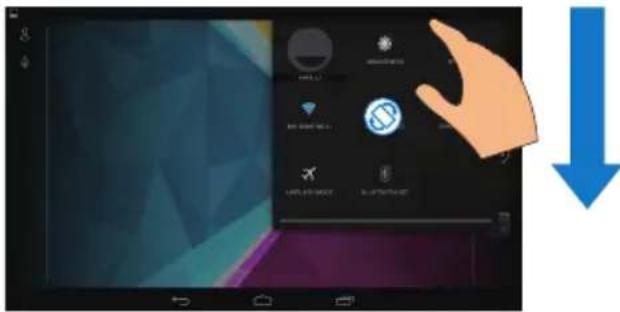
2 In the drag-down menu, tap → to switch screen rotation on or off.
Lock/unlock the screen
By locking the screen, you can lock the touch controls on the screen (except for some apps or widgets). Thus, undesired operations are prevented.
Auto lock
After a time duration, the screen dims and is locked automatically. To set the time duration, go to ▶> Display > Sleep.
To lock the screen manually
- Press the power/lock button.
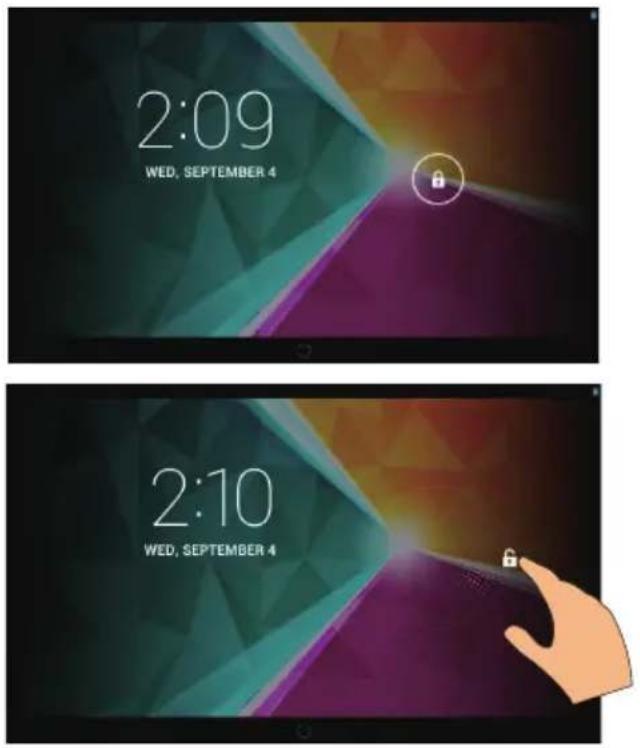
To unlock the screen
1 If necessary, press the power/lock button to display the lock.
2 Drag the lock to an icon.
Customize the Home screen
To access functions quickly from the Home screen, you can add and rearrange items.
Add app icons and widgets
1 Swipe left/right to select a page.
- If necessary, tap to return to the Home screen. • Make sure that the page isn't filled.
- Tap 😊. Tap APPS or WIDGET to open the list of apps or widgets.
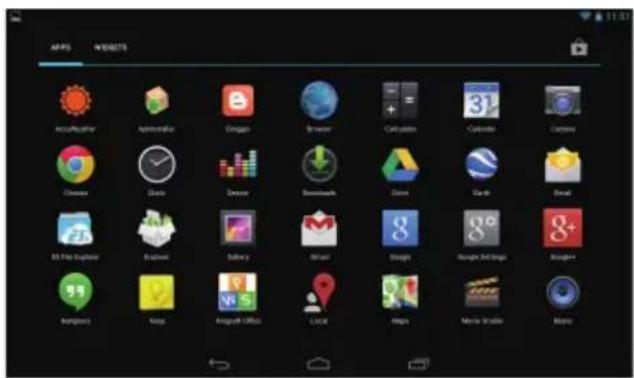
2 Tap and hold an icon or widget until the page is displayed.
→ The icon or widget is added to the selected page.
Delete items
1 Tap and hold an item to unlock. 2 Drag the item to ✗
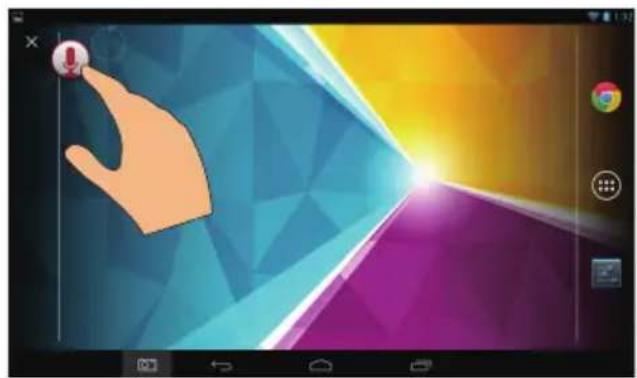
Relocate items
1 Tap and hold an item to unlock. 2 Drag the item to a space on the page. 3 Release the item. → The item moves to the space.
Add wallpapers
1 From the Home screen, go to □ > Display > Wallpaper. 2 Select your options.
Text entry
With the onscreen keyboard, you can enter text in multiple languages.
Select input methods
1. From the Home screen, select Settings > Language & input.
2. Select your input methods: Android Keyboard: for multiple languages; Google voice typing: for text input through voice. 3. To select your input options, tap next to the input method.
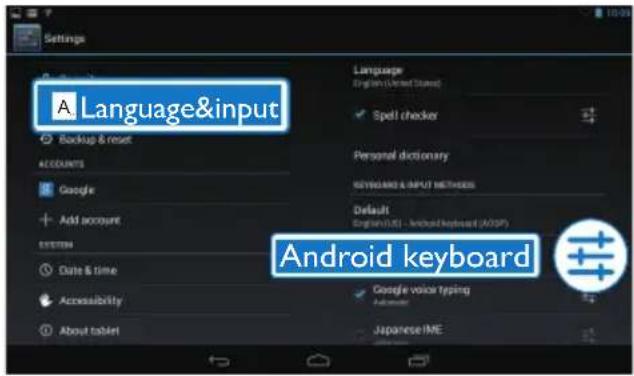
Enter text
1. Tap the text box to show the onscreen keyboard.
2. Tap on the keys to enter text.
To delete the entry before the cursor,
- Select .
To move to the next line,
- Select .
Use the Android keyboard
Select keyboard settings or input languages
- On the onscreen keyboard, tap .
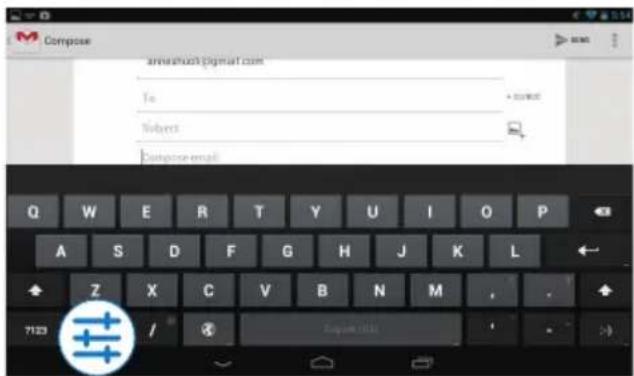
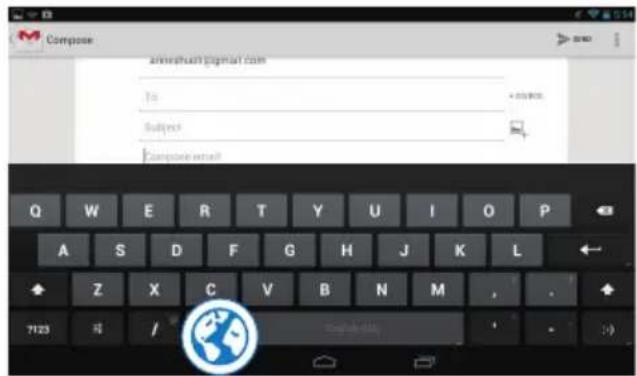
Switch between selected input languages
1 Add to the option list the languages that you often use.
① On the onscreen keyboard, tap #> Input languages. ② Tap the checkbox to select languages.
2 On the onscreen keyboard, tap and hold Ⓧ to select a language.
Switch between letters and numbers/symbols
- Tap on 23 ABC

Tip
- On the numeric/symbol keyboard, tap \~{ to switch between numbers/symbols and more symbol choices.
Switch between upper and lower cases
- Tap repeatedly to switch between and
◆: The next letter you enter is in upper case. : All letters you enter are in lower case.
To switch to the input mode of all upper cases,
1 Tap and hold or .
→ The button changes to blue.
2 When a click sounds, release the button.
→ is displayed. All letters you enter are in upper case.
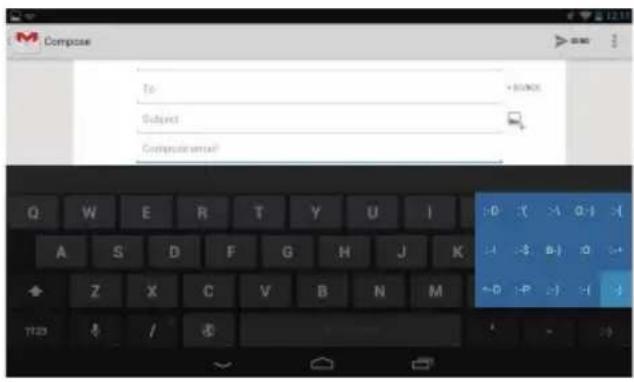
Switch to other options on a button
- Tap and hold the button that is marked with a symbol at the lower/upper right corner.
A pop-up screen is displayed.
Edit text
You can cut, copy, and paste the text that you have entered.
Copy or cut the selected text
1 Tap and hold the text until the pop-screen is displayed.
→ Current word is selected, with marks for start and end positions.
2 Drag the marks to select or change the start/end positions.
- Tap Select all to select all the text.
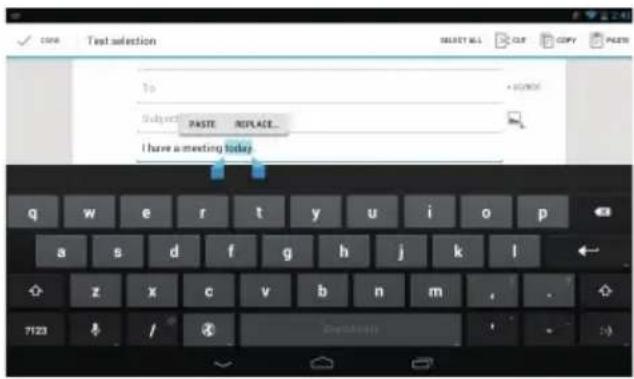
3 Tap Copy or Cut.
→ The selected text is copied or cut.
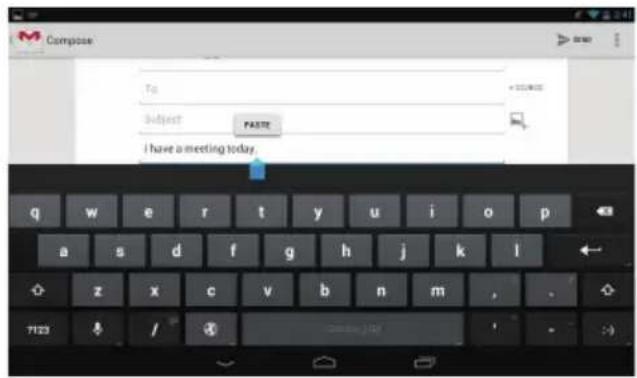
Paste the selected text
1 Put the cursor in a position.
2 Tap and hold the position until the pop-screen is displayed.
→ In the pop-up screen, the option Paste is displayed.
→ Tap Paste. The text is pasted in the selected position.
5 Connections
Connect to the Internet
Connect PI3910 to a wireless router (Access Point). You can connect PI3910 to the network that is built around the router.
To connect to the Internet, make sure that the router connects to the Internet directly and no dial-up is required on the computer.
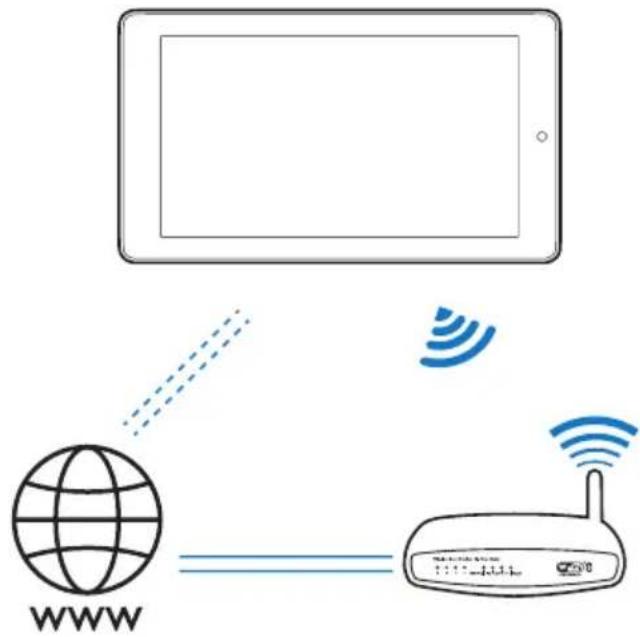
1 From the Home screen, tap Settings > Wi-Fi.
2 Select the option to switch on the Wi-Fi function. → You see a list of Wi-Fi networks in range.
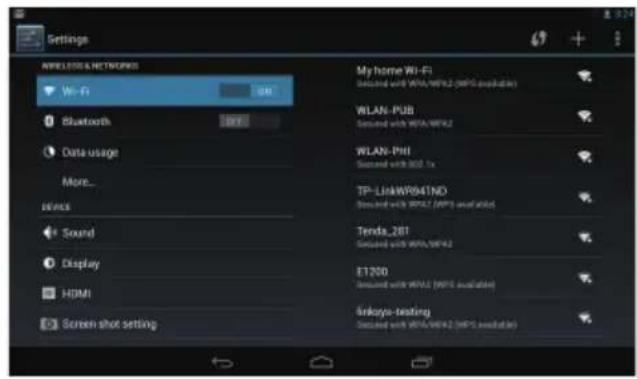
3 Connect PI3910 to a network:
① Tap to select a network. ② On the pop-up screen, enter the password to the network.
is displayed in the status bar when the Wi-Fi connection is completed successfully.
→ Next time you switch on PI3910, PI3910 connects to the previously connected network automatically.

Note
- If MAC address filtering is enabled on your router, add the MAC address of PI3910 to the list of devices that are allowed to join the network. To find the Wi-Fi MAC address, go to Settings > About tablet > Status on the Home screen.
- To refresh the list of networks, select : > Scan at the upper-right corner of the screen.
- If you have disabled SSID broadcasting or hidden the Service Set Identifier (SSID) of the router, manually enter the SSID or public name for the network. Go to Settings > Wi-Fi. On the top bar, select +
- If the DHCP (Dynamic Host Configuration Protocol) is unavailable or disabled on the router, manually enter the IP address of PI3910.
Connect to your computer
Connect PI3910 to a computer through the USB cable.
![graph TD A["Table with monitor"] -->|Wireless cable to laptop| B["Laptop"] B -->|Digital file transfer to laptop| C["Device with USB port"] C -->|Wireless cable to laptop| D["Device with USB port"]](/content/2026/05/844183/images/83266239a53727388aca1b1dd7e2f5e47c30a36bab13eb862ec8f4e3085ba90b.jpg)
You can transfer apps or media files from your PC to PI3910, the internal storage or SD card.
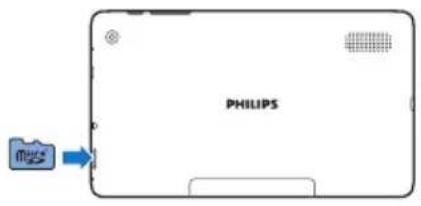
Use a Micro SD card
Insert a Micro SD card (up to 32 GB) into PI3910. You can expand the memory size of PI3910.
Connect to an HDTV
Connect PI3910 to a high-definition TV (HDTV). You can watch on the HDTV the photos and videos that play on PI3910.
1 On PI3910,
Connect an HDMI cable (sold separately) to:
the Micro HDMI socket on PI3910, and the HDMI input socket on the TV.
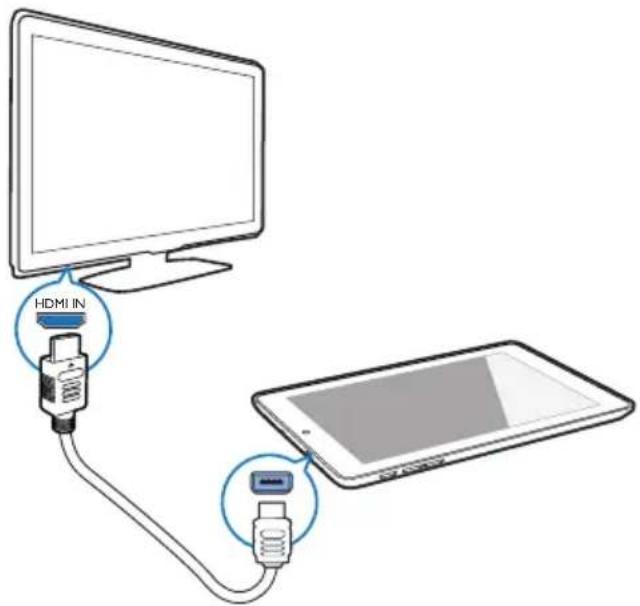
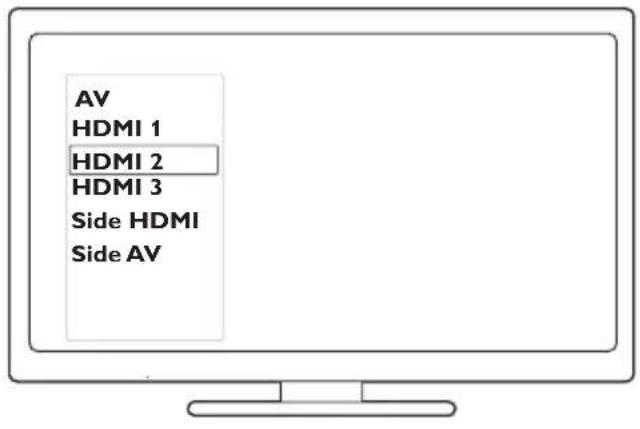
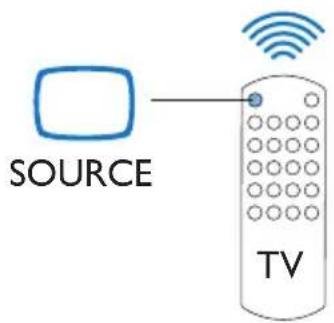
2 On the TV, switch to the input source of PI3910:
- On the remote control of your TV, use the source button to select the input connector that connects to PI3910.
3 On PI3910, tap ■ Settings > HDMI.
Select the output resolution that your TV supports.
- On PI3910, when the Micro HDMI connector is in use, press the Power/lock button to return to the previous screen.

Tip
- As a compact audio/video interface, HDMI transmits uncompressed digital data. With the HDMI connection, high-definition video/audio contents can present optimum video and audio quality on an HDTV.
Connect to Bluetooth
Through Bluetooth, you can do the following wirelessly on PI3910:
- Receive or send files from or to another connected Bluetooth device;
- Listen to music through stereo Bluetooth headphones;
- Listen to music through Bluetooth speakers, like Philips SHOQBOX.
Connect with Bluetooth devices
You can connect PI3910 with Bluetooth devices in the following ways:
- Connect another Bluetooth device;
- Get connected by another Bluetooth device.

Tip
- Before the connection, consult the user manual of the Bluetooth device to get its Bluetooth pairing passcode. Or, try 0000 or 1234.
Connect another Bluetooth device
1. Make sure that the device is discoverable by another Bluetooth device.
- Consult the user manual of the Bluetooth device for information.
2. On PI3910, search for the Bluetooth device:
① From the Home screen, tap Settings > Bluetooth.
② Select the option to switch on Bluetooth.
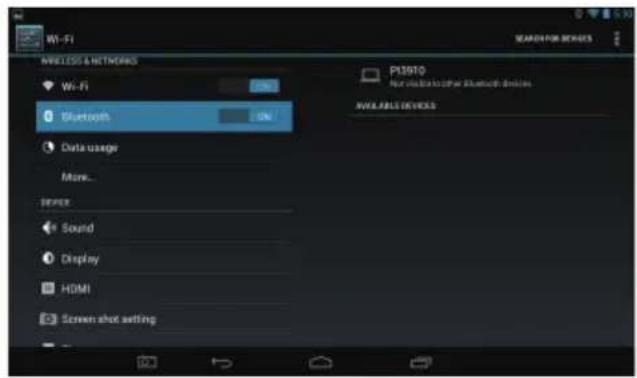
is displayed on the status bar.
③ Tap SEARCH FOR DEVICES.
→ The device is displayed under AVAILABLE DEVICES after it is discovered.
3. Pair with the device:
- On PI3910, tap the device, and enter the passcode as prompted;
- On the device, enter the passcode as prompted. A message is displayed when the pairing is complete.
Get connected by another Bluetooth device
1. Make sure that PI3910 is discoverable by another Bluetooth device:
① From the Home screen, tap Settings > Bluetooth. ② Select the option to switch on Bluetooth. ③ Tap PI3910. → *PI3910 is discoverable for two minutes.
2 On the Bluetooth device, search for and pair with PI3910.
- For information about the steps, consult the user manual of the Bluetooth device.

Tip
• *To change the device name of PI3910, go to Settings > Bluetooth, tap : and select Rename tablet.
Send or receive files through Bluetooth
Send files to another Bluetooth device
1 Make sure that
- you have paired PI3910 with the Bluetooth device; • on PI3910 and Bluetooth device, Bluetooth is on.
2 On PI3910, send files through Bluetooth:
① In Gallery, play a photo. Tap > Bluetooth. ② Tap the paired device to start sending. → When sending or receiving is in progress, 📋s displayed at the top of the screen.
3 On the Bluetooth device, receive the files:
- Confirm as prompted.
- Save the files as prompted.
Receive files from Bluetooth device
1 Make sure that
- you have paired PI3910 with the Bluetooth device; • on PI3910 and Bluetooth device, Bluetooth is on.
2 On the Bluetooth device, send files to PI3910 through Bluetooth.
3 On PI3910, receive the files:
- At the top of the screen, tap . Confirm as prompted. → You can also find the received files in Settings> Bluetooth. Tap and select Show received files.
Listen to music through stereo Bluetooth headphones and speakers
Connect the stereo Bluetooth headphones or speakers
Follow the steps under "Connect another Bluetooth device" (see 'Connect another Bluetooth devices' on page 15). After successful connection, * is displayed. → Next time you switch on Bluetooth on the devices, the Bluetooth connection is established automatically.
Listen to music through the stereo Bluetooth headphones or speakers
- Play music on PI3910.
→ You listen to the music through the connected Bluetooth headphones or speakers.
6 Apps
With apps, you can access functions, services, and different audio/video content on PI3910.
Install apps
On PI3910, you can install apps from
• (Play Store) over the Internet; or - other sources, such as other online sources, the internal storage of PI3910, and the Micro SD card that you have inserted into PI3910.
Play Store
1 Log in to or create your Google account to access Google services. To add a Google account, do the following:
① Go to 📋(Play Store). Tap :> Accounts.
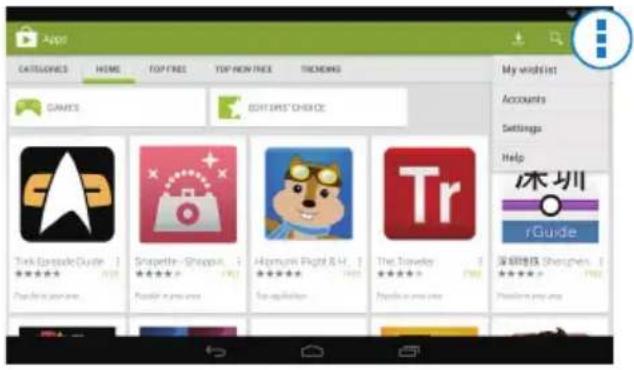
② Select Add account. ③ Follow onscreen instructions to add an account.
2 Search for apps as needed.
- Tap for keyword search.
3 Download the app:
- Tap the app. Confirm as needed.
When the downloading is complete, installation starts automatically. → Check the status bar to find the status. If necessary, tap the icon to start installation as prompted.

Tip
- To manage your accounts, go to 📄 Settings > ACCOUNTS. Tap an account to select your options.
Other sources
Allow the installation from unknown sources
- From the Home screen, go to Security. Tap to switch on Unknown sources. → If the function is enabled, the tick box is selected.
Download/ transfer apps
- To download apps from online sources, follow the onscreen instructions; - To transfer apps to the internal memory or SD card of the device, use the USB cable to connect PI3910 to your PC.
Start installation
- The downloaded apps start installation automatically;
- To find the apps that you have transferred to the internal memory or SD card, go to Find the apps and tap the option to start installation.
Manage apps
You can manage the apps on PI3910, for example, install/ uninstall apps, stop running apps, or select other options.
1 From the Home screen, select Settings > Apps:
- In DOWNLOADED, find the apps that you have downloaded from the Play Store or other sources. • In RUNNING, find the apps that are running on PI3910.
- In ALL, find all the apps that you have installed on PI3910.
2 Tap an app. → Options and information are displayed.
3 Tap to select an option.
7 Browser
With ●you can browse Web pages.
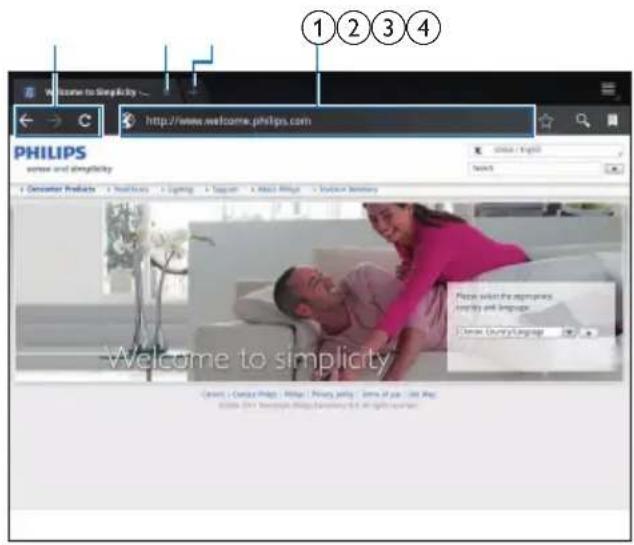
1 From the Home screen, tap 2 Tap the icons or text box to do the following:
① Enter the address of web pages. Tap to start search. ② Tap the icons to search backwards, forward, or refresh the Web page. ③ Close the Web page. ④ Open a new Web page.
To switch between Web pages,
- At the top bar, tap the tab of the selected Web page.
Add a bookmark
Add a bookmark. You can quickly access a visited Web page.
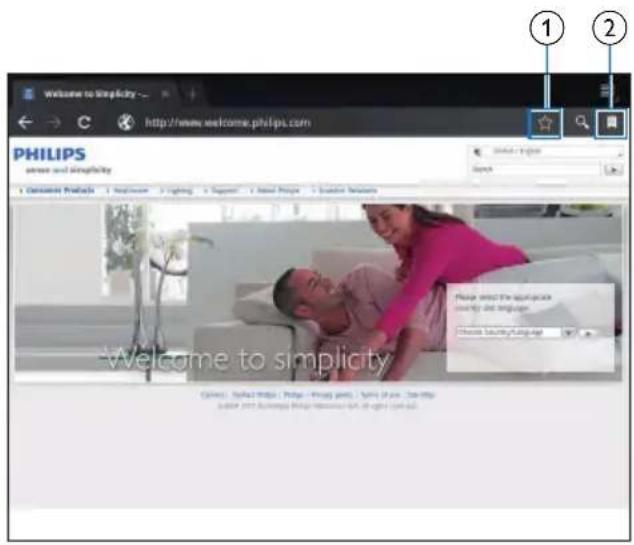
① Add a bookmark to current Web page. ② Go to the bookmarked Web pages.
8 Email
On PI3910, you can receive and send email as you do on a computer. Do the following:
- Set up your email accounts on the device.
Set up your email account
On PI3910, set up your email accounts in the following ways:
- Set up your POP3 or IMAP mail accounts, or
- Set up your Microsoft Exchange account to access your Exchange mailbox at work (see 'Set up your Microsoft Exchange account' on page 24).
Set up your POP3/ IMAP account
1 From the Home screen, go to

2 Set up your email account:
- Enter the information about your account;
- Select POP3 or IMAP account.
3. Follow the onscreen instructions to complete the setup.
- Consult your email service provider for the setup information, such as the outgoing server and incoming server.
Select account settings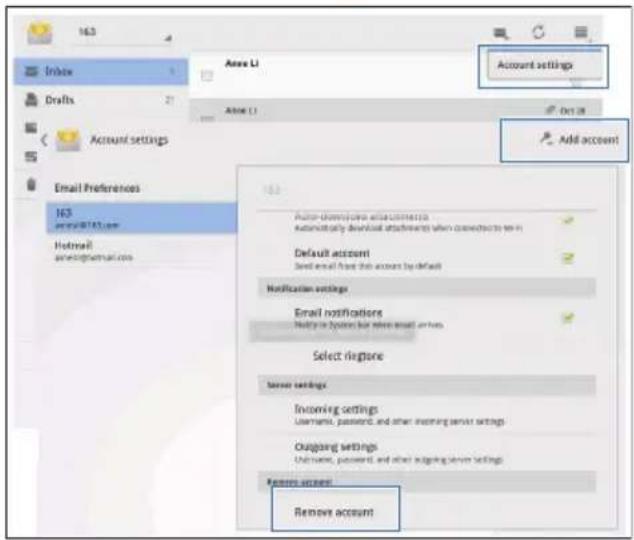
1. On the mail list screen, tap ▷ Settings. → A pop-up screen is displayed.
- If necessary, tap repeatedly to return to the mail list screen.
2. Select your options for the account.
To add an account,
- On >Settings, tap Add account.
To remove an account,
- On >Settings, select Remove account.
→ Current account is removed.
Check your email messages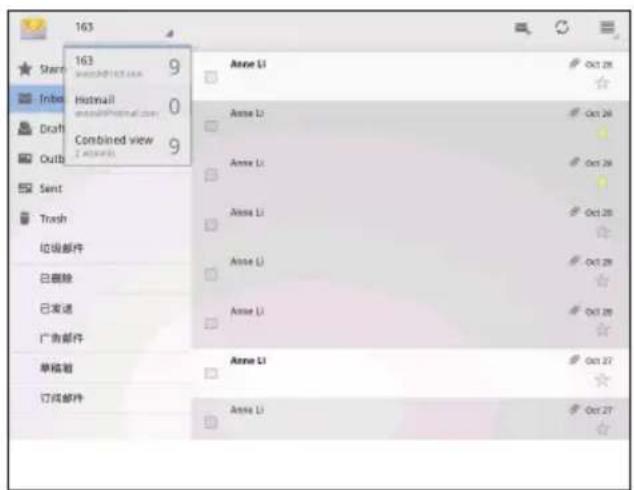
You can check your email messages in the following ways:
- Check one combined mailbox;
- Check messages by account;
- Check starred messages;
- Check unread messages.
To check one combined mailbox,
1 On the screen of mail list, tap the account name.
A drop-down list of account names is displayed.
- If necessary, tap repeatedly to return to the screen of mail list.
2 Tap Combined view.
→ Different colors are used to mark the messages from different accounts.
To check messages from a single account,
1 Repeat Step 1 in "To check one combined mailbox".
2 Tap the selected account.
→ Messages from the account are displayed.
To check starred messages,
- Tap the star next to the message.
→ The message is added to the Starred folder.
To check unread messages,
- On the screen of mail list, the unread messages are in white.
Compose email messages
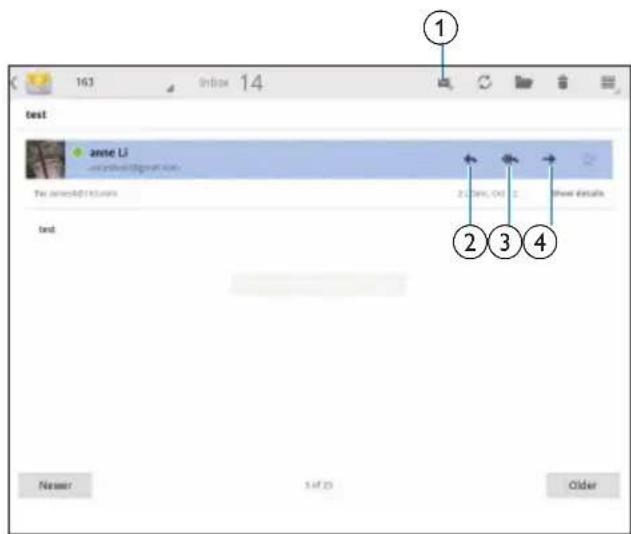
When you read a message, tap the icons to do the following:
① Compose a new message ② Reply ③ Reply all ④ Forward
Organize email messages
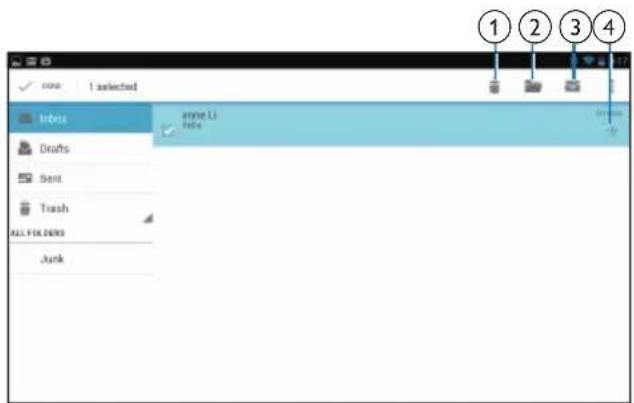
1 On the screen of mail list, select messages you want to manage:
- Tap the check boxes next to the messages.
→ Selected messages are highlighted.
2 Tap the icons to do the following:
① Delete the messages. ② Move the messages to the selected folder. ③ Mark the messages as read or unread. ④ Add the messages to the Starred folder.
9 Tools
Camera
With the 0.3 and 2.0 megapixel lenses on the front and back respectively, you can do the following on the PI3910:
- Shoot photos or videos by using the camera or video recorder;
- Through apps, video chat with friends over the Internet.
Take photos or record videos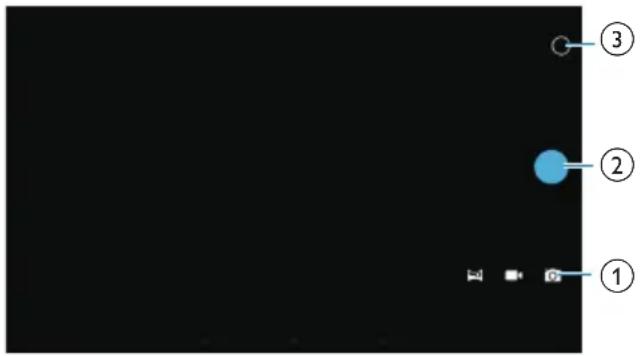
① Selector for camera, video recorder, or panorama mode ② Shutter ③ Options menu
1. From the Home screen, go to 📄 → The onscreen buttons are displayed.
2. Tap 📷, 📌 to switch to the camera, video recorder, or panorama mode. 3. Tap ▶ to switch to the camera lens at the front or back. 4. To take photos:
① Point the lens at objects. ② Tap ③ The photo is taken.
To record videos:
- Tap 🧑 🧑 to start or stop video recording.
To take a panoramic picture:
① Point the lens at the view. ② Tap ● to start shooting. ③ Sweep through the view by moving the device slowly and steadily.
When the progress bar comes to the end, the shooting stops. A panoramic picture is generated.
To view photos/videos
- Go to Gallery.
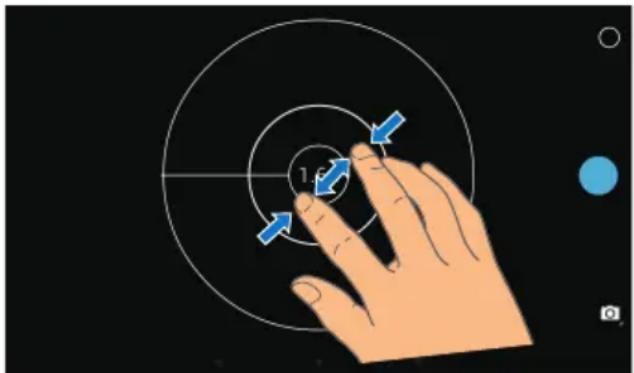
Zoom in or out
When you take photos or record videos, you can zoom in or out the image.
- Use two fingers to stretch or squeeze.
Select settings
Tap O to display the options menu:
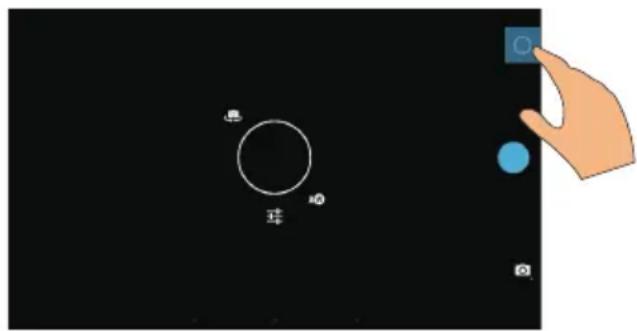
- Tap to select your options for the camera or video recorder.
- Drag around the circle to select a scene suitable to your shooting environment.
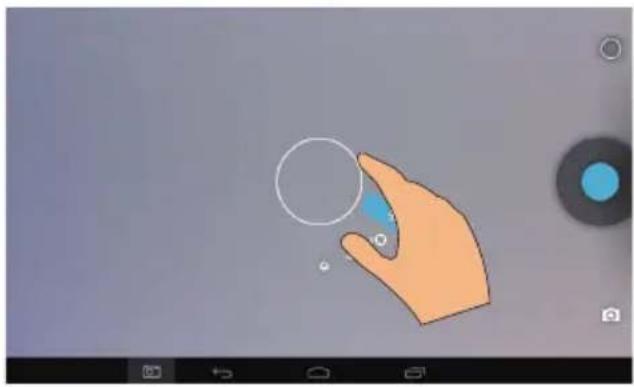
Calendar
On the device, you can sync the calendar with:
- the calendar of your Microsoft Exchange account (see 'Set up your Microsoft Exchange account' on page 24).
10 Use the device in corporate networks
You can use PI3910 in corporate networks. Install the secure credentials or security certificates before you access corporate networks.
The access to corporate network may allow you to set up your Microsoft Exchange account and add VPN on the device. With the Microsoft Exchange account, you can access your exchange mailbox at work.
Install secure credentials
Ask your network administrator for secure credentials or security certificates.
To install the secure credentials,
1. Make sure that you transfer the files of secure credentials from a PC to the SD card that you have mounted onto the device.

Note:
- On PI3910, make sure that the secure credentials are saved to the root directory of the SD card, instead of under a folder.
2. Install the secure credentials:
① From the Home screen, go to ■ > Security > Install from SD card. ② Tap the file to start installation. ③ Set the password and name for the credentials as prompted.
To apply the secure credentials,
1. In ■, select Security > Trusted credentials. 2. Make sure that the credential is selected.
→ If the function is enabled, the tick box is selected. On the device, you allow the applications to use the secure credentials.
Set up your Microsoft Exchange account
1. From the Home screen, go to 2. Set up your email account:
- Enter the information about your account, and select Exchange as the account type.
- If you have set up other email accounts, select :> Settings on the screen of mail list. Tap Add account.
3. Follow the onscreen instructions to complete the setup.
- For the server address, enter the web address for your Outlook web access, for example, owa.company name.com or mail. company name.com/owa.
- For other setup information, such as domain name, user name, check with your system administrator.

Note
- The device can work with Microsoft Exchange 2003 and 2007.
Add VPN
Virtual private network (VPN) allows you to connect to private networks through secure access.
Sometimes, you need VPN access to connect to corporate networks.
To add VPN on the device
1 Ask your network administrator for the configuration information. 2 From the Home screen, go to 📄 Wireless & networks > More > VPN. 3 Configure the VPN as prompted. 4 Install the secure credentials as needed (see 'Install secure credentials' on page 24).
To connect to the VPN,
1 Make sure that you have connected PI3910 to the Internet. 2 From the Home screen, go to 📋 Wireless & networks > More. → A list of VPNs is displayed.
3 Tap the VPN to start connection.
11 Settings
To select your settings,
1 Go to from the Home screen. 2 Swipe up or down to scroll through lists of options. 3 Tap an option to select it.
WIRELESS & NETWORKS
Wi-Fi
In WIRELESS & NETWORKS > Wi-Fi, select your Wi-Fi settings on the device.
Add Wi-Fi network
Enter SSID manually
SSID (Service Set Identifier) is the name of a router. By the name, the router is recognized by other Wi-Fi devices. If you have hidden the SSID of the router (for example, disable the SSID broadcasting), the router is invisible in the list of available networks. To connect PI3910 to the router, enter the SSID of the router manually before you search for available networks on the PI3910.
1 In Wi-Fi, drag the slider to switch on Wi-Fi. 2 On the top bar, tap + 3 Enter the SSID of the router.
→ The PI3910 starts searching for the network. → You can find the network in the list of networks.
4 Connect PI3910 to the network.
Network notification
Switch on Network notification. At the base of the screen, is displayed when an open Wi-Fi network is available.
1 In Wi-Fi, drag the slider to switch on Wi-Fi. 2 At the top bar, tap :and select Advanced > Network notification.
Airplane mode
Switch on the airplane mode when:
- you need to disable the access to Wi-Fi or Bluetooth for safety purposes, such as on an airplane.
In WIRELESS & NETWORKS, select More >
Airplane mode. You can disable or enable access to Wi-Fi or Bluetooth.
VPN settings
Use VPN settings to access private networks, such as corporate networks (see 'Use the device in corporate networks' on page 24).
DEVICE
Sound
In Sound, select sound settings for your device.
Volume: Drag the slider to select the volume level for media, notifications, and alarms.
| Default notification | Set an audio file as ringtone. |
| Touch sounds | Sounds play when you tap on the screen. |
| Screen lock sound | Sounds play when you lock/unlock the screen. |
Display
In Display, select your display settings:
Brightness: Drag the slider to change the display brightness.
| Wallpaper | Set the wallpaper of the device. |
| Sleep | After the selected time duration, the screen switches off automatically. To save battery power, select a low value. |
| Daydream | Select your screen saver options: what screen saver to display and when to display the screen saver. When the screen saver is on, tap on the screen to exit. |
Font size: Select font size for the on-screen display.
HDMI
In HDMI,
- Turn on HDMI: Switch on or off the HDMI output. • HDMI Resolution: Select the output resolution that your TV supports.
- Screen Zoom: Drag the slider to zoom in or out the screen.
Screenshot Setting
1 In Screenshot Setting, tap Show the screenshot button in the status bar to switch on. → The screenshot button is displayed.
2 Tap the screenshot button to capture a screenshot.
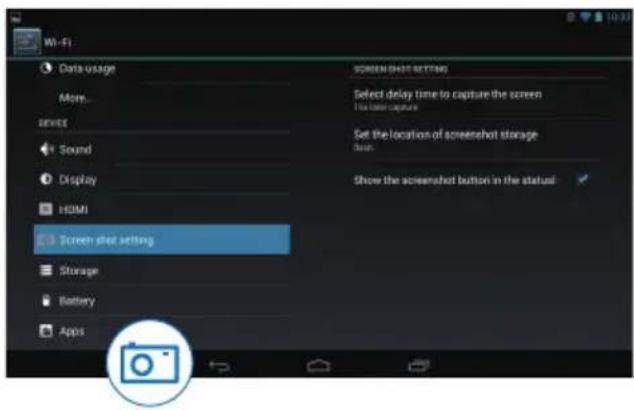
Storage
In Storage, learn the space information about the internal storage and SD card on your PI3910.
Battery
In Battery, check the battery use by applications.
Apps
In Apps, manage the apps on the internal storage of PI3910 (see 'Manage apps' on page 17).
Location access
• In Access to my location, switch on or off the options. → If the function is enabled, the tick box is selected. → You can allow or disallow your location information to be used in online location services of Google, such as Maps, or other relevant services and applications. - In GPS satellite, switch on to use the location services that requires GPS assistance.
Security
Screen lock
By default, to unlock the screen of PI3910, press the power/ lock button and then, drag the lock to an icon.
In Screen lock, you can set a pattern, pin, or password as the unlock security. To unlock the screen, such unlock security is required.
| None Switch off the lock. | |
| Slide Slide to unlock the screen (default). | |
| Face Unlock | Set face recognition as the unlock security. |
Pattern: Set a pattern as the unlock security.
PIN: Set a PIN that consists of numbers.
Password: Set a password that consists of a combination of numbers, letters, and symbols.
Visible passwords
Your password consists of several characters. To make sure that you have entered the characters correctly, show the characters as you type the password. Switch Make passwords visible on or off as needed.
- Tap the tick box.
→ If the function is enabled, the tick box is selected.
Device administrators
Applications in corporate networks require the rights of device administrator, such as the email and calendar under your Microsoft Exchange account.
Before you uninstall such an application, disable the rights of device administrator.
• In Device administrators, tap an application.
→ The rights of device administrator are disabled.
→ You cannot sync data for the application.
Unknown sources
On PI3910, you can install applications that you download from Play Store, or from sources other than.
- For applications from sources other than ☑, tap Unknown sources to allow installation on the PI3910. ↩ If the function is enabled, the tick box is selected.
Verify apps
For the security of your system on PI3910, make sure that you have switched on Verify apps.
→ If the function is enabled, the tick box is selected. → You can disallow it or get warnings when a possibly harmful app is to be installed.
Trusted credentials
You need to install trusted credentials to access some apps on PI3910, for example, the access to your corporate network. (see 'Use the device in corporate networks' on page 24)
Install from SD card
To access some apps on PI3910, you need to install apps from the SD card that you mounted onto PI3910 (see 'Use the device in corporate networks' on page 24).
Language & input
Language
In Language, select the language for the onscreen instructions of PI3910.
Personal dictionary
In Personal dictionary, add or remove words or phrases to/from the user dictionary. You can customize the word suggestions that are displayed on the pop-up screen during your text entry on the Android keyboard.
To add a word or phrase,
- Tap to add a word or phrase.
To edit a word or phrase,
1 Tap on the word or phrase.
A pop-up screen is displayed.
2 Edit the word or phrase.
To remove a word or phrase,
- Tap next to the word or phrase.
Voice Search
In Voice Search, select your options for Google Voice Search.
Text-to-speech output
In Text-to-speech output, select your options for:
• voice output for the accessibility function on the device.
Install voice data
Download the voice data for speech synthesis.
1 Connect the device to the Internet.
2 Select your preferred text-to-speech engine. Tap ➞ Install voice data.
Select and download the voice data.
Select your options for the voice output.
1. In Speech rate, select a speed at which the text is read: normal, fast, or slow.
2. Tap Listen to an example.
Your options are used to play the demo of speech synthesis.
Reset
In Backup & reset > Factory data reset, you can erase all the data that you have stored on the internal storage of PI3910.
ACCOUNTS
In ACCOUNTS, add, remove, or manage an account.
- Tap Add account to add an account.
- Tap an account to manage the account, for example, remove the account or select sync options.
Date & time
Automatic setting
Over the Internet, you can sync the date and time on PI3910 from Philips online services.
To switch on the automatic clock setting,
1 In Date & time, tap to switch on Automatic date & time.
→ If the function is enabled, the tick box is selected.
2 In Select time zone, select your current time zone.
3 In Use 24-hour format and Select date format, select your options for time and date display.
Manual setting
1 In Date & time, tap to switch off Automatic date & time.
→ If the function is disabled, the tick box is deselected.
2 Tap to set date, time, and time zone in Set date, Set time, and Set time zone.
- To select a date, tap the date in the calendar.
Accessibility
With the accessibility function, actions on the screen of the device are read out through the text-to-speech technology, such as the taps, selection of menu items. For people who cannot read the screen clearly, the function allows them to use the device in an easier way.
Use the accessibility function
1 Tap TalkBack to switch on.
2 In Text-to-speech output, select your options for voice output (see 'Text-to-speech output' on page 29).
Auto-rotate screen
In Auto-rotate screen, tap to switch screen rotation on or off.
About tablet
In About tablet, learn the status and information about your PI3910.
System updates
In System updates, check for system updates for PI3910. Make sure that you have connected the device to the Internet.
Status and information about the device
- In Status, Battery status: Displays the status of power charging.
- Battery level: Displays remaining power as a percentage.
- IP address: Displays the IP address assigned to PI3910 when the device is connected to a Wi-Fi network.
- Wi-Fi MAC address: Displays the unique identifier assigned to the network adapter of PI3910. If MAC address filtering is enabled on your router, add the MAC address of PI3910 to the list of devices allowed to join the network.
- Bluetooth address: Displays the Bluetooth address of PI3910 when the Bluetooth function is switched on.
Legal information: Legal information for PI3910
Model number: Model number of the device Android version: Firmware version of the Android platform that the device is running on Build number: Software version of PI3910
12 Check for firmware update
Connect PI3910 to Wi-Fi. You can receive notifications about firmware updates. Drag down the top bar to check the notifications.
Update the firmware online
On PI3910, you can update the firmware through our online services over the Internet (see 'System updates' on page 30).
13 Technical data
Power
• Power adapter Philips ASSA1b-050200 Input: 100-240 V~ 50/60 Hz, 0.45 A Output: DC 5.0 V, 2 A • Power supply: 3.7 V, 2,800 mAh Li-ion polymer internal rechargeable battery - Play time 1 video streaming through Wi-Fi: 4 hours
Operating temperature
- 0° C to 45° C
Storage temperature
- 10° C to 60° C
Display
• Type: LCD Touch-sensitive screen - Diagonal screen size (inch): 7 • Resolution: 1024 x 600 pixels
Platform
Android™ 4
Connectivity
- Headphone: 3.5 mm • USB: 2.0 High speed, Micro type • Wireless LAN: Wi-Fi 802.11 b/g/n
- Bluetooth Bluetooth profiles: A2DP profile Bluetooth version: 3.0
- Micro HDMI
Headphone sound
• Channel separation: > 45 dB • Frequency response: 60-18,000 Hz • Output power: 2 × 5 mW (maximum) • Signal to noise ratio: > 80 dB
Speaker sound
• Frequency response: 250-10,000 Hz • Output power: 600 mW • Signal to noise ratio: > 60 dB
Audio playback
- Supported formats: WAV, MP3, AAC /. m4a, OGG Vorbis, 3GPP, AMR-NB (mono), AMR-WB (stereo), FLAC,
MIDI (Type 0 and 1 (.mid, .xmf, .mxmf)), RTTTL/RTX (.rtttl, .rtx), OTA (.ota), and iMelody(.imy)
Audio capturing
• AMR-NB Bitrate: 4.75 to 12.2 kbps Sampling rate: 8 kHz File supported: 3GPP (.3gp)
- Specified Bitrate: 128 kbps Sampling rate: 44.1 kHz File format: MP3
• Built-in microphone: mono
Video playback
- Supported formats: MPEG-4 (.3gp), H.264 AVC (3gp, .mp4), H.263 (3gp, .mp4), VP8 (.webm, .mkv)
Video capturing
• H.264 Aspect ratio (4:3 or 16:9 selectable) • Video resolution: VGA (640 × 480) • Frame rate: 30 frames per second - Container: .mp4 • Audio format: MP3 - Lens: Fixed focus length • Recording time: Depending on the storage
Still picture playback
• Supported formats: JPEG, BMP, PNG, GIF
Still picture capturing
• Picture resolution: VGA (640 x 480) • Picture format: JPEG, PNG - Lens: Fixed focus length
Storage media
• Built-in memory capacity 2 : 8 GB NAND Flash - External storage: Micro SD memory card slot (Maximum memory card capacity: 32 GB)
Preloaded applications
- Play Store, Google Search, Voice Search, Chrome, Maps, Earth (available in some countries), Google+, Blogger, Gmail, Hangouts, Drive, Orkut, Youtube, Play Movies & TV (available in some countries), Play Music, Play Books (available in some countries), Translate
- Browser, Gallery, Camera, Email, Calendar, Clock, Calculator • ES File Explorer, Deezer(available in some countries), AccuWeather

Note
- Rechargeable batteries have a limited number of charge cycles. Battery life and number of charge cycles vary by use and settings.
- 2 1GB = 1 billion bytes; available storage capacity is less. Full memory capacity may not be available as some memory is reserved for the device. Storage capacity is based on 4 minutes per song and 128 kbps MP3 encoding.
14 Warranty
Any of the following misuse conditions seen or perceived on this device may void the user's warranty of this device:
- Defects or damages resulting from abnormal use of the product by the customer, such as plastic surfaces and other externally exposed parts scratched, cracked or broken, cleaning not in accordance with the operating instructions, as well as spillage of food or liquids of any kind;
- Defects or damage resulting from testing, installation, alteration, modification of any kind of our products, as well as repairs conducted by unauthorized technical assistance;
- Breakage or damage not observed upon acquisition (cabinet, cables, screen, etc.);
- Products which have had the serial number removed, adulterated or made illegible;
- Defects and damage resulting from the use of components not compatible with Philips brand (cabinet, cables, cards, power supply, general parts, etc.);
- Defects and damage caused by natural agents (flooding, salt spray, and other electrical discharge) or exposure to excessive heat;
- Defects or damage caused by the use of software and/or hardware not compatible with the specifications of Philips products;
- Parts that wear out with regular use, such as cables, battery, buttons, etc.;
- Incidents of accidental damage, such as falls, misuse, contact and/or immersion with liquid.



- ALWAYS THERE TO HELP YOU
- USER MANUAL
- PHILIPS
- CONTENTS
- IMPORTANT SAFETY INSTRUCTIONS
- OVERVIEW
- GET STARTED
- BASICS
- CONNECTIONS
- APPS
- BROWSER
- TOOLS
- USE THE DEVICE IN CORPORATE NETWORKS
- WIRELESS & NETWORKS
- SAFETY
- WARNING
- COMPLIANCE
- NOTE
- CARE OF THE ENVIRONMENT
- ENVIRONMENTAL INFORMATION
- NOTICE
- WRITTEN OFFER
- ① POWER/ LOCK BUTTON
- ② REAR CAMERA LENS
- ③ RESET
- ④ MICRO HDMI
- ⑤
- ⑥
- ⑦
- ⑧
- ⑨ SPEAKER
- ⑩
- ⑪ FRONT CAMERA LENS
- ② TAP TO RETURN TO THE HOME SCREEN
- ③ GOOGLE SEARCH
- ④ NOTIFICATIONS
- ⑤ TIME, SETUP OPTIONS
- USE THE DRAG-DOWN MENU OF SETUP OPTIONS
- DRAG DOWN THE TOP BAR AS SHOWN
- TAP THE ICON TO SELECT YOUR OPTIONS
- CHARGE POWER
- CONSERVE BATTERY POWER
- USE THE SLEEP MODE
- SWITCH THE DEVICE ON OR OFF
- FIND APPS
- TIP
- GOOGLE+/ORKUT
- BLOGGER
- GOOGLE SETTINGS
- DOWNLOADS
- ES FILE EXPLORER
- KINGSOFT OFFICE
- DRIVE
- CAMERA
- TRANSLATE
- CALENDAR
- E
- KEEP
- ●
- CLOCK
- CALCULATOR
- ①
- SOUND RECORDER
- [NON-TEXT]
- ACCUWEATHER
- USE THE SCREEN
- SWITCH SCREEN ROTATION ON OR OFF
- DRAG DOWN THE TOP BAR
- LOCK/UNLOCK THE SCREEN
- AUTO LOCK
- TO LOCK THE SCREEN MANUALLY
- TO UNLOCK THE SCREEN
- CUSTOMIZE THE HOME SCREEN
- ADD APP ICONS AND WIDGETS
- DELETE ITEMS
- RELOCATE ITEMS
- ADD WALLPAPERS
- TEXT ENTRY
- SELECT INPUT METHODS
- ENTER TEXT
- USE THE ANDROID KEYBOARD
- SELECT KEYBOARD SETTINGS OR INPUT LANGUAGES
- SWITCH BETWEEN SELECTED INPUT LANGUAGES
- SWITCH BETWEEN LETTERS AND NUMBERS/SYMBOLS
- SWITCH BETWEEN UPPER AND LOWER CASES
- SWITCH TO OTHER OPTIONS ON A BUTTON
- EDIT TEXT
- COPY OR CUT THE SELECTED TEXT
- PASTE THE SELECTED TEXT
- CONNECT TO THE INTERNET
- CONNECT TO YOUR COMPUTER
- USE A MICRO SD CARD
- CONNECT TO AN HDTV
- CONNECT TO BLUETOOTH
- CONNECT WITH BLUETOOTH DEVICES
- CONNECT ANOTHER BLUETOOTH DEVICE
- GET CONNECTED BY ANOTHER BLUETOOTH DEVICE
- SEND OR RECEIVE FILES THROUGH BLUETOOTH
- SEND FILES TO ANOTHER BLUETOOTH DEVICE
- MAKE SURE THAT
- ON PI3910, SEND FILES THROUGH BLUETOOTH
- ON THE BLUETOOTH DEVICE, RECEIVE THE FILES
- RECEIVE FILES FROM BLUETOOTH DEVICE
- ON THE BLUETOOTH DEVICE, SEND FILES TO PI3910 THROUGH BLUETOOTH
- ON PI3910, RECEIVE THE FILES
- LISTEN TO MUSIC THROUGH STEREO BLUETOOTH HEADPHONES AND SPEAKERS
- CONNECT THE STEREO BLUETOOTH HEADPHONES OR SPEAKERS
- LISTEN TO MUSIC THROUGH THE STEREO BLUETOOTH HEADPHONES OR SPEAKERS
- INSTALL APPS
- PLAY STORE
- OTHER SOURCES
- MANAGE APPS
- ADD A BOOKMARK
- SET UP YOUR EMAIL ACCOUNT
- TO CHECK ONE COMBINED MAILBOX
- COMPOSE EMAIL MESSAGES
- ORGANIZE EMAIL MESSAGES
- TO VIEW PHOTOS/VIDEOS
- ZOOM IN OR OUT
- SELECT SETTINGS
- INSTALL SECURE CREDENTIALS
- SET UP YOUR MICROSOFT EXCHANGE ACCOUNT
- ADD VPN
- SETTINGS
- TO SELECT YOUR SETTINGS
- WI-FI
- ADD WI-FI NETWORK
- ENTER SSID MANUALLY
- NETWORK NOTIFICATION
- AIRPLANE MODE
- VPN SETTINGS
- DEVICE
- SOUND
- DISPLAY
- HDMI
- IN HDMI
- SCREENSHOT SETTING
- STORAGE
- BATTERY
- LOCATION ACCESS
- SECURITY
- SCREEN LOCK
- VISIBLE PASSWORDS
- DEVICE ADMINISTRATORS
- UNKNOWN SOURCES
- VERIFY APPS
- TRUSTED CREDENTIALS
- INSTALL FROM SD CARD
- LANGUAGE & INPUT
- LANGUAGE
- PERSONAL DICTIONARY
- EDIT THE WORD OR PHRASE
- VOICE SEARCH
- TEXT-TO-SPEECH OUTPUT
- RESET
- ACCOUNTS
- DATE & TIME
- AUTOMATIC SETTING
- MANUAL SETTING
- ACCESSIBILITY
- AUTO-ROTATE SCREEN
- ABOUT TABLET
- SYSTEM UPDATES
- STATUS AND INFORMATION ABOUT THE DEVICE
- CHECK FOR FIRMWARE UPDATE
- UPDATE THE FIRMWARE ONLINE
- TECHNICAL DATA
- POWER
- OPERATING TEMPERATURE
- STORAGE TEMPERATURE
- PLATFORM
- CONNECTIVITY
- HEADPHONE SOUND
- SPEAKER SOUND
- AUDIO PLAYBACK
- AUDIO CAPTURING
- VIDEO PLAYBACK
- VIDEO CAPTURING
- STILL PICTURE PLAYBACK
- STILL PICTURE CAPTURING
- STORAGE MEDIA
- PRELOADED APPLICATIONS
- WARRANTY
Brand : PHILIPS
Model : PI3910B2
Category : Tablet