
S511JA - Tablet PHILIPS - Free user manual and instructions
Find the device manual for free S511JA PHILIPS in PDF.


Pick your language and provide your email: we'll send you a specifically translated version.
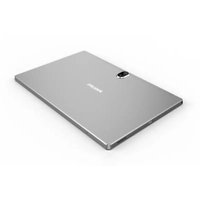
| Type of product | Tablet |
| Brand | Philips |
| Model | S511JA |
| Display | Touchscreen |
| Operating system | Android |
| Processor | Quad-core |
| Storage capacity | 16 GB |
| RAM | 1 GB |
| Connectivity | Wi-Fi and Bluetooth |
| Camera | Front and rear cameras |
| Battery | Rechargeable lithium-ion |
| Charging | USB-C or Micro USB |
| Audio | Built-in speakers |
| Weight | Approximately 500 g |
| Dimensions | Approximately 250 x 170 x 10 mm |
| Power supply | AC adapter, 5V |
| Main functions | Web browsing, media playback, e-reading, app support |
| Maintenance | Clean with a soft, dry cloth |
| Safety | Keep away from moisture and extreme heat |
| Spare parts | Available from authorized Philips service centers |
| Repairability | Designed for professional service |
Frequently Asked Questions - S511JA PHILIPS
How do I turn on my Philips S511JA tablet?
To turn on your device, press and hold the power button for about 3 seconds until the screen lights up. If nothing happens, make sure the battery is charged.
How do I charge the tablet?
Connect the included USB cable to the tablet and a power adapter, then plug it into a wall socket. The charging indicator will show when battery is charging.
How do I update the software?
Go to Settings, then About tablet, and select System updates. Follow the on-screen instructions to download and install any available updates.
How do I connect to Wi-Fi?
Swipe down from the top of the screen, tap on the Wi-Fi icon, then choose your network from the list. Enter the password if required and tap Connect.
How do I take a screenshot?
Press and hold the power button and volume down key simultaneously for a few seconds. The screenshot is saved in your Gallery or Photos app.
How do I transfer files to a computer?
Connect the tablet to your computer using a USB cable. On the tablet, select File Transfer mode from the notification menu, then your computer will detect the device as an external drive.
What should I do if the touchscreen is unresponsive?
First, try to restart the device by holding the power button for 10 seconds. If the issue persists, perform a soft reset or check for software updates. Clean the screen with a soft cloth to remove dirt.
How do I clean the screen safely?
Use a soft, lint-free cloth slightly dampened with water or a screen cleaner. Avoid using abrasive materials or harsh chemicals. Do not spray liquid directly onto the screen.
Can I use the tablet with an external keyboard?
Yes, the tablet supports Bluetooth keyboards. Put the keyboard in pairing mode, then enable Bluetooth in Settings and pair the device.
How do I back up my data?
You can back up to cloud storage such as Google Drive, or connect an external USB drive via an OTG adapter. Alternatively, use the built-in backup feature in Settings > Backup.
User questions about S511JA PHILIPS
0 question about this device. Answer the ones you know or ask your own.
Ask a new question about this device
No questions yet. Be the first to ask one.
Download the instructions for your Tablet in PDF format for free! Find your manual S511JA - PHILIPS and take your electronic device back in hand. On this page are published all the documents necessary for the use of your device. S511JA by PHILIPS.
USER MANUAL S511JA PHILIPS


Manual assistant
Powered by Anthropic
Waiting for your message
Product information
Brand : PHILIPS
Model : S511JA
Category : Tablet