
Pocket DJ - Uncategorized DELL - Free user manual and instructions
Find the device manual for free Pocket DJ DELL in PDF.


| Product Type | Digital Audio Player |
| Brand | Dell |
| Model | Pocket DJ |
| Storage Capacity | 256 MB (varies by model) |
| Display | LCD Screen |
| Dimensions (approx.) | 3.5 x 2.5 x 0.5 inches |
| Weight (with battery) | 2.5 oz |
| Power Source | 1x AAA Battery |
| Battery Life | Up to 10 hours |
| Audio Formats Supported | MP3, WMA |
| Connectivity | USB 1.1 |
| Headphone Jack | 3.5 mm |
| FM Tuner | Yes |
| Controls | Play/Pause, Volume, Track Skip, Menu |
| Operating System Compatibility | Windows (98/ME/2000/XP) |
| Maintenance & Cleaning | Wipe with dry, soft cloth; avoid moisture |
| Safety Precautions | Keep away from water; do not disassemble; avoid extreme temperatures |
| Spare Parts & Repairability | Battery replaceable; internal parts not user-serviceable |
| General Information | Portable MP3 player with basic playback and FM radio. Designed for on-the-go music. |
Frequently Asked Questions - Pocket DJ DELL
User questions about Pocket DJ DELL
0 question about this device. Answer the ones you know or ask your own.
Ask a new question about this device
Download the instructions for your Uncategorized in PDF format for free! Find your manual Pocket DJ - DELL and take your electronic device back in hand. On this page are published all the documents necessary for the use of your device. Pocket DJ by DELL.
USER MANUAL Pocket DJ DELL
Notes, Notices, and Cautions

NOTE: A NOTE indicates important information that helps you make better use of your device.

NOTICE: A NOTICE indicates either potential damage to hardware or loss of data and tells you how to avoid the problem.

CAUTION: A CAUTION indicates a potential for property damage, personal injury, or death.
Abbreviations and Acronyms
For a complete list of abbreviations and acronyms, see "Glossary" on page 47.
Information in this document is subject to change without notice. © 2004 Dell Inc. All rights reserved.
Reproduction in any manner whatsoever without the written permission of Dell Inc. is strictly forbidden.
Trademarks used in this text: Dell, the DELL logo, Dell DJ and Dell Pocket DJ are trademarks of Dell Inc.; Microsoft and Windows are registered trademarks of Microsoft Corporation; Musicmatch is a registered trademark of Musicmatch Inc.
Other trademarks and trade names may be used in this document to refer to either the entities claiming the marks and names or their products. Dell Inc. disclaims any proprietary interest in trademarks and trade names other than its own.
Model HV03T
November 2004
Contents
Finding Information
1 About Your Device
Introduction......6
Front and Side Views....7
Charging the Battery 9
Installing Software 11
Connecting to a Computer 12
Performing a Reset.... 13
2 Using Your Dell Pocket DJ
Playing Digital Music 14
Playing Tracks Using Music Library....14
Transferring Music to the Dell Pocket DJ. 17
Transferring Music Tracks Using Musicmatch® to Your Dell Pocket DJ 17
Transferring Music Tracks from Musicmatch Library.....17
Transferring Music Tracks Using Dell DJ Explorer ..... 18
Storing Data Files on the Dell Pocket DJ 21
Managing Files from the Main Menu....22
Music Library 22
Now Playing and the Selected Music List....25
Play Mode....30
Date and Time.... 32
Settings 33
Information 36
3 Frequently Asked Questions
Installation.... 37
Usage 38
General....39
Error Indications.... 40
Troubleshooting in Rescue Mode 41
4 Appendix
Specifications.... 45
Glossary 47
Index 49
Finding Information
What are you looking for? Find it here:
| How to set up my device and information on the connectors and buttons on my device. | Getting Started Guide and the Dell Pocket DJTMUser's Guide |
| Information on using my device. Dell | Pocket DJTMUser's Guide |
| Information on using Musicmatch with my device. | Musicmatch®online helpClick Start→ Programs → Musicmatch→ MusicmatchJukebox. Click Help in Musicmatch. |
| Information on using Dell DJ Explorer with my device. | Click Start→ Programs → Dell → Dell DJ Explorer→ Dell DJ Explorer Help |
| Connecting to and synchronizing with a computer. | Dell Pocket DJTMUser's Guide and Musicmatch online help |
| Up-to-date information on your device including the latest software downloads, latest versions of the User's Guide, Getting Started Guide, and answers to the most Frequently Asked Questions. | support.dell.com |
| My Service Tag Located on the back of the device. | |
About Your Device
Introduction
Congratulations on purchasing the Dell Pocket DJ™! In this document, you can find instructions on how to use the key features of you new Dell Pocket DJ with the accompanying software.
You can also find more sources of useful information in "Finding Information" on page 5.
Your Dell Pocket DJ comes with a Dell DJ ^™ /Dell Pocket DJ ^™ Product Software CD that you can use to install software onto your computer. The software includes the Dell Pocket DJ drivers, Dell DJ Explorer, and Musicmatch ^® .
You can use the software to manage your music library and to transfer audio tracks and data files between your Dell Pocket DJ and your computer. In order to transfer these files, your Dell Pocket DJ must be connected to your computer using the USB cable included with your Dell Pocket DJ. See "Installing Software" on page 11 to get started.
After installing the software on your computer, you can use your Dell Pocket DJ in a number of ways:
• As a digital music player
- As a data storage device
For details about using these features and getting the most out of your Dell Pocket DJ, see "Using Your Dell Pocket DJ" on page 14.

NOTICE: Dell's Limited Warranty does not cover data loss resulting from the unlikely failure of the hard disk drive in the device.

NOTICE: While your device is robust, do not subject it to excessive force or impact. This may damage the hard disk drive in your device.
Front and Side Views
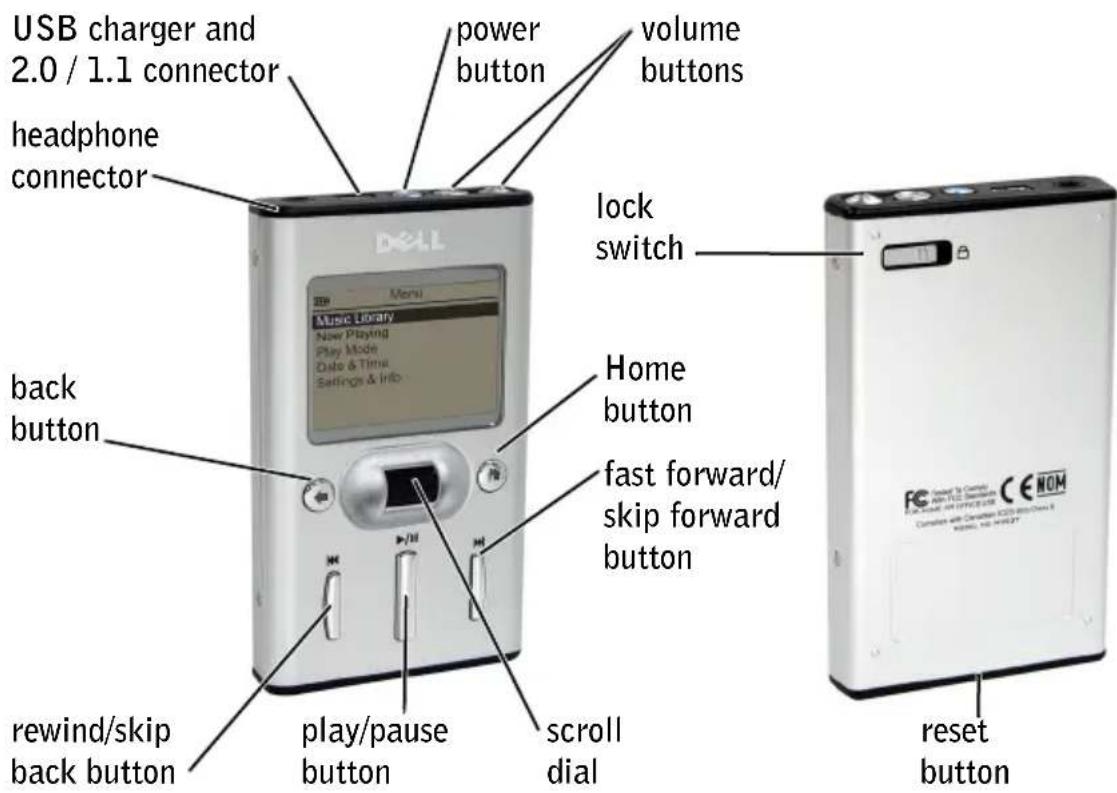
POWER BUTTON —Press and hold the power button for 2 seconds to turn the device on or off.
VOLUME BUTTONS —Press and hold the volume buttons to increase or decrease the volume.
RESET BUTTON —See "Performing a Reset" on page 13 for information on using the reset button.
BACK BUTTON —Press the back button to return to the previous view, or to move back one character.
REWIND/SKIP BACK BUTTON —Press the rewind/skip back button to move to the start of the current track, or to go to the previous track. Press and hold the rewind/skip back button to move back within a track.
PLAY/PAUSE BUTTON —Press the play/pause button to start or pause a track or recording.
SCROLL DIAL
- Press the scroll dial to perform actions similar to pressing
on a keyboard. - Rotate the scroll dial up or down to perform actions similar to using the up- and down-arrow keys on a keyboard.

NOTE: In other parts of this User's Guide, scroll-select means to rotate and then press the scroll dial. You can scroll-select menu options and tracks.
FAST FORWARD/SKIP FORWARD BUTTON —Press the fast forward/skip forward button to go to the next track, or to move ahead within a track.
HOME BUTTON —Press the I Home button to access other functions in the device. See "Using Your Dell Pocket DJ" on page 14 for information.
LOCK SWITCH —Move this to lock or unlock the buttons on your device. Lock the buttons when you want to prevent them from being pressed accidentally.

NOTE: When your device is locked, you cannot turn your device on or off.
USB CHARGER AND 2.0 / 1.1 CONNECTOR —Connect the USB charger, or your device to your computer. See "Connecting to a Computer" on page 12 for information.
HEADPHONE CONNECTOR — Attach the earphones or headphones.
Charging the Battery

NOTE: Do not use your device until you have charged the battery for at least 2.5 hours.
Your device has an integrated, rechargeable, lithium-ion battery. Before you use your device for the first time, you must charge the battery.
Use the battery icon ☑ your device's screen to monitor the battery charge.

NOTICE: Do not attempt to replace or remove the integrated battery from your device. You may damage the device permanently. Any attempt to open your device voids the warranty.
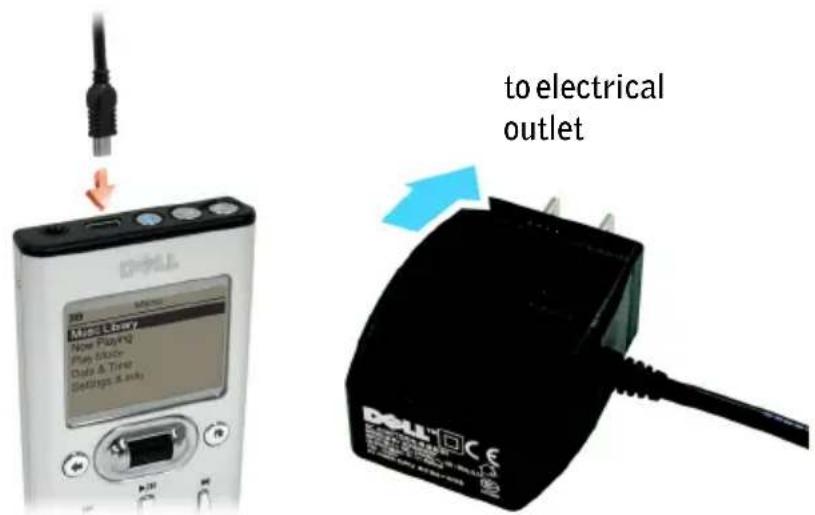
1 Connect one end of the USB charger cable to the USB connector on your device.
2 Connect the other end of the power cable to an electrical outlet.
Your device displays the Charging Battery icon on the top left corner of the screen.

NOTE: You can still use your device when the battery is charging from the charger.
3 To check if the battery is fully charged, disconnect the USB Charger cable from your device. If the battery is fully charged, your device displays the Full Battery icon 📄

NOTE: You can charge your device through the USB connector on your computer only if the battery icon indicates your device has at least a 25 percent charge remaining. If it is less than 25 percent, you must use the AC adapter to charge your device. To charge your device from your computer's USB connector, your computer must be turned on, and your device turned off.
Installing Software
Your device comes with software that helps you create audio tracks and manage Music Library.
To install drivers and software:

NOTE: Ensure that your device is not connected to your computer during the software installation process.

NOTE: Close all other applications while installing the software.
1 Insert the Dell DJ ^TM /Dell Pocket DJ ^TM Product Software CD into your CD drive.
The CD runs automatically, and the installation process begins.
If the CD does not run automatically:
a Using Windows ^® Explorer ^® or the My Computer icon, navigate to the drive where you loaded the Dell DJ ^™ /Dell Pocket DJ ^™ Product Software CD.
b Double-click setup.exe.
2 When the Dell Pocket DJ installation screen appears, click OK to start the software installation process. Follow the instructions on the screen and click OK, Next, or Yes when prompted.

NOTE: The software may determine that you have a newer version of Musicmatch already on your computer. If so, you will be asked whether or not you would like to continue installing Musicmatch from the CD. Make your selection to proceed.
If you select "Yes," the installation process will continue. You must select "Yes" if you intend to use Musicmatch with your Dell Pocket DJ.
If you select "No", you will be asked to confirm the selection. Select "Yes" to quit the installation.
3 After the software installation is complete, a message appears asking if you want to restart your computer now or later. Select Yes to restart your computer immediately or No if you will restart you computer later.

NOTE: The software is not enabled until after you restart your computer.
4 After restarting your computer, connect your Dell Pocket DJ to your computer. See "Connecting to a Computer" on page 12.
Connecting to a Computer
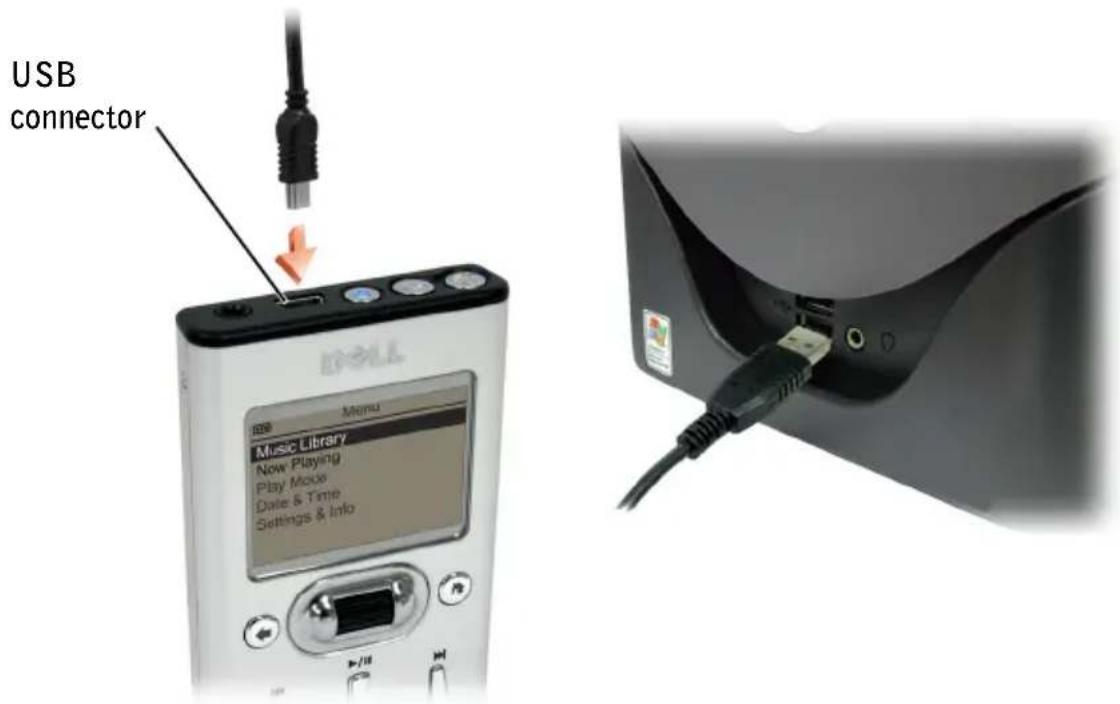
You can connect your device to a computer using the USB travel cable provided. Connect your device to a computer to transfer data files or audio tracks.
See "Transferring Music to the Dell Pocket DJ" on page 17 for information on transferring data files and audio tracks.
To connect the device to a computer:
1 Connect the smaller end of the USB cable to the USB connector on your device.
2 Connect the larger end of the USB cable to the USB connector on your computer.
Performing a Reset
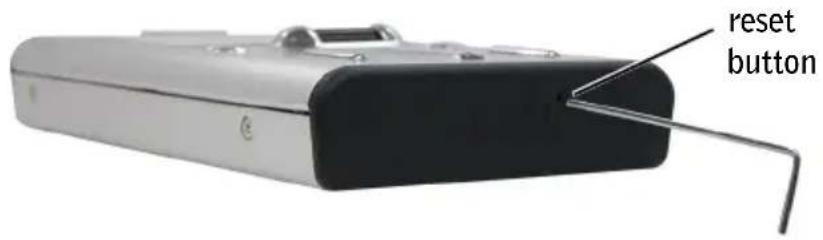
If your device stops responding, perform a reset.

NOTICE: Files or tracks that are being transferred may be lost but other data is normally retained.
To perform a reset, insert the end of a thin object, such as a straightened paper clip, into the reset button.
2
Using Your Dell Pocket DJ
Your Dell Pocket DJ can be used in different ways:
- As a digital music player (see below),
- As a data storage device (see "Transferring Music to the Dell Pocket DJ" on page 17).
Playing Digital Music
The Dell Pocket DJ can play tracks in MP3, WMA, or WAV file formats. The Dell Pocket DJ comes with a few sample MP3 tracks already loaded into the Music Library. To load your own music files onto the Dell Pocket DJ, see "Transferring Music to the Dell Pocket DJ" on page 17.

NOTE: Scroll-select means to rotate and then press the scroll dial.
Listed below are some quick tips on playing music on your Dell Pocket DJ. See "Music Library" on page 22 for more information.
Playing Tracks Using Music Library
Tracks on your Dell Pocket DJ can be viewed and played by category (playlist, album, artist, or genre).
To play all tracks within a particular category:
1 Press the Home button on your Dell Pocket DJ.
2 Scroll-select Music Library.
3 Scroll-select Playlists, Albums, Artists, or Genres. A list of playlists, albums, artists, or genres appears.
To play a playlist, scroll-select a playlist in Playlists, then scroll-select Play Playlist.
To play an album, scroll-select an album in Albums, then scroll-select Play Album.
To play an artist, scroll-select an artist in Artists, then scroll-select Play Artist.
To play a genre, scroll-select a genre in Genres, then scroll-select Play Genre.

NOTE: If you have no playlists in your Dell Pocket DJ, see "Creating a Playlist" on page 28.
To find and play an album by a particular artist:
1 Press the I Home button on your Dell Pocket DJ.
2 Scroll-select Music Library.
3 Scroll-select Artists.
4 Scroll-select an artist. A list of options appears.
5 Scroll-select View Albums . A list of albums by the artist appears.
6 Scroll-select an album, and then scroll-select Play Album.
To play one track within a category:
1 Press the Home button on your Dell Pocket DJ.
2 Scroll-select Music Library.
3 Scroll-select Playlists, Albums, Artists, or Genres. A list of playlists, albums, artists, or genres appears.
4 Scroll-select a playlist, album, artist, or genre, then scroll-select View Tracks.
5 Scroll-select the track, and then select Play Track
To play one track using View All Tracks:
1 Scroll-select Music Library.
2 Scroll-select View All Tracks .
3 Scroll-select a track, and then scroll-select Play Track
To play all music tracks:
1 Press the Home button on your Dell Pocket DJ.
2 Scroll-select Music Library.
3 Scroll-select Play All Music Tracks
All tracks are added to the Selected Music list. Playback starts after all music tracks have been queued.
After selecting Play All Music Tracks, your Dell Pocket DJ plays all music tracks in the sequence determined by the Play Mode setting.
To change the Play Mode setting, see "Play Mode" on page 30.
Transferring Music to the Dell Pocket DJ
With Musicmatch ^® , you can transfer music tracks from your personal music library to the Dell Pocket DJ. Musicmatch has the capability to 'rip' or convert music CDs to digital music files on your computer. Refer to the Musicmatch Help tutorial to create digital music files from your music CDs.
With Dell DJ Explorer, you can organize and transfer music tracks and data files between your PC and the Dell Pocket DJ using familiar Microsoft® Windows® methods such as copy-and-paste and drag-and-drop.

NOTE: Before transferring data files or music tracks, you must first connect your Dell Pocket DJ to your computer using the included USB cable.

NOTE: Dell DJ Explorer will not transfer out of the Dell Pocket DJ files that are copyright protected by Digital Rights Management (DRM).
Transferring Music Tracks Using Musicmatch ^® to Your Dell Pocket DJ
Dell Pocket DJ software powered by Musicmatch® makes buying and enjoying digital music easy by providing a simple graphical interface between your computer and the Dell Pocket DJ, as well as access to the Musicmatch Downloads service.
Some of the basic features of Musicmatch are covered below, but for complete instructions on how to use the Musicmatch software, click Start→Programs → Musicmatch → Musicmatch Jukebox. Click Help in Musicmatch (see "Finding Information" on page 5).
Transferring Music Tracks from Musicmatch Library
1 Connect the Dell Pocket DJ to your computer using the included USB cable.
2 Start Musicmatch by clicking Start→Programs→Musicmatch→Musicmatch Jukebox. The Musicmatch main window appears.
3 Click View→ Portable Device Manager.
Using Drag-and-Drop or Copy-and-Paste:
1 Follow steps 1 through 3 above.
2 With the Portable Device Manager (PDM) open, you can transfer tracks or playlists in a drag-and-drop or copy-and-paste operation from your computer's Musicmatch Jukebox playlists onto the DJ.
3 To drag-and-drop, locate and click the track or playlist that you want to copy, then drag it to Dell Pocket DJ or one of its playlists.
4 To copy-and-paste, locate and right-click the track or playlist that you want to copy, then click Copy. Right-click Dell Pocket DJ or one of its playlists, then click Paste.
Using the Add button:
1 Open the Portable Device Manager (PDM) as described above.
2 Click the Add button.
3 Click the Library Tracks, Playlists or My Computer icon on the left side of the Adding tracks to Dell Pocket DJ window.
4 To add all categories, clickSelect All and then click Add. To add one category, select the category and click Add. Double-click a category to see its sub-categories and tracks.
Musicmatch displays the main PDM window when all selected tracks are added.
Using Synchronization:
1 Open the Portable Device Manager (PDM) as described above.
2 Click the Sync button to update your device with tracks from your computer.

NOTE: Synchronization is a one-way process. It will only copy files from the computer to the Dell Pocket DJ. It will not copy files from the Dell Pocket DJ to the computer.
Select Help on the Musicmatch toolbar for more information.
Transferring Music Tracks Using Dell DJ Explorer
With Dell DJ Explorer, you can transfer music tracks using the copy-and-paste or drag-and-drop method.

NOTE: When transferring music tracks to your Dell Pocket DJ, be sure to transfer them to the Music Library folder of your Dell Pocket DJ. If you transfer music files from your PC to the Data Library folder of your Dell Pocket DJ, these music tracks will be stored as data files and will not be playable on your Dell Pocket DJ.
Access the Music Library folder on your Dell Pocket DJ:
1 Connect your Dell Pocket DJ to your computer using the included USB cable.
2 Select Start→ Programs → Dell→ Dell DJ Explorer→ Dell DJ Explorer,
or
Open Microsoft Windows Explorer, then double-click Dell DJ Explorer.
3 With Dell DJ Explorer open, click Folders in the Dell DJ Explorer toolbar.
The drives and main directories associated with the computer are displayed in the left window. The right window displays the contents of the drive, directory or folder that is selected in the left window.
4 Click Dell DJ Explorer in the left window to expand its contents.
5 Click Dell Pocket DJ beneath Dell DJ Explorer in the left window to expand its contents.
6 Click Music Library beneath Dell Pocket DJ in the left window to expand its contents.
Using Copy-and-Paste:
1 Using Dell DJ Explorer, locate the track, file, or folder you want to copy.
2 Right-click the track, file, or folder you want to copy and click Copy.
3 Locate and right-click the folder in which you want to place the copy, and then click Paste. A copy of the track, file, or folder is placed in the selected folder.
Using Drag-and-Drop:
1 Using Dell DJ Explorer, locate the track, file, or folder you want to copy.
2 Click the track, file, or folder you want to copy, and drag it to the folder in which you want to place the track, file, or folder.
NOTE: To select several files, hold down the
NOTE: To select consecutive files, hold down the
NOTE: To learn more about using Dell DJ Explorer, click the Help 🔒 icon on the Dell Pocket DJ Toolbar.
Storing Data Files on the Dell Pocket DJ
Using the included Dell DJ Explorer software, your Dell Pocket DJ can be used as a data storage device. You can transfer data files between your Dell Pocket DJ and any computer with Dell DJ Explorer installed.

NOTE: Data files cannot be transferred between the Dell Pocket DJ and a computer unless Dell DJ Explorer is installed on the computer. Files stored in the Dell Pocket DJ Data Library are not accessible using Musicmatch. This includes music tracks that are stored in the Dell Pocket DJ data library.
Access the Data Library folder on your Dell Pocket DJ:
1 Connect your Dell Pocket DJ to your computer using the included USB cable.
2 Select Start→ Programs → Dell→ Dell DJ Explorer→ Dell DJ Explorer,
or
Open Microsoft Windows Explorer, then double-click Dell DJ Explorer
3 With Dell DJ Explorer open, click Folders in the Dell DJ Explorer toolbar.
The drives and main directories associated with the computer will be displayed in the left window. The right window will display the contents of the drive, directory, or folder that is selected in the left window.
4 Click Dell DJ Explorer in the left window to expand its contents.
5 Click Dell Pocket DJ beneath Dell DJ Explorer in the left window to expand its contents.
6 Click Data Library beneath Dell Pocket DJ in the left window to expand its contents.
Transfer data files between the Dell Pocket DJ Data Library and the computer using the same copy-and-paste or drag-and-drop methods previously described in "Transferring Music Tracks Using Dell DJ Explorer" on page 18.
Managing Files from the Main Menu
The Main Menu of the Dell Pocket DJ is the starting place for the Dell Pocket DJ operations. To get to the Main Menu, press the Home button on your Dell Pocket DJ.
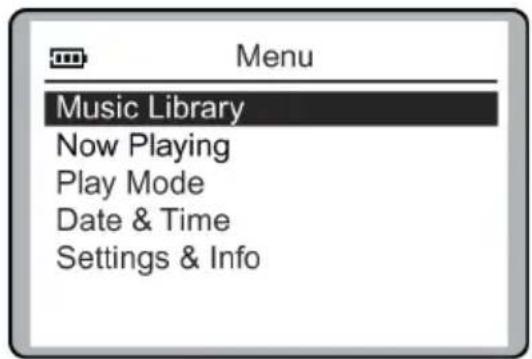
Music Library is your window to the music tracks stored on your Dell Pocket DJ.
Now Playing provides you access to the currently playing track or selected tracks.
Play Mode enables you to change the sequence and manner in which tracks are played.
Date & Time enables you to change the date and time settings, adjust your sleep timer, and access your calendar.
Settings & Info enables you to customize certain settings, such as EQ, to your personal preference, and provides you with data such as firmware version and space on your Dell Pocket DJ.

NOTE: Songs are stored on the Dell Pocket DJ as individual files called tracks. Tracks can be viewed in lists or sorted into categories according to playlist, album, artist, and genre.
Music Library
You can use Music Library to:
- Access music tracks via Playlists, Albums, Artists, Genres, and View All Tracks
- Play all music tracks
By accessing a playlist, album, artist, or genre, you can perform tasks such as:
- Locating tracks
- Playing playlists, albums, artists, or genres or tracks within these categories
- Viewing track information
- Adding to and managing the Selected Music list, then creating playlists from the Selected Music list
- Deleting tracks, playlists, albums, artists, or genres in your Dell Pocket DJ

NOTE: "View All Tracks" is a list containing all files from the various categories. Tracks can be found in more than one category. Tracks with no album names, artist names, or genres are located under "
Locating Tracks in Music Library
You can locate a track by category if you know the album, artist, or genre to which the track belongs.
To find a track in Music Library:
1 Press the Home button on your Dell Pocket DJ.
2 Scroll-select Music Library.
3 Scroll-select a category. For example, if you want to find a track in a particular album, scroll-select Albums.
4 Scroll-select the sub-category. For example, underAlbums, scroll-select an album.
5 Scroll-select View Tracks. The tracks within the sub-category appear.
You can also find tracks using the View all Tracks option:
1 Press the Home button on your Dell Pocket DJ.
2 Scroll-select Music Library.
3 Scroll-select View All Tracks, then scroll-select the desired track.
To find a track alphabetically in Music Library:
1 Press the Home button on your Dell Pocket DJ.
2 Scroll-select Music Library.
3 Scroll-select View All Tracks .
4 Scroll-select Find Track. A list of characters appears.
5 Scroll-select the first character of the track name.
The Dell Pocket DJ displays music tracks in alphabetical order, beginning with the character you selected. Scroll-select a different first character to view tracks beginning with that character.
6 Press the Back button on your Dell Pocket DJ.
You can now scroll through the tracks. Scroll-select a track to play it, view track details, add it to the Selected Music list, or to delete it.
Playing Tracks
Refer to "Playing Tracks Using Music Library" on page 14 for the steps to select and play tracks and categories on your Dell Pocket DJ.
Viewing Track Information
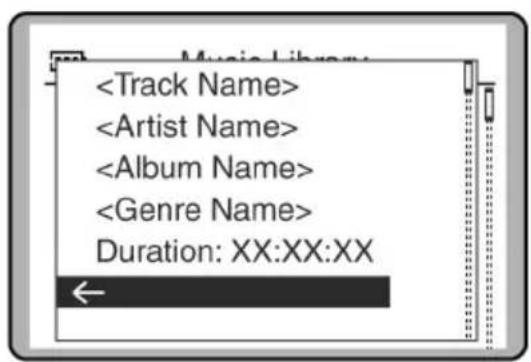
With Music Library, you can view track information such as track title, artist, album, genre, or duration.
To view track information:
1 Find the track using one of the methods described in "Locating Tracks in Music Library" on page 23.
2 Scroll-select the desired track. A list of options appears.
3 Scroll-select View Track Details A message box appears, listing track information.
If the names do not fit in the screen, press the scroll dial to scroll right or left to view the details.
Viewing an Album
In Music Library, you can view the contents of an album by an artist.
To locate an album by artist:
1 Press the Home button on your Dell Pocket DJ.
2 Scroll-select Music Library.
3 Scroll-select Artists.
4 Scroll-select an artist. A list of options appears.
5 Scroll-select View Albums . A list of albums for the selected artist appears.
6 Scroll-select an album. A list of options appears.
You can then scroll-select an option to:
- Play the a l b u m
• View the tracks in the album - Add the album to the Selected Music list, or
- Delete the album from Music Library.
Now Playing and the Selected Music List
The Selected Music list contains all of the music that you have selected for playback in a given session. Use the Now Playing option to view and manage the contents of the Selected Music list.
The Selected Music list is initially created by selecting a track or category of tracks for playback. You can then add to the Selected Music list by selecting additional tracks or categories of tracks and then selecting the Add to Selected option. Or, you can replace the Selected Music list with a new selection by selecting the Play option.
The Selection Music list can easily be cleared using the Clear Selection option.
Creating and Viewing a Selected Music List
To create a Selected Music list, locate and play a track or category of tracks using one of the previously described methods.
To view the Selected Music list:
1 Press the Home button on your Dell Pocket DJ.
2 Scroll-select Now Playing.
3 Scroll-select Selected Music.
Viewing Track Information
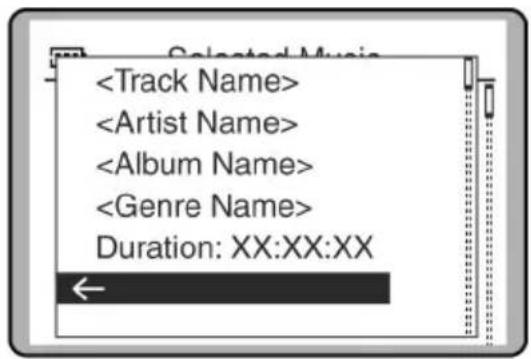
In the Selected Music list, you can view track information such as track title, track length, artist, album, or genre.
To view information about a track in the Selected Music list:
1 Press the Home button on your Dell Pocket DJ.
2 Scroll-select Now Playing.
3 Scroll-select Selected Music. A list of tracks appears.
4 Scroll-select a track.
5 Scroll-select View Track Details.A message box appears, listing track information.
If the names do not fit in the screen, press the scroll dial to scroll right or left to view the details.
Adding Tracks to the Selected Music List
You can add tracks from Music Library to the Selected Music list using the Add to Selected option, or replace the tracks in the Selected Music list using the Play option.
To add tracks:
1 Press the Home button on your Dell Pocket DJ.
2 Scroll-select Music Library.
3 Scroll-select a category. For example, if you want to add a track from a particular album, scroll-select Albums.
4 Scroll-select the sub-category. For example, under Albums, scroll-select an album.

NOTE: If you are adding an entire album, artist, genre, or playlist, skip to step 6.
5 Scroll-select View Tracks. Use the scroll dial to highlight a track.
6 Scroll-select Add to Selected.
To replace the current Selected Music list with a new Selected Music list, locate and play new tracks:
1 Press the Home button on your Dell Pocket DJ.
2 Scroll-select Music Library.
3 Scroll-select an audio category, for example, Albums.
4 Scroll-select the sub-category. For example, under Albums, scroll-select an album.

NOTE: If you are replacing the Selected Music list with an entire album, artist, genre, or playlist, skip to step 7.
5 Scroll-select View Tracks.
6 Scroll-select a track.
7 Depending on the sub-category you selected, scroll-select Play Track, Play Album, Play Artist, Play Genre or Play Playlist.
Clearing the Selected Music List
You can clear all tracks from the Selected Music list without deleting the tracks from your Dell Pocket DJ.
To clear all tracks from the Selected Music list:
1 Press the Home button on your Dell Pocket DJ.
2 Scroll-select Now Playing.
3 Scroll-select Clear Selection, then scroll-select Yes, OR
1 Press the Home button on your Dell Pocket DJ.
2 Scroll-select Now Playing.
3 Scroll-select Selected Music, then scroll-select a track.
4 Scroll-select Clear Selection, then scroll-select Yes.
5 Press the Home button on your Dell Pocket DJ to return to the Main Menu.

NOTE: Tracks that are cleared or removed from the Selected Music list are not deleted from your device. To delete a track from Music Library, see "Deleting Tracks From Your Dell Pocket DJ" on page 29 for information.
Removing a Track from the Selected Music List
To remove a track from the Selected Music list:
1 Press the Home button on your Dell Pocket DJ.
2 Scroll-select Now Playing.
3 Scroll-select Selected Music to display the Selected Music list.
4 Scroll-select a track.
5 Scroll-select Clear Track
Creating a Playlist
If you like the contents and arrangement of your current Selected Music list, you can save the list as a playlist for retrieval and playback later.
To create a playlist:
1 Press the Home button on your Dell Pocket DJ.
2 Scroll-select Now Playing.
3 Scroll-select Selected Music to display the Selected Music list.
4 Scroll-select any track in the list. A list of options appears.
5 Scroll-select Save as Playlist.
6 Use the scroll dial to enter a name for the playlist.

NOTE: For different character sets, such as accented characters or numerals, scroll-select Charset.
7 When you have finished entering the name, scroll-select OK.
Deleting Tracks From Your Dell Pocket DJ
To permanently delete tracks, albums, artists, genres, or playlists, you must remove them from Music Library.
You can remove tracks from the Selected Music list without permanently deleting the tracks from your Dell Pocket DJ. See "Clearing the Selected Music List" and "Removing a Track from the Selected Music List" on page 28.
To delete a track:
1 Follow steps 1 through 5 in "Locating Tracks in Music Library" on page 23.
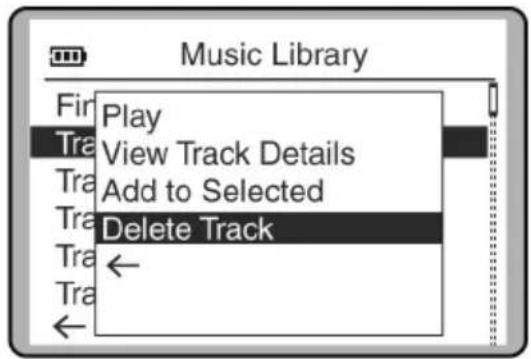
2 Scroll-select the track you want to delete. A list of options appears.
3 Scroll-select Delete Track A message box appears, asking if you want to delete the selected track.
4 Scroll-select Yes to delete the track from your Dell Pocket DJ.
To delete an entire album, artist, genre, or playlist:
1 Press the Home button on your Dell Pocket DJ.
2 Scroll-select Music Library.
3 Scroll-select an audio category. For example, if you want to delete a particular album, scroll-select Albums.
4 Scroll-select the sub-category. For example, under Albums, scroll-select the album you want to delete. A list of options appears.
5 Depending on the sub-category you selected, scroll-select Delete Album, Delete Artist, Delete Genre, or Delete Playlist. A message box appears, asking if you want to delete the selected album, artist, genre, or playlist.
6 Scroll-select Yes, to delete the album, artist, genre, or playlist from your Dell Pocket DJ.
Renaming a Playlist
To rename a playlist, you must load the playlist into the Selected Music list as previously described and then save it under a new name. You can then delete the old playlist.
To rename a playlist:
1 Clear the Selected Music List using the Clear Selection feature described in "Clearing the Selected Music List" on page 27.
2 Load the playlist to the Selected Music list. See "Adding Tracks to the Selected Music List" on page 26 for more information.
3 Save the Selected Music list as a new playlist.
4 Delete the old playlist.
Play Mode
You can use the Play Mode function to determine the sequence of playing the selected tracks.
To view play mode options:
1 Press the I Home button on your Dell Pocket DJ.
2 Scroll-select Play Mode.
3 To change the play mode, scroll-select a play mode.
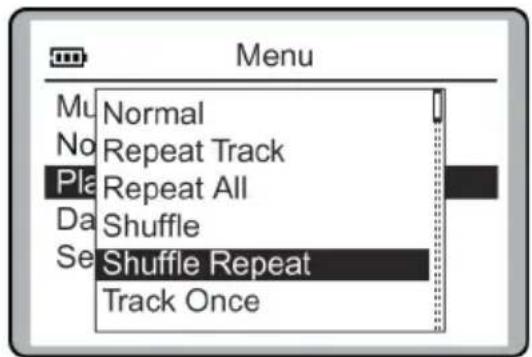
Normal plays each selected track one time in sequential order.
Repeat Track repeatedly plays the selected track until you turn off the Dell Pocket DJ or change the play mode.
Repeat All repeatedly plays all of the selected tracks until you turn off the Dell Pocket DJ or change the play mode.
Shuffle randomly plays the selected tracks one time without repeating any tracks.
Shuffle Repeat randomly plays the selected music tracks, then repeats them in a different random sequence until you turn off the Dell Pocket DJ or change the play mode.
Track Once plays the selected track one time and then stops.
Play Mode Icons
| Icon Description |
| Repeat Track Play and repeat the selected track. |
| Repeat All Play and repeat all Selected Music tracks. |
| Shuffle Randomly play all Selected Music tracks once without repeating. |
| Shuffle Repeat Randomly play all Selected Music tracks once, then repeat in a different random sequence. |
| Track Once Play the selected track once. |
Date and Time
You can change the date and time settings on the Dell Pocket DJ.
You can set:
- Date and time — view time, change the date and time, format, and date separator
- Sleep timer — choose how much time passes before your Dell Pocket DJ shuts itself off during audio playback
- Calendar view — view the calendar
To view or set the time, date and day:
1 Press the Home button.
2 Scroll-select Date & Time.
3 Scroll-select Time.
4 Scroll-select Set Date & Time.
To set the time and date, scroll-select the item you want to change, then rotate the scroll dial to change.

NOTE: The day is updated automatically when you adjust the date.
5 To save your setting or exit, scroll-select the check mark icon.
To format the time and date:
1 Press the Home button.
2 Scroll-select Date & Time.
3 Scroll-select Time.
4 Scroll-select a format option. A list of options appears.
5 Depending on the format option you selected, scroll-select the option you want.
To set the sleep timer:
1 Press the Home button.
2 Scroll-select Date & Time.
3 Scroll-select Sleep Timer. A list of available times appears.
4 Scroll-select a duration.

NOTE: This is different from the Idle Shutdown time, as the sleep timer is only activated when you play audio tracks. If you do not press a player button during the selected duration, your Dell Pocket DJ turns itself off.
To view or set the time, date and day:
1 Press the Home button.
2 Scroll-select Date & Time.
3 Scroll-select View Calendar.
Settings
You can customize the Dell Pocket DJ to your preferences by adjusting the settings.
You can set:
- Owner name — enter your name, or a name for your Dell Pocket DJ
• EQ preset — choose from available presets or create a custom EQ - Backlight duration — choose how long the back light remains lit
- Contrast level — choose a contrast level for optimal viewing
- Idle shutdown time — choose how much idle time passes before your Dell Pocket DJ shuts itself off
- Language — choose the Dell Pocket DJ's display language
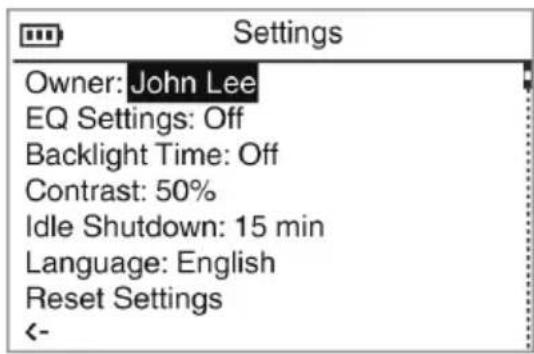
To set the owner's name:
1 Press the Home button.
2 Scroll-select Settings & Info.
3 Scroll-select Settings.
4 Scroll-select the owner's name. A list of characters appear.
5 Scroll-select characters to form the name. To select other characters, scroll-select Charset.
6 Scroll-select OK.
To select an EQ setting:
1 Press the Home button.
2 Scroll-select Settings & Info.
3 Scroll-select Settings.
4 Scroll-select the current EQ setting. A list of EQ presets appears. To select one of the EQ presets, scroll-select the preset.
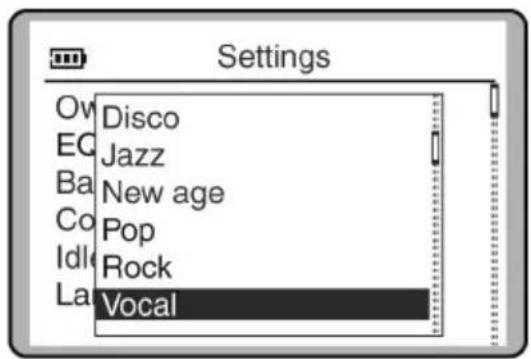
To create a custom EQ setting:
1 Scroll-select Custom EQ. The equalizer control box appears.
2 Scroll-select a frequency slider and rotate the scroll dial to adjust sound output.
3 To save your EQ setting, scroll-select the check mark √icon.
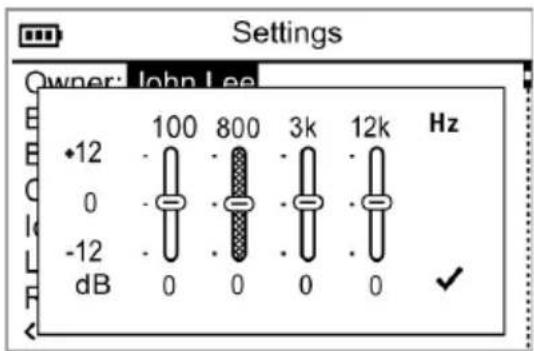
To set the backlight duration:
1 Press the Home button.
2 Scroll-select Settings & Info.
3 Scroll-select Settings.
4 Scroll-select the current backlight time. A list of available durations appears.
5 Scroll-select a duration.
To set the contrast level:
1 Press the Home button.
2 Scroll-select Settings & Info.
3 Scroll-select Settings.
4 Scroll-select the current contrast level. A list of available levels appears.
5 Scroll-select a level.
To set the idle shutdown time:
1 Press the Home button.
2 Scroll-select Settings & Info.
3 Scroll-select Settings.
4 Scroll-select the current idle shutdown time. A list of available times appears.
5 Scroll-select a shutdown time.

NOTE: Your player is 'idle' when you do not press a player button, or if you do not have any tracks playing during the specified duration.
To set the display language:
1 Press the Home button.
2 Scroll-select Settings & Info.
3 Scroll-select Settings.
4 Scroll-select the current display language. A list of available languages appears.
5 Scroll-select a language.
Information
You can check your Dell Pocket DJ for the following information:
- Firmware version
• Total amount of space for storing music or data
• Available space for storing music or data
• Number of tracks stored
• Number of albums stored
• Number of playlists stored
To check the information for your Dell Pocket DJ:
1 Press the Home button.
2 Scroll-select Settings & Info.
3 Scroll-select Information.
Frequently Asked Questions
This section covers common problems you might encounter or questions you might have while using your Dell Pocket DJ. If you have a problem that is not addressed in this chapter, visit support.dell.com for more information.
Installation
I can't install the Dell Pocket DJ software on my computer, which has Microsoft® Windows® 95 or Windows 98 installed on it. The installation stops halfway.
You cannot install the Dell Pocket DJ software on a computer with Windows 98 or Windows 95.
Upgrade your computer's operating system to Windows XP or Windows 2000 before attempting to install the Dell Pocket DJ.
My Dell Pocket DJ is not recognized by Musicmatch or Dell DJ Explorer, after installing the software from the Dell DJ ^TM /Dell Pocket DJ ^TM Product Software CD.
In Musicmatch or Dell DJ Explorer, I can't see my Dell Pocket DJ.
Your Dell Pocket DJ was probably connected to your computer during the installation. Your Dell Pocket DJ may not be properly connected to your computer.
Disconnect your Dell Pocket DJ and restart your computer. You may also have to re-install the software from the Dell DJ™/Dell Pocket DJ™ Product Software CD. Be sure to follow the installation steps carefully. Do not connect your Dell Pocket DJ to your computer during software installation.

NOTE: During installation, if you choose not to install Musicmatch from the Dell DJ™/Dell Pocket DJ™ Product Software CD, you must still install the Musicmatch plug-in, when prompted, in order to use Musicmatch with the Dell Pocket DJ. See "Installing Software" on page 11.
Your Dell Pocket DJ may not have sufficient battery charge to operate on your computer's USB power.
Connect your Dell Pocket DJ to the AC adapter as described in "Charging the Battery" on page 9.
Usage
I can't turn my Dell Pocket DJ on.
I can't turn my Dell Pocket DJ on, and all the buttons flash when I hold down the Power button.
The lock switch on the Dell Pocket DJ is in the locked position (red).
Move the switch to the unlocked position (black).
You may not be holding down the Power button long enough.
Press and hold the Power button for at least 2 seconds.
I can't turn my Dell Pocket DJ off.
I was using my Dell Pocket DJ, and now all the buttons are flashing, and the Dell Pocket DJ is not responding.
The lock switch on the Dell Pocket DJ is in the locked position (red).
Move the switch to the unlocked position (black).
The Dell Pocket DJ's operating system may be locked.
Insert the end of a thin object, such as a straightened paper clip, into the reset button, located on the left side of your Dell Pocket DJ.
I've disconnected my Dell Pocket DJ from my computer, but the display still shows that it is connected.
The Dell Pocket DJ's operating system may be locked.
Insert the end of a thin object, such as a straightened paper clip, into the reset button, located on the left side of your Dell Pocket DJ.
My computer does not recognize my Dell Pocket DJ.
You may be using a USB hub to connect your Dell Pocket DJ to your computer.
Connect your Dell Pocket DJ directly to your computer's USB port.
I do not see the charging icon anymore, but my Dell Pocket DJ seems to be working.
The charging icon disappears when the Dell Pocket DJ's battery is fully charged.
This is not a problem. You can verify that the battery is fully charged by following these steps:
1 Run your Dell Pocket DJ on battery power for thirty minutes.
2 Connect the AC adapter to your Dell Pocket DJ and charge it as described in "Charging the Battery" on page 9.
3 While the battery is charging, note if the charging icon appears. The Power button flashes regularly until the battery is fully charged. The charging icon disappears.
Whenever I turn my Dell Pocket DJ on, it starts up in Rescue Mode.
Your Dell Pocket DJ's firmware or operating system may be damaged.
Go to support.dell.com for the latest updates for your Dell Pocket DJ, and load the latest firmware into your player. For more information on what you can do in Rescue mode, see "Troubleshooting in Rescue Mode" on page 41.
When I turn my Dell Pocket DJ on, a "Re-building Library" message appears.
The Dell Pocket DJ sometimes needs to re-map the location of music tracks and files.
Wait for your player to finish verifying the location of music tracks, files, and playlists.
General
When I listen to music tracks, I hear a lot of noise or drop-outs.
The track you are listening to was not recorded or encoded properly.
Verify that the music track sounds the same when you play it from the Dell Pocket DJ and from your computer. You can then acquire a better recording of the track and transfer it to your Dell Pocket DJ.
I want to delete all the music tracks on my Dell Pocket DJ, but I can't find the option in the main menu.
From the main menu, you can only delete one track, album, artist, genre, or playlist at a time.
To delete all content from your Dell Pocket DJ, enter Rescue mode and use the Format All option. For more information about what you can do in Rescue mode, see "Troubleshooting in Rescue Mode" on page 41.
Error Indications
Rescue mode firmware error indication.
Your Dell Pocket DJ's firmware has been erased or damaged.
Reload the firmware as described in "Troubleshooting in Rescue Mode" on page 41.
Rescue mode hard disk problem.
Your Dell Pocket DJ's internal storage space may be corrupted.
Use the Format All option as described in "Troubleshooting in Rescue Mode" on page 41.
All the buttons on my Dell Pocket DJ flash when I try to turn my player on.
The lock switch on the Dell Pocket DJ is in the locked position (red).
Move the switch to the unlocked position (black).
Troubleshooting in Rescue Mode
In Rescue mode, you can quickly resolve issues that involve your Dell Pocket DJ's firmware and hard disk operations.
To activate Rescue mode:
Press the Play button while inserting the end of a thin object such as a straightened paper clip into the reset at the same time, then hold the Play button until your Dell Pocket DJ turns on.
In Rescue mode, you can select the following options:
- Clean Up — searches for and fixes fragmented files and lost clusters. No files, music tracks, or playlists are lost.
NOTE: This option resets your player settings to their factory default.
- Format All — reformats the Dell Pocket DJ's hard disk.
NOTICE: All files, music tracks and playlists are lost. You must reload all files, music tracks, and playlists.
- Reload Firmware— clears firmware in the Dell Pocket DJ so that you can load updated firmware.
NOTE: Do not choose this option until you have downloaded updated firmware into your computer.
• Reboot — restarts the Dell Pocket DJ after testing.
Clean Up
Choose this option if you experience audio drop-outs, repeated Re-building Library messages, or if your player is frequently unresponsive.
NOTE: No files, music tracks, or playlists are lost when this option is selected.
To clean up your Dell Pocket DJ:
1 Activate Rescue mode as described above.
2 Scroll-select Clean Up.
3 Scroll-select Yes. A progress display appears.
The cleanup can take more than a few minutes, depending on how many music tracks you have in your Dell Pocket DJ.
Format All
Choose this option if you experience audio drop-outs, repeated Re-building Library messages, or if your player is frequently unresponsive.

NOTICE: All files, music tracks, or playlists are lost when this option is selected.
To format your Dell Pocket DJ:
1 Activate Rescue mode as described above.
2 Scroll-select Format All.
3 Scroll-select Yes. A progress display appears.
Reload Firmware
Choose this option to upgrade your Dell Pocket DJ's firmware, or if you want to correct firmware problems. You should also choose this option when your player becomes unresponsive frequently.

NOTICE: This option removes the firmware in your Dell Pocket DJ so that you can load updated firmware or reload current firmware. You should have the firmware file on your computer before choosing this option.
You can download updated firmware from support.dell.com. No files, music tracks, or playlists are lost when you reload or upgrade firmware.
To reload firmware:
1 Activate Rescue mode as described above.
2 Scroll-select Reload Firmware.
3 Scroll-select Yes.
4 Connect your Dell Pocket DJ to your computer using the USB cable.
5 Turn your Dell Pocket DJ on, and double-click the firmware file on your computer.

NOTE: Your Dell Pocket DJ is automatically detected. The firmware is loaded and the Dell Pocket DJ restarts.
6 Restart your computer if prompted.
Reboot
Choose this option to get out of Rescue mode, and return to your Dell Pocket DJ's normal display.
When in Rescue mode, scroll-select Reboot. Your player restarts automatically.
You can also press and hold the Power button to turn your player off.
4
Appendix
Specifications
Hardware
Display LCD
160 x 104 resolution
blue EL back light
Storage media 5 GB HDD
Battery Embedded lithium-ion
AC-in power 5V ±5%, 1.0A
Computer connection USB 2.0/1.1
Performance Parameters
| Audio quality (specifications based on 32-ohm load at 1-kHz tone are typical values) | |
| Signal-to-noise ratio | up to 94 dB |
| Channel separation | up to 65 dB |
| Frequency response | 20 Hz–20 kHz (line-out) |
| 24 Hz–20 kHz (headphones) | |
| Harmonic distortion | < 0.1% |
Playtime up to 10 hours (based on 128 kbps MP3
songs, continuous playback)
Performance Parameters
Battery charging AC adapter charging — 2.5 hrs
USB cable charging — 2.5 hrs
(battery must have at least 25% charge for USB cable charging)
Glossary
BITRATE — A bitrate indicates the average number of bits in 1 second of a digital audio track. MP3 encoders allow you to specify the bitrate when making MP3 files. The higher the bitrate, the better the audio quality. Unfortunately, this also means a larger file size.
CATEGORY — A general grouping of audio tracks, for example, artist, album, or genre.
DIGITAL RIGHTS MANAGEMENT (DRM) —A technology enabling the copyright owner of intellectual property, like a digital audio track, to control file usage. It is normally used to allow you to download digital audio tracks while preventing you from distributing the files to other people or other devices. With DRM, digital audio tracks contain digital signatures. Your device is DRM-compliant.
GIGABYTE (GB) — About a thousand million bytes. A 1-GB device can store 1000 MB worth of MP3 files. If your MP3 files are encoded at 128 kbps and each file is about 4 minutes long, a 10-GB device can store about 2500 MP3 files.
FIRMWARE —The software in your device that allows you to perform numerous functions including playing audio.
KBPS —Kilobits-per-second. A measure of how good the bitrate is. 128 kbps is the standard bitrate for MP3 files. 128-kbps MP3s are near-CD quality. Some other commonly used encoding rates are 160 or 192 Kbps.
LITHIUM-ION BATTERY (LI-ION) —A battery composed of lithium, a light metal with high electrochemical potential. Lithium batteries are light and store high amounts of electrical energy. Because of this, lithium-ion batteries are ideal for portable devices like yours. Lithium-ion batteries do not use poisonous metals, such as lead, mercury, or cadmium, and have no memory effect problems. However, they are more expensive than conventional nickel-cadmium (NiCad) and nickel metal-hydride (NiMH) batteries. Your device uses a Li-Ion battery.
MEGABYTE (MB) — About 1 million bytes. Bytes, megabytes, and gigabytes are measures of how much data a storage device can hold. For example, a 3-minute MP3 encoded at standard bitrates is approximately 3 MB in size.
MEMORY EFFECT —A property of some NiCad batteries that can surface when a battery is not fully used or discharged before it is recharged. This can cause the battery to have a false ‘memory’ as to how much electrical energy it can store. This results in significantly lower battery levels, even after a full charge.
MP3 —A member of the MPEG compression family, MP3 is a commonly used compressed digital-audio format. MP3 encoding transforms digital audio files (like WAV) to provide reasonable audio quality in relatively small file sizes.
MUSIC LIBRARY —An organized collection of audio tracks in your device. Tracks are grouped by categories: All tracks, Albums, Artists, and Genres.
PLAYLIST —A grouping of audio tracks. Using a playlist, you can create a playback sequence of audio tracks from multiple albums or categories without actually rearranging any audio tracks in the device's Music Library. You can also name a playlist, for example, My Favorite Pop Songs.
SELECTED MUSIC LIST —The Selected Music list is a line of tracks. You can choose an album or a playlist of tracks to be played. In Normal mode, tracks are played in the order in which they are queued.
SHUFFLE — A Play mode that randomly plays tracks once only from the Selected Music list.
SHUFFLE REPEAT — A Play Mode that randomly plays tracks from the Selected Music List repeatedly.
USB —Universal Serial Bus. A moderately high-speed input/output technology for "hot swap" data transfers, meaning that you can connect or disconnect a USB device without turning off your computer. Your device uses the newer USB 2.0 standard that allows for higher speed transfers than USB 1.1
Index
A
adding tracks, 26
automatic shutdown, 33
available space, 36
B
backlight duration, 33, 35
battery charging, 9
bitrate, 47
buttons
back, 7
fast forward/skip forward, 8
play/pause, 7
power, 7
reset, 7
rewind/skip back, 7
scroll dial, 8
volume, 7
C
categories, 47
category, 47
character sets, 34
charging the battery, 9
charset, 34
checking device
information, 36
connecting your device, 12
connectors
USB 2.0/1.1, 8
contrast, 33
contrast level, 35
creating a playlist, 28
custom EQ, 33
D
date, 32
formatting, 32
date and time, 32
deleting tracks, 29
deleting tracks from your device, 29
device connection, 12
display language, 33, 35
E
EQ setting, 33-34
F
file management, 22
file transfer, 17
firmware, 47
firmware version, 36
G
gigabyte (GB), 47
glossary, 47
H
hardware specifications, 45
Home button, 8
|
idle shutdown, 33
idle shutdown time, 35
K
kbps, 47
L
language, 33
lithium-ion battery (Li-Ion), 47
locating tracks, 23
lock switch, 8
M
managing files, 22
megabyte (MB), 47
MP3, 47
MP3 encoding, 47
Music Library, 22, 24, 48
N
now playing, 25
number of albums, 36
number of playlists, 36
number of tracks, 36
0
owner's name, 33
P
performance parameters, 45
performing a reset, 13
play mode icons, 31
playing digital music, 14
playlist, 48
R
removing tracks, 29
renaming a playlist, 30
resetting your device, 13
s
screen contrast, 33
scroll dial, 8
scroll-select, 8
selected music, 25
selected music list, 26, 48
settings, 33
settings & info, 33
shuffle, 48
shuffle repeat, 48
specifications, 45
T
time, 32
formatting, 32
transferring files, 17
U
USB, 48
USB charging, 9
using
Musicmatch, 17
Selected Music list, 25
using your Dell Pocket DJ, 14
V
viewing an album, 25
viewing track information, 24, 26
views
front, 7
side, 7
- Notes, Notices, and Cautions
- Abbreviations and Acronyms
- Contents
- Finding Information
- About Your Device
- Using Your Dell Pocket DJ
- Managing Files from the Main Menu....22
- Frequently Asked Questions
- Appendix
- About Your Device
- Introduction
- Front and Side Views
- SCROLL DIAL
- Charging the Battery
- Installing Software
- Connecting to a Computer
- Performing a Reset
- 2
- Using Your Dell Pocket DJ
- Playing Digital Music
- Playing Tracks Using Music Library
- Transferring Music to the Dell Pocket DJ
- Transferring Music Tracks Using Musicmatch ® to Your Dell Pocket DJ
- Transferring Music Tracks from Musicmatch Library
- Transferring Music Tracks Using Dell DJ Explorer
- Using Drag-and-Drop:
- Storing Data Files on the Dell Pocket DJ
- Managing Files from the Main Menu
- Music Library
- Locating Tracks in Music Library
- Playing Tracks
- Viewing Track Information
- Viewing an Album
- Now Playing and the Selected Music List
- Creating and Viewing a Selected Music List
- Adding Tracks to the Selected Music List
- Clearing the Selected Music List
- Removing a Track from the Selected Music List
- Creating a Playlist
- Deleting Tracks From Your Dell Pocket DJ
- Renaming a Playlist
- Play Mode
- Play Mode Icons
- Date and Time
- Settings
- Information
- Frequently Asked Questions
- Installation
- Usage
- General
- Error Indications
- Troubleshooting in Rescue Mode
- Clean Up
- Format All
- Reload Firmware
- Reboot
- 4
- Appendix
- Specifications
- Hardware
- Performance Parameters
- Glossary
- Index
- A
- B
- C
- D
- E
- F
- G
- H
- |
- K
- L
- M
- N
- 0
- P
- R
- s
- T
- U
- V
Brand : DELL
Model : Pocket DJ
Category : Uncategorized