 ManualGo.com
DNX771HD - GPS Car Stereo KENWOOD - Free user manual and instructions
Find the device manual for free DNX771HD KENWOOD in PDF.



Download the instructions for your GPS Car Stereo in PDF format for free! Find your manual DNX771HD - KENWOOD and take your electronic device back in hand. On this page are published all the documents necessary for the use of your device. DNX771HD by KENWOOD.
USER MANUAL DNX771HD KENWOOD
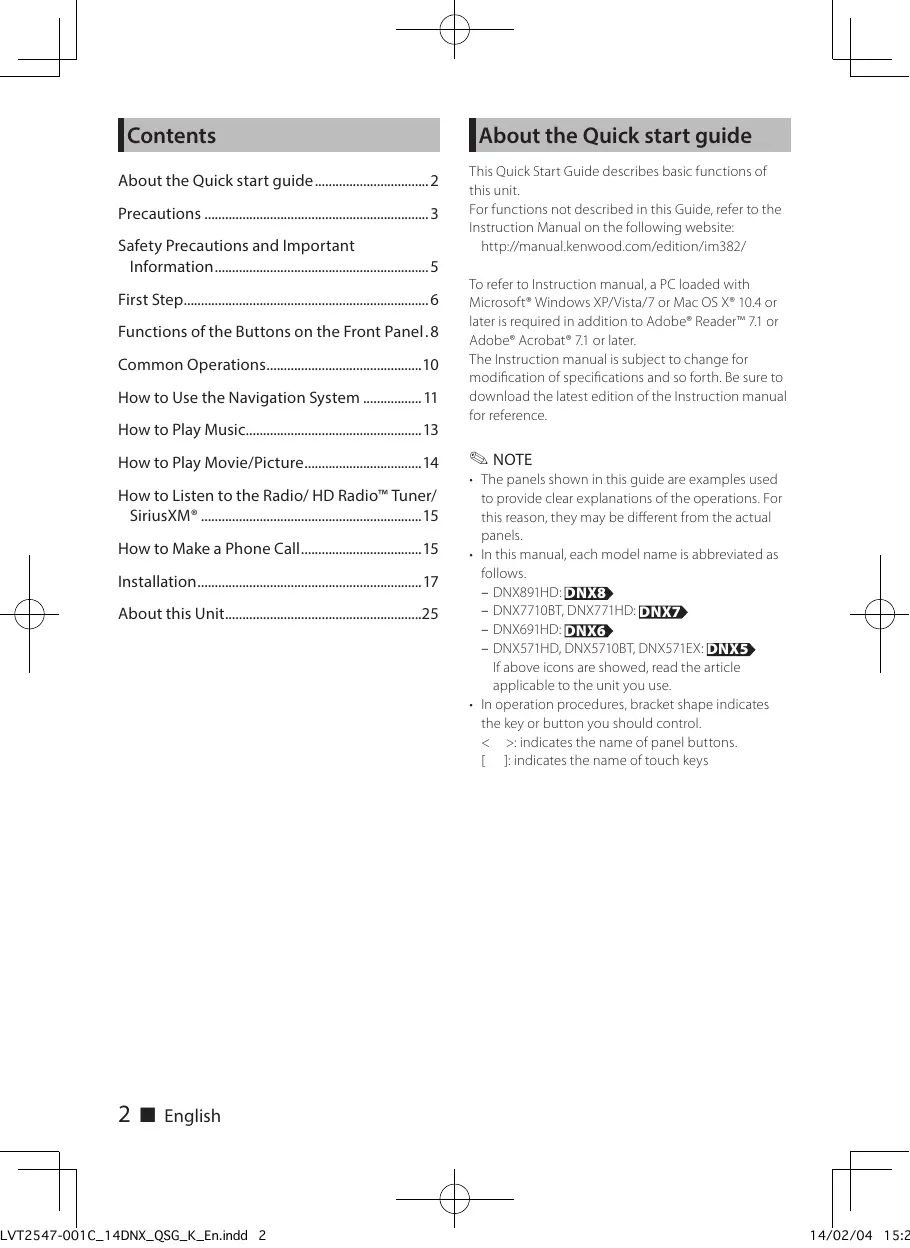
[contents About the Quick start guide: Precautions . Safety Precautions and Important Functions ofthe Buttons on the Front Panel.8 Common Operation: How to Use the Navigation System How to Play Music. How to Play Movie/Pictur How to Listen to the Radio/HD Radio”* Tuner/ SiriusXM° How to Make a Phone Call. Installation About this Unit. 2 M English LVT2547-001C_14DNX_QSG_K_En.ndd 2 Jabout the Quick start guide This Quick Start Guide describes basic functions of this unit. For functions not described in this Guide, refer to the Instruction Manual on the following website: http//manual kenwood.com/edition/im382/ To refer to Instruction manual, a PC loaded with Microsoft® Windows XP/Vista/7 or Mac OS X® 104 or later is required in addition to Adobe® Reader” 71 or Adobe? Acrobat 71 or later. The Instruction manual is subject to change for modification of specifications and so forth. Be sure to download the latest edition ofthe Instruction manual for reference #3 NOTE + The panels shown in this guide are examples used to provide clear explanations ofthe operations. For this reason, they may be different from the actual panels + Inthis manual each model name is abbreviated as follows.
= DNX77108T, DNX771HD: REED
- DNXS71HD, DNXS710BT, DNXS71EX: CREER above icons are showed, read the article applicable to the unit you use + In operation procedures, bracket shape indicates the key or button you should control <__ :indicates the name of panel buttons L_J'indicates the name oftouch keys 14/02/04 15:2
A WARNING [a To prevent injury or fire, take the following precautions: + To prevent a short circuit, never put or leave any metallic objects (such as coins or metal tools) inside the unit. Do not watch or fx your eyes on the unit's display when you are driving for any extended period. Ifyou experience problems during installation, consult your Kenwood dealer. [m Precautions on using this unit + When you purchase optional accessories, check with your Kenwood dealer to make sure that they work with your model and in your area. You can select language to display menus, audio file tags, etc. See Language setup (P.95) in the Instruction Manual. The Radio Data System or Radio Broadcast Data System feature won't work where the service is not supported by any broadcasting station. The unit may not function property ifthe connectors between the unit and front panel are dirty. Detach the front panel and clean the connector with a cotton swab gently, being careful not to damage the connector. [m Precautions on battery + Put the remote control in a place where it will not move during braking or other operations. A dangerous situation could result, ifthe remote control falls down and gets wedged under the pedals while driving. Do not leave the battery near fire or under direct sunlight. A fire, explosion or excessive heat generation may result. + Do not recharge, short, break up or heat the battery or place it in an apen fire. Such actions may cause the battery to leak fluid. If spilled fluid comes in contact with your eyes or on clothing, immediately rinse with water and consult a physician. + Place the battery out of reach of children. In the unlikely event that a child swallows the battery, immediately consult a physician. [m Protecting the monitor + Put the remote control in a place where it will LVT2547-001C_14DNX_QSG_K_Enindd 3 not move during braking or other operations. À dangerous situation could result ifthe remote control falls down and gets wedged underthe pedals while driving Protecting the monitor Put the remote control in a place where it will not move during braking or other operations. A dangerous situation could result, ifthe remote control falls down and gets wedged under the pedals while driving. Lens fogging When you turn on the car heater in cold weather, dew or condensation may form on the lens in the disc player of the unit. Called lens fogging, this condensation on the lens may not allow discs to play. In such a situation, remove the disc and wait for the condensation to evaporate. Ifthe unit still does not operate normallÿ after a while, consult your Kenwood dealer. Precautions on handling discs + Do not touch the recording surface of the disc. + Do not stick tape etc. on the disc, or use a disc with tape stuck on it. Do not use disc type accessories. + Clean from the center of the disc and move outward. When removing discs from this unit, pull them out horizontally. Ifthe disc center hole or outside rim has burrs, use the disc only after removing the burrs with a ballpoint pen etc. Dises that are not round cannot be used. D ® 8-cm (3 inch) discs cannot be used Discs with coloring on the recording surface or dises that are dirty cannot be used. This unit can only play the CDs with
This unit may not correct play dises which do not have the mark You cannot play a disc that has not been finalized. (For the finalization process see your writing software, and your recorder instruction manual) English M 3
Acquiring GPS signal The first time you turn on this unit, you must wait while the system acquires satellite signals for the firsttime. This process could take up to several minutes. Make sure your vehicle is autdoors in an open area away from tal buildings and trees for fastest acquisition Afterthe system acquires satellites for the first time, it will acquire satellites quickly each time thereafter. 1m About the front panel NE DD When removing the product from the box or installing it, the front panel may be positioned atthe angle shown in (Fig. 1). This is due to the characteristics of mechanism the product is equipped with. When the product is first pourered an works: proper, the front panel will automatically move into the position (initial setting angle) shown in Œig.2). (Fig. 1) (Fig. 2) fm Cleaning the Unit Ifthe front panel of this unit is stained, wipe it with a dry soft cloth such as a silicon cloth. Ifthe front panels stained badly, wipe the stain off with a cloth moistened with neutral cleaner, then wipe it again with a clean soft dry cloth A CAUTION + Applying spray cleaner directly to the unit may affect its mechanical parts. Wiping the front panel with a hard cloth or using a volatile liquid such as thinner or alcohol may scratch the surface or erase screened print 4 M English LVT2547-001C_14DNX_QSG_K_En.ndd 4 How to reset your unit Ifthe unit fails to operate properly, press the Reset button. The unit returns to the factory settings. [DNXS8 JDNX7 #3 NOTE + Disconnect the USB device before pressing the <Reset> button. Pressing the <Reset> button with the USB device connected can damage the data stored in the USB device. For how to disconnect the USB device, see How to Play Music (P.13) + When the unit is turned on after resetting, the Initial SETUP screen appears. See First Step (P.6). 14/02/04 15:2
Read this information carefully before starting to operate the Kenwood Car Navigation System and followthe instructions in this manual. Neither Kenwood nor Garmin shall be liable for problems or accidents resulting from failure to observe the instructions in this manual. A WARNING Failure to avoid the following potentially hazardous situations could result in an accident or collision resulting in death or serious injury. When navigating, carefully compare information displayed on the navigation system to all available navigation sources, including information from street signs, visual sightings, and maps. For safety, always resolve any discrepancies or questions before continuing navigation. Always operate the vehicle in a safe manner Do not become distracted by the navigation system while driving, and always be fully aware of all driving conditions. Minimize the amount of time spent viewing the screen ofthe navigation system while driving, and use voice prompts when possible. Do not enter destinations, change settings, or access any functions requiring prolonged use ofthe navigation system controls while driving. Stop your vehicle in a safe and legal manner before attempting such operations Keep the system volume at a low enough level to be able to hear outside noises while driving. fyou can no longer hear outside noises, you may be unable to react adequately to the traffic situation. This may cause accidents. The navigation system will not display the correct current position of the vehicle the first time it is used after purchase, or fthe vehicle battery is disconnected. GPS satellite signals will soon be received, however, and the correct position will be displayed. Be careful of the ambient temperature. Using the navigation system at extreme temperatures can lead to malfunction or damage. Also note that the unit can be damaged by strong vibration, by metal objects, or by water getting inside the unit. LVT2547-001C_14DNX_QSG_K_En.ndd 5 ACAUTION Failure to avoid the following potentially hazardous situations may result in injury or property damage. The navigation system is designed to provide you with route suggestions. t does not reflect road closures or road conditions, weather conditions, or other factors that may affect safety or timing while drivingl Use the navigation system only as a navigational aid Do not attempt to use the navigation system for any purpose requiring precise measurement of direction, distance, location, or tapography. The Global Positioning System (GPS) is operated by the United States government, which is solely responsible for its accuracy and maintenance. The government system is subject to changes that could affect the accuracy and performance of all GPS equipment, including the navigation system. Although the navigation system is a precision navigation device, any navigation device can be misused or misinterpreted and, therefore, become unsafe IMPORTANT INFORMATION Im Vehicle Battery Preservation This navigation system can be used when the ignition key is turned to ON or ACC. To preserve the battery, however, it should be used with the engine running whenever possible. Using the navigation system for a long time with the engine switched off can cause the battery to run down. Map Data Information One of the goals of Garmin is to provide customers with the most complete and accurate cartography that is available to us at a reasonable cost. We use a combination of governmental and private data sources, which we identify in product literature and copyright messages displayed to the consumer. Virtually all data sources contain some inaccurate or incomplete data. In some countries, complete and accurate map information is either not available or is prohibitively expensive. English M 5 14/02/04 15:2
[First Step Various setup screens appear automatically before using Initial setup When you first turn on the unit, the screen of the configuration setting will appear. 1 Turn the ignition key of your car to ACC. e unit is turned Initial SETUP screen 2 Touch the corresponding key and set the value. initial SETUP United
Locale Select the country k ion system. The lan the distance unit, and the gasoline unit are set. After se [Enter Language Select the language used for the control screen and setting items. Default is ‘American English (en) tion Manual P [Enter], 6 M English
LVT2547-001C_14DNX_QSG_K_En.ndd 6 After setting, to EXT SW (DNX891HD, DNX7710BT only) rol the external devices. (Instruction Manual After setting, touch [4] Camera Set the parameters Manual P102) After setting, touch [4] OEM SETUP (North America Sales area only) This function requ 1 Consult your Kenw 3 Touch [Finish]. n the unit is reset. 14/02/04 15:2
iPod/iPhone connection setup When you first select iPod as a source, the setting screen ofthe iPod/iPhone connection will appear. 1 Touch [Menu] on any screen. Menu screen appears. 2 Touch [iPod] in the Top Menu screen. iPod way ofiP etails, refer to "iP (P54) in the Instructioi ‘à NOTE nnectic Forthe onnection setup
essary cable and ada iPhone iPhone: Application link setup When you first select Apps as a source, the setting screen for the connection with the device installed the apps will appear. 1 Touch [Menu] on any screen. Top Menu sc en app
Im DNX891HD/ DNX7710BT/ DNX771HD [functions of the Buttons on the Front Panel = ES RUES SES! 1 O 17
Name/Motion No. Name/Motion 1 v(Reset) + Ifthe unit or the connected unit fails to operate properiy, the unit returns to factory settings when this button is pressed {instruction Manual P125) + This indicator flashes when the vehicle ignition is off (Instruction Manual P96) 2 A,v + Adjusts volume.
+ Displays the navigation screen. + Pressing for 1 second switches AV out sources. 4] AUD + Displays Graphic Equalizer screen {instruction Manual P110)* + Pressing for 1 second switches camera view display onvoff. MENU + Displays the Top Menu screen (Instruction Manual P14) + Pressing for 1 second turns the power off :_ When the power off turs the power on. 5] TEL Manual P.85) Pressing for 1 second displays the Voice Recognition screen. {Instruction Manual P88) + Ejects the disc. the disc forcibly. When the panel is closed, pressing for second fully opens the panel ta the location ofthe SD card sl c'insert slot + Aslot ta insert a dise media 9] SD card slot + An SD card slot for upgrading the map For how to upgrade the map, refer to the instruction manual ofthe navigation system Displays the Hands Free screen (Instruction When the panel is opened, pressing closes the panel and pressing for 1 second ejects
- The display may not switch to the Graphic Equalizer screen in some conditions. 8 M English LVT2547-001C_14DNX_QSG_K_En.ndd 8 14/02/04 15:2
[mi DNX691HD/ DNX571HD/ DNX571EX/ DNX5710BT EF] [el (ul EE. No. Name/Motion No. Name/Motion 1] Discinsert slot + A slot to insert a disc media. 2 A + Ejectsthe disc. 3] V(Reset) + Ifthe unit or the connected unit fails to operate properly, the unit returns to factory settings when this button is pressed {instruction Manual P125). + This indicator flashes when the vehicle ignition is off (Instruction Manual P96) 4] MENU + Displays the Top Menu screen (Instruction Manual P14) + Pressing for 1 second turns the power off :_ When the power off turs the power on. Nav - Pressing for 1 second ejectsthe disc forcibly. + Displays the navigation screen. + Pressing for 1 second s sources. 5] Volume knob + Tuming adjusts volume up or down + Pressing switches attenuation ofthe volume onvoff. + Pressing for 1 second displays Graphic Equalizer screen (Instruction Manual
fches AVout LVT2547-001C_14DNX_QSG_K_En.ndd 9 7] TEL + Displays the Hands Free screen (instruction Manual P85) + Pressing for 1 second display the Voice Recognition screen. (Instruction Manual P88) 8] microSD card slot + AmicroSD card slot for upgrading the map. For how to upgrade the map, refer to the instruction manual ofthe navigation system.
- The display may not switch to the Graphic Equalizer screen in some conditions. English I 9 14/02/04 15:2
[common Operations [à General There are some functions which can be operated from most screens. Audio Language. Normal [Menu] Returns Touchin im. zen. (Even when east 1 second displays tk II (RETURN) Returns to previous ES (common menu key)
ofthe EM 2: te SW Control sc (ONXB91HD, DNX77108T only) Displays th Displays th Displays th cos te menu fm List screen There are some common function keys in the list screens of most sources. 10 M English LVT2547-001C_14DNX_QSG_K_En.ndd 10 Escroi Scrolls the di layed text CU etc. ys with vai Touch statu For examples, see List screen (P.16) in the Instruction Manual Flick scrolling You can scroll the list screen by flicking the screen up/down or right/left If Favorite Late Menu
How to Use the Navigation System T Press the <NAV> button to display the navigation screen. 2 operate the desired function from the Main Menu screen. ere To? View Map E@.E@ No. Name/Motion 1] GPS sai lite strength 2] Finds a destination 3] Views the map 4] Uses the Apps such as ecoRoute and Help. Adjusts the setting ‘3 NOTE + You can get additional information about using the navigation system from Help. To display Help, touch Apps] and then touch [Help]. me | somemux aime “ 8; ni Q
pla men Reen uondGict + For more information about your navigation system, download the latest version of the Owner's Manual from http://manual. kenwood.com/edition/im382/ 3 Enter your destination and start the guidance. + Finding points ofinterest
LVT2547-001C_14DNX_QSG_K_En.ndd 11
2) Select a category and a subcategory.
3) Select a destination.
#3 NOTE + To enter letters contained in the name, touch the Search bar and enter the letters. 4 Follow your route to the destination. < NOTICE + The speed limit icon feature is for information only and does not replace the drivers responsibility to) abide by all posted speed limit signs and to use safe driving judgment at all times. Garmin and JVC KENWOOD will not be responsible for any traffic fines or citations that you may receive for failing to follow all applicable traffic laws and signs. Your route is marked with a magenta line. As you travel, your navigation system guides you to your destination with voice prompts, arrows on the map, and directions atthe top ofthe map. you depart from the original route, your navigation system recalculates the route. No. Name/Motion page, when available. he Turn List page. he Where Am I? page. 4] Stops the currents route. 8] Views the Trip Computer 3] Displays more options. English I 11 1]. Views the Next Turn page or the junction view 14/02/04 15:2
<à NOTE + Touch and drag the map to vieu a different area of the map - Aspeed limit icon could appear as you travel on major roadwraÿs. + Adding a stop
1) While navigating a route, touch [Îpa}
then touch [Where To?
2) Search for the extra stop.
4) Touch [Add to Active Route] to add this stop
before your final destination: + Taking a detour D While navigating a route, touch [
I Other Features + Manually avoiding traffic on your route
1) From the map, touch the traffic icon.
2} Touch [Traffic On Route].
3) Ifnecessary, touch the arrow to view other
traffic delays on your route. 4 Touch (A > void + Viewing the traffic map
1) The traffic map shows color-coded traffic
flow and delays on nearby. + About traffic < NOTICE + Traffic service is not available in some areas or countries Garmin and JVC KENWOOD are not responsible for the accuracy or timeliness of the trafic information: With an FM traffic receiver, the navigation system can receive and use trafic information: When a traffic message is received, you can see the event on the map and change your route to avoid the incident. The FM TMC subscription activates automatically after your navigation system acquires satellite signals while receiving traffic signals from the service provider, Ga to www.garmin.com/kenwood for more information: + Updating the software To update the navigation system software, you must have a USB mass storage device and an internet connection. and
1) Go to www.garmin.com/Kenwood.
2) Find your model and select [Software
Updates] > [Download 12 M English LVT2547-001C_14DNX_QSG_K_En.ndd 12
3) Read and accept the terms of the Software
4) Follow the instructions on the Web site to
complete the installation of the software update. + Updating maps You can purchase updated map data from Garmin or ask your Kenwood dealer or Kenwood service center for details.
1) Go to www.garmin.com/Kenwood
2) Select [Order Map Updates] for your
1) Press <> button for 1 second.
2) Hold the SD card with the label facing up,
and insert it into the slot until it clicks.
1) Open the card slot cover.
2) Hold the microSD card with the label facing
up, and insert it into the slot until it clicks. + To eject the card
1) Push the card until i clicks and then remove
your finger from the card
2) The card pops up so that you can pullit out
with your fingers. 14/02/04 15:2
How to Play Music You can play audio files from music CD, disc media, USB storage device and iPod. 1 Connect the media you want to play as shown below. Disc DNXSZDNX7à Press the <A panel
2) Insert the disc int
anel close: Press the <:
1) Insert the disc into the slot.
1) Connect the iPod/iPhane.
Playback starts. LVT2547-001C_14DNX_QSG_K_En.ndd 13 ls on playable file format, media format, del, etc, refer to the Instruction Manual automaticall ‘à NOTE + Forthe details ofthe necessary cable and adapter to connect with iPod/iPhone, refer to “Pod/iPhone connection" (P.26) + To disconnect the iPod/iPhone connected with the cable:
[4] Disconnect the iPod/ iPhone from the cable. USB device
1) Connect the USB device with the USB cable
on the screen and then touch + To disconnect the USB device:
1) Touch [ À ] on the screen and disconnect the
device from the cable. 2 Control the music you are listening to on the source control screen. The following symbols indicate the keys on the screen. The functions ofthe keys are the same despite the difference of the source you are listening to. + Basic operations from this screen
Plays or pauses. Disconnects the device English I 13 14/02/04 15:2
221221 Operation (P.39) in the Instruction Manual Searches the previous/next content. <4»> or move the cursorin the center How to Play Movie/Picture bar Fast forwards or Fast ds (Disc media, You can play DVD video, Video CD (VCD), movie files device only). from disc media, iPod and picture files from USB storage device ts current content. “3 NOTE + For details on playable file fo fer to mat, device format, contents in random order. he Instruction Manual 1 Connect the media you want to play. + For other operations, refer to the Instruction Manual. + Ifdesired key is not displayed in the multi-function Forthe method of cannecti Music (P.13) e Howto Play 2 Control the movie/picture by touching 3 Search the track/file you want to listen to. the screen.
ea on the The content list ofthe media being play de = A is displ the information ofthe current track only is displ uch[ display
2) Touch th 7] + Searches the next/previous content or file
The lis is ref + Scrolling from center of display to left
+ Recalling the preset station . ontrol screen, see [P#] How to Play Music (P.13). an also display the preset list by However, searching by categary/link/album artwork quency display in the center layed by touching er operations, see Radio/HD Radio Tuner creen) hides all ke, © Basic Operation (P.58) and SiriusXM° Basic Operation (P.68) in the Instruction Manuel. How to Listen to the Radio/ HD Radio" Tuner/ SiriusXM° How to Make a Phone Call You can use your Bluetooth cell-phone when paired 1 Touch [Menu] on any screen. tothis unit. Top Menu screen ap p Menu screen appears à NOTE 2 Touch [TUNER], [HD Radio], or [SiriusXM]. : You cannot register the Bluetooth unit when you are sitches to the radio/ HD tune using the following sources: piste lon at orne Radio tuner Bluetooth Audio, APPS, ieart, Pandora SiriusXM (sold separately) sour 3 operate on the source control screen. Î Register your cell-phone to the unit. Follow as th dures shown below. For + Station search pa detailed operation, see Registering the Bluetooth
eue Cri Unit (P.83) in he Instruction Manual
op Menu screen appears. D GSETUP] à LP Menu screen appears. [Bluetooth] h SETUP screen appears. Touch [AMI or [FM] dio/ HD Radio tur
3) Radio/ HD Radio tuner:
Toi [He] or [m1] to tune in the desired station SiriusXM: Toi {w] or [CHA] to tune in the desired station
- Auto memory (Radio/ HD Radio tuner only) 1 Touch (M
2) Touch [AM] or [FMI to select the band
6) Enter PIN code form the cell-phone:
Registering is completed. The PIN code is set to "0000" as default 2 Connect your cell-phone to the unit.
1) Touch the device name you want to connect
in the Bluetooth SETUP screen
2) Touch [ON] of [TEL(HFPI in the BT
Connection Settings screen. The selected device is connected to the unit When registration of your cell-phone is d,the phone book ofthe cell-phone ally downloaded to this unit. 3 Make or receive a phone call. ble below for each operation method Call by entering a phone number
1) Enter a phone number with number keys
Call using call records 16 M English LVT2547-001C_14DNX_QSG_K_En.ndd 16 } Touch [BE] (incoming call), [(] (mis: calls) or [BB] (outgoing calls).
2) Select the phone number from the list.
Call using the phonebook } Touch [[]. 2} Select the name from the list.
3) Select the number from the list.
Call by voice You can make a voice call using the voice recognition function of the cell-phone. } Touch [| 2} Pronounce the name registered in the cell phone. à NOTE + For detailed operai (P.85)in the Instruction Manual. ion, see Using Hands-Free Unit 14/02/04 15:2
[installation Before Installation Before installation of this unit please note the following precautions. AWARNINGS + Hfyou connect the ignition wire (red) and the battery wire (yellow) to the car chassis (ground you may cause a short circuit, that in turn may start a fire. Always connect those wires to the power source running through the fuse box. Do not eut out the fuse from the ignition wire (red) and the battery wire (yellow). The power supply must be connected to the wires via the fuse. ACAUTION Install this unit in the console of your vehicle Do not touch the metal part ofthis unit during and shortiy after the use ofthe unit. Metal part such as the heat sink and enclosure become hot. #3 NOTE Mounting and wiring this product requires skills and experience. For best safety leave the mounting and wiring work to professionals. Make sure to ground the unit t0 à negative 12V DC power supply. Do not install the unit in a spot exposed to direct sunlight ar excessive heat or humidity. Also avoid places with 100 much dust or the possibility of water splashing, Do not use your own screws. Use only the screws provided. If you use the wrong screws, you could damage the unit Ifthe power is not turned ON ('PROTECT" is displayech), the speaker wire may have à short-circuit or touched the chassis ofthe vehicle and the protection function may have been activated. Therefore, the speaker wire should be checked I your car ignition does not have an ACC position, connect the ignition wires to a power source that can be turned on and off with the ignition key. you connect the ignition wire to à power source with à constant voltage supply, such as with battery wires, the battery may be drained Ifthe console has a id, make sure to install the unit so) that the front panel wil not hit the lid when closing and opening Ifthe use blows, first make sure the wires aren't touching to cause à short circuit, then replace the old fuse with one with the same rating LVT2547-001C_14DNX_QSG_K_En.ndd 17 Insulate unconnected wires with vinyl tape or other Similar material To prevent a short circuit, do not remove the caps on the ends ofthe unconnected wires or the terminals. Connect the speaker wires correctly to the terminals to véhich they correspond. The unit may be damaged or fail to work if you share the © wires or ground them to any metal part in the car. When only two speakers are being connected to the system, connect the connectors either to both the front output terminals or to both the rear output terminals (do not mix front and rear. For example. if you connect the @ connector of the left speaker to a front output terminal, do not connect the © connector to à rear output terminal. Afterthe unit is installed, check whether the brake lamps, blinkers, wipers, etc. on the car are working properh. Mount the unit so that the mounting angle is 30° or less. This unit has the cooling fan to decrease the internal temperature. Do not mount the unit in a place where the cooling fan ofthe unit are blocked. Blocking these openings will inhibit the cooling ofthe internal temperature and result in malfunction.
Cooling fan + Do not press hard on the panel surface when installing the unit tothe vehicle. Otherwise scars, damage, or failure may result - Reception may drop ifthere are metal objects near the Bluetooth antenna DNX6a DNXSe
| Il Bluetooth antenna unit DNX7 English I 17 14/02/04 15:2
upplied accessories First of all, make sure that all accessories are supplied with the unit.
DNX891HD, DNX77108T, DNX771HD only 2 DNX891HD only 18 M English LVT2547-001C_14DNX_QSG_K_En.ndd 18 Unit
1) To prevent a short circuit, remove the key from
the ignition and disconnect the © terminal of the battery.
2) Make the proper input and output wire
connections for each unit.
3) Connect the speaker wires of the wiring harness.
4) Connect the wiring harness wires in the
following order; ground, battery, ignition.
5) Connect the wiring harness connector to the
6) Install the unit in your car.
7) Reconnect the © terminal of the battery.
8) Press the <Reset> button. (P.4)
9) Perform the Initial Setup.
See First Step (P.6). + Non-Japanese cars Bendthetabs ofthe mounting sleeve with 2 screwdriver or similar Utensil and attach it in place + Japanese cars Dor® Car Bracket “3 NOTE + Make sure that the unit installed securely in place. Ithe unit is unstable, it may malfunction (eg, the sound may skip) 14/02/04 15:2
rim plate + Toyota/Scion cars (DNX891HD)
1) Attach accessory ® to the unit 1) Cut out accessary @) as illustrated.
Curtingline + General Motors cars (DNX891HD)
1) Cut out accessory ® to meet the shape of
the opening of the center console. 2} Attach accessory ©) to the unit.
2) Fold double-sided adhesive (accessory ©)
along the slit and attach it to accessory © cut-out against the center rib as illustrated Use 2 pieces of accessory ® for 1 accessory ® cutout. Cutout to meet the shape of ) À c 9 Gen the en, 3) Attach accessory ® cut-out to the unit. English mi 19 LVT2547-001C_14DNX_QSG_K_En.ndd 19 14/02/04 15:2
GPS antenna Microphone unit GPS antenna is installed inside ofthe car. It should 1) Checkthe installation position ofthe be installed as horizontally as possible to allow easy microphone (accessory (@). reception ofthe GPS satellite signals. 2) Clean the installation surface. To mount the GPS antenna inside your vehicle: 3) Remove the separator of the microphone {accessory (2), and stick the microphone to the
1) Clean your dashboard or ather surface
on your dashboard or other mounting surface. You can bend the metal plate (accessory () to conform to a curved surface, if necessary.
4) Remove the separator of the GPS antenna
{accessory (@), and stick the antenna to the metal plate (accessory ) place shown below.
4) Wire the microphone cable up to the unit with it
secured at several positions using tape or other desired method.
5) Adjust the direction of the microphone
{accessory @) to the driver. Fix cable with a commercial item of tape. ‘NOTE + Depending on the type of car, reception ofthe GPS satellite signals might not be possible with an inside installation Please install this GPS antenna in an area away from any antennas that are used with CB radios or satellite televisions. + The GPS antenna should be installed at a position that is spaced at least 12 inch (30 cm) from cellular phone or other transmitting antennas. Signals from the GPS satellite may be interfered with by these types of communication. Painting the GPS antenna with (metallic) paint may cause a drop in performance 20 M English LVT2547-001C_14DNX_QSG_K_En.ndd 20 14/02/04 15:2
emoving the trim plate Removing the unit
1) Engage the catch pins on the extraction key 1) Remove the trim plate by referring to step 1 in
“Removing the trim plate”. lower level. 2) Insert the two extraction key (accessory@)} Lower the trim plate (accessory@) and pull it deeply inta the slots on each side, as shown forward as shown in the figure.
3) Lower the extraction key toward the bottom,
and pull out the unit halfway while pressing towards the inside. à NOTE + The trim plate can be removed from the top side in the same manner.
2) When the lower level is removed, remove the
upper two locations LVT2547-001C_14DNX_QSG_K_En.ndd 21 DES “à NOTE + Be careful to avoid injury from the catch pins on the extraction key.
4) Pull the unit all the way out with your hands,
being careful not to drop it. English I 21 14/02/04 15:2
ni + LL 1m System connection [DNXs Z DNX7 oO) eo LS Purple/White (Rever: fs à D 1 M0530 Optional Ac o Relay Box. Ina connections are made, donot me out from the tab. 22 M English LVT2547-001C_14DNX_QSG_K_En.ndd 22 14/02/04 15:2
[m Connecting wires to terminals Daxs} tuto BE [DNX62 Û j PL FI eu Fi a © a 0 ÉRNEI F
[T1 Yellow (Battery wire) Care lack (Ground wire) © {Main fuse) {a car chassis) Light Blue/Vellow Sieering remote control wire) To steering remote To use the steering wheel remote control feature, you need an ter (not supplied) m. to our car Orange White immer control wire) To car light control switch ! JE. re, you need to re to your telephone commercial telephone amplifier terminal the optional power onnect t its power control LVT2547-001C_14DNX_QSG_K_En.ndd 23 Gray/Black Purple/Black PURE g— © a front left White e® Fo front right SEE" que Speaker impedance: 4-80 English I 23
ptional accessory connection on is) Android smartphone’
[5] 2:sivh connecior (ONKESIHD/DNX771HD/ DNX6S1HD/ DNXS71HD/ DNXS71EX only} [A] ss Connect Vehicle Tuner connector
(ONX891HD/ DNX771HD/ DNXS91HD/
DN) HDHMI/ MHL connector HD/ DNXS71EX ani) When you connect iPod/iPhone with HDMI cable, the necessary cable differs depended on the type ofthe connecter like Lightning or 30-pin. Refer to ‘iPod/iPhone — Ÿ Fiture connection” (P.26) far the necessary cable. + The setting is necessary to meet the connected iPod/ Phone or Android device. 2 is also possible to connect with iPod/iPhone or Android device via Bluetooth. Refer to“iPod/iPhone connection” (P26) or ‘Android connection’ (2.26) 24 M English LVT2547-001C_14DNX_QSG_K_En.ndd 24 14/02/04 15:2
Copyrights + The Bluetooth word mark and logos are owned by the Bluetooth SIG, Inc. and any use of such marks by JVC KENWOOD Corporation is under license. Other trademarks and trade names are those of their respective owners. The "AAC" logo is a trademark of Dolby Laboratories. + “Made for iPod” and “Made for iPhone” mean that an electronic accessory has been designed to connect specificall to iPod or iPhone, respectively, and has been certiied by the developer to meet Apple performance standards Apple is not responsible for the operation of this device or its compliance with safety and regulatory standards. Please note that the use of this accessory with iPod or iPhone may affect wireless performance. iPhone, iPod, iPod classic, iPod nano, and iPod touch are trademarks of Apple Inc, registered in the US. and other countries. Lightning is a trademark of Apple Inc. Sirius, XM and all related marks and logos are trademarks of Sirius XM Radio Inc. All rights reserved HD Radio Technology manufactured under license from iBiquity Digital Corporation. US. and Foreign Patents. HD Radio" and the HD, HD Radio, and “Arc” logos are proprietary trademarks ofiBiquity Digital Corp. a trademark of DVD Format/Logo Licensing Corporation registered in the US, Japan and other countries. This item incorparates copy protection technology that is protected by US. patents and other intellectual property rights of Rovi Corporation. Reverse engineering and disassembly are prohibited + Manufactured under license from Dolby Laboratories. Dolby and the double-D symbol are trademarks of Dolby Laboratories. Android is a trademark of Google Inc. BlackBerry”, RIM, Research In Motion? and related trademarks, names and logos are the property of Research In Motion Limited and are registered and/or used in the US. and countries around the world. Used under license from Research In Motion LVT2547-001C_14DNX_QSG_K_En.ndd 25 Limited Adobe, Acrobat and Reader are either registered trademarks or trademarks of Adobe Systems Incorporated in the United States and/or other countries. ABOUT DIVX VIDEO: DivX® is a digital video format created by DivX, LLC, a subsidhiary of Rovi Corporation. This is an official DivX Certified® device ‘hat plays DivX video. Visit divx.com for more information and software tools to convert your files into DivX videos. ABOUT DIVX VIDEO-ON-DEMAND: This DivX Certified” device must be registered in order to play purchased DivX Video-on-Demand (VOD) movies. To obtain your registration code, locate the DivX VOD section in your device setup menu. Go to vod divxcom for mare information on how to complete your registration. DivX, DivX Certified? and associated logos are trademarks of Rovi Corporation or its subsidiaries and are used under license. THIS PRODUCT IS LICENSED UNDER THE AVC
INFORMATION INCLUDING THAT RELATING TO
+ The terms HDMI and HDMI High-Definition Multimedia Interface, and the HDMI logo are trademarks or registed trademarks of HDMI Licensing LLC in the United States and other countries MHL and the MHL logo are a trademark or registered trademark of MHL, LLC. Incorporates MHL 2 bFLAC Copyright (C) 2000,2001,2002,2003,2004,2005,2006,2 007,2008,2009 Josh Coalson Redistribution and use in source and binary forms, with or without modification, are permitted provided that the following conditions are met: Redistributions of source code must retain the above copyright notice, this list of conditions and the following disclaimer. Redistrbutions in binary form must reproduce the above copyright notice, this list of conditions and the following disclaimer in the documentation and/ or other materials provided with the distribution. Neitherthe name ofthe Xiph.org Foundation northe names ofits contributors may be used to endorse or promote products derived from this software without specific prior written permission. THIS SOFTWARE IS PROVIDED BY THE COPYRIGHT. HOLDERS AND ONTRIBUTORS AS IS" AND ANY EXPRESS OR IMPLIED WARRANTIES, INCLUDING, BUT NOT LIMITED TO, THE IMPLIED WARRANTIES OF
OF SUBSTITUTE GOODS OR SERVICES, LOSS OF USE, DATA, OR PROFITS, OR BUSINESS INTERRUPTION) HOWEVER CAUSED AND ON ANY THEORY OF LIABILITY, WHETHER IN CONTRACT, STRICT LIABILITY, ORTORT (INCLUDING NEGLIGENCE OR OTHERWISE) ARISING IN ANY WAY OUT OF THE USE OF THIS SOFTWARE, EVEN IF ADVISED OF THE POSSIBILITY OF SUCH DAMAGE. 26 M English LVT2547-001C_14DNX_QSG_K_En.ndd 26 Android connection To connect the Android device with this unit the cable (sold separately) and the profile wi your Android device supports are necessary as follows: + To listen to music and watch video of APPS source — MHL device —_ KCA-MH100 (Optional Accessorÿ) — Bluetooth profile: SPP + To listen to music of APPS source — Bluetooth profile: A2DP — Bluetooth profile: SPP + To listen to music of Bluetooth Audio source — Bluetooth profile: A2DP —_ Bluetooth profile: AVRCP iPod/iPhone connection To connect the iPod/iPhone this unit, the cable, adapter (both sold separately), and the profile which your iPod/iPhone supports are necessary as follows: + To listen music and watch video with Lightning connector device —_ Lightning Digital AV Adapter — KCA-HDI00 — Lightning to USB Cable (accessory ofthe iPod/iPhone) — Bluetooth profile: SPP To listen music with Lightning connector device — Lightning to USB Cable (accessory ofthe iPod/iPhone) To listen music and watch video with 30- connector device (1) — Apple 30-pin Digital AV Adapter — KCA-HD100 — KCA:P102 — Bluetooth profile: SPP. To listen music and watch video with 30- connector device (2) — KCA:P202 To listen music with 30-pin connector device — KCA:P102 To listen to music via Bluetooth —_ Bluetooth profile: A2DP — Bluetooth profile: SPP. ‘3 NOTE + When connecting with Lightning Digital AV Adapter or Apple 30-pin Digital AV Adapter some 14/02/04 15:2
applications can be controlled from this unit. The operable functions depend on the application Refer to "Apps Operation" (P51) in the Instruction Manual Do not leave the cable orthe adapter made by other makers inside the car. It might lead the malfunction caused by heat. [m Connectable iPod/iPhone The following models can be connected to this unit. Made for + iPhone 5 iPhone 45 iPhone 4 iPhone 3GS iPhone 3G = iPhone - iPod touch (Sth generation) - iPod touch (4th generation) : iPod touch (3rd generation) - iPod touch (nd generation) - iPod touch (Ist generation) iPod classic iPod with video iPod nano (7th generation) iPod nano (éth generation) : iPod nano (Sth generation) iPod nano (4th generation) iPod nano (3rd generation) Im Requirements Pandora®: Requirements for listening to the Pandora are as follows: iPhone or iPod touch + Use an Apple iPhone or Pod touch running under 053 or later. + Search for ‘Pandora’ in the Apple iTunes App Store to find and install the most current version ofthe Pandora” application on your device. Android” + Visit the Google play and search for Pandora to install BlackBerry® + Visitwwwpandora. com from the built in browser to download the Pandora application. + Bluetooth must be but in and the following profiles must be supported SPP A2DP LVT2547-001C_14DNX_QSG_K_En.ndd 27 NOTE + Inthe application on your device, log in and create an account with Pandora + (fyou are not already a registered user, an account can also be created at wwwpandora.com)} + Internet connection by LTE, 36, EDGE, or WiFi + Pandora is only available in the United States, Australia, and New Zealand. + Because Pandora? is a third-party service, the specifications are subject to change without prior notice. Accordingly, compatibility may be impaired or some or all of the services may become unavailable + Some functions of Pandara® cannot be operated from this unit + Forissues using the application, please contact Pandora? at pandora-support@pandora.com. Im About iHeartRadio®: Requirements for using iHeartAuto” are as follows: iPhone or iPod touch + Use an Apple iPhone or iPod touch running 1055 or later. + Search for iHeartAuto" in the Apple App Store to find and install the most current version ofthe iHeartAuto" application on your device. Android” + Use an Android device with firmware 22 or later. + Search for ‘iHeartAuto® on Google play to find and install the most current version of the iHeartAuto"* application on your device. NOTE + iHeartRadio® is available only in the United States and UsS. Territories + Forthe best application experience, a 3G/4G or Wi Fi connection is recommended. Because iHeartAuto" is a third-party service, the specifications are subject to change without prior notice. Accordingly, compatibility may be impaired or some or all of the services may become unavailable. Some functions of iHeartRadio” cannot be operated from this unit. + Ifyou experience issues while using the application, please contact iHeartRadio® Customer Care at http/help.heartradio.com. + iHeartRadio® and iHeartAuto" are trademarks owned by Clear Channel Broadcasting, Inc. All uses are authorized under license. English I 27 14/02/04 15:2
{à DNX691HD/ DNX571HD/ DNX571EX/ DNX5710BT OT m
14DNX_QSG_K_es.i + bFLAC Copyright (C) 2000,2001,2002,2003,2004 2005,2006 20 07,2008,2009 Josh Coalson Redistribution and use in source and binary forms, with or without modification, are permitted provided that the following conditions are met: - Redistributions of source code must retain the above copyright notice, this list of conditions and the following disclaimer. - Redistributions in binary form must reproduce the above copyright notice, this list of conditions and the following disclaimer in the documentation and/or other materials provided with the distribution - Neither the name of the Xiph.org Foundation nor the names ofits contributors may be used to endorse or promote products derived from this software without specific prior written permission THIS SOFTWARE IS PROVIDED BY THE COPYRIGHT HOLDERS AND ONTRIBUTORS ‘AS IS” AND ANY EXPRESS OR IMPLIED WARRANTIES, INCLUDING, BUT NOT LIMITED TO, THE IMPLIED WARRANTIES OF
MERCHANTABILITY AND FITNESS FOR À PARTICULAR
PURPOSE ARE DISCLAIMED. IN NO EVENT SHALL THE FOUNDATION OR CONTRIBUTORS BE LIABLE FOR ANY DIRECT, INDIRECT, INCIDENTAL, SPECIAL, EXEMPLARY,
OR CONSEQUENTIAL DAMAGES (INCLUDING, BUT
CONTRACT, STRICT LIABILITY, OR TORT (INCLUDING
DNX891HD/ DNX771HD/ DNX691HD/ DNX571HD/ DNXS71EX: [mn FCC WARNING This equipment may generate or use radio frequency energy. Changes or modifications to this equipment may cause harmful interference unless the modifications are expressly approved in the instruction manual. The user could lose the authority to operate this equipment if an unauthorized change or modification is made. NOTE This equipment has been tested and found to comply with the limits for a Class B digital device, pursuant to Part 15 of the FCC Rules. These limits are designed to provide reasanable protection against harmful interference in a residential installation This equipment may cause harmful interference to radio communications, ifit is not installed and used in accordance with the instructions. However there is no guarantee that interference will not occur in à particular installation. I this equipment does cause harmful interference to radio or television reception, which can be determined by turning the equipment off and on, the user is encouraged to try to correct the interference by one or more of the following measures: + Reorient or relocate the receiving antenna Increase the separation between the equipment and receiver. Connect the equipment into an outlet on a circuit different from that to which the receiver is connected Consul the dealer or an experienced radio/TV technician for help. ACAUTION Use of controls or adjustments or performance of procedures other than those specified herein may result in hazardous radiation exposure. In compliance with Federal Regulations, following are reproductions of labels on, or inside the product relating to laser product safety. JVC KENWOOD Corporation 29673, ISHIKAWA-MACHI,
HACHIOII-SHI, TOKYO, JAPAN
[THIS PRODUCT COMPLIES WITH DHHS
LVT2547-001C_14DNX_QSG_K_En.ndd 54 Location: Top plate DNX891HD/ DNX771HD/ DNX691HD/ DNX571HD/ DNXS7IEX: IC (Industry Canada) Notice This device complies with Industry Canada licence- exempt RSS standard(s). Operation is subject to the following two conditions: {This device may not cause interference, and {2) this device must accept any interference, including interference that may cause undesired operation of the device. The term “IC:" before the certification/ registration number only signifies that the Industry Canada technical specification were met. ACAUTION This equipment complies with FCC/IC radiation exposure limits set farth for an uncontrolled environment and meets the FCC radio frequency (RF) Exposure Guidelines in Supplement C to OET6S and RSS-102 ofthe IC radio frequency (RF) Exposure rules. This equipment has very low levels of RF energy that it deemed to comply without maximum permissive exposure evaluation (MPE). But it is desirable that it should be installed and operated keeping the radiator at least 20cm or more away from person's body (excluding extremities: hands, wrists, feet and ankles) Under Industry Canada regulations, this radio transmitter may only operate using an antenna of à type and maximum (or lesser) gain approved for the transmitter by Industry Canada, To reduce potential radio interference to other users, the antenna type and its gain should be so chosen that the equivalent isotropically radiated power (.i.r.p) is not more than that necessary for successful communication DNX891HD/ DNX771HD/ DNX691HD/ DNXS71HD/ DNXS7IEX - Contains Transmitter Module