TM-D710GA - Ham Radio KENWOOD - Free user manual and instructions

Find the device manual for free TM-D710GA KENWOOD in PDF.

📄 77 pages English EN 💬 AI Question
Notice KENWOOD TM-D710GA - page 8
View the manual : Français FR English EN
Manual assistant
Powered by ChatGPT
Waiting for your message
Product information

Brand : KENWOOD

Model : TM-D710GA

Category : Ham Radio

Download the instructions for your Ham Radio in PDF format for free! Find your manual TM-D710GA - KENWOOD and take your electronic device back in hand. On this page are published all the documents necessary for the use of your device. TM-D710GA by KENWOOD.

USER MANUAL TM-D710GA KENWOOD

PROGRAMMABLE MEMORY (PM

PROGRAMMABLE VFO. eee

SETTING BEACON TX ALGORITHM

Packet Transmit Method <METHOD>. TX Interval Time <TX INTERVAL> Decay Algorithm <DECAY ALGORITHM> Proportional Pathing <PROPORTIONAL PATHING>

PROGRAMMING A PACKET PATH

Auto Answer Reply <REPLY>.. Reply To Callsign <REPLY TO:

Connecting TM-D710G with the HF Transceiver CONTENTS-5

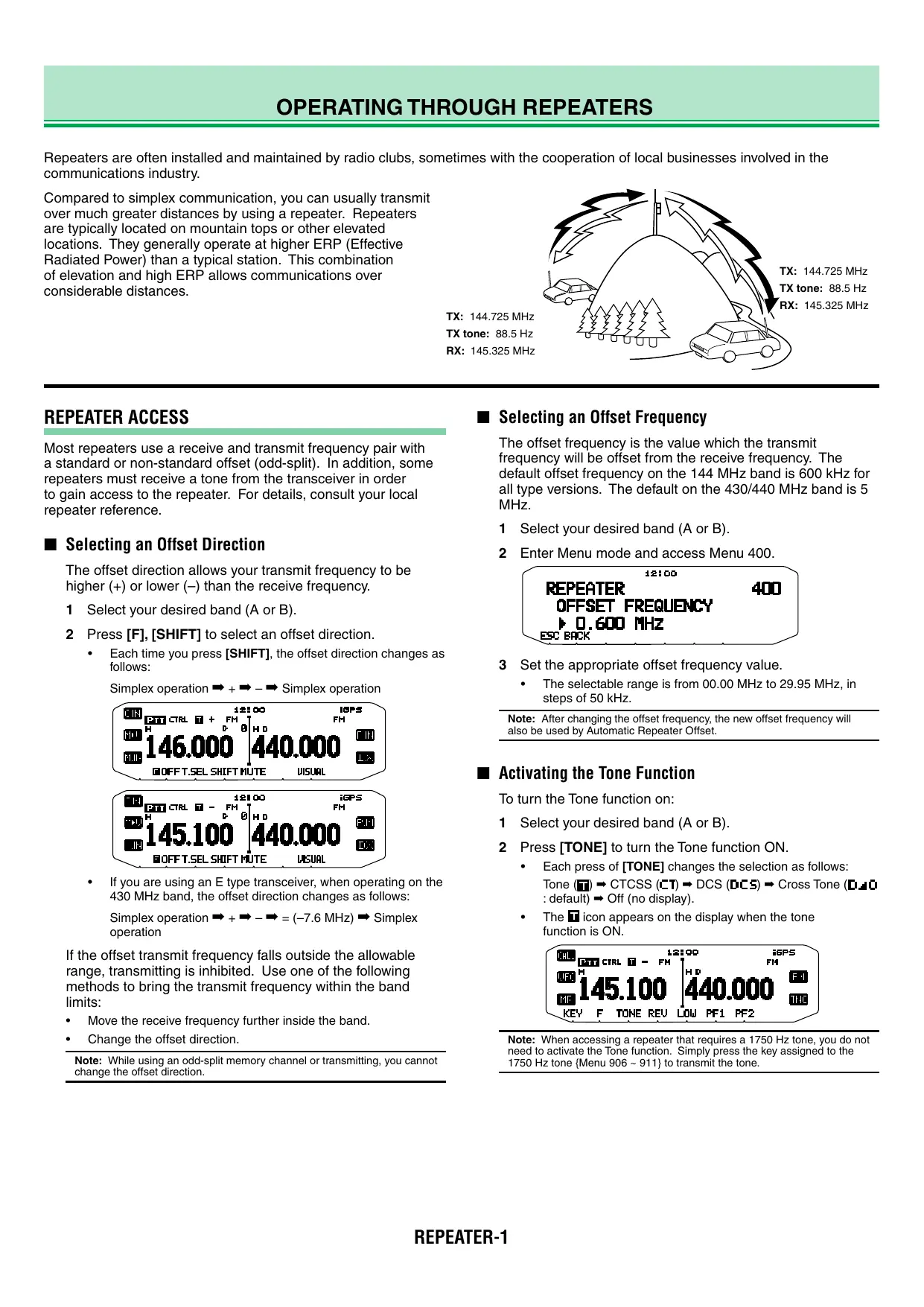
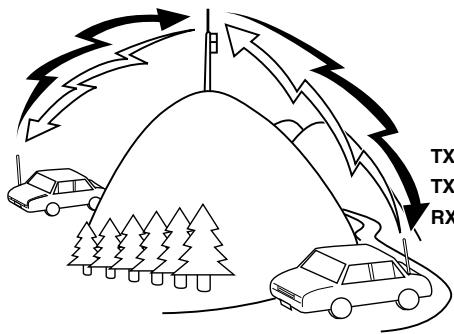
Repeaters are often installed and maintained by radio clubs, sometimes with the cooperation of local businesses involved in the communications industry. Compared to simplex communication, you can usually transmit over much greater distances by using a repeater. Repeaters are typically located on mountain tops or other elevated locations. They generally operate at higher ERP (Effective Radiated Power) than a typical station. This combination of elevation and high ERP allows communications over considerable distances. TX: 144.725 MHz TXtone: 88.5 Hz RX: 145.325 MHz TX: 144.725 MHz TXtone: 88.5 Hz RX: 145.325 MHz

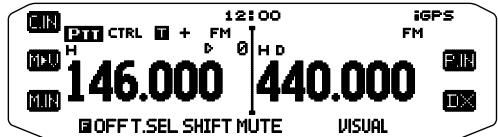
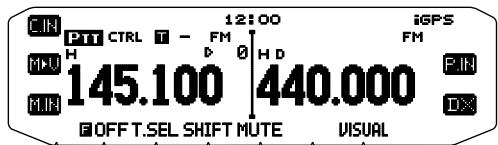
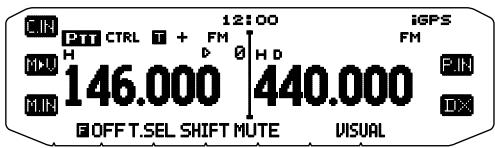
REPEATER ACCESS Most repeaters use a receive and transmit frequency pair with a standard or non-standard offset (odd-split). In addition, some repeaters must receive a tone from the transceiver in order to gain access to the repeater. For details, consult your local repeater reference. & Selecting an Offset Direction The offset direction allows your transmit frequency to be higher (+) or lower (—) than the receive frequency. 1 Select your desired band (A or B). 2 Press [F], [SHIFT] to select an offset direction. + Each time you press [SHIFT], the offset direction changes as follows: Simplex operation =+ + =+ — = Simplex operation = 12100 es quo Hé mi, 2146000 1440. 000 »

MOFFT.SEL SHIFT MUTE LISUAL

BOFFT.SEL SHIFT MTE LSUAL

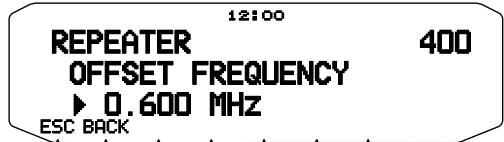
+ If you are using an E type transceiver, when operating on the 430 MHz band, the offset direction changes as follows: Simplex operation = + =+ — =+ = (-7.6 MHz) = Simplex operation If the offset transmit frequency falls outside the allowable range, transmitting is inhibited. Use one of the following methods to bring the transmit frequency within the band limits: + Move the receive frequency further inside the band. + Change the offset direction. Note: While using an odd-split memory channel or transmiting, you cannot change the offset direction. H Selecting an Offset Frequency The offset frequency is the value which the transmit frequency will be offset from the receive frequency. The default offset frequency on the 144 MHz band is 600 kHz for all type versions. The default on the 430/440 MHz band is 5 MHz. 1 Select your desired band (A or B). 2 Enter Menu mode and access Menu 400.

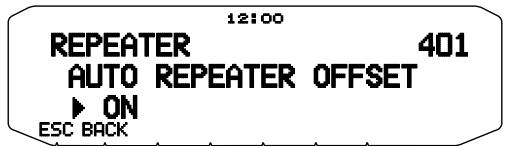
REPEATER OFFSET FREQUENCY + 0.600 MHz ESC EACK 3 Setthe appropriate offset frequency value. + The selectable range is from 00.00 MHz to 29.95 MHz, in steps of 50 kHz. Note: After changing the offset frequency, the new offset frequency will also be used by Automatic Repeater Offset. & Activating the Tone Function To turn the Tone function on: 1 Select your desired band (A or B). 2 Press [TONE] to turn the Tone function ON. + Each press of [TONE] changes the selection as follows: Tone (fi) = CTCSS (CT) = DCS (DCS) = Cross Tone (Cr default) = Off (no display) + The Hficon appears on the display when the tone function is ON. 13500 rs

mi. 100 440,000 = Ch F_TONE REU LOU PF FF2 Note: When accessing a repeater that requires a 1750 Hz tone, you do not need to activate the Tone function. Simply press the key assigned to the 1750 Hz tone {Menu 906 - 911} to transmit the tone. REPEATER-1

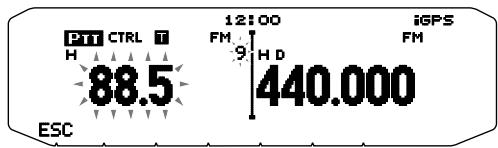
Œ Selecting a Tone Frequency = En m+r To select the tone frequency required to access your desired repeater: mn 146. 000 “ao, 000 ®

Turn the Tone function ON. MOFFT.SEL SHIFT MUTE VISUAL Press [F], [T.SEL]. 6 Press [PTT] to start a call. + The current tone frequency appears on the display. The + You will be transmitting on an offset frequency value default frequency is 88.5 Hz. determined from your offset setting value and an offset FT Li direction depending on your selected frequency. Refer to the ga n ml, settings below for offset directions: TM-D710GA Under 145.100 MHz: No offset (Simplex operation)

(Simplex operation) Press any key other than the Tuning control and [ESC] to 146.000 - 146.399 MHz: + 600 kHz offset set the selected frequency. 146.400 - 146.599 MHz: No offset Rotate the Tuning control to select your desired frequency. + To exit the tone frequency selection, press [ESC]. Note: If you have set up a Memory channel with a tone setting, simply (Simplex operation) recall the Memory channel instead of setting up the tone frequency every 146.600 - 146.999 MHz: — 600 kHz offset 1e 147.000 - 147.399 MHz: + 600 kHz offset

147.400 - 147.599 MHz: No offset

No.| Frequency | | Frequency | | Frequency (Simplex operation) (Hz) (Hz) (Hz)

his function automatically selects an offset direction and activates the Tone function, according to the frequency that you have selected. To obtain an up-to-date band plan for repeater offset direction, contact your national Amateur Radio association.

ESC ERCK Press [BAND SEL A] to select the A band. Press [VFO] to select VFO mode. Rotate the Tuning control to select your desired frequency. REPEATER-2

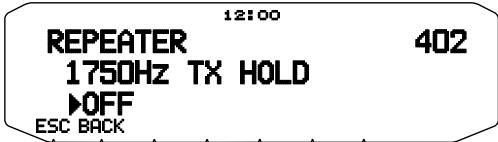
TRANSMITTING À 1750 Hz TONE Most repeaters in Europe require that a transceiver transmit a 1750 Hz tone. On a E type model, simply pressing Microphone [CALL] causes it to transmit a 1750 Hz tone. It is also possible to program [1750] on the front panel as a PF key for transmitting a 1750 Hz tone. Note: The transceiver continuously transmits à 1750 Hz tone until you release Microphone [CALL] or PF key(1750) Some repeaters in Europe must receive continuous signals for a certain period of time, following a 1750 Hz tone. This transceiver is also capable of remaining in the transmit mode for 2 seconds after transmitting a 1750 Hz tone. 1 Enter Menu mode and access Menu 402.

REPEATER 402 1750Hz TX HOLD POFF ESC BACK 2 Set the tone to ON or OFF. Note: While remaining in the transmit mode, the transceiver does not continuously transmit a 1750 Hz tone. REVERSE FUNCTION

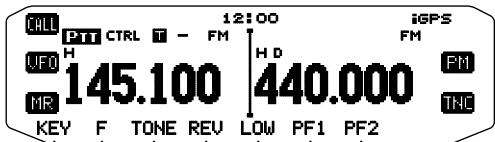
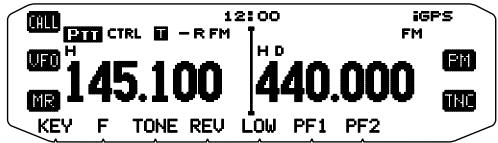
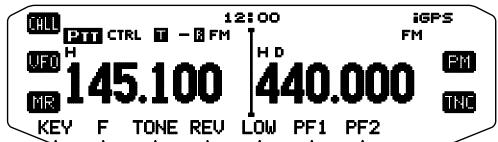
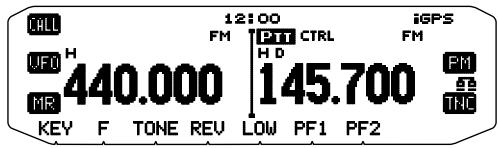
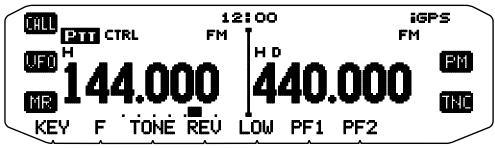
After setting a separate receive and transmit frequency, you can exchange these frequencies using the Reverse function. This allows you to manually check the strength of signals you receive directly from other stations, while using a repeater. If the station's signal is strong, move to a simplex frequency to continue the contact and free up the repeater. Press [REV] to turn the Reverse function ON or OFF. + When the Reverse function is ON, the R icon will appear on the display. 12100 ES ŒCR m-RFN m4. 100 440.000 ‘ ev F_TONE REU LON PF1 PF2 Note: + _ Ifthe transmit frequency is outside the allowable transmit frequency range when using Reverse, pressing [PTT] will cause an error tone to sound and transmission will be inhibited. + | Ifthe receive frequency is outside the receive frequency range when using Reverse, an error tone will sound and Reverse will not operate. + _ The ARO (Automatic Repeater Ofiset) will not function when Reverse is ON. + You cannot switch Reverse ON or OFF while transmitting. AUTOMATIC SIMPLEX CHECKER (ASC) While using a repeater, ASC periodically monitors the strength of signals you receive directly from the other stations. If the station's signal is strong enough to allow direct contact without a repeater, the B icon blinks. Press [REV] (15) to turn the ASC ON. + When the ASC is ON, the icon will appear on the display. 22100 es

un, F_TONE REU LOW PF1 PF2 + While direct contact is possible, without the use of a repeater, the [A icon will begin blinking. + To exit ASC, press [REV]. Note: + Pressing [PTT] will cause the [A icon to stop linking. ASC does not function if you are using simplex operation: ASC does not function while scanning. Activating ASC while using Reverse will switch the Reverse function OFF. If you recall a Memory channel or the Call channel, and those channels are set up with the Reverse function switched ON, the ASC will switch OFF. You cannot use ASC when the built-in TNC is turned ON. ASC causes received signals to be momentarily intermitted every 3 seconds.

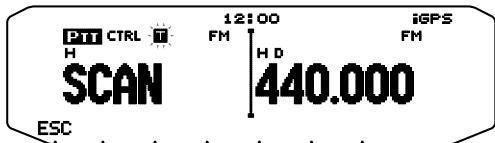
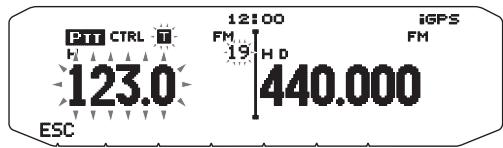
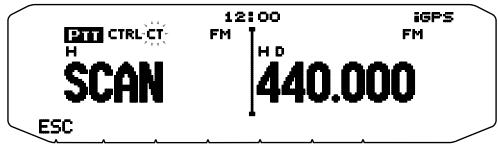
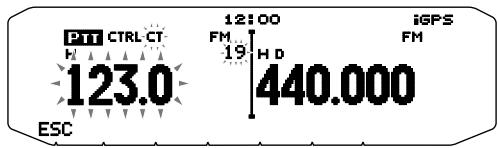
This function scans through all tone frequencies to identify the incoming tone frequency on a received signal. You can use this function to find which tone frequency is required by your local repeater. 1 Press [TONE] to switch the Tone function ON. + The icon appears on the display. 2 Press [F], [T.SEL] (1s) to run the Tone Frequency ID scan. + The icon blinks and SCAN appears on the display. 38:00 iGPS SCAN (40.000 + To reverse the scan direction, turn the Tuning control clockwise (upward scan) or counterclockwise (downward scan). + To quit the function, press [ESC]. + When the tone frequency is identified, the identified frequency appears on the display and blinks. Press any key other than the Tuning control while the identified frequency is blinking, to resume scanning. 3 Press the Tuning control to program the identified frequency in place of the currently set tone frequency. + The Tone function will remain ON. You can press [TONE] to switch the Tone function OFF. + Press [ESC] if you do not want to program the identified frequency. REPEATER-3

MEMORY CHANNELS In Memory channels, you can store frequencies and related data that you often use. Then you need not reprogram the data every time. You can quickly recall a programmed channel by simple operation. A total of 1000 Memory channels are available for bands A and B.

SIMPLEX & REPEATER OR ODD-SPLIT MEMORY

CHANNEL? You can use each memory channel as a simplex & repeater channel or as an odd-split channel. Store only one frequency to use as a simplex & repeater channel or two separate frequencies to use as an odd-split channel. Select either application for each channel depending on the operations you have in mind. Simplex & repeater channels allow: + Simplex frequency operation + Repeater operation with a standard offset (if an offset direction is stored) Odd-split channels allow: + Repeater operation with a non-standard offset The data listed below can be stored in each Memory channel:

STORING SIMPLEX AND STANDARD REPEATER

FREQUENCIES 1 Press [VF0] to enter VFO mode. Rotate the Tuning control to select your desired frequency. + Additionally, you can press the microphone [UPJ/IDWN] keys to select a frequency. 3 Set up any additional data desired for the frequency. + Offset direction, Tone ON/OFF, Tone frequency, CTCSS ON/OFF, CTCSS frequency, DCS ON/OFF, DCS code, etc. 4 Press [F]. + À memory channel number appears. Ci 12100 ices om Fr H 2 ëluo Fa 144600 |440.000

ROFFT.SEL SHIFT MÜTE LSUAL

Simplex & 1 Parameter ts Odd-split 5 Rotate the Tuning control to select your desired channel number. Recelve frequency Yes Yes + When the selected channel number does not have stored data, Transmit frequency Yes icon appears. When the channel does have stored data, icon appears. foceive frequency step Yes + Additionally, you can press the microphone [UPJ/DWNI keys to - Yes select a channel. gansmit frequency step Yes 6 Press [M.IN] to store the data in the selected Memory - channel. Offset direction Yes No Note: If you store the data in a Memory channel ihal already has dala stored in Tone ON/OFF Yes Yes it. the old data will be cleared and the new data wil| be stored. Tone frequency Yes Yes H Call Channel Memory (Simplex) GTCSS ON/OFF Yes Yes The Call channel can be used to store any frequency and CTCSS frequency Yes Yes related data that you will recall often. You may want to DCS ON/OFF Yes Yes dedicate the Call channel as an emergency channel within your group. DCS code Yes Yes : To store a simplex frequency and related data as the Call Reverse ON/OFF Yes No channel instead of in a Memory channel, after step 4 (above), Memory channel lockout Yes Yes press [C.IN]. Note: Storing new data in the Call channel will clear the old data. (The Call Memory channel name Yes Yes channel itself cannot be cleared, but data can be replaced with new data.) Modulation/ Yes Yes Demodulation mode MEMORY CH-1

Some repeaters use a receive and transmit frequency pair with a non-standard offset. To access those repeaters, store two separate frequencies in a memory channel. You can then operate on those repeaters without changing the offset frequency you stored in the menu. 1 Set up a simplex channel by following steps 1 to 6 of

“STORING SIMPLEX AND STANDARD REPEATER

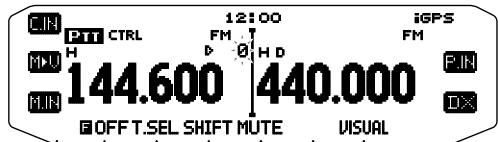
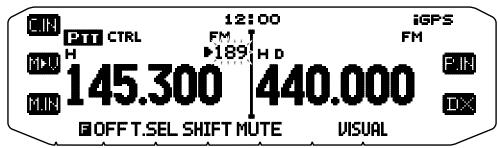
FREQUENCIES”, above. 2 Press [VF0] to enter VFO mode. 3 Rotate the Tuning control to select your desired transmit frequency. + Additionally, you can press the microphone [UPJ/DWN] keys to select a frequency. 4 Set up any additional data desired for the transmit frequency. + Tone ON/OFF, Tone frequency, CTCSS ON/OFF, CTCSS frequency, DCS ON/OFF, DCS code, etc. 5 Press [F]. + À memory channel number appears. 6 Rotate the Tuning control to select your desired channel number. + Additionally, you can press the microphone [UPJ/DWN] keys to select a channel. 12:00 isFs 45300 440.000 e|

BOFFT-SEL SHIFT MÜTE VISUAL

7 Press [PTT], [M.IN] to store the data in the selected Memory channel. M Call Channel Memory (Odd-Split) The Call channel can be used to store any frequency and related data that you will recall often. You may want to dedicate the Call channel as an emergency channel within your group. To store an odd-split frequency and related data as the Call channel instead of in a Memory channel, after step 6 (above), press [PTT], [C.IN]. Note: + You cannot set the transmission and reception frequencies on different bands. + You cannot set a different frequency step size for the transmission and reception frequencies. + You cannot store the transmit offset status and Reverse status in an odd- split Call channel.

RECALLING A MEMORY CHANNEL

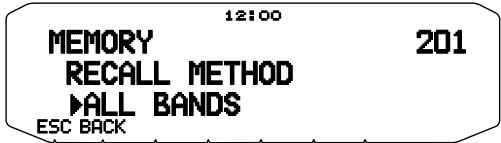
1 Press [MR] to enter Memory Recall mode. 2 Rotate the Tuning control to select your desired Memory channel. + Additionallÿ, you can press the microphone [UPI/IDWNI keys to select a channel, or you can enter a channel number using the microphone keypad. H Memory Recall Method The transceiver Menu also provides you with the option to recall Memory channels with stored frequencies in your current band, or all Memory channels: 1 Enter Menu mode and access Menu 201.

MEMORY 201 RECALL METHOD +ALL BANDS ESC BACK 2 Setthe recall method to CURRENT (current band) or ALL BANDS (all bands). + CURRENT allows you to recall only those memory channels that have stored frequencies within the current band. ALL allows you to recall all programmed memory channels. + When the recalled memory channel is an AM channel, you cannot recall on the B band. Frequency ranges: + 118MHz: 118 - 135.995 MHz + 144 MHz: 186 - 199.995 MHz + 220 MHz: 200 - 299.995 MHz +300 MHz: 300 - 399.995 MHz + 430/440 MHz: 400 - 523.995 MHz + 1200 MHz: 800 - 1299.990 MHz

CLEARING À MEMORY CHANNEL

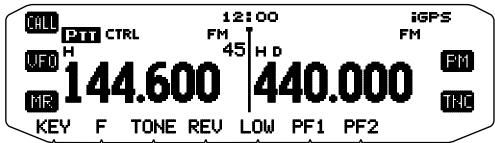
1 Press [MR] to enter Memory Recall mode. 2 Rotate the Tuning control to select your desired Memory channel. + Additionally, you can press the microphone [UPJ/DWN] keys to select a channel, or you can enter a channel number using the microphone keypad. Cr] 18:00 lors or FH FH

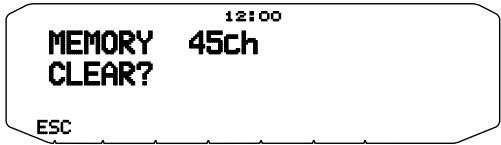
KEY F TOHE REU LOW PF1 PF2 3 Turn the transceiver power OFF. 4 Press [MR] + Power ON. + A confirmation message appears on the display. MEMORY 4Sch CLEAR? ESC 5 Press the Tuning control to clear the Memory channel. + To exit without clearing the channel, press [ESC]. MEMORY CH-2

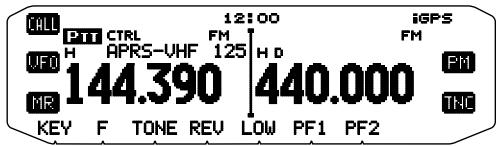
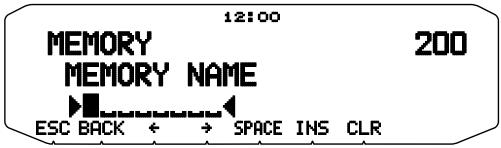
You can name Memory channels using up to 8 characters. When you recall a named Memory channel, its name appears on the display. Names can be callsigns, repeater names, cities, people, etc. me eee es MéPRS-UHr L25/4 0 m144.390 1440000 % EV F TOME REU LOW FPFi PF2 1 Press [MR] to enter Memory Recall mode. 2 Rotate the Tuning control to select your desired Memory channel. 3 Enter Menu mode and access Menu 200.

4 Enter your desired name for the channel.

CHANNEL DISPLAY FUNCTION

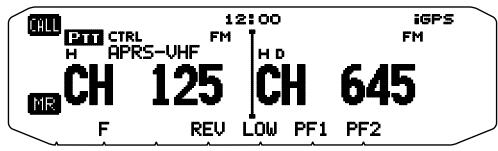
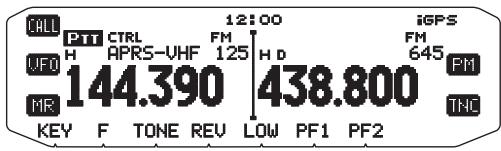
Use this function when you want to use only Memory channels. When this function is switched ON, the transceiver displays only a Memory channel number instead of a frequency. 1 Turn the transceiver power OFF. 2 Press [LOW] + Power ON to turn the channel display ON or OFF. ES UE "Eugn. œCH 125 (CH 645

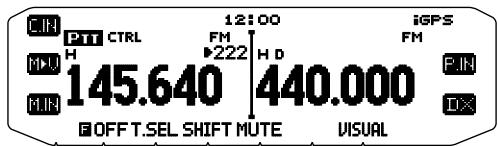
Em ares LE man A ÉFRS-UHe “L25]H 0 144390 (438.800 KEY F TOME REV LOW PFL1 PF2 Note: + _lfno Memory channels have saved data in them, channel display will not function. + When using Channel Display, you cannot reset the transceiver. Note: You can overwrite a Memory channel name by performing the steps above. You can also clear a Memory channel name by clearing the Memory channel. MEMORY-TO-VFO TRANSFER Transferring the contents of a Memory channel or the Call channel to the VFO can be useful if you want to search for other stations or a clear frequency, near the selected Memory channel or Call channel frequency. 1 Press [MR] or [CALL] to enter Memory Recall mode or select the Call channel. 2 Rotate the Tuning control to select your desired channel. (This step is not necessary when selecting the Call channel.) 3 Press [F], [M>V]. + The entire contents of the Memory channel or Call channel are copied to the VFO, and VFO mode is selected after the transfer is complete. + When copying a transmit frequency from an odd-split Memory or Call channel, you must first turn the Reverse function ON before pressing [FI, [M>V]. ET ES me EL 2 145.640 ÿ 440. 000 %

OFF T-SEL SHIFT MUTE VISUAL

While in Channel Display mode, the transceiver keys function as shown next page: MEMORY CH-3

PROGRAMMABLE MEMORY (PM) Programmable Memory (PM) stores virtually all settings currently set on the transceiver. This transceiver provides 5 PM channels to store 5 sets of transceiver configurations. Later, you can quickly recall any one of these channels, depending on the operations you have in mind or the operating environment. The following programmable settings cannot be stored': + Memory name + Memory channel lockout +_ Channel Display mode + Locked-band/ Cross-band Repeater ON/OFF + _ Repeater mode ! + Repeater hold ‘ + _ Repeater ID transmit + _ Registered repeater ID ! *_ Wireless remote control ! + Answer back! + _ Remote control ID ‘ + Keylock + Power on password ? + Memory channel/ Call channel/ Program scan memory + _ Weather channel ‘ +. _DTMF memory + EchoLink memory + COM port speed + PC port speed + Microphone sensitivity +10 MHz mode ? +_Input/output level (DATA terminal) 2 + SQC data output logic ? *TM-D710GA only 2 Can be set only by using the MCP-6A software. APPLICATION EXAMPLES The following are examples of how you might use Programmable Memory. These examples may not represent applications useful to you, but you will understand the flexibility of this function. Situation: You share your transceiver with other members in your family or club. However, each individual has personal preferences for how they like to set various functions. You have to keep changing many settings each time you use the transceiver. Solution: Because 5 PM channels are available, up to 5 persons can separately program the transceiver and store their customized environment. Then each person can quickly change to his or her favorite settings, simply by recalling a PM channel. It is too much trouble to change back the settings after somebody else has reconfigured them. So this application may avoid having a feature-rich transceiver but never using many useful features. Situation: While operating mobile on the way to work every morning, you prefer a silent transceiver that does not interrupt the morning calm. In addition, you feel that a bright display is useless in the sunlight. At night when driving home, you realize the Beep function truly does serve a purpose and you acknowledge it is nice to see a bright display after dark. Solution: In 2 PM channels, store the same operating data such as frequency, offset, tone, etc, and store different settings for the Display brightness and Beep functions. Then you can quickly recall the best settings for day or night operation. Situation: You cannot figure out how to exit the current transceiver mode. Solution: Simply recall PM channel 1, which contains an exact copy of the transceiver default environment. You will not lose the contents of any memory channels. PM-1

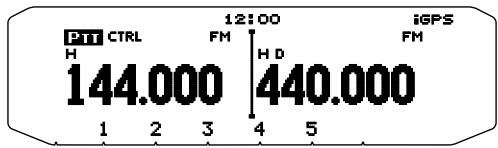
1 Confirm that the following conditions have been satisfied: + The transceiver is in receive mode. + Scan is not being used. + Microphone Control is OFF. Configure the transceiver with your desired settings. Press [F], [P.IN]. + PM channel numbers 1 to 5 appear and blink at the bottom of the display. ESS ES

144 000 ) ao 000 4 Enter a channel number ([1] to [5]) corresponding to your desired PM channel. + __ The settings are stored in the PM channel.

RECALLING PM CHANNELS

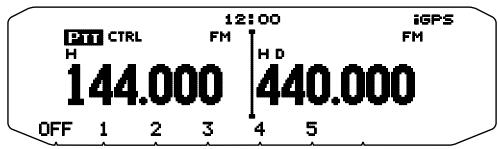
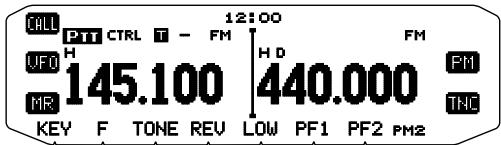
1 Press [PM]. + PM channel numbers 1 to 5 and OFF appear on the bottom of the display. 12100 ES CTRL FH OFF 1 2 Enter a channel number ([1] to [5]) corresponding to your desired PM channel. + The settings stored in the PM channel are recalled. + The selected channel number appears on the display. w, rc pnem mn!

KEY _F TONE REU LON PF1 PF2Puz + When selecting [OFF], the PM channels turn off.

AUTO PM CHANNEL STORE

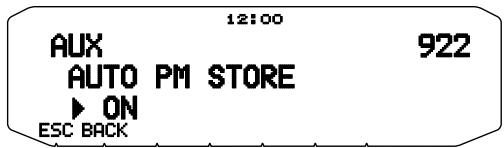
After you recall a PM channel, this function automatically overwrites the current PM channel with the present operating environment when: + You recall another PM channel. + Youpress [PM]. + You switch the transceiver power OFF. Follow the steps below to activate the Auto PM storage function. 1 Enter Menu mode and access Menu 922. AUX | 922 AUTO Pi STORE » ON ES EACK 2 Setto ON. Note: If you do not recall a PM channel (1 - 5), Menu No. 922 wil not appear on the display.

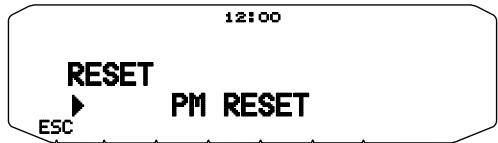
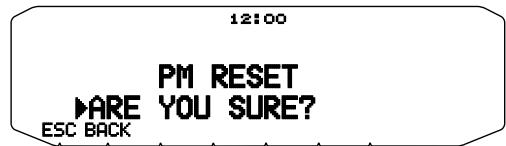
To reset the PM channels to their default settings:

PM-2 Turn the transceiver power OFF. Press [F] + Power ON. Release [F]. Rotate the Tuning control and select PM RESET.

RESET + Pi RESET ESC Press the Tuning control. +__ A confirmation message appears on the display.

Pi RESET bARE YOU SURE? ESC BACK Press the Tuning control again to reset the PM channels. + Press [BACK] to return to the previous display. + To exit without resetting the PM channels, press [ESC].

SCAN Scan is a useful feature for hands-off monitoring of your favorite frequencies. Becoming comfortable with all types of Scan will increase your operating efficiency. This transceiver provides the following types of scans: Scan Type Scan Range VFO Scan Scans all frequencies on the current band. Memory Scan Scans all frequencies stored in the Memory channels. Group Scan specified. Scans the frequencies in the Memory channels which belong to the group you have Program Scan Scans all frequencies within the programmed range, on the current band. MHz Scan Scans all frequencies within a 1 MHz range from the originating frequency. Call Scan channel. Scans the Call channel as well as the currently selected VFO frequency or Memory Note: + _Adjust the squelch level before using Scan. Selecting a squelch level too low could cause Scan to stop immediately. + While using CTCSS or DCS, Scan stops for any signal received: however, you will hear audio only when the signal contains the same CTCSS tone or DCS code that you selected. + When using S-meter Squelch, Scan stops when the received signal strength matches or exceeds the S-meter setting. Scan resumes 2 seconds after the signal level drops below the S-meter setting.

+ Starting Scan switches the Automatic Simplex Checker OFF. Pressing and holding [PTT] causes Scan to temporarily stop if itis functioning on a non TX band

SELECTING A SCAN RESUME METHOD

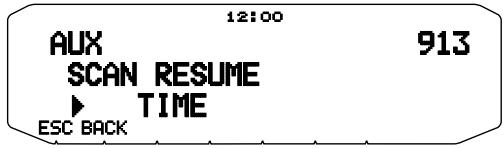
The transceiver stops scanning at a frequency or Memory channel on which a signal is detected. It then continues Scanning according to which resume mode you have selected. You can choose one of the following modes. The default is Time- operated mode. + __ Time-Operated mode The transceiver remains on a busy frequency or Memory channel for approximately 5 seconds, and then continues to scan even if the signal is still present. + Carrier-Operated mode The transceiver remains on a busy frequency or Memory channel until the signal drops out. There is a 2 second delay between signal drop-out and scan resumption. *__Seek mode The transceiver remains on a busy frequency or Memory channel even after the signal drops out and does not automatically resume scanning. Note: To temporarily stop scanning and monitor weak signals, press the microphone PF key assigned to the Monitor function. Press the PF key again to resume scanning. 1 Enter Menu mode and access Menu 913.

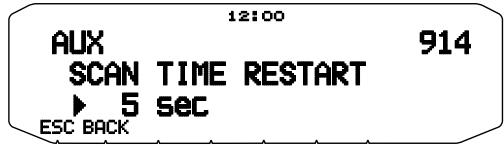
LT 913 SCAN _ RESUME + TIME ESC EACK 2 Setthe Scan Resume mode to TIME (Time-Operated), CARRIER (Carrier-Operated) or SEEK. SCAN-1 Œ Time-Operate Resume Time Set the hold time for the Time-Operate scan method. When a signal is received, scan will pause at that frequency for the duration of the hold time you set. When the set time elapses, scan will resume (even if the signal is still being received). 1 Enter Menu mode and access Menu 914.

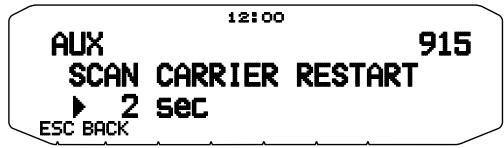
+ 5 sec ESC BACK 2 Setthe resume time to 1 - 10 sec. Carrier-Operated Resume Time Set the hold time for the Carrier-Operate scan method. When a signal is received, scan will pause at that frequency. When the signal stops, scan will resume after the duration of the hold time you set. 1 Enter Menu mode and access Menu 915. aux l 915

SCAN CRRRIER RESTART

+ 2 sec ESC EACK 2 Setthe resume time to 1 - 10 sec.

VFO SCAN VFO the c! Scan monitors all frequencies tunable on the band, using urrent frequency step size. 1 Select your desired band. 2 Press [VFO] (15). Scan starts at the current frequency. The 1 MHz decimal blinks while scanning is in progress. To reverse the scan direction, turn the Tuning control clockwise (upward scan) or counterclockwise (downward scan). You can also press microphone [UP]/ [DWN]. 12:00 ES me cmt mi 2144000 (440.000 à KEY F TONE REU LOW PF1 PF2 3 To quit VFO Scan, press [VFO] again. MEMORY SCAN Use Memory Scan to monitor all Memory channels programmed with frequency data. 1 Select your desired band. 2 Press [MR] (15). Scan starts at the current frequency. The 1 MHz decimal blinks while scanning is in progress. To reverse the scan direction, turn the Tuning control clockwise (upward scan) or counterclockwise (downward scan). You can also press microphone [UP]/ [DWN]. 3 To quit Memory Scan, press [MR] again. Note:

At least 2 Memory channels must contain data and must not be locked out of scan. The LO/U0 to L9/U9 Memory channels will not be scanned. You can also start Memory Scan when in Channel Display mode. While Scan is paused on a channel, the channel number links. M Locking Out a Memory Channel You can select Memory channels that you prefer not to monitor while scanning.

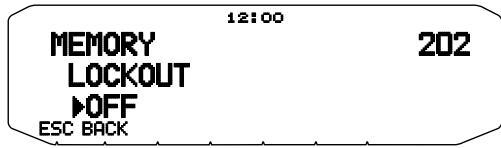
Press [MR], then rotate the Tuning control to select your desired channel. Enter Menu mode and access Menu 202. Mn 202 LOCKOUT bOFF ESC BACK Set the lockout to ON to lock the channel out of the scanning sequence. + To cancel lockout, set the lockout to OFF. + The x icon appears on the display for a channel that has been locked out. 12500 ES

144380 40.000 ® = KEY F TOME REU LOU PF1 PF2 Note: The LO/UO to La/U9 Memory channels cannot be locked out. GROUP SCAN

For the purpose of Group Scan, the 1000 Memory channels are divided into 10 groups, with each group containing 100 channels. Group Scan monitors only the 100 channels which belong to the specific group you are scanning. The channels are grouped as follows: Memory Channel Memory Channel Group Range Group Range 0 0 - 99 5 500 - 599

100 - 199 6 600 - 699

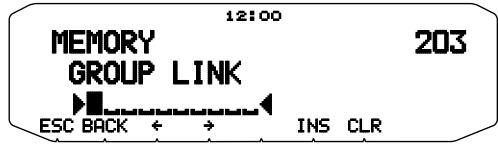
2 200 - 299 7 700 - 799 3 300 - 399 8 800 - 899 4 400 - 499 9 900 - 999 1 Press [MR], then rotate the Tuning control to select a channel in your desired group. 2 Press the Tuning control (15). + Scan starts at the current channel. + The 1 MHz decimal blinks while scanning is in progress. + To reverse the scan direction, turn the Tuning control clockwise (upward scan) or counterclockwise (downward scan). You can also press microphone [UP]/ [DWNI]. 3 To quit Group Scan, press the Tuning control again. Note: + Atleast 2 Memory channels in the selected group must contain data and must not be locked out of scan. + You can also start Memory Scan when in Channel Display mode. While Scan is paused on a channel, the channel number blinks. H Memory Group Link Memory Group Link provides you with the ability to link 2 or more Memory channel groups together to act as a single group when scanning. You can link up to 10 separate groups together, or even add multiple instances of the same group to the group link, to ensure that one group is scanned more often than the other groups. 1 Enter Menu mode and access Menu 203. 2 Press the Tuning control. + The cursor will begin blinking. 12:00 MEMORY GROUP LINK RP |

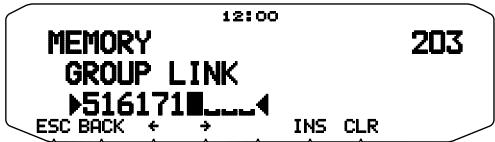
3 Rotate the Tuning control to select a group to link. 4 Press the Tuning control to set the group and move the cursor to the right. + Press [æ] to move the cursor back or [+] to move the cursor to the right. 5 Repeat steps 3 and 4 to link additional groups together. 12:00 MEMORY 203 GROUP LINK »5161718.. 4

ESC BRCK + + INS CLR

6 When you have entered your desired groups, press [+ ]to move the cursor to the right, then press the Tuning control to complete the entry and exit Menu mode. + You can insert a character by pressing [INS]. + You can delete the selected character by pressing [CLR]. + If you have entered the maximum of 6 groups, simply press the Tuning control to complete the entry and exit Menu mode. SCAN-2

PROGRAM SCAN Program Scan is identical to VFO Scan except that you select a frequency range for the scan. Œ Setting Scan Limits You can store up to 10 scan ranges in Memory channels LO/ UO to L9/U9. 1 Press [VFO]. 2 Select your desired band. 3 Rotate the Tuning control to select your desired frequency for the lower limit. Ci] 18:00 vers

144200 (440.000 KEY F TONE REV LOU PF1 PF2 4 Press [F]. + A memory channel number appears and blinks. 5 Rotate the Tuning control to select a channel from LO to L9. jee ES Ben

6 Press [M.IN] to set the channel number. + The lower limit is stored in the channel. 7 Rotate the Tuning control to select your desired frequency for the lower limit. Press [F]. Rotate the Tuning control to select a matching channel number from UO to U9. + For example, if you select channel L3 in step 5, select channel U3 here. 10 Press [M.IN] to set the channel number. + The upper limit is stored in the channel. + To confirm the stored scan limits, press [MR], then select the Land U channels. Note: + The lower limit must be lower in frequency than the upper limit. + The lower and upper frequency step sizes must be equal. + The lower and upper limits must be selected on the same band. Æ Using Program Scan 1 Select your desired band. 2 Press [VFO]. 3 Rotate the Tuning control to select a frequency within your desired scan range. 4 Press [VFO] (15). + Scan starts at the current frequency. + The 1 MHz decimal blinks while scanning is in progress. + To reverse the scan direction, turn the Tuning control clockwise (upward scan) or counterclockwise (downward scan). You can also press microphone [UP]/ [DWNI]. 5 To quit Program Scan, press [VFO] again. Note: + _ifthe step size differs between the lower limit and upper limit, VFO scan will begin instead of Program Scan. + _lfthe current VFO frequency is within more than one Program Scan range, the range stored in the smallest channel number is used. MHz SCAN

MHz Scan monitors a 1 MHz segment of the band, using the current frequency step size. The current 1 MHz digit determines the limits of the scan. For example, if the current frequency is

145.400 MHz, then the scan range would be from 145.000 MHz

to 145.995 MHz (the exact upper limit depends on the current frequency step size). 1 Select your desired band. 2 Press [VFO]. 3 Rotate the Tuning control to select a frequency within your desired 1 MHz range. 4 Press and hold the Tuning control for 1 second to start scanning. + Scan starts at the current frequency. + The 1 MHz decimal blinks while scanning is in progress. + To reverse the scan direction, turn the Tuning control clockwise (upward scan) or counterclockwise (downward scan). You can also press microphone [UP]/ [DWNI]. 5 To quit MHz Scan, press the Tuning control again. CALL SCAN Use Call Scan to monitor both the Call channel and either the currently selected VFO frequency or the currently selected Memory channel. 1 Select your desired VFO frequency or Memory channel. 2 Press [CALL] (15) to start Call Scan. + The 1 MHz decimal blinks while scanning is in progress. + When scanning a Memory channel, the Call channel on the same band as the selected Memory channel is used for scan. 3 To quit Call Scan, press [CALL] again. Note: The Memory channel selected is scanned even if it has been locked out of scan. SCAN-3

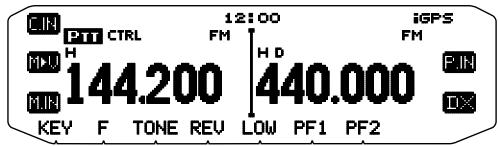
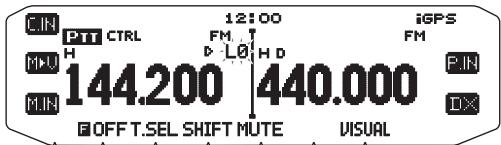
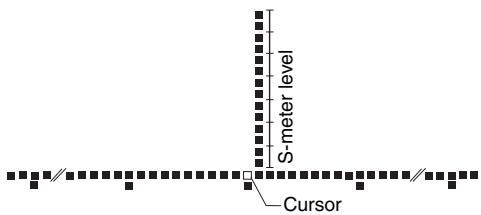
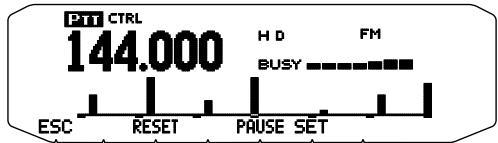
VISUAL SCAN While you are receiving, Visual Scan allows you to monitor frequencies near the current operating frequency. Visual Scan graphically and simultaneously shows how all frequencies in the selected range are busy. You will see up to 21 segments, for each channel, that represent 7 S-meter levels (3 segments per level). Determine the scan range by selecting the center frequency and the number of channels. The default number of channels is 61.

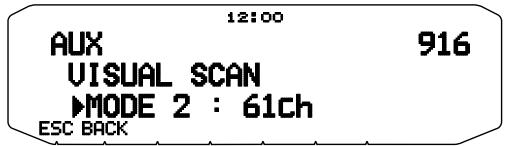
\_Cursor Æ Selecting the Number of Channels 1 Enter Menu mode and access Menu 916. AUX Fe 916 UISUAL. SCAN PMODE 2 : 6lch ESC BACK 2 Setthe number of channels to MODE 1 (31ch), MODE 2 (61ch), MODE 3 (91ch), or MODE 4 (181ch). Œ Using Visual Scan 1 Select your desired band. 2 Rotate the Tuning control select the operating frequency. + This frequency will be used as the center frequency. 3 Press [F], [VISUAL] to start Visual Scan. ni cRL

+ To halt Scan, press [PAUSE]. “PAUSE” appears and blinks. Press [PAUSE] again to resume. 4 To change the operating frequency, rotate the Tuning control. + The displayed frequency changes and the cursor moves. + Press [SET] to use the changed operating frequency as the center frequency. + Press [RESET] to restore the previous operating frequency. 5 To exit Visual Scan, press [ESC]. SCAN-4 Note: + You cannot use the Visual Scan Function under the following circumstances: + When the APRS/NAVITRA or Packet mode is turned

+ When only 1 channel has been stored in the memory channels. + When using Weather Alert (K models only). + | lf you start Visual Scan in Memory Recall mode, the memory channel frequencies will be scanned. + | 1f you start Visual Scan after recalling the Call channel, the Call channel frequency will be used as the center frequency. + _Ifthe frequency range specified for Program Scan or Program VFO is narrower than the range specified for Visual Scan, the range for Program Scan or VFO will be used for Visual Scan. + _ Visual Scan stops while transmitting. + _ li you start Visual Scan in one of the following conditions, you cannot receive in the current operating frequency, To use this frequency, press [PAUSE] to halt Scan. + Memory Recall or Call Channel mode. + Afrequency in the 118, 220, 300, or 1200 MHz band was selected in VFO mode. + Depending on the transceiver conditions, Visual Scan and the conventional S-meter may indicate different signal strength levels.

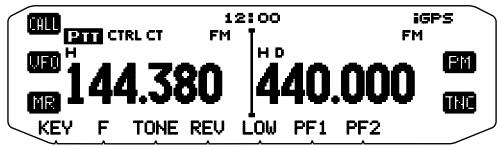
CTCSS You may sometimes want to hear calls only from specific persons. The Continuous Tone Coded Squelch System (CTCSS) allows you to ignore (not hear) unwanted calls from other persons who are using the same frequency. To do so, select the same CTCSS tone as selected by the other persons in your group. À CTCSS tone is subaudible and is selectable from among 42 tone frequencies. DCS Digital Coded Squelch (DCS) is another application which allows you to ignore (not hear) unwanted calls. It functions the same way as CTCSS. The only differences are the encode/ decode method and the number of selectable codes. For DCS, you can select from 104 different codes. Note: CTCSS/ DCS does not cause your conversation to be private. It only relieves you from listening to unwanted conversations. USING CTCSS 1 Select your desired band. 2 Press [TONE] 2 times to activate the CTCSS function. + The CTicon appears on the display when the CTCSS function is ON. 18100 ES STRLCT Fu FM 885 “0.000 5 Enter a frequency reference number (01 - 42) using the + Tone (W) = CTCSS (CT) = DCS (DCS) = Cross Tone (Lait microphone keypad. default) = Off (no display). + Refer to the table below for frequencies and their reference 13500 isPs numbers. eme mt FH

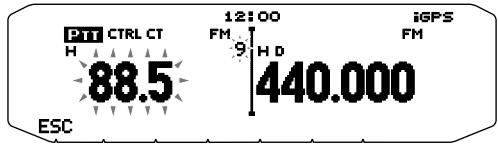
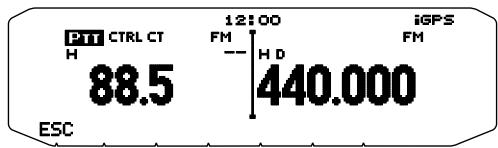
Frequency Frequency Frequency D . C1 No. No. No. KEY F TOME REU LOU PF1 PF2 (Hz) (2) (Hz) 3 Press [F], [T.SEL]. + The current CTCSS frequency appears on the display and blinks. 02 69.3 17 114.8 82 192.8 12500 sers 03 719 18 118.8 33 203.5 ŒHicrmer mt FH Hill, LL 04 74.4 19 123.0 34 206.5 :88.5: 440.000 05 77.0 20] 1278 |35] 2107 = 06 79.7 21 131.8 36 | 218.1 4 Rotate the Tuning control to select your desired CTCSS 07 82.5 22 136.5 37 225.7 frequency. . . 08 85.4 23) 1413 |38| 2201 + Refer to the table below for the available frequencies. + To exit the CTCSS frequency selection, press [ESC]. 09 88.5 24 146.2 39 238.6 5 Press any key other than the Tuning control and [ESC] to 10 915 25 151.4 40 241.8 complete the setting. 11 94.8 26 156.7 Cal 250.3 6 When you are called: The transceiver squelch opens only 12 97.4 27 162.2 42 254.1 when the selected CTCSS tone is received. When you make a call: Press and hold [PTT], then speak 13 100.0 28 167.9 into the microphone. 14 103.5 29 173.8 . jai CTOsS, press [TONE] until CT no longer appears on 15 1072 30 1799 You can also select a CTCSS frequency by using the microphone: 1 Select your desired band. 2 Press [TONE] 2 times to activate the CTCSS function. + The CTicon appears on the display when the CTCSS function is ON. + Each press of [TONE] changes the selection as follows: Tone (fn) = CTCSS (CT) = DCS (DIC5) = Cross Tone (D default} = Off (no display). 3 Press [F], [T.SEL]. + The current CTCSS frequency appears on the display and blinks. 4 Press the key programmed as [ENTER]. SIGNALING-1

This function scans through all CTCSS frequencies to identify the incoming CTCSS frequency on a received signal. You may find this useful when you cannot recall the CTCSS frequency that the other persons in your group are using. 1 Press [TONE] 2 times to activate the CTCSS function. + The CTicon appears on the display when the CTCSS function is ON. + Each press of [TONE] changes the selection as follows: Tone (fi) = CTCSS (CT) = DCS (DCS) = Cross Tone (O4 default) = Off (no display). 2 Press [F], [T.SEL] (15). + The CTicon blinks and “SCAN” appears on the display. + Scan starts when a signal is received. 12:00 ex CTRLCE FH SCAN 440.000 + To reverse the scan direction, turn the Tuning control clockwise (upward scan) or counterclockwise (downward scan). You can also press microphone [UP]/ [DWN]. + To quitthe scan, press [ESC]. + When a CTCSS frequency is identified, the identified frequency appears on the display and blinks. 18:00 rs

act COS ESC 3 Press the Tuning control to program the identified frequency in place of the currently set CTCSS frequency. + The CTCSS function will remain ON. To cancel CTCSS, press [TONE] until CT no longer appears on the display. + Press [ESC] if you do not want to program the identified frequency. + Rotate the Tuning control while an identified frequency is blinking, to resume scanning. USING DCS

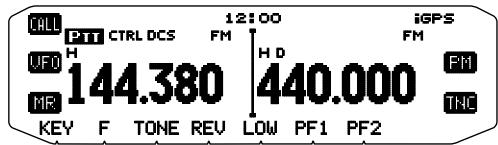
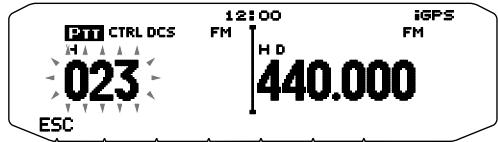
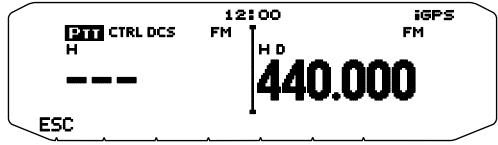
1 Select your desired band. 2 Press [TONE] 3 times to activate the DCS function. + The DCS icon appears on the display when the DCS function is ON. + Each press of [TONE] changes the selection as follows: Tone (fi) = CTCSS (CT) = DCS (EC) = Cross Tone (Da: default) = Off (no display). 12100 isFs EIcRLocs LL FM | =144.380 |440.000 KEY F TONE REU LOW PF1 PF2 3 Press [F], [T.SEL]. + The current DCS code appears on the display and blinks. 38100 icrs Gücmocs FM 2023: (440.000 4 Rotate the Tuning control to select your desired DCS code. + Refer to the table below for the available codes. + To exitthe DCS code selection, press [ESC]. 5 Press any key other than the Tuning control and [ESC] to complete the setting. 6 When you are called: The transceiver squelch opens only when the selected DCS code is received. When you make a call: Press and hold [PTT], then speak into the microphone. + To cancel DCS, press [TONE] until DCS no longer appears on the display. You can also select a DCS code by using the microphone: 1 Select your desired band. 2 Press [TONE] 3 times to activate the DCS function. + The DCS icon appears on the display when the DCS function is ON. + Each press of [TONE] changes the selection as follows: Tone (x) = CTCSS (CT) = DCS (DnC5) = Cross Tone (D a: default) = Off (no display). 3 Press [F], [T.SEL]. + The current DCS code appears on the display and blinks. 4 Press the key programmed as [ENTER]. 12300 ES Bücmocs "

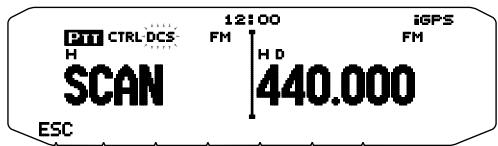
This function scans through all DCS codes to identify the incoming DCS code on a received signal. You may find it useful when you cannot recall the DCS code that the other persons in your group are using. 1 Press [TONE] 3 times to activate the DCS function. +__ The DCS icon appears on the display when the DCS function is ON. + Each press of [TONE] changes the selection as follows: Tone (fi) = CTCSS (CT) = DCS (D) = Cross Tone (Dar default) = Off (no display). 2 Press [F], [T.SEL] (15). + The DCS icon blinks and “SCAN” appears on the display. + Scan starts when a signal is received. 18100 sSPE CTRLDCS FH SCAN (440.000

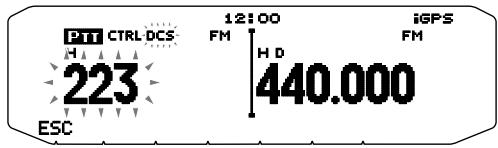
+ To reverse the scan direction, turn the Tuning control clockwise (upward scan) or counterclockwise (downward scan). You can also press microphone [UP]/ [DWN]. + To quit the scan, press [ESC]. + When a DCS code is identified, the identified code appears on the display and blinks. crrincs | FH 223: (440.000 ESC 3 Press the Tuning control to program the identified code in place of the currently set DCS code. The DCS function will remain ON. To cancel DCS, press [TONE] until DCS no longer appears on the display. + Press [ESC] you do not want to program the identified code. + Rotate the Tuning control while an identified code is blinking, to resume scanning.

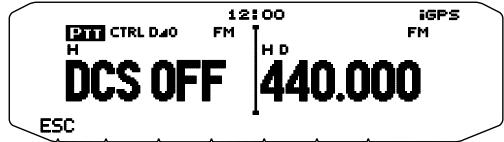
You can set separate signaling types by TX and RX for when you access a repeater that uses different Encode/ decode signaling. To turn the Cross Tone function On: Press [TONE] 4 times to activate the Cross Tone function. + The “DA (default) icon appears on the display when the Cross Tone function is On. + Each press of [TONE] changes the selection as follows: Tone (fn) = CTCSS (CT) = DCS (DIT) = Cross Tone (Dag: default) = Off (no display). Œ Selecting a Cross Tone mode To select the cross tone/code frequency required to access your desired repeater: 1 Turn the Cross Tone function On. 2 Press [F], [T.SEL]. + The Cross Tone setting appears on the display. 12:00 es meme PM _Dcs OFF |440.000 3 Rotate the Tuning control to select your desired Cross Tone setting. Setting Encode Decode Icon DCS OFF DCS off Dao TO DCS Tone DCS Tac DCS CT DCS CTCSS | ac TO CT Tone CTCSS | Tac + To exit the Cross Tone setting selection, press [ESC]. 4 Press any key other than the Tuning control and [ESC] to complete the setting. SIGNALING-3

DUAL TONE MULTI-FREQUENCY (DTMF) The keys on the microphone keypad function as DTMF keys; the 12 keys found on a push-button telephone plus 4 additional keys (A, B, C, D). This transceiver provides 10 dedicated memory channels. You can store a DTMF code with up to 16 digits. Some repeaters in the U.S.A. and Canada offer a service called Autopatch. You can access the public telephone network via such a repeater by sending DTMF tones. For further information, consult your local repeater reference.

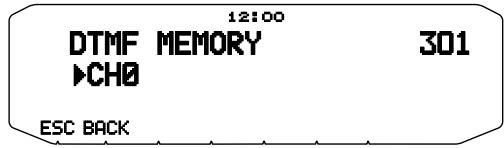
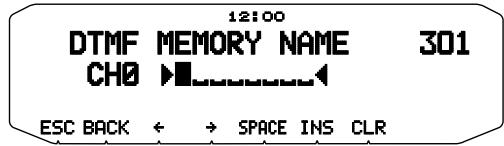
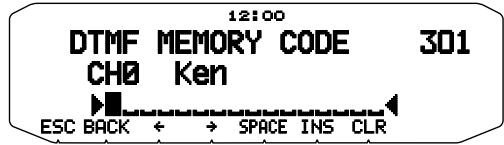
Manual Dialing requires only two steps to send DTMF tones. There are 10 dedicated DTMF Memory channels available to store DTMF codes. You can store up to 16 digits in each 1 Press and hold the microphone [PTT]. 2 Press the keys in sequence on the keypad to send DTMF : . tones. & Storing a DTMF Code in Memory + The corresponding DTMF tones are transmitted. +__lfthe DTMF Hold function is activated, you need not hold down channel. 1 Enter Menu mode and access Menu 301. [PTT] while pressing keys. After transmitting the first tone (by 42100 pressing [PTT] and the first Key), pressing additional keys will DTMF MEMORY S01 keep the transceiver in transmit mode for 2 seconds. +CHB Frequency (Hz) | 1209 1336 1447 1633 EE ErK 697 [1] {2] [3] [A] 2 Rotate the Tuning control to select a channel number. 770 [4] [5] [6] [B] 3 Press the Tuning control to set the selected channel number. 852 [7] [8] [9] [C] + The name entry display appears. 12:00 s"1 Del m [#1 ID DTIF MEMORY NAME 301 = DTMF Hold Activate this function to remain in transmit mode, after beginning to press keys when making a call.

ESCBACK © + SPACE INS CLR

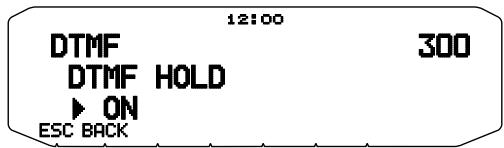
4 Enter a name for the channel, the press the Tuning 1 Enter Menu mode and access Menu 300. control to set it. 12300 + The code entry display appears. DTMF 300 12108

2 Set DTMF Hold to ON to continue transmitting when pressing keys. 5 Enter a DTMF code for the channel, then press the + Set this menu to OFF to stop the 2 second continuous Tuning control to set it. transmission. + When a space is entered, it becomes a “Pause” code. DTMF-1

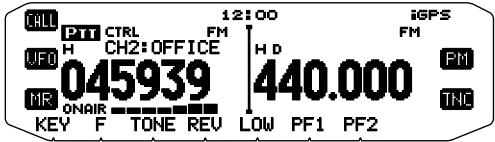
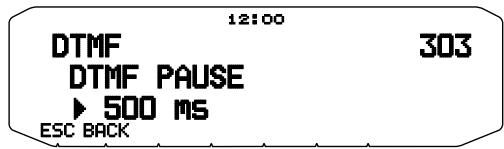
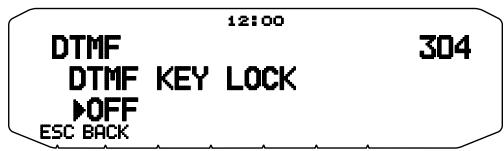
Œ Transmitting Stored DTMF Codes & Selecting a Pause Duration 1 Press and hold the microphone [PTT]. You can change the pause duration stored in DTMF Memory n channels; the default is 500 msec. 2 While transmitting, press the Tuning control. + The last called DTMF Memory channel name and number 1 Enter Menu mode and access Menu 308. appear on the display. If no name has been saved for the FETE] channel, the DTMF code appears. DTMF a CE j250 js DTMF PAUSE EH: OFFICE + 500 ns ESC BACK ©045939 440.000 KEŸ FO TONE REU LON PF1 PF2 2 Select a speed (in msec) from the available list: 100/ 250/ 500/ 750/ 1000/ 1500/ 2000. 3 While still transmitting, rotate the Tuning control to select your desired DTMF Memory channel, then press the DTMF KEY LOCK Tuning control to set the channel. + Additionally, you can press a DTMF key corresponding to This function will lock the DTMF transmission keys so that they your desired channel ([0] - [9]) to select the channel and will not transmit if they are accidentally pressed. To lock the begin transmission: DTMF keys, turn this function ON. + The stored DTMF code scrolls across the display and is transmitted. 1 Enter Menu mode and access Menu 304. + The code will be transmitted even if you release [PTT] before 12100 the entire code has scrolled across the display. DTMF 304 + lfno DTMF code is stored in the selected channel, the DTMF KEY LOCK frequency display is restored. OFF

CM 32100 is TT Fi CH2: OFFICE = (] 440. 000 » 2 Set the key lock to ON or OFF.

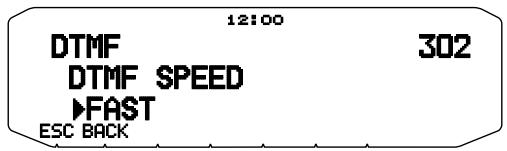
SCKEV CF TONE REU LOW PF1 PF2 H Selecting a Transmit Speed Some repeaters may not respond correctly if a DTMF code is transmitted at fast speed. If this happens, change the DTMF code transmission speed from FAST (default) to SLOW. 1 Enter Menu mode and access Menu 302.

DTIF 302 DTNMF_ SPEED PFAST ESC BACK 2 Setthe speed to FAST or SLOW. DTMF-2

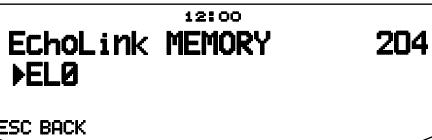
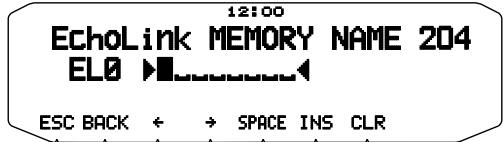
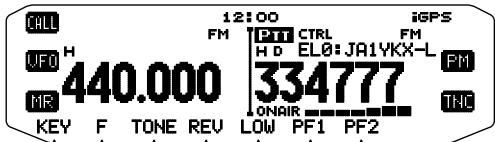
EchoLink® WHAT IS EchoLink? EchoLink allows you to communicate with other amateur radio stations over the internet, using VolP (voice-over-IP) technology. The EchoLink software program allows worldwide connections to be made between stations, or from computer to station, greatly enhancing your communications capabilities. To use EchoLink, you must register using your callsign on their website and Refer to the website for PC hardware and other requirements. Official EchoLink Website: http:/www.echolink.org download the EchoLink software program (free of charge). Note: EchoLink is a registered trademark of Synergenics, LLC. STORING EchoLink MEMORY a’ There are 10 dedicated EchoLink DTMF Memory channels 1 available. You can store up to 8 digits in each channel. 2 1 Enter Menu mode and access Menu 204. 12:00 EChoLink MEMORY 204 ELU ESC BACK 2 Rotate the Tuning control to select an EchoLink channel number from ELO - ELS. 3 3 Press the Tuning control to set the selected channel number. + The name entry display appears. ransmitting EchoLink Memory Press and hold the microphone [PTT]. While transmitting, press the Tuning control. + The last called EchoLink DTMF Memory channel name and number appears on the display.

KEY _F TONE REV LOW PFL FF2 While still transmitting, rotate the Tuning control to select your desired EchoLink Memory channel, then press the Tuning control to set the channel. + The stored code scrolls across the display and is transmitted. EchOLirk MEMORY NAME 204 "

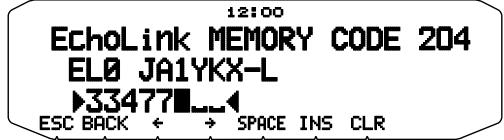
4 Enter the name for the channel, then press the Tuning control to set it. + The callsign and conference name (for board rooms that can do round QSO) of the other station which is connected via EchoLink, or the control command name, etc. are entered into + the EchoLink memory name. + The code entry display appears. EchoLink MEMORY CODE 204 + ELA ARE +334

5 Enter a DTMF code for the channel, then press the Tuning control to set it. + The node number of the other station and conference which are connected via EchoLink, or the DTMF code of the control command, etc. are entered into the EchoLink code. Note: In step 2, press the microphone [C] key before pressing the Tuning control, to transmit the converted DTMF code of the EchoLink “Connect by Call function. (example: JA1YKX) “C"*51 21 10 93 52 92 #” (# is automatically added to the end of the DTMF code) In step 2, press the microphone [0] [7] keys before pressing the Tuning control, to transmit the converted DTMF code of the EchoLink “Query by Call function. (example: JA1YKX) “0"“7" “51 21 10 93 52 92 #" (# is automatically added to the end of the DTMF code) When only the EchoLink memory name has been registered, the EchoLink “Connect Cal! function transmits the converted DTMF code. (example: JAYKX) “C 51 21 10 93 52 92 # (C is automatically added to the beginning of the DTMF code and # is automatically added to the end) Calisign/ DTMF Code Conversion Table When a character other than an alphanumeric character is used (such as “" and ‘), the DTMF conversion stops at the character before that non- standard character.

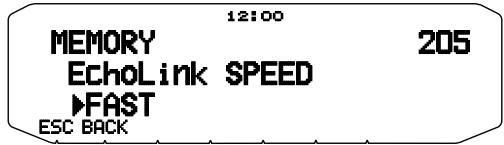
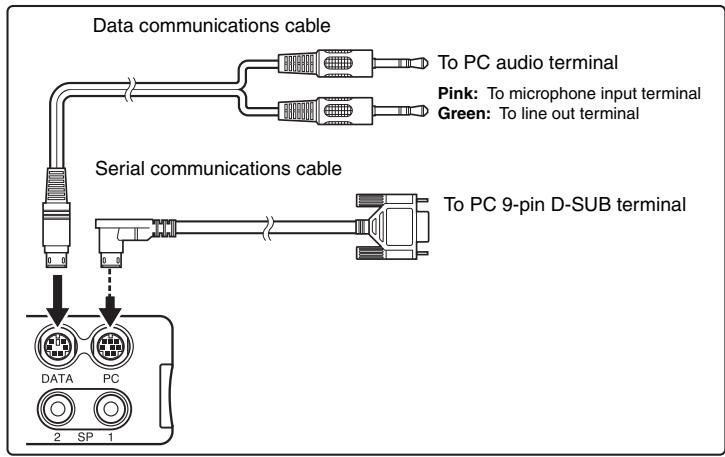
Œ Selecting a Transmit Speed Some repeaters may not respond correctly if a code is transmitted at fast speed. If this happens, change the EchoLink transmission speed from FAST (default) to SLOW. 1 Enter Menu mode and access Menu 205. MEMORY 205 EchoLink SPEED PFAST ESC BACK 2 Setthe speed to FAST or SLOW. SETTING UP EchoLink Sysop MODE Connect the TM-D710G to a personal computer to use the system as a node station for EchoLink relaying. When connecting to a personal computer and using the EchoLink Sysop mode, the hard flow control operation RTS and CTS computer terminals operate the same as and are changed with the SQC (squelch control signal output to the computer) and PKS (transmit control signal input from the computer) data terminals. The current band becomes the same as the data band which is selected in menu No. 918 regardless of the transmission band and operation band. Use the PG-5H (interface cable kit) when connecting to a personal computer. EchoLink Sysop Mode ON EchoLink Sysop Mode OFF

Set the SQC output setting (Menu No. 921) to “SQL”. When unnecessary noise signals, etc., are sent from the link station to the internet while CTCSS and DCS are active, use can verify the usage condition of the operating frequency by setting “EchoLink RX Monitor” ([Edit] > [Menu] > [Transmi/Receive]) via the MCP-6A to “Busy Only” Because of this, when EchoLink Sysop mode is ON, all received signals on the DATA band are output from the speaker irregardless of a matching CTCSS or DCS signal. {Voice signals are output from the DATA terminal only when the CTGSS or DS signals match.) To avoid having the EchoLink software detecting a busy state even when the transceiver power is turned OFF, set the “SQC Output Logic" (Edit) > [Data Terminal] via the MCP-GA to “High”. {When performing this setting, ensure that the EchoLink's software “invert Sense” setting in the AX Ctrl tab of the Sysop Setup window is not checked.) When the audio level adjustment range on your personal computer is insufficient, adjust the AF output level *PR1 Pin Output Level” [Edit] > {Data Terminal) and AF input sensitivity *PKD Pin Input Level” ([Edit] > [Data Terminal) of the transceiver via the MCP-6A. Adjustments can be made in steps of 6dB. + The settings in numbers 2 - 4 (above) can be performed only using a MCP- 6A. + When EchoLink Sysop mode is ON, it cannot communicate with the MCP- GA. When using the MCP-6A, be sure to turn EchoLink Sysop mode OFF. 1 Turn the transceiver power OFF. 2 Press [PF2] + Power ON to turn EchoLink Sysop Mode ON. The #8 icon appears on the display when EchoLink Sysop mode is ON. When the audio signal is output to the PC side, the #8 icon blinks. Ts 12:00 rx FM JORcR FH

Itis a good idea to select lower transmit power if communications is still reliable. This lowers the risk of interfering with others on the band. When operating from battery power, you will enjoy more operating time before a recharge is necessary. Press [LOW] to select high (H), medium (M), or low (L) power. + You can program different power settings for bands À and B. æ 0 =

KEV F TONE REU LOW PF1 PF2 Note: When the transceiver overheats because of ambient high temperature or continuous transmission, the protective circuit may function to lower transmit output power.

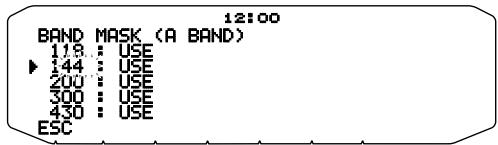
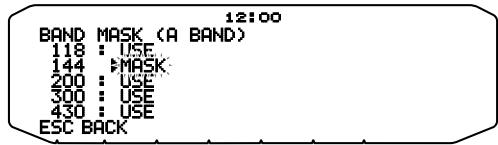
If you have no plans to use band A or B, you can hide the frequency display on the unused band. This saves power consumption and makes it simpler to read the information you need. 1 Turn the transceiver power OFF. 2 Press the left or right [BAND SEL] + Power ON. + The band mask display appears. 12:00 EAND MACK_€A BAND) 3 Rotate the Tuning control to select the band you want to hide (or return to normal). Press the Tuning control to set the selected band. Rotate the Tuning control to set the band to select USE or MASK. + USE allows you to see and use the band as normal. MASK hides the band on the display.

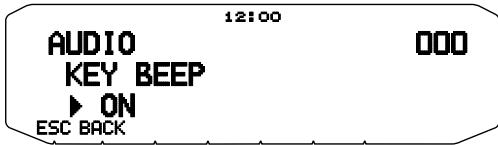
EAND MREK_€A BAND? 118 18e ld4 HASK. 200 USE 400 : LE 450 :_ USE ESC BACK 6 Press the Tuning control to set the selection. 7 Press the [ESC] to exit. Note: You cannot operate the masked band nor use it to receive or transmit. KEY BEEP You can turn the transceiver beep function ON or OFF as desired. 1 Enter Menu mode and access Menu 000. AUDIO | 000 KEY BEEP + ON ESC BACK 2 Turn the beep function ON or OFF. + Even with the beep function turned OFF, the transceiver will emit a beep tone under the following conditions: 1). When Auto Power Off is activated, the transceiver will beep 1 minute before the power turns off.

2) After transmitting for the maximum time duration according to

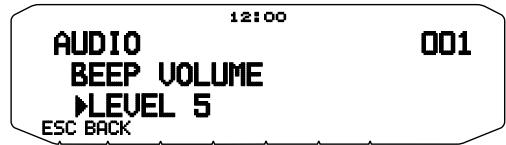
the Time-out Timer, the transceiver will beep. & Beep Volume Each time you press a key, the beep tone will sound. If you have left the beep function turned ON, you may wish to adjust the volume level of the beep. 1 Enter Menu mode and access Menu 001. AUDIO l ooi BEEP VOLUME PLEUEL 5 ESC BACK 2 Setthe beep volume to a level from 1 to 7. + The default is level 5. OTHER OP-1

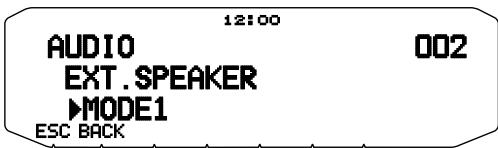
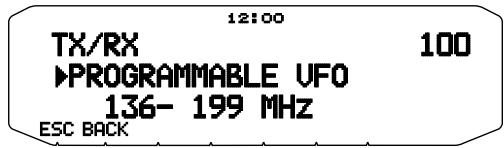
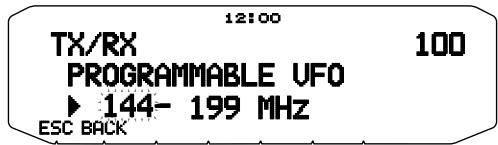
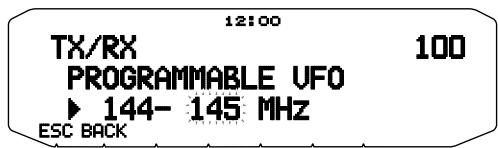
This transceiver has two speaker jacks for external speakers, as well as an internal speaker. You can enjoy a variety of speaker configurations by using one or two external speakers. Received signals on bands A and B are output depending on how you want the internal and/or external speakers to function. 1 Enter Menu mode and access Menu 002. 12:00 AUDIO g02 2 Setthe speaker mode to MODE 1 or MODE 2. + Refer to the table below for configurations based on the mode selected. _— Band Output eaker Mode Setup Internal | External | External Speaker SP1 SP2 None A,B = = SP1 only x A,B = MODE 1 SP2 only A _- B SP1, SP2 x A B None A,B = = SP1 only x A,B = MODE 2 SP2 only B _- A SP1, SP2 x B A PROGRAMMABLE VFO If you always check frequencies within a certain range, you can set upper and lower limits for frequencies that are selectable. For example, if you select 144 MHz for the lower limit and 145 MHz for the upper limit, the tunable range will be from 144.000 MHz to

1 Select your desired VFO frequency. 2 Enter Menu mode and access Menu 100. (Example: E type)

ESC 3 Press the Tuning control. + The lower frequency limit blinks.

TR/RK 100 PROGRAMTRBLE UFO + 144- 199 MHz ESC BACK 4 Rotate the Tuning control to select your desired lower frequency limit, then press the Tuning control to set the selected value. + The upper frequency limit blinks. 12:00 TR/RA 100 PROGRAMMABLE UFO » 144- 145 MHz ESC BACK 5 Rotate the Tuning control to select your desired upper frequency limit, then press the Tuning control to set the selected value. 6 Press [ESC] to exit Menu mode. Note: You cannot program the 100 KHz and subsequent digits. The exact 100 kHz and subsequent digits of the upper limit depend on the frequency step size You are using.

  • These step sizes are not available for the 1200 MHz band. Note: Changing between step sizes may correct the displayed frequency. For example, if

144.995 MHz is displayed with a 5 kHz step size selected, changing to a 12.5

SWITCHING FM/AM MODE

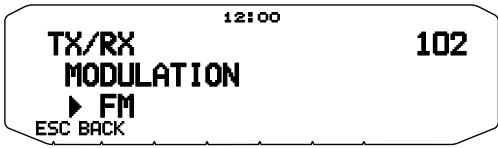
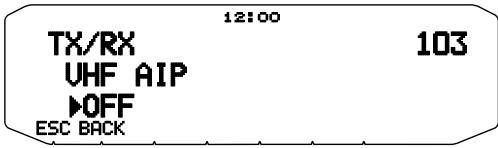
This transceiver is also capable of receiving (not transmitting) in AM on band A. The default mode on the 118 MHz band is AM while the default on the 144, 220, 300, or 430/440 MHz band is FM. 1 Enter Menu mode and access Menu 102. TX/RX Te 102 MODULAT ION » FM ESC HACK 2 Setthe mode to AM, FM, or NFM. Note: You cannot switch between FM and AM to receive on band B. ADVANCED INTERCEPT POINT (AIP) The VHF/UHF band is often crowded in urban areas. AIP helps eliminate interference and reduce audio distortion caused by inter modulation. You can use this function only while operating on the VHF/UHF band. 1 Enter Menu mode and access Menu 103 (VHFAIP) and/or Menu 104 (UHF.AIP).

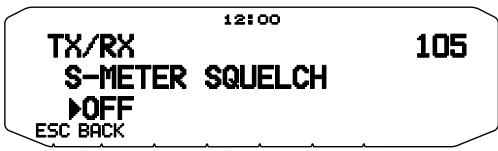
TX/RX 103 2 Setthe AIP to ON or OFF. S-METER SQUELCH S-meter Squelch causes the squelch to open only when a signal with the same or greater strength than the S-meter setting is received. This function relieves you from constantly resetting the squelch when receiving weak stations that you have no interest in. 1 Enter Menu mode and access Menu 105. 12:00 TR/RK 105 S-METER SQUELCH ESC BACK Set the S-Meter squelch to ON or OFF. To select the desired S-meter setting, rotate the left (band A) or right (band B) SQL control depending on which band you have selected. + The squelch will open only at the level you have selected (for example, level 9). Er ES mi44, 000 ) 40. 000

=, F TON REU LOU PF1 PF2

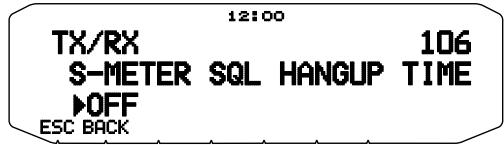
& Squelch Hang-up Time When using S-meter Squelch, you may want to adjust the time interval between when the received signals drop and when the squelch closes. 1 Enter Menu mode and access Menu 106.

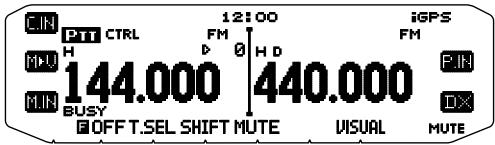
POFF ESC EACK 2 Setthe hang-up time to 125, 250 or 500 ms, or OFF. SPEAKER MUTE While receiving or transmitting on the TX band, you may not want to hear audio received on the other band. Use this function to mute the speaker allocated to that band (not the TX band). While receiving, press [F], [MUTE] to switch the mute function ON or OFF. + The MUTE icon appears on the display when the function is ON. 12:00 ES mr #

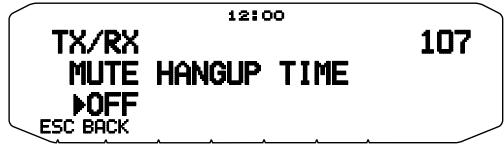
Æ Mute Hang-up Time When using Speaker Mute, you may want to adjust the time interval between when you receive a signal and when the speaker is muted. 1 Enter Menu mode and access Menu 107. TER 7 107

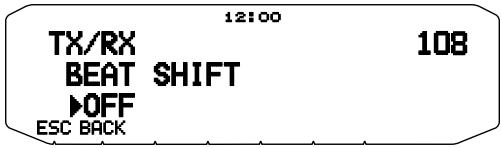
POFE ESC BACK 2 Setthe hang-up time to 125, 250, 500, 750, or 1000 ms. BEAT SHIFT Since the transceiver uses a microprocessor to control various transceiver functions, the CPU clock oscillator's harmonics or image may appear on some spots of the reception frequencies. In this case, we recommend you turn the Beat Shift function ON. 1 Enter Menu mode and access Menu 108. 12:00 TK/RX 108 BEAT SHIFT

ESC BACK 2 Setthe Beat Shift to ON or OFF. OTHER OP-3

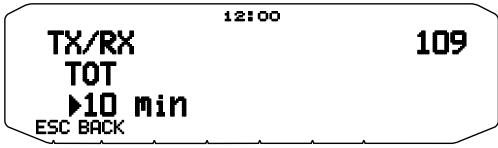
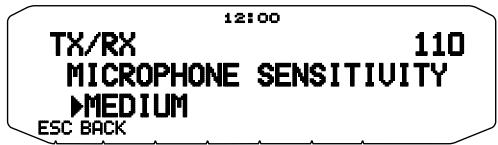
TIME-OUT TIMER (TOT) Itis sometimes necessary or desirable to restrict a single transmission to a specific maximum time. You may use this function to prevent repeater time-outs when accessing repeaters, or to conserve battery power. When TOT times out (default is 10 minutes), the transceiver generates beeps and automatically returns to receive mode. To resume transmitting, release and then press the microphone [PTT] again. 1 Enter Menu mode and access Menu 109. TX/RX 109 TOT +10 min ESC ERCK 2 Setthe timer to 3, 5, or 10 minutes. MICROPHONE SENSITIVITY The input level to the microphone can be configured. 1 Enter Menu mode and access Menu 110. TX/RX l 110 MICROPHONE SENSITIUITY PMEDIUM ESC EACK 2 Setthe Microphone Sensitivity to HIGH, MEDIUM or LOW. Note: The higher the input level to the microphone is configured, the easier to gain the surrounded sounds.

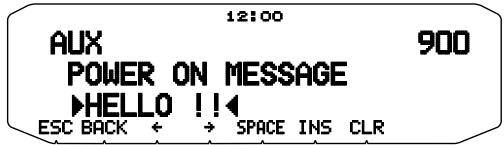
Each time you switch the transceiver ON, “HELLO !!” (default: PM OFF) appears on the display for approximately 2 seconds. You can program your favorite message (for PM OFF, PM 1 - 5)in place of the default message. 1 Enter Menu mode and access Menu 900.

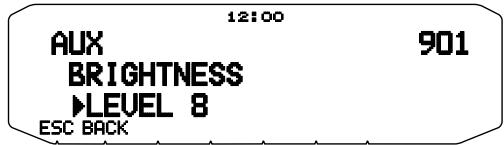
2 Enter your desired message. + Press [CLR] to clear the entire message, if necessary. DISPLAY ILLUMINATION You can manually change the display illumination to suit the lighting conditions where you are operating. 1 Enter Menu mode and access Menu 901. Aux | 901 BRIGHTNESS

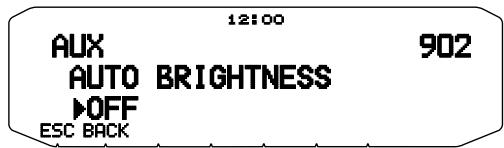
PLEU ESC ERCK 2 Set your desired brightness level from 1 to 8, or OFF. M Auto Display Brightness When Auto Brightness is activated, the display will light up every time a key is pressed. 1 Enter Menu mode and access Menu 902.

ESC EACK 2 Setthe Auto Brightness function to ON or OFF. Œ Backlight Color You can manually change the display illumination to suit the lighting conditions where you are operating. 1 Enter Menu mode and access Menu 903. aux FT 903

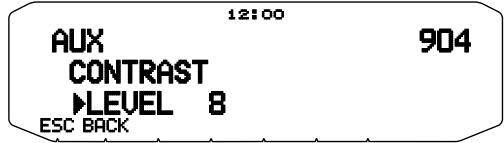
PAMBER ESC EBACK 2 Setthe backlight color to AMBER or GREEN. M Display Contrast The display visibility changes depending on the ambient conditions, for example between daytime and night. When you find the display is not clear, use this function to select the optimum display contrast. 1 Enter Menu mode and access Menu 904.

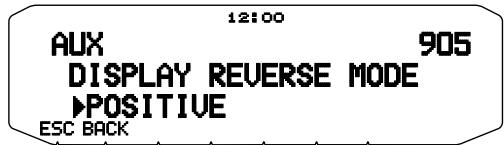
AUX CONTRAST PLEUEL 8 ESC EACK 2 Set your desired contrast level from 1 to16. Note: The display contrast may be affected by a change in temperature. Adjust the contrast as necessary. M Positive/ Negative Reversal You can change the display status between Negative and Positive (default). 1 Enter Menu mode and access Menu 905.

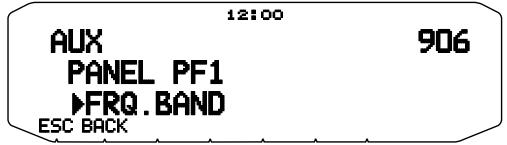
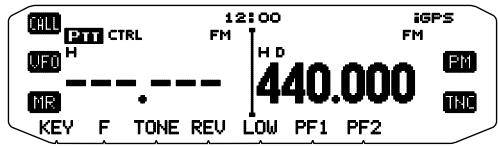
M Transceiver Front Panel There are 2 PF (Programmable Function) keys on the transceiver front panel: PF1 and PF2. You can assign your own desired functions to these 2 keys. 1 Enter Menu mode and access Menu 906 (PF1) and/or Menu 907 (PF2).

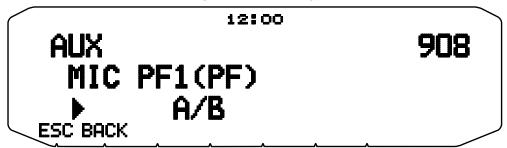
2 Set your desired function for the key. Programmable functions available are: WX CH (Weather Channel)/ FRQ.BAND (Frequency bands)/ CTRL (Control)/ MONITOR (Monitor)/ VGS (Voice recorder)/ VOICE (Voice announcement)/ GROUP UP (Memory group up}/ MENU (Menu mode}/ MUTE (Speaker Mute)/ SHIFT (Shift)/ DUAL (Dual Mode} M>V (Memory to VFO Copy)/ 1750 (1750 Hz Tone). H Microphone Keys There are 4 microphone PF (Programmable Function) keys: [PF] (PF1), [MR] (PF2), [VFO] (PF3) and [CALL] (PF4). You can assign your own desired functions to these 4 keys. 1 Enter Menu mode and access Menu 908 (MIC.PF1) and/ or Menu 909 (MIC. PF2) and/or Menu 910 (MIC. PF3) and/or Menu 911 (MIC. PF4).

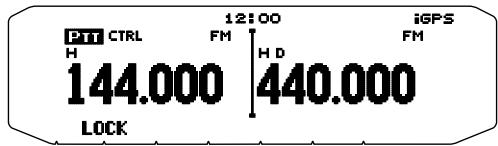
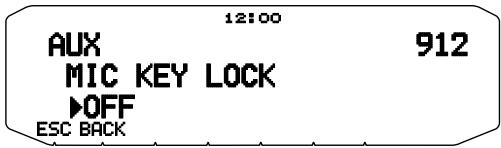
AUX 908 MIC PF1CPF) b À/B ESC EACK 2 Set your desired function for the key. Programmable functions available are: WX CH (Weather Channel)/ FRQ.BAND (Frequency bands)/ CTRL (Control)/ MONITOR (Monitor)/ VGS (Voice recorder)/ VOICE (Voice announcement)/ GROUP UP (Memory group up}/ MENU (Menu mode}/ MUTE (Speaker Mute)/ SHIFT (Shift)/ DUAL (Dual Mode} M>V (Memory to VFO Copy)/ VFO/ MR/ CALL/ MHz/ TONE/ REV (Reverse)/ LOW/ LOCK/ A/B (Band Select A/ Band Select B)/ ENTER/ 1750 (1750 Hz Tone)/ M.LIST (Message list)/ S.LIST (Station list)/ MSG.NEW/ REPLY/ POS/ PMONI/ BEACON/ DX/ WXi. M Frequency Direct Entry If the desired operating frequency is far from the current frequency, using the microphone keypad is the quickest way to change the frequency. One of the microphone PF keys must first be programmed as [ENTER]. 1 Press the left or right [BAND SEL] to select band A or B, then press [VFO] or [CALL]. 2 Press the key programmed as [ENTER]. + The Direct Frequency Entry display appears. 12100 es KEY F TONE REV LOW PF1 PF2 3 Press the microphone keys ([0] - [9]) to enter your desired frequency. 4 To set the entered frequency, press [ENTER] or [VFO]. + Pressing [ENTER] before entering all of the digits will set the remaining digits to 0. + Pressing [VFO] before entering all of the digits will leave the remaining digits at their previous values. + Entering all digits for a frequency will automatically set the frequency without pressing [ENTER] or [VFO]. + If you need to only change the MHz digit, press the Tuning control, then enter the new value. KEY LOCK The Key Lock function ensures that your transceiver settings will remain unchanged if you accidentally press a key. When activated, the following functions can still be used: + (OI + [PTT] To turn Key Lock ON or OFF, press [F] (15). + When Key Lock is activated, the LOCK icon will appear on the display. 144000 /340.000 LOCK M Microphone Key Lock The Microphone Key Lock function will lock the microphone PF (Programmable Function) keys. 1 Enter Menu mode and access Menu 912.

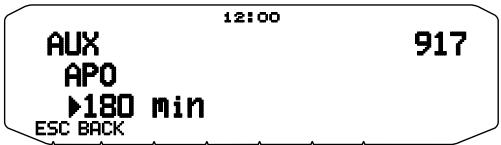
AUTOMATIC POWER OFF (APO) Automatic Power Off is a background function that monitors whether or not any operations have been performed (keys pressed, Tuning control turned, etc.), and turns the transceiver power OFF if it has not been in use. 1 Enter Menu mode and access Menu 917 (APO).

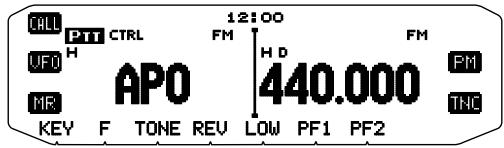
AUX 917 »160 min ESC EACK 2 Setthe APO time limit to 30, 60, 90, 120, 180 minutes, or OFF. + After the time limit passes with no operations (default is OFF), APO turns the transceiver power OFF. However, 1 minute before the power turns OFF, “APO” appears on the display and blinks, and a warning tone sounds. in 18106 ER. FH FH m PO 40.000 KEV F TONE REU LOW PF1 PF2 Note: If any settings are changed during while APO is ON, the timer resets. When you stop changing the settings, the timer begins counting again from 0.

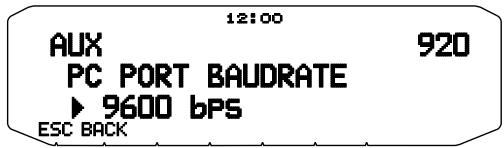
+ 9600 bPS ESC BACK 2 Setthe PC port speed to 9600, 19200, 38400, or 57600 bps. + Turning the power ON/OFF will change the port speed setting.

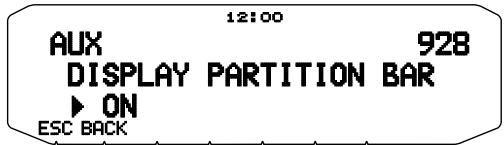
DISPLAY PARTITION BAR

The partition bar that appears between bands A and B can be removed if desired. 1 Enter Menu mode and access Menu 928. 23:00 AUX 928

KEV F TONE REU LOW PF1 PF2

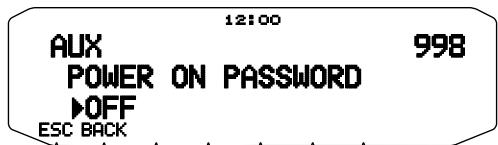
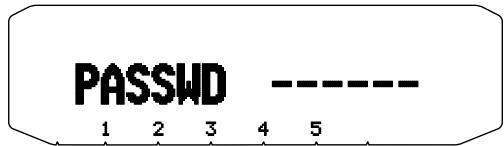
If power on password is activated, you cannot operate the transceiver without first entering your password, after turning the transceiver power ON. Your password can be changed using the MCP-6A software, and can contain up to 6 digits. 1 Enter Menu mode and access Menu 998.

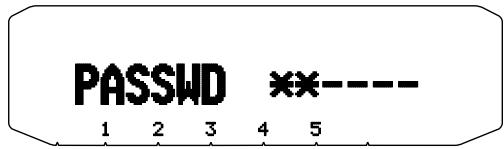
POFF ESC BACK 2 Set the power on password to ON or OFF. + When set to ON, “PASSWD” appears on the display. PASSID 3 Enter your password. PASSHD xx

4 After entering up to 6 digits, press the Tuning control to set the password. Note: Even with Menu 998 turned ON, the power on password function will not be activated unless you first program a password using the MCP-6A software. OTHER OP-6

GPS (GLOBAL POSITIONING SYSTEM) WHAT IS GPS? GPS stands for Global Positioning System, and is common nowadays. Following is a brief introduction. Although the American Defense Department originally developed GPS for military operations, the system is available for use by the general public. Anybody can use GPS in association with modern vehicle navigation systems. Position precision for public use is approximately 15 meters. Precision can be improved when a vehicle is used for navigation and aboard ships through use of map matching technology and differential GPS techniques. A total of 24 or more GPS satellites are at a high-level altitude of approximately 20,000 km on six circular tracks with an orbital radius of approximately 26,000 km. Therefore, there are four or more satellites located in each orbital track. For civilian use, the RF carrier frequency of the satellites is 1575.42 MHz. Spread spectrum (SS) technology is used over a bandwidth of 2.046 MHz to prevent interference among all the satellite signals on a common carrier frequency.

POSITION DETERMINATION PRINCIPLE

The GPS receiver receives radio signals transmitted from GPS satellites. The receiver measures the time duration between when the signal leaves the satellite and when the signal arrives at the GPS receiver. Knowing this time allows calculation of the distance that the signal traveled from that particular satellite. By receiving multiple signals from different satellites and performing this distance calculation multiple times, the intersection of the spherical surfaces that represent the respective radius distances to the various satellites will determine a single point. The precision of the determination of the intersecting point relies on the satellites and the data collected. DATUM (GEODETIC SURVEY SYSTEM) The latitude and longitude information required by the GPS receiver does not allow for accurate representation of the unevenness of the Earth's surface. For use with GPS, the current standard that defines the precise shape of the Earth is called WGS-84. By using this standard in conjunction with mapping standards for each country, devices can create accurate position plotting on a map.

GPS AND APRS POSITION FORMAT

Although position can be described in many different formats, such as degrees, degrees and minutes, and degrees, minutes and seconds, the GPS system and APRS have standardized on the degrees and decimal minutes format. Just like it is important to use proper international phonetics when spelling on the air, it is important in APRS as in any communications system to have a default standard for position. All operators should be trained to use the DDD MM.mm format by default in voice communications just like in data formats. Using these standards on the air will prevent communication errors, confusion, repeats, and conversions. Interval and Total Distance Geographic Coordinates Format Example Latitude DD MM.mm 39 49.31N (degrees and minutes) +39 49.31 Longitude DDD MM.mm 84 15.39W gl (degrees and minutes) -84 15.39 GPS -1

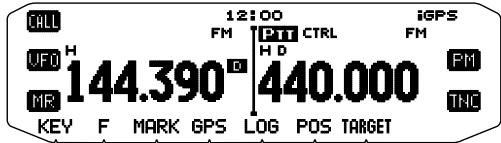
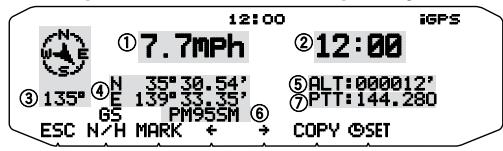
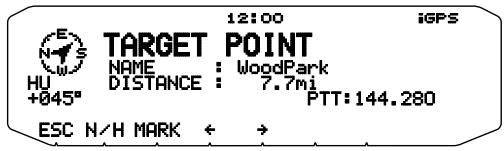
Press [GPS] to turn the Internal GPS receiver ON or OFF. 12500 sers FM JOTicrR. FM 2144.390"/440.000 KEV F MARK GPS LOG POS TARET + When the Internal GPS receiver is ON, the “HS F*£" indicator appears on the display. + When the Internal GPS receiver is On, the internal clock is automatically configured with the time data from the internal GPS receiver. When determining your position for the first time after the power supply is turned On, the clock data is automatically set and is updated once per day thereafter. + You must set the time zone beforehand, through Menu No. 927. When the Internal GPS receiver is On, pressing [POS] will display “Latitude longitude, Time, Altitude, Travel direction, Speed, Grid square locator, PTT frequency”. Press [—] to cycle the display between “Target point name, Target point distance, Target direction” = “Log meter’ = “GPS satellite information”. + Press [+] to return to the previous display. <Latitude longitude, Time, Altitude, Travel direction, Speed, Grid square locator, PTT frequency> 12:00 isFs

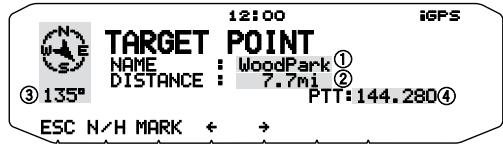
@:Name @): Target point distance @): Target direction @ PTT frequency + While the target point is displayed, press [N/H] to toggle the display between North up and Heading up. North Up displays North as the top and Heading Up displays the current travel direction as the top. In the Heading Up display, a “+” or “_" sign is used to help indicate the target direction. ET is

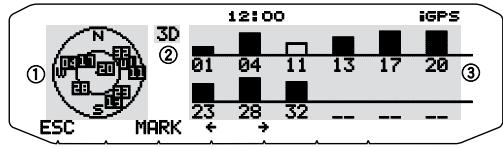
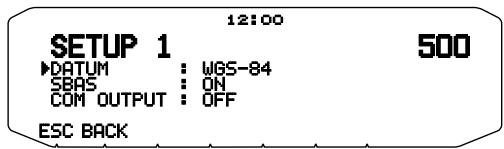
<GPS satellite information> 12300 ES 3D [| = [| [1 Q Gi &4 11 13 17 2% © 23 28 8 2 _ — ET MARK _* + @ Sky view @ 2D: Latitude/Longitude positioning 8D: Latitude/Longitude and Altitude positioning @ Satellite signal-strength bars The sky view shows the satellites you are receiving. The satellite signal-strength bars indicate the strength of each satellite you are receiving. A solid bar indicates that the GPS satellite is ready for use. + When only the frame of the signal-strength bar is displayed, no contact with the satellite has yet been made. Note: + When GPS cannot be received, turn the power ON in a clear environment (Open Sky). + While the above screen is displayed (the GPS satellite information screen is positioning) press [MARK] (15) to register a Mark Waypoint. GPS DATA SETUP (1) Enter Menu mode and access Menu 500.

Through the SBAS (Satellite Based Augmentation System) geostationary satellite, when using a system which offers information of wide scope reinforcement, set this function to “ON”. H GPS Data PC Output <COM OUTPUT> Turn this function on when you want to send the Internal GPS receiver data (NMEA) from the PC terminal. GPS DATA SETUP (2) Enter Menu mode and access Menu 501.

Ep #éPeDA ESC BACK 138 M Sentence <SENTENCE> Adds an NMEA sentence to the Internal GPS receiver data output from the PC. Set the sentence to “SGPGGA", “SGPGLL”, “$GPGSA”, “$GPGSV”, “SGPRMC”, “SGPVTG”, or “SGPZDA”. + With BEACON transmission, the “$GPGGA" and “SGPRMC” check (4) cannot be removed from necessary information and satellite image information. + You cannot output an NMEA sentence from an external GPS receiver to a PC. GPS -2

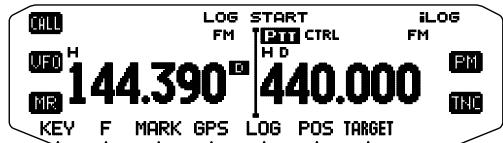
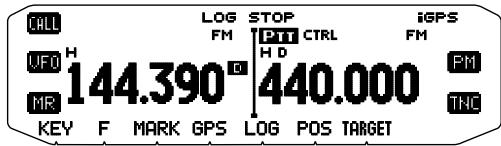
TRACK LOG All movement is saved in the GPS Logger (Internal GPS only). Saved information includes latitude, longitude, altitude, travel direction, speed, time, and date. The log can retain up to 5000 points of data. Press [LOG] to turn the Track Log function On or Off. LOS START FH JEMERCTRL

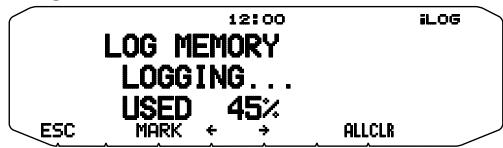
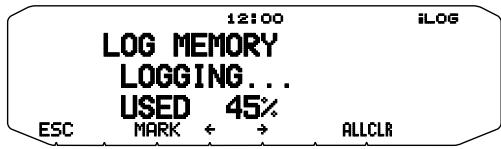
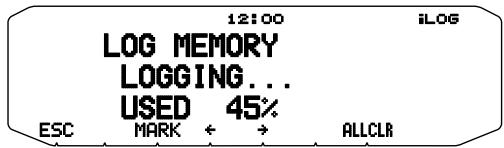
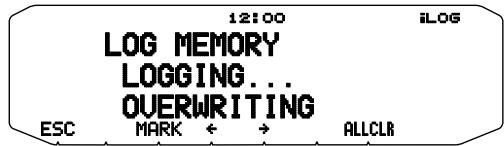
144390"/440. KEY F MARK GPS LOG POS TAIET When turning the Track Log function On, “LOG START” appears for approximately 5 seconds, followed by the “iL CS" icon. + When turning the Track Log function Off, “LOG STOP” appears on the display for approximately 5 seconds. sror 19e FM TEDicm mi 144.390" 440.000 KEY F MARK GPS LOB POS TARGET + With the Track Log function On, even if the power source is turned Off during a Log acquisition, the log is backed up so that when the power is turned back on, the log acquisition resumes. + You can verify the Log activity ratio in the GPS pinpointing screen: 12100 is LOG MEMORY LOGGING USED 454

Note: + When the Track Log is turned On while the GPS is Off, the GPS will also turn On. + When the GPS is not pinpointing, data is not saved to the log. + _ You can read the Track Log using the MCP-6A + _ifthe Track Log overwriting configuration is turned Off (see below), “LOG FULL appears when the log memory is full + When the APRS is On, Log operation will begin only when the APRS menu COM terminal input is Off. Œ Track Log All Clear 1 Press [ALLCLR]. 12100 iLo LOG MEMORY LOGGING. USED 454

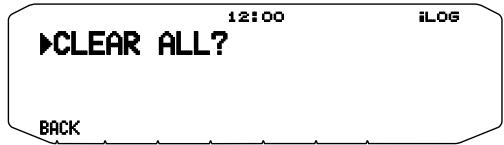
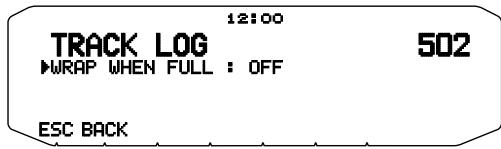
+ “CLEAR ALL?" appears. Press the Tuning Control to clear all Track Logs. 18100 iL0S PCLEAR ALL? BACK H Overwriting the Track Log When the Track Log becomes full, new data will begin overwriting the oldest Track Log data. 1 Enter Menu mode and access Menu 502.

ESC BACK 2 Select “ON” or “OFF”. + Selecting “ON” will allow old data to be overwritten with new data.

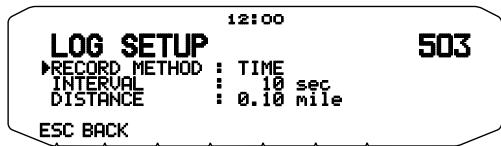
LOGGING... QUERHRIT ING ESC MARK € + LOG SETUP Enter Menu mode and access Menu 508. LOG SETLP sos

THTERUAL 5 19 sec DISTAMCE : 0.19 nile ESC BACK Record Method <RECORD METHOD> You can set the conditions for saving Track information as GPS Logger. You can change the settings for travel speed, etc. Select “TIME”, “DISTANCE”, or “BEACON" for the Record Method. Interval Time <INTERVAL> Select an Interval time from 2 - 1800 seconds (in steps of 1 second). + The Interval setting is available only if the Record Method has been set to “TIME”. Distance <DISTANCE> Select a Distance from 0.01 - 9.99 (in steps of 0.01). + The Distance setting is available only if the Record Method has been set to “DISTANCE”. + The units used for Distance can be set to miles (mi), kilometers (km), or nautical miles (nm). Interval and Log Total Time: Point Interval time (seconds) ty 2 5 10 15 30 1800

ESC ERCK <Menu 627 (DISPLAY UNIT 2 - POSITION): “dd°mm'ss.s" "> MARK WAYPOINT You can register up to 100 points with the location's latitude, longitude, altitude, time, name, and icon. You can edit names and icons manually. 1 Press [MARK] (15) to enter Mark Waypoint registration mode. LL i6Ps TB. FH 144.390" “ao, 000 à KEY F MARK 6PS LOS POS TARGET + When registering a Mark Waypoint, the following display appears for approximately 10 seconds. 12:00 rs ESC EDIT 2 Press [EDIT] to enter Mark Waypoint editing mode. 12100 Ps MARK WAYPOINT MHAME * MARK-L ICON 1 KENWOOD ESC BRCK 3 Enter a Mark Waypoint name (up to 9 characters). 12100 CI MARK, HOYPOINT FTIit W

Note: + Even when the Log function is OFF, you can register a Mark Waypoint. + The MCP-SA can read Mark Waypoints. GPS -4

H Mark Waypoint List The information registered with the Mark Waypoint is confirmed. 1 Press [MARK] to display the Mark Waypoint list. + The list of Mark waypoints appears. isPs

2 Rotate the Tuning control to select a Mark Waypoint. [TOP]: Displays the first 5 Mark Waypoints. [5t]: Displays the previous 5 Mark Waypoints. [51]: Displays the next 5 Mark Waypoints. [COPY]: Displays the Target Point list. [CLR]: Deletes the current Mark Waypoint. [ESC]: Returns to the frequency display. 3 Press the Tuning control to display the details of the selected Mark Waypoint. EH Copying a Mark Waypoint to a Target Point You can copy the displayed Mark Waypoint to a Target Point. 1 Rotate the Tuning control to select a Mark Waypoint. MARK LIST ms 5 ï EH Ed 5 ED SSENS

2 Press [COPY] to display the Target Point list. MARK LIST isrs <çoev T0 3 Select the Target Point (1 - 5) that you want to copy. M Deletes all Mark Waypoints 1 Press [MARK] to display the Mark Waypoint list. + The list of Mark waypoints appears. , MARK LIST iSFS ESC F EDIT CoPy CLR Rotate the Tuning control to select a Mark Waypoint. Press [F].

£ 1 ÉEUSDIV-S Grr21 OFF ALLGUR 4 Press [ALLCLR]. + “CLEAR ALL?" appears.

PCLEAR ALL? BACK 5 Press the Tuning Control to clear all Mark Waypoints. & Detailed Display of a Mark Waypoint + S:WEDIV-S Hé 7 N 3258.47"© ALT:008912"© AU TISISE2 DAS © LE,

BRCK F_ EDIT COPY CLR

@: Latitude, longitude @): Altitude @): Grid square locator + Rotate the Tuning control to change to the previous/next detailed display. [BACK}: Returns to the Mark Waypoint list display. [EDIT]: Enters Mark Waypoint Edit mode. [COPY]: Displays the Target Point list. [CLR]: Deletes the Mark Waypoint currently being displayed. + Press [F]. bS:uéDJv-S dut 92 €

+ Press [N/H] to change the Heading Up and North Up display. GPS -5

'ACKET Connect this transceiver to your personal computer via a Terminal Node Controller (TNC). You can send messages or commandés to far away stations, obtain a variety of information via your local bulletin boards, or enjoy other Packet applications. Reference material for starting Packet operation should be available at any store that handles Amateur Radio equipment. Note: When the distance between the radio antenna and your personal computer is too close, interference may occur. DATA terminal pins [o] + When using the builtin TNC, the DATA terminal is not used COM terminal pins (o) + The COM terminal is on the rear of the Operation panel. Connect this terminal to a personal computer; do not connect a computer to the PC terminal of the TX/RX unit. Function Function Audio signal for packet transmission Request to Send PKD terminal ground Clear to Send L'is transmitted and the microphone is muted Transmit Data Detected 9600 (bps) data Ground Detected 1200 (bps) data Receive Data Squelch control signal; Closed: L', Open: {The default settings can be changed in Menu 921) Non Connect Non Connect Non Connect @8l6066606e Lo]

PACKET MODE This transceiver has a built-in TNC which conforms to the AX.25 protocol. This protocol is used for communications between TNCSs. For the commands supported by the built-in TNC, see “TNC COMMANDS LIST”. Press [TNC] 2 times to enter PACKET mode. FACKETIZ STA 12100 CON 1 MA iSFS CR Li mi 144.000"440.000 = KEY F TOM REU LOW PF1 PF2 The following indicators appear on the transceiver display to show the current TNC status: Note: + Not all functions available via conventional TNC's are supported by the TNC uit in this transceiver. ‘The built-in TNC could be automatically reinitiated when its malfunction is detected: this does not designate that the transceiver is defective. + To distinguish your various stations or nodes, you can have up to 15 Secondary Station Identifiers (SSIDs); ex. W6DJY-1 to W6DJY-15. You always have to put a dash between your callsign and SSID number. + Packet operation, easily affected by transmit and receive conditions, requires à full-scale S-meter reading for reliable communication. When the S-meter reads less than maximum during 9600 bps operation, communication errors are frequent. Indicator Status PACKET | The TNC is in Packet mode. STA Packets to be transmitted still remain in the buffer. CON The TNC is in connection with the target station. MB The mailbox in the TNC is being accessed or connected by the other station. The mailbox in the TNC holds mail addressed to you.

12 1200 bps packet transfer rate selected. 96 9600 bps packet transfer rate selected. PACKET-1

DATA BAND Select how data will be transmitted and received on your transceiver. 1 Enter Menu mode and access Menu 930.

Aux 930 INT. DATA BAND (PACKET) 2 À-BAND ESC FACK 2 Setthe data band to A-BAND (A band receives and transmits), B-BAND (B band receives and transmits), TX:A- BAND RX:B-BAND (A band transmits (T4) and B band receives (p4f)), or RX:A-BAND TX:B-BAND (A band receives (49) and B band transmits (TA).

You can adjust the speed at which the computer and transceiver exchange information, when the transceiver is connected to your computer. 1 Enter Menu mode and access Menu 929. AUX 929

+ 9600 LPS ESC BACK 2 Setthe COM port speed to 9600, 19200, 38400, or 57600 bps. + Turning the power ON/OFF will change the port speed setting.

ESC BACK 2 Setthe data band to A-BAND (A band receives and transmits), B-BAND (B band receives and transmits), TX:A-BAND RX:B-BAND (A band transmits and B band receives), or RX:A-BAND TX:B-BAND (A band receives and B band transmits). M DATA Terminal Speed Select 1200 or 9600 bps for the data transfer rate, depending on TNC. 1200 bps: Transmit data input (PKD) sensitivity is 40 mV,., and input impedance is 10 KQ. 9600 bps: Transmit data input (PKD) sensitivity is 2 Ve and input impedance is 10 kQ. 1 Enter Menu mode and access Menu 919.

»1200 bPS ESC EACK 2 Setthe data speed to 1200 or 9600 bps. PACKET-2 H SOC Output Setting You can set the condition for which the SQC output terminal becomes active. 1 Enter Menu mode and access Menu 921.

AUX gl Sac SOURCE PBUSY or TX ESC EACK 2 Setthe SQC output activation method to one of the following: + OFF: SQC output remains inactive. + BUSY: When a signal is received on the data band, the SQC output becomes active. + SQL: While CTCSS/DCS is ON and a matching signal is received, the SQC output becomes active. While CTCSS/ DCS is OFF, the SQC output becomes active when a busy signal is received. + TX: While transmitting, the SQC output becomes active. + BUSY.TX: When the conditions of BUSY and TX (above) are met, the SQC output becomes active. + SQL.TX: When the conditions of SQL and TX (above) are met, the SQC output becomes active. Note: The activation type (logic) can be changed using the MCP-6A software ([Edit] - [Data Terminal] - [SQC Output Logic]).

The commands supported by the built-in TNC are listed below. You must enter a space between a command name (or short-form) and a parameter, or between two parameters; ex. AU OFF, BEACON EVERY 18. Command Name Short Description Parameter Default When ON, handles one character using 8 bits in Converse 8BITCONV 8 mode. When OFF, handles one character using 7 bits. ON/ OFF ON Specifies up to 4 control codes to be removed from received AFILTER AF packets when in Converse mode. $00 - $80 $00 When ON, sends a line feed (LF) to the computer after each AUTOLF AU cariage return (CR). ON/ OFF ON Specifies the delay time to be added to TXDELAY between AXDELAY AXD PTT ON and start of transmission. The unit of the parameter O0 - 120 0 is 10 milliseconds. Specifies the voice repeater hang time. The unit of the AXHANG AXH parameter is 100 milliseconds. 0-250 0 If set to EVERY, sends a beacon packet at intervals of the specified period (n). If set to AFTER, sends a beacon packet | EVERY/ AFTER n BEACON B only once after the specified period (n). The unit of n is (n=0-250) EVERY 0 10 seconds. BTEXT BT Specifies the content of the data portion of a beacon packet. | 0 - 159 characters — Sends a space/mark square wave (50/50 ratio). Enter Q to . . GCALIBRAT CAL exit Calibrate mode and restore the Command mode. Specifies the interval from signal drop-out until execution of CHECK cH disconnection. The unit of the parameter is 10 seconds. 0- 250 3 With NOMODE set to OFF, causes the TNC to automatically CONMODE CONM | enter Converse or Transparent mode when connection is C/T C completed. Sends a connect request. Calli is the callsign of the station Callt (VIA call2 CONNECT C to be connected to. Call? to call9 are calisigns of stations to call3, … call9) ’ — be digipeated through. PT When ON, accepts a connect request and returns a UA CONOK CONO | packet. When OFF, rejects a connect request and returns a ON/ OFF ON DM packet. When ON, displays the current date and time when CONSTAMP CONS connection is completed. The correct date and time must be ON/ OFF OFF set using DAYTIME. CONVERSE CONV Causes the TNC to enter Converse mode. Press [Ctri]+[C] to . . ork restore the Command mode. When ON and in Converse mode, sends a packet at intervals GPACTIME CP of the period determined by PACTIME. ON OFF OFF cR cR pren ON, appends a carriage return (CR) to all packets to ON/ OFF ON When ON, pressing [Ctrl]+[T] in Converse mode causes the DAYSTAMP. DAYS TNC to send date data in addition to time data. ON/ OFF OFF Sets the current date and time. Enter YYMMDDhhmmss. . . DAYTIME DA Sets 00 as the second if entry of the second is omitted. When ON, displays the date like MM/DD/YY. When OFF, DAYUSA DAYU | Gisplays the date like DD-MM-YY. ON OFF ON DIGIPEAT DIG When ON, allows the TNC to function as a digipeater. ON/ OFF ON DISCONNE D Sends a disconnect request. — — PACKET-3

ECHO When ON, causes the TNC to echo received characters to the computer. ON/ OFF

EPATH Specifies digipeater callsigns to be added when the UISSID parameter in a received packet is 10 or 14. Callt, … call7 EXTCLR EXTC Clears the contents of the TNC mailbox. FILE Displays the list of all messages in the TNC mailbox. FIRMRNR FIR The other station sends a notice (packet) to you if it is not ready to receive data. When ON, receiving such a notice causes the TNC to suspend transmission until it receives a “ready” notice. ON/ OFF OFF FLOVER Specifies the time delay from when the TNC buffer becomes full until the TNC buffer is cleared. The unit of the parameter is 1 minute.

FLOW When ON, starting key entry causes the computer to stop displaying received packets. ON/ OFF FRACK Specifies the interval from one transmission until retry of transmission. The unit of the parameter is 1 second. 0-15 FULLDUP When ON, allows the TNC to function in full duplex. When OFF allows it to use data carrier detect signals to avoid packet collision. ON/ OFF GBAUD Selects 4800 or 9600 bps as the transfer rate between the TNC and the GPS receiver. 2400/ 4800/ 9600 GPSSEND Specifies the content of data to be output to the GPS receiver; this data is used to program the default settings on the receiver. The output data is not stored in memory.

GPSTEXT Specifies the type of a message to be determined by LTEXT.

HBAUD Selects 1200 or 9600 bps as the transfer rate between packet stations. 1200/ 9600 HEALLED Determines whether or not normal operations of the ROM are checked. When ON and if normal operations are detected, “STA” and “CON” appear and blink alternately. ON/ OFF HID When ON, causes the TNC to send an ID packet every 9.5 minutes after digipeating. ON/ OFF

Causes the TNC to send an ID packet. KILL Deletes specific messages in the TNC mailbox. KISS When ON, entering a RESTART command causes the TNC to enter (or exit) KISS mode. ON/ OFF OFF LCSTREAM LCS When ON, changes a small letter (a through z) entered as a stream designator, to a capital letter (A through Z). A stream designator must be entered immediately after STREAMSW. ON/ OFF LIST

Displays the list of messages, in the TNC mailbox, other than those addressed to other stations. PACKET-4

Command Name Short Description Parameter Default If set to EVERY, sends GPS data at intervals of the specified LOCATION Loc | period (n). If set to AFTER, sends GPS data only once after Fe a " | evervo the specified period (n). The unit of n is 10 seconds. _ Displays the list of stations which have connected to the TNC = _ LOG LOG mailbox. Specifies callsigns to send GPS data. Calli is the callsign of Callt (VIA call2. LPATH LPA the destination. Call2 to call9 are callsigns of stations to be call3, … call9) ’ GPS digipeated through. PT LTEXT LT Species the content of a message to be included in GPS 0 - 159 characters _ Specifies the interval for displaying a message determined LTMON LTM by LTEXT on the screen; a message appears like a received 0 - 250 0 beacon packet. The unit of the parameter is 1 second. When ON and the TNC mailbox holds a message addressed MAIL MAI to you, outputs “Low” to the MAILLED terminal. ON/ OFF OFF Specifies the maximum number of packets to be transmitted MAXFRAME MAX at one time. 1-7 4 MBOD MB When ON, allows the TNC mailbox to be used. ON/ OFF OFF MCOM MCOM When ON, causes the TNC to also monitor control packets. ON/ OFF OFF When OFF, causes it to monitor only information packets. MCON Mc When ON, causes the TNC to monitor other stations while in ON/ OFF OFF connection with the target station. Displays the list of messages, in the TNC mailbox, : : MINE MI addressed to you and messages that you sent. MONITOR M When ON, causes the TNC to monitor packets. ON/ OFF ON When ON, causes the TNC to display the entire digipeat list MRPT MR for monitored packets. ON/ OFF ON When ON, causes the TNC to display data and time MSTAMP. MS information for monitored packets. ON/ OFF OFF MYALIAS MYA Specifies a callsign for using your station as a digipeater. $ cheraciers + — MYCALL MY Specifies your callsign. 6 characters + — SSID MYMCALL MYM Specifies a callsign to be assigned to your TNC mailbox. 6 characters + — When ON, entering a CONNECT command causes the TNC NEWMODE NE to immediately enter the other mode. ON/ OFF OFF When ON, does not cause the TNC to automatically enter NOMODE NO the other mode. When OFF, causes it to automatically enter ON/ OFF OFF the other mode as specified by NEWMODE. Specifies digipeater callsigns to be added when the UISSID . NPATH NPATH parameter in a received packet is 8 or 12. Call, … call7 NTSGRP NTSGRP Species a group code to be used for making a $PNTS 0 - 3 characters . NTSMRK NTSMRK Species a mark number to be used for making a $SPNTS $00 - $14 $00 NTSMSG NTSMSG Species a message to be used for making a $PNTS 0 - 20 characters _ Specifies the number of old messages to be deleted when OVERKILL OVE the TNC mailbox does not accept a new message because 0-255 0 the memory is full. PACLEN P Dal the maximum length of the data portion of a 0-255 128 If set to EVERY, sends a packet at intervals of the specified PACTIME PACT period (n). lf set to AFTER, sends a packet only once after FE 20 n AFTER 10 the specified period (n). The unit of n is 100 milliseconds. T7 PERSIST PE Specifies a parameter to calculate probability for the 0-255 128 PERSIST/SLOTTIME method. PACKET-5

Command Name Short Description Parameter Default Causes the TNC to use the PERSIST/SLOTTIME method PPERSIST PP | when ON, or the DWAIT method when OFF. ON7 OFF ON RAMTEST RAMTEST | Checks the RAM after clearing it. — — Specifies one or more message numbers to be read from the : : READ R TNC mailbox. RESET RESET | Restores the default status for all the commandés. — — RESPTIME RES Specifies the acknowledgment packet transmission delay. 0 - 250 5 The unit of the parameter is 100 milliseconds. RESTART RESTART | Causes the TNC to function as if it is switched OFF then ON. — — RETRY RE Specifies the number of transmission retries. 0-15 10 When ON and receiving a packet forwarded by a PBBS, ROUTE ROU leaves the included route information. ON OFF ON SENDPAC SE Specifies a character which forces a packet to be sent. 0-5$7F $0D Specifies the period of random number generation intervals SLOTTIME SL for the PERSIST/SLOTTIME method. The unit of the 0 -250 3 parameter is 10 milliseconds. SPATH SPATH Specifies digipeater callsigns to be added when the UISSID Callt, … call . parameter in a received packet is 9 or 13. STREAMCA STREAMc | When ON and multiple connections take place, receiving a ON/ OFF ON packet causes the TNC to display the callsign. STREAMDB STREAMD When ON, causes the TNC to display a stream switch ON/ OFF OFF character included in a received packet. STREAMSW STR Specifies a character to be used for switching streams. 0-5$7F $o1 Specifies the time-out time of the TNC mailbox. When no TOUT TOUT packet is received within the specified time, a disconnect 0 - 250 30 takes place. The unit of the parameter is 10 seconds. When ON, causes the TNC to display all received packets in TRACE TRAC their entirety. ON/ OFF OFF Causes the TNC to exit Command mode and enter TRANS T Transparent mode. To restore Command mode, press and — — hold [Ctrl], then press [C] three times. When ON, causes the TNC to respond to software flow TRFLOW TRF control from the computer in Transparent mode. ON/ OFF OFF Specifies the number of transmission retries programmed in TRIES TRI the retry counter. 0-15 0 Specifies the time delay between PTT ON and start of TXDELAY TX transmission. The unit of the parameter is 10 milliseconds. 0-120 50 When ON, allows the TNC to send a software flow control TXFLOW DEF {XON and XOFF) to the computer in Transparent mode. ON OFF OFF Does not forward the same Ul packet as one received UICHECK UIC within the time specified by this command. The unit of the 0 - 250 28 parameter is 1 second. When receiving a Ul packet which includes the parameter OFF/ UIDIGI UI specified by this command, replaces the parameter with the | On cali. .… callt4 OFF MYCALL parameter and forwards the packet. PT When ON and digipeating, causes the TNC to use the UIDWAIT UIDW | DWAIT and PPERSIST settings. ON/ OFF OFF Specifies how received Ul packets, which include WIDEN-N or TRACEN-N parameters, are processed. Enter WIDE or TRACE before ID, NOID, or FIRST; ex. WIDE,FIRST. With UIFLOOD UIF ID selected, deletes the relayed digipeaters and adds the 1D/ NOID/ FIRST ID MYCALL parameter. With NOID, merely decrements N-N; ex. 4-3 to 4-2. With FIRST, adds the MYCALL parameter only when serving as the first digipeater. UISSID UIS When ON, causes the TNC to process received Ul packets ON/ OFF OFF depending on included destination SSIDs. PACKET-6

Command Name Short Description Parameter Default UITRACE The command name must be followed by up to 5 alphanumeric characters; normally WIDE or TRACE. Causes the TNC to forward received UI packets which include WIDEN-N or TRACEN-N parameters. UNPROTO Specifies callsigns to send a packet in Unprotocol mode. Call is the callsign of the destination. Call? to call9 are callsigns of stations to be digipeated through. Call (VIA call2, call3

Specifies the number of channels available to connect requests. 0-10 WRITE Allows the TNC mailbox to store your message. In order to permit only a specific station to read your message, enter a callsign after the command name; ex. W JATYKX. To complete message entry, press [Enter] (or [Return]), [Ctri]+{[C], then [Enter] (or [Return]). For a subject, you can enter up to 30 alphanumeric characters. XFLOW Causes the TNC to perform software flow control when ON, or hardware flow control when OFF. ON/ OFF

APRS® APRS DATA COMMUNICATION (APRS BEACON) This function uses the APRS format for data communications including your station position, messages, etc. + When data is received from another station, the direction of the received station (from your station's perspective), their distance, and their grid square locator is displayed. Any comments sent by the other station are also displayed. + Meteorological data obtained from a connected Weather Station can be transmitted. + _APRS (Automatic Packet Reporting System) is a worldwide system introduced by Bob Bruninga, WB4APR . < APRS° is a software program and registered trademark of Bob Bruninga, WB4APR.> Official APRS Website: http:/{www.aprs.org NAVITRA DATA COMMUNICATION (NAVITRA BEACON) + The Navitra system was introduced by KENWOOD in the 1990's, for use within Japan.

CALLSIGN AND BEACON TYPE SETTINGS

+ When an APRS/NAVITRA beacon is created, set the callsign and beacon type (APRS/NAVITRA) (Menu No. 600).

+ SSID (Secondary Station IDentifiers) can be added to the end of your callsign (for example, W6DJY will become W6DJY- 14). SSIDs can range from “None, — 1” to “— 15”, so that each callsign can have up to 16 settings. di RPRE12 STATION LIST scFs

P 1:W4DJV-13 11:14 VEATHER

11:12 FIXED ÉTEES denis mpeLe MABN-e ofidd HR SEMSDIV-S GF21 TN-Dr00 ESC F MSG SORT FILIER TUME CLR Refer to the website for SSID: http://aprs.org/aprs11/SSIDs.txt (as of October 2013) DIGIPEAT The term digipeat means that the packet data is relayed. When a digipeater (relay station) receives a packet, it saves it to memory. When the reception ends, the data is re-transmitted. Using digipeat, it is possible to send beacons long distances. + In order to perform a digipeat, you must set up a packet path (Menu No. 612). For the packet path, you can specify a direct callsign or you can use “WIDE1-1" or “WIDE1-1, WIDE2-1”, specifying a common alias and hops number. Set the transceivers packet path according to the digipeater settings. + Digipeat is very useful in reaching other stations when you have a weak signal. However, you need to set up the total hops numbers and beacon transmissions moderately to prevent channel congestion. Fil-in type WIDE type WIDE type: o » u hop This degipeater can send the packet over a wide area. D Eee TT Fillin type: L Regional degipeaters are also called “RELAY type” relays. These OOo) degipeaters are used for mobile stations when a signal cannot Don = reach a WIDE-type degipeater. nn) Doc) Fill-in type WIDE type PET [es [e |) Boo) [es [e |) [es [e |) APRS-1

CONNECTING WITH A EXTERNAL GPS RECEIVER OR WEATHER STATION The GPS jack on this transceiver accepts a 2.5 mm (1/10) 3-conductor plug. If necessary, use the supplied cable to modify the cable end of external GPS receiver or Weather Station. me External GPS receiver Weather Station © White (to DATA IN on GPS/WX) @ @ Red L (to DATA OUT on GPS/ WX) dd © Shield (to GND on GPS/ WX) + Use an external GPS receiver which conforms to the NMEA-0183 format and is compatible with RS-232C signal polarity output at the below mentioned levels. [Low level: -15.0V - +0.5 V / High level: +3.0V - +15.0V] You cannot use GPS receivers with USB-type connections. + Set Menu No. 602 (GPS PORT-INPUT) to “GPS” (external GPS receive), ‘WEATHER (Davis)" (Weather Station), or “WEATHER {PeetBros.)" (Weather Station), depending on the equipment connected to the GPS terminal. When an external GPS receiver is selected, the “GPS” indicator appears. When a Weather Station is selected, the “WXl" indicator appears. ADJ

USTING THE INTERNAL CLOCK

When the internal GPS function is turned ON, the year, month, day, and time are automatically set from the GPS satellite information. If the GPS information cannot be received, you can manually enter the date and time. Note: The battery for the clock backup is built into the unit. When the power source is connected, the battery begins to charge. It takes approximately 12 hours to become fully charged. & Setting Date

When used at room temperature (25°C), the error of the internal clock in a month is within one minute. The internal clock is effective until December 31, 2099. Œ Setting Time

Enter Menu mode and access Menu 926. + The first 2 digits blink. 0:00 AUX 926 TIRE +00: 00 ESC BACK Rotate the Tuning control to enter the current hour, then press the Tuning control. + To set 1 o'clock PM for example, select 13. + The next 2 digits blink. Rotate the Tuning control to enter the current minute, then press the Tuning control. Press [ESC] to exit Menu mode. & Setting UTC Offset

APRS-2 Enter Menu mode and access Menu 927. AUX 927 TIME ZONE esdenx Rotate the Tuning control to select the appropriate UTC offset, then press the Tuning control. + The selectable range is from +14:00 to -14:00 in steps of 15 minutes. Press [ESC] to exit Menu mode.

Each time a new APRS packet is received, the frequency display is interrupted to show information as below: The APRS programs for PCs have entry fields for a position comment and status text. The data entered to these two fields are transmitted as separate packets. This transceiver, however, includes both of a position comment and Status text in one packet to transmit. + This transceiver beeps each time it receives any type of APRS packet. You BPRSIE bn UéDJV-9 10PE ; may access Menu 624 (AUDIO - RX BEEP) to change this setting. The WéDJY-9 T#-0710, default is “ALL”. Enroute to hanfest. La 1658ni a

= _. ACCESSING RECEIVED APRS DATA

Status text This transceiver is capable of receiving and storing APRS data + The received APRS packet may include information on an object received from up to 100 stations in memory. You can easily recall such as a hurricane or tornado. In this case, the name of the object the information of the desired station. appears instead of a callsign. | 1 Press [KEY], [LIST]. + Press [MSG] to send a message to the station. + Tholtof stations appoars + Press [DETAIL] to access further information. : l 1 . + The numbers beside the callsigns indicate the order in which data is + To restore the frequency display, press [ESC] or just wait for received. The data received last is assigned 1. approximately 10 seconds. a _ Note: œ, L RIHER + When you receive an APRS packet including an “EMERGENCY" comment, E+ Î Mrs a different format of display from the above will appear and a different beep ft will sound. FL#8a + When you receive an APRS position packet that you transmitted, the ESC F MS SORT FILTE TUNE CLR frequency display is interrupted and ‘MY POSITION" will appear on the u x display. This could happen when one or more digipeaters are used. (When [TOP]: Displays the list of the fast 5 stations. setting Menu No. 625 (DISPLAY AREA) to “ENTIRE", “HALF", or "OFF", the . Di i call sign of the digipeater station will not display.) a hs Des e ue a me prraus stations. : Displays the list of the next 5 stations. en ÉOIV £ POSITIOH [ESC]: Restores the frequency display. C ia Ne H ÉD ë Path : MIRELT ] [MSG]: Allows message entry to the current station. [SORT]: To select the sort function. DEAD [FILTER]: To select the filter function. + _ If you receive a message that you transmitted, “MY MESSAGE" will appear. [TUNE]: Set the QSY frequency (APRS only). + You can change the interrupt screen display setting through Menu [CLR]: Deletes the current station. No. 625 (DISPLAY AREA). When set to “OFF”, the frequency display +. P F is not interrupted. An indicator such as “dP” appears, depending on ress [F]. the type of data. Refer to the table for details. RS12 STATION LIST icrs ATHER 2 FIRED l FPRSIE bp A Tbèe _ D7721 M-D799

144.390 440. 000 ® P45,RA ALLELR

KEY_F TOME REU LOU PFI PF2 [POS.RQ]: Request position. [ALLCLR]: Deletes all stations. Indicator Meaning + When you press [ALLCLR], “CLEAR ALL?” appears with the dP Duplicate position comment message. Press the Tuning Control to clear all. , 2 Rotate the Tuning control to select the desired station using np New position data the cursor (fe). oP Other station position data (Navitra beacon) 3 Press the Tuning control. Hi ni + The information of the selected station appears. >P Beyond position limit GPRSIZ iaio >F Beyond filter type + 2:WéDJY ne \] 97722 & aM ACK message Pouer. 494 Gain 2dB Heisht gr Dir Gant É- dM Duplicate message data BK F OMS + + TINEGLR 10Eni nM New message data [BACK]: Restores the list of stations. oM To other stations message data [MSG]: Allows message entry to the current station. rM Rejected Message [+]: Displays the previous page. [1]: Displays the next page. ds Dubplicate status text [TUNE]: Set the QSY frequency (APRS only). ns New status [CLR]: Deletes the entire information of the current a?! Query station. 79 Note: 7? Packet that cannot be decoded + When data from the 101st station is received, the oldest data in memory is dD Duplicated DX cluster data replaced by that data. + Each time a new APRS packet is received from the same station, the old nD New DX cluster data data from that station (in memory) is replaced by new data. *_ The transceiver automatically transmits the appropriate information in approximately 2 minutes after receiving a request. APRS-3

CURSOR CONTROL Select a cursor control setting for reception. 1 Display the station list. 2 Press [TOP] to change the curser control between Followed mode and Fixed mode. The cursor display changes according to the selected mode. Followed mode (}): On the list screen, the cursor ( follows the callsign when receiving APRS data. di APRELZ STATION LIST scFs » TH-0710 Ke] = 52 FIXE) 4:45 WÉATHER

@: Station icon @: Status text @: Callsign @) Time (packet received) @): Date @: Situation @: Direction of station @): Distance from station (mile or km) @: Position comment ' For packets received from Mic-encoder stations including TM- D710Gs, TM-D710s, TM-D700s, TH-D72s, and TH-D7s, position comments are displayed in the fourth line. (Object) FPREIE (y 12100

BRCK F MSG + + PATHER

@: Callsign (Digipeater) APRS-4 light of antenna (elevation) (! : Feet or M: Meter)

This transceiver is capable of displaying the following icons as station IDs. <APRS> MO RÈES 6 @ TT MAOEXO x 0 ++ AX s baissent Sin 8 End # 42H, im om ? QU <NAVITRA> AAAAA k BRLES&eBU Some icons may appear with overlay characters as below if the received icon data includes them (APRS only). Example: EE dec x 0 © “© The following icons show the directions of stations relative to your position. (North Up) 6eeLeeS (Heading Up: example) i Re CNP SES) When pressing [F], [N/H] while the target point is displayed, the North Up display(displays North as the top) changes to the Heading Up display (displays the current travel direction as the top) or vice- versa. In the Heading Up display, a “+” or“ is used to help indicate the target direction. > 3:46D0v-9 Hz eæ SE Mfen AT access” sg4

To change the speed/distance and/or temperature settings of the units, access Menu 626 (DISPLAY UNIT 1 - SPEED, DISTANCE) and/or Menu 626 (DISPLAY UNIT 1 -TEMPERATURE) Note: Some stations transit APRS packets through TNCS connected to GPS receivers. If you receive packets from those stations, “GOOD" (satellites tracked) or“LAST" (satellites not tracked) will be shown as the situation, with GLL, GGA, or RMC which designates SGPGLL, SGPGGA, or $GPRMC format. SORT FUNCTION This function allows you to sort the station list according to the callsign, date time, or distance. 1 Display the station list.

bou DATE-TIÎME bu DISTANCE ESC 3 Select a sort type. 4 Press the Tuning control. + “SORTING” appears on the display and sorting begins. FAFRSI2 STATION LIST sSFS SORTINGI ESC All callsigns are compared and arranged CALLSIGN in ascending order. All received dates and times are compared and arranged in descending order, with the last received message listed first. DATE/TIME The distance between the other station and My station when selecting the sorting method is calculated, then compared and arranged in ascending order, with the closest station listed first. DISTANCE 5 The newly sorted station list appears on the display. BERSIE STATION LIST, iSFE Ba, Ji ARE SuéDiu-14 11:11 IMDroe Stuabièrrs 14 UÉMTPER ESC F MSG SORT FILIE TUHE CLR + After sorting, when new station data is received, it is added to the station list without resorting. APRS-5

This function allows you to display only the specified types of data from the station list. 1 Display the station list.

ESC F M9 SORT FILIR TUNE CLR 2 Press [FILTER]. + The filter type list appears on the display. BPRSI2 STATION LIST isrs FES AL core» by OBJECT by DIGIPERTER RÉNIASOD OT 7 ESC 3 Select a filter type. 4 Press the Tuning control. + “FILTERING” appears on the display and filtering begins. APRSIZ STATION LIST iGFS FILTERING! ESC DIGIPEATER Only Digipeater Stations are displayed. WEATHER Only Weather Stations are displayed. MOBILE Only Mobile Stations are displayed. OBJECT Only Object Stations are displayed. Only KENWOOD TH-D7, TH- KENWOOD D72,TM-D700, TM-D710G, TM-D710, and RC-D710 Stations are displayed. Only Navitra Stations starting from NAVITRA $PNTS are displayed. FREQUENCY Only stations containing frequency (QSY) (QSY) data are displayed. Stations other than those listed above OTHERS are displayed. The filtering function is cancelled, ALL(OFF) displaying all stations. 5 The newly filtered station list appears on the display. ÎB, 92 ATATIeN List 13 bisSUiRU-IS 11514 WEATHER

BEU6DIN-13 11:44 HEATHER

ESC F MSG SORT FILIER TUNE CLR + After the display filter function is turned ON, received data is added to the list but will on be displayed if it matches the filter type selected. + For example, with the station list displayed and the display filter selection set to ‘WEATHER'”, all stations not relating to weather are no longer displayed. If mobile station data is received at this time, the new data will also not be displayed as long as the weather filter is active.

Each time a proper message is received, the frequency display is interrupted to show information as below: BOS APREIZ nil NéDJV-3 OB+WéDJY-9 © © T'will leve home soon. 2222. ©1345

@: Indicator @): Callsign (TX) eceive time Message @:TXRX date ine number + The display shows up to 67 characters of the message. + “ot” will appear to indicate the number of messages not yet read. + The following indicators appear depending on the types of received messages: Indicator Meaning Li] Message addressed to you B Bulletin message ! Report by the National Weather Service + Reception acknowledgment (or rejection) to your message G Message group + “EXX" appears on the display when you have an unread message {where XX is the number of unread messages). When you verify the reception of a message (by pressing the Tuning control), the message is marked as read. For each message you view, then number (XX) decreases by 1. When only 1 message is unread (‘Es 01"), viewing this message will cause the Lh icon to be removed from the display. (When you enter the message list display and select a message designated as unread by the ‘É8XX" mark, the message will be marked as read.) O1 APRSIE 12100 sPS FH cn FH 2144. 390"/440.000 KEY F TOME REV LOW PF1 PF2 + When a duplicate message from the same station is received, the reception interrupt display does not appear and an error tone sounds. When the frequency at that time appears on the display, “dM"(duplicate Message) and the calling station's callsign appears on the display. APRSLE Do UéDIY e PE CR FM KEY F TOME REU LOW PF1 PF2 Note: + This transceiver allows you to receive a message also when the SSID does not match. However, it will not return a reception acknowledgment. + The dedicated memory is used for storing both incoming and outgoing messages. Receiving a new message when the memory is full causes the oldest message to be deleted. À message not yet transmitted 5 times may be unexpected}y deleted. I the oldest message has not been accessed using the List function when memory is full, a new message does not replace the oldest message. This transceïver will return a reject command and display ‘:M”. + This transceiver beeps each time it receives any type of APRS packet. You may access Menu 624 (SOUND-RX BEEP) to change this setting. The default is “ALL”. APRS-6

ENTERING À MESSAGE To transmit a message, first enter the callsign of the target station. To transmit a bulletin, enter “BLN#” instead; where # must be 0 to 9 or À to Z. When the length of your bulletin exceeds 64 digits, you may transmit more than one packet to send the entire bulletin. Use # to indicate the sequence of the bulletin portions. For example, enter “BLNO” (or “BLNA”) to send the first packet, then “BLN1” (or “BLNB”) to send the second packet. 1 Press [KEY], [MSG]. Dec FRS ESS Lier is RARES is lon à Si DPuaDTr-3 Wil am ÉdMbNS deits Bio à ESC F NEW REPLY SENHD POS CLR 2 Press [NEW], [REPLY], or [F], [EDIT]. + Select [EDIT] to edit the contents of received or transmitted messages, or to edit the address of where to send the message. DD O0z PRIE MESSRSÆ LIST isPs PQ L1DEW6DJV-S Hi T em MR tente à æ fer fi ign 6 + The display for entering a callsign appears; the first digit blinks. {When you press [REPLY] or [EDIT], not necessaril) RPRSIE 12100 MESSAGE TOE Rd

ESC BACK + + INS CLR

IBACK]: Cancels entry of a callsign. [+]: Causes the cursor to move backward. IINSJ: Inserts the currently selected character. [CLR]: Deletes the digit at which the cursor is blinking. 3 Rotate the Tuning control to select the first digit. + You can enter O to 9, A to Z, and—. 4 Press the Tuning control. + The cursor moves to the next digit. 5 Rotate the Tuning control to complete the setting. + The display for entering a message appears: the first digit blinks. APRSIZ 12500 PE [SPACE]: Inserts a space + To copy a message, enter message compilation mode, press [F] to enter function mode, then press [PASTE1], [PASTEZ2], IPASTES], [PASTE4], [PASTES], [PASTE6], [PASTE], or IPASTES] to copy the message that has been set up for each key. BPRSIE 12100 rx MESSAGE TOs UéDJ VS iif Le one 00m

INEXT]: Displays the next page (PASTES] - [PASTES]). IALLCLR]: Clears all digits and backs the cursor to the first digit. 6 Rotate the Tuning control to select the first digit. + You can enter alphanumeric characters plus special ASCII characters. 7 Press the Tuning control. + The cursor moves to the next digit. 8 Repeat steps 6 and 7 to enter up to 67 digits. 9 Press the Tuning control to complete the setting. The keypad on the microphone also is available to enter alphanumeric characters in steps 3 and 6.

ACCESSING RECEIVED APRS MESSAGES

This transceiver is capable of storing a maximum of 100 messages in memory. You can easily access one of those. 1 Press [KEY], [MSG]. PURES (NE pa SO je Eur à FÉAAENV=S 1üeié Sood n ESC F NEW REPLY SEND POS CLR + The newer message the smaller number assigned: the latest message is assigned 1. [POS]: Displays the latest position data of the current station, if stored in memory. 2 Rotate the Tuning control to select the desired message using the cursor (s). 3 Press the Tuning control. + If you select an incoming message, the following display appears: ROZ APRFIZ 12:00 1 Pù 1:b-W6DJY-9 22:22 RUE EC Yit ect Es

EACK F MHEU REPLY SEND POS CLR [BACK]: Restores the list of messages. [NEW]: Create a new message. [REPLY]: Responds to the party from whom you received. Enters into message setting. [SEND]: Messages in the list that have not been sent are transmitted. [POS]: The position data of the transmitting station is displayed (if the station data is available). RSI 12100 107z & D63mPh 12:88 Je AE, ESC cor 'RENT @ser [COPY]: Copies the GPS position data to Menu No. 605 (MY POSITION). IH]: Switches between North up and Heading up. [GSET]: Sets the date and time from the GPS receiver to the internal clock. [CLR]: Deletes the current message. + If you select one of your outgoing messages, the following display appears: DOS APRSIE 12:00 is

m.free this afternoon 5° 67-22 hall ve nest someuhere? 3

ERCK HEU EDIT SEND RETX CLR

[BACK]: Restores the list of messages. [NEW]: Create a new message. [EDIT]: Allows you to edit the transmitted message. [SEND]: All messages which can be transmitted will be sent 1 time. [RE-TX]: When pressed for a message assigned a period (.), resets the retry counter to 5 more transmissions. APRS-7

[CLR]: Cancels further transmissions of the current message. The table below shows the meanings of the symbols to be shown in step 2. CEE

LOCK ESC BACK HE My Calisign <MY CALLSIGN> indicator Time/ Date < before today > Program your callsign using a maximum of 9 alphanumeric (message received) characters. You may include SSID characters in the string. Unless you program a callsign, you cannot transmit APRS packets. 1 Select MY CALLSIGN. = + The display for entering a callsign appears; the first digit ŒOMeaning blinks. The default is “NOCALL”. El Message addressed to you 2 Rotate the Tuning control to select the first digit. B Bulletin message + YoucanenterOto9, AtoZ, and—. ! Report by the National Weather Service 3 Press the Tuning control. @RX or TX? + The cursor moves to the next digit. = Received message (or bulletin) 4 Repeat steps 2 and 3 to enter up to 9 digits. = Note: When all settings are blank, “NOCALL'is automatically set. In this Le A message (or bulletin) for transmitting case, the Position packet or Message packet cannot be transmitted. tatus es M Beacon Type <BEACON TYPE> “n” indicates the remaining number of times . : n' ittil : [APRS]: Beacons are transmitted in APRS format when for transmitting the message (or bulletin). s L ing : g C ulletin) the “APRS" icon appears on the upper left of the display. x A message for which a reception Additionally, in Menu mode, only those menus which can be acknowledgment was returned set with APRS are displayed. A message (or bulletin) transmitted [NAVITRA]: Beacons are transmitted in NAVITRA format . 5 times (For a message, a reception when the “NAVITRA’ icon appears on the upper left of the acknowledgment was not returned.) display. Additionally, in Menu mode, only those menus which

  • These indicators appear for outgoing messages (or bulletins). TRANSMITTING À MESSAGE When you press [SEND] on the “MESSAGE LIST” display, the remaining messages on the Message List will be transmitted. isFs

can be set with NAVITRA are displayed. MH APRS Lock <APRS LOCK> This function prevents accidentally changing the built-in data band frequency or accidentally transmitting on the data band by pressing [PTT]. The “APRSLOCK" appears when APRS lock is activated. [FREQUENCY]: The frequency of the built-in data band cannot be changed. (You also cannot perform Scan with [CALL], [VFO], [MR], [MHz], or the Tuning control.) [FREQUENCY & PTT]: The frequency of the built-in data band cannot be changed. You cannot transmit on the data band by pressing [PTT]. [FREQUENCY & TNC]: The frequency of the built-in data band cannot be changed. While in APRS mode, pressing [TNC] will not exit APRS mode. [FREQUENCY & PTT & TNCJ: The frequency of the built-in data band cannot be changed. You cannot transmit on the data band by pressing [PTT]. While in APRS mode, pressing [TNC] will not exit APRS mode. + When the data band is set as the cross band, both band frequencies cannot be changed and you cannot transmit using [PTT]. + During APRS lock, you cannot change the CTCSS/DCS setting of the data band. + During APRS lock, you cannot change the DUAL setting of the non-data band. [OFF]: Changes the internal Data Band frequency so that you can transmit on the internal Data Band by pressing [PTT] APRS-8

DATA SPEED : 1296 bes Poche: Ps EP me ESC BACK M Data Band <DATA BAND> On this transceiver you can select data band for APRS mode independent of the selection for Packet mode. Select band A or B as the data band for receiving or transmitting APRS packets. The default is band A. “ÆTF'indicates the current data band. Menu 601, the selection switches among A-BAND, B-BAND, ND RX:B-BAND, and RX:A-BAND TX:B-BAND. Select TX:A-BAND -BAND or RX:A-BAND TX:B-BAND if APRS networks which use two Separate frequencies become available in the future. M Packet Transfer Rate <DATA SPEED> The default APRS packet transfer rate set on the built-in TNC is 1200 bps which is the standard among the current APRS networks. If APRS networks which use 9600 bps transfer rate become available in the future, select “9600 bps” H DCD Sense <DCD SENSE> You can also select the method for inhibiting the built-in TNC from transmitting. [D or RxD BAND]: When the data band is no longer busy (as per the steps below), the packet is transmitted. © Press [PTT] to enter transmit mode. @ The data band is busy. [BOTH BAND]: When the bands are no longer busy (as per the steps below), the packet is transmitted. © Press [PTT] to enter transmit mode. @ The data band is busy. @ The other band is busy. [IGNORE DCD]: Transmission from the built-in TNC is not inhibited. The packet is transmitted immediately. mn TX delay <TX DELAY> This function allows you to set a transmission delay time between transmitting the APRS data and transmitting a flag code prior to the APRS data. When the other station has activated their Save Mode, set a longer delay time.

GPS PORT 602 HÉALD RATE 1 4800 bre THPUT QE GUTPUT OFF ESC BACK M Baud Rate <BAUD RATE> Set the communication speed of the external GPS or other equipment that is connected to the GPS terminal. The speed is set to 4800 bps (NMEA)/ 9600 bps (IPS format: SONY) when a GPS receiver is connected. + lt does not correspond to the Gamin-TXT format. M Input Type <INPUT> [OFF]: You can perform APRS communications without the use of a GPS receiver or Weather Station. Set your station position data manually through Menu No. 605 (MY POSITION). [GPS]: You can perform APRS communications using a GPS receiver. Verify your station position data by pressing the [POS] key. [WEATHER (Davis)]: You can perform APRS communications using a Davis Weather Station. Verify your station weather data by pressing the [WXi] key. + Operation verification model (as of October 2013) Vantage PRO2T + Please use the Data Logger bundied with “WeatherLink® for Vantage Pro2%, Windows, Serial Port” (Davis Part No.06510SER) or “WeatherLink® for APRS, with Streaming Data Logger” (Davis Part No.06540) with Vantage PRO27", + When using the “WeatherLink® for APRS, with Streaming Data Logger”’ (Davis Part No.06540) Data Logger, set the BAUD RATE (Menu No.602) to 9600bps for stable operation. [WEATHER (PeetBros. )]: You can perform APRS communications using a PeetBros Weather Station. Verify your station weather data by pressing the [WXi] key. + Operation verification model (as of October 2013) ULTIMETER® 2100 (Packet mode) M Output Type <OUTPUT> [WAYPOINT]: Waypoint information is forwarded. The callsign and positioning data received from another station can be displayed as the waypoint data through the device connected to your GPS receiver or on the GPS receiver display. [DGPS]: Differential GPS information is forwarded.The differential information which is received in the beacon from a reference station (amateur radio station), is sent to the GPS receiver. APRS-9

ESC BACK M \Way Point Format <FORMAT> Select the type of Way point Format that is sent. [INMEA]: The data which is output from the GPS terminal using the NMEA-0183 "SGPWPL' format. [MAGELLAN]: The data which is output from the GPS terminal using the “ S$PMGNWPL" format. [KENWOOD]: The data which is output from the GPS terminal using the “ SPKWDWPL" format. M Way Point Name <NAME> Select the length of the Way Point Name. The length can be set as [6-CHARI], [7-CHARI], [8-CHARI] or [9-CHAR]. H \Way Point Output <OUTPUT> [ALL]: All Way point information is sent. [LOCAL]: if the position limit is ON, all the data within the position limit is sent. If the position limit is OFF, all Way point data is sent. [FILTERED\]: Information that is permitted using the packet filter is output as Way point information.

COM PORT 604 POUTPUT : OFF ESC BACK Œ Output <OUTPUT> This function outputs data from the COM port after receiving packet and TNC command data from the APRS data communications. Use this function to verify the received data from the transceiver.

LATITI À Spsg.43 LONG TUDE MES re Has ESC BACK M Select Position channel This transceiver has 5 memory channels for storing position data. Program latitude and longitude data for up to 5 locations from which you will often transmit APRS packets. You can also name the 5 memory channels. M Name Entry <NAME> You can enter alphanumeric characters plus special ASCII characters (up to 8 digits). M Latitude Entry <LATITUDE> The north/ south latitude is entered. M Longitude Entry <LONGITUDE> The east/ west longitude is entered. Note: When selecting GPS in Menu 602 (GPS PORT), the position information where it is set is not used.

OFF H Speed Information <SPEED> Select whether or not to transmit speed information when using APRS data communications. m Altitude Information <ALTITUDE> Select whether or not to transmit altitude information when using APRS data communications. + When the beacon type is “NAVITRA"”, this information will not appear on the display. H Position Ambiguity <POSITION AMBIGUITY> There may be cases where you do not know or do not want to report your precise locations. For position data, you can select the number of digits not to be included in your packets. Select 1 to 4, or OFF (default). The table shows how the digits are cleared.

OFF 1-DIGIT | 2-DIGIT | 3-DIGIT | 4-DIGIT

Enter Menu mode and access Menu 607. POSITION COMMENT 607 POFF Duts ESC BACK The APRS data which you transmit always includes one of the 15 predetermined position comments. Select an appropriate comment depending on your situation. The selectable comments are listed below: [Off Duty] [Enroute] [In Service] [Returning] [Committed] [Special]

[PRIORITY] [CUSTOM 0 - CUSTOM 6] [EMERGENCY!]

+ If you select “Emergency!”, a confirmation message appears. Press the Tuning control again. POSITION COMMENT 607 Pire œou aure? ESC ERCK ATTENTION: When it is unnecessary, never “EMERGENCY!”. When an emergency signal is received using APRS, the Emergency Alarm on all stations will sound.

M Text <TEXT> Status text is another comment to transmit with position data. Unlike a position comment, you can make any desired comment using a maximum of 42 alphanumeric characters. This transceiver has 5 memory channels for preprogramming. 1 Select a status text number. 12:00 STATUS TEXT 608 pe2 TEXT :

M Text Transmit Frequency <TX RATE> Select the frequency on which to transmit the status text when the APRS beacon is transmitted. You can select [OFF], or [1/1] - [1/8] (APRS only). + 1/X means the status text will be transmitted X number of times. QSY FUNCTION The QSY function uses AFRS (Automatic Frequency Reporting System) to report a frequency on which voice communications can be established. A station using the QSY function embeds the frequency information in a position beacon transmission. A receiving station of this information can change frequency, or QSY, over to the reported voice frequency to begin voice communication by the select of [TUNE]. Transmitting QSY Information A properly configured functioning TM-D710G QSY station can automatically embed the voice frequency from the non-data band to the beginning of status text. This is the mechanism used for automatically transmitting the frequency information. The format of the transmitted frequency is FFFFFF MHz. So, for example, if at the time of a beacon transmission, the non-data band has a frequency of 446.100 MHz selected, then the frequency of “446.100MHz" gets embedded to the beginning of the status text. If you configure in any of Statuses 1 through 4 the frequency of “446.100MHZz" at the beginning of the status text messages, then this fixed frequency will be transmitted as QSY information along with the beacon transmission. In addition to frequencies, there are fields where you can send other settings such as Wide/Narrow, Tone/CTCSS/DCS, Shift (+/-), and Offset frequency simply by -leaving one space between each value. Therefore, other information besides just a frequency can be sent. QSY Information Format: (Insert one space after the frequency before entering Wide/ Narrow, Tone/CTCSS/DCS and Shift/Offset.) + “TO79": An upper case ‘T’ indicates Wide. Tone frequency of 79.7 Hz. (Encoding) +079": A lower case ’indicates Narrow. Tone frequency of 79.7 Hz. (Encoding) + “OFF”: A lower case “’indicates Narrow. Tone = OFF (Without any tone Encoding or Decoding.) + “CO79": An upper case “C'indicates Wide. CTCSS frequency of 79.7 Hz. (Encoding/ Decoding) + “c079": A lower case “c’indicates Narrow. CTCSS frequency of 79.7 Hz. (Encoding/ Decoding) + “D023": An upper case “D'indicates Wide. DCS code of 023. (Encoding/ Decoding) + “d023": À lower case “d” indicates Narrow. DCS code of 023. (Encoding/ Decoding) “+": Plus Shift (A default offset frequency is applied.) . : Minus Shift (A default offset frequency is applied.) + “+500”: Plus Shift, 5 MHz Offset + “-060": Minus Shift, 600 kHz Offset The value of the Offset shall be a 3-digit number. (x 10 kHz/ 50 kHz step) Refer to the website for QSY Information Format: htip://aprs.org/info/freaspec.txt (as of October 2013) APRS-11

H OSY Transmission Operation This function embeds the voice channel frequency, Wide/ Narrow status, tone, shift, and offset information in the first character of the status text. Enter Menu mode and access Menu 632. 12:00 QSY (FREQUENCY) 632 eanle : JE SHIFTPOFFSET ESC ERCK 1 Setthe QSY IN STATUS to [ON]. 2 Set the TONE/NARROW to [ON] or [OFF]. 3 Setthe SHIFT/OFFSET to [ON] or [OFF]. H Operation when Receiving a OSY When QSY (frequency) information is received, the station list appears (list summary and details) with the verified frequency Press [TUNE]. APRS12 STATION LIST ses LiNSDJY-S 11114 TM-D710 439.640 RU Bite TN DeIS 145818 ÿ] IGti1 FIRED 439.620 ES F

MSG SORT FILTER TUNE CLR

+ The QSY (frequency) is set to the non data band. Note: When using 6.5 kHz or 12.5 kHz step values, the display does not indicate values for 100 Hz and lower.

SETTING PACKET FILTER

Enter Menu mode and access Menu 609. PACKET FILTER 6ns Ë #OTHERS escence PPVRMER *IURF M Position Limit <POSITION LIMIT> If APRS is popular in your area, you may receive too many APRS packets for a short period. If this disturbs your APRS activities, specify a distance from your location. You will not receive APRS packets from stations beyond this distance. Select the range from 10 to 2500 in steps of 10, plus OFF (default). The unit is mile or kilometer depending on the selection in Menu 626 (DISPLAY UNIT 1). M Packet Filter Type <TYPE> The APRS position data is filtered. + Check the type(s) you want to receive. + _Ifall types are checked, you will receive all types of data.

SELECTING YOUR STATION ICON

Enter Menu mode and access Menu 610. STATION ICON 610 ; SYMBOL à > C2 TABLE 17 ESC BACK Select an icon which will be displayed on the monitors of other stations as your ID. You may select an icon depending on your current location. Itis important that the icon conveys the operational status of the station as well as the SSID. You can display and set the following icons for the TM-D710G. KENWOOD (\K) Eyeball (ÆE) Lighthouse (\L) School (/K) Satellite (\S) PC user (/L) SUNNY (\U) Ballon (/O) RADIO (\Y) Police (/P) ARRL (\a) RV (R) RACES (ic) SHUTTLE (/S) Gale Flags (\g) SSTV (/T) HAM store (\h) Sailboat (/Y) WorkZone (\j) Person (/[) Speedpost (Value Singpost) (\m) DF station (A) IE BE DEIE ALL IR AE IT AP: EURE LITE TL

APRS supports approximately 200 icons. lt allows users to select each icon by specifying a combination of two ASCII codes, for example, ! and /. One is a symbol code, and the other is a table identification code (either /or \). lf you select “OTHERS”, use the following procedures: 1 Rotate the Tuning control to select a symbol code, then press the Tuning control.

STATION ICON 610 OTHERS + Overlay Icon Setting For example, to set the Digipeater icon to the letter “S”, select “OTHERS” under the icon type menu, select “#” under “SYMBOL", then select “S” under “TABLE”.

STATION ICON 610 OTHERS , + HER ESC BACK Note: + APRS icon codes (symbols/tables) are sometimes updated. Please refer to the following official APRS website (as of October 2013): http:/www.aprs.org/symbols/symbolsX.txt http://aprs.org/symbols/symbols-new.bxt + Set an icon that represents your operational status. (For example, setting an Aircraft icon or Balloon icon to a fixed station will cause confusion when a station receives a beacon.)

SETTING BEACON TX ALGORITHM

METHOD FIAHJAL IHITIAL IHTERUAL RAA Pine à 9h ESC BACK 3 min M Packet Transmit Method <METHOD> Select the operation method for transmitting APRS packets. The table concludes how operations differ depending on the selection. [MANUAL]: Each press of [BCON] transmits your APRS packet. [PTT]: 1 Press [BCON] to switch the function ON. + “BCON" appears and blinks. ec: Pesie seico BCON à 2144390" 440.000 KEY F MSG LIST BCON POS PMON 2 Press and hold the microphone [PTT], then speak into the microphone. 3 Release the microphone [PTT]. + Releasing the switch transmits your APRS packet. + You cannot retransmit an APRS packet unless the time selected in <TX INTERVAL > passes. Wait until *BCON" starts blinking to indicate transmitting is ready. 4 To switch the function OFF, press [BCON] again. [AUTO]: 1 Press [BCON] to switch the function ON. + “BCON" appears. + Switching the function ON transmits your APRS packet once. After that, APRS packets are automatically transmitted at intervals of the period selected in <TX INTERVAL >. 2 To switch the function OFF, press [BCON] again. [SmartBeaconing]: 1 Press [BCON] to switch the function ON. + “BCON” appears and blinks. + After manually transmitting your station position data 1 time, your position data will be automatically transmitted using the time interval set under “SmartBeaconing” <Menu No. 630 and 631>. 2 To switch the function OFF, press [BCON] again. Note: After selling “SmartBeaconing”, the TX Interval Time, Decay Algorithm and Proportional Pathing features will no longer operate. APRS-13

mn TX Interval Time <TX INTERVAL> You can change the interval for automatically transmitting APRS packets. Access <TX INTERVAL > and select 0.2, 0.5, 1,2, 3,5, 10, 20, 30 or 60 minutes. The default is 3 minutes. Note: + With “AUTO" in < METHOD > and Beacon ON, pressing the Tuning control to complete the setting causes the APRS packet to be immediately transmitted. After that, APRS packets are transmitted at intervals of the selected period. + While signals are present, an APRS packet is not transmitted after the interval. after signals drop, transmitting is executed. M Decay Algorithm <DECAY ALGORITHM> This function continuously extends the packet transmission interval in the case that there is no change of position information. + When the position data does not change, the data is transmitted based on a Decay Algorithm (1 minute, 2 minutes, 4 minutes, 8 minutes, 16 minutes, 32 minutes, 32 minutes, 32 minutes, etc.) + When My station position data changes, the data is transmitted using an interval time based on the set Initial Interval. + When the set time elapses and transmission is performed but a busy signal is present, the transceiver does not transmit. When there is no longer a busy signal, the transceiver attempts to transmit. Note: + While transmitting by pressing the [PTT] switch, beacon transmission is reserved + _IfMy callsign is not set, the APRS packet will not be transmitted, + | Independent of this interval, the transmission of the message is in 1 minute intervals. H Proportional Pathing <PROPORTIONAL PATHING> This function automatically changes the transmit packet path with the elapsed time. Operation example for when PROPORTIONAL PATHING = ON Transmission interval is 2 minutes. (When the <DECAY ALGORITHM> = ON, the decay transmission interval takes precedence.) The packet path changes with each transmission as shown below (when the packet path is set as WIDE1-1, WIDE2-1). 2 minutes : DIRECT 4 minutes : WIDE1-1 (1 Hop) 6 minutes : DIRECT 8 minutes : WIDE1-1, WIDE2-1 (2 Hops) 10 minutes : DIRECT 12 minutes : WIDE1-1 (1 Hop) 14 minutes : DIRECT 16 minutes : WIDE1-1, WIDE2-1 (2 Hops) This is repeated. When jointly using a Decay Algorithm, if the speed is 1 knots or slower, a Decay Algorithm pattern is used for transmitting, but if the speed is 8 knots or faster, it changes to Proportional Pathing. APRS-14°

PROGRAMMING A PACKET PATH

,PACKET PATH 612 LNaUH PRRADIGH PRE CURE Cat der. 12 WIDE2-1 ESC ERCK Select the packet path type from [New-N PARADIGM], [RELAY PARADIGM!], [STATE/SECTION/REGION], or [OTHERS]. When you press [USE], the “x” indicator appears on the left side of the packet path type, showing the current used information. [New-N PARADIGMI]: This digipeat type has been used mainly in North America, but is now used worldwide. 1 Setthe TYPE to [New-N PARADIGMI], then press [USE].

+ Set WIDE 1-1 to [ON] to use the digipeater of the RELAY type (Fill-in type) with the New-N PARADIGM. + When set to [ON], 1 packet path in addition to WIDE 1-1 can be used, as per the TOTAL HOPS setting. 3 Select the relay step number for the TOTAL HOPS setting. PACKET PATH. 612 1#Neu-N PARADIGN DbEts ON PAS Üas ÉDE 1-1, u1DE2-1 + You can confirm the setting contents in PATHIS VIA. [RELAY PARADIGM]: This is one of the digipeat types used in Europe. 1 Set the TYPE to [RELAY PARADIGMI, then press [USE]. PACKET PAT 612 PET EU di PARADIGM TOTAL HOPS SRE QE VIA At ÉLAv. rRRcEz 2 Set RELAY to [OFF] or [ON].

PACKET PATH 612 ARELAY PARADIEM PERTE de VIRS RELAY: TRACE2-1 + Set RELAY to [ON] to use the digipeater of the RELAY type (Fill- in type) with the RELAY PARADIGM. + When set to [ON], 1 packet path in addition to RELAY can be used, as per the TOTAL HOPS setting. 3 Select the relay step number for the TOTAL HOPS setting. ET] PACKET PATH 612

Leo GrRs ELA TRACEZ-1 You can confirm the setting contents in PATH IS VIA.

[STATE/SECTION/REGION]: Use this method when the packet is being relayed within only a limited area. Packet paths are specified using ABBR (abbreviations). (In America, for example, CA represents California, AZ represents Arizona, etc.) 1 Setthe TYPE to [STATE/SECTION/REGIONI, then press [USE].

ESC ERCK 2 Using the ABBR setting, enter an abbreviation of up to 5 characters.

FACKET PATH BSTQTEASECTION/REGION + IWS CLR 3 Select the relay step number for the TOTAL HOPS setting.

TATE-SECTION-RES ON FRE HoPs PATH 15 UT ESC ERCK ECAS-Z + You can confirm the setting contents in PATH IS VIA. [OTHERS]: Use this method when the relay path is specified to an individual. When a character string is not entered, the packet data is not relayed. 1 Setthe TYPE to [OTHERS], then press [USE]. PACKET PATH éiz DFA ï EXOTHERS

2 Enterapath. PACKET PATH 612 TYPE ai STFERS PROPRES | ESC En" TS CLR + A Packet path is the digipeat route of the packet data sent from My station. For example, if you want your packet to take the [WSDJY-1] > [W4DJY-1] route, enter [WSDJY-1, W4DJY-1], separating each digipeater callsign with à comma. NETWORK Enter Menu mode and access Menu 613.

Set APRS data communications UNPROTOCOL. UNPROTOCOL is the method in which packet data is transmitted without other stations or making a connection. Select either [APRS(APK102)] or [ALTNET]. [APRS]: (Use this setting for normal use: default setting) When transmitting messages and meteorological data using the TM-D710G, “APK102" is added to the packet, following your station callsign. There are no restrictions on received packets. [ALTNET]: When it is necessary to add restrictions to received packets, you can set it for special use. Select ALTNET and press [USE], then enter your desired character string. When transmitting messages and meteorological data using the TM-D710G, the character string you entered is added to the packet, following your station callsign. + When using ALTNET, enter ALTNET. VOICE ALERT Enter Menu mode and access Menu 614.

CTCSS FREQUENCY : 100.0 Hz ESC BACK This function will notify another station as to whether or not they are within communications range by emitting beacon tones. When a Mobile Station is mobile with the Voice Alert function turned ON, other stations also with Voice Alert turned ON will hear the beacon sound of the Mobile Station if they have matching tone (CTCSS) frequencies and are within range, thus informing the stations that communications is possible. You can set Voice Alert to [OFF], [ON] or [RX ONLY]. When using this function, you can also change the tone frequency, press [F], [T.SELI]. (The default is 100Hz.) [OFF]: Voice Alert is disabled. [ON]: A tone frequency is added to the transmitted packet. “VA” appears above the displayed frequency. mu” FeREUe laine

KEV F TOME REU LOU PF1 PFZ [RX ONLY]: A tone frequency is not added to the transmitted packet. “VAR” appears above the displayed frequency. que: mPESI2 12500 Re FM JOTICR ®)44390°440.000 KEV F TOME REU LOU PF1 PF2 ECON i8Fs

Note: + When the buiït-in data band is set to cross band, the Voice Alert function does not operate. Voice alert takes precedence even when TONE, CTCSS and DCS are set. + When Voice alert is ON, you cannot perform TONE or CTCSS frequency selection and DCS code selection. + When the packet speed is 9600 bps, the TONE il disrupt the demodulation of the packet. Set the packet speed to 1200 bps when using Voice Alert.

PTE tnreRuaL À À min ESC BACK Œ Transmit <TX> This setting determines whether or not to transmit the meteorological data obtained from the Weather Station, with the APRS data communication. m Transmit Interval Time <TX INTERVAL> Set the interval at which the meteorological data is transmitted with the APRS data communication. The interval can be set to 5, 10, 30, or 60 minutes. + The following meteorological data is transmitted: + Rainfall + Airtemperature + Wind direction + Wind velocity + Atmospheric pressure + Humidity + This data is transmitted with the APRS standard format (latitude/ longitude and time information). + You can verify the meteorological data being output by viewing MY WEATHER STATION. (Press [F], [WXi]) BPRSIE 12100 CT

PDIGIPERT : OFF ESC BACK When using the TM-D710G as a digipeater, set whether or not you digipeat a packet which includes your callsign in the packet path. In the received packet path, if you have set your callsign in MY CALLSIGN (Menu No. 600), the digipeat completion flag (+) is added to your callsign and will then process the relay. (For example, “JA1YKX-1” > “JATYKX-1#".) UICHECK Enter Menu mode and access Menu 617.

UICHECK 617 PTIME : 29 50€ ESC BACK This function will not relay a one-time received Ul frame within the set UICHECK time. This is effective for each of UIDIGI, UIFOOD, and UITRACE. Ul frame (Unnumbered Information frame) Data can be transferred and the APRS beacon, etc., can be used without making a connection. UIDIGI, UIFLOOD, and UITRACE are all specialized Ul frame relay processing modes. UIDIGI Enter Menu mode and access Menu 618.

IDIGI 618 HIDIGL. à OFF FLIRSES À ESC BACK When using the TM-D710G as a digipeater, set whether or not UI digipeat is run. When receiving a Ul frame that matches your entered character string alias (RELAY, WIDE 1-1, etc.) of the beginning part of the packet path that has not yet been digipeated, the digipeat completion flag (x) is added to your callsign (the callsign you set up in MY CALLSIGN) and the relay will begin processing. (For example “WIDE 1-1" > “JATYKX-1#", etc.) 1 Rotate the Tuning control to switch the function ON, then press the Tuning control. 2 Rotate the Tuning control to select “ALIASES”", then press the Tuning control. + The display for entering a pan appears; the first digit blinks. UIDIGI RE Pur

ESC BACK + + INS CLR

+ You can enter O to 9, À to Z, , (comma), and —

EH UIFLOOD When using the TM-D710G as a digipeater, set whether or not UIFLOOD digipeat runs. When the received Ul Frame character string matches the entered alias (for example, CA), the number of hops (for example, 2-2) is processed and decreased by 1 (for example, CA2-2 becomes CA2-1). Enter Menu mode and access Menu 619. 1 Set UIFLOOD to [ON] or [OFF].

ESC BACK ID}: Your station callsign is embedded. When there is already a callsign in the relayed UI frame, your station callsign will replace the existing callsign. INOIDJ: The callsign is not embedded or replaced. [FIRST]: When there is no callsign in the relayed Ul frame, your station callsign is embedded. When there is already a callsign in the relayed Ul frame, the callsign is not embedded or replaced. M UITRACE When using the TM-D710G as a digipeater, set whether or not UITRACE digipeat runs. When the received Ul Frame character string matches the entered alias (for example, WIDE), the number of hops (for example, 2-2) is processed and decreased by 1 (for example, WIDE2-2 becomes WIDE2-1), and your station callsign is added to the UI Frame. Enter Menu mode and access Menu 620. 1 Set UITRACE to [ON] or [OFF]. 22:00

EËc'enck + + SPACE INS CLR This function (clipboard image) allows you to paste phrases into the APRS message compilation mode. You can create up to 8 phrases each of which can consist of up to 32 characters. + The user phrase function can only be used in the message compilation mode. + Before a message is copied, the number of letters cannot be guaranteed. Only the number of letters available will be copied, the remainder will be truncated. + To copy a message, enter message compilation mode, press [F] to enter function mode, then press [PASTE1], [PASTEZ], [PASTE3], [PASTEA4], [PASTES], [PASTES], [PASTE?], or [PASTES] to copy the message that has been set up for each key. + Ifthe user messages [PASTE1], [PASTE2], [PASTE3], [PASTE4], IPASTES], [PASTES], [PASTE?], and [PASTES], are not set up, they cannot be used. APRS-17

PRELY REPLY TO 1 # ESC BACK M Auto Answer Reply <REPLY> While you are driving, for example, you cannot immediately answer to received messages. On this transceiver, you can program the message to be automatically returned when a message is received. You can choose from the following delay times: [ON (DELAY TIME NONE)], [ON (DELAY TIME 10 sec)], [ON (DELAY TIME 30 sec)]. As an example, when selecting [ON (DELAY TIME 10 sec)], your auto response message will be transmitted approximately 10 seconds after having received a message. +__ The auto response message will be cancelled if you operate the transceiver before the delay time expires, after having received a message. +__ “AA! (Auto Answer) is automatically added to the top of the auto response message. 1 Rotate the Tuning control to select “ON (DELAY TIME NONE)”, ‘ON (DELAY TIME 10 sec)”, or “ON (DELAY TIME 30 sec)”, then press the Tuning control. 2 Rotate the Tuning control to select “TEXT”, then press the Tuning control. + The display for entering a message appears; the first digit blinks. 12:00

AUTO MESSAGE REPLY 622

Ep :,9N ELRY TIME 18 sec ere er enenr | Eee < + SPACE INS CLR + You can enter alphanumeric characters plus special ASCII characters. H Reply To Callsign <REPLY TO> When there is a message you would like to reply to for the specific callsign, preset that callsign for automatic responses. 33:00

Use a message group code to exchange messages only among your group members. With one or more message group codes programmed, you will receive messages that include the same group code(s), besides messages addressed to you. If you program one or more bulletin group codes, you will not receive bulletins addressed to other specific groups. You can program any desired code using alphanumeric characters; up to 9 characters for messages, and up to 4 characters for bulletins. You can also program up to 6 codes at the same time; each code must be separated by a comma (,). If you program 3 message group codes, for example, you will receive all messages that include one of the 3 codes. If you program 3 bulletin group codes, you will reject bulletins addressed to specific groups which do not use any of the 3 codes. 23:00 GROUP FILTERING 623 MESSAGE * ALL, QT, CU-kKUD EEE cer mme 2 a + You can enter 0 to 9, A to Z, , (comma), and — For messages, “#” is also selectable. + The keypad on the microphone also is available to enter alphanumeric characters. + In order to include a message group code in your outgoing packet, enter a group code in place of a callsign. To include a bulletin group code, enter it following BLN#; for example, “BLN#ABC” where ABC is a group code. Use up to 9 characters for à message group code or up to 4 characters for a bulletin group code. Note: Unlike a message, a bulletin including a group code will be received by Stations who do not program any bulletin group code. APRS-18

SETTING SOUND Enter Menu mode and access Menu 624.

SOUND 624 rRK BEEP : Ta BEËP 5 OFF SPECIAL caLL APRS VOICE im ESC BACK HE RX Beep Type <RX BEEP> This transceiver beeps each time it receives any type of APRS packets. Selection Operation OFF The APRS beep tone does not sound. MESSAGE | Beep sounds only when a message is ONLY received at your station address. Beep sounds when a message is received at MINE your station address and your transmitted data is received by a digipeater. Beep sounds when a message is received at ALLNEW | your station address and new packet data is received. Beep sounds when a message is received ALL at your station address and duplicate data or invalid data is received. = TX Beep <TX BEEP> When a beacon containing your station position information (My position information) is transmitted in a manner other than manually, you can select whether or not it emits a beep sound. [OFF]: À beep does not sound. [ON]: À beep sounds when a beacon is transmitted using the PTT switch or when it is automatically transmitted. When auto-reply message sends a response, a beep (morse code A) will sound. Note: Depending on the congestion level of the transmission channel, the transmission beep sound may be delayed when using the internal TNC: DCD sense function H Special Call Sound <SPECIAL CALL> This function emits a special call sound when data is received at My station address. Set the callsign of the stations from which you want to receive special call notifications.

M APRS Voice Announce <APRS VOICE> When using an optional VGS-1 unit, you may select ON. Each time you receive a message addressed to you, the transceiver announces the callsign of the sender. If the initial character of the message is %, the transceiver announces the subsequent characters one by one.

LFP à 1 sec H Display Area <DISPLAY AREA> Selects the Display area. [ENTIRE ALWAYS]: The received new data, duplicate data, and My station data information appears on the full display, other data information appears only at the top of the display. APRS12 MAY POSITION Ps via WéDJY-3 First ? UéDJv-1 Last? WÉDIV-3 : ESC DETAIL [ENTIRE]: The received new data information appears on the full display, other data information appears only at the top of the display. BPRSIE bn UéDJV-S RP= WéDJY-9 TM-D210 Enroute to hanfest. 1 de 16,6ni Ve ESC HSS DER. [HALF]: The received new data information appears on the left half of the display only, other data information appears pu at the top of the display. en 9 bnP UdDJ-S PE à MéDaY ri han 440. 000 mu DETAIL [OFF]: The received new data information appears only at the top of the display. Note: When an emergency message or a message designated for your station is received, the received data information appears on the full display, even if the display method is set to [HALF] or [OFF]. When a status message is received, it is displayed on half of the display. H Automatic Brightness <AUTO BRIGHTNESS> When ON is selected and My station address message is received, the backlight turns on (2 step). Æ Change Color <CHANGE COLOR> When ON is selected and My station address message is received, the backlight color changes. Œ Interrupt Time <INTERRUPT TIME> Set the duration to display an indication for when new data is received. If you select “Infinite”, the indication cannot be canceled. The Interrupt time can be set to 3, 5, 10 seconds or “INFINITE”. APRS-19
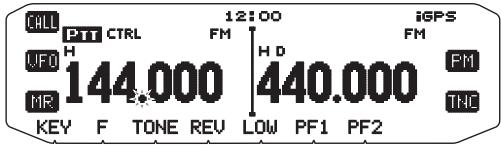
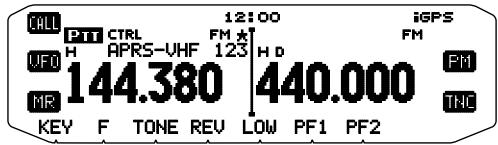
You can create up to 5 phrases each of which can consist of up to 20 characters. SETTING SmartBeaconing'" Enter Menu mode and access Menu 630 and 631.

IARTBEACON ING 1 630 ,SHARTBEACON IN 2 631 FE Fénen/sreoc ESC BACK Set to use [SmartBeaconing] (Menu No.611) with APRS data transmission. This function optimizes beacon transmission based on driving direction and speed. Use this function when you want to track your transmissions, especially for optimizing crossover beacon transmission intervals. Æ Low speed <LOW SPEED> Low speed setting (2 - 30 <mi/h, km/h or knots>). When the speed is lower than this, beacons are transmitted at the time interval specified under SLOW RATE. Note: To select the speed setting of the units, access Menu 626 (DISPLAY. UNIT 1 - SPEED, DISTANCE) Œ High speed <HIGH SPEED> High speed setting (2 -90 <mi/h, km/h or knots>). When the speed is faster than this, beacons are transmitted at the time interval specified under FAST RATE.) Note: To select the speed setting of the units, access Menu 626 (DISPLAY. UNIT 1 - SPEED, DISTANCE) EH Slow rate <SLOW RATE> Low speed transmission interval time (1 - 100 minutes). M Fast rate <FAST RATE> High speed transmission interval time (10 - 180 seconds). B Turn angle <TURN ANGLE> Driving direction change, minimum value setting (5 - 90 degrees). Æ Turn slope <TURN SLOPE> Driving direction change, additional value setting (1 - 255 (10degrees/speed)). M Turn time <TURN TIME> Minimum time delay between each beacon transmission by change of direction. (5 - 180 seconds). Note: + When Menu No. 602 is set to a value other than [GPS], it operates at the SLOW RATE. + Adjustthe Setting values to match the actual driving status. APRS-20

SmartBeaconing Operation: Transmission Corner Speed Interval Pegging Above the HIGH Operates above t FAST RATE normally The interval is Under HIGH SPEED | calculated using the Over LOW SPEED | following formula: Operates (Only when the set î HIGH SPEED = (Transmission Interval | nOrmally LOW SPEED) = FAST RATE x HI SPEED + Speed) Belowthe LOW SLOW RATE Will not operate Transmission Interval Example: (with LOW SPEED = 5, HIGH SPEED = 70, SLOW RATE = 30 min, FAST RATE = 120 sec)

PACKET MONITOR DISPLAY

This transceiver presents Terminal Window mode to display raw data of received APRS packets. lt displays up to 155 characters per page and holds up to 10 pages. 1 Press [KEY], [P.MONI. APRS1Z 12500 ssPS

®1 44 390"440.000 KEY F MSG LIST ECON POS PMON D + To enter Terminal Window mode. Speed Interval 80 120 seconds (2 minutes) 70 120 seconds (2 minutes) 50 168 seconds (2 minutes 48 seconds) 30 280 seconds (4 minutes 40 seconds) 20 420 seconds (7 minutes) 10 840 seconds (14 minutes) 5 1680 seconds (28 minutes) 0 1800 seconds (30 minutes) Corner Pegging Operation Example: (with TURN ANGLE = 30°, TURN SLOPE = 24) TURN TURN SLOPE | TURN Turn Speed SLOPE + ANGLE Threshold Speed (1) @) (8)=(1)+(2) 60 24 (x10) 4 30° 34° 50 24 (x10) 6° 30° 36° 30 24 (x10) 8° 30° 38° 20 24 (x10) 12° 30° 42° 10 24 (x10) 24° 30° 54° 5 24 (x10) 40° 30° 78° + When the value of [Turn Threshold] exceeds 1209, it is calculated as

< SmartBeaconingT" from HamHUD Nichetronix > + ALLCLR REQUME + + Rotate the Tuning control or press [1] or [4] to change the page. + Press [RESUME] to quit the Hold function. + While using the Hold function, newiy received packets will not be stored in buffer. + When press [ALLCLRI], packet monitor display is cleared. Note: + The terminal window is not available for sending a command to the TNC. + The terminal window is available in APRS mode (not in Packet mode) + The data in buffer is cleared when the transceiver power is turned OFF. APRS-21

DX PacketClusters are networks which consist of nodes and stations who are interested in DXing and contesting. If one station finds a DX station on the air, he (or she) sends a notice to his (or her) node. Then this node passes the information to all its local stations besides another node. This transceiver can display received DX information and hold the latest information on up to 10 DX stations. Use this function to monitor the latest DX information in your local area. You cannot send DX information to a node, using the function. CES A Station 1 Access Menu 601 (INTERNAL TNC - DATA BAND) to select band A or B. + Ifthe common transfer rate in your local PacketCluster network is 9600 bps, access Menu 601 (INTERNAL TNC - PACKET SPEED) and select “9600 bps”. Tune to the frequency of the target PacketCluster node. Press [TNC] to enter APRS mode. + “APRS” should appear. 4 Press [F], [DX]. + Each time new DX cluster data is received, a callsign, frequency, and time are displayed. + Information of up to 5 DX stations are displayed at the same time. + When a duplicate DX cluster data is received, “dD” and a callsign are displayed. ES “ere [ 21225. 4 BSGéz HAS: ses TUNE CLR [TOP]: Displays the list of the fast 5 stations. [5t]: Displays the list of the previous 5 stations. [5 1]: Displays the list of the next 5 stations. [ESC]: Restores the frequency display. [TUNE]: Outputs the PCT data. [CLR]: Deletes the current DX station. + DX station detailed display mode P1:MéDJY ‘ 14238.8 1206Z KENWOOD

[ESC]: Restores the frequency display. [BACK]: Returns to the DX station list [TUNE]: Outputs the PCT data. [CLR]: Deletes the current DX station. Æ Connecting TM-D710G with the HF Transceiver In order to connect TM-D710G to the HF transceiver, you need to prepare three cables by yourself. For the connection between the PC/ COM connectors on the two transceivers, you may use a commercially available RS-232-C cross-wired cable. + AD-SUB female/male conversion adapter is required. HF transceiver TM-D710G Um) 9 on HF transceiver APRS-22

TRANSCEIVER RESET There are 4 types of transceiver reset available: VFO Reset Use to initialize the VFO and accompanying settings. PARTIAL (Partial) Reset Use to initialize all settings other than the Memory channels, the DTMF memory, and the PM channels. PM Reset Use to reset only the Programmable Memory channels to their default values. FULL Reset Use to initialize all transceiver settings that you have customized. (Date and time are not reset.) There are 2 ways to perform a reset on the transceiver: by key operation and by accessing Menu mode. KEY OPERATION 1 Turn the transceiver power OFF. Press [F] + Power ON. Rotate the Tuning control and select your desired reset type: VFO RESET, PARTIAL RESET, PM RESET, or FULL RESET.

RESET + FULL RESET ESC 4 Press the Tuning control to set the reset type. + A confirmation message appears on the display. FULL RESET PARE YOU SURE? ESC BACK + Press [BACK] to return to the previous display or [ESC] to cancel the reset. 5 Press the Tuning control again to perform the reset. RESETTINGI Note: When in Remote Control or Repeater mode, you cannot reset the transceiver using the Key Operation method. MENU MODE
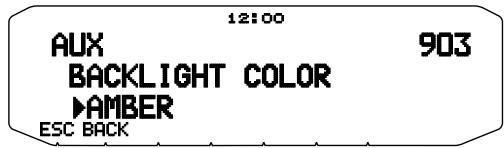
AL 999 Set the reset type to VFO RESET, PARTIAL RESET, PM RESET, or FULL RESET. Press the Tuning control to set the reset type. + A confirmation message appears on the display. AUX 999 RESET PRE ESC BACK + Press [BACK] to return to the previous display or [ESC] to cancel the reset Press the Tuning control again to perform the reset. RESETT ING! Note: When the Channel Display function or Key Lock function is ON, the transceiver reset cannot be performed. RESET-1

When using the optional VGS-1 voice guide & storage unit, you gain access to the voice recorder and voice announcement functions. VOICE ANNOUNCEMENTS When changing modes, frequencies, settings, etc., an audio voice will announce the new information. + Voice announcements are output from the PTT band side. 1 Enter Menu mode and access Menu 003. amro ous ANNOUNCE + AUTO ESC BACK 2 Set the announcement function to MANUAL, AUTO, or OFF. + Refer to the tables below for announcements based on settings. AUTO: Announcements are made automatically when changing a mode/frequency/setting. Operation Announcement “A’FB” + “Channel” (for MR only) + Change the Call’/channel number + “Channel (for CALL only) + operating band frequency + output power level + (PM channel number (OFF, 1-5) (turn the power ON)) operating band/ turn the power ON Change the frequency band New receive frequency Setting up the PM | PM Channel number/“PM OFF” MANUAL: A microphone PF key must be programmed as [VOICE] to use MANUAL voice announcement. Frequency direct entry Entered key number Memory Direct Entry mode Channel number Operation Announcement While in VFO Press [VOICE]: mode Operating band frequency Press [VOICE]: “Channel” + Channel number + operating band frequency While in MR mode On stored channel “Memory in” + channel number + frequency Press [F], rotate Tuning control Press [VOICE]: On blank channel Press [F], [MIN] in “Memory in” + channel number + VFO mode “Blank” Press [A/B] in “A’/B" + frequency + output power VFO mode level noie in Call “Call channel” + operating band frequency Press [VOICE]: While in Menu Menu number or setting value mode (some selections have no voice announcement) “Menu” + “Mode” + The main Menu number corresponds to the first digit. Press [F] and then the Tuning control Tone frequency Press [VOICE]: setup “Tone frequency” + frequency value CTCSS frequency | Press [VOICE]: setup “CTCSS frequency” + frequency value Press [VOICE]: DCS code setup “DCS” + code Value “TX” + “TONE” or “DCS” + “RX” + Cross tone setup «“TONE” or “CTCSS” or “DCS” or “OFF” in VFO mode (For example, “5” is Menu No. 5xx.) Select Menu number in “Menu” + menu number category Select setting value in Menu Setting value mode Clearing a “Memory” + “Channel”+ channel memory channel | number + “Clear” Perform a Full u 9" Reset Full reset? Perform a Partial | «bi tial reset?" AUTO: Reset Announcements are made automatically when changing a mode/frequency/setting. peronm avFo “VFO reset?” Operation Announcement Perform a PM u 2 Press [VFO] “VFO" Reset PM reset? Press [MR] “MR” Press [LOCK] Press [CALL] “Cal” fo Bon ON Lock on Press [MENU] “Menu” + menu number Press [LOCK] Press [F] “Function” (to turn the Lock “Lock off” Press [PM] vi function OFF) Press [ENT] “Enter” Tons frequency “Tone frequency” + frequency value setup VGS-1

AUTO: mode/frequency/setting. Announcements are made automatically when changing a Operation Announcement TS frequency | «cross frequency” + frequency value DCS code setup | “DCS” + code value Cross tone setup “TX” + “TONE” or “DCS” + “RX” + “TONE” or “CTCSS” or “DCS” or “OFF” MHz step frequency setup “MHZ Step” + frequency value

AUDIO 00 ANNOUNCE UCLUME LEVEL 5 ESC EACK 2 Set the announcement volume level from 1 to 7. + To turn the volume OFF, turn the announcement function OFF. H Voice Announcement Speed 1 Enter Menu mode and access Menu 006.

AUDIO ANNOUNCE SPEED +SPEED 1 ESC BACK 2 Set the announcement speed level from 0 to 4. + The speed settings are as follows: 0: 0.85 times normal speed : Normal speed

2: 1.15 times normal speed 3: 1.30 times normal speed 4: 1.45 times normal speed VGS-2 VOICE RECORDER The voice recorder provides you with 3 VGS channels for recording voice memos, along with a single VGS channel for continuous recording. You can also prepare automated message responses to received calls. Each recording can last for up to 30 seconds. H Voice Memos To record a voice memo, for later playback: Press the PF key programmed as [VGS].

1 2 ci Press and hold the key for the VGS channel number you want to store the memo in: [1], [2], or [3]. + A beep will sound and the transceiver will enter Recording mode. 12100 PE x E

fP1. Press and hold the VGS channel number key again (the same key you pressed in the previous step), then speak into the microphone to record your memo. + Recording begins as soon as you press the VGS channel number key, and a timer appears on the display. + Pressing the microphone PTT switch at this time will transmit your message as well as record it. Do not press the microphone PTT switch if you do not want to transmit your message. 12:00 sSPS AP1.15S [440.000 Release the VGS channel number key to end the recording at any time and store it into the selected VGS channel. + lfthe memory becomes full, recording will stop automatically and store the voice memo to memory. + “WRITING" appears on the display while the recording is being stored to memory. 12100 sSPE mn E

MRITIN + To exit, press [VGS] again.

EH Continuous Recording Received signals on the control band are continuously recorded, with the memory retaining the last 30 seconds of recorded signals. 1 Enter Menu mode and access Menu 009.

Œ Playback 1 Press the PF key programmed as [VGS].

+ When preparing to transmit, press the [PTT] switch before bOFF pressing the channel number (1 - 3) key. ESC ERCK 2 Press the key for the VGS channel number you want 2 Setthe Continuous Recording to ON (or OFF). to playback: [1], [2], [3], or [4] (when the Continuous + When selecting “ON”, Continuous Recording turns ON. When Recording is ON). . | the control band squelch opens, the (icon appears on the + The recording saved in the channel you selected is played display and Received signals are recorded. + Received signals are saved in the SRAM memory. m ss ess

e F_TONE REU LOW PF1 FF2 3 Press the PF key programmed as [VGS].

4 Press [4] (15). + Up to 30 seconds of received signal recordings from the SRAM memory are written to channel 4.

+ To end playback at any time, press [CLR]. + Playback signals are output from the PTT band side. Use the [BAND SEL (VOL)] of the PTT band to adjust the speaker volume. + To exit, press [VGS] again. + During playback, you can switch to any of recordings 1, 2, 8, or 4 by pressing the appropriate key. Æ Playback Repeat You can set messages to be repeatedly played back. 1 Enter Menu mode and access Menu 007. AUDIO 007 PLAYBACK REPEAT POFF ESC BACK Note: The [icon does not appear during playback, in Repeater mode, or in Remote Control mode. 2 Setthe Playback Repeat function to ON or OFF. Æ Playback Repeat Interval If the Playback Repeat function is activated, you can set a time interval for how often the memo/message is played back. 1 Enter Menu mode and access Menu 008. AUDIO 008 PLAYBACK INTERURL MIO S ESC BACK 2 Set the interval from 0 to 60 seconds. VGS-3

CROSS-BAND/ LOCKED-BAND OPERATION (TM-D710GA ONLY) This transceiver is capable of receiving signals on one band and retransmitting signals on the other band. This function repeats signals originating from one band, using the other band. For example, a signal received on band A (VHF) is retransmitted on band B (UHF). Similarly, a signal received on band B (UHF) is retransmitted on band A (VHF). Locked-band Repeater: The transceiver uses the same band to receive or transmit a signal. You can set either the A band (A-TX) or B band (B-TX) as the transmit band. Cross-band Repeater: If receiving a signal on the TX band, the transceiver switches the current RX only band to the TX band. This is useful when joining in a group talk. Participants in a group talk need to set a receive and transmit frequency on different bands so as not to miss any conversation within the group.

REPEATER OPERATION MODE

1 Enter Menu mode and access Menu 408. 12:00 REPEATER 405 REPEATER MODE + CROSS BAND ESC EACK 2 Setthe Repeater operation mode to CROSS BAND, LOCKED TX:A-BAND, or LOCKED TX:B-BAND. Turn the transceiver power OFF. Press [TONE] + Power ON. + The Repeater mode is ON and the EE (biink) and LOCK icons appears on the display. + You are unable to perform any transceiver functions while in Repeater mode. + To return to normal operation, turn the transceiver power OFF, then press [TONE] + Power ON. Note: + You cannot activate the Repeater function while in single band operating mode or Weather Channel mode. + _Activating the Repeater function switches OFF the Automatic Simplex Checker (ASC). + The Time-Out Timer is locked at 3 minutes. + Resetting the transceiver will not cancel the Repeater mode.

If necessary, you can set the transceiver to remain in the transmit mode for 500 ms after a signal drops. 1 Enter Menu mode and access Menu 404.

If necessary, you can set the transceiver to transmit your call sign every 10 minutes. 1 Enter Menu mode and access Menu 406.

ESC BACK 2 Set the ID Transmit function to OFF, MORSE, or VOICE. + To use VOICE transmission, you must have the VGS-1 option installed. When using the VGS-1 option, the ID Transmit function will use VGS channel 3 as the call sign. + When selecting MORSE, the call sign stored in Menu 405 {see below} will be transmitted at 20 wpm (words per minute). M Entering your Repeater ID 1 Enter Menu mode and access Menu 405.

WIRELESS OPERATION (TM-D710GA ONLY) If you also have a compatible KENWOOD handy transceiver, you may use it as a remote control for this mobile transceiver. You will control one band on the mobile while sending DTMF tones to the other band from the handheld. This function is useful, for example, when you want to control the mobile from a location outside your vehicle. Note: + As a remote control, you can also use a handy transceiver which does not have a remote control function but a DTMF function. However, you must manually send DTMF tones for control code strings. Skip steps 1 and 3 in “PREPARATION” + The FCC rules permit you to send control codes only on the 440 MHz band. PREPARATION Let us assume band A (VHF) of the mobile transceiver will be controlled. On the handy transceiver: 1 Program a 3-digit secret number. + Forthe programming method, see the instruction manual for the handheld. 2 Select the transmit frequency on the UHF band. 3 Make the handheld enter Remote Control mode. + Forthe method, see the instruction manual for the handheld. If not described, consult your dealer. On the mobile transceiver: 4 Enter Menu mode and access Menu 923.

AUX 923 REMOTE 1D ESC ERCK + + 5 Setthe ID code to the same secret number you set on the handy transceiver. 6 Select the receive frequency on band B (UHF). + Match this frequency with the transmit frequency on the handheld. Select band A (VHF) as the TX band or Control band. To cause the mobile to send a control acknowledgment to the handheld, enter Menu 924 and set it to ON. + DTMF tones which represent the secret number will be used as an acknowledgment.

ESC BACK 9 Turn the transceiver power OFF. 10 Press [REV] + Power ON to enter Remote Control mode. + The iT#i (blink) and LOCK icons appear on the display. + To exit Remote Control operation, turn the transceiver power OFF, then press [REV] + Power ON again. CONTROL OPERATION While in Remote Control mode, the DTMF keys of the handheld will function as shown in the table below. Each time you press the desired key, the handheld will automatically enter transmit mode and send the corresponding command to the mobile. Note: If using a handheld without a remote control function, manually send “AXXXEYAS" where *XXX is a 3-digit secret number and “Y” is a single-digit control command. I you do not add ”A#” to the end, you can skip sending “AXXXE”" next time; however, the mobile may be accidentally controlled by other stations. Operation © ALU d Access your mobile via the remote unit AH (where *** is your 8-digit secret number) End access of your mobile via the A# remote unit DCS ON 1 Tone ON 2 CTCSS ON 3 DCS OFF (all signalling OFF) 4 Tone OFF (all signalling OFF) 5 CTCSS OFF (all signalling OFF) 6 Call mode ON 7 VFO mode ON 8 Memory mode ON 9 Transmit power (press to toggle between 0 High, Medium, and Low) Frequency (in VFO mode) or Memory channel (in Memory mode) direct entry A 000%XXX B XXX DCS code (when DCS is ON), Tone (DCS code) frequency (when Tone is ON), or CTCSS | BA XX (Tone/ frequency (when CTCSS is ON) setup CTCSS frequency Repeater (Cross-band or Locked-band) c

Repeater OFF D Step the frequency or Memory channel #% down Step the frequency or Memory channel #

WEATHER ALERT (TM-D710GA ONLY) The Weather Alert is available only in the USA and Canada. When activated, this function will check for a received NOAA 1050 Hz tone. When the tone is received, the weather alert tone will sound.

WEATHER ALERT ON/ OFF

1 Enter Menu mode and access Menu 111. TRY al HEATHER ALERT POFF ESC BACK 2 Setthe Weather Alert to ON or OFF. + When activated, the L# icon appears on the display. + When a signal is being received, the IX icon blinks. M Weather Channel Whether or not the Weather Alert is activated, you can still access the weather channels. The Weather Alert simply notifies you of activity on the weather channels. 1 Press the key programmed with the [WX] unction. 2 Rotate the Tuning control to select your desired channel. Channel Frequency Memory q No. (MHz) Name Less NOAA/ Aî 162.550 WX 1 Canada NOAA/ A2 162.400 WXx 2 Canada NOAA/ A3 162.475 WX 3 Canada

A5 162.450 WX 5 NOAA

A6 162.500 WX 6 NOAA

A7 162.525 WX 7 NOAA

A8 161.650 WXx 8 Canada A9 161.775 WXx 9 Canada A10 163.275 WX 10 _

The memory channel only for the weather alert is scanned. 1 Enter Menu mode and access Menu 112. TK/RX | 112

POFF ESC BACK 2 Set the Weather Alert Scan to “OFF” or “15/ 30/ 60 (min)”. When the weather channel scanning time is set: Auto scanning starts after the set time. When the weather channel scanning is set to “OFF”: Press and hold the key programmed with the [WX] function to start the weather channel scan. + Scanning stops when the channel with the highest signal level is received + Memory scanning stops when performing any operation other than [MONI] WX-1

SKY COMMAND SYSTEM Il The SKY COMMAND SYSTEM Il allows remote control of a TS-990S, TS-2000, TS-2000X, TS-B2000, TS-480HX, TS-480SAT, TS- 570D, TS-5705S, TS-590$, or TS-870S HF transceiver. You will use one transceiver as a control station called “Commander”. The transceiver connected with the HF transceiver is called “Transporter”. It will function as an interface between the Commander and the HF transceiver. This system allows you, for example, to watch for and hunt DX while washing your car, or to operate the HF transceiver while relaxing in your car, living room, or patio, instead of in your shack. The Commander and Transporter transfer audio and commandés as below: VHF freq. Audio Audio UHF freq. Audio > Control commands > Control commands > < Response < Response Commander (TM-D710GA/E/ TM-D710A/E/ TM-D700A/ TH-D72A/E/ TH-D7A) Transporter (TM-D710GA/E/ TM-D710A/E/ TM-D700A/ TH-D72A/E/ TH-D7A) HF transceiver CONNECTING THE TRANSPORTER WITH THE HF TRANSCEIVER In order to connect the transporter to the HF transceiver, you need to prepare three cables by yourself. For the connection between the PC/ COM connectors on the two transceivers, you may use a commercially available RS-232-C cross-wired cable (A D-SUB female/ male conversion adapter is required.) TM-D710G

To 3.5 mm (1/8") speaker jack

COM connector on HF transceiver HF transceiver

ÉCE HF transceiver MIC connector on HF transceiver

8 MIC connector on HF transceiver ETES — 5 GND (MIC) —— 6 MC Note: + Operation of SKY COMMAND SYSTEM I! may not been permitted in certain countries. Check your local laws before operating. + Switch OFF both the Transporter and HF transceiver before making the connection. + The Transporter automatically transmits its callsign in Morse at regular intervals because of legal requirements; therefore, transmit side tone must be output from the HF transceiver. + When the Transporter is too close to the HF transceiver, unwanted feedback may cause malfunction. + Do not share a regulated power supply between the Transporter and the HF transceiver. Unwanted feedback may cause malfunction. SKY CMD-1

PREPARATION FLOW The following steps should guide you to a good start of Sky Command operation. First connect the Transporter to the HF transceiver. 1 <Onthe Commander and Transporter> Select the same VHF and UHF frequencies. Band A: VHF frequency _ Band B: UHF frequency

Band A: UHF frequency Band B: VHF frequency Note: Configure the squelch to an appropriate level for both the VHF and UHF band on the Commander and Transporter. If the squelch is not set to an appropriate level, the transceivers may enter a BUSY state due to noise signals and be unable to transmit. 2 <Onthe Commander> Access Menu 700 to program a callsign (9 digits max.) for the Commander. + You may enter your exact callsign: ex. W6DIY. sv CD 1200 COMMANDER CALLSIGN PNOCALLI

ESCEACK # + INS CLR 3 <On the Commander> Access Menu 701 to program a callsign (9 digits max.) for the Transporter. + This callsign must be different from the one for the Commander. So you may add SSID characters; ex. W6DJY-1. SKY CID +01 TRANSPORTER CALLSIGN PNOCALLE...4 ESCERK € + INs CLR 4 <Onthe Transporter> Access Menu 700 to program the same callsign as you entered in step 2. 5 <Onthe Transporter> Access Menu 701 to program the same callsign as you entered in step 3. The same callsign as you entered in step 2. 6 <On the Commander and Transporter> Access Menu 702 and select the tone frequency. + Select the same tone frequency on both transceivers.

SKY CID TONE FREQUENCY + 88.5 Hz ESC BACK 7 <On the Commander> Access Menu 703 and select “COMMANDER”. 12:00 SkY CMD 703 SKY_COMMAND + __ COMMANDER ESC Back + “Push [ 0 ] key to start Commanderl!" appears. kr cnD az500 (Pr ES FH Push [O1 key H to start Eésé: 1440000 Lou ESC <On the Transporter> Access Menu 703 and select “TRANSPORTER". sky CD 703 SKY COMMAND PTRANSPORTER ESC BACK Now the Commander and Transporter are in Sky Command mode. For operations in this mode, see “CONTROL OPERATION". First switch ON the HF transceiver and press [SYNC] on the Commander. To exit the Sky Command mode, access Menu 703 and select “OFF”. Note: + Unies you program callsigns, you cannot select COMMANDER" or “TRANSPORTER using Menu 703. + On the HF transceiver, select 9600 bps and 1 stop bit (default) using the Menu Set-up function + Adjustthe audio level on both the Transporter and HF transceiver while listening to audio output from the Commander. An appropriate position of the AF control on the HF transceiver might be in the range, 8:30 to 9:00. + To distinguish your various stations or nodes, you can have up to 15 Secondary Station IDentifiers (SSIDS); ex. W6DJY-1 to W6DJY-15. You always have to put a dash between your callsign and SSID number. ATTENTION: Use only after verifying that there is no reception disruption during communications. SKY CMD-2

PROGRAMMING CALLSIGNS The built-in TNCs of the Commander and Transporter communicate each other when you send a control command from the Commander. So you must program different callsigns (9 digits max.) on these transceivers as the IDs of the TNCSs. Use the following Menu Nos. to program callsigns: On Commander 700 COMMANDER Callsign for Commander 701 CRANSPORTER Callsign for Transporter On Transporter 700 COMMANDER Callsign for Commander 701 CRANSPORTER Callsign for Transporter 1 Access Menu 700 or 701, then press the Tuning control. + The callsign entry field appears: the first digit links.

SKY D +01 TRANSPORTER CALLSIGN PNOCALLE. ES BAK + + 1Ws CLR 2 Rotate the Tuning control to select a character. + You can enter O to 9, A to Z, and—. 3 Press [-1]. + The cursor moves to the next digit. 4 Repeat steps 2 and 3 to enter up to 9 digits. [BACK]: Cancels entry of a callsign. [+]: Causes the cursor to move backward. INSI: Inserts the currently selected character. [CLR]: Deletes the digit at which the cursor is blinking. Press the Tuning control to complete the setting. Press [ESC] to exit Menu mode. The keypad on the Microphone also is available to enter alphanumeric characters in step 2.

PROGRAMMING A TONE FREQUENCY

On receiving a tone from the Commander, the Transporter causes the HF transceiver to enter Transmit mode. On both the Commander and Transporter, access Menu 702 and select the desired, same tone frequency. SKY CMD TONE FREQUENCY » 85.5 Hz ES EACK CONTROL OPERATION When in the Sky Command mode, the Microphone keys of the Commander will function as below. First switch ON the HF transceiver and press Microphone [0] on the Commander. Each time you press the desired key, the Commander will automatically enter transmit mode and send the corresponding control command to the Transporter. Key Function [1] (PWR)_ | Power ON/ OFF [21 (RX) HF frequency receive ON/ OFF [3] (MODE) | Modulation mode switch

[4] (RIT) | RITON/OFF

[5] (XIT) | XIT ON/OFF

[6] (CLR) | RIT offset or XIT offset clear [71 (SPLIT) | Split-frequency ON/ OFF [8] (M>V) | Transfer from Memory to VFO (81 (WE) |1n Memory Recal mode: no change [0] (SYNC) | Current settings retrieve (from HF transceiver) [A] (MONI) Gnontarine UHF band on the [B] (M) VFO/ Memory Recall mode switch [C] (UP) XIT/ RIT offset frequency increase [D] (DOWN) | XIT/ RIT offset frequency decrease In LSB, USB, or CW mode: 10 Hz/ 1 kHz [#1 (FAST) | switoh In FM or AM mode: 1 kHz/ 10 kHz switch [#12 In VFO mode: frequency entry ON In Memory Recall mode: channel number (ENTER) entry ON [PTT] To transmit audio on an HF frequency *_“FS” appears when you select 1 kHz step (LSB/ USB/ CW) or 10 kHz step (FM/ AM). 2 After pressing Mic [#], press Mic [0] to [9] to enter a frequency or memory channel number. Note: To change the frequency or memory channel on the HF transceiver, rotate the Tuning control. SKY CMD-3