
TH-K40 - Ham Radio KENWOOD - Free user manual and instructions
Find the device manual for free TH-K40 KENWOOD in PDF.

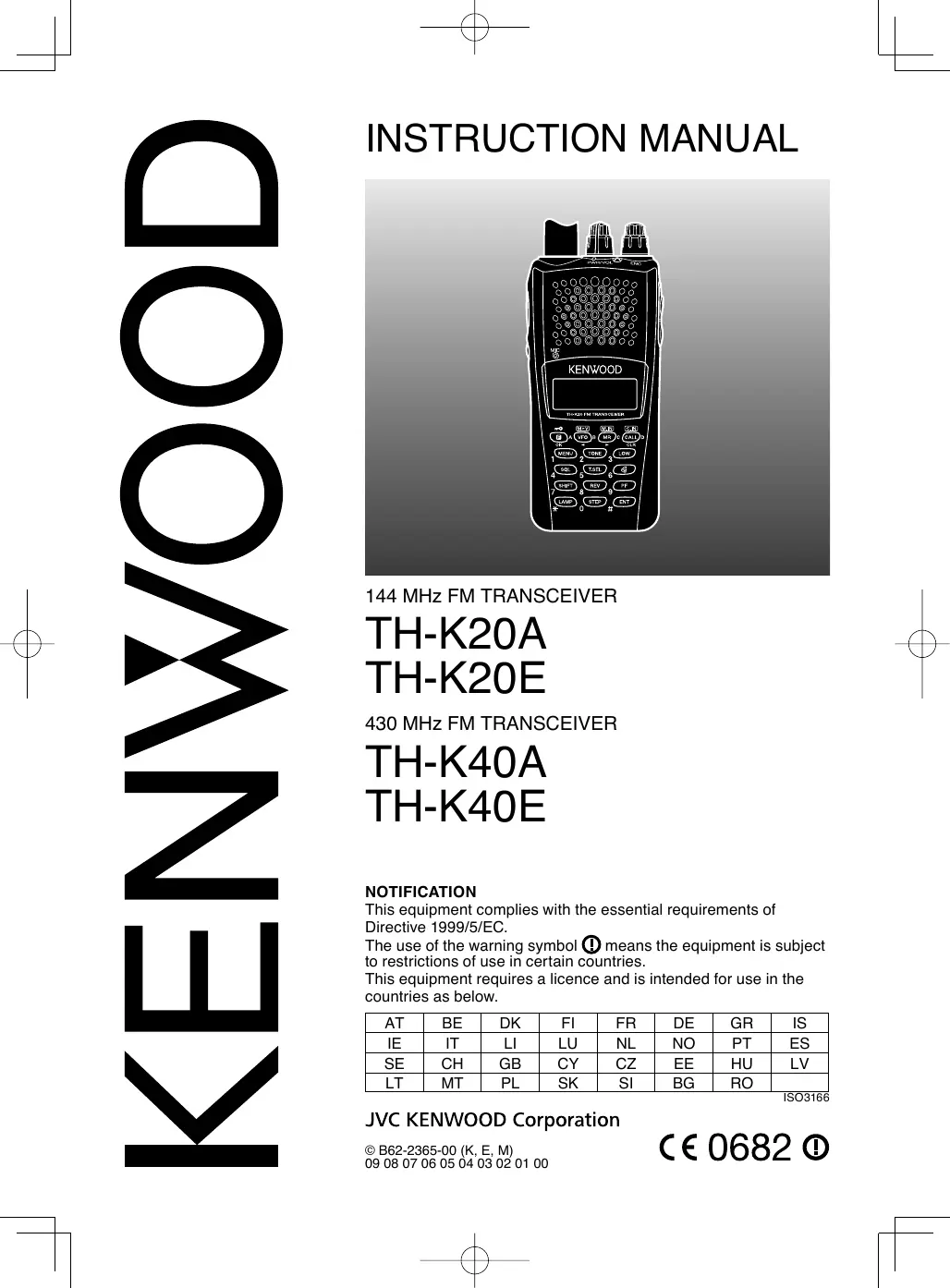

| Brand | KENWOOD |
| Model | TH-K40 |
| Product type | Portable FM transceiver for amateur radio |
| Frequency bands | 430-440 MHz (transmit/receive), 400-470 MHz (receive) |
| RF output power | High: 5 W, Medium: 2 W, Low: 1 W (with KNB-63L/65L Li-ion battery) |
| Number of memory channels | 200 channels + call channel + programmed scan channels |
| Power supply | Rechargeable 7.4 V Li-ion battery (KNB-63L/65L) or 6 AAA (LR03) batteries via BT-16 |
| Battery life (KNB-63L) | Approx. 6 h (high), 8.5 h (medium), 10.5 h (low) per standard cycle |
| Dimensions (W x H x D) | 54 x 111.7 x 25.3 mm (with KNB-63L battery) |
| Weight | Approx. 210 g (with KNB-63L battery) |
| Antenna impedance | 50 Ω |
| Operating temperature | -10 °C to +60 °C (with Li-ion battery) |
| Frequency stability | ± 2.5 ppm |
| Main functions | VFO, memory channels, scan (band, program, memory, call, priority), CTCSS, DCS, 1750 Hz tone, VOX, lock, battery saver, APO |
| Modulation | F3E, F2D (wide and narrow FM) |
| Receiver | Double superheterodyne, 1st IF 38.85 MHz, 2nd IF 450 kHz |
| Sensitivity (12 dB SINAD) | Less than 0.18 μV (TH-K40) |
| Maintenance and cleaning | Use a neutral detergent and a damp cloth. Do not use harsh chemicals. |
| Safety | Do not charge in a humid environment, do not short-circuit the battery, follow temperature guidelines, use only specified accessories. |
| Supplied accessories | Antenna, KNB-63L Li-ion battery, KSC-35S rapid charger with AC adapter, KBH-18 belt clip, instruction manual |
| Destination countries | AT, BE, DK, FI, FR, DE, GR, IS, IE, IT, LI, LU, NL, NO, PT, ES, SE, CH, GB, CY, CZ, EE, HU, LV, LT, MT, PL, SK, SI, BG, RO |
Frequently Asked Questions - TH-K40 KENWOOD
User questions about TH-K40 KENWOOD
0 question about this device. Answer the ones you know or ask your own.
Ask a new question about this device
Download the instructions for your Ham Radio in PDF format for free! Find your manual TH-K40 - KENWOOD and take your electronic device back in hand. On this page are published all the documents necessary for the use of your device. TH-K40 by KENWOOD.
USER MANUAL TH-K40 KENWOOD
This equipment complies with the essential requirements of Directive 1999/5/EC.
The use of the warning symbol means the equipment is subject to restrictions of use in certain countries.
This equipment requires a licence and is intended for use in the countries as below.
| AT | BE | DK | FI | FR | DE | GR | IS |
| IE | IT | LI | LU | NL | NO | PT | ES |
| SE | CH | GB | CY | CZ | EE | HU | LV |
| LT | MT | PL | SK | SI | BG | RO |
ISO3166
JVC KENWOOD Corporation
THANK YOU
We are grateful you decided to purchase this KENWOOD FM transceiver.
KENWOOD always provides Amateur Radio products which surprise and excite serious hobbyists. This transceiver is no exception. KENWOOD believes that this product will satisfy your requirements for voice communication.
MARKET TYPE CODES
K: The Americas
E: Europe
M: General
The market type code is printed on the bar-code label of the carton box.
WRITING CONVENTIONS FOLLOWED IN THIS MANUAL
The writing conventions described below have been followed to simplify instructions and avoid unnecessary repetition.
| Instruction | Action |
| Press [KEY]. | Momentarily press KEY. |
| Press [KEY] (1s). | Press and hold KEY for 1 second or longer. |
| Press [KEY1], [KEY2]. | Press KEY1 momentarily, release KEY1, then press KEY2. |
| Press [F] - [KEY]. | Press the F key to enter Function mode, then press KEY to access its secondary function. |
| Press [KEY] + Power ON. | With the transceiver power OFF, press and hold KEY while turning the transceiver power ON. |
Information on Disposal of Old Electrical and Electronic Equipment and Batteries (applicable for EU countries that have adopted separate waste collection systems)


Products and batteries with the symbol (crossed-out wheeled bin) cannot be disposed as household waste.
Old electrical and electronic equipment and batteries should be recycled at a facility capable of handling these items and their waste byproducts.
Contact your local authority for details in locating a recycle facility nearest to you.
Proper recycling and waste disposal will help conserve resources whilst preventing detrimental effects on our health and the environment.
Notice: The sign "Pb" below the symbol for batteries indicates that this battery contains lead.
Firmware Copyrights
The title to and ownership of copyrights for firmware embedded in KENWOOD product memories are reserved for JVC KENWOOD Corporation.
WHEN CONDENSATION OCCURS INSIDE THE TRANSCEIVER
Condensation may occur inside the transceiver in such a case where the room is warmed using a heater on cold days or where the transceiver is quickly moved from a cold room to a warm room. When condensation occurs, the microcomputer and/or the transmit/receive circuits may become unstable, resulting in transceiver malfunction. If this happens, turn OFF the transceiver and just wait for a while. When the condensation droplets disappear, the transceiver will function normally.
NOTICES TO THE USER
One or more of the following statements may be applicable:
FCC WARNING
This equipment generates or uses radio frequency energy. Changes or modifications to this equipment may cause harmful interference unless the modifications are expressly approved in the instruction manual. The user could lose the authority to operate this equipment if an unauthorized change or modification is made.
INFORMATION TO THE DIGITAL DEVICE USER REQUIRED BY THE FCC
This equipment has been tested and found to comply with the limits for a Class B digital device, pursuant to Part 15 of the FCC Rules. These limits are designed to provide reasonable protection against harmful interference in a residential installation.
This equipment generates, uses and can generate radio frequency energy and, if not installed and used in accordance with the instructions, may cause harmful interference to radio communications. However, there is no guarantee that the interference will not occur in a particular installation. If this equipment does cause harmful interference to radio or television reception, which can be determined by turning the equipment off and on, the user is encouraged to try to correct the interference by one or more of the following measures:
Reorient or relocate the receiving antenna.
- Increase the separation between the equipment and receiver.
- Connect the equipment to an outlet on a circuit different from that to which the receiver is connected.
- Consult the dealer for technical assistance.

ATTENTION: (USA only)
The RBRC Recycle seal found on KENWOOD lithium-ion (Li-ion) battery packs indicates KENWOOD's voluntary participation in an industry program to collect and recycle Li-ion batteries after their operating life has expired. The RBRC program is an alternative to disposing Li-ion batteries with your regular refuse or in municipal waste streams, which is illegal in some areas.
For information on Li-ion battery recycling in your area, call (toll free) 1-800-8-BATTERY (1-800-822-8837).
KENWOOD's involvement in this program is part of our commitment to preserve our environment and conserve our natural resources.
This device complies with Industry Canada licence-exempt RSS standard(s). Operation is subject to the following two conditions: (1) this device may not cause interference, and (2) this device must accept any interference, including interference that may cause undesired operation of the device.
PRECAUTIONS
- Do not charge the transceiver and battery pack when they are wet.
- Ensure that there are no metallic items located between the transceiver and the battery pack.
- Do not use options not specified by KENWOOD.
- If the die-cast chassis or other transceiver part is damaged, do not touch the damaged parts.
- If a headset or headphone is connected to the transceiver, reduce the transceiver volume. Pay attention to the volume level when turning the squelch off.
- Do not place the microphone cable around your neck while near machinery that may catch the cable.
- Do not place the transceiver on unstable surfaces.
- Ensure that the end of the antenna does not touch your eyes.
- When the transceiver is used for transmission for many hours, the radiator and chassis will become hot. Do not touch these locations when replacing the battery pack.
- Do not immerse the transceiver in water.
- Always switch the transceiver power off before installing optional accessories.
- For safety reasons, we recommend that the battery charger be connected to an easily accessible AC socket.

WARNING
Turn the transceiver power off in the following locations:
- In explosive atmospheres (inflammable gas, dust particles, metallic powders, grain powders, etc.).
While taking on fuel or while parked at gasoline service stations.
Near explosives or blasting sites. - In aircraft. (Any use of the transceiver must follow the instructions and regulations provided by the airline crew.)
- Where restrictions or warnings are posted regarding the use of radio devices, including but not limited to medical facilities.
Near persons using pacemakers.

CAUTION
- Do not disassemble or modify the transceiver for any reason.
- Do not place the transceiver on or near airbag equipment while the vehicle is running. When the airbag inflates, the transceiver may be ejected and strike the driver or passengers.
- Do not transmit while touching the antenna terminal or if any metallic parts are exposed from the antenna covering. Transmitting at such a time may result in a high-frequency burn.
- If an abnormal odor or smoke is detected coming from the transceiver, switch the transceiver power off immediately, remove the battery pack from the transceiver, and contact your KENWOOD dealer.
- Use of the transceiver while you are driving may be against traffic laws. Please check and observe the vehicle regulations in your area.
- Do not expose the transceiver to extremely hot or cold conditions.
-
Do not carry the battery pack (or battery case) with metal objects, as they may short the battery terminals.
-
Danger of explosion if the battery is incorrectly replaced; replace only with the same type.
- When operating the transceiver in areas where the air is dry, it is easy to build up an electric charge (static electricity). When using an earphone accessory in such conditions, it is possible for the transceiver to send an electric shock through the microphone and to your ear. We recommend you use only a speaker/microphone in these conditions, to avoid electric shocks.
- When attaching a commercial strap to the transceiver, ensure that the strap is durable. In addition, do not swing the transceiver around by the strap; you may inadvertently strike and injure another person with the transceiver.
Information concerning the battery pack:
The battery pack includes flammable objects such as organic solvent.
Mishandling may cause the battery to rupture producing flames or extreme heat, deteriorate, or cause other forms of damage to the battery. Please observe the following prohibitive matters.

DANGER
- Do not disassemble or reconstruct battery!
The battery pack has a safety function and protection circuit to avoid danger. If they suffer serious damage, the battery may generate heat or smoke, rupture, or burst into flame.
- Do not short-circuit the battery!
Do not join the + and - terminals using any form of metal (such as a paper clip or wire). Do not carry or store the battery pack in containers holding metal objects (such as wires, chain-necklace or hairpins). If the battery pack is short-circuited, excessive current will flow and the battery may generate heat or smoke, rupture, or burst into flame. It will also cause metal objects to heat up.
- Do not incinerate or apply heat to the battery!
If the insulator is melted, the gas release vent or safety function is damaged, or the electrolyte is ignited, the battery may generate heat or smoke, rupture, or burst into flame.
- Do not leave the battery near fire, stoves, or other heat generators (areas reaching over 80^ / 176^ !
If the polymer separator is melted due to high temperature, an internal short-circuit may occur in the individual cells and the battery may generate heat or smoke, rupture, or burst into flame.
- Avoid immersing the battery in water or getting it wet by other means!
If the battery becomes wet, wipe it off with a dry towel before use. If the battery's protection circuit is damaged, the battery may charge at extreme current (or voltage) and an abnormal chemical reaction may occur. The battery may generate heat or smoke, rupture, or burst into flame.
- Do not charge the battery near fire or under direct sunlight!
If the battery's protection circuit is damaged, the battery may charge at extreme current (or voltage) and an abnormal chemical reaction may occur. The battery may generate heat or smoke, rupture, or burst into flame.
- Use only the specified charger and observe charging requirements!
If the battery is charged in unspecified conditions (under high temperature over the regulated value, excessive high voltage or current over regulated value, or with a remodeled charger), it may overcharge or an abnormal chemical reaction may occur. The battery may generate heat or smoke, rupture, or burst into flame.
- Do not pierce the battery with any object, strike it with an instrument, or step on it!
This may break or deform the battery, causing a short-circuit. The battery may generate heat or smoke, rupture, or burst into flame.
- Do not jar or throw the battery!
An impact may cause the battery to leak, generate heat or smoke, rupture, and/or burst into flame. If the battery's protection circuit is damaged, the battery may charge at an abnormal current (or voltage), and an abnormal chemical reaction may occur. The battery may generate heat or smoke, rupture, or burst into flame.
- Do not use the battery pack if it is damaged in any way!
The battery may generate heat or smoke, rupture, or burst into flame.
- Do not solder directly onto the battery!
If the insulator is melted or the gas release vent or safety function is damaged, the battery may generate heat or smoke, rupture, or burst into flame.
- Do not reverse the battery polarity (and terminals)!
When charging a reversed battery, an abnormal chemical reaction may occur. In some cases, an unexpected large amount of current may flow upon discharging. The battery may generate heat or smoke, rupture, or burst into flame.
- Do not reverse-charge or reverse-connect the battery!
The battery pack has positive and negative poles. If the battery pack does not smoothly connect with a charger or operating equipment, do not force it; check the polarity of the battery. If the battery pack is reverse-connected to the charger, it will be reverse-charged and an abnormal chemical reaction may occur. The battery may generate heat or smoke, rupture, or burst into flame.
- Do not touch a ruptured and leaking battery!
If the electrolyte liquid from the battery gets into your eyes, wash your eyes with fresh water as soon as possible, without rubbing your eyes. Go to the hospital immediately. If left untreated, it may cause eye-problems.

WARNING
- Do not charge the battery for longer than the specified time!
If the battery pack has not finished charging even after the regulated time has passed, stop it. The battery may generate heat or smoke, rupture, or burst into flame.
- Do not place the battery pack into a microwave or high pressure container!
The battery may generate heat or smoke, rupture, or burst into flame.
- Keep ruptured and leaking battery packs away from fire!
If the battery pack is leaking (or the battery emits a bad odor), immediately remove it from flammable areas. Electrolyte leaking from battery can easily catch on fire and may cause the battery to generate smoke or burst into flame.
- Do not use an abnormal battery!
If the battery pack emits a bad odor, appears to have different coloring, is deformed, or seems abnormal for any other reason, remove it from the charger or operating equipment and do not use it. The battery may generate heat or smoke, rupture, or burst into flame.
PREPARATION 1
SUPPLIED ACCESSORIES 1
INSTALLING THE ANTENNA. 1
INSTALLING THE BATTERY PACK 2
INSTALLING THE BELT CLIP 2
CHARGING THE BATTERY PACK 3
CONNECTING TO THE PC. 5
GETTING ACQUAINTED 6
PANEL 6
DISPLAY 8
BASIC OPERATION 10
SWITCHING THE POWER ON/OFF 10
ADJUSTING THE VOLUME 10
ADJUSTING THE SQUEELCH 10
SELECTING A FREQUENCY 11
TRANSMITTING/ RECEIVING 11
DIRECT FREQUENCY ENTRY 12
SELECTING AN OUTPUT POWER 12
BACKLIGHT 13
MONITOR 13
LOCK FUNCTION 14
MENUSETUP 15
WHAT IS A MENU? 15
MENUCCESS 15
MENUFUNCTIONLIST 16
MEMORY CHANNELS 18
SIMPLEX & REPEATER OR ODD-SPLIT MEMORY CHANNEL? 18
STORING SIMPLEX AND STANDARD REPEATER FREQUENCIES 19
STORING ODD-SPLIT REPEATER FREQUENCIES 20
RECALLING A MEMORY CHANNEL 20
NAMING A MEMORY CHANNEL 21
MEMORY DISPLAY TYPE 22
CLEARING A MEMORY CHANNEL 22
CALL CHANNEL 23
MEMORY CHANNEL TRANSFER 24
CHANNEL DISPLAY MODE 24
SCAN 26
BAND SCAN 26
PROGRAM SCAN 27
MEMORY SCAN 28
CALL SCAN 28
PRIORITY SCAN 28
MEMORY CHANNEL LOCKOUT 29
SELECTING A SCAN RESUME METHOD 30
OPERATING THROUGH REPEATERS 31
SELECTING AN OFFSET DIRECTION (SHIFT) 31
SELECTING AN OFFSET FREQUENCY 32
TONE FUNCTION 32
AUTOMATIC REPEATER OFFSET 34
REVERSE FUNCTION 34
TRANSMITTING A 1750 Hz TONE 35
SIGNALING 36
CTCSS 36
DCS 37
CROSS TONE 39
DTMF FUNCTIONS 40
MANUAL DIALING 40
AUTOMATIC DIALER 40
ADJUSTING THE DTMF CODE TRANSMIT SPEED 41
DTMF TX HOLD 42
ADJUSTING THE PAUSE DURATION 42
DTMF LOCK 42
AUXILIARY FUNCTIONS 43
PROGRAMMABLE VFO 43
FREQUENCY STEP SIZE 44
TONE ALERT 44
POWER ONMESSAGE 45
BEEP FUNCTION 46
LOCK TYPE 46
BATTERYSAVER 47
APO (AUTO POWER OFF) 48
NARROW BAND FM OPERATION 48
BEAT SHIFT 49
VOX (VOICE-OPERATED TRANSMIT) 49
TIME-OUT TIMER 51
BUSY CHANNEL LOCKOUT. 51
TX INHIBIT 52
MICROPHONE SENSITIVITY 52
PROGRAMMABLE FUNCTION KEYS 52
MICROPHONE KEY LOCK 53
BATTERY TYPE 53
WEATHER ALERT (TH-K20A K TYPE ONLY) 54
WEATHER ALERT ON/ OFF. 54
WEATHER CHANNEL 54
WEATHER CHANNEL SCAN. 54
APPENDIX 55
OPTIONAL ACCESSORIES 55
MAINTENANCE 55
TROUBLESHOOTING 56
TRANSCEIVER RESET 58
SPECIFICATIONS 59
SUPPLIED ACCESSORIES
After carefully unpacking the transceiver, identify the items listed in the table below. We recommend you keep the box and packaging for shipping.
| Item | Comments | Quantity | ||
| K type | E type | M type | ||
| Antenna | 1 | 1 | 1 | |
| Li-ion battery pack | KNB-63L | 1 | 1 | 1 |
| Battery charger | with AC adapter (KSC-35S) | 1 | 1 | 1 |
| Belt clip | KBH-18 | 1 | 1 | 1 |
| Warranty card | 1 | 1 | - | |
| Instruction manual | English | 1 | 1 | 1 |
| French | 1 | 1 | - | |
| Spanish | 1 | 1 | - | |
| Italian | - | 1 | - | |
| German | - | 1 | - | |
| Dutch | - | 1 | - | |
| Turkish | - | 1 | - | |
| Chinese | 1 | |||
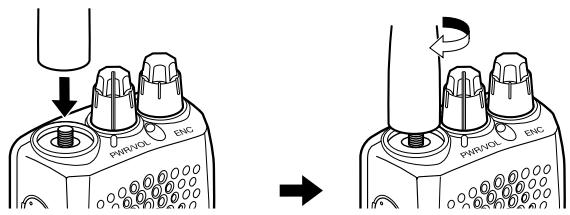
INSTALLING THE ANTENNA
Hold the supplied antenna by its base, then screw it into the connector on the top panel of the transceiver until secure.
Note: The antenna is neither a handle, a key ring retainer, nor a speaker/ microphone attachment point. Using the antenna in these ways may damage the antenna and degrade your transceiver's performance.
Note: Because the battery pack is provided uncharged, you must charge the battery pack before using it with the transceiver. To charge the battery pack, refer to "CHARGING THE BATTERY PACK" {page 3}.
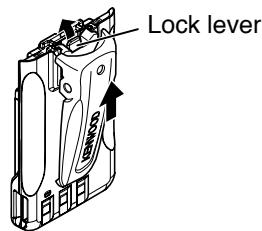
1 To install the battery pack, align the base of the battery pack with the transceiver, then press the battery pack into place until the lock lever is secure.
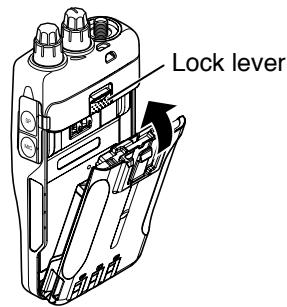
2 To remove the battery pack, push the lock lever up, then pull the battery pack away from the transceiver.
INSTALLING THE BELT CLIP
If desired, you can install the supplied belt clip to the transceiver.
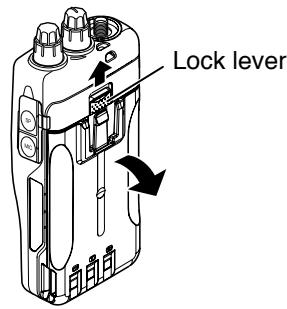
1 Remove the battery pack, as described above.
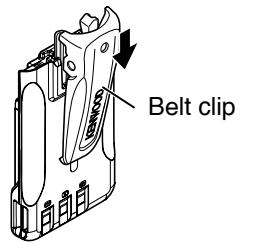
2 To install the belt clip, align the guides of the belt clip with the grooves on the rear of the battery pack, then slide the belt clip into place until the lock lever is secure.
3 To remove the belt clip, push the lock lever towards the transceiver while sliding the belt clip up.
CHARGING THE BATTERY PACK
The battery pack can be charged after it has been installed onto the transceiver. (The battery pack is provided uncharged for safety purposes.)
1 Confirm that the transceiver power is OFF.
- While charging the transceiver with a battery pack installed, be sure to turn the transceiver power OFF.
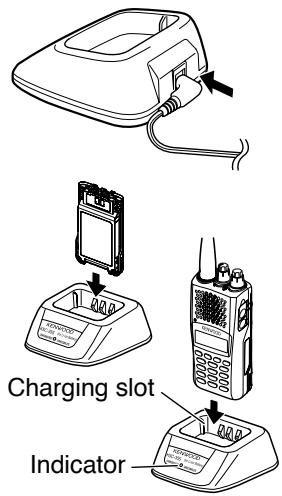
2 Plug the AC adapter cable into the jack located on the rear of the charger.
3 Plug the AC adapter into an AC outlet.
4 Slide a battery pack or a transceiver equipped with a battery pack into the charging slot.
Make sure the metal contacts of the battery pack mate securely with the charger terminals.
The indicator lights red and charging starts.
5 When charging is completed, the indicator lights green. Remove the battery pack or the transceiver from the charging slot.
- When the charger will not be used for a long time, unplug the AC adapter from the AC outlet.
Note:
Using the transceiver while charging its battery pack will interfere with correct charging.
If the operating time of a battery pack decreases although the battery pack is fully and correctly charged, the battery pack life is over. Replace the battery pack.
The ambient temperature should be from 41^ (5^) to 104^ (40^) while charging is in progress.
The charging times provided are obtained when a battery pack discharged to 3V / cell× 2 is charged at normal temperatures. This charging time varies depending on the degree of discharge and the ambient charging temperature.
This charger may be suitable to charge battery packs not listed herein, due to further technology development.
If the battery pack contacts are not properly mated with the charger terminals, the indicator may blink red or may remain unlit. To resolve this problem, reinsert the battery pack after cleaning the battery pack contacts and the charger terminals.
When using this equipment near a radio or television, you may experience interference with reception.
While charging, do not connect the PC Interface cable to the transceiver.
Approximate Charging Times
3 hours
Charger Status Table
| Indicator color | Meaning |
| Red | A battery pack is in the charging slot and charging has started. |
| Blinking Red | The battery pack is defective or the battery pack contacts are not properly mated with those of the charger. |
| Green | Charging is completed; remove the battery pack or the transceiver from the charging slot. |
| Alternates flashing green and orange | The temperature of the battery pack has not satisfied the charging start temperature. Remove the battery pack from the charger and wait until it reaches a normal temperature before charging it again. |
Battery Life
Before you operate the transceiver outside, using a battery pack, it is important to know how long the battery pack will last. The operating times listed in the table below are measured under the following cyclic conditions:
TX: 6 seconds, RX: 6 seconds, Stand-by: 48 seconds (Battery Saver: ON)
We recommend you carry extra battery packs with you, in case the battery pack becomes depleted.
| Battery Type | Output Power | Operating Time/ Hours (Approx.) | |
| KNB-63L/ KNB-65L (7.4 V) | High | 6 (KNB-63L) | 8 (KNB-65L) |
| Medium | 8.5 (KNB-63L) | 11.5 (KNB-65L) | |
| Low | 10.5 (KNB-63L) | 14 (KNB-65L) | |
| BT-16 (9 V) < AAA (LR03) alkaline batteries x 6> | High | 6 | |
| Medium | 8 | ||
| Low | 10 | ||
Note:
The high power transmission output while using the battery case (BT-16) is 3.5 W and lower. Additionally, as is characteristic of alkaline batteries, transmission output will decrease as time progresses. We recommend using low power when using the battery case.
Internal resistance levels differ, depending on the battery, so when using Alkaline batteries there are times when the actual operating time may be shorter than normal.
Connecting to a Cigarette Lighter Socket
To use the cigarette lighter socket, use the optional KVC-22 DC vehicular charger adapter. When using the Charger, attach it to the vehicle as shown below.
To the jack
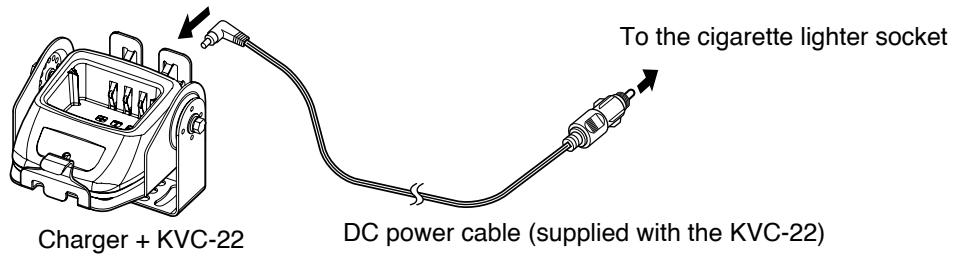
Note: Refer to the KVC-22 instruction manual for how to connect the charger to a cigarette lighter socket.
CAUTION: Do not fix the Charger near an airbag nor in places where it will be a hindrance while driving.
CONNECTING TO THE PC
Use the optional PG-4Y PC interface cable to connect the transceiver to a PC. Plug the Speaker/ Microphone connector to the SP/MIC jack and the DB-9 connector to one of the COM (serial) ports on your PC.
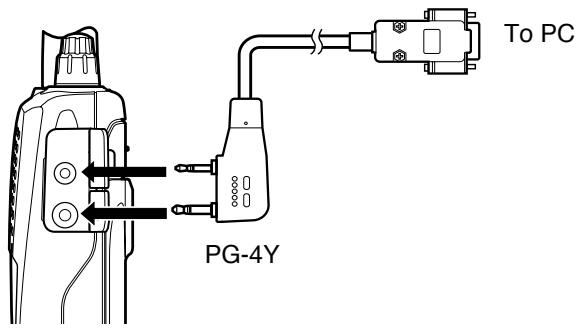
To download the MCP-5A software, go to:
http://www.kenwood.com/i/products/info/amateur/software_download.html (This URL may change without notice.)
Note: No guarantee is provided for data that may be erased or destroyed due to malfunctions of this unit or your computer.
PANEL
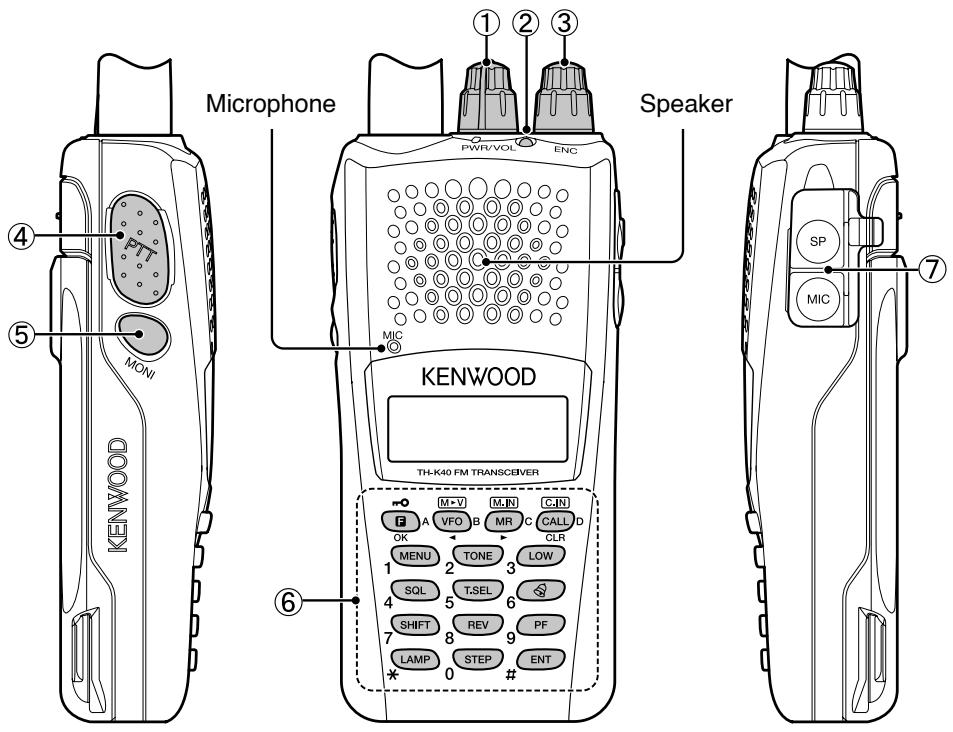
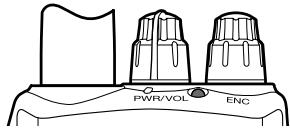
① PWR/VOL control
Turn clockwise to switch the transceiver ON. To switch the transceiver OFF, turn counterclockwise until a click sounds. Rotate to adjust the volume level.
② TX-RX LED
Lights red while transmitting and green while receiving a signal.
③ ENC Control
Rotate to select an operating frequency, Memory channel, Menu number, and setting value or to change the scan direction, etc.
(4) [PTT] (Push to talk) switch
Press and hold, then speak into the microphone to transmit.
⑤ [MONI]
Press and hold to unmute the speaker in order to monitor signals. Release [MONI] to return to normal operation {page 13}.
⑥ Keypad
Use the keypad to perform the following operations. Additionally, you can use the 10-key keypad for direct frequency entry and manually transmitting DTMF tones.
| Key name | Press | Operation | Ref. page | |
| [F] | A | [KEY] | To enter MHz tuning mode. To turn the Function ON. | 11 |
| [F] - [KEY] | To turn the Function OFF. | - | ||
| [KEY] (1s) | To turn the Lock function ON and OFF. | 14 | ||
| [VFO] | B | [KEY] | To enter VFO mode. | 11 |
| [F] - [KEY] | To copy the current Memory channel or Call channel to the VFO (memory shift). | 24 | ||
| [KEY] (1s) | To start Band scan. | 26 | ||
| [MR] | C | [KEY] | To enter Memory Channel mode. | 18 |
| [F] - [KEY] | To store the current operating frequency in the Memory channel. | 19 | ||
| [KEY] (1s) | To start Memory scan | 28 | ||
| [CALL] | D | [KEY] | To select the Call channel. | 23 |
| [F] - [KEY] | To store the current operating frequency to the Call channel. | |||
| [KEY] (1s) | To start CALL scan. | 28 | ||
| [MENU] | 1 | [KEY] | To enter Menu mode. | 15 |
| [TONE] | 2 | [KEY] | To select the Signaling (Tone, CTCSS, DCS or Cross tone) function. | 32, 36, 37, 39 |
| [LOW] | 3 | [KEY] | To select an Output power. | 12 |
| [SQL] | 4 | [KEY] | To enter Squelch Level Adjustment mode. | 10 |
| [T.SEL] | 5 | [KEY] | To enter the Tone frequency, CTCSS frequency or DCS code setup mode. | 32, 36, 37, 39 |
| [KEY] (1s) | To start Tone frequency, CTCSS frequency or DCS code scan. | |||
| [←] | 6 | [KEY] | To enter the Tone Alert function setup mode. | 44 |
| [SHIFT] | 7 | [KEY] | To select an Offset direction. | 31 |
| [REV] | 8 | [KEY] | To turn the Reverse function ON or OFF. | 34 |
| [PF] | 9 | [KEY] | To activate the Program function. | 52 |
| [LAMP] | × | [KEY] | To turn the Backlight ON. | 13 |
| [F] - [KEY] | To keep the Backlight ON continuously. | |||
| [STEP] | 0 | [KEY] | To enter the Frequency step size setup mode. | 44 |
| [ENT] | # | [KEY] | To enter Direct frequency entry mode. | 12 |
MIC/SPJack
Connect the optional Speaker/ Microphone to this jack.
Also, attach an optional PG-4Y PC interface cable to this jack, to connect the transceiver to a PC {page 5}.
DISPLAY
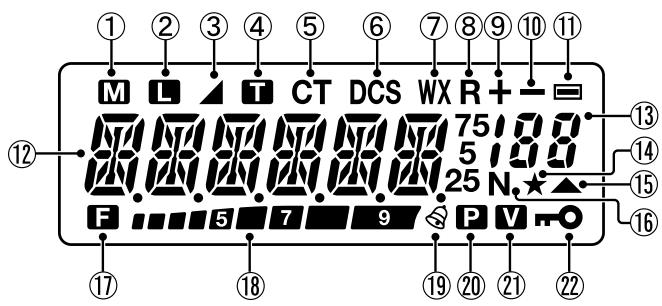
| Indicator | Description | |
| ① | M | Appears while using Medium output power. |
| ② | L | Appears while using Low output power. |
| ③ | A | Appears when the Cross Tone function is ON. |
| ④ | T | Appears when the Tone function is ON. |
| ⑤ | CT | Appears when the CTCSS function is ON. |
| ⑥ | DCS | Appears when the DCS function is ON. |
| ⑦ | WX | Appears when Weather Alert is ON. Blinks when receiving a signal. (TH-K20A K type only) |
| ⑧ | R | Appears when the Reverse function is ON. |
| 9 | + | Appears when the Shift function is set to plus. |
| 10 | - | Appears when the Shift function is set to minus. |
| 11 | = | Appears when the Shift function is set to -7.6 MHz. (TH-K40E (E type) only) |
| 12 | 75 5 25 | Displays the operating frequency, setting information, etc. |
| 13 | 88 | Displays the Memory channel number. |
| 14 | ★ | Appears when the Memory channel Lockout function is ON, for the selected Memory channel. |
| 15 | ▲ | Appears when the selected Memory channel is registered while in Memory Input mode. |
| 16 | N | Appears while in Narrow FM mode. |
| 17 | F | Appears while in Function mode. |
| 18 | 79 | Performs as an S meter when receiving a signal and displays the battery power remaining while Low power transmitting. |
| 19 | & | Appears when the Tone Alert function is ON. |
| 20 | P | Appears when Priority scan is ON. |
| 21 | V | Appears when the VOX function is ON. |
| 22 | O | Appears when the Lock function is ON. |
SWITCHING THE POWER ON/OFF
Turn the PWR/VOL control clockwise to switch the transceiver ON.
The power on message momentarily appears on the display.
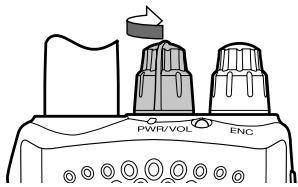
Turn the PWR/VOL control counterclockwise to switch the transceiver OFF.
ADJUSTING THE VOLUME
Rotate the PWR/VOL control to adjust the volume. Clockwise increases the volume and counterclockwise decreases it.
- If you are not receiving a signal, press and hold [MONI] to unmute the speaker, then adjust the volume control to a comfortable audio output level.
ADJUSTING THE SQUELCH
The purpose of Squelch is to mute the speaker when no signals are present. With the squelch level correctly set, you will hear sound only while actually receiving signals. The higher the selected squelch level, the stronger the signals must be to receive. The appropriate squelch level depends on the ambient RF noise conditions.
1 Press [SQL].
- The squelch level appears on the display.
![KENWOOD TH-K40 - Press [SQL]. - 1](/content/2025/01/83309/images/fed2d170e7d738e5c5e5a5b5b25a520e8cdaa0a9f89fe0a051bb1d0a81d4762f.jpg)
2 Rotate the ENC control to adjust the level.
- Select the level at which the background noise is just eliminated when no signal is present.
- The higher the level, the stronger the signals must be to receive.
- 6 different levels can be set. 0: Minimum 5 : Maximum; 2 is the default value.
3 Press any key other than [MONI] or [LAMP] to store the new setting and exit the squelch adjustment.
VFO MODE
This is the basic mode for changing the operating frequency. Rotate the ENC control clockwise to increase the frequency and counterclockwise to decrease the frequency.
45390
MHz TUNING MODE
If the desired operating frequency is far away from the current frequency, it is quicker to use the MHz Tuning Mode.
To adjust the MHz digit:
1 Press [F].
The MHz digit blinks.
45390
2 Rotate the ENC control to select the desired MHz value.
3 After selecting the desired MHz value, press [F] or [ENT] to exit the MHz Tuning Mode and return to normal VFO Mode.
4 Continue adjusting the frequency as necessary, using the ENC control.
TRANSMITTING/ RECEIVING
1 To transmit, hold the transceiver approximately 5 cm (2 inches) from your mouth, then press and hold [PTT] and speak into the microphone in your normal tone of voice.
The TX-RX LED lights red.
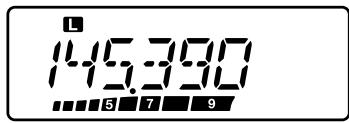
2 When you finish speaking, release [PTT].
The TX-RX LED lights green while receiving a signal.
Note: If you continuously transmit for longer than the time specified in Menu No. 19 (default is 10 minutes), the internal time-out timer generates a warning beep and the transceiver stops transmitting. In this case, release [PTT] and let the transceiver cool down for a while, then press [PTT] again to resume transmitting.
DIRECT FREQUENCY ENTRY
In addition to rotating the ENC control, there is another way to select the frequency. When the desired frequency is far away from the current frequency, you can directly enter a frequency using the numeric keypad.
1 Press [VFO].
- You must be in the VFO Mode to make the direct frequency entry.
2 Press [ENT].
3 Press the numeric keys ([STEP] (0) to [PF] (9)) to enter your desired frequency. [LAMP] (*) allows you to complete the MHz digits entry.
- Pressing [ENT] fills all remaining digits (the digits you did not enter) with 0 and completes the entry. For example, to select 145.000 MHz, press [MENU] (1), [SQL] (4), and [T.SEL] (5), then press [ENT] to complete the entry.
- If you want to revise the MHz digits only, leaving the kHz digits as they are, press [VFO] in place of [ENT].
Note:
If the entered frequency does not match the current frequency step size, the frequency is automatically rounded down to the next available frequency.
When the desired frequency cannot be entered exactly, confirm the frequency step size.
If you rotate the ENC control while entering the frequency, the transceiver clears the entry.
SELECTING AN OUTPUT POWER
Selecting a lower transmit power is the best way to reduce battery consumption, if communication is still reliable.
Press [LOW] to toggle between high, medium and low power.
No icon appears when using high transmit power.
- The "M" icon appears when using medium transmit power.
- The “L” icon appears when using lower transmit power.
Note: When the transceiver overheats due to ambient high temperature or continuously transmitting, the protective circuit may activate, lowering the transmit output power.
REMAINING BATTERY CAPACITY
You can confirm the remaining battery capacity when you transmit in low power.
To check the remaining capacity:
The bar-graph shows the remaining battery capacity.
| 579: | High battery power |
| 57: | ↑ |
| 5: | ↑ |
| : | Low battery power |
| or no display: | Recharge or replace the batteries. |
Note: You may not be able to transmit at high power if the battery remaining indicator shows low battery power.
BACKLIGHT
Press [LAMP] to illuminate the display and keys.
- The light turns OFF approximately 5 seconds after releasing [LAMP].
- Press any key (including [PTT]) other than [LAMP] while the display and keys are lit to restart the 5-second timer.
Continuing to press [LAMP] after having pressed it will illuminate the display and keys for as long as you hold the key.
Press [F] - [LAMP] to keep the light ON continuously.
- The light remains ON until you press [F] - [LAMP] again.
MONITOR
When you are receiving while the squelch function is ON, weak signals may become intermittent.
If the CTCSS, DCS or Tone Alert function is ON, you may want to disable the squelch function temporarily to monitor the current channel activities.
1 Press and hold [MONI].
The speaker is unmuted and you can monitor the signals.
2 Release [MONI] to return to normal operation.
The lock function disables most of the keys to prevent you from accidentally activating a function.
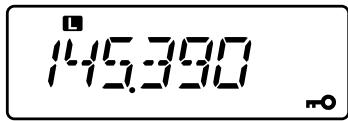
1 Press [F] (1s) to turn the Lock function ON.
- The “ m ” icon appears when the Lock function is ON.
The following keys cannot be locked:
[F], [PTT], [LAMP], [MONI], [SQL], PWR/VOL control and microphone PF key.
2 Press [F] (1s) to unlock the keys.
Note:
You cannot perform the Transceiver Reset while the Lock function is ON.
You can select the lock type from Menu No. 3.
WHAT IS A MENU?
Many functions on this transceiver are selected or configured via a software-controlled Menu rather than through the physical controls of the transceiver. Once you become familiar with the Menu system, you will appreciate its versatility. You can customize the various timings, settings and programming functions on this transceiver to meet your needs without using many controls and switches.
MENUC ACCESS
1 Press [MENU].
- A brief explanation of the Menu and the Menu No. appear on the display.
![KENWOOD TH-K40 - Press [MENU]. - 1](/content/2025/01/83309/images/2f6057231218ff3c81bbb2b12a04bd3100b0e66f5e3b8dc5d3be2f9d994afedd.jpg)
2 Rotate the ENC control to select your desired Menu No.
![KENWOOD TH-K40 - Press [MENU]. - 2](/content/2025/01/83309/images/9d729cde193658298a8fb19ed23213cd67559fb84caa57626d5be693451b1592.jpg)
3 Press [F] < OK > to configure the parameter of the currently selected Menu No.
![KENWOOD TH-K40 - Press [MENU]. - 3](/content/2025/01/83309/images/0c0660ce304185bf9e07047a6d8af473d0a80543301cab484012780ca51f447f.jpg)
4 Rotate the ENC control to select your desired parameter.
5 Press [F] < OK > to store the new setting.
6 Press [MENU] or [PTT] to exit Menu mode.
MENUFUNCTIONLIST
| No. | Display | Description | Setting Values | Default Setting | Ref. Page |
| 1 | P.ON.MSG | Power On message | Up to 6 characters | - | 45 |
| 2 | BEEP | Key Beep | OFF/ ON | ON | 46 |
| 3 | LOCK | Lock type | KEY/ FRQ/ KEY.FRQ | KEY.FRQ | |
| 4 | SAVE | Battery saver | OFF/ 0.2/ 0.4/ 0.6/ 0.8/ 1.0/ 2.0/ 3.0/ 4.0/ 5.0 (sec) | 1.0 (sec) | 47 |
| 5 | APO | Automatic Power-OFF | OFF/ 30/ 60/ 90/ 120/ 180 (min) | 30 (min) | 48 |
| 6 | P.VFO | Programmable VFO | TH-K20A/E: 136 ~ 173 MHz TH-K40A/E: 400 ~ 469 MHz | It differs between the model and type. | 43 |
| 7 | OFFSET | Repeater Offset Frequency | 0.000 ~ 29.950 (MHz) | 31 | |
| 8 | ARO | Automatic Repeater Offset | OFF/ ON | 34 | |
| 9 | N.FM | Narrow FM | OFF/ ON | OFF | 48 |
| 10 | B.SHIFT | Beat shift | OFF/ ON | OFF | 49 |
| 11 | M.NAME | Memory name | Up to 6 characters | - | 21 |
| 12 | M.DISP | Memory display type | NAME/ FREQ | NAME | 22 |
| 13 | L.OUT | Memory channel lockout | OFF/ ON | OFF | 29 |
| 14 | RESUME | Scan resume method | TO/ CO/ SEEK | TO | 30 |
| 15 | PR.SCAN | Priority scan | OFF/ ON | OFF | 28 |
| 16 | VOX | VOX gain | OFF/ 1 ~ 9 | OFF | 49 |
| 17 | VOX.BSY | VOX busy | OFF/ ON | OFF | 50 |
| 18 | VOX.DLY | VOX delay time | 250/ 500/ 750/ 1000/ 1500/ 2000/ 3000 (ms) | 500 (ms) | |
| 19 | TOT | Time-out Timer | 0.5/ 1.0/ 1.5/ 2.0/ 2.5/ 3.0/ 3.5/ 4.0/ 4.5/ 5.0/ 10.0 (min) | 10.0 (min) | 51 |
| 20 | BCL | Busy channel lockout | OFF/ ON | OFF | |
| 21 | TX.INH | TX inhibit | OFF/ ON | OFF | 52 |
| 22 | M.SENS | Microphone Sensitivity | HIGH/ MEDIUM/ LOW | MEDIUM | |
| 23 | PF KEY | Panel PF key | 1750/ WX/ N.FM/ PR.SCAN/ M.DISP | It differs between the model and type. | |
| 24 | PF 1 | Microphone PF 1 key | VFO/ MR/ CALL/ UP/ DOWN/ TONE/ T.SEL/ SHIFT/ REV/ 1750/ WX/ N.FM/ PR.SCAN/ M.DISP/ SQL/ LOW/ STEP/ L.OUT/ MONI/ | VFO | |
| 25 | PF 2 | Microphone PF 2 key | MR | ||
| 26 | PF 3 | Microphone PF 3 key | CALL | ||
| 27 | MIC.LK | Microphone key Lock | OFF/ ON | OFF | 53 |
| 28 | DTMF.MR | DTMF memory (Automatic dialer) | 0 ~ F ch Up to 16 digits | 0 ch | 40 |
| 29 | DT.SPD | DTMF TX speed | 50/ 100/ 150 (ms) | 100 (ms) | 41 |
| 30 | DT.HOLD | DTMF TX hold | OFF/ ON | OFF | 42 |
| 31 | DT.PAUS | DTMF pause time | 100/ 250/ 500/ 750/ 1000/ 1500/ 2000 (ms) | 500 (ms) | |
| 32 | DT.LCK | DTMF key Lock | OFF/ ON | OFF | |
| 33 | 1750.HD | 1750 Hz TX hold | OFF/ ON | OFF | 35 |
| 34 | BATT | Battery type | LI-ION/ ALKALI | LI-ION | 53 |
| 35* | WX.ALT | Weather alert | OFF/ ON | OFF | 54 |
| 99 | RESET | Reset type | PART/ FULL | PART | 58 |
- Available only for the TH-K20A K type model.
Note: Default settings are subject to change.
In Memory channels, you can store frequencies and related data that you often use. Then you need not reprogram the data every time. You can quickly recall a programmed channel by simple operation. A total of 200 Memory channels are available.
SIMPLEX & REPEATER OR ODD-SPLIT MEMORY CHANNEL?
You can use each memory channel as a simplex & repeater channel or as an odd-split channel. Store only one frequency to use as a simplex & repeater channel or two separate frequencies to use as an odd-split channel. Select either application for each channel depending on the operations you have in mind.
Simplex & Repeater channels allow:
Simplex frequency operation
- Repeater operation with a standard offset (if an offset direction is stored)
Odd-split channels allow:
- Repeater operation with a non-standard offset
The data listed below can be stored in each Memory channel:
| Parameter | Simplex & Repeater | Odd-split |
| Receive/ Transmit frequency | Yes | No |
| Receive/ Transmit frequency step size | Yes | No |
| Receive only frequency | No | Yes |
| Receive only frequency step size | No | Yes |
| Transmit only frequency | No | Yes |
| Transmit only frequency step size | No | Yes |
| Offset frequency | Yes | No |
| Tone On/Off | Yes | Yes |
| Tone frequency | Yes | Yes |
| CTCSS On/Off | Yes | Yes |
| CTCSS frequency | Yes | Yes |
| DCS On/Off | Yes | Yes |
| DCS code | Yes | Yes |
| Cross tone On/Off | Yes | Yes |
| Shift (Offset direction) | Yes | No |
| Reverse On/Off | Yes | No |
| Memory channel lockout * | Yes | Yes |
| Narrow FM | Yes | Yes |
| Beat shift | Yes | Yes |
- Program Scan Memory and the Priority channel cannot be stored as ON or OFF for Memory channel lockout.
STORING SIMPLEX AND STANDARD REPEATER FREQUENCIES
1 Press [VFO] to enter VFO mode.
2 Rotate the ENC control to select your desired frequency.
- You can also directly enter a desired frequency using the keypad.
3 If storing a standard repeater frequency, select the following data:
- Offset direction
- Tone function, if necessary
CTCSS/ DCS function, if necessary
If storing a simplex frequency, you may select other related data (CTCSS or DCS settings, etc.).
4 Press [F] - [MR].
A memory channel number appears and blinks.
145025

- When the channel has stored data, the “▲” icon appears.
- Memory channel numbers L0/U0 ~ L2/U2 and Pr (Priority Channel) are reserved for other functions.
5 Rotate the ENC control to select the memory channel in which you want to store the data.
6 Press [MR] to store the data to the channel.
Note: If you store the data in a Memory channel that already has data stored in it, the old data will be cleared and the new data will be stored.
STORING ODD-SPLIT REPEATER FREQUENCIES
Some repeaters use a receive/transmit frequency pair with a non-standard offset. If you store two separate frequencies in a memory channel, you can operate on those repeaters without programming the offset frequency and direction.
1 Store the desired receiving frequency and related data by following the procedure given for simplex or standard repeater frequencies.
2 Press [VFO], then rotate the ENC control to select the desired transmit frequency.
- You can also directly enter a desired frequency using the keypad.
3 Press [F] - [MR], then rotate the ENC control to select the memory channel you programmed in step 1.
4 Press [PTT] + [MR].
The transmit frequency is stored in the memory channel.
Note: When you recall an odd-split memory channel, “+” and “-” appear on the display.
To confirm the transmit frequency, press [REV] (Reverse function).
RECALLING A MEMORY CHANNEL
USING THE ENC CONTROL
1 Press [MR] to enter Memory Recall Mode. The memory channel last used is recalled.
2 Rotate the ENC control to select your desired memory channel.
- You cannot recall an empty memory channel.
To restore VFO Mode, press [VFO].
USING A NUMERIC KEYPAD
You can also recall a memory channel by entering a desired memory channel number with the keypad.
1 Press [MR] to enter Memory Recall Mode.
2 Press [ENT], then enter the channel number.
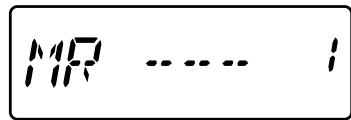
- For example, to recall channel 149, press [ENT], [MENU] (1), [SQL] (4), [PF] (9).
- You can also enter a memory channel number that is less than 10 by pressing [ENT] after entering the channel number. For example, to recall memory channel 9, press [ENT], [PF] (9), [ENT]. You can also press [ENT], [STEP] (0), [PF] (9).
Note:
You cannot recall an empty memory channel. An error beep sounds.
You cannot recall the Program Scan memory channels (L0/U0 ~ L2/U2) or Priority Channel (Pr) using the numeric keypad.
When recalling an odd-split memory channel, “+” and “—” appear on the display. Press [REV] (Reverse function) to display the transmit frequency.
After recalling a memory channel, you may modify data such as Tone or CTCSS. However, these settings are cleared once you select another channel or the VFO Mode. To permanently store the data, overwrite the channel contents.
NAMING A MEMORY CHANNEL
You can name memory channels using up to 6 alphanumeric characters. When you recall a named memory channel, its name appears on the display in place of the stored frequency. Names can be call signs, repeater names, cities, names of people, etc.
1 Press [MR], then rotate the ENC control to select your desired memory channel.
2 Enter Menu mode and access Menu No. 11 (M.NAME), then press [F].
- A blinking cursor appears.

3 Rotate the ENC control to select a desired alphanumeric character.
- You can enter the following alphanumeric characters: 0 9 , A Z , - (hyphen), / (slash), and a space.
4 Press [MR].
The cursor will move to the next digit.
- You can move the cursor to the left or right by pressing [VFO] or [MR].
- Press [CALL] to delete the character at the current cursor position.
5 Repeat steps 3 and 4 to enter up to 6 digits.
6 Press [F] to store the name.
7 Press [MENU] or [PTT] to exit Menu mode.
Note:
You cannot name the Call Channel.
You cannot assign a Memory name to a channel that does not contain data.
You can overwrite stored names by repeating steps 2 to 6.
The stored name is erased when you clear the Memory channel data.
MEMORY DISPLAY TYPE
After storing a Memory name, the Memory name appears in place of the operating frequency. However, you can still display the operating frequency, if desired. To display the frequency rather than Memory name, access Menu No. 12 (M.DISP) and select "FREQ". This menu toggles the display mode between the Memory name ("NAME") and frequency display ("FREQ").
1 Enter Menu mode and access Menu No. 12 (M.DISP), then press [F].

2 Rotate the ENC control to set the display type to "NAME" or "FREQ", then press [F] to store the setting.
3 Press [MENU] or [PTT] to exit Menu mode.
Note: Even when set to "NAME", the frequency will appear on the display while pressing [MONI].
CLEARING A MEMORY CHANNEL
To clear the data from an individual memory channel:
1 Recall the memory channel you want to clear.
2 Turn the transceiver OFF
3 Press [MR] + Power ON.
A confirmation message appears.
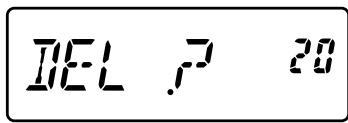
4 Press [MR] to clear the channel data.
The contents of the memory channel are cleared.
- To cancel, press any key other than [MR], [MONI] or [LAMP].
Note:
The Call Channel data cannot be cleared.
You can also clear the Priority Channel and the L0/U0 ~ L2/U2 channels.
While the transceiver is in Channel Display Mode or Lock function is activated, you cannot clear the channel data.
CALL CHANNEL
The Call Channel can be recalled instantly, no matter the frequency on which you are operating the transceiver. For instance, you may use the Call Channel as an emergency channel within your group. In this case, Call Scan will be useful.
The default Call Channel frequency is 144.000 MHz (TH-K20A/E)/ 430.000 MHz (TH-K40A/E).
Note: Unlike memory channels 0 to 199, the Call Channel cannot be cleared.
RECALLING THE CALL CHANNEL
Press [CALL] to recall the Call Channel.
The Call Channel frequency and "C" appear.
144000
To return to the previous frequency, press [CALL] again.
REPROGRAMMING THE CALL CHANNEL
1 Select your desired frequency and related data (Tone, CTCSS, DCS, or offset direction, etc.).
- When you program the Call Channel as an odd-split channel, select a receiving frequency first.
2 Press [F] - [CALL].
- The selected frequency and related data are stored in the Call Channel.
To also store a separate transmit frequency, continue with the following steps.
3 Select the desired transmit frequency.
4 Press [F], then press [PTT] + [CALL].
- The separate transmit frequency is stored in the Call Channel.
Note:
When you recall an odd-split Call Channel, “+” and “—” appear on the display.
Transmit offset status and Reverse status are not stored in an odd-split Call Channel.
MEMORY TO VFO TRANSFER
After retrieving frequencies and associated data from Memory Recall mode, you can copy the data to the VFO. This function is useful, for example, when the frequency you want to monitor is near the frequency stored in a memory channel.
1 Press [MR], then turn the ENC control to recall a desired memory channel.
2 Press [F] - [VFO] to copy the memory channel data to the VFO.
Note:
When transferring an odd-split channel, the Reverse status, Offset direction, and Transmit frequency are not transferred.
You can also transfer the Program Scan memory channels (L0/U0 ~ L2/U2) and Priority channel (Pr) to the VFO.
When selecting the Call channel, rotating the ENC control will transfer the data to the VFO.
CHANNEL TO CHANNEL TRANSFER
You can also copy channel information from one memory channel to another. This function is useful when storing frequencies and associated data that you temporarily change in Memory Recall mode.
1 Press [MR], then turn the ENC control to recall a desired memory channel.
2 Press [F] - [MR].
3 Select the memory channel where you would like the data copied, using the ENC control.
4 Press [MR] to copy the memory channel data to the new channel.
Note: When transferring to the Program Scan memory channels (L0/U0 ~ L9/U9) and the Priority channel (Pr), the Memory Channel Lockout information is not copied.
CHANNEL DISPLAY MODE
While in this mode, the transceiver displays only memory channel numbers (or Memory names if they have been stored) instead of frequencies.
Press [PTT] + [MR] + Power ON.
- The transceiver displays the memory channel number in place of the operating frequency.
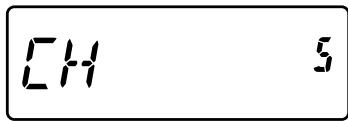
To recover normal operation, turn the transceiver OFF and press [PTT] + [MR] + Power ON again.
Note:
To enter the Channel Display Mode, you must have at least one memory channel that contains the data.
If the memory channel contains the Memory name data, the Memory name is displayed in place of the "CH" characters.
You cannot enter Channel Display mode while Key Lock is ON.
While in the Channel Display mode, only the following keys can be operated.
[KEY]
| PTT | MONI | F | MR | CALL | LOW |
| SQL | ⊗ | LAMP | ENT | ||
[F] - [KEY]
| MONI | LAMP |
[KEY] (1s)
| F | MR | CALL |
While transmitting:
| MONI | A [F] | B [VFO] | C [MR] | D [CALL] | 0 |
| 1 | 2 | 3 | 4 | 5 | 6 |
| 7 | 8 | 9 | * | # |
Scan is a useful feature for hands-off monitoring of your favorite frequencies.
Becoming comfortable with all types of Scan will increase your operating efficiency.
This transceiver provides the following type of scans:
| Band Scan | Scans all frequencies on the current band. |
| Program Scan | Scans the specified frequency ranges stored in Memory channels L0/U0 ~ L2/U2. |
| Memory Scan | Scans all frequencies stored in the Memory channels. |
| CALL Scan | Scans the Call channel as well as the currently selected VFO frequency or Memory channel. |
| Priority Scan | Checks the activities on the Priority channel (Pr) every 3 seconds. |
Note:
When the CTCSS or DCS function is activated, the transceiver stops at a busy frequency and decodes the CTCSS tone or DCS code. If the tone or code matches, the transceiver unmutes. Otherwise, it resumes scanning.
Press and hold [MONI] to pause scan in order to monitor the scanning frequency. Release [MONI] to resume scanning.
Pressing [MENu] causes scan to stop.
If you press any key other than the following keys during scan, the transceiver exits scan (excluding Priority Scan): [MONI], [LAMP], [F], [SQL], [F] (1s), or [F] - [LAMP].
BAND SCAN
The transceiver scans the entire band of the frequency you selected. For example, if you are operating and receiving at 144.525 MHz, it scans all the frequencies available for the 2m band. When the current VFO receiving frequency is outside the Program Scan frequency range {page 38}, the transceiver scans the entire frequency range available for the current VFO.
1 Press [VFO].
2 Rotate the ENC control to select the frequency outside of the Program Scan frequency range.
3 Press [VFO] (1s).
- Scan starts at the current frequency.
The 1 MHz point blinks while scanning is in progress. - To change the scan direction, rotate the ENC control clockwise or counterclockwise.
4 To exit Band Scan, press any key other than [MONI], [LAMP], [F], [SQL], [F] (1s), or [F] - [LAMP].
You can limit the scanning frequency range. There are 3 memory channel pairs (L0/U0 ~ L2/U2) available for specifying the start and end frequencies. Program Scan monitors the range between the start and end frequencies that you have stored in these memory channels. Before performing Program Scan, store the Program Scan frequency range to one of the memory channel pairs (L0/U0 ~ L2/U2).
STORING A PROGRAM SCAN FREQUENCY RANGE
1 Press [VFO], then rotate the ENC control to select your desired start frequency.
2 Press [F] - [MR], then rotate the ENC control to select a memory channel from L0 ~ L2.
3 Press [MR] to store the start frequency in the memory channel.
4 Rotate the ENC control to select your desired end frequency.
144560 18
5 Press [F] - [MR], then rotate the ENC control to select a channel from U0 ~ U2, corresponding to the channel selected in step 2.
- For example, if you selected L0 in step 3, select U0 for the end frequency.
44800 1
6 Press [MR] to store the end frequency in the memory channel.
USING PROGRAM SCAN
1 Press [VFO], then rotate the ENC control to select a frequency within the frequency range of memory channel L0/U0 ~ L2/U2.
2 Press [VFO] (1s) to start Program Scan.
The 1 MHz point blinks while scanning is in progress.
3 To stop Program Scan, press any key other than [MONI], [LAMP], [F], [SQL], [F] (1s), or [F] - [LAMP].
Note:
If you press [MONI], Program Scan temporarily pauses. Release [MONI] to resume scanning.
The transceiver stops scanning when it detects a signal.
If more than 2 Program Scan channel pairs are stored and the frequency range among the pairs overlaps, the smaller Program Scan memory channel number has priority.
To perform Program Scan, the "L" channel frequency must be lower than the "U" channel.
MEMORY SCAN
1 Press [MR] (1s).
- Scan starts from the last memory channel number and ascends up through the channel numbers (default).
- Rotate the ENC control to change the scanning direction.
2 To stop Memory Scan, press any key other than [MONI], [LAMP], [F], [SQL], [F] (1s), or [F] - [LAMP].
Note:
You must have 2 or more memory channels that contain data, excluding special function memory channels (L0/U0 ~ L2/U2, and Pr).
You can perform Memory Scan in Channel Display Mode{page 24}.
CALL SCAN
1 Select the frequency (in VFO or Memory Recall Mode) you want to monitor.
- In VFO Mode, rotate the ENC control to select the desired frequency.
- In Memory Recall Mode, rotate the ENC control to select the memory channel you want to monitor.
2 Press [CALL] (1s) to start the Call Scan.
3 The Call Channel and the selected VFO frequency or memory channel are monitored.
4 To stop Call Scan, press any key other than [MONI], [LAMP], [F], [SQL], [F] (1s), or [F] - [LAMP].
Note:
The transceiver stops scanning when it detects a signal.
You can perform Call Scan even if the recalled memory channel has been locked out.
PRIORITY SCAN
You may sometimes want to check your favorite frequency activities while monitoring other frequencies. In this case, use the Priority Scan function. Priority Scan checks the activities of the Priority Channel every 3 seconds. If the transceiver detects a signal on the Priority Channel, it recalls the frequency.
Note: If you do not operate any control or key for 3 seconds after the signal drops, the transceiver returns to the original frequency and resumes Priority Scan.
PROGRAMMING A PRIORITY CHANNEL
1 Press [VFO], then rotate the ENC control to select your desired Priority Channel frequency.
2 Select CTCSS or DSC, if necessary.
3 Press [F] - [MR].
The memory channel number appears and blinks.
4 Rotate the ENC control to select "Pr".
144750
5 Press [MR] to store the data on the Priority Channel.
USING PRIORITY SCAN
1 Enter Menu mode and access Menu No. 15 (PR.SCAN), then press [F].

2 Rotate the ENC control to select "ON", then press [F] to store the setting.
3 Press [MENU] or [PTT] to exit Menu mode.
- The “ ” icon appears when the Priority Scan is ON.
Note:
If a signal is received on a Priority Channel with a CTCSS or DCS code programmed, the Priority Channel is recalled only when the programmed tone/ code matches.
Press and hold [MONI] to pause Priority Scan when the transceiver is not displaying the Priority Channel. Release [MONI] to resume Priority Scan.
If you clear the Priority Channel, Priority Scan stops.
You can also press any key other than [MONI], [F], [SQL] (Squelch level adjustment), [F] (1s) (Key lock) and [PTT] to exit Priority Scan while “ ” is blinking.
MEMORY CHANNEL LOCKOUT
You can lock out memory channels that you prefer not to monitor during Memory Scan.
1 Press [MR] to enter Memory Recall Mode.
2 Rotate the ENC control to select the memory channel to be locked out.
3 Enter Menu mode and access Menu No. 13 (L.OUT), then press [F].

4 Rotate the ENC control to select "ON", then press [F] to store the setting.
5 Press [MENU] or [PTT] to exit Menu mode.
- The “ ” icon appears below the memory channel number, indicating the channel is locked out.
Note:
The Program Scan channels (L0/U0 ~ L2/U2) and Priority Channel (Pr) cannot be locked out.
Even if a memory channel is locked out, you can perform Call Scan between the Call Channel and the memory channel.
SELECTING A SCAN RESUME METHOD
The transceiver stops scanning at a frequency or Memory channel on which a signal is detected. It then continues scanning according to which resume mode you have selected. You can choose one of the following modes. The default is Time-operated mode.
| TO | Time Operated mode | The transceiver remains on a busy frequency or Memory channel for approximately 5 seconds, and then continues to scan even if the signal is still present. |
| CO | Carrier Operated mode | The transceiver remains on a busy frequency or Memory channel until the signal drops out. There is a 2 second delay between signal drop-out and scan resumption. |
| SEEK | Seek mode | The transceiver remains on a busy frequency or Memory channel even after the signal drops out and does not automatically resume scanning. |
1 Enter Menu mode and access Menu No. 14 (RESUME), then press [F].

2 Rotate the ENC control to select a Scan Resume mode from "TO", "CO" or "SEEK", then press [F] to store the setting.
3 Press [MENU] or [PTT] to exit Menu mode.
Repeaters are often installed and maintained by radio clubs, sometimes with the cooperation of local businesses involved in the communications industry.
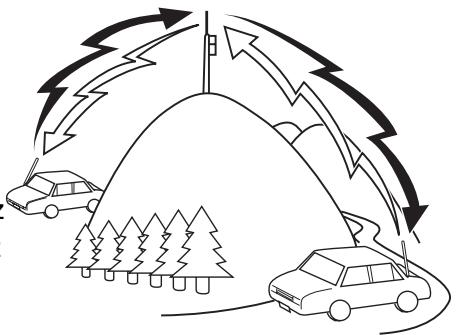
Compared to simplex communication, you can usually transmit over much greater distances by using a repeater. Repeaters are typically located on mountain tops or other elevated locations. They generally operate at higher ERP (Effective Radiated Power) than a typical station. This combination of elevation and high ERP allows communications over considerable distances.
TX: 144.725 MHz
TX tone: 88.5 Hz
TX: 144.725 MHz
TX tone: 88.5 Hz
SELECTING AN OFFSET DIRECTION (SHIFT)
The offset direction allows your transmitting frequency to be higher (+) or lower (-) than the receiving frequency.
Press [SHIFT] to select an offset direction.
Each time you press [SHIFT], the offset direction changes as follows:
Simplex operation (no offset) “+” “-” Simplex operation (no offset)
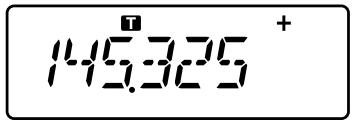
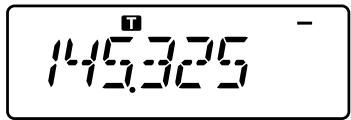
If you are using a TH-K40E (E type) model, the offset direction changes as follows:
Simplex operation (no offset) “+” “-” “ ~一~ ” (-7.6 MHz) Simplex operation (no offset)
If the offset transmit frequency falls outside the allowable range, transmitting is inhibited. Use one of the following methods to bring the transmit frequency within the band limits:
- Move the receiving frequency further inside the band.
- Change the offset direction.
Note: While using an odd-split memory channel or transmitting, you cannot change the offset direction.
SELECTING AN OFFSET FREQUENCY
To access a repeater which requires an odd-split frequency pair, change the offset frequency from the default which is used by most repeaters.
1 Enter Menu mode and access Menu No. 7 (OFFSET).

2 Rotate the ENC control to select the appropriate offset frequency value.
The selectable range is from 0.000 MHz to 29.950 MHz, in steps of 50 kHz.
3 Press [MENU] or [PTT] to exit Menu mode.
Note: After changing the offset frequency, the new offset frequency will also be used by Automatic Repeater Offset.
TONE FUNCTION
ACTIVATING THE TONE FUNCTION
To turn the Tone function on:
1 Press [TONE] to turn the Tone function On.
Each time you press [TONE], the selection changes as follows:
Tone (CT) CTCSS (CT) DCS (DCS) Cross Tone () Off (no display).
- The "T" icon appears on the display when the tone function is On.
2 Press [T.SEL].
- The current Tone frequency appears on the display and blinks.
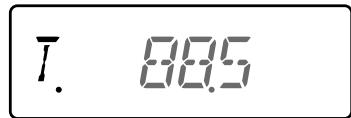
3 Rotate the ENC control to select your desired frequency.
To exit the tone frequency selection, press [PTT].
4 Press any key other than [MONI], [LAMP], or [PTT] to set the selected frequency.
Note: If you have set up a Memory channel with a tone setting, simply recall the Memory channel instead of setting up the tone frequency every time.
Available Tone Frequencies
| Tone Frequency (Hz) | ||||||
| 67.0 | 82.5 | 100.0 | 123.0 | 151.4 | 186.2 | 225.7 |
| 69.3 | 85.4 | 103.5 | 127.3 | 156.7 | 192.8 | 229.1 |
| 71.9 | 88.5 | 107.2 | 131.8 | 162.2 | 203.5 | 233.6 |
| 74.4 | 91.5 | 110.9 | 136.5 | 167.9 | 206.5 | 241.8 |
| 77.0 | 94.8 | 114.8 | 141.3 | 173.8 | 210.7 | 250.3 |
| 79.7 | 97.4 | 118.8 | 146.2 | 179.9 | 218.1 | 254.1 |
TONE FREQUENCY SCAN
This function scans through all tone frequencies to identify the incoming tone frequency on a received signal. You can use this function to find which tone frequency is required by your local repeater.
1 Press [TONE] to switch the Tone function On.
Each time you press [TONE], the selection changes as follows:
Tone (CT) CTCSS (CT) DCS (DCS) Cross Tone () Off (no display).
- The "T" icon appears on the display when the tone function is On.
2 Press [T.SEL] (1s) to run the Tone Frequency ID scan.
- Scan starts and "T.SCAN" appears on the display.
- While the transceiver is receiving a signal during Tone Frequency Scan, the signal is emitted from the speaker.
- When the tone frequency is identified, a beep sounds and the identified frequency blinks.

3 Press [T.SEL] to program the identified frequency in place of the current tone frequency.
- If you do not want to program the identified frequency, press any key other than [MONI], [LAMP], or [T.SEL].
AUTOMATIC REPEATER OFFSET
This function automatically selects an offset direction and activates the Tone function, according to the frequency that you have selected. To obtain an up-to-date band plan for repeater offset direction, contact your national Amateur Radio association.
1 Enter Menu mode and access Menu No. 8 (ARO).

2 Rotate the ENC control to select "ON".
3 Press [F] to store the setting.
4 Press [MENU] or [PTT] to exit Menu mode.
TH-K20A K type:
| Under 145.100 MHz | No offset |
| 145.100 ~ 145.495 MHz | - offset |
| 145.500 ~ 145.995 MHz | No offset |
| 146.000 ~ 146.395 MHz | + offset |
| 146.400 ~ 146.595 MHz | No offset |
| 146.600 ~ 146.995 MHz | - offset |
| 147.000 ~ 147.395 MHz | + offset |
| 147.400 ~ 147.595 MHz | No offset |
| 147.600 ~ 147.995 MHz | - offset |
| 148.000 MHz and higher | No offset |
TH-K20E (E type):
| Under 145.600 MHz | No offset |
| 145.600 ~ 145.795 MHz | - offset |
| 145.800 MHz and higher | No offset |
Note: Even when setting the TH-K20A/ TH-K40A M type and TH-K40E (E type) model to "ON", the ARO function will not operate.
REVERSE FUNCTION
After setting a separate receive and transmit frequency, you can exchange these frequencies using the Reverse function. This allows you to manually check the strength of signals you receive directly from other stations, while using a repeater. If the station's signal is strong, move to a simplex frequency to continue the contact and free up the repeater.
Press [REV] to turn the Reverse function ON or OFF.
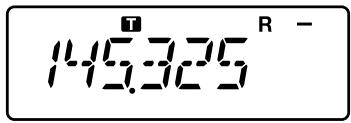
- When the Reverse function is ON, the “R” icon will appear on the display.
Note:
If the transmit frequency is outside the allowable transmit frequency range when using Reverse, pressing [PTT] will cause an error tone to sound and transmitting will be inhibited.
If the receiving frequency is outside the receiving frequency range when using Reverse, an error tone will sound and Reverse will not operate.
The ARO (Automatic Repeater Offset) will not function when Reverse is ON.
You cannot switch Reverse ON or OFF while transmitting.
TRANSMITTING A 1750 Hz TONE
Most repeaters in Europe require that a transceiver transmit a 1750Hz tone. On the E type model, simply pressing [PF] causes it to transmit a 1750Hz tone. It is also possible to program [1750] on the front panel as a [PF] key for transmitting a 1750Hz tone.
Note: The transceiver continuously transmits a 1750 Hz tone until you release the [PF] key (1750).
Some repeaters in Europe must receive continuous signals for a certain period of time, following a 1750Hz tone. This transceiver is also capable of remaining in the transmit mode for 2 seconds after transmitting a 1750Hz tone.
1 Enter Menu mode and access Menu No. 33 (1750.HD), then press [F].

2 Rotate the ENC control to select "ON", then press [F] to store the setting.
3 Press [MENU] or [PTT] to exit Menu mode.
Note: While remaining in the transmit mode, the transceiver does not continuously transmit a 1750 Hz tone.
CTCSS
You may sometimes want to hear calls only from specific persons. The Continuous Tone Coded Squelch System (CTCSS) allows you to ignore (not hear) unwanted calls from other persons who are using the same frequency. To do so, select the same CTCSS tone as selected by the other persons in your group. A CTCSS tone is subaudible and is selectable from among 42 tone frequencies.
Available CTCSS Frequencies
| CTCSS Frequency (Hz) | ||||||
| 67.0 | 82.5 | 100.0 | 123.0 | 151.4 | 186.2 | 225.7 |
| 69.3 | 85.4 | 103.5 | 127.3 | 156.7 | 192.8 | 229.1 |
| 71.9 | 88.5 | 107.2 | 131.8 | 162.2 | 203.5 | 233.6 |
| 74.4 | 91.5 | 110.9 | 136.5 | 167.9 | 206.5 | 241.8 |
| 77.0 | 94.8 | 114.8 | 141.3 | 173.8 | 210.7 | 250.3 |
| 79.7 | 97.4 | 118.8 | 146.2 | 179.9 | 218.1 | 254.1 |
Note: CTCSS does not cause your conversation to be private. It only relieves you from listening to unwanted conversations.
USING CTCSS
1 Press [TONE] 2 times to turn the CTCSS function ON.
Each time you press [TONE], the selection changes as follows:
Tone (CT) CTCSS (CT) DCS (DCS) Cross Tone () Off (no display).
- The "CT" icon appears when the CTCSS function is ON.
2 Press [T.SEL].
- The current CTCSS frequency appears on the display and blinks.
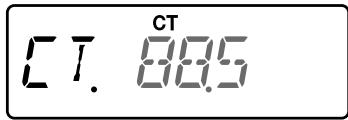
3 Rotate the ENC control to select your desired frequency.
To exit the CTCSS frequency selection, press [PTT].
4 Press any key other than [MONI], [LAMP], or [PTT] to set the selected frequency.
5 When you are called: The transceiver squelch opens only when the selected CTCSS tone is received.
When you make a call: Press and hold [PTT], then speak into the microphone.
CTCSS FREQUENCY SCAN
This function scans through all CTCSS frequencies to identify the incoming CTCSS frequency on a received signal. You can use this function to find which CTCSS frequency is used by your group.
1 Press [TONE] 2 times to turn the CTCSS function ON.
Each time you press [TONE], the selection changes as follows:
Tone (CT) CTCSS (CT) DCS (DCS) Cross Tone () Off (no display).
- The "CT" icon appears when the CTCSS function is ON.
2 Press [T.SEL] (1s) to run the CTCSS Frequency scan.
- Scan starts and "CT.SCAN" appears on the display.
- When the CTCSS frequency is identified, a beep sounds and the identified frequency blinks.

3 Press [T.SEL] to program the identified frequency in place of the current tone frequency.
- If you do not want to program the identified frequency, press any key other than [MONI], [LAMP], or [T.SEL].
DCS
Digital Coded Squelch (DCS) is another application which allows you to ignore (not hear) unwanted calls. It functions the same way as CTCSS. The only differences are the encode/ decode method and the number of selectable codes. For DCS, you can select from 104 different codes.
Available DCS Codes
| DCS Code | ||||||||||||||
| 023 | 025 | 026 | 031 | 032 | 036 | 043 | 047 | 051 | 053 | 054 | 065 | 071 | 072 | 073 |
| 074 | 114 | 115 | 116 | 122 | 125 | 131 | 132 | 134 | 143 | 145 | 152 | 155 | 156 | 162 |
| 165 | 172 | 174 | 205 | 212 | 223 | 225 | 226 | 243 | 244 | 245 | 246 | 251 | 252 | 255 |
| 261 | 263 | 265 | 266 | 271 | 274 | 306 | 311 | 315 | 325 | 331 | 332 | 343 | 346 | 351 |
| 356 | 364 | 365 | 371 | 411 | 412 | 413 | 423 | 431 | 432 | 445 | 446 | 452 | 454 | 455 |
| 462 | 464 | 465 | 466 | 503 | 506 | 516 | 523 | 526 | 532 | 546 | 565 | 606 | 612 | 624 |
| 627 | 631 | 632 | 654 | 662 | 664 | 703 | 712 | 723 | 731 | 732 | 734 | 743 | 754 | |
Note: DCS does not cause your conversation to be private. It only relieves you from listening to unwanted conversations.
USING DCS
1 Press [TONE] 3 times to activate the DCS function.
Each time you press [TONE], the selection changes as follows:
Tone (CT) CTCSS (CT) DCS (DCS) Cross Tone (A) Off (no display).
The "DCS" icon appears when the DCS function is ON.
2 Press [T.SEL].
- The current DCS code appears on the display and blinks.
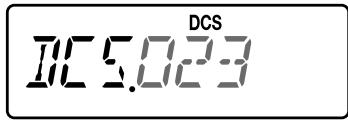
3 Rotate the ENC control to select your desired code.
To exit the DCS code selection, press [PTT].
4 Press any key other than [MONI], [LAMP], or [PTT] to set the selected frequency.
5 When you are called: The transceiver squelch opens only when the selected DCS code is received.
When you make a call: Press and hold [PTT], then speak into the microphone.
DCS CODE SCAN
This function scans through all DCS codes to identify the incoming DCS code on a received signal. You may find it useful when you cannot recall the DCS code that the other persons in your group are using.
1 Press [TONE] 3 times to activate the DCS function.
Each time you press [TONE], the selection changes as follows:
Tone (CT) CTCSS (CT) DCS (DCS) Cross Tone (A) Off (no display).
The "DCS" icon appears when the DCS function is ON.
2 Press [T.SEL] (1s) to run the DCS Code scan.
- Scan starts and "DCS.SCN" appears on the display.
- When a DCS code is identified, the identified code appears on the display and blinks.

3 Press [T.SEL] to program the identified code in place of the currently set DCS code.
- If you do not want to program the identified code, press any key other than [MONI], [LAMP], or [T.SEL].
You can set separate signaling types by TX and RX for when you access a repeater that uses different encode/decode signaling.
1 Press [TONE] 4 times to activate the Cross Tone function.
Each time you press [TONE], the selection changes as follows:
Tone (CT) CTCSS (CT) DCS (DCS) Cross Tone () Off (no display).
The " " icon appears when the Cross Tone function is ON.
2 Press [T.SEL].
The Cross Tone setting appears on the display.
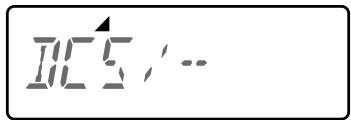
3 Rotate the ENC control to select your desired Cross Tone setting.
| Setting | TX | RX | Icon <TX> | Icon <RX> |
| DCS/- | DCS | off | ▲ DCS | ▲ |
| T/DCS | Tone | DCS | ▲ T | ▲ DCS |
| DCS/CT | DCS | CTCSS | ▲ DCS | ▲ CT |
| T/CT | Tone | CTCSS | ▲ T | ▲ CT |
- To exit the Cross Tone selection, press [PTT].
4 Press any key other than [MONI], [LAMP], or [PTT] to set the selected setting.
This transceiver provides you with 16 dedicated DTMF memory channels. You can store a DTMF code (16 digits max.) in each of these channels to recall later for speed dialing.
MANUAL DIALING
The numeric keypad functions as a DTMF keypad; the 12 keys found on a touch-tone phone plus 4 additional keys (A, B, C, D) on the right most column.
To perform Manual Dialing, follow the steps below.
1 Press and hold [PTT] to transmit.
2 While transmitting, press the keys in sequence on the keypad, to send the DTMF tones.
The corresponding DTMF tones are transmitted and monitored through the speaker.
| Frequency (Hz) | 1209 | 1366 | 1477 | 1633 |
| 697 | 1 | 2 | 3 | A |
| 770 | 4 | 5 | 6 | B |
| 852 | 7 | 8 | 9 | C |
| 941 | × | 0 | # | D |
- When DTMF TX Hold is ON, you do not need to continuously press [PTT] to remain in Transmit Mode. However, Transmit Mode is retained for only 2 seconds after pressing a key, so if the next key is not pressed within this time limit, the transceiver stops transmitting.
AUTOMATIC DIALER
If you use the 16 dedicated memory channels to store DTMF codes, you do not need to remember a long string of digits.
STORING A DTMF CODE IN MEMORY
1 Enter Menu mode and access Menu No. 28 (DTMF.MR), then press [F].

2 Rotate the ENC control to select your desired DTMF memory channel number from 0 to F.
3 Press [F].
- The DTMF code entry display appears and the last digit blinks.
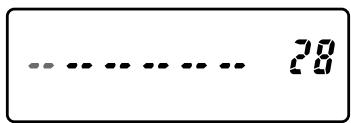
4 Rotate the ENC control to select a DTMF code.
- You can move the cursor to the left or right by pressing [VFO] or [MR].
- Press [CALL] to delete the character at the current cursor position.
- On the transceiver display, DTMF code “ ※ ” is represented by “E” and “#” is represented by “F”.
- When a space is entered, it becomes a "Pause" code.
5 Press [F] to select the DTMF code and move the cursor to the next digit.
6 Repeat steps 4 and 5 to enter up to 16 digits.
7 To complete the entry, press [F] without selecting a DTMF code.
8 Press [MENU] or [PTT] to exit Menu mode.
TRANSMITTING A STORED DTMF CODE
1 While pressing and holding [PTT], press [MONI].
2 Release [MONI] (continue pressing [PTT]), then rotate the ENC control to select the desired DTMF memory channel number (d0 dF)
3 While still holding [PTT], press [MONI] again to transmit the selected DTMF tones.
- The code stored in the channel scrolls across the display, accompanied by DTMF tones from the speaker.
After transmitting, the frequency display is restored. - If you do not need to confirm the memory channel contents, press [STEP] (0) ~ [PF] (9), [F] (A) ~ [CALL] (D), [LAMP] (#) (E), and [ENT] (#) (F) instead of turning the ENC control in step 2, to select a channel number. The stored DTMF code will be immediately transmitted. (You do not need to press [MONI] in step 3.)
Note: If you select an empty DTMF memory channel and press [MONI], the frequency display is restored.
ADJUSTING THE DTMF CODE TRANSMIT SPEED
Some repeaters may not respond correctly if a DTMF code is transmitted at fast speed. If this happens, change the DTMF code transmit speed; the default is 100 ms.
1 Enter Menu mode and access Menu No. 29 (DT.SPD), then press [F].

2 Rotate the ENC control to select 50/100/150 ms, then press [F] to store the setting.
3 Press [MENU] or [PTT] to exit Menu mode.
DTMF TX HOLD
This function causes the transceiver to remain in transmit mode for 2 seconds after you release each key. Therefore, you can release [PTT] while sending DTMF tones through manual dialing.
1 Enter Menu mode and access Menu No. 30 (DT.HOLD), then press [F].

2 Rotate the ENC control to select "ON", then press [F] to store the setting.
3 Press [MENU] or [PTT] to exit Menu mode.
ADJUSTING THE PAUSE DURATION
You can change the pause duration (a space digit) stored in memory channels. The default setting is 500 milliseconds.
1 Enter Menu mode and access Menu No. 31 (DT.PAUS), then press [F].

2 Rotate the ENC control to select 100/ 250/ 500/ 750/ 1000/ 1500/ 2000 ms, then press [F] to store the setting.
3 Press [MENU] or [PTT] to exit Menu mode.
DTMF LOCK
If you have a transceiver with the optional speaker microphone installed and are carrying it in the holder or bag, you sometimes may want to disable the keypad to avoid accidental transmitting DTMF codes. In this case, turn the DTMF Lock function ON.
1 Enter Menu mode and access Menu No. 32 (DT.LOCK), then press [F].

2 Rotate the ENC control to select "ON", then press [F] to store the setting.
3 Press [MENU] or [PTT] to exit Menu mode.
PROGRAMMABLE VFO
If you want to limit the operating frequencies within a certain range, program the lower and upper frequency limits to the programmable VFO parameters. For example, if you select 144 MHz for the lower limit and 145 MHz for the upper limit, the tunable range will be limited from 144.000 MHz to 145.995 MHz.
1 Press [VFO].
2 Enter Menu mode and access Menu No. 6 (P.VFO), then press [F].
- The current programmable frequency range for the band appears.
- The lower limit frequency blinks.

3 Rotate the ENC control to select the lower limit frequency in MHz.
4 Press [F] to store the lower limit frequency.
- The upper limit frequency blinks.
5 Rotate the ENC control to select the upper limit frequency in MHz.
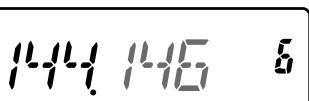
6 Press [F] to store the upper limit frequency.
7 Press [MENU] or [PTT] to exit Menu mode.
Note:
You cannot program the 100kHz or lower digits.
The upper limit frequency cannot be set lower than the selected lower limit frequency.
FREQUENCY STEP SIZE
Choosing the correct frequency step size is essential in order to select your exact receive frequency using the ENC control. You can select your desired frequency step size from: 5, 6.25, 10, 12.5, 15, 20, 25, 30, 50, or 100 (kHz).
To change the frequency step size:
1 Press [STEP].
- The current frequency step size appears.
![KENWOOD TH-K40 - Press [STEP]. - 1](/content/2025/01/83309/images/834a6dd15046bb65db1468f2efb3b8b23d743b00d4c9a58c0e1e21c57656f9f4.jpg)
2 Rotate the ENC control to select your desired frequency step size.
3 Press any key other than [MONI], [LAMP], or [PTT] to set the selected frequency step size.
Note: If you change to a frequency step size that does not match the current operating frequency, the transceiver automatically adjusts the frequency to match the new frequency step size.
TONE ALERT
Tone Alert provides an audible alarm when signals are received on the frequency you are monitoring. In addition, it shows the number of hours and minutes elapsed after signals have been received. If you use Tone Alert with CTCSS or DCS, it sounds only when a received CTCSS tone or DCS code matches the tone or code you selected. Turning this function ON is convenient for when you are not sitting in front of the transceiver, as confirmation of the receipt is possible while away from the transceiver.
1 Select your desired frequency or memory channel.
2 Press [S].
The OFF/ON setting appears on the display.
- When Tone Alert is set to ON, the “ ” icon appears on the display.
- When the signal is received for more than 1 second, an alarm sounds, the “ 品 ” icon blinks and the elapsed time appears on the display.
- Press [PTT] while the “ ” icon is blinking to turn the Tone Alert function OFF.
- When 9 hours and 59 minutes pass after a signal has been received, counting stops.
Each time a new signal is received, the elapsed time resets to 0:00.
Note:
While Tone Alert is ON, there is no speaker output when a signal is received. To monitor the signal, press and hold [MONI].
When Tone Alert is ON, APO does not turn the power OFF.
If you switch the transceiver OFF while the " " icon is blinking, the transceiver does not back up the elapsed time.
When Tone Alert is ON, you can use only the following keys: [S], [MONI], [SQL], and [LAMP].
POWER ONMESSAGE
You can change the Power ON Message (a maximum of 6 characters) when the transceiver is turned ON.
1 Enter Menu mode and access Menu No. 1 (P.ON.MSG), then press [F].
- A blinking cursor appears.

2 Rotate the ENC control to select a character.
- You can enter the following alphanumeric characters:
0 9 A Z, - ( (hyphen), / (slash) and a space.
3 Press [MR].
The cursor will move to the next digit.
- You can move the cursor to the left or right by pressing [VFO] or [MR].
- Press [CALL] to delete the character at the current cursor position.
4 Repeat steps 3 and 4 to enter up to 6 digits.
- Press [CALL] to delete the character at the current cursor position.
5 Press [F] to store the message.
6 Press [MENU] or [PTT] to exit Menu mode.
Note: If the Power ON Message is deleted, "TH-K20" or "TH-K40" is displayed.
BEEP FUNCTION
The Beep function provides confirmation of entry, error status, and malfunctions of the transceiver. We recommend you leave this function ON in order to detect erroneous operations and malfunctions.
However, to turn the beep function OFF:
1 Enter Menu mode and access Menu No. 2 (BEEP), then press [F].

2 Rotate the ENC control to select "OFF", then press [F] to store the setting.
3 Press [MENU] or [PTT] to exit Menu mode.
The transceiver generates the following warning beeps even if the beep function is turned OFF.
- APO warning beeps - Time-Out Timer warning beep
Note: The beep output level is linked to the volume control position.
LOCK TYPE
You can select your desired Lock type. "KEY" locks the operational keys, "FRQ" locks the frequencies so that you do not accidentally change them and "KEY.FRQ" locks both the keys and the frequencies.
- Manual DTMF and Autodial can still be performed while either lock is active.
1 Enter Menu mode and access Menu No. 3 (LOCK), then press [F].

2 Rotate the ENC control to select "KEY", "FRQ" or "KEY.FRQ", then press [F] to store the setting.
3 Press [MENU] or [PTT] to exit Menu mode.
"KEY": Only the following keys & controls can be operated.
| PWR/VOL control | ENC control | PTT | F | ||
| MONI | SQL | LAMP | |||
"FRQ": Only the following keys can be operated.
| PWR/VOL control | PTT | MONI | F | MENU | TONE | ||
| LOW | SQL | T.SEL | ♀ | PF | LAMP | ||
- You can still use the ENC control in menu mode.
"KEY.FRQ": Only the following keys can be operated.
| PWR/VOL control | PTT | MONI | F | SQL | LAMP |
BATTERY Saver
The Battery Saver extends the operating time of the transceiver. It automatically activates when the squelch is closed and no key is pressed for more than 10 seconds. To reduce battery consumption, this function shuts the receiver circuit OFF for the programmed time, then momentarily turn it back ON to detect a signal.
To program the receiver shut-off period for the battery saver:
1 Enter Menu mode and access Menu No. 4 (SAVE), then press [F].

2 Rotate the ENC control to select OFF/ 0.2/ 0.4/ 0.6/ 0.8/ 1.0/ 2.0/ 3.0/ 4.0/ 5.0 seconds, then press [F] to store the setting.
3 Press [MENU] or [PTT] to exit Menu mode.
Note:
The longer the shut-off period, the more you can save on battery consumption. However, there is a greater chance of missing a signal.
When the CTCSS/ DCS code matches while receiving, the battery saver function is turned OFF.
Battery Saver does not function while scanning.
While the Battery Saver is operating, the TX-RX LED may flash green when receiving a CTCSS/DCS signal which does not match the transceiver CTCSS/DCS setting.
APO (AUTO POWER OFF)
The transceiver switches OFF automatically if no keys or controls are pressed or adjusted for 30 minutes (default). One minute before the transceiver switches OFF, warning beeps sound for a few seconds and "APO" blinks. You can select the APO time from OFF (disable), 30 (default), 60, 90, 120, or 180 minutes.
1 Enter Menu mode and access Menu No. 5 (APO), then press [F].

2 Rotate the ENC control to select OFF/ 30/ 60/ 90/ 120/ 180 minutes, then press [F] to store the setting.
3 Press [MENU] or [PTT] to exit Menu mode.
Note:
APO does not function while the transceiver is scanning.
When Tone Alert is ON, APO does not turn the power OFF.
The APO timer starts counting down the time when no keys are pressed and no controls are adjusted.
The APO warning beep sounds and "APO" appears 1 minute before the transceiver turns OFF.
The transceiver operates in normal FM deviation (± 5kHz) mode for both transmitting and receiving. You can also operate the transceiver in narrow band FM deviation (± 2.5kHz) mode.
1 Enter Menu mode and access Menu No. 9 (N.FM), then press [F].

2 Rotate the ENC control to select "ON", then press [F] to store the setting.
3 Press [MENU] or [PTT] to exit Menu mode.
- When FM narrow is activated, the “N” icon appear on the display.
BEAT SHIFT
Since the transceiver uses a microprocessor to control various functions of the transceiver, the CPU clock oscillator's harmonics or image may appear on some spots of the receive frequencies. In this case, turn the Beat Shift function ON.
1 Enter Menu mode and access Menu No. 10 (B.SHIFT), then press [F].

2 Rotate the ENC control to select "ON", then press [F] to store the setting.
3 Press [MENU] or [PTT] to exit Menu mode.
Note: Beat Shift status can be stored to each Memory channel.
VOX (VOICE-OPERATED TRANSMIT)
VOX eliminates the necessity of manually switching to Transmit mode each time you want to transmit. The transceiver automatically switches to Transmit mode when the VOX circuitry senses that you have begun speaking into the microphone. When you operate the VOX function, you must use an optional Headset; the internal speaker and microphone are too close to each other to be used for the VOX function.
To turn the VOX function ON:
1 Enter Menu mode and access Menu No. 16 (VOX), then press [F].

2 Rotate the ENC control to select the desired VOX gain level from 1 (least sensitive) to 9 (most sensitive), then press [F] to store the setting.
3 Press [MENU] or [PTT] to exit Menu mode.
- When VOX is activated, the “V” icon appear on the display.
Note:
While in Menu mode, the VOX function is temporarily disabled.
Since the VOX circuit must detect the presence of your voice, you may notice a slight delay in transmitting; the very first part of your message may not be transmitted.
VOX cannot be used with an optional Speaker/ Microphone.
VOX GAIN
To enjoy the VOX function, take the time to properly adjust the VOX Gain level. This level controls the VOX circuit to detect the presence or absence of your voice.
There are 2 ways to adjust the VOX Gain.
While the VOX function is ON:
1 Speak into the headset microphone using your normal tone of voice to transmit.
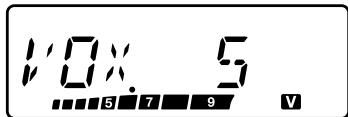
- If transmitting does not begin, readjust the VOX Gain so that the transceiver transmits while you are speaking. To readjust the gain, press and hold [PTT] then rotate the ENC control to select a more sensitive gain level.
- While readjusting the gain, you can release [PTT]. The transceiver will remain in Adjustment Mode for approximately 5 seconds.
2 Adjust the VOX Gain by rotating the ENC control until the transceiver reliably switches to transmit mode each time you speak.
From the Menu:
1 Enter Menu mode and access Menu No. 16 (VOX), then press [F].
2 Rotate the ENC control to select the desired VOX gain level from 1 (least sensitive) to 9 (most sensitive), then press [F] to store the setting.
3 Press [MENU] or [PTT] to exit Menu mode.
VOX ON BUSY
You can configure the transceiver to force VOX to transmit even if the transceiver is receiving a signal.
1 Enter Menu mode and access Menu No. 17 (VOX.BSY), then press [F].

2 Rotate the ENC control to select "ON", then press [F] to store the setting.
3 Press [MENU] or [PTT] to exit Menu mode.
Note: You can press [PTT] or [PF] (if 1750 Hz is programmed) to transmit, regardless of the setting in Menu No. 17.
VOX DELAY TIME
If the transceiver returns to receive mode too quickly after you stop speaking, the end of your signal may not be transmitted. To avoid this, select an appropriate delay time that allows your entire signal to be transmitted, before Transmit mode ends. However, do not make the delay overly long.
1 Enter Menu mode and access Menu No. 18 (VOX.DLY), then press [F].

2 Rotate the ENC control to select the desired delay time to 250/ 500 (default)/ 750/ 1000/ 1500/ 2000/ 3000 ms, then press [F] to store the setting.
3 Press [MENU] or [PTT] to exit Menu mode.
Note:
If you press [PTT] while the VOX function is ON, the VOX Delay Time is not reflected to the transmitted signal.
If you press [PF] (if 1750 Hz is programmed) to transmit a 1750 Hz tone, the VOX Delay Time is not reflected.
If the DCS function is ON, the transceiver remains in Transmit mode for the duration set by the VOX Delay Time. It then sends a Turn-Off Code to close the receiving party's squelch.
TIME-OUT TIMER
The Time-out Timer limits the duration you transmit. Just before the transceiver stops the transmitting, a warning beep sounds. This function is necessary to protect the transceiver from thermal damage and can therefore not be turned OFF.
1 Enter Menu mode and access Menu No. 19 (TOT), then press [F].

2 Rotate the ENC control to select the desired time from 0.5/ 1.0/ 1.5/ 2.0/ 2.5/ 3.0/ 3.5/ 4.0/ 4.5/ 5.0/10.0 (default) minutes, then press [F] to store the setting.
3 Press [MENU] or [PTT] to exit Menu mode.
Note: A warning beep sounds even if you set Menu No. 2 (BEEP) to OFF.
BUSY CHANNEL LOCKOUT
This function is used in order to prevent transmitting on a channel or frequency that somebody else is currently using. When turned ON, an error beep sounds and you cannot transmit even if you press [PTT].
1 Enter Menu mode and access Menu No. 20 (BCL), then press [F].

2 Rotate the ENC control to select "ON", then press [F] to store the setting.
3 Press [MENU] or [PTT] to exit Menu mode.
TX INHIBIT
You can inhibit transmitting to prevent unauthorized individuals from transmitting, or to eliminate accidentally transmitting while carrying the transceiver.
1 Enter Menu mode and access Menu No. 21 (TX.INH), then press [F].

2 Rotate the ENC control to select "ON", then press [F] to store the setting.
3 Press [MENU] or [PTT] to exit Menu mode.
MICROPHONE SENSITIVITY
You can select a Microphone Sensitivity level from Low, Medium (default), or High.
1 Enter Menu mode and access Menu No. 22 (M.SENS), then press [F].

2 Rotate the ENC control to select the desired Sensitivity level, then press [F] to store the setting.
3 Press [MENU] or [PTT] to exit Menu mode.
PROGRAMMABLE FUNCTION KEYS
TRANSCEIVER PF KEY
This is the [PF] (Programmable Function) key on the transceiver front panel. You can assign your desired function to this key.
1 Enter Menu mode and access Menu No. 23 (PF KEY), then press [F].

2 Rotate the ENC control to select your desired function for the key, then press [F] to store the setting.
Programmable functions available are:
M.DISP (Memory display type)/ 1750/ WX
Default setting: TH-K20A K type: WX, TH-K20A/ TH-K40A M type: M.DISPTH-K20E/ TH-K40E (E type): 1750
3 Press [MENU] or [PTT] to exit Menu mode.
MICROPHONE PF KEYS
There are 3 microphone PF (Programmable Function) keys: [PF1], [PF2], and [PF3]. You can assign your desired functions to these 3 keys.
1 Enter Menu mode and access Menu No. 24 (PF 1) and/or Menu No. 25 (PF 2) and/or Menu No. 26 (PF 3), then press [F].

2 Rotate the ENC control to select your desired function for the key, then press [F] to store the setting.
Programmable functions available are:
VFO/ MR/ CALL/ UP/DOWN/ TONE/ T.SEL/ SHIFT/ REV/ 1750/ WX <TH-
K20A K type only>/ N.FM/ PR.SCAN (Priority scan)/ M.DISP (Memory display type)/ SQL/ LOW/ STEP/ L.OUT (Memory channel lockout)/ MONI/ LAMP
3 Press [MENU] or [PTT] to exit Menu mode.
MICROPHONE KEY LOCK
The Microphone Key Lock function will lock the microphone PF keys.
1 Enter Menu mode and access Menu No. 27 (MIC.LK), then press [F].

2 Rotate the ENC control to select "ON", then press [F] to store the setting.
3 Press [MENU] or [PTT] to exit Menu mode.
BATTERY TYPE
Set the battery type to match the type of batteries you are using in the transceiver. If the battery type is not set properly, the battery indicator will not display the correct battery power while transmitting.
1 Enter Menu mode and access Menu No. 34 (BATT), then press [F].

2 Rotate the ENC control to select the Battery Type to "LI-ION" (Lithium ion battery) or "ALKALI" (Alkaline dry battery), then press [F] to store the setting.
3 Press [MENU] or [PTT] to exit Menu mode.
Weather Alert is available only in the USA and Canada. When activated, this function will check for a received NOAA 1050 Hz tone. When the tone is received, the weather alert tone will sound.
WEATHER ALERT ON/ OFF
1 Enter Menu mode and access Menu No. 35 (WX.ALT), then press [F].

2 Rotate the ENC control to select "ON", then press [F] to store the setting.
3 Press [MENU] or [PTT] to exit Menu mode.
- When activated, the "WX" icon appears on the display.
- When a signal is being received, the "WX" icon blinks.
WEATHER CHANNEL
Whether or not Weather Alert is activated, you can still access the weather channels.
While recalling the Call channel, you cannot change to the Weather channel.
1 Press the key programmed with the [WX] function.
2 Rotate the ENC control to select your desired channel.
| MR. Name. | CH No. | Freq. (MHz) | Location | MR. Name | CH No. | Freq. (MHz) | Location |
| WX 1 | A1 | 162.550 | NOAA/ Canada | WX 6 | A6 | 162.500 | NOAA |
| WX 2 | A2 | 162.400 | NOAA/ Canada | WX 7 | A7 | 162.525 | NOAA |
| WX 3 | A3 | 162.475 | NOAA/ Canada | WX 8 | A8 | 161.650 | Canada |
| WX 4 | A4 | 162.425 | NOAA | WX 9 | A9 | 161.775 | Canada |
| WX 5 | A5 | 162.450 | NOAA | WX 10 | A0 | 163.275 | - |
WEATHER CHANNEL SCAN
The memory channel only for the weather alert is scanned.
Press and hold the key programmed with the [WX] function to start the weather channel scan.
- Scanning stops when the channel with the highest signal level is received.
- Memory scanning stops when performing any operation other than [LAMP], [MONI], [Key Lock] ([F] (1s)), and ENC control.
OPTIONAL ACCESSORIES
The following options are available for use with this transceiver:
KNB-63L: Li-ion battery pack
KNB-65L: Li-ion battery pack
BT-16: Battery case
KBH-18: Belt clip
KVC-22: DC vehicular charger adapter
KSC-35S: Rapid charger
SMC-32: Speaker microphone
SMC-33: Speaker microphone
SMC-34: Speaker microphone
HMC-3: Headset
KHS-21: Headset
KHS-29F: Headset
EMC-3: Clip microphone
EMC-7: Clip microphone
EMC-11: Clip microphone
PG-4Y: PC connection cable
MCP-5A: Memory Control Program (free software)
Note: Optional accessories for use with this transceiver may change, post-production. (New options may become available and/or current options may be discontinued.) Please refer to the options catalog(s) for applicable transceivers.
To download the MCP-5A software, go to:
http://www.kenwood.com/i/products/info/amateur/software_download.html
Note: This URL may change without notice.
MAINTENANCE
GENERAL INFORMATION: This product has been factory aligned and tested to specification before shipment. Attempting service or alignment without factory authorization can void the product warranty.
SERVICE: When returning this product for repair, send the complete product, packed in its original box and packing material, to the authorized KENWOOD dealer from whom you purchased it, or any authorized KENWOOD service center. Include a full description of the problem(s) experienced. Include your telephone number along with your name and address in case the service technician needs to contact you. If available, also include your fax number and e-mail address. Do not return accessory items unless you feel they are directly related to the problem. A copy of the service report will be returned with the product.
SERVICE NOTE: If you desire to correspond on a technical or operational problem, please make your note legible, short, complete, and to the point. Help us help you by providing the following:
Model and serial number of equipment
Question or problem you are having
- Other equipment in your station pertaining to the problem
ATTENTION: Do not pack the equipment in crushed newspapers for shipment! Extensive damage may result during rough handling or shipping.
Note:
Record the date of purchase, serial number and dealer from whom this product was purchased.
For your own information, retain a written record of any maintenance performed on this product.
When claiming warranty service, please include a photocopy of the bill of sale or other proof-of-purchase showing the date of sale.
CLEANING: To clean the case of this product, use a neutral detergent (no strong chemicals) and a damp cloth.
TROUBLESHOOTING
The problems described in this table are commonly encountered operational malfunctions and are usually not caused by circuit failure.
| Problem | Solution |
| Nothing appears on the display when the transceiver is switched ON, or the display is blinking ON and OFF. | The battery pack is discharged. Recharge the battery pack or replace the batteries. |
| Most keys and the Selector do not function. | Transceiver Lock function is ON (the “m0” icon is visible). Press [F] (1s) to turn OFF Transceiver Lock. |
| The transceiver is in Channel Display Mode. Press [PTT] + [MR] + Power ON to exit Channel Display Mode. | |
| The Tone Alert function is ON. Turn OFF the Tone Alert function. | |
| You cannot recall any memory channel. | You have stored no data in any of the memory channels. Store the desired frequencies in the memory channels. |
| You cannot select the exact desired frequency using the selector. | The current frequency step size does not allow the frequency to be selected. Select an appropriate frequency step size. Press [STEP] to change the frequency step size. |
| Programmable VFO frequency range is too narrow. Expand the frequency range in Menu No. 6 (P.VFO). | |
| Increasing the Volume control does not allow you to hear audio. | The selective call function (CTCSS or DCS) is ON. Turn OFF the selective call function. |
| The Tone Alert function is ON. Turn OFF the Tone Alert function. | |
| You cannot transmit by pressing [PTT]. | You selected a frequency outside the allowable range. Select a frequency within the allowable transmit frequency range. |
| You selected a transmit offset that places the transmit frequency outside the limit. Select a proper offset direction or offset frequency. | |
| Busy Channel Lockout is ON. Access Menu No.20 (BCL) and select “OFF”. | |
| TX inhibit is ON. Access Menu No.21 (TX.INH) and select “OFF”. | |
| The battery pack voltage is too low to transmit. Change or replace the battery. | |
| Repeater cannot be accessed. | Wrong tone frequency is selected. Select a proper repeater access tone. |
| Wrong offset direction is selected. Try other offset directions. | |
| DTMF tone cannot be transmitted. | DTMF Lock is ON. Access Menu No. 32 (DT.LOCK) and select “OFF”. |
| The transceiver returns to Receive Mode after transmitting for a long time. | The transmit time exceeded the programmed TOT time. Access Menu No. 19 (TOT) to select your desired transmit length. The TOT cannot be turned OFF; it protects the transceiver from thermal damage. |
| The Scan function does not resume scanning after the transceiver detects a signal. | You have selected “SEEK” for Menu No. 14 (RESUME). Select either “TO” (Time-Operated) or “CO” (Carrier-Operated) for Menu No. 14 (RESUME). |
OPERATIONNOTICES
The transceiver has been designed and engineered to avoid possible hardware glitches. However, you may notice the following symptoms when you operate the transceiver. These symptoms are not malfunctions.
Receiving Signals In Cities: When you receive signals in cities, the receiver's entire antenna indicator may light up without receiving any strong signals. This happens when the RF amplifier in the receiver is overloaded by nearby strong interference signals.
Transmitting: If you continuously transmit for an extended duration at high power, the transceiver becomes warm. If you continue or repeatedly transmit before the transceiver cools down, the thermal protector gradually decreases the output power to 1 W.
Internal Beats: On some spots of the frequency, the S meter moves without receiving any signals or you cannot receive any signals. This is inevitable when you use superheterodyne receivers. If this happens, access Menu No. 10 (B.SHIFT) and select "ON". However, the following Internal Beat Frequencies cannot be eliminated.
TH-K20A/E: 152.69375/ 152.695/ 152.7/ 152.705/152.70625/ 153.59375/ 153.595/ 153.6/ 153.605/ 153.60625/ 172.79375/ 172.795/ 172.8/ 172.805/ 172.80625 (MHz)
TH-K40A/E: 403.19375/ 403.195/ 403.2/ 403.205/ 403.20625/ 422.39375/ 422.395/ 422.4/ 422.405/ 422.40625/ 441.59375/ 441.595/ 441.6/ 441.605/ 441.60625/ 460.79375/ 460.795/ 460.8/ 460.805/ 460.80625 (MHz)
There are 2 types of transceiver resets available:
Partial Reset
Use to initialize all settings other than the Memory channels and DTMF memory channels.
Full Reset
Use to initialize all transceiver settings that you have customized.
There are 2 ways to perform a reset on the transceiver: by key operation and by accessing Menu mode.
KEY OPERATION
1 Turn the transceiver power OFF.
2 Press [F] + Power ON.
All indicators are lit.
3 Release [F].
4 Rotate the ENC control and select your desired reset type: "PA.RST" (Partial Reset) or "FL.RST" (Full Reset).
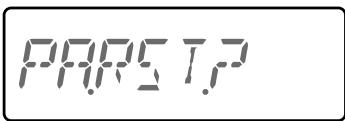
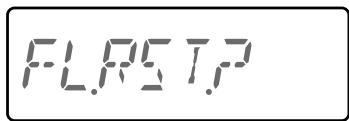
5 Press [F].
"SURE?" appears.
6 Press [F] again to reset the transceiver.
Note: When the lock function is on, you cannot reset the transceiver using Key operation.
MENU OPERATION
1 Enter Menu mode and access Menu No. 99 (RESET), then press [F].

2 Rotate the ENC control and select your desired reset type: "PART" (Partial Reset) or "FULL" (Full Reset).
3 Press [F].
"SURE?" appears.
4 Press [F] again to reset the transceiver.
Note: All specifications are guaranteed within the amateur radio band.
| General | TH-K20A/E | TH-K40A/E | |
| Guaranteed range (MHz) | TX & RX | 144 ~ 148 (K/M) 144 ~ 146 (E) | 430 ~ 440 |
| Operation Frequency range (MHz) | TX | 136 ~ 174 (M) 144 ~ 148 (K) 144 ~ 146 (E) | 400 ~ 470 (M) 430 ~ 440 (E) |
| RX | 136 ~ 174 | 400 ~ 470 | |
| Mode | F3E, F2D | ||
| Antenna impedance | 50 Ω | ||
| Operating temperature range | -20°C ~ +60°C (+4°F ~ +140°F) -10°C ~ +60°C (+14°F ~ +140°F) <with KNB-63L/ KNB-65L> | ||
| Operating Voltage | DC 6.0 ~ 9.0 V (7.4 V nominal) | ||
| Frequency stability | Within ± 2.5 ppm | ||
| Dimensions W x H x D (projections not included) <with KNB-63L> | 54 x 111.7 x 25.3 mm 2.13 x 4.4 x 1.00 in | ||
| Weight <with KNB-63L> | Approx. 210 g/ 7.4 oz. | ||
| Transmitter | TH-K20A/E | TH-K40A/E | |
| RF output power <with KNB-63L/ KNB-65L> | High | 5.5 W | 5 W |
| Medium | 2 W | ||
| Low | 1 W | ||
| Modulation | Reactance | ||
| Maximum frequency deviation | Within ±5 kHz | ||
| Spurious emission | Less than -60 dB | ||
| Modulation distortion | Less than 5 % (300 Hz ~ 3 kHz) | ||
| Microphone impedance | 2 kΩ | ||
| Receiver | TH-K20A/E | TH-K40A/E | |
| Circuit type | Double super heterodyne | ||
| Intermediate Frequency (IF) | 1st IF: 38.85 MHz 2nd IF: 450 kHz | ||
| Sensitivity (12 dB SINAD) | Less than 0.16 μV | Less than 0.18 μV | |
| Squelch sensitivity | Less than 0.13 μV | ||
| Selectivity | -6 dB | More than 10 kHz | |
| -50 dB | Less than 28 kHz | ||
| Audio output | More than 400 mW (8 Ω/ 10 % distortion) | ||
Specifications are subject to change without notice due to advancements in technology.