 ManualGo.com
KD-AVX40E - Multimedia car stereo JVC - Free user manual and instructions
Find the device manual for free KD-AVX40E JVC in PDF.



Download the instructions for your Multimedia car stereo in PDF format for free! Find your manual KD-AVX40E - JVC and take your electronic device back in hand. On this page are published all the documents necessary for the use of your device. KD-AVX40E by JVC.
USER MANUAL KD-AVX40E JVC
[E] Declaration of Conformity with regard to the R&TTE Directive 1999/5/EC
ENGLISH Thank you for purchasing a JVC product. Please read all instructions carefully before operation, to ensure your complete understanding and to obtain the best possible performance from the unit.
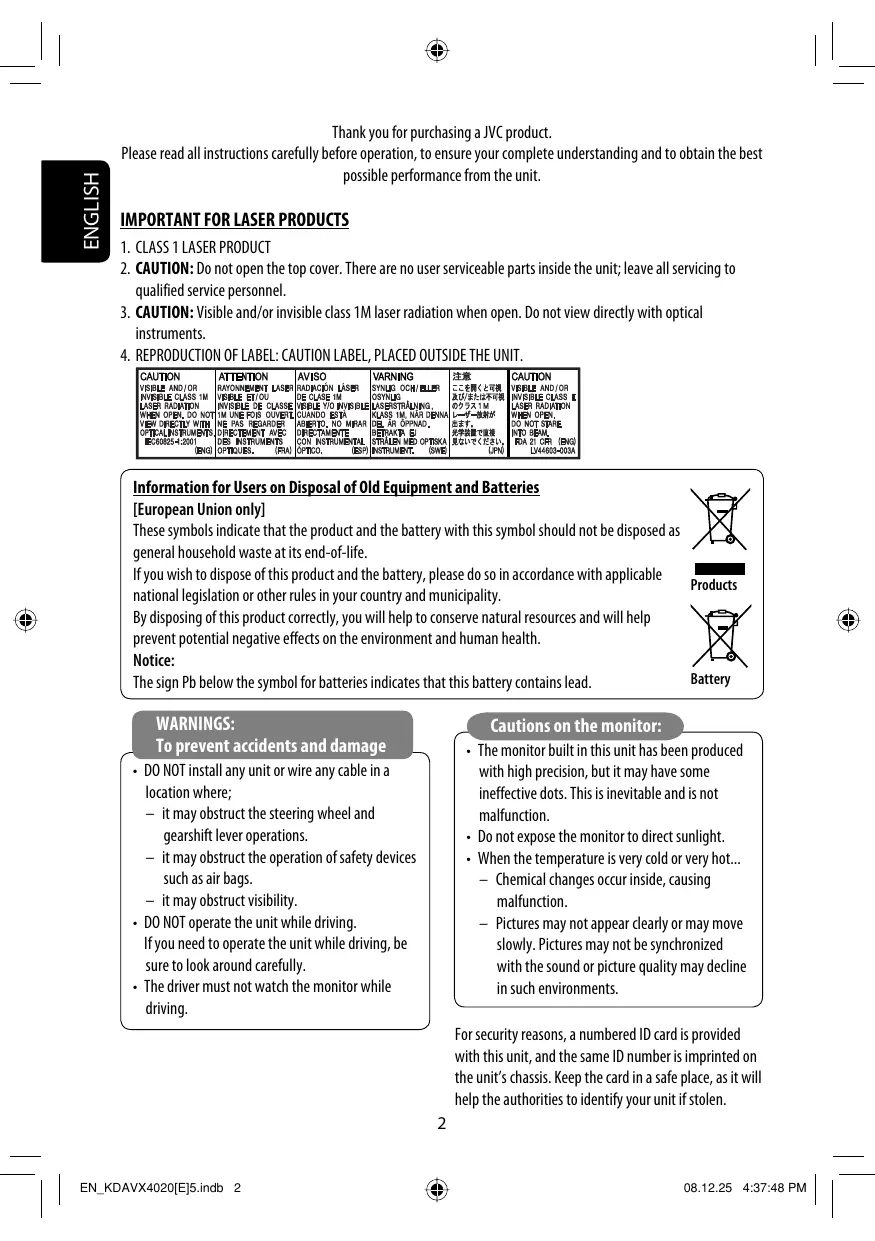
IMPORTANT FOR LASER PRODUCTS
1. CLASS 1 LASER PRODUCT
2. CAUTION: Do not open the top cover. There are no user serviceable parts inside the unit; leave all servicing to
qualified service personnel.
3. CAUTION: Visible and/or invisible class 1M laser radiation when open. Do not view directly with optical
4. REPRODUCTION OF LABEL: CAUTION LABEL, PLACED OUTSIDE THE UNIT.
Information for Users on Disposal of Old Equipment and Batteries [European Union only] These symbols indicate that the product and the battery with this symbol should not be disposed as general household waste at its end-of-life. If you wish to dispose of this product and the battery, please do so in accordance with applicable Products national legislation or other rules in your country and municipality. By disposing of this product correctly, you will help to conserve natural resources and will help prevent potential negative effects on the environment and human health. Notice: Battery The sign Pb below the symbol for batteries indicates that this battery contains lead. WARNINGS: To prevent accidents and damage Cautions on the monitor:
- The monitor built in this unit has been produced with high precision, but it may have some ineffective dots. This is inevitable and is not malfunction.
- Do not expose the monitor to direct sunlight.
- When the temperature is very cold or very hot... – Chemical changes occur inside, causing malfunction. – Pictures may not appear clearly or may move slowly. Pictures may not be synchronized with the sound or picture quality may decline in such environments.
- DO NOT install any unit or wire any cable in a location where; – it may obstruct the steering wheel and gearshift lever operations. – it may obstruct the operation of safety devices such as air bags. – it may obstruct visibility.
- DO NOT operate the unit while driving. If you need to operate the unit while driving, be sure to look around carefully.
- The driver must not watch the monitor while driving. For security reasons, a numbered ID card is provided with this unit, and the same ID number is imprinted on the unit’s chassis. Keep the card in a safe place, as it will help the authorities to identify your unit if stolen.
- Your preset adjustments (except for the registered Bluetooth devices for KD-AVX40) will also be erased. How to forcibly eject a disc ENGLISH Contents OPERATIONS Basic operations—AV menu.................. 6 Basic operations—Control panel ........... 8 Basic operations— Remote controller (RM-RK252) ........... 10 Listening to the radio ........................... 12 Disc operations ..................................... 18 USB operations ..................................... 31 Bluetooth® operations (KD-AVX40 only)— Cellular phone/audio player .............. 33 [Hold]
- Be careful not to drop the disc when it ejects.
- If this does not work, reset the unit. EXTERNAL DEVICES Listening to the iPod/iPhone ................. Listening to the CD changer ................... Listening to the DAB tuner .................... Listening to other external components ...................................... For safety...
- Do not raise the volume level too much, as this will block outside sounds, making driving dangerous.
- Stop the car before performing any complicated operations. Temperature inside the car... If you have parked the car for a long time in hot or cold weather, wait until the temperature in the car becomes normal before operating the unit.
SETTINGS Sound equalization ............................... 50 Assigning titles to the sources ............... 51 Menu items .......................................... 52 REFERENCES Maintenance ........................................ More about this unit ............................. Troubleshooting ................................... Specifications ....................................... This product incorporates copyright protection technology that is protected by U.S. patents and other intellectual property rights. Use of this copyright protection technology must be authorized by Macrovision, and is intended for home and other limited viewing uses only unless otherwise authorized by Macrovision. Reverse engineering or disassembly is prohibited.
- DivX/MPEG1/MPEG2/JPEG/MP3/WMA/WAV: Compliant to ISO 9660 level 1, level 2, Romeo, Joliet DualDisc *1 If you insert a DVD Video disc of an incorrect Region Code, “Region code error” appears on the monitor. *2 DVD-R recorded in multi-border format is also playable (except for dual layer discs). DVD-RW dual layer discs are not playable. *3 It is possible to play back finalized +R/+RW (Video format only) discs. “DVD” is selected as its disc type when a +R/+RW disc is loaded. +RW double layer discs are not playable. Caution for DualDisc playback The Non-DVD side of a “DualDisc” does not comply with the “Compact Disc Digital Audio” standard. Therefore, the use of Non-DVD side of a DualDisc on this product may not be recommended.
ENGLISH Before operations Touch pad controls Monitor The lights of the touch pad controls and monitor are turned off when no operation is done for about 10 seconds. The lights are turned on in the following cases: – When you move your hand close to the touch pad controls.* – When your finger touches the touch pad controls.* – When you use the remote controller. – When a call/SMS comes in. – When the source is automatically changed by receiving the Traffic Announcement or a programme searched by PTY search. – When the signal from the rear view camera comes in. How to operate the unit by the touch pad controls You can operate the unit by touching the appropriate part of the touch pad controls.
- To adjust the volume, move your finger on the touch pad knob as illustrated below to display the animation on the monitor, then touch 5 or ∞ repeatedly. – You can also adjust the volume by just continuing to move your finger on the touch pad knobs as illustrated below.
- Depending on the setting. To change the setting, ☞ page 56.
- When you slide your finger on the touch pad knob as illustrated below, it functions in the same way as touching 5 / ∞ / 4 / ¢. The lights are always turned on in the following cases: – While <AV Menu> is displayed. – While <Source Menu> is displayed. – While the control panel is open. – When <Illumination> is set to <Normal>. (☞ page 56)
- Operations are explained mainly using the touch pad controls and buttons of the unit; however, the buttons on the remote controller can work in the same way if they have the same names or marks.
ENGLISH Basic operations— AV menu You can use the menus to set up various settings from <AV Menu>. For details of each menu and setting, see “Menu items.” (☞ pages 52 to 59) AV Setup Only for KD-AVX40 ~ Turn on the power. ⁄ Select an item. The lights of the touch pad controls and monitor are turned on. Ÿ Enter <AV Menu>. Time countdown indicator Current setting of the selected item @ Enter the next screen. AV Setup Setup icons Current selected icon name
- Non-available items will be shaded.
- To return to the previous screen: ! Select an icon to enter the setup screen.
- Repeat steps ⁄ and @ to set the sub-item if needed. ¤ Finish the procedure. Important
- Illustrations of KD-AVX40 are mainly used for explanation through this manual.
- Indication language: English indications are used for the purpose of explanation. You can select the indication language from the <AV Menu>. (☞ page 53)
Canceling the display demonstration and setting the clock
Return to <AV Setup> by touching 4 repeatedly.
ENGLISH Basic operations — Control panel 1 Selects sources.*1 “Tuner” = “DAB” = “Disc” = “USB” or ”USB iPod” = “Changer,” ”iPod,” or ”External Input” = “Bluetooth”*2 = “AV Input”
- You can also select sources by touching 5 / ∞ / 4 / ¢ after holding SRC for entering <Source Menu>. 2 • Ejects the disc.
- Tilts the control panel (☞ page 9). 3 • Enters or exits <AV Menu>.
- Activates Voice Dialling [Hold].*2
- While talking: Adjusts the volume of the microphone connected to the unit.*2 4 • “Tuner” and “DAB”: Searches for stations/ ensembles.
- “Disc,” “USB,” “USB iPod,” “Changer,” “iPod,” and “Bluetooth”*2: Reverse skip/forward skip
- On menus: – Enters the previous/next screen. – Selects items. 5 • Activates TA Standby Reception.
- Displays PTY preset list [Hold]. 6 Adjusts the volume level. (☞ page 5) 7*3 • “Tuner”: Selects preset stations.
- “DAB”: Selects services.
- “Disc,” “USB,” and “Changer”: Selects titles/ folders.
- “USB iPod”: Selects the next/previous items.
- “iPod”: Enters the player’s menu and pauses playback.
- “Bluetooth”: Selects group/folder.*2
- On menus: Selects items. 8 • “Disc,” “USB,” “USB iPod,” and “Changer”: Starts and pauses playback.
- “Bluetooth”: Starts playback.*2
- On menus: Enters the next screen or exits the displayed screen. 9 Changes the display information. (☞ page 9) p • “Tuner” and “DAB”: Selects the bands.
- “Disc” and “USB”: Stops playback.
- “Bluetooth”: Pauses playback.*2 q • Turns on the power.
- Turns off the power [Hold].
- Attenuates the sound (when the power is on). w Remote sensor e Resets the unit.
- Use only when the internal system malfunctions. r Detaches the control panel (To attach, ☞ page 9). *1 You cannot select these sources if they are not ready. *2 KD-AVX40 only *3 By holding 5 / ∞, you can display the list accessible for the selected source.
To attach the control panel ENGLISH To tilt the control panel Hold 0 until “Tilt” appears on the monitor then press the button repeatedly. Changing the display information Available display information varies among the playback sources. Each time you touch DISP, the display changes to show the various information. Ex.: When the playback source is a DVD video disc. Playback picture screen (only for video sources) Source information screen Playback picture and the source information screen
- When the source is “USB iPod,” the Artwork of the song is shown if the song has an Artwork data. (☞ page 54)
- While MP3/WMA file is played, “Jacket picture” is shown if the file has the tag data including “Jacket picture.” Navigation screen
- This screen is displayed when <Navigation> is selected for <AV Input>. (☞ pages 48 and 56) Back to the beginning
ENGLISH Basic operations — Remote controller (RM-RK252) Main elements and features Installing the battery
Insert the batteries into the remote controller by matching the polarity (+ and –) correctly. Caution:
- Danger of explosion if battery is incorrectly replaced. Replace only with the same or equivalent type.
- Battery shall not be exposed to excessive heat such as sunshine, fire or the like. If the range or effectiveness of the remote controller decreases, replace both batteries. Before using the remote controller:
- Aim the remote controller directly at the remote sensor on the unit.
- DO NOT expose the remote sensor to bright light (direct sunlight or artificial lighting). 1 • Turns on the power.
- Turns off the power [Hold].
- Attenuates the sound (when the power is on). 2 “Disc,” “USB,” and “USB iPod”: Reverse search 3 • Adjusts the volume level.
- Does not function as “2nd VOL.” 4*3 • Answers incoming calls.
- Enters <Redial> [Hold].
- You can enter <Dial Menu> by pressing the button then touching 6 on the unit. 5 • DVD: Displays the disc menu.
- VCD: Resumes PBC playback (☞ page 26).
- DVD-VR: Displays the Original Program screen. The unit is equipped with the steering wheel remote control function.
- See the Installation/Connection Manual (separate volume) for connection.
- Operations may differ depending on the types of the steering wheel remote control.
- 4 / ¢: – Reverse skip/forward skip – Reverse search/forward search [Hold] In menu selecting mode: – Selects an item. (Then, press ∞ to confirm the selection.) – Skips 10 items at a time [Hold]. “Bluetooth”*3:
- 5 / ∞: Selects group/folder.
- 4 / ¢: – Reverse skip/forward skip – Reverse search/forward search [Hold] “Disc,” “USB,” and “USB iPod”: Forward search Selects the source.
- “Disc,” “USB,” and “USB iPod”: Starts and pauses playback.
- “Bluetooth”: Starts and pauses playback.*3
- Answers incoming calls.*3 Changes the aspect ratio of the playback pictures.
- “Tuner” and “DAB”: Selects the bands.
- “Disc” and “USB”: Stops playback.
- “Bluetooth”: Pauses playback.*3
- Ends the call.*3 VCD: Returns to the PBC menu.
- DVD-VR: Displays the Play List screen.
- Makes selection/settings.
- @ / #: Skips back or forward by 5 minutes for DivX/MPEG1/MPEG2.
- % / fi: Changes discs for “Changer.”
- “Disc” and “USB”: Switches the number entry mode (while holding SHIFT).
- Erases the misentry after entering a wrong number (while holding SHIFT).
- Does not function as “SURROUND.” ENGLISH 6 • Enters numbers (while holding SHIFT). (☞ pages 14, 23 to 27, 38, and 46)
- Selects the preset phone number (while holding SHIFT).
- “Tuner” and “DAB”: Selects the preset stations (while holding SHIFT). 7 Displays the on-screen bar. 8 Functions with other buttons (see 6 and o). 9 Displays the display information. p “Tuner”:
- 5 / ∞: Selects preset stations. / : Searches for stations. – Auto Search – Manual Search [Hold] “DAB”:
- 5 / ∞: Selects services. / : Searches for ensembles. – Auto Search – Manual Search [Hold] “Disc” and “Changer”:
- 5 / ∞: – DVD: Selects the title. – DVD-VR: Selects the program/play list. – Other discs (except VCD/CD): Selects the folders.
- 4 / ¢: – Reverse skip/forward skip – Reverse search/forward search [Hold] “USB”:
- 5 / ∞: Selects the folders.
- 4 / ¢: – Reverse skip/forward skip – Reverse search/forward search [Hold] “USB iPod”:
- 5 / ∞: Selects previous/next item.
- 4 / ¢: – Reverse skip/forward skip – Reverse search/forward search [Hold] “iPod”:
- ∞: Pauses or resumes playback.
- 5: Enters the main menu (then 5 / ∞ / 4 / ¢ work as the menu selecting buttons).*4 Does not function as “SETUP.” Does not function as “DUAL.” KD-AVX40 only 5 : Returns to the previous menu. ∞ : Confirms the selection. OPERATIONS
ENGLISH Listening to the radio
~ Select “Tuner.” Ÿ Select the band. Band Sound mode (☞ page 50) Preset no. Frequency PS (station name) for FM Radio Data System. If no signal is coming in, “No Name” appears. F PTY code for FM Radio Data System G Tuner-related function indicators ! Search for a station—Auto Search.
- Manual Search: Hold either or until “Manual Search” appears on the monitor, then touch it repeatedly.
- The ST indicator lights up when receiving an FM stereo broadcast with sufficient signal strength.
FM station automatic presetting —SSM (Strong-station Sequential Memory)
This function works only for FM bands. You can preset six stations for each band.
ENGLISH When an FM stereo broadcast is hard to receive
Local FM stations with the strongest signals are searched and stored automatically in the FM band. Reception improves, but the stereo effect will be lost.
- The MO indicator lights up. To restore the stereo effect, select <Off> in step 4.
ENGLISH Manual presetting Selecting preset stations Ex.: Storing the FM station of 92.5 MHz into preset number 4 of the FM1 band. On the remote:
Tune in to a station you want to preset.
The Preset List appears.
- For FM: Each time you hold 5 / ∞ , you can change the bands.
Select a preset number. To select from the Preset List
[Hold] [Hold] The station selected in step 2 is now stored in preset number 4.
- For FM: Each time you hold 5 / ∞ , you can change the bands.
The Preset List can also be accessed through <AV Menu> = <List>. Select the preset number. The Preset List can also be accessed through <AV Menu> = <List>.
You can store your favorite PTY codes into the PTY Preset List. Searching for FM Radio Data System programme—PTY Search You can search for your favorite programmes being broadcast by selecting the PTY code for your favorite programmes.
Follow steps 1 and 2 in the left column to select a PTY code you want to store.
Enter <PTy Memory>. ENGLISH Storing your favorite programme types The following features are available only for FM Radio Data System stations. [Hold] The current PTY Preset List appears. The available PTY codes appear (including six preset PTY codes).
Select a listed code to be replaced with the one newly selected.
Now the selected PTY code is replaced with the new one. The frequency changes as search goes on. If there is a station broadcasting a programme of the same PTY code as you have selected, that station is tuned in. Available PTY codes: News, Current Affairs, Information, Sport, Education, Drama, Cultures, Science, Varied Speech, Pop Music, Rock Music, Easy Listening, Light Classics M, Serious Classics, Other Music, Weather & Metr, Finance, Children’s Progs, Social Affairs, Religion, Phone In, Travel & Touring, Leisure & Hobby, Jazz Music, Country Music, National Music, Oldies Music, Folk Music, Documentary
Touch T/P to activate.
The unit will temporarily switch Lights up to Traffic Announcement (TA), if available, from any source other than AM. The volume changes to the preset TA volume level if the current level is lower than the preset level (☞ page 55). Not yet activated. Tune in to another station providing the Radio Data System signals. Flashes Touch T/P to deactivate. Goes off PTY Standby Reception Indicator
Enter <AV Menu> = <Mode> = <PTy Standby> (☞ right column and PTY page 58). The unit will temporarily switch to your favorite PTY programme from any source other than AM. Lights up Not yet activated. Tune in to another station providing the Radio Data System signals. Flashes To deactivate, select <Off> in step 4, then touch 6 once (☞ right column). Goes off
Select a PTY code for PTY Standby Reception.
- When a DAB tuner is connected, TA Standby/PTY Standby Reception also works for the DAB tuner.
Automatic station selection— Programme Search When driving in an area where FM reception is not sufficient enough, this unit automatically tunes in to another FM Radio Data System station of the same network, possibly broadcasting the same programme with stronger signals. Usually when you select preset stations, the preset station is tuned in. If the signals from the FM Radio Data System preset station are not sufficient for good reception, this unit, using the AF data, tunes in to another frequency broadcasting the same programme as the original preset station is broadcasting. (☞ page 55)
- The unit takes some time to tune in to another station using Programme Search. Programme A broadcasting on different frequency areas (01 – 05)
ENGLISH Tracing the same programme— Network-Tracking Reception When shipped from the factory, Network-Tracking Reception is activated. You can change the Network-Tracking Reception setting. ☞ <AF Regional> on page 55.
- When the DAB tuner is connected, refer also to “Tracing the same programme—Alternative Frequency Reception (DAB AF).” (☞ page 47)
ENGLISH Disc operations The disc type is automatically detected, and playback starts automatically (for some discs: automatic start depends on its internal program). If a disc does not have any disc menu, all tracks in it will be played repeatedly until you change the source or eject the disc. If “ ” appears on the monitor, the unit cannot accept the operation you have tried to do.
- In some cases, without showing “ ,” operations will not be accepted. ~ Open the front panel. Ÿ Insert the disc. Label side Playback starts automatically. Caution: Do not place your finger behind the control panel. Caution on volume setting: Discs and connected USB devices produce very little noise compared with other sources. Lower the volume before playing a disc to avoid damaging the speakers by the sudden increase of the output level. When playing back a multi-channel encoded disc, the multi-channel signals are downmixed.
- You can fully enjoy multi-channel sound by connecting an amplifier or a decoder compatible with these multi-channel sources. (☞ also page 66)
3/8: BAND: Ejects the disc. Starts and pauses playback. Stops playback.
Audio format (MP3/WMA/WAV) Sound mode (☞ page 50) Folder no./Track no./Playing time Current folder name/current file name*3 *1 Search speed: x2 ] x10 *2 “No Name” appears for conventional CDs. *3 Tag data will be shown instead of folder/file names when they are recorded and <Tag Display> is set to <On>. (☞ page 52)
Selecting playback modes ENGLISH
When one of the playback modes is selected, the corresponding indicator lights up on the source information screen. To cancel, select <Off> in step 4. Disc type Chapter: Title: Chapter: Program: Track: Track: Folder: Track: Folder: Folder: Repeat Random Repeats current chapter. Repeats current title. Repeats current chapter. Repeats current program (not available for Playlist playback). Repeats current track (for VCD: PBC not Disc (All): Randomly plays all tracks (for in use). VCD: PBC not in use). Repeats current track. Folder: Randomly plays all tracks of current folder, then tracks of next folders. Repeats all tracks of the current folder. Disc (All): Randomly plays all tracks. Repeats current track. Folder: Randomly plays all tracks of current folder, then tracks of next folders. Repeats all tracks of the current folder. Disc (All): Randomly plays all tracks. Repeats all tracks of the current folder.
ENGLISH Selecting tracks on the list Prohibiting disc ejection If a disc includes folders, you can display the Folder/ Track (File) Lists, then start playback. You can lock a disc in the loading slot.
Enter <Folder List>. ~ Hold the buttons at the same time. [Hold]
- Hold the button to display the next/previous folders.
[Hold] Ÿ Activate the prohibition. Select a folder. “No Eject” appears. To cancel the prohibition, repeat the same procedure to select <EJECT OK?>.
Select a file. The Folder List can also be accessed through <AV Menu> = <List>.
ENGLISH Operations using the remote controller—RM-RK252 Stops playback. Starts or pauses playback.
- Reverse/forward search*1 (No sound can be heard.)
- Slow motion*2 during pause. (No sound can be heard.)
- Selects chapter (during playback or pause).
- Reverse/forward search*3 [Hold] Selects title (during playback or pause).
- Selects title (when not playing). [Twice] Selects title (during playback or pause). Changes the aspect ratio of the playback pictures. Using menu driven features
Also functions as CLR (clear): Erases a misentry if pressed while holding SHIFT.
2. Select an item you want to start playback.
ENGLISH Stops playback. Starts or pauses playback.
- Reverse/forward search*1 (No sound can be heard.)
- Forward slow motion*2 during pause. (No sound can be heard.)
- Reverse slow motion does not work.
- Select chapter (during playback or pause).
- Reverse/forward search*3 [Hold]
- Selects Play List (during playback or pause).
- Selects program (when not playing). [Twice] Selects program/Play List (during playback or pause). Changes the aspect ratio of the playback pictures. Also functions as CLR (clear): Erases a misentry if pressed while holding SHIFT. Using Original Program/Play List screens (☞ page 27)
1. For Original Programs:
2. Select the item you want to start playback.
Stops playback. Starts or pauses playback. Starts or pauses playback. (Slide show: each track is shown for a few seconds.) Shows the current file until you change it if pressed during Slide show. Reverse/forward search*4 (No sound can be heard.)
- Reverse/forward search*5 [Hold] (No sound can be heard.) ENGLISH Stops playback. Selects track. Selects folder. Selects folder. Selects track (within the same folder). Selects file (within the same folder). [Twice] [Twice] Selects folder. Changes the aspect ratio of the playback pictures. Selects folder. Changes the aspect ratio of the playback pictures. While playing... Back/advance the scenes by 5 minutes. Current playback position 2nd press 1st press 3rd press 1st press 2nd press *1 Search speed: x2 ] x5 ] x10 ] x20 ] x60 *2 Slow motion speed: 1/32 ] 1/16 ] 1/8 ] 1/4 ] 1/2 *3 Search speed: x2 ] x10 *4 Search speed: ¡1 ] ¡2 ] ¡3 *5 Search speed: ¡1 ] ¡2
EN_KDAVX4020[E]5.indb 25 OPERATIONS
ENGLISH Stops playback. Starts or pauses playback.
- Reverse/forward search*1
- Forward slow motion*2 during pause. (No sound can be heard.)
- Reverse slow motion does not work.
- Reverse/forward search*3 [Hold] (No sound can be heard.) Selects track. Changes the aspect ratio of the playback pictures. During PBC playback... Selects an item on the menu. Returns to the previous menu. To cancel PBC playback
Also functions as CLR (clear): Erases a misentry if pressed while holding SHIFT. 2 Start the desired track.
You can use the Original Program and Play List screen anytime while playing DVD-VR with its data recorded.
- These screens can be displayed on the built-in monitor and the external monitor. Stops playback. Starts or pauses playback. Reverse/forward search*1
- Reverse/forward search*3 [Hold]
Display the Original Program/Play List screen.
Select the item you want. ENGLISH List screen for DVD-VR Selects folder. Selects track (within the same folder). [Twice] Selects folder. Stops playback. Starts or pauses playback. Reverse/forward search*1
- Reverse/forward search*3 [Hold] 1 Program/Play List number 2 Recording date 3 Recording source (TV station, the input terminal of the recording equipment, etc.) 4 Start time of recording 5 Title of the program/Play List*4 6 Highlighted bar (current selection) 7 Creating date of Play Lists 8 Total number of chapters 9 Playback time *4 The title of the original program or Play List may not be displayed depending on the recording equipment. Selects track. *1 Search speed: x2 ] x5 ] x10 ] x20 ] x60 *2 Slow motion speed: 1/32 ] 1/16 ] 1/8 ] 1/4 ] 1/2 *3 Search speed: x2 ] x10
- If tag data includes “Jacket Picture” (baseline JPEG), it will be displayed. 4 Selected playback mode (☞ page 21) 5 Elapsed playing time of the current track (not displayed for JPEG) 6 Operation status 7 Current track no./total number of tracks in the current folder (total number of tracks on the disc) 8 Track information (only for MP3/WMA/WAV) 9 Track list p Current track (highlighted)
Selected playback mode (☞ page 21) Elapsed playing time of the current track Operation status Current track number/total number of tracks on the disc 5 Track information 6 Track list 7 Current track (highlighted bar)
- When a pop-up menu appears...
- VCD: PBC 3 Playback mode*1 DVD Video C. RPT: T. RPT: DVD-VR C. RPT: PG. RPT: DivX/ T. RPT: MPEG1/ F. RPT: MPEG2 F. RND: A. RND: JPEG F. RPT: VCD T. RPT: A. RND: 5 Time indication Elapsed playing time of the disc
- Remaining title time (for DVD)
- Remaining disc time (for others) Elapsed playing time of the current chapter/track*2 Remaining time of the current chapter/ track*2 Chapter repeat Title repeat Chapter repeat Program repeat Track repeat Folder repeat Folder random All (disc) random Folder repeat Track repeat All (Disc) random 6 Playback status Play Reverse/forward search Reverse/forward slow-motion Pause Stop 4 Playback information 7 Operation icons Current title/chapter Change time indication (see 5) Time Search (Specify a certain scene by entering the time.) Title Search (by its number) Chapter Search (by its number) Track Search (by its number) Repeat play*1 Random play*1 Change the audio language, audio channel or audio stream Change the subtitle language Change the view angle Current program/chapter Current play list/chapter Current track Current folder/track Current folder/file *1 ☞ page 21 *2 Not applicable for DVD-VR.
You can connect a USB mass storage class device such as a USB memory, Digital Audio Player, portable HDD, etc. to the unit.
- You can also connect the iPod/iPhone to the USB terminal of the unit. For details of the operations, ☞ pages 40 and 41. ENGLISH USB operations USB cable from the rear of the unit.
- You cannot connect a computer to the USB ( 4 ¢: 5 ∞: 3 / 8: DISP: BAND: ) terminal of the unit. This unit can play JPEG/MPEG1/MPEG2*/MP3/WMA/ WAV files stored on a USB mass storage class device.
- You can operate the USB device in the same way you operate the files on discs. (☞ pages 21 to 30)
- All tracks on the USB device will be played repeatedly until you change the source. Touch: Selects track Hold: Reverse/forward search Touch: Selects folder Hold: Displays Folder List Starts/pauses playback. Touch if necessary. (☞ page 9) Stops playback.
- Except for MPEG2 files recorded by JVC Everio camcorder (extension code <.mod>). ~ Connect a USB device. “USB” is selected as the source and playback starts automatically.
Avoid using the USB device if it might hinder your safety driving. Do not pull out and attach the USB device repeatedly while “Now Reading...” is flashing on the monitor. Do not start the car engine if a USB device is connected. Stop playback before disconnecting a USB device. Make sure all important data has been backed up to avoid losing the data. Electrostatic shock at connecting a USB device may cause abnormal playback of the device. In this case, disconnect the USB device then reset this unit and the USB device.
- Do not leave a USB device in the car, expose to direct sunlight, or high temperature to avoid deformation or cause damages to the device.
- For more details about USB operations, ☞ page 63. Selecting playback modes
When one of the playback modes is selected, the corresponding indicator lights up on the source information screen. To cancel, select <Off> in step 4.
File type Track: Folder: Track: Folder: Folder: Repeat Repeats current track. Random Randomly plays all tracks of current folder, then tracks of next folders. Repeats all tracks of the current USB (All): Randomly plays all tracks. folder. Repeats current track. Folder: Randomly plays all tracks of current folder, then tracks of next folders. Repeats all tracks of the current USB (All): Randomly plays all tracks. folder. Repeats all tracks of the current folder. Folder:
player Connecting a Bluetooth device for the first time ENGLISH Bluetooth® operations (KD-AVX40 only) — Cellular phone/audio Pairing and PIN Code Bluetooth is a short-range wireless radio communication technology for the mobile device such as mobile phones, portable PCs, and other devices. The Bluetooth devices can be connected without cables and communicate with each other.
- Refer to the list (included in the box) to see the countries where you may use the Bluetooth® function. When you connect a Bluetooth device to the unit for the first time, make pairing between the unit and the device. Pairing allows Bluetooth devices to communicate each other. To make pairing, you may need to enter the PIN (Personal Identification Number) code of your Bluetooth device you want to connect.
- Once the connection is established, it is registered in the unit even if you reset the unit. Up to five devices can be registered in total.
- Only one device for Bluetooth phone and one for Bluetooth audio can be connected at a time.
- To use the Bluetooth function, you need to turn on Bluetooth function of the device. Bluetooth profile This unit supports the following Bluetooth profiles; HFP (Hands-Free Profile) 1.5 OPP (Object Push Profile) 1.1 A2DP (Advanced Audio Distribution Profile) 1.2 AVRCP (Audio/Video Remote Control Profile) 1.3 Preparation: Operate the device to turn on its Bluetooth function. Features You can operate Bluetooth devices through the unit as follows:
- Making a call—from phone book, from call history (Redial and Received Call), by dialing number, by preset numbers, by voice command
- Receiving the SMS (Short Message Service)
- Playing back a Bluetooth audio player Registration (Pairing) method Register and establish the connection with a device.
Refer also to the instructions supplied with the Bluetooth device. Continued on the next page
- The Bluetooth word mark and logos are owned by the Bluetooth SIG, Inc. and any use of such marks by Victor Company of Japan, Limited (JVC) is under license. Other trademarks and trade names are those of their respective owners.
ENGLISH The device remains registered even after you disconnect the device. Use <Phone Connect> (or activate <Auto Connect>) to connect the same device from next time on. (☞ pages 58 and 59) Connecting/disconnecting a registered device
Enter a PIN (Personal Identification Number)* code to the unit.
- You can enter any number you like (1-digit to 16-digit number).
- Some devices have their own PIN code. Enter the specified PIN code to the unit.
- To delete an unwanted digit, select a blank.
Select the desired setting. starts flashing.
Operate the target Bluetooth device. (While “Open...” is displayed on the monitor.) Enter the same PIN code (as entered in the above step) on the device to be connected.
Now connection is established and you can use the device through the unit. Select the registered device you want to connect. turns blue and the following icon appears when the connection is established. Appears when the Bluetooth phone is connected. You can set the unit to connect a Bluetooth device automatically when the unit is turned on. (☞ page 59) Appears when the Bluetooth audio player is connected. Appears when the Bluetooth phone and the Bluetooth audio player are connected.
- When a device has already connected to the unit, <Phone Connect> and <Audio Connect> do not appear.
You can make hands-free calls. Preparation: Connect the provided microphone to the unit. (☞ “Installation/Connection Manual”)
ENGLISH Deleting a registered device The sound comes out of the speakers.
Select the registered device you want to delete.
Continued on the next page
Select the method to make a call. ENGLISH
Redial*1 Shows the list of phone numbers you have dialed. = Go to the following step. Received Calls*1 Shows the list of the received calls. = Go to the following step. Phonebook*2 Shows the phone book copied from a cellular phone. = Go to the following step. Preset Calls*3 Shows the list of preset numbers. = Go to the following step. Phone Number Shows the phone number entry screen. = “How to enter a phone number” ☞ page 37 Voice Dialing (Only when the connected cellular phone has the voice recognition system) = Speak the name you want to call. (Refer to the instruction manual supplied with your cellular phone.)
Displays only when the dialed or received number has been made through the unit. For copying, ☞ page 37. For presetting, ☞ page 38. You can also enter <Dial Menu> by pressing on the remote controller then touching 6 on the unit. When a call comes in... Name and phone number (if acquired) The source is automatically changed to “Bluetooth.” When <Auto Answer> is activated... The unit answers the incoming calls automatically. (☞ page 59)
- When <Auto Answer> is deactivated, press SRC or touch any control to answer the incoming call. To end the call or reject an incoming call Hold SRC or any control. Answering a waiting call If your cellular phone is equipped with the call waiting function, you can put the current call on hold and answer the waiting call. Press SRC or touch any control.
- To restore the on-hold call, press SRC or touch any control again.
- When you end one call, you can connect to the other. Select the name/phone number/preset number you want to call.
- When the sound is stopped or interrupted during the use of a Bluetooth device, turn off, then turn on the unit. – If the sound is not yet restored, connect the device again. (☞ “Connecting/disconnecting a registered device” on page 34)
- While talking, you can enter <MIC Setting> to adjust the microphone volume level by touching MENU. (☞ page 59) When an SMS comes in... If the cellular phone is compatible with SMS (Short Message Service) and <SMS Notify> is set to <On> (☞ page 59), the unit rings and “Receiving Message” appears on the monitor to inform you of the arrival of the message.
To copy the phone book
You can copy the phone book memory of a cellular phone into the unit. Select a number. Move the entry position.
ENGLISH How to enter a phone number
- To delete the last digit, select a blank.
How to delete the phone numbers/names
- Make sure that the Bluetooth phone is connected.
Display the list of phone numbers/names using <Redial>, <Received Calls>, or <Phonebook> in <Dial Menu>.
- Follow steps 1 to 4 of “Making a call” on pages 35 and 36.
Select the phone number/name you want to delete.
No: Cancels. One: Deletes the selected phone number/name. All: Deletes the phone numbers/names listed in step 1.
- To delete an unwanted digit, select a blank. Continued on the next page
EN_KDAVX4020[E]5.indb 37 Enter a PIN* code to the unit.
- You can enter any number you like (1-digit to 16-digit number).
- Some cellular phones have their own PIN code. Enter the specified PIN code to the unit. OPERATIONS
Operate the target cellular phone. Enter the same PIN code (as entered in the above step) on the cellular phone then transfer the phone book memory to the unit. (Refer to the instruction manual supplied with your cellular phone.)
- If you try to copy a 101st phone book entry, “Phonebook Full” appears on the monitor. Delete unwanted names before copying (☞ page 37).
Select <Preset Calls>. The Preset Calls List appears.
Select the preset number. Presetting the phone numbers You can preset up to six phone numbers.
Display the phone number you want to preset by using <Redial>, <Received Calls>, <Phonebook>, or <Phone Number>. Switching conversation media (the unit/cellular phone) During a phone call conversation...
Then, continue your conversation using the other media. Select a preset number. You can use the following buttons on the remote controller for the Bluetooth phone operations. For details, ☞ pages 10 and 11. Store the phone number. The phone number selected in step 1 is now stored in preset number 5.
- Operations and display indications differ depending on their availability on the connected audio player. 4 ¢: 5 ∞: BAND: Selecting playback modes Touch: Reverse/forward skip Hold: Reverse/forward search Selects group/folder. Starts/pauses playback. Pauses playback. You can use Repeat or Random playback mode.
A Sound mode (☞ page 50) B ☞ page 34 C Status of the device* Signal strength/Battery remainder D Track no./Playing time E Indicates the button pressed. (Only for devices that support the function)
- It may be different from the operation status. F Track title/Artist Name/Album title
- Appears only when the information comes from the device. Enter <AV Menu> = <Mode>. Select <Repeat> or <Random>. Select a playback mode. Repeat: Off: Cancels. Track: Repeats current track. Group: Repeats all tracks of the current group/folder. All: Repeats all tracks. Random: Off: Cancels. Group: Randomly plays all tracks of current group/folder, then tracks of next groups/folders. All: Randomly plays all tracks. When one of the playback modes is selected, the corresponding indicator lights up on the source information screen. To cancel, select <Off> in step 3. ~ Select “Bluetooth.” Ÿ Start playback. You can use the following buttons on the remote controller for the Bluetooth audio operations. For details, ☞ pages 10 and 11.
- See pages 33 and 34 for connecting a new device.
- See page 34 for connecting/disconnecting a registered device.
- See page 35 for deleting a registered device.
- When the sound is stopped or interrupted during the use of a Bluetooth device, turn off, then turn on the unit. – If the sound is not yet restored, connect the device again. (☞ “Connecting/disconnecting a registered device” on page 34) Bluetooth Information: If you wish to receive more information about Bluetooth, visit the following JVC web site: <http://www.jvc.co.jp/english/car/> (English website only)
EN_KDAVX4020[E]5.indb 39 ENGLISH Using the Bluetooth audio player OPERATIONS
ENGLISH Listening to the iPod/iPhone You can connect the iPod/iPhone using the following cable or adapter: Cable/adapter To operate To listen to the music USB 2.0 cable (accessory of the ☞ “When connected with the USB cable” below. iPod/iPhone) Interface Adapter for iPod— ☞ “When connected with the interface adapter” KS-PD100 (not supplied) on page 42. To watch the video USB Audio and Video cable for iPod/ ☞ “When connected with the USB cable” below. iPhone—KS-U30 (not supplied)
Touch: Selects track/video. Hold: Reverse/forward search 6: Starts/pauses playback. 5 ∞: Moves to the previous/next item of a category (ex.: another album, artist, playlist, etc.).*1 DISP: Touch if necessary. (☞ page 9) *2 You cannot resume playback for video sources. You can display artwork on the monitor. (☞ pages 54 and 64) Selecting a track/video from <Search Mode> *1 5 / ∞ may not function depending on how you select the current track/video.
Enter <Search Mode>. ~ Select “USB iPod.” Playback starts automatically.
- When you connect the iPod/iPhone to the USB terminal, “USB iPod” is selected as the source and playback starts automatically. [Hold]
Select an item. EX.: When <Music> is selected in step 2.
Repeat: One: Functions the same as “Repeat One” of the iPod/iPhone. All: Functions the same as “Repeat All” of the iPod/iPhone. Random: Song: Functions the same as “Shuffle Songs” of the iPod/iPhone.* Album: Functions the same as “Shuffle Albums” of the iPod/iPhone.
- Repeat the procedure to select the desired track/video.
When playback modes are selected, the corresponding indicators light up on the source information screen. Confirm the selection. To cancel, select <Off> in step 4.
- You can also activate the playback mode through <Search Mode>. To activate, select <Shuffle Songs> then touch 6 in step 2 in the left column. <Search Mode> can also be accessed through <AV Menu> = <List>. Selecting playback modes You can use Repeat or Random playback mode. Ex.: To select Track Repeat Changing the play speed of the audiobooks
You can change the play speed of the audiobooks.
Follow steps 1 to 3 in the left column. In step 3...
ENGLISH When connected with the interface adapter
Selecting a track from the player’s menu Pauses playback – To resume, touch again
- This mode will be canceled if no operations are done for about 5 seconds. The SEARCH indicator lights up. Preparation:
Confirm the selection.
Repeat steps 2 and 3 to select a track.
- When a track is selected finally, playback starts.
- To return to the previous menu, touch 5. Touch: Selects track. Hold: Reverse/forward search Selecting playback modes Operations are exactly the same as explained on page 41.*
- “AudioBooks” is not displayed in step 3.
! Select a disc to start playing. Touch: Selects track. Hold: Reverse/forward search Touch: Selects folder (MP3 only). Hold: Displays Disc List. MP3 indicator (MP3 only) Sound mode (☞ page 50) Disc no./Folder no./Track no./Playing time Current track title/Artist name/Disc title “No Name” appears for conventional CDs. While playing an MP3 disc, you can select and start playing a track in the disc using the Lists: <Disc List> (select the current disc) = <Folder List> = <File List> then start playing a track you want. It is recommended to use a JVC MP3-compatible CD changer with your unit.
- You can play only CDs (CD-DA) and MP3 discs. [Hold] Preparation: Make sure <Changer> is selected for the external input setting. (☞ page 56) ~ Select “Changer.” Ÿ Enter <Disc List>. [Hold]
- Each time you hold the button, you can display the other list of the remaining discs. Each List can also be accessed through <AV Menu> = <List> = <Disc List> = <Folder List> = <File List>.
EN_KDAVX4020[E]5.indb 43 EXTERNAL DEVICES
ENGLISH Selecting playback modes
When one of the playback modes is selected, the corresponding indicator lights up on the source information screen. To cancel, select <Off> in step 4.
Disc type Track: Disc: Track: Repeat Repeats current track. Disc: Repeats all tracks of the current disc. Repeats current track. Folder: Repeats all tracks of the current folder. Disc: Repeats all tracks of the current disc. All: Folder: Disc: All: Random Randomly plays all tracks of the current disc. Randomly plays all tracks of all loaded discs. Randomly plays all tracks of current folder, then tracks of next folders. Randomly plays all tracks of the current disc. Randomly plays all tracks of all loaded discs. You can use the following buttons on the remote controller to operate the CD changer. For details, ☞ pages 10 and 11. MP3 only
ENGLISH Listening to the DAB tuner
~ Select “DAB.” Ÿ Select the band. ! Searching for an ensemble— Auto Search.
- Manual Search: Hold either or until “Manual Search” appears on the display, then touch it repeatedly. TEXT indicator Sound mode (☞ page 50) Band Preset No. Frequency Service label Ensemble label* PTY code DAB indicators/Standby Reception indicators
- The TEXT indicator lights up while tuning in to an ensemble that supports Dynamic Label Segment (DLS). To display DLS, touch DISP. ⁄ Select a service (either primary or secondary) to listen to.
When surrounding sounds are noisy Some services provide Dynamic Range Control (DRC) signals together with their regular programme signals. DRC will reinforce the low level sounds to improve your listening.
- The DRC indicator will light up while tuning in a service with the DRC signals.
- As the number increases, the effect becomes stronger.
Search for the service you want to preset.
- Each time you hold 5 / ∞ , you can change the bands.
Store the service. Select a preset service. Preset List can also be accessed through <AV Menu> = <List>. [Hold] Activating/deactivating TA/PTY Standby Reception Preset List can also be accessed through <AV Menu> = <List>.
- Operations are exactly the same as explained on page 16 for FM Radio Data System stations.
- You cannot store PTY codes separately for the DAB tuner and the FM tuner. Selecting preset services On the remote:
Select an announcement type for Announcement Standby Reception. ENGLISH Activating/deactivating Announcement Standby Reception Announcement Standby Reception allows the unit to switch temporarily to your favorite service (announcement type). Announcement Standby Reception Enter <AV Menu> = <Mode> = <Announce Standby> (☞ below and page 58). The unit will temporarily switch to your favorite service from any source other than FM/AM. Not yet activated. Tune in to another service providing the related signals. To deactivate, select <Off> in step 4, then touch 6 (☞ below). Indicator Available announcement types: Transport News, Warning, News, Weather, Event, Special Event, Radio Info, Sports News, Financial News ANN Lights up Tracing the same programme— Alternative Frequency Reception (DAB AF) Flashes Goes off
- While receiving a DAB service: When driving in an area where a service cannot be received, this unit automatically tunes in to another ensemble or FM Radio Data System station broadcasting the same programme.
- While receiving an FM Radio Data System station: When driving in an area where a DAB service is broadcasting the same programme as the FM Radio Data System station, this unit automatically tunes in to the DAB service. To activate Announcement Standby Reception
When shipped from the factory, Alternative Frequency Reception is activated. You can deactivate the Alternative Frequency Reception. ☞ page 55.
ENGLISH Listening to other external components AV-INPUT You can connect an external component to the LINE IN/VIDEO IN plugs. DISP: Touch if necessary. (☞ page 9) Navigation screen When you connect a Navigation System to the unit, you can view the navigation screen regardless of the source. A Sound mode (☞ page 50) B Assigned title (☞ page 51) Preparation: Preparation: Make sure <Navigation> is selected for <AV Input>. (☞ page 56) Make sure the appropriate <AV Input> setting is selected for the connected component. (☞ page 56) ~ Select “AV Input.” Ÿ Turn on the connected component and To watch the navigation screen, touch DISP repeatedly. (☞ page 9)
- The aspect ratio of the navigation screen is fixed to <Full> regardless of the <Aspect> setting. (☞ page 53) start playing the source.
- When you do not connect the Navigation System but connect an audio component to LINE IN plugs, you can use “AV Input” for listening to the audio source.
You can connect an external component to the CD changer jack on the rear using the Line Input Adapter—KS-U57 (not supplied) or AUX Input Adapter—KS-U58 (not supplied). ENGLISH EXT-INPUT A Sound mode (☞ page 50) B Assigned title (☞ page 51) Preparation: Make sure <External Input> is selected for <External Input>. (☞ page 56) ~ Select “External Input.” Ÿ Turn on the connected component and start playing the source.
ENGLISH Sound equalization Selecting a sound mode Storing your own adjustments
You can store your adjustments into <User1>, <User2>, and <User3>.
Follow steps ~ and Ÿ on the left.
Adjust each setting.
ENGLISH Assigning titles to the sources ⁄ Assign a title. You can assign titles to “AV Input” and “External Input.” You can enter up to 16 characters. Ex.: Assigning title to “AV Input” ~ Select “AV Input.”
1 Select a character, then move the entering position.
- To change the character set, touch DISP. (For available characters, ☞ page 65.)
- To erase the whole characters, hold DISP. 2 Repeat step 1 until you finish entering the title. @ Finish the procedure.
- The display indications may change according to change of the specifications. List Input Bluetooth (KD-AVX40 only) Others Initial: Underlined AV Setup Menu items Demonstration Wall Paper Display Color Scroll Tag Display Selectable settings, [reference page] Off: Cancels. On: Activates the demonstration on the monitor. You can select the background picture of the monitor. Silk, Metal, Stars, Plain You can select the background color of the monitor. Blue, Light-Blue, Red, Orange, Yellow, Green, Purple, Dark-Blue, Dark-Green, Brown, Light-Brown, Black Off: Cancels. Once: Scrolls the source information once. Auto: Repeats scrolling (5-second intervals).
- Holding DISP (on the unit) scrolls the information regardless of this setting. Off: Cancels. On: Shows the Tag data while playing MP3/WMA/WAV tracks.
Selectable settings, [reference page] Off: Cancels. On: Activates dimmer. Auto: Dims the monitor when you turn on the headlights.*1 Time Set: Touch ¢ to display the time setting screen, then set the Dimmer On/Off times. You can adjust brightness of the monitor. –15 (darkest) to +15 (brightest); Initial 00 You can adjust the following to make the monitor clear and legible for watching the playback picture. The setting will be stored for “Disc/USB” and “AV Input.” –15 to +15; Initial 0 Bright: Adjust if the picture is too bright or too dark. Contrast: Adjust the contrast. Color: Adjust the color of the picture—lighter or darker. Tint: Adjust the tint if the human skin color is unnatural (available only when the source is “AV Input” and the incoming signal is NTSC). You can change the aspect ratio of the picture. Aspect ratio of incoming signal 4:3 16:9 Full: For 16:9 original pictures Auto:
- For “Disc”: Aspect ratio is automatically selected to match to the incoming signals.
- For other video sources: Aspect ratio is fixed at <Regular>. Regular: For 4:3 original pictures Select the indication language shown on the monitor. English, Español, Français, Deutsch, Italiano, Nederlands, Svenska, Dansk, Руccĸий, Português
- The characters you can enter for assigning the titles also change according to the language selected, ☞ [65] ENGLISH Menu items Dimmer The ILLUMINATION CONTROL lead connection is required. (☞ “Installation/Connection Manual”) Adjustable only when the source is a disc or USB containing pictures or movies, or “AV Input.” Not adjustable for audio sources. After you change the indication language setting, turn off then on the power so that your setting takes effect.
Clock ENGLISH Menu items Time Set Time Format OSD Clock Clock Adjust Menu Language Audio Language Subtitle Disc Setup 1*1 Monitor Type OSD Position File Type DivX Regist. (Registration) iPod Artwork Selectable settings, [reference page] Initial 0:00, ☞ [7] 12 Hours, 24 Hours Off: Cancels. On: Displays the clock time while playing back a video source. Off: Cancels. Auto: Activates auto clock adjustment using the clock time (CT) data from a Radio Data System station. Select the initial disc menu language; Initial English (☞ also page 67). Select the initial audio language; Initial English (☞ also page 67). Select the initial subtitle language or erase the subtitle (<Off>); Initial English (☞ also page 67). Select the monitor type to watch a wide screen picture on the external monitor. 16:9: Select when the aspect ratio of the external monitor is 16:9. 4:3 Letterbox/4:3 Pan Scan: Select when the aspect ratio of the external monitor is 4:3. Refer to the illustrations on the left to see how the pictures are shown on the monitor. Select the position of the on-screen bar, ☞ [30]. 1: Higher position 2: Lower position Select playback file type when a disc/USB contains different types of files. You can store this setting separately for each source —“Disc” and “USB.” Audio: Plays back audio files. Still Picture: Plays back JPEG files. Video: Plays back DivX/MPEG1/MPEG2 files. Audio&Video: Plays back audio files and DivX/MPEG1/MPEG2 files. This unit has its own Registration Code. Once you have played back a file with which the Registration Code recorded, this unit’s Registration Code is overwritten for copyright protection. Off: Cancels. On: Activates artwork display. To display artwork, touch DISP repeatedly. ☞ [9]
- Refer also to page 64.
Disc Setup 2*1 Down Mix D. (Dynamic) Range Compres. (Compression) Tuner AF Regional TA Volume Program Search IF Band Width DAB AF*3 Selectable settings, [reference page] Select the signal format emitted through the DIGITAL OUT (optical) terminal. (☞ also page 66) PCM Only: Select this when connecting an amplifier or a decoder incompatible with Dolby Digital or MPEG Audio, or when connecting to a recording device. Dolby Digital: Select this when connecting an amplifier or a decoder compatible with Dolby Digital. Stream: Select this when connecting an amplifier or a decoder compatible with Dolby Digital or MPEG Audio. When playing back a multi-channel disc, this setting affects the signals reproduced through the LINE OUT (REAR) terminals. Dolby Surround: Select this to enjoy multi-channel surround audio by connecting an amplifier compatible with Dolby Surround. Stereo: Normally select this. You can enjoy a powerful sound at a low volume level while playing Dolby Digital software. Auto: Select to apply the effect to multi-channel encoded software. On: Select to always use this function. When the received signals from the current station become weak... Off: Cancels—not selectable when <DAB AF> is set to <On>. AF Regional: Switches to another station broadcasting the same programme. The AF REG indicator lights up. AF: Switches to another station. The programme may differ from the one currently received (AF indicator lights up), ☞ [17]. 00 to 30 or 50*2, Initial 15, ☞ [16]. Off, On, ☞ [17] Auto: Increases the tuner selectivity to reduce interference noises between adjacent stations. (Stereo effect may be lost.) Wide: Subject to the interference from adjacent stations, but sound quality will not be degraded and the stereo effect will remain. Off, On, ☞ [47] ENGLISH Menu items D. Audio Output *1 Selectable only for “Disc” and “USB.” (Playback stops when you select one of the items.) *2 Depends on the amplifier gain control. (☞ page 57) *3 Selectable only when a DAB tuner is connected.
Input ENGLISH Menu items AV Input*1 External Input*3 Beep Telephone Muting*5 Illumination Selectable settings, [reference page] You can determine the use of LINE IN and VIDEO IN plugs. Off: Select when no component is connected (“AV Input” is skipped while selecting the source). iPod (Off): Select when connecting the iPod/iPhone using the USB Audio and Video cable for iPod/iPhone. ☞ [40] Audio&Video: Select when connecting an AV component such as a VCR. Audio: Select when connecting an audio component such as a portable audio player. Camera*2: Select when connecting the rear view camera. Navigation: Select when connecting a Navigation System. ☞ [48] For connecting an external component to the CD changer jack on the rear. Changer/iPod*4: CD changer or iPod ☞ [42, 43] External Input: Any other than the above. ☞ [49]
- For connecting the DAB tuner, this setting is not required. It is automatically detected. Off: Cancels. On: Activates the key-touch tone. Off: Cancels. Muting1, Muting2: Select either one which mutes the sounds while using the cellular phone. You can turn off the touch pad controls and monitor lights while turning on the unit. ☞ [5] Others Touch pad controls Monitor Normal: Always lights. Proximity/Motion: Lights up when your hand Always lights. moves close to the controls. Proxi/Motion-LCD: Light up when your hand moves close to the controls. Touch Pad: Lights up when your finger Always lights. touches the controls. Touch Pad-LCD: Light up when your finger touches the controls. Initialize Initialize all settings you have made in <AV Menu>. Hold 6, then reset the unit. ☞ [3]
ENGLISH Equalizer Flat/Hard Rock/R&B/Pop/Jazz/Dance/Country/Reggae/Classic/User1/User2/User3, ☞ [50] Sound Menu items Fader/Balance Adjusts fader Adjust balance Volume Adjust Subwoofer Level High Pass Filter Crossover Amplifier Gain Selectable settings, [reference page] Adjust fader—speaker output balance between the front and rear speakers.
- Downmost—rear only When using a two-speaker system, set the fader to the center (00). Adjust balance—speaker output balance between the left and right speakers.
- Rightmost—right only Adjust and store auto-adjustment volume level for each source, comparing to the FM volume level. The volume level will automatically increase or decrease when you change the source. –12 to +12; Initial 00
- For digital sources: You can make the adjustments separately depending on the audio format—Dolby Digital and the others. Adjust the subwoofer output level. –06 to +08; Initial 00 Through: Select when the subwoofer is not connected. On: Select when the subwoofer is connected. Adjust the crossover frequency between the front/rear speakers and the subwoofer. 80Hz, 120Hz, 150Hz You can change the maximum volume level of this unit. Off: Deactivates the built-in amplifier. Low Power: Select this if the maximum power of the speakers is less than 50 W. High Power *1 Not selectable when “AV Input” is selected as the source. *2 The REVERSE GEAR SIGNAL lead connection is required ☞ “Installation/Connection Manual.” The rear view through the camera appears on the monitor in “Full” aspect ratio (regardless of the aspect ratio setting) when you shift the gear to the reverse (R) position. *3 Not selectable when the component connected to the CD changer jack is selected as the source. *4 The name of the component detected through the CD changer jack is shown. *5 The TEL MUTING lead connection is required. ☞ “Installation/Connection Manual.“
ENGLISH Mode*1 Menu items Mono SSM PTy Standby Title Entry Repeat/Random D.(Dynamic) Range Control Announce Standby AudioBooks Selectable settings, [reference page] Only for FM. (Off, On), ☞ [13] Only for FM. ☞ [13] Only for FM and “DAB.” (Off, News), ☞ [16, 46]
- When you activate PTY Standby Reception, you can change the PTY code for PTY Standby Reception. Only for “AV Input” and “External Input.” ☞ [51] Only for “Disc,” “USB,” “USB iPod,” “Changer,” “iPod,” and “Bluetooth*2.” ☞ [21, 32, 39, 41, 42, 44] Only for “DAB.” (Off, DRC 1, DRC 2, DRC 3), ☞ [45] Only for “DAB.” (Off, Transport News), ☞ [47]
- When you activate Announcement Standby Reception, you can change the announcement type for Announcement Standby Reception. Only for “USB iPod.” (Normal, Faster, Slower) ☞ [41] List The accessible lists differ depending on the source. ☞ [14, 22, 40, 46] Device Menu Dial Menu*3 Bluetooth (KD-AVX40 only) Menu items Redial/Received Calls/ Phonebook/Preset Calls/ Phone Number/Voice Dialing Selectable settings, [reference page] Select one of the call methods, ☞ [36] Phone Connect/Audio Connect Only for the registered devices. Establish the connection with the registered device, ☞ [34] Phone Disconnect/ Audio Disconnect Only for the device being connected. Disconnect the current device before connecting another device, ☞ [34]
Selectable settings, [reference page] Only for the registered devices. Delete the registered devices, ☞ [35] Enter the PIN code to establish the connection, ☞ [34] Once the connection is established, it is registered in the unit. You can connect the unit and the device by using <Phone Connect>/ <Audio Connect> from the next time on, ☞ [58] When the unit is turned on, the connection is established automatically with... Off: No Bluetooth device. Last: The last connected Bluetooth device. Off: The unit does not answer the calls automatically. Answer the calls manually. On: The unit answers the incoming calls automatically. Reject: The unit refuses all incoming calls. Off: The unit does not inform you of the arrival of a message. On: The unit informs you of the arrival of a message by ringing and displaying “Receiving Message.” Copy the phone book memory of a cellular phone into the unit. You can register up to 100 phone numbers, ☞ [37] Adjust the volume of the microphone connected to the unit. 01, 02, 03 Adjust the phone volume. 00 to 30 or 50*4, Initial 15 Initialize all settings you have made in <Bluetooth>. Yes: Initializes the settings. No: Cancels. The following information is shown: Name: The unit name Address: The Mac address of the unit Version: The Bluetooth software/hardware versions*5 Phone Device/Audio Device: The connected device names ENGLISH Device Menu Menu items Delete Pairing Items listed under <Mode> vary among the playback sources. KD-AVX40 only Only for the device connected for Bluetooth phone. Depends on the amplifier gain control. (☞ page 57) If you wish to receive more information about Bluetooth, visit the following JVC web site: <http://www.jvc.co.jp/english/car/> (English website only) When operating the Bluetooth device, refer also to the instructions supplied with the device.
EN_KDAVX4020[E]5.indb 59 SETTINGS
ENGLISH Maintenance How to clean the connector To keep discs clean Frequent detachment will deteriorate the connectors. To minimize this possibility, periodically wipe the connectors with a cotton swab or cloth moistened with alcohol, being careful not to damage the connectors. A dirty disc may not play correctly. If a disc does become dirty, wipe it with a soft cloth in a straight line from center to edge.
- Do not use any solvent (for example, conventional record cleaner, spray, thinner, benzine, etc.) to clean discs. To play new discs New discs may have some rough spots around the inner and outer edges. If such a disc is used, this unit may reject the disc. To remove these rough spots, rub the edges with a pencil or ball-point pen, etc. Connectors Moisture condensation Moisture may condense on the lens inside the unit in the following cases:
- After starting the heater in the car.
- If it becomes very humid inside the car. Should this occur, the unit may malfunction. In this case, eject the disc and leave the unit turned on for a few hours until the moisture evaporates. Do not use the following discs: How to handle discs When removing a disc from its case, Center holder press down the center holder of the case and lift the disc out, holding it by the edges.
- Always hold the disc by the edges. Do not touch its recording surface. When storing a disc into its case, gently insert the disc around the center holder (with the printed surface facing up).
- Make sure to store discs into the cases after use. Single CD—8 cm disc Warped disc Sticker and sticker residue Stick-on label Unusual shape C-thru Disc (semi-transparent disc) Transparent or semi-transparent parts on its recording area
Changing the source General
- If you change the source, playback also stops without ejecting the disc. Next time you select “Disc” for the playback source, disc play starts from where it stopped previously. Turning on the power
- By pressing SRC (source) on the unit, you can also turn on the power. If the source is ready, playback starts. Playing Recordable/Rewritable discs Tuner (FM only)
- This unit can recognize a total of 5 000 files and 250 folders (a maximum of 999 files per folder).
- Use only “finalized” discs.
- This unit can play back multi-session discs; however, unclosed sessions will be skipped while playing.
- This unit can recognize a total 25 characters for file/ folder names.
- Some discs or files may not be played back due to their characteristics or recording conditions. Storing stations in memory
- When SSM is over, received stations are preset in No. 1 (lowest frequency) to No. 6 (highest frequency). Disc General
- In this manual, words “track” and “file” are interchangeably used.
- This unit can only play back audio CD (CD-DA) files if different type of audio files (MP3/WMA/WAV) are recorded in the same disc.
- This unit can display only one-byte characters. No other characters can be correctly displayed. Playing DVD-VR
- For details about DVD-VR format and play list, refer to the instructions supplied with the recording equipment. File playback Inserting a disc Playing DivX files
- When a disc is inserted upside down or has no playable files, “Cannot play this disc Check the disc” appears on the monitor. Eject the disc.
- This unit can play back DivX files with the extension code <.divx>, <.div>, <.avi> (regardless of the letter case—upper/lower).
- Audio stream should conform to MP3 or Dolby Digital.
- The file encoded in the interlaced scanning mode may not be played back correctly.
- The maximum bit rate for video signals (average) is 4 Mbps . Ejecting a disc
- If the ejected disc is not removed within 15 seconds, the disc is automatically inserted again into the loading slot to protect it from dust.
- This unit can play back MPEG1/MPEG2 files with the extension code <.mpg>, <.mpeg>, or <.mod>*.
- <.mod> is an extension code used for the MPEG2 files recorded by JVC Everio camcorders. The MPEG2 files with the <.mod> extension code cannot be played back when stored on a USB mass storage class device.
- The stream format should conform to MPEG system/ program stream.
- The file format should be MP@ML (Main Profile at Main Level)/SP@ML (Simple Profile at Main Level)/ MP@LL (Main Profile at Low Level).
- Audio streams should conform to MPEG1 Audio Layer-2 or Dolby Digital.
- The maximum bit rate for video signals (average) is 4 Mbps.
- This unit can play back files with the extension code <.mp3>, <.wma>, or <.wav> (regardless of the letter case—upper/lower).
- This unit can play back the files meeting the conditions below: – Bit rate: MP3/WMA: 32 kbps — 320 kbps – Sampling frequency: 48 kHz, 44.1 kHz, 32 kHz (for MPEG1) 24 kHz, 22.05 kHz, 16 kHz (for MPEG2) 48 kHz, 44.1 kHz, 32 kHz, 22.05 kHz (for WMA)
- This unit can show ID3 Tag Version 1.0/1.1/2.2/2.3/2.4 (for MP3). This unit can also show WAV/WMA Tag.
- This unit can play back files recorded in VBR (variable bit rate). Files recorded in VBR have a discrepancy in elapsed time indication.
- This unit cannot play back the following files: – MP3 files encoded with MP3i and MP3 PRO format. – MP3 files encoded with Layer 1/2. – WMA files encoded with lossless, professional, and voice format. – WMA files which are not based upon Windows Media® Audio. – WMA files copy-protected with DRM. – Files which have the data such as AIFF, ATRAC3, etc. Playing JPEG files
- This unit can play back JPEG files with the extension code <.jpg>, or <.jpeg>.
- This unit can play back JPEG files that are at 32 x 32 to 8 192 x 7 680 resolution. It may take time to display the file depending on its resolution.
Bluetooth operations (KD-AVX40 only) General
- While driving, do not perform complicated operation such as dialing the numbers, using phone book, etc. When you perform these operations, stop your car in a safe place.
- Some Bluetooth devices may not be connected to this unit depending on the Bluetooth version of the device.
- This unit may not work for some Bluetooth devices.
- Connecting condition may vary depending on circumstances around you.
- When the unit is turned off, the device is disconnected. ENGLISH USB
- If “No USB device“ appears after removing a device, reattach a device or select another playback source.
- When the USB device has no playable files, or has not been formatted correctly, “Cannot play this device Check the device” appears on the monitor.
- The unit cannot recognize a USB device whose rating is other than 5 V and exceeds 500 mA.
- While playing from a USB device, the playback order may differ from other players.
- This unit may be unable to play back some USB devices or some files due to their characteristics or recording conditions.
- USB devices equipped with special functions such as data security functions cannot be used with the unit.
- Do not use a USB device with 2 or more partitions.
- Depending on the shape of the USB devices and connection ports, some USB devices may not be attached properly or the connection might be loose.
- When connecting a USB device, refer also to its instructions.
- Connect only one USB device to the unit at a time. Do not use a USB hub.
- This unit may not recognize a memory card inserted into the USB card reader.
- When connecting with a USB cable, use the USB 2.0 cable.
- This unit may not play back files in a USB device properly when using a USB extension cord.
- This unit cannot assure proper functions or supply power to all types of the devices.
- This unit can recognize a total of 5 000 files and 250 folders (a maximum of 999 files per folder).
- This unit can recognize a total of 25 characters for file/folder names.
- For MPEG1/2 files: The maximum bit rate for video signals (average) is 2 Mbps. Warning messages for Bluetooth operations Connection Error: The device is registered but the connection has failed. Use <Phone Connect>/<Audio Connect> to connect the device again. (☞ page 34) Error: Try the operation again. If “Error” appears again, check if the device supports the function you have tried. Please Wait...: The unit is preparing to use the Bluetooth function. If the message does not disappear, turn off and turn on the unit, then connect the device again (or reset the unit). Icons for phone types
- These icons indicate the phone type set on the device. Cellular phone Household phone Office General Other than above
ENGLISH iPod/iPhone operations Notice: When operating an iPod/iPhone, some operations may not be performed correctly or as intended. In this case, visit the following JVC web site: <http:// www.jvc.co.jp/english/car/> (English website only)
- You can control the following types of iPods/iPhones: (A) Connected with the USB cable: – iPod with video (5th Generation)*1 – iPod classic*1 – iPod nano – iPod nano (2nd Generation) – iPod nano (3rd Generation)*1 – iPod nano (4th Generation)*1 – iPod Touch*1 – iPod Touch (2nd Generation)*1 – iPhone/iPhone 3G*1 (B) Connected with the interface adapter: – iPod with Click Wheel (4th Generation) – iPod with video (5th Generation) – iPod classic – iPod mini – iPod photo – iPod nano – iPod nano (2nd Generation) – iPod nano (3rd Generation) – iPod nano (4th Generation)*2 *1 To watch the video with its audio, connect the iPod/iPhone using USB Audio and Video cable (not supplied). *2 It is not possible to charge the battery through this unit. For the USB connection: When <iPod Artwork> is set to <On>: Do not press any keys during the first 5 seconds or more of playing back any track containing artwork*. It takes 5 seconds or more to display artwork and no operations are available while loading it.
- The picture displayed on the iPod’s/iPhone’s screen while playing back a track. DAB tuner
- Only the primary DAB service can be preset even when you store a secondary service. Menu items
- If you change the <Amplifier Gain> setting from <High Power> to <Low Power> while the volume level is set higher than “30,” the unit automatically changes the volume level to “30.”
- After you change any of <Menu Language/Audio Language/Subtitle> settings, turn off then on the power, and re-insert the disc (or insert another disc) so that your setting takes effect.
- When you select <16:9> for a picture whose aspect ratio is 4:3, the picture slightly changes due to the process for converting the picture width.
- Even if <4:3 Pan Scan> is selected, the screen size may become <4:3 Letterbox> for some discs.
- If the iPod/iPhone does not play correctly, update your iPod/iPhone software to the latest version. For details about updating your iPod/iPhone, visit <http://www.apple.com>.
- When you turn on this unit, the iPod/iPhone is charged through the unit.
- While the iPod/iPhone is connected, all operations from the iPod/iPhone are disable. Perform all operations from this unit.
- The text information may not be displayed correctly.
- The text information scrolls on the monitor. This unit can display up to 40 characters when using the interface adapter and up to 128 characters when using the USB 2.0 cable or USB Audio and Video cable. JVC bears no responsibility for any loss of data in an iPod/iPhone and USB mass storage class device while using this unit.
In addition to the roman alphabet (A – Z, a – z), you can use the following characters to assign titles. (☞ page 51)
- When <Руccĸий> is selected for <Language>. (☞ page 53) Upper and lower cases Numbers and symbols
- When any language other than <Руccĸий> is selected for <Language>. (☞ page 53) Upper and lower cases Numbers and symbols
- “DVD Logo” is a trademark of DVD Format/Logo Licensing Corporation registered in the US, Japan and other countries.
- Manufactured under license from Dolby Laboratories. “Dolby” and the double-D symbol are trademarks of Dolby Laboratories.
- DivX® is a registered trademark of DivX, Inc., and is used under license.
- ABOUT DIVX VIDEO: DivX® is a digital video format created by DivX, Inc. This is an official DivX Certified or DivX Ultra Certified device that plays DivX video.
- ABOUT DIVX VIDEO-ON-DEMAND: This DivX®Certified device must be registered in order to play DivX Videoon-Demand (VOD) content. First generate the DivX VOD registration code for your device and submit it during the registration process. [Important: DivX VOD content is protected by a DivX DRM (Digital Rights Management) system that restricts playback to registered DivX Certified devices. If you try to play DivX VOD content not authorized for your device, the message “Authorization Error” will be displayed and your content will not play.] Learn more at www.divx. com/vod.
- Microsoft and Windows Media are either registered trademarks or trademarks of Microsoft Corporation in the United States and/or other countries.
- iPod is a trademark of Apple Inc., registered in the U.S. and other countries.
- iPhone is a trademark of Apple Inc.
- “Made for iPod” means that an electronic accessory has been designed to connect specifically to iPod and has been certified by the developer to meet Apple performance standards.
- “Works with iPhone” means that an electronic accessory has been designed to connect specifically to iPhone and has been certified by the developer to meet Apple performance standards.
- Apple is not responsible for the operation of this device or its compliance with safety and regulatory standards. Characters you can enter for titles REFERENCES
ENGLISH Sound signals emitted through the rear terminals Through the analog terminals (Speaker out/LINE OUT) 2-channel signal is emitted. When playing multi-channel encoded disc, multi-channel signals are downmixed.
- DTS sound cannot be reproduced. Through the DIGITAL OUT (optical) terminal Digital signals (Linear PCM, Dolby Digital and MPEG Audio) are emitted.
- To reproduce the multi-channel sounds such as Dolby Digital and MPEG Audio, connect an amplifier or a decoder compatible with these multi-channel sources to this terminal, and set <D. Audio Output> correctly. (☞ page 55)
- DTS sound cannot be emitted. <D. Audio Output> Playback disc DVD 48 kHz, 16/20/24 bits Linear PCM 96 kHz, Linear PCM with Dolby Digital with MPEG Audio Audio CD, Video CD DivX/MPEG with Dolby Digital with MPEG Audio MP3/WMA WAV Output signals <PCM Only> <Dolby Digital> <Stream> 48 kHz, 16 bits stereo Linear PCM* 48 kHz, 16 bits stereo Linear PCM 48 kHz, 16 bits Dolby Digital bitstream stereo Linear PCM MPEG bitstream 48 kHz, 16 bits stereo Linear PCM
44.1 kHz, 16 bits stereo Linear PCM /
44.1 kHz, 16 bits Linear PCM
- Digital signals may be emitted at 20 or 24 bits (at their original bit rate) through the DIGITAL OUT terminal if the discs are not copy-protected.
Language Persian Finnish Fiji Faroese Frisian Irish Scots Gaelic Galician Guarani Code
Byelorussian Bulgarian Bihari Bislama Bengali, Bangla Tibetan Breton Catalan Corsican Czech Welsh Bhutani Greek Esperanto Estonian Basque
Gujarati Hausa Hindi Croatian Hungarian Armenian Interlingua Interlingue Inupiak Indonesian Icelandic Hebrew Japanese Yiddish Javanese Georgian
Lingala Laothian Lithuanian Latvian, Lettish Malagasy Maori Macedonian Malayalam Mongolian Moldavian Marathi Malay (MAY) Maltese Burmese Nauru Nepali
ENGLISH Troubleshooting What appears to be trouble is not always serious. Check the following points before calling a service center.
- For operations with the external components, refer also to the instructions supplied with the adapters used for the connections (as well as the instructions supplied with the external components).
- Messages (enclosed in “ ”) in the tables below are shown in the language selected on <Language>. (☞ page 53) Messages described here are in the language of this manual. Symptoms
- No sound comes out of the speakers.
- The monitor is not clear and legible. Disc playback FM/AM General
- The unit does not work at all.
- “No Signal” appears.
- “Mecha Error Push Reset” appears on the monitor, and the control panel does not move.
- The touch pad controls do not respond properly.
- <Illumination> function does not work properly.
- SSM automatic presetting does not work. Remedies/Causes
- Adjust the volume to the optimum level.
- Check the cords and connections. Sunshine from the windscreen may cause this symptom. Adjust <Bright>. (☞ page 53) Reset the unit. (☞ page 3)
- Start the playback on the external component connected to VIDEO IN plug.
- Check the cords and connections.
- Signal input is too weak. Reset the unit. (☞ page 3)
- Keep your hands and controls clean and dry.
- Eliminate static electricity and do not place magnetic items near the unit.
- Leave the unit until the temperature becomes stable in the car.
- A rubber mat on the floor may cause this symptom. In this case, do not use the rubber mat. Store stations manually. (☞ page 14)
- Static noise while listening to the radio. Connect the aerial firmly.
- Disc can be neither recognized nor played . Eject the disc forcibly. (☞ page 3)
- Disc cannot be ejected. Unlock the disc. (☞ page 22)
- Recordable/Rewritable discs cannot be played back.
- Tracks on the Recordable/Rewritable discs cannot be skipped.
- Insert a finalized disc.
- Finalize the discs with the component which you used for recording.
Disc playback Remedies/Causes
- Insert the disc correctly again.
- Region code of the DVD is not correct. (☞ page 4)
- The format of files is not supported by the unit.
- The playback picture is not clear and legible.
- Sound and pictures are sometimes interrupted or distorted.
- No playback picture appears on the monitor. Adjust items in <Picture Adjust>. (☞ page 53)
- Stop playback while driving on rough roads.
- Change the disc. Parking brake lead is not connected properly. (☞ “Installation/Connection Manual”)
- Connect the video cord correctly.
- Select the correct input on the external monitor. Changing the source by pressing SRC will solve this error.
- No picture appears on the external monitor. File playback
- “Eject Error” or “Loading Error” appears on the monitor.
- Disc cannot be played back.
- Tracks are not played back as you have intended them to play.
- Elapsed playing time is not correct. USB playback
- “Not Support” appears on the monitor and track skips.
- Noise is generated. ENGLISH Symptoms
- Playback does not start.
- Record the tracks using a compliant application in the appropriate discs. (☞ page 4)
- Add appropriate extension codes to the file names. The track played back is not a playable file format. Skip to another file. Playback order may differ from the one played back using other players. This sometimes occurs during playback. This is caused by how the tracks are recorded. The track is unplayable.
- The track played back is not a playable file format (MP3/ WMA/WAV). Skip to another file.
- Do not add the extension code <.mp3>, <.wma>, or <.wav> to non-MP3/WMA/WAV tracks.
- Tracks cannot play back as you have intended Playback order may differ from the one played back using them to play. other players. Continued on the next page
- “Now Reading...” keeps flashing on the monitor.
- Correct characters are not displayed (e.g. album name).
- While playing a track, sound is sometimes interrupted.
- Readout time varies depending on the USB device.
- Do not use too many hierarchy, folders and empty folders.*
- Folder that is physically empty or folder that contains data but does not contain valid MP3/WMA/WAV track.
- Turn off the power then on again.
- Do not pull out or connect the USB device repeatedly while “Now Reading...” is displayed on the monitor. For available characters, ☞ page 65. The tracks have not been properly copied into the USB device. Copy tracks again into the USB device, and try again. Bluetooth device does not detect the unit.
- Search from the Bluetooth device again.
- Reset the unit. When “Open...” appears on the monitor, search from the Bluetooth device again. The unit does not make pairing with the
- Enter the same PIN code for both the unit and target Bluetooth device. device. If the PIN code of the device is not indicated on its manuals, try “0000” or “1234.” Phone sound quality is poor.
- Reduce the distance between the unit and the Bluetooth cellular phone.
- Move the car to place where you can get a better signal reception. The sound is interrupted or skipped while
- Reduce the distance between the unit and the Bluetooth using a Bluetooth audio player. audio player.
- Disconnect the device connected for Bluetooth phone.
- Turn off, then turn on the unit.
- (When the sound is not yet restored,) connect the device again. The connected audio player cannot be Check whether the connected audio player supports AVRCP controlled. (Audio/Video Remote Control Profile). The unit does not response when you tried to You may have tried to copy the same entries (as stored) to copy the phone book to the unit. the unit. Touch BAND to exit. “No Audio Device” appears on the monitor. Connect this unit and the Bluetooth audio player correctly. “No Voice Device” appears on the monitor. The connected cellular phone does not have the voice recognition system.
EN_KDAVX4020[E]5.indb 71 ENGLISH Symptoms Remedies/Causes
- The iPod/iPhone does not turn on or does not • Check the connecting cable and its connection. work.
- Charge the battery of the iPod/iPhone.
- Reset the iPod/iPhone.
- The sound is distorted. Deactivate the equalizer either on this unit or the iPod/ iPhone.
- “Disconnect” appears on the monitor. Check the connecting cable and its connection.
- Playback stops. The headphones are disconnected during playback. Restart playback.
- “No Files” appears on the monitor. No tracks are stored. Import tracks to the iPod/iPhone.
- “Reset 01” – “Reset 07” appears on the Disconnect the adapter from both this unit and iPod. Then, monitor. connect them again.
- “Reset 08” appears on the monitor. Check the connection between the adapter and this unit.
- The iPod’s/iPhone’s controls do not work Reset the iPod/iPhone. after disconnecting from this unit.
- “Restricted Device” appears on the monitor. Check whether the connected iPod/iPhone is compatible with this unit. (☞ page 64)
- No operations are available while playing Operate the unit after the artwork is loaded. (☞ page 64) back a track containing artwork.
- “No Disc” appears on the monitor. Insert a disc into the magazine.
- “No Magazine” appears on the monitor. Insert the magazine.
- “Cannot play this disc Check the disc” appears Disc does not include playable files. Replace the disc with on the monitor. playable files.
- “Reset 08” appears on the monitor. Connect this unit and the CD changer correctly and press the reset button of the CD changer.
- “Reset 01” – “Reset 07” appears on the Press the reset button of the CD changer. monitor.
- The CD changer does not work at all. Reset the unit. (☞ page 3)
- “No DAB Signal” appears on the monitor. Move to an area with stronger signals.
- “Reset 08” appears on the monitor. Connect this unit and the DAB tuner correctly, then reset the unit. (☞ page 3)
- The DAB tuner does not work at all. Connect this unit and the DAB tuner correctly, then reset the unit. (☞ page 3)
- “Antenna Power NG” appears on the monitor. Check the cords and connections.
- No picture appears on the monitor.
- Turn on the video component if it is not on.
- This unit is not connected to the video component correctly. Connect it correctly.
- The playback picture is not clear and legible. Adjust items in <Picture Adjust>. (☞ page 53) REFERENCES
ENGLISH Specifications Maximum Power Output: Front/Rear: Continuous Power Output Front/Rear: (RMS): AMPLIFIER Load Impedance: Equalizer Control Range: Level: Signal-to-Noise Ratio: Audio Output Level Line-Out Level/Impedance:
Output Impedance: SUBWOOFER: Color System: Video Output (composite): Other Terminals: Input:
Frequency Range: DVD/CD Frequencies: Output: Others: FM: AM: FM Tuner: 50 W per channel 20 W per channel into 4 Ω, 40 Hz to 20 000 Hz at no more than 0.8% total harmonic distortion 4 Ω (4 Ω to 8 Ω allowance)
VIDEO OUT, DIGITAL OUT
CD changer, OE REMOTE, MIC IN
87.5 MHz to 108.0 MHz
(MW) 522 kHz to 1 620 kHz (LW) 144 kHz to 279 kHz
9.3 dBf (0.8 μV/75 Ω)
16.3 dBf (1.8 μV/75 Ω)
65 dB Usable Sensitivity: 50 dB Quieting Sensitivity: Alternate Channel Selectivity (400 kHz): Frequency Response: 40 Hz to 15 000 Hz Stereo Separation: 40 dB MW Tuner: Sensitivity/Selectivity: 20 μV/40 dB LW Tuner: Sensitivity: 50 μV Signal Detection System: Non-contact optical pickup (semiconductor laser) Frequency Response: DVD, fs=48/96 kHz: 16 Hz to 22 000 Hz VCD/CD: 16 Hz to 20 000 Hz Dynamic Range: 93 dB Signal-to-Noise Ratio: 95 dB Wow and Flutter: Less than measurable limit
Number of Pixel: 211 200 pixels: 960 (horizontal) × 220 (vertical) Drive Method: TFT (Thin Film Transistor) active matrix format Color System: PAL/NTSC Aspect Ratio: 16:9 (wide) Allowable Storage Temperature: –10°C to +60°C Allowable Operating Temperature: 0°C to +40°C USB Standards: USB 2.0 Full Speed Data Transfer Rate: Full Speed: Maximum 12 Mbps Low Speed: Maximum 1.5 Mbps Compatible Device: Mass storage class Compatible File System: FAT 32/16/12 Max. Current: DC 5 V 500 mA Version: Bluetooth 1.2 certified Output Power: +4 dBm Max. (Power class 2) Service Area: Within 10 m Profile: HFP (Hands-Free Profile) 1.5 OPP (Object Push Profile) 1.1 A2DP (Advanced Audio Distribution Profile) 1.2 AVRCP (Audio/Video Remote Control Profile) 1.3 Power Requirements: Operating Voltage: DC 14.4 V (11 V to 16 V allowance) Grounding System: Negative ground Allowable Operating Temperature: 0°C to +40°C Dimensions (W × H × D): Installation Size (approx.): 182 mm × 52 mm × 160 mm Panel Size (approx.): 188 mm × 58 mm × 12 mm Mass (approx.):
2.2 kg (excluding accessories)
Design and specifications are subject to change without notice.
- Ganz links—nur links
Lecture USB Remèdes/Causes