
P8800 - Vidéo-projecteur ACER - Free user manual and instructions
Find the device manual for free P8800 ACER in PDF.


| Product Type | Video Projector |
| Brand | Acer |
| Model | P8800 |
| Native Resolution | 4K UHD (3840 x 2160) |
| Light Source | Lamp (Mercury) |
| Lens | 2x Zoom with IRIS |
| Image Size (Diagonal) | 80" to 200" (for 2160p) |
| Projection Distance | 2.4 m to 9 m (optical range) |
| Dimensions (W x D x H) | 550 x 500 x 178 mm (without feet) |
| Weight (Net) | < 18 kg |
| Power Requirement | 100-240 V AC, 50/60 Hz, 2.8-1.0 A |
| Input Connectors | HDMI (3, one HDCP2.2), DisplayPort, VGA/YPbPr, RJ-45, RS-232, 12V Trigger A/B, USB Power (5V 1.5A), Wired Remote |
| Output Connectors | HDMI Out |
| Built-in Speaker | None |
| Installation Orientations | Front, Rear, Ceiling-top, Rear-top |
| Lamp Life Management | Automatic detection, reminder, and reset |
| Filter Maintenance | Optional filter, reminder and reset after cleaning/replacement |
| Security Features | Password protection, Kensington lock slot, security bar |
| Remote Control | IR (range ~7 m), wired remote option, battery (2x AAA) |
| Compliance | FCC, CE, WEEE, Mercury advisory |
Frequently Asked Questions - P8800 ACER
User questions about P8800 ACER
0 question about this device. Answer the ones you know or ask your own.
Ask a new question about this device
Download the instructions for your Vidéo-projecteur in PDF format for free! Find your manual P8800 - ACER and take your electronic device back in hand. On this page are published all the documents necessary for the use of your device. P8800 by ACER.
USER MANUAL P8800 ACER
Copyright © 2017. Acer Incorporated.
All Rights Reserved.
Acer Projector User's Guide
Original Issue: 06/2017
Changes may be made periodically to the information in this publication without obligation to notify any person of such revisions or changes. Such changes will be incorporated in new editions of this manual or supplementary documents and publications. This company makes no representations or warranties, either expressed or implied, with respect to the contents hereof and specifically disclaims the implied warranties of merchantability or fitness for a particular purpose.
Record the model number, serial number, purchase date and place of purchase information in the space provided below. The serial number and model number are recorded on the label affixed to your projector. All correspondence concerning your unit should include the serial number, model number and purchase information.
No part of this publication may be reproduced, stored in a retrieval system, or transmitted, in any form or by any means, electronically, mechanically, by photocopy, recording or otherwise, without the prior written permission of Acer Incorporated.
Model number: ____
Serial number: ____
Date of purchase: ____
Place of purchase: ____
Acer and the Acer logo are registered trademarks of Acer Incorporated. Other companies' product names or trademarks are used herein for identification purposes only and belong to their respective companies.
"HDMI™, the HDMI logo and High-Definition Multimedia Interface are trademarks or registered trademarks of HDMI Licensing LLC."
Information for your safety and comfort
Read these instructions carefully. Keep this document for future reference. Follow all warnings and instructions marked on the product.
Turning the product off before cleaning
Unplug this product from the wall outlet before cleaning. Do not use liquid cleaners or aerosol cleaners. Use a damp cloth for cleaning.
Caution for plug as disconnecting device
Observe the following guidelines when connecting and disconnecting power to the external power supply unit:
• Install the power supply unit before connecting the power cord to the AC power outlet.
- Unplug the power cord before removing the power supply unit from the projector.
- If the system has multiple sources of power, disconnect power from the system by unplugging all power cords from the power supplies.
Caution for Accessibility
Be sure that the power outlet you plug the power cord into is easily accessible and located as close to the equipment operator as possible. When you need to disconnect power to the equipment, be sure to unplug the power cord from the electrical outlet.

Warnings!
- Do not use this product near water.
- Do not place this product on an unstable cart, stand or table. If the product falls, it could be seriously damaged.
- Slots and openings are provided for ventilation to ensure reliable operation of the product and to protect it from overheating. These openings must not be blocked or covered. The openings should never be blocked by placing the product on a bed, sofa, rug or other similar surface.
• This product should never be placed near or over a radiator or heat register, or in a built-in installation unless proper ventilation is provided. - Never push objects of any kind into this product through cabinet slots as they may touch dangerous voltage points or short-out parts that could result in a fire or electric shock. Never spill liquid of any kind onto or into the product.
• To avoid damage of internal components and to prevent battery leakage, do not place the product on a vibrating surface.
- Never use it under sporting, exercising, or any vibrating environment which will probably cause unexpected short current or damage rotor devices, lamp.
Using electrical power
- This product should be operated from the type of power indicated on the marking label. If you are not sure of the type of power available, consult your dealer or local power company.
- Do not allow anything to rest on the power cord. Do not locate this product where people will walk on the cord.
- If an extension cord is used with this product, make sure that the total ampere rating of the equipment plugged into the extension cord does not exceed the extension cord ampere rating. Also, make sure that the total rating of all products plugged into the wall outlet does not exceed the fuse rating.
- Do not overload a power outlet, strip or receptacle by plugging in too many devices. The overall system load must not exceed 80% of the branch circuit rating. If power strips are used, the load should not exceed 80% of the power strip's input rating.
- This product's AC adapter is equipped with a three-wire grounded plug. The plug only fits in a grounded power outlet. Make sure the power outlet is properly grounded before inserting the AC adapter plug. Do not insert the plug into a non-grounded power outlet. Contact your electrician for details.

Warning! The grounding pin is a safety feature. Using a power outlet that is not properly grounded may result in electric shock and/or injury.

Note: The grounding pin also provides good protection from unexpected noise produced by other nearby electrical devices that may interfere with the performance of this product.
- Use the product only with the supplied power supply cord set. If you need to replace the power cord set, make sure that the new power cord meets the following requirements: detachable type, UL listed/CSA certified, VDE approved or its equivalent, 4.5 meters (15 feet) maximum length.
Product servicing
Do not attempt to service this product yourself, as opening or removing covers may expose you to dangerous voltage points or other risks. Refer all servicing to qualified service personnel.
Unplug this product from the wall outlet and refer servicing to qualified service personnel when:
• the power cord or plug is damaged, cut or frayed
• liquid was spilled into the product
• the product was exposed to rain or water
• the product has been dropped or the case has been damaged
• the product exhibits a distinct change in performance, indicating a need for service
• the product does not operate normally after following the operating instructions

Note: Adjust only those controls that are covered by the operating instructions, since improper adjustment of other controls may result in damage and will often require extensive work by a qualified technician to restore the product to normal condition.

Warning! For safety reasons, do not use non-compliant parts when adding or changing components. Consult your reseller for purchase options.
Your device and its enhancements may contain small parts. Keep them out of the reach of small children.
Additional safety information
- Do not look into the projector's lens when the lamp is on. The bright may hurt your eyes.
• Turn on the projector first and then signal sources
• Do not place the product in following environments:
• Space that is poorly ventilated or confined. At least 50cm clearance from walls and free flow of air around the projector is necessary.
- Locations where temperatures may become excessively high, such as inside of a car with all windows rolled up.
- Locations where excessive humidity, dust, or cigarette smoke may contaminate optical components, shortening the life span and darkening the image.
- Locations near fire alarms.
- Locations with an ambient temperature above 40^ / 104^ .
- Locations where the altitudes are higher than 10000 feet.
- Unplug immediately if there is something wrong with your projector. Do not operate if smoke, strange noise or odor comes out of your projector. It might cause fire or electric shock. In this case, unplug immediately and
contact your dealer.
- Do not keep using this product to break or drop it. In this case contact your dealer for inspection.
• Do not face the projector lens to the sun. It can lead to fire.
- When switching the projector off, suggest to ensure the projector completes its cooling cycle before disconnecting power.
- Do not frequently turn off the main power abruptly or unplug the projector during operation. The best way is to wait for the fan to turn off before turning main power off.
• Do not touch air outlet grille and bottom plate which becomes hot.
- Do not look into the air outlet grille when projector is operating. It may hurt your eyes.
- Always open the lens shutter or remove the lens cap when the projector is on.
- Do not block the projector lens with any object when the projector is under operation as this could cause the object to become heated and deformed or even cause a fire.
- The lamp becomes extremely hot during operation. Allow the projector to cool for approximately 45 minutes prior to removing the lamp assembly for replacement.
- Do not operate lamps beyond the rated lamp life. It could cause it to break on rare occasions.
- Never replace the lamp assembly or any electronic components unless the projector is unplugged.
- The product will detect the life of the lamp itself. Please be sure to change the lamp when is showing warning message.
- When changing the lamp, please allow unit to cool down, and follow all changing instructions.
- Reset the "Lamp Reset" function from the Onscreen display "Setup lamp settings menu" menu after replacing the lamp module.
- Do not attempt to disassemble this projector. There are dangerous high voltages inside which may hurt you. The only user serviceable part is the lamp which has its own removable cover. Refer servicing only to suitable qualified professional service personnel.
- Do not stand the projector on end vertically. It may cause the projector to fall over, causing injury or damage.
- This product is capable of displaying inverted images for ceiling mount installation. Only use acer ceiling mount kit for mounting the projector and ensure it is securely installed.
Caution for Listening
To protect your hearing, follow these instructions.
• Increase the volume gradually until you can hear clearly and comfortably.
- Do not increase the volume level after your ears have adjusted.
- Do not listen to music at high volumes for extended periods.
- Do not increase the volume to block out noisy surroundings.
• Decrease the volume if you can't hear people speaking near you.
Disposal instructions
Do not throw this electronic device into the trash when discarding. To minimize pollution and ensure utmost protection of the global environment, please recycle. For more information on the Waste from Electrical and Electronics Equipment (WEEE) regulations, visit http://www.acer-group.com/public/Sustainability/sustainability01.htm

natural_image
Simple line drawing of a trash bin with crossed lines indicating no waste or restriction (no text or symbols)Mercury advisory
For projectors or electronic products containing an LCD/CRT monitor or display:


"Lamp(s) contain Mercury, Dispose Properly."
Lamp(s) inside this product contain mercury and must be recycled or disposed of according to local, state or federal laws. For more information, contact the Electronic Industries Alliance at www.eiae.org. For lamp-specific disposal information, check www.lamprecycle.org
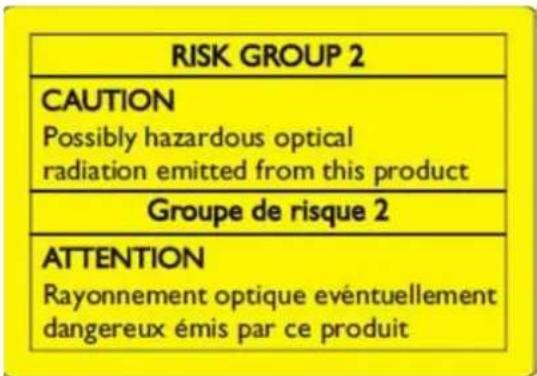
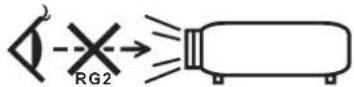
Do not stare into the beam, RG2
"As with any bright source, do not stare into the direct beam, RG2 IEC 62471-5:2015"
First things first
Usage Notes
Do:
- Turn off the product before cleaning.
- Use a soft cloth moistened with mild detergent to clean the display housing.
- Disconnect the power plug from AC outlet if the product is not being used for a long period of time.
Don't:
- Block the slots and openings on the unit provided for ventilation.
- Use abrasive cleaners, waxes or solvents to clean the unit.
- Use under the following conditions:
• In extremely hot, cold or humid environments.
• In areas susceptible to excessive dust and dirt.
- Near any appliance that generates a strong magnetic field.
- Place In direct sunlight.
Precautions
Follow all warnings, precautions and maintenance as recommended in this user's guide to maximize the life of your unit.

Warning:
- Do not look into the projector's lens when the lamp is on. The bright light may hurt your eyes.
• To reduce the risk of fire or electric shock, do not expose this product to rain or moisture. - Please do not open or disassemble the product as this may cause electric shock.
- When changing the lamp, please allow unit to cool down, and follow all changing instructions.
- This product will detect the life of the lamp itself. Please be sure to change the lamp when it shows warning messages.
- Reset the "Lamp Reset" function from the Onscreen display "Setup lamp settings menu" menu after replacing the lamp module.
- When switching the projector off, please ensure the projector completes its cooling cycle before disconnecting power.
- Turn on the projector first and then the signal sources.
- Do not use lens cap when projector is in operation.
- When the lamp reaches the end of its life, it will burn out and may make a loud popping sound. If this happens, the projector will not turn back on until the lamp module has been replaced. To replace the lamp, follow the procedures listed under "Replacing the Lamp".
TABLE OF CONTENTS
INFORMATION FOR YOUR SAFETY AND COMFIRT ...... 3
FIRST THINGS FIRST 8
Usage Notes......8
Precautions....8
INTRODUCTION 11
Package overview 11
Standard accessories.... 11
Optional accessories.... 11
Product overview....12
Connections.... 13
Keypad 14
LED status indicators.... 14
Remote control 15
SETUP AND INSTALLATION.... 17
Installing the projector 17
Connecting sources to the projector.... 18
Adjusting the projector image.... 19
Remote setup 20
USING THE PROJECTOR 22
Powering on / off the projector.... 22
Selecting an input source 23
Menu navigation and features 24
OSD Menu tree.... 25
Display image settings menu.... 33
Display aspect ratio menu 35
Display edge mask menu 36
Display digital zoom menu.... 36
Display image shift menu 36
Setup projection menu.... 37
Setup lamp settings menu 37
Setup filter settings menu 37
Setup lens settings menu 37
Setup power settings menu 37
Setup security menu.... 38
Setup test pattern menu 38
Setup remote settings menu.... 38
Setup projector ID menu.... 39
Setup 12V trigger menu.... 39
Setup options menu.... 39
Setup reset menu 40
Network LAN menu 40
Network control menu.... 41
Setup network control settings menu 42
Info menu 47
MAINTENANCE....48
Replacing the lamp.... 48
ADDITIONAL INFORMATION...... 50
Compatible resolutions.... 50
Image size and projection distance 52
Projector dimensions and ceiling mount installation.... 53
IR remote control codes 54
Troubleshooting 56
Warning indicators....57
Specifications 60
REGULATIONS AND SAFETY NOTICES 61
INTRODUCTION
Package overview
Carefully unpack and verify that you have the items listed below under standard accessories. Some of the items under optional accessories may not be available depending on the model, specification and your region of purchase. Please check with your place of purchase. Some accessories may vary from region to region.
The warranty card is only supplied in some specific regions. Please consult your dealer for detailed information.
Standard accessories
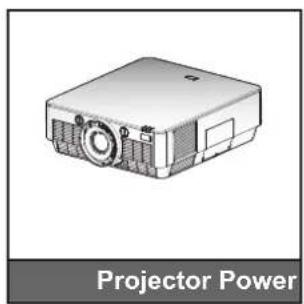
natural_image
Illustration of a projector with label 'Projector Power' below (no other text or symbols)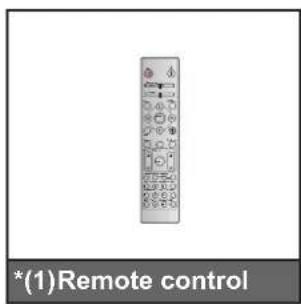
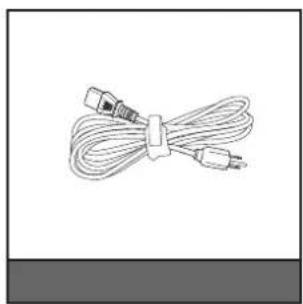
natural_image
Illustration of a bundle of cables with connectors, no text or symbols present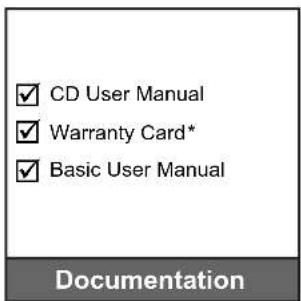
Note:
- The remote control is shipped with the battery.
• *(1) Power lead is depending on the region.
Optional accessories
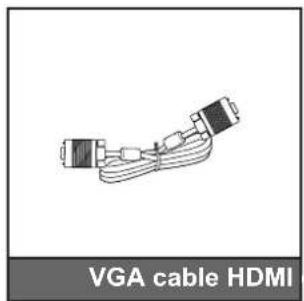
natural_image
Diagram of VGA cable HDMI connector (no text or symbols on diagram)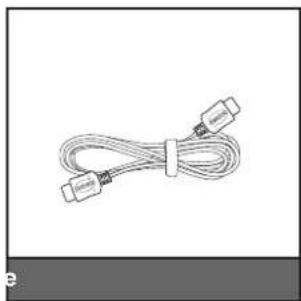
natural_image
Coiled cable with two connectors, no visible text or symbolsNote: Optional accessories vary depending on model, specification and region.
INTRODUCTION
Product overview
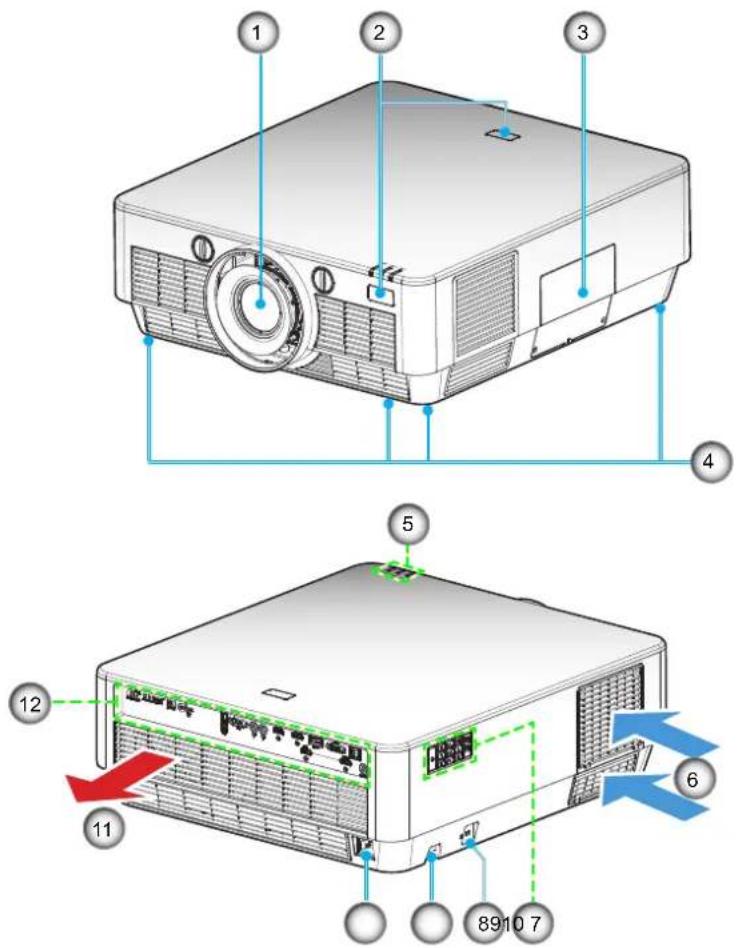
Note: Keep a minimum distance of 20 cm between the "inlet" and "outlet" labels.
| No Item No Item | ||
| 1. Lens 7. Keypad | ||
| 2. IR Receiver | 8. | KensingtonTMLock Port |
| 3. Lamp Cover 9. Security Bar | ||
| 4. Tilt-Adjustment Feet 10. Power Socket | ||
| 5. LED Status Indicators 11. Ventilation (outlet) | ||
| 6. Ventilation (inlet) | 12. Input / Output | |
INTRODUCTION
Connections
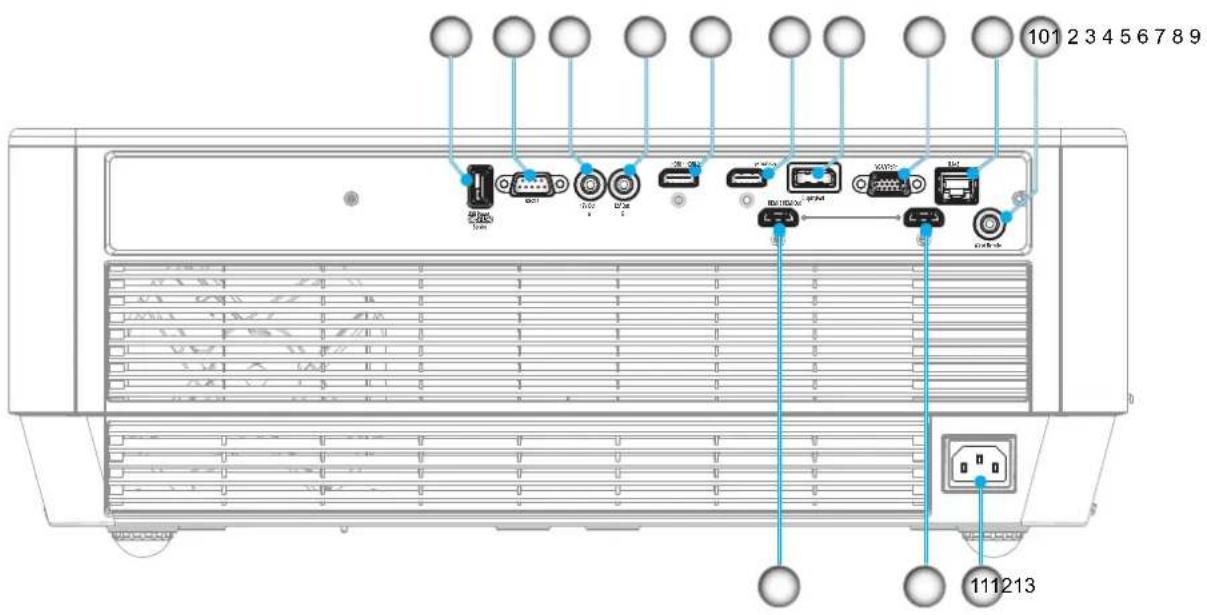
| No Item No Item | |
| 1. | USB Power Out (5V—1.5A)/Service Connector |
| 2. | RS-232 Connector |
| 3. | 12V Out A Connector |
| 4. | 12V Out B Connector |
| 5. | HDMI 1 Connector |
| 6. | HDMI 2 (HDCP2.2) Connector(*) 13. |
| 7. | DisplayPort |
| 8. | VGA/YPbPr Connector |
| 9. | RJ-45 Connector |
| 10. | Wired Remote Connector |
| 11. | Power Socket |
| 12. | HDMI Out Connector |
| HDMI 3 Connector | |
Note:
• Remote mouse requires special remote control.
• This model supports mouse / service capability.
• (*)Only HDMI 2 (HDCP2.2) connector supports 4K (Ultra HD) at 60Hz refresh rate.
INTRODUCTION
Keypad
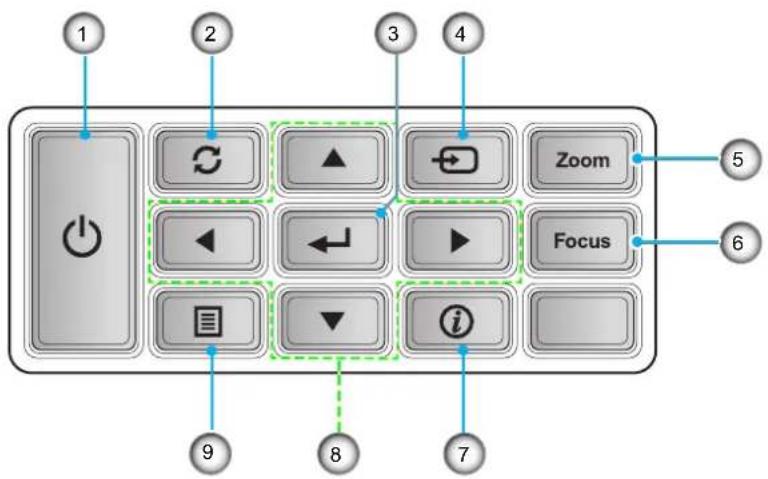
LED status indicators
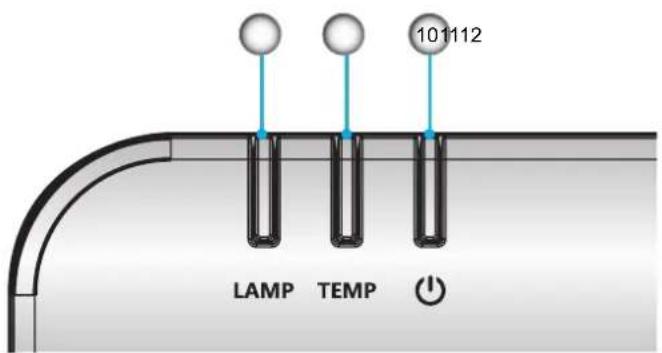
No Item No Item
| 1. Power 7. Information |
| 2. Re-Sync |
| 3. Enter 9. Menu |
| 4. Source 10. On/Standby LED |
| 5. Zoom 11. Temp LED |
| 6. Focus |
| 8. | Four Directional Select Keys |
| 2. Lamp LED | |
INTRODUCTION
Remote control
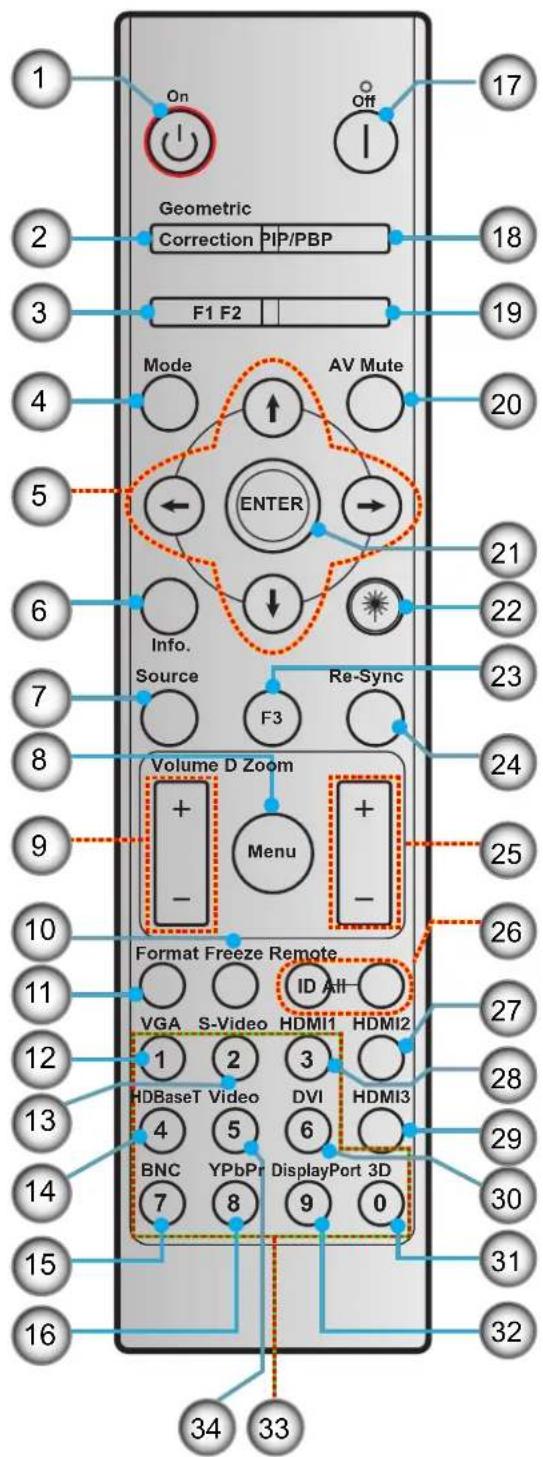
INTRODUCTION
No Item No Item
- Power on 18. PIP/PBP
- Geometric Correction 19. Function button (F2) (Assignable)
- Function button (F1) (Assignable) 20. AV mute
- Mode 21. Enter
- Four directional select keys 22. Laser
- Information 23. Function button (F3) (Assignable)
- Source 24. Re-sync
- Menu 25. D (Digital) Zoom
- Volume - / + 26. Remote ID / Remote all
- Freeze 27. HDMI2
- Format (Aspect Ratio)
- VGA 29. HDMI3
- S-Video 30. DVI
- HDBaseT 31.3D
- BNC 32. DisplayPort
- YPbPr 33. Numeric keypad (0-9)
- Power off 34. Video
Note:
• Some keys may have no function for models that do not support these features.
SETUP AND INSTALLATION
Installing the projector
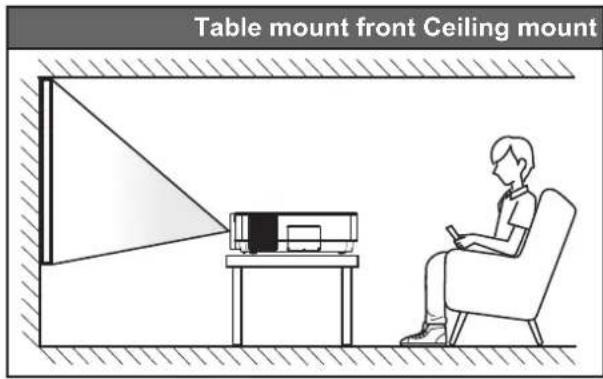
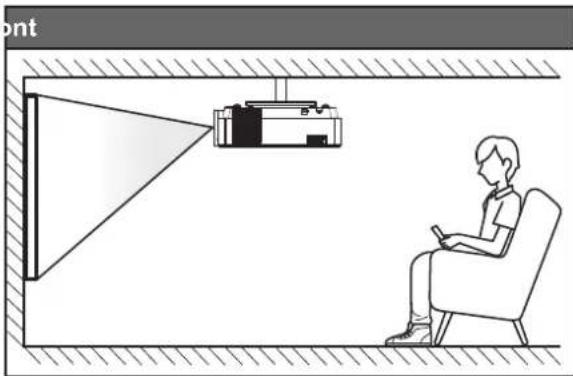
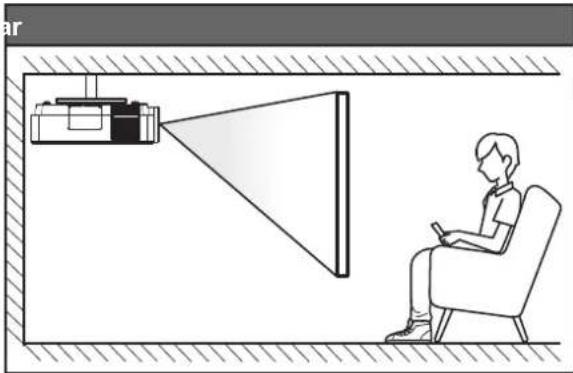
Your projector is designed to be installed in one of four possible positions.
Your room layout or personal preference will dictate which installation location you select. Take into consideration the size and position of your screen, the location of a suitable power outlet, as well as the location and distance between the projector and the rest of your equipment.
natural_image
Diagram showing a person sitting in a chair watching a projector projection onto a wall, with no text or symbols present.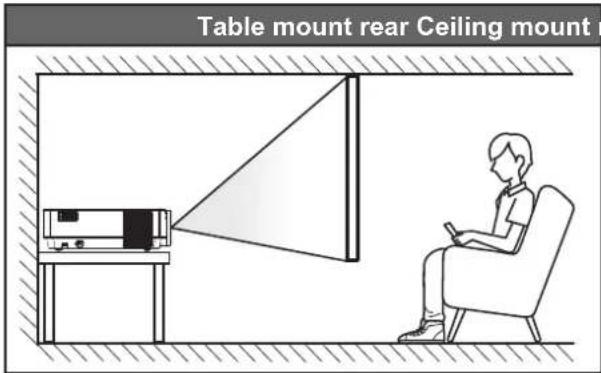
natural_image
Illustration of a person sitting in a chair viewing a projector mounted on a wall, with no visible text or symbols.Projector should be placed flat on a surface and 90 degrees / perpendicular to the screen.
• How to determine projector location for a given screen size, please refer to distance table on page 52.
• How to determine screen size for a given distance, please refer to distance table on pages 52.
Note: The further away the projector is placed from the screen the projected image size increases and vertical offset also increases proportionally.
IMPORTANT!
Do not operate the projector in any orientation other that table top or ceiling mount. The projector should be horizontal and not tilted either forwards/backwards or left/right. Any other orientation will invalidate the warranty and may shorten the lifetime of the projector lamp or the projector itself.
SETUP AND INSTALLATION
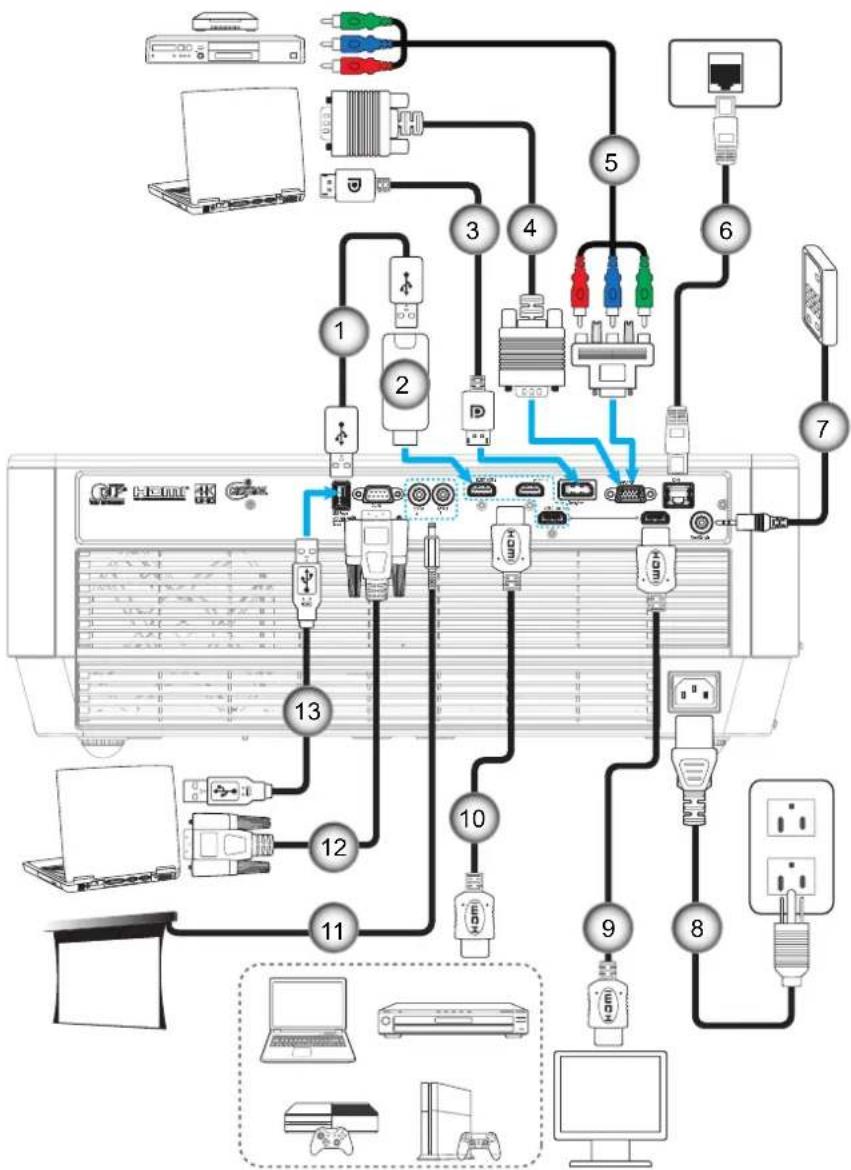
Connecting sources to the projector
flowchart
graph TD
    A["Computer"] --> B["Router 1"]
    A --> C["Router 2"]
    A --> D["Router 3"]
    A --> E["Router 4"]
    A --> F["Router 5"]
    A --> G["Router 6"]
    A --> H["Router 7"]
    A --> I["Router 8"]
    A --> J["Router 9"]
    A --> K["Router 10"]
    A --> L["Router 11"]
    A --> M["Router 12"]
    A --> N["Router 13"]
    A --> O["Laptop"]
    A --> P["Laptop"]
    A --> Q["Laptop"]
    A --> R["Laptop"]
    A --> S["Laptop"]
    A --> T["Laptop"]
    A --> U["Laptop"]
    A --> V["Laptop"]
    A --> W["Laptop"]
    A --> X["Laptop"]
    A --> Y["Laptop"]
    A --> Z["Laptop"]
    A --> AA["Laptop"]
    A --> AB["Laptop"]
    A --> AC["Laptop"]
    A --> AD["Laptop"]
    A --> AE["Laptop"]
    A --> AF["Laptop"]
No Item No Item
- USB Power Cable 8. Power Cord
- HDMI Stick 9. HDMI Cable
- DisplayPort Cable 10. HDMI Cable(*)
- VGA In Cable 11. 12V DC Jack
- RCA Component Cable
- RJ-45 Cable
-
Wired Remote Control Cable
-
RS232 Cable
-
USB Cable
Note: (*)The HDMI 2 (HDCP2.2) connector supports 4K (Ultra HD) at 60Hz refresh rate.
SETUP AND INSTALLATION
Adjusting the projector image
Image height
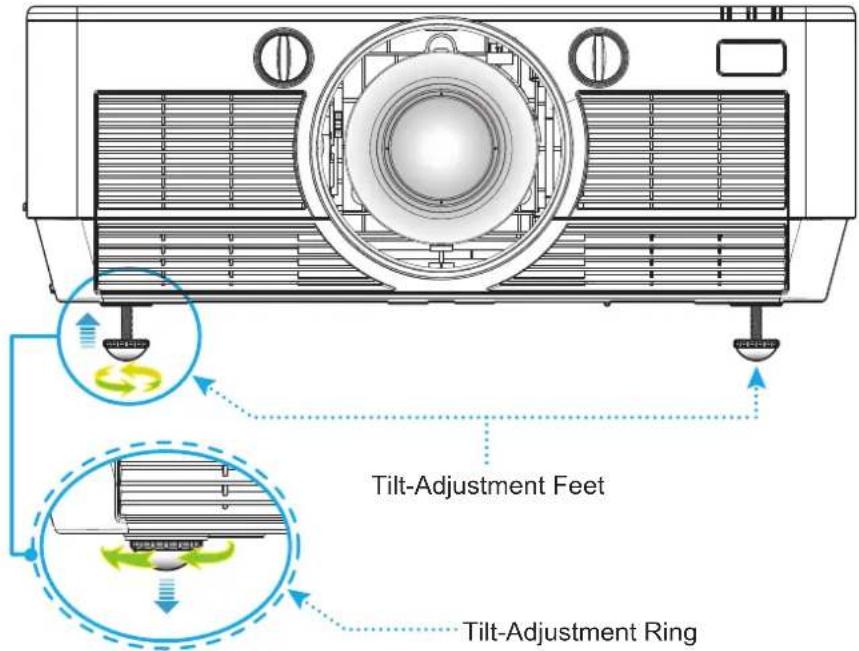
The projector is equipped with elevator feet for adjusting the image height.
- Locate the adjustable foot you wish to adjust on the underside of the projector.
- Rotate the adjustable foot clockwise or counterclockwise to raise or lower the projector.
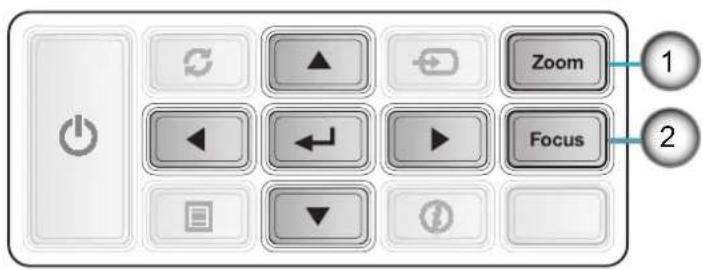
Zoomand focus
• Use the Zoom button to resize the projected image and screen size.
• Use the Focus button to sharpen the projected image. ②
SETUP AND INSTALLATION
Remote setup
Installing / replacing the batteries
Two AAA size batteries are supplied for the remote control.
- Remove the battery cover on the back of the remote control.
- Insert AAA batteries in the battery compartment as illustrated.
- Replace back cover on remote control.
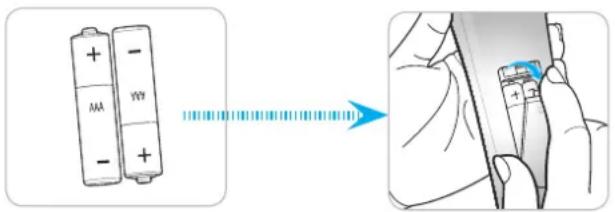
Note: Replace only with the same or equivalent type batteries.
CAUTION
Improper use of batteries can result in chemical leakage or explosion. Be sure to follow the instructions below.
• Do not mix batteries of different types. Different types of batteries have different characteristics.
- Do not mix old and new batteries. Mixing old and new batteries can shorten the life of new batteries or cause chemical leakage in old batteries.
- Remove batteries as soon as they are depleted. Chemicals that leak from batteries that come in contact with skin can cause a rash. If you find any chemical leakage, wipe thoroughly with a cloth.
• The batteries supplied with this product may have a shorter life expectancy due to storage conditions.
• If you will not be using the remote control for an extended period of time, remove the batteries.
- When you dispose of the batteries, you must obey the law in the relative area or country.
Eff ective range
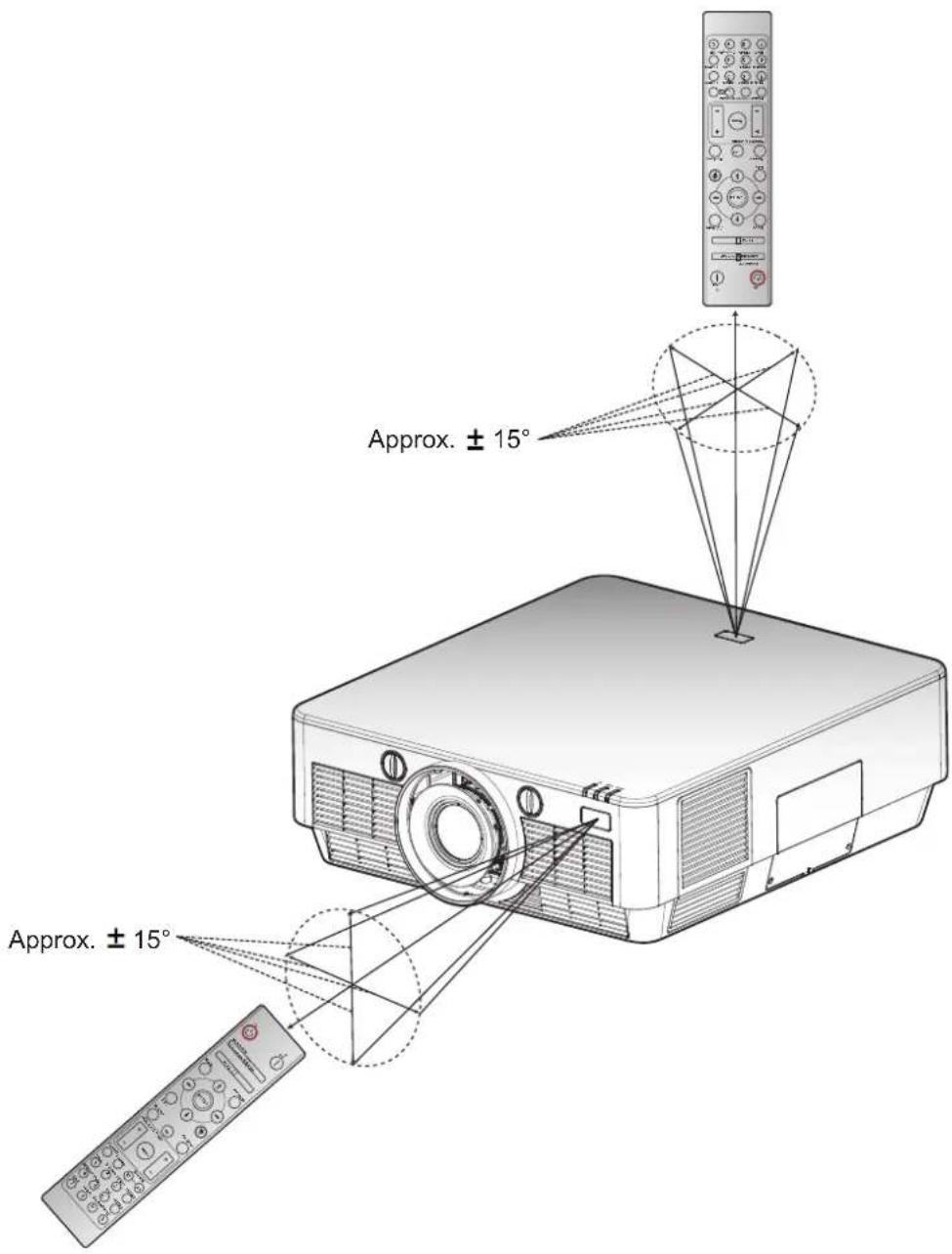
Infra-Red (IR) remote control sensor is located on the top side and on the front side of the projector. Ensure to hold the remote control at an angle within 30 degrees perpendicular to the projector's front IR remote control sensor and 20 degrees perpendicular to the projector's top IR remote control sensor to function correctly. The distance between the remote control and the sensor should not be longer than 7 meters (\~ 23 feet).
• Make sure that there are no obstacles between the remote control and the IR sensor on the projector that might obstruct the infra-red beam.
• Make sure the IR transmitter of the remote control is not being shined by sunlight or fluorescent lamps directly.
- Please keep the remote controller away from fluorescent lamps for over 2 meters or the remote controller might become malfunction.
• If the remote control is closed to Inverter-Type fluorescent lamps, it might become ineffective from time to time.
• If the remote control and the projector are within a very short distance, the remote control might become ineffective.
- When you aim at the screen, the effective distance is less than 10 m from the remote control to the screen and reflecting the IR beams back to the projector. However, the effective range might change according to screens.
SETUP AND INSTALLATION
Wired Remote Control
Your projector supports also wired remote control connection. Wired remote control helps you to work outside of the operating range (7m/ \~23 feet). Connect the remote control to the projector with the remote control cable (not supplied). The remote control cable maximum length depends on the wired cable quality as follows:
• 5.0V≥VIH≥2.0V (High-level input voltage)
• 0.6V≥VIL≥0V (Low-level input voltage)
Note: If the remote control is connected to the projector using a cable, then the remote control does not emit wireless signal.
USING THE PROJECTOR
Powering on / off the projector
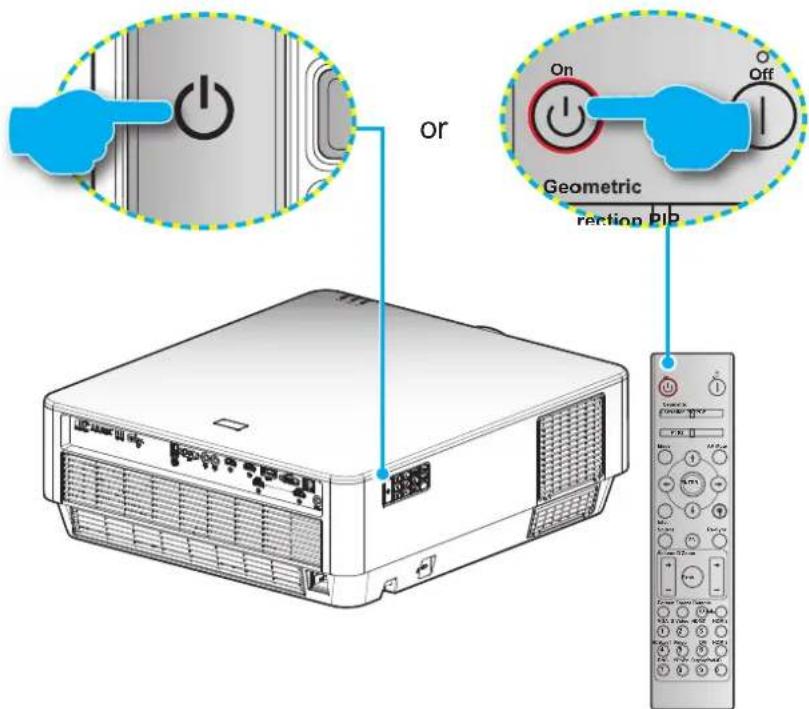
Powering on
- Securely connect the power lead and signal/source cable. When connected, the On/Standby LED will turn red.
- Turn on the projector by pressing the "⏻" either on the projector keypad or the remote control.
- A start up screen will display in approximately 10 seconds and the On/Standby LED will be flashing blue.
Note: The first time the projector is turned on, you will be prompted to select the preferred language, projection orientation, and other settings.
Powering off
- Turn off the projector by pressing the "⏻" either on the projector keypad or the remote control.
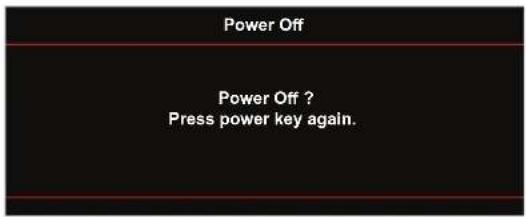
- The following message will be displayed:
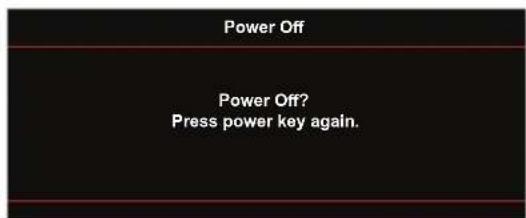
- Press the "①" again to confirm, otherwise the message will disappear after 15 seconds. When you press the "②" button for the second time, the projector will shut down.
- The cooling fans will continue to operate for about 10 seconds for the cooling cycle and the On/Standby LED will flash blue. When the On/Standby LED turns solid red, this indicates the projector has entered standby mode. If you wish to turn the projector back on, you must wait until the cooling cycle has finished and the projector has entered standby mode. When the projector is in standby mode, simply press the "☐" button again to turn on the projector.
- Disconnect the power lead from the electrical outlet and the projector.
Note: It is not recommended that the projector is turned on immediately, right after a power off procedure.
USING THE PROJECTOR
Selecting an input source
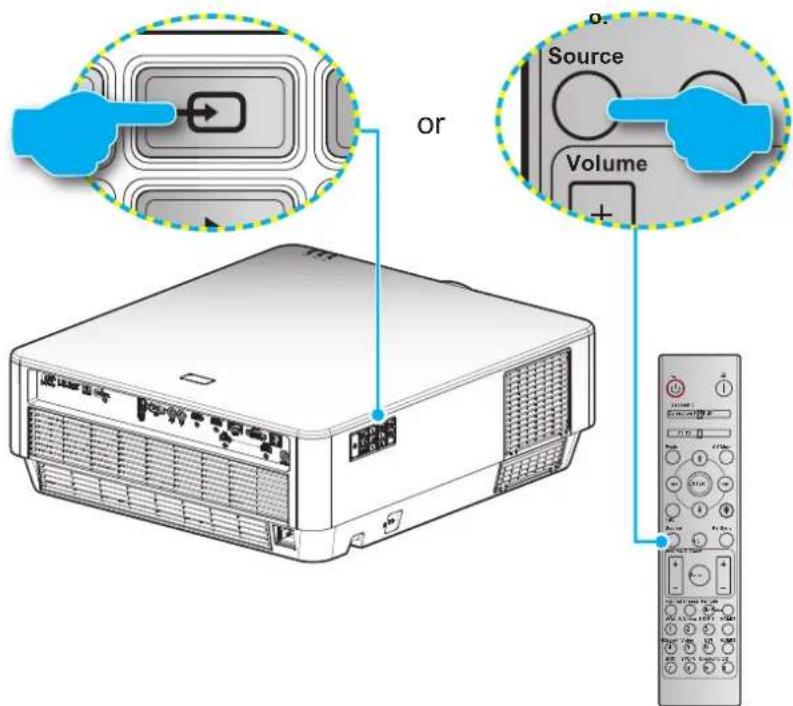
Turn on the connected source that you want to display on the screen, such as computer, notebook, video player, etc. The projector will automatically detect the source. If multiple sources are connected, push the source button on the projector keypad or the remote control to select the desired input.
USING THE PROJECTOR
Menu navigation and features
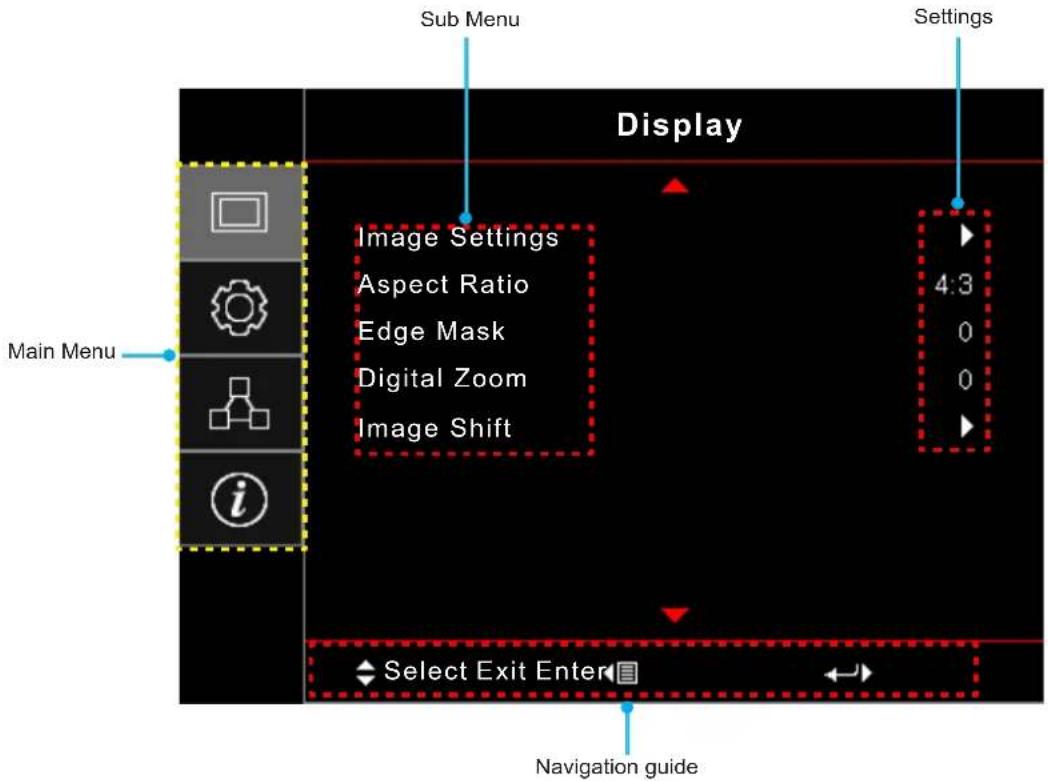
The projector has multilingual on-screen display menus that allow you to make image adjustments and change a variety of settings. The projector will automatically detect the source.
- To open the OSD menu, press Menu on the remote control or on the projector keypad.
- When OSD is displayed, use keys to select any item in the main menu. While making a selection on a particular page, press or key to enter sub menu.
- Use ◀▶ keys to select the desired item in the sub menu and then press ← or ▶ key to view further settings. Adjust the settings by using ◀▶s.
- Select the next item to be adjusted in the sub menu and adjust as described above.
- Press the ← or ▶ to confirm, and the screen will return to the main menu.
- To exit, press the ◀ or ⊗ again. The OSD menu will close and the projector will automatically save the new settings.
USING THE PROJECTOR
OSD Menu tree
| Main Menu | Sub Menu Sub | Menu 2 Sub | Menu 3 Sub | Menu 4 Values | |
| Display Image Settings | Display Mode | Presentation | |||
| Bright | |||||
| Cinema | |||||
| Game | |||||
| sRGB | |||||
| DICOM SIM. | |||||
| Blending | |||||
| User | |||||
| Wall Color | Off [Default] | ||||
| BlackBoard | |||||
| Light Yellow | |||||
| Light Green | |||||
| Light Blue | |||||
| Pink | |||||
| Gray | |||||
| Dynamic Range | Auto | ||||
| SDR | |||||
| HDR1 | |||||
| HDR2 | |||||
| HDR3 | |||||
| HDR4 | |||||
| Brightness -50~50 | |||||
| Contrast -50~50 | |||||
| Sharpness 1~15 | |||||
| Color -50~50 | |||||
| Tint -50~50 | |||||
| Gamma | Film | ||||
| Video | |||||
| Graphics | |||||
| Standard(2.2) | |||||
| 1.8 | |||||
| 2.0 | |||||
| 2.4 | |||||
| Color Settings | BrilliantColorTM | 1~10 | |||
| Color Temperature | D55 | ||||
| D65 | |||||
| D75 | |||||
| D83 | |||||
| D93 | |||||
| Native |
USING THE PROJECTOR
| Main Menu | Sub Menu Sub | Menu 2 Sub | Menu 3 Sub | Menu 4 Values | |
| Display Image Settings | Color Settings | Color Gamut | |||
USING THE PROJECTOR
| Main Menu | Sub Menu Sub Menu 2 Sub Menu 3 Sub Menu 4 Values | ||||
| Display | Image Settings | Brightness Mode | Bright | ||
| Eco. | |||||
| PureEngine | UltraDetail | Off | |||
| 1 | |||||
| 2 | |||||
| 3 | |||||
| PureColor | Off | ||||
| 1 | |||||
| 2 | |||||
| 3 | |||||
| 4 | |||||
| 5 | |||||
| PureMotion | Off | ||||
| 1 | |||||
| 2 | |||||
| 3 | |||||
| PureMotion Demo | Off [Default] | ||||
| H Split | |||||
| V Split | |||||
| Reset | |||||
| Aspect Ratio | 4:3 | ||||
| 16:9 | |||||
| LBX | |||||
| Superwide | |||||
| Native | |||||
| Auto | |||||
| Edge Mask 0~10 | [Default: 0] | ||||
| Digital Zoom -5~25 | [Default: 0] | ||||
| Image shift | H: -100~100 |  | [Default:0] | ||
| V: -100~100 | |||||
| Setup | Projection | Front [CYCX]ult] | |||
Rear  | |||||
Ceiling-top  | |||||
Rear-top  | |||||
| Lamp Settings | Lamp Reminder | Off | |||
| On [Default] | |||||
| Lamp Reset | Cancel [Default] | ||||
| Yes | |||||
USING THE PROJECTOR
| Main Menu | Sub Menu Sub Menu 2 Sub Menu 3 Sub Menu 4 Values | |||
| Setup | Fittler Settings | Filter Usage Hours | (Read only) | |
| Optional Filter Installed | Yes | |||
| No | ||||
| Filter Reminder | Off | |||
| 300hr | ||||
| 500hr [Default] | ||||
| 800hr | ||||
| 1000hr | ||||
| Filter Reset | Cancel [Default] | |||
| Yes | ||||
| Lens Settings | Zoom/Focus | Lock | ||
| Unlock | ||||
| Zoom | + | |||
| - | ||||
| Focus | + | |||
| - | ||||
| Compensate Focus | Off | |||
| On | ||||
| Calibration | ||||
| Power Settings | Direct Power On | Off [Default] | ||
| On | ||||
| Auto Power Off (min) | 0~180 (5 min increments) [Default: 0] | |||
| Sleep Timer (min) | 0~990 (30 min increments) [Default: 0] | |||
| Always On | No [Default] | |||
| Yes | ||||
| Power Mode (Standby) | Active | |||
| Eco [Default] | ||||
| Security | Security | Off | ||
| On | ||||
| Security Timer | Month | |||
| Day | ||||
| Hour | ||||
| Change Password | ||||
| Test Pattern | Green Grid | |||
| Magenta Grid | ||||
| White Grid | ||||
| White | ||||
| Off | ||||
USING THE PROJECTOR
| Main Menu | Sub Menu Sub | Menu 2 Sub | Menu 3 Sub | Menu 4 Values | |
| Setup | Remote Settings [depends on remote] | IR Function | On | ||
| Front | |||||
| Top | |||||
| Off | |||||
| Remote Code 0~99 | |||||
| F1 | Test Pattern | ||||
| LAN | |||||
| Brightness | |||||
| Contrast | |||||
| Sleep Timer | |||||
| CMS | |||||
| Color Temp | |||||
| Gamma | |||||
| Auto Source | |||||
| Projection | |||||
| Lamp Settings | |||||
| Zoom [Default] | |||||
| Focus | |||||
| Lens IRIS | |||||
| F2 | Test Pattern | ||||
| LAN | |||||
| Brightness | |||||
| Contrast | |||||
| Sleep Timer | |||||
| CMS | |||||
| Color Temp | |||||
| Gamma | |||||
| Auto Source | |||||
| Projection | |||||
| Lamp Settings | |||||
| Zoom | |||||
| Focus [Default] | |||||
| Lens IRIS | |||||
| F3 | Test Pattern | ||||
| LAN | |||||
| Brightness | |||||
| Contrast | |||||
| Sleep Timer | |||||
| CMS | |||||
| Color Temp | |||||
USING THE PROJECTOR
| Main Menu | Sub Menu Sub Menu 2 Sub Menu 3 Sub Menu 4 Values | ||||
| Setup | Remote Settings [depends on remote] | F3 | Gamma | ||
| Auto Source | |||||
| Projection | |||||
| Lamp Settings | |||||
| Zoom | |||||
| Focus | |||||
| Lens IRIS [Default] | |||||
| Projector ID 0~99 | |||||
| 12V Trigger | 12V Trigger A | On | |||
| Off | |||||
| 12V Trigger B | On | ||||
| Off | |||||
| Options Language | English [Default] | ||||
| Español | |||||
| Français | |||||
| Deutsch | |||||
| Português | |||||
| 簡体ドミ | |||||
| Italiano | |||||
| Русский | |||||
| 日本語 | |||||
| 한국어 | |||||
| Options Menu Settings | Menu Location | Top left  | |||
Top right  | |||||
Center  lt] lt] | |||||
| Bottom left [SKDS] | |||||
Bottom right  | |||||
| Menu Timer | Off | ||||
| 5sec | |||||
| 10sec [Default] | |||||
USING THE PROJECTOR
| Main Menu | Sub Menu Sub | Menu 2 Sub | Menu 3 Sub | Menu 4 Values | |
| Setup | Options | Auto Source | Off [Default] | ||
| On | |||||
| Input Source | HDMI1 | ||||
| HDMI2 | |||||
| HDMI3 | |||||
| VGA | |||||
| DisplayPort | |||||
| High Altitude | Off [Default] | ||||
| On | |||||
| Display Mode Lock | Off [Default] | ||||
| On | |||||
| Keypad Lock | Off [Default] | ||||
| On | |||||
| Information Hide | Off [Default] | ||||
| On | |||||
| Logo | Default [Default] | ||||
| Neutral | |||||
| Background Color | None [Default] | ||||
| Blue | |||||
| Red | |||||
| Green | |||||
| Grey | |||||
| HDMI 2 Setting | EDID 1 [Default] | ||||
| EDID 2 | |||||
| HDMI EQ | HDMI1 EQ | ||||
| HDMI2 EQ | |||||
| HDMI3 EQ | |||||
| Detail Filter | 0 | ||||
| 1 [Default] | |||||
| 2 | |||||
| Reset | Reset OSD | Cancel [Default] | |||
| Yes | |||||
| Reset to Default | Cancel [Default] | ||||
| Yes | |||||
| Network LAN | Network Status (read only) | ||||
| MAC Address (read only) | |||||
| DHCP | Off [Default] | ||||
| On | |||||
| IP Address 192.168.0.100 [Default] | |||||
| Subnet Mask 255.255.255.0 [Default] | |||||
| Gateway 192.168.0.254 [Default] | |||||
| DNS 192.168.0.51 [Default] | |||||
| Reset | |||||
USING THE PROJECTOR
| Main Menu | Sub Menu Sub | Menu 2 Sub | Menu 3 Sub | Menu 4 Values | |
| Network Control | Crestron | Off | |||
| On [Default]NOTE: Port 41794. | |||||
| HTTP | Off | ||||
| On [Default]NOTE: Port 80 | |||||
| Information | Model Name | ||||
| Serial Number | |||||
| Source | |||||
| Resolution 00x00 | |||||
| Refresh Rate 0.00Hz | |||||
| Display Mode | |||||
| Power mode(standby) | |||||
| Lamp Hours | Bright 0H | ||||
| Eco 0H | |||||
| Total | |||||
| Remote Code | 00~99NOTE: Show remote in system. | ||||
| Remote Code (Active) | 00~99NOTE: Show remote from Remote. | ||||
| Network Status | |||||
| IP Address | |||||
| Projector ID 00~99 | |||||
| Filter Usage Hours | |||||
| Brightness Mode | |||||
| FW Version | System | ||||
| LAN | |||||
| MCU | |||||
Note: Each display mode can be adjusted and saved the value.
USING THE PROJECTOR
Display menu
Display image settings menu
Display Mode
There are many factory presets optimized for various types of images.
- Presentation: This mode is suitable for showing PowerPoint presentations when the projector is connected to the PC.
- Bright: Maximum brightness from PC input.
• Cinema: Select this mode for home theater.
• Game: Select this mode to increase the brightness and response time level for enjoying video games. - sRGB: Standardized accurate color.
• DICOM SIM.: This mode can project a monochrome medical image such as an X ray radiography, MRI, etc.
• Blending: Select this mode when projecting one image from different projectors. - USER: Memorize user's settings.
Wall Color
Use this function to obtain an optimized screen image according to the wall color. Select between off, blackboard, light yellow, light green, light blue, pink, and gray.
Dynamic Range
Compatible with the latest Dynamic Range format, which delivers crisp, clear images with sharp changes in brightness, and provides realistic images with enhanced details, extended depth of field, and rich color gamut. Dynamic Range has 4 levels and each level suits different type of content, including dark and bright scene.
Note: If the Dynamic Range option is adjusted under the SDR (Standard Dynamic Range) signal, the screen is an abnormal color.
Brightness
Adjust the brightness of the image.
Contrast
The contrast controls the degree of difference between the lightest and darkest parts of the picture.
Sharpness
Adjust the sharpness of the image.
Color
Adjust a video image from black and white to fully saturated color.
Tint
Adjust the color balance of red and green.
Gamma
Set up gamma curve type. After the initial setup and fine tuning is completed, utilize the Gamma Adjustment steps to optimize your image output.
• Film: For home theater.
• Video: For video or TV source.
• Graphics: For PC / Photo source.
- Standard(2.2): For standardized setting.
USING THE PROJECTOR
• 1.8/2.0/2.4: For specific PC / Photo source.
Color Settings
Configure the color settings.
- BrilliantColor ^TM : This adjustable item utilizes a new color-processing algorithm and enhancements to enable higher brightness while providing true, more vibrant colors in picture.
• Color Temperature (data-mode only): Select a color temperature from D55, D65, D75, D83, D93, or Native.
• Color Gamut: Select an appropriate color gamut from Native, HDTV, Presentation, Cinema, or Game.
CMS (Color Management System): Select one of the colors (R/G/B/C/M/Y) to adjust its x/y offset and brightness.
– Color: Select between red (R), green (G), blue (B), cyan (C), yellow (Y), magenta (M), and white(W) color.
- x offset: Adjust the x offset value of the selected color.
- y offset: Adjust the y offset value of the selected color.
– Brightness: Adjust the brightness value of the selected color.
- Reset: Return the factory default settings for color adjustments.
- Exit: Exit the "CMS" menu.
- RGB Gain/Bias: This settings allows to configure the brightness (gain) and contrast (bias) of an image.
- Reset: Return the factory default settings for RGB gain/bias.
- Exit: Exit the "RGB Gain/Bias" menu.
• Color Space (non-HDMI input only): Select an appropriate color matrix type from the following: AUTO, RGB, or YUV.
• Color Space (HDMI input only): select an appropriate color matrix type from the following: Auto, RGB(0-255), RGB(16-235), and YUV.
Signal
Adjust the signal options.
• Automatic: Configure automatically the signal (the frequency and phase items are grayed out). If automatic is disabled, the frequency and phase items will appear for tuning and saving the settings.
- Frequency: Change the display data frequency to match the frequency of your computer's graphic card. Use this function only if the image appears to flicker vertically.
• Phase: Synchronize the signal timing of the display with the graphic card. If the image appears to be unstable or flickers, use this function to correct it.
• H. Position: Adjust the horizontal positioning of the image.
• V. Position: Adjust the vertical positioning of the image.
- Exit: Exit the "Signal" menu.
Lens IRIS
Adjust the Lens IRIS. Lens IRIS is an aperture structure in lens and it can change the amount of light output.
Dynamic Contrast
Dynamic Contrast enables the projector to automatically optimize the brightness of the display during dark / light movie scenes to be shown in incredible detail.
USING THE PROJECTOR
Brightness Mode
Adjust the brightness mode settings.
• Bright: Choose "Bright" to increase the brightness.
- Eco: Choose "Eco" to dim the projector lamp which will lower power consumption and extend the lamp life.
PureEngine
Adjust the PureEngine parameters.
• UltraDetail: Adjust the edges of the projected image in order to provide more perceived details.
- PureColor: Use to significantly increase the image's vividness.
• PureMotion: Use to preserve a natural motion of the displayed image.
• PureMotion Demo: This feature enables you to see the difference in the image quality between the raw unprocessed image and the image processed as processed by the PureMotion. Use this mode to check the adjustments that you make to the PureMotion settings.
Reset
Return the factory default settings for color settings.
Display aspect ratio menu
Aspect Ratio
Select the aspect ratio of the displayed image between the following options:
- 4:3: This format is for 4:3 input sources.
• 16:9: This format is for 16:9 input sources, like HDTV and DVD enhanced for Wide screen TV.
- LBX: This format is for non-16x9, letterbox source and if you use external 16x9 lens to display 2.35:1 aspect ratio in full resolution.
• Superwide: Use this special 2.0:1 aspect ratio to display both 16:9 and 2.35:1 aspect ratio movies without black bars at the top and bottom of the screen.
• Native: This format displays the original image without any scaling.
• Auto: Automatically selects the appropriate display format.
Note:
• Detailed informations about LBX mode:
- Some Letter-Box Format DVDs are not enhanced for 16x9 TVs. In this situation, the image will not look right when displaying image in 16:9 mode. In this situation, please try to use the 4:3 mode to view the DVD. If the content is not 4:3, there will be black bars around the image in 16:9 display. For this type of content, you can use LBX mode to fill the image on the 16:9 display.
- If you use an external anamorphic lens, this LBX mode also allows you to watch a 2.35:1 content (include Anamorphic DVD and HDTV film source) that supports anamorphic wide is enhanced for 16x9 Display in a wide 2.35:1 image. In this case, there are no black bars. Lamp power and vertical resolution are fully utilized.
- To use the superwide format, do the following:
a) Set the screen aspect ratio to 2.0:1.
b) Select "Superwide" format.
c) Align the projector image correctly on the screen.
USING THE PROJECTOR
4K UHD scaling table:
| 16 : 9 screen 480i/p 576i/p 720p 1080i/p 2160p | ||||
| 4x3 Scale to 2880x2160. | ||||
| 16x9 Scale to 3840x2160. | ||||
| LBX Get the central 3840x1620 image, and then scale to 3840x2160 for display. | ||||
| Native mode 1:1 mapping centered.No scaling will be made; the displayed resolution depends on input source. | ||||
| Auto -If source is 4:3, the screen type will be scaled to 2880x2160.-If source is 16:9, the screen type will be scaled to 3840x2160.-If source is 15:9, the screen type will be scaled to 3600x2160.-If source is 16:10, the screen type will be scaled to 3456x2160. | ||||
Auto mapping rule:
| Input resolution Auto/Scale | ||||
| H-resolution V-resolution 3840 2160 | ||||
| 4:3 | 640 480 | 2880 | 2160 | |
| 800 600 | 2880 | 2160 | ||
| 1024 | 768 | 2880 | 2160 | |
| 1280 | 1024 | 2880 | 2160 | |
| 1400 | 1050 | 2880 | 2160 | |
| 1600 | 1200 | 2880 | 2160 | |
| Wide Laptop | 1280 | 720 | 3840 | 2160 |
| 1280 | 768 | 3600 | 2160 | |
| 1280 | 800 | 3456 | 2160 | |
| SDTV | 720 576 | 2700 | 2160 | |
| 720 480 | 3240 | 2160 | ||
| HDTV | 1280 | 720 | 3840 | 2160 |
| 1920 | 1080 | 3840 | 2160 | |
Display edge mask menu
Edge Mask
Use this function to remove the video encoding noise on the edge of video source.
Display digital zoom menu
Digital Zoom
Use to digitally reduce or magnify an image on the projection screen.
Display image shift menu
Image Shift
Adjust the projected image position horizontally (H) or vertically (V).
USING THE PROJECTOR
Setup menu
Setup projection menu
Projection
Select the preferred projection between front, rear, ceiling-top, and rear-top.
Setup lamp settings menu
Lamp Reminder
Choose this function to show or to hide the warning message when the changing lamp message is displayed. The message will appear 30 hours before suggested replacement of lamp.
Lamp Reset
Resets the lamp hour counter after replacing the lamp.
Setup filter settings menu
Filter Usage Hours
Display the filter time.
Optional Filter Installed
Set the warning message setting.
• Yes: Display warning message after 500 hours of use.
Note: "Filter Usage Hours / Filter Reminder / Filter Reset" will only appear when "Optional Filter Installed" is "Yes".
- No: Turn off warning message.
Filter Reminder
Choose this function to show or hide the warning message when the changing filter message is displayed. The available options include 300hr, 500hr, 800hr, and 1000hr.
Filter Reset
Reset the dust filter counter after replacing or cleaning the dust filter.
Setup lens settings menu
Lens Settings
Configure the lens settings.
• Zoom/Focus: Enable/Disable the zoom and focus adjustment functions.
• Zoom: Adjust the zoom on the projected image.
• Focus: Adjust the focus on the projected image.
• Compensate Focus
– Off: Focus compensation is inactive.
– On: Focus compensation is active.
– Calibration: Execute focus calibration function.
Note: While the 1st time to set the "Compensate Focus", there are "Off" and "Calibration" items. After running the "Calibration" function, "On" item will be active. Please refer to the "Quick Start Guide" for detailed information.
USING THE PROJECTOR
Setup power settings menu
Direct Power On
Choose “On” to activate Direct Power mode. The projector will automatically power on when AC power is supplied, without pressing the “Power” key on the projector keypad or on the remote control.
Auto Power Off (min.)
Sets the countdown timer interval. The countdown timer will start, when there is no signal being sent to the projector. The projector will automatically power off when the countdown has finished (in minutes).
Sleep Timer (min.)
Configure the sleep timer.
- Sleep Timer (min.): Sets the countdown timer interval. The countdown timer will start, with or without a signal being sent to the projector. The projector will automatically power off when the countdown has finished (in minutes).
Note: The Sleep Timer is reset every time when the projector is powered off.
• Always On: Check to set the sleep timer always on.
Power Mode (Standby)
Set the power mode setting.
• Active: Choose "Active" to return to normal standby.
- Eco: Choose "Eco." to save power dissipation further < 0.5W.
Setup security menu
Security
Enable this function to prompt for a password before using the projector.
• On: Choose "On" to use security verification when the turning on the projector.
• Off: Choose "Off" to be able to switch on the projector without password verification.
Security Timer
Can be select the time (Month/Day/Hour) function to set the number of hours the projector can be used. Once this time has elapsed you will be requested to enter your password again.
Change Password
Use to set or modify the password that is prompted when turning the projector on.
Setup test pattern menu
Test Pattern
Select the test pattern from green grid, magenta grid, white grid, white or disable this function (off).
Setup remote settings menu
IR Function
Set the IR function setting.
- On: Choose "On", the projector can be operated by the remote control from top and front IR receivers.
• Front: Choose "Front", the projector can be operated by the remote control from the front IR receiver.
• Top: Choose "Top", the projector can be operated by the remote control from the top IR receiver.
- Off: Choose "Off", the projector can't be operated by the remote control. By selecting "Off", you will be able to use the Keypad keys.
USING THE PROJECTOR
Remote Code
Set the remote custom code by pressing the remote ID button for 3 seconds and you will notice the remote indicator (above the Off button) starts blinking. Then, input a number between 00-99 using the keyboard numbered keys. After inserting the number, the remote indicator blinks twice quickly indicating that the remote code has changed.
F1/F2/F3
Assign the default function for F1, F2, or F3 between Test Pattern, LAN, Brightness, Contrast, Sleep Timer, CMS, Color Temp, Gamma, Auto Source, Projection, Lamp Settings, Zoom, Focus, or Lens IRIS.
Setup projector ID menu
Projector ID
ID definition can be set up by menu (range 0-99), and allow user control an individual projector by using RS232 command.
Setup 12V trigger menu
12V Trigger A / 12V Trigger B
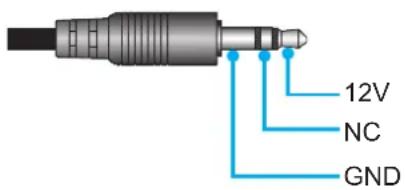
- Off: Choose "Off" to disable the 12V trigger for 3.5mm ear phone.
- On: Choose "On" to enable the 12V trigger for 3.5mm ear phone.
Setup options menu
Language
Select the multilingual OSD menu between English, German, French, Italian, Spanish, Portuguese, Polish, Dutch, Swedish, Norwegian/Danish, Finnish, Greek, traditional Chinese, simplified Chinese, Japanese, Korean, Russian, Hungarian, Czechoslovak, Arabic, Turkish.
Menu Settings
Set the menu location on the screen and configure menu timer settings.
- Menu Location: Select the menu location on the display screen.
- Menu Timer: Set the duration where the OSD menu stays visible on the screen.
Auto Source
If you set this option "On" and press the button on the projector keypad or Source button on the remote control then the next available input source is selected automatically. Set "Off" to disable auto source function.
Input Source
Select the input source between HDMI1, HDMI2, HDMI3, VGA, and DisplayPort.
High Altitude
When “On” is selected, the fans will spin faster. This feature is useful in high altitude areas where the air is thin.
Display Mode Lock
Choose "On" or "Off" to lock or unlock adjusting display mode settings.
USING THE PROJECTOR
Keypad Lock
When the keypad lock function is "On", the Keypad will be locked. However, the projector can be operated by the remote control. By selecting "Off", you will be able to reuse the Keypad.
Information Hide
Enable this function to hide the information message.
- Off: Choose "On" to hide the info message.
- On: Choose "Off" to show the "searching" message.
Logo
Use this function to set the desired startup screen. If changes are made, they will take effect the next time the projector is powered on.
- Default: The default startup screen.
• Neutral: Logo is not displayed on startup screen.
Background Color
Use this function to display a blue, red, green, grey color, or none when no signal is available.
HDMI 2 Setting
Configure the HDCP2.2-compatible HDMI 2 connector settings.
• EDID 1: For 480i/p, 576i/p, 720p, 1080i/p, or 2160p input signal.
• EDID 2: For non-interlaced signals only.
HDMI EQ
Set the HDMI port EQ value for HDMI1, HDMI2, or HDMI3.
Detail Filter
Apply detail filter between 0, 1, and 2.
Setup reset menu
Reset OSD
Return the factory default settings for OSD menu settings.
Reset to Default
Return the factory default settings for Setup menu settings.
Network LAN menu
Network Status
Display the network connection status (read-only).
MAC Address
Display the MAC address (read-only).
DHCP
Use this option to enable or disable the DHCP function.
• On: Projector will obtain an IP address automatically from your network.
• Off: To assign IP, subnet mask, gateway, and DNS configuration manually.
Note: Exiting OSD will automatically apply the entered values.
IP Address
USING THE PROJECTOR
Display the IP address.
Subnet Mask
Display subnet mask number.
Gateway
Display the default gateway of the network connected to the projector.
DNS
Display the DNS number.
How to use web browser to control your projector
- Turn "On" the DHCP option on projector to allow a DHCP server to automatically assign an IP address.
- Open the web browser in your PC and type in the projector's IP address ("Network > LAN > IP Address").
- Enter the user name and password, and click "Login". The projector's configuration web interface opens.
Note:
- The default user name and password is "admin".
• The steps in this section is based on Windows 7 operating system.
Making a direct connection from your computer to the projector\*
- Turn "Off" the DHCP option on the projector.
- Configure the IP address, Subnet Mask, Gateway, and DNS on projector ("Network > LAN").
- Open Network and Sharing Center page on your PC, and assign the identical network parameters to your PC as set on projector. Click "OK" to save the parameters.
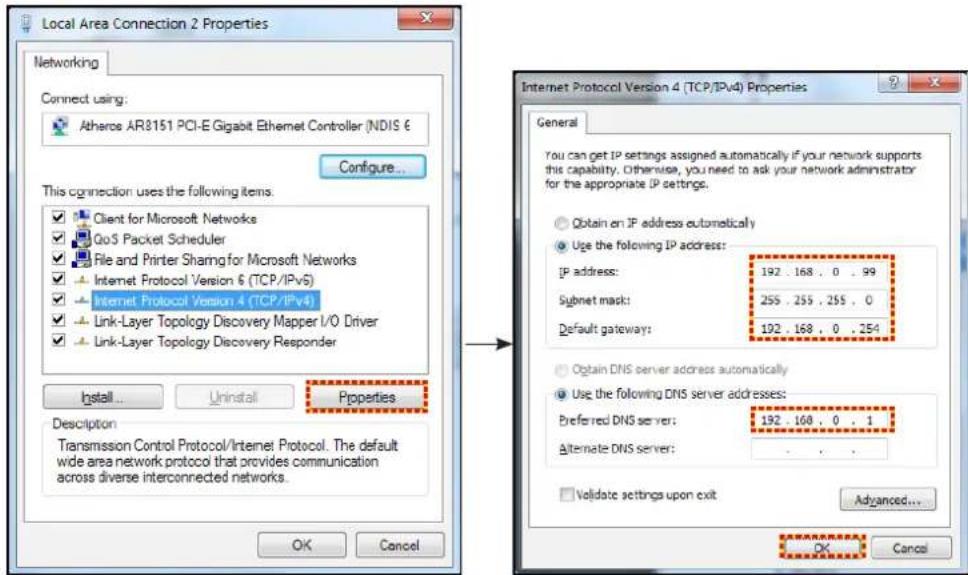
- Open the web browser on your PC and type in to the URL field the IP address, assigned in step 3. Then press "Enter" key.
Reset
Reset all values for LAN parameters.
Network control menu
Crestron
Use this function to select the network function (port: 41794).
USING THE PROJECTOR
For more information, please visit http://www.crestron.com and www.crestron.com/getroomview.
HTTP
Use this function to select the network function (port: 80).
Setup network control settings menu
LAN RJ45 function
For simplicity and ease of operation, the projector provides diverse networking and remote management features. The LAN / RJ45 function of the projector through a network, such as remotely manage: Power On / Off, brightness, and contrast settings. Also, you can view the projector status information, such as: Video- Source, Sound-Mute, etc.
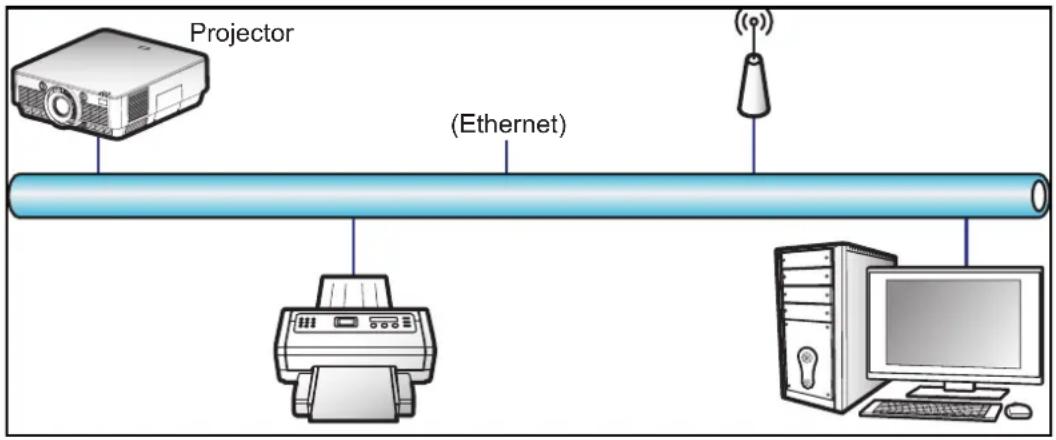
Wired LAN terminal functionalities
This projector can be controlled by using a PC (laptop) or other external device via LAN / RJ45 port and compatible with Crestron.
• Crestron is a registered trademark of Crestron Electronics, Inc. of the United States.
The projector is supported by the specified commands of the Crestron Electronics controller and related software, for example RoomView ^® .
http://www.crestron.com/
For more detailed information about the various types of external devices which can be connected to the LAN / RJ45 port and remote control the projector, as well as the supported commands for these external devices, please contact the Support-Service directly.
USING THE PROJECTOR
LAN RJ45
- Connect an RJ45 cable to RJ45 ports on the projector and the PC (laptop).
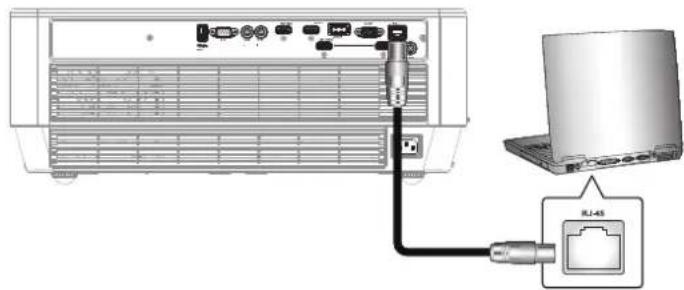
natural_image
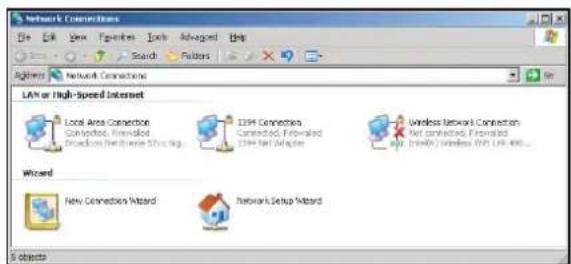
Diagram showing connection between a laptop and an RJ-45 server rack with connected ports (no text or symbols)- On the PC (Laptop), select Start > Control Panel > Network Connections.
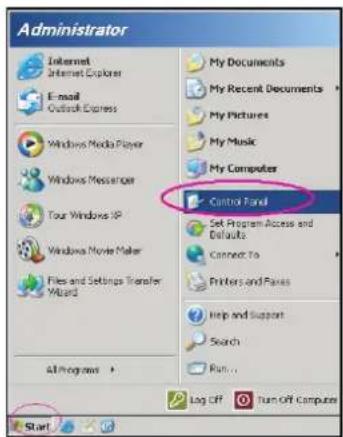
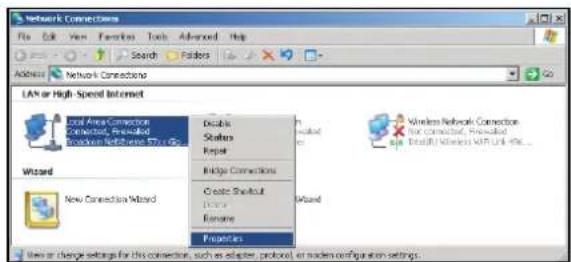
- Right-click on the Local Area Connection, and select Property.
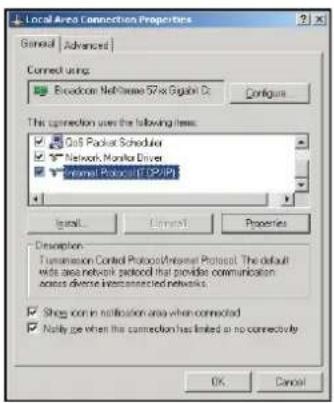
- In the Properties window, select the General tab, and select Internet Protocol (TCP / IP).
USING THE PROJECTOR
- Click "Properties".
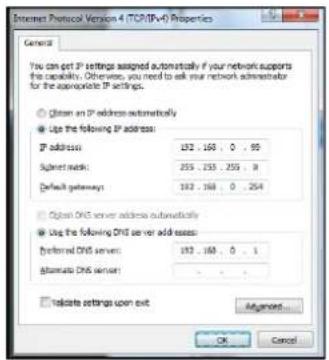
- Type in the IP address and Subnet mask, then press "OK".
- Press the "Menu" button on the projector.
- Open on projector Network > LAN.
-
Enter the following connection parameters:
-
DHCP: Off
- IP Address: 192.168.0.100
- Subnet Mask: 255.255.255.0
- Gateway: 192.168.0.254
-
DNS: 192.168.0.1
-
Press "Enter" to confirm settings.
- Open a web browser, for example Microsoft Internet Explorer with Adobe Flash Player 9.0 or higher installed.
- In the Address bar, input the projector's IP address: 192.168.0.100.

- Press "Enter".
USING THE PROJECTOR
The projector is setup for remote management. The LAN / RJ45 function displays as follows:
Information page
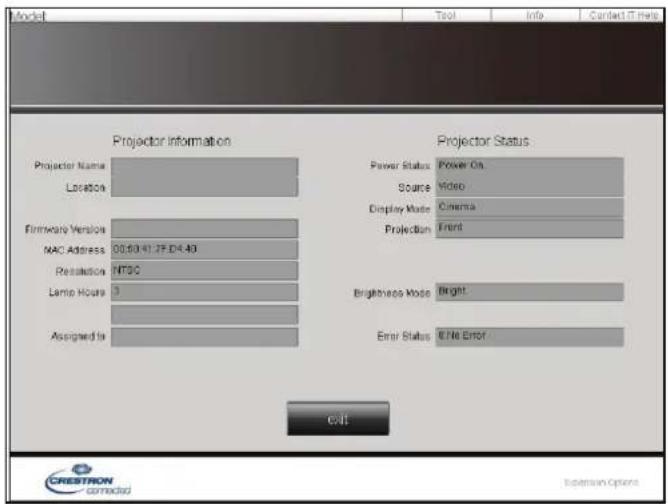
Main page
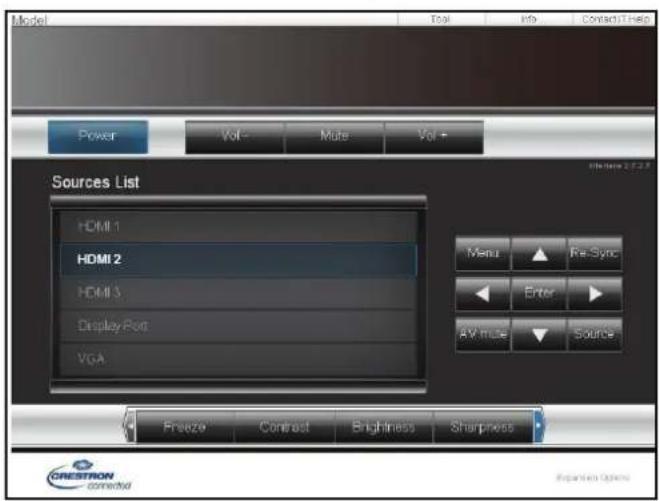
Tool page
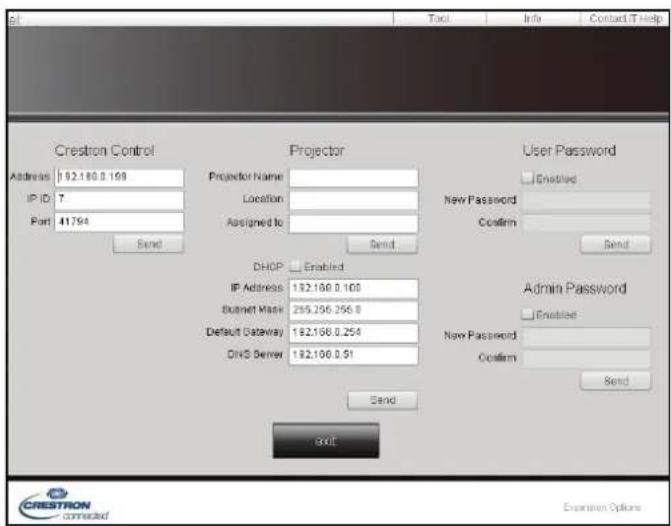
Contact IT helpdesk
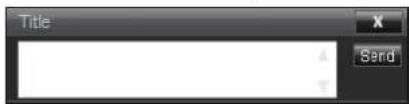
USING THE PROJECTOR
RS232 by Telnet Function
There is alternative RS232 command control way, in projector so called "RS232 by TELNET" for LAN / RJ45 interface.
Quick Start-Guide for "RS232 by Telnet"
- Check and get the IP address on OSD of the projector.
• Make sure that the PC / laptop can access the web-page of the projector.
• Make sure that "Windows Firewall" setting is set disabled in case of "TELNET" function filtering out by PC / laptop.
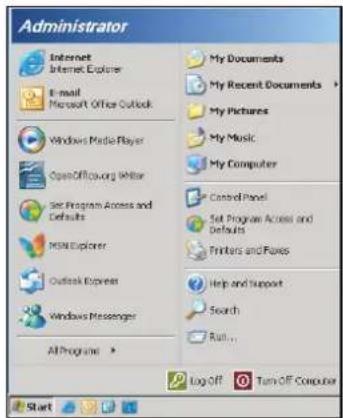
- Select Start > All Programs.> Accessories > Command Prompt.
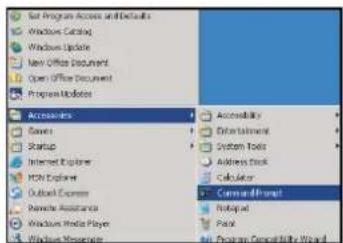
-
Input the command format as follows:
-
telnet ttt.xxx.yyy.zzz 23 ("Enter" key pressed)
-
(ttt.xxx.yyy.zzz: IP-Address of the projector)
-
If Telnet-Connection ready, and user can have RS232 command input, then "Enter" key pressed, the RS232 command will be workable.
Specification for "RS232 by TELNET":
- Telnet: TCP.
- Telnet port: 23 (for more detail, kindly please get contact with the service agent or team).
- Telnet utility: Windows "TELNET.exe" (console mode).
- Disconnection for RS232-by-Telnet control normally: Close
- Windows Telnet utility directly after TELNET connection ready.
- Limitation 1 for Telnet-Control: there is less than 50 bytes for successive network payload for Telnet-Control application.
- Limitation 2 for Telnet-Control: there is less than 26 bytes for one complete RS232 command for Telnet-Control.
- Limitation 3 for Telnet-Control: Minimum delay for next RS232 command must be more than 200 (ms).
USING THE PROJECTOR
Info menu
Info menu
View the projector information as listed below:
- Model Name
- Serial Number
- Source
- Resolution
- Refresh Rate
- Display Mode
• Power Mode (Standby) - Lamp Hours
- Remote Code
- Remote Code(Active)
- Network Status
- IP Address
- Projector ID
- Filter Usage Hours
- Brightness Mode
- FW Version
MAINTENANCE
Replacing the lamp
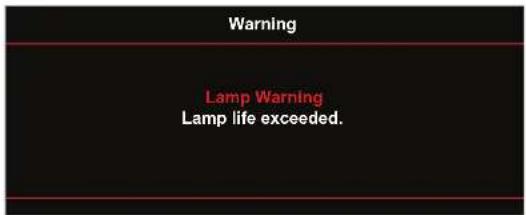
The projector automatically detects the lamp life. When the lamp life is nearing the end of use, a warning message will appear on the screen.
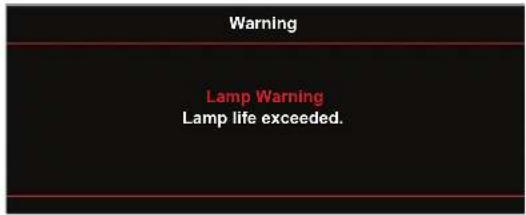
When you see this message, please contact your local reseller or service center to change the lamp as soon as possible. Make sure the projector has been cooled down for at least 30 minutes before changing the lamp.
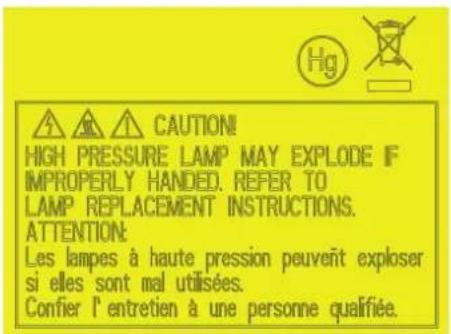
Warning: If ceiling mounted, please use caution when opening the lamp access panel. It is recommended to wear safety glasses if changing the bulb when ceiling mounted. Caution must be used to prevent any loose parts from falling out of projector.

Warning: Lamp compartment is hot! Allow it to cool down before changing lamp!

Warning: To reduce the risk of personal injury, do not drop the lamp module or touch the lamp bulb. The bulb may shatter and cause injury if it is dropped.
MAINTENANCE
Replacing the lamp (continued)
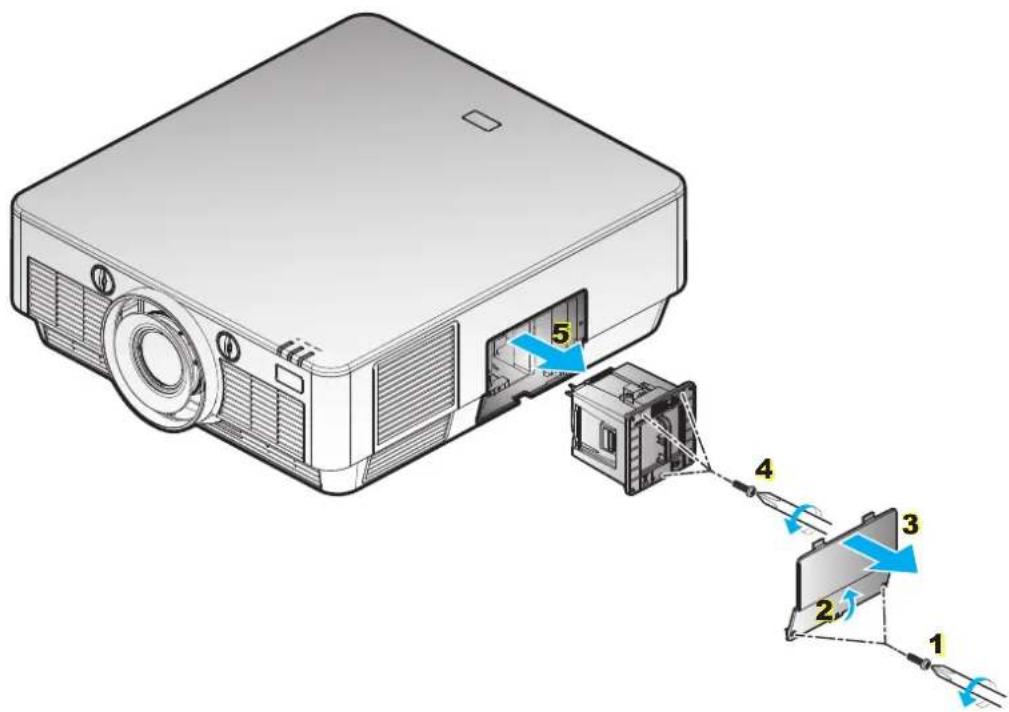
Procedure:
- Switch off the power to the projector by pressing the "⏻" button on the remote control or the projector keypad.
- Allow the projector to cool down for at least 30 minutes.
- Disconnect the power cord.
- Unscrew the screws on the cover. 1
- Slightly flip the cover to release the hinges. 2
- Remove the cover. 3
- Unscrew the screws on the lamp module. 4
- Remove the lamp module carefully. 5
- To replace the lamp module, reverse the previous steps.
- Turn on the projector and reset the lamp timer.
- Lamp Reset: (i) Press "Menu" → (ii) Select "Setup" → (iii) Select "Lamp Settings" → (iv) Select "Lamp Reset" → (v) Select "Yes".
Note:
• The screw on the lamp cover and the lamp cannot be removed.
• The projector cannot be turned on if the lamp cover has not been placed back on the projector.
• Do not touch the glass area of the lamp. Hand oil can cause the lamp shatter. Use a dry cloth to clean the lamp module if it was accidentally touched.
ADDITIONAL INFORMATION
Compatible resolutions
Digital compatibility
| Established Timing | Standard Timing Detail | Timing Video Mode | Detail Timing | |
| 720x400 @ 70Hz | 1280x720 @ 60Hz | Native timing: 720x480i @ 60Hz | 16:9 1920x1080p @ 60Hz | |
| 640x480 @ 60Hz | 1280x800 @ 60Hz | 1920x1080 @ 60Hz | 720x480p @ 60Hz 4:3 | |
| 640x480 @ 67Hz | 1280x1024 @ 60Hz | 720x480p @ 60Hz | 16:9 | |
| 640x480 @ 72Hz | 1400x1050 @ 60Hz | 720x576i @ 50Hz | 16:9 | |
| 640x480 @ 75Hz | 1600x1200 @ 60Hz | 720x576p @ 50Hz | 4:3 | |
| 800x600 @ 56Hz | 720x576p @ 50Hz | 16:9 | ||
| 800x600 @ 60Hz | 1280x720p @ 60Hz | 16:9 | ||
| 800x600 @ 72Hz | 1280x720p @ 50Hz | 16:9 | ||
| 800x600 @ 75Hz | 1920x1080i @ 60Hz | 16:9 | ||
| 832x624 @ 75Hz | 1920x1080i @ 50Hz | 16:9 | ||
| 1024x768 @ 60Hz | 1920x1080p @ 60Hz | 16:9 | ||
| 1024x768 @ 70Hz | 1920x1080p @ 50Hz | 16:9 | ||
| 1024x768 @ 75Hz | 1920x1080p @ 24Hz | 16:9 | ||
| 1280x1024 @ 75Hz | 3840x2160 @ 24Hz | |||
| 1152x870 @ 75Hz | 3840x2160 @ 25Hz | |||
| 3840x2160 @ 30Hz | ||||
| 3840x2160 @ 50Hz | ||||
| 3840x2160 @ 60Hz | ||||
| 4096x2160 @ 24Hz | ||||
| 4096x2160 @ 25Hz | ||||
| 4096x2160 @ 30Hz | ||||
| 4096x2160 @ 50Hz | ||||
| 4096x2160 @ 60Hz |
ADDITIONAL INFORMATION
Analog compatibility
| Established Timing | Standard Timing Detail Timing Video Mode Detail Timing | ||
| 720x400 @ 70Hz 1280x720 @ 60Hz Native timing 1366x768 @ 60Hz | |||
| 640x480 @ 60Hz 1280x800 @ 60Hz 1920x1080 @ 60Hz | |||
| 640x480 @ 67Hz 1280x1024 @ 60Hz | |||
| 640x480 @ 72Hz 1400x1050 @ 60Hz | |||
| 640x480 @ 75Hz 1600x1200 @ 60Hz | |||
| 800x600 @ 56Hz | |||
| 800x600 @ 60Hz | |||
| 800x600 @ 72Hz | |||
| 800x600 @ 75Hz | |||
| 832x624 @ 75Hz | |||
| 1024x768 @ 60Hz | |||
| 1024x768 @ 70Hz | |||
| 1024x768 @ 75Hz | |||
| 1280x1024 @ 75Hz | |||
| 1152x870 @ 75Hz | |||
ADDITIONAL INFORMATION
Image size and projection distance
| Diagonal Length Size of (16:9) Screen | Screen Size W x H Projection Distance (D) | |||||||
| (m) (inch) (m) (feet) | ||||||||
| Width Height Width Height Wide Tele Wide Tele | ||||||||
| 84 1.86 | 1.05 73.21 41.2 | 2.5 5.0 8.2 | 16.4 | |||||
| 90 1.99 | 1.12 78.4 44.1 | 2.68 5.36 | 8.79 | 17.59 | ||||
| 100 2.21 | 1.25 87.2 49.0 | 2.98 5.96 | 9.78 | 19.55 | ||||
| 110 2.44 | 1.37 95.9 | 53.9 | 3.28 | 6.56 | 10.76 | 21.52 | ||
| 120 2.66 | 1.49 | 104.6 | 58.8 | 3.58 | 7.16 | 11.75 | 23.46 | |
| 130 2.88 | 1.62 | 113.3 | 63.7 | 3.87 | 7.74 | 12.70 | 25.43 | |
| 140 3.10 | 1.74 | 122.0 | 68.6 | 4.17 | 8.34 | 13.68 | 27.36 | |
| 150 3.32 | 1.87 | 130.7 | 73.5 | 4.47 | 8.94 | 14.67 | 29.33 | |
| 180 3.98 | 2.24 | 156.9 | 88.2 | 5.36 | 10.72 | 17.59 | 35.20 | |
| 200 4.43 | 2.49 | 174.3 | 98.1 | 5.96 | 11.92 | 19.55 | 39.11 | |
| 220 4.87 | 2.74 | 191.8 | 107.9 | 6.56 | 13.12 | 21.52 | 43.01 | |
| 250 5.53 | 3.11 | 217.9 | 122.6 | 7.45 | 14.90 | 24.44 | 48.88 | |
| 280 6.20 | 3.49 | 244.0 | 137.3 | 8.34 | 16.68 | 27.36 | 54.76 | |
| 300 6.64 | 3.74 | 261.5 | 147.1 | 8.94 | 17.88 | 29.33 | 58.66 | |
Note: Zoom ratio is 1.96x.
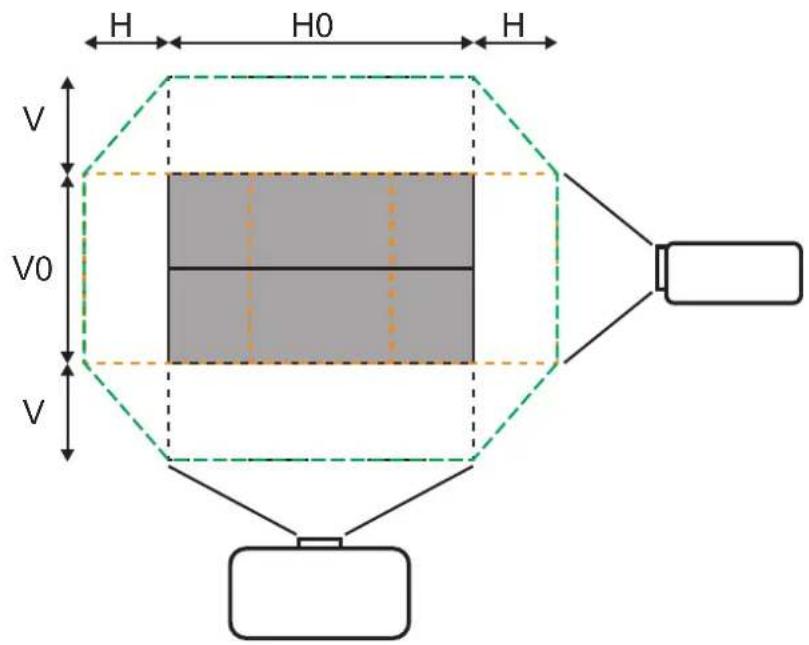
Specification:
| H | V |
| 35%H0 | 80%V0 |
Note: The information in the Specification is given with the +/- 5% tolerance.
Projector dimensions and ceiling mount installation
-
To prevent damage to your projector, please use the Acer ceiling mount.
-
If you wish to use a third party ceiling mount kit, please ensure the screws used to attach a mount to the projector meet the following specifications:
-
Screw type: M8*6
• Minimum screw length: 6mm
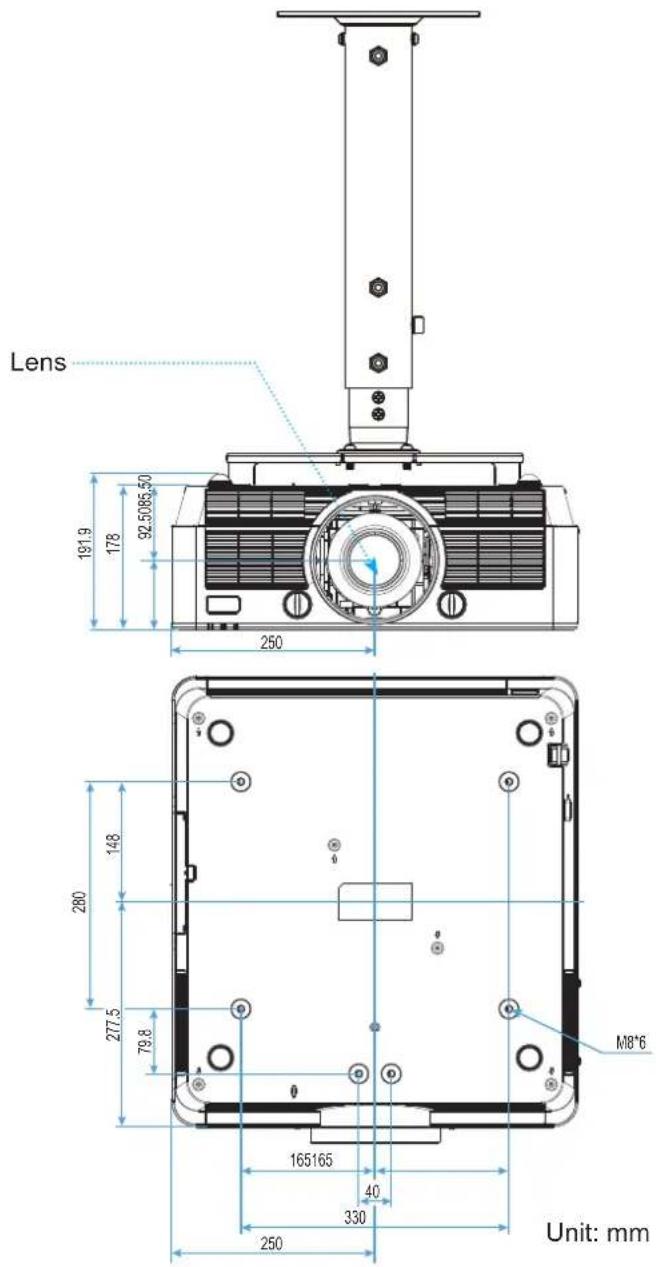
Note: Please note that damage resulting from incorrect installation will void the warranty.

Warning:
• If you buy a ceiling mount from another company, please be sure to use the correct screw size. Screw size will vary depending on the thickness of the mounting plate.
• Be sure to keep at least 10 cm gap between the ceiling and the bottom of the projector.
- Avoid installing the projector near a heat source.
ADDITIONAL INFORMATION
IR remote control codes
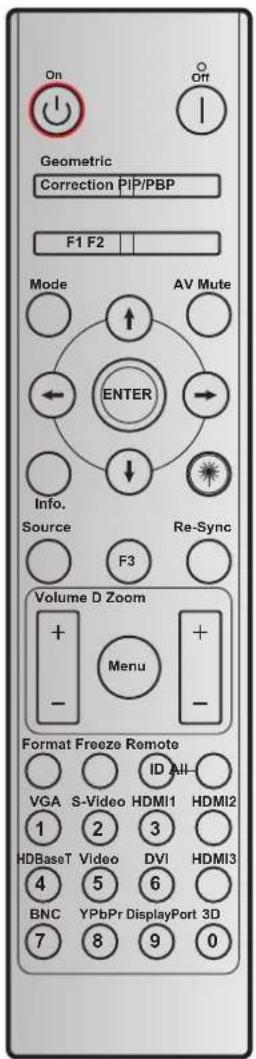
| Key Key code | Printing-key defi nition | Description | ||
| Power On | 2 | On | Refer to the "Power On/ Off the Projector" section on page 22. | |
| Power Off | 2E Off | Refer to the "Power On/ Off the Projector" section on page 22. | ||
| Geometric Correction | Correction 34 | Geometric Correction | Geometric correction. | |
| PIP/PBP | PIP/PBP | 3E | PIP/PBP | Press to use the PIP/PBP function. |
| F1 | 26 | F1 | By default Zoom. | |
| F2 | 27 | F2 | By default Focus. | |
| F3 | 66 | F3 | By default Lens IRIS. | |
| Mode | 95 | Mode | Display mode menu on/ off. | |
| Four directional select keys | ➊ | C6 Up arrow | Use ↑↓ ↔ → to select items or make adjustments to your selection. | |
| ➊ | C7 Down arrow | |||
| ⊖ | C8 | Left arrow | ||
| ⊖ | C9 | Right arrow | ||
ADDITIONAL INFORMATION
| Key Key code | Printing-key defi nition | Description | ||
| AV Mute 3 AV Mute No function. | ||||
| ENTER C5 Enter Confi rm your item selection. | ||||
| Info. 25 Info. Display projector information. | ||||
| Laser | [IMAGE] | N/A Laser Use as laser pointer. | ||
| Re-Sync | Re-Sync | 4 | Re-Sync | Automatically synchronize the projector to the input source. |
| Source | Source | 18 | Source | Press "Source" to select an input signal. |
| Volume | 9 | Volume + | Press to increase the volume. | |
| 0C | Volume - | Press to decrease the volume. | ||
| Menu | Menu 88 Menu | Press "Menu" to launch the on-screen display (OSD) menu. To exit OSD, Press "Menu" again. | ||
| D Zoom + | ▲ | 8 | D Zoom + | Use ▲ to zoom in the projected image. |
| D Zoom - | ▼ | B | D Zoom - | Use ▼ to zoom out the projected image. |
| Format | 15 | Format | Press to choose the projector format. | |
| Freeze | 6 | Freeze | Press to freeze the projector image. | |
| Remote | ID | 3201~3299 | Press until Power LED is fl ashing then press 01~99 to set the particular remote code. | |
| ALL | 32CD | Press to set remote code to all. | ||
| VGA / 1 8E | 1/VGA1 | Press to choose VGA source.Use as numeric keypad number "1". | ||
| S-Video / 2 | 1D | 2/S-Video | Press to choose S-video source.Use as numeric keypad number "2". | |
| HDMI1 / 3 | 16 | 3/HDMI1 | Press to choose HDMI source.Use as numeric keypad number "3". | |
| HDMI2 | 9B | HDMI2 | Press to choose HDMI source. | |
| HDBaseT / 4 | 70 4/HDBaseT | Press to choose HDBaseT source.Use as numeric keypad number "4". | ||
| Video / 5 | 1C | 5/Video | Press to choose composite video source.Use as numeric keypad number "5". | |
| DVI / 6 | 19 6/DVI | Press to choose DVI source.Use as numeric keypad number "6". | ||
| HDMI3 | 98 | HDMI3 | Press to choose HDMI source. | |
| BNC / 7 | 1A 7/BNC | Press to choose BNC source.Use as numeric keypad number "7". | ||
| YPbPr / 8 | 17 | 8/YPbPr | Press to choose component video source.Use as numeric keypad number "8". | |
| DisplayPort / 9 | 9F | 9/DisplayPort | Press to choose DisplayPort.Use as numeric keypad number "9". | |
| 3D / 0 | 89 | 0/3D | Press to choose 3D source.Use as numeric keypad number "0". | |
Note: Some keys may have no function for models that do not support these features.
ADDITIONAL INFORMATION
Troubleshooting
If you experience a problem with your projector, please refer to the following information. If a problem persists, please contact your local reseller or service center.
Image problems
?
No image appears on-screen
- Ensure all the cables and power connections are correctly and securely connected as described in the "Installation" section.
- Ensure the pins of connectors are not crooked or broken.
- Check if the projection lamp has been securely installed. Please refer to the "Replacing the Lamp" section.
- Ensure that the "AV Mute" feature is not turned on.
?
Image is out of focus
• Use the Focus button on the projector keypad to adjust focus. (Please refer to page 19).
• Make sure the projection screen is between the required distance from the projector. (Please refer to page 52).
?
The image is stretched when displaying 16:9 DVD title
- When you play anamorphic DVD or 16:9 DVD, the projector will show the best image in 16: 9 format on projector side.
• If you play the LBX format DVD title, please change the format as LBX in projector OSD.
• If you play 4:3 format DVD title, please change the format as 4:3 in projector OSD. - Please setup the display format as 16:9 (wide) aspect ratio type on your DVD player.
?
Image is too small or too large
- Adjust the digital zoom.
- Move the projector closer to or further from the screen.
- Press "Menu" on the projector panel, go to "Display-->Aspect Ratio". Try the different settings.
?
Image has slanted sides:
• If possible, reposition the projector so that it is centered on the screen and below the bottom of the screen.
• Use "Display-->Image Shift" from the OSD to make an adjustment.
?
Image is reversed
- Select "Setup-->Projection" from the OSD and adjust the projection direction.
ADDITIONAL INFORMATION
Other problems
The projector stops responding to all controls
- If possible, turn off the projector, then unplug the power cord and wait at least 20 seconds before reconnecting power.
Lamp burns out or makes a popping sound
- When the lamp reaches its end of life, it will burn out and may make a loud popping sound. If this happens, the projector will not turn on until the lamp module has been replaced. To replace the lamp, follow the procedures in the "Replacing the Lamp" section on pages 48-49.
Remote control problems
If the remote control does not work
- Check the operating angle of the remote control is pointed within ± 15^ to the IR receiver on the projector.
• Make sure there are not any obstructions between the remote control and the projector. Move to within 7 m (23 ft) of the projector.
- Make sure batteries are inserted correctly.
- Replace batteries if they are exhausted.
Warning indicators
When the warning indicators (see below) light up or flash, the projector will automatically shutdown:
• "LAMP" LED indicator is lit red and if "On/Standby" indicator flashes red.
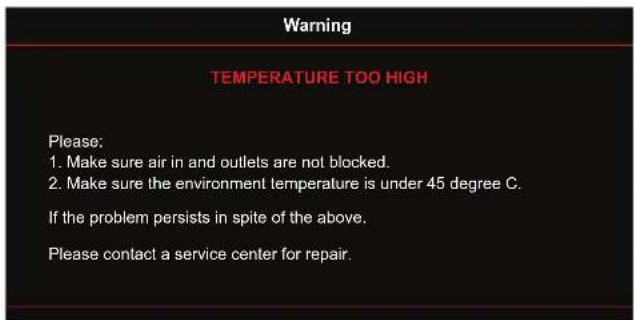
- "TEMP" LED indicator is lit red and if "On/Standby" indicator flashes red. This indicates the projector has overheated. Under normal conditions, the project can be switched back on.
• "TEMP" LED indicator flashes red and if "On/Standby" indicator flashes red.
Unplug the power cord from the projector, wait for 30 seconds and try again. If the warning indicator light up or flash, please contact your nearest service center for assistance.
ADDITIONAL INFORMATION
LED lightning messages
| Message | Power LED Power LED | TEMPTemp-LED | LAMPLamp-LED | |
| (Red) (Blue) (Red) (Red) | ||||
| Standby state (Input power cord) | Steady light | |||
| Power on (Warming) | Flashing(0.5 sec off /0.5 sec on) | |||
| Power on and Lamp lighting | Steady light | |||
| Power off (Cooling) | Flashing(0.5 sec off /0.5 sec light). Back to red steady light when cooling fan turns off . | |||
| Error (Over temp.) Flashing Steady light | ||||
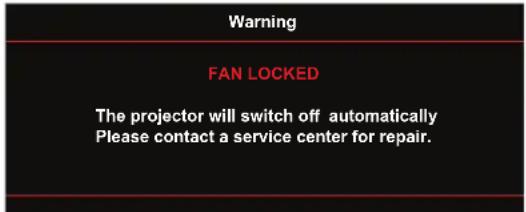
| Error (Fan failure) Flashing Flashing | ||||
| Error (Lamp failure) Flashing Steady light | ||||
- Power off:
- Lamp warning:
- Temperature warning:
ADDITIONAL INFORMATION
- Remote control function not supported:

- Fan failed:
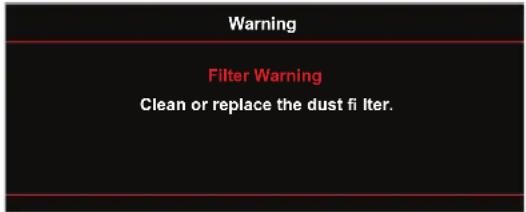
- Filter Warning:
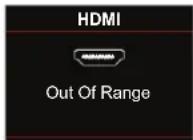
• Out of display range:
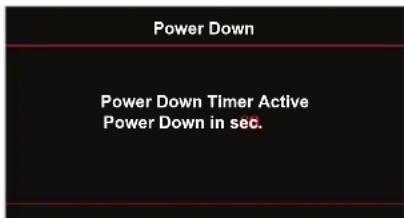
• Power down warning:
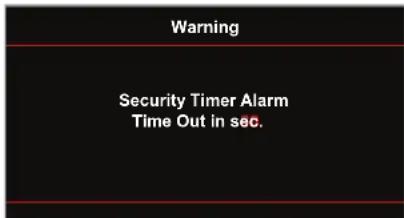
• Security timer alarm:
ADDITIONAL INFORMATION
Specifications
| Optical Description |
| Lens 2x Zoom with IRIS |
| Image size (diagonal) 2160p: 80" to 200"inches for optical range |
| Projection distance 2.4 m (80") ~ 9m (300") for optical range |
| Electrical Description | |
| Color reproduction 1073.4 Million color | |
| Scan rate | - Horizontal scan rate: 15.375~91.146 KHz- Vertical scan rate: 24Hz to 120Hz |
| Built-in speaker N/A | |
| Power requirement 100 - 240V AC 50/60Hz | |
| Input current 2.8-1.0 A | |
| Mechanical Description | |
| Installation orientation Front, Rear, Ceiling - top, Rear - top | |
| Dimensions | - 550 mm (W) x 500 mm (D) x 178 mm (H) (without feet)- 550 mm (W) x 500 mm (D) x 192 mm (H) (with feet) |
| Net Weight <18 kg | |
| Gross Weight <23 kg | |
| Environmental conditions Operating in 5 ~ 40°C , 10% to 85% humidity (non-condensing) | |
Note: All specifications are subject to change without notice.
Regulations and safety notices
FCC notice
This device has been tested and found to comply with the limits for a Class B digital device pursuant to Part 15 of the FCC rules. These limits are designed to provide reasonable protection against harmful interference in a residential installation. This device generates, uses, and can radiate radio frequency energy and, if not installed and used in accordance with the instructions, may cause harmful interference to radio communications.
However, there is no guarantee that interference will not occur in a particular installation. If this device does cause harmful interference to radio or television reception, which can be determined by turning the device off and on, the user is encouraged to try to correct the interference by one or more of the following measures:
• Reorient or relocate the receiving antenna.
- Increase the separation between the device and receiver.
- Connect the device into an outlet on a circuit different from that to which the receiver is connected.
- Consult the dealer or an experienced radio/television technician for help.
Notice: Shielded cables
All connections to other computing devices must be made using shielded cables to maintain compliance with FCC regulations.
Notice: Peripheral devices
Only peripherals (input/output devices, terminals, printers, etc.) certified to comply with the Class B limits may be attached to this equipment. Operation with non-certified peripherals is likely to result in interference to radio and TV reception.
Caution
Changes or modifications not expressly approved by the manufacturer could void the user's authority, which is granted by the Federal Communications Commission, to operate this device.
Operation conditions
This device complies with Part 15 of the FCC Rules. Operation is subject to the following two conditions: (1) this device may not cause harmful interference, and (2) this device must accept any interference received, including interference that may cause undesired operation.
Notice: Canadian users
This Class B digital apparatus complies with Canadian ICES-003.
ADDITIONAL INFORMATION
Compliant with Russian/ Ukraine regulatory certification

Radio device regulatory notice

Note: The regulatory information below is for models with wireless LAN and/or Bluetooth only.
General
This product complies with the radio frequency and safety standards of any country or region in which it has been approved for wireless use. Depending on configurations, this product may or may not contain wireless radio devices (such as wireless LAN and/or Bluetooth modules).
Canada — Low-power license-exempt radio communication devices (RSS-247)
a Common information
Operation is subject to the following two conditions:
- This device may not cause interference, and
- This device must accept any interference, including interference that may cause undesired operation of the device.
b Operation in 2.4 GHz band
To prevent radio interference to the licensed service, this device is intended to be operated indoors and installation outdoors is subject to licensing.
List of applicable countries
This device must be used in strict accordance with the regulations and constraints in the country of use. For further information, please contact the local office in the country of use. Please see http://ec.europa.eu/enterprise/rtte/implem.htm for the latest country list.
Declaration of Conformity
We,
Acer Incorporated
8F, 88, Sec. 1, Xintai 5th Rd., Xizhi, New Taipei City 221, Taiwan
And,
Acer Italy s.r.l.
Via Lepetit, 40, 20020 Lainate (MI) Italy
Tel: +39-02-939-921, Fax: +39-02 9399-2913
www.acer.it
Product: DLP Projector
Trade Name: Acer
Model Number: D4K1717
Marketing name: P8800/F680/PF-4K50/PV870/HF-760
We, Acer Incorporated, hereby declare under our sole responsibility that the product described above conformity with the relevant Union harmonization legislations as below Directive and follow harmonized standards and/or other relevant standards have been applied:
| EMC Directive: 2014/30/EU | ||
| EN 55032:2012+AC:2013, Class BEN 55024:2010+A1:2015 | EN 61000-3-2:2014, Class AEN 61000-3-3:2013 | |
| R&TTE Directive: 1999/5/EC (until Jun 12, 2017)RED Directive: 2014/53/EU (From Jun 13, 2017) | ||
| EN 300 328 V1.8.1EN 301 893 V1.7.1EN 300 440-1 V1.6.1EN 300 440-2 V1.4.1EN 302 291-1 V1.1.1EN 302 291-2 V1.1.1 | EN 301 511 V9.0.2EN 301 908-1 V6.2.1EN 301 908-2 V6.2.1EN 301 908-13 V6.2.1EN 301 489-1 V1.9.2EN 301 489-3 V1.6.1 | EN 301 489-7 V1.3.1EN 301 489-17 V2.2.1EN 301 489-24 V1.5.1EN 50360:2001 EN 30566:2013EN 62479:2010 EN 62311:2008EN 62209-1:2006 EN 62209-2:2010 |
| LVD Directive: 2014/35/EU | ||
| EN 60950-1:2006/A11:2009/A1:2010/A12:2011/A2:2013EN 50332-1:2000 EN 50332-2:2003 | ||
| RoHS Directive: 2011/65/EU | ||
| EN 50581:2012 | ||
| ErP Directive: 2009/125/EC | ||
| Regulation (EU) No. 617/ 2013Regulation (EC) No. 1275/2008; EN 50564:2011 | ||
Year to begin affixing CE marking 2017.
Acer America Corporation
333 West San Carlos St.,
Suite 1500
San Jose, CA 95110
U.S.A.
Tel: 254-298-4000
Fax: 254-298-4147
www.acer.com

Federal Communications Commission Declaration of Conformity
This device complies with Part 15 of the FCC Rules. Operation is subject to the following two conditions: (1) this device may not cause harmful interference, and (2) this device must accept any interference received, including interference that may cause undesired operation.
The following local Manufacturer / Importer is responsible for this declaration:
Product: DLP Projector
Model Number: D4K1717
Machine Type: P8800/F680/PF-4K50/PV870/HF-760/D4K1717
Name of Responsible Party: Acer America Corporation
Address of Responsible Party: 333 West San Carlos St.
Suite 1500
San Jose, CA 95110
U.S.A.
Contact Person: Accr Representative
Phone No.: 254-298-4000
Fax No.: 254-298-4147

- Information for your safety and comfort
- Turning the product off before cleaning
- Caution for plug as disconnecting device
- Caution for Accessibility
- Warnings!
- Using electrical power
- Product servicing
- Additional safety information
- Caution for Listening
- Disposal instructions
- Mercury advisory
- Do not stare into the beam, RG2
- First things first
- Usage Notes
- Do:
- Don't:
- Precautions
- Warning:
- TABLE OF CONTENTS
- INFORMATION FOR YOUR SAFETY AND COMFIRT ...... 3
- FIRST THINGS FIRST 8
- INTRODUCTION 11
- SETUP AND INSTALLATION.... 17
- USING THE PROJECTOR 22
- MAINTENANCE....48
- ADDITIONAL INFORMATION...... 50
- REGULATIONS AND SAFETY NOTICES 61
- INTRODUCTION
- Package overview
- Standard accessories
- Note:
- Optional accessories
- No Item No Item
- SETUP AND INSTALLATION
- Installing the projector
- IMPORTANT!
- Adjusting the projector image
- Image height
- Zoomand focus
- Remote setup
- Installing / replacing the batteries
- CAUTION
- Eff ective range
- Wired Remote Control
- USING THE PROJECTOR
- Powering on / off the projector
- Powering on
- Powering off
- Selecting an input source
- Menu navigation and features
- Display menu
- Display image settings menu
- Display Mode
- Wall Color
- Dynamic Range
- Brightness
- Contrast
- Sharpness
- Color
- Tint
- Gamma
- Color Settings
- Signal
- Lens IRIS
- Dynamic Contrast
- Brightness Mode
- PureEngine
- Reset
- Display aspect ratio menu
- Aspect Ratio
- Display edge mask menu
- Edge Mask
- Display digital zoom menu
- Digital Zoom
- Display image shift menu
- Image Shift
- Setup menu
- Setup projection menu
- Projection
- Setup lamp settings menu
- Lamp Reminder
- Lamp Reset
- Setup filter settings menu
- Filter Usage Hours
- Optional Filter Installed
- Filter Reminder
- Filter Reset
- Setup lens settings menu
- Lens Settings
- • Compensate Focus
- Setup power settings menu
- Direct Power On
- Auto Power Off (min.)
- Sleep Timer (min.)
- Power Mode (Standby)
- Setup security menu
- Security
- Security Timer
- Change Password
- Setup test pattern menu
- Test Pattern
- Setup remote settings menu
- IR Function
- Remote Code
- F1/F2/F3
- Setup projector ID menu
- Projector ID
- Setup 12V trigger menu
- 12V Trigger A / 12V Trigger B
- Setup options menu
- Language
- Menu Settings
- Auto Source
- Input Source
- High Altitude
- Display Mode Lock
- Keypad Lock
- Information Hide
- Logo
- Background Color
- HDMI 2 Setting
- HDMI EQ
- Detail Filter
- Setup reset menu
- Reset OSD
- Reset to Default
- Network LAN menu
- Network Status
- MAC Address
- DHCP
- IP Address
- Subnet Mask
- Gateway
- DNS
- How to use web browser to control your projector
- Making a direct connection from your computer to the projector\*
- Network control menu
- Crestron
- HTTP
- Setup network control settings menu
- LAN RJ45 function
- Wired LAN terminal functionalities
- LAN RJ45
- RS232 by Telnet Function
- Quick Start-Guide for "RS232 by Telnet"
- Specification for "RS232 by TELNET":
- Info menu
- MAINTENANCE
- Replacing the lamp
- Replacing the lamp (continued)
- Procedure:
- ADDITIONAL INFORMATION
- Compatible resolutions
- Projector dimensions and ceiling mount installation
- Troubleshooting
- Image problems
- ?
- Other problems
- Remote control problems
- Warning indicators
- Regulations and safety notices
- FCC notice
- Notice: Shielded cables
- Notice: Peripheral devices
- Operation conditions
- Notice: Canadian users
- Radio device regulatory notice
- General
- Canada — Low-power license-exempt radio communication devices (RSS-247)
- List of applicable countries
- Declaration of Conformity
- Federal Communications Commission Declaration of Conformity
Brand : ACER
Model : P8800
Category : Vidéo-projecteur