
B130i - Vidéo-projecteur ACER - Free user manual and instructions
Find the device manual for free B130i ACER in PDF.


| Product Type | Video Projector |
| Brand | Acer |
| Model | B130i |
| Display Technology | DLP |
| Native Resolution | SVGA (800 x 600) |
| Brightness | 3000 ANSI Lumens |
| Contrast Ratio | 2000:1 |
| Lamp Type | UHP Lamp |
| Lamp Life (Normal Mode) | 3000 Hours |
| Projection Size | 23" - 300" |
| Keystone Correction | Manual Vertical ±40° |
| Inputs | HDMI, VGA, Composite, S-Video, Audio |
| Weight | 2.5 kg (5.5 lbs) |
| Dimensions (W x D x H) | 300 x 220 x 100 mm |
| Power Consumption | 250W (Standby < 1W) |
| Noise Level | 31 dB (Normal Mode) |
| Built-in Speaker | 1 x 2W |
| Warranty | 2 Years (limited) |
| Accessories | Remote Control, Power Cord, VGA Cable, User Manual |
| Maintenance | Clean air filter every 500 hours; replace lamp as needed |
Frequently Asked Questions - B130i ACER
User questions about B130i ACER
0 question about this device. Answer the ones you know or ask your own.
Ask a new question about this device
Download the instructions for your Vidéo-projecteur in PDF format for free! Find your manual B130i - ACER and take your electronic device back in hand. On this page are published all the documents necessary for the use of your device. B130i by ACER.
USER MANUAL B130i ACER
natural_image
Exterior view of a modern silver square 3D cube with a camera lens and perforated grille (no visible text or symbols)Copyright © 2018. Acer Incorporated.
All Rights Reserved.
Acer Projector User's Guide
Original Issue: 10/2018
Changes may be made periodically to the information in this publication without obligation to notify any person of such revisions or changes. Such changes will be incorporated in new editions of this manual or supplementary documents and publications. This company makes no representations or warranties, either expressed or implied, with respect to the contents hereof and specifically disclaims the implied warranties of merchantability or fitness for a particular purpose.
Record the model number, serial number, purchase date and place of purchase information in the space provided below. The serial number and model number are recorded on the label affixed to your projector. All correspondence concerning your unit should include the serial number, model number and purchase information.
No part of this publication may be reproduced, stored in a retrieval system, or transmitted, in any form or by any means, electronically, mechanically, by photocopy, recording or otherwise, without the prior written permission of Acer Incorporated.
Acer Projector
Model number: ____
Serial number:
Date of purchase:
Place of purchase: ____
Acer and the Acer logo are registered trademarks of Acer Incorporated. Other companies' product names or trademarks are used herein for identification purposes only and belong to their respective companies.
"HDMI™, the HDMI logo and High-Definition Multimedia Interface are trademarks or registered trademarks of HDMI Licensing LLC."
EN-1
Information for Your Safety and Comfort
Read these instructions carefully. Keep this document for future reference. Follow all warnings and instructions marked on the product.
Turning the product off before cleaning
Unplug this product from the wall outlet before cleaning. Do not use liquid cleaners or aerosol cleaners. Use a damp cloth for cleaning.
Caution for plug as disconnecting device
Observe the following guidelines when connecting and disconnecting power to the external power supply unit:
• Install the power supply unit before connecting the power cord to the AC power outlet.
- Unplug the power cord before removing the power supply unit from the projector.
- If the system has multiple sources of power, disconnect power from the system by unplugging all power cords from the power supplies.
Warning!
- Do not use this product near water.
- Do not place this product on an unstable cart, stand or table. If the product falls, it could be seriously damaged.
- Slots and openings are provided for ventilation to ensure reliable operation of the product and to protect it from overheating. These openings must not be blocked or covered. The openings should never be blocked by placing the product on a bed, sofa, rug or other similar surface.
This product should never be placed near or over a radiator or heat register, or in a built-in installation unless proper ventilation is provided.
- Never push objects of any kind into this product through cabinet slots as they may touch dangerous voltage points or short-out parts that could result in a fire or electric shock. Never spill liquid of any kind onto or into the product.
- To avoid damage of internal components and to prevent battery leakage, do not place the product on a vibrating surface.
- Never use it under sporting, exercising, or any vibrating environment which will probably cause unexpected short current or damage rotor devices or lamp.
Using electrical power
- This product should be operated from the type of power indicated on the marking label. If you are not sure of the type of power available, consult your dealer or local power company.
- Do not allow anything to rest on the power cord. Do not locate this product where people will walk on the cord.
- If an extension cord is used with this product, make sure that the total ampere rating of the equipment plugged into the extension cord does not exceed the extension cord ampere rating. Also, make sure that the total rating of all products plugged into the wall outlet does not exceed the fuse rating.
- Do not overload a power outlet, strip or receptacle by plugging in too many devices. The overall system load must not exceed 80% of the branch circuit rating. If power strips are used, the load should not exceed 80% of the power strip's input rating.
- Use the product only with the supplied power supply cord set. If you need to replace the power cord set, make sure that the new power cord meets the following requirements: detachable type, UL listed/CSA certified, VDE approved or its equivalent, 4.5 meters (14.76 feet) maximum length.
Product servicing
Do not attempt to service this product yourself, as opening or removing covers may expose you to dangerous voltage points or other risks. Refer all servicing to qualified service personnel.
Unplug this product from the wall outlet and refer servicing to qualified service personnel when:
• the power cord or plug is damaged, cut or frayed
- liquid was spilled into the product
• the product was exposed to rain or water
• the product has been dropped or the case has been damaged
- the product exhibits a distinct change in performance, indicating a need for service
- the product does not operate normally after following the operating instructions
Note: Adjust only those controls that are covered by the operating instructions, since improper adjustment of other controls may result in damage and will often require extensive work by a qualified technician to restore the product to normal condition.
Warning! For safety reasons, do not use non-compliant parts when adding or changing components. Consult your reseller for purchase options.
Your device and its enhancements may contain small parts. Keep them out of the reach of small children.
Additional safety information
- Do not look into the projector's lens when the lamp is on. The bright light may hurt your eyes.
- Turn on the projector first and then signal sources.
- Do not place the product in the following environments:
- Space that is poorly ventilated or confined. At least 50cm clearance from walls and free flow of air around the projector are necessary.
- Locations where temperatures may become excessively high, such as inside of a car with all windows rolled up.
- Locations where excessive humidity, dust, or cigarette smoke may contaminate optical components, shorten the life span and darken the image.
- Locations near fire alarms.
- Locations with an ambient temperature above 40^ / 104^ .
- Locations where the altitudes are higher than 10000 feet
- Unplug immediately if there is something wrong with your projector.
Do not operate if smoke, strange noise or odor comes out of your projector. It might cause fire or electric shock. In this case, unplug immediately and contact your dealer. - Do not keep using this product to break or drop it. In this case contact your dealer for inspection.
- Do not face the projector lens to the sun. It can lead to fire.
- When switching the projector off, please ensure the projector completes its cooling cycle before disconnecting power.
- Do not frequently turn off the main power abruptly or unplug the projector during operation. The best way is to wait for the fan to stop before turning main power off.
- Do not touch the air outlet grille and bottom plate which become hot.
-
Do not look into the air outlet grille when projector is operating. It may hurt your eyes.
• Always open the lens shutter or remove the lens cap when the projector is on. -
Do not operate lamps beyond the rated lamp life. It could cause it to break on rare occasions.
- Contact your local dealer or Acer service center when you need to change the lamp.
- The product will detect the life of the lamp itself. Please contact your local dealer or Acer service center for changing the lamp, when lamp warning message displays.
- Do not attempt to disassemble this projector. There are dangerous high voltages inside which may hurt you.
Caution for Listening
To protect your hearing, follow these instructions.
- Increase the volume gradually until you can hear clearly and comfortably.
- Do not increase the volume level after your ears have adjusted.
- Do not listen to music at high volumes for extended periods.
- Do not increase the volume to block out noisy surroundings.
- Decrease the volume if you can't hear people speaking near you.
Disposal instructions
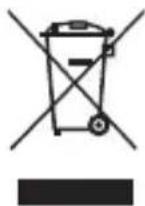
Do not throw this electronic device into the trash when discarding. To minimize pollution and ensure utmost protection of the global environment, please recycle. For more information on the Waste from Electrical and Electronics Equipment (WEEE) regulations, visit http://www.acer-group.com/public/Sustainability/index.htm
Troubleshooting
| Symptom Check Point | |
| The projector still can’t be turned on after 10 seconds of waiting. | Ensure the battery is fully charged. |
| The temperature of the projector’s surface is warm. | It is normal for this projector to generate moderate heat during operation. |
| The projector does not work when connecting to a notebook PC. | 1. Check if the HDMI cable is plugged correctly.2. Make sure the PC has been switched to projector display. |
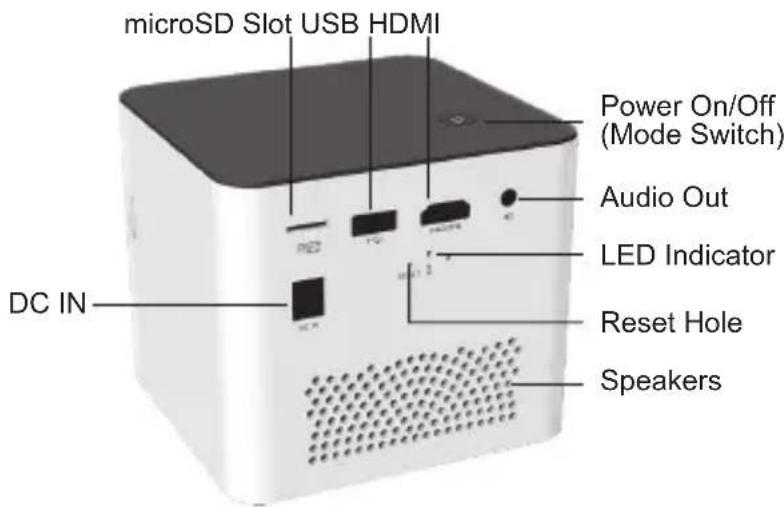
| Recovering from abnormal | If the projector is running slow, freezing, crashing or locking up during the operation, you can try to insert a slim, pointy object into the reset hole to trigger a hardware reset. |
Product Overview
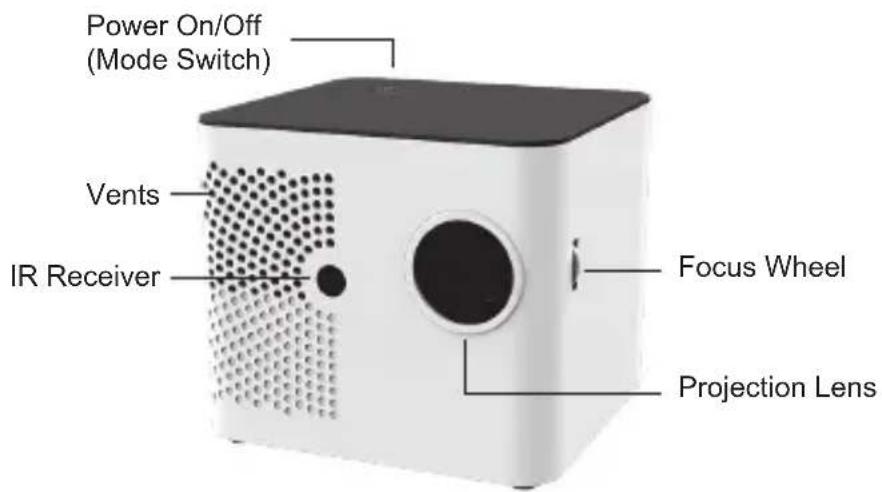
Front
Rear
EN-5
Remote Control
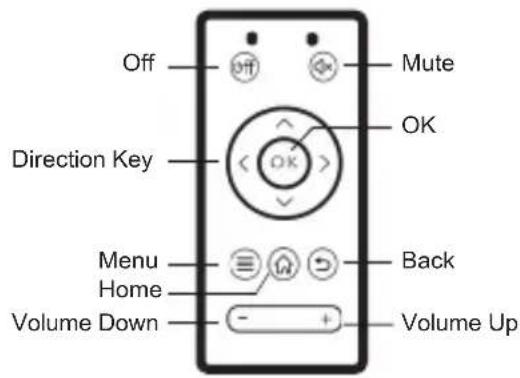
 | Turn off projector Back to file list | |
 | Mute Back to main screen | |
 | Change the selection Back to previous level | |
 | Confir rm the selection Volume control |
Package content
- Projector • User's Manual
- AC adapter and AC cables • AAA battery x 2
- Remote Control
Adjusting the brightness of projector
The button on the screen allows you to change the brightness to increase projection time.
Charging the product
The projector is built with an embedded battery for mobile use. Please charge the projector for 5 hours prior to its first use. The battery will be charged only when the projector is not in use (Power off). Connect one end of the supplied power adapter to DC IN jack and the other end to a power outlet to start charging.
Turning on/off the Projector
Press the Power button for 5 seconds to turn on the projector. Press the Power button again for 3 seconds to turn off the projector.
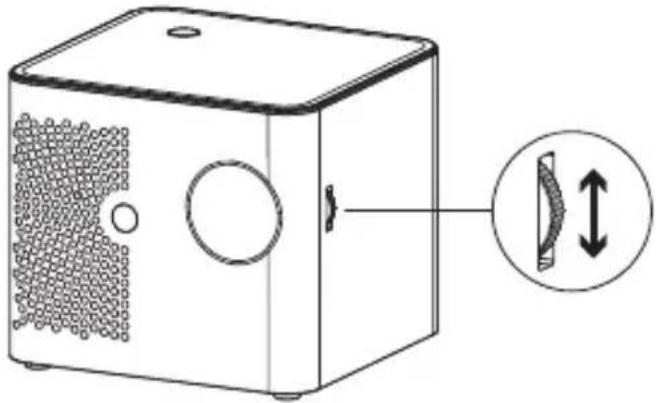
Adjusting the Focus
Adjust the focus by turning the focus wheel to get a sharp and clear picture.
natural_image
Diagram of a square electronic device with internal components and an inset showing a double-headed arrow indicating vertical displacement (no text or symbols present)Wireless Projection for iOS and Android devices
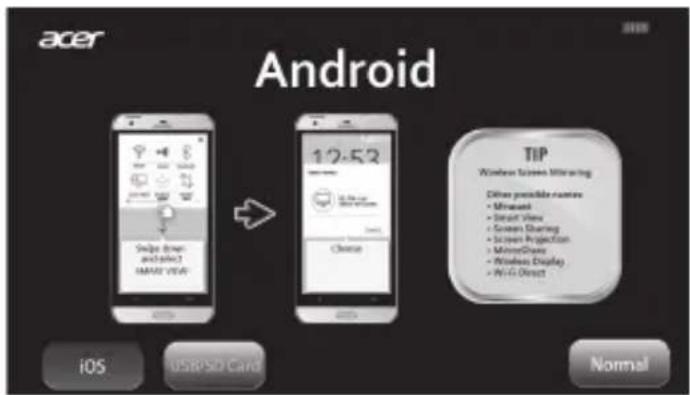
You can wirelessly mirror the screen of smartphone onto the projection surface.
Shortly press On/Off button or use remote control to switch between iOS and Android mode.
Certain content may be unavailable to be casted due to copyright restrictions.
iOS mode
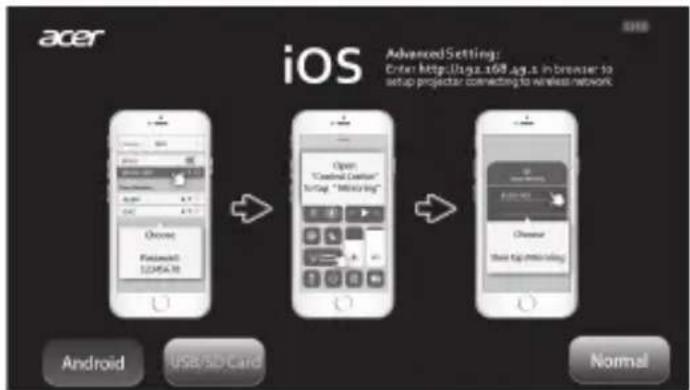
\*Advance Setting on iOS mode
Both Android phone and iPhone can set up projector to connect to Network on iOS mode. By entering the IP address http://192.168.49.1 in the browser address of mobile phone to set up the wireless environment can allow mobile phone browsing internet while wireless projection. To project Youtube videos, network connection is needed.
Android Mode
EN-8
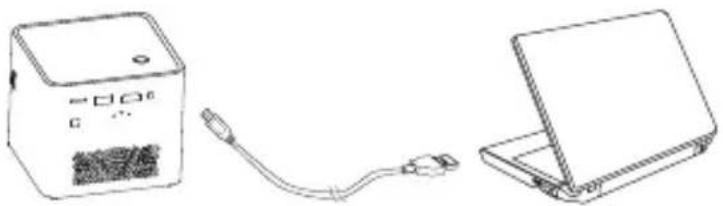
Projecting the files from PC/NB or other media devices
Using HDMI cable(not included) to connect to projector from PC/NB or another media device.
natural_image
Line drawing of a device with a USB cable and a separate laptop (no text or symbols)Play Medias
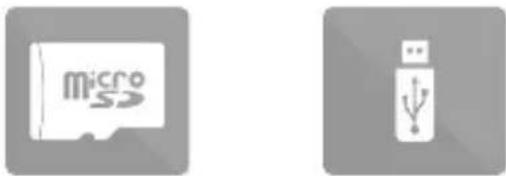
Using remote control to switch to "USB/SD card" mode, projector can play music, photos and videos stored in USB disk and microSD card.
- Plug USB disk to projector or insert microSD card into the card slot first.
- Using remote control to click "USB/SD card", the screen will show media source.
natural_image
Two gray icons: a card labeled 'micro' and a USB symbol (no text or symbols on the icons themselves)- After media source selection, the media format need be chosen.

- Select the file to play.
EN-9
Product specifications
| Item | Description |
| Optical Technology DLP | |
| Light Source RGB LED | |
| Resolution 1280x 800 Pixels | |
| Luminous Flux Up to 400 lumens | |
| Contrast Ratio 1,500:1 | |
| Throw Ratio 1.2 (Diagonal: Distance) | |
| Focus Manual | |
| Offset 100% | |
| Keystone Correction Auto | |
| Projection Image Size 19.2"~115" (49~292.1cm) | |
| Projection Distance | 19.6"~118" (50~300cm) |
| Wireless Standard 802.11b/g/n, 2.4G | |
| Connection Wi-Fi, HDMI, USB, microSD card slot, Audio out | |
| Speaker 3W*2 | |
| Power Consumption 24W | |
| Power Input | 19V / 3.4A |
| Battery Type Embedded 11.1V/5000mAh, Li-polymer | |
| Dimension (L x W x H) | 108 x 103 x 96 mm(4.25" x 4.06" x 3.78") |
| Weight | 812g (28.64 oz) |
| Operation Temp | 5 °C ~ 35 °C |
| Humidity | 20 - 80%, 80% (Max.), non-condensing |
* All specifications are subject to change without notice.

- Acer Projector
- Information for Your Safety and Comfort
- Turning the product off before cleaning
- Caution for plug as disconnecting device
- Warning!
- Using electrical power
- Product servicing
- Additional safety information
- Caution for Listening
- Disposal instructions
- Product Overview
- Front
- Rear
- Package content
- Adjusting the brightness of projector
- Charging the product
- Turning on/off the Projector
- Adjusting the Focus
- Wireless Projection for iOS and Android devices
- iOS mode
- \*Advance Setting on iOS mode
- Android Mode
- Projecting the files from PC/NB or other media devices
- Play Medias
Brand : ACER
Model : B130i
Category : Vidéo-projecteur