 ManualGo.com
 GZ-EX210AUS - Camcorder JVC - Free user manual and instructions
Find the device manual for free GZ-EX210AUS JVC in PDF.


Download the instructions for your Camcorder in PDF format for free! Find your manual GZ-EX210AUS - JVC and take your electronic device back in hand. On this page are published all the documents necessary for the use of your device. GZ-EX210AUS by JVC.
USER MANUAL GZ-EX210AUS JVC
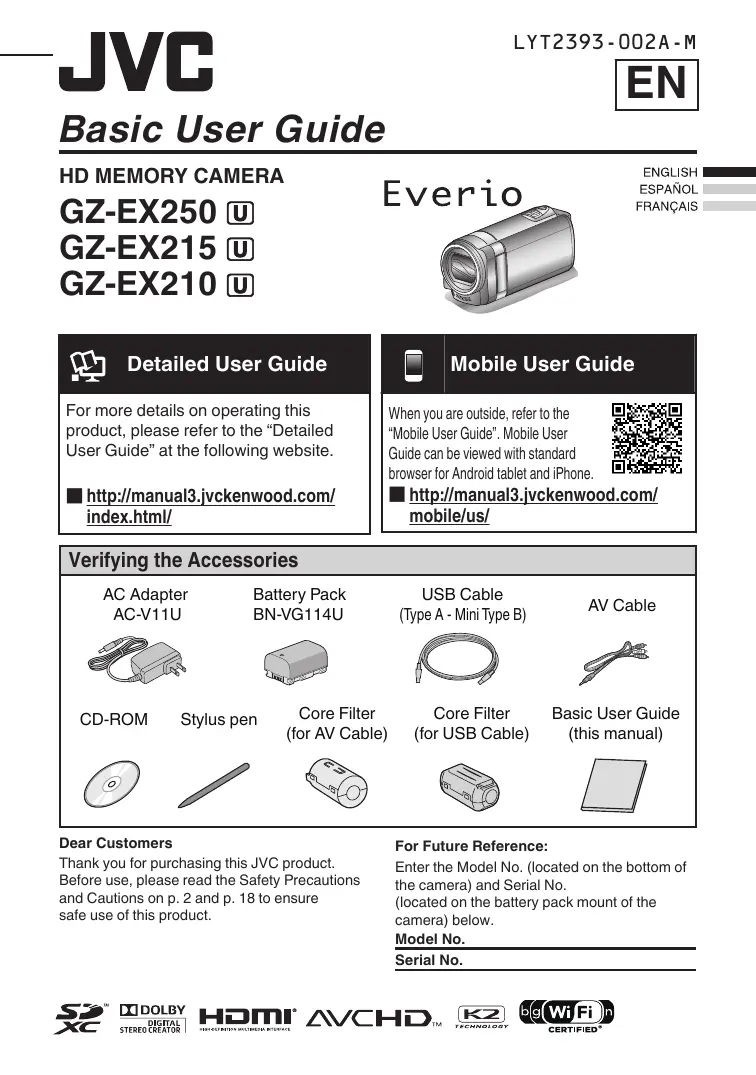
For more details on operating this product, please refer to the “Detailed
User Guide” at the following website.
When you are outside, refer to the
“Mobile User Guide”. Mobile User Guide can be viewed with standard browser for Android tablet and iPhone.
Guide(this manual) Verifying theUser Accessories AC Adapter
AC-V11U CD-ROM Battery Pack
BN-VG114U Stylus pen
Thank you for purchasing this JVC product. Before use, please read the Safety Precautions and Cautions on p. 2 and p. 18 to ensure safe use of this product.
(Type A - Mini Type B)
For Future Reference:
Enter the Model No. (located on the bottom of the camera) and Serial No. (located on the battery pack mount of the camera) below. Model No. Serial No.
CAUTION RISK OF ELECTRIC SHOCK DO NOT OPEN CAUTION:
TO REDUCE THE RISK OF ELECTRIC SHOCK,
DO NOT REMOVE COVER (OR BACK). NO USER-SERVICEABLE PARTS INSIDE. REFER SERVICING TO QUALIFIED SERVICE PERSONNEL. The lightning flash with arrowhead symbol, within an equilateral triangle, is intended to alert the user to the presence of uninsulated "dangerous voltage" within the product's enclosure that may be of sufficient magnitude to constitute a risk of electric shock to persons. The exclamation point within an equilateral triangle is intended to alert the user to the presence of important operating and maintenance (servicing) instructions in the literature accompanying the appliance.
WARNING: TO PREVENT FIRE OR SHOCK HAZARD, DO NOT EXPOSE THIS UNIT TO RAIN OR MOISTURE.
• The rating plate and safety caution are on the bottom and/or the back of the main unit.
• The serial number plate is on the battery pack
• The rating information and safety caution of the AC adapter are on its upper and lower sides.
Caution on Replaceable lithium battery
The battery used in this device may present a fire or chemical burn hazard if mistreated. Do not recharge, disassemble, heat above 100°C (212°F) or incinerate. Replace battery with Panasonic, Sanyo, Sony or Maxell CR2025. Danger of explosion or Risk of fire if the battery is incorrectly replaced. • Dispose of used battery promptly. • Keep away from children. • Do not disassemble and do not dispose of in fire.
For USA-California Only
This product contains a CR Coin Cell Lithium Battery which contains Perchlorate Material – special handling may apply. See www.dtsc.ca.gov/hazardouswaste/perchlorate
The battery pack, the camcorder with battery installed, and the remote control with battery installed should not be exposed to excessive heat such as direct sunlight, fire or the like.
Make a backup of important recorded data
JVC will not be responsible for any lost data.
It is recommended to copy your important recorded data to a disc or other recording media for storage once every 3 months.
When the equipment is installed in a cabinet or on a shelf, make sure that it has sufficient space on all sides to allow for ventilation (10 cm (3-15/16") or more on both sides, on top and at the rear).
Do not block the ventilation holes. (If the ventilation holes are blocked by a newspaper, or cloth etc. the heat may not be able to get out.) No naked flame sources, such as lighted candles, should be placed on the apparatus. When discarding batteries, environmental problems must be considered and the local rules or laws governing the disposal of these batteries must be followed strictly. The apparatus shall not be exposed to dripping or splashing. Do not use this equipment in a bathroom or places with water. Also do not place any containers filled with water or liquids (such as cosmetics or medicines, flower vases, potted plants, cups etc.) on top of this unit. (If water or liquid is allowed to enter this equipment, fire or electric shock may be caused.) Do not point the lens directly into the sun. This can cause eye injuries, as well as lead to the malfunctioning of internal circuitry. There is also a risk of fire or electric shock.
The following notes concern possible physical damage to this unit and to the user. Carrying or holding this unit by the LCD monitor can result in dropping the unit, or in a malfunction. Do not use a tripod on unsteady or unlevel surfaces. It could tip over, causing serious damage to the unit.
Connecting cables (Audio/Video, etc.) to this unit and leaving it on top of the TV is not recommended, as tripping on the cables will cause this unit to fall, resulting in damage.
The mains plug shall remain readily operable. • Remove the mains plug immediately if the camcorder functions abnormally.
To maintain compliance with FCC’s RF exposure guidelines, use only the supplied antenna. Unauthorized antenna, modification, or attachments could damage the transmitter and may violate FCC regulations. This device complies with Part 15 of the FCC Rules. Operation is subject to the following two conditions: (1) This device may not cause harmful interference. (2) This device must accept any interference received, including interference that may Cause undesired operation.
Read these instructions.
Keep these instructions. Heed all warnings. Follow all instructions. Do not use this apparatus near water. Clean only with dry cloth. Do not block any ventilation openings. Install in accordance with the manufacturer’s instructions. 8. Do not install near any heat sources such as radiators, heat registers, stoves, or other apparatus (including amplifiers) that produce heat. 9. Protect the power cord from being walked on or pinched particularly at plugs, convenience receptacles, and the point where they exit from the apparatus. 10. Only use attachments/accessories specified by the manufacturer. 11. Use only with the cart, stand, tripod, bracket, or table specified by the manufacturer, or sold with the apparatus. When a cart is used, use caution when moving the cart/ apparatus combination to avoid injury from tip-over. 12. Unplug this apparatus during lightning storms or when unused for long periods of time. 13. Refer all servicing to qualified service personnel. Servicing is required when the apparatus has been damaged in any way, such as power-supply cord or plug is damaged, liquid has been spilled or objects have fallen into the apparatus, the apparatus has been exposed to rain or moisture, does not operate normally, or has been dropped.
If this symbol is shown, it is only valid in the European Union.
• Be sure to use the supplied stylus pen.
- Scratches and damages caused by using stylus
When using the AC adapter in areas other than the USA The provided AC adapter features automatic voltage selection in the AC range from 110 V to 240 V.
USING HOUSEHOLD AC PLUG ADAPTER In case of connecting the unit’s power cord to an AC wall outlet other than American National Standard C73 series type use an AC plug adapter, called a “Siemens Plug”, as shown. For this AC plug adapter, consult your nearest JVC dealer. Plug Adapter
• Remove the AC adapter from the AC wall outlet when not in use.
• Do not leave dust or metal objects adhered to
• Be sure to use the supplied AC adapter.
• Do not use the supplied AC adapter with other devices.
pens besides the supplied one cannot be guaranteed.
Do • not poke your eye with the stylus pen. - Doing so may cause blindness or other damages to the eye. • Do not place the stylus pen within the reach of young children. - It may be swallowed accidentally. - Be sure to keep it out of reach of young children.
Remember that this unit is intended for private consumer use only.
Any commercial use without proper permission is prohibited. (Even if you record an event such as a show, performance or exhibition for personal enjoyment, it is strongly recommended that you obtain permission beforehand.) Trademarks • AVCHD and AVCHD logo are trademarks of Panasonic Corporation and Sony Corporation. • HDMI is a trademark of HDMI Licensing, LLC. • Manufactured under license from Dolby Laboratories. Dolby and the double-D symbol are trademarks of Dolby Laboratories. • Windows® is either registered trademark or trademark of Microsoft Corporation in the United States and/or other countries. • Macintosh is a registered trademark of Apple Inc. • iMovie and iPhoto are trademarks of Apple Inc., registered in the U.S. and other countries. • YouTube™ and the YouTube logo are trademarks and/or registered trademarks of Google Inc. • Intel, Intel Core, and Pentium are trademarks or registered trademarks of Intel Corporation or its subsidiaries in the United States and other countries. • Android™ is a trademark of Google Inc. • Wi-Fi, Wi-Fi logo, Wi-Fi CERTIFIED, Wi-Fi CERTIFIED logo, WPA, and WPA2 are trademarks or registered trademarks of Wi-Fi Alliance. • Other product and company names included in this instruction manual are trademarks and/or registered trademarks of their respective holders. • Marks such as ™ and ® have been omitted in this manual.
Safety Precautions 2 Copying Available Accessories For the Camera .. 4 Keep It High Definition (Windows) 11 Install Everio MediaBrowser (Windows) 12 Getting Started USB Menu Operations 13 Charging the Battery Pack 5 File Backup (Windows) 14 Inserting an SD Card 6 View Your Video (Windows) 14 Using the Icon Buttons/Thumbnails 6 AVCHD Disc Creation (Windows) 15 Changing Menu Settings 7 Record to a DVD or VHS Recorder 15 Clock Setting 7 How to Upload a File (Video Clip) to YouTube (Windows) 16 Recording Video Recording 8 Working with iMovie and iPhoto 17 Still Image Recording 9 Simple File Backup with a Mac 17
Playing Back/Deleting Files on this Unit .... 9 Troubleshooting/Cautions 18
Playing Back on TV 10 Recordable Time/Specifications 20
o Attaching the Core Filter
Attach the core filter to the AV Cable and USB Cable as shown in the illustration. The core filter reduces interference when this unit is connected to other devices. Release the stopper.
Wind once (for AV Cable)
Wind twice (for USB Cable)
To be connected to this unit
Available Accessories For the Camera
Product Name* Battery Pack 0 BN-VG114U 0 BN-VG121U Battery Charger 0 AA-VG1U
Provides a longer recording time than the battery pack that comes with this unit or it can also be used as a spare battery pack. Enables the battery pack to be charged without using this unit.
* To order any of these accessories please visit www.store.jvc.com or call 1-800-252-5722
Charging the Battery Pack
Attach the battery pack.
Connect the DC connector.
The battery pack is not charged at the time of purchase.
To AC Outlet (110 V to 240 V)
Align the top of the battery with the mark on this unit, and slide in until the battery clicks into place.
To detach the battery pack
Charging in progress: Blinks Charging finished: Goes out
CAUTION Be sure to use JVC battery packs.
0 If you use any other battery packs besides JVC battery packs, safety and performance cannot be guaranteed. 0 The charging time is when the unit is used at 25°C (77°F). If the battery pack is charged outside the room temperature range of 10°C to 35°C (50°F to 95°F), charging may take a longer time or it may not start. The recordable and playable time may also be shortened under some usage conditions such as at low temperature. 0 You can record or play back videos while the AC adapter is connected. (Battery charging cannot be performed during recording or playback.) Remove the battery when the unit is to be used for a long time. Performance of the battery may drop if it is left attached to the unit. Battery Pack BN-VG114U (Supplied) BN-VG121U
Actual Recording Recording Time Time 2h 1h5m 3h5m 1 h 40 m
The battery pack is not charged at the time of purchase.
The above are values when “LIGHT” is set to “OFF” and “MONITOR BRIGHTNESS” is set to “3” (standard). Recording time may differ depending on the shooting environment and usage.
Inserting an SD Card
Insert a commercially available SD card before recording. Close the LCD monitor.
Turn off the power of this unit before inserting or removing a card.
o To remove the card
Push the card inward once, then pull it out straight.
NOTE Operations are confirmed on the following SD cards.
Video A Panasonic, TOSHIBA, SanDisk
Class 4 or higher compatible SD card (2 GB)/ Class 4 or higher compatible SDHC card (4 GB to 32 GB)/ Class 4 or higher compatible SDXC card (48 GB to 64 GB) (When recording with video quality “UXP”, Class 6 or higher is recommended.) Still Image B SD card (256 MB to 2 GB) / SDHC card (4 GB to 32 GB) / SDXC card (48 GB to 64 GB) 0 Using SD cards (including SDHC/SDXC cards) other than those specified above may result in recording failure or data loss. 0 To protect the data, do not touch the terminals of the SD card. 0 When using an SDXC card, check its compatibility with the OS of your computer by referring to the Detailed User Guide. 0 This unit is not guaranteed to operate with all SD cards, even when using the ones specified above. Some SD cards may not work due to specification changes, etc.
Using the Icon Buttons/Thumbnails
A Tap the displayed button (icon) or thumbnail (file) on the touch screen to make selection. B Drag the thumbnails on the touch screen to search for the desired file. Recording Screen
≪REC Changing Menu Settings
Select an item from the menu list on the menu screen.
. ≪PLAY The shortcut menu appears.
To adjust settings in the “COMMON” menu, tap “Q”. Tap “∧” or “∨” to scroll the screen. Tap the desired setting.
o To exit the screen
If “MENU” is tapped, go to step 3. If an item other than “MENU” is tapped, go to step 4. MENU
o To return to the previous screen
Open the LCD monitor.
Set the date and time.
CLOCK SETTING JAN DATE
Tap “YES” when “SET DATE/TIME!” is displayed.
When the year, month, day, hour, or minute item is tapped, “∧” and “∨” will be displayed. Tap “∧” or “∨” to adjust the value. Repeat this step to input the year, month, day, hour, and minute. SET
After setting the date and time, tap “SET”.
Select the region where you live and tap “SAVE”. The city name and time difference are displayed. Tap “<” or “>” to select the city name.
CLOCK/AREA SETTING GMT SAVE
The unit turns on. When the LCD monitor is closed, the unit turns off.
You can record without worrying about the setting details by using the Intelligent Auto mode. Settings such as exposure and focus will be adjusted automatically to suit the shooting conditions. 0 In case of specific shooting scenes such as person etc., its icon is displayed on the screen. Before recording an important scene, it is recommended to conduct a trial recording. Open the lens cover.
Check if the recording mode is A video.
A Check if the recording mode is C Intelligent Auto.
If the mode is H Manual, tap H on the touch screen, then tap P to switch.
If the mode is B still image, tap B on the touch screen, then tap A to switch.
Press again to stop. (Wide angle)
The mode can also be switched between video and still image by pressing the A/B button on this unit.
You can also tap 6 on the touch screen to record. To stop recording, tap 7. In addition, you can also tap D to zoom. .
o Indications during video recording
REC Remaining Recording Time
The estimated recording time of the supplied battery pack is approximately 1 hour 5 minutes.
Do not remove the battery pack, AC adapter, or SD card when the access lamp is lighted. The recorded data may become unreadable. This unit turns itself off automatically to conserve power when it is not operated for 5 minutes. (only when using the battery pack) The angle of view may change when the image stabilizer is turned on or off.
Still Image Recording
Check if the recording mode is B still image.
Set the focus on the subject.
If the mode is A video, tap A on the touch screen, then tap B to switch.
Lights up in green when focused
Lights up during still image recording
You can also tap Q on the touch screen to record. However, focus cannot be set by pressing halfway.
Playing Back/Deleting Files on this Unit
Select and play back the recorded videos or still images from an index screen (thumbnail display). Tap A or B to select the video or still image mode.
Volume adjustment during playback
Turn down the volume
Tap F on the touch screen to select the playback mode.
Tap E to return to the recording mode.
Tap on the file to play back.
To delete unwanted files
Tap A. Tap on the files to delete. A delete mark appears on the selected file. To remove the delete mark, tap again.
≪REC SEL ALL Tap e to pause playback.
Tap u to return to the video index screen.
REL ALL SET QUIT Tap “SET”.
Tap “EXECUTE” when the confirmation message appears. Tap “OK”.
o To capture a still image during playback
Pause the playback and press the SNAPSHOT button.
Playing Back on TV Preparation:
Turn off both camera and TV.
To connect using the HDMI mini connector
When connecting to a 1080p compatible TV, set “HDMI OUTPUT” to “AUTO”. TV HDMI Cable (Optional)
To connect using the AV connector
Change the settings in “VIDEO OUTPUT” according to the connection.
AV Cable (Provided) To AV Connector
Playback Operation After the connection with TV is completed A Turn on the camera and the TV.
This unit powers on automatically when the AC adapter is connected.
B Select the TV input switch.
C Start playback on the camera.
Keep It High Definition (Windows) o Back up to a computer:
The provided JVC software also makes it easy to copy your videos to a computer.
o For customers with a Blu-ray Player:
The provided JVC software lets you create high definition AVCHD discs using standard blank
DVD-R media, and your Windows PC with DVD Burner. An AVCHD disc is a great choice because it contains the original HD video, which can be stored on inexpensive blank DVD-R media. These discs can be played back in virtually any recent Blu-ray player that has the AVCHD logo. Upload to YouTube YouTube is a great way to share your videos, in either HD or SD quality. JVC makes it easy. Copying Files You can create discs or copy the files on this unit by connecting it to various devices. I : Recordable and playable F : Playable only — : Not applicable Standard Quality Media Selection
Guide and manual of recorder.
Guide and manual of recorder.
Guide and manual of recorder.
Only on AVCHD compatible devices.
To create DVD-Video discs, it is necessary to install the additional software. For details, refer to the Pixela homepage. http://www.pixela.co.jp/oem/jvc/mediabrowser/e/ For details on how to create a disc using a computer, refer to the Detailed User Guide. Blu-ray discs cannot be created using the provided software. To create Blu-ray discs, use a commercially available software.
Each of these solutions is explained in detail in the following sections.
Install Everio MediaBrowser (Windows)
Everio MediaBrowser is included with your camera. It lets you archive and organize your videos. It also lets you create discs and upload video to YouTube, and other popular web sites. Preparation: 0 Load the provided CD-ROM into your PC. 0 In Windows Vista / Windows 7, the auto play dialog box appears. Click “Everio MediaBrowser 4”.
Everio MediaBrowser uses a calendar based interface that makes it easy to find any video you have recorded by selecting the appropriate date.
Follow the on-screen instructions.
Installation ends and icons are created on the desktop.
By connecting a USB cable between this unit and your computer, you can perform operations such as file backups to PC/disc or file uploads to file-sharing site using your computer. Preparation: Install the Everio MediaBrowser software onto the PC. 0 Disconnect the power supply to turn off the camera. 0 Connect the camera to the PC with the USB cable. Refer to the connection diagram in the “Install Everio MediaBrowser (Windows)” section. 0 Reconnect the power supply to turn on the camera.
The “CONNECT TO PC” menu appears.
Tap an option that best suits your needs. CONNECT TO PC PLAYBACK ON PC
The “SELECT DEVICE” menu appears.
Tap “CONNECT TO PC” on the camera’s touch screen. SELECT DEVICE SELECT DEVICE TYPE TO CONNECT CONNECT TO PC
Tap “CONNECT TO OTHER” if the camera is connected to a device other than a computer.
To play back your recordings on the PC. To back up your recordings on the PC without using the provided software. To save your recordings on a disc. To save all unsaved recordings on a disc. To upload videos to filesharing sites. To back up recordings on the PC.
For detailed operations on the above options, refer to the other sections in this guide or the “Detailed User Guide”.
File Backup (Windows)
Preparation: Install the Everio MediaBrowser software onto the PC. Make sure that enough space is left in the PC’s HDD. Disconnect the power supply to turn off the camera. Connect the camera to the PC with the USB cable. Reconnect the power supply to turn on the camera.
Tap “BACK UP” on the camera’s touch screen.
CONNECT TO PC Select the volume.
To AC Outlet (110 V to 240 V)
Saving destination (PC)
Tap “CONNECT TO PC” on the camera’s touch screen.
File backup is only supported by the provided software.
To view video that is still on your camera, click on Device>Camcorder in the left side panel of Everio MediaBrowser.
To view video that has already been archived to the computer, click on Library>Calendar and then choose the date the video was recorded.
Choose Settings/Preferences to see the folder where
MediaBrowser stores your videos. You can also play back your videos from this folder in most popular media players.
AVCHD Disc Creation (Windows)
Everio MediaBrowser makes it possible Preparation:
0 Install the software on your PC. to create AVCHD discs to archive your recordings in their original high definition Click on the “Create Disc” button. quality. You can use any standard DVD-R, DVDRW, DVD+R or DVD+RW disc. Recordings made in the XP, SP, or EP . mode are recorded with no loss in quality. Recordings made in the UXP mode are Select the video clips you wish to first converted to the XP mode, and then include. recorded. A standard 4.7 GB disc will hold Choose a menu background and approximately 35 minutes of video in the enter a menu title. highest quality setting. AVCHD discs can be played back in any Create the AVCHD disc. Blu-ray player that is AVCHD compatible. Just look for the AVCHD logo.
In order to include UXP recordings on your AVCHD discs, be sure to go to
Settings>Disc Creation Settings, and under “AVC Disc Creation in UXP mode”, choose “Re-encode to XP mode quality level”.
Record to a DVD or VHS Recorder
It is also possible to record to a DVD or VHS recorder. Please note that this will create a standard definition recording with standard definition picture quality. Yellow To AV Connector
To AC Outlet (110 V to 240 V) DVD/VHS Recorder .
Use the supplied AV cable. The yellow connection is video. The white connection is left channel audio. The red connection is right channel audio. Connect this cable to the AV input on your DVD or VHS recorder. 0 Follow your DVD/VHS recorder instructions to copy (dub) the video.
How to Upload a File (Video Clip) to
YouTube (Windows) Uploading Videos You can upload your videos to YouTube using the provided software “Everio MediaBrowser”.
For details on how to upload to YouTube, refer to “MediaBrowser Help”.
Install the software on your PC.
Click on the “YouTube” button.
o Trouble with Uploading Videos
0 Check if you have created an account with YouTube.
Select the video clips you wish to include.
Enter account and upload information.
Start upload to YouTube.
o Trouble with Using the Provided
Consult the customer service center below.
Customer Support Information
Use of this software is authorized according to the terms of the software license.
Pixela (for inquires regarding the provided software)
Region USA and Canada Europe (UK, Germany, France, and Spain)
+1-800-458-4029 (toll-free)
English/German/French/Spanish
+800-1532-4865 (toll-free)
Other Countries in Europe
English/German/French/Spanish
10800-163-0014 (toll-free)
Homepage: http://www.pixela.co.jp/oem/jvc/mediabrowser/e/
Please check our website for latest information and downloading.
Working with iMovie and iPhoto
You may use the software supplied with the Mac Computer to view and edit files from the Camera.
Connect the Camera to the Mac Computer using a USB Cable. USB cable (Provided)
You can import files from this unit to a computer using Apple’s iMovie ’08, ’09 or ’11 (video) or iPhoto (still image). To verify the system requirements, select “About This Mac” from the Apple menu. You can determine the operating system version, processor and amount of memory.
Files must be transferred to the
Mac Computer for editing.
For the latest information on iMovie or iPhoto, refer to the Apple website.
For details on how to use iMovie or iPhoto, refer to the help file of the software. There is no guarantee that the operations will work with all computer environments.
Simple File Backup with a Mac
Preparation: Make sure that enough space is left in the Mac’s HDD. 0 Close the LCD monitor to turn off the camera. Disconnect the power supply.
Tap “CONNECT TO PC” on the camera’s touch screen.
Tap “PLAYBACK ON PC” on the camera’s touch screen.
Open the LCD monitor to connect to the computer with the USB cable.
Reconnect the power supply to turn on the camera.
Copy and paste the files to the Mac
Computer for backup.
Troubleshooting/Cautions
Troubleshooting If you encounter problems with this unit, check the following before requesting service. 1. Refer to the “Troubleshooting” section in the “Detailed User Guide”. If you have difficulties operating the unit, refer to the detailed descriptions in the “Detailed User Guide”. http://manual3.jvckenwood.com/index.html/ 2. This unit is a microcomputer-controlled device. Electrostatic discharge, external noise and interference (from a TV, a radio, etc.) might prevent it from functioning properly. In such a case, reset the unit.
The product you have purchased is powered by a rechargeable battery that is recyclable. Please call 1-800-8-BATTERY for information on how to recycle this battery. (USA and Canada only)
A Turn off the power. (Close the LCD monitor.)
B Remove the AC adapter and battery pack from this unit, reattach them, open the LCD monitor and this unit powers on automatically.
3. If the above do not solve the problem, consult your nearest JVC dealer or JVC service center.
The supplied battery pack is a Terminals lithium-ion battery. Before using the supplied battery pack or an optional battery pack, be sure to read the following cautions: • To avoid hazards ... do not burn. ... do not short-circuit the terminals. Keep it away from metallic objects when not in use. When transporting, carry the battery in a plastic bag. ... do not modify or disassemble. ... do not expose the battery to temperatures exceeding 60°C (140°F), as this may cause the battery to overheat, explode or catch fire. ... use only specified chargers. • To prevent damage and prolong service life ... do not subject to unnecessary shock. ... charge within the temperature range of 10°C to 35°C (50°F to 95°F). Cooler temperatures require longer charging time, or in some cases stop charging at all. Warmer temperatures prevent complete charging, or in some cases stop charging at all. ... store in a cool, dry place. Extended exposure to high temperatures will increase natural discharge and shorten service life. ... keep a 30% battery level (X) if the battery pack is not to be used for a long period of time. In addition, fully charge and then fully discharge the battery pack every 6 months, then continue to store it at a 30% battery level (X).
... remove from charger or powered unit when not in use, as some machines use current even when switched off.
... do not drop or subject to strong impact.
Be sure to follow the guidelines below to prevent corruption or damage to your recorded data.
• Do not bend or drop the recording medium, or subject it to strong pressure, jolts or vibrations. Do • not splash the recording medium with water. • Do not use, replace, or store the recording medium in locations that are exposed to strong static electricity or electrical noise. Do • not turn off the camcorder power or remove the battery or AC adapter during shooting, playback, or when otherwise accessing the recording medium. • Do not bring the recording medium near objects that have a strong magnetic field or that emit strong electromagnetic waves. • Do not store the recording medium in locations with high temperature or high humidity. • Do not touch the metal parts. When formatting or erasing data using the camcorder, only the file administration information is changed. The data is not completely erased from the recording medium. If you want to completely erase all of the data, we recommend either using commercially available software that is specially designed for that purpose, or by physically destroying the camcorder with a hammer etc.
To prevent damage to the LCD monitor,
DO NOT ... push it strongly or apply any shocks. ... place the camcorder with LCD monitor on the bottom. • To prolong service life ... avoid rubbing it with coarse cloth. While the LCD monitor screen has more than 99.99% effective pixels, 0.01% of the pixels may be bright spots (red, blue, green) or dark spots. This is not a malfunction. The spots will not be recorded.
... open the camcorder’s chassis. ... disassemble or modify the unit. ... allow inflammables, water or metallic objects to enter the unit. ... remove the battery pack or disconnect the power supply while the power is on. ... leave the battery pack attached when the camcorder is not in use. ... place naked flame sources, such as lighted candles, on the apparatus. ... expose the apparatus to dripping or splashing. ... leave dust or metal objects adhered to the power plug or an AC wall outlet. ... insert any objects in the camcorder. • Avoid using the unit ... in places subject to excessive humidity or dust. ... in places subject to soot or steam such as near a cooking stove. ... in places subject to excessive shock or vibration. ... near a television set. ... near appliances generating strong magnetic or electric fields (speakers, broadcasting antennas, etc.). ... in places subject to extremely high (over 40°C or 104°F) or extremely low (under 0°C or 32°F) temperatures. • DO NOT leave the unit ... in places of over 50°C (122°F). ... in places where humidity is extremely low (below 35%) or extremely high (above 80%). ... in direct sunlight. ... in a closed car in summer. ... near a heater. ... in high places such as on a TV. Leaving the unit in high places while a cable is connected may result in a malfunction if the cable is caught and the unit falls onto the floor. • To protect the unit, DO NOT ... allow it to become wet. ... drop the unit or strike it against hard objects. ... subject it to shock or excessive vibration during transportation. ... keep the lens directed at extremely bright objects for long periods. ... expose the lens to direct sunlight. ... swing it excessively when using the hand strap. ... swing the soft camcorder case excessively when the camcorder is inside it. ... store the camcorder in a dusty or sandy area.
To prevent the unit from dropping,
• Fasten the grip belt securely. • When using the camcorder with a tripod, attach the camcorder to the tripod securely. If the camcorder drops, you may be injured and the camcorder may be damaged. When a child uses the unit, there must be parental guidance.
Declaration of Conformity
Model Number : GZ-EX250U/GZ-EX215U/GZ-EX210U Trade Name : JVC Responsible party : JVC AMERICAS CORP. Address : 1700 Valley Road Wayne, N. J. 07470 Telephone Number : 973-317-5000 This device complies with Part 15 of FCC Rules. Operation is subject to the following two conditions: (1) This device may not cause harmful interference, and (2) this device must accept any interference received, including interference that may cause undesired operation. Changes or modifications not approved by JVC could void the user’s authority to operate the equipment. This equipment has been tested and found to comply with the limits for a Class B digital device, pursuant to Part 15 of the FCC Rules. These limits are designed to provide reasonable protection against harmful interference in a residential installation. This equipment generates, uses, and can radiate radio frequency energy and, if not installed and used in accordance with the instructions, may cause harmful interference to radio communications. However, there is no guarantee that interference will not occur in a particular installation. If this equipment does cause harmful interference to radio or television reception, which can be determined by turning the equipment off and on, the user is encouraged to try to correct the interference by one or more of the following measures: Reorient or relocate the receiving antenna. Increase the separation between the equipment and receiver. Connect the equipment into an outlet on a circuit different from that to which the receiver is connected. Consult the dealer or an experienced radio/ TV technician for help.
Recordable Time/Specifications
You can check the video recording time by pressing the INFO button. Approximate Video Recording Time Built-in SDHC/SDXC Card Memory Quality 16 GB 4 GB 8 GB 16 GB 32 GB 48 GB 64 GB (GZ-EX250) 20 m 40 m 1 h 20 m 2 h 50 m 4 h 10 m 5 h 40 m UXP 1 h 20 m 1 h 50 m 30 m 1h 2h 4h 6h 8 h 10 m XP SP 2 h 40 m 40 m 1 h 20 m 2 h 50 m 5 h 50 m 8 h 30 m 11 h 30 m EP 6 h 40 m 1 h 40 m 3 h 30 m 7 h 10 m 14 h 40 m 21 h 30 m 28 h 50 m SSW 5 h 10 m 1 h 20 m 2 h 40 m 5 h 30 m 11 h 20 m 16 h 40 m 22 h 20 m SEW 10 h 40 m 2 h 50 m 5 h 40 m 11 h 30 m 23 h 30 m 34 h 30 m 46 h 10 m 0 The approximate recording time is only a guide. The actual recording time may shorten depending on the shooting environment. Camera Power supply Using AC adapter: DC 5.2 V, Using battery pack: DC 3.5 V - 3.6 V Power consumption 2.3 W (when “LIGHT” is set to “OFF” and “MONITOR BRIGHTNESS” is set to “3” (standard)) Rated Current Consumption: 1A Dimensions 50.5 mm x 55 mm x 116 mm (2-1/8" x 2-1/4" x 4-5/8") (W x H x D: excluding grip belt) Mass Approx. 195 g (0.43 lbs) (camera only), Approx. 235 g (0.52 lbs) (including supplied battery pack) AC Adapter (AC-V11U) Power supply Output Dimensions Mass
AC 110 V to 240 V, 50 Hz/60 Hz
DC 5.2 V, 1 A 66 mm x 28 mm x 47 mm (2-5/8" x 1-1/8" x 1-7/8") (W x H x D: excluding cord and AC plug) Approx. 71 g (0.15 lbs)
The specifications and appearance of this product are subject to changes for further improvement without prior notice.
For more information, please refer to the Detailed User Guide. http://manual3.jvckenwood.com/index.html/
©2011 JVC KENWOOD Corporation
1211ZAR-SW-VM LYT2393-002A-M SP Câble USB
(Type A - Mini Type B)