
e-tab LTE - Tablet Microtech - Free user manual and instructions
Find the device manual for free e-tab LTE Microtech in PDF.


| Product Type | Tablet with LTE connectivity |
| Brand | Microtech |
| Model | e-tab LTE |
| Display | 10.1-inch IPS LCD, 1920 x 1200 pixels |
| Dimensions (approx.) | 240 x 160 x 9 mm |
| Weight (approx.) | 450 g |
| Power Supply | Internal rechargeable battery; charger output: 5V / 2A |
| Battery Capacity | 6000 mAh (typical) |
| Operating System | Android (version as per product release) |
| Main Functions | Wi-Fi, Bluetooth, GPS, LTE (4G), front/rear cameras, microSD slot |
| Care and Cleaning | Wipe with a soft, dry cloth; avoid liquids and abrasive cleaners |
| Safety | Do not expose to heat sources or moisture; keep away from children under 3 years |
| Spare Parts and Repairability | Contact Microtech support or authorized service centers for replacements |
| General Information | Designed for everyday use, multimedia, and mobile connectivity |
Frequently Asked Questions - e-tab LTE Microtech
User questions about e-tab LTE Microtech
0 question about this device. Answer the ones you know or ask your own.
Ask a new question about this device
Download the instructions for your Tablet in PDF format for free! Find your manual e-tab LTE - Microtech and take your electronic device back in hand. On this page are published all the documents necessary for the use of your device. e-tab LTE by Microtech.
USER MANUAL e-tab LTE Microtech
Copyright © 2021 Microtech 5
https://microtech.store
Panoramica

https://microtech.store
https://microtech.store/supporto/
https://microtech.store
QUICK USER GUIDE
Index
Acknowledgments 28
Copyright © 2021 Microtech 29
Conditions and limits of warranty of the products 30
Package contents 34
Overview 35
How to recharge your e-tab LTE 36
Safety precautions for power supply and Battery 37
Warnings 38
Updates management 40
Android 41
Features 42
Technical data sheet 43
Environmental protection 45
Correct disposal 46
Technical assistance and support 47
QUICK USER GUIDE 26
Acknowledgments
Thank you for purchasing e-tab LTE.
This product has been designed to take advantage of mobility and direct interaction via the touch screen and WiFi 4G LTE and Bluetooth connectivity.
Microtech team
Copyright © 2021 Microtech. All rights reserved.
e-tab LTE is a registered trademark of Microtech.
All registered trademarks and copyrights belong to their rightful owners.
Microtech provides this manual “as it is” without warranty of any kind, whether implicit or explicit, including but not limited to the implied warranties or conditions of merchantability or fitness for a particular purpose. Under no circumstances Microtech, its director, officers, employees or distributors be liable for any indirect, special, incidental or consequential damages (including damages resulting from loss of profit, loss of contracts, loss of use or data, interruption of activities and similar), even if Microtech has been advised of the possibility that such damages may occur as a result of any defect or error in this manual or in the product.
The specifications and information contained in this manual are provided only for informational use and are subject to change at any time, without notice, and can not be construed as a commitment by Microtech. Microtech assumes no responsibility and does not assume any error or inaccuracy that may appear in this manual, including the products and software described.
Conditions and limits of warranty of the products
Warranty conditions change depending on the type of product.
Furthermore the guarantee is not valid in case of damages or defects due to the following factors:
(a) unsuitable use, improper operation or maintenance included (without limitation) and use of the product for a purpose other than that in accordance with the instructions provided by Microtech regarding its suitability for use and maintenance; (b) installation or use of the product in a manner that does not comply with the technical or safety standards in force in the European Economic Area and in Switzerland; (c) connection to power supply network with voltage not correct; (d) use of the product with third part accessories, auxiliary or peripheral products or devices; (e) attempted repair by any third part other than authorized Microtech service centers; (f) accidents, lightning, water, fire or any other cause whose control does not depend on Microtech; (g) abuse, negligence or improper commercial use.
The Warranty is not valid for technical assistance or support for using the Product regarding the use of the hardware or software. The assistance and support available (if expected) as well as the expenses and other terms related to assistance and support (if expected) will be specified in the documentation for the customer published on the website www.microtech.store.
It is the user's responsibility, even before requesting assistance, to back up the contents of the Product, including archived data or installed software.
Microtech is in no way responsible for any damage, loss of programs, data or other information stored on any medium or part of the product for which assistance is requested; Microtech is in no way responsible for the consequences of such damage or loss, including activity, in the event of system malfunction, program errors or data loss.
It is the user's responsibility, before requesting assistance, to delete any functions, components, options, modifications and attachments not covered by the Warranty before sending the product to a service center. Microtech is in no way responsible for any loss or loss damage to the components described above.
Microtech is in no way responsible for deletions, modifications or alterations to the contents of the Product including any data or applications produced during the repair procedures of the Product itself. The Product will be returned to the user with the original sales configuration, based on the availability of software in stock.
Limitation of liability
There may be circumstances for which, due to defects in Microtech components, or due to faults in Microtech components other reasons, you have the right to claim damages to Microtech. In each of these circumstances,
regardless of the reasons for which you are entitled to compensation for damages, Microtech is liable for damages to persons (including death), damage to property or private property; or any other real and direct damage resulting from omission or failure to comply with the legal obligations set forth in this document, and up to the contract price listed for each product and not later.
Microtech will only be liable or indemnify for losses, damages or claims on a contractual, non-contractual or infringing basis pursuant to this document.
This limit also applies to Microtech suppliers and resellers. This is the maximum limit for which Microtech, its suppliers and your dealer are collectively responsible.
IN NO EVENT SHALL MICROTECH BE LIABLE FOR THE FOLLOWING: (1) THIRD PARTY REQUESTS FOR DAMAGE CAUSED BY YOU; (2) LOSS OR DAMAGE TO YOUR DATA OR DOCUMENTS OR (3) ANY INDIRECT, PARTICULAR, INCIDENTAL OR CONSEQUENTIAL DAMAGES (INCLUDING DAMAGES ARISING FROM LOSS OF PROFIT, LOSS OF CONTRACTS, LOSS OF USE OR DATA, INTERRUPTION OF ACTIVITY AND SIMILAR) EVEN IF MICROTECH, ITS DISTRIBUTORS AND YOUR DEALERS ARE AWARE OF THE POSSIBILITY THAT SUCH DAMAGES CAN BE CHECKED.
Software license
Microtech products can be accompanied by software,
depending on the type of product. The software, combined with the products, are in the “OEM” version: the OEM software is licensed to the end user as an integral part of the product; this means that it can not be transferred to other hardware systems and that, in the event of breakage, theft or any other situation that renders it unusable, even the possibility of using the OEM product is compromised. Anyone who purchases, together with the product, an OEM software is required to observe the terms and conditions of the license agreement, called “EULA” (End User License Agreement), between the owner of the software and the end user and displayed on video during the installation of the software itself.
Please note that user acceptance of the EULA conditions takes place at the time the software is installed.
Package content
Verify that the following items are included in the package:
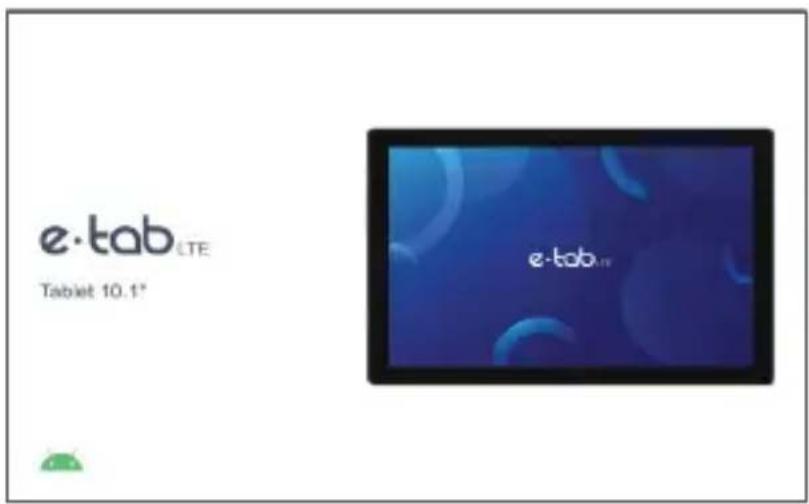
x1 e-tab LTE
x1 USB Type-C cable
×1 USB power charger
x1 User manual Italian / English
If something is missing or damaged, please contact the manufacturer and keep intact the package for transport.
https://microtech.store/?lang=en
Overview
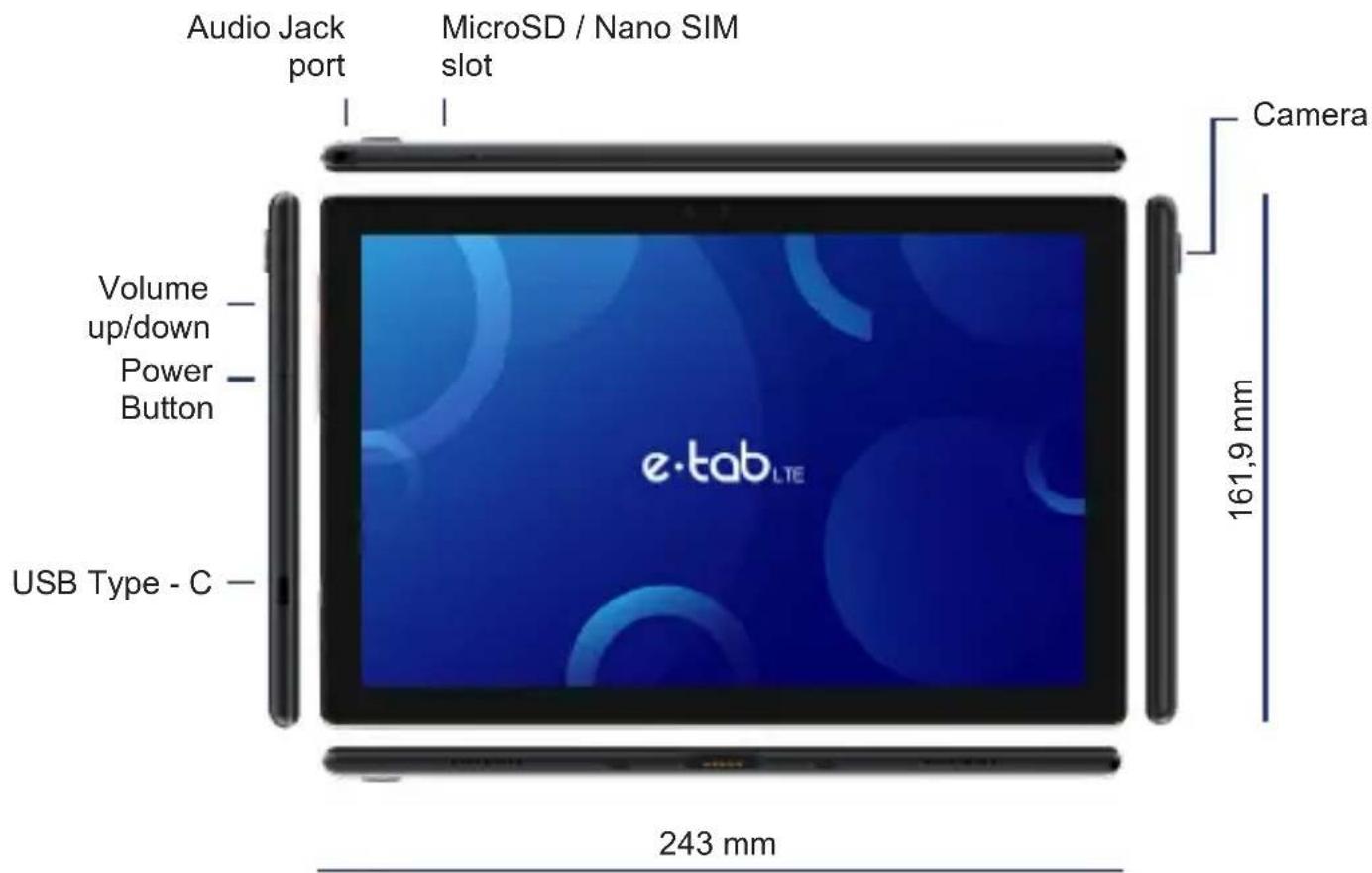
Recharge your e-tab LTE
Connect the USB cable to the power adapter.
Connect the USB connector to the tablet.
Connect the power adapter to a grounded power outlet.
Safety precautions for power supply and battery
Use the correct external power source. The power adapter for this product can only be used with the type of power source indicated on the electrical rating label. If you are not sure of the type of power source required, contact the authorized Microtech assistance service.
Battery pack care
The product contains a lithium polymer battery.
If the battery pack is handled incorrectly there is a risk of fire and burns. Do not attempt to open or repair the battery pack.
In case of prolonged stop of the device make sure to leave the batteries with a residual charge of about 50% .
The device displays a low battery warning when the battery is almost empty. Charge the device immediately to prevent it from turning off automatically.
If the device does not respond when you press the power button, the battery is probably completely discharged. Charge the battery for at least 30 minutes (using the USB cable and the power adapter supplied with the device) then try to switch on the device again.
You can recharge the battery multiple times, but all batteries have a limited life span. If you notice a significant deterioration in the battery life of the device, you will need to purchase a replacement battery by contacting an authorized Microtech service center for replacement.
The device can heat up during prolonged use or if exposed to high temperatures. If the device overheats excessively, stop charging and disable unnecessary functions. Place the device in a cool place and allow it to cool down to room temperature. Avoid touching the surface of the device in case of overheating.
Charging times may vary depending on the ambient temperature and the remaining battery level.
Warnings
Only use the supplied power adapter and the USB cable to charge the battery of your e-tab LTE. Using a different power adapter may damage the tablet.
Make sure you plug the power supply into the power outlet with the correct input voltage. The adapter output voltage is 5.0V DC, 2A.
We suggest you to charge your e-tab LTE through grounded outlet.
Keep your device away from strong magnetic fields which may damage the device.
Only the Microtech qualified staff can repair the tablet.
We recommend keeping the volume at a safe level to preserve your health. In case of prolonged exposure to loud noise hearing troubles may arise.
Be careful not to drop the device or bump it against objects, it may cause damages not covered by the standard warranty.
Do not expose your device to damp environments, rain or extremely hot environments.
The contact with water, sand or prolonged exposure to high temperatures may cause an irreparable damage.
Do not use chemicals or detergents to clean the tablet, they may corrode the surface.
Do not use your device with wet hands in order to avoid unexpected electrical discharges.
All wireless devices are susceptible to interferences, which could affect the performance.
Do not use the tablet in petrol stations or near fuels or chemicals.
Updates Management
During software updates or during download operations do not remove the power supply, it may cause irreversible data loss.
Any tampering with the software may generate additional costs for recovery.
Android
Start
Press and release the power button on the top right of the tablet.
Power off
Hold for a few seconds the power button
Select power off.
Lock the screen
Press the power button.
Changing the Language of the System
From Settings go to > System > Language & input > Language > Select language.
Features
Dual Camera
It takes pictures, records videos.
Capacitive multi touch
Use your fingers on the screen to control the system.
USB Type-C
Connect USB Type-C cable with charging and data transfer function.
Slot MicroSD
Support MicroSD up to 128 GB.
Nano SIM
Support Nano SIM.
Jack audio 3,5 mm
Connect headphones or earphones through this input.
Microphone
It captures your voice and all the sounds coming from the surrounding environment.
Speaker
It offers a clear and optimal quality of sound.
Volume keys
+ Increases Volume / - Decreases Volume.
Technical data sheet
| Tablet dimensions | Width: 243mm Height: 161,9 mm | Thickness: 9,6 mm Weight: 600 g |
| Chip |  | Unisoc T618 2 x A75@2.0 GHz+6 x A55@2.0 GHz | |
| Graphics |  | PowerVR GE8300 / Mali G52 3EE 2-Core | |
| Display |  | DISPLAYIPS | Dimensions: 10.1 inches IPSResolution: FHD 1.920x1.200 |
 | |||
| Touch Screen |  | Capacitive 10 Points G+G | |
| Operating system |  | Android 11Android is a trademark of Google LLC. The Android robot is reproduced or modified from work created and shared by Google and used according to terms described in the Creative Commons 3.0 Attribution License. | |
| Case |  | Metal / ABS | |
| Memory |  | 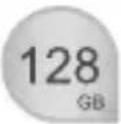 | RAM 4 GB LP-DDR4Storage capacity of 128 GB eMMC |
| Inputs | outputs |  |  | 1 USB Type-C port1 MicroSD / Nano SIM slot1 Earphone output 3.5 mm |
 | |||
| Buttons |  |  | Power on Volume |
| Battery | 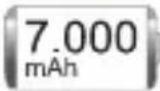 | Lithium Polymer battery: 7.000 mAh 3.8V | |
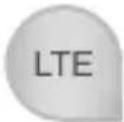
| Connections | 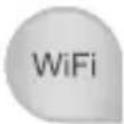 |  | Wi-Fi 802.11 IEEE b/g/n/acBluetooth 5.1LTE |
 | |||
| Audio Camera Sensor |  |  | Camera: 8 MP Front, 13 MP RearGPSAudio: integrated speakersG-sensorBrightness sensor |
| Certifications |   | CERohs |
The information contained in the manual may change without notice.
Environmental protection
Microtech has pledged to deliver products and packaging materials with no environmental impact to safeguard the health of the consumers and to respect the environment. The decrease in the number of pages of this manual is part of the policies aiming at reducing emissions of carbon dioxide.
Correct disposal

EXPLOSION HAZARD if the battery is replaced with a not compliant model. Dispose of used batteries according to the manufacturer's instructions.

DO NOT THROW the battery in the dustbins. The X symbol on the dustbin indicates that It is forbidden to throw the battery in it.

DO NOT THROW our e-tab LTE in the dustbins. This product has been designed to enable the reuse of some parts and the recycling of other parts. The X symbol on the dustbin indicates that the product (electrical, electronic, batteries containing mercury) should not be thrown in the bins of municipal waste. Check local regulations for proper disposal of electronic products.

DO NOT THROW our e-tab LTE in the fire. DO NOT short-circuit among the contacts. DO NOT disassemble your tablet.
Technical assistance and support
For any repair request please contact the following address:
https://microtech.store/?lang=en
Then register your e-tab LTE in the Microtech Customer Area:
https://microtech.store/support/?lang=en
After registration, you will receive your access credentials to the Customer Area by e-mail.
All repair requests must be entered in the Customer Area to be processed.
Microtech S.r.l
Via Aldo Moro, 9 Buccinasco, 20090 (MI)
Italy
(+39) 02-472663
https://microtech.store/?lang=en
Microtech
www.microtech.store



- Panoramica
- QUICK USER GUIDE
- Index
- Acknowledgments 28
- Acknowledgments
- Copyright © 2021 Microtech. All rights reserved.
- Conditions and limits of warranty of the products
- Limitation of liability
- Software license
- Package content
- Overview
- Recharge your e-tab LTE
- Safety precautions for power supply and battery
- Battery pack care
- Warnings
- Updates Management
- Android
- Start
- Power off
- Lock the screen
- Changing the Language of the System
- Features
- Dual Camera
- Capacitive multi touch
- USB Type-C
- Slot MicroSD
- Nano SIM
- Jack audio 3,5 mm
- Microphone
- Speaker
- Volume keys
- Technical data sheet
- Environmental protection
- Correct disposal
- Technical assistance and support
- Microtech S.r.l
- Microtech
Brand : Microtech
Model : e-tab LTE
Category : Tablet