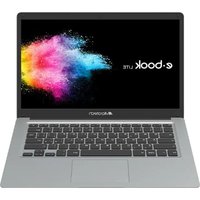
e-book Lite - Laptop Microtech - Free user manual and instructions
Find the device manual for free e-book Lite Microtech in PDF.


Pick your language and provide your email: we'll send you a specifically translated version.
| Product Type | Laptop |
| Brand | Microtech |
| Model | e-book Lite |
| Display Size | 13.3 inches |
| Resolution | 1920 x 1080 pixels |
| Processor | Intel Core i5, 2.5 GHz |
| RAM | 8 GB DDR4 |
| Storage | 256 GB SSD |
| Dimensions (W x D x H) | 320 x 220 x 18 mm |
| Weight | 1.5 kg |
| Power Supply | AC adapter 19V, 2.1A |
| Battery | Li-ion, 45 Wh, up to 8 hours |
| Operating System | Windows 10 Home |
| Connectivity | Wi-Fi 5, Bluetooth 4.2, USB 3.0 x2, HDMI |
| Main Functions | Web browsing, office applications, multimedia, light gaming |
| Cleaning | Wipe screen and body with a soft, dry cloth; avoid liquids |
| Safety Instructions | Do not expose to water or extreme temperatures; use only provided charger |
| Spare Parts & Repairability | Contact Microtech support for authorized repairs; some parts user-replaceable (battery, SSD) |
| Warranty | 1 year limited warranty |
| General Information | This device is designed for everyday productivity and portability. |
Frequently Asked Questions - e-book Lite Microtech
How do I turn on the laptop for the first time?
Press and hold the power button located on the top right of the keyboard until the screen lights up. Follow the on-screen setup instructions.
How can I connect to Wi-Fi?
Click the network icon in the system tray, select your Wi-Fi network, enter the password, and click Connect.
What should I do if the battery is not charging?
Check that the power adapter is firmly connected to the laptop and a working wall outlet. Try a different outlet. If the issue persists, contact Microtech support.
How do I clean the screen?
Turn off the laptop, then wipe the screen gently with a soft, lint-free cloth. Do not use any liquids or abrasive cleaners.
Can I upgrade the RAM or storage?
Yes, the RAM and SSD are accessible. Refer to the user manual for instructions. Upgrading may void the warranty if not done properly.
How do I perform a factory reset?
Go to Settings > Update & Security > Recovery, then click Reset this PC. Choose 'Remove everything' for a full reset.
Why is the laptop running slowly?
Close unused applications and tabs. Check for Windows updates and run a virus scan. If still slow, consider freeing up disk space or upgrading RAM.
How do I connect an external monitor?
Connect the monitor via HDMI cable. Press Windows + P to select display mode (duplicate, extend, etc.).
What does the LED indicator mean?
A solid white light indicates power is on. A blinking amber light means battery is low. Refer to manual for other patterns.
Where can I download the user manual?
The manual is available for free download on notice-facile.com. Search for 'Microtech e-book Lite'.
User questions about e-book Lite Microtech
0 question about this device. Answer the ones you know or ask your own.
Ask a new question about this device
No questions yet. Be the first to ask one.
Download the instructions for your Laptop in PDF format for free! Find your manual e-book Lite - Microtech and take your electronic device back in hand. On this page are published all the documents necessary for the use of your device. e-book Lite by Microtech.
USER MANUAL e-book Lite Microtech


Manual assistant
Powered by Anthropic
Waiting for your message
Product information
Brand : Microtech
Model : e-book Lite
Category : Laptop