
XE800ZAA - Virtual reality headset SAMSUNG - Free user manual and instructions
Find the device manual for free XE800ZAA SAMSUNG in PDF.


| Product Type | Virtual reality headset (HMD) |
| Model | XE800ZAA |
| Brand | Samsung |
| Connectivity | USB 3.0 and display support cable to computer; Bluetooth 4.0 for controllers |
| Sensors | Tracking sensor, proximity sensor |
| Display | Lenses with focus adjustment wheel |
| Audio | Built-in speakers and microphone |
| Controller | Optional, Bluetooth, includes touchpad, thumbstick, trigger, grab button, menu button, Windows button |
| Power Source (HMD) | Computer via USB cable |
| Power Source (Controller) | 2 x AA batteries per controller (4 total included) |
| Operating System | Windows Mixed Reality Portal app |
| Recommended Age | 13 years and older |
| Safety Certifications | FCC, IC |
| Package Contents | HMD, lens cleaner, user manual; optional controllers with batteries and wrist straps |
| Maintenance | Clean lenses with lens cleaning cloth; do not wash foam cushioning; use skin-friendly antibacterial wipes between users |
| Repairs | Only by authorized Samsung service center |
| Storage Temperature | -5°C to 40°C (23°F to 104°F) |
| Operating Temperature | 10°C to 35°C (50°F to 95°F) |
| Operating Humidity | 20% to 80% |
| Storage Humidity | 5% to 90% |
Frequently Asked Questions - XE800ZAA SAMSUNG
User questions about XE800ZAA SAMSUNG
0 question about this device. Answer the ones you know or ask your own.
Ask a new question about this device
Download the instructions for your Virtual reality headset in PDF format for free! Find your manual XE800ZAA - SAMSUNG and take your electronic device back in hand. On this page are published all the documents necessary for the use of your device. XE800ZAA by SAMSUNG.
USER MANUAL XE800ZAA SAMSUNG
About the Head Mounted Display
With this Head Mounted Display (HMD), you can enjoy the Mixed Reality (MR) by connecting it to your computer. The mixed reality reflects your movement in real life and you can simultaneously share the experience with others.
You can view various images, videos, webpages, or games. Pair controllers to your computer for a more immersive experience.
Table of contents
Read me first
Getting started
Package contents 8
Device layout 10
HMD
10
Controller (optional) 14
Connecting the HMD 19
Connecting the HMD to a computer 19
Preparing the HMD for use 20
Disconnecting and reconnecting the controller 24
Table of contents
Basics
Wearing the HMD 25
Moving the screen 28
Moving the pointer 29
Moving your position 29
Using the controller (optional) 30
Using the HMD
Mixed Reality Portal app 34
Using the Mixed Reality Portal 35
Icon functions 36
Start screen 37
Turning off the Mixed Reality Portal 41
Table of contents
Appendix
Troubleshooting
Health and safety warnings 46
Safety information 65
42

Read me first
- Please read this manual before using the Head Mounted Display (hereafter referred to as "HMD") to ensure safe and proper use.
- To prevent injury or damage to your devices, read the health and safety warnings and information before using the HMD.
- Use the HMD for its intended purpose only. Using the HMD for other purposes may result in injury.
- The HMD cannot be operated by itself. To use the HMD, you must first connect it to a computer. Visit www.samsung.com to see the recommended computer specifications.
Instructional icons

Warning: situations that could cause injury to yourself or others

Caution: situations that could cause damage to your device or other equipment

Notice: notes, usage tips, or additional information
Getting started
Package contents
Check the product box for the following items:
• Head Mounted Display (HMD)
- Lens cleaner
- User manual
Optional items
Controller (L/R)
(including 4 AA batteries, 2 wrist straps)

• You can purchase the controllers separately.
- The items supplied with the device and any available accessories may vary depending on the region or service provider.
- Appearances and specifications are subject to change without prior notice.
- You cannot connect and use more than two HMDs to a computer.
Getting started
Device layout
HMD
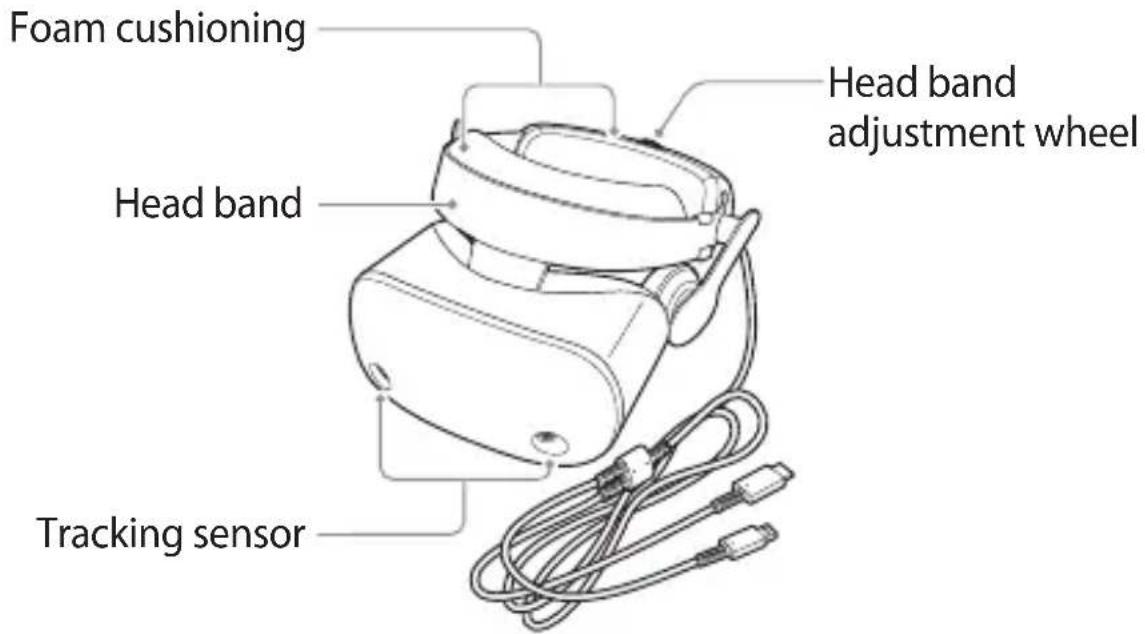
Getting started
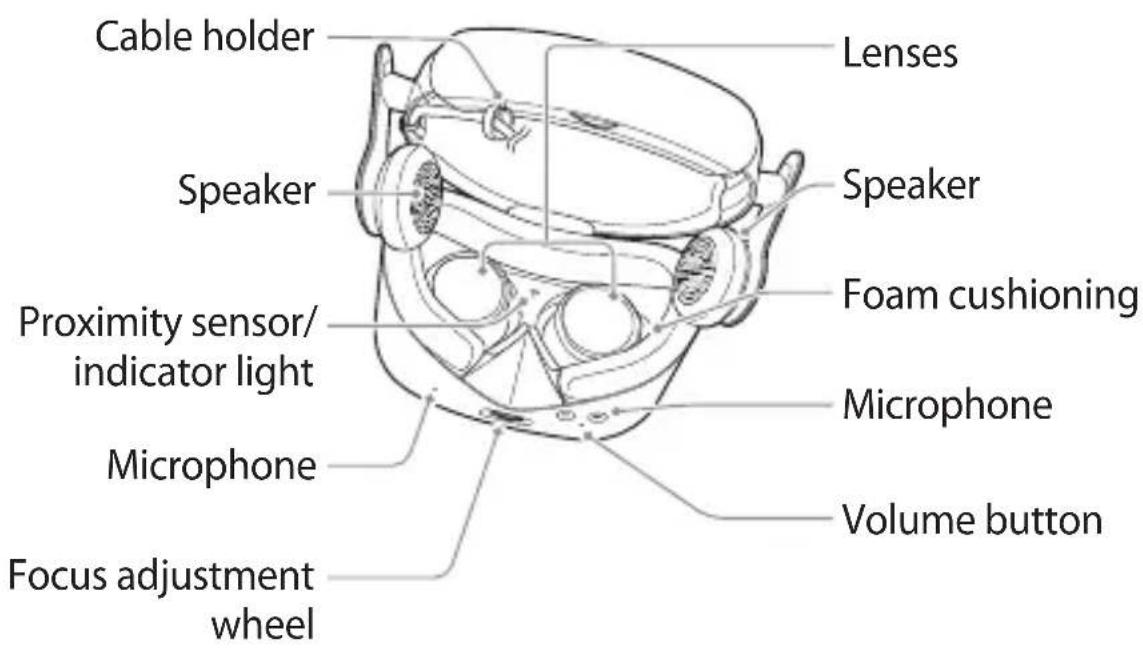
| Name Description | |
| Tracking sensor | Recognizes the movement of the controller's indicator light to track the user's location. |
| Foam cushioning | Protects your head during use. |
| Head band adjustment wheel | Rotate to adjust head bands' circumference to fit your head size. |
| Speaker | Sound is emitted from the speakers. |
| Proximity sensor/indicator light | Detects whether you wear the HMD. When you wear the HMD, the proximity indicator light will turn off. |
| Microphone | You can use the built-in microphone. |
| Focus adjustment wheel | Rotate to focus by adjusting the distance between the lenses. |
| Lenses | You can use the lenses to see Mixed Reality. |
| Volume buttons | Press to adjust the volume. |

Controller (optional)
You can connect the controller to a computer via Bluetooth.
Control various features using the controllers.

When you connect the wrist strap to your controller, you can use the controller safely without dropping it.
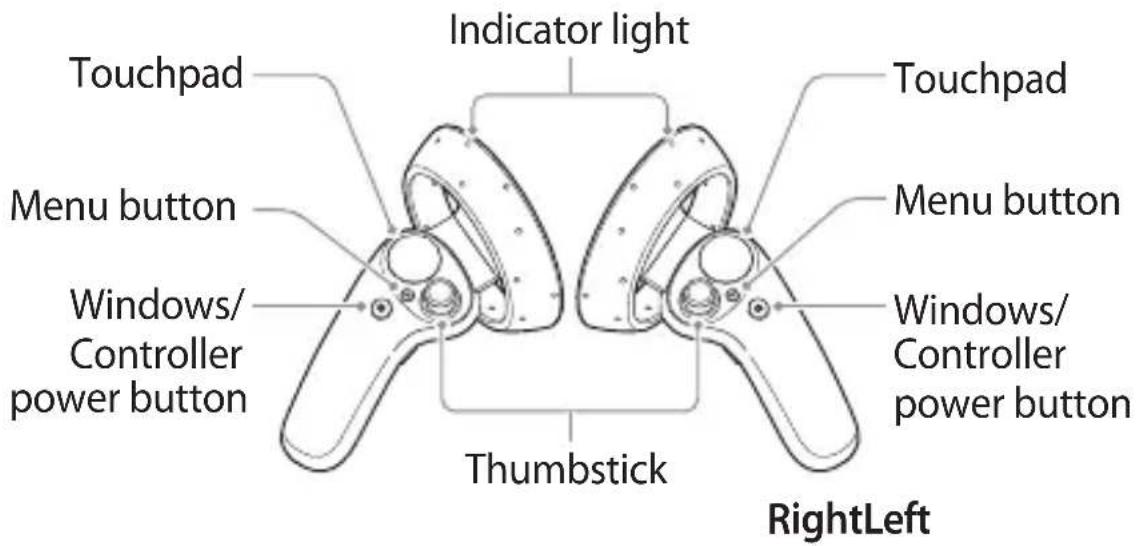
Getting started
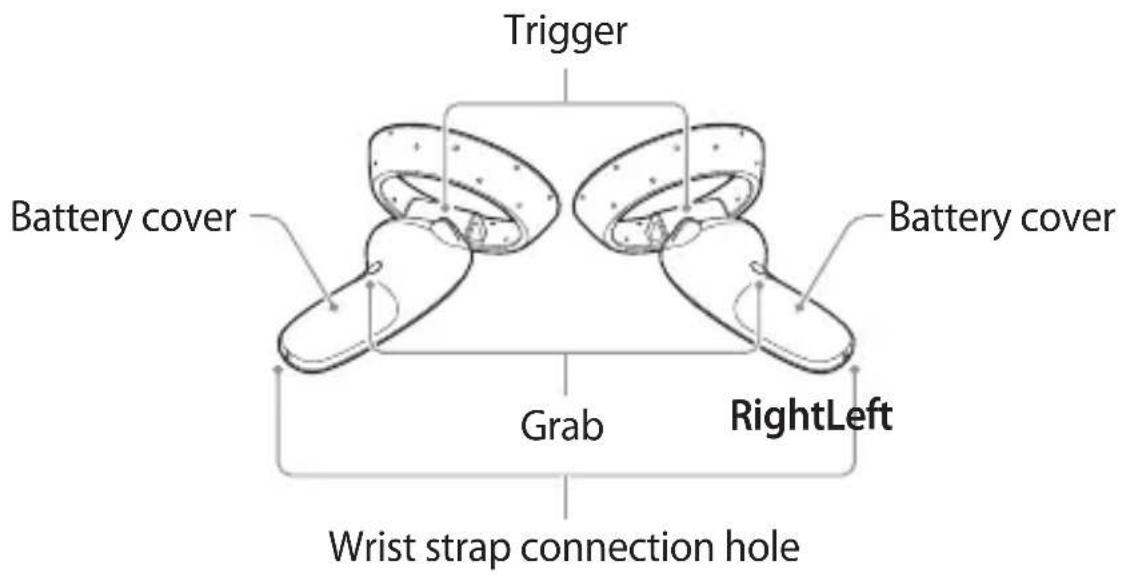
Getting started
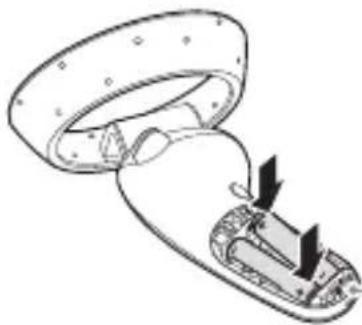
Before using the controller, slide the battery cover below to open it and insert batteries with the positive and negative terminals properly.
natural_image
Diagram of a mechanical component with arrows indicating internal movement (no text or symbols)Bluetooth pairing button
| Name Description | |
| Touchpad | Press to select an item. You can move to the next or previous item by swiping to the left or right. |
| Menu button | Press to access additional options for the current screen. |
| Windows/Controller power button | Press and hold to turn on or off the controller.Press to open the start screen. |
| Indicator light | Indicates the controller's status. When the controller enters the Bluetooth pairing mode, it flashes. |
| Thumbstick | Push the thumbstick back and forth to move your location.Press the trigger button to make the controller beam appear, then push the thumbstick forward and hold it to make the teleport arc appear. You can teleport to the location where the controller beam is pointing. |

Getting started
| Name Description | |
| Grab | • Pick up an item on the ground in some games or apps. |
| Trigger | • Press to select an item or use it as a trigger when playing certain games. Its function may vary depending on the launched apps. |
Connecting the HMD
To use the HMD, connect it to a computer and follow the instructions to set up the Mixed Reality Portal app.
Before using, check the Internet connection of the computer.
Connecting the HMD to a computer
Turn on a computer and connect the HMD cables to the corresponding ports of the computer.

- When you use a laptop, connect the power adaptor for stable performance.
- Connect the HMD cable to the USB 3.0 port and display support port on your computer.
- It is not recommended to use additional extension cables.
Getting started
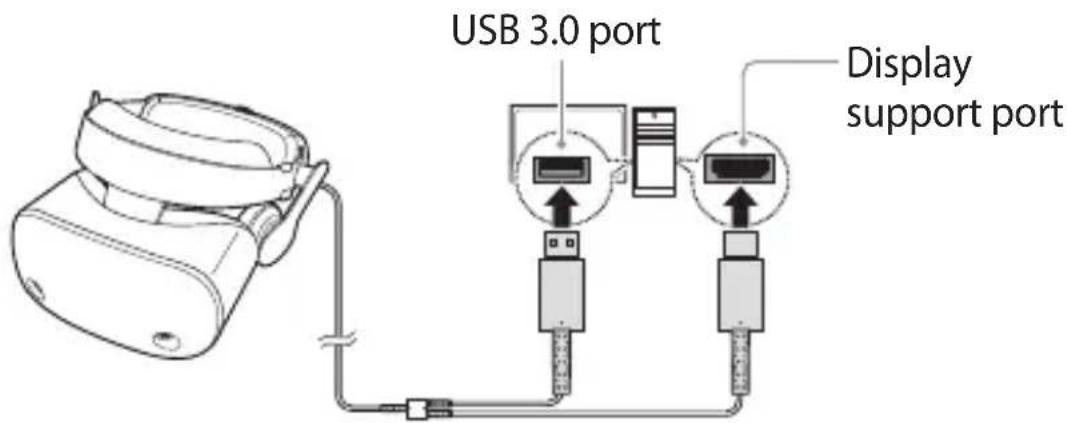
When you connect the HMD to a computer, the Mixed Reality Portal app will launch automatically.
If the Mixed Reality Portal app is not launched, click 📄 → Mixed Reality Portal.
Preparing the HMD for use
Connect the HMD to your computer and follow the instructions to set the Mixed Reality Portal app without wearing the HMD.
Getting started
Select the options with either the keyboard or mouse to proceed.
1 Click Get started on the Mixed Reality Portal app screen of your computer.
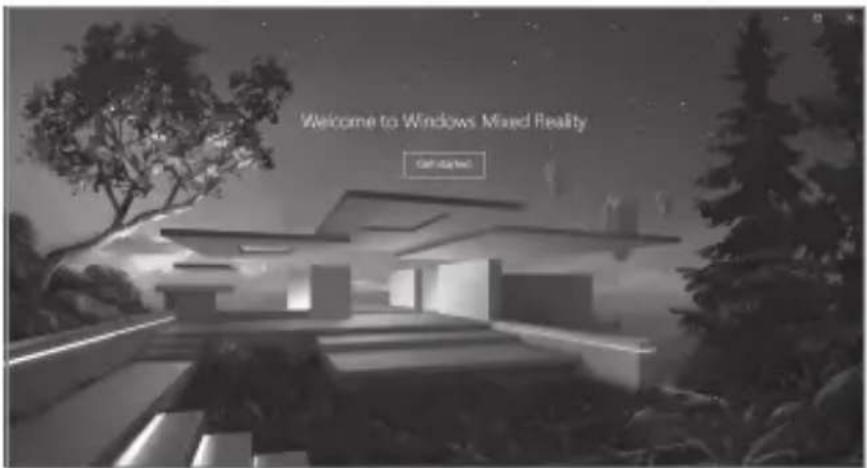

The screen may appear differently depending on the app version.
Getting started
2 Follow the on-screen instructions to check the computer's specification. When completed, click Next.

Visit www.samsung.com to see the recommended computer specifications.
![You're good to go Graphics card: NVIDIA CPU 2.00 Graphics driver: 22.01 GB/800 NVIDIA 2.00 CPU: Intel CoreTet (57400 CPU @ 3.88GHz) RAM: 9.69 USB port: 58.09 USB: 5.64 Bluetooth [for continued]: 4.3 ✓ ✓ ✓ ✓ ✓ ✓ ✓ ✓ ✓ ✓ ✓ ✓ ✓ ✓ ✓ ✓ ✓ ✓ ✓ ✓ ✓ ✓ ✓ ✓ ✓ ✓ ✓ ✓ ✓ ✓ ✓ ✓ ✓ ✓ ✓ ✓ ✓ ✓ ✓ ✓ ✓ ✓ ✓ ✓ ✓ ✓ ✓ ✓ ✓ ✓ you're good but help to find the software may not be going to your own help. This is a version of NVIDIA CPU to the reverse to the next user shown here. Next](/content/2026/05/821221/images/d1771005fccf19cb7b535219df9ae35daf9d96945cc8c0e4bad48c457396d88e.jpg)
3 Follow the on-screen instructions to learn about the HMD.
4 The HMD's firmware update screen will appear.
When the firmware update button is activated, click it to update the firmware and click Next.
5 Set an area to use HMD. Follow the on-screen instructions to set the boundary of the area you want to use.
While you are wearing the HMD, you cannot see your actual surrounding, so it designed to help you avoid accidents but cannot guarantee that you won't step outside the area.
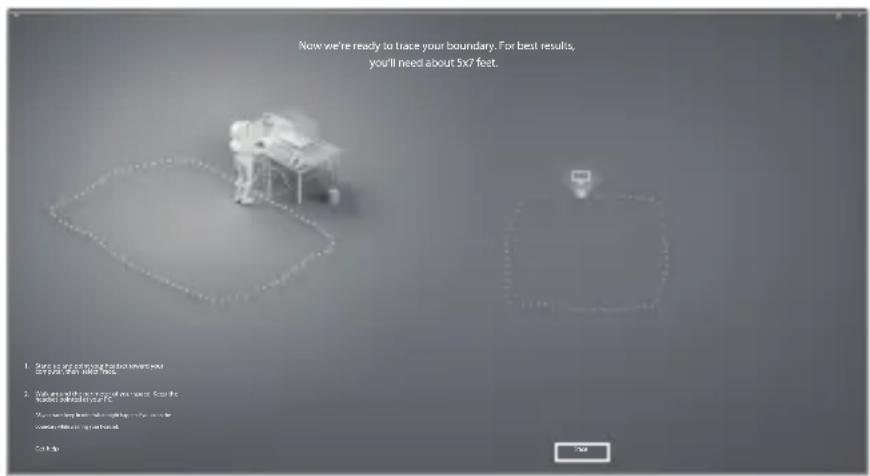
6 Follow the on-screen instructions to complete the setup. You can use the HMD.
Disconnecting and reconnecting the controller
If you remove the HMD from your head or the Bluetooth connection ends, the controller will turn off. Press and hold the Windows button to turn on the controller. The controller will be reconnected to the previous HMD automatically.

- If the controllers and the HMD are not kept within the Bluetooth connection range (Maximum 10 m), the controllers will be disconnected.
- If the HMD and controller are not functioning properly, take them and the connected computer to a Samsung Service Center.
Basics
Wearing the HMD

- Do not put on the HMD when you are wearing glasses. Doing so may cause facial injuries. If you need corrective lenses, it is recommended that you wear contact lenses when using the HMD.
- If you are farsighted or there is a big difference between your left and right eyes' vision, wear corrective lenses before using the HMD.
- Factory lens protectors are pre-installed on the HMD. Remove the lens protectors before you use the HMD so you can see clearly.
- Keep the lenses clean and protect them from getting scratched. If the lenses get dirty or steam up, clean them with the lens cleaning cloth.

Basics
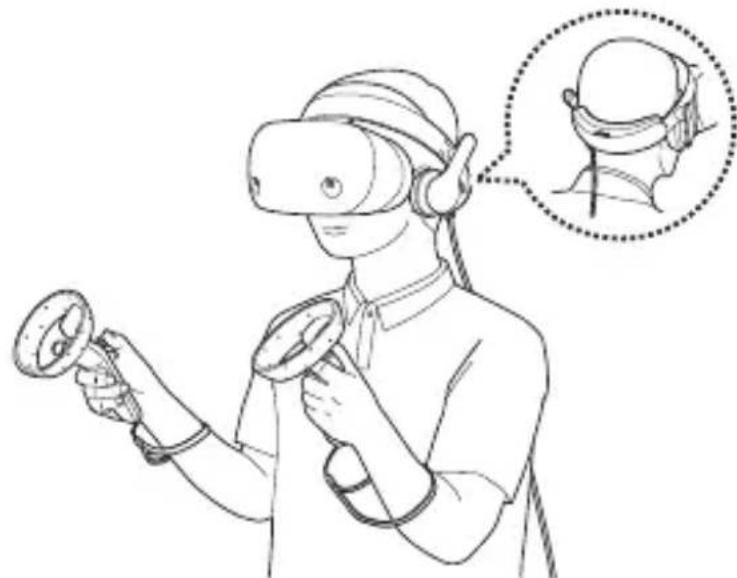
1 Align the HMD's lenses with your eyes.
2 Wear the HMD's head band on your head and adjust it using the head band adjustment wheel.
3 Adjust the location of the speakers to place them on your ear.
4 Hold the controllers.
natural_image
Illustration of a person using VR headset and holding a megaphone, with an inset showing the head view of the device (no text or symbols present)
Do not walk or drive while wearing the HMD. Always be aware of your surroundings while using the HMD to avoid injuring yourself or others.

- Wear the HMD correctly. If you wear the HMD tilted to one side, it may cause discomfort.
- When the screen is tilted, adjust the HMD or rotate the focus adjustment wheel until the screen becomes clear.
Basics
Moving the screen
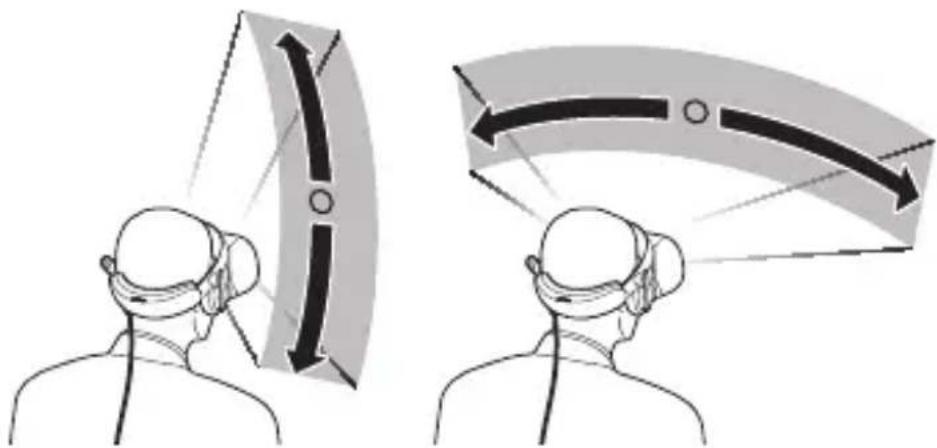
The HMD recognizes your head and body movements.
Move your head or the controller in any direction to move the pointer or the screen.
natural_image
Illustration showing two figures wearing head coverings, with arrows indicating motion or movement (no text or symbols)You can move inside the Mixed Reality Portal according to your movement. You can also move your position using the controller's thumbstick.
Moving the pointer
- Wear the HMD and move your head in any direction to move the pointer.
- Move the pointer using the controller.
Moving your position
- The HMD recognizes the real movement and move inside the Mixed Reality Portal.
- Push the thumbstick back and forth to move your location. Press the trigger button to make the controller beam appear, then push the thumbstick forward and hold it to make the teleport arc appear. You can teleport to the location where the controller beam is pointing.
Basics

- The pointer is located where you point the controller beam. Some apps and content may not display the pointer at all times.
- Depending on the app, there may be screen movement restrictions.
- When you are using the controller, you cannot move the pointer using the HMD.
- When you are using the controller to move your position, you cannot teleport to the place where the red beam appears.
Using the controller (optional)
Control the HMD by moving the pointer and use the touchpad or buttons to select items.

To avoid damaging the controller's touchpad, do not tap it with anything sharp.

• You can use the Mixed Reality Portal by using a keyboard, mouse, or gamepad connected to the computer.
• The controller functions may vary by app.
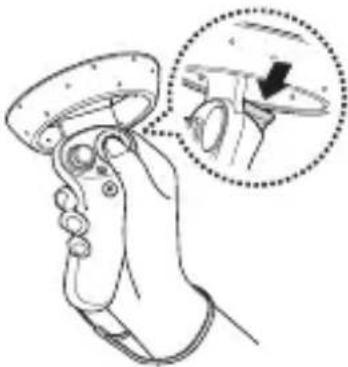
natural_image
Illustration of a hand holding a remote control device with a magnified inset showing the interior component (no text or symbols)Pressing
- Select an item by pressing the touchpad or trigger.
Basics
natural_image
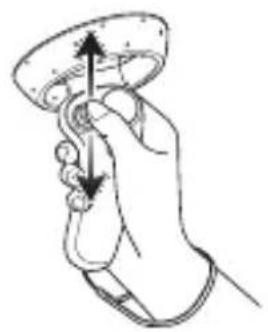
Line drawing of a hand holding a circular object with an upward arrow and downward arrow indicating motion (no text or symbols)Pushing the thumbstick
- Push the thumbstick back and forth to move your location.
- Press the trigger button to make the controller beam appear, then push the thumbstick forward and hold it to make the teleport arc appear. You can teleport to the location where the controller beam is pointing.
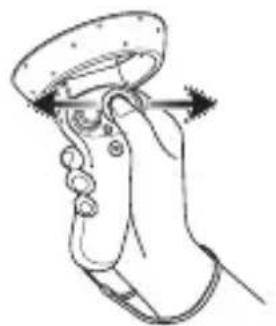
natural_image
Line drawing of a hand holding a remote control device with directional arrows indicating movement (no text or symbols)Dragging on the touchpad
- Move to the next or previous item.
- Scroll up or down on a webpage or list.
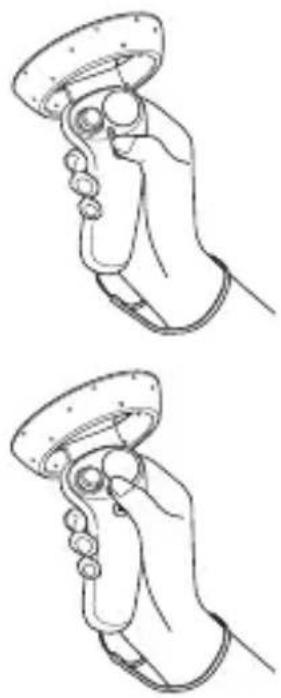
natural_image
Line drawings of a hand holding a controller, showing two different states of grip (no text or symbols present)Launching the start screen
- Press the Windows button to launch the start screen.
Launching the menu
- Press the menu button to launch the menu of each function.
Using the HMD
Mixed Reality Portal app
The Mixed Reality Portal app is supported by the Windows OS to use the HMD. The Mixed Reality Portal is provided for you to experience the Mixed Reality. If you connect the HMD to your computer, the Mixed Reality Portal app will launch automatically.
You can preview the portal screen on your monitor without wearing the HMD and enjoy the Mixed Reality Portal with others at the same time.

- Click → Mixed Reality Portal if the Mixed Reality Portal app does not appear.
- Check the Internet connection of the computer if required.
- The screens may differ depending on the app version.
Using the Mixed Reality Portal
2D apps and 3D holograms are located throughout the Mixed Reality Portal. You can move them to where you want or change their size.
Select an app or content on the portal screen or start screen, and play games or view various content.

You can see the portal screen on the monitor without wearing the HMD.
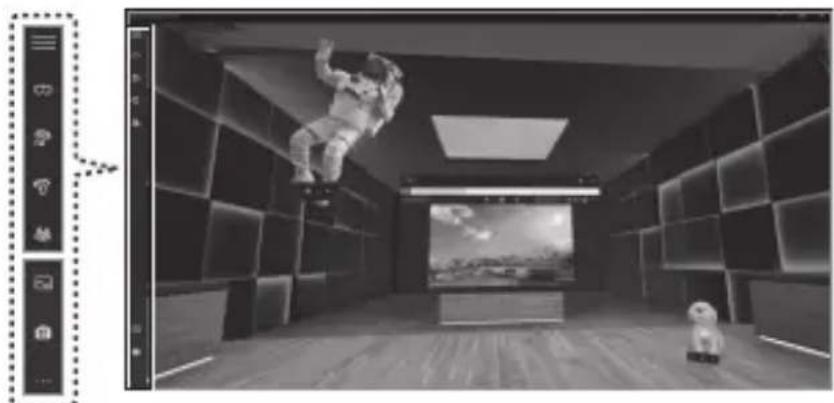
natural_image
Interior view of a modern, minimalist room with a large astronaut floating above a screen and a small robot nearby (no visible text or symbols)Mixed Reality Portal screenIcons
Icon functions
• ≡: Open or close the menu panel.
- 📷: Check the name of the HMD and the connection.
- 📋: Check the connection of the left controller.
- : Check the connection of the right controller.
- Turn on or off the boundary of the area you want to use for the HMD. The boundary you set will appear as an invisible wall and prevent the accidents from bumping into obstacles.
• : View Mixed Reality images and videos.
• : Download the Mixed Reality app.
• ...: Launch the settings app.
• ▷ / || Turn on or off the preview screen.
• ☐: Adjust the preview screen ratio of the Mixed Reality Portal.
Using the HMD
- /; Maximize the screen of the Mixed Reality Portal app screen or revert to its original size.
Start screen
The Mixed Reality Portal start screen will appear when you press the controller's Windows button.
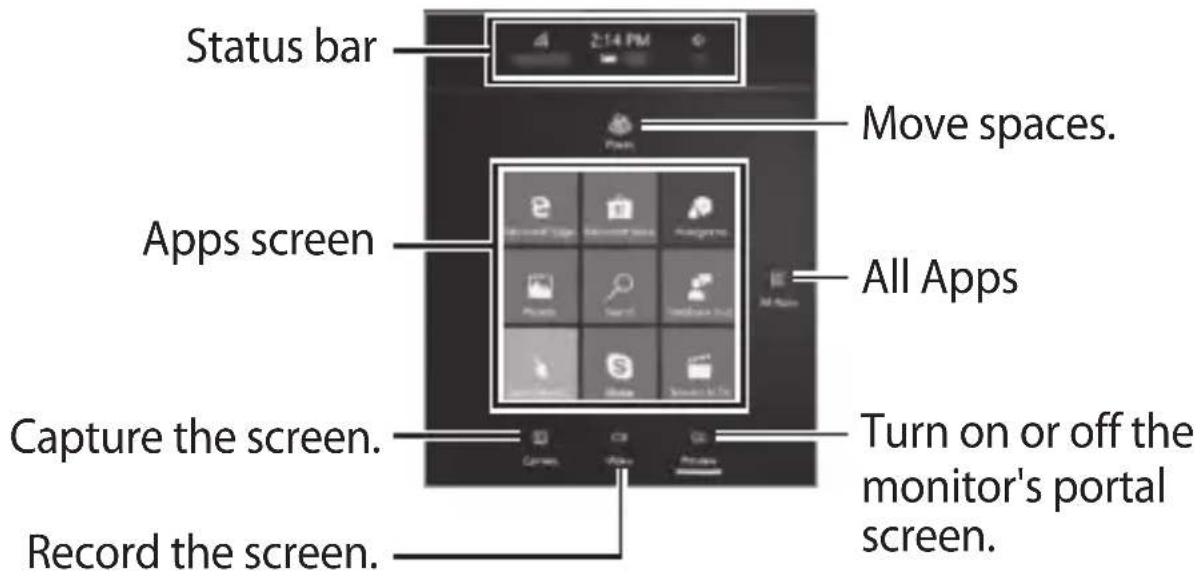
Viewing images or videos
You can view images or videos saved on your computer and you can also view downloaded content.
Save files to the Video folder on your computer to view images or videos.
Press the Windows button and select Photos to view images.
Press the Windows button and select Movies & TV to view videos.
Select •••• → Play as 360° video while viewing videos to view videos in 360°.

When you play a 2D video in 360°, the video will not play correctly.
Internet
Using the Edge browser, you can view Internet content and videos on webpages.
Press the Windows button and select Microsoft Edge.
Viewing content
You can view content saved on your computer.
Press the Windows button, select All Apps→ File Explorer, and select the saved location.
Taking photos or recording videos
You can record or take photos of what you see and hear in the Mixed Reality world.
Press the Windows button and select All Apps → Camera. Select to take pictures. Select □ to record videos.
Press the Windows button and select Photos to view photos or recorded videos.
Downloading apps and content
Download various apps and content, such as games, movies, or photos.
Press the Windows button and select Store.
Follow the on-screen instructions to sign in and select the app or content you want to download.
Learning about the Mixed Reality Portal
Press the Windows button and select Learn Mixed Reality to learn about the Mixed Reality Portal.
Turning off the Mixed Reality Portal
1 Take off the HMD.
2 Click ✗ on your computer's Mixed Reality Portal app to exit the Mixed Reality Portal screen.
If the Mixed Reality Portal screen is on full screen, press the Esc key on your keyboard and click ✗ to exit the screen.
3 Remove the HMD cable connected to your computer. Mixed Reality Portal will turn off.

Appendix
Troubleshooting
Before contacting a Samsung Service Center, please attempt the following solutions. Some situations may not apply to your device.
If the tips below do not solve the problem, contact a Samsung Service Center.
The screen does not appear when the HMD is connected to the computer
- Ensure that the USB cable and the HDMI cable are correctly connected.
- Ensure that the USB 3.0 port is connected.
- Ensure that the Mixed Reality Portal app is installed on the computer.
The Mixed Reality Portal does not recognize the HMD
- Ensure that the display support cable is correctly connected to the display support port of the graphics card.
- Remove the USB and display support cables from the computer and reconnect them.
- Ensure that the monitor and the Mixed Reality device appear in the device manager.
The Mixed Reality Portal app does not update
- Ensure that the computer is connected to the Internet.
- Ensure that there is sufficient space (over 2 GB) on your computer.
Digital boundary area unavailable
- Do not set an area close to a wall or objects you might bump into.
- Ensure that you do not cover the tracking sensor and set the boundary area again after brightening the space.
- Do not set the area too broad or complicated.
The screen is out of focus
- Ensure that the HMD is correctly placed on your face.
- Rotate the focus adjustment wheel until the screen looks clear.
The controller does not work
- Ensure that the controller icons appear on the left side of the Mixed Reality Portal app screen and is properly connected.
-
Ensure that the computer and controllers are within the maximum Bluetooth range.
-
Ensure that the controller's battery is fully charged.
-
Reset the controller if it does not work properly.
-
Press and hold the Windows button and turn off the power.
- Open the battery cover and, while pressing the Bluetooth pairing button, press and hold the Windows button.
When you reset the controller, it will vibrate and the indicator light will turn on.
You can reconnect and use the controller on your computer.
- If your controller is not functioning correctly after the reset, take it, the HMD, and your computer to a Samsung Service Center.
Light interference while wearing the HMD
- Light may be detected depending on the user's face shape. Attach the HMD on your face using the head band adjustment wheel.
Health and safety warnings

HEALTH & SAFETY WARNINGS: To reduce the risk of personal injury, discomfort or property damage, please ensure that all users of the HMD read the warnings below carefully before using the HMD.

Before Using the HMD
- Read and follow all setup and operating instructions provided with the HMD.
-
Review the hardware and software recommendations for use of the HMD. Risk of discomfort may increase if recommended hardware and software is not used.
-
Your HMD is not designed for use with any ineligible device, accessory and/or software. Use of an ineligible device, accessory and/or software may result in injury to you or others, and may cause performance issues or damage to your system and related services.
- A comfortable virtual reality experience requires an unimpaired sense of motion and balance. Do not use the HMD when you are tired, sleepy, under the influence of alcohol or drugs, being hung-over, having digestive problems, under emotional stress or anxiety, or suffering from cold, flu, migraines, or headaches, as this can increase your susceptibility to adverse symptoms.
• We recommend seeing a doctor before using the HMD if you are pregnant, elderly, have pre-existing binocular vision abnormalities or psychiatric disorders, or suffer from a heart condition or other serious medical condition.
Appendix

Seizures
Some people (about 1 in 4000) may have severe dizziness, seizures, epileptic seizures or blackouts triggered by light flashes or patterns, and this may occur while they are watching TV, playing video games or experiencing virtual reality, even if they have never had a seizure or blackout before or have no history of seizures or epilepsy. Such seizures are more common in children and young people under the age of 20. Anyone who has had a seizure, loss of awareness, or other symptom linked to an epileptic condition should see a doctor before using the HMD.

Children
The HMD should not be used by children under the age of 13, as young children are in a critical period in visual development. Adults should monitor children (age 13 and older) who are using or have used the HMD for any of the symptoms described below, and should limit the time children spend using the HMD and ensure they take breaks during use. Prolonged use should be avoided, as this could negatively impact hand-eye coordination, balance, and multi-tasking ability. Adults should monitor children closely during and after use of the HMD for any decrease in these abilities.

General Precautions
To reduce the risk of injury or discomfort you should always follow these instructions and observe these precautions while using the HMD.
- Use Only In A Safe Environment: The HMD produces an immersive virtual reality experience that distracts you from and completely blocks your view of your actual surroundings.
- Always be aware of your surroundings before beginning use and while using the HMD. Use caution to avoid injury.
- Use of the HMD may cause loss of balance.
- Remember that the objects you see in the virtual environment do not exist in the real environment, so don't sit or stand on them or use them for support.
- For the safest experience, remain seated or stationary when using the HMD.
- Serious injuries can occur from tripping, running into or striking walls, furniture or other objects, so clear an area for safe use before using the HMD.
Take special care to ensure that you are not near other people, objects, stairs, balconies, open doorways, windows, furniture, open flames, ceiling fans or light fixtures or other items that you can bump into or knock down when using—or immediately after using—the HMD. - Remove any tripping hazards from the area before using the HMD.
Appendix
- The USB cable and display support cable may wrap around the children's neck and cause injury. Be careful of the handling and storage.
- When you wear the HMD, you may not hear the ambient sounds because of the speaker and cause bodily injury when you cannot hear the sounds in emergency situations.
- Remember that while using the HMD you may be unaware that people and pets may enter your immediate area.
- Do not handle sharp or otherwise dangerous objects while using the HMD.
- Never wear the HMD in situations that require attention, such as walking, bicycling, or driving.
• Make sure the HMD is level and secured comfortably on your head, and that you see a single, clear image.
- Ease into the use of the HMD to allow your body to adjust; use for only a few minutes at a time at first, and only increase the amount of time using the HMD gradually as you grow accustomed to virtual reality. Looking around and using the input device when first entering virtual reality can help you adjust to any small differences between your real-world movements and the resulting virtual reality experience.
- Do not use the HMD while in a moving vehicle such as a car, bus, or train, as this can increase your susceptibility to adverse symptoms.
Take at least a 10 to 15 minute break every 30 minutes, even if you don't think you need it. Each person is different, so take more frequent and longer breaks if you feel discomfort. You should decide what works best for you.
Appendix
- Listening to sound at high volumes can cause irreparable damage to your hearing. Background noise, as well as continued exposure to high volume levels, can make sounds seem quieter than they actually are. Due to the immersive nature of the virtual reality experience, do not use the HMD with the sound at a high volume so that you can maintain awareness of your surroundings and reduce the risk of hearing damage.

Discomfort
- Immediately discontinue use if anyone using the HMD experiences any of the following symptoms: seizures; loss of awareness; eye strain; eye or muscle twitching; involuntary movements; altered, blurred, or double vision or other visual abnormalities; dizziness; disorientation; impaired balance; impaired hand-eye coordination; excessive sweating; increased salivation; nausea; lightheadedness; discomfort or pain in the head or eyes; drowsiness; fatigue; or any symptoms similar to motion sickness.
- Just as with the symptoms people can experience after they disembark a cruise ship, symptoms of virtual reality exposure can persist and become more apparent hours after use. These post-use symptoms can include the symptoms above, as well as excessive drowsiness and decreased ability to multi-task. These symptoms may put you at an increased risk of injury when engaging in normal activities in the real world.
Appendix
- Do not drive, operate machinery, or engage in other visually or physically demanding activities that have potentially serious consequences (i.e., activities in which experiencing any symptoms could lead to death, personal injury, or damage to property), or other activities that require unimpaired balance and hand-eye coordination (such as playing sports or riding a bicycle, etc.) until you have fully recovered from any symptoms.

- Do not use the HMD until all symptoms have completely subsided for several hours. Make sure you have properly configured the HMD before resuming use.
- Be mindful of the type of content that you were using prior to the onset of any symptoms because you may be more prone to symptoms based upon the content being used.
• See a doctor if you have serious and/or persistent symptoms.

Repetitive Stress Injury
Using the HMD can make your muscles, joints or skin hurt. If any part of your body becomes tired or sore while using the HMD, or if you feel symptoms such as tingling, numbness, burning or stiffness, stop and rest for several hours before using the HMD again. If you continue to have any of the above symptoms or other discomfort during or after play, stop using the HMD and see a doctor.

Interference with Medical Devices
The HMD contains magnets and can emit radio waves. These can affect the operation of nearby electronics, including cardiac pacemakers hearing aids and defibrillators. If you have a pacemaker or other implanted medical device, do not use the HMD without first consulting your doctor or the manufacturer of your medical device. Maintain a safe distance between the HMD and your medical devices, and stop using the HMD if you observe a persistent interference with your medical device.

Controller
- Consult the manufacturer for health and safety warnings for the controller.
• Always use included wrist straps with controllers to secure the controller to your wrist when in use.

Batteries
- CHOKING HAZARD. The controllers are not toys. They contain batteries, which are small parts. Keep away from children under 3.
• DO NOT INGEST ANY BATTERY. CHEMICAL BURN HAZARD. - If a battery is swallowed, it can cause severe internal burns and potential perforation of esophagus in just 2 hours and can lead to death. Keep batteries out of reach of children.
- If the battery compartment does not close securely, stop using the product and keep it away from children.
- Risk of fire. Batteries could cause thermal event or leak if installed backwards, disassembled, overcharged, punctured, crushed, mixed with used or other battery types, or directly exposed to fire or high temperature. Do not recharge disposable batteries. Replace all batteries in a single device at the same time.
Appendix
- Keep in original package until ready to use. Properly dispose of used batteries promptly.
- Do not allow conductive materials to touch the battery terminals on the devices. Keep batteries dry and avoid water intrusion.
- Do not disassemble, pierce, or attempt to modify batteries.

Electrical Shock
To reduce risk of electric shock:
- Do not modify or open any of the components provided.
- Do not use the product if any cable is damaged or any wires are exposed.

Damaged or Broken Device
- Do not use your device if any part is broken or damaged.
- Do not attempt to repair any part of your device yourself. Repairs should only be made by an authorized servicer.

Contagious Conditions
To avoid transferring contagious conditions (like pink eye), do not share the HMD with persons with contagious conditions, infections or diseases, particularly of the eyes, skin or scalp. The HMD should be cleaned between each use with skin-friendly antibacterial wipes (particularly the lenses) and dried with a microfiber cloth.

Skin Irritation
The HMD is worn next to your skin and scalp. Stop using the HMD if you notice swelling, itchiness, or other irritation. If symptoms persist, contact a doctor.

To avoid damage to the HMD
- Do not leave the HMD in direct sunlight. Exposure to direct sunlight can damage the HMD.
- Do not expose the HMD to external light sources including sunlight and lasers, etc., which may cause the damage on the screen.
- Store components in their storage case when not in use to minimize unintentional damage or environmental exposure.
Notices for using Bluetooth
Bluetooth is a wireless technology standard that uses a 2.4 GHz frequency to connect to various devices over short distances. It can connect and exchange data with other Bluetooth enabled devices, such as mobile devices, computers, printers, and other digital home appliances, without connecting via cables.
- To avoid problems when connecting your controller to another device, place the devices close to each other.
- Ensure that your controller and the other Bluetooth device are within the maximum Bluetooth range. The distance may vary depending on the environment the devices are used in.
Appendix
- Ensure that there are no obstacles between the controller and a connected device, including human bodies, walls, corners, or fences.
- Do not touch the Bluetooth antenna of a connected device.
- Bluetooth uses the same frequency as some industrial, scientific, medical, and low power products and interference may occur when making connections near these types of products.
• Some devices, especially those that are not tested or approved by the Bluetooth SIG, may be incompatible with your controller. - Do not use the Bluetooth feature for illegal purposes (for example, pirating copies of files or illegally tapping communications for commercial purposes).
Safety information
To prevent injury to yourself and others or damage to your device, read the safety information about your device before using it.
Use the device for its intended purpose only.
Do not drop or cause an impact to the charger or the device.
Do not use or store your device in areas with high concentrations of dust or airborne materials.
Dust or foreign materials can cause your device to malfunction.
Do not allow the device's connector to contact conductors, such as liquid, dust, metal filings, and pencil leads.
Contact with conductors may cause a short circuit or corrosion at the connector and result in explosion, fire, or damage to the device.
Appendix
Do not bite or suck the device.
Children or animals can choke on small parts.
Do not insert the device or supplied accessories into the eyes, ears, or mouth.
Doing so may cause suffocation or serious injuries.
Do not expose the device to heavy smoke or fumes.
Doing so may damage the outside of the device or cause it to malfunction.
Keep your device dry.
Humidity and liquids may damage the parts or electronic circuits in your device.
The recommended operating environments are as follows:
- Temperature: -5–40 °C for storage, 10–35 °C when operating
- Humidity: 5–90 % for storage, 20–80 % when operating
Using or storing the device outside of the recommended temperature ranges may damage the device or reduce the battery's lifespan.
Do not store your device in very hot areas such as inside a car in the summertime. Doing so may cause the screen to malfunction, result in damage to the device, or cause the battery to explode.
Do not use the device if errors occur. Continued use of the device after errors occur may result in discomfort or personal injury.
If you are allergic to the paint or metal parts on the device, you may experience itching, eczema, or swelling of the skin. If this happens, stop using the device and consult your physician.
Do not use your device in a hospital, on an aircraft, or in any automobile that can be affected by radio frequencies. Doing so may cause malfunctions of equipment and may result in injury or damage to property.
When connecting the device to other devices via Bluetooth, avoid using your device within 15 cm of pacemakers, if possible, as your device can interfere with pacemakers.
Protect your hearing and ears when using a headset.
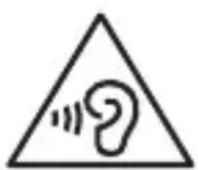
- Excessive exposure to loud sounds can cause hearing damage.
- Always turn the volume down before plugging the earphones into an audio source and use only the minimum volume setting necessary to hear music.
- Ensure the headset cable is not twisted around nearby objects.
Do not use the device if it is cracked or broken.
Broken glass or acrylic could cause injury to your hands and face. Take the device to a Samsung Service Center to have it repaired.
Use manufacturer-approved batteries, chargers, accessories, and supplies.
Samsung cannot be responsible for the user's safety when using accessories or supplies that are not approved by Samsung.
Do not disassemble, modify, or repair your device.
Any changes or modifications to your device can void your manufacturer's warranty. If your device needs servicing, take your device to a Samsung Service Center.
When cleaning your device, mind the following.
- Wipe the device and its lens with a clean soft cloth or a cotton swab.
- Do not use chemicals or detergents. Doing so may discolor or corrode the outside the device.
- Do not wash the foam cushioning. Doing so may cause the foam cushioning to deteriorate.
Handle and dispose of the device and charger with care.
- Never place the battery or device on or in heating devices, such as microwave ovens, stoves, or radiators.
- Never crush or puncture the device.
Allow only qualified personnel to service your device.
Allowing unqualified personnel to service your device may result in damage to your device and will void your manufacturer's warranty.
FCC Warning
This equipment has been tested and found to comply with the limits for a Class B digital device, pursuant to part 15 of the FCC Rules. These limits are designed to provide reasonable protection against harmful interference in a residential installation. This equipment generates, uses and can radiate radio frequency energy and, if not installed and used in accordance with the instructions, may cause harmful interference to radio communications. However, there is no guarantee that interference will not occur in a particular installation. If this equipment does cause harmful interference to radio or television reception, which can be determined by turning the equipment off and on, the user is encouraged to try to correct the interference by one or more of the following measures:
Appendix
- Reorient or relocate the receiving antenna.
- Increase the separation between the equipment and receiver.
- Connect the equipment into an outlet on a circuit different from that to which the receiver is connected.
- Consult the dealer or an experienced radio/TV technician for help.
Caution: Any changes or modifications to this device not explicitly approved by manufacturer could void your authority to operate this equipment.
This device complies with part 15 of the FCC Rules. Operation is subject to the following two conditions: (1) This device may not cause harmful interference, and (2) this device must accept any interference received, including interference that may cause undesired operation.
RF Exposure Statement (2.1091)
FCC RF Radiation Exposure Statement: This equipment complies with FCC RF Radiation exposure limits set forth for an uncontrolled environment.
This device and its antenna must not be co-located or operating in conjunction with any other antenna or transmitter.
IC Warning (VR Controller only)
"This device complies with Industry Canada licence-exempt RSS standard(s)."
Operation is subject to the following conditions: (1) this device may not cause interference, and (2) this device must accept any interference, including interference that may cause undesired operation of the device.
Appendix
Copyright © 2018 Samsung Electronics
This manual is protected under international copyright laws.
No part of this manual may be reproduced, distributed, translated, or transmitted in any form or by any means, electronic or mechanical, including photocopying, recording, or storing in any information storage and retrieval system, without the prior written permission of Samsung Electronics.
Trademarks
• SAMSUNG and the SAMSUNG logo are registered trademarks of Samsung Electronics.
- Bluetooth® is a registered trademark of Bluetooth SIG, Inc. worldwide.
- All other trademarks and copyrights are the property of their respective owners.
AKG®
HARMAN
English
Manual do Usuário
SAMSUNG
www.samsung.com
natural_image
Diagram of a device with internal components and directional arrows indicating movement (no text or symbols)Para comenzar
natural_image
Line drawing of a person using VR headset with hand-in-hand tool, accompanied by a thought bubble showing head view (no text or symbols)
natural_image
Illustration showing two figures wearing head coverings, with arrows indicating motion or movement (no text or symbols)natural_image
Illustration of a handheld device with a magnified inset showing a hand holding a small object (no text or symbols present)Presionar
natural_image
Illustration of a hand holding a small object with an arrow indicating direction (no text or symbols)natural_image
Line drawing of a hand holding a remote control device with directional arrows indicating movement (no text or symbols)natural_image
Line drawings of a hand holding a gaming controller, showing two different grip configurations (no text or symbols present)natural_image
Interior of a modern library or entertainment space with a person floating on a screen, no visible text or symbols.Copyright © 2018 Samsung Electronics
English/Spanish. 07/2018. Rev. 1.0
- About the Head Mounted Display
- Table of contents
- Read me first
- Getting started
- Basics
- Using the HMD
- Appendix
- Instructional icons
- Package contents
- Optional items
- Device layout
- HMD
- Controller (optional)
- Connecting the HMD
- Connecting the HMD to a computer
- Preparing the HMD for use
- you're good but help to find the software may not be going to your own help. This is a version of NVIDIA CPU to the reverse to the next user shown here.
- Disconnecting and reconnecting the controller
- Wearing the HMD
- Moving the screen
- Moving the pointer
- Moving your position
- Using the controller (optional)
- Pressing
- Pushing the thumbstick
- Dragging on the touchpad
- Launching the start screen
- Launching the menu
- Mixed Reality Portal app
- Using the Mixed Reality Portal
- Icon functions
- Start screen
- Viewing images or videos
- Internet
- Viewing content
- Taking photos or recording videos
- Downloading apps and content
- Learning about the Mixed Reality Portal
- Turning off the Mixed Reality Portal
- Troubleshooting
- The screen does not appear when the HMD is connected to the computer
- The Mixed Reality Portal does not recognize the HMD
- The Mixed Reality Portal app does not update
- Digital boundary area unavailable
- The screen is out of focus
- The controller does not work
- Light interference while wearing the HMD
- Health and safety warnings
- Seizures
- Children
- General Precautions
- Discomfort
- Repetitive Stress Injury
- Interference with Medical Devices
- Controller
- Batteries
- Electrical Shock
- Damaged or Broken Device
- Contagious Conditions
- Skin Irritation
- To avoid damage to the HMD
- Notices for using Bluetooth
- Safety information
- Do not use the device if it is cracked or broken.
- Use manufacturer-approved batteries, chargers, accessories, and supplies.
- Do not disassemble, modify, or repair your device.
- When cleaning your device, mind the following.
- Handle and dispose of the device and charger with care.
- Allow only qualified personnel to service your device.
- FCC Warning
- RF Exposure Statement (2.1091)
- IC Warning (VR Controller only)
- Trademarks
- Manual do Usuário
- Presionar
Brand : SAMSUNG
Model : XE800ZAA
Category : Virtual reality headset